phone MAZDA MODEL 3 HATCHBACK 2013 (in English) User Guide
[x] Cancel search | Manufacturer: MAZDA, Model Year: 2013, Model line: MODEL 3 HATCHBACK, Model: MAZDA MODEL 3 HATCHBACK 2013Pages: 611, PDF Size: 5.61 MB
Page 341 of 611

qHow to use iPod mode (Type A)
Track down/Reverse button Track up/Fast-
forward buttonCategory up button
Category down button
Display buttonList down
button
List up
button
Random button Repeat button
Text button
Scan button
Play/Pause button/File dialAUX button
Connectable iPod is as follows:liPod: 5GliPod classicliPod nano: 1/2/3/4/5/6GliPod touch*1: 1/2/3/4GliPhone*1: iPhone/3G/3GS/4
*1 For only iPod functions
NOTE
The iPod functions on the iPod cannot be
operated while it is connected to the unit
because the unit controls the iPod functions.
Playback
1. Switch the ignition to ACC or ON.
2. Press the power/volume dial to turn the
audio system on.3. Press the AUX button (
) of the
audio unit or the mode switch (
)
of the audio control switches on the
steering wheel to switch to the iPod
mode and start playback.
NOTE
lWhen an iPod is not connected, the mode
does not switch to the iPod mode.
lWhen there is no playable data in the iPod,
“NO CONTENTS”is flashed.
lDo not remove the iPod while in the iPod
mode. Otherwise, the data could be
damaged.
Pause
To stop playback, press the Play/Pause
button (
).
Press the button again to resume
playback.
6-100
Interior Comfort
Audio System
Page 345 of 611

qHow to use iPod mode (Type B)
Audio buttonTrack up/Fast-
forward button
File dial Power/Volume dial
Track down/Reverse
button
The connectable iPods are as follows:liPod classicliPod nano: 4/5/6GliPod touch*1: 2/3/4GliPhone*1: 3GS/4/4S
*1 Only iPod function
NOTE
The iPod functions on the iPod cannot be
operated while it is connected to the unit
because the unit controls the iPod functions.
Playback
1. Switch the ignition to ACC or ON.
2. Press the power/volume dial to turn the
audio system on.
3. Press the audio button (
)to
display the audio screen.4. Touch the
on-screen tab to
switch to the iPod mode and start
playback.
NOTE
lWhen the iPod is connected to the USB
port, the
on-screen tab changes to
the
on-screen tab.lDo not remove the iPod while in the iPod
mode. Otherwise, the data could be
damaged.
Pause
Touch the
on-screen button to
pause playback. Touch the
on-
screen button while playback is paused to
cancel the pause.
6-104
Interior Comfort
Audio System
Page 349 of 611
Bluetooth® Audioí
qWhat is Bluetooth® Audio?
Bluetooth®audio outline
By programming portable audio devices
equipped with the Bluetooth
®
communication function to the vehicle's
Bluetooth®unit, you can listen to music
or audio recorded on these audio devices
from the vehicle's speakers. Bluetooth
®
audio devices do not need to be plugged
into the auxiliary jack.
After programming, operate the audio
system's control panel to play/stop the
music or audio.
CAUTION
ØAlways program audio devices to
the Bluetooth®audio system
while the vehicle is stopped.
ØBecause only specified Bluetooth
®
audio devices can be used, consult
an Authorized Mazda Dealer when
purchasing or changing devices.
Bluetooth
®audio devices which
correspond to specified
Bluetooth
®versions and profiles
can be Bluetooth®-connected to
the vehicle's Bluetooth®unit.
However, even among these
devices are ones which cannot be
Bluetooth
®-connected or have
limited functionality. Each device
to be used with the vehicle's
Bluetooth
®unit needs to be
checked individually for
compatibility. Consult an
Authorized Mazda Dealer
concerning device compatibility.
ØU.S.A.
Phone: 800-430-0153
Web: www.MazdaUSA.com/
bluetooth
ØCanada
Phone: 800-430-0153
Web: www.mazdahandsfree.ca
ØMexico
Center of Attention to Client
(CAC)
Phone: 01-800-01-MAZDA
Web:
www.mazdamexico.com.mx
Applicable Bluetooth
®specification
Ver. 2.0 or higher
6-108
Interior Comfort
íSome models.
Bluetooth® Audio (Type A)
Page 352 of 611
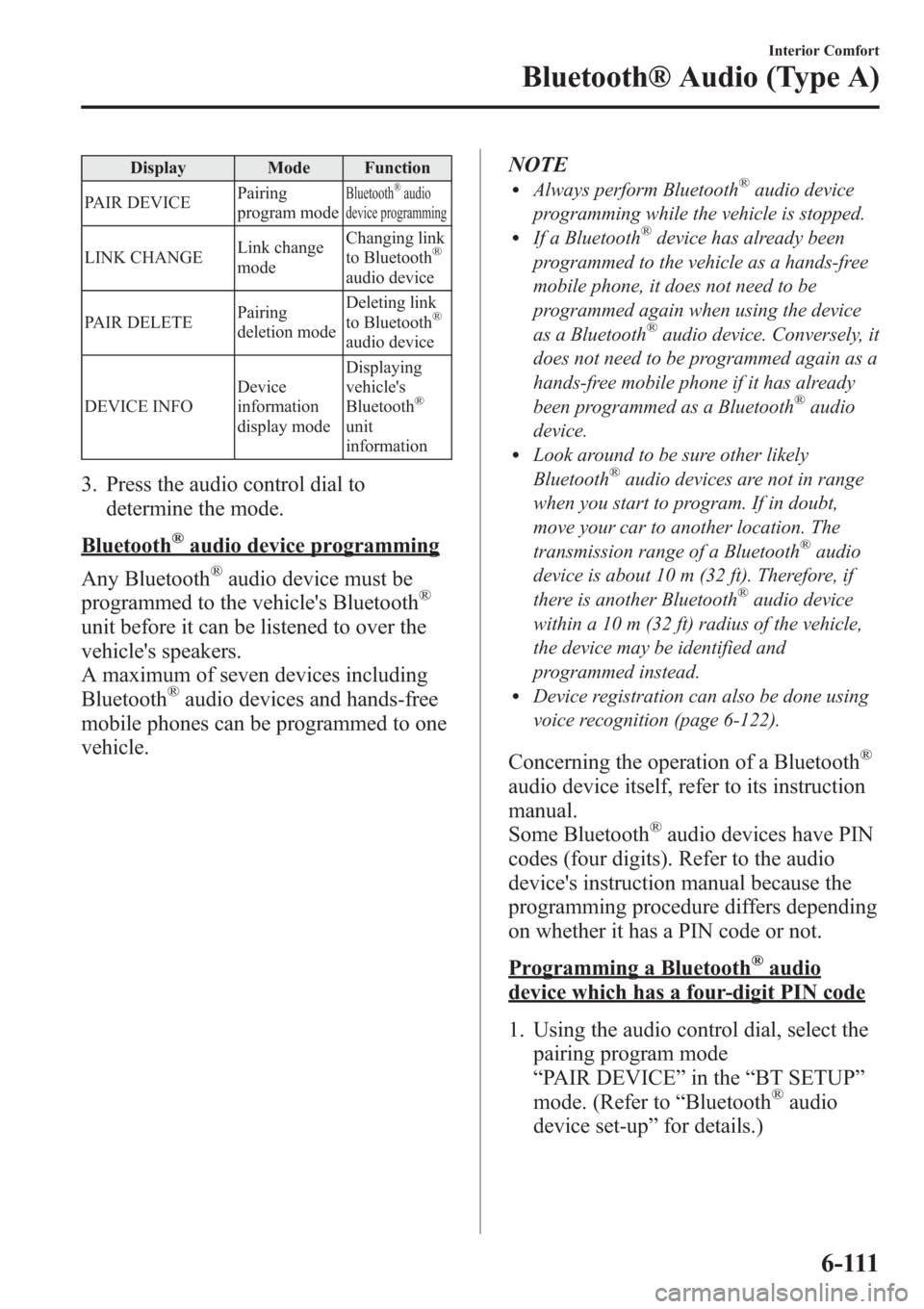
Display Mode Function
PAIR DEVICEPairing
program mode
Bluetooth®audio
device programming
LINK CHANGELink change
modeChanging link
to Bluetooth®
audio device
PAIR DELETEPairing
deletion modeDeleting link
to Bluetooth
®
audio device
DEVICE INFODevice
information
display modeDisplaying
vehicle's
Bluetooth
®
unit
information
3. Press the audio control dial to
determine the mode.
Bluetooth®audio device programming
Any Bluetooth
®audio device must be
programmed to the vehicle's Bluetooth®
unit before it can be listened to over the
vehicle's speakers.
A maximum of seven devices including
Bluetooth
®audio devices and hands-free
mobile phones can be programmed to one
vehicle.NOTE
lAlways perform Bluetooth®audio device
programming while the vehicle is stopped.
lIf a Bluetooth®device has already been
programmed to the vehicle as a hands-free
mobile phone, it does not need to be
programmed again when using the device
as a Bluetooth
®audio device. Conversely, it
does not need to be programmed again as a
hands-free mobile phone if it has already
been programmed as a Bluetooth
®audio
device.
lLook around to be sure other likely
Bluetooth®audio devices are not in range
when you start to program. If in doubt,
move your car to another location. The
transmission range of a Bluetooth
®audio
device is about 10 m (32 ft). Therefore, if
there is another Bluetooth
®audio device
within a 10 m (32 ft) radius of the vehicle,
the device may be identified and
programmed instead.
lDevice registration can also be done using
voice recognition (page 6-122).
Concerning the operation of a Bluetooth®
audio device itself, refer to its instruction
manual.
Some Bluetooth
®audio devices have PIN
codes (four digits). Refer to the audio
device's instruction manual because the
programming procedure differs depending
on whether it has a PIN code or not.
Programming a Bluetooth®audio
device which has a four-digit PIN code
1. Using the audio control dial, select the
pairing program mode
“PAIR DEVICE”in the“BT SETUP”
mode. (Refer to“Bluetooth
®audio
device set-up”for details.)
Interior Comfort
Bluetooth® Audio (Type A)
6-111
Page 355 of 611
6. If the link to the desired device is
successful, the“
”symbol is
displayed again, together with
“LINK CHANGED”.
“LINK CHANGED”is displayed for
three seconds, then it returns to the
normal display.
NOTE
lSome Bluetooth®audio devices need a
certain amount of time before the“
”
symbol is displayed.
lIf a hands-free type mobile phone has been
the most recently programmed device, the
Bluetooth
®unit links this device. If you
would like to use a Bluetooth®audio type
device which has been previously
programmed to the Bluetooth
®unit, the link
must be changed to this device.
lIf an error occurs while trying to link a
device,“Err”flashes in the display for
three seconds, and the display returns to
“LINK CHANGE”. If this occurs, check the
programming status of the Bluetooth
®
audio device and the location of the device
in the vehicle (not in the trunk or a metal-
type box), and then try the link operation
again.
lDevice selection can also be done using
voice recognition (page 6-133).
How to confirm the device currently
linked
Switch to the link-change mode. (Refer to
“Changing the link to a Bluetooth
®audio
device”)
The device name displayed first is the
device which is currently linked.
Deleting the link to a Bluetooth®audio
device
1. Using the audio control dial, select the
pairing delete mode“PAIR DELETE”
in the“BT SETUP”mode. (Refer to
“Bluetooth
®audio device set-up”for
details.)
2. Press the audio control dial to
determine the mode.
3. The name of the first device among the
programmed devices is displayed.
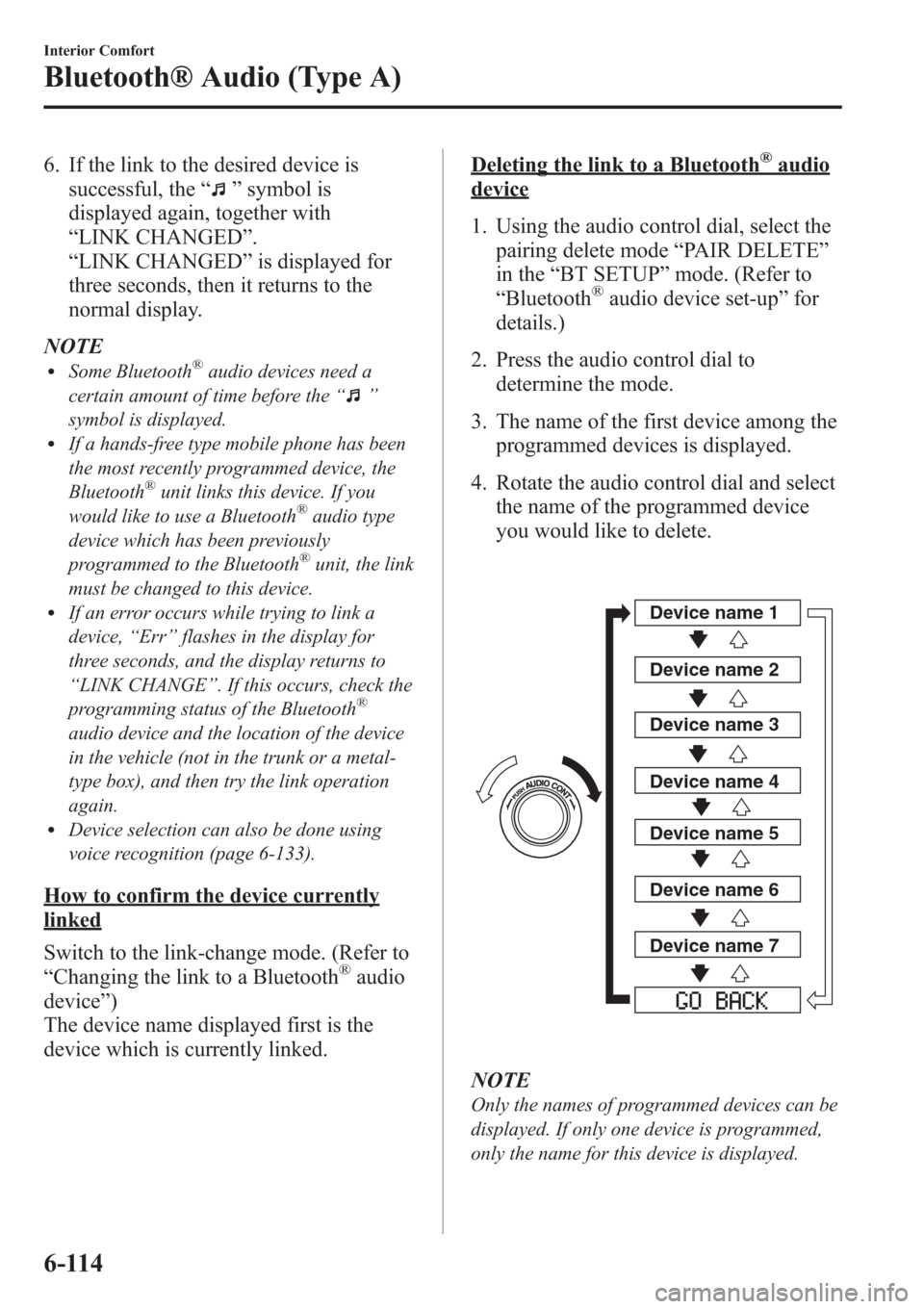
4. Rotate the audio control dial and select
the name of the programmed device
you would like to delete.
Device name 1
Device name 2
Device name 3
Device name 4
Device name 5
Device name 6
Device name 7
NOTE
Only the names of programmed devices can be
displayed. If only one device is programmed,
only the name for this device is displayed.
6-114
Interior Comfort
Bluetooth® Audio (Type A)
Page 357 of 611
NOTE
Some Bluetooth®audio devices need a certain
amount of time before the“
”symbol is
displayed.
3. Press the AUX button () to switch
to the Bluetooth®audio mode and start
playback.
If the current device version is lower
than AVRCP Ver. 1.3:
“BT Audio”is displayed.
If the current device is AVRCP Ver.
1.3:
The playback time is displayed.
NOTE
lIf the Bluetooth®audio device does not
begin playback, press the Play/Pause
button (
).lIf the mode is switched from Bluetooth®
audio mode to another mode (radio mode),
audio playback from the Bluetooth®audio
device stops.
lIf a call is received on a hands-free mobile
phone during playback from the Bluetooth®
audio device, the playback is stopped.
Playback from the Bluetooth®audio device
resumes after the call ends.
Playback
1. To listen to a Bluetooth
®audio device
over the vehicle's speaker system,
switch the mode to Bluetooth
®audio
mode. (Refer to“Switching to
Bluetooth
®audio mode”)
2. To stop playback, press the Play/Pause
button (
).
3. Press the button again to resume
playback.
Selecting a file (track)
Short-press the track down button (
)or
turn the file dial counterclockwise: Selects
the beginning of the current file (track).
Short-press the track up button (
)or
turn the file dial clockwise: Selects the
next file (track).
Fast-forward/Reverse (only AVRCP
Ver. 1.3)
Fast-forward
Press and hold the track up button (
).
Reverse
Press and hold the track down button
(
).
Switching the display (only AVRCP
Ver. 1.3)
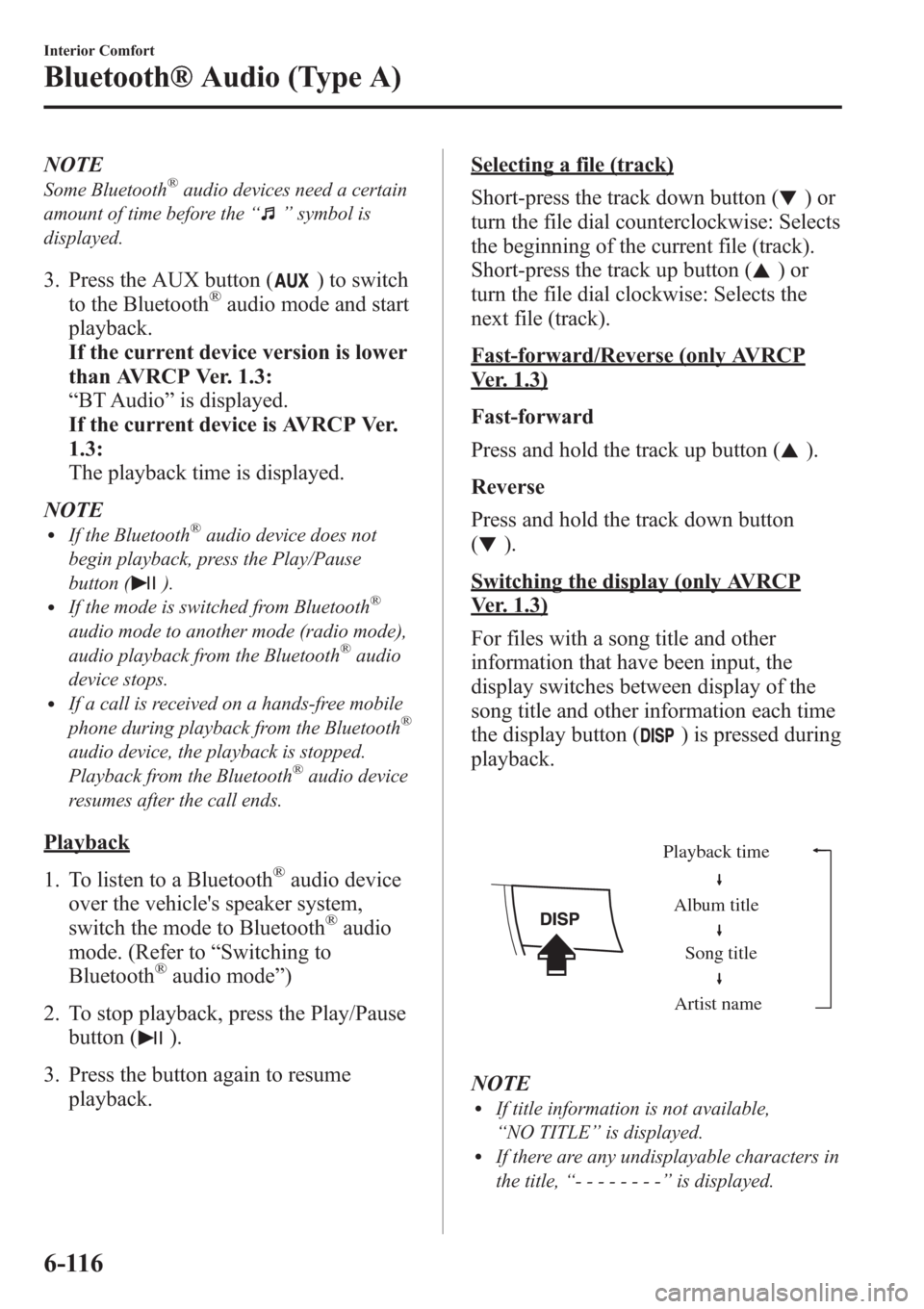
For files with a song title and other
information that have been input, the
display switches between display of the
song title and other information each time
the display button (
) is pressed during
playback.
Album title
Song title
Artist name Playback time
NOTElIf title information is not available,
“NO TITLE”is displayed.
lIf there are any undisplayable characters in
the title,“--------”is displayed.
6-116
Interior Comfort
Bluetooth® Audio (Type A)
Page 359 of 611

Bluetooth® Hands-Freeí
qWhat is Bluetooth® Hands-Free?
Bluetooth®Hands-Free Outline
By connecting a Bluetooth
®equipped
device (Mobile phone) to the hands-free
unit equipped on the vehicle, making and
receiving calls is possible using the talk
button, pick-up button and hang-up button
located on the steering wheel, and saying
the voice commands.
WARNING
Perform phonebook registration related
operations while the vehicle is parked:
Performing phonebook registration
while driving the vehicle could be a
distraction to your driving and result
in an accident. In addition, a mistake
in performing the phonebook
operation could result in the loss of
important data.
Bluetooth®equipped device (Mobile
phone)
A Bluetooth
®equipped device (Mobile
phone) communicates with the hands-free
unit equipped on the vehicle using radio
transmission (Bluetooth
®).
For example, if the device (Mobile phone)
is placed in a coat pocket, the phone calls
can be made through your mobile service
without taking out and handling the
device (Mobile phone).
CAUTION
The types of devices (Mobile phone)
which can be connected to the
hands-free unit are limited.
Therefore, before purchasing or
changing your device (Mobile phone)
model, consult Mazda Bluetooth
®
Hands-Free Customer Service or visit
www.MazdaUSA.com/bluetooth for a
complete list of compatible phones.
Devices (Mobile phone) which can be
connected to the hands-free system
need to be compliant with
Bluetooth
®specifications and the
appropriate profile. However, even
among these Bluetooth
®devices
(Mobile phone) are some which will
not connect with your Mazda or will
have limited function. Therefore,
consult Mazda Bluetooth
®Hands-
Free Customer Service for
information regarding device (Mobile
phone) compatibility:
ØU.S.A.
Phone: 800-430-0153
Web: www.MazdaUSA.com/
bluetooth
ØCanada
Phone: 800-430-0153
Web: www.mazdahandsfree.ca
ØMexico
Center of Attention to Client (CAC)
Phone: 01-800-01-MAZDA
Web: www.mazdamexico.com.mx
Applicable Bluetooth
®specification
Ver. 2.0 or higher
Response profile
lHFP (Hands Free Profile) Ver. 1.5lDUN (Dial-up Networking Profile)
Ver. 1.1
lPBAP (Phone Book Access Profile)
Ver. 1.0
6-118
Interior Comfort
íSome models.
Bluetooth® Hands-Free (Type A)
Page 360 of 611

lA2DP (Advanced Audio Distribution
Profile) Ver. 1.0
lOPP (Object Push Profile) Ver. 1.1
NOTE
lThe Bluetooth®Hands-Free system is
operable several seconds after the ignition
is switched to ACC or ON (requires less
than 15 seconds).
lIf the ignition is switched off during a
hands-free call, the line is transferred to the
device (Mobile phone) automatically.
lIf the device (Mobile phone) is in a location
where radio reception is difficult such as a
metal container or in the trunk, the call may
not be connected using Bluetooth
®.If
communication is not possible, change the
location of the device (Mobile phone).
qComponent Parts
Bluetooth®Hands-Free consists of the
following items:
lTalk buttonlPick-up buttonlHang-up buttonlInformation displaylMicrophonelAudio unit
Talk button, Pick-Up button and Hang-
Up button
Basic functions of Bluetooth
®Hands-Free
can be used for such things as making
calls or hanging up using the talk button,
pick-up button and hang-up button on the
steering wheel.
Talk button
Pick-up buttonTalk button
Hang-up button Pick-up button
Talk button operations
A short press or a long press of the talk
button is used to operate the system as
follows:
lShort press (Press the button less than
0.7 sec.)
lLong press (Press the button 0.7 sec. or
more.)
Interior Comfort
Bluetooth® Hands-Free (Type A)
6-119
Page 361 of 611
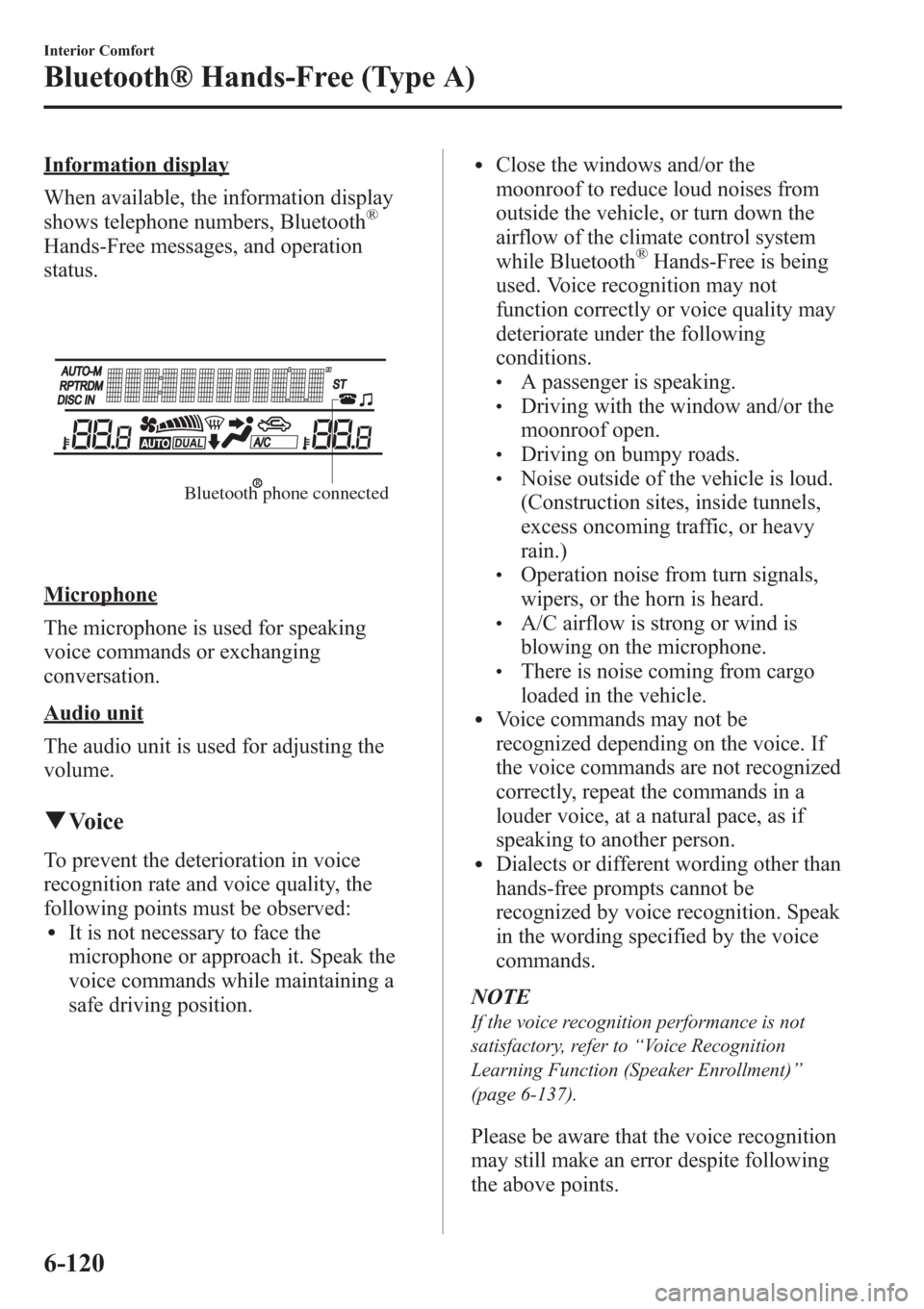
Information display
When available, the information display
shows telephone numbers, Bluetooth
®
Hands-Free messages, and operation
status.
Bluetooth phone connected
Microphone
The microphone is used for speaking
voice commands or exchanging
conversation.
Audio unit
The audio unit is used for adjusting the
volume.
qVoice
To prevent the deterioration in voice
recognition rate and voice quality, the
following points must be observed:
lIt is not necessary to face the
microphone or approach it. Speak the
voice commands while maintaining a
safe driving position.
lClose the windows and/or the
moonroof to reduce loud noises from
outside the vehicle, or turn down the
airflow of the climate control system
while Bluetooth
®Hands-Free is being
used. Voice recognition may not
function correctly or voice quality may
deteriorate under the following
conditions.
lA passenger is speaking.lDriving with the window and/or the
moonroof open.
lDriving on bumpy roads.lNoise outside of the vehicle is loud.
(Construction sites, inside tunnels,
excess oncoming traffic, or heavy
rain.)
lOperation noise from turn signals,
wipers, or the horn is heard.
lA/C airflow is strong or wind is
blowing on the microphone.
lThere is noise coming from cargo
loaded in the vehicle.
lVoice commands may not be
recognized depending on the voice. If
the voice commands are not recognized
correctly, repeat the commands in a
louder voice, at a natural pace, as if
speaking to another person.
lDialects or different wording other than
hands-free prompts cannot be
recognized by voice recognition. Speak
in the wording specified by the voice
commands.
NOTE
If the voice recognition performance is not
satisfactory, refer to“Voice Recognition
Learning Function (Speaker Enrollment)”
(page 6-137).
Please be aware that the voice recognition
may still make an error despite following
the above points.
6-120
Interior Comfort
Bluetooth® Hands-Free (Type A)
Page 362 of 611

qFunction Restrictions While
Using Bluetooth® Hands-Free
Some functions are limited while
Bluetooth®Hands-Free is being used.
They include:
lBeep sound and voice guidance related
to the audio unit are not heard.
lBeep sound related to the A/C
operation is not heard.
qHow to Use This Section
Descriptions in the text are as follows:
Say:Voice commands to be spoken by
you.
Prompt:Voice guidance output from the
speaker.
NOTE
Say voice commands after the beep sound
[Beep] is heard.
Example)
Say:[Beep]“Dial”
Prompt:“Number, please”
Say:[Beep]“XXXXXXXXXXX (Ex.
“555-1234”) (Telephone number)”
Bluetooth®Hands-Free Activation
Method
Press the pick-up button or talk button
with a short press.
The hands-free system is activated.
Functions of the hands-free telephone,
such as making and receiving calls, can be
used after the activation. (For details on
the telephone functions, refer to“Basic
Bluetooth
®Hands-Free Operation”or
“Convenient Use of the Hands-Free
System”.)
Tutorial
The tutorial explains how to use
Bluetooth
®Hands-Free.
To activate the tutorial, do the following:
1. Press the pick-up button or talk button
with a short press.
2.Say:[Beep]“Tutorial”
3. Follow the prompts to receive the
appropriate voice guidance
instructions.
qUseful Commands at Anytime,
Convenient Operations
Help function use
The help function informs the user of all
the available voice commands under the
current conditions.
1. Press the talk button with a short press.
2.Say:[Beep]“Help”
3. Follow the prompts to receive the
appropriate voice guidance
instructions.
Cancel
The Bluetooth
®Hands-Free system
transitions to standby status if the
following operation is performed while
the system is activating.
Press the hang-up button, or the talk
button with a long press.
Returning to previous operation
This command is for returning to the
previous operation while in the voice
recognition mode.
Say:[Beep]“Go Back”
Interior Comfort
Bluetooth® Hands-Free (Type A)
6-121