air condition MAZDA MODEL 6 2020 (in English) Owner's Guide
[x] Cancel search | Manufacturer: MAZDA, Model Year: 2020, Model line: MODEL 6, Model: MAZDA MODEL 6 2020Pages: 702
Page 391 of 702

Vent Operation
▼Adjusting the Vents
Directing airflow
To adjust the direction of airflow, move
the adjustment knob.
NOTE
When using the air conditioner under
humid ambient temperature conditions,
the system may blow fog from the vents.
This is not a sign of trouble but a result
of humid air being suddenly cooled.
The air vents can be fully opened and
closed by operating the dial.
Side Vents
Knob
Open
Close
Dial
Center Vents
Open
Close Dial
Knob
Rear Vents*
KnobDial
Close
Open
Interior Features
Climate Control System
*Some models.5-3
Mazda6_8HX3-EA-19I_Edition1_old
2019-6-18 9:25:17
Page 393 of 702

Fully Automatic Type
Climate control system information is displayed on the display.
AUTO switchSYNC (synchronized temperature) switch
Passenger temperature
control dial
Driver temperature
control dial
Rear window defogger switch
Windshield defroster switch
Air intake selector A/C switch
Power switch
Mode selector switch
Fan control switch
Airflow
display
Temperature setting display
(driver’s side)
Mode selector
display
A/C mode display
Temperature setting display (Passenger’s side)
▼
Control Switches
AUTO switch
By pressing the AUTO switch the
following functions will be automatically
controlled in accordan
ce with the selected
set temperature:
Airflow temperature
Amount of airflow
Selection of airflow mode
Outside/Recirculated air selection
Air conditioner operation
NOTE
AUTO switch indicator light
When on, it indicates auto operation,
and the system will function
automatically.
If any of the following switches are
operated while in auto control, the
AUTO switch indicator turns off.
Mode selector switch
Fan control switch
Windshield defroster switch
The functions for switches other than
those operated continue to operate in
auto control.
Power switch (Fan On/Off)
The climate control system turns on or off
by pressing the power switch.
Interior Features
Climate Control System
5-5
Mazda6_8HX3-EA-19I_Edition1_old 2019-6-18 9:25:17
Page 394 of 702
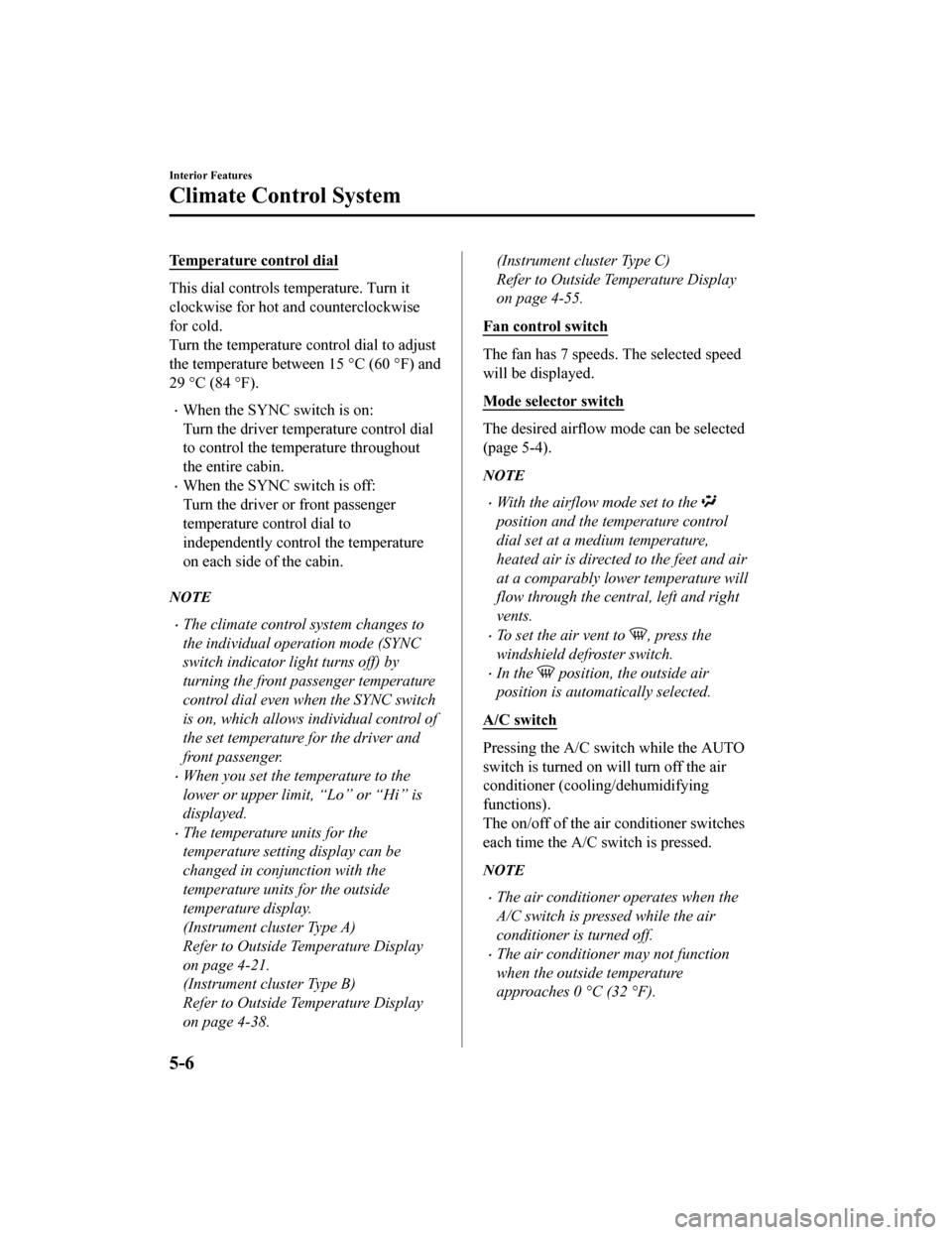
Temperature control dial
This dial controls temperature. Turn it
clockwise for hot and counterclockwise
for cold.
Turn the temperature c ontrol dial to adjust
the temperature between 15 °C (60 °F) and
29 °C (84 °F).
When the SYNC switch is on:
Turn the driver temperature control dial
to control the temperature throughout
the entire cabin.
When the SYNC switch is off:
Turn the driver or front passenger
temperature control dial to
independently control the temperature
on each side of the cabin.
NOTE
The climate control system changes to
the individual operation mode (SYNC
switch indicator light turns off) by
turning the front passenger temperature
control dial even when the SYNC switch
is on, which allows individual control of
the set temperature for the driver and
front passenger.
When you set the temperature to the
lower or upper limit, “Lo” or “Hi” is
displayed.
The temperature units for the
temperature setting display can be
changed in conjunction with the
temperature units for the outside
temperature display.
(Instrument cluster Type A)
Refer to Outside Temperature Display
on page 4-21.
(Instrument cluster Type B)
Refer to Outside Temperature Display
on page 4-38.
(Instrument cluster Type C)
Refer to Outside Temperature Display
on page 4-55.
Fan control switch
The fan has 7 speeds. The selected speed
will be displayed.
Mode selector switch
The desired airflow mode can be selected
(page 5-4).
NOTE
With the airflow mode set to the
position and the temperature control
dial set at a medium temperature,
heated air is directed to the feet and air
at a comparably lower temperature will
flow through the central, left and right
vents.
To set the air vent to , press the
windshield defroster switch.
In the position, the outside air
position is automatically selected.
A/C switch
Pressing the A/C swit ch while the AUTO
switch is turned on w ill turn off the air
conditioner (cooling/dehumidifying
functions).
The on/off of the air conditioner switches
each time the A/C switch is pressed.
NOTE
The air conditioner operates when the
A/C switch is pressed while the air
conditioner is turned off.
The air conditioner may not function
when the outside temperature
approaches 0 °C (32 °F).
Interior Features
Climate Control System
5-6
Mazda6_8HX3-EA-19I_Edition1_old 2019-6-18 9:25:17
Page 395 of 702

Air intake selector
Outside or recirculated air positions can be
selected. Press the switch to select outside/
recirculated air positions.
Recirculated air position (indicator light
turns on)
Outside air is shut off. Use this position
when going through tunnels, driving in
congested traffic (high engine exhaust
areas) or when quick cooling is desired.
Outside air positio n (indicator light
turns off)
Outside air is allowed to enter the cabin.
Use this mode for ventilation or
windshield d efrosting.
WA R N I N G
Do not recirculate the air in the cabin
during cold or rainy weather:
Recirculating the air in the cabin during
cold and rainy weather is dangerous as it
will cause the windows to fog up. Your
vision will be hampered, which could lead
to a serious accident.
SYNC (Synchronized Temperature)
switch
Use the SYNC switch to change the mode
between the individual operation (driver
and passenger) and interconnection
(simultaneous) modes.
Interconnection mode (indicator light
turns on)
The set temperature for the driver and
front passenger is controlled
simultaneously.
Individual operation mode (indicator
light turns off)
The set temperature can be controlled
individually for the driver and front
passenger.
Windshield defroster switch
Press the switch to defrost the windshield
and front door windows.
Refer to Windshield Defrosting and
Defogging on page 5-8.
Rear window defogger switch
Press the rear window defogger switch to
defrost the rear window.
Refer to Rear Window Defogger on page
4-87.
▼Operation of Automatic Air
Conditioner
1. Press the AUTO switch. Selection of
the airflow mode, air intake selector
and amount of airflow will be
automatically controlled.
2. Use the temperature control dial to select a desired temperature.
If you want to set the temperature on
the front passenger's side separately
from the driver's side, turn the front
passenger temperature control dial to
switch the mode automatically to the
individual operation mode and set the
temperature for the front passenger's
side.
To turn off the system, press the power
switch.
NOTE
Set the control dial to the recommended
temperature of 22 °C (72 °F), and then
adjust it as desired.
Interior Features
Climate Control System
5-7
Mazda6_8HX3-EA-19I_Edition1_old 2019-6-18 9:25:17
Page 396 of 702

Setting the temperature to maximum hot
or cold will not provide the desired
temperature at a faster rate.
When selecting heat, the system will
restrict airflow until the engine has
warmed to prevent cold air from
blowing out of the vents.
▼Windshield Defrosting and
Defogging
Press the windshield
defroster switch.
In this position, the outside air position is
automatically selected, and the air
conditioner automatically turns on. The air
conditioner will direct ly dehumidify the
air to the front windshield and side
windows on page 5-4.
Airflow amount wil l be increased.
WA R N I N G
Set the temperature control to the hot or
warm position when defogging (
position):
Using the
position with the temperature
control set to the cold position is
dangerous as it will cause the outside of the
windshield to fog up. Your vision will be
hampered, which could lead to a serious
accident.
NOTE
Use the temperature control dial to
increase the air flow temperature and
defog the windshie ld more quickly.
▼Sunlight/Temperature Sensor
Sunlight sensor
Do not place objects on the sunlight
sensor. Otherwise, the interior temperature
may not adjust correctly.
Sunlight sensor
Interior temperature sensor
Do not cover the interior temperature
sensor. Otherwise, the interior temperature
may not adjust correctly.
Interior temperature sensor
Interior Features
Climate Control System
5-8
Mazda6_8HX3-EA-19I_Edition1_old
2019-6-18 9:25:17
Page 410 of 702
Multicast channel selection (FM)
If multi-cast channels are available for an
broadcast currently being
received, the multi-cast channel list is
displayed. Select the desired radio station.
NOTE
If an analog broadcast is received once
and
is received while HD1 is
selected, the audio unit switches to the
station automatically.
When the icon is illuminated, there
could be a noticeable difference in
sound quality and volume when a
change from digital to analog signals
occurs. If the sound quality and volume
become noticeably diminished or cut off,
select the
icon to turn off
( icon is not illuminated).
Once an analog broadcast is received
when HD1 is selected from the Favorite
channels, it is switched to
automatically. If the radio reception
conditions are poor, or HD is off,
switching to
broadcasts is not
possible.
When an HD specialty channel (HD2 to
HD8) is selected from the Favorite
channels, “Signal Lost” is displayed
and no audio is output until
is received. If the radio reception
conditions are poor, “Signal Lost”
continues to be displayed.
If the icon is not illuminated,
information such as song titles of the
station are received, however,
the audio output is analog.
iTunes Tagging (for Apple devices with
USB use only)
By tagging a song currently being aired,
the song can later be purchased from the
iTunes Store. One hundred tags can be
stored. A maximum of 100 tags (for 100
songs) can be stored for later
downloading.
1. Select the
icon. The tag is stored in
the audio unit.
2. Connect the device via the vehicle's
USB. Any stored tag(s) will be sent
automatically to the connected device.
3. Once at home or after parking the
vehicle safely, log onto the iTunes
Store with your device. Your
previously tagged song(s) can now be
easily purchased.
NOTE
Both AM and FM can be
used.
Because iTunes tagging only supports
purchases from the iTunes Store, direct
downloading of music from the vehicle's
audio unit is not possible.
If the available memory for the
connected device is insufficient, the tag
is not sent.
If an error occurs while the tag is being
sent, reconnect the device.
Interior Features
Audio Set
5-22
Mazda6_8HX3-EA-19I_Edition1_old 2019-6-18 9:25:17
Page 422 of 702

How to use Apple CarPlay™*
▼What is Apple CarPlay™?
Apple CarPlay™ allows you to make calls, send or receive messag
es, and listen to music
using your iPhone
® with the vehicle's audio system, or search for destinations us ing the
maps. In addition, voice recognition operation is possible using Siri
®.
CAUTION
YOU EXPRESSLY ACKNOWLEDGE AND AGREE THAT USE OF APPLE CARPLAY™ (“THE
APPLICATION”) IS AT YOUR SOLE RISK AND THAT THE ENTIRE RISK AS TO SATISFACTORY
QUALITY, PERFORMANCE, ACCURACY AND EFFO RT IS WITH YOU TO THE MAXIMUM EXTENT
PERMITTED BY APPLICABLE LAW, AND THAT THE APPLICATION AND INFORMATION ON THE
APPLICATION IS PROVIDED “AS IS” AND “AS AVAILABLE”, WITH ALL FAULTS AND WITHOUT
WARRANTY OF ANY KIND, AND MAZDA HE REBY DISCLAIMS ALL WARRANTIES AND
CONDITIONS WITH RESPECT TO THE APPLICATION AND INFORMATION ON THE
APPLICATION, EITHER EXPRESS, IMPLIED OR STATUTORY, INCLUDING, BUT NOT LIMITED TO,
THE IMPLIED WARRANTIES AND/OR CONDITIO NS OF MERCHANTABILITY, SATISFACTORY
QUALITY, FITNESS FOR A PARTICULAR PURPOSE, ACCURACY, QUIET ENJOYMENT, AND
NONINFRINGEMENT OF THIRD PARTY RIGHTS. AS EXAMPLES, AND WITHOUT LIMITATION,
MAZDA DISCLAIMS ANY WARRANTY REGARDING THE ACCURACY OF DATA PROVIDED BY
THE APPLICATION, SUCH AS THE ACCURACY OF DIRECTIONS, ESTIMATED TRAVEL TIME,
SPEED LIMITS, ROAD CONDITIONS, NEWS, WEATHER, TRAFFIC, OR OTHER CONTENT
PROVIDED BY APPLE, ITS AFFILIATES, OR THIRD PARTY PROVIDERS; MAZDA DOES NOT
GUARANTEE AGAINST LOSS OF APPLICATION DATA, WHICH MAY BE LOST AT ANY TIME;
MAZDA DOES NOT GUARANTEE THAT THE APPLICATION OR ANY SERVICES PROVIDED
THROUGH THEM WILL BE PROVIDED AT ALL TIMES OR THAT ANY OR ALL SERVICES WILL BE
AVAILABLE AT ANY PARTICULAR TIME OR LOCATION. FOR EXAMPLE, SERVICES MAY BE
SUSPENDED OR INTERRUPTED WITHOUT NOTICE FOR REPAIR, MAINTENANCE, SECURITY
FIXES, UPDATES, ETC., SERVICES MAY BE UNAVAILABLE IN YOUR AREA OR LOCATION, ETC.
IN ADDITION, YOU UNDERSTAND THAT CH ANGES IN THIRD PARTY TECHNOLOGY OR
GOVERNMENT REGULATION MAY RENDER THE SERVICES AND/OR APPLICATIONS
OBSOLETE AND/OR UNUSABLE.
TO THE EXTENT NOT PROHIBITED BY LAW, IN NO EVENT SHALL MAZDA OR ITS AFFILIATES
BE LIABLE FOR PERSONAL INJURY, OR ANY INCIDENTAL, SPECIAL, INDIRECT OR
CONSEQUENTIAL DAMAGES WHAT SOEVER, INCLUDING, WITHOUT LIMITATION, DAMAGES
FOR LOSS OF PROFITS, CORRUPTION OR LOSS OF DATA, FAILURE TO TRANSMIT OR RECEIVE
ANY DATA, BUSINESS INTERRUPTION OR ANY OTHER COMMERCIAL DAMAGES OR LOSSES,
ARISING OUT OF OR RELATED TO THE APPLICAT ION OR YOUR USE OF OR INABILITY TO USE
THE APPLICATION OR INFORMATION ON THE APPLICATION.
Interior Features
Audio Set
5-34*Some models.
Mazda6_8HX3-EA-19I_Edition1_old 2019-6-18 9:25:17
Page 425 of 702

How to use Android Auto™ mode*
▼What is Android Auto™?
Android Auto™ is an application which allows the operation of a
n Android™ Smartphone
using the vehicle's audio. Android Auto™ functions such as the phone, messages, music,
and map can be used with the vehicle's audio system.
CAUTION
YOU EXPRESSLY ACKNOWLEDGE AND AGREE THAT USE OF ANDROID AUTO™ (“THE
APPLICATION”) IS AT YOUR SOLE RISK AND THAT THE ENTIRE RISK AS TO SATISFACTORY
QUALITY, PERFORMANCE, ACCURACY AND EFFO RT IS WITH YOU TO THE MAXIMUM EXTENT
PERMITTED BY APPLICABLE LAW, AND THAT THE APPLICATION AND INFORMATION ON THE
APPLICATION IS PROVIDED “AS IS” AND “AS AVAILABLE,” WITH ALL FAULTS AND WITHOUT
WARRANTY OF ANY KIND, AND MAZDA HERE BY DISCLAIMS ALL WARRANTIES AND
CONDITIONS WITH RESPECT TO THE APPLICATION AND INFORMATION ON THE
APPLICATION, EITHER EXPRESS, IMPLIED OR STATUTORY, INCLUDING, BUT NOT LIMITED TO,
THE IMPLIED WARRANTIES AND/OR CONDITIONS OF MERCHANTABIL ITY, SATISFACTORY
QUALITY, FITNESS FOR A PARTICULAR PURP OSE, ACCURACY, QUIET ENJOYMENT, AND
NONINFRINGEMENT OF THIRD PARTY RIGHTS. AS EXAMPLES, AND WITHOUT LIMITATION,
MAZDA DISCLAIMS ANY WARRANTY REGARDING THE ACCURACY OF DATA PROVIDED BY
THE APPLICATION, SUCH AS THE ACCURACY OF DIRECTIONS, ESTIMATED TRAVEL TIME,
SPEED LIMITS, ROAD CONDITIONS, NEWS, WEATHER, TRAFFIC, OR OTHER CONTENT
PROVIDED BY GOOGLE, ITS AFFILIATES, OR THIRD PARTY PROVIDERS; MAZDA DOES NOT
GUARANTEE AGAINST LOSS OF APPLICATION DATA, WHICH MAY BE LOST AT ANY TIME;
MAZDA DOES NOT GUARANTEE THAT THE APPLICATION OR ANY SERVICES PROVIDED
THROUGH THEM WILL BE PROVIDED AT ALL TI MES OR THAT ANY OR ALL SERVICES WILL BE
AVAILABLE AT ANY PARTICULAR TIME OR LOCATION. FOR EXAMPLE, SERVICES MAY BE
SUSPENDED OR INTERRUPTED WITHOUT NOTI CE FOR REPAIR, MAINTENANCE, SECURITY
FIXES, UPDATES, ETC., SERVIC ES MAY BE UNAVAILABLE IN YOUR AREA OR LOCATION, ETC.
IN ADDITION, YOU UNDERSTAND THAT CHANGES IN THIRD PARTY TECHNOLOGY OR
GOVERNMENT REGULATION MAY RENDER THE SERVICES AND/OR APPLICATIONS
OBSOLETE AND/OR UNUSABLE.
TO THE EXTENT NOT PROHIBITED BY LAW, IN NO EVENT SHALL MAZDA OR ITS AFFILIATES
BE LIABLE FOR PERSONAL INJURY, OR ANY INCIDENTAL, SPECIAL, INDIRECT OR
CONSEQUENTIAL DAMAGES WHATSOEVER, INCLUDING, WITHOUT LIMITATION, DAMAGES
FOR LOSS OF PROFITS, CORRUPTION OR LOSS OF DATA, FAILURE TO TRANSMIT OR RECEIVE
ANY DATA, BUSINESS INTERRUPTION OR AN Y OTHER COMMERCIAL DAMAGES OR LOSSES,
ARISING OUT OF OR RELATED TO THE APPLICATION OR YOUR USE OF OR INABILITY TO USE
THE APPLICATION OR INFORMATION ON THE APPLICATION.
Interior Features
Audio Set
*Some models.5-37
Mazda6_8HX3-EA-19I_Edition1_old 2019-6-18 9:25:17
Page 432 of 702
Bluetooth® Preparation
▼Device pairing
To use Bluetooth® audio and Hands-Free,
the device equipped with Bluetooth
® has
to be paired to the unit using the following
procedure. A maximum of 7 devices
including Bluetooth
® audio devices and
hands-free mobile phones can be paired.
NOTE
The Bluetooth® system may not operate
for 1 or 2 minutes after the ignition is
switched to ACC or ON. However, this
does not indicate a problem. If the
Bluetooth
® system does not connect
automatically after 1 or 2 minutes have
elapsed, make sure that the Bluetooth
®
setting on the device is normal and
attempt to reconnect the Bluetooth
®
device from the vehicle side.
If Bluetooth®-enabled devices are used
in the following loca tions or conditions,
connection via Bluetooth
® may not be
possible.
The device is in a location hidden
from the center display such as behind
or under a seat, or inside the glove
compartment.
The device contacts or is covered by a
metal object or body.
The device is set to power-saving
mode.
Pairing Procedure
1. Select the
icon on the home screen
to display the Settings screen.
2. Select the
tab.
3. Select
.
4. Turn the Bluetooth® setting on.
5. Select
to display the
message and switch to the device
operation.
6. Using your device, perform a search
for the Bluetooth
® device (Peripheral
device).
7. Select “Mazda” from the device list searched by the device.
8. (Device with Bluetooth
® version 2.0)
Input the displayed 4-digit pairing
code into the device.
(Device with Bluetooth
® version 2.1
or higher)
Make sure the displayed 6-digit code
on the audio is also displayed on the
device, and touch the
.
Connection permission and phonebook
access permission for your mobile
device may be required depending on
the mobile device.
9. If pairing is successful, the functions
of the device connected to Bluetooth
®
are displayed.
10. (Devices compatible with Mazda
E-mail / SMS function)
SMS (Short Message Service)
messages, and E-mail for the device
are downloaded automatically. A
download permission operation for
your device may be required
depending on the device.
NOTE
When Call history and messages are
downloaded automatically, each
automatic download setting must be on.
Refer to Communication Settings on
page 5-65.
Interior Features
Audio Set
5-44
Mazda6_8HX3-EA-19I_Edition1_old 2019-6-18 9:25:17
Page 433 of 702
After a device is registered, the system
automatically identifies the device. By
activating Bluetooth
® Hands-Free again,
or by activating Bluetooth
® Hands-Free
first after switching the ignition from OFF
to ACC, the device connection condition
is indicated in the center display.
IMPORTANT note about pairing and
automatic reconnection:
If pairing is redone on the same
mobile phone device, first clear
“Mazda” displayed on the Bluetooth
®
setting screen of the mobile device.
When the OS of the device is updated,
the pairing information may be deleted.
If this happens, reprogram the pairing
information to the Bluetooth
® unit.
Before you pair your device, make sure
that Bluetooth
® is “ON”, both on your
phone and on the vehicle.
▼ Device selection
If several devices have been paired, the
Bluetooth
® unit links the device last
paired. If you would like to link a different
paired device, it is n ecessary to change the
link. The order of device priority after the
link has been changed is maintained even
when the ignition is switched off.
Connecting other devices
1. Select the
icon on the home screen
to display the Settings screen.
2. Select the
tab.
3. Select
.
4. Turn the Bluetooth
® setting on.
5. Select the name of the device you
would like to connect.
6. selection
Connects both devices as hands-free
and Bluetooth
® audio.
selection
Connects as a hands-free device.
selection
Connects as Bluetooth
® audio.
NOTE
The following functions can be used for
the Hands-free or audio.
Hands-free: Phone calls and
E-mail/SMS
Audio: Bluetooth® audio, Pandora®,
Aha™, Stitcher™ radio
Disconnecting a device
1. Select the
icon on the home screen
to display the Settings screen.
2. Select the
tab.
3. Select
.
4. Turn the Bluetooth
® setting on.
5. Select the device name which is currently connected.
6. Select
.
▼ Deleting a device
Selecting and deleting devices
1. Select the
icon on the home screen
to display the Settings screen.
2. Select the
tab.
3. Select
.
4. Turn the Bluetooth
® setting on.
5. Select the device name which you would like to delete.
6. Select
.
7. Select
.
Interior Features
Audio Set
5-45
Mazda6_8HX3-EA-19I_Edition1_old 2019-6-18 9:25:17