navigation MAZDA MODEL CX-3 2018 Navigation Manual (in English)
[x] Cancel search | Manufacturer: MAZDA, Model Year: 2018, Model line: MODEL CX-3, Model: MAZDA MODEL CX-3 2018Pages: 91, PDF Size: 5.59 MB
Page 39 of 91
40
3.1.2 Selecting
the destination from the POI (point of interest)
You can select your destination from the POI (point of interest) included with the
navigation system.
Using the same screen, you can find a POI (point of interest) in dif ferent ways:
•
You can quickly find a nearby POI (point of interest) by its name using the Quick
search feature.
•
You can find frequently searched types of POI (point of interest) with only a few
screen selects using the Preset search feature.
•
You can search for a POI (point of interest) by its category.
•
You can search for a POI (point of interest) by its name.
3.1.2.1 Quick
search for a POI (point of interest)
If the name for a POI (point of interest) is input, a search candidate list is displayed.
One destination among the candidates can be selected.
•
Along the recommended route if it exists or
•
Around your current location if there is no destination given.
Start the Quick search function:
1.
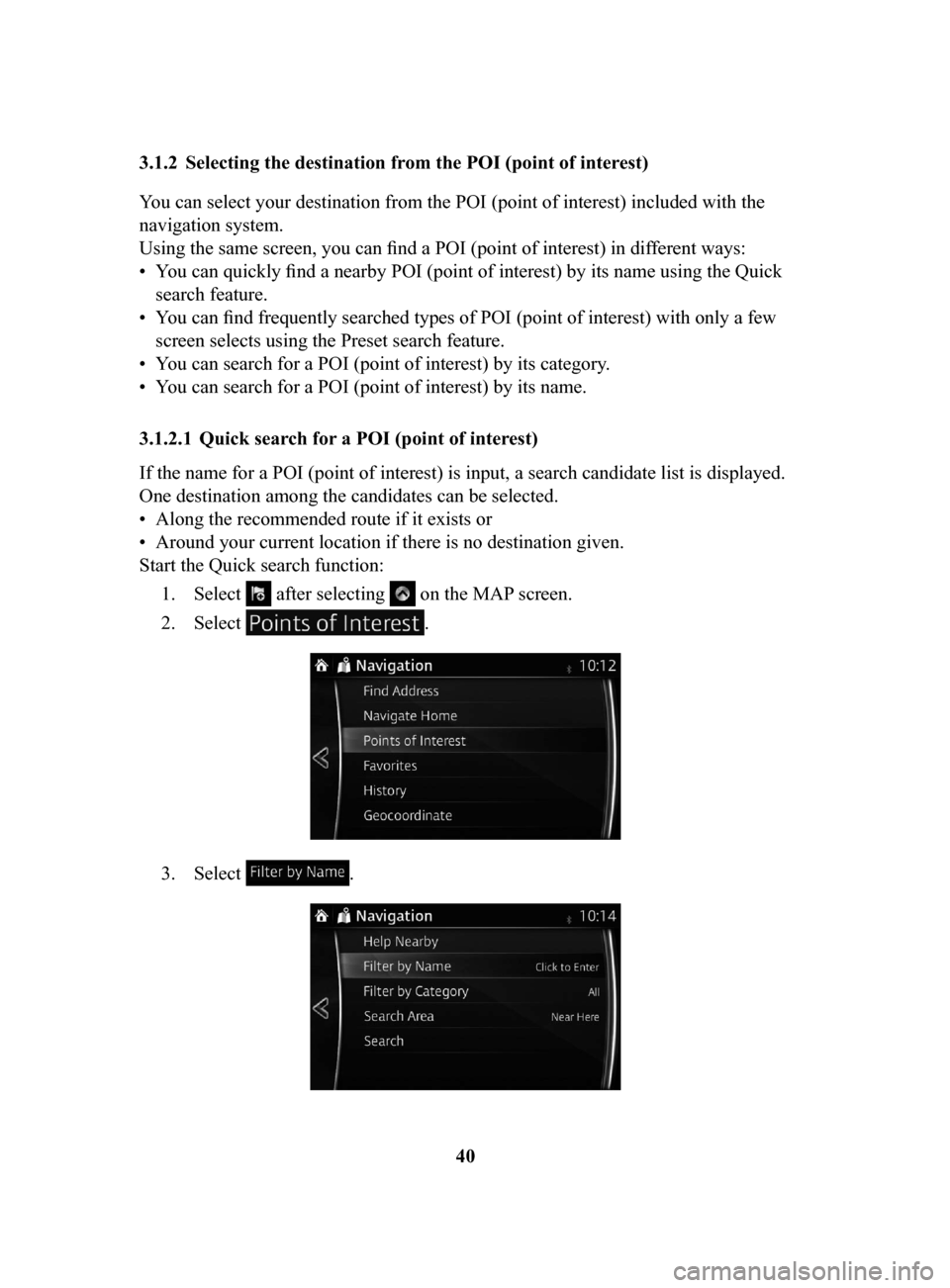
Select after selecting on the MAP screen.
2.
Select .
3. Select .
NAV-999VU1E.indb 402016/03/24 17:26:16
Page 41 of 91
42
6.
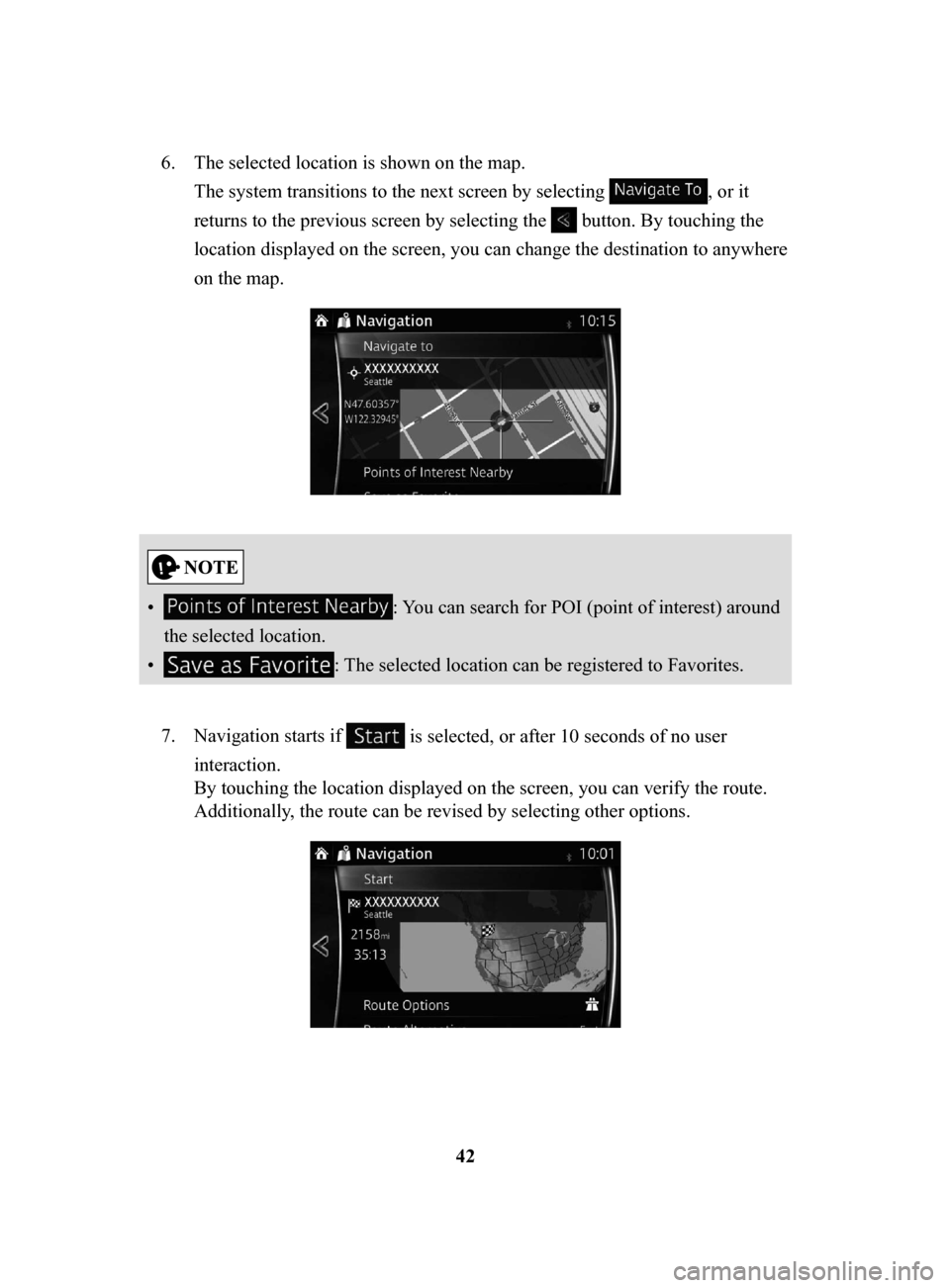
The selected location is shown on the map.
The system transitions to the next screen by selecting
, or it
returns to the previous screen by selecting the
button. By touching the
location displayed on the screen, you can change the destination to anywhere
on the map.
• : You can search for POI (point of interest) around
the selected location.
•
: The selected location can be registered to Favorites.
7.
Navigation starts if is selected, or after 10 seconds of no user
interaction.
By touching the location displayed on the screen, you can verify the route.
Additionally, the route can be revised by selecting other options.
NAV-999VU1E.indb 422016/03/24 17:26:17
Page 42 of 91
43
1
2
3
4
5
6
3.1.2.2 Searching for Help nearby
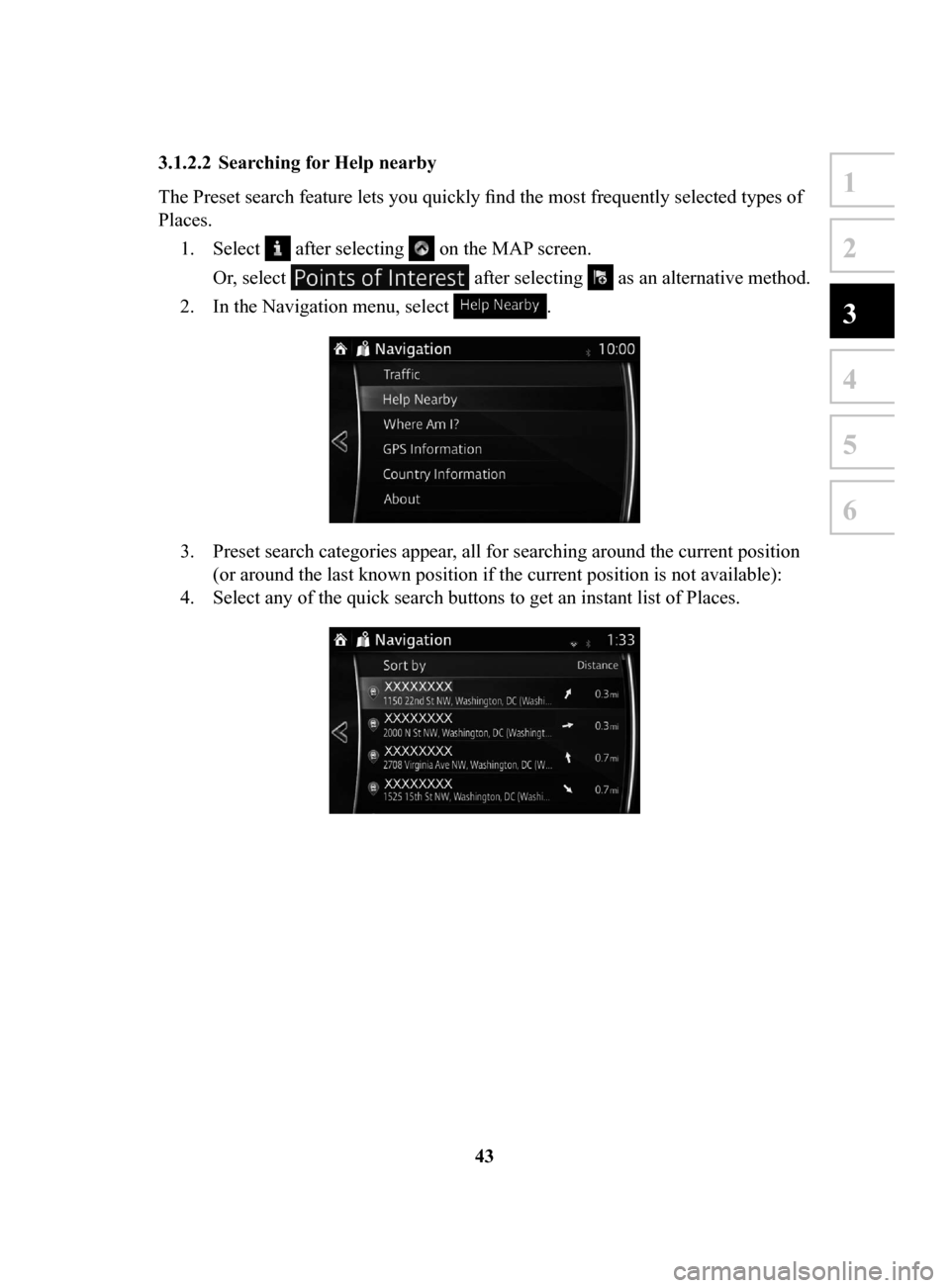
The Preset search feature lets you quickly find the most frequently selected types of
Places.1.
Select after selecting on the MAP screen.
Or, select
after selecting as an alternative method.
2.
In the Navigation menu, select .
3. Preset search categories appear, all for searching around the current position
(or around the last known position if the current position is not available):
4.
Select any of the quick search buttons to get an instant list of Places.
NAV-999VU1E.indb 432016/03/24 17:26:17
Page 44 of 91
45
1
2
3
4
5
6
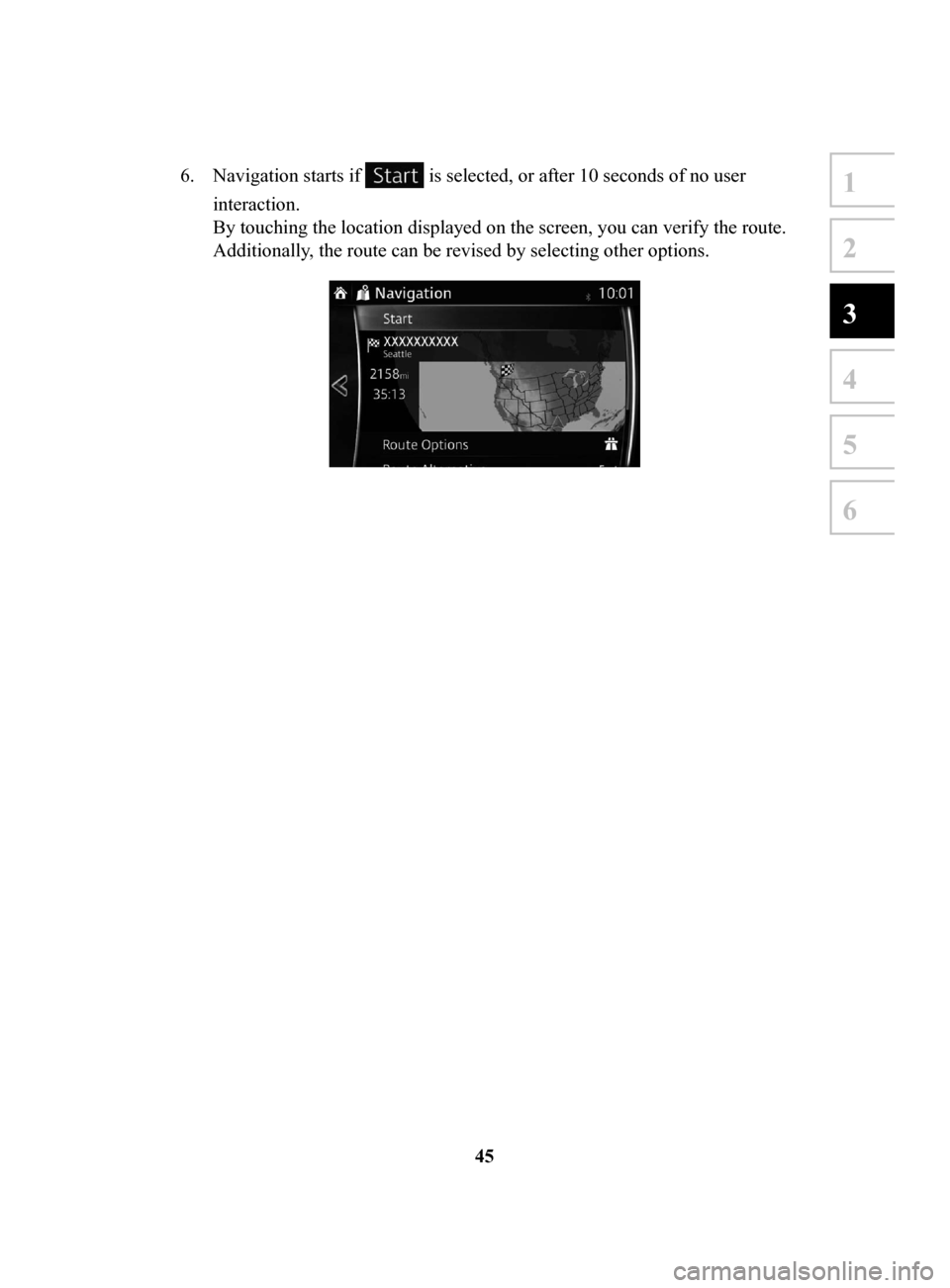
6. Navigation starts if is selected, or after 10 seconds of no user
interaction.
By touching the location displayed on the screen, you can verify the route.
Additionally, the route can be revised by selecting other options.
NAV-999VU1E.indb 452016/03/24 17:26:17
Page 48 of 91
49
1
2
3
4
5
6
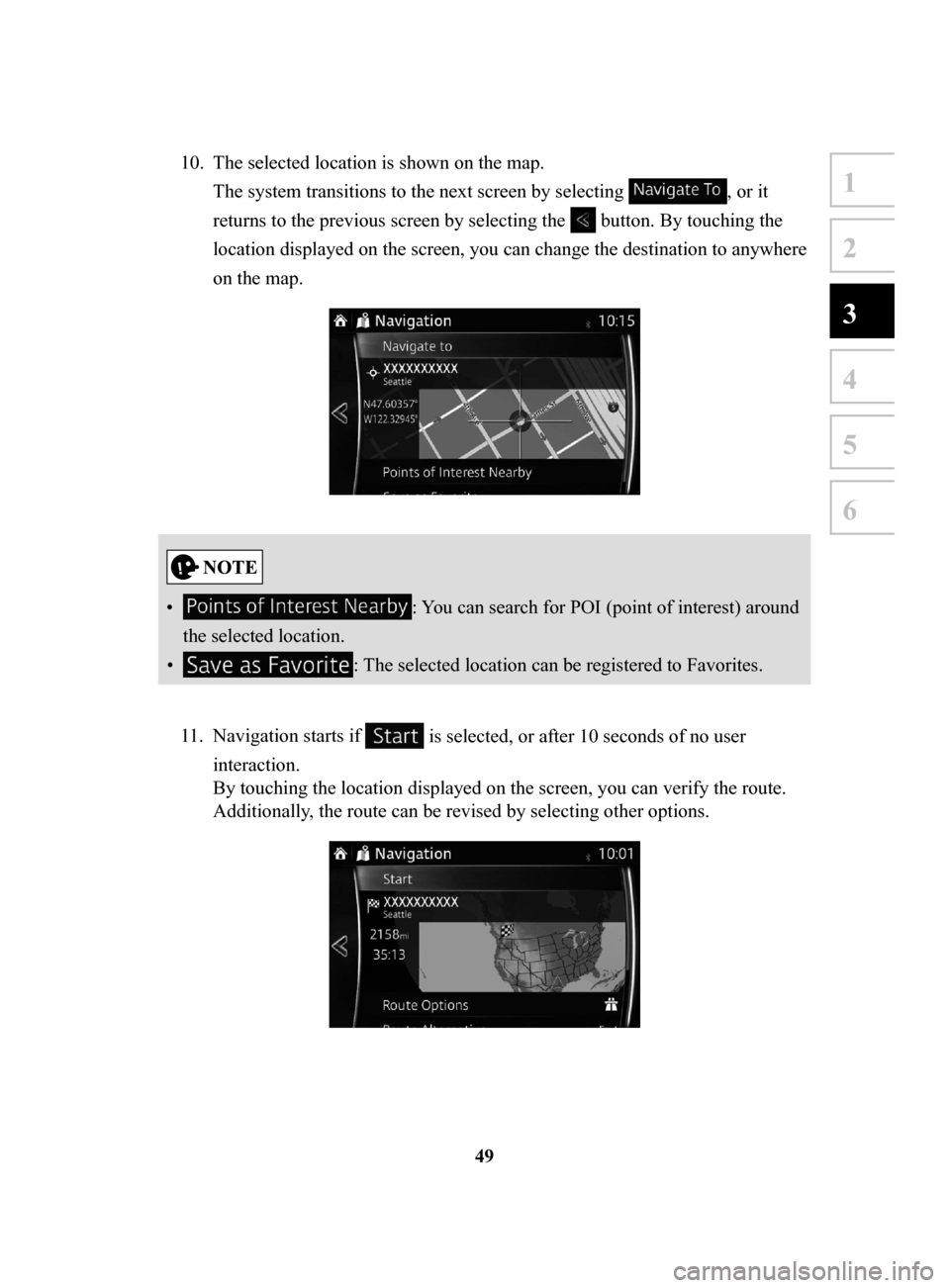
10. The selected location is shown on the map.
The system transitions to the next screen by selecting
, or it
returns to the previous screen by selecting the
button. By touching the
location displayed on the screen, you can change the destination to anywhere
on the map.
• : You can search for POI (point of interest) around
the selected location.
•
: The selected location can be registered to Favorites.
11.
Navigation starts if is selected, or after 10 seconds of no user
interaction.
By touching the location displayed on the screen, you can verify the route.
Additionally, the route can be revised by selecting other options.
NAV-999VU1E.indb 492016/03/24 17:26:17
Page 52 of 91

53
1
2
3
4
5
6
11. The selected location is shown on the map.
The system transitions to the next screen by selecting
, or it
returns to the previous screen by selecting the
button. By touching the
location displayed on the screen, you can change the destination to anywhere
on the map.
• : You can search for POI (point of interest) around
the selected location.
•
: The selected location can be registered to Favorites.
12.
Navigation starts if is selected, or after 10 seconds of no user
interaction.
By touching the location displayed on the screen, you can verify the route.
Additionally, the route can be revised by selecting other options.
NAV-999VU1E.indb 532016/03/24 17:26:18
Page 54 of 91

55
1
2
3
4
5
6
5. The selected location is shown on the map.
The system transitions to the next screen by selecting
, or it
returns to the previous screen by selecting the
button. By touching the
location displayed on the screen, you can change the destination to anywhere
on the map.
• : You can search for POI (point of interest) around
the selected location.
•
: The selected location can be registered to Favorites.
6.
Navigation starts if is selected, or after 10 seconds of no user
interaction.
By touching the location displayed on the screen, you can verify the route.
Additionally, the route can be revised by selecting other options.
NAV-999VU1E.indb 552016/03/24 17:26:18
Page 56 of 91
57
1
2
3
4
5
6
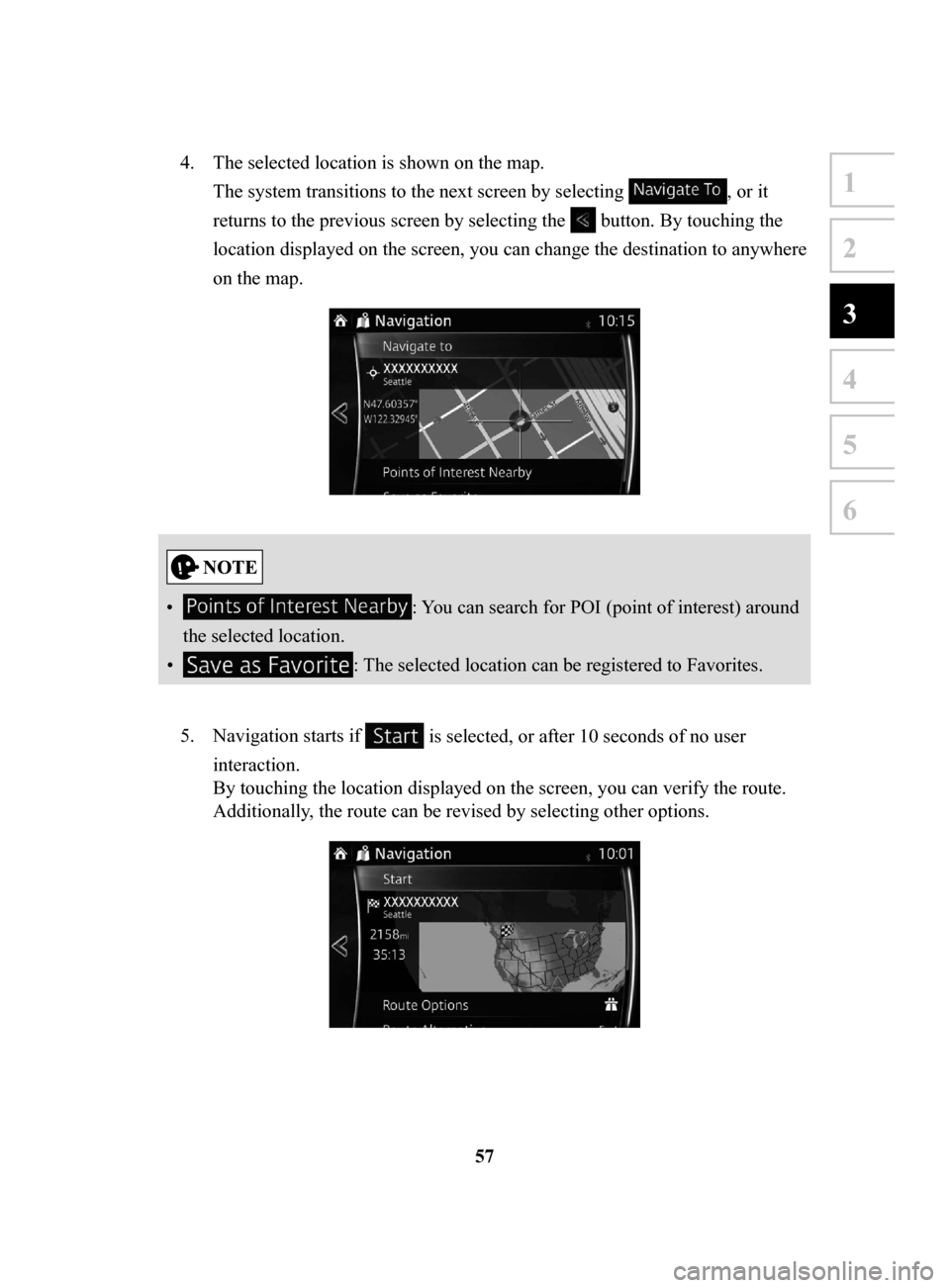
4. The selected location is shown on the map.
The system transitions to the next screen by selecting
, or it
returns to the previous screen by selecting the
button. By touching the
location displayed on the screen, you can change the destination to anywhere
on the map.
• : You can search for POI (point of interest) around
the selected location.
•
: The selected location can be registered to Favorites.
5.
Navigation starts if is selected, or after 10 seconds of no user
interaction.
By touching the location displayed on the screen, you can verify the route.
Additionally, the route can be revised by selecting other options.
NAV-999VU1E.indb 572016/03/24 17:26:18
Page 57 of 91
58
3.1.5 Selecting
the destination from your Favorites
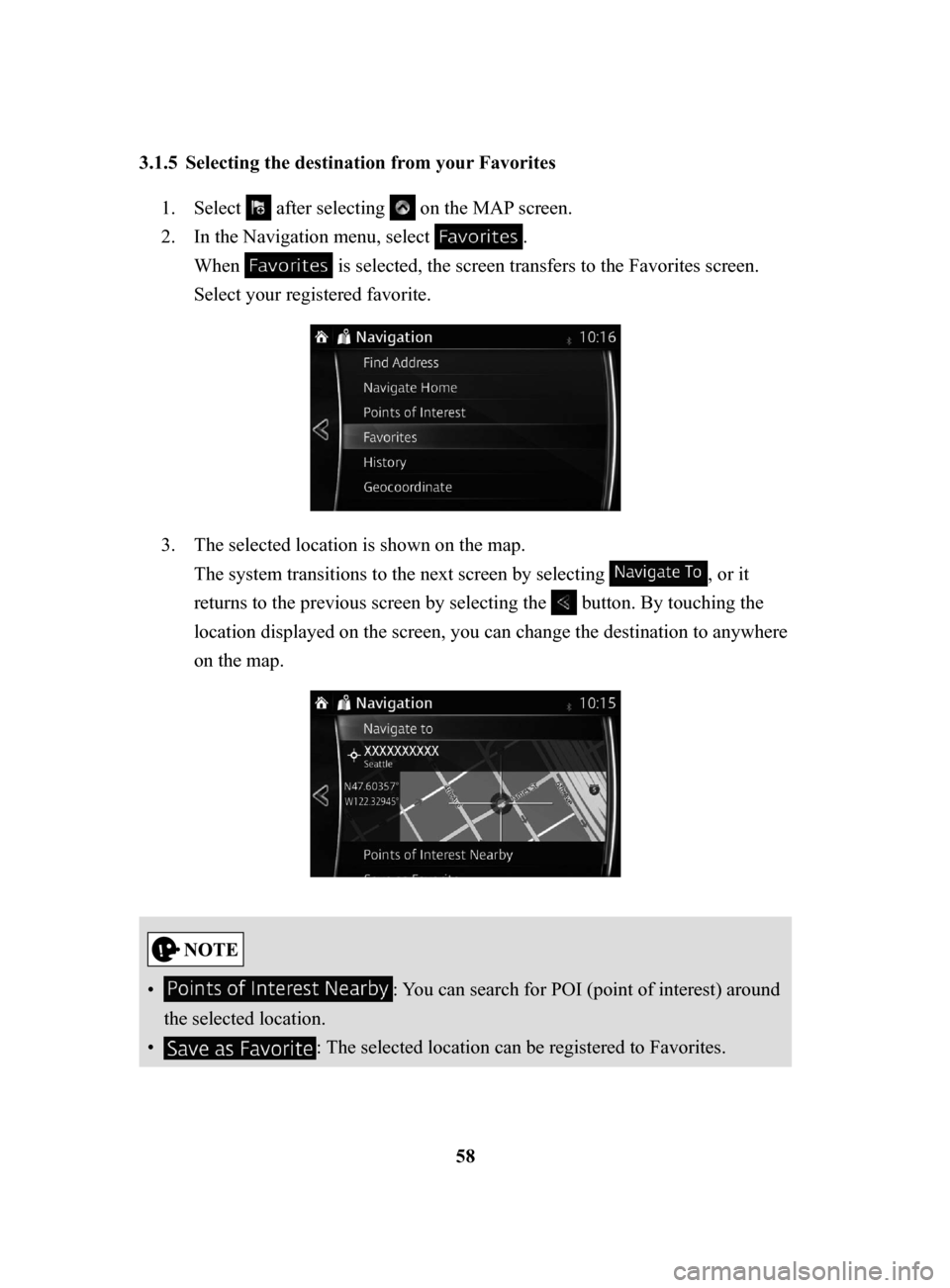
1. Select after selecting on the MAP screen.
2.
In the Navigation menu, select .
When
is selected, the screen transfers to the Favorites screen.
Select your registered favorite.
3. The selected location is shown on the map.
The system transitions to the next screen by selecting
, or it
returns to the previous screen by selecting the
button. By touching the
location displayed on the screen, you can change the destination to anywhere
on the map.
• : You can search for POI (point of interest) around
the selected location.
•
: The selected location can be registered to Favorites.
NAV-999VU1E.indb 582016/03/24 17:26:18
Page 58 of 91

59
1
2
3
4
5
6
4. Navigation starts if is selected, or after 10 seconds of no user
interaction.
By touching the location displayed on the screen, you can verify the route.
Additionally, the route can be revised by selecting other options.
NAV-999VU1E.indb 592016/03/24 17:26:18