AUX MAZDA MODEL CX-5 2016 (in English) User Guide
[x] Cancel search | Manufacturer: MAZDA, Model Year: 2016, Model line: MODEL CX-5, Model: MAZDA MODEL CX-5 2016Pages: 626, PDF Size: 13.81 MB
Page 350 of 626
Black plate (350,1)
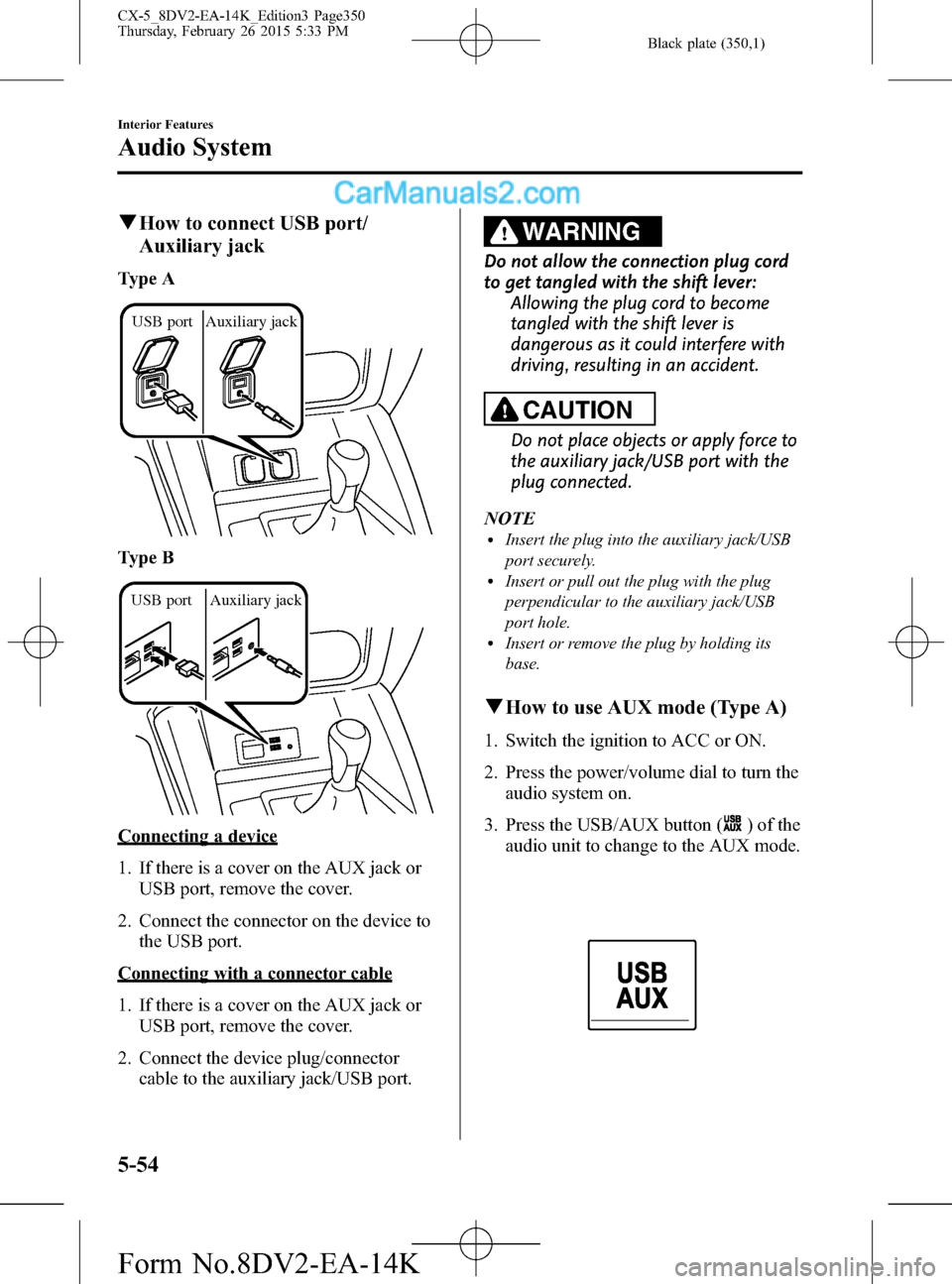
qHow to connect USB port/
Auxiliary jack
Type A
USB port Auxiliary jack
Type B
USB port Auxiliary jack
Connecting a device
1. If there is a cover on the AUX jack or
USB port, remove the cover.
2. Connect the connector on the device to
the USB port.
Connecting with a connector cable
1. If there is a cover on the AUX jack or
USB port, remove the cover.
2. Connect the device plug/connector
cable to the auxiliary jack/USB port.
WARNING
Do not allow the connection plug cord
to get tangled with the shift lever:
Allowing the plug cord to become
tangled with the shift lever is
dangerous as it could interfere with
driving, resulting in an accident.
CAUTION
Do not place objects or apply force to
the auxiliary jack/USB port with the
plug connected.
NOTE
lInsert the plug into the auxiliary jack/USB
port securely.
lInsert or pull out the plug with the plug
perpendicular to the auxiliary jack/USB
port hole.
lInsert or remove the plug by holding its
base.
qHow to use AUX mode (Type A)
1. Switch the ignition to ACC or ON.
2. Press the power/volume dial to turn the
audio system on.
3. Press the USB/AUX button (
) of the
audio unit to change to the AUX mode.
5-54
Interior Features
Audio System
CX-5_8DV2-EA-14K_Edition3 Page350
Thursday, February 26 2015 5:33 PM
Form No.8DV2-EA-14K
Page 351 of 626
Black plate (351,1)
NOTElWhen the device is not connected to the
auxiliary jack, the mode does not switch to
the AUX mode.
lAdjust the audio volume using the portable
audio device or audio unit.
lAudio adjustments other than audio volume
can only be done using the portable audio
device.
lIf the connection plug is pulled out from the
auxiliary jack while in AUX mode, noise
may occur.
Interior Features
Audio System
5-55
CX-5_8DV2-EA-14K_Edition3 Page351
Thursday, February 26 2015 5:33 PM
Form No.8DV2-EA-14K
Page 352 of 626
Black plate (352,1)
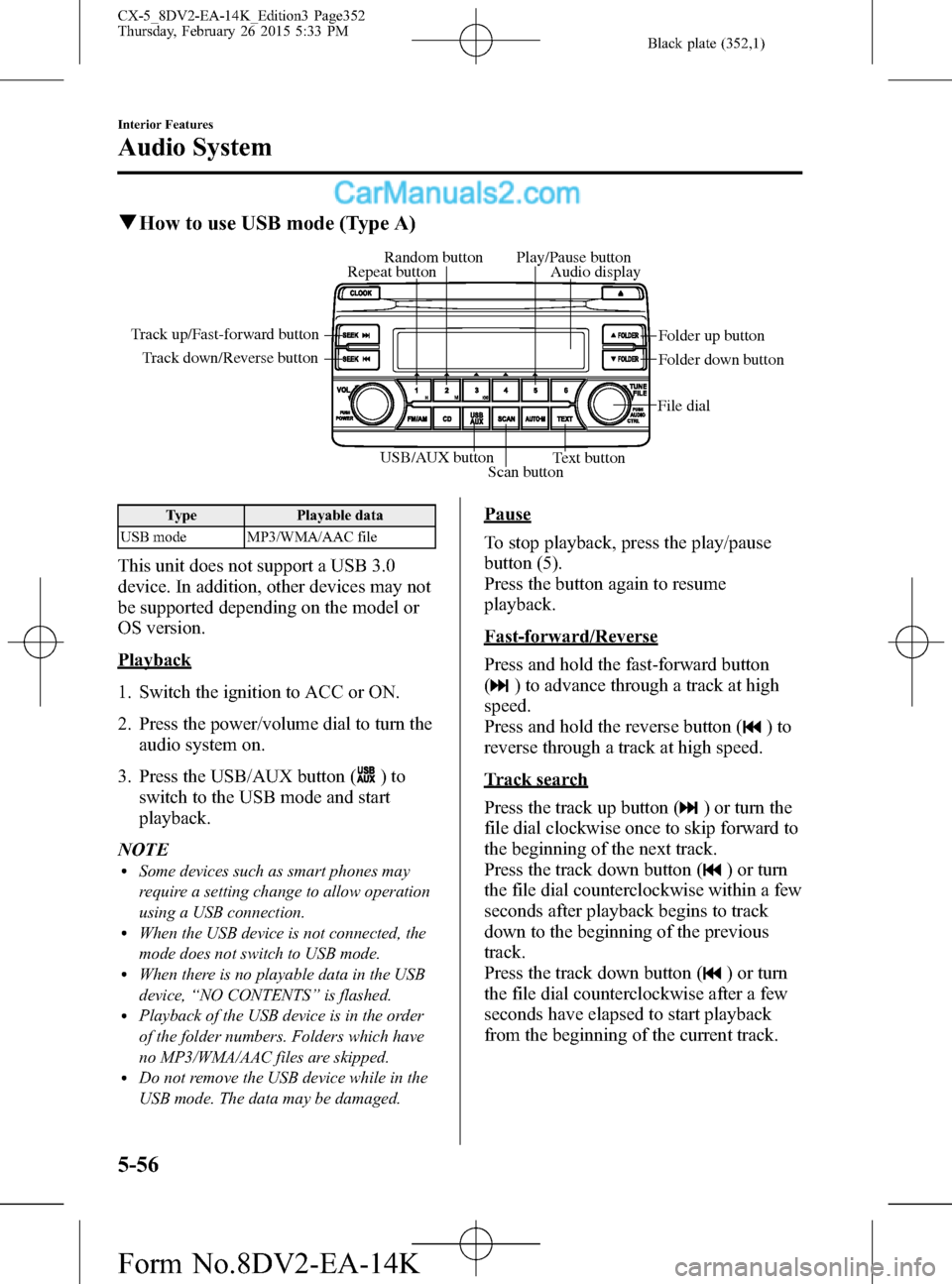
qHow to use USB mode (Type A)
USB/AUX button
Scan buttonText button Track down/Reverse button Track up/Fast-forward button
File dialFolder up button
Folder down button Audio display Random button Play/Pause button
Repeat button
Type Playable data
USB mode MP3/WMA/AAC file
This unit does not support a USB 3.0
device. In addition, other devices may not
be supported depending on the model or
OS version.
Playback
1. Switch the ignition to ACC or ON.
2. Press the power/volume dial to turn the
audio system on.
3. Press the USB/AUX button (
)to
switch to the USB mode and start
playback.
NOTE
lSome devices such as smart phones may
require a setting change to allow operation
using a USB connection.
lWhen the USB device is not connected, the
mode does not switch to USB mode.
lWhen there is no playable data in the USB
device,“NO CONTENTS”is flashed.
lPlayback of the USB device is in the order
of the folder numbers. Folders which have
no MP3/WMA/AAC files are skipped.
lDo not remove the USB device while in the
USB mode. The data may be damaged.
Pause
To stop playback, press the play/pause
button (5).
Press the button again to resume
playback.
Fast-forward/Reverse
Press and hold the fast-forward button
(
) to advance through a track at high
speed.
Press and hold the reverse button (
)to
reverse through a track at high speed.
Track search
Press the track up button (
) or turn the
file dial clockwise once to skip forward to
the beginning of the next track.
Press the track down button (
) or turn
the file dial counterclockwise within a few
seconds after playback begins to track
down to the beginning of the previous
track.
Press the track down button (
) or turn
the file dial counterclockwise after a few
seconds have elapsed to start playback
from the beginning of the current track.
5-56
Interior Features
Audio System
CX-5_8DV2-EA-14K_Edition3 Page352
Thursday, February 26 2015 5:33 PM
Form No.8DV2-EA-14K
Page 356 of 626
Black plate (356,1)
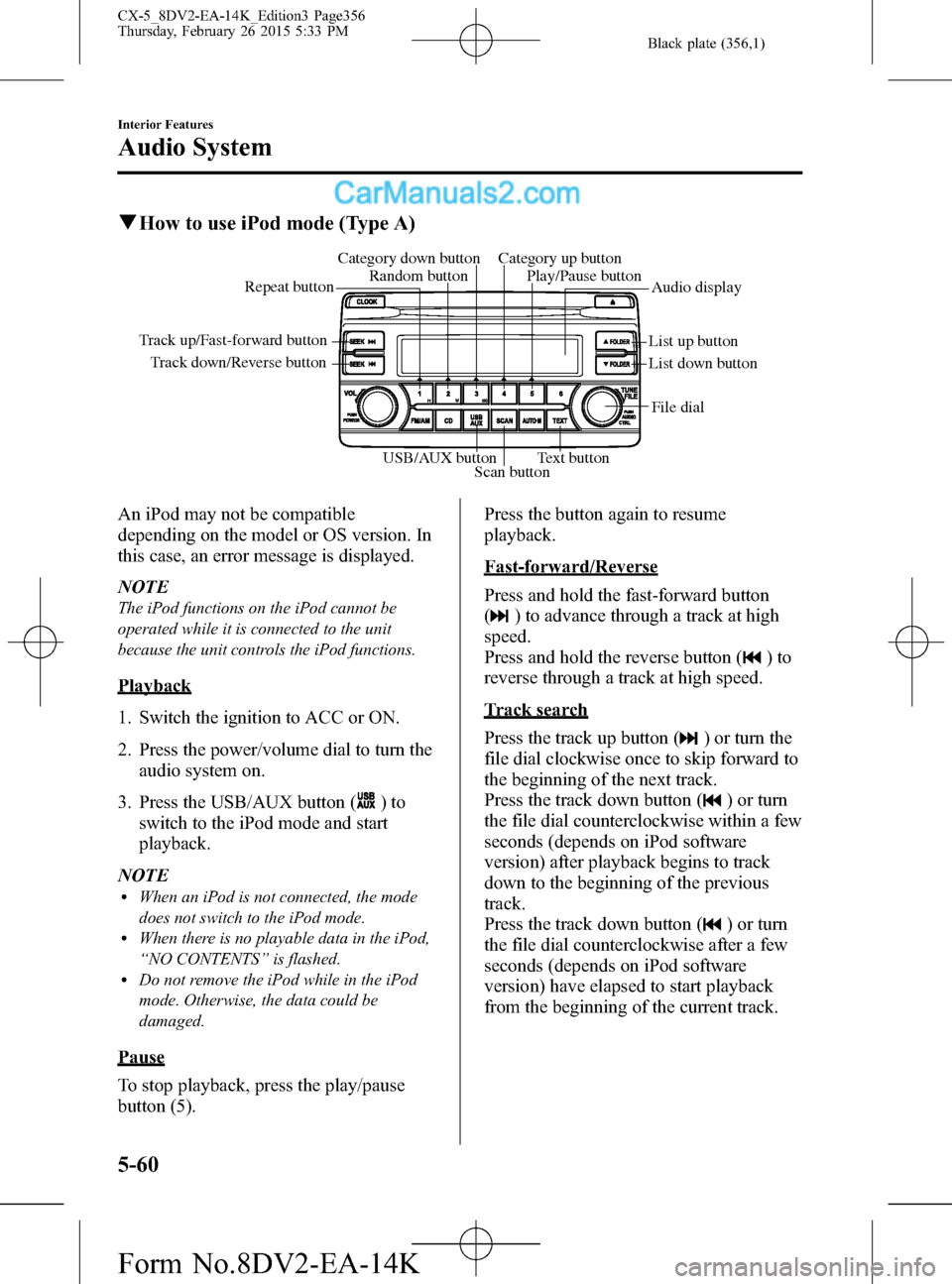
qHow to use iPod mode (Type A)
Track down/Reverse button Track up/Fast-forward button
List up button
List down buttonAudio display Random button Category down button Category up button
Play/Pause button
Repeat button
USB/AUX button
Scan buttonText buttonFile dial
An iPod may not be compatible
depending on the model or OS version. In
this case, an error message is displayed.
NOTE
The iPod functions on the iPod cannot be
operated while it is connected to the unit
because the unit controls the iPod functions.
Playback
1. Switch the ignition to ACC or ON.
2. Press the power/volume dial to turn the
audio system on.
3. Press the USB/AUX button (
)to
switch to the iPod mode and start
playback.
NOTE
lWhen an iPod is not connected, the mode
does not switch to the iPod mode.
lWhen there is no playable data in the iPod,
“NO CONTENTS”is flashed.
lDo not remove the iPod while in the iPod
mode. Otherwise, the data could be
damaged.
Pause
To stop playback, press the play/pause
button (5).Press the button again to resume
playback.
Fast-forward/Reverse
Press and hold the fast-forward button
(
) to advance through a track at high
speed.
Press and hold the reverse button (
)to
reverse through a track at high speed.
Track search
Press the track up button (
) or turn the
file dial clockwise once to skip forward to
the beginning of the next track.
Press the track down button (
) or turn
the file dial counterclockwise within a few
seconds (depends on iPod software
version) after playback begins to track
down to the beginning of the previous
track.
Press the track down button (
) or turn
the file dial counterclockwise after a few
seconds (depends on iPod software
version) have elapsed to start playback
from the beginning of the current track.
5-60
Interior Features
Audio System
CX-5_8DV2-EA-14K_Edition3 Page356
Thursday, February 26 2015 5:33 PM
Form No.8DV2-EA-14K
Page 359 of 626

Black plate (359,1)
qHow to use AUX mode (Type B)
1. Select theicon on the home screen and display the Entertainment screen.
2. Select
to switch to the AUX mode. The following icons are displayed in the lower
part of the center display.
Icon Function
Displays the Entertainment menu. Use to switch to a different audio source.
Displays sound settings to adjust audio quality level.
Refer to Volume/Display/Sound Controls on page 5-36.
NOTElIf a device is not connected to the auxiliary jack, the mode does not switch to the AUX mode.lAdjust the audio volume using the portable audio device, commander switch, or audio control
switch.
lAudio adjustments can also be made using the portable audio device's volume setting.lIf the connection plug is pulled out from the auxiliary jack while in AUX mode, noise may occur.
qHow to use USB mode (Type B)
Type Playable data
USB mode MP3/WMA/AAC/OGG file
This unit does not support a USB 3.0 device. In addition, other devices may not be
supported depending on the model or OS version.
USB devices formatted to FAT32 are supported (USB devices formatted to other formats
such as NTFS are not supported).
Interior Features
Audio System
5-63
CX-5_8DV2-EA-14K_Edition3 Page359
Thursday, February 26 2015 5:33 PM
Form No.8DV2-EA-14K
Page 386 of 626

Black plate (386,1)
qAudio Operation Using Voice Recognition (Type B)
Main audio operation
The below commands are examples of the available commands.
When the talk button is pressed and the following command is spoken out, the audio can
be operated. The commands in the () can be omitted. The specified name and number are
put into the {}.
Voice command FunctionCorresponding audio
source
(Go to/Play) AM (Radio) Switches the audio source to AM radio. All
(Go to/Play) FM (Radio) Switches the audio source to FM radio. All
(Go to/Play) Bluetooth (Audio) Switches the audio source to Bluetooth
®audio. All
(Go to/Play) Pandora Switches the audio source to Pandora®. All
(Go to/Play) Aha (Radio) Switches the audio source to Aha™. All
(Go to/Play) Stitcher Switches the audio source to Stitcher™Radio. All
(Go to/Play) USB 1 Switches the audio source to USB 1. All
(Go to/Play) USB 2 Switches the audio source to USB 2. All
Play Playlist {Playlist name} Plays the selected playlist. USB
Play Artist {Artist name} Plays the selected artist. USB
Play Album {Album name} Plays the selected album. USB
Play Genre {Genre name} Plays the selected genre. USB
Play Folder {Folder name} Plays the selected folder. USB
NOTElSome commands cannot be used depending on devices and use conditions.lIf the Bluetooth®device, USB, or AUX is not connected, the related commands cannot be used.
5-90
Interior Features
Bluetooth®
CX-5_8DV2-EA-14K_Edition3 Page386
Thursday, February 26 2015 5:34 PM
Form No.8DV2-EA-14K
Page 404 of 626

Black plate (404,1)
Bluetooth® Audio (Type A)í
Applicable Bluetooth®specification
(Recommended)
Ver. 2.0
Response profile
lA2DP (Advanced Audio Distribution
Profile) Ver. 1.0/1.2
lAVRCP (Audio/Video Remote Control
Profile) Ver. 1.0/1.3
A2DP is a profile which transmits only
audio to the Bluetooth
®unit. If your
Bluetooth®audio device corresponds only
to A2DP, but not AVRCP, you cannot
operate it using the control panel of the
vehicle's audio system. In this case, only
the operations on the mobile device are
available the same as when a portable
audio device for a non-compliant
Bluetooth
®device is connected to the
AUX terminal.
Function A2DPAVRCP
Ver. 1.0 Ver. 1.3
Playback―XX
Pause―XX
File (Track) up/down―XX
Reverse――X
Fast-forward――X
Text display――X
X: Available
―: Not available
NOTElThe battery consumption of Bluetooth®
audio devices increases while Bluetooth®is
connected.
lIf a general mobile phone device is USB
connected during music playback over the
Bluetooth
®connection, the Bluetooth®
connection is disconnected. For this reason,
you cannot have music playback over a
Bluetooth
®connection and music playback
using a USB connection at the same time.
lThe system may not operate normally
depending on the Bluetooth®audio device.
qHow to Use the Bluetooth®
Audio System
Switching to Bluetooth®audio mode
To listen to music or voice audio recorded
to a Bluetooth
®audio device, switch to
the Bluetooth®audio mode to operate the
audio device using the audio system
control panel. Any Bluetooth
®audio
device must be paired to the vehicle's
Bluetooth
®unit before it can be used.
Refer to Bluetooth® Preparation (Type A)
on page 5-71.
1. Turn on the Bluetooth
®audio device's
power.
2. Switch the ignition to ACC or ON.
Make sure that the“
”symbol is
displayed in the audio display. The
symbol is not displayed if an un-paired
Bluetooth
®audio device is being used
or the vehicle's Bluetooth®unit has a
malfunction.
NOTE
Some Bluetooth®audio devices need a certain
amount of time before the“
”symbol is
displayed.
5-108
Interior Features
íSome models.
Bluetooth®
CX-5_8DV2-EA-14K_Edition3 Page404
Thursday, February 26 2015 5:34 PM
Form No.8DV2-EA-14K
Page 405 of 626

Black plate (405,1)
3. Press the USB/AUX button ()to
switch to the Bluetooth®audio mode
and start playback.
If the current device version is lower
than AVRCP Ver. 1.3:“BT Audio”is
displayed.
If the current device is AVRCP Ver. 1.3:
The playback time is displayed.
NOTE
lIf the Bluetooth®audio device does not
begin playback, press the Play/Pause
button (5).
lIf a call is received on a Hands-Free mobile
phone during playback from the Bluetooth®
audio device, the playback is stopped.
Playback from the Bluetooth®audio device
resumes after the call ends.
Playback
1. To listen to a Bluetooth
®audio device
over the vehicle's speaker system,
switch the mode to Bluetooth
®audio
mode. (Refer to“Switching to
Bluetooth
®audio mode”)
2. To stop playback, press the Play/Pause
button (5).
3. Press the button again to resume
playback.
Selecting a file (track)
Selects the next file (track)
Short-press the track up button (
)or
turn the file dial clockwise.
Selects the beginning of the current file
(track)
Short-press the track down button (
)
or turn the file dial counterclockwise.
Fast-forward/Reverse (AVRCP Ver.
1.3)
Fast-forward
Press and hold the fast-forward button
(
).
Reverse
Press and hold the reverse down button
(
).
Switching the display (AVRCP Ver. 1.3)
The information displayed on the audio
display changes as follows each time the
text button (
) is pressed during
playback.
ButtonInformation displayed
on audio display
Elapsed time
Album name
Song name
Artist name
NOTElIf title information is not available,“NO
TITLE”is displayed.
lThis unit cannot display some characters.
Characters which cannot be displayed are
indicated by an asterisk (
).
Display scroll
Only 13 characters can be displayed at
one time. To display the rest of the
characters of a long title, press and hold
the text button (
). The display
scrolls the next 13 characters. Press and
hold the text button (
) again after
the last 13 characters have been displayed
to return to the beginning of the title.
Interior Features
Bluetooth®
5-109
CX-5_8DV2-EA-14K_Edition3 Page405
Thursday, February 26 2015 5:34 PM
Form No.8DV2-EA-14K
Page 406 of 626

Black plate (406,1)
qBluetooth® Audio Device
Information Display
If a Bluetooth®audio device is connected,
the following information is displayed in
the audio display.
AVRCP Ver.
lower than 1.3AVRCP
Ver. 1.3
Device name X X
Title―X
Artist name―X
Album name―X
File number―X
Playback time―X
Folder number――
X: Available
―: Not available
NOTE
Some information may not display depending
on the device, and if the information cannot be
displayed,“NO TITLE”is indicated.
Bluetooth® Audio (Type B)í
Applicable Bluetooth®specification
(Recommended)
Ver. 1.1/1.2/2.0
EDR/2.1EDR/3.0
(conformity)
Response profile
lA2DP (Advanced Audio Distribution
Profile) Ver. 1.0/1.2
lAVRCP (Audio/Video Remote Control
Profile) Ver. 1.0/1.3/1.4
A2DP is a profile which transmits only
audio to the Bluetooth
®unit. If your
Bluetooth®audio device corresponds only
to A2DP, but not AVRCP, you cannot
operate it using the control panel of the
vehicle's audio system. In this case, only
the operations on the mobile device are
available the same as when a portable
audio device for a non-compliant
Bluetooth
®device is connected to the
AUX terminal.
FunctionA2DP
AVRCP
Ve r.
1.0Ver. 1.3 Ver. 1.4
Playback X X X X
Pause X X X X
File (Track)
up/down―XX X
Reverse――XX
Fast-forward――XX
Text display――XX
Repeat――Depends on
deviceDepends on
device
Shuffle――Depends on
deviceDepends on
device
Scan――Depends on
deviceDepends on
device
Folder
up/down―― ―Depends on
device
X: Available
―: Not available
5-110
Interior Features
íSome models.
Bluetooth®
CX-5_8DV2-EA-14K_Edition3 Page406
Thursday, February 26 2015 5:34 PM
Form No.8DV2-EA-14K
Page 471 of 626

Black plate (471,1)
Key Battery Replacement
If the buttons on the transmitter are
inoperable and the operation indicator
light does not flash, the battery may be
dead.
Replace with a new battery before the
transmitter becomes unusable.
CAUTION
ØMake sure the battery is installed
correctly. Battery leakage could
occur if it is not installed correctly.
ØWhen replacing the battery, be
careful not to touch any of the
internal circuitry and electrical
terminals, bend the electrical
terminals, or get dirt in the
transmitter as the transmitter
could be damaged.
ØThere is the danger of explosion if
the battery is not correctly
replaced.
ØDispose of used batteries
according to the following
instructions.
ØInsulate the plus and minus
terminals of the battery using
cellophane or equivalent tape.
ØNever disassemble.
ØNever throw the battery into
fire or water.
ØNever deform or crush.
ØReplace only with the same type
battery (CR2025 or equivalent).
The following conditions indicate that the
battery power is low:
lThe KEY indicator light (green) flashes
in the instrument cluster for about 30
seconds after the engine is turned off
(for vehicles with a type A meter,
messages are displayed in the
instrument cluster).
lThe system does not operate and the
operation indicator light on the
transmitter does not flash when the
buttons are pressed.
lThe system's operational range is
reduced.
Replacing the battery at an Authorized
Mazda Dealer is recommended to prevent
damage to the key. If replacing the battery
by yourself, follow the instruction below.
Replacing the key battery
1. Press the knob and pull out the
auxiliary key.
Knob
2. Twist a tape-wrapped flathead
screwdriver in the direction of the
arrow and open the cover slightly.
Cover
Maintenance and Care
Owner Maintenance
6-39
CX-5_8DV2-EA-14K_Edition3 Page471
Thursday, February 26 2015 5:34 PM
Form No.8DV2-EA-14K