key MAZDA MODEL TRIBUTE HEV 2009 User Guide
[x] Cancel search | Manufacturer: MAZDA, Model Year: 2009, Model line: MODEL TRIBUTE HEV, Model: MAZDA MODEL TRIBUTE HEV 2009Pages: 81, PDF Size: 1.49 MB
Page 53 of 81
JOBNAME: No Job Name PAGE: 53 SESS: 1 OUTPUT: Thu Mar 6 14:57:32 2008
/ford_pdm/ford/supplement/ng2/navi
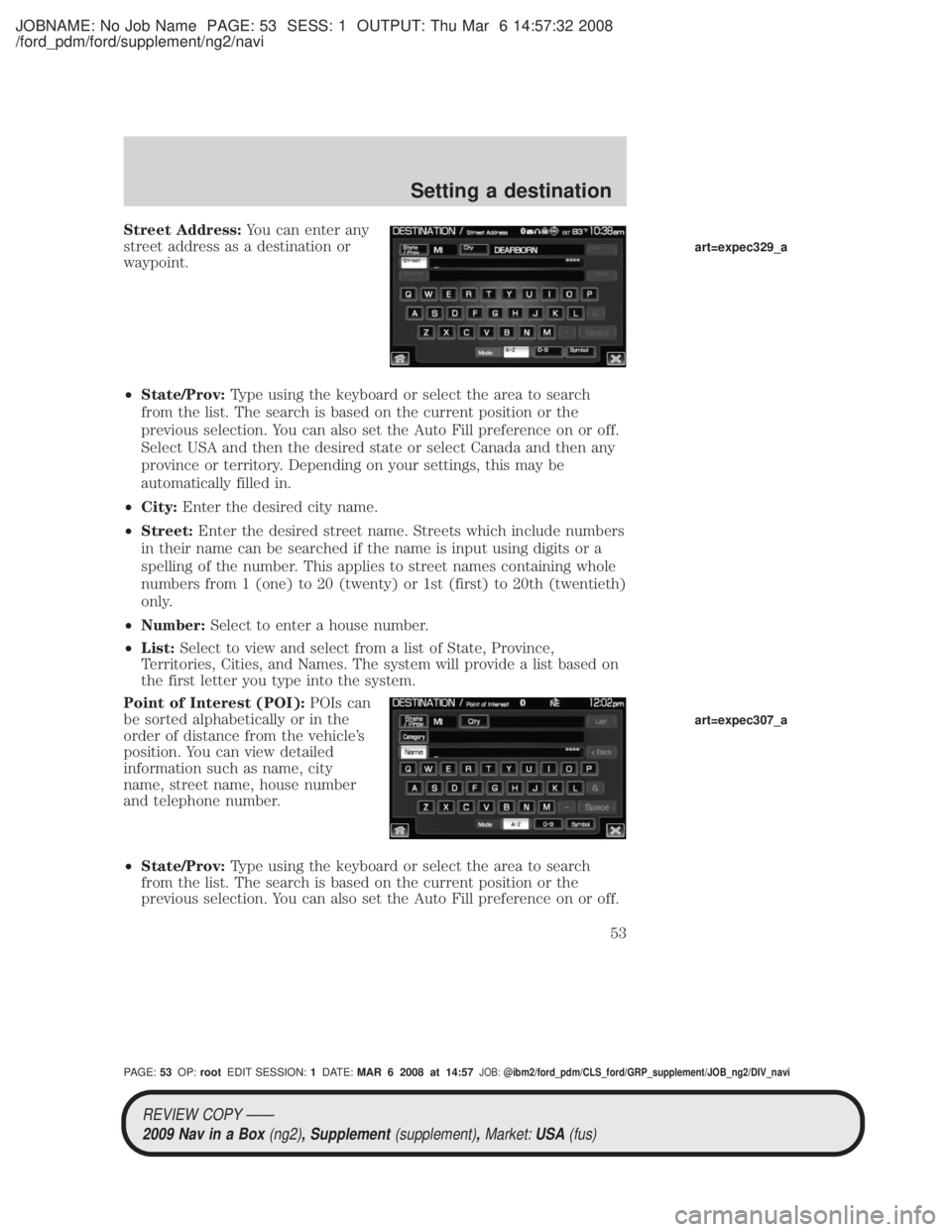
Street Address:You can enter any
street address as a destination or
waypoint.
² State/Prov: Type using the keyboard or select the area to search
from the list. The search is based on the current position or the
previous selection. You can also set the Auto Fill preference on or off.
Select USA and then the desired state or select Canada and then any
province or territory. Depending on your settings, this may be
automatically filled in.
² City: Enter the desired city name.
² Street: Enter the desired street name. Streets which include numbers
in their name can be searched if the name is input using digits or a
spelling of the number. This applies to street names containing whole
numbers from 1 (one) to 20 (twenty) or 1st (first) to 20th (twentieth)
only.
² Number: Select to enter a house number.
² List: Select to view and select from a list of State, Province,
Territories, Cities, and Names. The system will provide a list based on
the first letter you type into the system.
Point of Interest (POI): POIs can
be sorted alphabetically or in the
order of distance from the vehicle's
position. You can view detailed
information such as name, city
name, street name, house number
and telephone number.
² State/Prov: Type using the keyboard or select the area to search
from the list. The search is based on the current position or the
previous selection. You can also set the Auto Fill preference on or off.
art=expec329_a
art=expec307_a
REVIEW COPY ÐÐ
2009 Nav in a Box (ng2), Supplement(supplement),Market:USA(fus)
PAGE: 53OP: root EDIT SESSION: 1DATE: MAR 6 2008 at 14:57JOB:@ibm2/ford_pdm/CLS_ford/GRP_supplement/JOB_ng2/DIV_navi
Setting a destination
53
Page 54 of 81
JOBNAME: No Job Name PAGE: 54 SESS: 1 OUTPUT: Thu Mar 6 14:57:32 2008
/ford_pdm/ford/supplement/ng2/navi
Select USA and then the desired state or select Canada and then any
province or territory. Depending on your settings, this may be
automatically filled in.
² City: Enter the desired city name.
² Category: Select the desired POI category or subcategory.
² Name: Select to search for a POI using a full or partial name.
² List: Select to view and select from a list of State, Province,
Territories, Cities, and Names. The system will provide a list based on
the first letter you type into the system.
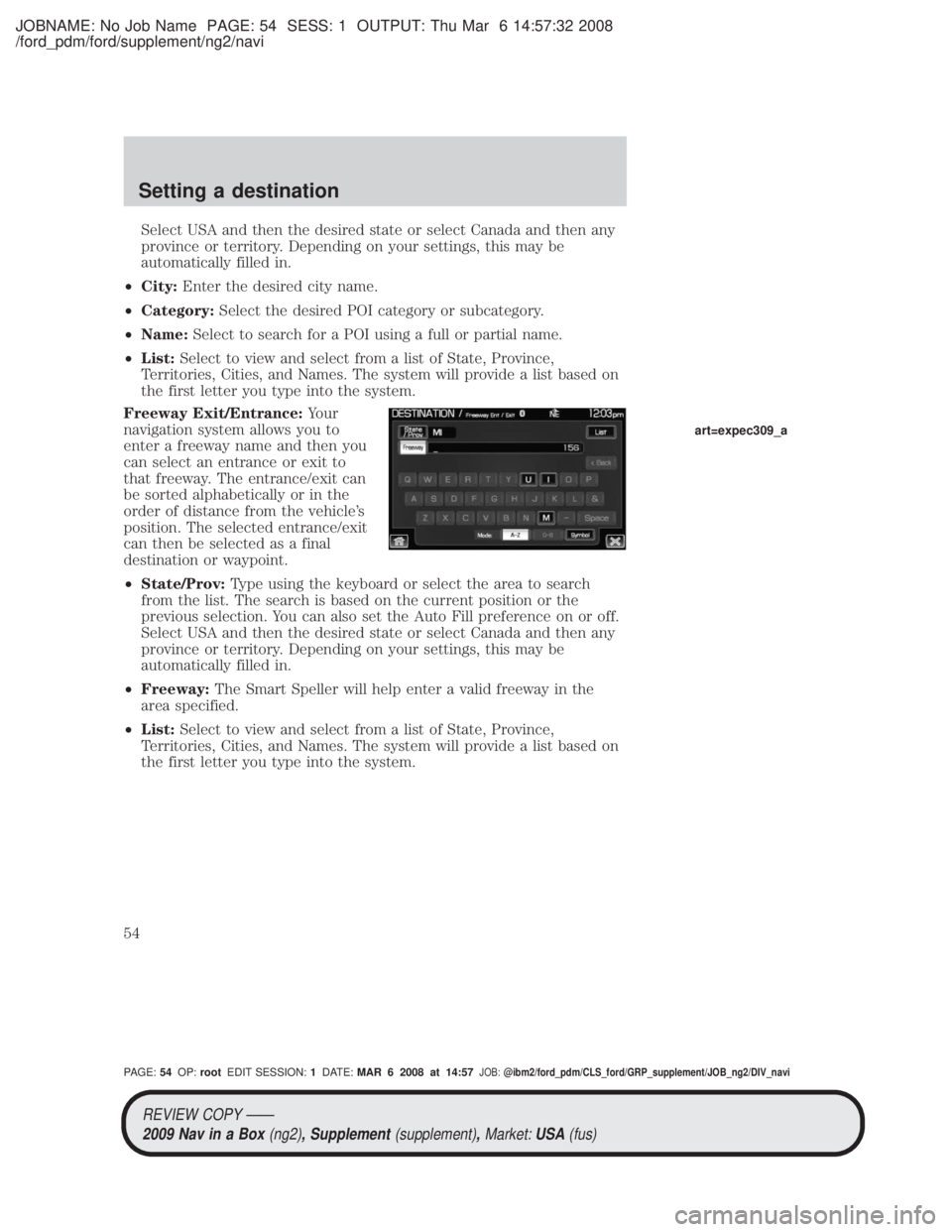
Freeway Exit/Entrance: Your
navigation system allows you to
enter a freeway name and then you
can select an entrance or exit to
that freeway. The entrance/exit can
be sorted alphabetically or in the
order of distance from the vehicle's
position. The selected entrance/exit
can then be selected as a final
destination or waypoint.
² State/Prov: Type using the keyboard or select the area to search
from the list. The search is based on the current position or the
previous selection. You can also set the Auto Fill preference on or off.
Select USA and then the desired state or select Canada and then any
province or territory. Depending on your settings, this may be
automatically filled in.
² Freeway: The Smart Speller will help enter a valid freeway in the
area specified.
² List: Select to view and select from a list of State, Province,
Territories, Cities, and Names. The system will provide a list based on
the first letter you type into the system.
art=expec309_a
REVIEW COPY ÐÐ
2009 Nav in a Box (ng2), Supplement(supplement),Market:USA(fus)
PAGE: 54OP: root EDIT SESSION: 1DATE: MAR 6 2008 at 14:57JOB:@ibm2/ford_pdm/CLS_ford/GRP_supplement/JOB_ng2/DIV_navi
Setting a destination
54
Page 55 of 81
JOBNAME: No Job Name PAGE: 55 SESS: 1 OUTPUT: Thu Mar 6 14:57:32 2008
/ford_pdm/ford/supplement/ng2/navi
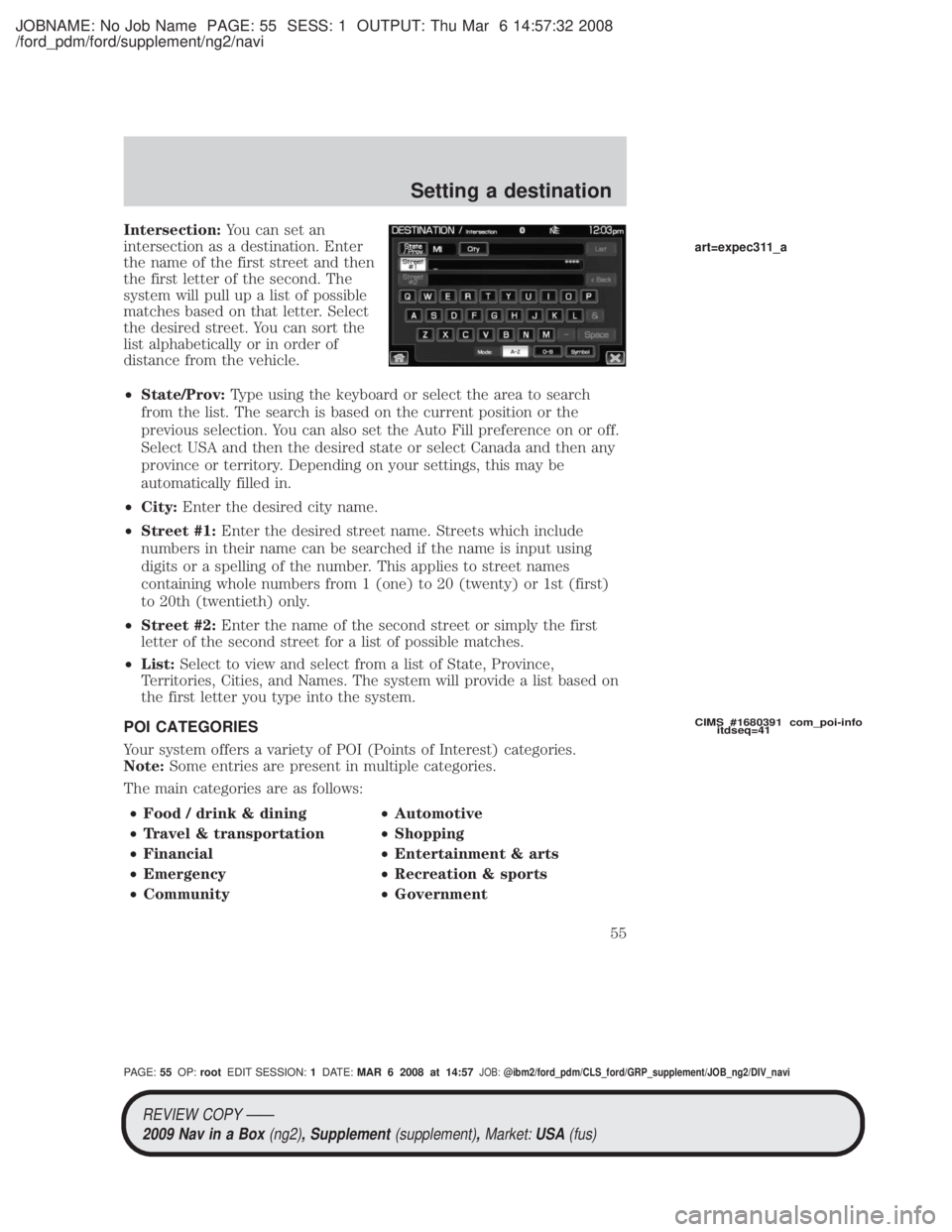
Intersection:You can set an
intersection as a destination. Enter
the name of the first street and then
the first letter of the second. The
system will pull up a list of possible
matches based on that letter. Select
the desired street. You can sort the
list alphabetically or in order of
distance from the vehicle.
² State/Prov: Type using the keyboard or select the area to search
from the list. The search is based on the current position or the
previous selection. You can also set the Auto Fill preference on or off.
Select USA and then the desired state or select Canada and then any
province or territory. Depending on your settings, this may be
automatically filled in.
² City: Enter the desired city name.
² Street #1: Enter the desired street name. Streets which include
numbers in their name can be searched if the name is input using
digits or a spelling of the number. This applies to street names
containing whole numbers from 1 (one) to 20 (twenty) or 1st (first)
to 20th (twentieth) only.
² Street #2: Enter the name of the second street or simply the first
letter of the second street for a list of possible matches.
² List: Select to view and select from a list of State, Province,
Territories, Cities, and Names. The system will provide a list based on
the first letter you type into the system.
POI CATEGORIES
Your system offers a variety of POI (Points of Interest) categories.
Note: Some entries are present in multiple categories.
The main categories are as follows:
² Food / drink & dining ²Automotive
² Travel & transportation ²Shopping
² Financial ²Entertainment & arts
² Emergency ²Recreation & sports
² Community ²Government
CIMS #1680391 com_poi-info
itdseq=41
art=expec311_a
REVIEW COPY ÐÐ
2009 Nav in a Box (ng2), Supplement(supplement),Market:USA(fus)
PAGE: 55OP: root EDIT SESSION: 1DATE: MAR 6 2008 at 14:57JOB:@ibm2/ford_pdm/CLS_ford/GRP_supplement/JOB_ng2/DIV_navi
Setting a destination
55