reset MAZDA MX5 MIATA 2017 Owner's Manual
[x] Cancel search | Manufacturer: MAZDA, Model Year: 2017, Model line: MX5 MIATA, Model: MAZDA MX5 MIATA 2017Pages: 568, PDF Size: 16.58 MB
Page 251 of 568
5 –29 Interior Features
Audio System3. Repeat this operation for the other
stations and bands you want to store.
To tune one in the memory, select AM,
FM1, or FM2 and then press its channel
preset button. The station frequency or
the channel number will be displayed.
Auto memory tuning
This is especially useful when driving in
an area where the local stations are not
known.
Press and hold the auto memory button
(
) for about 2 seconds until a beep
is heard; the system will automatically
scan and temporarily store up to 6 stations
with the strongest frequencies in each
selected band in that area.
After scanning is completed, the station
with the strongest frequency will be tuned
and its frequency displayed. Press and
release the auto memory button (
)
to recall stations from the auto-stored
stations. One stored station will be
selected each time and its frequency and
channel number will be displayed.
NOTE
If no stations can be tuned after scanning
operations, “A” will be displayed.
MX-5_8FR4-EA-16J_Edition1.indb 29 2016/08/11 20:29:12
Page 262 of 568

5 –40 Interior Features
Audio System Volume/Display/Sound Controls
Volume dialCommander switc hA udio control switch
Volume switch
Volume adjustment
Turn the commander switch volume dial.
The volume switch on the steering switch
can also be pressed.
Display setting
Select the
icon on the home screen to
display the Settings screen.
Select the
tab to select the item you
would like to change.
Display OFF/Clock
The center display can be turned off.
Select
to turn the display off.
When is
selected the center display turns off and
the clock is displayed.
The center display can be turned back on
as follows:
Touch the center display.
Operate the commander switch. Daytime/nighttime (System) screen
setting
The daytime or nighttime screen can be
selected.
: Switches screen automatically
according to headlight illumination
condition *1
: Daytime screen setting
: Nighttime screen setting
*1 The display is constantly on daytime
screen when the illumination dimmer is
cancelled.
Brightness adjustment
Adjust the center display brightness using
the slider.
Contrast adjustment
Adjust the center display contrast using
the slider.
Display setting reset
All of the screen setting values can be
reset to their initial settings.
1. Select .
2. Select .
MX-5_8FR4-EA-16J_Edition1.indb 40 2016/08/11 20:29:14
Page 264 of 568

5 –42 Interior Features
Audio System Operating the RadioRadio ON
Select the icon on the home screen to display the Entertainment screen. When selecting
the desired radio, the following icons are indicated in the lower part of the center display.
AM/FM Radio Icon Function
Displays the Entertainment menu. Use to switch to a different audio source.
Displays the station list.
Select to display the frequencies of up to ten radio stations on the auto
memory preset list.
Select the desired frequency.
Displays the Favorites list. Long-press to store radio station currently being aired.
Switches the on and off. Displays the multi-cast channel list of the
.
You can search for receivable radio stations.
Scanning stops at each station for about five seconds.
Select again to continue receiving the radio station.
You can change the radio frequency manually.
Rotate the commander knob, slide the screen, or touch the radio frequency.
Press or to change the radio frequency one step at a time.
When or is long-pressed, the radio frequency changes continually. It stops when you
remove your hand from the icon or the commander knob.
Launches the iTunes Tagging function (for Apple devices with USB use only). Can be used
when the is on.
Automatic radio station selection.
When long-pressed, the radio frequency changes continually. It stops when you remove
your hand from the icon or the commander knob.
Displays sound settings to adjust audio quality level.
Refer to Volume/Display/Sound Controls on page 5-40 .
MX-5_8FR4-EA-16J_Edition1.indb 42 2016/08/11 20:29:15
Page 270 of 568

5 –48 Interior Features
Audio System Selection from channel list
Receivable channels can be displayed on
the channel list screen. You can easily
select the channel you want to listen
from the list. Each category can be also
displayed.
1. Select the icon to display the
channel list.
2. Select a desired channel.
(Select from category list)
1. Select the icon to display the
channel list.
2. Select to display the category
list.
3. Select a desired category.
Parental lock
If a channel is locked, the channel is
muted.
To use the parental lock function, the PIN
code must be initialized first.
By using the session lock, the parental
lock can be enabled or disabled during the
current drive cycle (from when the ignition
is switched on to switched off). When
the session lock is on, the parental lock is
available. When the session lock is off, the
parental lock is temporarily cancelled.
When canceling the parental lock or
session lock, or when changing the PIN
code, PIN code input is required. PIN code reset
If the registered code has been forgotten,
reset the code to the default [0000] code.
1. Select the icon.
2. If the selected channel is locked, input
the PIN code to cancel the parental lock
temporarily.
3. Select .
4. Input the default code [0000] using the
number buttons.
5. Select .
6. Input the new PIN code using the
number buttons.
7. Select .
MX-5_8FR4-EA-16J_Edition1.indb 48 2016/08/11 20:29:16
Page 332 of 568
5 –110 Interior Features
Bluetooth ®
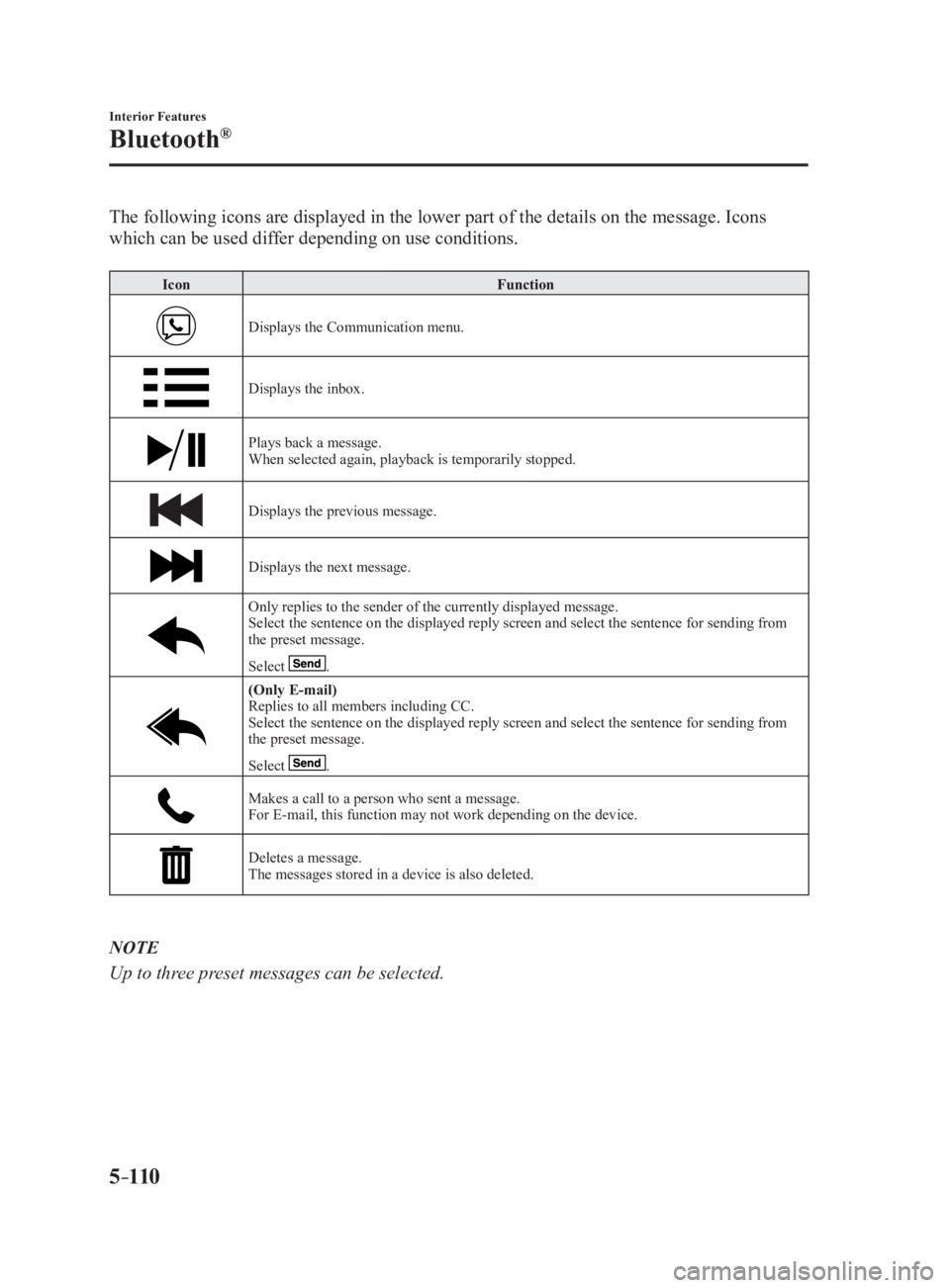
The following icons are displayed in the lower part of the details on the message. Icons
which can be used differ depending on use conditions. Icon Function
Displays the Communication menu.
Displays the inbox.
Plays back a message.
When selected again, playback is temporarily stopped.
Displays the previous message.
Displays the next message.
Only replies to the sender of the currently displayed message.
Select the sentence on the displayed reply screen and select the sentence for sending from
the preset message.
Select .
(Only E-mail)
Replies to all members including CC.
Select the sentence on the displayed reply screen and select the sentence for sending from
the preset message.
Select .
Makes a call to a person who sent a message.
For E-mail, this function may not work depending on the device.
Deletes a message.
The messages stored in a device is also deleted.
NOTE
Up to three preset messages can be selected.
MX-5_8FR4-EA-16J_Edition1.indb 110 2016/08/11 20:29:29
Page 333 of 568
5 –111 Interior Features
Bluetooth ®
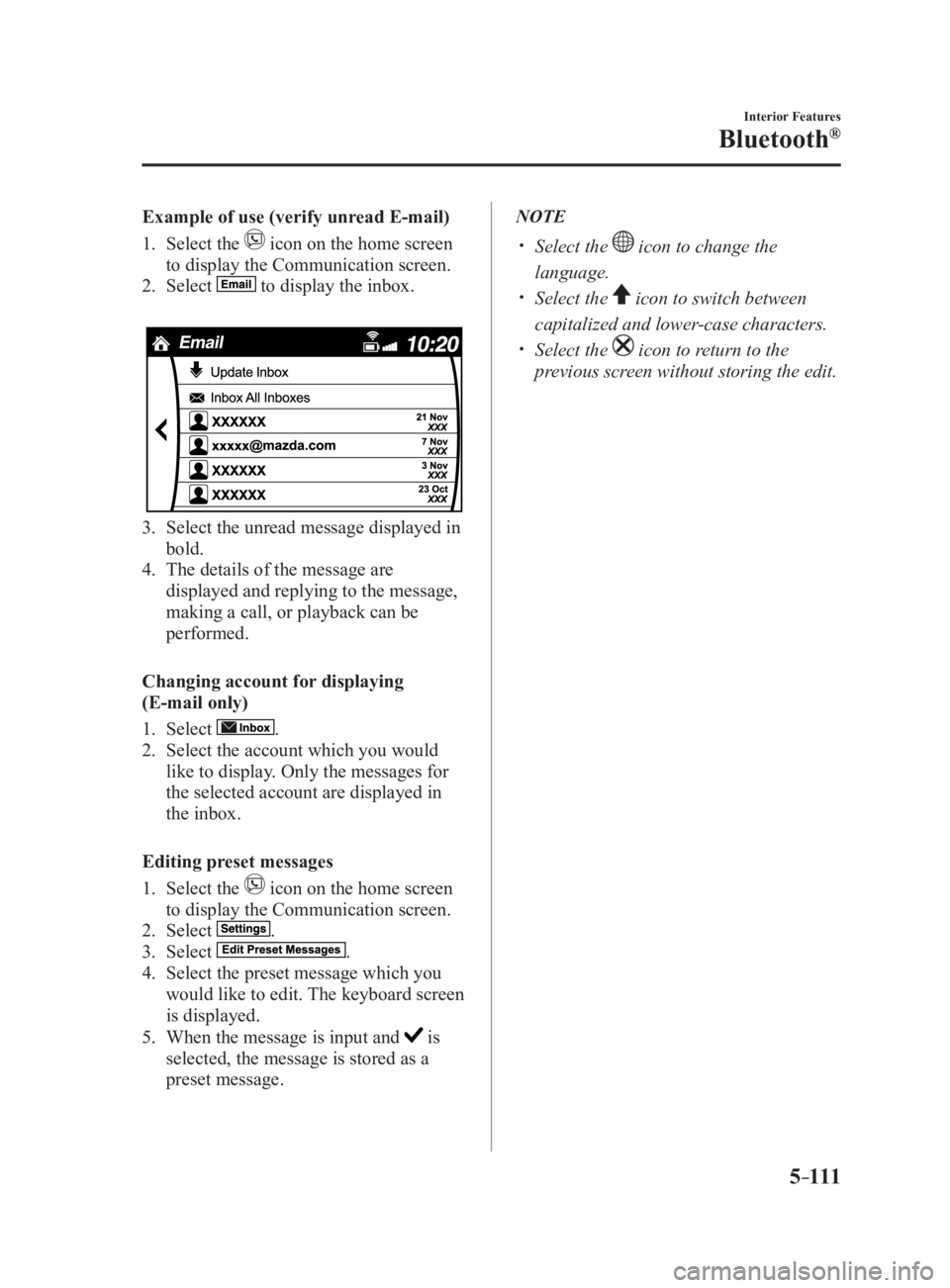
Example of use (verify unread E-mail)
1. Select the icon on the home screen
to display the Communication screen.
2. Select to display the inbox.
3. Select the unread message displayed in
bold.
4. The details of the message are
displayed and replying to the message,
making a call, or playback can be
performed.
Changing account for displaying
(E-mail only)
1. Select .
2. Select the account which you would
like to display. Only the messages for
the selected account are displayed in
the inbox.
Editing preset messages
1. Select the icon on the home screen
to display the Communication screen.
2. Select .
3. Select .
4. Select the preset message which you
would like to edit. The keyboard screen
is displayed.
5. When the message is input and is
selected, the message is stored as a
preset message. NOTE
Select the icon to change the
language.
Select the icon to switch between
capitalized and lower-case characters.
Select the icon to re turn to the
previous screen without storing the edit.
MX-5_8FR4-EA-16J_Edition1.indb 111 2016/08/11 20:29:30
Page 334 of 568
5 –112 Interior Features
Bluetooth ®
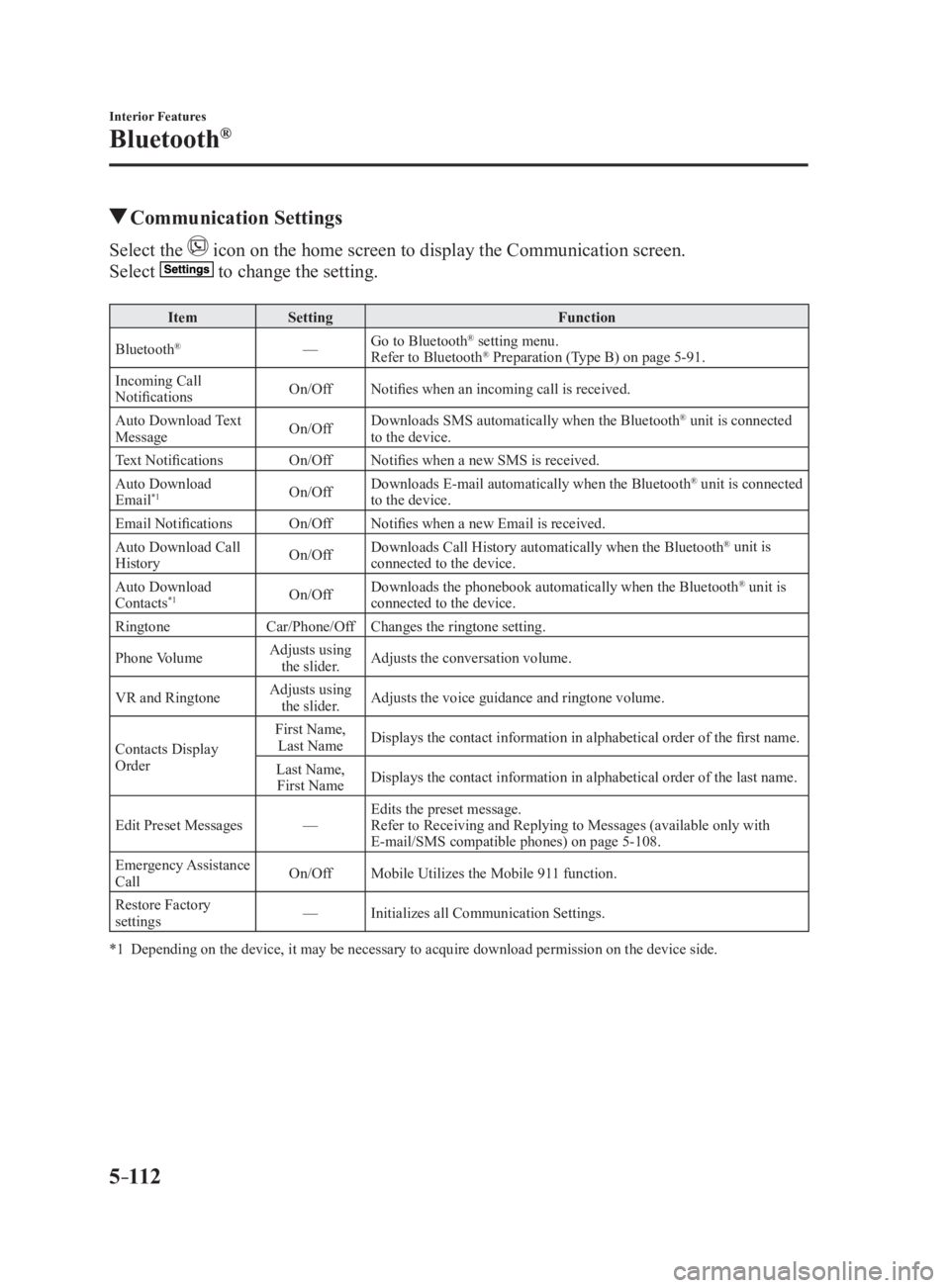
Communication SettingsSelect the icon on the home screen to display the Communication screen.
Select to change the setting.Item Setting Function
Bluetooth ®
— Go to Bluetooth ®
setting menu.
Refer to Bluetooth ®
Preparation (Type B) on page 5-91 .
Incoming Call
Notifications On/Off Notifies when an incoming call is received.
Auto Download Text
Message On/Off Downloads SMS automatically when the Bluetooth ®
unit is connected
to the device.
Text Notifications On/Off Notifies when a new SMS is received.
Auto Download
Email *1
On/Off Downloads E-mail automatically when the Bluetooth ®
unit is connected
to the device.
Email Notifications On/Off Notifies when a new Email is received.
Auto Download Call
History On/Off Downloads Call History automatically when the Bluetooth ®
unit is
connected to the device.
Auto Download
Contacts *1
On/Off Downloads the phonebook automatically when the Bluetooth ®
unit is
connected to the device.
Ringtone Car/Phone/Off Changes the ringtone setting.
Phone Volume Adjusts using
the slider. Adjusts the conversation volume.
VR and Ringtone Adjusts using
the slider. Adjusts the voice guidance and ringtone volume.
Contacts Display
Order First Name,
Last Name Displays the contact information in alphabetical order of the fi rst name.
Last Name,
First Name Displays the contact information in alphabetical order of the last name.
Edit Preset Messages — Edits the preset message.
Refer to Receiving and Replying to Messages (available only wit h
E-mail/SMS compatible phones) on page 5-108 .
Emergency Assistance
Call On/Off Mobile Utilizes the Mobile 911 function.
Restore Factory
settings — Initializes all Communication Settings.
*1 Depending on the device, it may be necessary to acquire downloa d permission on the device side.
MX-5_8FR4-EA-16J_Edition1.indb 112 2016/08/11 20:29:30
Page 344 of 568

5 –122 Interior Features
Bluetooth ®
How to Use Aha™What is Aha™?
Aha *1
is an application which can be used to enjoy various Internet content such as Internet
radio and podcasts.
Stay connected to your friends activities by getting updates fr om Facebook and Twitter.
Using the location-based service, nearby services and destinations can be searched or real-
time local information can be obtained.
For details on Aha, refer to “http://www.aharadio.com/”.
*1 Aha, the Aha logo, and the Aha trade dress are trademarks or registered trademarks of
Harman International Industries, Inc., used with permission.
NOTE
The service content provided by Aha varies depending on the country in which the user
resides. In addition, the service is not available in some countries.
To operate Aha from your Bluetooth ®
device, perform the following in advance:
Install the Aha application to your device.
Create an Aha account for your device.
Log onto Aha using your device.
Select the preset station on your device.
Playback
Select the icon on the home screen to display the Entertainment screen. When is
selected, the following icons are displayed at the bottom of the center display. The displayed
icon differs depending on the selected station.
In addition, icons other than the following icons may be displayed. Icon Function
Displays the Entertainment menu. Use to switch to a different audio source.
Displays the main menu.
Use to switch to other stations.
Displays the content list.
Use to switch to other desired content on the station.
Shout
Records voice.
Records voice and posts it as playable audio to Facebook and ot her social stations.
MX-5_8FR4-EA-16J_Edition1.indb 122 2016/08/11 20:29:32
Page 346 of 568

5 –124 Interior Features
Bluetooth ®
Main menu
Select the icon.
Switch the tab and select the station category. Ta b Function
Presets Displays the preset station list set on the device.
Select the preset station name to play the station content.
Nearby Select the desired station.
Guidance is provided to the searched destination near the vehic le's position.
You can designate desired categories previously set using the filter setting
on your device.
NOTE
The available Location Based Services may differ because the services depend on the
content provided by Aha™.
MX-5_8FR4-EA-16J_Edition1.indb 124 2016/08/11 20:29:33
Page 366 of 568

6 –4 Maintenance and Care
Scheduled Maintenance
Scheduled Maintenance (U.S.A., Canada, and Puerto
Rico) Follow Schedule 1 if the vehicle is operated mainly where none of the following conditions
(severe driving conditions) apply.
Repeated short-distance driving
Driving in dusty conditions
Driving with extended use of brakes
Driving in areas where salt or other corrosive materials are used
Driving on rough or muddy roads
Extended periods of idling or low-speed operation
Driving for long periods in cold temperatures or extremely humid climates
Driving in extremely hot conditions
Driving in mountainous conditions continually
If any do apply, follow Schedule 2. (Canada residents follow Schedule 2.)
Vehicles using Engine Oil Flexible Maintenance
Engine Oil Flexible Maintenance is available for U.S.A. and Pue rto Rico residents whose
vehicle is operated mainly where none of the following conditions apply:
Extended periods of idling or low-speed operation such as polic e car, taxi or driving
school car
Driving in dusty conditions
If any do apply, follow Schedule 2 with engine oil fixed maintenance.
Once engine oil flexible maintenance is selected, the vehicle ca lculates the remaining oil life
based on engine operating conditions. The vehicle lets you know when an oil change is due
by illuminating the wrench indicator light in the instrument cluster. Change the oil as soon
as possible within the next 500 km (300 mile) or 15 days. Refer page 6-20 for the details.
Mazda Genuine 0W-20 Oil and Castrol ®
0W-20 Oil are required to achieve optimum
performance.
NOTE
Please ensure that the Flexible Oil Maintenance Setting is reset after each Oil and Filter
replacement.
For maintenance guidelines beyond the miles/months listed, follow the maintenance
intervals provided in the Scheduled Maintenance Tables.
MX-5_8FR4-EA-16J_Edition1.indb 4 2016/08/11 20:29:37