tow MERCEDES-BENZ A-CLASS HATCHBACK 2018 Repair Manual
[x] Cancel search | Manufacturer: MERCEDES-BENZ, Model Year: 2018, Model line: A-CLASS HATCHBACK, Model: MERCEDES-BENZ A-CLASS HATCHBACK 2018Pages: 609, PDF Size: 10.73 MB
Page 209 of 609
is
responsible for complying with road traf fic
re gulations and driving at a suitable speed.
In dif ficult conditions (e.g. unclear roads, nar row
lanes, wetro ad sur faces, snow or ice) or when
driving wi tha trailer, the speed adjustment made
by the sy stem may not alw ays be suitable. In
th ese situations the driver must inter vene
acco rdingly. &
WARNING Risk of accident in spi teof
ro ute-based speed adjustment
Ro ute-based speed adjustment might mal‐
function or be temp orarily una vailable in the
fo llowing situations:
R If map data is not up todate or available
R Ifyo u do not follow the selected route
guidance
R Ifth e set route is re-planned
R Inroad con stru ction areas
R When towing a trailer
R In bad weather or road conditions
R Ifth e accelerator pedal is depressed #
Adjust the speed tothe traf fic situation. Setting
route-based speed adjustment Re
quirements:
R Active Dis tance Assi stDISTRONIC is acti va‐
te d.
Multimedia sy stem:
, © .
Settings .
Assis-
tance .
Route speed adapt. #
Activate or deacti vate the function.
When the function is active, theve hicle
speed is adjus ted depending on thero ute
eve nts ahead.
% Further information on thero ute-based
speed adap tation (→ page 205). Ac
tive Steering Assist Fu
nction of Active Steering Assist Ac
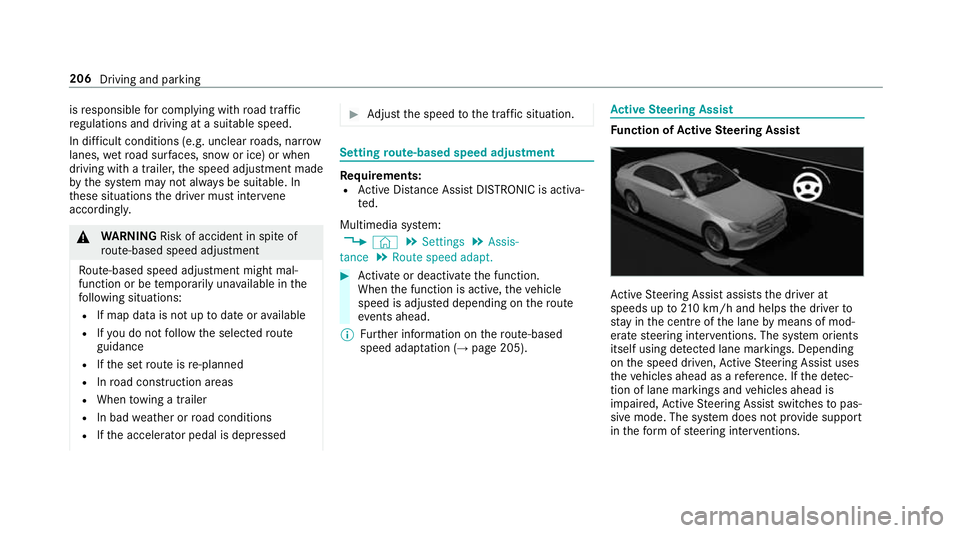
tive Steering Assist assists the driver at
speeds up to210 km/h and helps the driver to
st ay inthe cent reofthe lane bymeans of mod‐
erate steering inter ventions. The sy stem orients
itself using de tected lane markings. Depending
on the speed driven, Active Steering Assist uses
th eve hicles ahead as a refere nce. If the de tec‐
tion of lane markings and vehicles ahead is
impaired, Active Steering Assist switches topas‐
sive mode. The sy stem does not pr ovide support
in thefo rm ofsteering inter ventions. 206
Driving and pa rking
Page 211 of 609
R
Obs tacles on the lane or projecting out into
th e lane.
The sy stem does not pr ovide assis tance in the
fo llowing conditions:
R On tight bends, roundabouts and when turn‐
ing.
R When towing a trailer.
R When actively changing lane without swit ch‐
ing on the turn signal. &
WARNING Risk of accident if Active
St eering Assist unexpectedly stops func‐
tioning
If th e sy stem limitations of Active Steering
Assist are reached there is no guarantee that
th e sy stem will remain active or will keep the
ve hicle in lane. #
Alw ayske ep your hands on thesteering
wheel and obser vethe tra ffic carefull y. #
Alw aysst eer theve hicle paying atten‐
tion totraf fic conditions. &
WARNING Risk of accident if Active
St eering Assist unexpectedly inter venes
A malfunction in the de tection of lane mark‐
ings and objects can occu r.
This could cause unexpected steering inter‐
ve ntion. #
Steer according totraf fic conditions. Ac
tivating/deactivating Active Steering
Assist
Re quirements:
R ESP ®
is activated, but is not inter vening.
R Active Dis tance Assi stDISTRONIC is acti va‐
te d.
Multimedia sy stem:
, © .
Settings .
Schnellzugriff
(Quick access) #
Select aAct. Steer. Asst . Fu
nction of Active Lane Change Assi st
% The following function is countr y-dependent
and only available in conjunction with the
Driving Assi stance Package.
Ac tive Lane Change Assi stsupports the driver
when changing lanes byapplying steering torque
if th e driver operates a turn signal.
Assis tance when changing lanes is pr ovided if all
th efo llowing conditions are me t:
R You are driving on a mo torw ay orroad with
multiple lanes in the direction of tr avel.
R The neighbouring lane is separated bya bro‐
ke n lane ma rking.
R Novehicle is de tected in the adjacent lane.
R The driven speed is between 80 km/h and
180 km/h.
R Active Lane Change Assi stis switched on in
th e multimedia sy stem.
R Active Steering Assist is switched on and
active. 208
Driving and parking
Page 216 of 609
*
NO
TEDama gefrom auto matic braking If one of
thefo llowing functions is switched
on, theve hicle brakes automatically in cer‐
ta in situations:
R Active Brake Assi st
R Active Dis tance Assi stDISTRONIC
R HOLD function
R Active Parking Assist
To avo id damage totheve hicle, deactivate
th ese sy stems in thefo llowing or similar sit‐
uations: #
During towing #
In a car wash Re
quirements:
R The vehicle is stationar y.
R The driver's door is closed or the seat belt on
th e driver's side is fastened.
R The engine is running or has been au tomati‐
cally switched off bythe ECO start/ stop
function. R
The electric parking brake is released.
R Active Dis tance Assi stDISTRONIC is deacti‐
va ted.
R The transmission is in position h,kori.
Ac tivating the HOLD function #
Dep ress the brake pedal and af ter a short
time quickly depress fur ther until theë
display appears in the multifunction displa y. #
Release the brake pedal.
Deactivating the HOLD function #
Depress the accelerator pedal topull away.
or #
Depress the brake pedal until theë dis‐
play disappears from the multifunction dis‐
pla y.
The HOLD function is deactivated in thefo llow‐
ing situations:
R Active Dis tance Assi stDISTRONIC is acti va‐
te d.
R The transmission is switched toposition j.R
The vehicle is secured with the electric park‐
ing brake.
In thefo llowing situations, theve hicle is held by
th e transmission position jorby the electric
parking brake:
R The seat belt is unfas tened and the driver's
door is opened.
R The drive sy stem is switched off.
R There is a malfunction in the sy stem or the
po we r supp lyis insuf ficient. St
art-off assi st Fu
nction of thest art-off assi st
The start-off assist enables optimal vehicle
acceleration from a standstill. Forth is, a suitably
high-grip road sur face is requ ired, the tyres and
ve hicle must also be in good condition.
Do not activate thest art-off assist on public
ro ads.
Be sure toobser vethe saf ety no tes and informa‐
tion on ESP ®
. Driving and parking
213
Page 231 of 609
#
Where necessar y,select the parking direc‐
tion: forw ards or reve rse.
Ve hicle path 3is shown, depending on
selected parking space 4and the parking
direction. #
Confirm selected parking space 4.
% The turn signal indicator is switched on auto‐
matically when the parking procedure
begins. The turn signal indicator is switched
off automatically when you swit chtoh .
Yo u are responsible for selecting the turn signal
in accordance with the traf fic conditions. If nec‐
essar y,select the turn signal accordingly. &
WARNING Risk of accident due tovehi‐
cle swinging out while parking or pulling
out of a parking space
While parking or exiting a parking space, the
ve hicle swings out and can drive onto areas
of the oncoming lane.
This could cause youto collide wi thobjects
or other road users. #
Pay attention toobjects and other road
users. #
Where necessar y,stop theve hicle or
cancel the parking procedure with
Ac tive Parking Assist. #
If,forex ample, thePlease engage reverse
gear message appears in the multimedia sys‐
te m display: select the cor responding trans‐
mission position.
Ve hicles with automatic transmission: the
ve hicle drives into the selected parking
space. #
Vehicles with manual transmission: stop
as soon as Parking Assist PARKTRONIC
sounds the continuous warning tone, if not
be fore . Depending on the message or as
re qu ired, engage forw ard or reve rsege ar.
On completion of the parking procedure, the
Parking Assist finished, take control of vehicle
display message appears. Further manoeuvring
may still be necessar y. #
After completion of the parking procedure,
safeguard theve hicle against rolling away.
When requ ired bylegal requirements or local
conditions: turn the wheels towa rdsth eke rb.
% You can stop theve hicle and change the
transmission position du ring the parking pro‐
cedure. The sy stem then calculates a new
ve hicle path. The parking procedure can
th en be continued. If no new vehicle path is
av ailable, the transmission position will be
ch anged again. If theve hicle has not yet
re ached the parking space, the parking pro‐
cedure will be cancelled, should a gear be
ch anged.
Exiting a pa rking space with Active Parking
Assist
Re quirements:
R The vehicle has been par ked with Active
Pa rking Assist.
% Depending on theve hicle's equipment, the
button may also be located at a dif fere nt
position in the cent reconsole. 228
Driving and pa rking
Page 238 of 609
ve
hicle in front, forve hicle speed and for braking
in good time. The maximum permissible speed
also depends on factors su chasthero ad sur‐
fa ce and traf fic conditions. Tr
af fic Sign Assist Fu
nction of Traf fic Sign Assist Tr
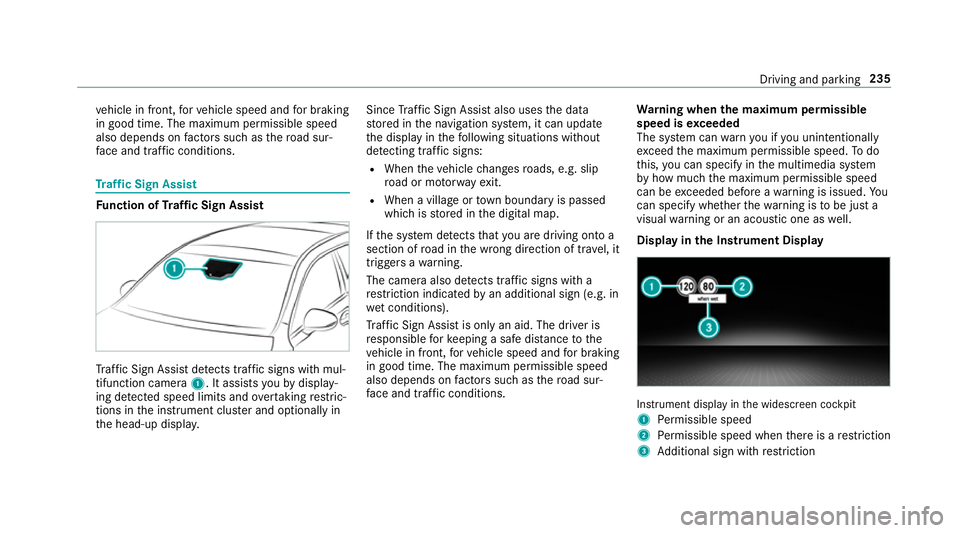
af fic Sign Assi stdetects traf fic signs wi thmul‐
tifunction camera 1. It assistsyo uby display‐
ing de tected speed limits and overtaking restric‐
tions in the instrument clus ter and optionally in
th e head-up displa y. Since
Traf fic Sign Assi stalso uses the data
st ored in the navigation sy stem, it can update
th e display in thefo llowing situations without
de tecting traf fic signs:
R When theve hicle changes roads, e.g. slip
ro ad or mo torw ay ex it.
R When a village or town boundary is passed
which is stored in the digital map.
If th e sy stem de tects that you are driving on to a
section of road in the wrong direction of tr avel, it
triggers a warning.
The camera also de tects traf fic signs wi th a
re striction indicated byan additional sign (e.g. in
we t conditions).
Tr af fic Sign Assi stis only an aid. The driver is
re sponsible forke eping a safe dis tance tothe
ve hicle in front, forve hicle speed and for braking
in good time. The maximum permissible speed
also depends on factors su chasthero ad sur‐
fa ce and traf fic conditions. Wa
rning when the maximum permissible
speed is exceeded
The sy stem can warnyou if you unin tentionally
exc eed the maximum permissible speed. Todo
th is, you can specify in the multimedia sy stem
by how much the maximum permissible speed
can be exceeded before a warning is issued. Yo u
can specify whe ther thewa rning is tobe just a
visual warning or an acoustic one as well.
Display in the Instrument Display In
stru ment display in the widescreen cockpit
1 Perm issible speed
2 Perm issible speed when there is a restriction
3 Additional sign with restriction Driving and pa
rking 235
Page 245 of 609
Assi
stinter venes. The li kelihood of inter vention
is therefore higher.
Setting Active Lane Keeping Assist
Multimedia sy stem:
, © .
Settings .
Assistance .
Act.
Lane Keep. Assist
Setting the sensitivity
% The availability of this function is dependent
on the count ry. #
Select Standard ,Sensitive orOff.
Ac tivating/deactivating the haptic warning #
Select Warning.
Ac tivate or deacti vate the function. Tr
ailer hitch Tr
ailer operation no tesObser
vethefo llowing no tes on theto ngue
we ight:
R do not use a tongue weight that exceeds or
fa lls below the permissible tongue weight R
use a tongue weight as close as possible to
th e maximum tongue weight
Do not exceed thefo llowing values:
R permissible towing capacity
R permissible rear axle load of theto wing vehi‐
cle
R permissible gross mass of theto wing vehicle
R permissible gross mass of the trailer
R maximum permissible speed of the trailer
Ensure thefo llowing before starting a journey:
R the tyre pressure on there ar axle of theto w‐
ing vehicle is set for a maximum load
R the lighting of the connected trailer is opera‐
tional
R vehicles without LED headlamps or MUL‐
TIBEAM LED headlamps: the headlamps
ha ve been set cor rectly
In theeve nt of increased rear axle load, the car/
trailer combination may not exceed a maximum
speed of 100 km/h forre asons concerning the
operating permit. This also applies in countri esin which
the permissible maximum speed for
car/trailer combinations is ab ove100 km/h. Fo
lding the ball neck out/in &
WARNING Risk of accident due tothe
ball neck not being engaged
If th e ball neck is not engaged, the trailer
may come loose. #
Alw ays engage the ball neck as descri‐
bed. &
WARNING Risk of inju ryfrom ball neck
swinging outwards
The ball neck may swing outwards when
unlo cking or when it has not been properly
engaged.
There is a risk of injury within the ball neck's
ra nge of mo vement! #
Unlock the ball neck only when its
ra nge of mo vement is unobstructed. 242
Driving and pa rking
Page 250 of 609
R
always distribute the load on the bicycle rack
as eve nly as possible across theve hicle's
longitudinal axis
Mercedes-Benz recommends removing all
de tach able parts from bicycles, e.g. bask ets,
ch ild seats or rech arge able bat teries, before
loading them onto the bicycle rack . This
impr ovesth e wind resis tance and centre of gr av‐
ity of the bicycle rack.
Alw ays secure the bicycles topreve ntthem from
moving around and check they are secured at
re gular inter vals.
Do not use tarp aulins or other co vers. The driv‐
ing characteristics and rear view may be
impaired. In addition, the wind resis tance and
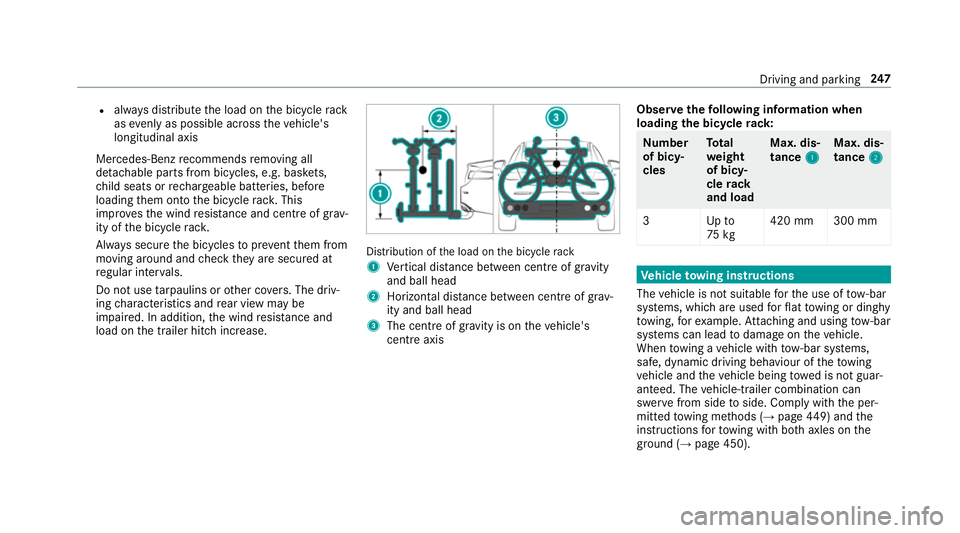
load on the trailer hitch increase. Distribution of
the load on the bicycle rack
1 Vertical dis tance between centre of gr avity
and ball head
2 Horizon tal dis tance between centre of gr av‐
ity and ball head
3 The centre of gr avity is on theve hicle's
centre axis Obser
vethefo llowing information when
loading the bicycle rack: Nu
mber
of bicy‐
cles To
tal
we ight
of bicy‐
cle rack
and load Max. dis‐
tance
1 1Max. dis‐
tance
2 2
3U pto
75 kg 420 mm 300 mm Ve
hicle towing instructions
The vehicle is not suitable forth e use of tow- bar
sy stems, which are used forflat towing or ding hy
to wing, forex ample. Attach ing and using tow- bar
sy stems can lead todamage on theve hicle.
When towing a vehicle with tow- bar sy stems,
safe, dynamic driving behaviour of theto wing
ve hicle and theve hicle being towe d is not guar‐
anteed. The vehicle-trailer combination can
swer vefrom side toside. Comply with the per‐
mitted towing me thods (→ page449) and the
instructions forto wing with bo thaxles on the
ground (→ page 450). Driving and parking
247
Page 259 of 609
R
Trip computer From startandFrom reset
R ECO displa y(→ page 160) #
Toselect the function tobe rese t:swipe
upwards or down wards on the left-hand
To uch Control. #
Press the left-hand Touch Control. #
Select Yes. #
Press the left-hand Touch Control.
If yo u press and hold the left-hand Touch Con‐
trol, theva lues of the function will be reset
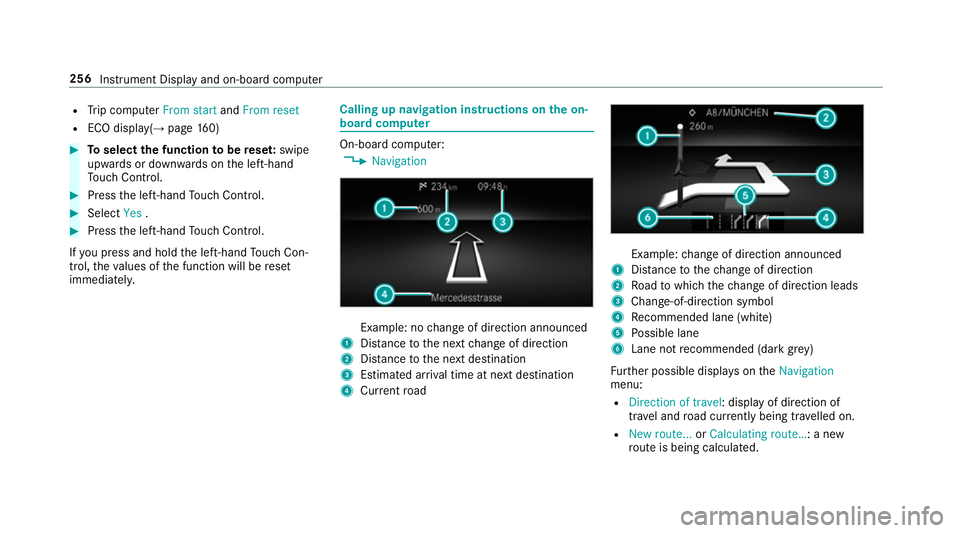
immediatel y. Calling up navigation instructions on
the on-
board compu ter On-board computer:
, Navigation Example: no
change of direction announced
1 Distance tothe next change of direction
2 Distance tothe next destination
3 Estimated ar riva l time at next destination
4 Current road Example:
change of direction announced
1 Distance tothech ange of direction
2 Road towhich thech ange of direction leads
3 Chan ge-of-direction symbol
4 Recommended lane (white)
5 Possible lane
6 Lane not recommended (da rkgrey)
Fu rther possible displa yson theNavigation
menu:
R Direction of travel: display of direction of
tra vel and road cur rently being tr avelled on.
R New route... orCalculating route… : a new
ro ute is being calculated. 256
Instru ment Display and on-board computer
Page 331 of 609
re
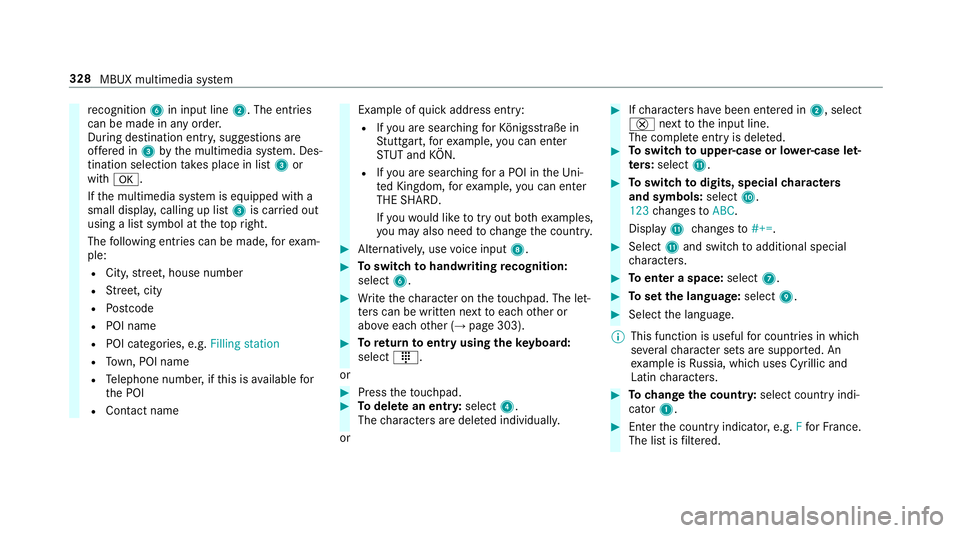
cognition 6in input line 2. The entries
can be made in any order.
During destination entr y,suggestions are
of fere d in 3bythe multimedia sy stem. Des‐
tination selection take s place in list 3or
with a.
If th e multimedia sy stem is equipped with a
small displa y,calling up li st3 is car ried out
using a list symbol at theto pright.
The following ent ries can be made, forex am‐
ple:
R City, stre et, house number
R Street, city
R Postcode
R POI name
R POI catego ries, e.g. Filling station
R Town, POI name
R Telephone number, if this is available for
th e POI
R Contact name Example of
quick address ent ry:
R Ifyo u are sear ching forKö nigsstraße in
St utt gart,fo rex ample, you can en ter
ST UT and KÖN.
R Ifyo u are sear ching for a POI in theUn i‐
te d Kingdom, forex ample, you can en ter
THE SHARD.
If yo uwo uld like totry out bo thexamples,
yo u may also need tochange the count ry. #
Alternati vely, use voice input 8. #
Toswitch tohandwriting recognition:
select 6. #
Write thech aracter on theto uchpad. The let‐
te rs can be written next toeach other or
abo veeach other (→ page 303). #
Toreturn toentry using theke yboard:
select _.
or #
Press theto uchpad. #
Todel ete an entr y:select 4.
The characters are dele ted individually.
or #
Ifch aracters ha vebeen entered in 2, select
£ nexttothe input line.
The comple teentry is dele ted. #
Toswitch toupper-case or lo wer-case let‐
ters :select B. #
Toswitch todigits, special characters
and symbols: selectA.
123 changes toABC.
Displ ayB changes to#+=. #
Select Band switch toadditional special
ch aracters. #
Toenter a space: select7. #
Toset the language: select9. #
Select the language.
% This function is useful for countries in which
se veralch aracter sets are suppo rted. An
ex ample is Russia, which uses Cyrillic and
Latin characters. #
Tochange the count ry:select country indi‐
cator 1. #
Enter the count ryindicator, e.g. Ffo rFr ance.
The list is filtered. 328
MBUX multimedia sy stem
Page 383 of 609
#
Say the message.
Af terth evo ice message has been processed,
it is shown as text.
Sending a message #
Select Send.
% When theve hicle is stationary you can use
th eke yboard towrite a message. No In ter‐
net connection is requ ired touse theke y‐
board.
Re plying toa message in the messaging his‐
to ry
Multimedia sy stem:
, © .
Phone .
Messages #
Select a message sequence with a conta ct.#
Select p.
The dictating function is star ted. #
Say the message.
Af terth evo ice message has been processed,
it is shown as text. #
Select Send. Using message
templates
Multimedia sy stem:
, © .
Phone .
Messages
Using a template as a new messa ge #
r Select a new messa ge. #
Add a recipient using f. #
Select a temp late .
Answering a messa gewith a template #
Select a message sequence with a con tact. #
Select a te
mp late. #
Select a te
mp late.
Fo rw arding a message
Multimedia sy stem:
, © .
Phone .
Messages #
Select a message sequence with a conta ct. #
Press and hold on a message. #
Toforw ard a message: selectForward.
Calling a message sender
Multimedia sy stem:
, © .
Phone .
Messages #
Select a message sequence with a conta ct. #
Select Ä. #
Select Call.
Using telephone numbers or URLs from a
te xt message
Re quirements:
R An Internet connection is available tocall up
a URL.
Multimedia sy stem:
, © .
Phone .
Messages #
Select a message sequence with a conta ct. #
Select a telephone number or a URL in the
messa ge.
If a URL is selected thewe b br ows er opens. 380
MBUX multimedia sy stem