light MERCEDES-BENZ A-CLASS SALOON 2018 Owners Manual
[x] Cancel search | Manufacturer: MERCEDES-BENZ, Model Year: 2018, Model line: A-CLASS SALOON, Model: MERCEDES-BENZ A-CLASS SALOON 2018Pages: 621, PDF Size: 10.5 MB
Page 287 of 621
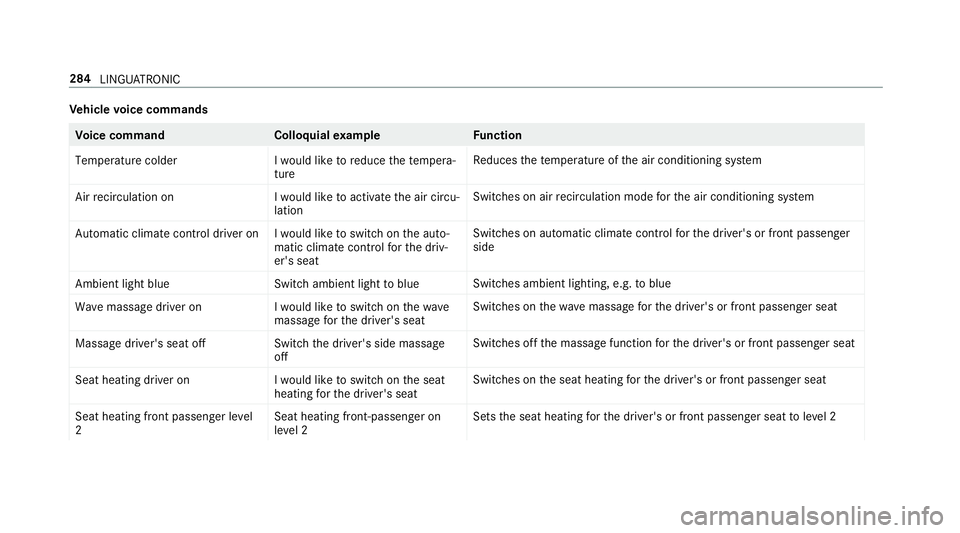
Ve
hicle voice commands Vo
ice command Colloquialexample Function
Temperature colder I would like to reduce the tempera-
tureRe
duces thete mp erature of the air conditioning sy stem
Air recirculation on I would like to activate the air circu-
lationSwitches on air
recirculation mode forth e air conditioning sy stem
Automatic climate control driver on I would like to switch on the auto- matic climate control for the driv-
er's seatSwitches on automatic climate control
forth e driver's or front passenger
side
Ambient light blue Switch ambient light to blueSwitches ambient lighting, e.g.
toblue
Wave massage driver on I would like to switch on the wave
massage for the driver's seatSwitches on
thewav e massage forth e driver's or front passenger seat
Massage driver's seat off Switch the driver's side massage
offSwitches off
the massage function forth e driver's or front passenger seat
Seat heating driver on I would like to switch on the seat
heating for the driver's seatSwitches on
the seat heating forth e driver's or front passenger seat
Seat heating front passenger level
2 Seat heating front-passenger on
level 2Sets
the seat heating forth e driver's or front passenger seat toleve l 2 284
LINGU ATRO NIC
Page 288 of 621
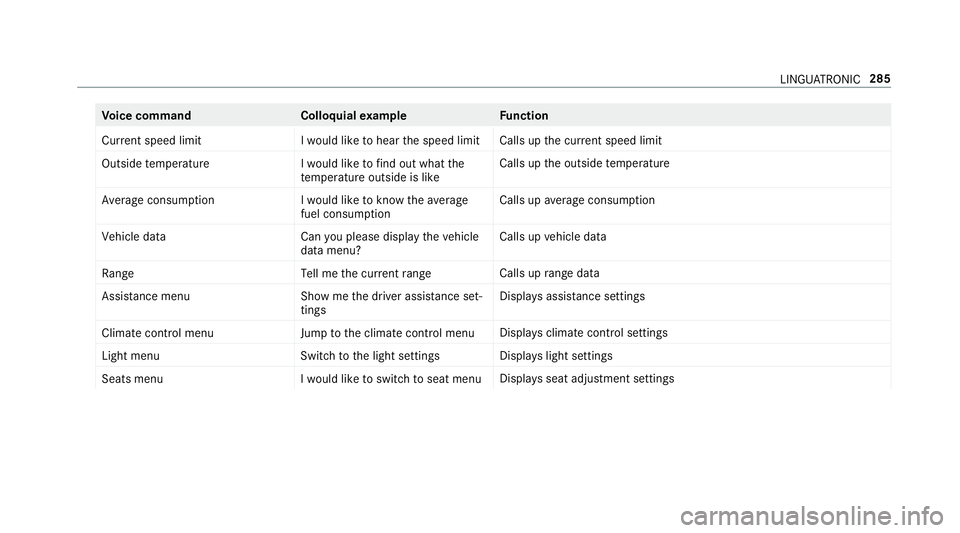
Vo
ice command Colloquialexample Function
Current speed limit I would like to hear the speed limitCalls up
the cur rent speed limit
Outside temperature I would like to find out what the
temperature outside is likeCalls up
the outside temp erature
Average consumption I would like to know the average
fuel consumptionCalls up
average consu mption
Vehicle data Can you please display the vehicle
data menu? Calls up
vehicle data
Range Tell me the current rangeCalls up
range da ta
Assistance menu Show me the driver assistance set-
tingsDispl
ays assis tance settings
Climate control menu Jump to the climate control menuDispla
ysclimate control settings
Light menu Switch to the light settingsDispla
yslight settings
Seats men uI would like to switch to seat menu Displa
ysseat adjustment settings LINGU
ATRO NIC 285
Page 300 of 621
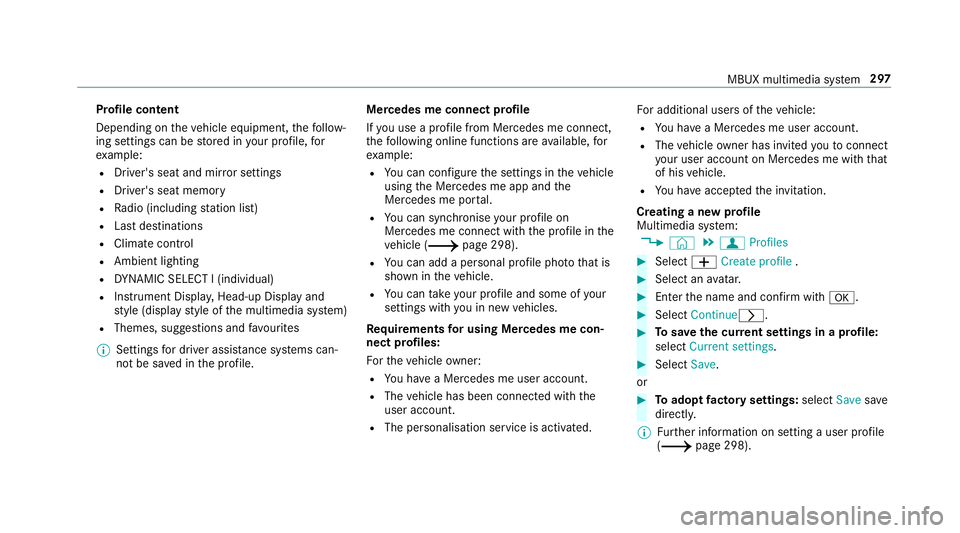
Profile content
Depending on
theve hicle equipment, thefo llow‐
ing settings can be stored in your profile, for
ex ample:
R Driver's seat and mir ror settings
R Driver's seat memory
R Radio (including station list)
R Last destinations
R Climate control
R Ambient lighting
R DYNA MIC SELECT I (individual)
R Instrument Displa y,Head-up Display and
st yle (display style of the multimedia sy stem)
R Themes, suggestions and favo urites
% Settings for driver assi stance sy stems can‐
not be sa ved in the profile. Mercedes me connect profile
If yo u use a profile from Mercedes me connect,
th efo llowing online functions are available, for
ex ample:
R You can configure the settings in theve hicle
using the Mercedes me app and the
Mercedes me por tal.
R You can syn chronise your profile on
Mercedes me connect with the profile in the
ve hicle (/ page 298).
R You can add a personal profile pho tothat is
shown in theve hicle.
R You can take your profile and some of your
settings with you in new vehicles.
Requ irements for using Me rcedes me con‐
nect profiles:
Fo rth eve hicle owner:
R You ha vea Mercedes me user account.
R The vehicle has been connected with the
user account.
R The personalisation service is activated. Fo
r additional users of theve hicle:
R You ha vea Mercedes me user account.
R The vehicle owner has invited youto connect
yo ur user account on Mercedes me with that
of his vehicle.
R You ha veaccep tedth e invitation.
Creating a new profile
Multimedia sy stem:
4 © 5
f Profiles #
Select WCreate profile . #
Select an avatar. #
Enterth e name and confi rmwith a. #
Select Continuer . #
Tosave the cur rent settings in a profile:
select Current settings. #
Select Save.
or #
Toadopt factory settings: selectSavesave
directly.
% Further information on setting a user profile
(/ page 298). MBUX multimedia sy
stem 297
Page 302 of 621
#
Activate Synchronise profiles automatically.
The profiles in theve hicle are automatically
synchronised with the profiles on Mercedes
me connect when the ignition is switched on
and off.
or #
Select Synchronise profiles now.
Af ter selecting this option, the profiles in the
ve hicle are synchronised with the profiles on
Mercedes me connect.
% During synchronisation the profile lis tand
th e profile functions are bloc ked.
% Note on data pr otection: ifyo u do not wish
to share your data with Mercedes me, make
sure that the automatic synchronisation is
switched off and do not select Synchronise
profiles now .
Showing the profile selection when entering
Re quirements:
R Atleast one profile has been created. Multimedia sy
stem:
4 © 5
f Profiles
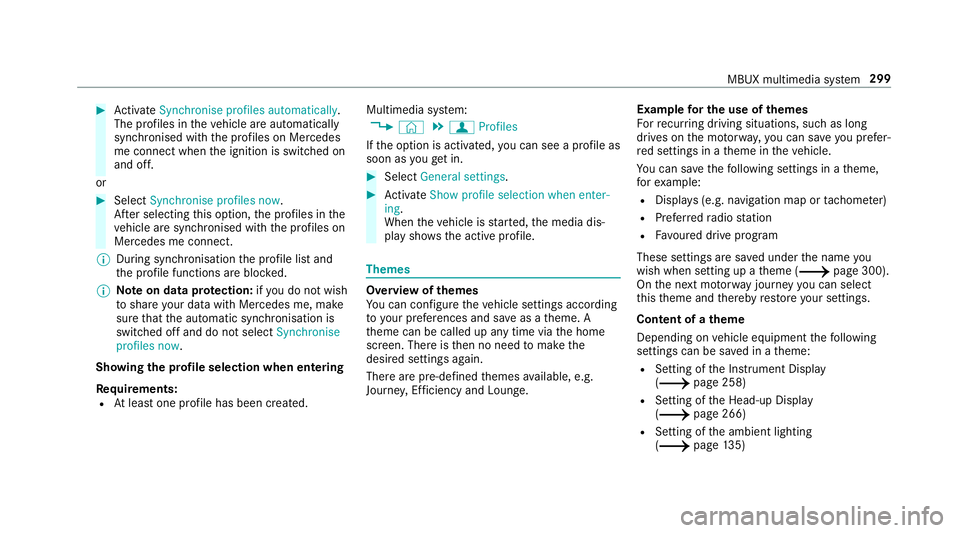
If th e option is activated, you can see a profile as
soon as youget in. #
Select General settings. #
Activate Show profile selection when enter-
ing .
When theve hicle is star ted, the media dis‐
play sho wsthe active profile. Themes
Overview of
themes
Yo u can configure theve hicle settings according
to yo ur preferences and sa veas a theme. A
th eme can be called up any time via the home
screen. There is then no need tomake the
desired settings again.
There are pre-defined themes available, e.g.
Journe y,Efficiency and Lounge. Example
for the use of themes
Fo rre cur ring driving situations, su chas long
drives on the mo torw ay,yo u can sa veyou prefer‐
re d settings in a theme in theve hicle.
Yo u can sa vethefo llowing settings in a theme,
fo rex ample:
R Displa ys(e.g. navigation map or tach ome ter)
R Prefer redra dio station
R Favo ured drive program
These settings are sa ved under the name you
wish when setting up a theme (/ page 300).
On the next mo torw ay jou rney you can select
th is theme and thereby restore your settings.
Content of a theme
Depending on vehicle equipment thefo llowing
settings can be sa ved in a theme:
R Setting of the Instrument Display
(/ page 258)
R Setting of the Head-up Display
(/ page 266)
R Setting of the ambient lighting
(/ page135) MBUX multimedia sy
stem 299
Page 306 of 621
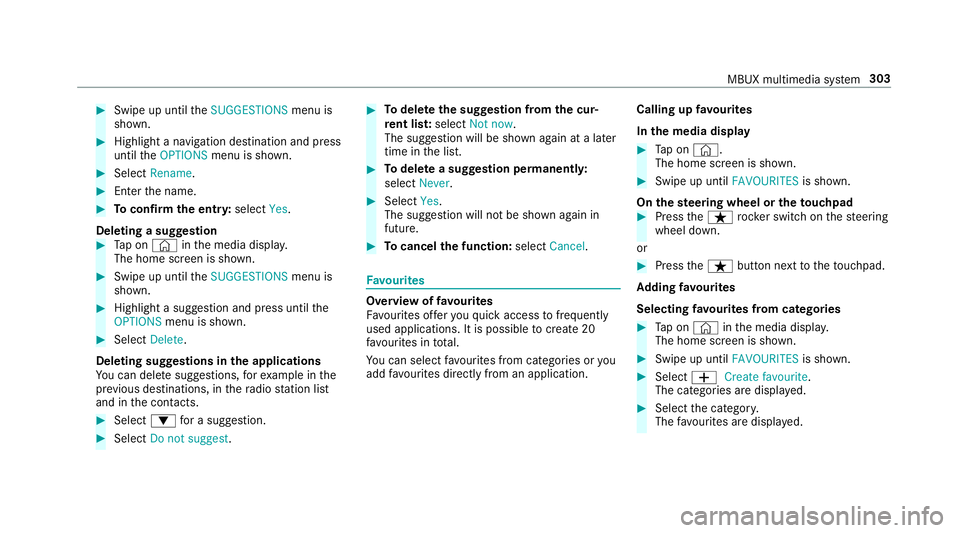
#
Swipe up until theSUGGESTIONS menu is
shown. #
Highlight a navigation destination and press
until theOPTIONS menu is shown. #
Select Rename. #
Ente rth e name. #
Toconfirm the entr y:select Yes.
Deleting a suggestion #
Tap on © inthe media displa y.
The home screen is shown. #
Swipe up until theSUGGESTIONS menu is
shown. #
Highlight a suggestion and press until the
OPTIONS menu is shown. #
Select Delete.
Deleting suggestions in the applications
Yo u can dele tesuggestions, forex ample in the
pr ev ious destinations, in thera dio station list
and in the conta cts. #
Select :for a suggestion. #
Select Do not suggest . #
Todel eteth e suggestion from the cur‐
re nt lis t:select Not now.
The suggestion will be shown again at a later
time in the list. #
Todel ete a suggestion permanent ly:
select Never. #
Select Yes.
The suggestion will not be shown again in
future. #
Tocancel the function: selectCancel. Favo
urites Overview of
favo urites
Fa vourites of feryo uqu ick access tofrequently
used applications. It is possible tocrea te20
fa vo urites in tota l.
Yo u can select favo urites from categories or you
add favo urites direct lyfrom an application. Calling up
favo urites
In the media display #
Tap on ©.
The home screen is shown. #
Swipe up until FAVOURITESis shown.
On thest eering wheel or theto uchpad #
Press theß rocker switch on thesteering
wheel down.
or #
Press theß button next totheto uchpad.
Ad ding favo urites
Selecting favo urites from catego ries #
Tap on © inthe media displa y.
The home screen is shown. #
Swipe up until FAVOURITESis shown. #
Select WCreate favourite .
The categories are displa yed. #
Select the categor y.
The favo urites are displ ayed. MBUX multimedia sy
stem 303
Page 321 of 621
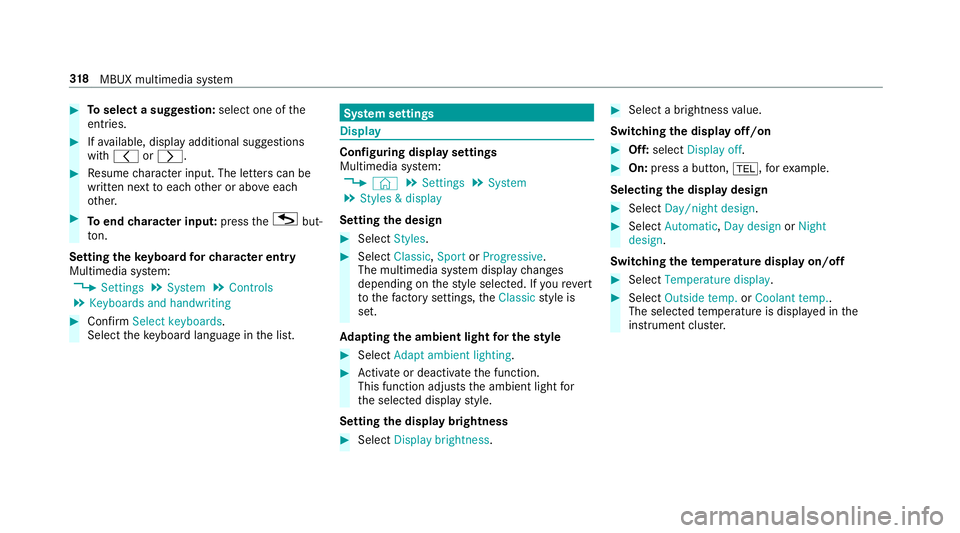
#
Toselect a suggestion: select one ofthe
entri es. #
Ifav ailable, display additional suggestions
with q orr. #
Resume character input. The letters can be
written next toeach other or abo veeach
ot her. #
Toend character input: presstheG but‐
to n.
Setting the keyboard forch aracter entry
Multimedia sy stem:
4 Settings 5
System 5
Controls
5 Keyboards and handwriting #
Confirm Select keyboards.
Select theke yboard language in the list. Sy
stem settings Display
Configuring display settings
Multimedia sy
stem:
4 © 5
Settings 5
System
5 Styles & display
Setting the design #
Select Styles. #
Select Classic ,Sport orProgressive .
The multimedia sy stem display changes
depending on thest yle selected. If youre ve rt
to thefa ctory settings, theClassic style is
set.
Ad apting the ambient light for the style #
Select Adapt ambient lighting. #
Activate or deacti vate the function.
This function adjusts the ambient light for
th e selected display style.
Setting the display brightness #
Select Display brightness . #
Select a brightness value.
Switching the display off/on #
Off: select Display off . #
On: press a button, %,forex ample.
Selecting the display design #
Select Day/night design . #
Select Automatic, Day design orNight
design .
Switching thetemp erature display on/off #
Select Temperature display . #
Select Outside temp. orCoolant temp..
The selec tedte mp erature is displa yed in the
instrument clus ter. 318
MBUX multimedia sy stem
Page 332 of 621
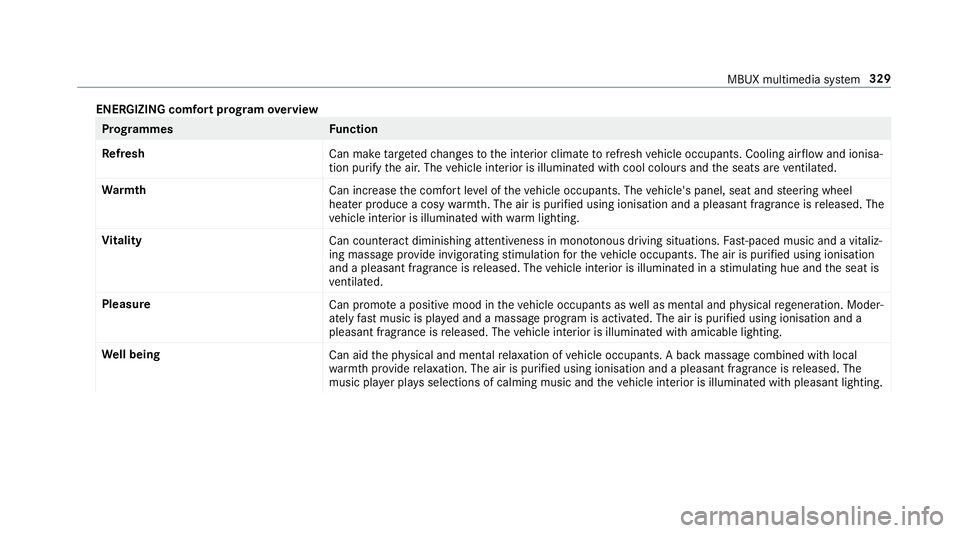
ENERGIZING comfort prog
ram ove rview Prog
rammes Function
Re fresh
Can maketargeted changes tothe interior climate torefresh vehicle occupants. Cooling air flow and ionisa‐
tion purify the air. The vehicle interior is illuminated with cool colours and the seats are ventilated.
Wa rmth
Can increase the comfort le vel of theve hicle occupants. The vehicle's panel, seat and steering wheel
heater produce a cosy warmth. The air is pu rified using ionisation and a pleasant fragrance is released. The
ve hicle interior is illuminated with warm lighting.
Vi tality
Can countera ct diminishing attentiveness in mono tonous driving situations. Fast-paced music and a vitaliz‐
ing massa geprov ide invigorating stimulation forth eve hicle occupants. The air is purified using ionisation
and a pleasant fragrance is released. The vehicle interior is illuminated in a stimulating hue and the seat is
ve ntilated.
Pleasure Can promotea positive mood in theve hicle occupants as well as men tal and ph ysical rege neration. Moder‐
ately fastmusic is pla yed and a massage program is activated. The air is purified using ionisation and a
pleasant fragrance is released. The vehicle interior is illuminated with amicable lighting.
We ll being
Can aidthe ph ysical and men talre laxation of vehicle occupants. A back massage combined with local
wa rmthprov ide relaxation. The air is purified using ionisation and a pleasant fragrance is released. The
music pla yer pla ysselections of calming music and theve hicle interior is illuminated with pleasant lighting. MBUX multimedia sy
stem 329
Page 333 of 621
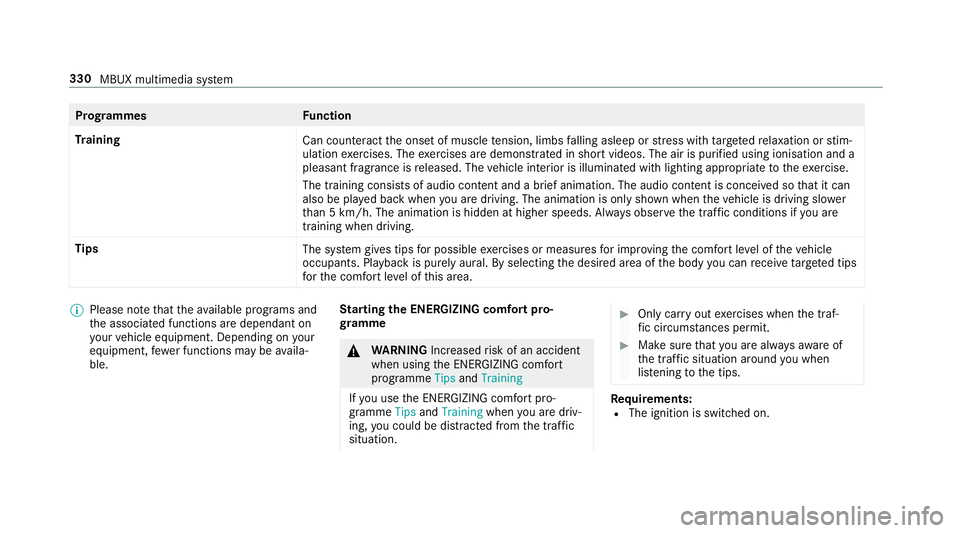
Prog
rammes Function
Tr aining
Can counteractthe onset of muscle tension, limbs falling asleep or stre ss with targeted relaxation or stim‐
ulation exercises. The exercises are demon stra ted in short videos. The air is purified using ionisation and a
pleasant fragrance is released. The vehicle interior is illuminated with lighting appropriate totheex ercise.
The training consists of audio conte nt and a brief animation. The audio content is conceived so that it can
also be pla yed back when you are driving. The animation is on ly shown when theve hicle is driving slo wer
th an 5 km/h. The animation is hidden at higher speeds. Alw ays obser vethe tra ffic conditions if you are
training when driving.
Tips The system gives tips for possible exercises or measures for impr oving the comfort le vel of theve hicle
occupants. Playback is purely aural. By selecting the desired area of the body you can recei vetargeted tips
fo rth e comfort le vel of this area. %
Please no tethat theav ailable prog rams and
th e associated functions are dependant on
yo ur vehicle equipment. Depending on your
equipment, fewe r functions may be availa‐
ble. St
arting the ENERGIZING comfort pro‐
gr amme &
WARNING Increased risk of an accident
when using the ENERG IZING comfort
programme TipsandTraining
If yo u use the ENERG IZING comfort pro‐
gramme TipsandTraining whenyou are driv‐
ing, you could be distracted from the tra ffic
situation. #
Only car ryout exercises when the traf‐
fi c circums tances pe rmit. #
Make sure that you are alw aysaw are of
th e traf fic situation around you when
lis tening tothe tips. Re
quirements:
R The ignition is switched on. 330
MBUX multimedia sy stem
Page 350 of 621
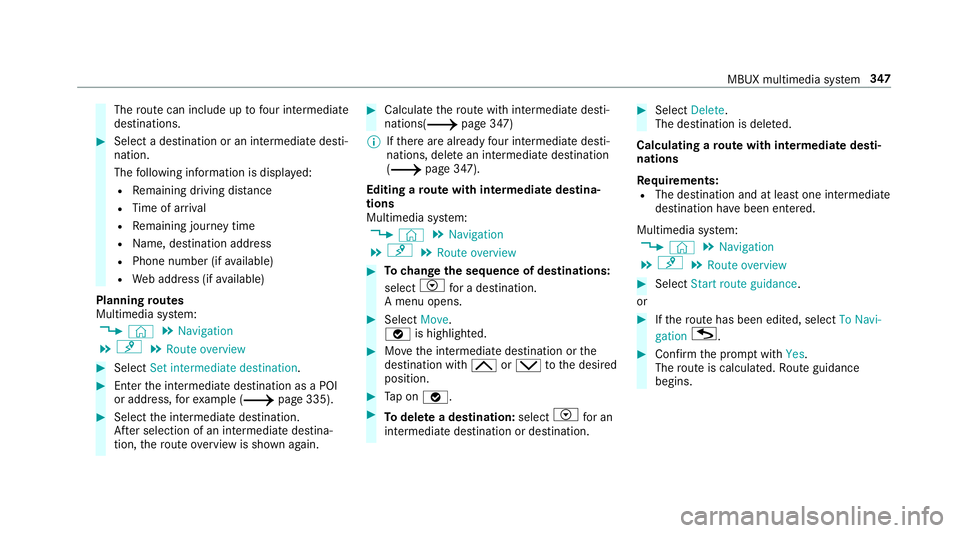
The
route can include up tofour intermediate
destinations. #
Select a destination or an intermediate desti‐
nation.
The following information is displa yed:
R Remaining driving dis tance
R Time of ar rival
R Remaining journey time
R Name, destination addre ss
R Phone number (if available)
R Web address (if available)
Planning routes
Multimedia sy stem:
4 © 5
Navigation
5 ¡ 5
Route overview #
Select Set intermediate destination. #
Ente rth e intermediate destination as a POI
or address, forex ample (/ page 335). #
Select the intermediate destination.
Af ter selection of an intermedia tedestina‐
tion, thero ute overview is shown again. #
Calculate thero ute with intermediate desti‐
nations(/ page 347)
% Ifth ere are already four intermediate desti‐
nations, dele tean intermediate destination
(/ page 347).
Editing a route with intermediate destina‐
tions
Multimedia sy stem:
4 © 5
Navigation
5 ¡ 5
Route overview #
Tochange the sequence of destinations:
select Vfor a destination.
A menu opens. #
Select Move.
ø is highlighted. #
Movethe intermediate destination or the
destination with 4ors tothe desired
position. #
Tap on ø. #
Todel ete a destination: selectVfor an
intermedia tedestination or destination. #
Select Delete.
The destination is dele ted.
Calculating a route with intermediate desti‐
nations
Re quirements:
R The destination and at least one intermediate
destination ha vebeen entered.
Multimedia sy stem:
4 © 5
Navigation
5 ¡ 5
Route overview #
Select Start route guidance.
or #
Ifth ero ute has been edited, select To Navi-
gation G. #
Con firm the prom ptwith Yes.
The route is calculated. Route guidance
begins. MBUX multimedia sy
stem 347
Page 366 of 621
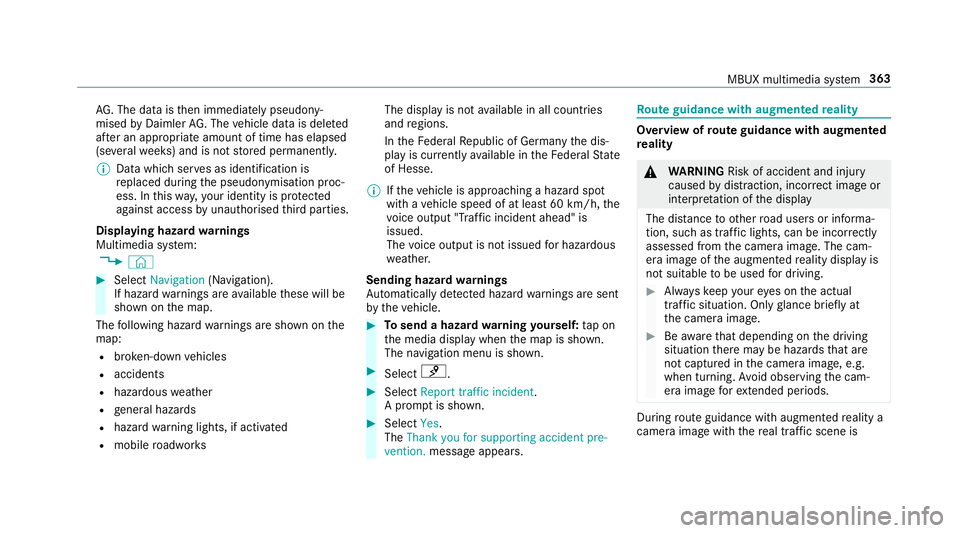
AG
. The da taisthen immediately pseudony‐
mised byDaimler AG. The vehicle data is dele ted
af te r an appro priate amount of time has elapsed
(se veralwe eks) and is not stored permanent ly.
% Data which ser ves as identification is
re placed during the pseudonymisation proc‐
ess. In this wa y,yo ur identity is pr otected
against access byunauthorised third parties.
Displaying hazard warnings
Multimedia sy stem:
4 © #
Select Navigation (Navigation).
If hazard warnings are available these will be
shown on the map.
The following hazard warnings are shown on the
map:
R broken-down vehicles
R accidents
R hazardous weather
R general hazards
R hazard warning lights, if activated
R mobile roadwor ks The display is not
available in all countries
and regions.
In theFe deral Republic of Germany the dis‐
play is cur rently available in theFe deral State
of Hesse.
% Ifth eve hicle is approaching a hazard spot
with a vehicle speed of at least 60 km/h, the
vo ice output "T raffic incident ahead" is
issued.
The voice output is not issued for hazardous
we ather.
Sending haza rdwa rnings
Au tomatically de tected hazard warnings are sent
by theve hicle. #
Tosend a haza rdwa rning yourself: tap on
th e media display when the map is shown.
The navigation menu is shown. #
Select ¡. #
Select Report traffic incident.
A prom ptis shown. #
Select Yes.
The Thank you for supporting accident pre-
vention. message appears. Ro
ute guidance with augmented reality Overview of
route guidance with augmented
re ality &
WARNING Risk of accident and inju ry
caused bydistraction, inco rrect image or
interpr etation of the display
The dis tance to ot herroad users or informa‐
tion, such as traf fic lights, can be incor rectly
assessed from the camera image. The cam‐
era image of the augmented reality display is
not suitable tobe used for driving. #
Alw ayske ep your eyes on the actual
tra ffic situation. Only glance brief lyat
th e camera image. #
Beaware that depending on the driving
situation there may be hazards that are
not captured in the camera image, e.g.
when turning. Avoid observing the cam‐
era image forex tended pe riods. During
route guidance with augmented reality a
camera image with there al traf fic scene is MBUX multimedia sy
stem 363