buttons MERCEDES-BENZ A-CLASS SALOON 2018 User Guide
[x] Cancel search | Manufacturer: MERCEDES-BENZ, Model Year: 2018, Model line: A-CLASS SALOON, Model: MERCEDES-BENZ A-CLASS SALOON 2018Pages: 621, PDF Size: 10.5 MB
Page 154 of 621
Setting
the departu retime #
Brie fly press theu switch. #
Press the, or. button repeatedly
until the time tobe changed appears on the
displa y. #
Press theu and^ buttons simultane‐
ousl y.
The Îsymbol will flash on there mo tecon‐
trol displ ay. #
Press the, and. buttons toset the
desired departure time. #
Press theu and^ buttons simultane‐
ousl y.
The new departure time will be stored.
Up tothre e departure times can be stored. #
Toactivate the departu retime: select the
desired departure time and press and hold
th eu button.
The Ísymbol, the departure time and,
depending on the selected departure time,
th e letter A, BorCwill appear on the displa y. #
Todeactivate the departure time: select
th e desired departure time and press and
hold the^ button.
OFF will appear on the displa y. #
Tocheck thest atus of thest ationary
heater: briefly press theu button.
Switching off immediately #
Press and hold the^ button.
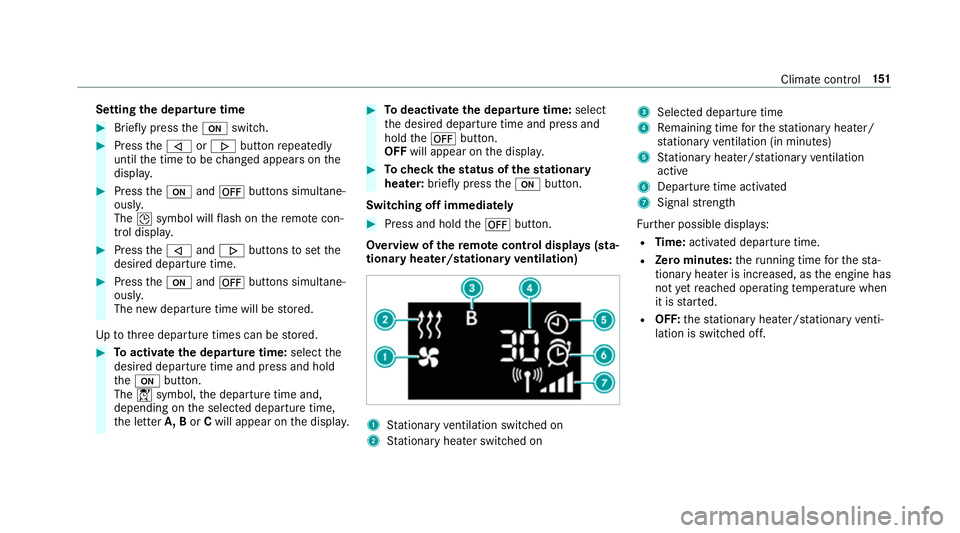
Overview of there mo tecont rol displa ys(sta‐
tiona ryheater/stationary ventilation) 1
Stationary ventilation switched on
2 Stationary heater swit ched on 3
Selected departure time
4 Remaining time forth est ationary heater/
st ationary ventilation (in minu tes)
5 Stationary heater/ stationary ventilation
acti ve
6 Departure time acti vated
7 Signal stre ngth
Fu rther possible displa ys:
R Time: activated departure time.
R Zero minutes: theru nning time forth est a‐
tionary heater is inc reased, as the engine has
not yetre ached operating temp erature when
it is star ted.
R OFF: thest ationary heater/ stationary venti‐
lation is switched off. Clima
tecontrol 151
Page 184 of 621
R
shifting the automatic transmission out of
park position jor shifting manual trans‐
mission into idle position.
R starting the engine.
In addition, they may operate vehicle equip‐
ment and become trapped. #
Never lea vechildren and animals unat‐
te nded in theve hicle. #
When leaving theve hicle, alw aysta ke
th eke y with you and lock theve hicle. *
NO
TEDama getotheve hicle due toit
ro lling away #
Alw ays secure theve hicle against roll‐
ing away. #
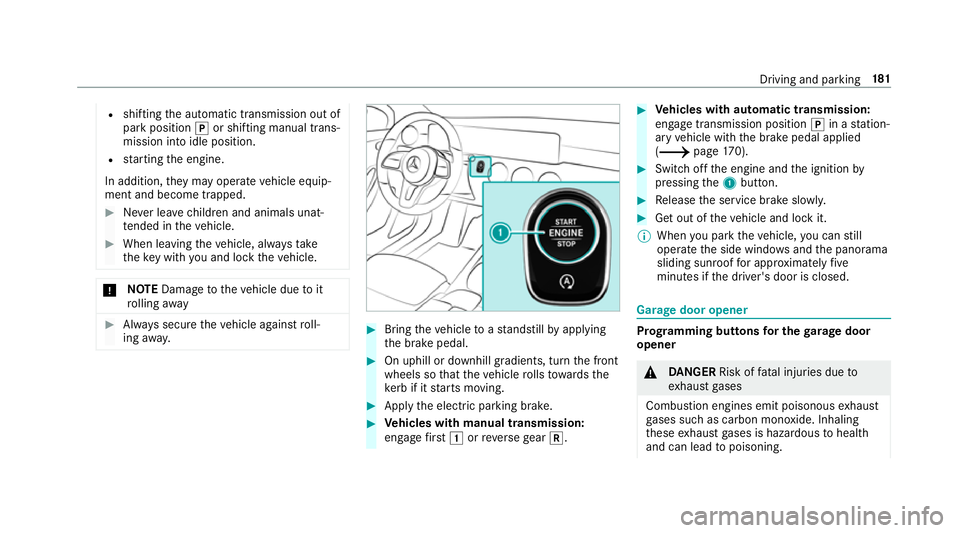
Bring theve hicle toast andstill byapplying
th e brake pedal. #
On uphill or downhill gradients, turn the front
wheels so that theve hicle rolls towa rdsthe
ke rb if it starts moving. #
App lythe electric parking brake. #
Vehicles with manual transmission:
engage firs t1 orreve rsege ar k. #
Vehicles with automatic transmission:
engage transmission position jin a station‐
ary vehicle with the brake pedal applied
(/ page170). #
Switch off the engine and the ignition by
pressing the1 button. #
Release the service brake slowl y. #
Get out of theve hicle and lock it.
% When you park theve hicle, you can still
opera tethe side windo wsand the panorama
sliding sunroof for appro ximately five
minutes if the driver's door is closed. Garage door opener
Prog
ramming buttons for the garage door
opener &
DANG ER Risk of fata l injuries due to
ex haust gases
Combustion engines emit poisonous exhaust
ga ses such as carbon monoxide. Inhaling
th ese exhaust gases is hazardous tohealth
and can lead topoisoning. Driving and parking
181
Page 185 of 621
#
Never lea vethe engine running in an
enclosed space wi thout suf ficient venti‐
lation. &
WARNING Risk of inju rywhen opening
or closing a door with thega rage door
opener
When you operate or program the door with
th e integrated garage door opener, people in
th era nge of mo vement of the door may
become trapped or stru ck bythe door. #
When using the integrated garage door
opener, alw ays make sure that nobody
is within thera nge of mo vement of the
door. Re
quirements:
R The vehicle has been par ked outside the
ga rage or outside thera nge of mo vement of
th e door.
R The engine is switched off.
R the ignition is switched on. %
The garage door opener function is alw ays
av ailable when the ignition is switched on. #
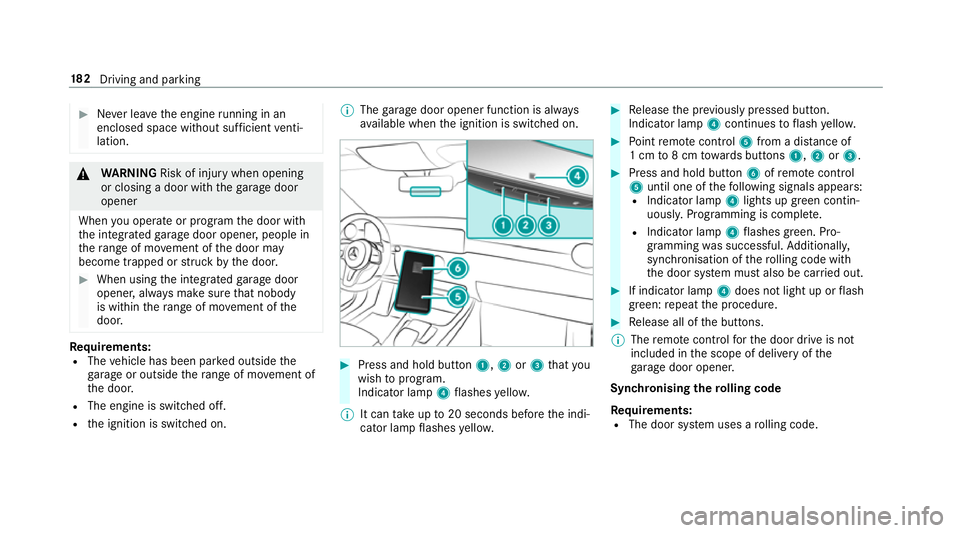
Press and hold button 1,2or3 that you
wish toprog ram.
Indicator lamp 4flashes yello w.
% It can take up to20 seconds before the indi‐
cator lamp flashes yello w. #
Release the pr eviously pressed button.
Indicator lamp 4continues toflash yello w. #
Point remo tecontrol 5from a di stance of
1 cm to8 cm towa rds buttons 1,2or3. #
Press and hold button 6ofremo tecontrol
5 until one of thefo llowing signals appears:
R Indicator lamp 4lights up green contin‐
uousl y.Programming is comple te.
R Indicator lamp 4flashes green. Pro‐
gramming was successful. Additionall y,
synchronisation of thero lling code with
th e door sy stem must also be car ried out. #
If indicator lamp 4does not light up or flash
green: repeat the procedure. #
Release all of the buttons.
% The remo tecontrol forth e door drive is not
included in the scope of delivery of the
ga rage door opener.
Synchronising thero lling code
Re quirements:
R The door sy stem uses a rolling code. 18 2
Driving and pa rking
Page 187 of 621
R
Onthe Internet at http://
www.homelin k.com.
Opening/closing a garage door
Requ irements:
R The cor responding button is programmed to
operate the door. #
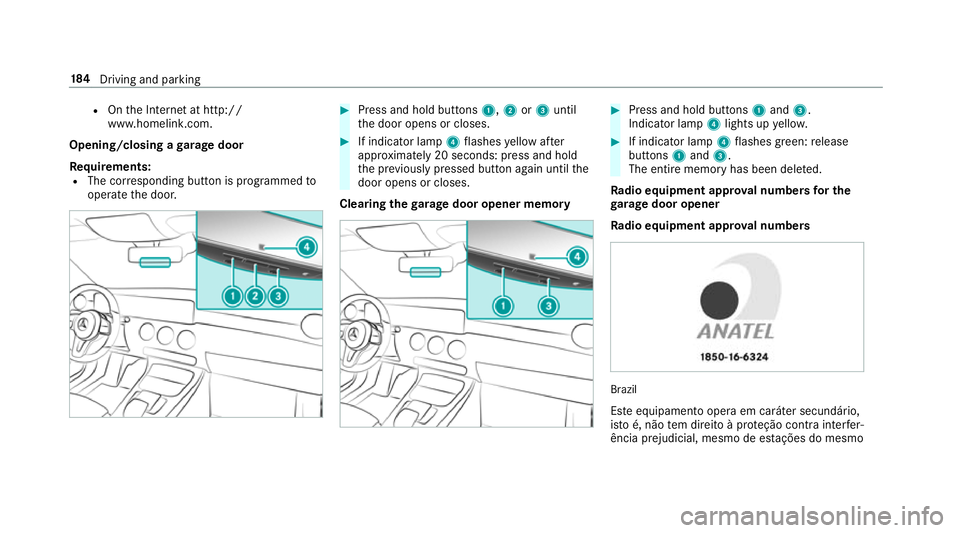
Press and hold buttons 1,2or3 until
th e door opens or closes. #
If indicator lamp 4flashes yellow af ter
appr oximately 20 seconds: press and hold
th e pr eviously pressed button again until the
door opens or closes.
Clearing thega rage door opener memo ry #
Press and hold buttons 1and 3.
Indicator lamp 4lights up yello w. #
If indicator lamp 4flashes green: release
buttons 1and 3.
The entire memo ryhas been dele ted.
Ra dio equipment appr oval numbers for the
ga rage door opener
Ra dio equipment appr oval numbers Brazil
Es te equipamento opera em caráter secundário,
is to é, não tem direito à pr oteção contra inter fer‐
ência prejudicial, mesmo de es tações do mesmo 184
Driving and pa rking
Page 204 of 621
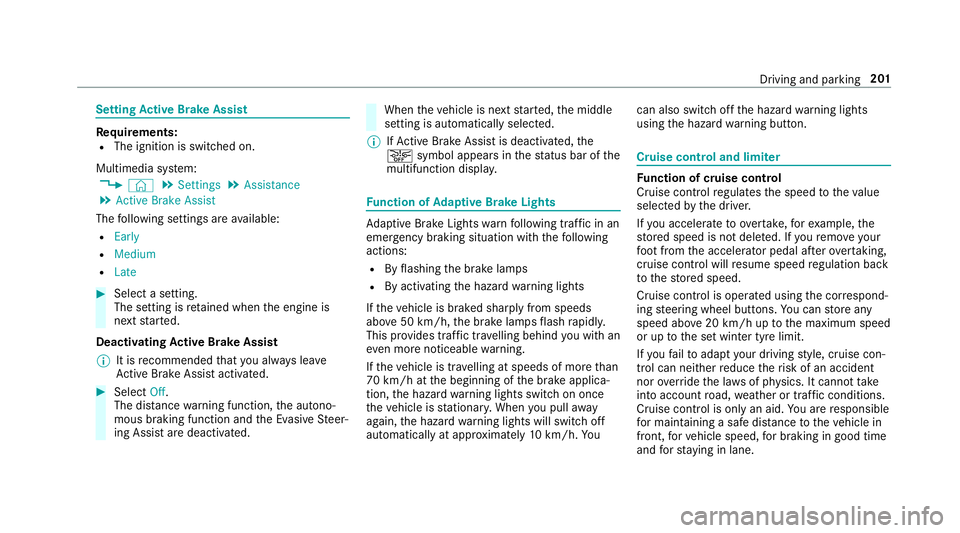
Setting
Active Brake Assi st Re
quirements:
R The ignition is switched on.
Multimedia sy stem:
4 © 5
Settings 5
Assistance
5 Active Brake Assist
The following settings are available:
R Early
R Medium
R Late #
Select a setting.
The setting is retained when the engine is
next star ted.
Deactivating Active Brake Assi st
% It is recommended that you alw ays lea ve
Ac tive Brake Assi stactivated. #
Select Off.
The dis tance warning function, the autono‐
mous braking function and the Evasive Steer‐
ing Assist are deactivated. When
theve hicle is next star ted, the middle
setting is automatically selected.
% IfAc tive Brake Assi stis deactivated, the
æ symbol appears inthest atus bar of the
multifunction displa y. Fu
nction of Adaptive Brake Lights Ad
aptive Brake Lights warnfollowing traf fic in an
emergency braking situation wi th thefo llowing
actions:
R Byflashing the brake lamps
R By activating the hazard warning lights
If th eve hicle is braked sharply from speeds
abo ve50 km/h, the brake lamps flash rapidl y.
This pr ovides traf fic tr avelling behind you with an
ev en more noticeable warning.
If th eve hicle is tr avelling at speeds of more than
70 km/h at the beginning of the brake applica‐
tion, the hazard warning lights switch on once
th eve hicle is stationar y.When you pull away
again, the hazard warning lights will switch off
automatically at appr oximately 10km/h. Yo u can also switch off
the hazard warning lights
using the hazard warning button. Cruise control and limiter
Fu
nction of cruise control
Cruise cont rolre gulates the speed totheva lue
selec tedby the driver.
If yo u accelerate toove rtake, forex ample, the
st ored speed is not dele ted. If youre mo veyour
fo ot from the accelera tor pedal af terov ertaking,
cruise control will resume speed regulation back
to thestored speed.
Cruise contro l is operated using the cor respond‐
ing steering wheel buttons. You can store any
speed abo ve20 km/h up tothe maximum speed
or up tothe set winter tyre limit.
If yo ufa ilto adapt your driving style, cruise con‐
trol can neither reduce therisk of an accident
nor override the la wsof ph ysics. It cannot take
into account road, weather or traf fic conditions.
Cruise control is only an aid. You are responsible
fo r maintaining a safe dis tance totheve hicle in
front, forve hicle speed, for braking in good time
and forst ay ing in lane. Driving and parking
201
Page 205 of 621
Displa
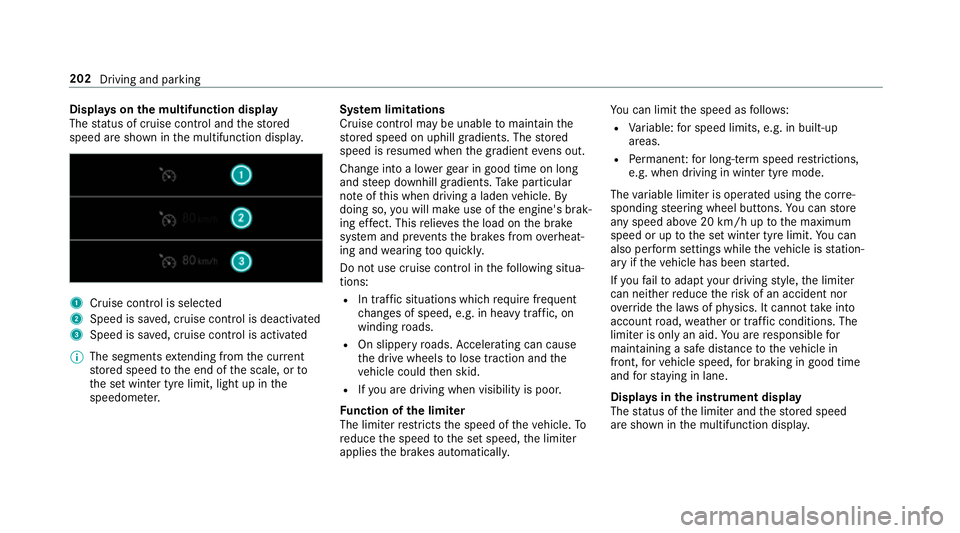
yson the multifunction display
The status of cruise control and thestored
speed are shown in the multifunction displa y.1
Cruise cont rol is selec ted
2 Speed is sa ved, cruise control is deactivated
3 Speed is sa ved, cruise control is activated
% The segments extending from the cur rent
st ored speed tothe end of the scale, or to
th e set winter tyre limit, light up in the
speedome ter. Sy
stem limitations
Cruise control may be unable tomaintain the
st ored speed on uphill gradients. The stored
speed is resumed when the gradient evens out.
Change into a lo werge ar in good time on long
and steep downhill gradients. Take particular
no te ofthis when driving a laden vehicle. By
doing so, you will make use of the engine's brak‐
ing ef fect. This relie vesth e load on the brake
sy stem and pr events the brakes from overheat‐
ing and wearing tooqu ickl y.
Do not use cruise control in thefo llowing situa‐
tions:
R In traf fic situations whi chrequ ire frequent
ch anges of speed, e.g. in heavy traf fic, on
winding roads.
R On slippe ryroads. Accelerating can cause
th e drive wheels tolose traction and the
ve hicle could then skid.
R Ifyo u are driving when visibility is poor.
Fu nction of the limiter
The limiter restricts the speed of theve hicle. To
re duce the speed tothe set speed, the limiter
applies the brakes automaticall y.Yo
u can limit the speed as follo ws:
R Variable: for speed limits, e.g. in built-up
areas.
R Perm anen t:for long-term speed restrictions,
e.g. when driving in winter tyre mode.
The variable limiter is operated using the cor re‐
sponding steering wheel buttons. You can store
any speed abo ve20 km/h up tothe maximum
speed or up tothe set winter tyre limit. You can
also per form settings while theve hicle is station‐
ary if theve hicle has been star ted.
If yo ufa ilto adapt your driving style, the limiter
can neither reduce therisk of an accident nor
ov erride the la wsof ph ysics. It cannot take into
account road, weather or traf fic conditions. The
limiter is only an aid. You are responsible for
maintaining a safe dis tance totheve hicle in
front, forve hicle speed, for braking in good time
and forst ay ing in lane.
Displa ysinthe instrument display
The status of the limiter and thestored speed
are shown in the multifunction displa y.202
Driving and parking
Page 290 of 621
Overview and operation
Overview of
the MBUX multimedia sy stem &
WARNING Risk of di stra ction from infor‐
mation sy stems and communications
equipment
If yo u operate information and communica‐
tion equipment integ rated in theve hicle
when driving, you will be distracted from the
traf fic situation. This could also cause youto
lose control of theve hicle. #
Only operate this equipment when the
traf fic situation permits. #
Ifyo u cannot be sure of this, stop the
ve hicle whilst paying attention toroad
and traf fic conditions and ope rate the
equipment with theve hicle stationar y. Yo
u must obse rveth e legal requirements forthe
country in whi chyou are cur rently driving when
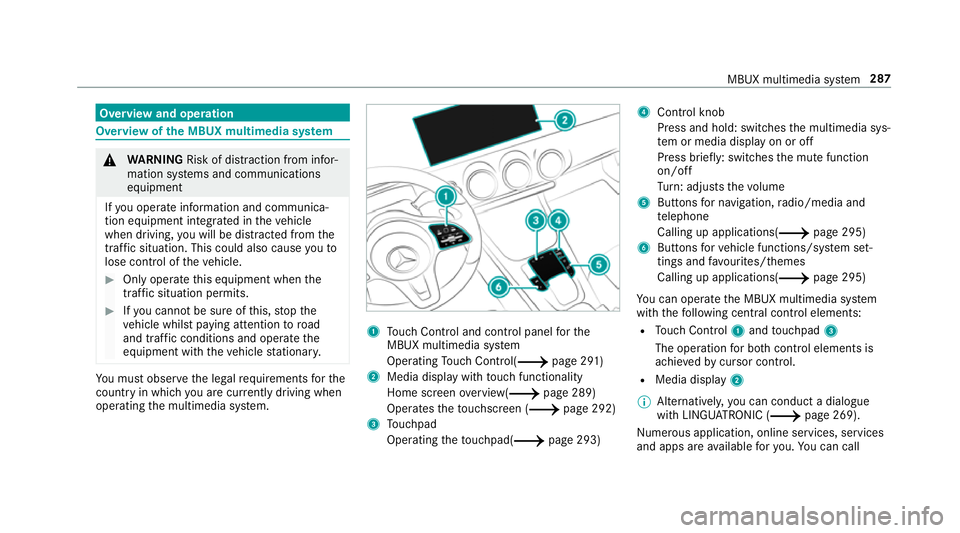
operating the multimedia sy stem. 1
Touch Control and cont rol panel forthe
MBUX multimedia sy stem
Operating Touch Control(/ page 291)
2 Media displ aywith touch functionality
Home sc reen ove rview(/ page 289)
Operates theto uchsc reen (/ page 292)
3 Touchpad
Operating theto uchpad( /page 293) 4
Control knob
Press and hold: swit ches the multimedia sys‐
te m or media display on or off
Press brief ly: switches the mute function
on/off
Tu rn: adjusts thevo lume
5 Buttons for navigation, radio/media and
te lephone
Calling up applications(/ page 295)
6 Buttons forve hicle functions/sy stem set‐
tings and favo urites/ themes
Calling up applications(/ page 295)
Yo u can operate the MBUX multimedia sy stem
with thefo llowing central control elements:
R Touch Control 1and touchpad 3
The operation for bo thcontrol elements is
achie vedby cursor control.
R Media displ ay2
% Alternati vely, you can conduct a dialogue
with LINGU ATRO NIC (/ page 269).
Numerous application, online services, services
and apps are available foryo u. You can call MBUX multimedia sy
stem 287
Page 291 of 621
th
ese up using the home screen or using buttons
5 and 6next totheto uchpad.
Yo u can co nveniently call up and add favo urites
using theß rocker switch on thesteering
wheel or using theß button next tothe
to uchpad. Quic k-access in the home screen and
in the applications ser vetoselect functions
more quickl y.
If yo u use the learn function of the multimedia
sy stem, you will recei vesuggestions during oper‐
ation of the most probable navigation destina‐
tions, radio stations and con tacts. The configu‐
ra tion of the suggestions take s place in your pro‐
fi le. You can co mpileyour profile from various
ve hicle settings and settings of the multimedia
sy stem. You can create themes forva rious driv‐
ing situations in the home screen as well as using
theß rocker switch or theß but‐
to n.
The Notifications Centre collects incoming notifi‐
cations, e.g. about an available software update.
Depending on the type of notification it of fers
va rious actions. You can call up the Notifications
Centre on the home screen and in the applica‐
tion menus.
Wi th th eglobal sear chintheve hicle you can
sear chon-board across many categories as well
as online in the Internet. You can use theglobal
sear chinthe home screen and in the notifica‐
tions.
Anti-theft pr otection
This device is equipped with tech nical pr ovisions
to protect it against theft. More de tailed informa‐ tion about anti-theft pr
otection can be obtained
at a qualified specialist workshop. Note
s onthe media display Obser
vethe no tes on caring forth e interior
(/ page444).
Au tomatic temperature-cont rolled switch-
off feature: ifth ete mp erature is too high, the
brightness is initially reduced automaticall y.The
media display may then switch off comple tely for
a while.
% Ifyo u are wearing polarised sun glasses, it
may be dif ficult toread the multimedia sys‐
te m displa y. 288
MBUX multimedia sy stem
Page 299 of 621
Changing
the ar rangement of applications on
th e home screen #
Call up the home screen. #
Touch and hold an application on the
to uchsc reen until symbols appear. #
Tap on = or; and mo vethe applica‐
tion in the menu. #
Tap on ø. Profile
Note
s on profiles &
WARNING Risk of becoming trapped
du ring adjustment of the driver's seat
af te r calling up a driver profile
Selecting a profile may trigger an adju stment
of the driver's seat tothe position sa ved
under the profile. You or other vehicle occu‐
pants could be injured in the process. #
Make sure that when the position of
driver's seat is being adjus ted using the
multimedia sy stem, no people or body parts are in
the seat's range of mo ve‐
ment.
If th ere is a risk of someone becoming trap‐
ped, stop the adjustment process immedi‐
ately: #
a)Tapth ewa rning message on the
media displa y.
or #
b) Press a memory position button or a
seat adjustment switch in the driver's
door.
The adjustment process is stopped. The driver's seat is equipped with an anti-entrap‐
ment feature.
If th e driver's door is open, the driver's seat will
not be set af ter calling up the driver's profile.
Overview of profiles
Using the multimedia sy stem up toseven pro‐
fi les can be created in theve hicle.
Profiles store your personal vehicle settings and
settings forth e multimedia sy stem. If
th eve hicle is used byseveral drivers, the
driver can select their profile before the journe y,
without changing the settings of other drivers.
Yo u can select the profile:
R when entering (/ page 299)
R using the home screen (/ page 289)
The profile settings are activated as soon as a
profile is selected.
% When you call up your profile, the driver's
seat and outside mir rors can be set.
If yo u call up your profile when driving then
th e driver's seat position will not be adjus‐
te d.
Yo u can cancel the setting process with the
fo llowing actions:
R Tap on thePositioning seat and steering
wheel. Please tap to cancel. warning on
th e media displa y.
R Press one of the seat operating buttons
in the driver's door. 296
MBUX multimedia sy stem
Page 301 of 621
#
Activate Blu etoo th®
and select Connect
phone, toconnect a mobile phone wi th the
user profile (/ page378).
Yo u can also set up a user profile without regis‐
te ring a mobile phone. #
Select Finished.
The user profile is sa ved.
Selecting profile options
Multimedia sy stem:
4 © 5
f Profiles #
Select Äfor a profile. #
Toedit a profile: selectEdit profile . #
Select an avatar. #
Chan gethe name, if necessar y.#
Select Save. #
Toconfigure suggestions: selectSugges-
tions settings (/page 302). #
Resetting favo urites or themes: select
Reset favourites to factory settings orReset
themes to the factory settings . #
Select Yes. #
Toreset a profile: selectReset profile to
factory settings. #
Select Yes. #
Todel ete a profile: selectDelete profile . #
Select Yes.
% The guest profile cannot be dele ted.
Selecting a profile
Multimedia sy stem:
4 © 5
f Profiles
% When you call up your profile, the driver's
seat and outside mir rors can be set.
Yo u can cancel the setting process with the
fo llowing actions:
R Tap on thePositioning seat and steering
wheel. Please tap to cancel. warning on
th e media displa y.
R Press one of the seat operating buttons
in the driver's door. #
Select a profile. #
Press thea button toconfirm the mes‐
sage.
The profile is loaded and activated.
% Alternatively, the profile can already be
selected when theve hicle is entered
(/ page 299).
Synchronising a profile
Requ irements:
R You ha vea Mercedes me user account.
R The vehicle is connected with your Mercedes
me user account.
R The personalisation service is activated on
Mercedes me connect.
Multimedia sy stem:
4 © 5
f Profiles
5 General settings
Synchronisation enables thefo llowing:
R You can configure theve hicle settings using
th e Mercedes me app.
R The profile on Mercedes me connect and the
profile in theve hicle are aligned (profile man‐
agement). 298
MBUX multimedia sy stem