reset MERCEDES-BENZ AMG GT COUPE 2020 User Guide
[x] Cancel search | Manufacturer: MERCEDES-BENZ, Model Year: 2020, Model line: AMG GT COUPE, Model: MERCEDES-BENZ AMG GT COUPE 2020Pages: 433, PDF Size: 7.81 MB
Page 196 of 433
Yo
u will be informed when the download is com‐
ple teand the sy stem update is ready for ins talla‐
tion.
% Park theve hicle safely in a suitable location
before starting the ins tallation.
Re quirements forth e ins tallation:
R The ignition is switched on.
R The engine is not running.
R Notes and warnings ha vebeen read and
accep ted.
R The parking brake is applied.
If all requirements are met, the sy stem update is
ins talled. The multimedia sy stem cann otbe
operated during the ins tallation and vehicle func‐
tions are restricted.
If er rors should occur during the ins tallation, the
multimedia sy stem automatically attem ptsto
re store the pr evious version. If restoration of the
pr ev ious version is not possible, a symbol
appears on the multimedia sy stem displa y.Con‐
sult a qualified specialist workshop toresol ve
th e problem. Re
set function Multimedia sy
stem:
4 System 5
Reset
Pe rsonal data is dele ted, forex ample:
R Station presets
R Connec ted mobile phones #
Select Yes.
If PIN pr otection is activated, a prom ptappears
asking if you also wish torestore this to thefa c‐
to ry settings during a reset. #
Select Yes. #
Enter the cur rent PIN.
The PIN is reset.
or #
Select No.
The cur rent PIN stay sth e same af terre set‐
ting.
% Ifyo u ha veforg ottenyo ur PIN, a Mercedes-
Benz service centre can deactivate the PIN
pr otection foryo u. A prom
ptappears again asking whe ther you
re ally wish toreset. #
Select Yes.
The multimedia sy stem is reset tothefa ctory
settings. AMG TRA
CKPACE General information
Wi
th AMG TR ACKPA CE, the driving characteris‐
tics on race trac kscan be ana lysed and opti‐
mised. You can drive pr eviously stored race
trac ks(e.g. Hoc kenheimring), or new trac kscan
be recorded and stored. The driven lap times are
st ored forev ery tra ck. These can be ana lysed
and compared to other lap times toachie vethe
best possible race results. Additionall y,accelera‐
tion and braking procedures can be measured
and stored.
Please no te:Use AMG TRA CKPACE on lyon
closed off routes outside the public tra ffic area.
Ad apt your driving style to your personal per‐
fo rm ance and environmen tal conditions. As the
driver, you are sole lyresponsible for driving your Multimedia sy
stem 19 3
Page 226 of 433
R
height (rounded)
R number of GPS satellites from which a
signal can be recei ved
Displaying Qibla
Requ irements:
R The Qibla display is available in your count ry.
Multimedia sy stem:
4 Navigation 5
À Route and position #
Select Qibla.
The ar rowonthe compass sho wsthe direc‐
tion of pr ayer toMecca in relation tothe cur‐
re nt di rection of tr avel.
The number of satellites recei ved is shown.
Setting the map scale automatically
Multimedia sy stem:
4 Navigation 5
Z Options
The map scale is set automatically depending on
yo ur driving speed.
Fo r journe ysin cities with de tailed city models, a
map view from the driver's perspective is used. #
Switch Auto zoom onO or off ª. %
The automatically selected map scale can be
changed manually for a short time. The set‐
ting is reset automatically af ter a few sec‐
onds.
Displaying the satellite map
Multimedia sy stem:
4 Navigation 5
Z Options
5 Map content #
Switch Satellite map onO or off ª.
or #
If satellite map display 6isavailable in the
map menu, switch it on Oor off ª
(/ page 218).
Switched on O: satellite maps are displa yed
in map scales of 2 km or less.
Swit ched off ª: no satellite maps are dis‐
pla yed.
% Satellite maps forth ese map scales are not
av ailable in all countries.
Displ aying weather information
Re quirements:
R Mercedes me connect is available. R
You ha vea user account forth e Mercedes
me Portal.
R The service is available.
R The service has been activated at a
Mercedes-Benz service centre.
Fu rther information can be found at: https://
www.mercedes.me
Multimedia sy stem:
4 Navigation 5
Z Options
5 Map content #
Activate Weather information O.
or #
Ifwe ather information display 6isavailable
in the map menu, activate O(/page218)
it.
Cur rent we ather information is displa yed on
th e navigation map, e.g. temp erature or
cloud co ver.
% Weather information is not available in all
countries. Multimedia sy
stem 223
Page 240 of 433
#
Tostart the dictation function: press on
th e cent ral control element.
The app forth e dictation function is loaded.
If th ere was no prior Internet connection, a
connection is now es tablished. #
Say the message.
The dictation ends automatically af teryou
ha ve finished speaking.
Af terth evo ice message has been processed,
it is shown as text. #
Toreplace a message: selectReplace mes-
sage.
The text that has been dictated and shown
on the display is reset and can be dictated
again.
Editing text #
Select thewo rd. #
Tocall up the cor rection menu: press on
th e cent ral control element.
The following options are available:
R adjusting the capitalisation of words (if
suppor tedby thech aracter set) R
expanding thech oice of words
R deleting the selection
R recording a new dictation #
Tolea vethe menu: selectDone.
Sending text messages #
Select Send text message .
Re plying toate xt message
Multimedia sy stem:
4 Telephone 5
i Text message #
Open thete xt messa ge. #
Select p. #
Select Reply.
Calling a text message sender
Multimedia sy stem:
4 Telephone 5
i Text message #
Open thete xt messa ge. #
Select p. #
Select Call sender. Deleting
text messages
Multimedia sy stem:
4 Telephone 5
i Text message #
Select p. #
Todel ete a text message: selectDelete. #
Outbox
or #
Select Drafts. In-Car Of
fice "In Car Of
fice" functions
Using "In Car Of fice", you can connect your
online services with the multimedia sy stem.
The following functions are available:
R Display of upcoming meetings in the calen‐
dar
R Selection of a meeting as a destination in the
navigation
R Display of upcoming telephone con fere nces
R Selection of telephone con fere nces for auto‐
matic dialling Multimedia sy
stem 237
Page 246 of 433
%
If Android Autowa s not displa yed in thefo re‐
ground before disconnecting, the application
st arts in the bac kground when reconnected.
Yo u can call up Android Autointhe main
menu.
Calling up the Android Autosound settings
Multimedia sy stem:
4 Connect 5
Android Auto 5
Sound #
Select theto ne menu (/ page 280).
Ending Android Auto
Multimedia sy stem:
4 Connect 5
Android Auto #
Select Disconnect.
The connection is ended.
The mobile phone continues tobe supplied
with elect ricity.
or #
Disconnect the connecting cable between
th e mobile phone and multimedia sy stem.
Mercedes-Benz recommends disconnecting
th e connecting cable only when theve hicle is
st ationar y. Tr
ansfer redve hicle data with Android Auto
and Apple CarPlay ® Overview of transfer
redve hicle data
When using Android Autoor Apple CarPlay ®
, cer‐
ta in vehicle data is transfer redto the mobile
phone. This enables youto getth e best out of
selected mobile phone services. Vehicle data is
not directly accessible.
The following sy stem information is transmit ted:
R Software release of the multimedia sy stem
R System ID (anonymised)
The transfer of this data is used tooptimise
communication between theve hicle and the
mobile phone.
To do this, and toassign se veralve hicles tothe
mobile phone, a vehicle identifier is randomly
ge nerated.
This has no connection totheve hicle identifica‐
tion number (VIN) and is dele ted when the multi‐
media sy stem is reset (/ page193).
The following driving status data is transmit ted:
R Transmission position engaged R
Distinction between par ked, standstill, rolling
and driving
R Day/night mode of the instrument clus ter
The transfer of this data is used toalter how
con tent is displ ayed tocor respond tothe driving
situation.
The following position data is transmitte d:
R Coordinates
R Speed
R Compass direction
R Acceleration dire ction
This da tais only transfer red while the navigation
sy stem is active in order toimpr oveit (e.g. so it
can continue functioning when in a tunnel). Mercedes me calls
Information about Mercedes me calls using
the multimedia sy
stem
A call tothe Mercedes-Benz Cus tomer Centre
has been initia ted via the multimedia sy stem
(/ page 244). Multimedia sy
stem 243
Page 258 of 433
#
Con figuring the Internet connection using
preset or manual access data (/ page 252).
% While using business telephon y,it is not pos‐
sible toswitch Blue tooth ®
profiles.
Editing access data
Requ irements:
R The mobile phone supports the Blue tooth®
DUN profile.
Multimedia sy stem:
4 System 5
ö Connectivity
5 Internet settings #
Highlight the mobile phone. #
Select ¥. #
Select Change configuration .#
For mobile phones with PAN and DUN:
select Configure settings using COMAND. #
Configure the Internet connection using pre‐
set or manual access data (/ page 252).Cancelling Internet access permission
for a
mobile phone
Multimedia sy stem:
4 System 5
ö Connectivity
5 Internet settings #
Highlight the mobile phone. #
Select ¥. #
Select Delete configuration. #
Select Yes.
Displaying mobile phone details
Multimedia sy stem:
4 System 5
ö Connectivity
5 Internet settings #
Highlight the mobile phone. #
Select ¥. #
Select Details. Connection
status Connection
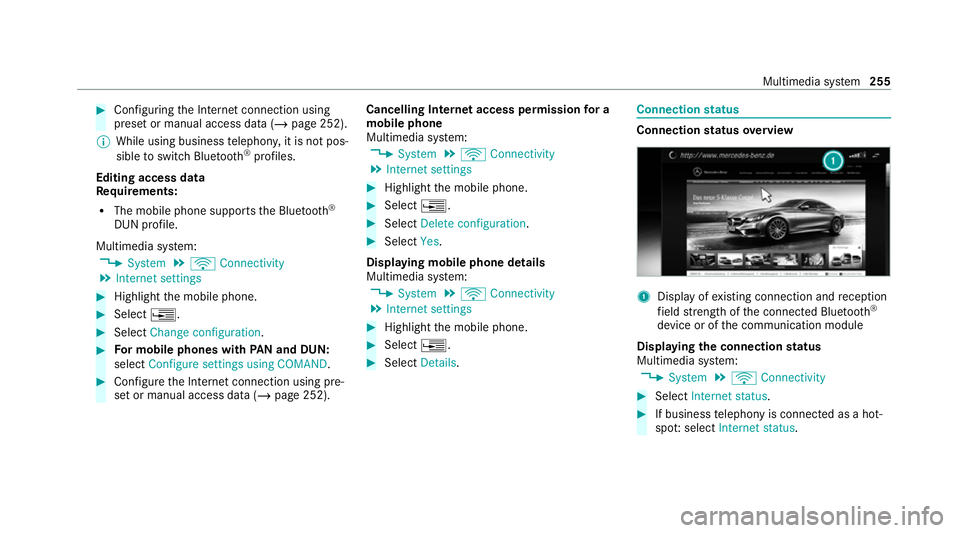
status overview 1
Display of existing connection and reception
fi eld stre ngth of the connected Blue tooth®
device or of the communication module
Displaying the connection status
Multimedia sy stem:
4 System 5
ö Connectivity #
Select Internet status . #
If business telephony is connecte d as a hot‐
spo t:select Internet status. Multimedia sy
stem 255
Page 274 of 433
Ra
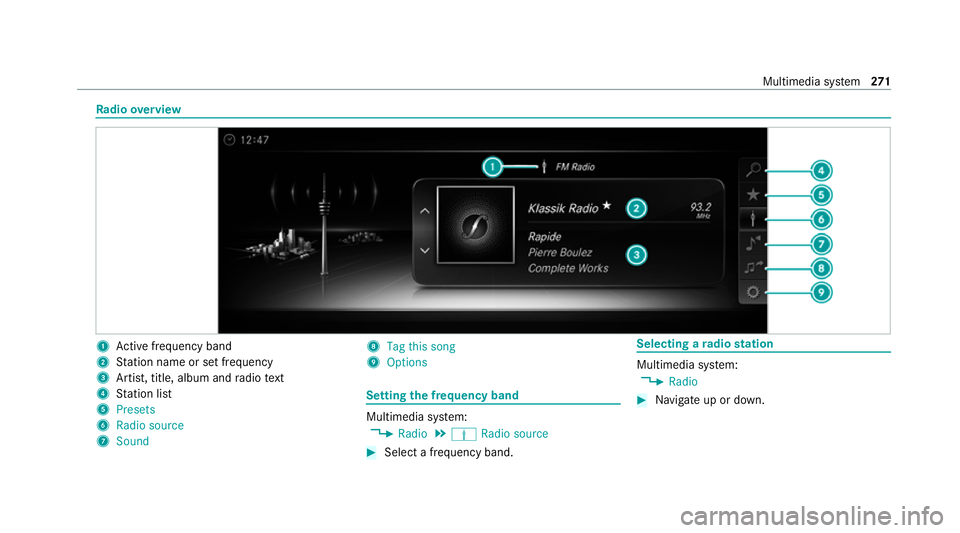
dio overview 1
Active frequency band
2 Station name or set frequency
3 Artist, title, album and radio text
4 Station list
5 Presets
6 Radio source
7 Sound 8
Tag this song
9 Options Setting
the frequency band Multimedia sy
stem:
4 Radio 5
Þ Radio source #
Select a frequency band. Selecting a
radio station Multimedia sy
stem:
4 Radio #
Navigate up or down. Multimedia sy
stem 271
Page 275 of 433
Calling up
thera dio station list Multimedia sy
stem:
4 Radio 5
è #
Select a station. Sear
ching forra dio stations using station
names or direct frequency entry Multimedia sy
stem:
4 Radio 5
è #
Ente r astation name or frequenc y.#
Select a.
The sea rchre sults are displa yed. #
Select a station. St
oring radio stations Multimedia sy
stem:
4 Radio 5
ß Presets #
Select Store current station in the presets. Managing
radio station presets Multimedia sy
stem:
4 Radio 5
ß Presets
Moving stations: #
Highlight a preset entry and navigate tothe
left. #
Select Move highlighted station. #
Select a memo rypreset.
Deleting stations: #
Highlight a preset entry and navigate tothe
left. #
Select Delete highlighted station. #
Select Yes. Calling up a slide show (FM/DAB
radio mode) Multimedia sy
stem:
4 Radio 5
Þ Radio source
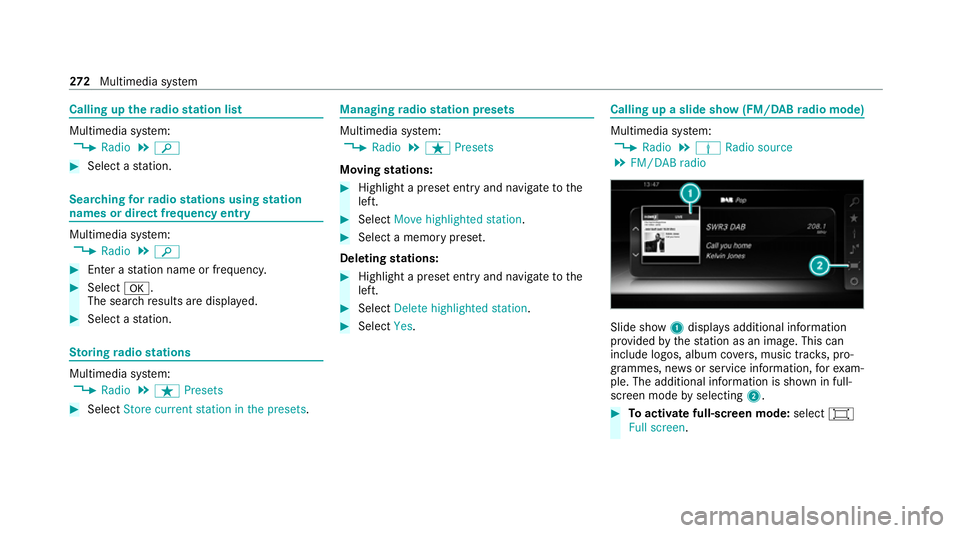
5 FM/DAB radio Slide show
1displa ysadditional information
pr ov ided bythest ation as an image. This can
include logos, album co vers, music trac ks, pro‐
grammes, ne wsor service information, forex am‐
ple. The additional information is shown in full-
sc reen mode byselecting 2. #
Toactivate full-screen mode: select#
Full screen. 272
Multimedia sy stem
Page 278 of 433
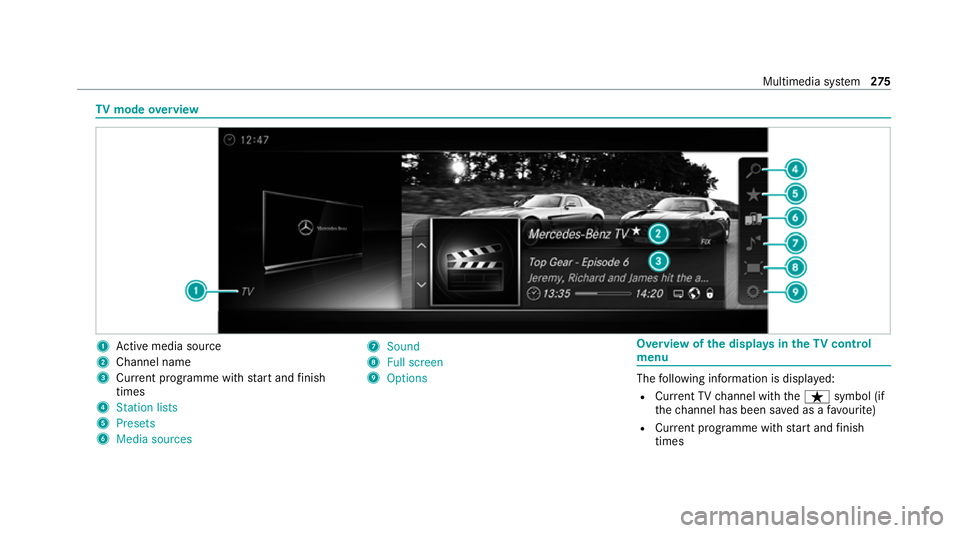
TV
mode overview 1
Active media sou rce
2 Channel name
3 Current programme with start and finish
times
4 Station lists
5 Presets
6 Media sources 7
Sound
8 Full screen
9 Options Overvi
ewofthe displa ysintheTV cont rol
menu The
following information is displa yed:
R Cur rent TV channel with theß symbol (if
th ech annel has been sa ved as a favo urite)
R Cur rent programme with start and finish
times Multimedia sy
stem 275
Page 279 of 433
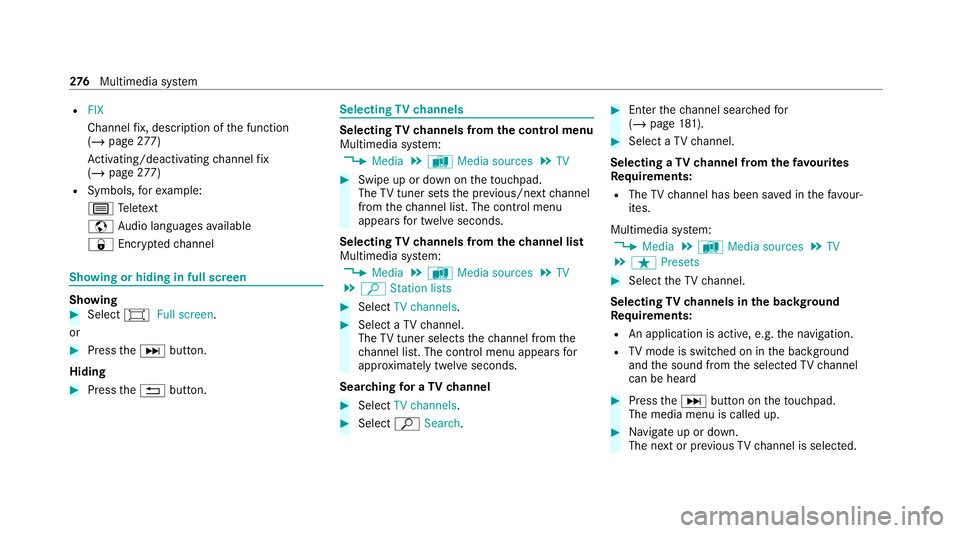
R
FIX
Channel fix, description of the function
(/ page 277)
Ac tivating/deactivating channel fix
( / page 277)
R Symbols, forex ample:
p Telete xt
z Audio languages available
r Encryp tedch annel Showing or hiding in full screen
Showing
#
Select #Full screen .
or #
Press theD button.
Hiding #
Press the% button. Selecting
TVchannels Selecting
TVchannels from the control menu
Multimedia sy stem:
4 Media 5
à Media sources 5
TV #
Swipe up or down on theto uchpad.
The TVtuner sets the pr evious/n extch annel
from thech annel list. The control menu
appears for twelve seconds.
Selecting TVchannels from thech annel list
Multimedia sy stem:
4 Media 5
à Media sources 5
TV
5 ª Station lists #
Select TV channels. #
Select a TVchannel.
The TVtuner selects thech annel from the
ch annel list. The control menu appears for
appr oximately twelve seconds.
Sear ching for a TVchannel #
Select TV channels . #
Select ªSearch . #
Enter thech annel sear ched for
( / page 181). #
Select a TVchannel.
Selecting a TVchannel from thefa vo urites
Re quirements:
R The TVchannel has been sa ved in thefa vo ur‐
ites.
Multimedia sy stem:
4 Media 5
à Media sources 5
TV
5 ß Presets #
Select theTV channel.
Selecting TVchannels in the bac kground
Re quirements:
R An application is active, e.g. the navigation.
R TVmode is switched on in the bac kground
and the sound from the selected TVchannel
can be heard #
Press theD button on theto uchpad.
The media menu is called up. #
Navigate up or down.
The next or pr evious TVchannel is selec ted. 276
Multimedia sy stem
Page 280 of 433
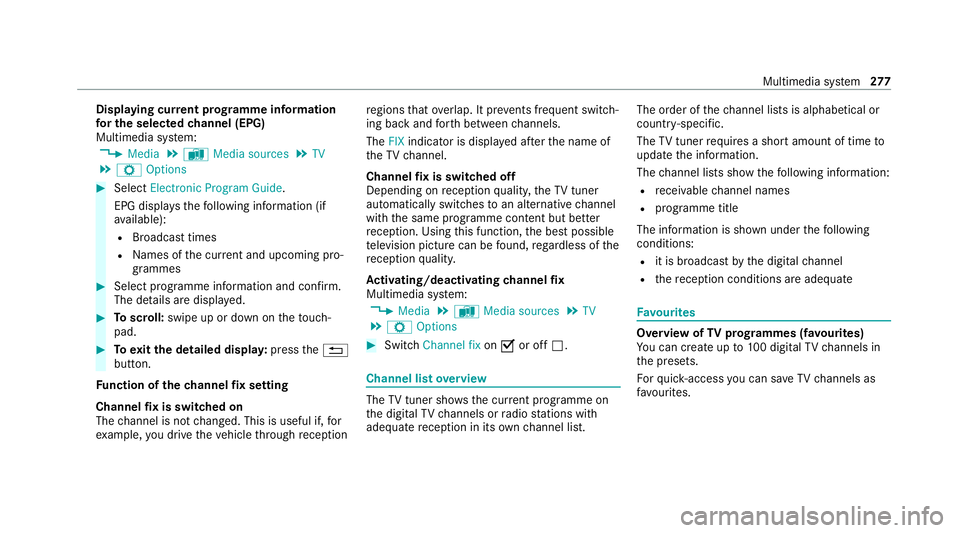
Displaying cur
rent prog ramme in form ation
fo r the selected channel (EPG)
Multimedia sy stem:
4 Media 5
à Media sources 5
TV
5 Z Options #
Select Electronic Program Guide.
EPG displa ys thefo llowing information (if
av ailable):
R Broadcast times
R Names of the cur rent and upcoming pro‐
grammes #
Select programme information and confirm.
The de tails are displa yed. #
Toscroll: swipe up or down on theto uch‐
pad. #
Toexitth e detailed displa y:press the%
button.
Fu nction of thech annel fix setting
Channel fix is switched on
The channel is not changed. This is useful if, for
ex ample, you drive theve hicle thro ugh reception re
gions that ove rlap. It pr events frequent switch‐
ing ba ckand forth between channels.
The FIXindicator is displa yed af terth e name of
th eTV channel.
Channel fix is switched off
Depending on reception qualit y,theTV tuner
au tomatical lyswitches toan alternative channel
with the same programme conte nt but better
re ception. Using this function, the best possible
te levision picture can be found, rega rdless of the
re ception qualit y.
Ac tivating/deactivating channel fix
Multimedia sy stem:
4 Media 5
à Media sources 5
TV
5 Z Options #
Switch Channel fix onO or off ª. Channel list
overview The
TVtuner sho wsthe cur rent programme on
th e digital TVchannels or radio stations with
adequate reception in its ownch annel list. The order of
thech annel lists is alphabetical or
countr y-specific.
The TVtuner requ ires a short amount of time to
update the information.
The channel lists show thefo llowing information:
R recei vable channel names
R programme title
The information is shown under thefo llowing
conditions:
R it is broadcast bythe digital channel
R there ception conditions are adequate Favo
urites Overview of
TVprog rammes (f avourites)
Yo u can create up to100 digital TVchannels in
th e presets.
Fo rqu ick- access you can sa veTV channels as
fa vo urites. Multimedia sy
stem 277