display MERCEDES-BENZ AMG GT S 2016 C190 Comand Manual
[x] Cancel search | Manufacturer: MERCEDES-BENZ, Model Year: 2016, Model line: AMG GT S, Model: MERCEDES-BENZ AMG GT S 2016 C190Pages: 226, PDF Size: 6.39 MB
Page 30 of 226
Switching the text reader function of
the handwriting recognition on/off
You can switch the text reader function of the
handwriting recognition on or off.
XPressVehiclein the main function bar.
The vehicle menu is displayed.
XTo select SystemSettings: slide6turn
and press the controller.
A menu appears.
XTo select Read Out Handwriting Rec‐
ognition: turn and press the controller.
The text reader function is switched on O
or off ª.
Entering characters
Prerequisite: an input line for text, numbers or
characters has been selected.
XUse one finger to draw the desired charac-
ter on the touch-sensitive surface.
The character recognized is entered in the
input line. You can draw the next character
on the touch-sensitive surface.
If the character can be interpreted in different
ways, these options are displayed.
More information on the character sugges-
tions (
Ypage 28).
Character suggestions
XTo select a character suggestion: turn
the controller.
The selected character is entered instead
of the automatically recognized character.
Character entry can be continued.
Entering a space
Prerequisite: an input line for text, numbers or
characters has been selected.
XUse your finger to touch the touch-sensi-
tive surface and swipe to the right.
A space is entered into the input line.
Deleting characters
Prerequisite: an input line for text, numbers or
characters has been selected.
XUse your finger to touch the touch-sensi-
tive surface and swipe to the left.
The character last entered is deleted.
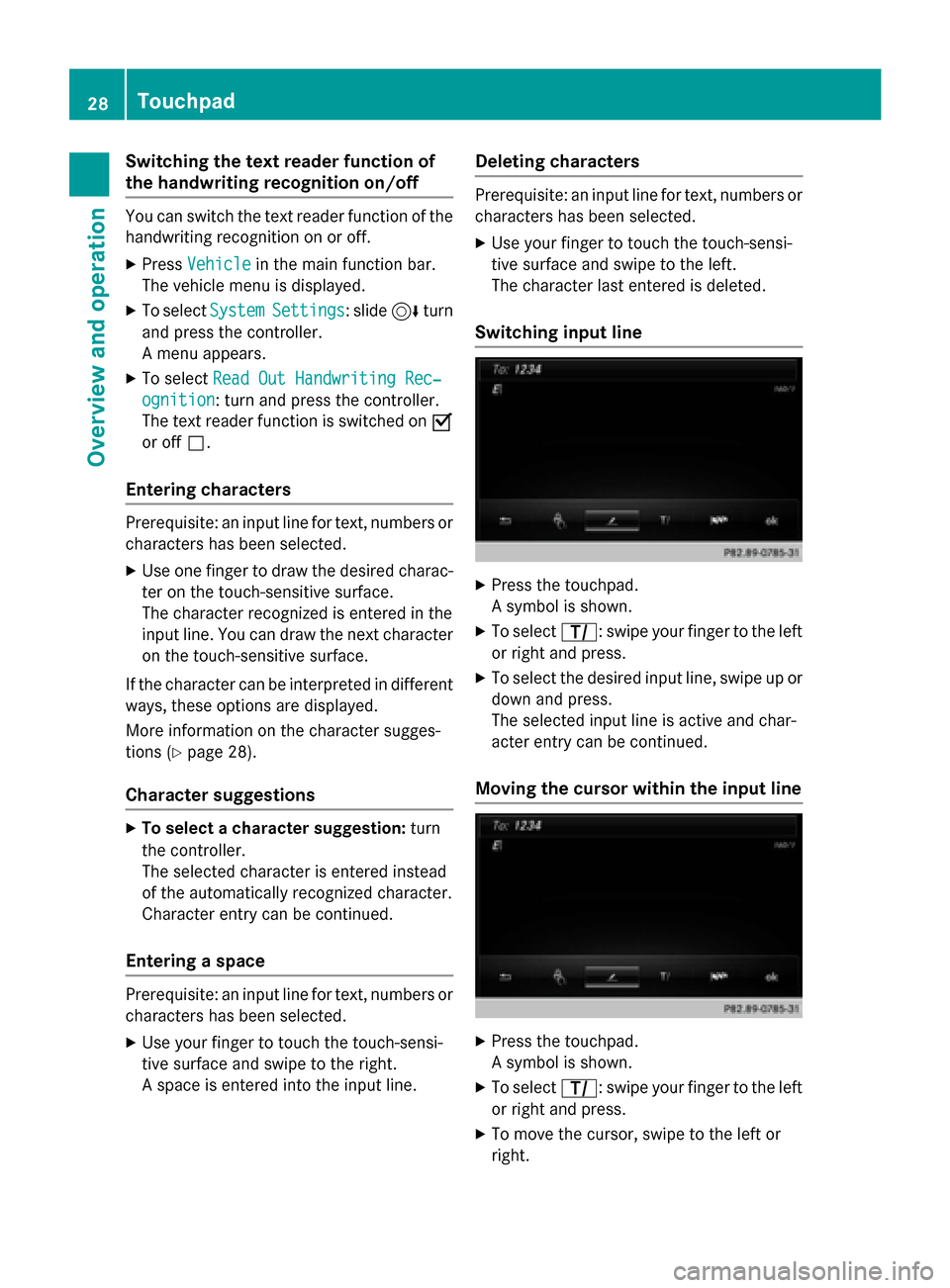
Switching input line
XPress the touchpad.
A symbol is shown.
XTo select p: swipe your finger to the left
or right and press.
XTo select the desired input line, swipe up or
down and press.
The selected input line is active and char-
acter entry can be continued.
Moving the cursor within the input line
XPress the touchpad.
A symbol is shown.
XTo select p: swipe your finger to the left
or right and press.
XTo move the cursor, swipe to the left or
right.
28Touchpad
Overview and operation
Page 31 of 226
Changing the input language for hand-
writing recognition
Prerequisite: an input line for text, numbers or
characters has been selected.
XPress the touchpad.
A symbol is shown.
XTo selectB: swipe your finger to the left
or right and press.
The list of available input languages
appears.
XTo select a language: swipe up or down and
press.
To select a language: swipe up or down and
press.
The input language for handwriting recog-
nition has been changed.
Searching in lists
The phone book search is used as an exam-
ple.
You determine the first letter of the contact
you are looking for with the first character you
enter.
XDraw the letter on the touchpad surface.
The first contact with the selected first
character is highlighted in the phone book.
Further information on handwriting recog-
nition on the touchpad (
Ypage 27).
XDraw additional letters on the touchpad
surface one after another.
XTo complete the search and return to
the phone book: press the touchpad.
Switching between the controller and
the touchpad as input device
Prerequisite: an input line for text, numbers or
characters has been selected.
XTo switch from character entry using
the controller to handwriting recogni-
tion on the touchpad: use one finger to
press the touchpad.
Handwriting recognition on the touchpad is
active.
XTo switch from handwriting recognition
on the touchpad to character entry
using the controller: press the controller.
Character entry using the controller is
active.
Quick access for audio and telephone
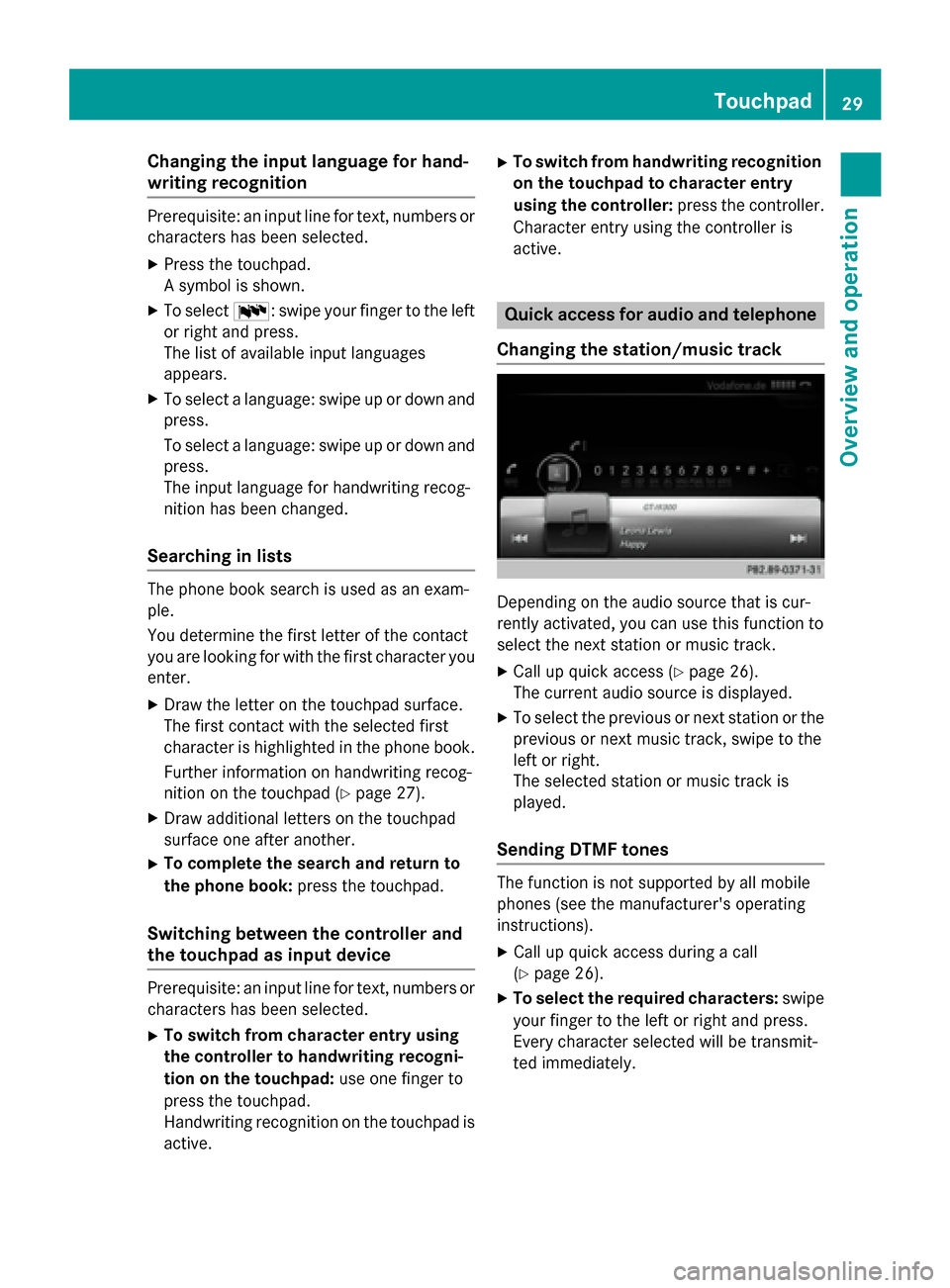
Changing the station/music track
Depending on the audio source that is cur-
rently activated, you can use this function to
select the next station or music track.
XCall up quick access (Ypage 26).
The current audio source is displayed.
XTo select the previous or next station or the
previous or next music track, swipe to the
left or right.
The selected station or music track is
played.
Sending DTMF tones
The function is not supported by all mobile
phones (see the manufacturer's operating
instructions).
XCall up quick access during a call
(
Ypage 26).
XTo select the required characters: swipe
your finger to the left or right and press.
Every character selected will be transmit-
ted immediately.
Touchpad29
Overview and operation
Page 33 of 226
or
XSelect+: while route guidance is active,
show the menu and press the controller
(
Ypage 86).
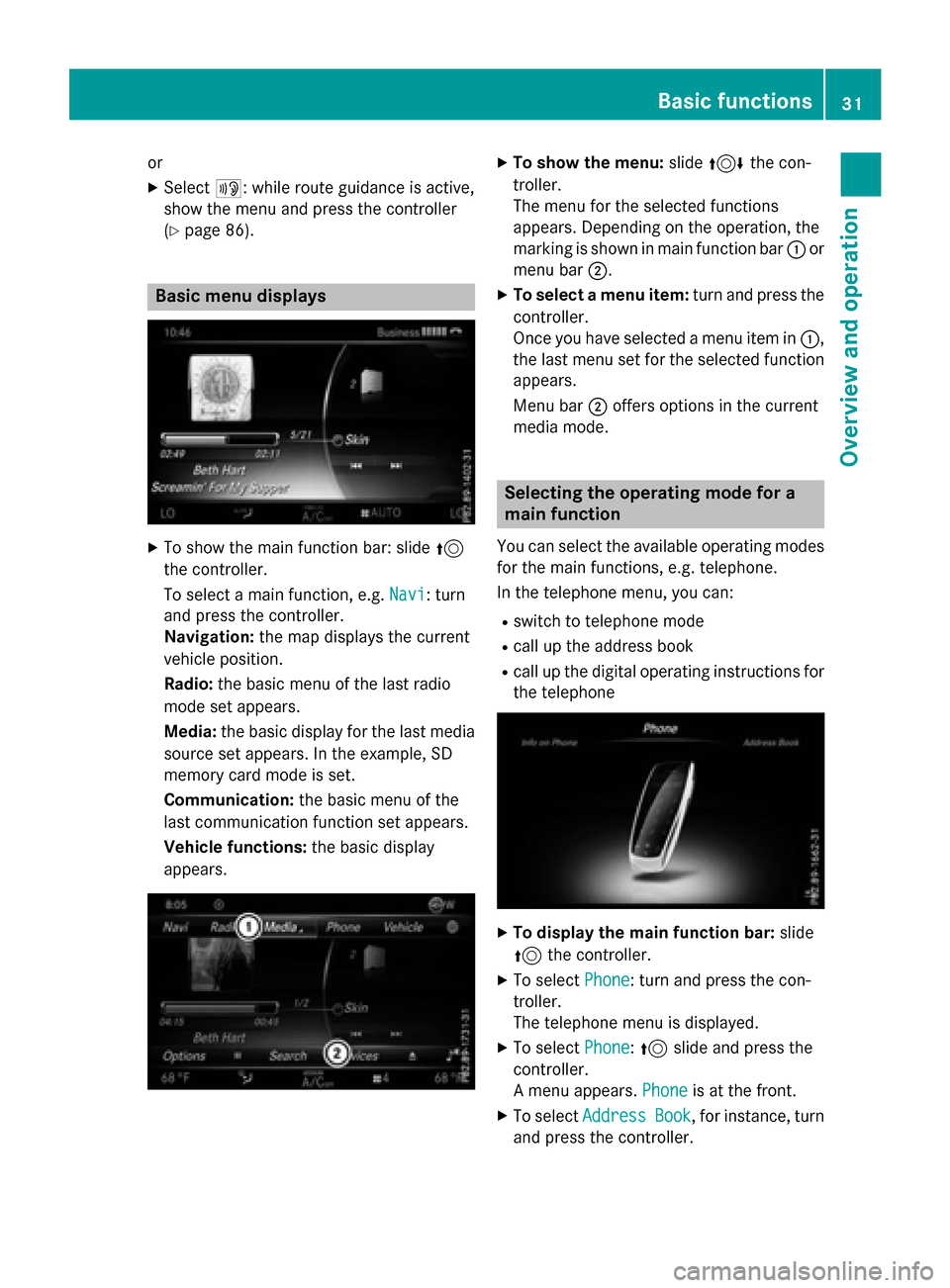
Basic menu displays
XTo show the main function bar: slide 5
the controller.
To select a main function, e.g. Navi
: turn
and press the controller.
Navigation: the map displays the current
vehicle position.
Radio: the basic menu of the last radio
mode set appears.
Media: the basic display for the last media
source set appears. In the example, SD
memory card mode is set.
Communication: the basic menu of the
last communication function set appears.
Vehicle functions: the basic display
appears.
XTo show the menu: slide4 the con-
troller.
The menu for the selected functions
appears. Depending on the operation, the
marking is shown in main function bar :or
menu bar ;.
XTo select a menu item: turn and press the
controller.
Once you have selected a menu item in :,
the last menu set for the selected function
appears.
Menu bar ;offers options in the current
media mode.
Selecting the operating mode for a
main function
You can select the available operating modes
for the main functions, e.g. telephone.
In the telephone menu, you can:
Rswitch to telephone mode
Rcall up the address book
Rcall up the digital operating instructions for
the telephone
XTo display the main function bar: slide
5 the controller.
XTo select Phone: turn and press the con-
troller.
The telephone menu is displayed.
XTo select Phone:5 slide and press the
controller.
A menu appears. Phone
is at the front.
XTo selectAddressBook, for instance, turn
and press the controller.
Basic functions31
Overview and operation
Page 34 of 226
Character entry (telephony)
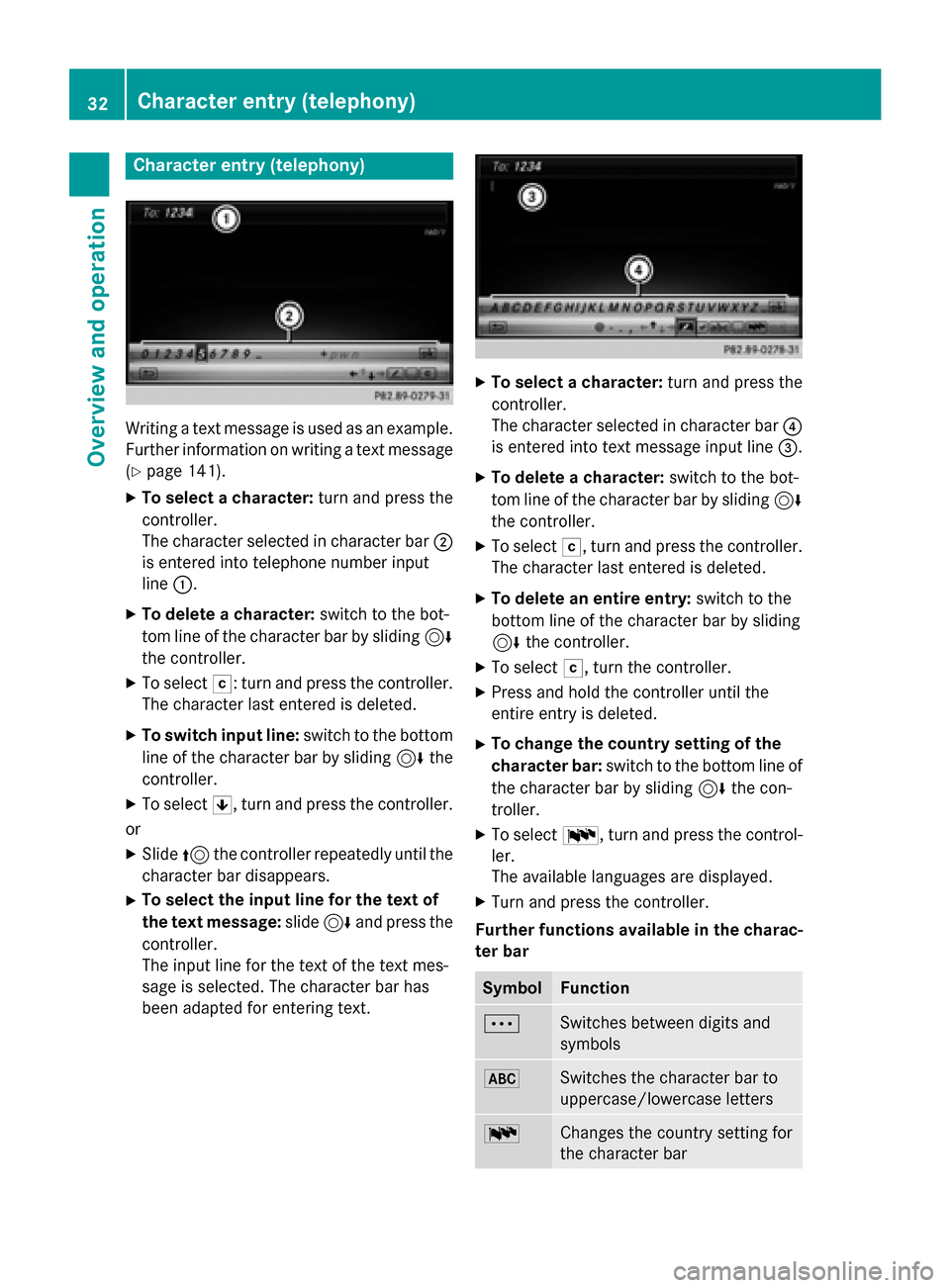
Writing a text message is used as an example.
Further information on writing a text message(
Ypage 141).
XTo select a character: turn and press the
controller.
The character selected in character bar ;
is entered into telephone number input
line :.
XTo delete a character: switch to the bot-
tom line of the character bar by sliding 6
the controller.
XTo select F: turn and press the controller.
The character last entered is deleted.
XTo switch input line: switch to the bottom
line of the character bar by sliding 6the
controller.
XTo select 5, turn and press the controller.
or
XSlide 5the controller repeatedly until the
character bar disappears.
XTo select the input line for the text of
the text message: slide6and press the
controller.
The input line for the text of the text mes-
sage is selected. The character bar has
been adapted for entering text.
XTo select a character: turn and press the
controller.
The character selected in character bar ?
is entered into text message input line =.
XTo delete a character:switch to the bot-
tom line of the character bar by sliding 6
the controller.
XTo select F, turn and press the controller.
The character last entered is deleted.
XTo delete an entire entry: switch to the
bottom line of the character bar by sliding
6 the controller.
XTo select F, turn the controller.
XPress and hold the controller until the
entire entry is deleted.
XTo change the country setting of the
character bar: switch to the bottom line of
the character bar by sliding 6the con-
troller.
XTo select B, turn and press the control-
ler.
The available languages are displayed.
XTurn and press the controller.
Further functions available in the charac-
ter bar
SymbolFunction
ÄSwitches between digits and
symbols
*Switches the character bar to
uppercase/lowercase letters
BChanges the country setting for
the character bar
32Character entry (telephony)
Overview and operation
Page 36 of 226
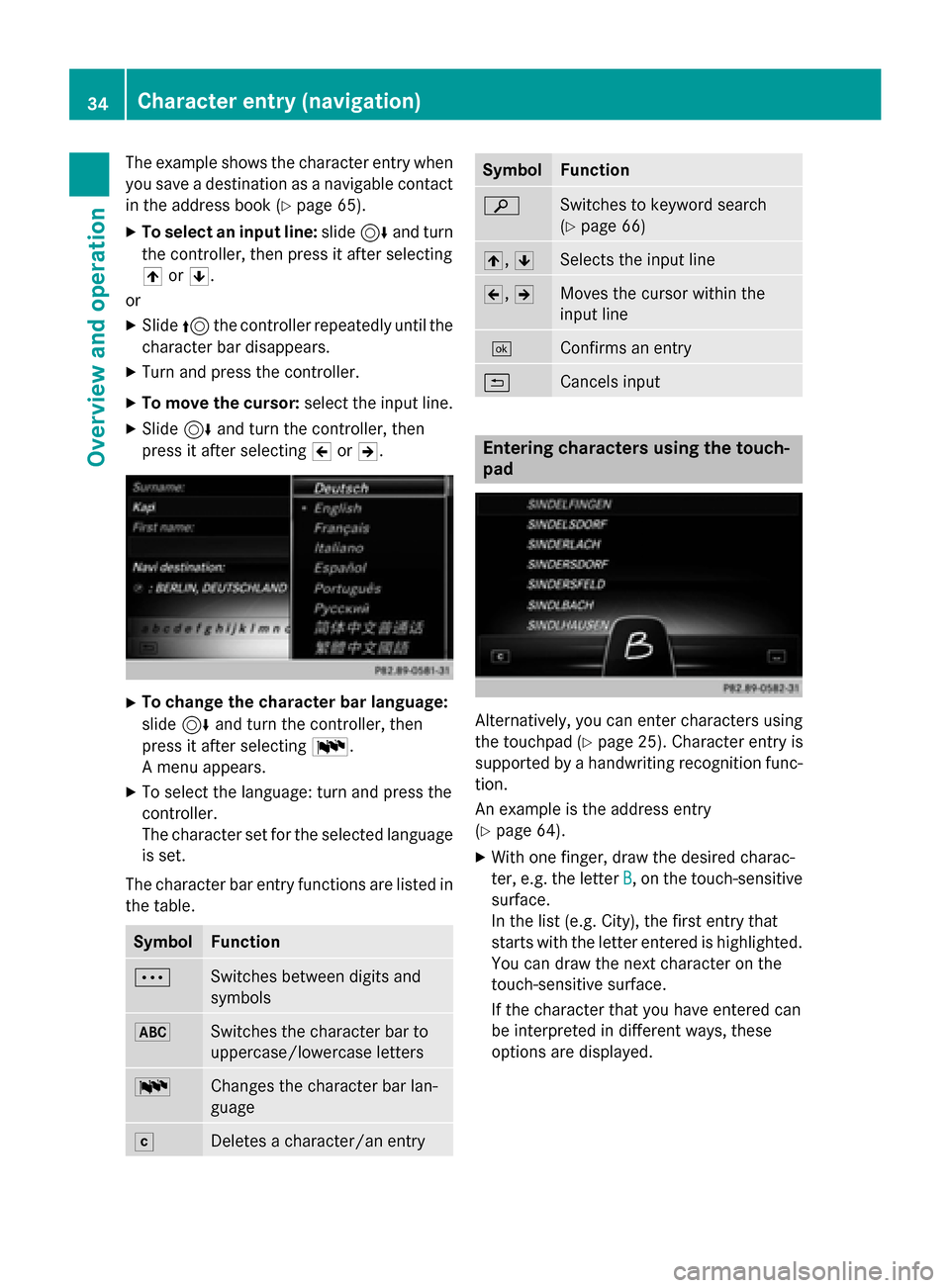
The example shows the character entry when
you save a destination as a navigable contact
in the address book (
Ypage 65).
XTo select an input line:slide6and turn
the controller, then press it after selecting
4 or5.
or
XSlide 5the controller repeatedly until the
character bar disappears.
XTurn and press the controller.
XTo move the cursor: select the input line.
XSlide6and turn the controller, then
press it after selecting 2or3.
XTo change the character bar language:
slide 6and turn the controller, then
press it after selecting B.
A menu appears.
XTo select the language: turn and press the
controller.
The character set for the selected language
is set.
The character bar entry functions are listed in
the table.
SymbolFunction
ÄSwitches between digits and
symbols
*Switches the character bar to
uppercase/lowercase letters
BChanges the character bar lan-
guage
FDeletes a character/an entry
SymbolFunction
èSwitches to keyword search
(
Ypage 66)
4, 5Selects the input line
2,3Moves the cursor within the
input line
¬Confirms an entry
&Cancels input
Entering characters using the touch-
pad
Alternatively, you can enter characters using
the touchpad (
Ypage 25). Character entry is
supported by a handwriting recognition func-
tion.
An example is the address entry
(
Ypage 64).
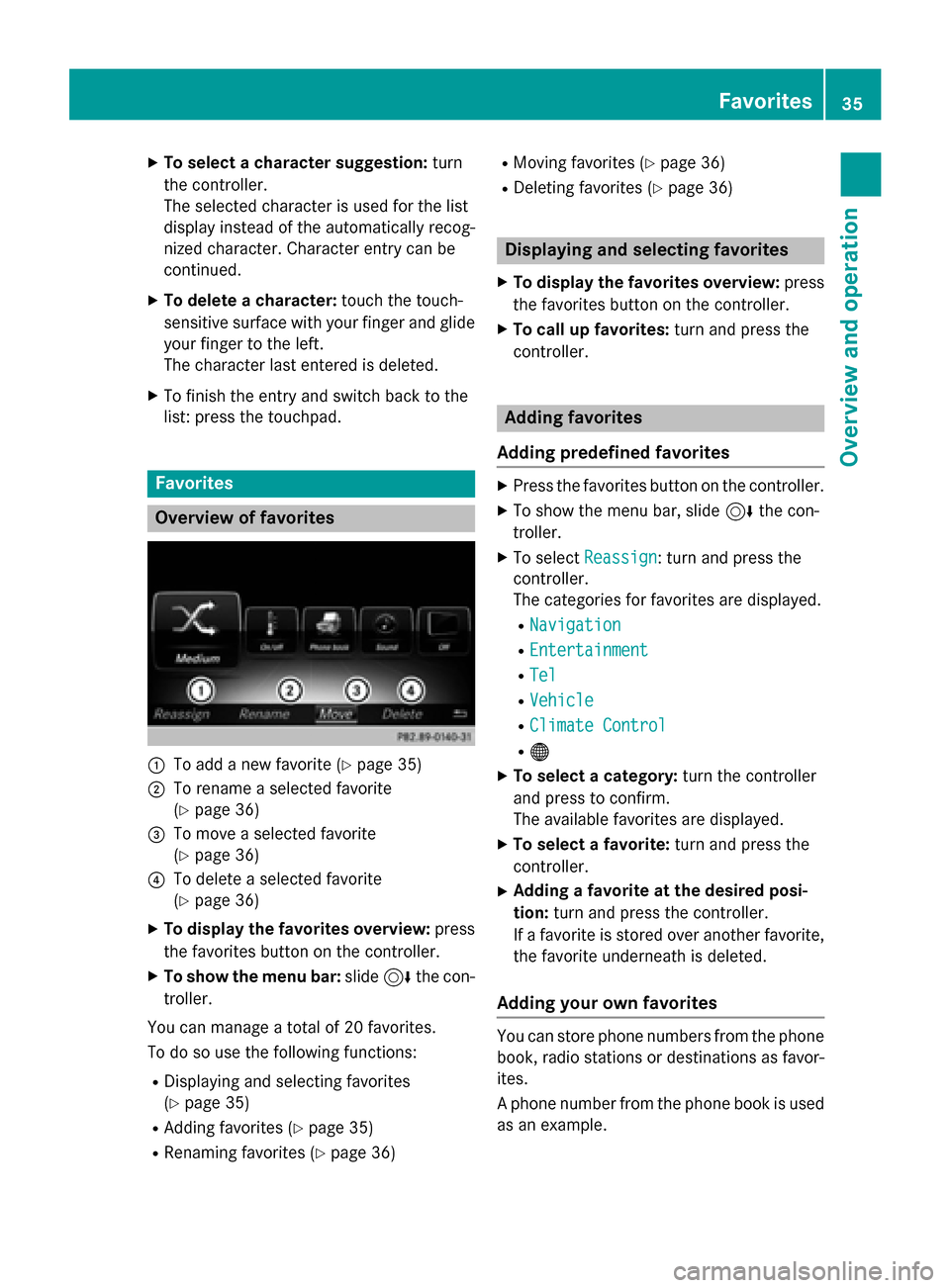
XWith one finger, draw the desired charac-
ter, e.g. the letter B
, on the touch-sensitive
surface.
In the list (e.g. City), the first entry that
starts with the letter entered is highlighted.
You can draw the next character on the
touch-sensitive surface.
If the character that you have entered can
be interpreted in different ways, these
options are displayed.
34Character entry (navigation)
Overview and operation
Page 37 of 226
XTo select a character suggestion:turn
the controller.
The selected character is used for the list
display instead of the automatically recog-
nized character. Character entry can be
continued.
XTo delete a character: touch the touch-
sensitive surface with your finger and glide
your finger to the left.
The character last entered is deleted.
XTo finish the entry and switch back to the
list: press the touchpad.
Favorites
Overview of favorites
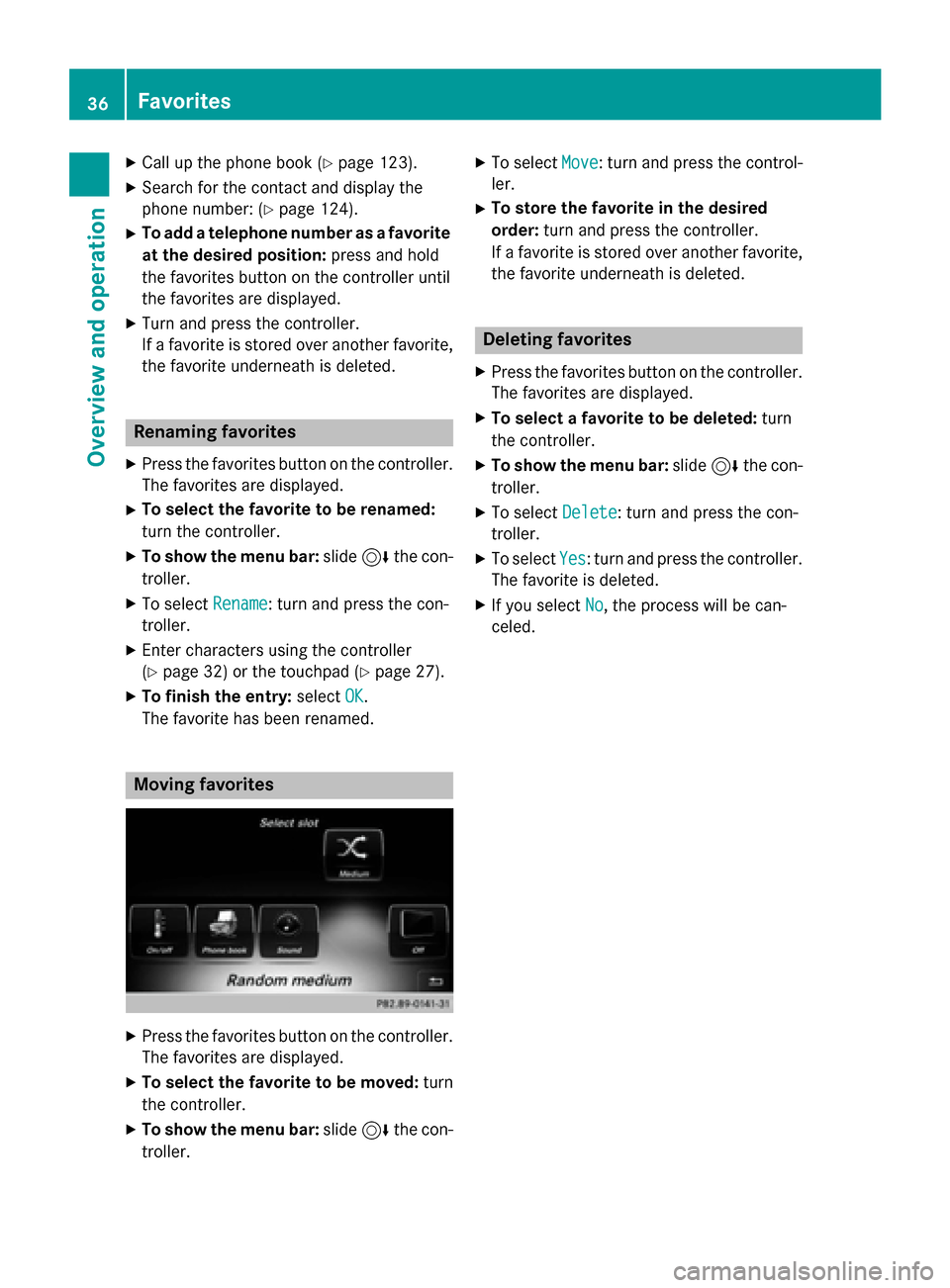
:To add a new favorite (Ypage 35)
;To rename a selected favorite
(
Ypage 36)
=To move a selected favorite
(
Ypage 36)
?To delete a selected favorite
(
Ypage 36)
XTo display the favorites overview: press
the favorites button on the controller.
XTo show the menu bar: slide6the con-
troller.
You can manage a total of 20 favorites.
To do so use the following functions:
RDisplaying and selecting favorites
(
Ypage 35)
RAdding favorites (Ypage 35)
RRenaming favorites (Ypage 36)
RMoving favorites (Ypage 36)
RDeleting favorites (Ypage 36)
Displaying and selecting favorites
XTo display the favorites overview: press
the favorites button on the controller.
XTo call up favorites: turn and press the
controller.
Adding favorites
Adding predefined favorites
XPress the favorites button on the controller.
XTo show the menu bar, slide 6the con-
troller.
XTo select Reassign: turn and press the
controller.
The categories for favorites are displayed.
RNavigation
REntertainment
RTel
RVehicle
RClimate Control
R®
XTo select a category: turn the controller
and press to confirm.
The available favorites are displayed.
XTo select a favorite: turn and press the
controller.
XAdding a favorite at the desired posi-
tion: turn and press the controller.
If a favorite is stored over another favorite,
the favorite underneath is deleted.
Adding your own favorites
You can store phone numbers from the phone
book, radio stations or destinations as favor-
ites.
A phone number from the phone book is used
as an example.
Favorites35
Overview and operation
Page 38 of 226
XCallup the phone book (Ypage 123).
XSearch for the contact and display the
phone number: (
Ypage 124).
XTo add a telephone number as a favorite
at the desired position: press and hold
the favorites button on the controller unt il
the favorites are displayed.
XTurn and press the controller.
If a favorite isstored over another favorite,
the favorite underneath is deleted.
Renaming favorites
XPress the favorites button on the controller.
The favorites are displayed.
XTo select the favorite to be renamed:
turn the controller.
XTo show the menu bar: slide6the con-
troller.
XTo select Rename: turn and press the con-
troller.
XEnter characters using the controller
(
Ypage 32) or the touchpad (Ypage 27 ).
XTo finish the entry :select OK.
The favorite has been renamed.
Moving favorites
XPress the favorites button on the controller. The favorites are displayed.
XTo select the favorite to be moved:turn
the controller.
XTo show the menu bar: slide6the con-
troller.
XTo select Move: turn and press the control-
ler.
XTo store the favorite in the desired
ord er:turn and press the controller.
If a favorite isstored over another favorite,
the favorite underneath isdeleted.
Deleting favorites
XPress the favorites button on the controller.
The favorites are displayed.
XTo select a favorite tobe deleted: turn
the controller.
XTo show the menu bar: slide6the con-
troller.
XTo select Delete: turn and press the con-
troller.
XTo select Yes: turn and press the controller.
The favorite isdeleted.
XIfyou select No, the process will becan-
celed.
36Favorites
Overview and operation
Page 39 of 226
Your COMAND equipment..................38
Important safet ynotes ...................... .38
Display settings .................................. .38
Time settings ...................................... .39
Text reader settings ............................41
Voice Contro lSyste msettings ..........41
WiFi ...................................................... 41
Bluetoot h
®settings ............................ 44
Automatic volume adjustment ..........44
Setting th esyste mlanguage .............45
Calling up an dediting th eFavor -
ites function ........................................ 45
Importing/exporting data ..................46
Reset function .................................... .47
37
System settings
Page 40 of 226
Your COMANDequipment
i
These operatin ginstruction sdescribe all
th estandar dan doptional equipmen tof
your COMAN Dsystem, as available at th e
time of going to print .Country-specifi cdif -
ference sare possible. Bear in min dthat
your vehicle may no tfeature all function s
described here. Thi salso applies to safety-
relevant systems an dfunctions.
iRead th einformation on qualified special-
ist workshop sin th evehicle Operator's
Manual.
Important safet ynotes
GWARNING
If you operat emobile communication equip-
men twhil edriving, you will be distracted from
traffic conditions. You could also los econtro l
of th evehicle. There is aris kof an accident.
Only operat ethis equipment when th evehicle
is stationary.
GWARNING
SD memor ycards are small parts .The ycan be
swallowe dan dcause asphyxiation .Thi s
poses an increase dris kof injury or eve nfatal
injury.
Kee pSD memor ycards out of th ereach of
children .If an SD memor ycar dis swallowed,
see kimmediate medical attention .
You mustobserv eth elega lrequirements fo r
th ecountry in whic hyou are currentl ydrivin g
when operatin gmobile communication s
equipmen tin th evehicle.
Display settings
Setting th ebrightness
The brightness detecte dby th edisplay ligh t
sensor affects th esetting option sfo rthis
function .
XPressVehicl ein themain function bar .
The vehicle men uis displayed.
XTo selec tSystem Settings:slid e6,
turn an dpress th econtroller to confirm .
A men uappears .
XTo selec tDispla y:turn an dpress th econ-
troller.
A men uappears .
XSelectBrightness.
A contro lappears .
XSelectth edesire dbrightness.
Display design
The display feature soptimize ddesign sfo r
daytime an dnight-time operation .You can
set th edesign by manually selecting day or
night design or opt fo ran automatic setting .
XPressVehicl ein themain function bar .
The vehicle men uis displayed.
XTo selec tSystem Settings:slid e6,
turn an dpress th econtroller to confirm .
A men uappears .
XTo selec tDispla y:turn an dpress th econ-
troller.
A men uappears .
XSelectDa yMode,Nigh tModeor Auto.
The #dot indicates th ecurren tsetting .
DesignExplanation
DayModeThe display is set perma-
nently to day design .
NightModeThe display is set perma-
nently to night design .
AutomaticIf theAutomati csetting
is selected, COMAN D
evaluates th ereadings
from th eautomatic vehi-
cl eligh tsensor an dauto-
matically switches
between th edisplay
designs.
38Display settings
System settings
Page 41 of 226
Switching the display on/off
XPressVehiclein the main function bar.
The vehicle menu is displayed.
XTo select DisplayOff: slide6, turn and
press the controller to confirm.
The display goes out.
XTo switch the display on again: press the
controller.
Time settings
General information
COMAND can automatically set the time and
date.
The following navigation system functions
require the time, time zone and summer and
standard time to be set correctly in order to
work properly:
Rroute guidance on routes with time-
dependent traffic guidance
Rcalculation of expected time of arrival
Switching automatic time on and off
The Automatic Time Settingsfunction is
used to activate or deactivate the automatic
setting of the time and date. This function is
activated when the vehicle leaves the factory.
XPress Vehiclein the main function bar.
The vehicle menu is displayed.
XTo select Time: slide6, turn and press
the controller to confirm.
A menu appears.
XTo select Automatic Time Settings:
press the controller.
XTo switch the function on Oor off ª:
press the controller.
Setting the time zone
To set the time zone, the Automatic Time
Settingsfunction must be activated.
XPressVehiclein the main function bar.
The vehicle menu is displayed.
XTo select Time: slide6, turn and press
the controller to confirm.
A menu appears.
XTo select Time Zone:: turn and press the
controller.
A list of countries appears. The #dot indi-
cates the current setting.
XSelect the country you are currently in by
turning and pressing the controller.
The country is accepted.
A time zone list may also be displayed,
depending on the country selected.
XTo select the desired time zone: turn and
press the controller.
The time zone is accepted.
A list of available options for setting sum-
mer time appears (
Ypage 39).
Setting summer and standard time
You can use the Daylight Saving Time
menu to set automatic summer time change-
over or switch the summer time setting on or
off. The changeover to summer time advan-
ces the time by one hour.
TheDaylight Saving Time
menu or the
Automatic
option is not available in all coun-
tries.
XPress Vehiclein the main function bar.
The vehicle menu is displayed.
XTo select Time: slide6, turn and press
the controller to confirm.
A menu appears.
XTo select Daylight Saving Time: turn
and press the controller.
A list of available options for setting sum-
mer time appears.
XTo select Automatic,Onor Off: turn and
press the controller.
Time settings39
System settings
Z