display MERCEDES-BENZ AMG GT S 2016 C190 Comand Manual
[x] Cancel search | Manufacturer: MERCEDES-BENZ, Model Year: 2016, Model line: AMG GT S, Model: MERCEDES-BENZ AMG GT S 2016 C190Pages: 226, PDF Size: 6.39 MB
Page 42 of 226
SettingFunction
AutomaticThe summer and
standard time are
automatically
changed over.
OnThe clock is
advanced one hour
ahead of standard
time.
OffThe standard time
for the chosen time
zone is selected.
Manual time setting
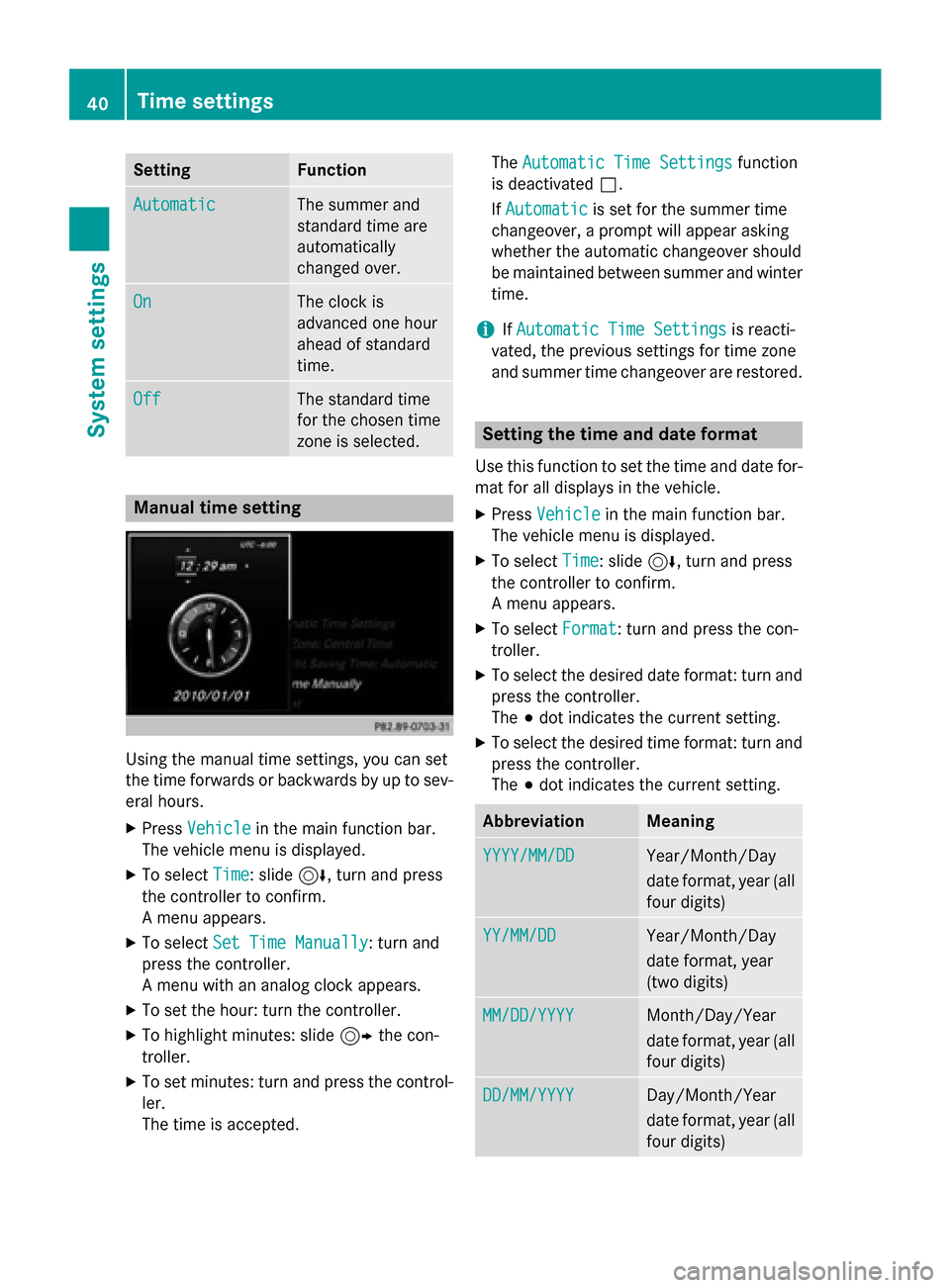
Using the manual time settings, you can set
the time forwards or backwards by up to sev-
eral hours.
XPressVehiclein the main function bar.
The vehicle menu is displayed.
XTo select Time: slide6, turn and press
the controller to confirm.
A menu appears.
XTo select Set Time Manually: turn and
press the controller.
A menu with an analog clock appears.
XTo set the hour: turn the controller.
XTo highlight minutes: slide 9the con-
troller.
XTo set minutes: turn and press the control-
ler.
The time is accepted. The
Automatic Time Settings
function
is deactivated ª.
If Automatic
is set for the summer time
changeover, a prompt will appear asking
whether the automatic changeover should
be maintained between summer and winter
time.
iIf Automatic Time Settingsis reacti-
vated, the previous settings for time zone
and summer time changeover are restored.
Setting the time and date format
Use this function to set the time and date for-
mat for all displays in the vehicle.
XPress Vehiclein the main function bar.
The vehicle menu is displayed.
XTo select Time: slide6, turn and press
the controller to confirm.
A menu appears.
XTo select Format: turn and press the con-
troller.
XTo select the desired date format: turn and
press the controller.
The #dot indicates the current setting.
XTo select the desired time format: turn and
press the controller.
The #dot indicates the current setting.
AbbreviationMeaning
YYYY/MM/DDYear/Month/Day
date format, year (all
four digits)
YY/MM/DDYear/Month/Day
date format, year
(two digits)
MM/DD/YYYYMonth/Day/Year
date format, year (all
four digits)
DD/MM/YYYYDay/Month/Year
date format, year (all
four digits)
40Time settings
System settings
Page 43 of 226
AbbreviationMeaning
HH:MM (24 hrs)Hours : Minutes
(24 hour time for-
mat)
HH:MM (AM/PM)Hours : Minutes
(AM/PM time for-
mat)
Text reader settings
XPress Vehicleinthe main function bar.
The veh iclemenu isdisplayed.
XTo select System Settings: slide6,
turn and press the controller to confirm.
A menu appears.
XTo select Text Reader Speed: turn and
press the controller.
A list appears.
XSelect Fast,Mediumor Slow.
The #dot indicates the current setting.
Voice Control System settings
Opening/closing the help window
i
If the set system language isnot suppor-
ted bythe Voice Control System, English
will be selected.
The help window also shows you information
on audible instructions:
Rduring ind ividualization
Rduring subsequent operation of the Voice
Control System
XPress Vehicleinthe main function bar.
The veh iclemenu isdisplayed.
XTo select System Settings: slide6,
turn and press the controller to confirm.
A menu appears.
XTo select Voice Control: turn and press
the controller.
XSe lect Help Window.
You have switched the help window on O
or off ª.
More information on the Voice Control Sys-
tem isavailab le inthe separate operating
instructions.
Individualization
Using ind ividualization, you can fine-tune the
Voice Control System to your own voice. This
will help improve voice recognition (see the
separate operating instructions).
WiFi
Overview
Conditions:
To establish a WiFi connection between
COMAND and a WiFi-enabled device, such as
a tablet computer or smartphone:
RWiFi must beact ivat ed at COMAND and at
the device to beconnected.
If COMAND isto be used as a WiFi hotspot:
RCOMAND must beconnected to an Inter-
net-enabled mobile phone via Bluetooth®
or USB.
RThe Internet access data for the mob ile
phone network provide r mustbeselected
or set for COMAND.
RThere must beanInternet connection to
COMAND.
WiFi41
System settings
Z
Page 44 of 226
Activating WiFi
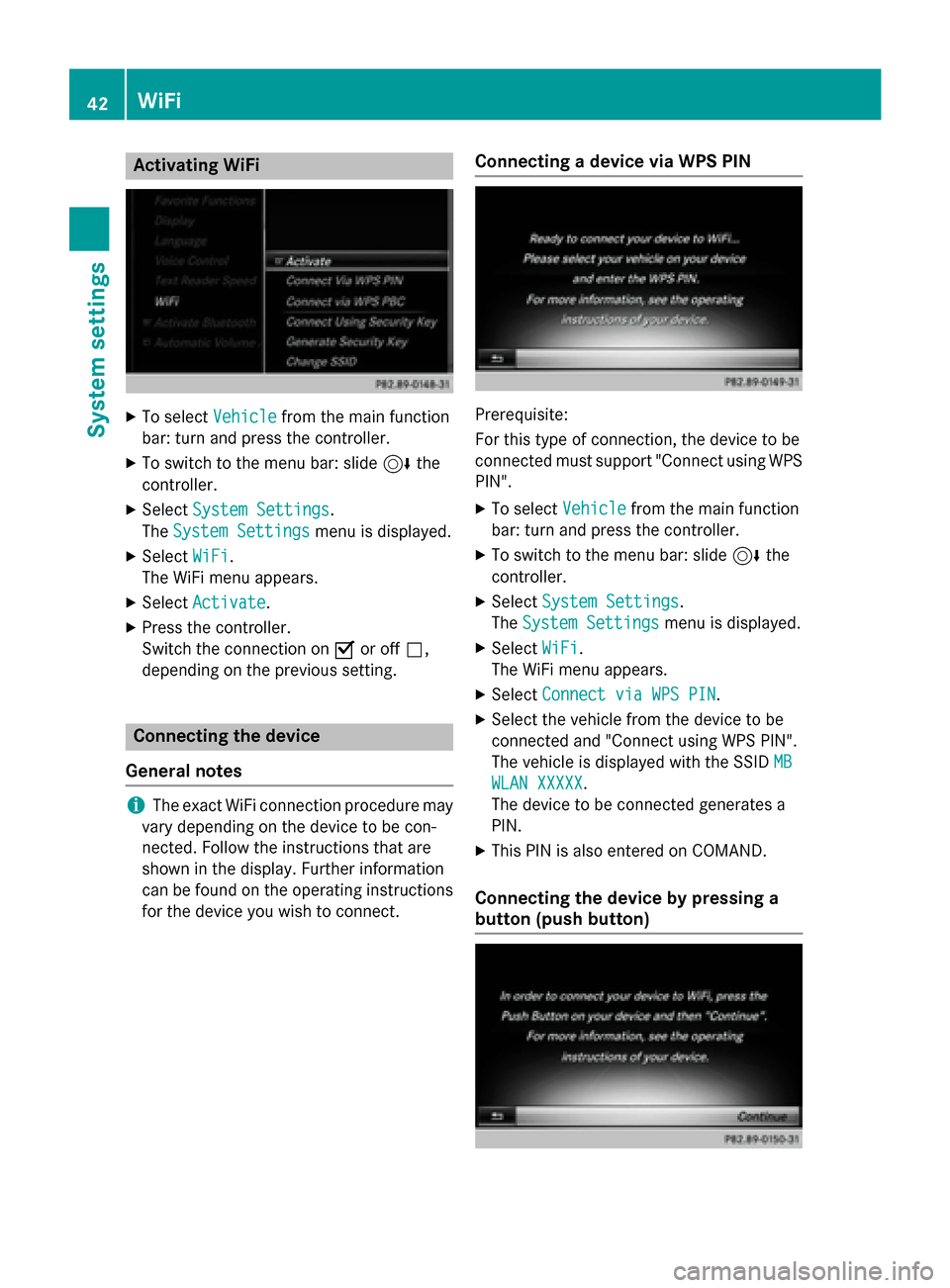
XTo selectVehiclefrom themain function
bar: tur nand press th econtroller .
XTo switch to th emen ubar: slide 6the
controller .
XSelectSystem Settings.
The System Settings
men uis displayed.
XSelec tWiF i.
The WiF imen uappears.
XSelec tActivate.
XPress th econtroller .
Switc hth econnection on Oor off ª,
depending on th eprevious setting .
Connecting the device
Gene ral notes
iThe exact WiF iconnection procedure may
var ydepending on th edevice to be con-
nected. Follow th einstruction sthat are
shown in th edisplay. Further information
can be foun don th eoperating instruction s
for th edevice you wish to connect.
Connecting a device via WPS PIN
Prerequisite:
Fo rthis typ eof connection ,th edevice to be
connecte dmus tsupport "Connect usin gWPS
PIN".
XTo select Vehiclefrom themain function
bar: tur nand press th econtroller .
XTo switch to th emen ubar: slide 6the
controller .
XSelectSystem Settings.
The System Settings
men uis displayed.
XSelec tWiF i.
The WiF imen uappears.
XSelec tConnec tvia WPS PIN.
XSelec tth evehicl efrom th edevice to be
connecte dand "Connect usin gWPS PIN".
The vehicl eis displayed wit hth eSSID MB
WLANXXXXX.
The device to be connecte dgenerates a
PIN .
XThis PIN is also entered on COMAND .
Connecting the device by pressing a
button (push button)
42WiFi
System settings
Page 45 of 226
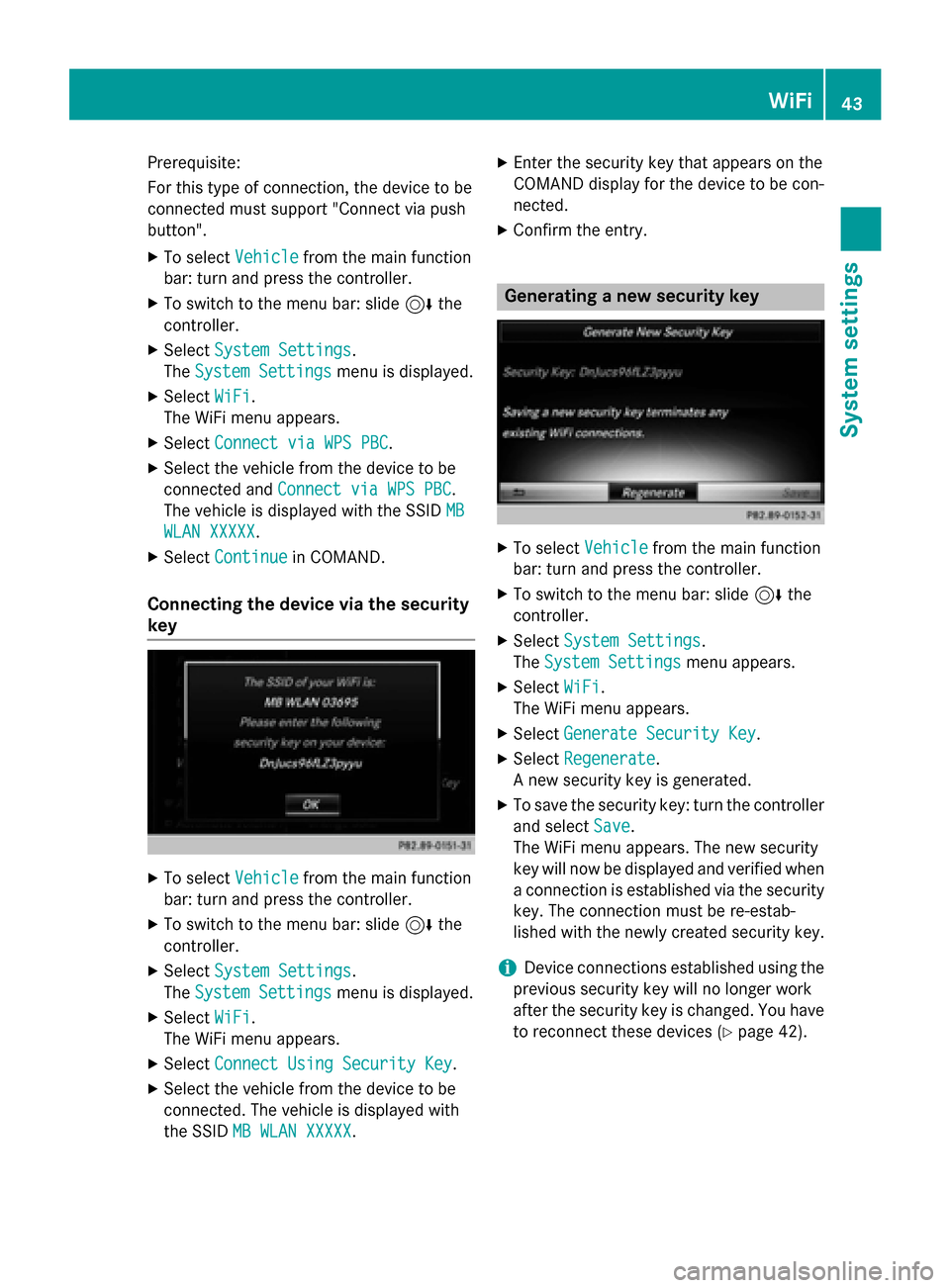
Prerequisite:
For this type of connection, the device to be
connected must support "Connect via push
button".
XTo selectVehiclefrom the main function
bar: turn and press the controller.
XTo switch to the menu bar: slide 6the
controller.
XSelect System Settings.
The System Settings
menu is displayed.
XSelect WiFi.
The WiFi menu appears.
XSelect Connect via WPS PBC.
XSelect the vehicle from the device to be
connected and Connect via WPS PBC
.
The vehicle is displayed with the SSID MB
WLAN XXXXX.
XSelectContinuein COMAND.
Connecting the device via the security
key
XTo select Vehiclefrom the main function
bar: turn and press the controller.
XTo switch to the menu bar: slide 6the
controller.
XSelect System Settings.
The System Settings
menu is displayed.
XSelect WiFi.
The WiFi menu appears.
XSelect Connect Using Security Key.
XSelect the vehicle from the device to be
connected. The vehicle is displayed with
the SSID MB WLAN XXXXX
.
XEnter the security key that appears on the
COMAND display for the device to be con-
nected.
XConfirm the entry.
Generating a new security key
XTo select Vehiclefrom the main function
bar: turn and press the controller.
XTo switch to the menu bar: slide 6the
controller.
XSelect System Settings.
The System Settings
menu appears.
XSelect WiFi.
The WiFi menu appears.
XSelect Generate Security Key.
XSelectRegenerate.
A new security key is generated.
XTo save the security key: turn the controller
and select Save
.
The WiFi menu appears. The new security
key will now be displayed and verified when
a connection is established via the security
key. The connection must be re-estab-
lished with the newly created security key.
iDevice connections established using the
previous security key will no longer work
after the security key is changed. You have
to reconnect these devices (
Ypage 42).
WiFi43
System settings
Z
Page 46 of 226
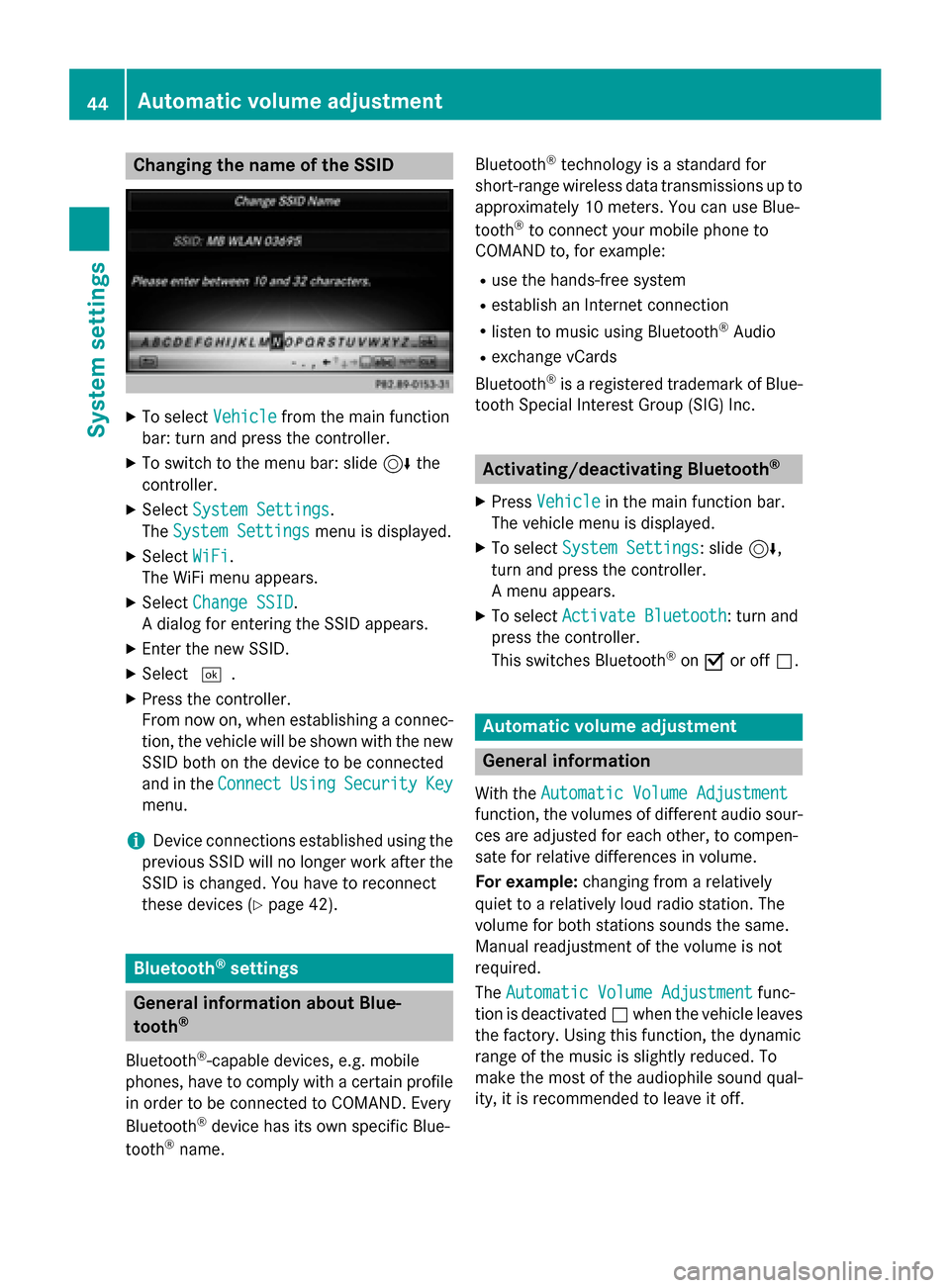
Changing the name of the SSID
XTo selectVehiclefrom the main function
bar: turn and press the controller.
XTo switch to the menu bar: slide 6the
controller.
XSelect System Settings.
The System Settings
menu is displayed.
XSelect WiFi.
The WiFi menu appears.
XSelect Change SSID.
A dialog for entering the SSID appears.
XEnter the new SSID.
XSelect ¬.
XPress the controller.
From now on, when establishing a connec-
tion, the vehicle will be shown with the new
SSID both on the device to be connected
and in the Connect
UsingSecurityKey
menu.
iDevice connections established using the
previous SSID will no longer work after the
SSID is changed. You have to reconnect
these devices (
Ypage 42).
Bluetooth®settings
General information about Blue-
tooth®
Bluetooth®-capable devices, e.g. mobile
phones, have to comply with a certain profile
in order to be connected to COMAND. Every
Bluetooth
®device has its own specific Blue-
tooth®name. Bluetooth
®technology is a standard for
short-range wireless data transmissions up to
approximately 10 meters. You can use Blue-
tooth
®to connect your mobile phone to
COMAND to, for example:
Ruse the hands-free system
Restablish an Internet connection
Rlisten to music using Bluetooth®Audio
Rexchange vCards
Bluetooth
®is a registered trademark of Blue-
tooth Special Interest Group (SIG) Inc.
Activating/deactivating Bluetooth®
X
Press Vehiclein the main function bar.
The vehicle menu is displayed.
XTo select System Settings: slide6,
turn and press the controller.
A menu appears.
XTo select Activate Bluetooth: turn and
press the controller.
This switches Bluetooth
®on O or off ª.
Automatic volume adjustment
General information
With the Automatic Volume Adjustment
function, the volumes of different audio sour-
ces are adjusted for each other, to compen-
sate for relative differences in volume.
For example: changing from a relatively
quiet to a relatively loud radio station. The
volume for both stations sounds the same.
Manual readjustment of the volume is not
required.
The Automatic Volume Adjustment
func-
tion is deactivated ªwhen the vehicle leaves
the factory. Using this function, the dynamic
range of the music is slightly reduced. To
make the most of the audiophile sound qual- ity, it is recommended to leave it off.
44Automatic volume adjustment
System settings
Page 47 of 226
Switching the automatic volume
adjustment on/off
XPressVehiclein the main function bar.
The vehicle menu is displayed.
XTo select System Settings: slide6,
turn and press the controller.
A menu appears.
XTo select Automatic Volume Adjust‐
ment: turn and press the controller.
Switch the Automatic Volume Adjust‐
mentfunction on Oor off ª.
Setting the system language
This function allows you to determine the lan-
guage for the menu displays and the naviga-
tion messages. The selected language affects
the characters available for entry.
iThe navigation announcements are not
available in all languages. If a language is
not available, the navigation announce-
ments will be in English.
iWhen you set the system language, the
language of the Voice Control System will
change accordingly. If it is not supported by
the Voice Control System, English will be
selected.
XPress Vehiclein the main function bar.
The vehicle menu is displayed.
XTo select System Settings: slide6,
turn and press the controller.
A menu appears.
XTo select Language: turn and press the
controller.
The list of languages appears. The #dot
indicates the current setting.
XSelect the desired language.
COMAND loads the selected language and
sets it.
Calling up and editing the Favorites
function
The Favorites function can, depending on the
vehicle equipment, be called up as follows:
Rvia the System Settingsmenu
Rvia the Favorites button on the controller
Rvia the Favorites button on the touchpad
(
Ypage 25)
Calling up the Favorites function via the
system menu:
XPress Vehiclein the main function bar.
The vehicle menu is displayed.
XTo select SystemSettings: slide6and
press the controller.
A menu appears.
XTo select Favorite Functions: press the
controller.
The favorites are displayed.
XTo select the desired function, e.g. Phone‐
book: turn and press the controller.
Calling up the Favorites function via the
controller or touchpad:
XPress the Favorites button on the controller
or touchpad.
The favorites are displayed.
XTo select the desired function, e.g. Phone‐
book: turn and press the controller.
The Favorites function can be exited at any
time. To exit the Favorites function:
XPress the Favorites button again
or
XPress the %button on the controller
or
XPress the %button on the touchpad
or
XTo select %in the display: turn and
press the controller.
Further information on favorites (
Ypage 35).
Calling up and editing the Favorites function45
System settings
Z
Page 48 of 226
Importing/exporting data
General notes
Never remove the stick or card when writing
data to the USB stick or the memory card. You
may otherwiselose data.
Using th isfunction, you can dothe fol lowing
wit h your personal COMAND data:
Rtransfer from one system or vehicle to
another system or vehicle.
Rmake a backup copy (export data) and load
itagain (import data).
Rprotect your data from unwanted export by
activating a PIN prompt (presetting: deac-
tivated ª).
You can either use an SDmemory card or a
USB storage device (e.g. a USB stick) as tem-
porary storage.
Activating/deactivating PIN protec-
tion
XPress Vehiclein the main function bar.
The vehicle menu isdisplayed.
XTo select System Settings: slide6,
turn and press the controller.
A menu appears.
XTo select Data Import/Export: turn and
press the controller.
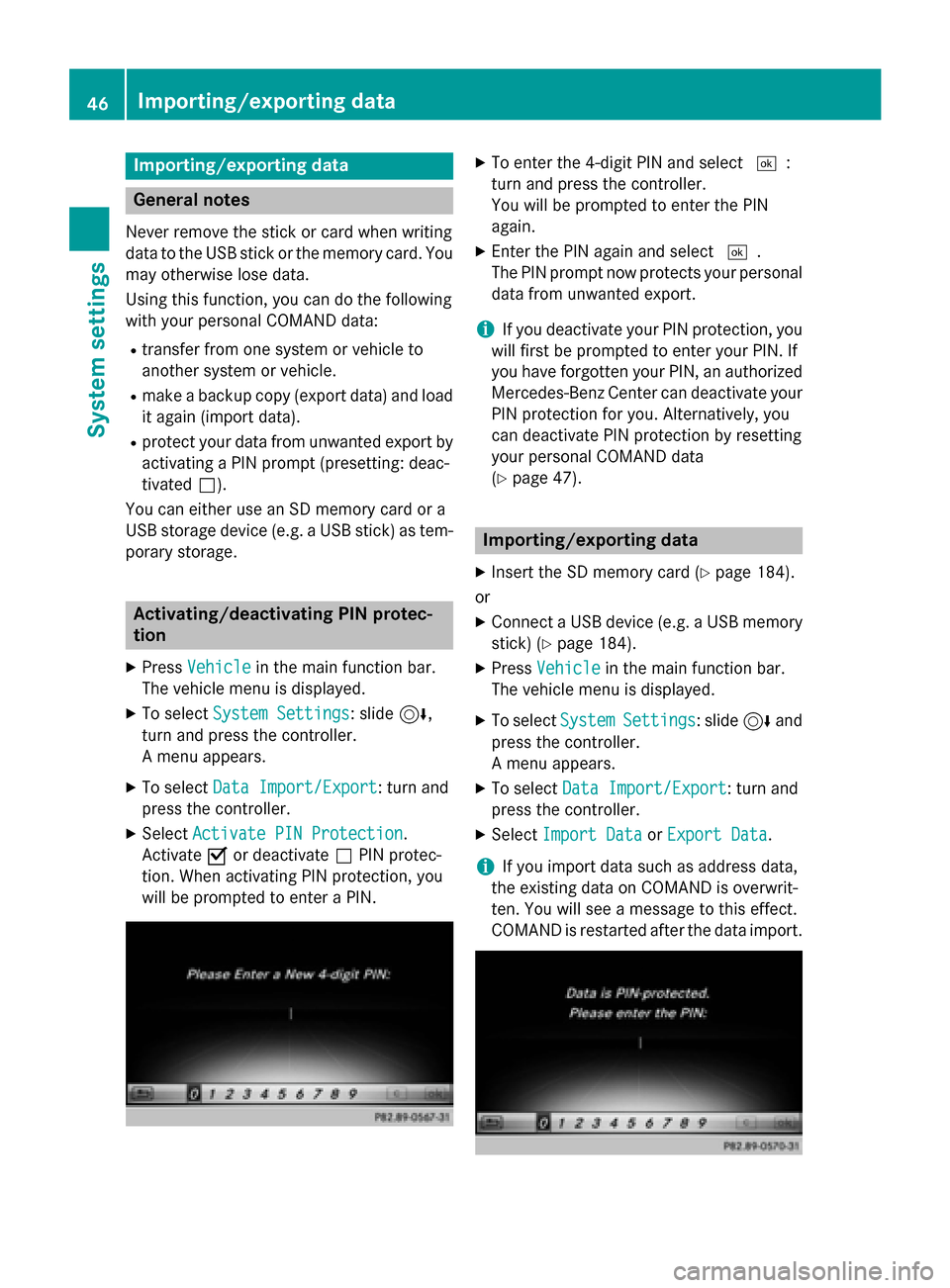
XSe lect Activate PIN Protection.
Activate Oor deactivate ªPIN protec-
tion. When activating PIN protection, you
will be prompted to enter a PIN.
XTo enter the 4-digit PIN and select ¬:
turn and press the controller.
You will be prompted to enter the PIN
again.
XEnter the PIN again and select ¬.
The PIN prompt now protects your personal
data from unwanted export.
iIf you deactivate your PIN protection, you
will first beprompted to enter your PIN. If
you have forgotten your PIN, an authorized
Mercedes-Benz Center can deactivate your
PIN protection for you. Alternatively, you
can deactivate PIN protection byresetting
your personal COMAND data
(
Ypage 47).
Importing/exporting data
XIn sert the SDmemory card (Ypage 184).
or
XConnect a USB device (e.g. a USB memory stick) (
Ypage 184).
XPress Vehicleinthe main function bar.
The vehicle menu is displayed.
XTo select SystemSettings: slide6and
press the controller.
A menu appears.
XTo select Data Import/Export: turn and
press the controller.
XSe lect Import DataorExport Data.
iIfyou impo rt data such as address data,
the existing data on COMAND isoverwr it-
ten. You willsee a message to th iseffect.
COMAND isrestarted after the data import.
46Importing/exporting data
System settings
Page 49 of 226
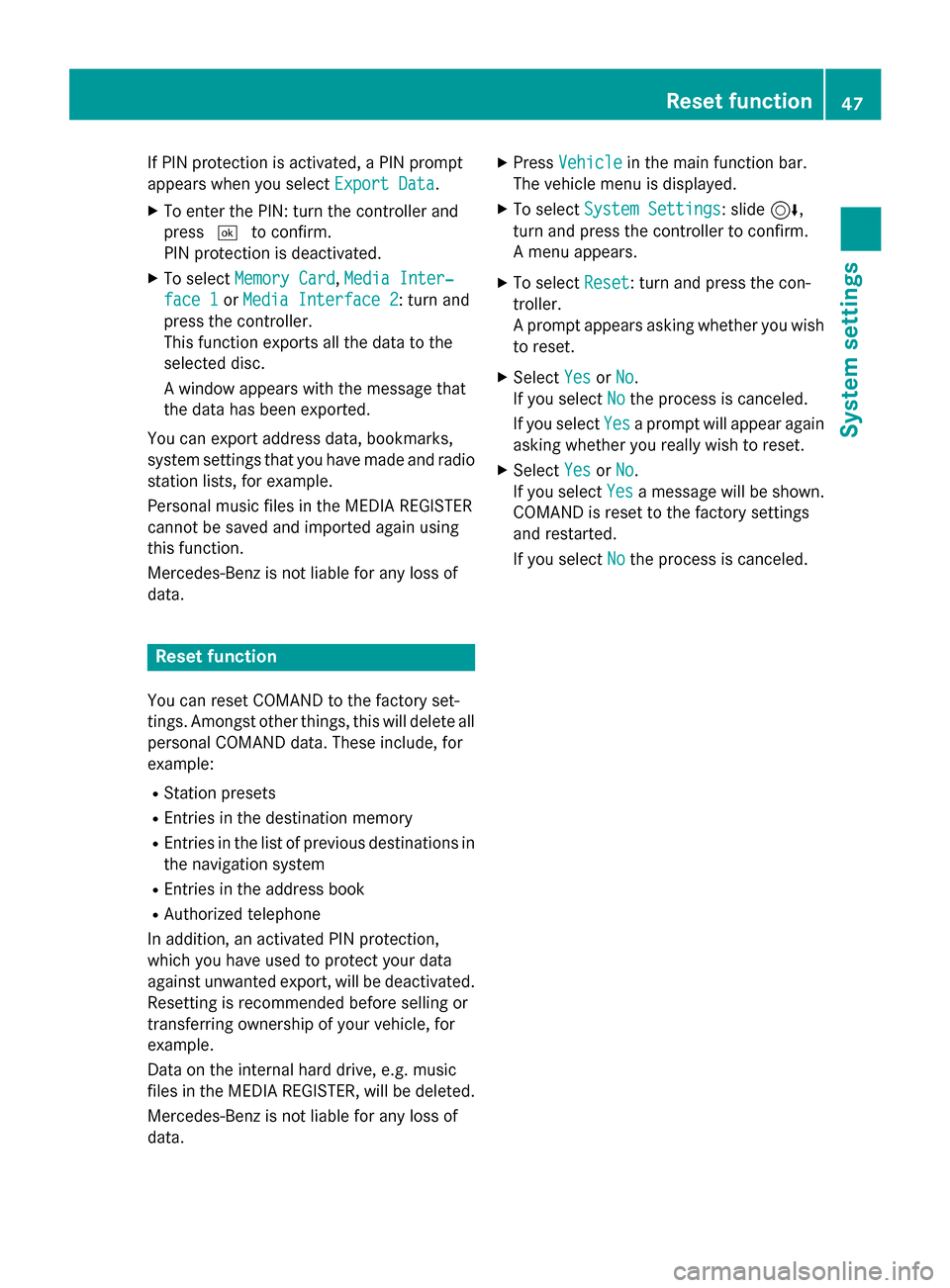
If PIN protection is activated, a PIN prompt
appears when you selectExport Data
.
XTo enter the PIN: turn the controller and
press¬to confirm.
PIN protection is deactivated.
XTo select Memory Card,Media Inter‐
face 1or Media Interface 2: turn and
press the controller.
This function exports all the data to the
selected disc.
A window appears with the message that
the data has been exported.
You can export address data, bookmarks,
system settings that you have made and radio
station lists, for example.
Personal music files in the MEDIA REGISTER
cannot be saved and imported again using
this function.
Mercedes-Benz is not liable for any loss of
data.
Reset function
You can reset COMAND to the factory set-
tings. Amongst other things, this will delete all
personal COMAND data. These include, for
example:
RStation presets
REntries in the destination memory
REntries in the list of previous destinations in
the navigation system
REntries in the address book
RAuthorized telephone
In addition, an activated PIN protection,
which you have used to protect your data
against unwanted export, will be deactivated.
Resetting is recommended before selling or
transferring ownership of your vehicle, for
example.
Data on the internal hard drive, e.g. music
files in the MEDIA REGISTER, will be deleted.
Mercedes-Benz is not liable for any loss of
data.
XPress Vehiclein the main function bar.
The vehicle menu is displayed.
XTo select System Settings: slide6,
turn and press the controller to confirm.
A menu appears.
XTo select Reset: turn and press the con-
troller.
A prompt appears asking whether you wish
to reset.
XSelect YesorNo.
If you select No
the process is canceled.
If you select Yes
a prompt will appear again
asking whether you really wish to reset.
XSelect YesorNo.
If you select Yes
a message will be shown.
COMAND is reset to the factory settings
and restarted.
If you select No
the process is canceled.
Reset function47
System settings
Z
Page 52 of 226
Your COMANDequipment
i
These operatin ginstruction sdescribe all
th estandar dan doptional equipmen tof
your COMAN Dsystem, as available at th e
time of going to print .Country-specifi cdif -
ference sare possible. Bear in min dthat
your vehicle may no tfeature all function s
described here. Thi salso applies to safety-
relevant systems an dfunctions.
iRead th einformation on qualified special-
ist workshop sin th evehicle Operator's
Manual.
Important safet ynotes
GWARNING
If you operat emobile communication equip-
men twhil edriving, you will be distracted from
traffic conditions. You could also los econtro l
of th evehicle. There is aris kof an accident.
Only operat ethis equipment when th evehicle
is stationary.
You mus tobserv eth elega lrequirements fo r
th ecountry in whic hyou are currentl ydrivin g
when operatin gmobile communication s
equipmen tin th evehicle.
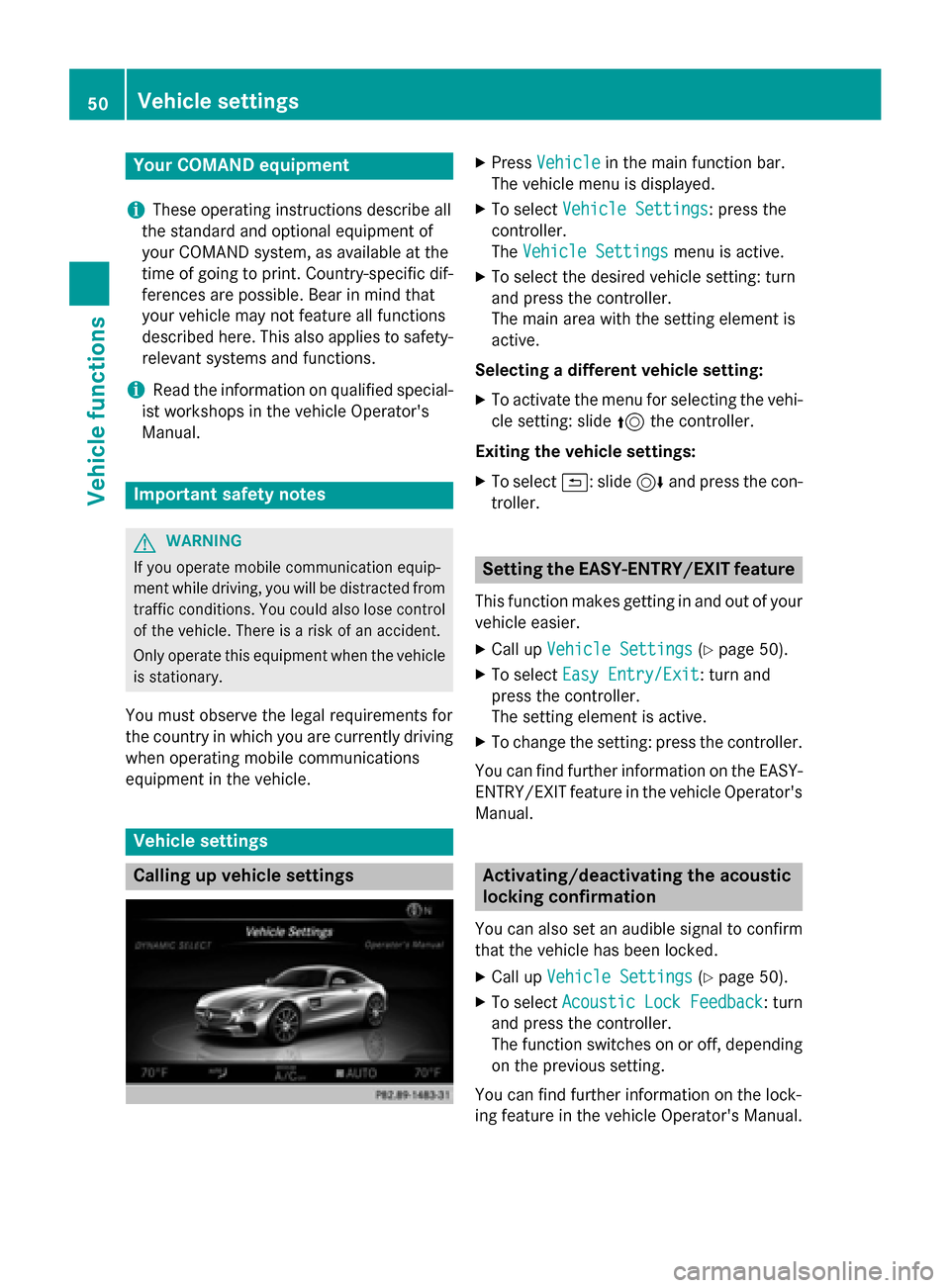
Vehicl esettings
Calling up vehicle settings
XPress Vehicl ein themain function bar .
The vehicle men uis displayed.
XTo selec tVehicl eSettings:press th e
controller .
The Vehicl eSettings
men uis active .
XTo selec tth edesire dvehicle setting :turn
an dpress th econtroller .
The main are awit hth esetting elemen tis
active .
Selecting adifferent vehicle setting:
XTo activat eth emen ufo rselecting th evehi-
cl e setting :slid e5 thecontroller .
Exiting th evehicle settings :
XTo select&: slide6 andpress th econ-
troller.
Setting th eEASY-ENTRY/EXIT feature
Thi sfunction makes getting in an dout of your
vehicle easier.
XCall up VehicleSettings(Ypage 50).
XTo selec tEasy Entry/Exit:turn an d
press th econtroller .
The setting elemen tis active .
XTo change th esetting :press th econtroller .
You can fin dfurther information on th eEASY -
ENTRY/EXIT feature in th evehicle Operator's
Manual.
Activating/deactivating th eacoustic
locking confirmation
You can also set an audible signa lto confirm
that th evehicle has bee nlocked.
XCall up VehicleSettings(Ypage 50).
XTo selec tAcoustic Lock Feedback:turn
an dpress th econtroller .
The function switches on or off, dependin g
on th eprevious setting .
You can fin dfurther information on th elock-
in g feature in th evehicle Operator's Manual.
50Vehicle settings
Vehicle functions
Page 54 of 226
must be set toÃ(see the vehicle Opera-
tor's Manual).
The exterior lighting remains on for
60 seconds after the engine is switched off. If
you close all the doors and the tailgate, the
exterior lighting switches off after the set
time.
XCall up Vehicle Settings(Ypage 50).
XTo select Exterior Lighting Delayed
Switch-off: turn and press the controller.
The setting element is active.
XTo change the delayed switch-off time: turn the controller.
Rear view camera
General notes
The rear view camera covers the immediate
surroundings of the vehicle and assists you
when parking.
The rear view camera is only an aid. It is not a
replacement for your attention to your imme-
diate surroundings. You are always responsi-ble for safe maneuvering and parking. When
maneuvering or parking, make sure that there
are no persons, animals or objects in the area in which you are maneuvering.
You can find further information about the
rear view camera in the vehicle Operator's
Manual.
Switching the rear view camera auto-
matic mode on/off
This function activates the rear view camera
when reverse gear is engaged.
XPress Vehiclein the main function bar.
The vehicle menu is displayed.
XSlide 6the controller.
XTo select System Settings: turn and
press the controller.
XSelect Rear View Camera.
The Rear View Camera
menu appears.
XSelect Activation by R gear.
The function is switched on Oor off ª,
depending on the previous status.
For further information on the rear view cam-
era (see the vehicle Operator's Manual).
Climate control settings
Overview
You can adjust the climate control settings
using the climate control bar (
Ypage 52) or
the climate control menu (
Ypage 53).
You can set the most important climate con-
trol functions, such as temperature
(
Ypage 53), airflow (Ypage 53) and air
distribution (
Ypage 53) using the climate
control bar. The climate control bar is visible
in most displays.
You can find all available climate control func-
tions in the climate control menu. You can use
the climate control bar (
Ypage 52) to
switch to the climate control menu.
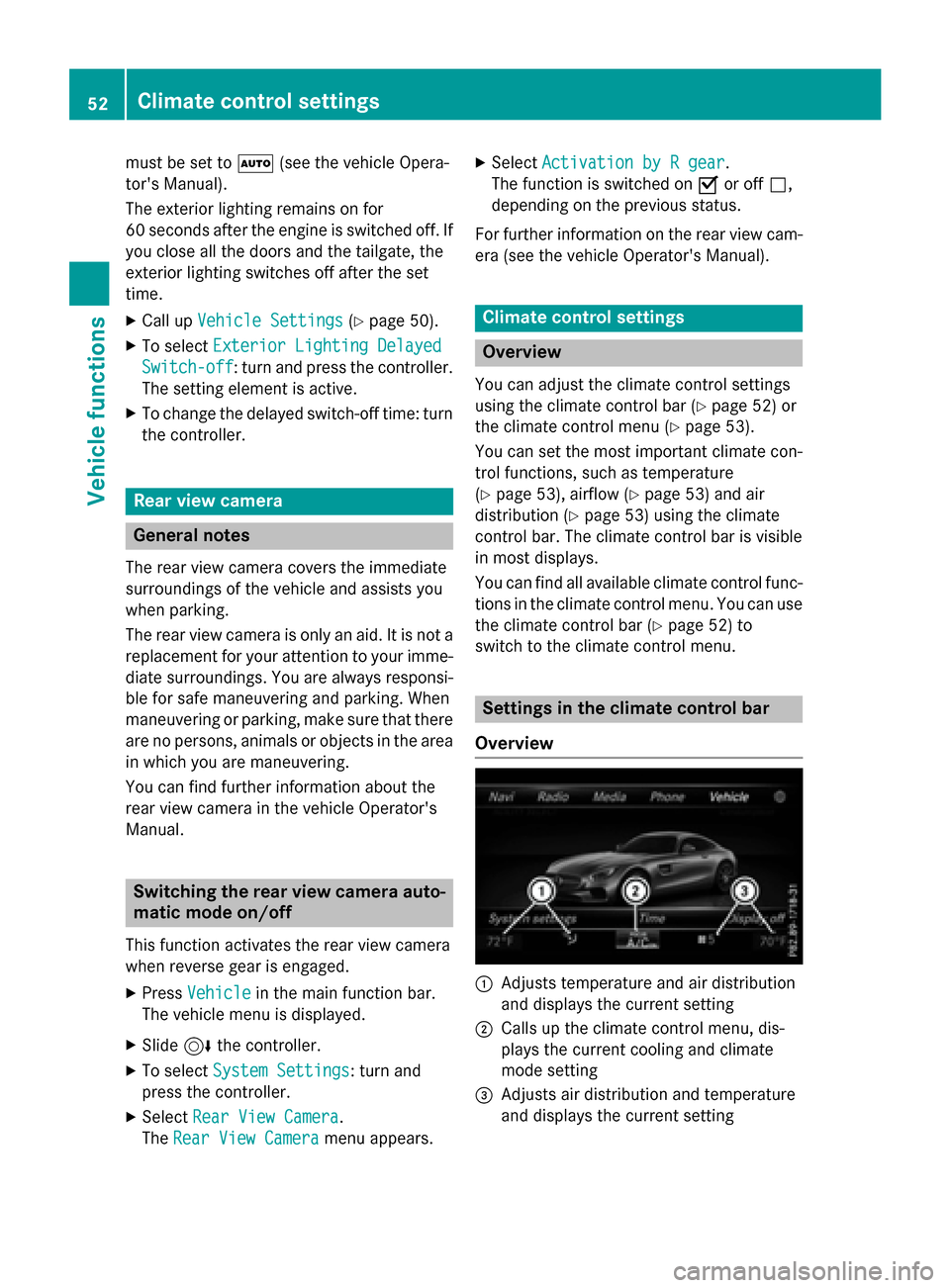
Settings in the climate control bar
Overview
:Adjusts temperature and air distribution
and displays the current setting
;Calls up the climate control menu, dis-
plays the current cooling and climate
mode setting
=Adjusts air distribution and temperature
and displays the current setting
52Climate control settings
Vehicle functions