change time MERCEDES-BENZ AMG GT S 2016 C190 Owner's Guide
[x] Cancel search | Manufacturer: MERCEDES-BENZ, Model Year: 2016, Model line: AMG GT S, Model: MERCEDES-BENZ AMG GT S 2016 C190Pages: 290, PDF Size: 6.73 MB
Page 134 of 290
XIf you want to pull away with DISTRONIC
PLUS:remove your foot from the brake pedal.
XBriefly pull the cruise control lever towards
you:.
or
XAccelerate briefly.
Your vehicle pulls away and adapts its speed
to that of the vehicle in front. If no vehicle is
detected in front, your vehicle accelerates to the set speed.
iThe vehicle can also pull away when it is
facing an unidentified obstacle or is driving on
a different line from another vehicle. The vehi-
cle then brakes automatically. There is a risk
of an accident. Be ready to brake at all times.
If there is no vehicle in front, DISTRONIC PLUS
operates in the same way as cruise control.
If DISTRONIC PLUS detects that the vehicle in
front has slowed down, it brakes your vehicle. In
this way, the distance you have selected is main-
tained.
If DISTRONIC PLUS detects a faster-moving
vehicle in front, it increases the driving speed.
However, the vehicle is only accelerated up to
the speed you have stored.
Selecting the drive program
DISTRONIC PLUS supports a sporty driving style
when you have selected the Sor S+ drive pro-
gram (see the vehicle Operator's Manual).
Acceleration behind the vehicle in front or to the set speed is then noticeably more dynamic.
When you select the Cdrive program, th e v
ehi-
cle accelerates more gently. This setting is rec-
ommended in stop-and-start traffic.
Changing lanes
If you change to the passing lane, DISTRONIC
PLUS supports you when:
Ryou are driving faster than 45 mph (70 km/h)
Ryou switch on th eappropriat etur nsignal
RDISTRONI CPLU Sdoes no tdetec t adanger of
collision
If these condition sare fulfilled ,your vehicl eis
accelerated. Acceleration will be interrupted if
changin glanes takes to olon gor if th edistanc e
between your vehicl eand th evehicl ein fron t
become sto osmall.
iWhe nyou chang elanes, DISTRONI CPLU S
monitors th elef tlan eon left-hand-drive vehi- cle
sor th eright lan eon right-hand-driv evehi-
cles.
Stopping
GWARNIN G
Whe nleavin gth evehicle, eve nif it is braked
only by DISTRONI CPLUS, it could rol laway if:
Rthere is amalfunction in th esystem or in
th evoltag esupply.
RDISTRONI CPLU Shas been deactivated
wit hth ecruise control lever, e.g. by avehi-
cle occupant or from outside th evehicle.
Rth eelectrica lsystem in th eengin ecom-
partment, th ebattery or th efuses hav e
been tampered with.
Rth ebattery is disconnected.
Rth eaccelerato rpedal has been depressed,
e.g. by avehicl eoccupant .
There is aris kof an accident.
If you wish to exit th evehicle, always tur noff
DISTRONI CPLU Sand secure th evehicl e
against rollin gaway.
Fo rfurther information on deactivatin g
DISTRONI CPLU S (
Ypage 133).
If DISTRONI CPLU Sdetects that th evehicl ein
fron tis stopping ,it brakes your vehicl euntil it is
stationary.
Once your vehicl eis stationary, it remain ssta-
tionary and you do no tneed to depress th e
brake.
iAfte r atime, th eelectric parkin gbrak e
secures th evehicl eand relieves th eservic e
brake.
iDependin gon th especified minimum dis-
tance ,your vehicl ewill come to astandstill at
a sufficien tdistanc ebehi nd th
eve
hicl ein
front. The specified minimum distanc eis set
usin gth econtrol on th ecruise control lever.
The electric parkin gbrak esecures th evehicl e
automatically if DISTRONI CPLU Sis activated
when th evehicl eis stationary and :
Rthedriver's seat belt is no tfastene dand th e
driver's doo ris open .
Rtheengin eis switched off ,unless it is auto-
matically switched off by th eECO start/sto p
function .
132Driving systems
Driving and parking
Page 144 of 290
Problems with PARKTRONIC
ProblemPossible causes/consequences andMSolutions
Only the red segments in
the PARKTRONIC warn-
ing displays are lit. You
also hear a warning tone
for approximately two
seconds.
PARKTRONIC is then
deactivated and the indi-
cator lamp on the
PARKTRONIC button
lights up.PARKTRONIC has malfunctioned and has switched off.
XIf problems persist, have PARKTRONIC checked at a qualified spe-
cialist workshop.
Only the red segments in
the PARKTRONIC warn-
ing displays are lit.
PARKTRONIC is then
deactivated.The PARKTRONIC sensors are dirty or there is interference.
XClean the PARKTRONIC sensors (Ypage 237).
XSwitch the ignition back on.
The problem may be caused by an external source of radio or ultra-
sound waves.
XSee if PARKTRONIC functions in a different location.
Rear view camera
General notes
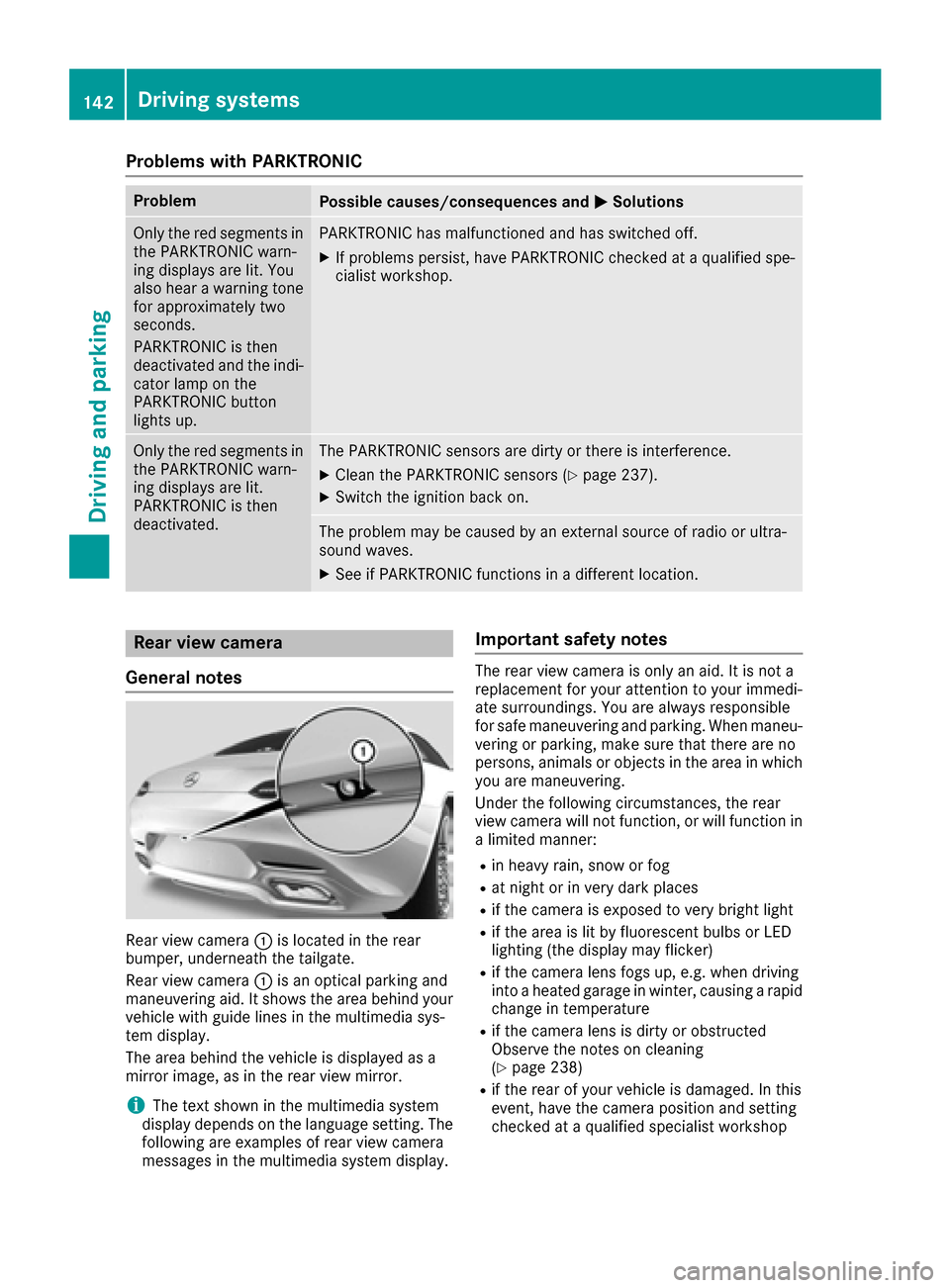
Rear view camera :is located in the rear
bumper, underneath the tailgate.
Rear view camera :is an optical parking and
maneuvering aid. It shows the area behind your
vehicle with guide lines in the multimedia sys-
tem display.
The area behind the vehicle is displayed as a
mirror image, as in the rear view mirror.
iThe text shown in the multimedia system
display depends on the language setting. The
following are examples of rear view camera
messages in the multimedia system display.
Important safety notes
The rear view camera is only an aid. It is not a
replacement for your attention to your immedi-
ate surroundings. You are always responsible
for safe maneuvering and parking. When maneu-
vering or parking, make sure that there are no
persons, animals or objects in the area in which you are maneuvering.
Under the following circumstances, the rear
view camera will not function, or will function in
a limited manner:
Rin heavy rain, snow or fog
Rat night or in very dark places
Rif the camera is exposed to very bright light
Rif the area is lit by fluorescent bulbs or LED
lighting (the display may flicker)
Rif the camera lens fogs up, e.g. when driving
into a heated garage in winter, causing a rapid
change in temperature
Rif the camera lens is dirty or obstructed
Observe the notes on cleaning
(
Ypage 238)
Rif the rear of your vehicle is damaged. In this
event, have the camera position and setting
checked at a qualified specialist workshop
142Driving systems
Driving and parking
Page 148 of 290
ATTENTION ASSIST
Gene ral notes
ATTENTION ASSIST help syou during long,
monotonous journeys, suc has on highways. It is
active in th e37 mph (60 km/h) to 12 5mph
(20 0km/h) range. If ATTENTION ASSIST
detects typical indicators of fatigue or increas -
ing lapse sin concentration on th epart of th e
driver ,it suggest staking abreak.
Import ant safety notes
ATTENTION ASSIST is only an aid to th edriver .It
might no talways recogniz efatigue or increasing
inattentiveness in time or fail to recogniz ethem
at all. The system is no t asubstitut efor awell-
reste dand attentive driver .
The functionalit yof ATTENTION ASSIST is
restricted and warning smay be delaye dor no t
occur at all:
Rif th elengt hof th ejourney is less than approx -
imately 30 minute s
Rif theroad condition is poor ,e.g. if th esurfac e
is uneven or if there are pothole s
Rif there isastron gside win d
Rif you hav eadopted asport ydrivin gstyle wit h
high cornering speeds or high rates of accel-
eration
Rif you are predominantly drivin gslower than
37 mph (60 km/ h)or faster than 125 mph
(200 km/h)
Rif the time has been set incorrectly
Rin active driving situations, such as when you
change lanes or change your speed
The ATTENTION ASSIST tiredness assessment
is deleted and restarted when continuing the
journey, if:
Ryou switch off the engine
Ryou take off your seat belt and open the driv-
er's door, e.g. for a change of drivers or to
take a break
Displaying the attention level
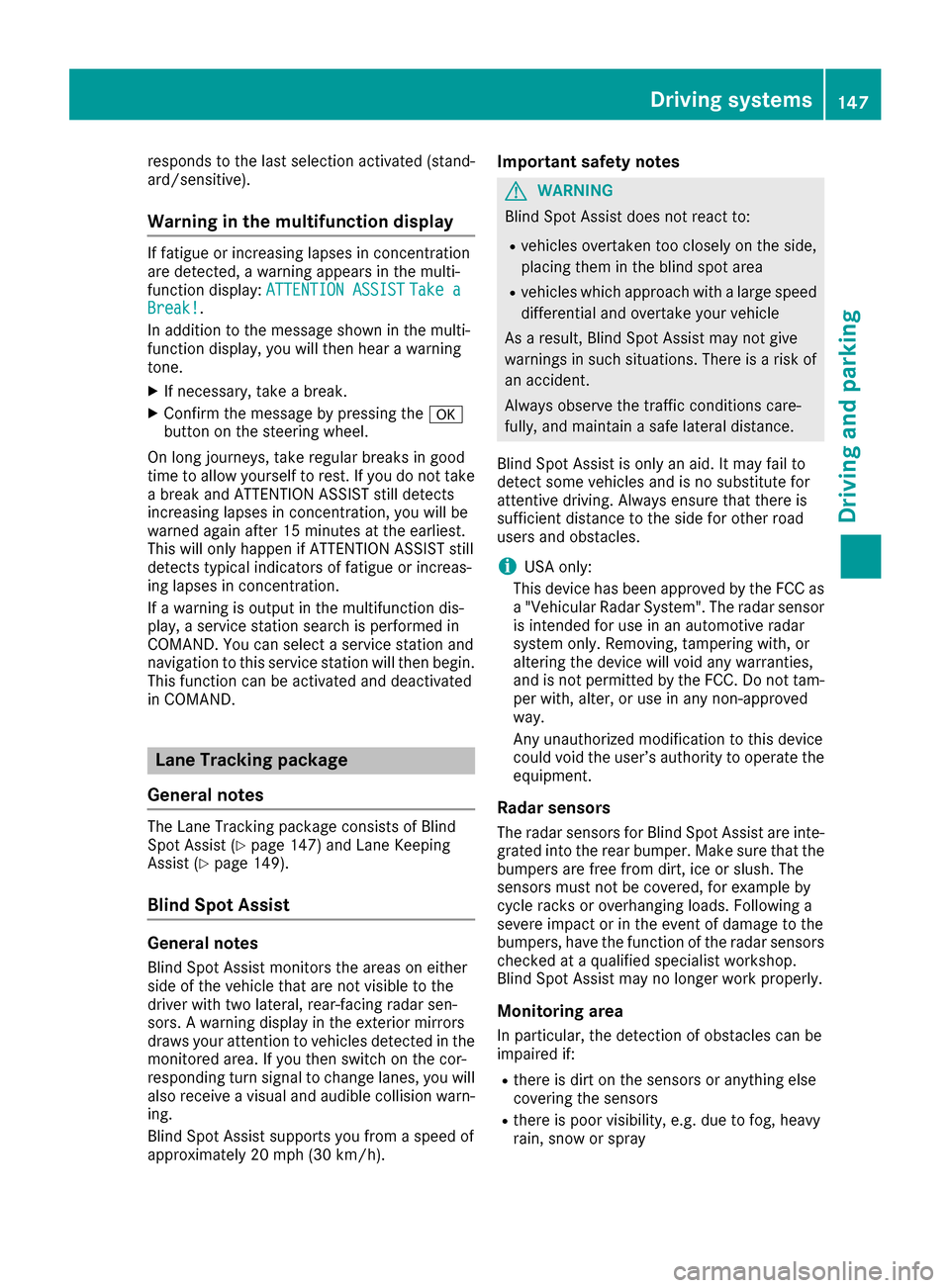
You can have current status information dis-
played in the assistance menu (Ypage 160) of
the on-board computer.
XSelect the Assistance display for Attention
Assist using the on-board computer
(
Ypage 159).
The following information is displayed:
Rlength of the journey since the last break.
Rthe attention level determined by ATTENTION ASSIST (Attention Level), displayed in a
bar display in five levels from high to low
RIf ATTENTION ASSIST is unable to calculate
the attention level and cannot issue a warn-
ing, the System Suspended
message
appears. The bar display then changes the
display, e.g. if you are driving at a speed below
37 mph (60 km/h) or above 124 mph
(200 km/h).
Activating ATTENTION ASSIST
XActivate ATTENTION ASSIST using the on-
board computer (Ypage 160).
The system determines the attention level of
the driver depending on the setting selected:
Selection Standard
: the sensitivity with which
the system determines the attention level is set
to normal.
Selection Sensitive
: the sensitivity is set
higher. The attention level detected by Attention
Assist is adapted accordingly and the driver is
warned earlier.
When ATTENTION ASSIST is deactivated, the
é symbol appears in the multifunction dis-
play in the assistance graphic display.
When ATTENTION ASSIST has been deactivated,
it is automatically reactivated after the engine
has been stopped. The sensitivity selected cor-
146Driving systems
Driving and parking
Page 149 of 290
responds to the last selection activated (stand-
ard/sensitive).
Warning in the multifunction display
If fatigue or increasing lapses in concentration
are detected, a warning appears in the multi-
function display:ATTENTION ASSIST
Take aBreak!.
In addition to the message shown in the multi-
function display, you will then hear a warning
tone.
XIf necessary, take a break.
XConfirm the message by pressing the a
button on the steering wheel.
On long journeys, take regular breaks in good
time to allow yourself to rest. If you do not take
a break and ATTENTION ASSIST still detects
increasing lapses in concentration, you will be
warned again after 15 minutes at the earliest.
This will only happen if ATTENTION ASSIST still
detects typical indicators of fatigue or increas-
ing lapses in concentration.
If a warning is output in the multifunction dis-
play, a service station search is performed in
COMAND. You can select a service station and
navigation to this service station will then begin.
This function can be activated and deactivated
in COMAND.
Lane Tracking package
General notes
The Lane Tracking package consists of Blind
Spot Assist (Ypage 147) and Lane Keeping
Assist (Ypage 149).
Blind Spot Assist
General notes
Blind Spot Assist monitors the areas on either
side of the vehicle that are not visible to the
driver with two lateral, rear-facing radar sen-
sors. A warning display in the exterior mirrors
draws your attention to vehicles detected in the
monitored area. If you then switch on the cor-
responding turn signal to change lanes, you will
also receive a visual and audible collision warn-
ing.
Blind Spot Assist supports you from a speed of
approximately 20 mph (30 km/h).
Important safety notes
GWARNING
Blind Spot Assist does not react to:
Rvehicles overtaken too closely on the side,
placing them in the blind spot area
Rvehicles which approach with a large speed
differential and overtake your vehicle
As a result, Blind Spot Assist may not give
warnings in such situations. There is a risk of
an accident.
Always observe the traffic conditions care-
fully, and maintain a safe lateral distance.
Blind Spot Assist is only an aid. It may fail to
detect some vehicles and is no substitute for
attentive driving. Always ensure that there is
sufficient distance to the side for other road
users and obstacles.
iUSA only:
This device has been approved by the FCC as
a "Vehicular Radar System". The radar sensor
is intended for use in an automotive radar
system only. Removing, tampering with, or
altering the device will void any warranties,
and is not permitted by the FCC. Do not tam-
per with, alter, or use in any non-approved
way.
Any unauthorized modification to this device
could void the user’s authority to operate the
equipment.
Radar sensors
The radar sensors for Blind Spot Assist are inte-
grated into the rear bumper. Make sure that the bumpers are free from dirt, ice or slush. The
sensors must not be covered, for example by
cycle racks or overhanging loads. Following a
severe impact or in the event of damage to the
bumpers, have the function of the radar sensors
checked at a qualified specialist workshop.
Blind Spot Assist may no longer work properly.
Monitoring area
In particular, the detection of obstacles can be
impaired if:
Rthere is dirt on the sensors or anything else
covering the sensors
Rthere is poor visibility, e.g. due to fog, heavy
rain, snow or spray
Driving systems147
Driving and parking
Z
Page 151 of 290
Switching on Blind Spot Assist
XMake sure that Blind Spot Assist
(Ypage 160) is activated in the on-board
computer.
XSelect key position 2with the Start/Stop but-
ton.
Warning lamps :in the exterior mirrors light
up red for approximately 1.5 seconds and
then turn yellow.
Lane Keeping Assist
General notes
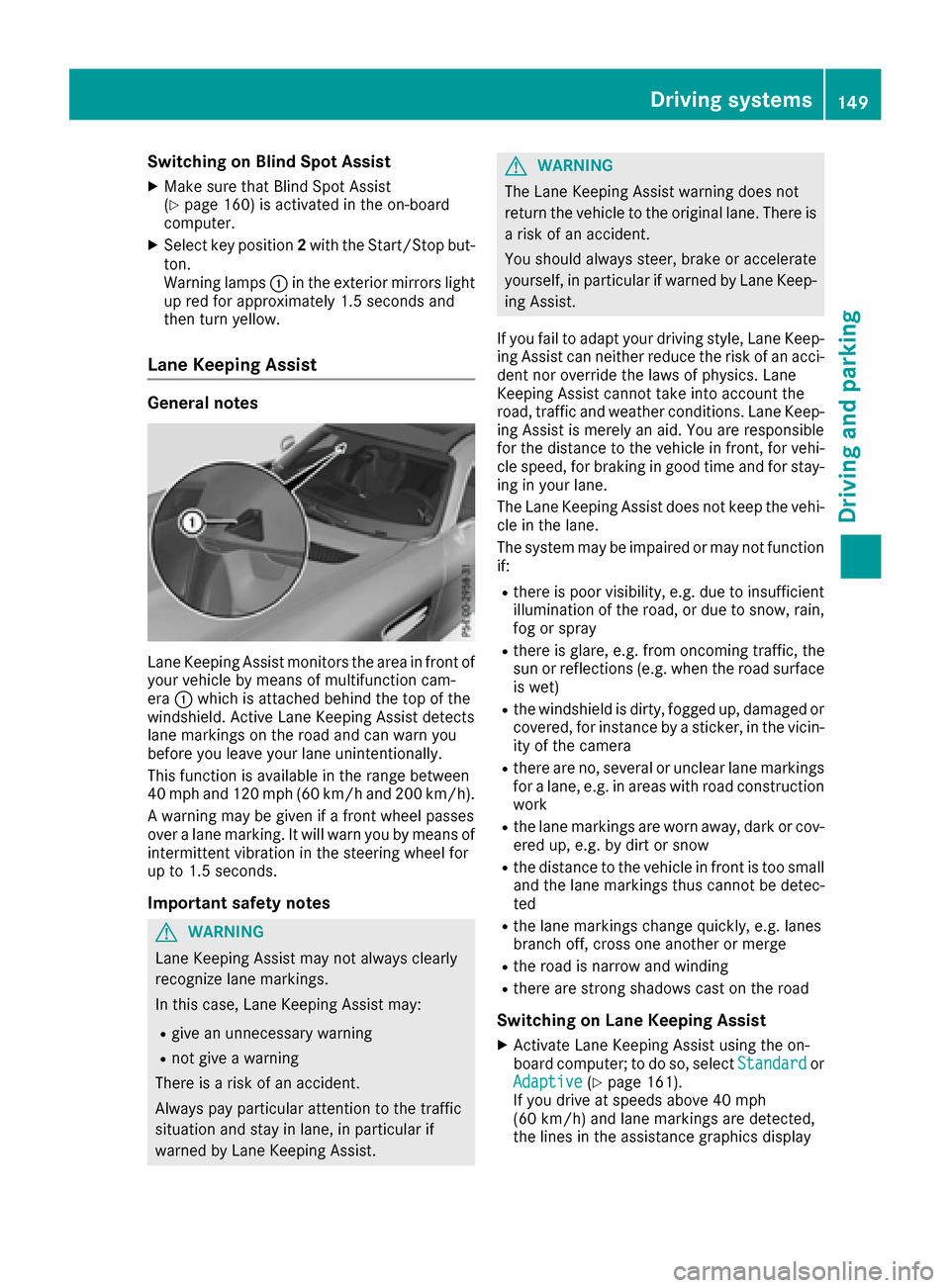
Lane Keeping Assist monitors the area in front of
your vehicle by means of multifunction cam-
era :which is attached behind the top of the
windshield. Active Lane Keeping Assist detects
lane markings on the road and can warn you
before you leave your lane unintentionally.
This function is available in the range between
40 mph and 120 mph (60 km/h and 200 km/h).
A warning may be given if a front wheel passes
over a lane marking. It will warn you by means of
intermittent vibration in the steering wheel for
up to 1.5 seconds.
Important safety notes
GWARNING
Lane Keeping Assist may not always clearly
recognize lane markings.
In this case, Lane Keeping Assist may:
Rgive an unnecessary warning
Rnot give a warning
There is a risk of an accident.
Always pay particular attention to the traffic
situation and stay in lane, in particular if
warned by Lane Keeping Assist.
GWARNING
The Lane Keeping Assist warning does not
return the vehicle to the original lane. There is
a risk of an accident.
You should always steer, brake or accelerate
yourself, in particular if warned by Lane Keep-
ing Assist.
If you fail to adapt your driving style, Lane Keep-
ing Assist can neither reduce the risk of an acci-
dent nor override the laws of physics. Lane
Keeping Assist cannot take into account the
road, traffic and weather conditions. Lane Keep- ing Assist is merely an aid. You are responsible
for the distance to the vehicle in front, for vehi-
cle speed, for braking in good time and for stay-
ing in your lane.
The Lane Keeping Assist does not keep the vehi-
cle in the lane.
The system may be impaired or may not function
if:
Rthere is poor visibility, e.g. due to insufficient
illumination of the road, or due to snow, rain,
fog or spray
Rthere is glare, e.g. from oncoming traffic, the
sun or reflections (e.g. when the road surface
is wet)
Rthe windshield is dirty, fogged up, damaged or
covered, for instance by a sticker, in the vicin-
ity of the camera
Rthere are no, several or unclear lane markings
for a lane, e.g. in areas with road construction
work
Rthe lane markings are worn away, dark or cov-
ered up, e.g. by dirt or snow
Rthe distance to the vehicle in front is too small and the lane markings thus cannot be detec-
ted
Rthe lane markings change quickly, e.g. lanes
branch off, cross one another or merge
Rthe road is narrow and winding
Rthere are strong shadows cast on the road
Switching on Lane Keeping Assist
XActivate Lane Keeping Assist using the on-
board computer; to do so, select Standardor
Adaptive(Ypage 161).
If you drive at speeds above 40 mph
(60 km/h) and lane markings are detected,
the lines in the assistance graphics display
Driving systems149
Driving and parking
Z
Page 152 of 290
(Ypage 159) are shown in green. Lane Keep-
ing Assist is ready for use.
Standard
When Standardis selected, no warning vibra-
tion occurs if:
Ryou have switched on the turn signal. In this
event, the warnings are suppressed for a cer-
tain period of time.
Ra driving safety system intervenes, such as
ABS, BAS or ESP®.
Adaptive
When Adaptiveis selected, no warning vibra-
tion occurs if:
Ryou have switched on the turn signal. In this
event, the warnings are suppressed for a cer-
tain period of time.
Ra driving safety system intervenes, e.g. ABS,
BAS or ESP®.
Ryou accelerate hard, e.g. kickdown.
Ryou brake hard.
Ryou steer actively, e.g. swerve to avoid an
obstacle or change lanes quickly.
Ryou cut the corner on a sharp bend.
In order that you are warned only when neces-
sary and in good time if you cross the lane mark-
ing, the system recognizes certain conditions
and warns you accordingly.
The warning vibration occurs earlier if:
Ryou approach the outer lane marking on a
bend.
Rthe road has very wide lanes, e.g. a highway.
Rthe system recognizes solid lane markings.
The warning vibration occurs later if:
Rthe road has narrow lanes
Ryou cut the corner on a bend
150Driving systems
Driving and parking
Page 153 of 290
Important safety notes
GWARNING
If you operate information systems and com-
munication equipmen tintegrate din th evehi-
cle while driving ,you will be distracte dfrom
traffic conditions. You could also lose control
of th evehicle. Ther eis aris kof an accident.
Only operate th eequipmen twhen th etraffic
situation permits. If you are no tsur ethat this
is possible ,park th evehicl epayin gattention
to traffic condition sand operate th eequip-
men twhen th evehicl eis stationary.
You must observ eth elegal requirements for th e
country in whic hyou are currentl ydriving when
operating th eon-board computer.
GWARNIN G
If th einstrumen tcluste rhas faile dor mal-
functioned, you may no trecognize function
restriction sin systems relevan tto safety. The
operating safet yof your vehicl emay be
impaired .Ther eis aris kof an accident.
Drive on carefully. Hav eth evehicl echecke d
at aqualified specialist workshop immedi-
ately.
The on-board computer only shows message sor
warning sfrom certain systems in th emultifunc-
tion display. You should therefor emak esur e
your vehicl eis operating safely at all times .
If th eoperating safet yof your vehicl eis
impaired ,pull ove ras soo nas it is saf eto do so.
Contac t aqualified specialist workshop.
Fo ran overview, see th einstrumen tpanel illus-
tration (
Ypage 30).
Displays and operation
Speedometer with segments
The segments in th espeedometer indicat e
whic hspee drange is available.
RCruis econtrol activated (Ypage 127):
The segments ligh tup from th estore dspee d
to th etype-tested maximum speed.
RDISTRONI CPLU Sactivated (Ypage 128): On
eor two segments in th eset spee drange
ligh tup.
RDISTRONI CPLU Sdetects avehicl ein fron t
that is driving at aslower spee dthan th e
store dspeed:
The segments between th espee dof th evehi-
cle in fron tand th estore dspee dligh tup.
Tachometer
!
Do no tdriv ein th eoverrevving range, as this
could damag eth eengine.
The red ban din th etachometer indicates th e
engine's overrevving range.
The fuel suppl yis interrupted to protect th e
engin ewhen th ered ban dis reached.
Outside temperature display
You should pay special attention to road condi-
tion swhen temperatures are aroun dfreezing
point.
Bea rin min dthat th eoutside temperature dis-
play indicates th etemperature measured and
does no trecord th eroad temperature.
The outside temperature display is in th emulti-
function display (
Ypage 153).
Changes in th eoutside temperature are dis-
played after ashort delay.
Coolant temperature display
GWARNIN G
Opening th ehoo dwhen th eengin eis over-
heated or when there is afir ein th eengin e
compartmen tcould expos eyou to hot gase s
or other servic eproducts .Ther eis aris kof
injury.
Let an overheate dengin ecool down before
opening th ehood. If there is afir ein th e
engin ecompartment, keep th ehoo dclosed
and contact th efir edepartment.
!A display message is shown if th ecoolan t
temperature is to ohigh .
If th ecoolan ttemperature is ove r24 8 ‡
(12 0†), do no tcontinue driving .The engin e
will otherwise be damaged.
Displays and operation151
On-board computer and displays
Z
Page 157 of 290
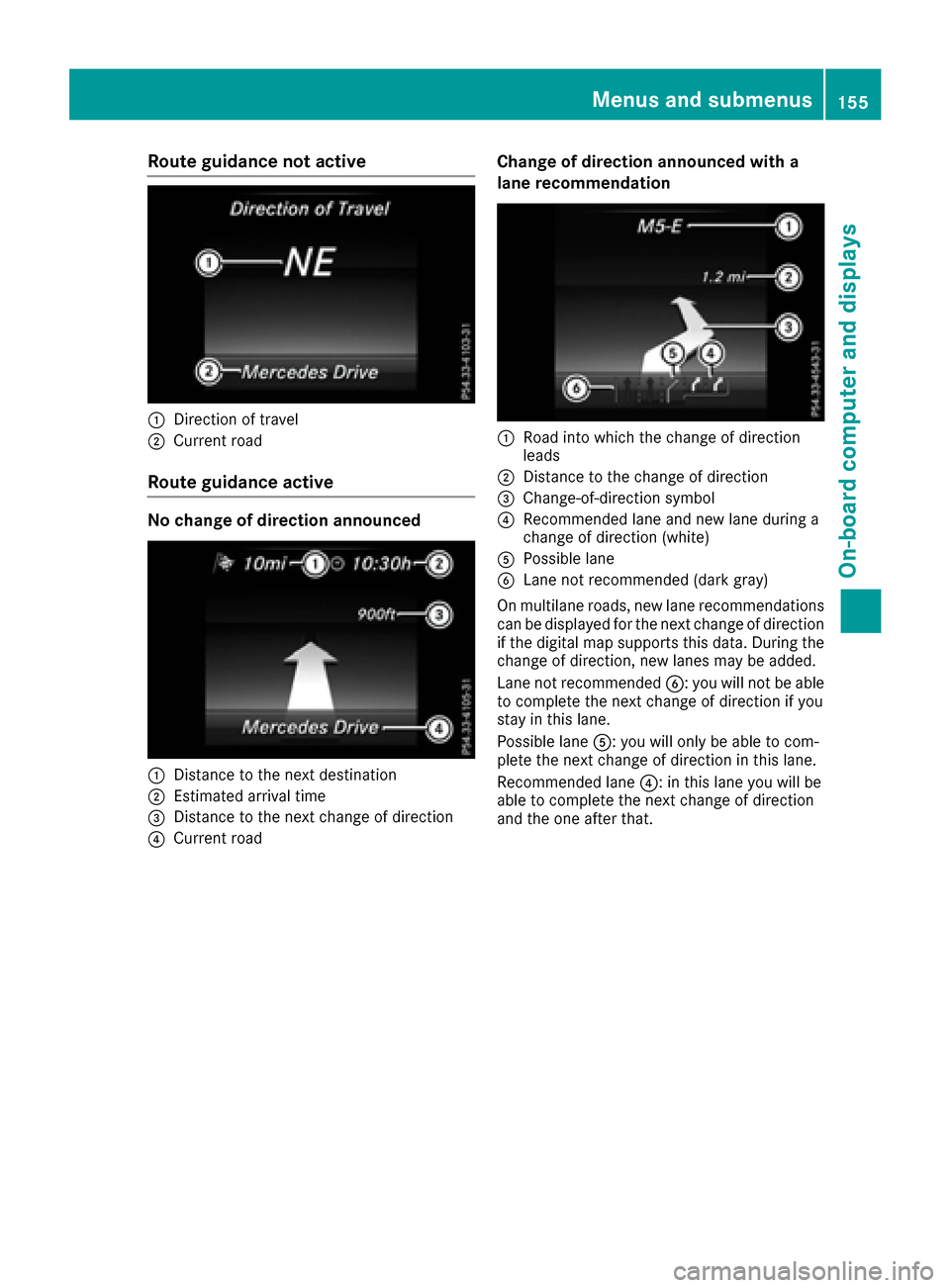
Route guidance not active
:Direction of travel
;Current road
Route guidance active
No change of direction announced
:Distance to the next destination
;Estimated arrival time
=Distance to the next change of direction
?Current road
Change of direction announced with a
lane recommendation
:Road into which the change of direction
leads
;Distance to the change of direction
=Change-of-direction symbol
?Recommended lane and new lane during a
change of direction (white)
APossible lane
BLane not recommended (dark gray)
On multilane roads, new lane recommendations
can be displayed for the next change of direction if the digital map supports this data. During the
change of direction, new lanes may be added.
Lane not recommended B: you will not be able
to complete the next change of direction if you
stay in this lane.
Possible lane A: you will only be able to com-
plete the next change of direction in this lane.
Recommended lane ?: in this lane you will be
able to complete the next change of direction
and the one after that.
Menus and submenus155
On-board computer and displays
Z
Page 159 of 290
position is only displayed along with station;if
this has been stored.
You can store TV channels ;in the multimedia
system.
XSwitch on the multimedia system (see sepa-
rate operating instructions).
XPress òon the steering wheel to open the
menu list.
XPress :or9 on the steering wheel to
select the Radiomenu.
XConfirm by pressing aon the steering
wheel.
Currently set station ;appears in the multi-
function display.
XTo open the station list: press:or9
briefly.
XTo select a station in the station list:
press :or9 briefly.
XTo select a station in the station list using
rapid scroll: press and hold :or9.
XTo select the frequency range or station
memory: pressabriefly.
XPress :or9 to select the frequency
range or station memory.
XPress ato confirm your selection.
iSIRIUS XM satellite radio functions like a
normal radio.
Further information on radio operation can be
found in the multimedia system (see the sep-
arate operating instructions).
Media menu
Changing the media source
You can change the media source and playback
mode (audio or video) at any time in the Media
menu.
XSwitch on the multimedia system (see sepa-
rate operating instructions).
XPressòon the steering wheel to open the
menu list.
XPress :or9 on the steering wheel to
select the Mediamenu.
XConfirm by pressing aon the steering
wheel.
XTo open/close the media sources list:
press abriefly.
The list shows the following media sources,
for example:
RDisc (CD/DVD) (DVD COMAND only)
RSD card (COMAND)
RMedia Register (COMAND)
RUSB storage device
RBluetooth®capable audio device
Please observe further information on media
support and media operation in the multimedia
system (see separate operating instructions).
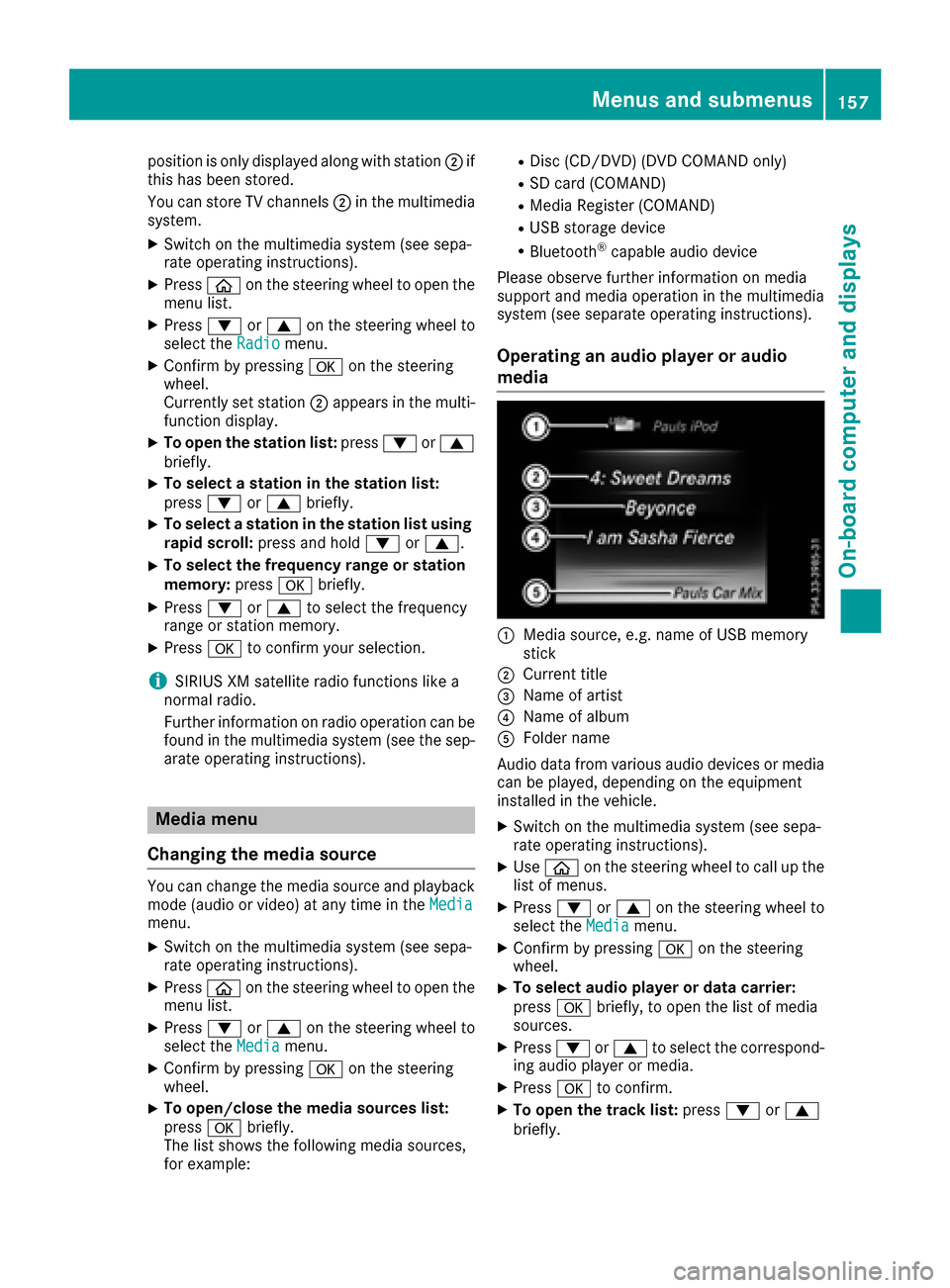
Operating an audio player or audio
media
:Media source, e.g. name of USB memory
stick
;Current title
=Name of artist
?Name of album
AFolder name
Audio data from various audio devices or media
can be played, depending on the equipment
installed in the vehicle.
XSwitch on the multimedia system (see sepa-
rate operating instructions).
XUse ò on the steering wheel to call up the
list of menus.
XPress :or9 on the steering wheel to
select the Mediamenu.
XConfirm by pressing aon the steering
wheel.
XTo select audio player or data carrier:
press abriefly, to open the list of media
sources.
XPress :or9 to select the correspond-
ing audio player or media.
XPress ato confirm.
XTo open the track list: press:or9
briefly.
Menus and submenus157
On-board computer and displays
Z
Page 163 of 290
XPress:or9 to select Off,Standardor Sensitive.
XPress ato confirm the selection.
When ATTENTION ASSIST is deactivated, the
é symbol appears in the Assistance
Graphicmenu in the multifunction display.
For further information about ATTENTION
ASSIST, see (
Ypage 146).
Setting Lane Keeping Assist
XPress the òbutton on the steering wheel
to open the menu list.
XPress the :or9 button on the steering
wheel to select the Settingsmenu.
XConfirm by pressing aon the steering
wheel.
XPress :or9 to select the DriveAs‐sistsubmenu.
XPressato confirm.
XPress :or9 to select LaneKeepingAssist.
XPressato confirm.
Press :or9 to select Off,Standardor Adaptive.
XTo change the setting: pressaagain.
For further information about Lane Keeping
Assist, see (
Ypage 149).
Light submenu
Switching the daytime running lamps on/
off
This function is not available in Canada.
XPress òon the steering wheel to open the
menu list.
XPress :or9 on the steering wheel to
select the Settingsmenu.
XConfirm by pressing aon the steering
wheel.
XPress :or9 to select the Lightssubmenu.
XPressato confirm.
XUsing :or9, select the DaytimeRunning Lightsfunction.
If the DaytimeRunningLightsfunction has
been switched on, the cone of light and the
W symbol in the multifunction display are
shown in white.
XPress the abutton to save the setting. Further information about
Daytime Running
Lights(Ypage 86).
Instrument cluster submenu
Setting the brightness of the display/
switch
You can use theBrightnessfunction to set the
brightness of the multifunction display and the
switches in the vehicle in increments.
XPress the òbutton on the steering wheel
to open the menu list.
XPress :or9 on the steering wheel to
select the Settingsmenu.
XConfirm by pressing aon the steering
wheel.
XPress :or9 to select the Instru‐ment Clustersubmenu.
XPressato confirm.
XUsing :or9, select the Brightnessfunction.
XPressato confirm.
You can see the selected setting Levelwith a
value between 0 and 10. Level 0 corresponds
to a dim light and level 10 corresponds to a
bright light.
XPress the :or9 button to change the
brightness. The brightness is set simultane-
ously with the selection.
XPress the aor% button to save the
setting.
Selecting the distance unit
The Display Unit Speed-/Odometer:func-
tion allows you to choose whether certain dis-
plays appear in kilometers or miles in the mul-
tifunction display.
XUse ò on the steering wheel to call up the
list of menus.
XPress the :or9 button on the steering
wheel to select the Settingsmenu.
XConfirm by pressing aon the steering
wheel.
XPress the :or9 button to select the
Instrument Clustersubmenu.
XPress ato confirm.
XPress the :or9 button to select the
Display Unit Speed-/Odometerfunction.
You will see the selected setting: kmorMiles.
XPress the abutton to save the setting.
Menus and submenus161
On-board computer and displays
Z