light MERCEDES-BENZ AMG GT S 2017 C190 Comand Manual
[x] Cancel search | Manufacturer: MERCEDES-BENZ, Model Year: 2017, Model line: AMG GT S, Model: MERCEDES-BENZ AMG GT S 2017 C190Pages: 226, PDF Size: 6.39 MB
Page 46 of 226
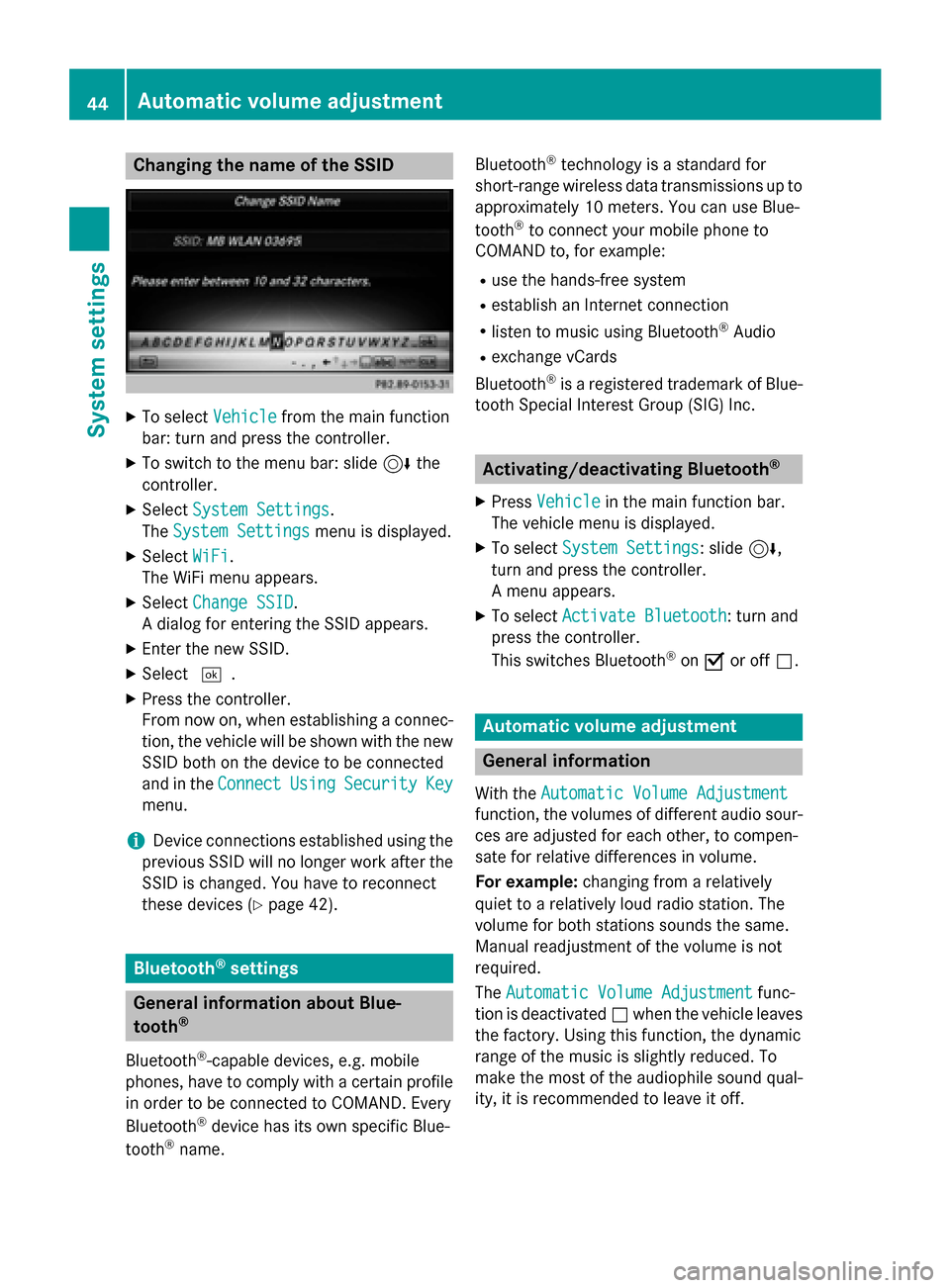
Changing the name of the SSID
XTo selectVehiclefrom the main function
bar: turn and press the controller.
XTo switch to the menu bar: slide 6the
controller.
XSelect System Settings.
The System Settings
menu is displayed.
XSelect WiFi.
The WiFi menu appears.
XSelect Change SSID.
A dialog for entering the SSID appears.
XEnter the new SSID.
XSelect ¬.
XPress the controller.
From now on, when establishing a connec-
tion, the vehicle will be shown with the new
SSID both on the device to be connected
and in the Connect
UsingSecurityKey
menu.
iDevice connections established using the
previous SSID will no longer work after the
SSID is changed. You have to reconnect
these devices (
Ypage 42).
Bluetooth®settings
General information about Blue-
tooth®
Bluetooth®-capable devices, e.g. mobile
phones, have to comply with a certain profile
in order to be connected to COMAND. Every
Bluetooth
®device has its own specific Blue-
tooth®name. Bluetooth
®technology is a standard for
short-range wireless data transmissions up to
approximately 10 meters. You can use Blue-
tooth
®to connect your mobile phone to
COMAND to, for example:
Ruse the hands-free system
Restablish an Internet connection
Rlisten to music using Bluetooth®Audio
Rexchange vCards
Bluetooth
®is a registered trademark of Blue-
tooth Special Interest Group (SIG) Inc.
Activating/deactivating Bluetooth®
X
Press Vehiclein the main function bar.
The vehicle menu is displayed.
XTo select System Settings: slide6,
turn and press the controller.
A menu appears.
XTo select Activate Bluetooth: turn and
press the controller.
This switches Bluetooth
®on O or off ª.
Automatic volume adjustment
General information
With the Automatic Volume Adjustment
function, the volumes of different audio sour-
ces are adjusted for each other, to compen-
sate for relative differences in volume.
For example: changing from a relatively
quiet to a relatively loud radio station. The
volume for both stations sounds the same.
Manual readjustment of the volume is not
required.
The Automatic Volume Adjustment
func-
tion is deactivated ªwhen the vehicle leaves
the factory. Using this function, the dynamic
range of the music is slightly reduced. To
make the most of the audiophile sound qual- ity, it is recommended to leave it off.
44Automatic volume adjustment
System settings
Page 53 of 226
Activating/deactivating the seat-belt
adjustment function
The BeltAdjustmen tfunction adjust sth e
driver' sand front-passenger seat belt to th e
upper body of th eoccupants.
XCall up VehicleSettings(Ypage 50).
XTo select BeltAdjustmen t:tur nand
press th econtroller .
The function switches on or off ,depending
on th eprevious setting .
You can fin dfurther information on seat-belt
adjustmen tin th evehicl eOperator' sManual.
Activating/deactivating the auto-
ma tic folding mirrorfunction
When th eAutomaticMirrorFoldin gfunc-
tion is activated, th eexterio rmirror sfol din
automatically as soo nas you loc kth evehicl e
from th eoutside .The exterio rmirror sfol dout
automatically again as soo nas you unloc kth e
vehicle.
XCall up VehicleSettings(Ypage 50).
XTo select Automatic Mirror Foldin g:
tur nand press th econtroller .
The function switches on or off ,depending
on th eprevious setting .
You can fin dfurther information on th eauto -
matic foldin gmirror function in th evehicl e
Operator' sManual.
Switching locat orlighting on/off
If you switch on th eLocato rLightingfunc-
tion ,th eexterio rlighting is switched on for a
short time when it is dark .The ligh tswitch
mus tbe set to Ã(see th evehicl eOpera-
tor' sManual).
The exterio rlighting remain son for
40 seconds after th evehicl eis unlocked.
When you start th eengine, th elocato rlight-
ing is switched off and automatic headlamp
mod eis activated.
XCall up VehicleSettings(Ypage 50).
XTo select LocatorLighting:tur nand
pre ssthecontroller .
XPress thecontroller .
The function is switched on or off ,depend -
ing on th eprevious status.
You can fin dfurther information on th eloca-
to rlighting in th evehicl eOperator' sManual.
Switching the automatic locking fea-
tu re on/off
The vehicl eis locke dautomatically when th e
ignition is switched on and th evehicl eis trav-
elin gfaste rthan walking pace.
XCall up VehicleSettings(Ypage 50).
XTo select Automatic Lockin g:tur nand
pre ssthecontroller .
The function switches on or off ,depending
on th eprevious setting.
You can fin dfurther information on th elock-
ing feature in th evehicl eOperator' sManual.
Setting the delayed switch-off ti me
Interi orlighting delayed switch-off
The interior lighting is activated for th edura-
tion of th edelayed switch-off time when th e
SmartKey is remove dfrom th eignition lock.
XCall up VehicleSettings(Ypage 50).
XTo select Interior Lighting Delaye d
Switch-off:tur nand pre ssthecontroller .
The setting elemen tis active .
XTo chang eth edelayed switch-off time: tur n
th econtroller .
You can fin dfurther information on th einte-
rio rlighting in th evehicl eOperator' sManual.
Exteri orlighting delayed switch-off
If you switch on th eExterior Lighting
Delaye dSwitch-of ffunction,th eexterio r
lighting is switched on for ashort time after
th eengin eis switched off .The ligh tswitch
Vehicle settings51
Vehicle functions
Z
Page 54 of 226
must be set toÃ(see the vehicle Opera-
tor's Manual).
The exterior lighting remains on for
60 seconds after the engine is switched off. If
you close all the doors and the tailgate, the
exterior lighting switches off after the set
time.
XCall up Vehicle Settings(Ypage 50).
XTo select Exterior Lighting Delayed
Switch-off: turn and press the controller.
The setting element is active.
XTo change the delayed switch-off time: turn the controller.
Rear view camera
General notes
The rear view camera covers the immediate
surroundings of the vehicle and assists you
when parking.
The rear view camera is only an aid. It is not a
replacement for your attention to your imme-
diate surroundings. You are always responsi-ble for safe maneuvering and parking. When
maneuvering or parking, make sure that there
are no persons, animals or objects in the area in which you are maneuvering.
You can find further information about the
rear view camera in the vehicle Operator's
Manual.
Switching the rear view camera auto-
matic mode on/off
This function activates the rear view camera
when reverse gear is engaged.
XPress Vehiclein the main function bar.
The vehicle menu is displayed.
XSlide 6the controller.
XTo select System Settings: turn and
press the controller.
XSelect Rear View Camera.
The Rear View Camera
menu appears.
XSelect Activation by R gear.
The function is switched on Oor off ª,
depending on the previous status.
For further information on the rear view cam-
era (see the vehicle Operator's Manual).
Climate control settings
Overview
You can adjust the climate control settings
using the climate control bar (
Ypage 52) or
the climate control menu (
Ypage 53).
You can set the most important climate con-
trol functions, such as temperature
(
Ypage 53), airflow (Ypage 53) and air
distribution (
Ypage 53) using the climate
control bar. The climate control bar is visible
in most displays.
You can find all available climate control func-
tions in the climate control menu. You can use
the climate control bar (
Ypage 52) to
switch to the climate control menu.
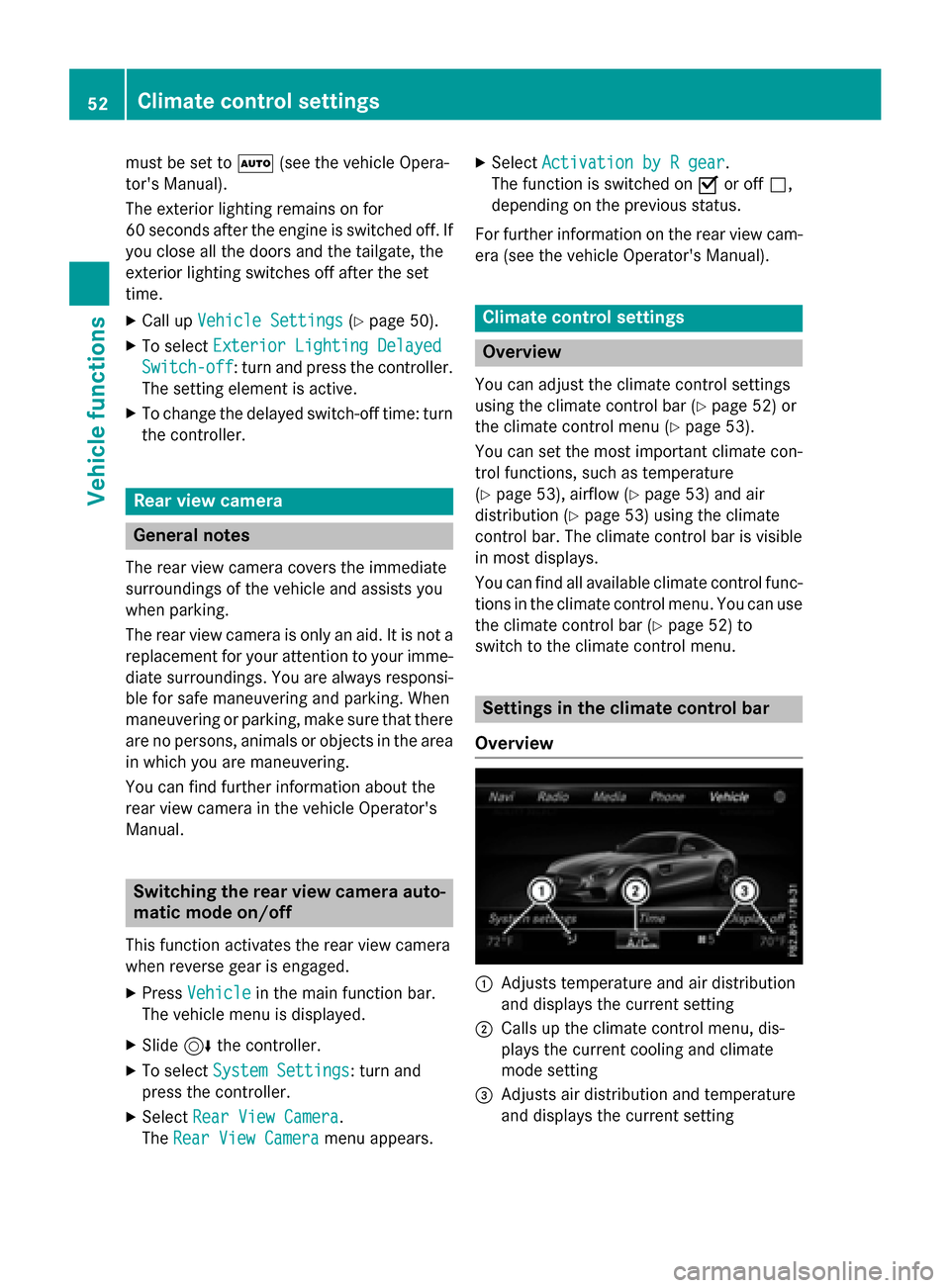
Settings in the climate control bar
Overview
:Adjusts temperature and air distribution
and displays the current setting
;Calls up the climate control menu, dis-
plays the current cooling and climate
mode setting
=Adjusts air distribution and temperature
and displays the current setting
52Climate control settings
Vehicle functions
Page 57 of 226
drive program (see the vehicle Operator's
Manual).
A window appears after a short while.
XTo confirmAdjust: press the controller.
The Individual Configuration
menu
for setting the drive program appears.
XTo select Drive,Suspension,Transmis‐
sion,Exhaust Systemor ESP: turn and
press the controller.
The menu symbol, text and image show the
selected setting.
Displaying vehicle data
i
There may be fewer displays depending
on your vehicle's equipment.
XPress Vehiclein the main function bar.
The vehicle menu is displayed.
XTo select DYNAMICSELECT: turn and press
the controller.
The Individual Configuration
,Vehi‐
cle Dataand Engine Datamenus
appear.
XSelect Vehicle Data.
Updates of the following data are dis-
played:
RRoad type analogous to the selected
drive program
RG-force display of longitudinal and lateral
acceleration
RAccelerator and brake pedal activity
RActivity of the spring struts
RWheel angle
RInactive overrun mode animation
The G-force display is not available in all of the
drive programs.
Daytime or night-time view is shown depend-
ing on the automatic light sensor.
Displaying engine data
i
There may be fewer displays depending
on your vehicle's equipment.
XPress Vehiclein the main function bar.
The vehicle menu is displayed.
XTo select DYNAMICSELECT:turn and press
the controller.
The Individual Configuration
,Vehi‐
cle Dataand Engine Datamenus
appear.
XSelect Engine Data.
The following current data is displayed:
REngine output
REngine torque
RTransmission fluid temperature
REngine oil temperature
Setting options
You can choose from the following settings
for the drive:
RRace
CComfort
SSport
S+Sport +
You can make the following settings for the
suspension:
CComfort
SSport
S+Sport +
You can choose from the following settings
for the transmission:
DAutomatic
MManual
DYNAMIC SELECT55
Vehicle functions
Z
Page 60 of 226
Your COMANDequipment
i
These operatin ginstruction sdescribe all
th estandar dan doptional equipmen tof
your COMAN Dsystem, as available at th e
time of going to print .Country-specifi cdif -
ference sare possible. Bear in min dthat
your vehicle may no tfeature all function s
described here. Thi salso applies to safety-
relevant systems an dfunctions.
iRead th einformation on qualified special-
ist workshop sin th evehicle Operator's
Manual.
Introduction
Important safet ynotes
GWARNING
If you operat einformation systems an dcom-
munication equipment integrated in th evehi-
cl e whil edriving, you will be distracted from
traffic conditions. You could also los econtro l
of th evehicle. There is aris kof an accident.
Only operat eth eequipment when th etraffic
situation permits. If you are no tsur ethat this
is possible, par kth evehicle payin gattention
to traffic condition san doperat eth eequip-
men twhen th evehicle is stationary.
You mus tobserv eth elega lrequirements fo r
th ecountry in whic hyou are currentl ydrivin g
when operatin gCOMAND.
COMAN Dcalculates th erout eto th edestina -
tion without taking accoun tof th efollowing,
fo rexample:
Rtraffic lights
Rstop an dyield signs
Rmergin glanes
Rparking or stoppin gin ano parking/n o
stoppin gzone
Rother road an dtraffic rule san dregulation s
Rnarrow bridge s
COMAN Dcan giv eincorrec tnavigation com-
mands if th eactual street/traffic situation doe
sno tcorrespon dwit hth edigita lmap's
data. Digital map sdo no tcover all areas no r
all routes in an area. Fo rexamp
le,arou
t emay
hav ebee ndiverted or th edirection of aone-
way stree tmay hav echanged .
Fo rthis reason ,you mus talways observ e
road an dtraffic rule san dregulation sdurin g
your journey. Road an dtraffic rule san dreg -
ulation salways hav epriorit yover th esys -
tem' sdrivin grecommendations.
Navigation announcement sare intended to
direc tyou whil edrivin gwithout divertin gyour
attention from th eroad an ddriving.
Please always use this feature instead of con-
sultin gth emap display fo rdirections. Look -
in g at th eicon sor map display can distract
you from traffic condition san ddriving, an d
increase th eris kof an accident.
General notes
Operationa lreadines sof th enavigation
syste m
The navigation syste mmus tdetermin eth e
position of th evehicle befor efirst use or
wheneve roperational status is restored .
Therefore, you may hav eto drive fo r awhil e
befor eprecise rout eguidance is possible.
GP Sreception
Amon gother things, correc tfunctionin gof
th enavigation syste mdepend son GPS recep-
tion .In certain situations, GPS reception may
be impaired, there may be interferenc eor
there may be no reception at all, e.g. in tun-
nels or parking garages .
Entry restriction
Forvehicles in certain countries, there is a
dat aentr yrestriction .
The restriction is active from avehicle speed
of abov eapproximately 3mph (5 km/h). As
soo nas th espeed fall sbelo wapproximately
2 mph (3 km/h), th erestriction becomes
inactive .
58Introduction
Navigation
Page 62 of 226
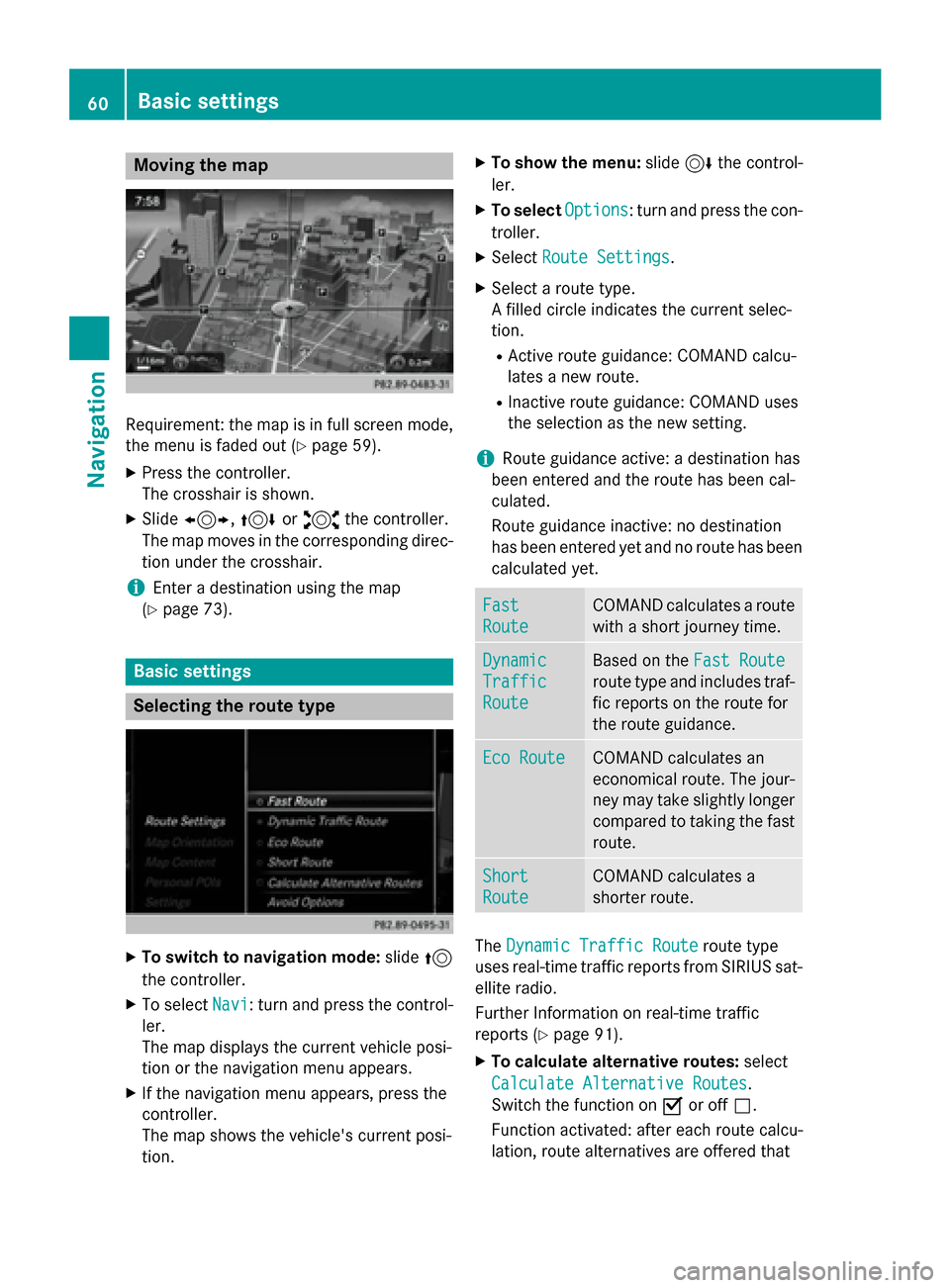
Moving the map
Requirement: the map is in full screen mode,
the menu is faded out (
Ypage 59).
XPress the controller.
The crosshair is shown.
XSlide1, 4or2 the controller.
The map moves in the corresponding direc- tion under the crosshair.
iEnter a destination using the map
(
Ypage 73).
Basic settings
Selecting the route type
XTo switch to navigation mode: slide5
the controller.
XTo select Navi: turn and press the control-
ler.
The map displays the current vehicle posi-
tion or the navigation menu appears.
XIf the navigation menu appears, press the
controller.
The map shows the vehicle's current posi-
tion.
XTo show the menu: slide6the control-
ler.
XTo select Options: turn and press the con-
troller.
XSelect Route Settings.
XSelect a route type.
A filled circle indicates the current selec-
tion.
RActive route guidance: COMAND calcu-
lates a new route.
RInactive route guidance: COMAND uses
the selection as the new setting.
iRoute guidance active: a destination has
been entered and the route has been cal-
culated.
Route guidance inactive: no destination
has been entered yet and no route has been calculated yet.
Fast
Route
COMAND calculates a route
with a short journey time.
Dynamic
Traffic
Route
Based on the Fast Route
route type and includes traf-
fic reports on the route for
the route guidance.
Eco RouteCOMAND calculates an
economical route. The jour-
ney may take slightly longer
compared to taking the fast
route.
Short
Route
COMAND calculates a
shorter route.
TheDynamic Traffic Routeroute type
uses real-time traffic reports from SIRIUS sat-
ellite radio.
Further Information on real-time traffic
reports (
Ypage 91).
XTo calculate alternative routes: select
Calculate Alternative Routes
.
Switch the function on Oor off ª.
Function activated: after each route calcu-
lation, route alternatives are offered that
60Basic settings
Navigation
Page 69 of 226
---/---is displayed if fewer than three
characters have been entered.
999+
is displayed if there are too many hits.
XSelect ok.
The search results are displayed
(
Ypage 67).
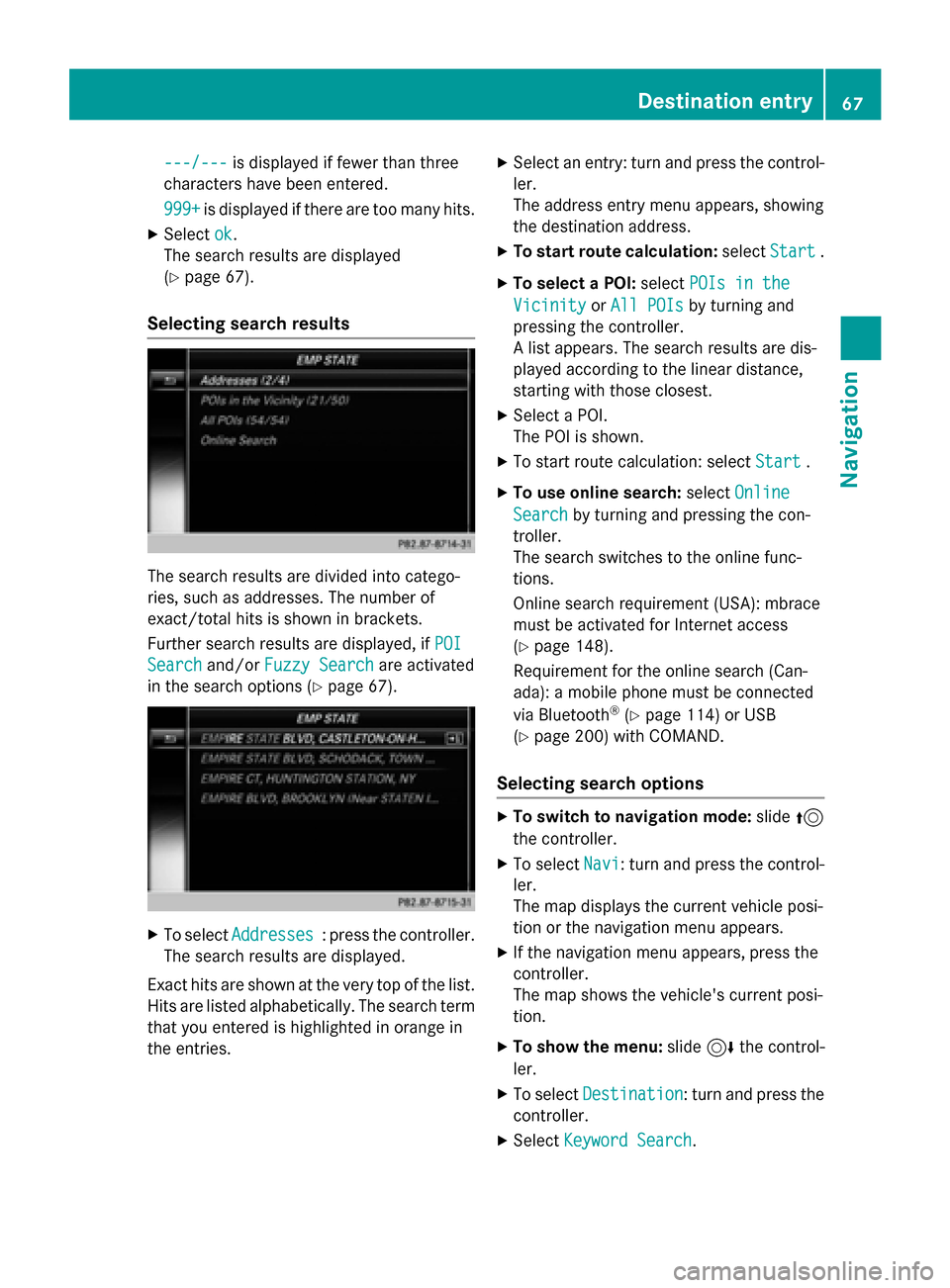
Selecting search results
The search results are divided into catego-
ries, such as addresses. The number of
exact/total hits is shown in brackets.
Further search results are displayed, if POI
Searchand/orFuzzy Searchare activated
in the search options (
Ypage 67).
XTo select Addresses: press the controller.
The search results are displayed.
Exact hits are shown at the very top of the list.
Hits are listed alphabetically. The search term
that you entered is highlighted in orange in
the entries.
XSelect an entry: turn and press the control-
ler.
The address entry menu appears, showing
the destination address.
XTo start route calculation: selectStart.
XTo select a POI: selectPOIs in the
VicinityorAll POIsby turning and
pressing the controller.
A list appears. The search results are dis-
played according to the linear distance,
starting with those closest.
XSelect a POI.
The POI is shown.
XTo start route calculation: select Start.
XTo use online search:selectOnline
Searchby turning and pressing the con-
troller.
The search switches to the online func-
tions.
Online search requirement (USA): mbrace
must be activated for Internet access
(
Ypage 148).
Requirement for the online search (Can-
ada): a mobile phone must be connected
via Bluetooth
®(Ypage 114) or USB
(
Ypage 200) with COMAND.
Selecting search options
XTo switch to navigation mode: slide5
the controller.
XTo select Navi: turn and press the control-
ler.
The map displays the current vehicle posi-
tion or the navigation menu appears.
XIf the navigation menu appears, press the
controller.
The map shows the vehicle's current posi-
tion.
XTo show the menu: slide6the control-
ler.
XTo select Destination: turn and press the
controller.
XSelect Keyword Search.
Destination entry67
Navigation
Z
Page 77 of 226
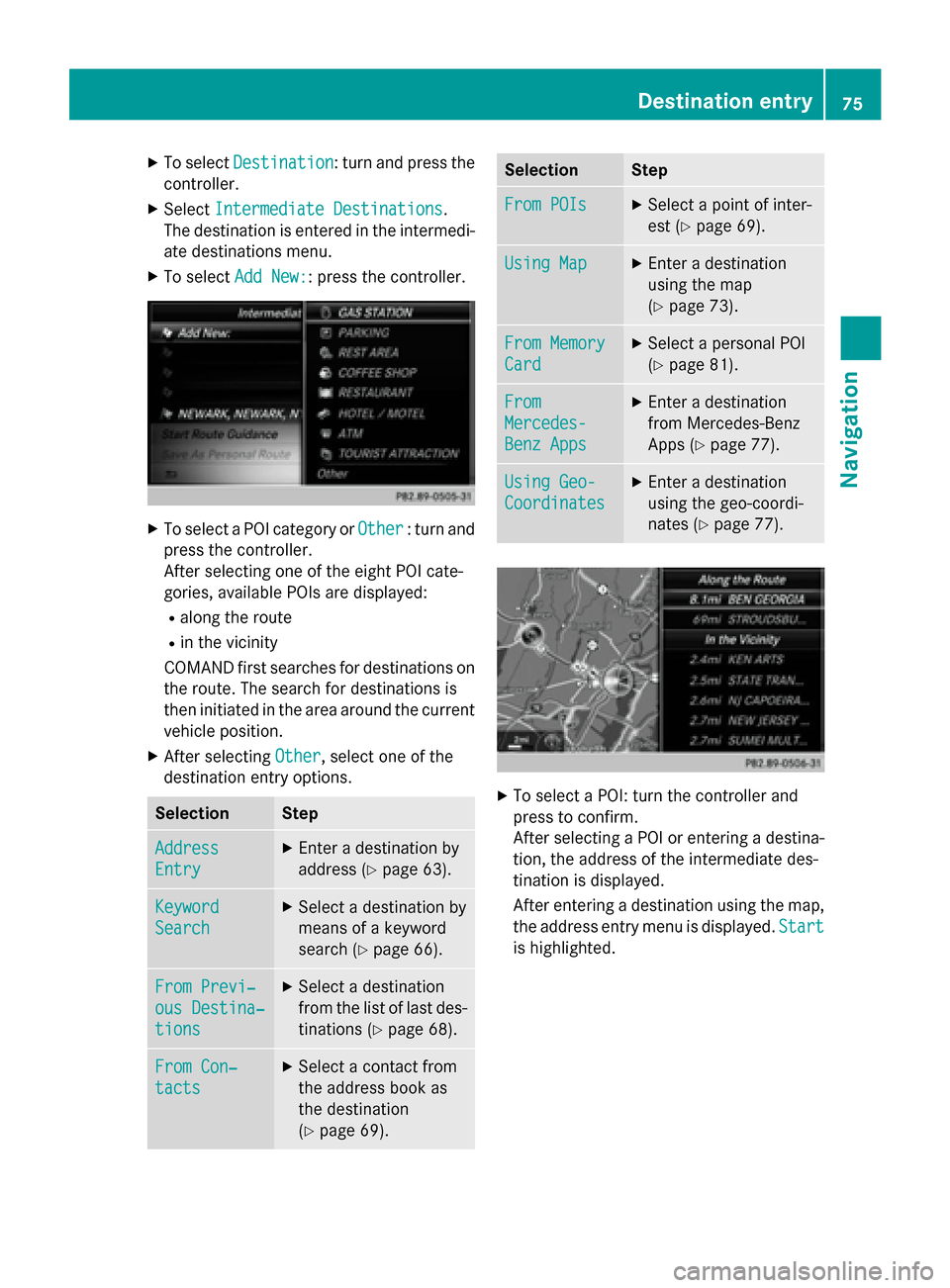
XTo selectDestination: turn and press the
controller.
XSelect Intermediate Destinations.
The destination is entered in the intermedi-
ate destinations menu.
XTo select Add New:: press the controller.
XTo select a POI category or Other: turn and
press the controller.
After selecting one of the eight POI cate-
gories, available POIs are displayed:
Ralong the route
Rin the vicinity
COMAND first searches for destinations on
the route. The search for destinations is
then initiated in the area around the current
vehicle position.
XAfter selecting Other, select one of the
destination entry options.
SelectionStep
Address
Entry
XEnter a destination by
address (
Ypage 63).
Keyword
Search
XSelect a destination by
means of a keyword
search (
Ypage 66).
From Previ‐
ous Destina‐
tions
XSelect a destination
from the list of last des-
tinations (
Ypage 68).
From Con‐
tacts
XSelect a contact from
the address book as
the destination
(
Ypage 69).
SelectionStep
From POIsXSelect a point of inter-
est (
Ypage 69).
Using MapXEnter a destination
using the map
(
Ypage 73).
From Memory
Card
XSelect a personal POI
(
Ypage 81).
From
Mercedes-
Benz Apps
XEnter a destination
from Mercedes-Benz
Apps (
Ypage 77).
Using Geo-
Coordinates
XEnter a destination
using the geo-coordi-
nates (
Ypage 77).
XTo select a POI: turn the controller and
press to confirm.
After selecting a POI or entering a destina-
tion, the address of the intermediate des-
tination is displayed.
After entering a destination using the map,
the address entry menu is displayed. Start
is highlighted.
Destination entry75
Navigation
Z
Page 81 of 226
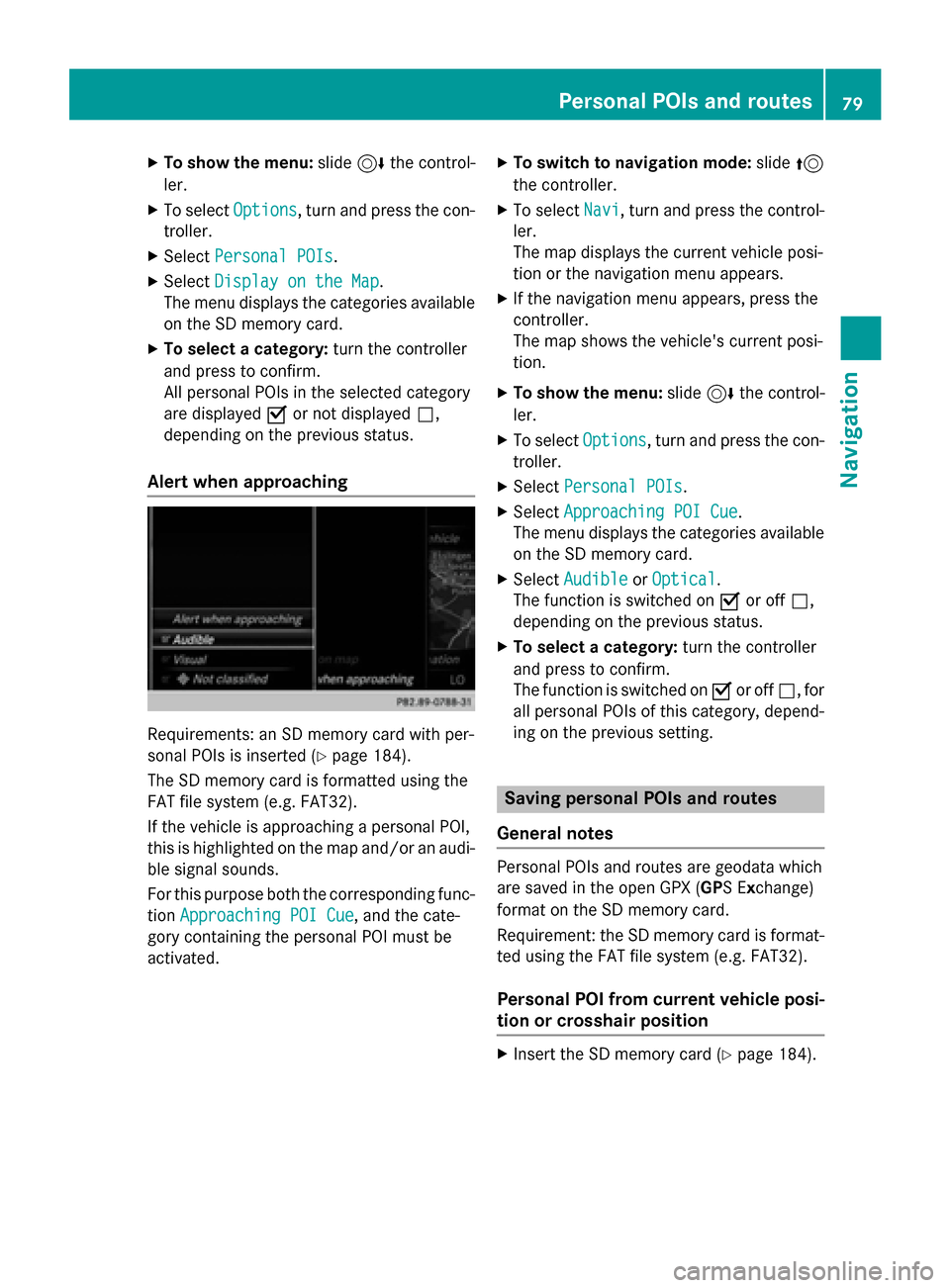
XTo show the menu:slide6the control-
ler.
XTo select Options, turn and press the con-
troller.
XSelect Personal POIs.
XSelectDisplay on the Map.
The menu displays the categories available
on the SD memory card.
XTo select a category: turn the controller
and press to confirm.
All personal POIs in the selected category
are displayed Oor not displayed ª,
depending on the previous status.
Alert when approaching
Requirements: an SD memory card with per-
sonal POIs is inserted (
Ypage 184).
The SD memory card is formatted using the
FAT file system (e.g. FAT32).
If the vehicle is approaching a personal POI,
this is highlighted on the map and/or an audi- ble signal sounds.
For this purpose both the corresponding func-
tion Approaching POI Cue
, and the cate-
gory containing the personal POI must be
activated.
XTo switch to navigation mode: slide5
the controller.
XTo select Navi, turn and press the control-
ler.
The map displays the current vehicle posi-
tion or the navigation menu appears.
XIf the navigation menu appears, press the
controller.
The map shows the vehicle's current posi-
tion.
XTo show the menu: slide6the control-
ler.
XTo select Options, turn and press the con-
troller.
XSelect Personal POIs.
XSelectApproaching POI Cue.
The menu displays the categories available
on the SD memory card.
XSelect AudibleorOptical.
The function is switched on Oor off ª,
depending on the previous status.
XTo select a category: turn the controller
and press to confirm.
The function is switched on Oor off ª, for
all personal POIs of this category, depend-
ing on the previous setting.
Saving personal POIs and routes
General notes
Personal POIs and routes are geodata which
are saved in the open GPX ( GPS Exchange)
format on the SD memory card.
Requirement: the SD memory card is format-
ted using the FAT file system (e.g. FAT32).
Personal POI from current vehicle posi-
tion or crosshair position
XInsert the SD memory card (Ypage 184).
Personal POIs and routes79
Navigation
Z
Page 85 of 226
XTo stop recording, selectEnd Route
Recordingfrom the menu.
The route is stored under Personal
Routes.
Displaying/editing the recorded route
XInsert the SD memory card (Ypage 184).
XTo switch to navigation mode: slide5
the controller.
XTo select Navi: turn and press the control-
ler.
The map displays the current vehicle posi-
tion or the navigation menu appears.
XIf the navigation menu appears, press the
controller.
The map shows the vehicle's current posi-
tion.
XTo show the menu: slide6the control-
ler.
XTo select Destination: turn and press the
controller.
XSelect From Memory Card.
XSelectPersonal Routes.
Previously recorded routes are displayed.
XTo select a route, turn and press the con-
troller.
The map appears with a menu. The recor-
ded route is shown on the map in blue.
XTo calculate a route: selectStart.
XTo change the name and symbol: select
Edit
.
XSelect Change NameorEdit Icon.
XCharacter entry (Ypage 32).
XSelect a symbol.
Route guidance
General notes
COMAND calculates the route to the destina-
tion without taking account of the following,
for example:
Rtraffic lights
Rstop and yield signs
Rparking or stopping restrictions
Rroad narrowing
Rtemporary traffic rules and regulations
Navigation may give differing driving recom-
mendations if the actual street/traffic situa-
tion does not correspond with the digital
map's data. For example, if the road layout or
the direction of a one-way street has been
changed.
For this reason, you must always observe
road and traffic rules and regulations during
your journey. Road and traffic rules and reg-
ulations always have priority over system
driving recommendations.
Route guidance begins once a route has been
calculated (
Ypage 65).
COMAND guides you to your destination by
means of navigation announcements in the
form of audible navigation announcements
and route guidance displays.
The route guidance displays can be seen if
navigation mode is switched on.
If you do not follow the navigation announce-
ments or if you leave the calculated route,
COMAND automatically calculates a new
route to the destination.
If the digital map contains the corresponding
information, the following applies:
Rduring route guidance, COMAND tries to
avoid roads with restricted access. Those
roads, for example, that are closed to
through-traffic.
Rroads that have time restrictions (e.g.
closed on Sundays and public holidays) are
considered for route guidance on days
when they are open. For this purpose, the
Route guidance83
Navigation
Z