ESP MERCEDES-BENZ AMG GT S 2017 C190 Comand Manual
[x] Cancel search | Manufacturer: MERCEDES-BENZ, Model Year: 2017, Model line: AMG GT S, Model: MERCEDES-BENZ AMG GT S 2017 C190Pages: 226, PDF Size: 6.39 MB
Page 152 of 226
Rare connected with COMAND
Rfulfill the conditions for the Internet func-
tions
Rhave not yet been set up for the Internet
function
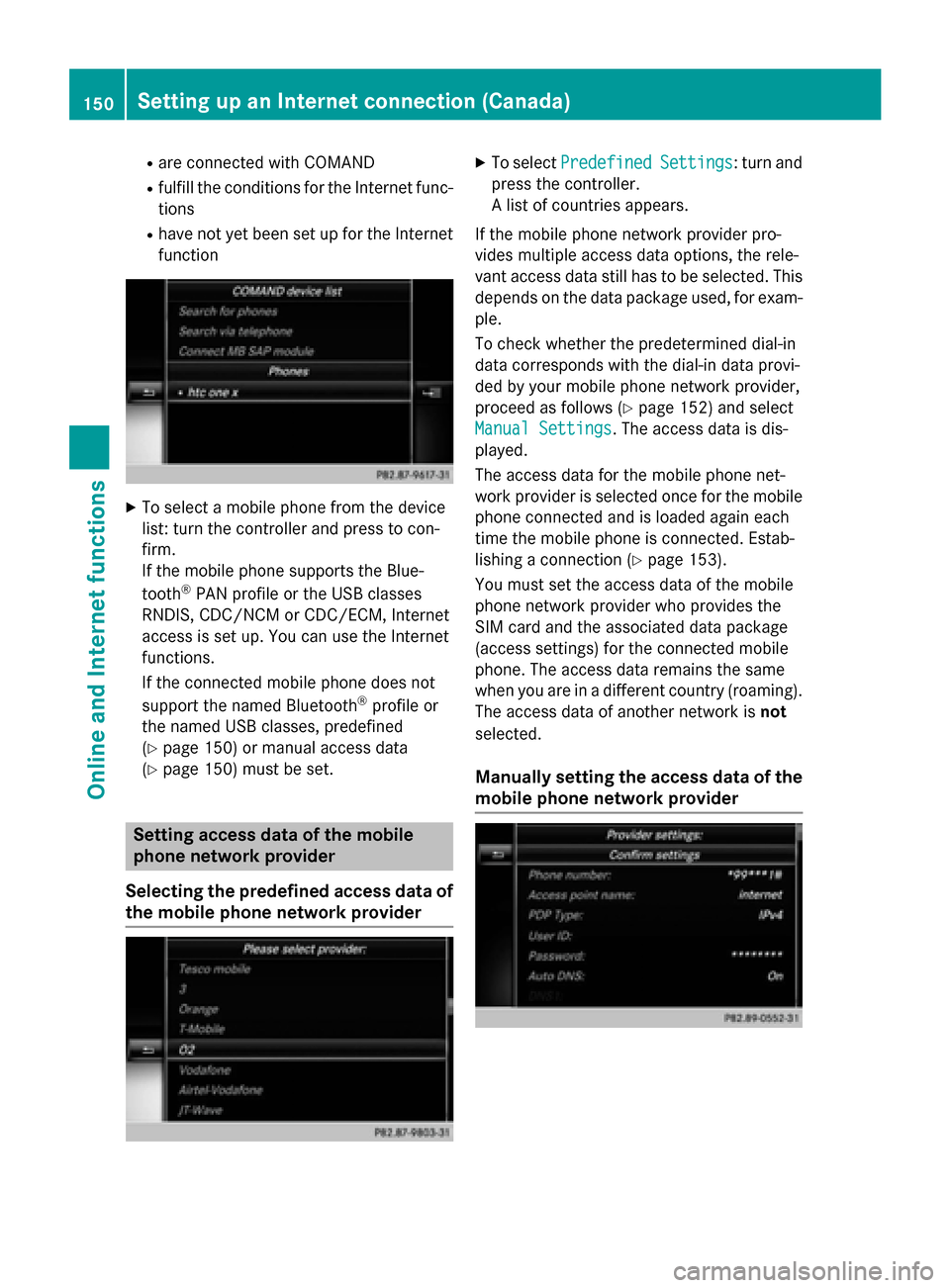
XTo select a mobile phone from the device
list: turn the controller and press to con-
firm.
If the mobile phone supports the Blue-
tooth
®PAN profile or the USB classes
RNDIS, CDC/NCM or CDC/ECM, Internet
access is set up. You can use the Internet
functions.
If the connected mobile phone does not
support the named Bluetooth
®profile or
the named USB classes, predefined
(
Ypage 150) or manual access data
(
Ypage 150) must be set.
Setting access data of the mobile
phone network provider
Selecting the predefined access data of
the mobile phone network provider
XTo select PredefinedSettings: turn and
press the controller.
A list of countries appears.
If the mobile phone network provider pro-
vides multiple access data options, the rele-
vant access data still has to be selected. This
depends on the data package used, for exam-
ple.
To check whether the predetermined dial-in
data corresponds with the dial-in data provi-
ded by your mobile phone network provider,
proceed as follows (
Ypage 152) and select
Manual Settings
. The access data is dis-
played.
The access data for the mobile phone net-
work provider is selected once for the mobile phone connected and is loaded again each
time the mobile phone is connected. Estab-
lishing a connection (
Ypage 153).
You must set the access data of the mobile
phone network provider who provides the
SIM card and the associated data package
(access settings) for the connected mobile
phone. The access data remains the same
when you are in a different country (roaming).
The access data of another network is not
selected.
Manually setting the access data of the
mobile phone network provider
150Setting up an Internet connection (Canada)
Online and Internet functions
Page 157 of 226
XTo select the required option: turn and
press the controller.
XTo selectEnter search term: turn and
press the controller.
The input menu for the search term is dis-
played.
XTo complete the entry and start the search,
select a: turn and press the controller.
The search results are displayed.
iGoogle™ determines how the search
results are sorted; this is not necessarily
based on the shortest distance.
Further information on how to make use of a
search result (
Ypage 155).
Using search results
XTo select a search result: turn and press the
controller.
A menu appears.
Displaying details
XSelect Details.
The address of the selected entry is dis-
played.
Using a search result as a destination
XSelect Set as Destination.
The navigation is called up. You can use the
search result as the destination for route
calculation.
iAt the same time the search result is
stored in the "Last destinations" memory.
You can take the destination from this
memory and save it permanently in the
contacts.
Calling up a destination
XSelect Call.
The telephone menu is called up and a call
is activated.
iIf there is no phone number available, the
menu item cannot be selected. Calling up Google Street View™
XSelect
Google Street View.
Google Street View™ is called up.
iIf no Google Street View™ information is
available, a corresponding message
appears.
Calling up Panoramio by Google™
XSelect Panoramio by Google.
Panoramio by Google™ is called up. You
see pictures of places worth seeing in the
vicinity of the search result.
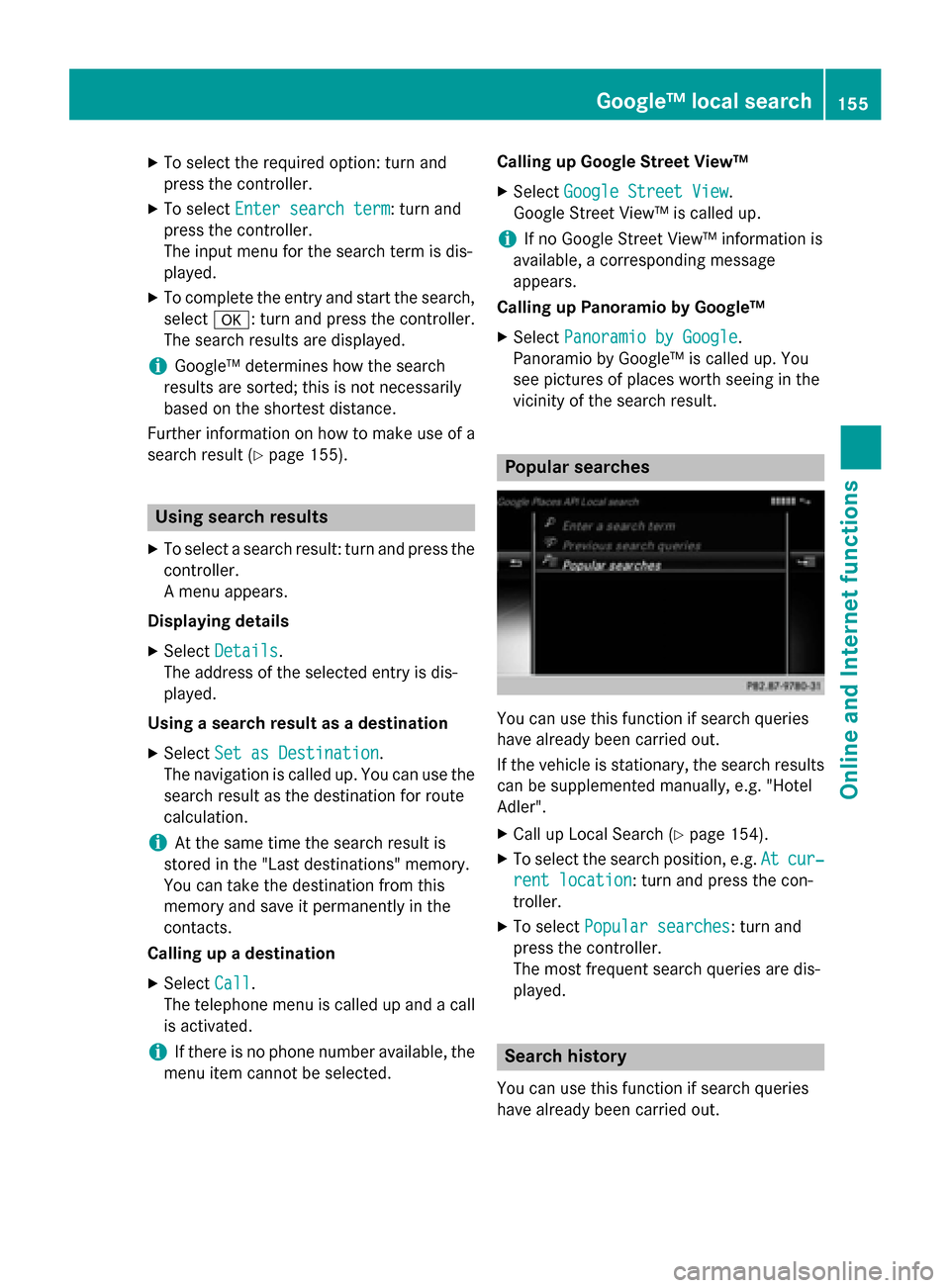
Popular searches
You can use this function if search queries
have already been carried out.
If the vehicle is stationary, the search results
can be supplemented manually, e.g. "Hotel
Adler".
XCall up Local Search (Ypage 154).
XTo select the search position, e.g. Atcur‐
rent location: turn and press the con-
troller.
XTo select Popular searches: turn and
press the controller.
The most frequent search queries are dis-
played.
Search history
You can use this function if search queries
have already been carried out.
Google™ local search155
Online and Internet functions
Z
Page 159 of 226
Procedure and general information
Sign into your Google™ account on the Inter-
net. Use the Google Maps™ website to send
the destination to a server (
Ypage 157).
Using the Download
POIApp, the destination
is displayed in the vehicle (
Ypage 157).
The destination can be:
Rimported (Ypage 158)
Rused for route guidance (Ypage 158)
Rcalled up (Ypage 158)
Rdeleted from the server (Ypage 158)
Sending destinations to the server
XSign into your Google™ account.
XCall up the Google Maps™ website.
XEnter a destination.
XClick "More" at the destination.
XClick "Send".
XEnter the corresponding information in the
boxes shown.
XSelect "Send to car".
XSelect Mercedes-Benz as the vehicle
brand.
XEnter the mbrace e-mail address or the
vehicle identification number.
Further information about the vehicle iden-
tification number (
Ypage 159).
XClick "Send".
The destination is sent to the server.
The availability of the destination/route
download function is country-dependent.
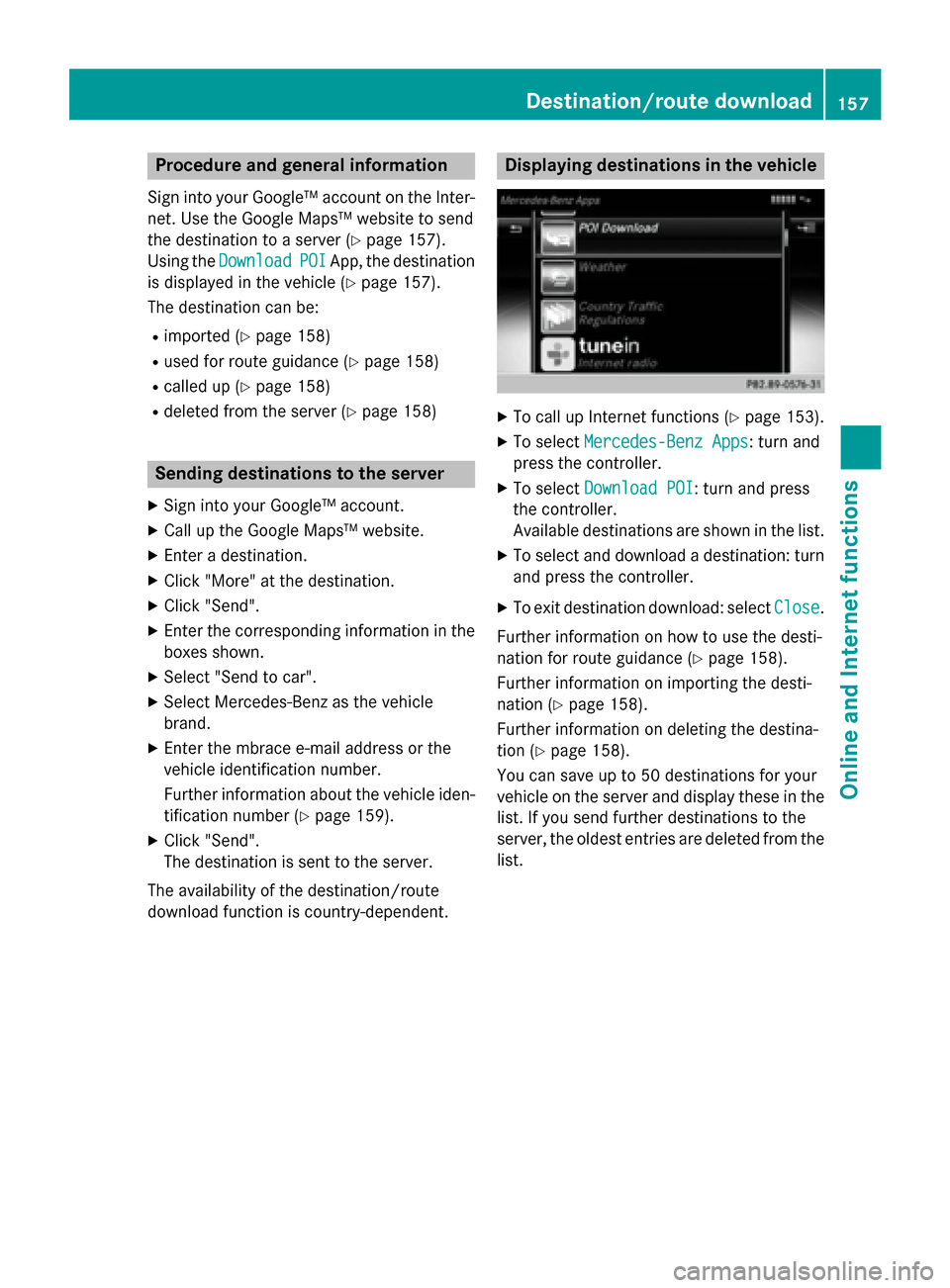
Displaying destinations in the vehicle
XTo call up Internet functions (Ypage 153).
XTo select Mercedes-Benz Apps: turn and
press the controller.
XTo select Download POI: turn and press
the controller.
Available destinations are shown in the list.
XTo select and download a destination: turn
and press the controller.
XTo exit destination download: select Close.
Further information on how to use the desti-
nation for route guidance (
Ypage 158).
Further information on importing the desti-
nation (
Ypage 158).
Further information on deleting the destina-
tion (
Ypage 158).
You can save up to 50 destinations for your
vehicle on the server and display these in the
list. If you send further destinations to the
server, the oldest entries are deleted from the
list.
Destination/route download157
Online and Internet functions
Z
Page 163 of 226
Navigating the website
StepResult
XTurn the control-
ler.Navigates from one
selectable item (e.g.
link, text field or
menu) to the next
and highlights the
respective element
on the website.
Sliding the control-
ler:
XLeft or right
1
XUp or down4
XDiagonally2
Moves the pointer
on the page.
XPress the control-
ler.Opens the selected
item.
XPress%.Calls up the menu.
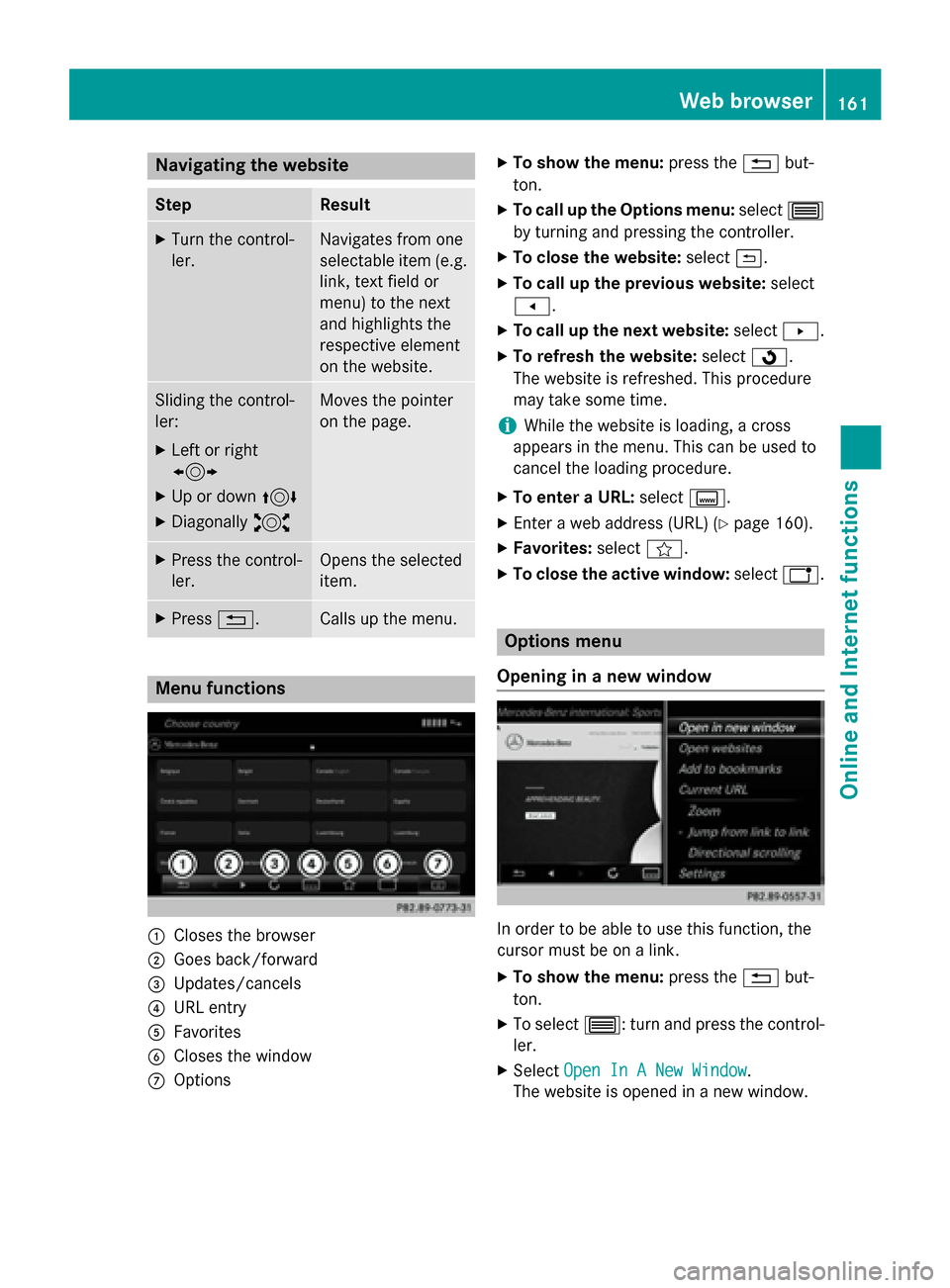
Menu functions
:Closes the browser
;Goes back/forward
=Updates/cancels
?URL entry
AFavorites
BCloses the window
COptions
XTo show the menu: press the%but-
ton.
XTo call up the Options menu: select3
by turning and pressing the controller.
XTo close the website: select&.
XTo call up the previous website: select
t.
XTo call up the next website: selectu.
XTo refresh the website: selectÎ.
The website is refreshed. This procedure
may take some time.
iWhile the website is loading, a cross
appears in the menu. This can be used to
cancel the loading procedure.
XTo enter a URL: selectg.
XEnter a web address (URL) (Ypage 160).
XFavorites: selectf.
XTo close the active window: selecth.
Options menu
Opening in a new window
In order to be able to use this function, the
cursor must be on a link.
XTo show the menu: press the%but-
ton.
XTo select 3: turn and press the control-
ler.
XSelect Open In A New Window.
The website is opened in a new window.
Web browser161
Online an d Internet functions
Z
Page 177 of 226
Memory functions
Quick save:
XSet the desired channel in satellite radio
mode.
XPress and hold the controller until the pre-
set list appears.
XTo select the preset number: turn and press
the controller.
A tone confirms that the storing process
was successful.
Saving a channel using the edit function:
XIn satellite radio mode, slide 6the con-
troller.
XTo select Preset: turn and press the con-
troller.
XTo select EditStationPreset: turn and
press the controller.
The list of saved channels appears.
XTo select the preset: turn the controller and
press for about 2 seconds.
The newly saved station overwrites the
existing preset.
iThere are 100 presets available.
Music and sports alerts
General notes
This function makes it possible to store a pro-
gram alert for your favorite artists, tracks or
sporting events.
You can store up to 30 music and sports
alerts (favorites).
Music alerts can only be saved whilst a track
is being played. You can also specify sports
alerts via the menu option. The system then
continuously searches through all the chan-
nels. If a match is found with a saved mes-
sage, you will be informed. A window appears
with the respective information.
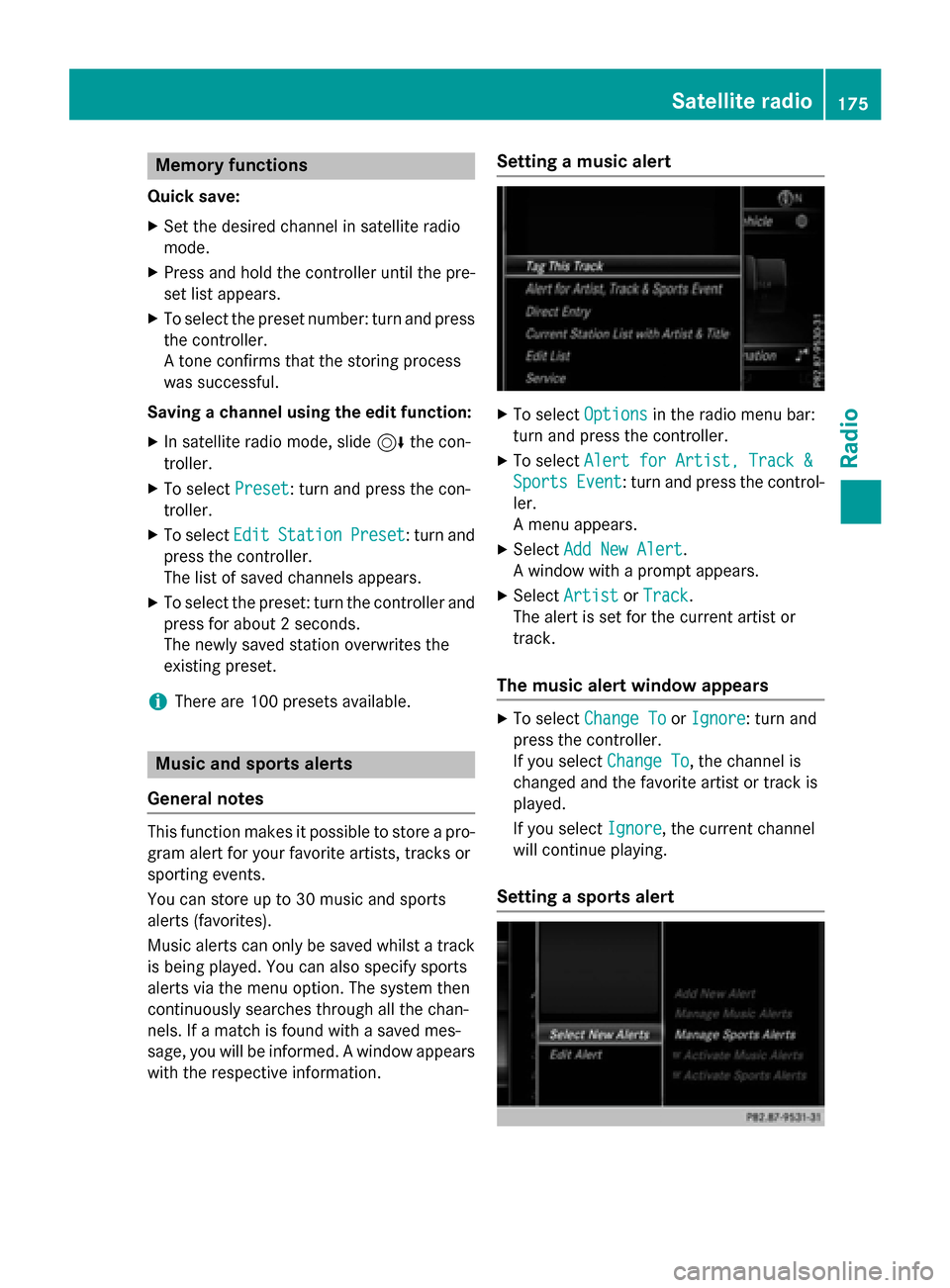
Setting a music alert
XTo select Optionsin the radio menu bar:
turn and press the controller.
XTo select Alert for Artist, Track &
SportsEvent: turn and press the control-
ler.
A menu appears.
XSelect Add New Alert.
A window with a prompt appears.
XSelect ArtistorTrack.
The alert is set for the current artist or
track.
The music alert window appears
XTo select Change ToorIgnore: turn and
press the controller.
If you select Change To
, the channel is
changed and the favorite artist or track is
played.
If you select Ignore
, the current channel
will continue playing.
Setting a sports alert
Satellite radio175
Radio
Page 182 of 226
Your COMANDequipment
i
These operatin ginstruction sdescribe all
th estandar dan doptional equipmen tof
your COMAN Dsystem, as available at th e
time of going to print .Country-specifi cdif -
ference sare possible. Bear in min dthat
your vehicle may no tfeature all function s
described here. Thi salso applies to safety-
relevant systems an dfunctions.
iRead th einformation on qualified special-
ist workshop sin th evehicle Operator's
Manual.
Activating medi amode
General notes
There are severa lways to activat emedia
source susin gCOMAND.
The relevant section sof th eOperator's Man -
ual describe th esimples tway to activat e a
media source .Thi ssection describes all
option sfo ractivatin gmedia sources. If you
wish to play external media sources, th e
default display mus talready be turned on .
The followin gexternal media source scan be
used :
RApple®devices (e.g. iPhon e®)
RUSBdevices (e.g. US Bstick, MP3 player)
RCD
RDV D
RSD memor ycards
Rvia devices connecte dby Bluetoot h®
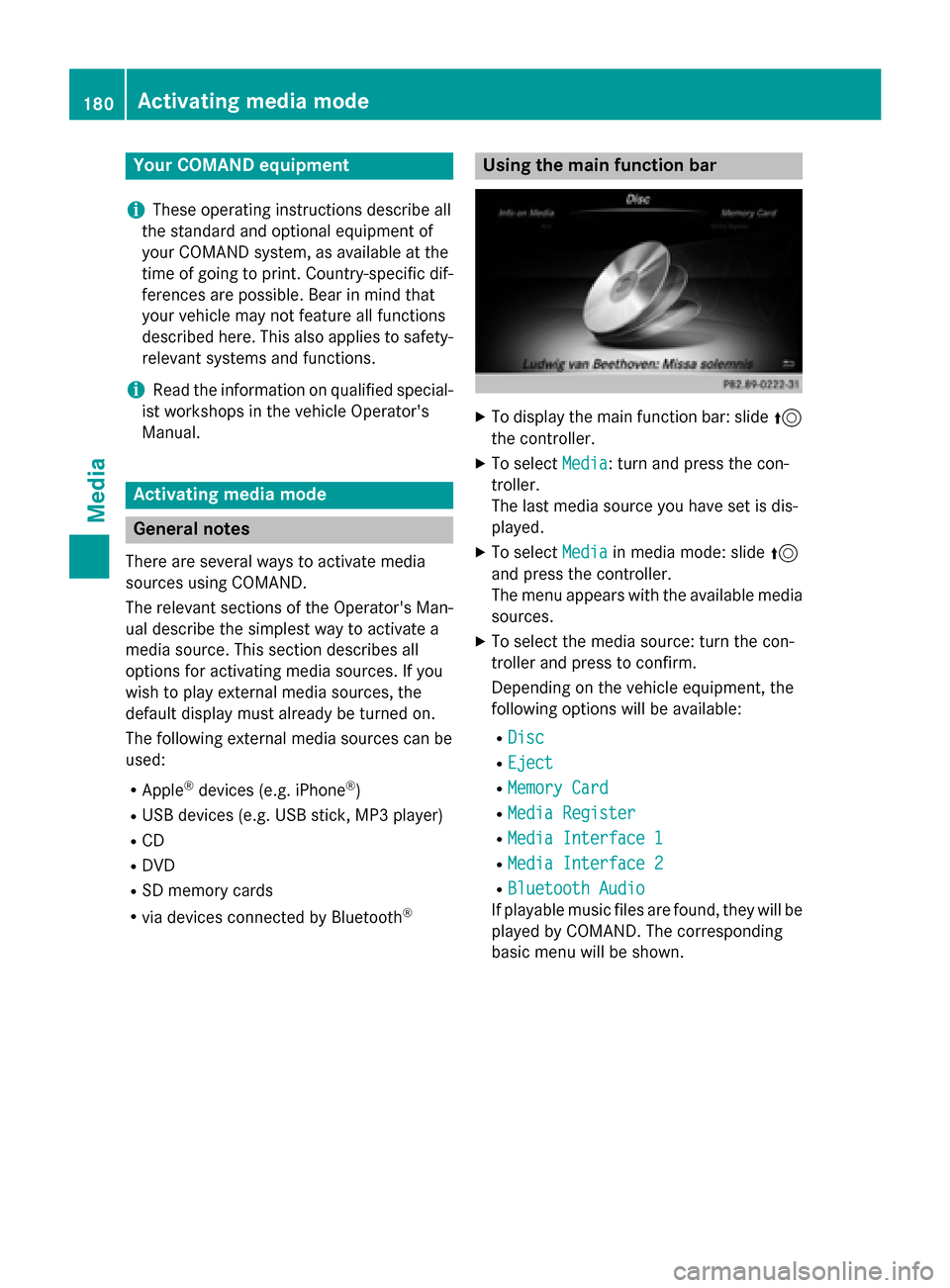
Usingth emain function ba r
XTo display themain function bar :slid e5
th econtroller .
XTo selectMedi a:turn an dpress th econ-
troller.
The last media source you hav eset is dis -
played.
XTo selec tMedi ain media mode: slid e5
an dpress th econtroller .
The men uappears wit hth eavailable media
sources.
XTo selec tth emedia source :turn th econ-
trolle ran dpress to confirm .
Dependin gon th evehicle equipment, th e
followin goption swill be available :
RDisc
REject
RMemory Card
RMediaRegister
RMedi aInterfac e 1
RMediaInterfac e 2
RBluetoothAudi o
If playable music files are found ,they will be
playe dby COMAND. The correspondin g
basi cmen uwill be shown .
180Activating media mode
Media
Page 183 of 226
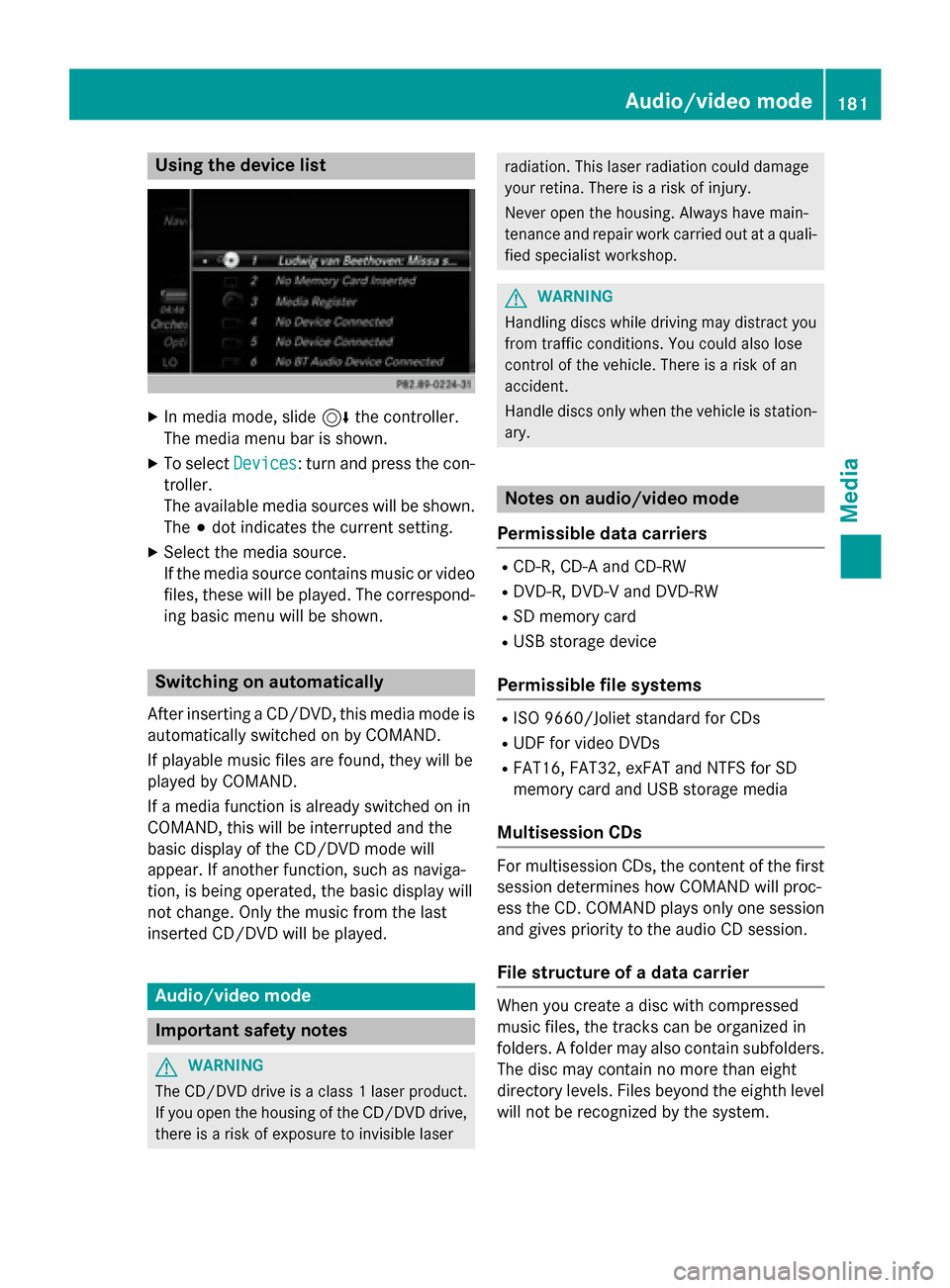
Using the device list
XIn media mode, slide6the controller.
The media menu bar is shown.
XTo select Devices: turn and press the con-
troller.
The available media sources will be shown.
The #dot indicates the current setting.
XSelect the media source.
If the media source contains music or video
files, these will be played. The correspond-
ing basic menu will be shown.
Switching on automatically
After inserting a CD/DVD, this media mode is
automatically switched on by COMAND.
If playable music files are found, they will be
played by COMAND.
If a media function is already switched on in
COMAND, this will be interrupted and the
basic display of the CD/DVD mode will
appear. If another function, such as naviga-
tion, is being operated, the basic display will
not change. Only the music from the last
inserted CD/DVD will be played.
Audio/video mode
Important safety notes
GWARNING
The CD/DVD drive is a class 1 laser product.
If you open the housing of the CD/DVD drive,
there is a risk of exposure to invisible laser
radiation. This laser radiation could damage
your retina. There is a risk of injury.
Never open the housing. Always have main-
tenance and repair work carried out at a quali- fied specialist workshop.
GWARNING
Handling discs while driving may distract you from traffic conditions. You could also lose
control of the vehicle. There is a risk of an
accident.
Handle discs only when the vehicle is station-
ary.
Notes on audio/video mode
Permissible data carriers
RCD-R, CD-A and CD-RW
RDVD-R, DVD-V and DVD-RW
RSD memory card
RUSB storage device
Permissible file systems
RISO 9660/Joliet standard for CDs
RUDF for video DVDs
RFAT16, FAT32, exFAT and NTFS for SD
memory card and USB storage media
Multisession CDs
For multisession CDs, the content of the first
session determines how COMAND will proc-
ess the CD. COMAND plays only one session
and gives priority to the audio CD session.
File structure of a data carrier
When you create a disc with compressed
music files, the tracks can be organized in
folders. A folder may also contain subfolders.
The disc may contain no more than eight
directory levels. Files beyond the eighth level
will not be recognized by the system.
Audio/video mode181
Media
Z
Page 184 of 226
iCOMAND supports up to 50,000 files
from one data medium. For data med iawith
more than 64 GB, only filesinthe following
folders are supported: Music, Pictures,
Vide o.
Track and file names
When you create a disc with compressed
music files, you can assign names to the
tracks and folders.
If MP3 or WMA files are stored in the root
dire ctory itself, the root directory will also be
treated as a folder.
You should observe the fol lowing when
assigning track names:
Rtrack names must have at least one char-
acter.
Rtrack names must have an extension of a
supported audio/video format, e.g. mp3,
aac or m4v.
Rthere must bea dot between the track
name and the extension.
Example of a correct track name:
"Track1.m p3".
Permissible formats
COMAND supports the following audio for-
mats:
RMP3
RWMA
RCD-A
RAAC formats: .aac, .mp4, .m4a and .m4b
Copy-protected iTunes
®music files with
the .m4p fileextension are not supported.
COMAND supports the following video for-
mats:
RDVD-V
RMPEG
RWMV
RM4V
RAVI up to 720p.
Permissible bit and sampling rates
COMAND supports MP3 files of the following
types:
Rfixed and variable bit rates from 32 kb it/s
to 320 kb it/s
Rsampling rates of 8 kHz to 48 kHz
COMAND supports WMA files of the following
types:
Rfixed bitrates from 5 kb it/sto 384 kb it/s
Rsampling rates of 8 kHz to 48 kHz
COMAND does not support WMA files of the
fol lowin g types:
RDRM (Digital Rights Management) encryp-
ted files
Rvar iable bit rate
RWMA Pro
R5.1 surround sound
iOnlyuse tracks with a bit rate of at least
128 kb it/sand a samplin g rate of at least
44.1 kH z.Lower rates can cause a notice-
able deterioration in quality. This is espe-
cially the case if you have activated a sur-
round sound function.
Selecting an active partition (USB mass
storage devices only)
You can select this function for USB storage
devices when the storage device is parti-
tioned. Up to 9 partitions (primary or logical,
FAT, FAT32 and NTFS) are supported.
Selecting an active partition
XTo select Optionsin the media menu bar:
turn and press the controller.
XSelect Select Active Partition.
Notes on copyright
Audio/video files that you create or repro-
duce yourself for playback are generally sub-
ject to copyright protection.
In many countries, reproductions, even for
private use, are not permitted without the
prior consent of the copyright holder.
182Audio/video mode
Media
Page 185 of 226
Make sure that you know about the applicable
copyright regulations and that you comply
with these.
Notes on CDs/DVDs
!COMAND is designed to play discs that
comply with the EN 60908 standard. There- fore, you can only use discs with a maxi-
mum thickness of 1.3 mm.
If you insert thicker discs, e.g. those that
contain data on both sides (DVD on one
side and audio data on the other), they can-
not be ejected and can damage the device.
Only use round discs with a diameter of
12 cm. Do not use discs with a diameter of
8 cm, even with an adapter.
Discs with copy protection are not compati-
ble with the audio CD standard and therefore
may not be able to be played by COMAND.
Playback problems may occur when playing
copied discs.
There may be playback problems if you play
CDs that you have copied yourself with a stor-
age capacity of more than 700 MB.
iCOMAND is able to play back audio CDs in
multichannel audio format.
Inserting and removing a disc from
the single CD/DVD drive
Before inserting or removing a CD/DVD,
ensure that the cup holder is empty.
Before removing a disc, be aware that the
CD/DVD can become hot.
Inserting
XInsert a disc into the disc slot with the prin-
ted side facing upwards.
The drive closes and the disc is played.
If the CD/DVD is operated in Media mode,
the corresponding basic menu will be
shown. If the CD/DVD is started using another application (e.g. navigation), the
display will not change.
iThe drive may not be able to play discs
with copy protection.
Removing
XIn the CD basic menu slide the controller
6.
XTo select þ: turn and press the control-
ler.
The drive ejects the disc. If you do not take
the disc out of the slot, it is drawn in again automatically after a short while.
or
XTo select Mediain media mode: slide 5
and press the controller.
XTo select Eject: turn and press the con-
troller.
Menu overview
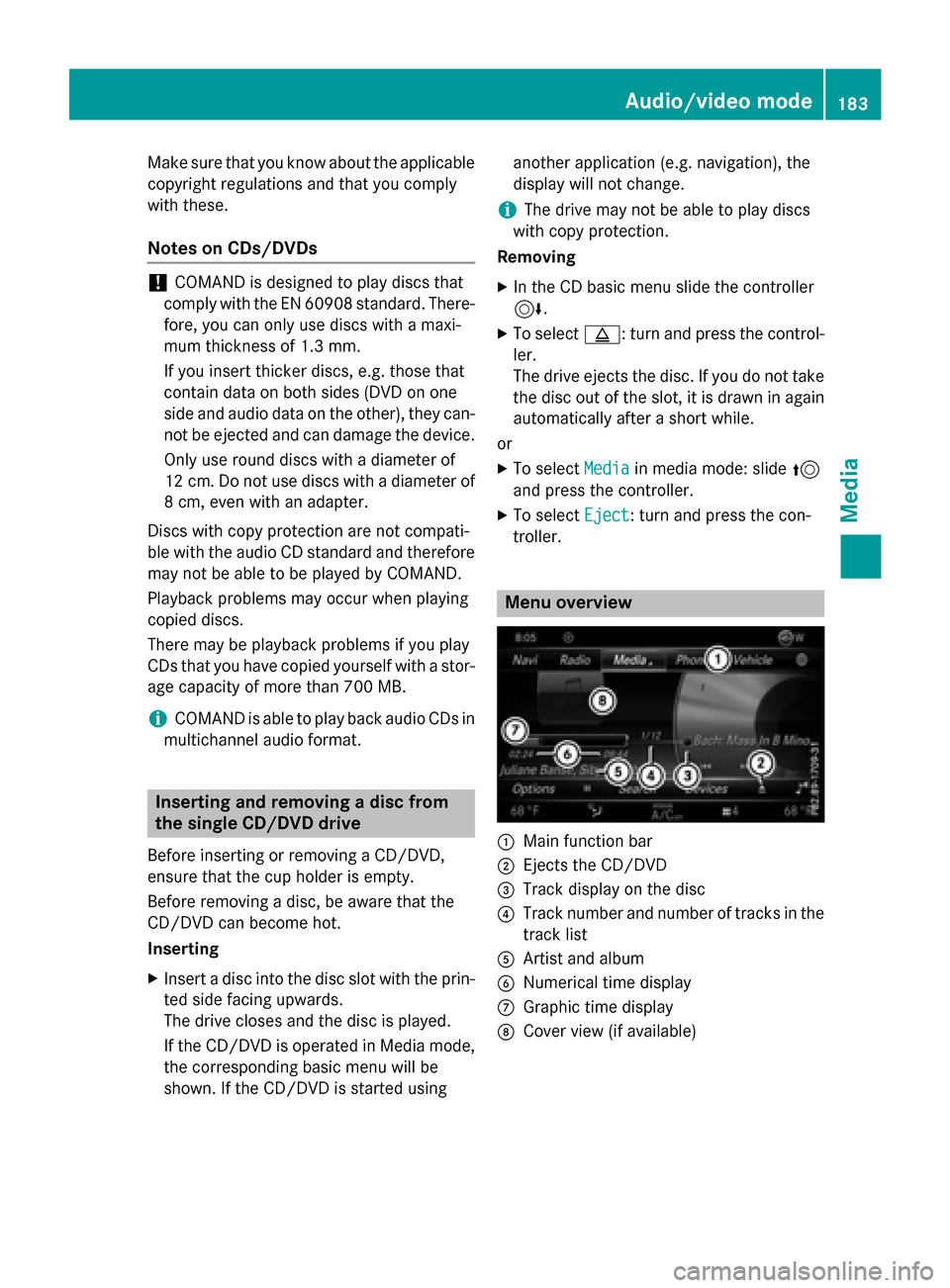
:Main function bar
;Ejects the CD/DVD
=Track display on the disc
?Track number and number of tracks in the track list
AArtist and album
BNumerical time display
CGraphic time display
DCover view (if available)
Audio/video mode183
Media
Z
Page 186 of 226
Inserting and ejecting an SD memory
card
Important safety notes
GWARNIN G
SD memory cards are small parts. They can be
swallowed and caus easphyxiation .This
poses an increased ris kof injury or eve nfatal
injury.
Kee pSD memory cards out of th ereac hof
children .If an SD memory car dis swallowed,
seek immediat emedical attention .
!Ifyou are no longer using the SDmemory
car d,you should remove itand take it out of
the vehicle. High temperatures can dam-
age the car d.
COMAND supports SDmemory car ds
(Secure Digital),SDHC memory car ds
(Secure DigitalHig h Capacity), and SDXC
memory car ds(Secure Digital e Xtended
C apacit y.
Inserting an SD memory card
XInsert the SDmemory card into the SDcard
slot unt il itengages. The sidewith the con-
tacts must face downwards.
If the memory card has been selected as a
med iasource, the medium isplayed and
the files are loaded in the background. If
there are no supported audio/video files,
you willsee a message to this effect.
iIfthe SDmemory card for navigation is
inserted into the SDcard slot, you can still
select the memory card as a media source.
The No Playable Files
message then
appears.
Ejecting an SD memory card
XPress the memory car d.
The memory card is ejecte d.
XRemove the memory card.
Connecting USB devices
There are two USB portsinthe stowage space
under the armrest.
XConnect the USB device to the USB port.
If the corresponding med iadisplay is visi-
ble, the medium isplayed and the files are
loaded inthe backgroun d. Ifthere are no
supported audio/vide o files, youwillsee a
message to th iseffect.
iMP3 players must support Media Transfer
Protocol (MTP).
Activating media mode
Switching on automatically
After inserting a CD/DVD, th ismed iamode is
automatical lyswitched on byCOMAND.
If playable music files are foun d,they will be
played byCOMAND.
If a med iafunction isalready switched on in
COMAND, th is will beinterrupted and the
basic display of the CD/DVD mode will
appear. Ifanother function, such as naviga-
tion, isbeing operate d,the basic display will
not change. Only the music from the last
inserted CD/DVD will beplayed.
Dependin g on the vehicle equipment, the
default display must already beturned on
when using with USB devices or SDmemory
cards.
XIn sert the CDs /DVDs (Ypage 183)
or
XIn sert an SDmemory car d:(Ypage 184)
or
XConnect a USB device: (Ypage 184)
COMAND loads the medium inserted and
starts to play itautomatically.
Further options for switching on
RUsing the main function bar: (Ypage 180)
RUsing the device list: (Ypage 181)
184Audio/video mode
Media