ESP MERCEDES-BENZ AMG GT S 2017 C190 Comand Manual
[x] Cancel search | Manufacturer: MERCEDES-BENZ, Model Year: 2017, Model line: AMG GT S, Model: MERCEDES-BENZ AMG GT S 2017 C190Pages: 226, PDF Size: 6.39 MB
Page 63 of 226
correspond to the local conditions
(
Ypage 88).
If desired, you can have COMAND calculate
alternative routes even during route guid-
ance (
Ypage 88).
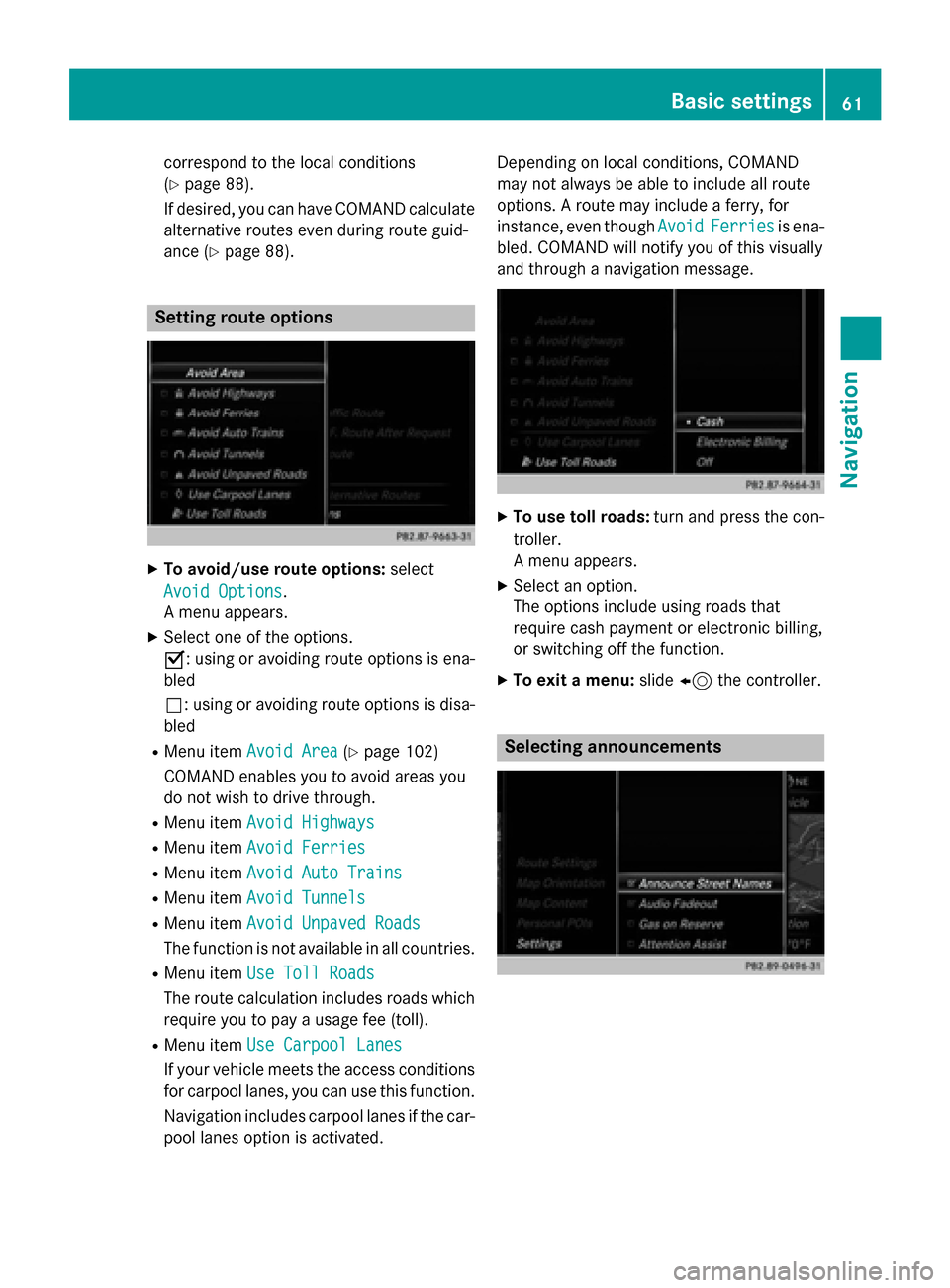
Setting route options
XTo avoid/use route options: select
Avoid Options
.
A menu appears.
XSelect one of the options.
O: using or avoiding route options is ena-
bled
ª: using or avoiding route options is disa-
bled
RMenu item Avoid Area(Ypage 102)
COMAND enables you to avoid areas you
do not wish to drive through.
RMenu item Avoid Highways
RMenu itemAvoid Ferries
RMenu itemAvoid Auto Trains
RMenu itemAvoid Tunnels
RMenu itemAvoid Unpaved Roads
The function is not available in all countries.
RMenu itemUse Toll Roads
The route calculation includes roads which
require you to pay a usage fee (toll).
RMenu item Use Carpool Lanes
If your vehicle meets the access conditions
for carpool lanes, you can use this function.
Navigation includes carpool lanes if the car-
pool lanes option is activated. Depending on local conditions, COMAND
may not always be able to include all route
options. A route may include a ferry, for
instance, even though
Avoid
Ferriesis ena-
bled. COMAND will notify you of this visually
and through a navigation message.
XTo use toll roads: turn and press the con-
troller.
A menu appears.
XSelect an option.
The options include using roads that
require cash payment or electronic billing,
or switching off the function.
XTo exit a menu: slide8 the controller.
Selecting announcements
Basic settings61
Navigation
Z
Page 80 of 226
XTo show the menu:slide6the control-
ler.
XTo select Destination: turn and press the
controller.
XSelect Using Geo-Coordinates.
Geo-coordinates (longitude and latitude)
are entered in degrees, minutes and sec-
onds.
XTo enter geo-coordinates: turn the con-
troller.
The value for degree, minute or second
changes.
XTo move the selection within the line: slide
1 the controller.
XTo move the selection between lines: slide
4the controller.
XTo confirm the value: press the controller.
XTo store geo-coordinates: selectSaveby
turning and pressing the controller.
The destination with the geo-coordinates
can be stored as:
Ra home address in the address book
Ra navigable address book contact
For further information on the address
book, see (
Ypage 127)
Ra personal destination on the SD memory
card (
Ypage 96)
XTo start route calculation: selectStart
Route Guidanceby turning and pressing
the controller.
Personal POIs and routes
General notes
The use of personal POIs for displaying traffic surveillance equipment is not permitted in
every country. Please observe the country-
specific regulations and always drive at a suit-
able speed.
Personal POIs are filed in categories:
RNot Classified
Standard entry for personal POIs
RMercedes-Benz Apps
Personal POIs (destinations, routes) that
you have imported via the online functions
(
Ypage 158)
RCategories which you have created your-
self, e.g. on your PC
Personal routes are not categorized.
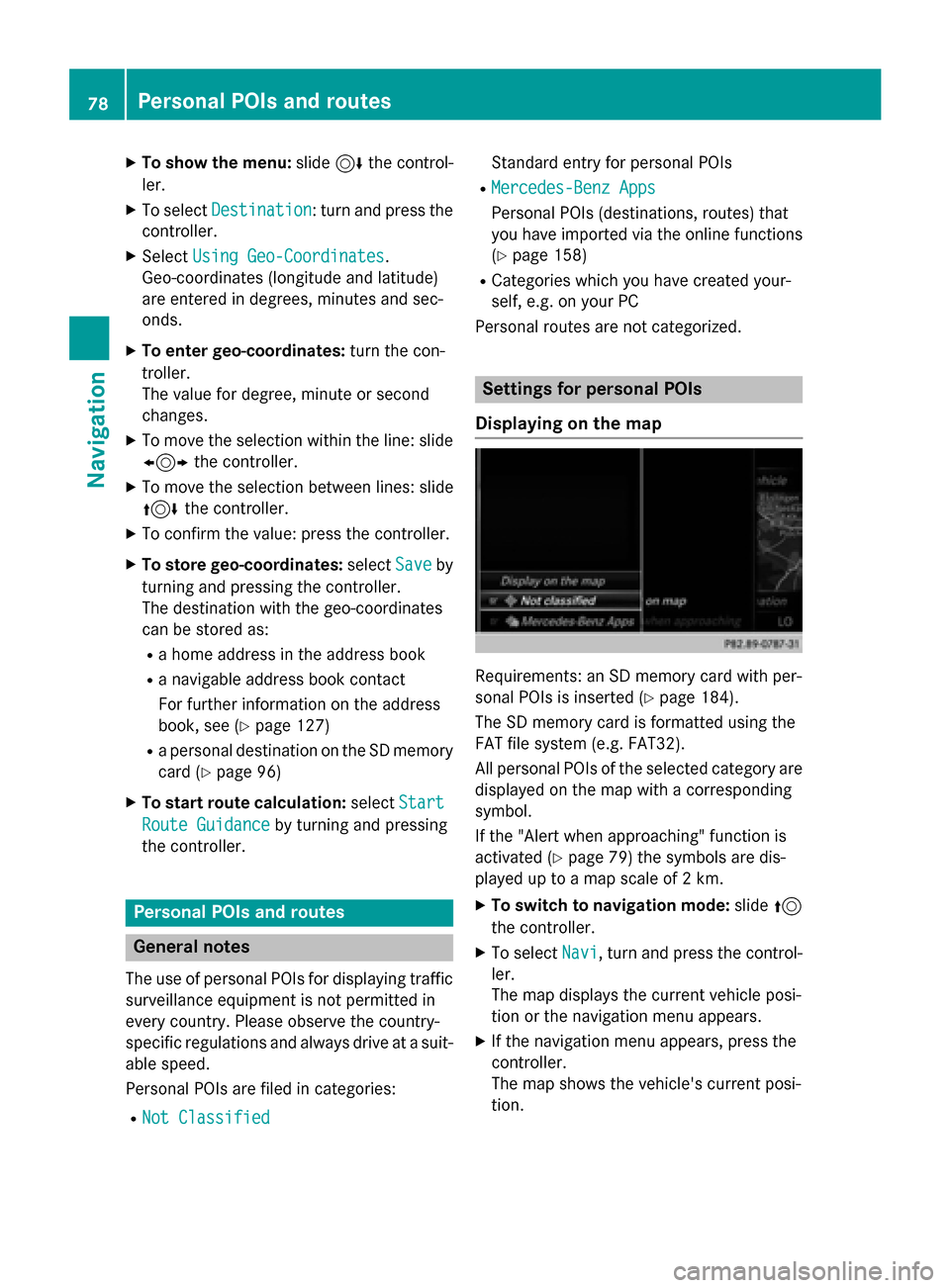
Settings for personal POIs
Displaying on the map
Requirements: an SD memory card with per-
sonal POIs is inserted (
Ypage 184).
The SD memory card is formatted using the
FAT file system (e.g. FAT32).
All personal POIs of the selected category are
displayed on the map with a corresponding
symbol.
If the "Alert when approaching" function is
activated (
Ypage 79) the symbols are dis-
played up to a map scale of 2 km.
XTo switch to navigation mode: slide5
the controller.
XTo select Navi, turn and press the control-
ler.
The map displays the current vehicle posi-
tion or the navigation menu appears.
XIf the navigation menu appears, press the
controller.
The map shows the vehicle's current posi-
tion.
78Personal POIs and routes
Navigation
Page 81 of 226
XTo show the menu:slide6the control-
ler.
XTo select Options, turn and press the con-
troller.
XSelect Personal POIs.
XSelectDisplay on the Map.
The menu displays the categories available
on the SD memory card.
XTo select a category: turn the controller
and press to confirm.
All personal POIs in the selected category
are displayed Oor not displayed ª,
depending on the previous status.
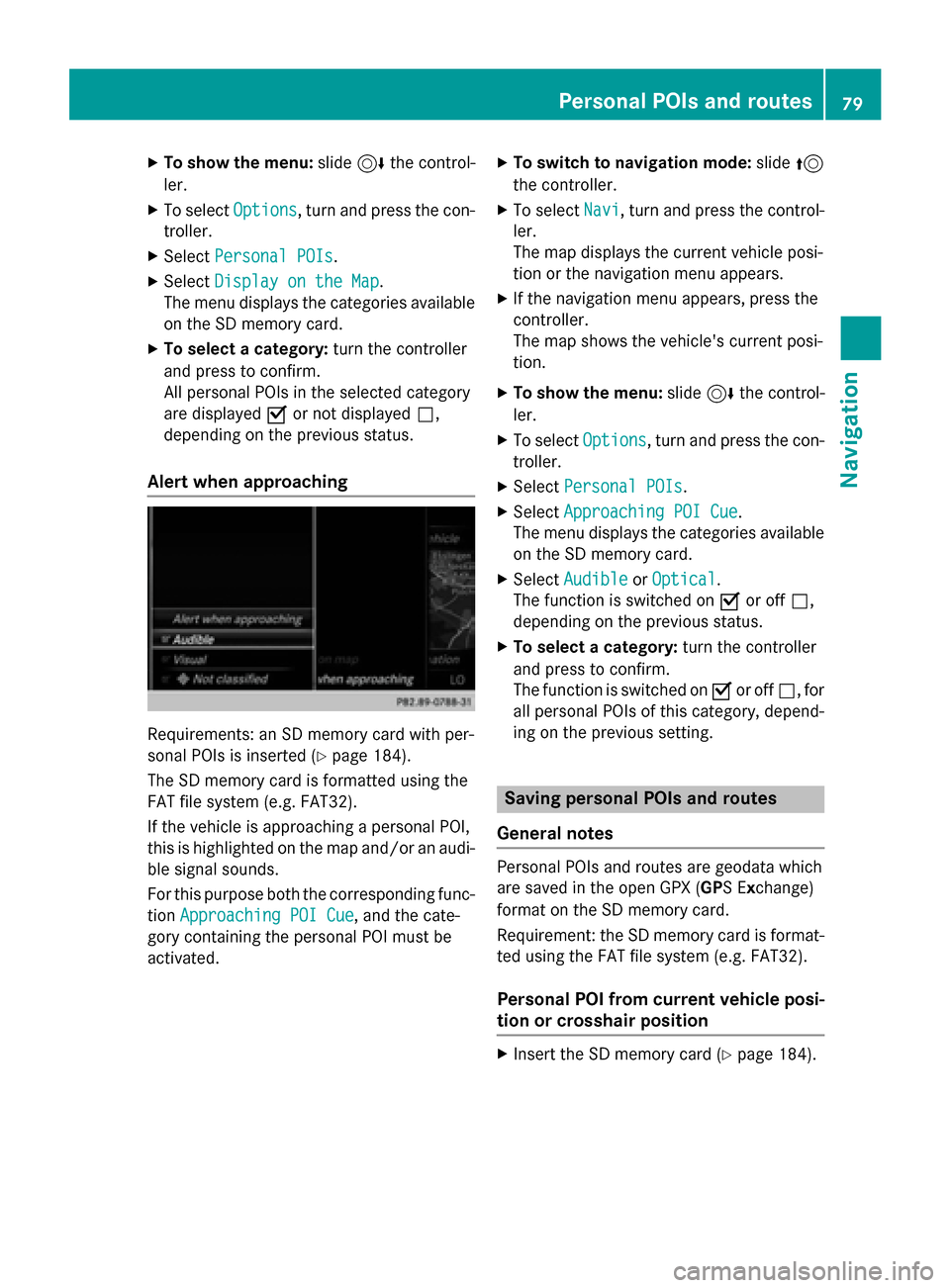
Alert when approaching
Requirements: an SD memory card with per-
sonal POIs is inserted (
Ypage 184).
The SD memory card is formatted using the
FAT file system (e.g. FAT32).
If the vehicle is approaching a personal POI,
this is highlighted on the map and/or an audi- ble signal sounds.
For this purpose both the corresponding func-
tion Approaching POI Cue
, and the cate-
gory containing the personal POI must be
activated.
XTo switch to navigation mode: slide5
the controller.
XTo select Navi, turn and press the control-
ler.
The map displays the current vehicle posi-
tion or the navigation menu appears.
XIf the navigation menu appears, press the
controller.
The map shows the vehicle's current posi-
tion.
XTo show the menu: slide6the control-
ler.
XTo select Options, turn and press the con-
troller.
XSelect Personal POIs.
XSelectApproaching POI Cue.
The menu displays the categories available
on the SD memory card.
XSelect AudibleorOptical.
The function is switched on Oor off ª,
depending on the previous status.
XTo select a category: turn the controller
and press to confirm.
The function is switched on Oor off ª, for
all personal POIs of this category, depend-
ing on the previous setting.
Saving personal POIs and routes
General notes
Personal POIs and routes are geodata which
are saved in the open GPX ( GPS Exchange)
format on the SD memory card.
Requirement: the SD memory card is format-
ted using the FAT file system (e.g. FAT32).
Personal POI from current vehicle posi-
tion or crosshair position
XInsert the SD memory card (Ypage 184).
Personal POIs and routes79
Navigation
Z
Page 85 of 226
XTo stop recording, selectEnd Route
Recordingfrom the menu.
The route is stored under Personal
Routes.
Displaying/editing the recorded route
XInsert the SD memory card (Ypage 184).
XTo switch to navigation mode: slide5
the controller.
XTo select Navi: turn and press the control-
ler.
The map displays the current vehicle posi-
tion or the navigation menu appears.
XIf the navigation menu appears, press the
controller.
The map shows the vehicle's current posi-
tion.
XTo show the menu: slide6the control-
ler.
XTo select Destination: turn and press the
controller.
XSelect From Memory Card.
XSelectPersonal Routes.
Previously recorded routes are displayed.
XTo select a route, turn and press the con-
troller.
The map appears with a menu. The recor-
ded route is shown on the map in blue.
XTo calculate a route: selectStart.
XTo change the name and symbol: select
Edit
.
XSelect Change NameorEdit Icon.
XCharacter entry (Ypage 32).
XSelect a symbol.
Route guidance
General notes
COMAND calculates the route to the destina-
tion without taking account of the following,
for example:
Rtraffic lights
Rstop and yield signs
Rparking or stopping restrictions
Rroad narrowing
Rtemporary traffic rules and regulations
Navigation may give differing driving recom-
mendations if the actual street/traffic situa-
tion does not correspond with the digital
map's data. For example, if the road layout or
the direction of a one-way street has been
changed.
For this reason, you must always observe
road and traffic rules and regulations during
your journey. Road and traffic rules and reg-
ulations always have priority over system
driving recommendations.
Route guidance begins once a route has been
calculated (
Ypage 65).
COMAND guides you to your destination by
means of navigation announcements in the
form of audible navigation announcements
and route guidance displays.
The route guidance displays can be seen if
navigation mode is switched on.
If you do not follow the navigation announce-
ments or if you leave the calculated route,
COMAND automatically calculates a new
route to the destination.
If the digital map contains the corresponding
information, the following applies:
Rduring route guidance, COMAND tries to
avoid roads with restricted access. Those
roads, for example, that are closed to
through-traffic.
Rroads that have time restrictions (e.g.
closed on Sundays and public holidays) are
considered for route guidance on days
when they are open. For this purpose, the
Route guidance83
Navigation
Z
Page 91 of 226
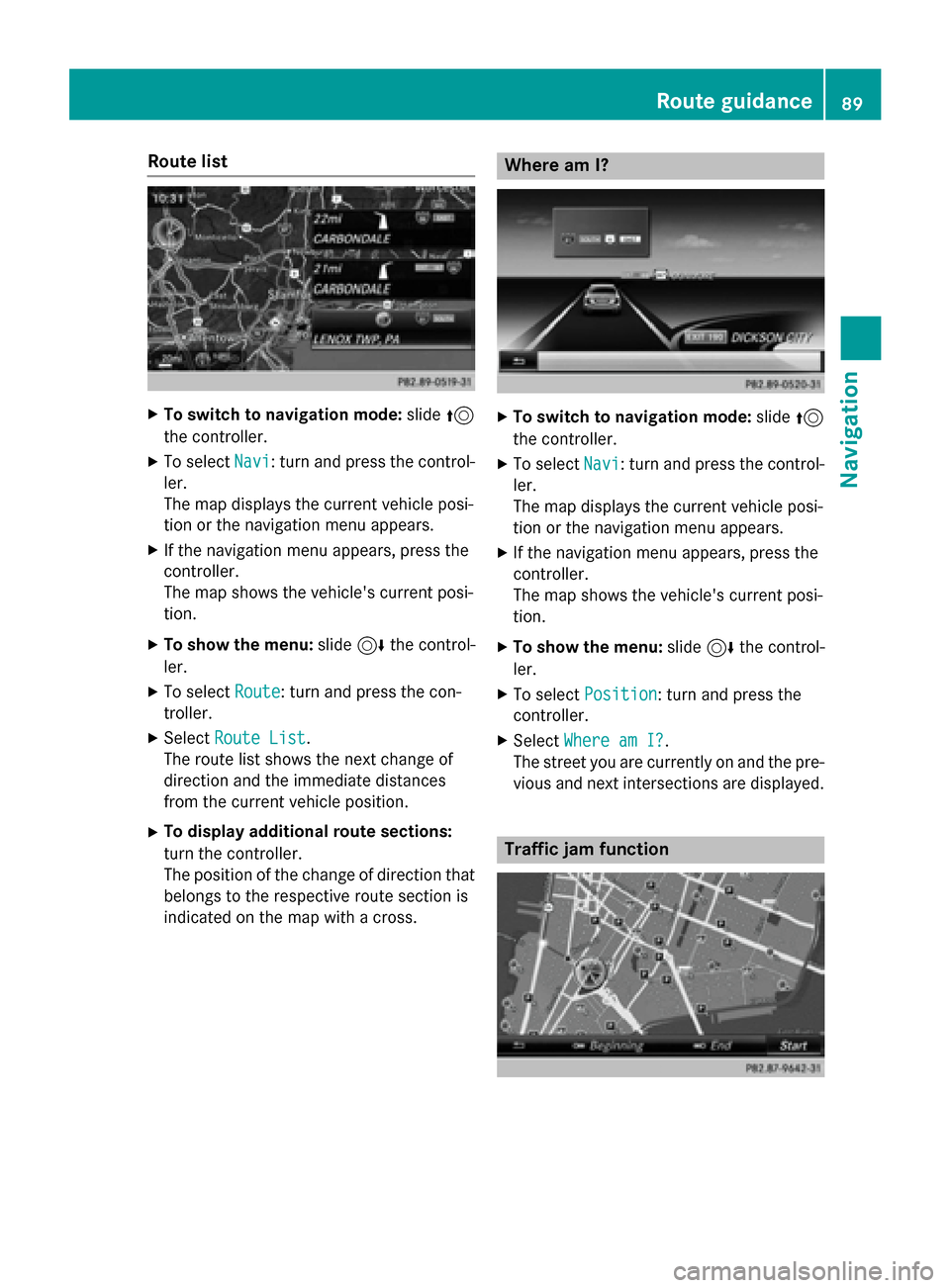
Route list
XTo switch to navigation mode:slide5
the controller.
XTo select Navi: turn and press the control-
ler.
The map displays the current vehicle posi-
tion or the navigation menu appears.
XIf the navigation menu appears, press the
controller.
The map shows the vehicle's current posi-
tion.
XTo show the menu: slide6the control-
ler.
XTo select Route: turn and press the con-
troller.
XSelect Route List.
The route list shows the next change of
direction and the immediate distances
from the current vehicle position.
XTo display additional route sections:
turn the controller.
The position of the change of direction that
belongs to the respective route section is
indicated on the map with a cross.
Where am I?
XTo switch to navigation mode: slide5
the controller.
XTo select Navi: turn and press the control-
ler.
The map displays the current vehicle posi-
tion or the navigation menu appears.
XIf the navigation menu appears, press the
controller.
The map shows the vehicle's current posi-
tion.
XTo show the menu: slide6the control-
ler.
XTo select Position: turn and press the
controller.
XSelect Where am I?.
The street you are currently on and the pre-
vious and next intersections are displayed.
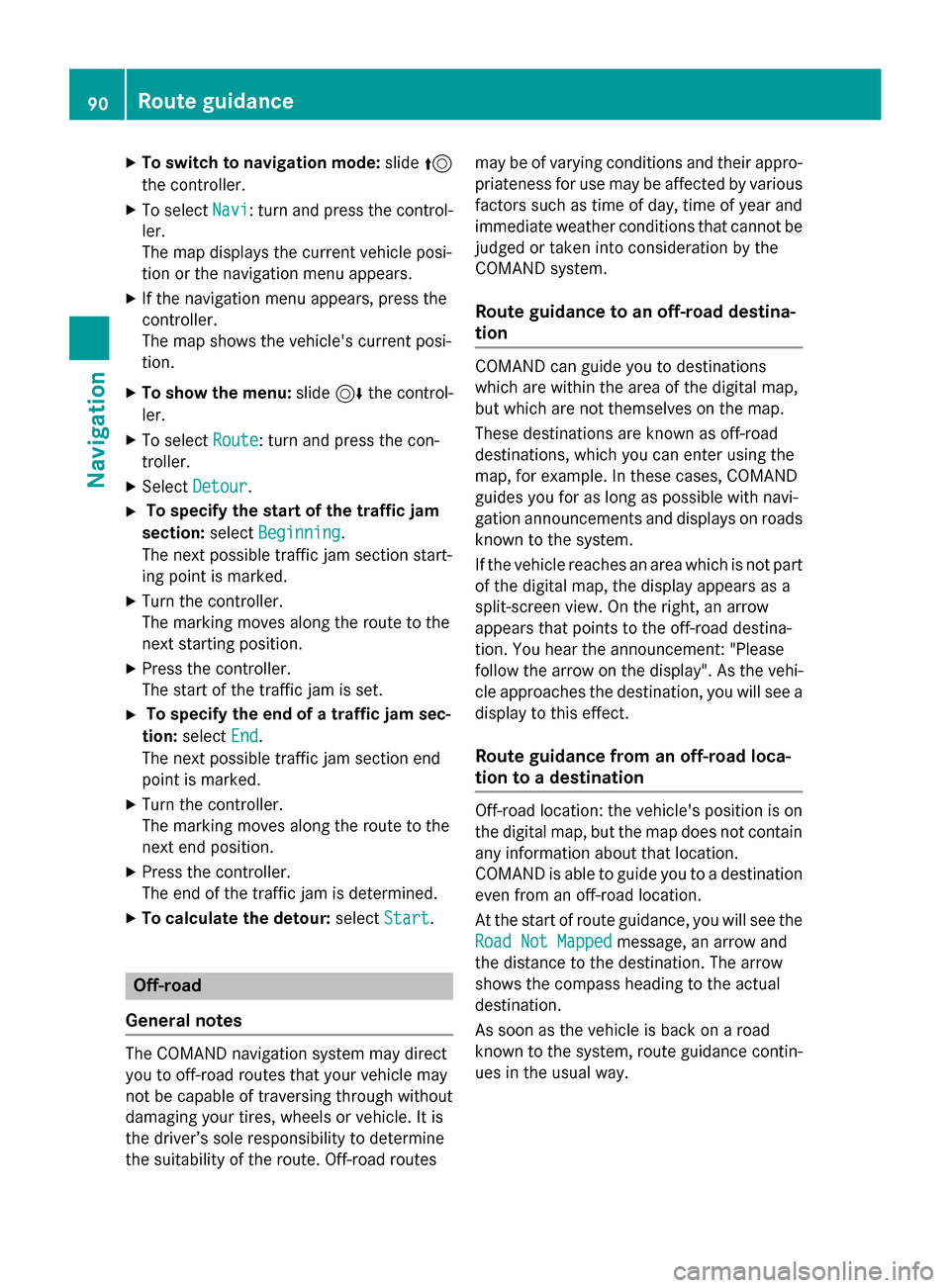
Traffic jam function
Route guidance89
Navigation
Z
Page 92 of 226
XTo switch to navigation mode:slide5
the controller.
XTo select Navi: turn and press the control-
ler.
The map displays the current vehicle posi-
tion or the navigation menu appears.
XIf the navigation menu appears, press the
controller.
The map shows the vehicle's current posi-
tion.
XTo show the menu: slide6the control-
ler.
XTo select Route: turn and press the con-
troller.
XSelect Detour.
XTo specify the start of the traffic jam
section: selectBeginning
.
The next possible traffic jam section start-
ing point is marked.
XTurn the controller.
The marking moves along the route to the
next starting position.
XPress the controller.
The start of the traffic jam is set.
XTo specify the end of a traffic jam sec-
tion: select End
.
The next possible traffic jam section end
point is marked.
XTurn the controller.
The marking moves along the route to the
next end position.
XPress the controller.
The end of the traffic jam is determined.
XTo calculate the detour: selectStart.
Off-road
General notes
The COMAND navigation system may direct
you to off-road routes that your vehicle may
not be capable of traversing through without
damaging your tires, wheels or vehicle. It is
the driver’s sole responsibility to determine
the suitability of the route. Off-road routes may be of varying conditions and their appro-
priateness for use may be affected by various
factors such as time of day, time of year and
immediate weather conditions that cannot be
judged or taken into consideration by the
COMAND system.
Route guidance to an off-road destina-
tion
COMAND can guide you to destinations
which are within the area of the digital map,
but which are not themselves on the map.
These destinations are known as off-road
destinations, which you can enter using the
map, for example. In these cases, COMAND
guides you for as long as possible with navi-
gation announcements and displays on roads
known to the system.
If the vehicle reaches an area which is not part
of the digital map, the display appears as a
split-screen view. On the right, an arrow
appears that points to the off-road destina-
tion. You hear the announcement: "Please
follow the arrow on the display". As the vehi-
cle approaches the destination, you will see a
display to this effect.
Route guidance from an off-road loca-
tion to a destination
Off-road location: the vehicle's position is on
the digital map, but the map does not contain
any information about that location.
COMAND is able to guide you to a destination
even from an off-road location.
At the start of route guidance, you will see the
Road Not Mapped
message, an arrow and
the distance to the destination. The arrow
shows the compass heading to the actual
destination.
As soon as the vehicle is back on a road
known to the system, route guidance contin-
ues in the usual way.
90Route guidance
Navigation
Page 100 of 226
Map functions
General notes
Company logos displayed on the map are
trademarks of the respective companies and
used solely for the purpose of indicating the
locations of these companies. The use of such
logos on the map does not indicate approval
of, support of or advertising by these compa-
nies for the navigation system itself.
iAlternatively, you can carry out this oper-
ation using the touchpad (
Ypage 25).
Map settings
Setting the map scale
Requirement: the map is in full screen mode, the menu is faded out (
Ypage 59).
The lower left-hand section of the map shows
the currently set map scale and compass nee-
dle.
Right-hand-drive vehicles: the currently set
map scale and compass needle are displayed
in the lower right-hand section of the map.
XTo show the map in full screen mode: to
hide the menu, push the %button.
or
XSlide the controller to the center of the map
and press to confirm.
XTo set the map scale: as soon as you turn
the controller, the scale bar appears on the
bottom of the display.
XTurn the controller until the needle points
to the desired map scale.
Once you are finished selecting a map
scale, the new map scale will be shown.
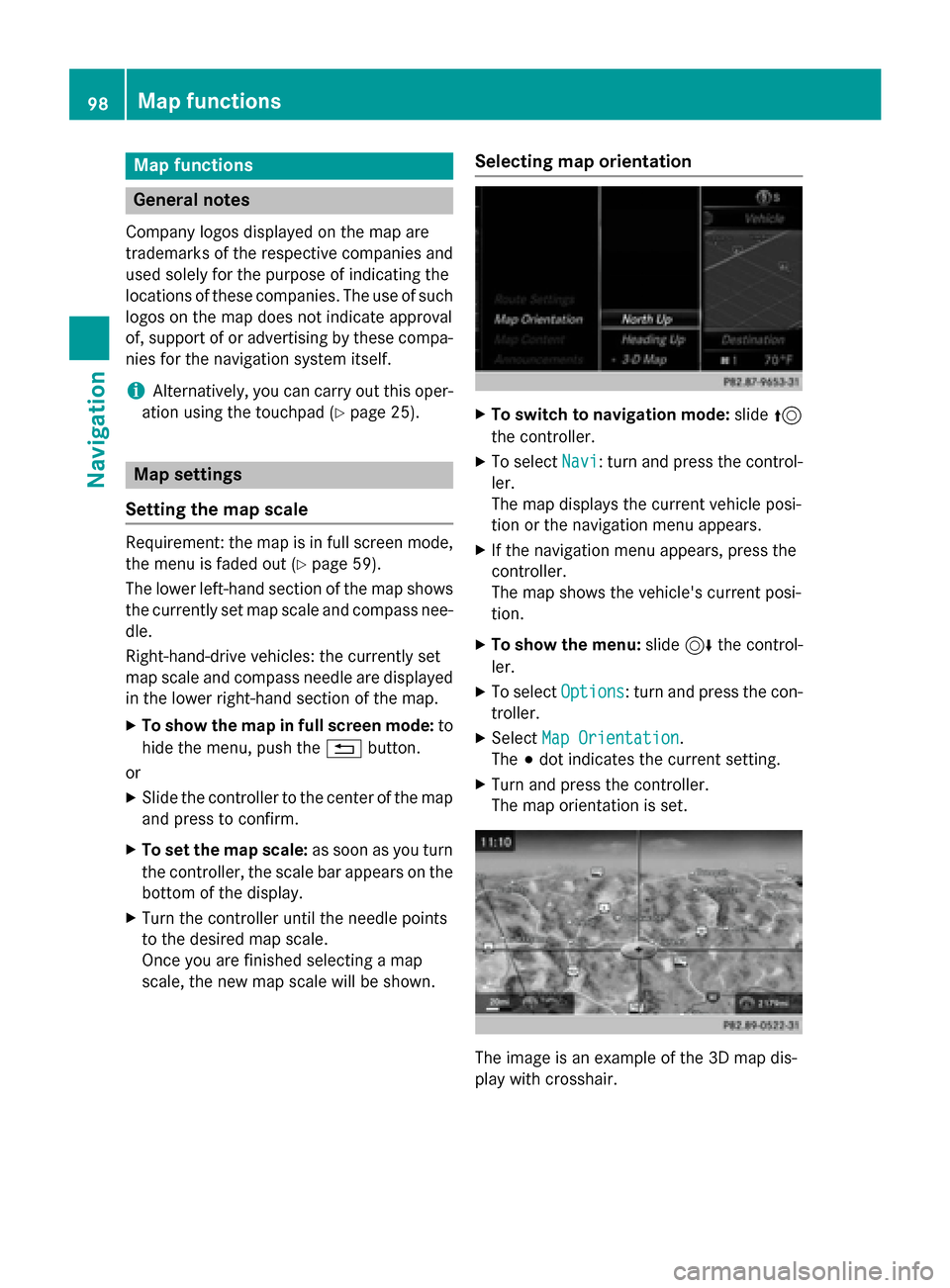
Selecting map orientation
XTo switch to navigation mode: slide5
the controller.
XTo select Navi: turn and press the control-
ler.
The map displays the current vehicle posi-
tion or the navigation menu appears.
XIf the navigation menu appears, press the
controller.
The map shows the vehicle's current posi-
tion.
XTo show the menu: slide6the control-
ler.
XTo select Options: turn and press the con-
troller.
XSelect Map Orientation.
The #dot indicates the current setting.
XTurn and press the controller.
The map orientation is set.
The image is an example of the 3D map dis-
play with crosshair.
98Map functions
Navigation
Page 123 of 226
Available functions:
RAccepting a waiting call (Ypage 122)
RMaking a second call (Ypage 121)
RCall waiting (Ypage 121)
Availability depends on the network (only pos-
sible in the GSM network) and on the Blue-
tooth
®mobile phone.
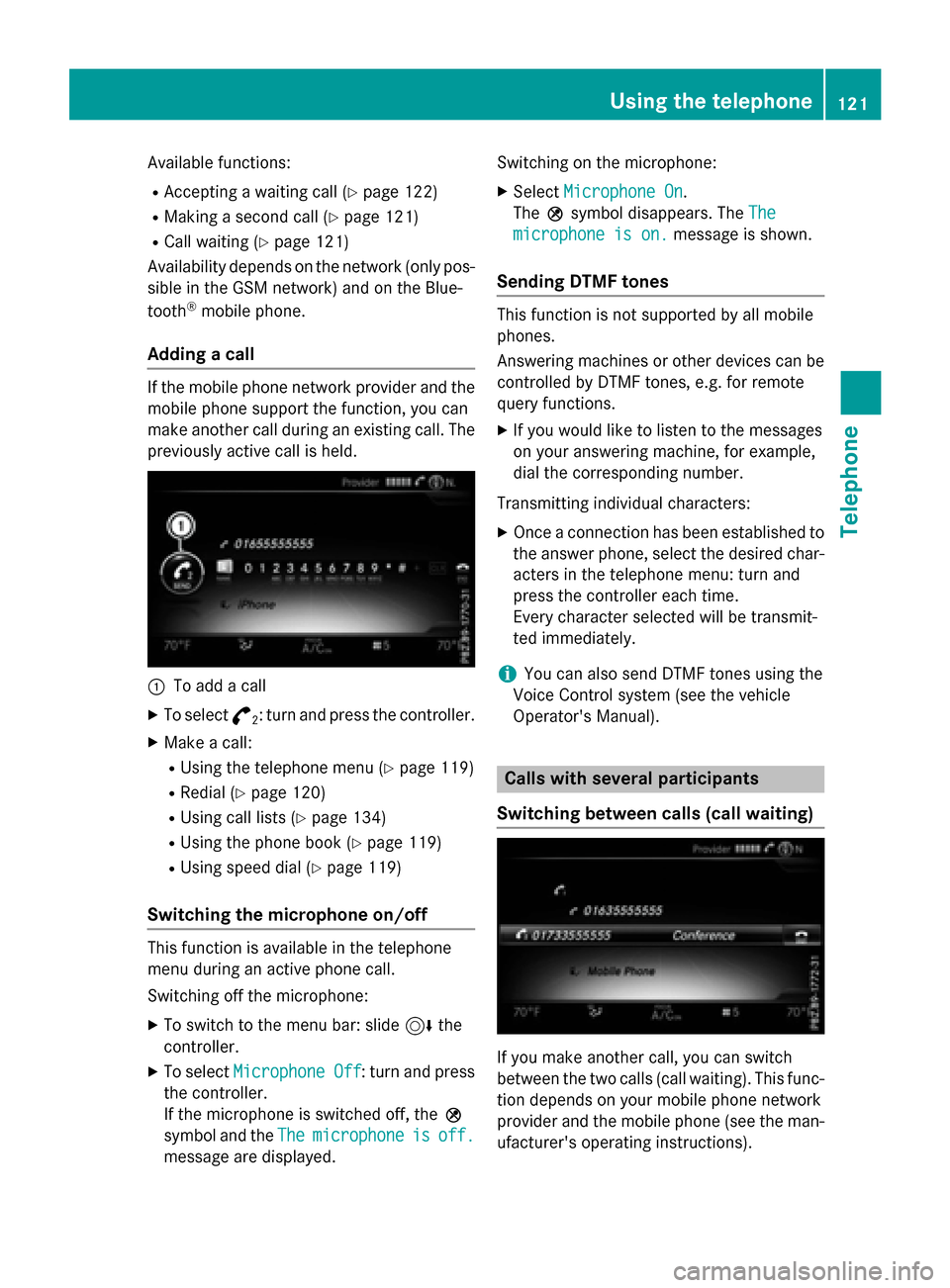
Adding a call
If the mobile phone network provider and the
mobile phone support the function, you can
make another call during an existing call. The
previously active call is held.
:To add a call
XTo select °2: turn and press the controller.
XMake a call:
RUsing the telephone menu (Ypage 119)
RRedial (Ypage 120)
RUsing call lists (Ypage 134)
RUsing the phone book (Ypage 119)
RUsing speed dial (Ypage 119)
Switching the microphone on/off
This function is available in the telephone
menu during an active phone call.
Switching off the microphone:
XTo switch to the menu bar: slide 6the
controller.
XTo select Microphone Off: turn and press
the controller.
If the microphone is switched off, the Q
symbol and the The
microphoneisoff.
message are displayed. Switching on the microphone:
XSelect
Microphone On.
The Qsymbol disappears. The The
microphone is on.message is shown.
Sending DTMF tones
This function is not supported by all mobile
phones.
Answering machines or other devices can be
controlled by DTMF tones, e.g. for remote
query functions.
XIf you would like to listen to the messages
on your answering machine, for example,
dial the corresponding number.
Transmitting individual characters:
XOnce a connection has been established to
the answer phone, select the desired char-
acters in the telephone menu: turn and
press the controller each time.
Every character selected will be transmit-
ted immediately.
iYou can also send DTMF tones using the
Voice Control system (see the vehicle
Operator's Manual).
Calls with several participants
Switching between calls (call waiting)
If you make another call, you can switch
between the two calls (call waiting). This func-
tion depends on your mobile phone network
provider and the mobile phone (see the man-
ufacturer's operating instructions).
Using the telephone121
Telephone
Z
Page 135 of 226
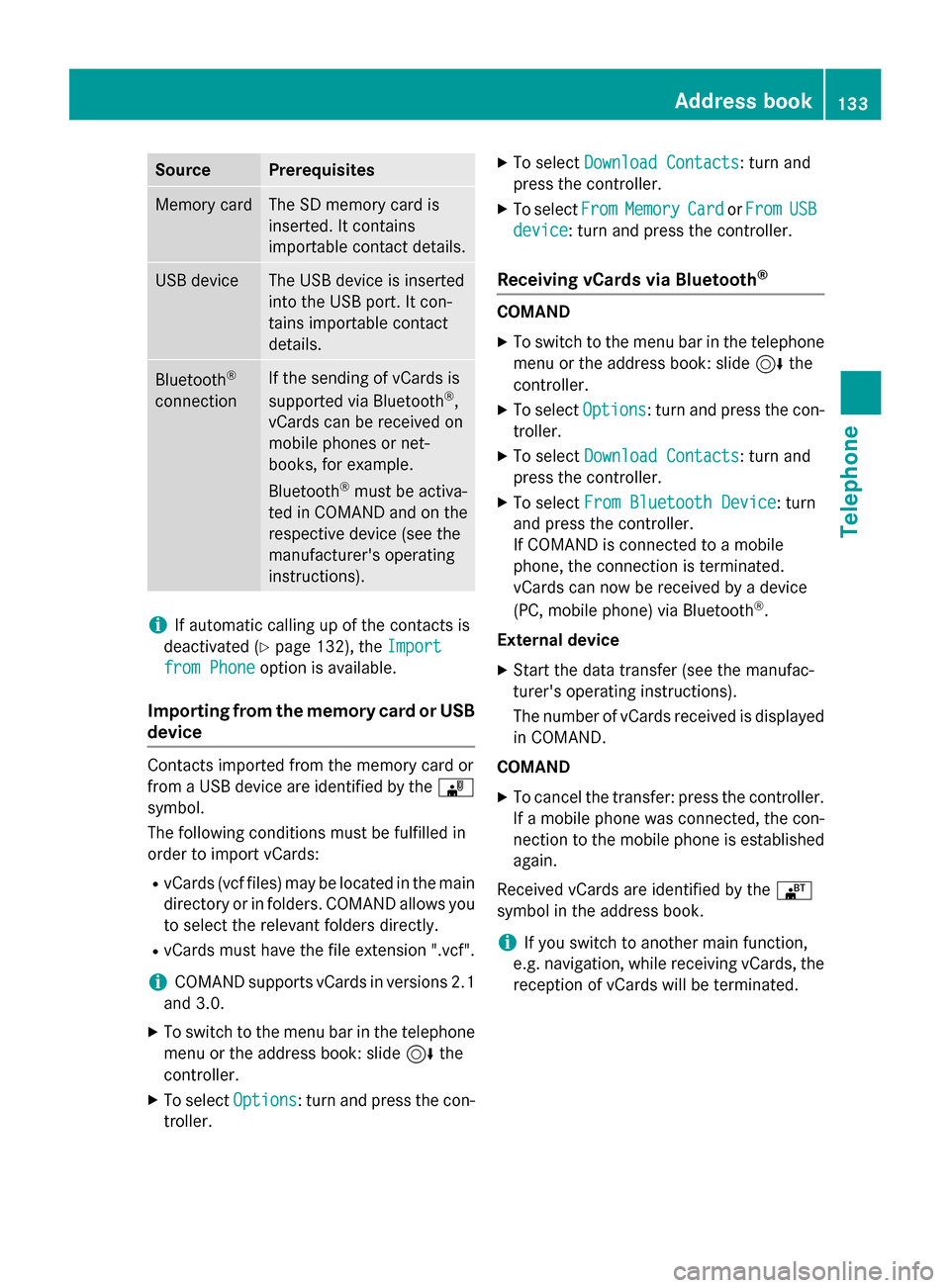
SourcePrerequisites
Memory cardThe SD memory card is
inserted. It contains
importable contact details.
USB deviceThe USB device is inserted
into the USB port. It con-
tains importable contact
details.
Bluetooth®
connection
If the sending of vCards is
supported via Bluetooth®,
vCards can be received on
mobile phones or net-
books, for example.
Bluetooth
®must be activa-
ted in COMAND and on the
respective device (see the
manufacturer's operating
instructions).
iIf automatic calling up of the contacts is
deactivated (
Ypage 132), the Import
from Phoneoption is available.
Importing from the memory card or USB
device
Contacts imported from the memory card or
from a USB device are identified by the ¯
symbol.
The following conditions must be fulfilled in
order to import vCards:
RvCards (vcf files) may be located in the main
directory or in folders. COMAND allows you
to select the relevant folders directly.
RvCards must have the file extension ".vcf".
iCOMAND supports vCards in versions 2.1
and 3.0.
XTo switch to the menu bar in the telephone menu or the address book: slide 6the
controller.
XTo select Options: turn and press the con-
troller.
XTo select Download Contacts: turn and
press the controller.
XTo select FromMemoryCardorFromUSB
device: turn and press the controller.
Receiving vCards via Bluetooth®
COMAND
XTo switch to the menu bar in the telephone
menu or the address book: slide 6the
controller.
XTo select Options: turn and press the con-
troller.
XTo select Download Contacts: turn and
press the controller.
XTo select From Bluetooth Device: turn
and press the controller.
If COMAND is connected to a mobile
phone, the connection is terminated.
vCards can now be received by a device
(PC, mobile phone) via Bluetooth
®.
External device
XStart the data transfer (see the manufac-
turer's operating instructions).
The number of vCards received is displayed in COMAND.
COMAND
XTo cancel the transfer: press the controller.
If a mobile phone was connected, the con-
nection to the mobile phone is established
again.
Received vCards are identified by the ®
symbol in the address book.
iIf you switch to another main function,
e.g. navigation, while receiving vCards, the
reception of vCards will be terminated.
Address book133
Telephone
Z
Page 142 of 226
Downloading text messages and e-mails
from th ephone
XSelec tFro mthe Phone.
The message sare downloaded. If you hav e
selected Automatic Download
in thee-
mail settings, manual downloading is no t
possible.
Updating from th ee-mail server by th e
mobile phone
XSelec tFro mthe E-Mail Server.
The e-mail sin th emobile phone are upda-
ted.
This function is no tsupported by all mobile
phones.
Reading messages
In th emessage menu
The message men ucontain sall th eunread
text message sand e-mails. If th ecorrespond-
in g folder is called up, th emessage sare dis-
played sorte dby text message sand e-mails.
XTo sho wthemain function bar: slid e5
th econtroller .
XTo select Phone:tur nand press th econ-
troller.
The telephon emen uis displayed.
XTo switch to th emen ubar: slid e6 the
controller .
XTo select1:turnand press th econtroller .
The message men uis displayed wit hth e
unread messages.
XTo select th emessage :tur nand press th e
controller .
The message text is displayed.
If you wan tto read message sthat hav e
already been read again ,you hav eto cal lup
th ecorrespondin gmessage folder
(
Ypage 140).
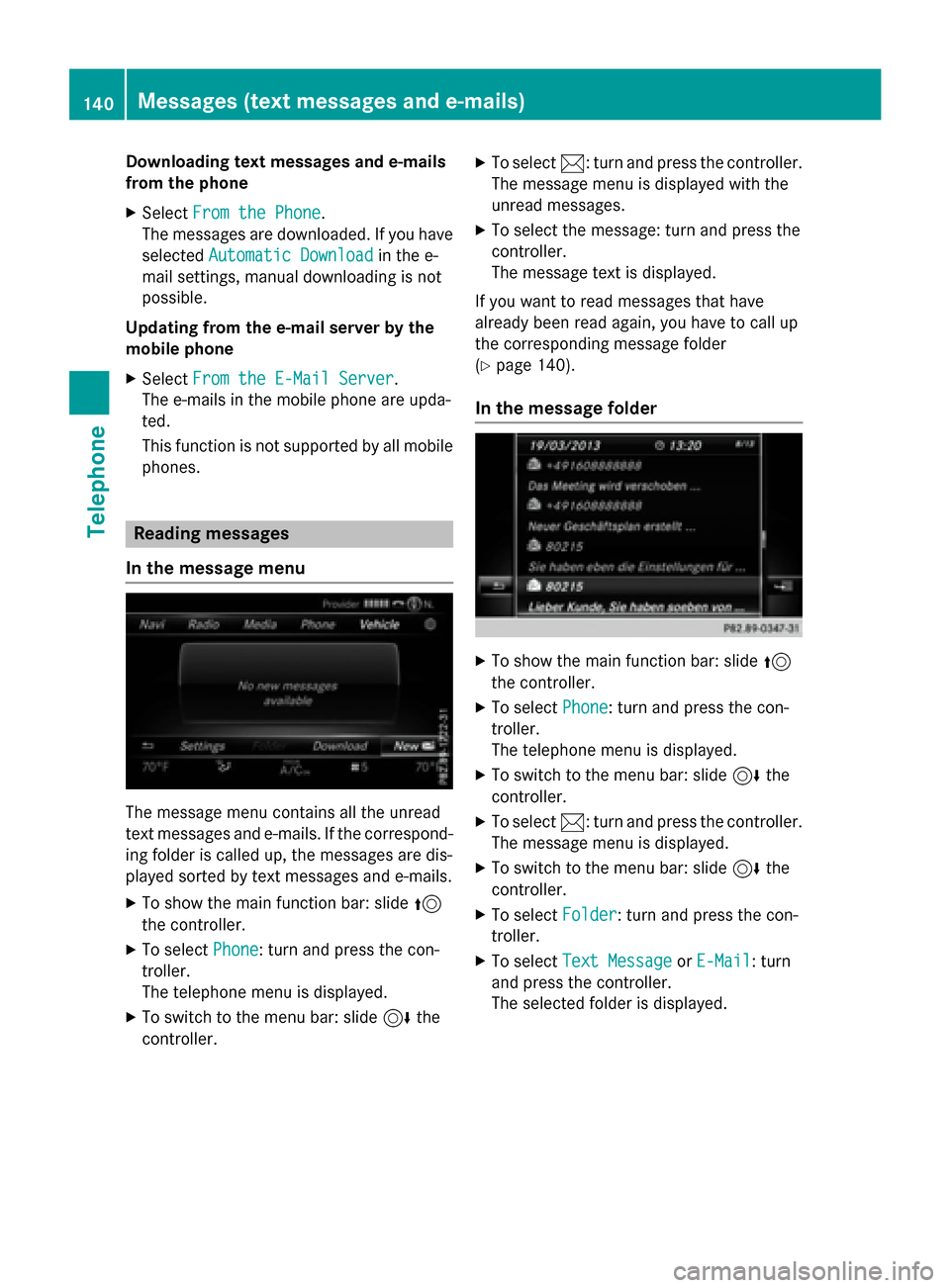
In th emessage folder
XTo sho wthemain function bar: slid e5
th econtroller .
XTo select Phone:tur nand press th econ-
troller.
The telephon emen uis displayed.
XTo switch to th emen ubar: slid e6 the
controller .
XTo select1:turnand press th econtroller .
The message men uis displayed.
XTo switch to th emen ubar: slid e6 the
controller .
XTo select Folder:tur nand press th econ-
troller.
XTo select TextMessag eorE-Mail:tur n
and press th econtroller .
The selected folder is displayed.
140Messages (text messages and e-mails)
Telephone