service MERCEDES-BENZ B-Class 2016 W246 Comand Manual
[x] Cancel search | Manufacturer: MERCEDES-BENZ, Model Year: 2016, Model line: B-Class, Model: MERCEDES-BENZ B-Class 2016 W246Pages: 246, PDF Size: 6.73 MB
Page 175 of 246
XTo selectOptionsin the radio menu bar:
turn and press the controller.
XTo select Service: turn and press the con-
troller.
The service information screen appears.
Once the telephone connection has been
established:
XFollow the instructions of the service staff.
The activation process may take up to
ten minutes. If the activation is completed
successfully, the Updating Channels...
message appears in the display, followed
by the satellite radio main menu.
iYou can also have the satellite service
activated online. To do so, visit the SIRIUS
XM Radio website at
http://www.siriusxm.com (USA) or
http://www.siriusxm.ca (Canada).
iIf registration is not included when pur-
chasing the system, your credit card details
will be required to activate your account.
If the satellite receiver is not installed cor-
rectly, the Device Unavailable
message
will appear.
Switching to satellite radio
XTo show the main function bar: slide 5
the controller.
XTo select Radio: turn and press the con-
troller.
The radio display appears. You will hear the
last station played on the last waveband
selected.
XTo select Radioin radio mode: slide 5
and press the controller.
The menu with the available radio modes
appears.
XTo select Sat Radio: turn and press the
controller.
The No Service
message appears if there is
no signal.
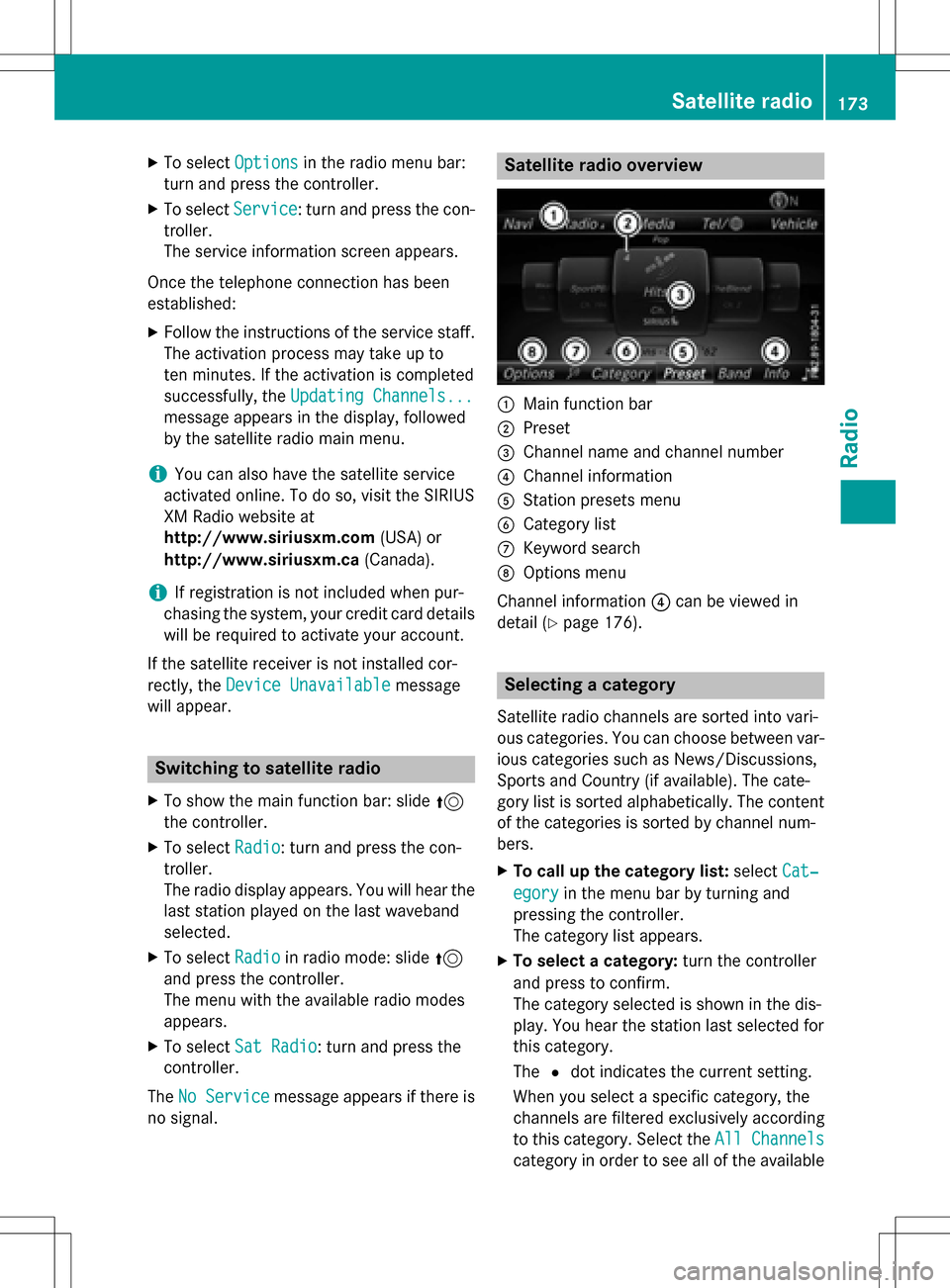
Satellite radio overview
:Main function bar
;Preset
=Channel name and channel number
?Channel information
AStation presets menu
BCategory list
CKeyword search
DOptions menu
Channel information ?can be viewed in
detail (
Ypage 176).
Selecting a category
Satellite radio channels are sorted into vari-
ous categories. You can choose between var-
ious categories such as News/Discussions,
Sports and Country (if available). The cate-
gory list is sorted alphabetically. The content
of the categories is sorted by channel num-
bers.
XTo call up the category list: selectCat‐
egoryin the menu bar by turning and
pressing the controller.
The category list appears.
XTo select a category: turn the controller
and press to confirm.
The category selected is shown in the dis-
play. You hear the station last selected for
this category.
The #dot indicates the current setting.
When you select a specific category, the
channels are filtered exclusively according
to this category. Select the All Channels
category in order to see all of the available
Satellite radio173
Radio
Page 179 of 246
XTo selectInfoin the radio menu bar: turn
and press the controller.
Information on the currently received pro-
gram is displayed.
If available, you will see:
Rthe channel logo
Rthe channel abbreviation
Rthe artist of the track that is currently being
played
Rthe track that is currently being played
RCategory
Rcomposer
XTo return to the radio display: select
Info
by sliding 6and pressing the con-
troller.
Displaying service information
The provider's customer service center is
available by phone at any time to answer any
general questions or questions on the ver-
sions available.
XTo select Optionsin the menu bar: turn
and press the controller.
XTo select Service: turn and press the con-
troller.
The SIRIUS XM ID of your satellite receiver and the telephone number of the provider
appear.
XTo return to the main display: press the
% button.
Channel list updates
During reception of a new channel list, the
Updating Channels...
message is shown.
The station last selected is switched to mute
until the update has been completed. Satel-
lite radio mode is not available during this
process.
Once the update has been completed, the
satellite radio basic menu appears. If the sta- tion previously selected is still available, it will
be played.
Sound settings
Information on sound settings (Ypage 208).
Satellite radio177
Radio