time setting MERCEDES-BENZ B-Class 2017 W246 Owner's Guide
[x] Cancel search | Manufacturer: MERCEDES-BENZ, Model Year: 2017, Model line: B-Class, Model: MERCEDES-BENZ B-Class 2017 W246Pages: 290, PDF Size: 19.81 MB
Page 139 of 290
Activation conditions
To activate cruise control, all of the following
activation conditions must be fulfilled:
R the electric parking brake must be released.
R ESP ®
must be active, but not intervening.
R the transmission must be in position D.
Storing, maintaining and calling up a
speed Storing and maintaining the current
speed
You can store the current speed if you are driv-
ing faster than 20 mph (30 km/h).
X Accelerate the vehicle to the desired speed.
X Briefly press the cruise control lever up 0043or
down 0044.
X Remove your foot from the accelerator pedal.
Cruise control is activated. The vehicle auto-
matically maintains the stored speed.
i Cruise control may be unable to maintain
the stored speed on uphill gradients. The
stored speed is resumed when the gradient
evens out. Cruise control maintains the
stored speed on downhill gradients by auto-
matically applying the brakes.
Storing the current speed or calling up the
last stored speed G
WARNING
If you call up the stored speed and it differs
from the current speed, the vehicle acceler-
ates or decelerates. If you do not know the
stored speed, the vehicle could accelerate or brake unexpectedly. There is a risk of an acci-
dent.
Pay attention to the road and traffic condi-
tions before calling up the stored speed. If you do not know the stored speed, store the
desired speed again.
X Briefly pull the cruise control lever towards
you 0085.
X Remove your foot from the accelerator pedal.
The first time cruise control is activated, it
stores the current speed or regulates the
speed of the vehicle to the previously stored
speed. Setting a speed Keep in mind that it may take a brief moment
until the vehicle has accelerated or braked to
the speed set.
X To adjust the set speed in10 km/hincre-
ments:briefly press cruise control lever
0043up
beyond the pressure point for a higher speed, or down 0044for a lower speed.
or X Keep the cruise control lever pressed beyond
the point of resistance until the desired speed is set. Press cruise control lever up 0043for a
higher speed or down 0044for a lower speed.
X To adjust the set speed in1 km/hincre-
ments:briefly press cruise control lever up
0043
to the pressure point for a higher speed or
down 0044for a lower speed.
or
X Keep the cruise control lever pressed to the
point of resistance until the desired speed is
set. Press cruise control lever up 0043for a
higher speed or down 0044for a lower speed.
i Cruise control is not deactivated if you
depress the accelerator pedal. For example, if
you accelerate briefly to overtake, cruise con-
trol adjusts the vehicle's speed to the last
speed stored after you have finished overtak-
ing.
Deactivating cruise control There are several ways to deactivate cruise con-
trol:
X Briefly press the cruise control lever forwards
0087.
or X Brake.
Cruise control is automatically deactivated if: R the vehicle is secured with the electric park-
ing brake
R you are driving at less than 20 mph (30 km/h)
R ESP ®
intervenes or you deactivate ESP ®
R you shift the transmission to position Nwhile
driving
If cruise control is deactivated, you will hear a
warning tone. You will see the Cruise Con‐
Cruise Con‐
trol Off trol Off message in the multifunction display
for approximately five seconds. Driving systems
137Driving and parking Z
Page 147 of 290
useful, for example when you recognize that it is
already possible to pull out of the parking space.
Canceling Parking Pilot X
Stop the movement of the multifunction
steering wheel or steer yourself.
Parking Pilot is canceled immediately. The
Parking
Parking Pilot PilotCanceled
Canceled message appears
in the multifunction display.
or
X Press the PARKTRONIC button (Y page 141).
Parking Assist PARKTRONIC is switched off
and Parking Pilot is immediately canceled.
The Parking Pilot Canceled
Parking Pilot Canceled message
appears in the multifunction display.
Parking Pilot is canceled automatically when: R the electric parking brake is engaged
R transmission position Pis selected
R parking using Parking Pilot is no longer pos-
sible
R you are driving faster than 6 mph (10 km/h)
R a wheel spins, ESP ®
intervenes or fails. In
such cases the 00E5warning lamp lights up in
the instrument cluster
A warning tone sounds. The parking symbol dis-
appears and the multifunction display shows the
Parking Pilot Canceled Parking Pilot Canceled message.
When Parking Pilot is canceled, you must steer
and brake again yourself.
If a system malfunction occurs, the vehicle is
braked to a standstill. To drive on, depress the
accelerator again. Rear view camera
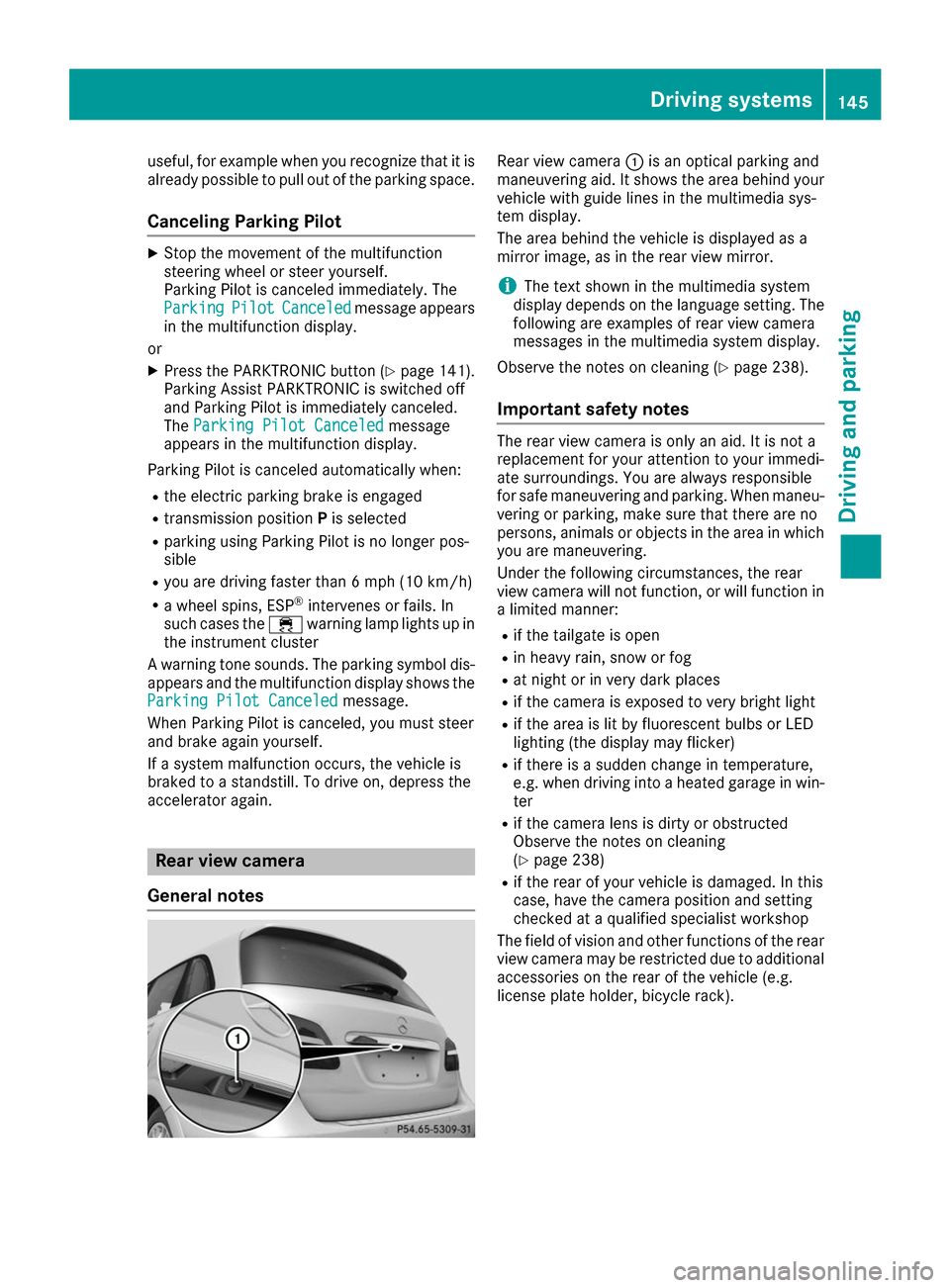
General notes Rear view camera
0043is an optical parking and
maneuvering aid. It shows the area behind your vehicle with guide lines in the multimedia sys-
tem display.
The area behind the vehicle is displayed as a
mirror image, as in the rear view mirror.
i The text shown in the multimedia system
display depends on the language setting. The following are examples of rear view camera
messages in the multimedia system display.
Observe the notes on cleaning (Y page 238).
Important safety notes The rear view camera is only an aid. It is not a
replacement for your attention to your immedi-
ate surroundings. You are always responsible
for safe maneuvering and parking. When maneu-
vering or parking, make sure that there are no
persons, animals or objects in the area in which you are maneuvering.
Under the following circumstances, the rear
view camera will not function, or will function in
a limited manner:
R if the tailgate is open
R in heavy rain, snow or fog
R at night or in very dark places
R if the camera is exposed to very bright light
R if the area is lit by fluorescent bulbs or LED
lighting (the display may flicker)
R if there is a sudden change in temperature,
e.g. when driving into a heated garage in win-
ter
R if the camera lens is dirty or obstructed
Observe the notes on cleaning
(Y page 238)
R if the rear of your vehicle is damaged. In this
case, have the camera position and setting
checked at a qualified specialist workshop
The field of vision and other functions of the rear
view camera may be restricted due to additional
accessories on the rear of the vehicle (e.g.
license plate holder, bicycle rack). Driving systems
145Driving and parking Z
Page 151 of 290
(200 km/h) range. If ATTENTION ASSIST
detects typical indicators of fatigue or increas-
ing lapses in concentration on the part of the
driver, it suggests taking a break.
Important safety notes ATTENTION ASSIST is only an aid to the driver. It
might not always recognize fatigue or increasing inattentiveness in time or fail to recognize them
at all. The system is not a substitute for a well-
rested and attentive driver.
The functionality of ATTENTION ASSIST is
restricted and warnings may be delayed or not
occur at all:
R if the length of the journey is less than approx-
imately 30 minutes
R if the road condition is poor, e.g. if the surface
is uneven or if there are potholes
R if there is a strong side wind
R if you have adopted a sporty driving style with
high cornering speeds or high rates of accel-
eration
R if you are predominantly driving slower than
37 mph (60 km/h) or faster than 125 mph
(200 km/ h)
R if the time has been set incorrectly
R in active driving situations, such as when you
change lanes or change your speed
ATTENTION ASSIST is reset when you continue
your journey and starts assessing your tiredness
again if:
R you switch off the engine
R you take off your seat belt and open the driv-
er's door, e.g. for a change of drivers or to
take a break
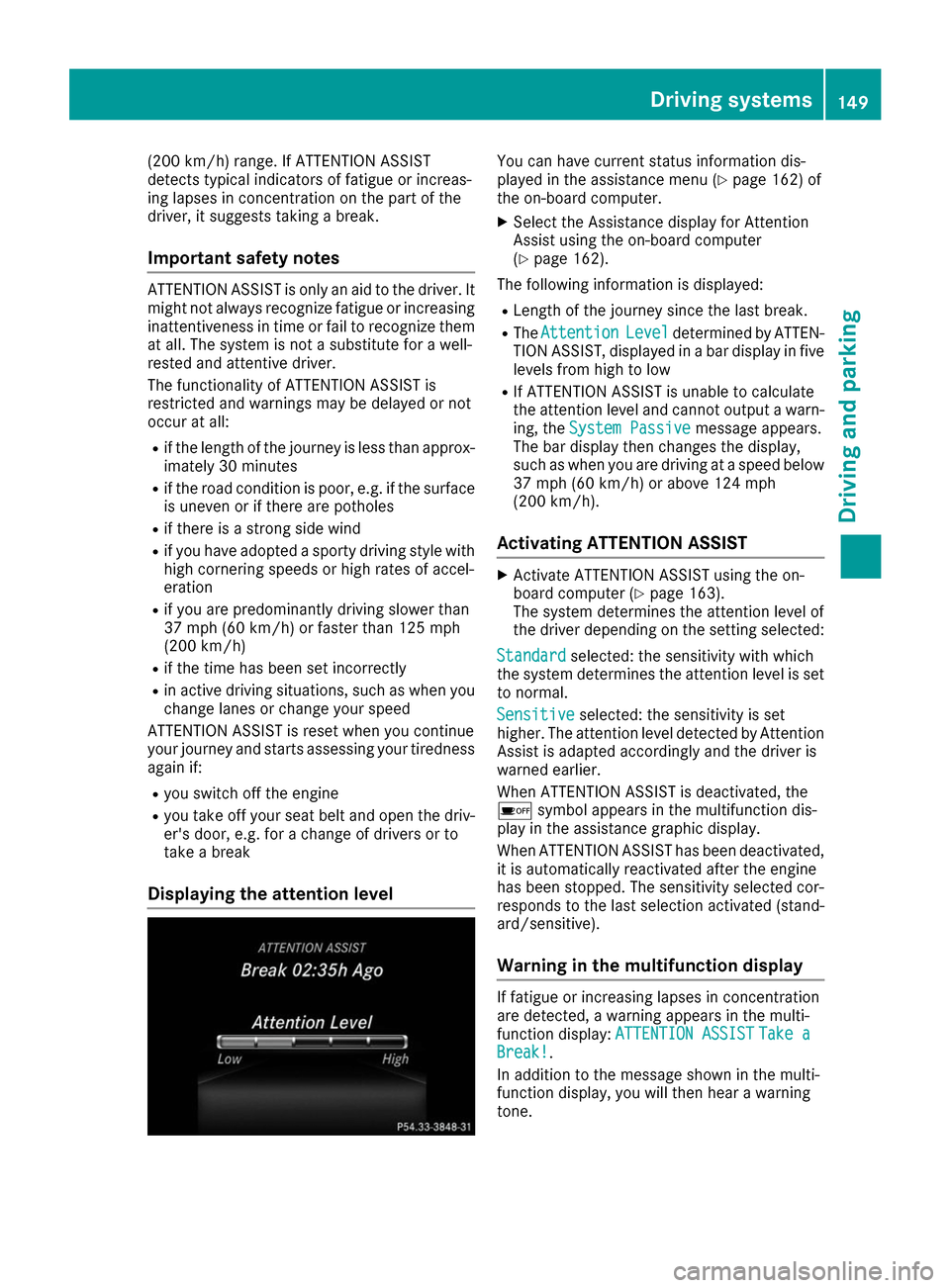
Displaying the attention level You can have current status information dis-
played in the assistance menu (Y
page 162) of
the on-board computer.
X Select the Assistance display for Attention
Assist using the on-board computer
(Y page 162).
The following information is displayed: R Length of the journey since the last break.
R The Attention Attention Level
Leveldetermined by ATTEN-
TION ASSIST, displayed in a bar display in five levels from high to low
R If ATTENTION ASSIST is unable to calculate
the attention level and cannot output a warn-
ing, the System Passive System Passive message appears.
The bar display then changes the display,
such as when you are driving at a speed below 37 mph (60 km/h) or above 124 mph
(200 km/h).
Activating ATTENTION ASSIST X
Activate ATTENTION ASSIST using the on-
board computer (Y page 163).
The system determines the attention level of
the driver depending on the setting selected:
Standard Standard selected: the sensitivity with which
the system determines the attention level is set to normal.
Sensitive
Sensitive selected: the sensitivity is set
higher. The attention level detected by Attention
Assist is adapted accordingly and the driver is
warned earlier.
When ATTENTION ASSIST is deactivated, the
00D7 symbol appears in the multifunction dis-
play in the assistance graphic display.
When ATTENTION ASSIST has been deactivated,
it is automatically reactivated after the engine
has been stopped. The sensitivity selected cor-
responds to the last selection activated (stand-
ard/sensitive).
Warning in the multifunction display If fatigue or increasing lapses in concentration
are detected, a warning appears in the multi-
function display:
ATTENTION ASSIST ATTENTION ASSIST Take a
Take a
Break!
Break!.
In addition to the message shown in the multi-
function display, you will then hear a warning
tone. Driving systems
149Driving and parking Z
Page 158 of 290
X
To display menu bar 0085: press the0059
or 0065 button on the steering wheel.
If you do not press the buttons any longer,
menu bar 0085is faded out after a few seconds.
Text field 0087shows the selected menu or sub-
menu as well as display messages.
i Set the time using the multimedia system;
see the separate operating instructions.
The following messages may appear in the
multifunction display:
R 005D Parking Pilot (Y page 142)
R CRUISE
CRUISE Cruise control (Y page 136)
R 00D9 HOLD function (Y page 138) Menus and submenus
Menu overview
Using the 0059or0065 button on the steering
wheel, open the menu bar.
Operating the on-board computer (Y page 154).
Depending on the equipment installed in the
vehicle, you can call up the following menus:
R Trip
Trip menu (Y page 156)
R Navi Navi menu (navigation instructions)
(Y page 158)
R Audio
Audio menu (Y page 160)
R Tel
Tel menu (telephone) (Y page 160)
R DriveAssist
DriveAssist menu (assistance)
(Y page 162)
R Serv.
Serv. menu (Y page 163)
R Sett.
Sett. menu (settings) (Y page 163)
The displays for the Audio
Audio,Navi
NaviandTel
Tel menus
may differ slightly to those in your vehicle.
The examples given in this Operator's Manual
apply to vehicles equipped with COMAND. Trip menu
Standard display X
Press and hold the 0038button on the steer-
ing wheel until the Trip Tripmenu with trip odom-
eter 0043and odometer 0044appears.
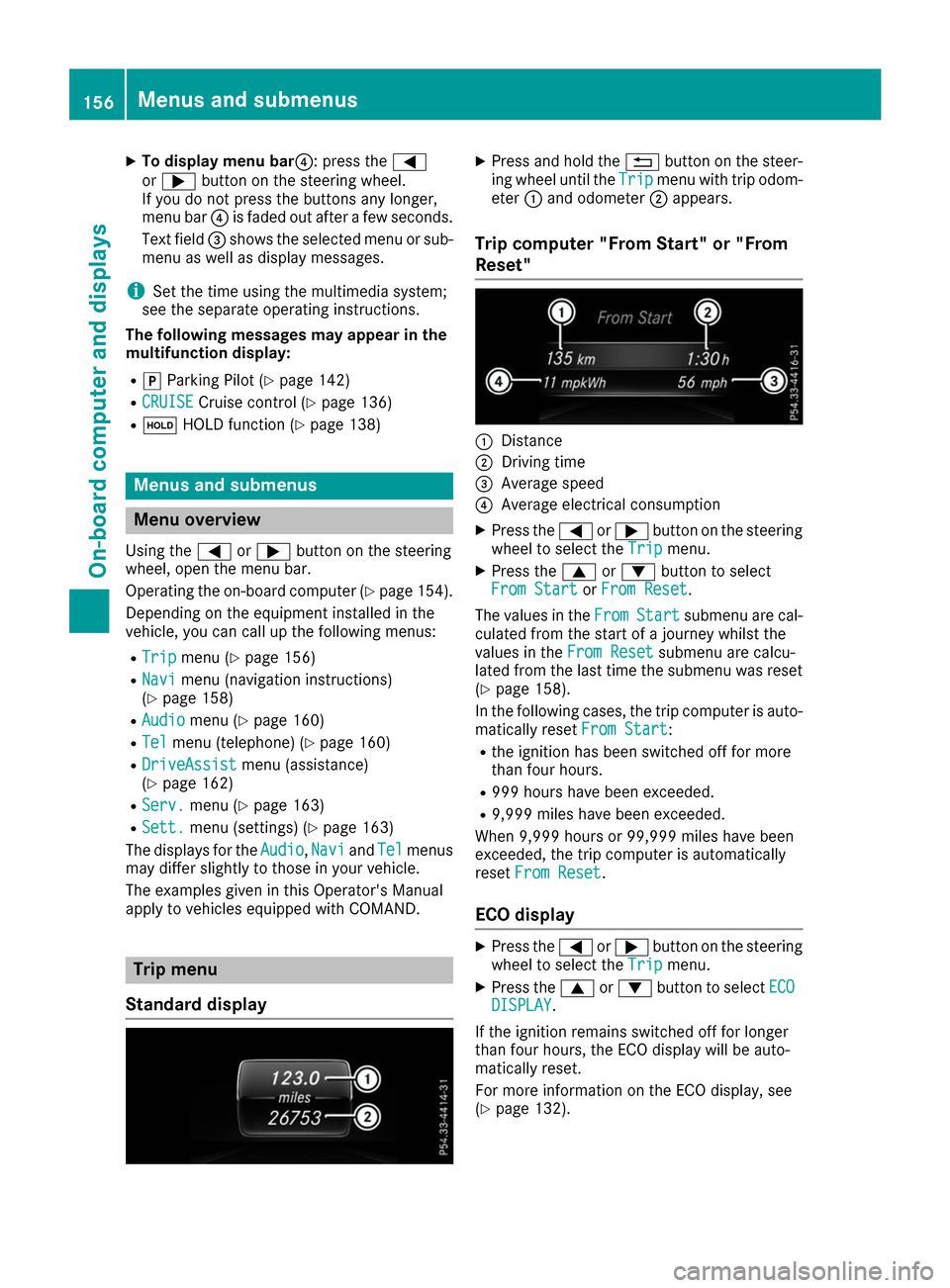
Trip computer "From Start" or "From
Reset" 0043
Distance
0044 Driving time
0087 Average speed
0085 Average electrical consumption
X Press the 0059or0065 button on the steering
wheel to select the Trip Tripmenu.
X Press the 0063or0064 button to select
From Start
From Start orFrom Reset
From Reset.
The values in the From
FromStart
Start submenu are cal-
culated from the start of a journey whilst the
values in the From Reset From Resetsubmenu are calcu-
lated from the last time the submenu was reset
(Y page 158).
In the following cases, the trip computer is auto-
matically reset From Start
From Start:
R the ignition has been switched off for more
than four hours.
R 999 hours have been exceeded.
R 9,999 miles have been exceeded.
When 9,999 hours or 99,999 miles have been
exceeded, the trip computer is automatically
reset From Reset From Reset.
ECO display X
Press the 0059or0065 button on the steering
wheel to select the Trip Tripmenu.
X Press the 0063or0064 button to select ECO ECO
DISPLAY
DISPLAY.
If the ignition remains switched off for longer
than four hours, the ECO display will be auto-
matically reset.
For more information on the ECO display, see
(Y page 132). 156
Menus and submenusOn-board computer and displays
Page 160 of 290
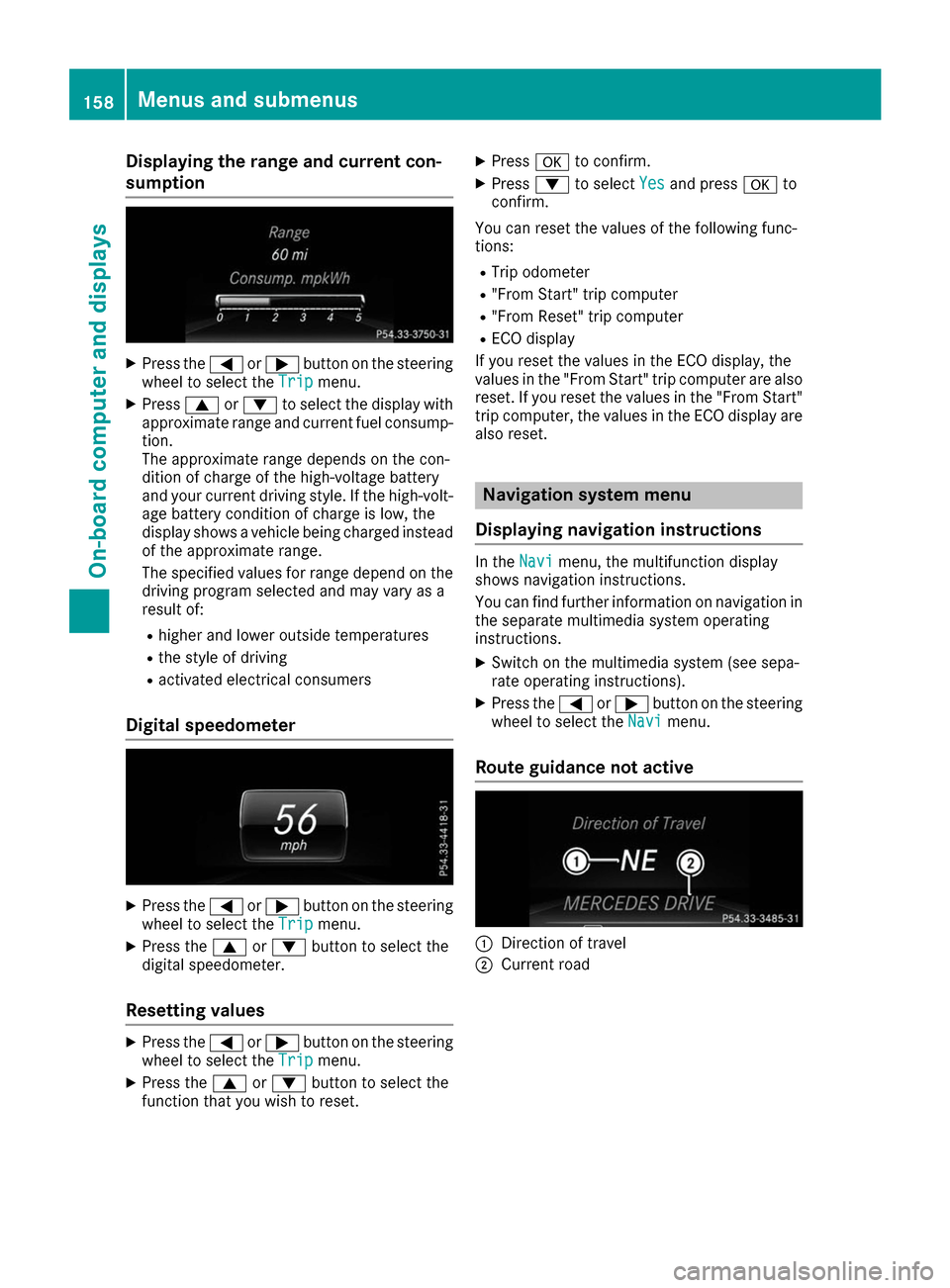
Displaying the range and current con-
sumption X
Press the 0059or0065 button on the steering
wheel to select the Trip
Tripmenu.
X Press 0063or0064 to select the display with
approximate range and current fuel consump-
tion.
The approximate range depends on the con-
dition of charge of the high-voltage battery
and your current driving style. If the high-volt-
age battery condition of charge is low, the
display shows a vehicle being charged instead
of the approximate range.
The specified values for range depend on the
driving program selected and may vary as a
result of:
R higher and lower outside temperatures
R the style of driving
R activated electrical consumers
Digital speedometer X
Press the 0059or0065 button on the steering
wheel to select the Trip Tripmenu.
X Press the 0063or0064 button to select the
digital speedometer.
Resetting values X
Press the 0059or0065 button on the steering
wheel to select the Trip
Tripmenu.
X Press the 0063or0064 button to select the
function that you wish to reset. X
Press 0076to confirm.
X Press 0064to select Yes Yesand press 0076to
confirm.
You can reset the values of the following func-
tions: R Trip odometer
R "From Start" trip computer
R "From Reset" trip computer
R ECO display
If you reset the values in the ECO display, the
values in the "From Start" trip computer are also
reset. If you reset the values in the "From Start" trip computer, the values in the ECO display arealso reset. Navigation system menu
Displaying navigation instructions In the
Navi Navimenu, the multifunction display
shows navigation instructions.
You can find further information on navigation in
the separate multimedia system operating
instructions.
X Switch on the multimedia system (see sepa-
rate operating instructions).
X Press the 0059or0065 button on the steering
wheel to select the Navi
Navi menu.
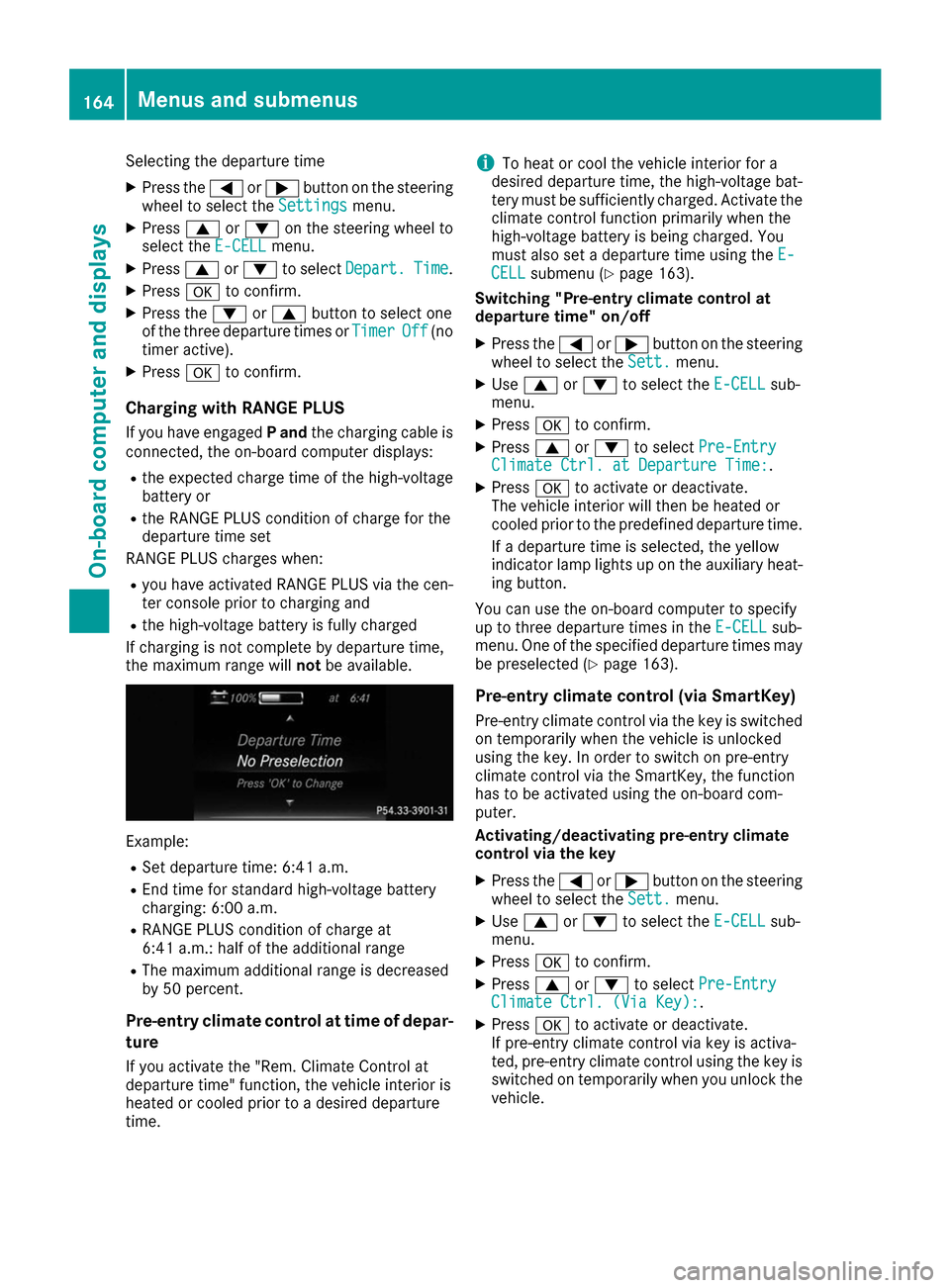
Route guidance not active 0043
Direction of travel
0044 Current road 158
Menus and submenusOn-boa
rdcompu ter and displays
Page 165 of 290
Activating/deactivating ATTENTION
ASSIST X
Press the 0059or0065 button on the steering
wheel to select the DriveAssist
DriveAssist menu.
X Press the 0063or0064 button to select
Attention Assist
Attention Assist .
X Press 0076to confirm.
The current selection appears.
X Press 0076to confirm.
X Press the 0064or0063 button to set Off
Off ,
Standard
Standard orSensitive
Sensitive .
X Press the 0076button to save the setting.
When ATTENTION ASSIST is deactivated, the
00D7 symbol appears in the multifunction dis-
play in the assistance graphics display.
For further information about ATTENTION
ASSIST, see (Y page 148).
Activating/deactivating Blind Spot
Assist X
Press the 0059or0065 button on the steering
wheel to select the DriveAssist DriveAssistmenu.
X Press the 0063or0064 button to select
Blind Spot Assist
Blind Spot Assist .
X Press 0076to confirm.
The current selection appears.
X To activate/deactivate: press the0076but-
ton again.
For further information about Blind Spot Assist, see (Y page 150). Service menu
Depending on the equipment installed in the
vehicle, you have the following options in the
Serv. Serv. menu:
R Calling up display messages in message
memory (Y page 167)
R Checking the tire pressure electronically
(Y page 263)
R Calling up the service due date
(Y page 233) Settings menu
Introduction Depending on the equipment installed in the
vehicle, you have the following options in the
Sett. Sett.
menu:
R Changing the E-CELL settings
R Changing the instrument cluster settings
R Changing the light settings
R Changing the vehicle settings
R Restoring the factory settings
E ‑CELL menu Departure time
In the E-CELL
E-CELL menu you can choose to cool
down or heat the vehicle interior for a prede-
fined departure time.
If you have engaged Pand the charging cable is
connected, the on-board computer displays:
R the expected charge time of the high-voltage
battery or
R the RANGE PLUS condition of charge for the
departure time set.
Changing the departure time
X Press the 0059or0065 button on the steering
wheel to select the Settings
Settings menu.
X Press 0063or0064 on the steering wheel to
select the E‑CELL E‑CELLmenu.
X Press 0063or0064 to select Depart.
Depart. Time
Time.
X Press 0076to confirm.
You will see the selected setting.
X Press the 0064or0063 button to select A
A, B
B
or Change C
Change C.
X Press 0076to confirm.
X Press 0059or0065 to select Depart.
Depart. Time
Time
Hours
Hours.
X Press the 0063or0064 button to set the
hour.
X Press 0059or0065 to select Depart.
Depart. Time
Time
Minutes
Minutes.
X Press 0063or0064 to set the minutes.
X Press 0076to confirm.
After changing from one menu to another, the departure time setting is stored. Menus and submenus
163On-board computer and displays Z
Page 166 of 290
Selecting the departure time
X Press the 0059or0065 button on the steering
wheel to select the Settings
Settings menu.
X Press 0063or0064 on the steering wheel to
select the E‑CELL
E‑CELLmenu.
X Press 0063or0064 to select Depart.
Depart. Time
Time.
X Press 0076to confirm.
X Press the 0064or0063 button to select one
of the three departure times or Timer
TimerOff
Off(no
timer active).
X Press 0076to confirm.
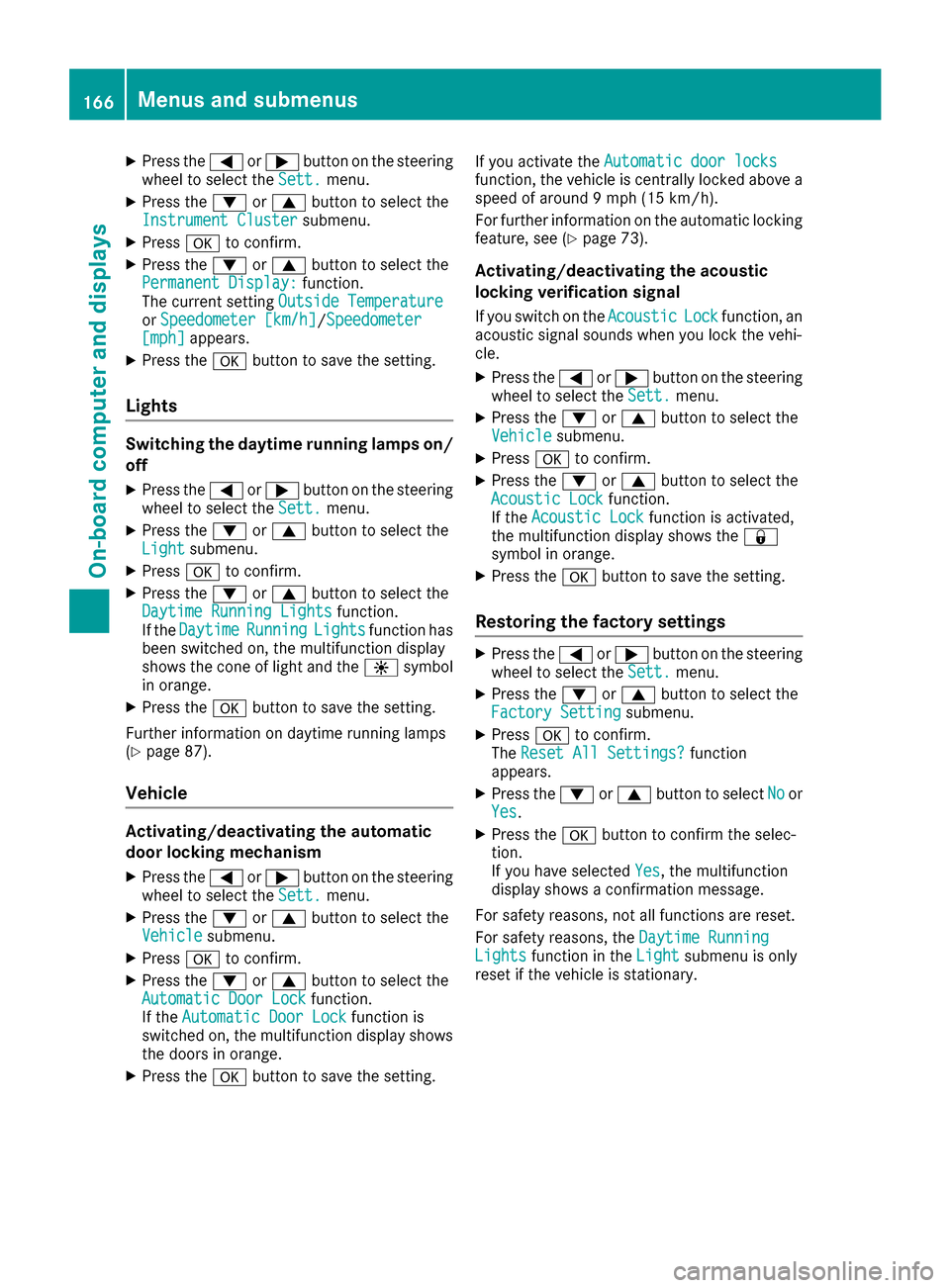
Charging with RANGE PLUS
If you have engaged Pand the charging cable is
connected, the on-board computer displays:
R the expected charge time of the high-voltage
battery or
R the RANGE PLUS condition of charge for the
departure time set
RANGE PLUS charges when:
R you have activated RANGE PLUS via the cen-
ter console prior to charging and
R the high-voltage battery is fully charged
If charging is not complete by departure time,
the maximum range will notbe available. Example:
R Set departure time: 6:41 a.m.
R End time for standard high-voltage battery
charging: 6:00 a.m.
R RANGE PLUS condition of charge at
6:41 a.m.: half of the additional range
R The maximum additional range is decreased
by 50 percent.
Pre-entry climate control at time of depar- ture
If you activate the "Rem. Climate Control at
departure time" function, the vehicle interior is
heated or cooled prior to a desired departure
time. i
To heat or cool the vehicle interior for a
desired departure time, the high-voltage bat-
tery must be sufficiently charged. Activate the
climate control function primarily when the
high-voltage battery is being charged. You
must also set a departure time using the E-
E-
CELL
CELL submenu (Y page 163).
Switching "Pre-entry climate control at
departure time" on/off
X Press the 0059or0065 button on the steering
wheel to select the Sett. Sett.menu.
X Use 0063 or0064 to select the E-CELL
E-CELLsub-
menu.
X Press 0076to confirm.
X Press 0063or0064 to select Pre-Entry
Pre-Entry
Climate Ctrl. at Departure Time:
Climate Ctrl. at Departure Time:.
X Press 0076to activate or deactivate.
The vehicle interior will then be heated or
cooled prior to the predefined departure time.
If a departure time is selected, the yellow
indicator lamp lights up on the auxiliary heat-
ing button.
You can use the on-board computer to specify
up to three departure times in the E-CELL E-CELLsub-
menu. One of the specified departure times may
be preselected (Y page 163).
Pre-entry climate control (via SmartKey)
Pre-entry climate control via the key is switched on temporarily when the vehicle is unlocked
using the key. In order to switch on pre-entry
climate control via the SmartKey, the function
has to be activated using the on-board com-
puter.
Activating/deactivating pre-entry climate
control via the key
X Press the 0059or0065 button on the steering
wheel to select the Sett. Sett.menu.
X Use 0063 or0064 to select the E-CELL
E-CELL sub-
menu.
X Press 0076to confirm.
X Press 0063or0064 to select Pre-Entry
Pre-Entry
Climate Ctrl. (Via Key):
Climate Ctrl. (Via Key):.
X Press 0076to activate or deactivate.
If pre-entry climate control via key is activa-
ted, pre-entry climate control using the key is switched on temporarily when you unlock thevehicle. 164
Menus and submenusOn-board computer and displays
Page 168 of 290
X
Press the 0059or0065 button on the steering
wheel to select the Sett.
Sett. menu.
X Press the 0064or0063 button to select the
Instrument Cluster
Instrument Cluster submenu.
X Press 0076to confirm.
X Press the 0064or0063 button to select the
Permanent Display:
Permanent Display: function.
The current setting Outside Temperature
Outside Temperature
or Speedometer [km/h]
Speedometer [km/h]/Speedometer Speedometer
[mph]
[mph] appears.
X Press the 0076button to save the setting.
Lights Switching the daytime running lamps on/
off
X Press the 0059or0065 button on the steering
wheel to select the Sett.
Sett. menu.
X Press the 0064or0063 button to select the
Light
Light submenu.
X Press 0076to confirm.
X Press the 0064or0063 button to select the
Daytime Running Lights
Daytime Running Lights function.
If the Daytime
Daytime Running
RunningLights
Lightsfunction has
been switched on, the multifunction display
shows the cone of light and the 0086symbol
in orange.
X Press the 0076button to save the setting.
Further information on daytime running lamps
(Y page 87).
Vehicle Activating/deactivating the automatic
door locking mechanism
X Press the 0059or0065 button on the steering
wheel to select the Sett.
Sett. menu.
X Press the 0064or0063 button to select the
Vehicle Vehicle submenu.
X Press 0076to confirm.
X Press the 0064or0063 button to select the
Automatic Door Lock
Automatic Door Lock function.
If the Automatic Door Lock
Automatic Door Lock function is
switched on, the multifunction display shows the doors in orange.
X Press the 0076button to save the setting. If you activate the
Automatic door locks
Automatic door locks
function, the vehicle is centrally locked above a
speed of around 9 mph (15 km/h).
For further information on the automatic locking feature, see (Y page 73).
Activating/deactivating the acoustic
locking verification signal If you switch on the Acoustic AcousticLock
Lockfunction, an
acoustic signal sounds when you lock the vehi-
cle.
X Press the 0059or0065 button on the steering
wheel to select the Sett. Sett.menu.
X Press the 0064or0063 button to select the
Vehicle
Vehicle submenu.
X Press 0076to confirm.
X Press the 0064or0063 button to select the
Acoustic Lock
Acoustic Lock function.
If the Acoustic Lock
Acoustic Lock function is activated,
the multifunction display shows the 0037
symbol in orange.
X Press the 0076button to save the setting.
Restoring the factory settings X
Press the 0059or0065 button on the steering
wheel to select the Sett.
Sett.menu.
X Press the 0064or0063 button to select the
Factory Setting
Factory Setting submenu.
X Press 0076to confirm.
The Reset All Settings?
Reset All Settings? function
appears.
X Press the 0064or0063 button to select No
Noor
Yes
Yes.
X Press the 0076button to confirm the selec-
tion.
If you have selected Yes Yes, the multifunction
display shows a confirmation message.
For safety reasons, not all functions are reset.
For safety reasons, the Daytime Running Daytime Running
Lights
Lights function in the Light
Lightsubmenu is only
reset if the vehicle is stationary. 166
Menus and submenusOn-board computer and displays
Page 204 of 290
Operating system
Overview
General notes !
Do not use the space in front of the display
for storage. Objects placed here could dam-
age the display or impair its function. Avoid
any direct contact with the display surface.
Pressure on the display surface may result in
impairments to the display, which could be
irreversible.
Wearing polarized sunglasses may impair your
ability to read the display.
The display has an automatic temperature-con- trolled switch-off feature. The brightness is
automatically reduced if the temperature is too
high. The display may temporarily switch off
completely.
Cleaning instructions !
Do not touch the display. The display has a
very sensitive high-gloss surface; there is a
risk of scratching. If you have to clean the
screen, however, use a mild cleaning agent
and a soft, lint-free cloth.
The display must be switched off and have
cooled down before you start cleaning. Do not
apply pressure to the display surface when
cleaning it, as this could cause irreversible dam-
age to the display.
Switching the multimedia system
on/off X
Press the 0043control knob.
Adjusting the volume X
Turn the 0043control knob.
The volume is adjusted:
R for the currently selected media source
R during traffic or navigation announcements
R in hands-free mode during a phone call
Switching the sound on or off X
Press the 0063button on the control panel.
If the audio output is switched off, the status
line will show the 0063symbol. If you switch the media source or set the volume, the sound
is automatically switched on.
i Navigation announcements will be heard
even if the sound is muted.
Functions The multimedia system has the following func-
tions:
R Radio mode
R Media mode with media search
R Sound systems
R Navigation system
COMAND: navigation via the hard drive
Audio 20: navigation via SD card
R Communication functions
R SIRIUS Weather (COMAND)
R Vehicle functions with system settings
R Favorites functions
Controller The controller in the center console lets you:
R select menu items on the display
R enter characters
R select a destination on the map
R save entries
The controller can be:
R turned 3
R slid left or right 1
R slid forwards or back 4
R slid diagonally 2
R pressed briefly or pressed and held 7
Back button You can use the
0038button to exit a menu or to
call up the basic display of the current operating mode.
X To exit the menu: briefly press the0038
button.
The multimedia system changes to the next
higher menu level in the current operating
mode.
X To call up the basic display: press the0038
button for longer than two seconds.
The multimedia system changes to the basic
display of the current operating mode. 202
Operating systemMultimedia system
Page 205 of 290
Favorites
Calling up and exiting favorites X
To call up: press the007Dbutton on the con-
troller.
X Select a favorite, e.g. Vehicle
Vehicle.
The favorites are displayed.
X To exit: press the 007Dbutton again.
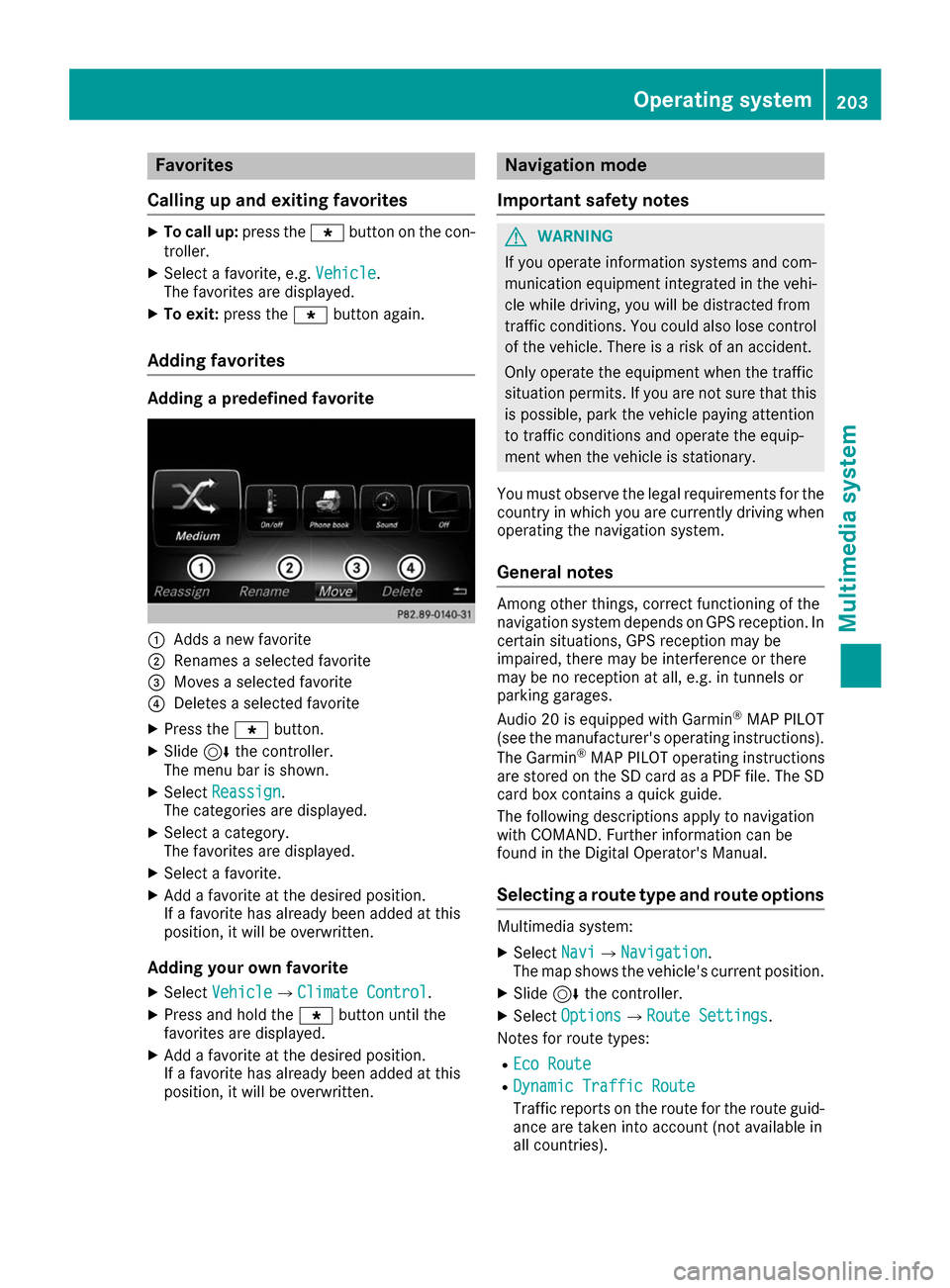
Adding favorites Adding a predefined favorite
0043
Adds a new favorite
0044 Renames a selected favorite
0087 Moves a selected favorite
0085 Deletes a selected favorite
X Press the 007Dbutton.
X Slide 6the controller.
The menu bar is shown.
X Select Reassign
Reassign.
The categories are displayed.
X Select a category.
The favorites are displayed.
X Select a favorite.
X Add a favorite at the desired position.
If a favorite has already been added at this
position, it will be overwritten.
Adding your own favorite
X Select Vehicle
Vehicle007BClimate Control Climate Control.
X Press and hold the 007Dbutton until the
favorites are displayed.
X Add a favorite at the desired position.
If a favorite has already been added at this
position, it will be overwritten. Navigation mode
Important safety notes G
WARNING
If you operate information systems and com-
munication equipment integrated in the vehi- cle while driving, you will be distracted from
traffic conditions. You could also lose control of the vehicle. There is a risk of an accident.
Only operate the equipment when the traffic
situation permits. If you are not sure that this
is possible, park the vehicle paying attention
to traffic conditions and operate the equip-
ment when the vehicle is stationary.
You must observe the legal requirements for the country in which you are currently driving whenoperating the navigation system.
General notes Among other things, correct functioning of the
navigation system depends on GPS reception. In
certain situations, GPS reception may be
impaired, there may be interference or there
may be no reception at all, e.g. in tunnels or
parking garages.
Audio 20 is equipped with Garmin ®
MAP PILOT
(see the manufacturer's operating instructions).
The Garmin ®
MAP PILOT operating instructions
are stored on the SD card as a PDF file. The SD
card box contains a quick guide.
The following descriptions apply to navigation
with COMAND. Further information can be
found in the Digital Operator's Manual.
Selecting a route type and route options Multimedia system:
X Select Navi
Navi007BNavigation Navigation.
The map shows the vehicle's current position.
X Slide 6the controller.
X Select Options
Options007BRoute Settings Route Settings.
Notes for route types:
R Eco Route Eco Route
R Dynamic Traffic Route
Dynamic Traffic Route
Traffic reports on the route for the route guid-
ance are taken into account (not available in
all countries). Operating system
203Multimedia system Z