audio MERCEDES-BENZ B-CLASS HATCHBACK 2011 User Guide
[x] Cancel search | Manufacturer: MERCEDES-BENZ, Model Year: 2011, Model line: B-CLASS HATCHBACK, Model: MERCEDES-BENZ B-CLASS HATCHBACK 2011Pages: 329, PDF Size: 7.91 MB
Page 182 of 329
Indicator and warning display
G
WARNING
Blind Spo tAssist is not active at speeds below
30 km/h. The indicator lamps in the exterior
mirrors are yellow. Vehicles in the monitoring
range are then not indicated.
Always pay attention to traffic conditions and
your surroundings. Otherwise, you may fail to
recognise dangers in time, cause an accident
and injure yourselfa nd others. :
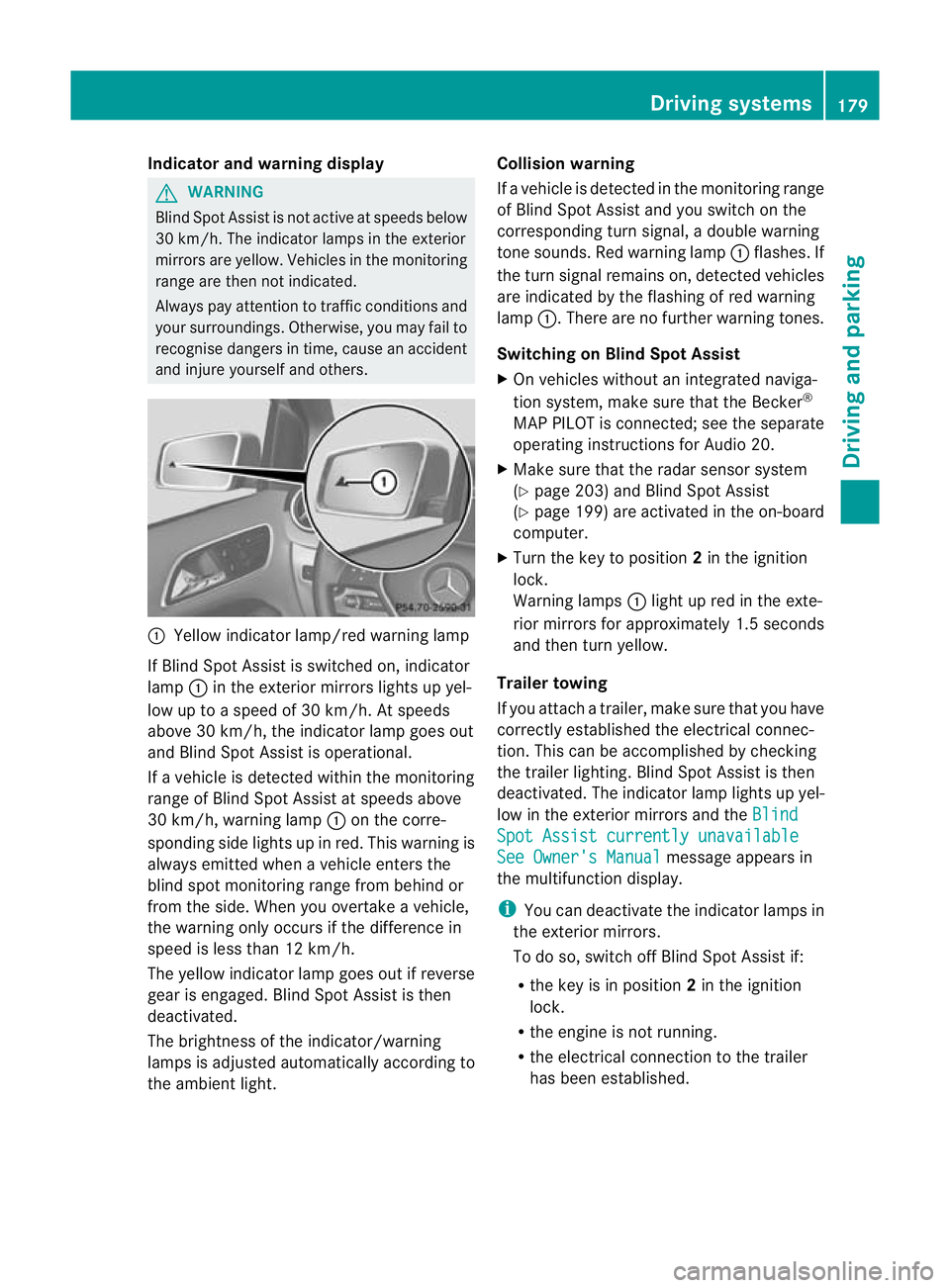
Yellow indicator lamp/red warning lamp
If Blind Spo tAssist is switched on, indicator
lamp :in the exterior mirrors lights up yel-
low up to a speed of 30 km/h. At speeds
above 30 km/h, the indicator lamp goes out
and Blind Spot Assist is operational.
If a vehicle is detected within the monitoring
range of Blind Spot Assist at speeds above
30 km/h, warning lamp :on the corre-
sponding side lights up in red. This warning is
always emitted when a vehicle enters the
blind spot monitoring range from behind or
from the side. When you overtake a vehicle,
the warning only occurs if the difference in
speed is less than 12 km/h.
The yellow indicator lamp goes out if reverse
gear is engaged. Blind Spot Assist is then
deactivated.
The brightness of the indicator/warning
lamps is adjusted automatically according to
the ambient light. Collision warning
If a vehicle is detected in the monitoring range
of Blind Spot Assist and you switch on the
corresponding turn signal, a double warning
tone sounds. Red warning lamp
:flashes. If
the turn signal remains on, detected vehicles
are indicated by the flashing of red warning
lamp :.There are no further warning tones.
Switching on Blind Spot Assist
X On vehicles without an integrated naviga-
tion system, make sure that the Becker ®
MAP PILOT is connected; see the separate
operating instructions for Audio 20.
X Make sure that the radar sensor system
(Y page 203) and Blind Spot Assist
(Y page 199) are activated in the on-board
computer.
X Turn the key to position 2in the ignition
lock.
Warning lamps :light up red in the exte-
rior mirrors for approximately 1.5 seconds
and then turn yellow.
Trailer towing
If you attach a trailer, make sure that you have
correctly established the electrical connec-
tion. This can be accomplished by checking
the trailer lighting. Blind Spot Assist is then
deactivated. The indicator lamp lights up yel-
low in the exterior mirrors and the Blind Spot Assist currently unavailable
See Owner's Manual message appears in
the multifunction display.
i You can deactivate the indicator lamps in
the exterior mirrors.
To do so, switch off Blind Spot Assist if:
R the key is in position 2in the ignition
lock.
R the engine is not running.
R the electrical connection to the trailer
has been established. Driving systems
179Driving and parking Z
Page 193 of 329
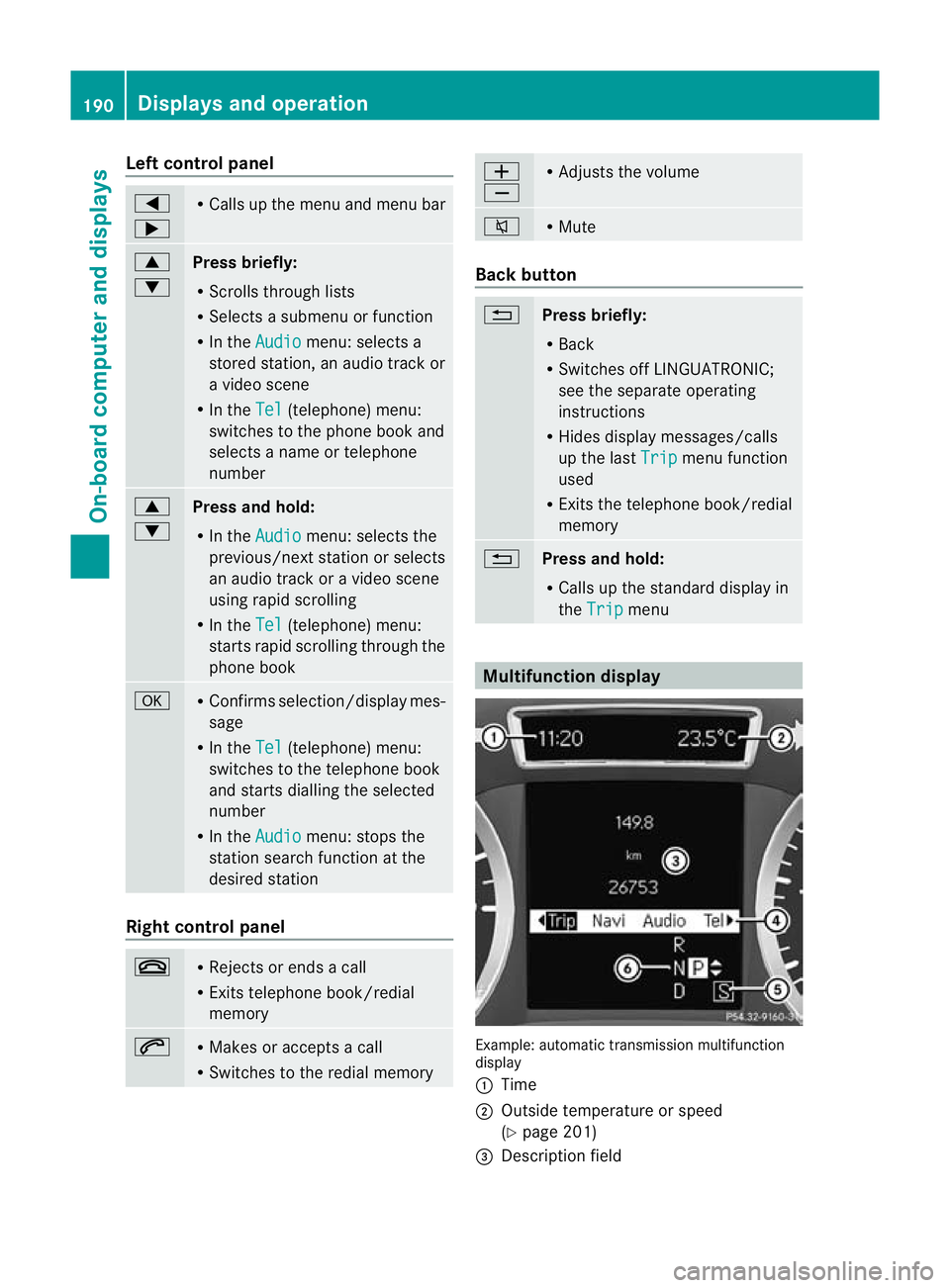
Left control panel
=
; R
Calls up the menu and menu bar 9
:
Press briefly:
R
Scrolls through lists
R Selects a submenu or function
R In the Audio menu: selects a
stored station, an audio track or
a video scene
R In the Tel (telephone) menu:
switches to the phone book and
selects a name or telephone
number 9
:
Press and hold:
R
In the Audio menu: selects the
previous/nex tstation or selects
an audio track or a video scene
using rapid scrolling
R In the Tel (telephone) menu:
starts rapid scrolling through the
phone book a R
Confirms selection/display mes-
sage
R In the Tel (telephone) menu:
switches to the telephone book
and starts dialling the selected
number
R In the Audio menu: stops the
station search function at the
desired station Right control panel
~ R
Rejects or ends a call
R Exits telephone book/redial
memory 6 R
Makes or accepts a call
R Switches to the redial memory W
X R
Adjusts the volume 8 R
Mute Back button
%
Press briefly:
R
Back
R Switches off LINGUATRONIC;
see the separate operating
instructions
R Hides display messages/calls
up the last Trip menu function
used
R Exits the telephone book/redial
memory %
Press and hold:
R
Calls up the standard display in
the Trip menu
Multifunction display
Example: automatic transmission multifunction
display
:
Time
; Outside temperature or speed
(Ypage 201)
= Description field 190
Displays and operationOn-boa
rdcompu ter and displays
Page 194 of 329
?
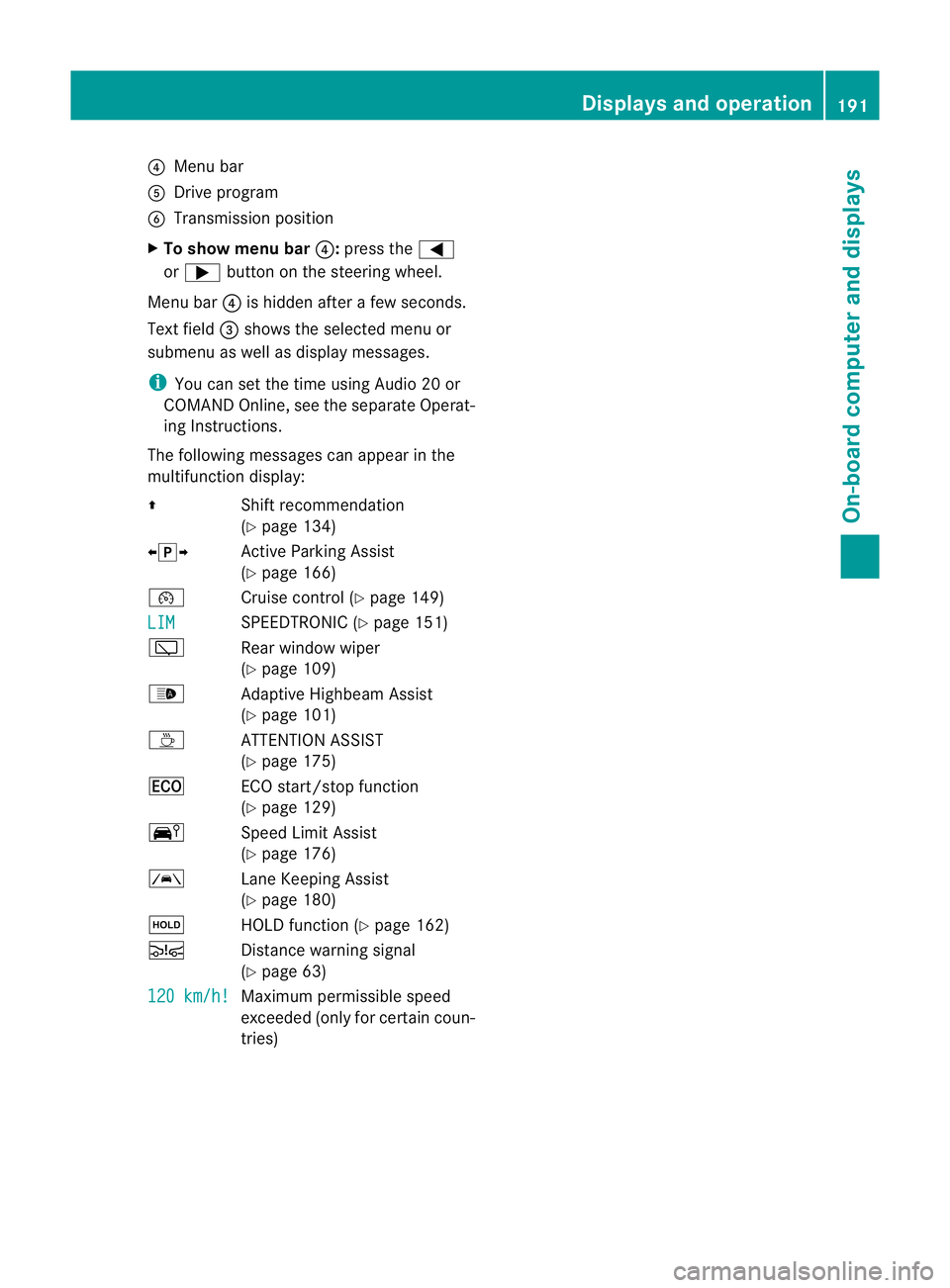
Menu bar
A Drive program
B Transmission position
X To show menu bar ?:press the =
or ; button on the steering wheel.
Menu bar ?is hidden after a few seconds.
Text field =shows the selected menu or
submenu as well as display messages.
i You can set the time using Audio 20 or
COMAND Online, see the separate Operat-
ing Instructions.
The following messages can appearint he
multifunction display:
Z Shift recommendation
(Ypage 134)
XjY Active Parking Assist
(Ypage 166)
¯ Cruise control (Y page 149)
LIM SPEEDTRONIC (Y
page 151)
è Rear window wiper
(Ypage 109)
_ Adaptive Highbeam Assist
(Ypage 101)
À ATTENTION ASSIST
(Ypage 175)
¤ ECO start/stop function
(Ypage 129)
Ä Speed Limit Assist
(Ypage 176)
à Lane Keeping Assist
(Ypage 180)
ë HOLD function (Y page 162)
Ä Distance warning signal
(Ypage 63)
120 km/h! Maximum permissible speed
exceeded (only for certain coun-
tries) Displays and operation
191On-board computer and displays Z
Page 195 of 329
Menus and submenus
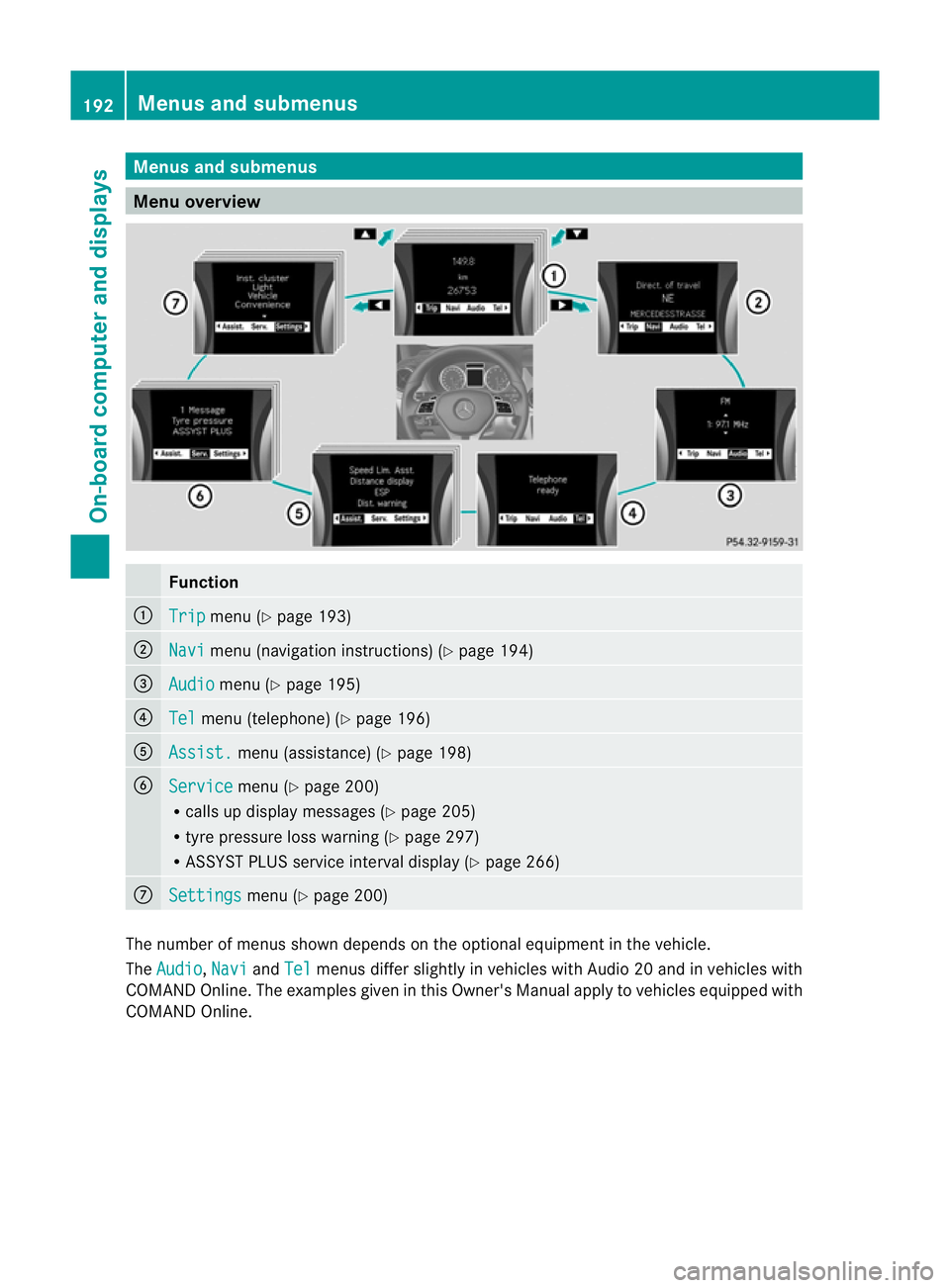
Menu overview
Function
:
Trip menu (Y
page 193) ;
Navi menu (navigatio
ninstructions) (Y page 194) =
Audio menu (Y
page 195) ?
Tel menu (telephone) (Y
page 196)A
Assist. menu (assistance) (Y
page 198)B
Service menu (Y
page 200)
R calls up display messages (Y page 205)
R tyre pressure loss warning (Y page 297)
R ASSYST PLUS service interval display (Y page 266)C
Settings menu (Y
page 200) The numbe
rofmenus shown depends on the optional equipment in the vehicle.
The Audio ,
Navi and
Tel menus differ slightly in vehicles with Audio 20 and in vehicles with
COMAND Online. The examples given in this Owner's Manual apply to vehicles equipped with
COMAND Online. 192
Menus and submenusOn-board computer and displays
Page 197 of 329
i
If the gearshift recommendation is shown
in the multifunction display, it is not shown
in the status bar.
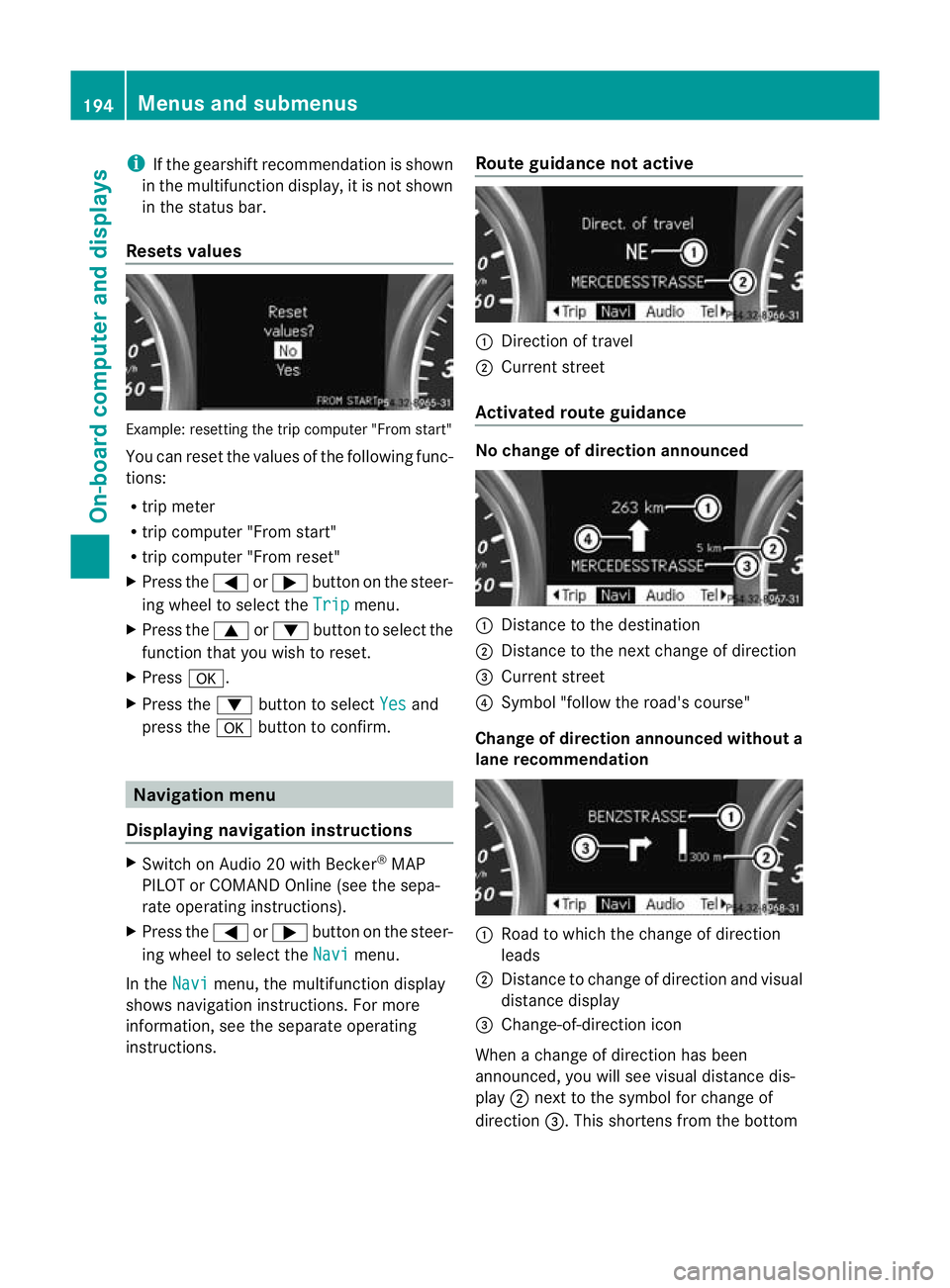
Resets values Example: resetting the trip computer "From start"
You can reset the values of the following func-
tions:
R
trip meter
R trip computer "From start"
R trip computer "From reset"
X Press the =or; button on the steer-
ing wheel to select the Trip menu.
X Press the 9or: button to select the
function that you wish to reset.
X Press a.
X Press the :button to select Yes and
press the abutton to confirm. Navigation menu
Displaying navigation instructions X
Switch on Audio 20 with Becker ®
MAP
PILOT or COMAND Online (see the sepa-
rate operating instructions).
X Press the =or; button on the steer-
ing wheel to select the Navi menu.
In the Navi menu, the multifunction display
shows navigation instructions. For more
information, see the separate operating
instructions. Route guidance not active :
Direction of travel
; Current street
Activated route guidance No change of direction announced
:
Distance to the destination
; Distance to the next change of direction
= Current street
? Symbol "follow the road's course"
Change of direction announced without a
lane recommendation :
Road to which the change of direction
leads
; Distance to change of direction and visual
distance display
= Change-of-direction icon
When a change of direction has been
announced, you will see visuald istance dis-
play ;next to the symbol for change of
direction =.This shortens from the bottom 194
Menus and submenusOn-board computer and displays
Page 198 of 329
to the top of the display as you approach the
point of the announced change of direction.
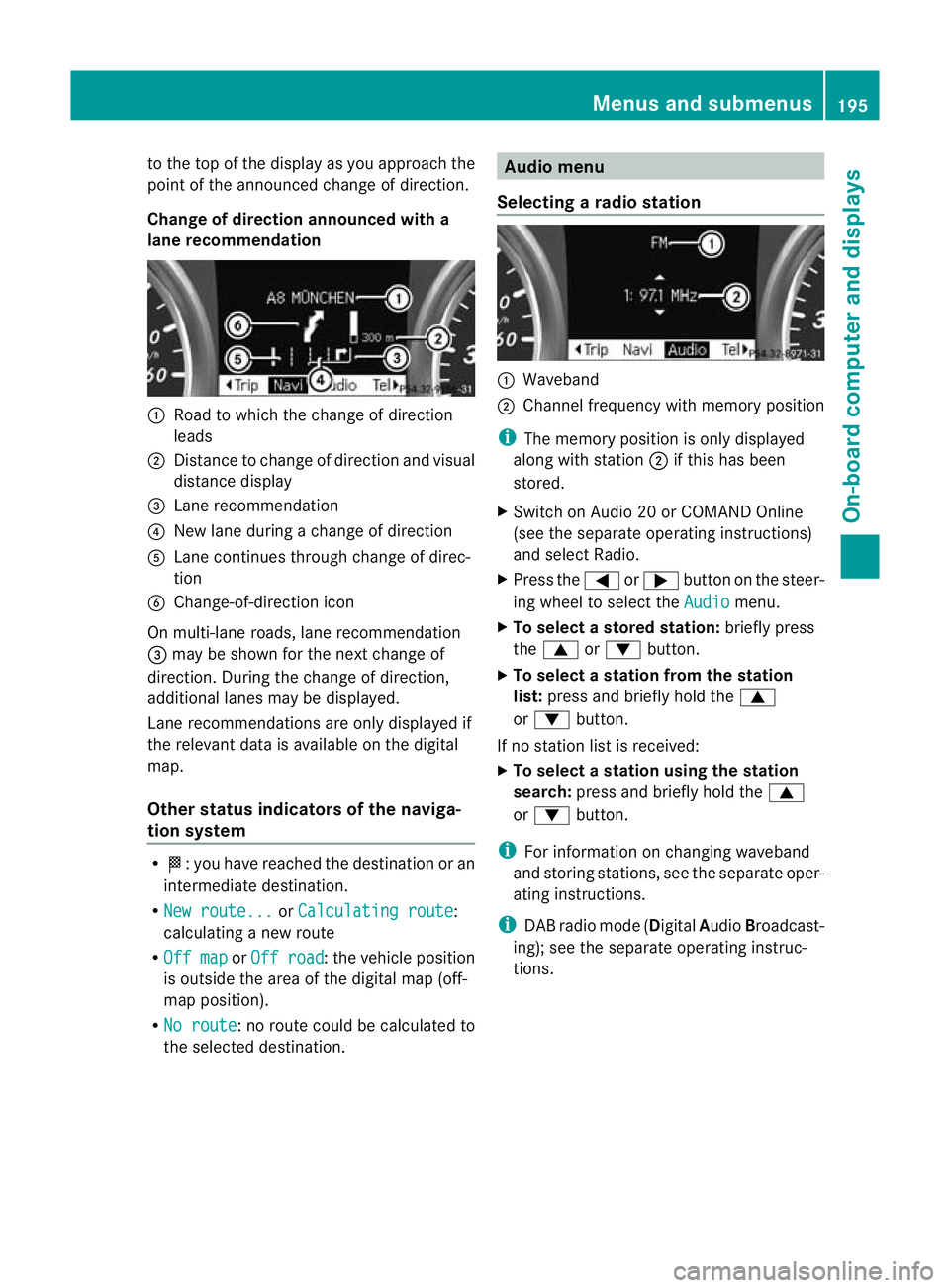
Change of direction announced with a
lane recommendation :
Road to which the change of direction
leads
; Distance to change of directio nand visual
distance display
= Lane recommendation
? New lane during a change of direction
A Lane continues through change of direc-
tion
B Change-of-direction icon
On multi-lane roads, lane recommendation
= may be shown for the next change of
direction. During the change of direction,
additional lanes may be displayed.
Lane recommendations are only displayed if
the relevant data is availabl eonthe digital
map.
Other status indicators of the naviga-
tion system R
O:y ou have reached the destination or an
intermediate destination.
R New route... or
Calculating route :
calculating a new route
R Off map or
Off road :t
he vehicle position
is outside the area of the digital map (off-
map position).
R No route :n
o route could be calculated to
the selected destination. Audio menu
Selecting aradio station :
Waveband
; Channel frequency with memory position
i The memory position is only displayed
along with station ;if this has been
stored.
X Switch on Audio 20 or COMAND Online
(see the separate operating instructions)
and select Radio.
X Press the =or; button on the steer-
ing wheel to select the Audio menu.
X To selectas toredstation: briefly press
the 9 or: button.
X To select a station from the station
list: press and briefly hold the 9
or : button.
If no statio nlist is received:
X To select astation using the station
search: press and briefly hold the 9
or : button.
i For information on changing waveband
and storing stations, see the separate oper-
ating instructions.
i DAB radio mode ( DigitalAudioBroadcast-
ing); see the separate operating instruc-
tions. Menus and submenus
195On-board computer and displays Z
Page 199 of 329
Audio player or audio media operation
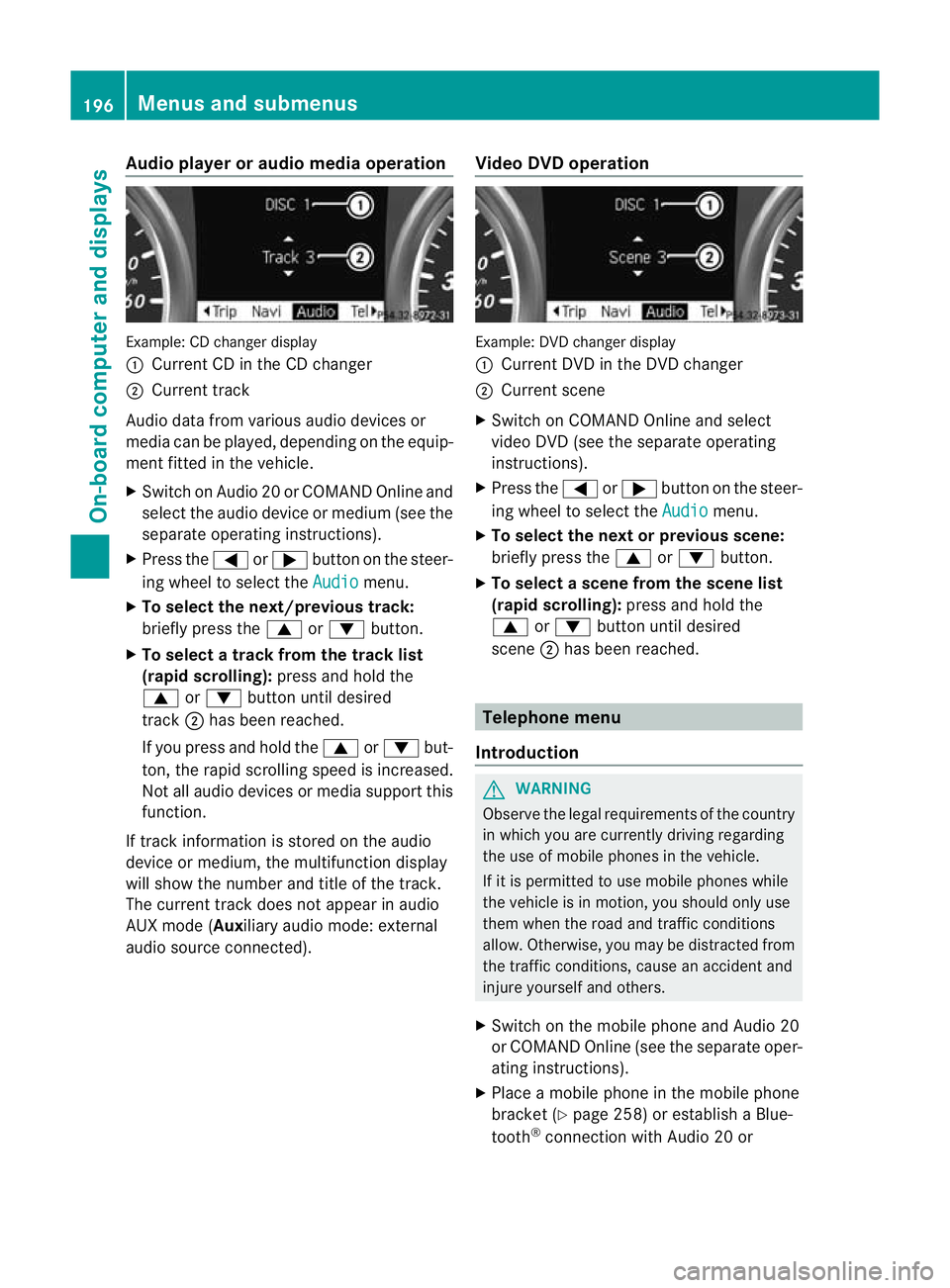
Example: CD changer display
: Current CD in the CD changer
; Current track
Audio data from various audio devices or
media can be played, depending on the equip-
ment fitted in the vehicle.
X Switch on Audio 20 or COMAND Online and
select the audio device or medium (see the
separate operating instructions).
X Press the =or; buttononthe steer-
ing wheel to select the Audio menu.
X To selectt he next/previous track:
briefly press the 9or: button.
X To select a track from the track list
(rapid scrolling): press and hold the
9 or: button until desired
track ;has been reached.
If you press and hold the 9or: but-
ton, the rapid scrolling speed is increased.
Not all audio devices or media support this
function.
If track information is stored on the audio
device or medium, the multifunction display
will show the numbe rand title of the track.
The current trac kdoes not appear in audio
AUX mode (Auxiliary audio mode: external
audio source connected). Video DVD operation Example: DVD changer display
:
Current DVD in the DVD changer
; Current scene
X Switch on COMAND Online and select
video DVD (see the separate operating
instructions).
X Press the =or; button on the steer-
ing wheel to select the Audio menu.
X To select the next or previous scene:
briefly press the 9or: button.
X To select ascene from the scene list
(rapid scrolling): press and hold the
9 or: buttonuntil desired
scene ;has been reached. Telephone menu
Introduction G
WARNING
Observe the legal requirements of the country
in which you are currently driving regarding
the use of mobile phones in the vehicle.
If it is permitted to use mobile phones while
the vehicle is in motion, you should only use
them when the road and traffic conditions
allow. Otherwise, you may be distracted from
the traffic conditions, cause an accident and
injure yoursel fand others.
X Switch on the mobile phone and Audio 20
or COMAND Online (see the separate oper-
ating instructions).
X Place a mobile phone in the mobile phone
bracket (Y page 258) or establis haBlue-
tooth ®
connection with Audio 20 or 196
Menus and submenusOn-board computer and displays
Page 200 of 329
COMAND Online (see the separate operat-
ing instructions).
X Press the =or; buttononthe steer-
ing wheel to select the Tel menu.
You will see one of the following display mes-
sages in the multifunction display:
R Please enter PIN :t
he mobile phone has
been placed in the mobile phone bracket
and the PIN has not been entered.
When you enter your PIN via the mobile
phone, LINGUATRONIC, Audio 20 or
COMAND Online, the mobile phone
searches for a network.
R Telephone ready or the name of the net-
work provider: the mobile phone has found
a network and is ready to receive.
R Telephone No service : there is no net-
work available or the mobile phone is
searching for a network.
i You can obtain further information about
suitable mobile phones and connecting
mobile phones via Bluetooth ®
:
R in any Mercedes Benz Service Centre
R on the Internet at http://
www.mercedes-benz.com/connect
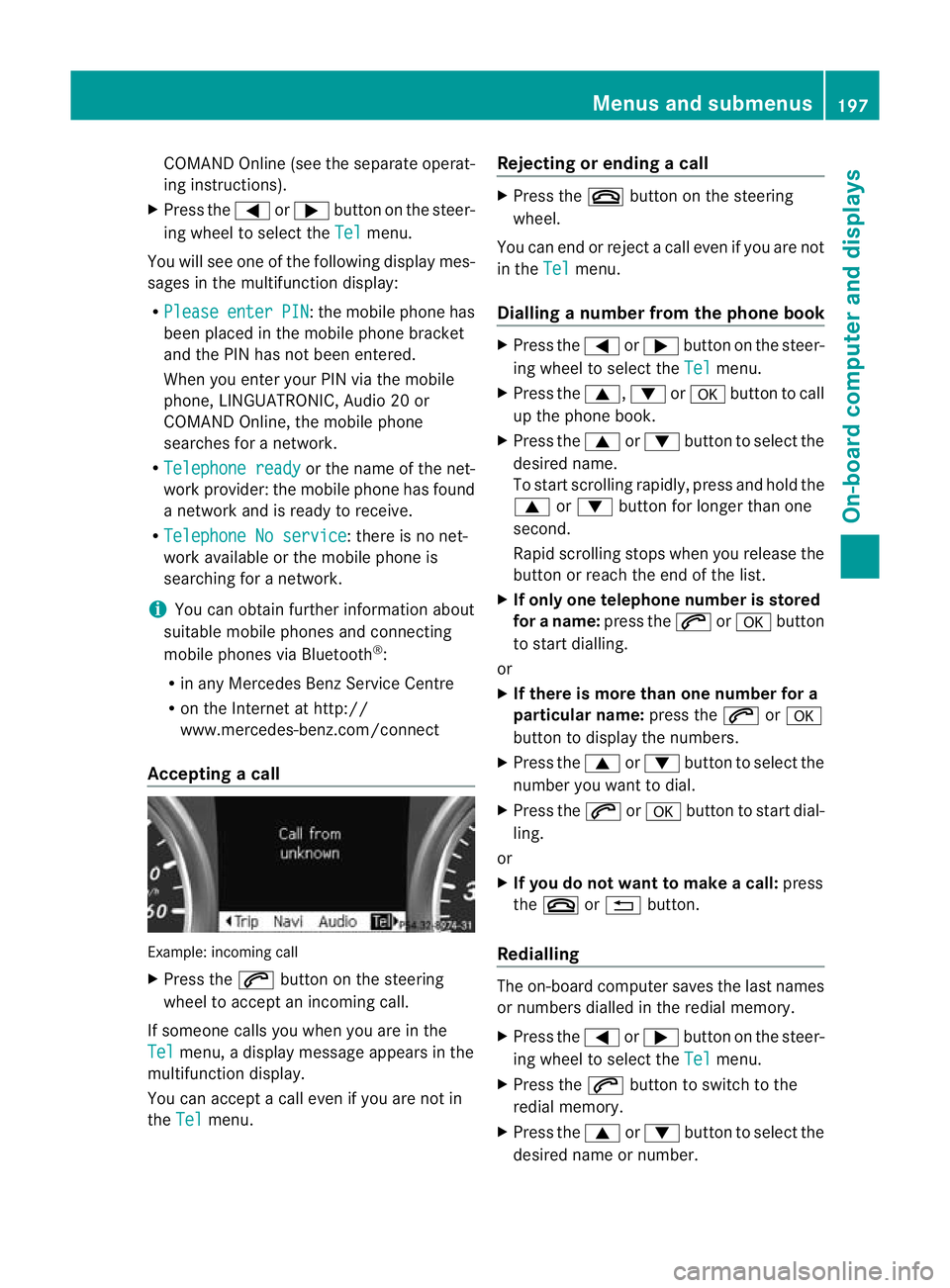
Accepting acall Example: incoming call
X
Press the 6button on the steering
wheel to accep tanincoming call.
If someone calls you when you are in the
Tel menu, a display message appears in the
multifunctio ndisplay.
You can accept a call even if you are not in
the Tel menu. Rejecting or ending
acall X
Press the ~button on the steering
wheel.
You can end or reject a call even if you are not
in the Tel menu.
Dialling anumber from the phone book X
Press the =or; button on the steer-
ing wheel to select the Tel menu.
X Press the 9,:ora button to call
up the phone book.
X Press the 9or: button to select the
desired name.
To start scrolling rapidly ,press and hold the
9 or: button for longer than one
second.
Rapid scrolling stops when you release the
button or reach the end of the list.
X If onlyo ne telephone number is stored
for a name: press the6ora button
to start dialling.
or
X If there is more than one number for a
particular name: press the6ora
button to display the numbers.
X Press the 9or: button to select the
number you want to dial.
X Press the 6ora button to start dial-
ling.
or
X If you do not want to make a call: press
the ~ or% button.
Redialling The on-board computer saves the last names
or numbers dialled in the redial memory.
X
Press the =or; button on the steer-
ing wheel to select the Tel menu.
X Press the 6button to switch to the
redial memory.
X Press the 9or: button to select the
desired name or number. Menus and submenus
197On-board computer and displays Z
Page 249 of 329
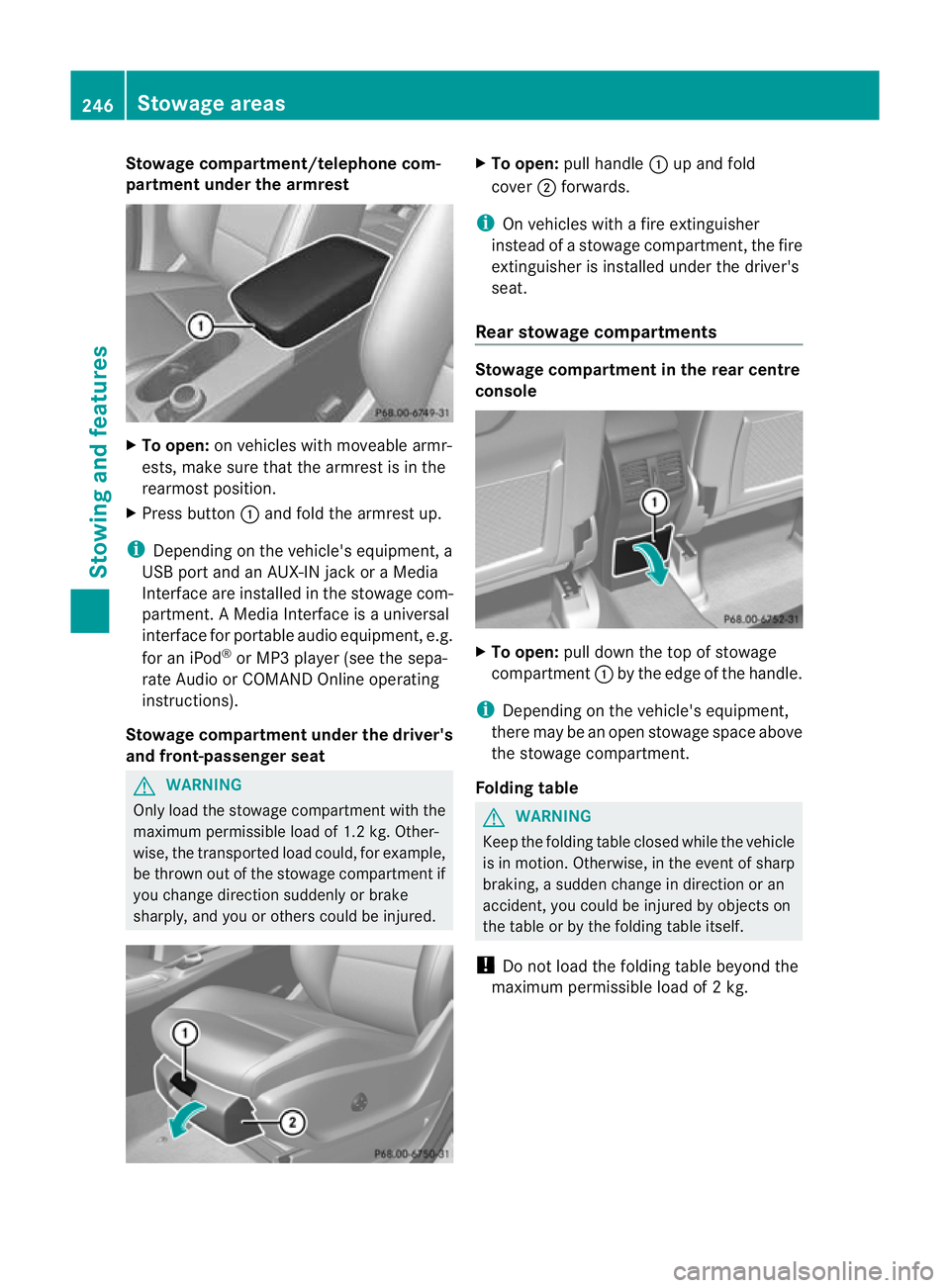
Stowage compartment/telephone com-
partment under the armrest
X
To open: on vehicles with moveable armr-
ests, make sure that the armrest is in the
rearmost position.
X Press button :and fold the armrest up.
i Depending on the vehicle's equipment, a
USB port and an AUX-IN jack or a Media
Interface are installed in the stowage com-
partment. A Media Interface is a universal
interface for portable audio equipment, e.g.
for an iPod ®
or MP3 player (see the sepa-
rate Audio or COMAND Online operating
instructions).
Stowage compartment under the driver's
and front-passenger seat G
WARNING
Only load the stowage compartmen twith the
maximum permissible load of 1. 2kg. Othe r-
wise, the transported load could, for example,
be thrown out of the stowage compartment if
you change directio nsuddenly or brake
sharply, and you or other scould be injured. X
To open: pull handle :up and fold
cover ;forwards.
i On vehicles with a fire extinguisher
instead of a stowage compartment, the fire
extinguisher is installed under the driver's
seat.
Rear stowage compartments Stowage compartment in the rear centre
console
X
To open: pull down the top of stowage
compartment :by the edge of the handle.
i Depending on the vehicle's equipment,
there may be an open stowage space above
the stowage compartment.
Folding table G
WARNING
Keep the folding table closed while the vehicle
is in motion. Otherwise, in the event of sharp
braking, a sudden change in direction or an
accident, you could be injured by objects on
the table or by the folding table itself.
! Do not load the folding table beyond the
maximum permissible load of 2kg. 246
Stowage areasStowing and features
Page 262 of 329
Two-way radios and fax equipment used with-
out low-reflection exterior aerials can inter-
fere with the vehicle's electronics and thereby
jeopardise the operating safety of the vehicle
and your safety. Therefore, you must only use
this equipment if it is correctly connected to
a separate reflection-free exterior aerial. G
WARNING
Excessive levels of electromagnetic radiation
may cause damage to your health and the
health of others. Using an exterior aerial takes
into account current scientific discussions
relating to the possible health risk posed by
electromagnetic fields.
Mercedes-Benz recommends the use of an
approved exterior aerial. This ensures:
R optimal mobile phone reception quality in
the vehicle
R mutual influences between the vehicle
electronics and mobile phones are mini-
mised
An exterior aerial has the following advan-
tages:
R it conducts the electromagnetic fields gen-
erated by a wireless device to the exterior.
R the field strength in the vehicle interior is
lower than in a vehicle that does not have
an exterior aerial.
More information on suitable mobile phones,
mobile phone brackets and on connecting
Bluetooth ®
capable mobile phones to Audio
20 or COMAND Online can be obtained:
R at your Mercedes-Benz Service Centre
R on the Internet at http://www.mercedes-
benz.com/connect
i There are various mobile phone brackets
that may be fitted to your vehicle; in some
cases, these are country-specific.
i Even if your vehicle is equipped with con-
venience telephony, you can connect a
Bluetooth ®
capable mobile phone to Audio 20 or COMAND Online via the Bluetooth
®
interface.
i The functions and services available when
you use the phone depend on your mobile
phone model and service provider.
Inserting the mobile phone X
Open the telephone compartment
(Y page 246).
X Place the mobile phone bracket into the
pre-installed fitting (see the separate
installation instructions for the mobile
phone fitting).
X Insert the mobile phone into the mobile
phone bracket (see the separate installa-
tion instructions for the mobile phone fit-
ting).
If the mobile phone is inserted in the mobile
phone bracket, you can speak to the person
you are calling using the hands-free system.
i On some mobile phone brackets, you first
have to connect the mobile phone via Blue-
tooth ®
to the mobile phone bracket (see
the separate operating instructions for the
mobile phone bracket).
If this is the case, the mobile phone does
not have to be inserted into the bracket for
you to be able to use the telephone func-
tions. However, the charging function and
aerial function are not available.
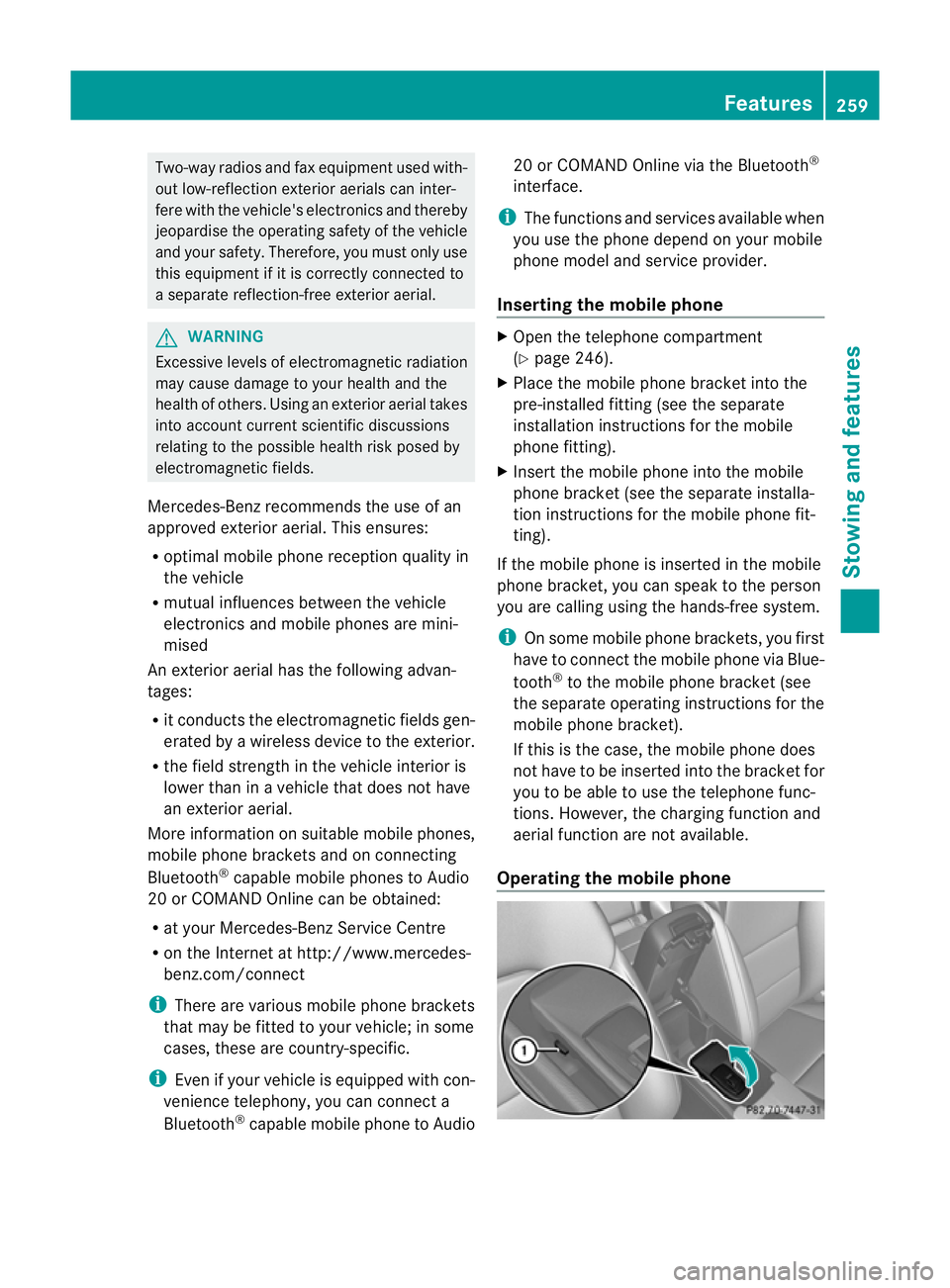
Operating the mobile phone Features
259Stowing and features Z