audio MERCEDES-BENZ B-CLASS HATCHBACK 2015 User Guide
[x] Cancel search | Manufacturer: MERCEDES-BENZ, Model Year: 2015, Model line: B-CLASS HATCHBACK, Model: MERCEDES-BENZ B-CLASS HATCHBACK 2015Pages: 293, PDF Size: 10.83 MB
Page 106 of 293
A
p Switches the right-hand front reading
lamp on/off
B Switches the automatic interior lighting con-
trol on
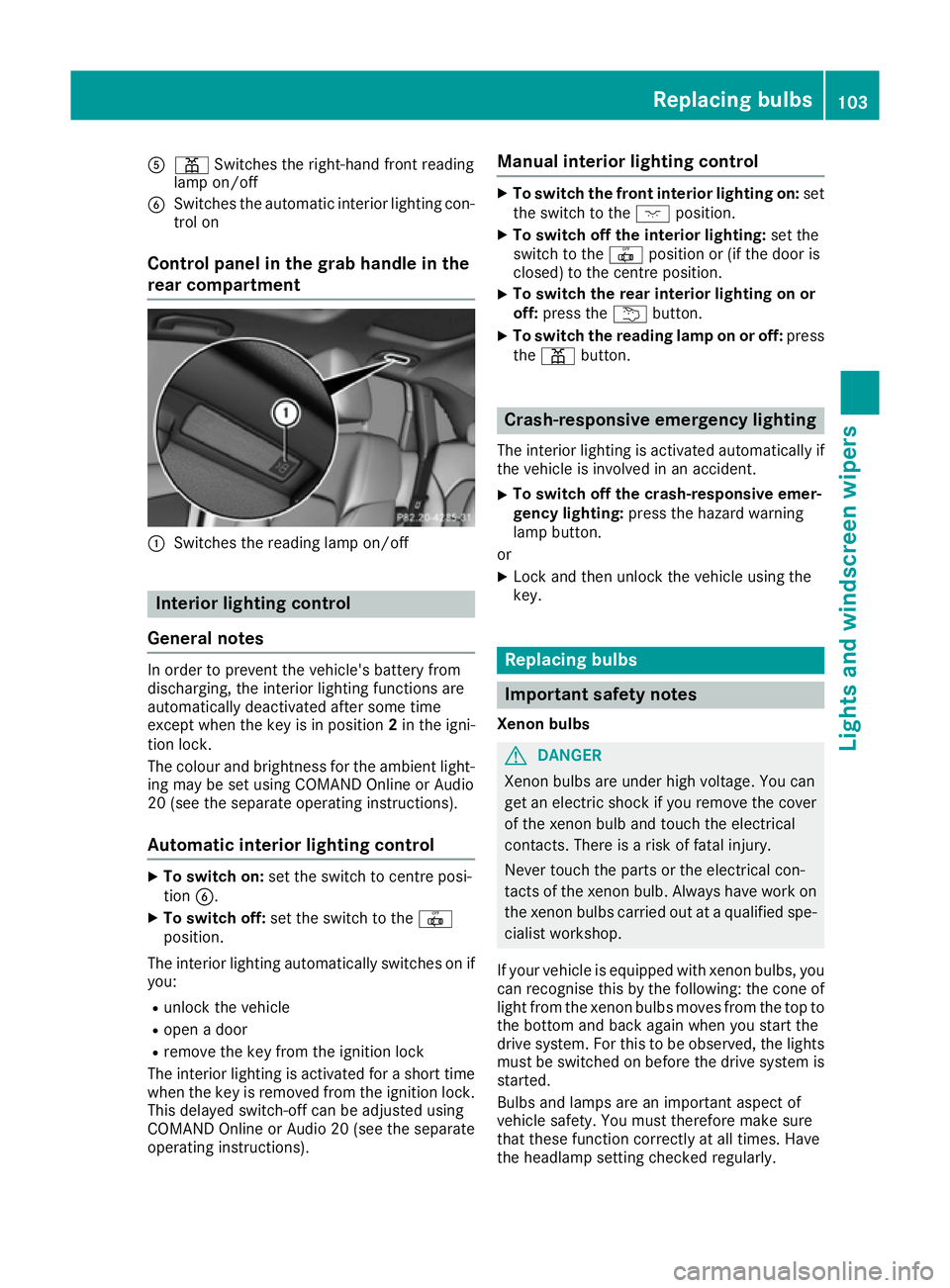
Control panel in the grab handle in the
rear compartment :
Switches the reading lamp on/off Interior lighting control
General notes In order to prevent the vehicle's battery from
discharging, the interior lighting functions are
automatically deactivated after some time
except when the key is in position 2in the igni-
tion lock.
The colour and brightness for the ambient light- ing may be set using COMAND Online or Audio
20 (see the separate operating instructions).
Automatic interior lighting control X
To switch on: set the switch to centre posi-
tion B.
X To switch off: set the switch to the |
position.
The interior lighting automatically switches on if you:
R unlock the vehicle
R open a door
R remove the key from the ignition lock
The interior lighting is activated for a short time
when the key is removed from the ignition lock.
This delayed switch-off can be adjusted using
COMAND Online or Audio 20 (see the separate
operating instructions). Manual interior lighting control X
To switch the front interior lighting on: set
the switch to the cposition.
X To switch off the interior lighting: set the
switch to the |position or (if the door is
closed) to the centre position.
X To switch the rear interior lighting on or
off:
press the ubutton.
X To switch the reading lamp on or off: press
the p button. Crash-responsive emergency lighting
The interior lighting is activated automatically if
the vehicle is involved in an accident.
X To switch off the crash-responsive emer-
gency lighting: press the hazard warning
lamp button.
or X Lock and then unlock the vehicle using the
key. Replacing bulbs
Important safety notes
Xenon bulbs G
DANGER
Xenon bulbs are under high voltage. You can
get an electric shock if you remove the cover
of the xenon bulb and touch the electrical
contacts. There is a risk of fatal injury.
Never touch the parts or the electrical con-
tacts of the xenon bulb. Always have work on the xenon bulbs carried out at a qualified spe- cialist workshop.
If your vehicle is equipped with xenon bulbs, you can recognise this by the following: the cone of
light from the xenon bulbs moves from the top to the bottom and back again when you start the
drive system. For this to be observed, the lights
must be switched on before the drive system is started.
Bulbs and lamps are an important aspect of
vehicle safety. You must therefore make sure
that these function correctly at all times. Have
the headlamp setting checked regularly. Replacing bulbs
103Lights and windscreen wipers Z
Page 119 of 293
appears for approximately three seconds at
the bottom of the screen in the Audio/
COMAND display (see separate operating
instructions). You will see the current settings
of the various climate control functions.
You can choose between various drive programs
with the program selector button (Y page 131).
If you have selected drive program E+:
R the cooling output is reduced when cooling
R the heat output is reduced during heating
R the rear window heating time is reduced
If you have selected drive program Eor S, the
current climate settings are maintained. Operating the climate control system
Switching the climate control on/off
General notes When the climate control is switched off, the air
supply and air circulation are also switched off.
The windows could mist up. Therefore, only
switch off climate control briefly.
THERMOTRONIC automatic climate
control X
Turn the key to position 2in the ignition lock
(Y page 126).
X To activate: press theÃbutton.
The indicator lamp in the Ãbutton lights
up. Airflow and air distribution are set to auto-
matic mode.
or X Press the ^button.
The indicator lamp in the ^button goes
out. The previous settings are reactivated.
X To deactivate: press the^button.
The indicator lamp in the ^button lights
up.
i Activate climate control primarily using the
à button. Activating/deactivating cooling with
air dehumidification
General notes If you deactivate the "Cooling with air dehumid-
ification" function, the air inside the vehicle will
not be cooled. The air inside the vehicle will also
not be dehumidified. The windows can mist up
more quickly. Therefore, only deactivate the
"Cooling with air dehumidification" function
briefly.
The "Cooling with air dehumidification" function
is operational when the vehicle is ready to drive. The air inside the vehicle is cooled and dehu-
midified according to the temperature selected.
Condensation may drip from the underside of
the vehicle when cooling mode is active. This is
normal and not a sign that there is a malfunc-
tion.
Activating/deactivating X
To activate: press the¿button.
The indicator lamp in the ¿button lights
up.
X To deactivate: press the¿button.
The indicator lamp in the ¿button goes
out. The cooling with air dehumidification
function has a delayed switch-off feature. 116
Operating the climate control systemClimate control
Page 140 of 293
Energy consumption and range
This range is reduced by:
R high and low outside temperatures
R a non-anticipatory driving style
R switching on consumers, e.g. air-conditioning
system or heating.
The battery's physical characteristics are such
that leaving the vehicle parked for an extended
period at low outdoor temperatures without
charging it can lead to:
R a reduction in battery performance
R longer charge times
In extreme cases, this could mean that the vehi- cle cannot be started. For this reason, connect
the charging cable when leaving the vehicle
parked for long periods at low outdoor temper-
atures.
As a result of its basic characteristics, the
amount of energy available from the high-volt-
age battery decreases over the course of its life.
This reduces:
R the maximum range that can be achieved by
the vehicle
R the maximum output (acceleration) of the
vehicle
You can actively reduce the energy consump-
tion of your vehicle in a number of ways, for
example, by:
R an anticipatory driving style
R reducing the use of electrical consumers
R having the vehicle regularly maintained
The charging time of the high-voltage battery
may change over the course of its life.
Observe the displays on energy usage
(Y page 178) and range (Y page 178).
RANGE PLUS If you activate RANGE PLUS, the operating win-
dow of the battery will be extended at the next
charging process. An extended driving range will
be available to you for the next journey.
Using RANGE PLUS shortens the service life of
the battery. Therefore, only use RANGE PLUS if, for example:
R long journeys are planned or
R the availability of charging stations at the des-
tination is limited The more often RANGE PLUS is used, the more
the extended range is reduced.
Therefore always check the range display for
every journey (Y
page 178). X
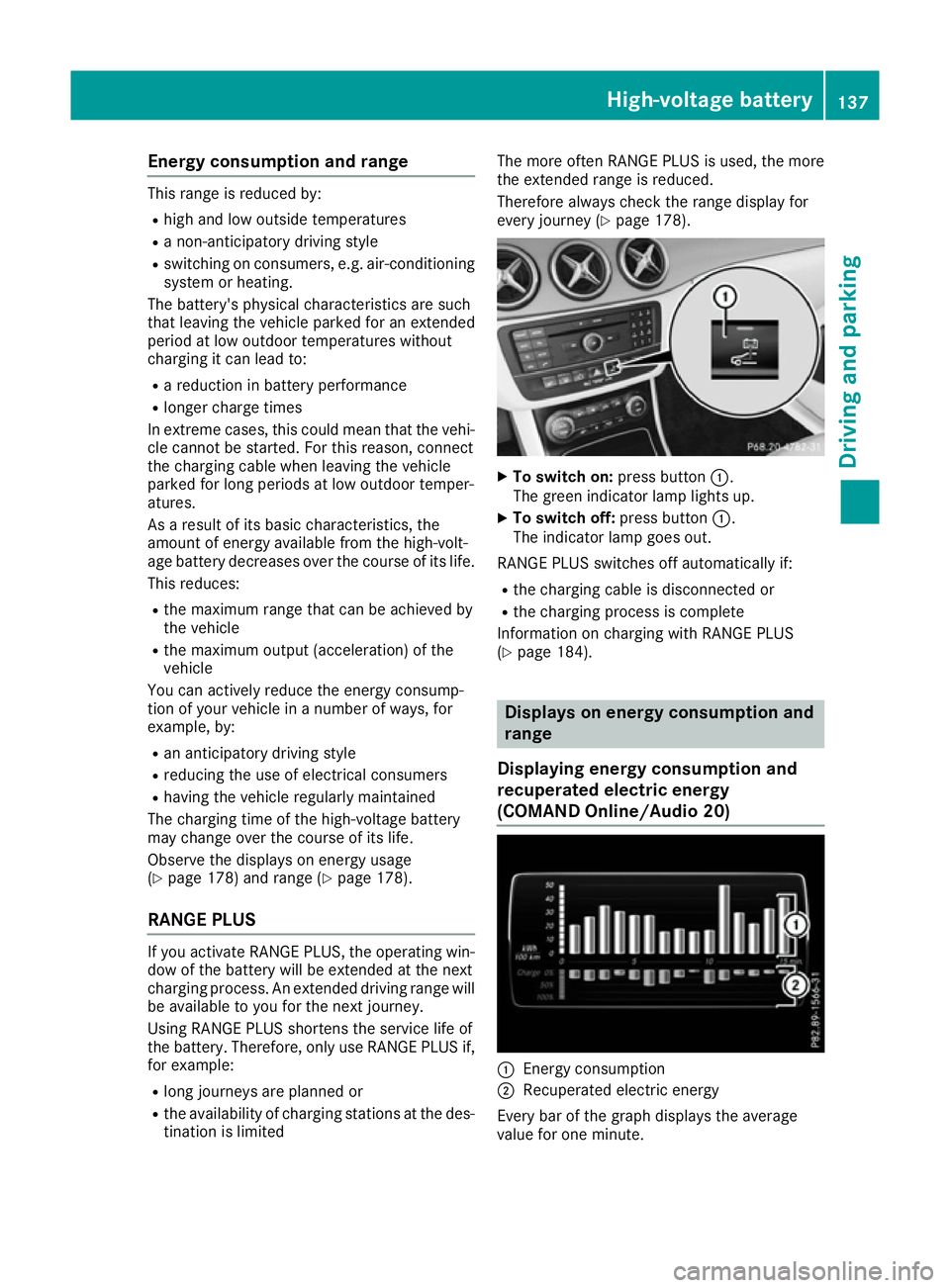
To switch on: press button:.
The green indicator lamp lights up.
X To switch off: press button:.
The indicator lamp goes out.
RANGE PLUS switches off automatically if:
R the charging cable is disconnected or
R the charging process is complete
Information on charging with RANGE PLUS
(Y page 184). Displays on energy consumption and
range
Displaying energy consumption and
recuperated electric energy
(COMAND Online /Audio 20) :
Energ y consumption
; Recuperated electric energy
Every bar of the graph displays the average
value for one minute. High-voltage battery
137Driving and parking Z
Page 141 of 293
Energy consumption indicator
:may differ
from the indicator in the From start
From start
(Y page 176) trip computer in the Trip
Trip menu.
Displaying energy consumption and recu-
perated electric energy:
X Switch on Audio 20/COMAND Online (see
the separate operating instructions).
X To select Vehicle
Vehicle from the main function bar:
turn and press the controller.
The vehicle menu appears.
X To select Consumption
Consumption: turn and press the
controller.
Energy consumption :and recuperated
electric energy ;for the last 15 minute s of
the journey are shown.
Exiting the vehicle settings: X Press the %button on the controller.
or X To select %: slide 6and press the con-
troller.
To reset values: the values are reset From
From
start start along with the trip computer
(Y page 178).
Displaying range on the map
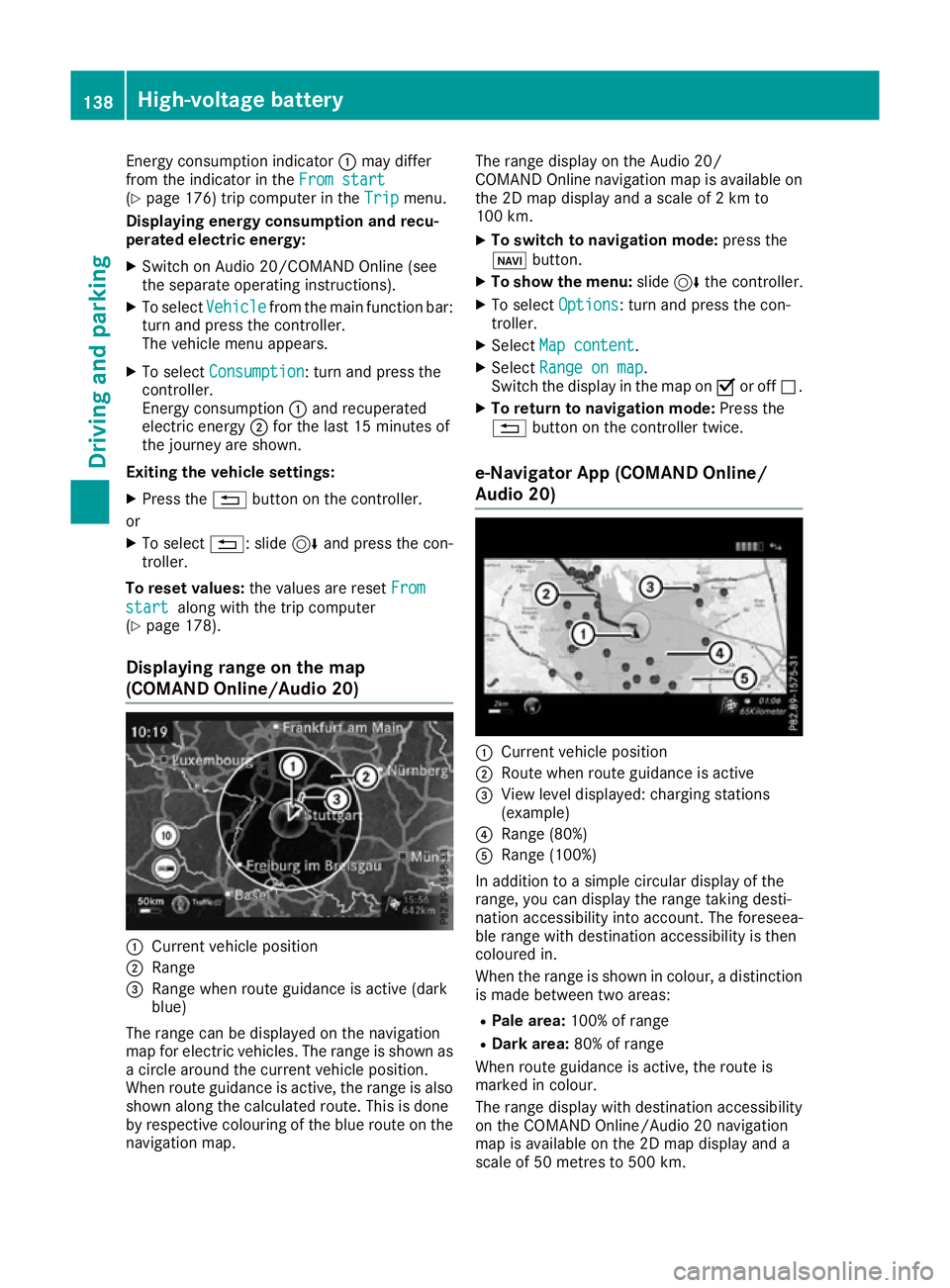
(COMAND Online/Audio 20) :
Current vehicle position
; Range
= Range when route guidance is active (dark
blue)
The range can be displayed on the navigation
map for electric vehicles. The range is shown as
a circle around the current vehicle position.
When route guidance is active, the range is also
shown along the calculated route. This is done
by respective colouring of the blue route on the
navigation map. The range display on the Audio 20/
COMAND Online navigation map is available on
the 2D map display and a scale of 2 km to
100 km.
X To switch to navigation mode: press the
ß button.
X To show the menu: slide6the controller.
X To select Options Options: turn and press the con-
troller.
X Select Map content
Map content.
X Select Range on map
Range on map .
Switch the display in the map on Oor off ª.
X To return to navigation mode: Press the
% button on the controller twice.
e-Navigator App (COMAND Online/
Audio 20) :
Current vehicle position
; Route when route guidance is active
= View level displayed: charging stations
(example)
? Range (80%)
A Range (100%)
In addition to a simple circular display of the
range, you can display the range taking desti-
nation accessibility into account. The foreseea-
ble range with destination accessibility is then
coloured in.
When the range is shown in colour, a distinction
is made between two areas:
R Pale area: 100% of range
R Dark area: 80% of range
When route guidance is active, the route is
marked in colour.
The range display with destination accessibility
on the COMAND Online/Audio 20 navigation
map is available on the 2D map display and a
scale of 50 metres to 500 km. 138
High-voltage batteryDriving and parking
Page 142 of 293
Displaying the range and destination acces-
sibility via navigation mode:
X To switch to navigation mode: press the
ß button.
The map displays the current vehicle position.
or
X From one of the other main functions: slide
5 the controller (e. g. in radio mode).
The main function bar is displayed.
X To select Navi
Navi from the main function bar:
turn and press the controller.
The map displays the current vehicle position.
X To call up e-Navigator: press theßbut-
ton.
X To select Range on map Range on map in the navigation
menu: turn and press the controller.
The range and destination accessibility are
displayed on the navigation map.
To display the range and destination acces-
sibility via Mercedes-Benz Apps:
X Switch on COMAND Online/Audio 20 (see
the separate operating instructions).
X Set access data and connect to the Internet
(see separate operating instructions)
X To call up the telephone menu: press the
% button.
X To switch to the main function bar: slide 5
the controller.
X To select TEL/
TEL/®: press the controller.
X To select Internet
Internet: turn and press the con-
troller.
The menu with the Internet functions is dis-
played.
X To select Mercedes-Benz Apps
Mercedes-Benz Apps: turn and
press the controller.
The available Mercedes-Benz Apps Mercedes-Benz Apps are dis-
played.
X To call up the e-Navigator App: turn and
press the controller.
The navigation map is displayed showing the
range and destination accessibility
Showing the view levels on the map:
X To display the menu: slide6and press
the controller when the map appears.
The menu of the view levels opens. You may
choose from the following view levels: R
available charging stations
R current route
R current vehicle position with vehicle direc-
tion
Exiting the map display:
X Press the %button on the controller.
or
X To select %: slide 6and press the con-
troller. Charging the high-voltage battery via
the mains socket
Charging cable Important safety notes
! Only use the charging cable to charge the
high-voltage battery. Do not use the charging
cable for other purposes. It may otherwise be damaged.
The vehicle is supplied with a three-phase 32 A
charging cable. A single-phase 13 A charging
cable (Switzerland: 16 A) can be optionally
ordered.
When charging the vehicle using the mains
socket, use the single-phase 13 A (Switzerland:
16 A) charging cable.
Observe the "Important safety notes"
(Y page 134).
If you use the supplied 13 A charging cable
(Switzerland: 16 A) as opposed to the 32 A
charging cable to charge the high-voltage bat-
tery:
R the charge time increases considerably
R electrical consumption increases considera-
bly
For this reason, always charge the high-voltage
battery from a wallbox (Y page 142) or at a
charging station (Y page 142). Only then can
certified electrical energy consumption levels
be reached.
i The charging process can vary depending on
the charging station. Therefore, always
observe the local information. High-voltage battery
139Driving and parking Z
Page 165 of 293
Reversing camera
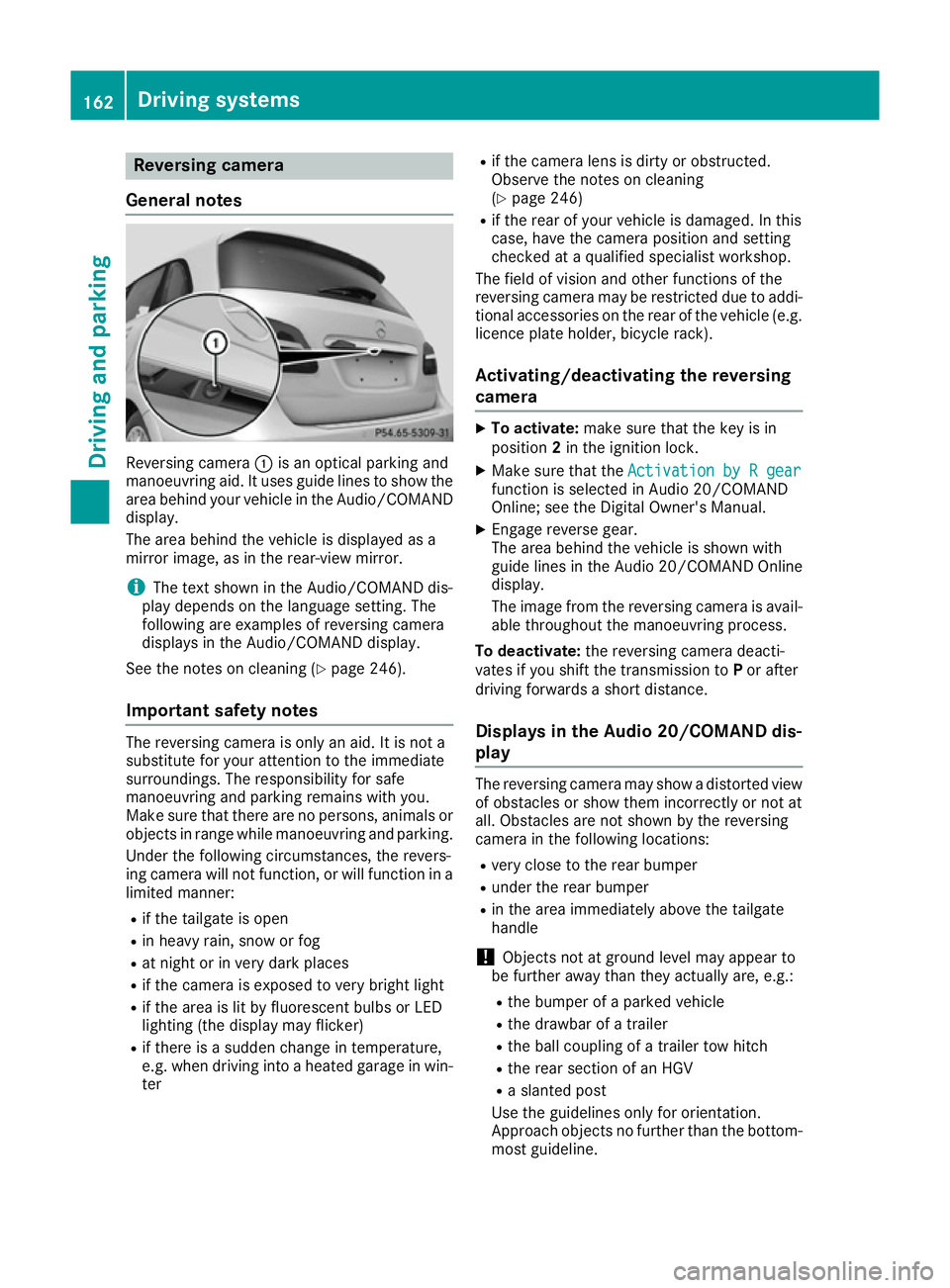
General notes Reversing camera
:is an optical parking and
manoeuvring aid. It uses guide lines to show the
area behind your vehicle in the Audio/COMAND
display.
The area behind the vehicle is displayed as a
mirror image, as in the rear-view mirror.
i The text shown in the Audio/COMAND dis-
play depends on the language setting. The
following are examples of reversing camera
displays in the Audio/COMAND display.
See the notes on cleaning (Y page 246).
Important safety notes The reversing camera is only an aid. It is not a
substitute for your attention to the immediate
surroundings. The responsibility for safe
manoeuvring and parking remains with you.
Make sure that there are no persons, animals or
objects in range while manoeuvring and parking.
Under the following circumstances, the revers-
ing camera will not function, or will function in a limited manner:
R if the tailgate is open
R in heavy rain, snow or fog
R at night or in very dark places
R if the camera is exposed to very bright light
R if the area is lit by fluorescent bulbs or LED
lighting (the display may flicker)
R if there is a sudden change in temperature,
e.g. when driving into a heated garage in win-
ter R
if the camera lens is dirty or obstructed.
Observe the notes on cleaning
(Y page 246)
R if the rear of your vehicle is damaged. In this
case, have the camera position and setting
checked at a qualified specialist workshop.
The field of vision and other functions of the
reversing camera may be restricted due to addi-
tional accessories on the rear of the vehicle (e.g. licence plate holder, bicycle rack).
Activating/deactivating the reversing
camera X
To activate: make sure that the key is in
position 2in the ignition lock.
X Make sure that the Activation by R gear Activation by R gear
function is selected in Audio 20/COMAND
Online; see the Digital Owner's Manual.
X Engage reverse gear.
The area behind the vehicle is shown with
guide lines in the Audio 20/COMAND Online
display.
The image from the reversing camera is avail-
able throughout the manoeuvring process.
To deactivate: the reversing camera deacti-
vates if you shift the transmission to Por after
driving forwards a short distance.
Displays in the Audio 20/COMAND dis-
play The reversing camera may show a distorted view
of obstacles or show them incorrectly or not at
all. Obstacles are not shown by the reversing
camera in the following locations:
R very close to the rear bumper
R under the rear bumper
R in the area immediately above the tailgate
handle
! Objects not at ground level may appear to
be further away than they actually are, e.g.:
R the bumper of a parked vehicle
R the drawbar of a trailer
R the ball coupling of a trailer tow hitch
R the rear section of an HGV
R a slanted post
Use the guidelines only for orientation.
Approach objects no further than the bottom- most guideline. 162
Driving systemsDriving and parking
Page 166 of 293
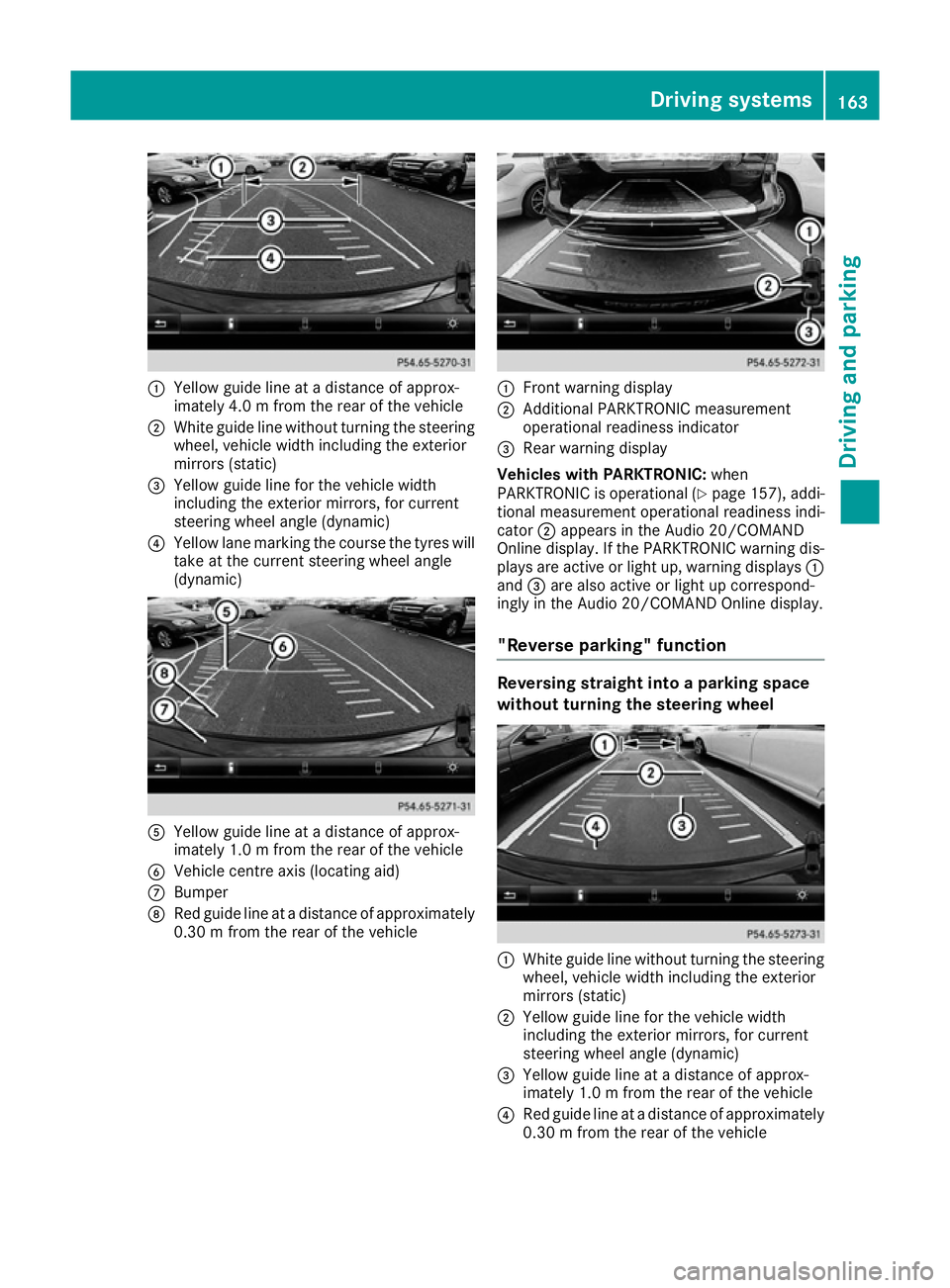
:
Yellow guide line at a distance of approx-
imately 4.0 m from the rear of the vehicle
; White guide line without turning the steering
wheel, vehicle width including the exterior
mirrors (static)
= Yellow guide line for the vehicle width
including the exterior mirrors, for current
steering wheel angle (dynamic)
? Yellow lane marking the course the tyres will
take at the current steering wheel angle
(dynamic) A
Yellow guide line at a distance of approx-
imately 1.0 m from the rear of the vehicle
B Vehicle centre axis (locating aid)
C Bumper
D Red guide line at a distance of approximately
0.30 m from the rear of the vehicle :
Front warning display
; Additional PARKTRONIC measurement
operational readiness indicator
= Rear warning display
Vehicles with PARKTRONIC: when
PARKTRONIC is operational (Y page 157), addi-
tional measurement operational readiness indi-
cator ;appears in the Audio 20/COMAND
Online display. If the PARKTRONIC warning dis-
plays are active or light up, warning displays :
and =are also active or light up correspond-
ingly in the Audio 20/COMAND Online display.
"Reverse parking" function Reversing straight into a parking space
without turning the steering wheel
:
White guide line without turning the steering
wheel, vehicle width including the exterior
mirrors (static)
; Yellow guide line for the vehicle width
including the exterior mirrors, for current
steering wheel angle (dynamic)
= Yellow guide line at a distance of approx-
imately 1.0 m from the rear of the vehicle
? Red guide line at a distance of approximately
0.30 m from the rear of the vehicle Driving systems
163Driving and parking Z
Page 177 of 293
If necessary, counteract the reduced regenera-
tive braking effect by applying the brake your-
self. Charge level display
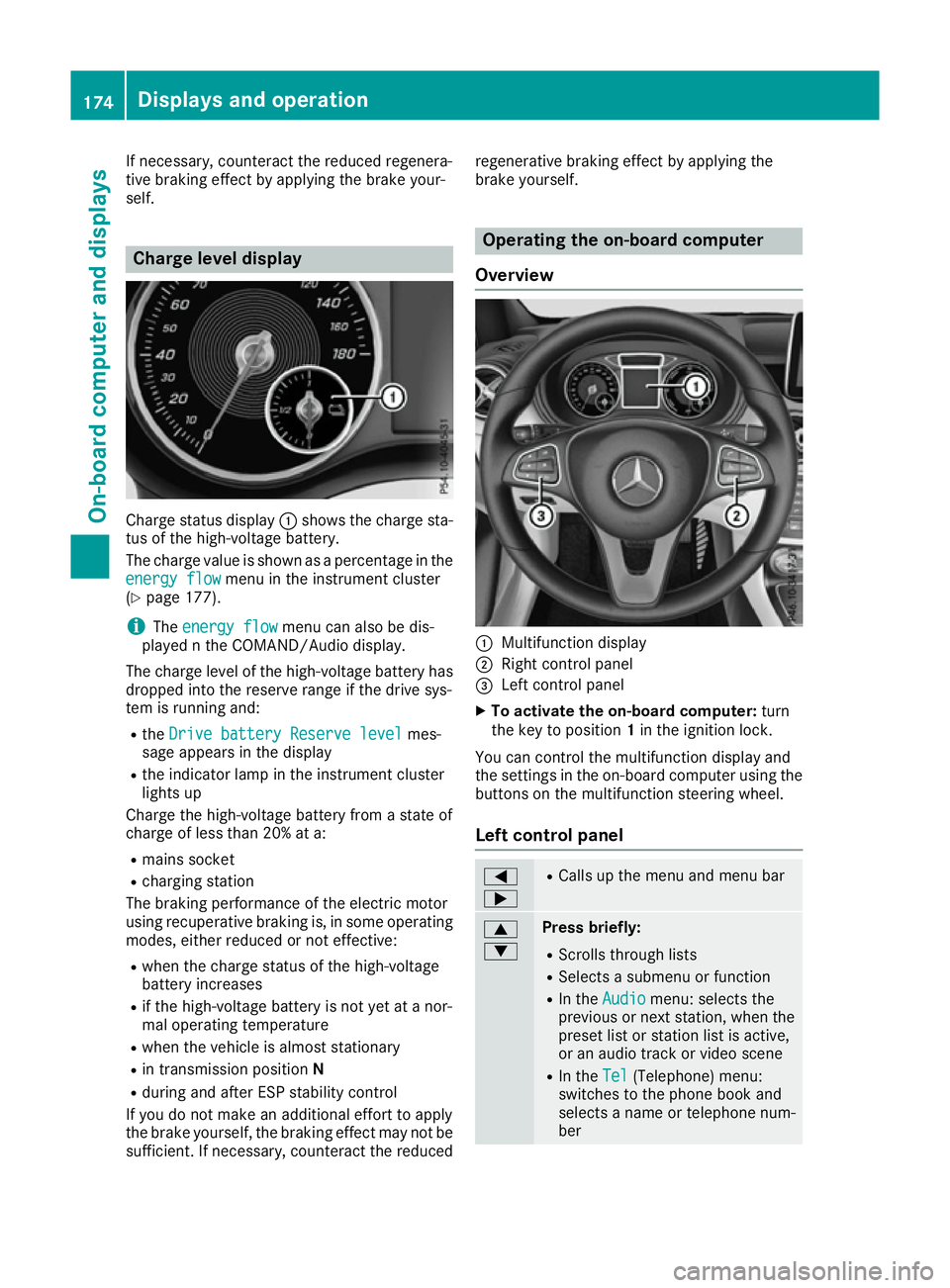
Charge status display
:shows the charge sta-
tus of the high-voltage battery.
The charge value is shown as a percentage in the
energy flow
energy flow menu in the instrument cluster
(Y page 177).
i The
energy flow
energy flow menu can also be dis-
played n the COMAND/Audio display.
The charge level of the high-voltage battery has dropped into the reserve range if the drive sys-
tem is running and:
R the Drive battery Reserve level Drive battery Reserve level mes-
sage appears in the display
R the indicator lamp in the instrument cluster
lights up
Charge the high-voltage battery from a state of
charge of less than 20% at a:
R mains socket
R charging station
The braking performance of the electric motor
using recuperative braking is, in some operating
modes, either reduced or not effective:
R when the charge status of the high-voltage
battery increases
R if the high-voltage battery is not yet at a nor-
mal operating temperature
R when the vehicle is almost stationary
R in transmission position N
R during and after ESP stability control
If you do not make an additional effort to apply
the brake yourself, the braking effect may not be sufficient. If necessary, counteract the reduced regenerative braking effect by applying the
brake yourself. Operating the on-board computer
Overview :
Multifunction display
; Right control panel
= Left control panel
X To activate the on-board computer: turn
the key to position 1in the ignition lock.
You can control the multifunction display and
the settings in the on-board computer using the buttons on the multifunction steering wheel.
Left control panel =
; R
Calls up the menu and menu bar 9
: Press briefly:
R Scrolls through lists
R Selects a submenu or function
R In the Audio Audio menu: selects the
previous or next station, when the preset list or station list is active,
or an audio track or video scene
R In the Tel Tel(Telephone) menu:
switches to the phone book and
selects a name or telephone num-
ber 174
Displays and operationOn-board computer and displays
Page 178 of 293
9
: Press and hold:
R
In the Audio Audio menu: selects a pre-
set list or a station list in the
desired frequency range or an
audio track or video scene using
rapid scrolling
R In the Tel Tel(Telephone) menu:
starts rapid scrolling if the phone
book is open a R
Confirms the selection or display
message
R In the Tel Tel(Telephone) menu:
switches to the telephone book
and starts dialling the selected
number % Press briefly:
R Back
R Vehicles with Audio 20: switches
off voice-operated control of the
navigation (see manufacturer's
operating instructions)
R Vehicles with COMAND Online:
switches off LINGUATRONIC (see
the separate operating instruc-
tions)
R Hides display messages or calls up
the last Trip Tripmenu function used
R Exits the telephone book/redial
memory % Press and hold:
R
Calls up the standard display in the
Trip
Trip menu Right control panel
ó R
Vehicles with Audio 20:
Switches on voice-operated con-
trol for navigation (see manufac-
turer's operating instructions)
R Vehicles with COMAND Online:
Switches off LINGUATRONIC (see
the separate operating instruc-
tions) 8 R
Mute W
X R
Adjusts the volume ~ R
Rejects or ends a call
R Exits the telephone book/redial
memory 6 R
Makes or accepts a call
R Switches to the redial memory Multifunction display
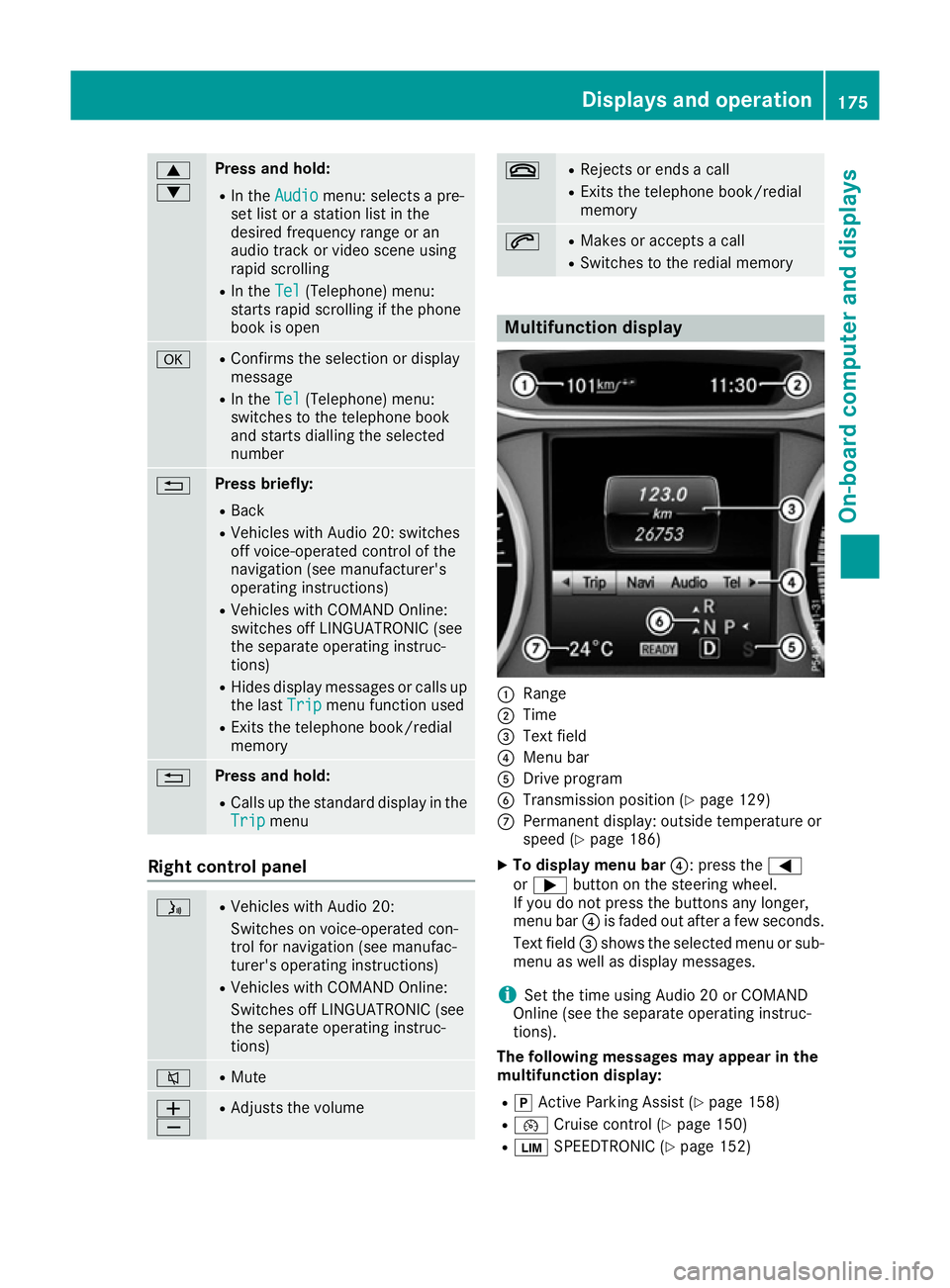
:
Range
; Time
= Text field
? Menu bar
A Drive program
B Transmission position (Y page 129)
C Permanent display: outside temperature or
speed (Y page 186)
X To display menu bar ?: press the=
or ; button on the steering wheel.
If you do not press the buttons any longer,
menu bar ?is faded out after a few seconds.
Text field =shows the selected menu or sub-
menu as well as display messages.
i Set the time using Audio 20 or COMAND
Online (see the separate operating instruc-
tions).
The following messages may appear in the
multifunction display:
R j Active Parking Assist (Y page 158)
R ¯ Cruise control (Y page 150)
R È SPEEDTRONIC (Y page 152) Displays and operation
175On-board computer and displays Z
Page 179 of 293
R
_ Adaptive Highbeam Assist
(Y page 101)
R ë HOLD function (Y page 154)
R 120 km/h!
120 km/h! Maximum permissible speed
exceeded (only for certain countries) Menus and submenus
Menu overview
Using the =or; button on the steering
wheel, open the menu bar.
Operating the on-board computer (Y page 174).
Depending on the equipment fitted in the vehi-
cle, you can call up the following menus:
R Trip
Trip menu (Y page 176)
R Navi Navi menu (navigation instructions)
(Y page 178)
R Audio
Audio menu (Y page 180)
R Tel
Tel menu (telephone) (Y page 181)
R Assist.
Assist. menu (assistance) (Y page 182)
R Serv.
Serv. menu (Y page 184)
R Settings
Settings menu (settings) (Y page 184)
The displays for the Audio
Audio, Navi
NaviandTel
Tel menus
may differ slightly to those in your vehicle.
The examples given in this Owner's Manual
apply to vehicles equipped with COMAND
Online. Trip menu
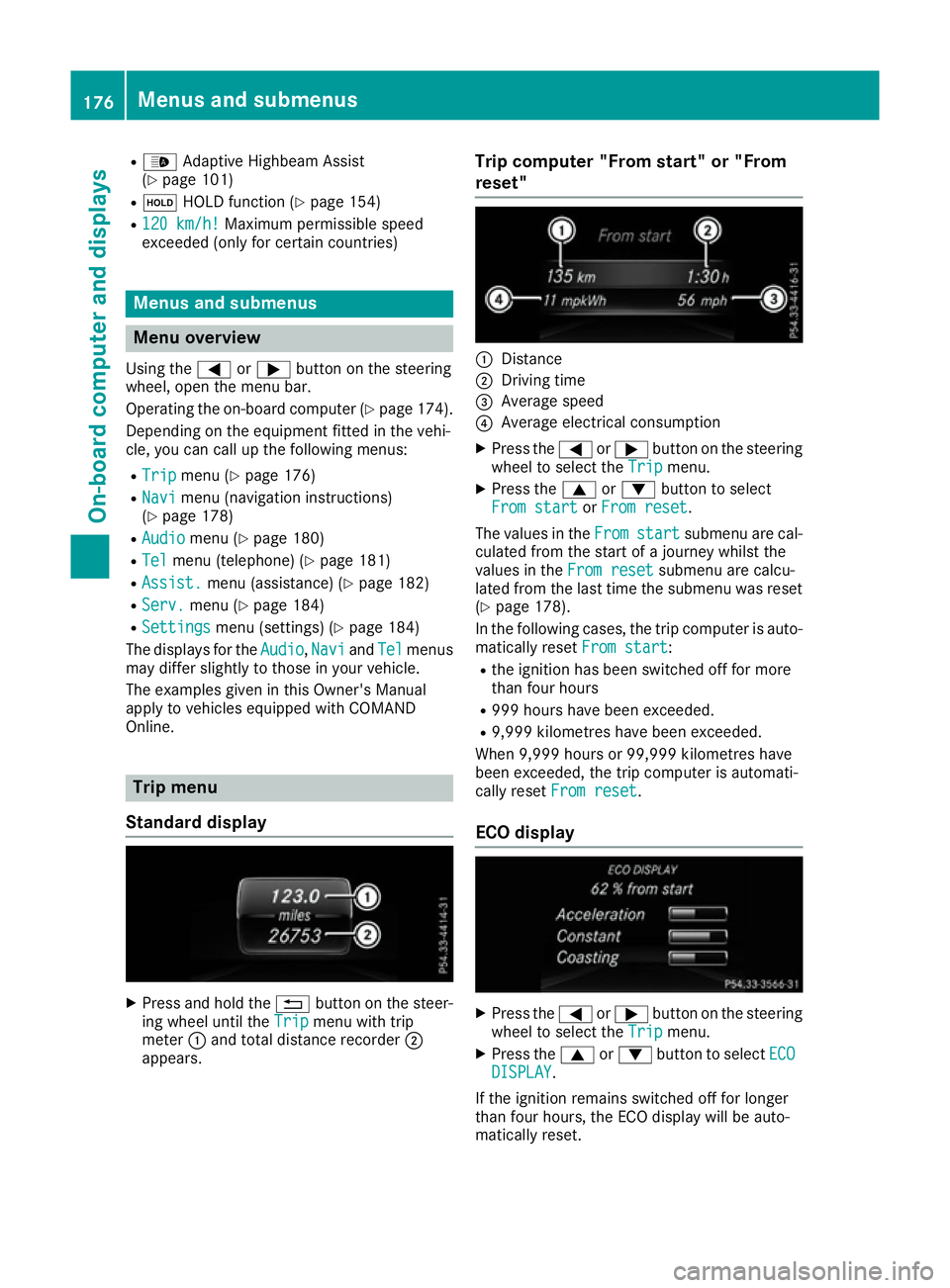
Standard display X
Press and hold the %button on the steer-
ing wheel until the Trip Tripmenu with trip
meter :and total distance recorder ;
appears. Trip computer "From start" or "From
reset" :
Distance
; Driving time
= Average speed
? Average electrical consumption
X Press the =or; button on the steering
wheel to select the Trip
Tripmenu.
X Press the 9or: button to select
From start
From start orFrom reset
From reset.
The values in the From
Fromstart
start submenu are cal-
culated from the start of a journey whilst the
values in the From reset From resetsubmenu are calcu-
lated from the last time the submenu was reset
(Y page 178).
In the following cases, the trip computer is auto-
matically reset From start From start:
R the ignition has been switched off for more
than four hours
R 999 hours have been exceeded.
R 9,999 kilometres have been exceeded.
When 9,999 hours or 99,999 kilometres have
been exceeded, the trip computer is automati-
cally reset From reset From reset.
ECO display X
Press the =or; button on the steering
wheel to select the Trip
Tripmenu.
X Press the 9or: button to select ECO
ECO
DISPLAY
DISPLAY.
If the ignition remains switched off for longer
than four hours, the ECO display will be auto-
matically reset. 176
Menus and submenusOn-board computer and displays