radio MERCEDES-BENZ C-CLASS 2002 User Guide
[x] Cancel search | Manufacturer: MERCEDES-BENZ, Model Year: 2002, Model line: C-CLASS, Model: MERCEDES-BENZ C-CLASS 2002Pages: 399, PDF Size: 16.95 MB
Page 113 of 399

110
Multifunction steering wheel, multifunction display
Te ch n i c a l
data
Instruments
and controls Operation
DrivingInstrument
cluster display Practical hints Car care Index
Cassette player 1Audio system is switched off.
2 The cassette player is switched on.
3 Side being played.
The radio must be switched on.
The cassette player must be switched on.
Press the è or ÿ button repeatedly until
display (2) appears.
Pressing the j button fast forward on to the next
track.
Pressing the k button rewinds the cassette to the
beginning of the current track.
Pressing the è or ÿ button displays the next or
previous system.
Notes:
To select the reverse side of the tape, press button below
track number on the audio system display, or enter
request on the (optional) COMAND system located in
the center dashboard.
P54.30-3639-27
ProCarManuals.com
Page 136 of 399

133
Multifunction steering wheel, multifunction display
Te ch n i c a l
data
Instruments
and controls Operation
DrivingInstrument
cluster display Practical hints Car care Index
1
Preliminary display of the individual settings
2 “SETTINGS” – in this options menu you can call up
the individual setting menu “VEHICLE”.
Pressing button æ orç on the multifunction
steering wheel controls the selection marker.
3 “PRESS BUTTON IN AUDIO MODE”
– radio adjustment “STATION SEARCH”: use
the j ork button to select a frequency.
– radio adjustment “MEMORY”: use the j
or k button to select a stored station (preset
memory).
4 “AUTOMATIC DOOR LOCK”, see automatic central
locking on page 40.
5 Returning the individual setting menu “VEHICLE”
to the factory setting.
6 Acknowledgment.
Press the è or ÿ button repeatedly until the
individual setting preliminary display (1) appears.
Press the j or k button until the setting menu
“SETTINGS” (2) is displayed.
Press button æ orç until the individual setting
menu “VEHICLE” is selected by the selection marker. Press the
j or k button until the required
display (3 to 4) is displayed. Pressing the æ orç
button controls the selection marker. The settings made
are stored and applied immediately.
The individual setting preliminary display (1) will
appear again after you have run through all the setting
menus. Pressing the è or ÿ button displays the
next or previous system.
To return menu “VEHICLE” (3 and 4) to its factory
setting:
• Call up menu (3 or 4).
• Press the reset knob on the instrument cluster (see
page 96) in the instrument cluster for approximately
3 seconds. Display (5) will appear.
• Press the reset knob on the instrument cluster once
more. The individual setting menu “VEHICLE” is
reset to factory settings, acknowledged by
display (6).
The individual setting display “SETTINGS” (2) will
appear if you do not press the knob for instrument
cluster illumination within about 5 seconds. The
setting menus will not be reset.
ProCarManuals.com
Page 176 of 399

173
Audio system
Te ch n i c a l
data
Instruments
and controls Operation
DrivingInstrument
cluster display Practical hints Car care Index
Audio and telephone operation
These instructions are intended to help you become
acquainted with your Mercedes-Benz audio system.
They contain useful tips and a detailed description of
the user functions.
Operating safety
1Optional equipment
Dolby and the double-D symbol
Ù
are trademarks of Dolby
Laboratories Licensing Corporation. The Dolby noise reduction
system is manufactured under licence from Dolby Laboratories
Licensing Corporation.
Wa r n i n g !
In order to avoid distraction which could lead to an
accident, system settings should be entered with
the vehicle at standstill and systems should be
operated by the driver only when traffic conditions
permit. Always pay full attention to traffic
conditions first before operating system controls
while driving. Bear in mind that at a speed of just 30 mph
(approximately 50 km/h), your car is covering a
distance of 50 feet (approximately14 m) every
second.
Wa r n i n g !
Any alterations made to electronic components can
cause malfunctions.The radio, cassette deck, CD changer
1 and
telephone
1 are interconnected. Therefore, when
one of the components is defective or has not been
removed/replaced properly this may impair the
function of other components.
These malfunctions might seriously impair the
operating safety of your vehicle.We recommend that you have any service work or
alterations to electronic components done at an
authorized Mercedes-Benz Center.
ProCarManuals.com
Page 177 of 399
174
Audio system
Te ch n i c a l
data
Instruments
and controls Operation
DrivingInstrument
cluster display Practical hints Car care Index
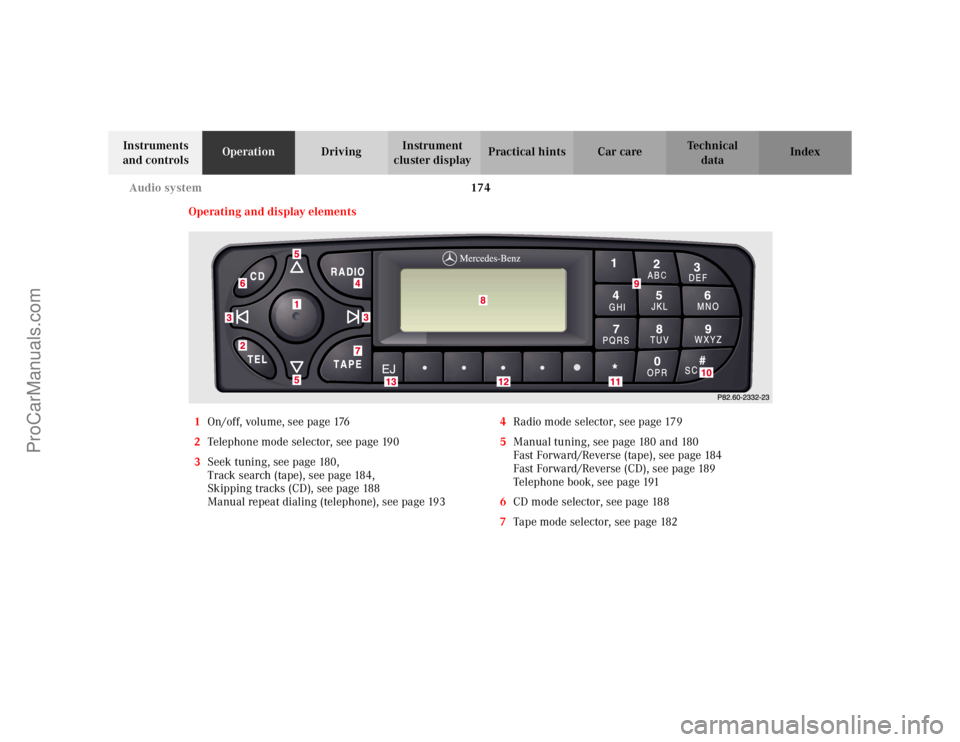
Operating and display elements
1 On/off, volume, see page 176
2 Telephone mode selector, see page 190
3 Seek tuning, see page 180,
Track search (tape), see page 184,
Skipping tracks (CD), see page 188
Manual repeat dialing (telephone), see page 193 4
Radio mode selector, see page 179
5 Manual tuning, see page 180 and 180
Fast Forward/Reverse (tape), see page 184
Fast Forward/Reverse (CD), see page 189
Telephone book, see page 191
6 CD mode selector, see page 188
7 Tape mode selector, see page 182
ProCarManuals.com
Page 178 of 399
175
Audio system
Te ch n i c a l
data
Instruments
and controls Operation
DrivingInstrument
cluster display Practical hints Car care Index
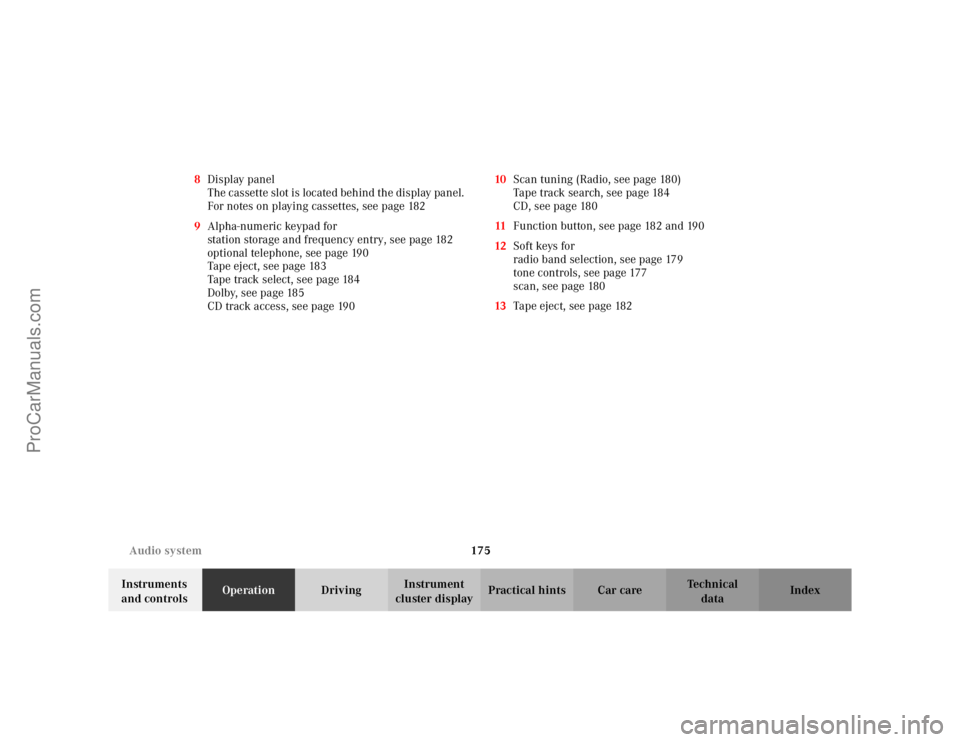
8
Display panel
The cassette slot is located behind the display panel.
For notes on playing cassettes, see page 182
9 Alpha-numeric keypad for
station storage and frequency entry, see page 182
optional telephone, see page 190
Tape eject, see page 183
Tape track select, see page 184
Dolby, see page 185
CD track access, see page 190 10
Scan tuning (Radio, see page 180)
Tape track search, see page 184
CD, see page 180
11 Function button, see page 182 and 190
12 Soft keys for
radio band selection, see page 179
tone controls, see page 177
scan, see page 180
13 Tape eject, see page 182
ProCarManuals.com
Page 179 of 399

176
Audio system
Te ch n i c a l
data
Instruments
and controls Operation
DrivingInstrument
cluster display Practical hints Car care Index
Button and soft key operation
In these instructions, the alpha-numeric keypad (right
side of radio face) and the function buttons (left side of
the radio face) are referred to as “buttons” and the four
keys under the display are referred to as “soft keys”
Note:
Do not press directly on the radio display face. Operation
Switching on and off
Press the control knob .
The system is switched off when the electronic key in
the starter switch is turned to position 0 or removed.
The radio is switched on again when the electronic key
in the starter switch is turned to position 1 or 2.
Note:
The system can also be switched on separately with the
electronic key removed, but will switch itself off
automatically after half an hour to conserve vehicle
battery power.
ProCarManuals.com
Page 180 of 399

177
Audio system
Te ch n i c a l
data
Instruments
and controls Operation
DrivingInstrument
cluster display Practical hints Car care Index
Adjusting the volume
Turning the control knob cl
ockwise will increase the
volume, counterclockwise will decrease the volume.
Note:
The volume setting can be selected separately for the
telephone, audio system and voice recognition system.
Audio fu nctions
The “AUD” key is used to select the BASS, TREBLE,
FADER and BALANCE functions. Settings for bass and
treble are stored separately for the radio, cassette and
CD modes. Tone level settings are identified by the
vertical bars. The center (flat) setting is shown by one
longer bar in the center of the display. Bass
Press the “AUD” key
repeatedly until “BASS”
appears on the display.
Press the “+” key to increase
or the “-” key to decrease the level.
Pressing the “+” and “-” keys simultaneously resets the
Bass to its center (flat) level.
Treble
Press the “AUD” key
repeatedly until “TREBLE”
appears on the display.
Press the “+” key to increase
or the “-” key to decrease the level.
Pressing the “+” and “-” keys simultaneously resets the
Treble to its center (flat) level.
ProCarManuals.com
Page 182 of 399
179
Audio system
Te ch n i c a l
data
Instruments
and controls Operation
DrivingInstrument
cluster display Practical hints Car care Index
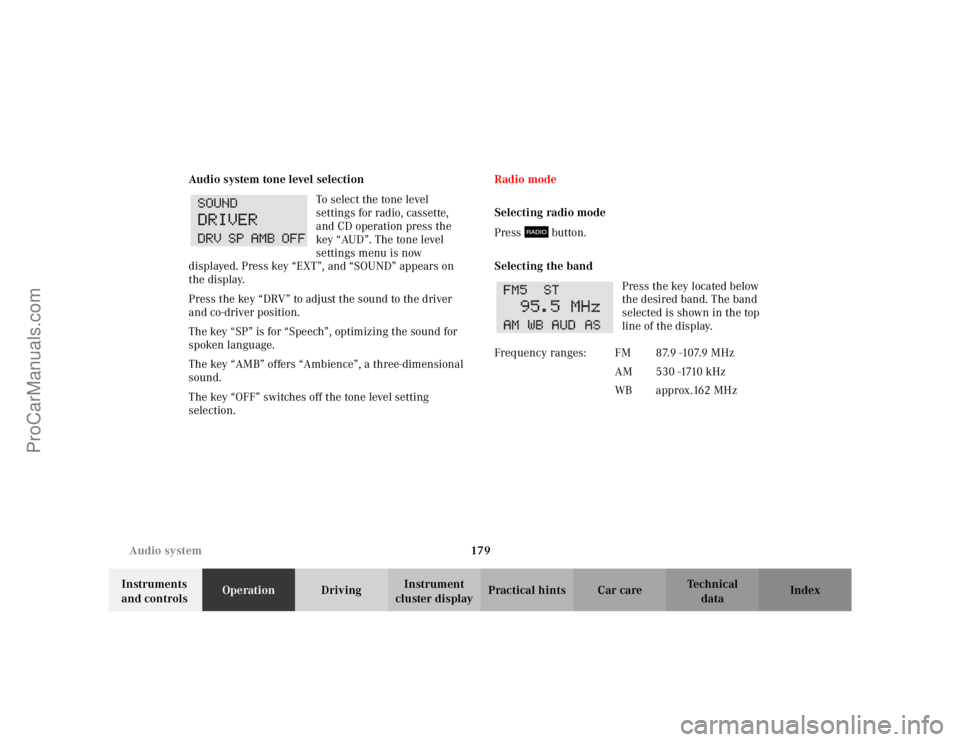
Audio system tone level selection
To select the tone level
settings for radio, cassette,
and CD operation press the
key “AUD”. The tone level
settings menu is now
displayed. Press key “EXT”, and “SOUND” appears on
the display.
Press the key “DRV” to adjust the sound to the driver
and co-driver position.
The key “SP” is for “Speech”, optimizing the sound for
spoken language.
The key “AMB” offers “Ambience”, a three-dimensional
sound.
The key “OFF” switches off the tone level setting
selection. Radio mode
Selecting radio mode
Press button.
Selecting the band
Press the key located below
the desired band. The band
selected is shown in the top
line of the display.
Frequency ranges: FM 87.9 -107.9 MHzAM 530 -1710 kHz
WB approx.162 MHz
ProCarManuals.com
Page 183 of 399

180
Audio system
Te ch n i c a l
data
Instruments
and controls Operation
DrivingInstrument
cluster display Practical hints Car care Index
Manual tuning Press either the or
button. Step-by-step station
tuning in ascending or
descending order of
frequency will take place.
The first three tuning steps will take place without
muting. The radio will then be muted and high-speed
tuning will take place until the button is released.
The following tuning intervals will be shown on the
display: Seek tuning
Press either the or button. The radio will tune
to the next receivable station.
Scan tuning
Press the button. Each
strongly receivable station on
the band selected will be
tuned in for 8 seconds. The
first scan will tune only the
stations with a high signal strength. The second scan
wi ll tune eve ry r ece ivable station . By pr ess in g e it her t he , , , buttons or the button the
scan mode can be cancelled.
FM 200 kHz
AM 10 kHz
WB Channels 1-7
SC #
SC #
ProCarManuals.com
Page 186 of 399
183
Audio system
Te ch n i c a l
data
Instruments
and controls Operation
DrivingInstrument
cluster display Practical hints Car care Index
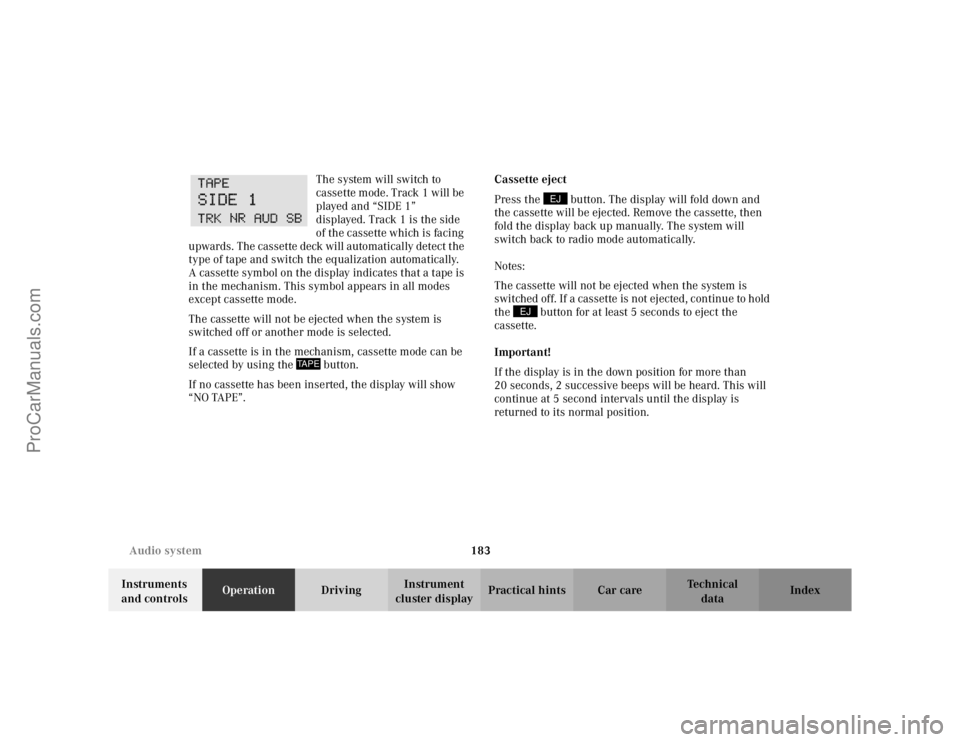
The system will switch to
cassette mode. Track 1 will be
played and “SIDE 1”
displayed. Track 1 is the side
of the cassette which is facing
upwards. The cassette deck will automatically detect the
type of tape and switch the equalization automatically.
A cassette symbol on the display indicates that a tape is
in the mechanism. This symbol appears in all modes
except cassette mode.
The cassette will not be ejected when the system is
switched off or another mode is selected.
If a cassette is in the mechanism, cassette mode can be
selected by using the button.
If no cassette has been inserted, the display will show
“NO TAPE”. Cassette eject
Press the button. The display will fold down and
the cassette will be ejected. Remove the cassette, then
fold the display back up manually. The system will
switch back to radio mode automatically.
Notes:
The cassette will not be ejected when the system is
switched off. If a cassette is not ejected, continue to hold
the button for at least 5 seconds to eject the
cassette.
Important!
If the display is in the down position for more than
20 seconds, 2 successive beeps will be heard. This will
continue at 5 second intervals until the display is
returned to its normal position.
TAPE
EJ
EJ
ProCarManuals.com