page 3 MERCEDES-BENZ C-Class 2017 W205 Comand Manual
[x] Cancel search | Manufacturer: MERCEDES-BENZ, Model Year: 2017, Model line: C-Class, Model: MERCEDES-BENZ C-Class 2017 W205Pages: 178, PDF Size: 5.62 MB
Page 33 of 178
XTo confirm an entry:slide6and turn the
controller, then press it after selecting ¬.
or
XSlide 5the controller repeatedly until the
character bar disappears.
The location selection list appears. The selec-
ted entry is highlighted.
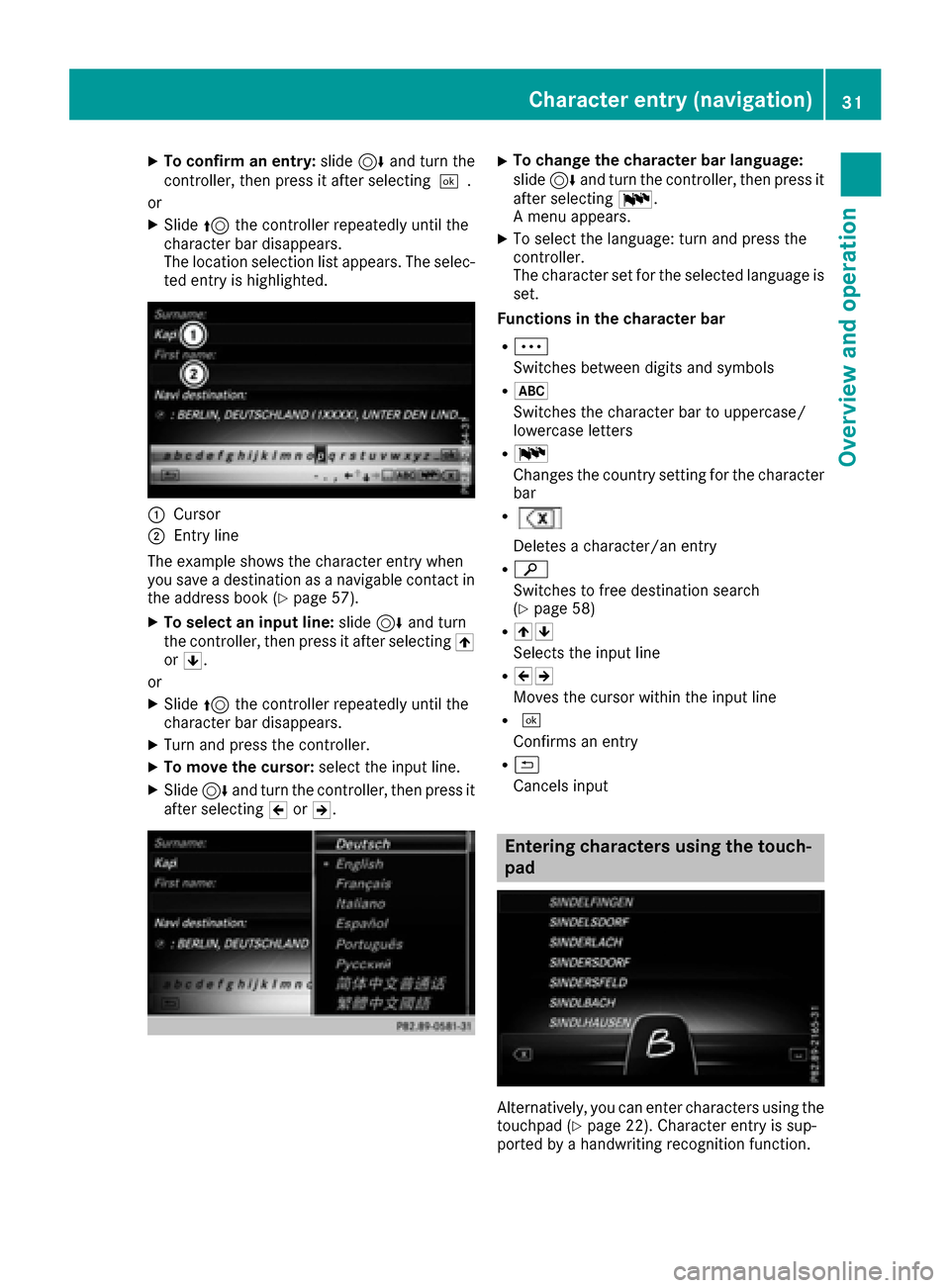
:Cursor
;Entry line
The example shows the character entry when
you save a destination as a navigable contact in
the address book (
Ypage 57).
XTo select an input line: slide6and turn
the controller, then press it after selecting 4
or 5.
or
XSlide 5the controller repeatedly until the
character bar disappears.
XTurn and press the controller.
XTo move the cursor: select the input line.
XSlide6and turn the controller, then press it
after selecting 2or3.
XTo change the character bar language:
slide 6and turn the controller, then press it
after selecting B.
A menu appears.
XTo select the language: turn and press the
controller.
The character set for the selected language is set.
Functions in the character bar
RÄ
Switches between digits and symbols
R*
Switches the character bar to uppercase/
lowercase letters
RB
Changes the country setting for the character
bar
R
Deletes a character/an entry
Rè
Switches to free destination search
(
Ypage 58)
R45
Selects the input line
R23
Moves the cursor within the input line
R¬
Confirms an entry
R&
Cancels input
Entering characters using the touch-
pad
Alternatively, you can enter characters using the
touchpad (Ypage 22). Character entry is sup-
ported by a handwriting recognition function.
Character entry (navigation)31
Overview and operation
Page 34 of 178
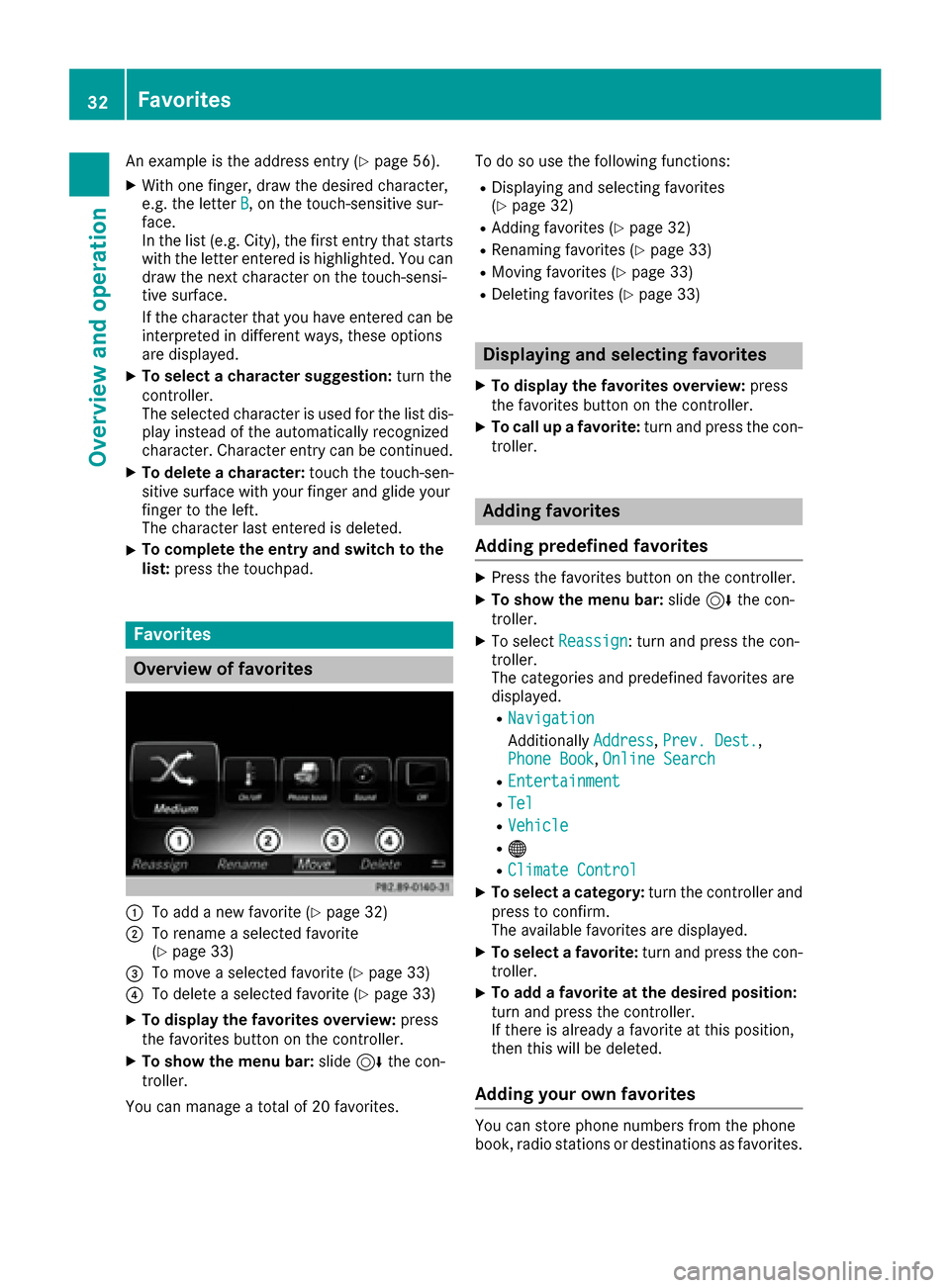
An example is the address entry (Ypage 56).
XWith one finger, draw the desired character,
e.g. the letterB, on the touch-sensitive sur-
face.
In the list (e.g. City), the first entry that starts
with the letter entered is highlighted. You can
draw the next character on the touch-sensi-
tive surface.
If the character that you have entered can be
interpreted in different ways, these options
are displayed.
XTo select a character suggestion: turn the
controller.
The selected character is used for the list dis-
play instead of the automatically recognized
character. Character entry can be continued.
XTo delete a character: touch the touch-sen-
sitive surface with your finger and glide your
finger to the left.
The character last entered is deleted.
XTo complete the entry and switch to the
list: press the touchpad.
Favorites
Overview of favorites
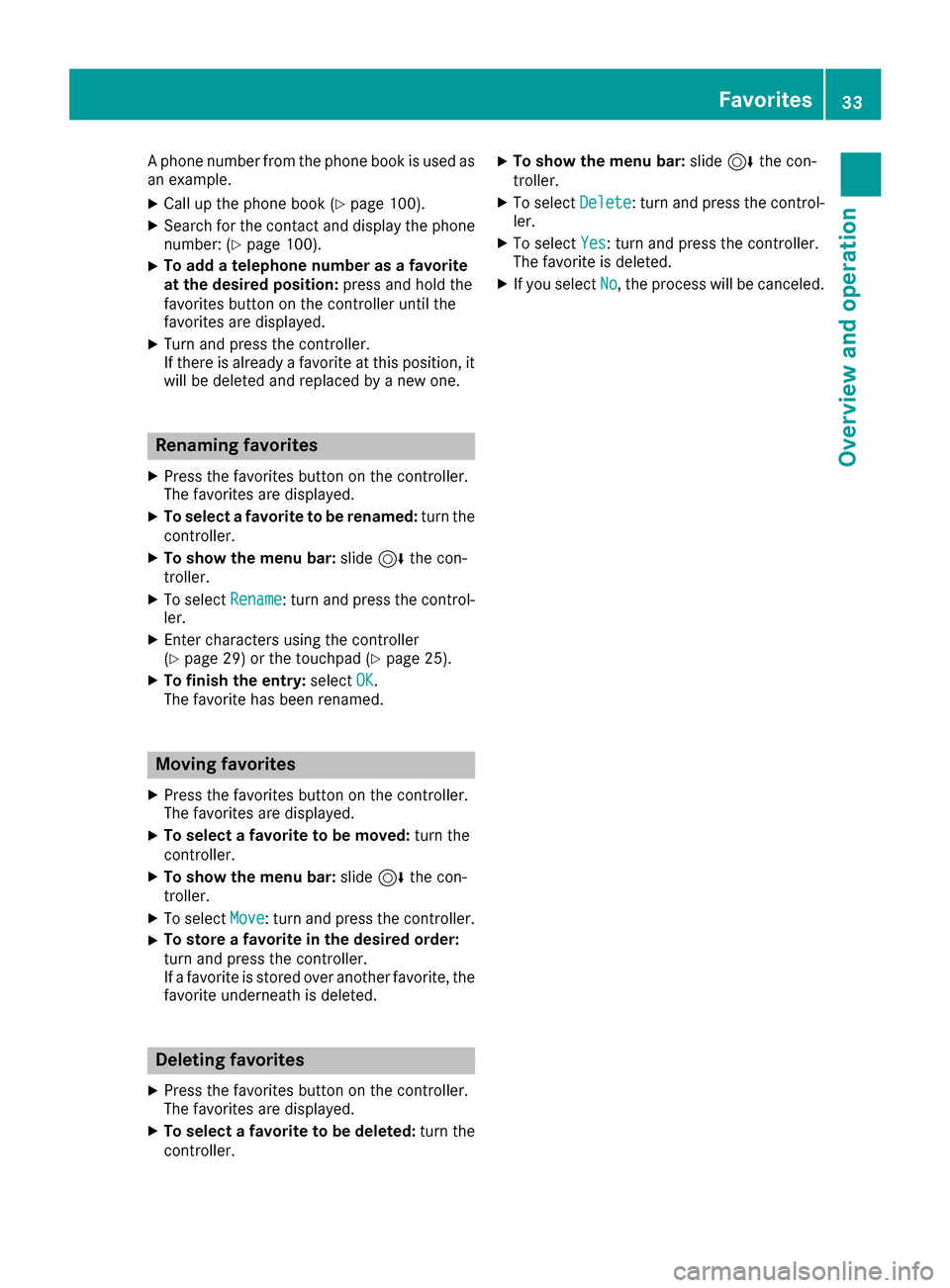
:To add a new favorite (Ypage 32)
;To rename a selected favorite
(Ypage 33)
=To move a selected favorite (Ypage 33)
?To delete a selected favorite (Ypage 33)
XTo display the favorites overview: press
the favorites button on the controller.
XTo show the menu bar: slide6the con-
troller.
You can manage a total of 20 favorites. To do so use the following functions:
RDisplaying and selecting favorites
(Ypage 32)
RAdding favorites (Ypage 32)
RRenaming favorites (Ypage 33)
RMoving favorites (Ypage 33)
RDeleting favorites (Ypage 33)
Displaying and selecting favorites
XTo display the favorites overview:
press
the favorites button on the controller.
XTo call up a favorite: turn and press the con-
troller.
Adding favorites
Adding predefined favorites
XPress the favorites button on the controller.
XTo show the menu bar: slide6the con-
troller.
XTo select Reassign: turn and press the con-
troller.
The categories and predefined favorites are
displayed.
RNavigation
Additionally Address,Prev. Dest.,
Phone Book, Online Search
REntertainment
RTel
RVehicle
R®
RClimate Control
XTo select a category: turn the controller and
press to confirm.
The available favorites are displayed.
XTo select a favorite: turn and press the con-
troller.
XTo add a favorite at the desired position:
turn and press the controller.
If there is already a favorite at this position,
then this will be deleted.
Adding your own favorites
You can store phone numbers from the phone
book, radio stations or destinations as favorites.
32Favorites
Overview and operation
Page 35 of 178
A phone number from the phone book is used as
an example.
XCall up the phone book (Ypage 100).
XSearch for the contact and display the phone
number: (Ypage 100).
XTo add a telephone number as a favorite
at the desired position: press and hold the
favorites button on the controller until the
favorites are displayed.
XTurn and press the controller.
If there is already a favorite at this position, it will be deleted and replaced by a new one.
Renaming favorites
XPress the favorites button on the controller.
The favorites are displayed.
XTo select a favorite to be renamed: turn the
controller.
XTo show the menu bar: slide6the con-
troller.
XTo select Rename: turn and press the control-
ler.
XEnter characters using the controller
(Ypage 29) or the touchpad (Ypage 25).
XTo finish the entry: selectOK.
The favorite has been renamed.
Moving favorites
XPress the favorites button on the controller.
The favorites are displayed.
XTo select a favorite to be moved: turn the
controller.
XTo show the menu bar: slide6the con-
troller.
XTo select Move: turn and press the controller.
XTo store a favorite in the desired order:
turn and press the controller.
If a favorite is stored over another favorite, the
favorite underneath is deleted.
Deleting favorites
XPress the favorites button on the controller.
The favorites are displayed.
XTo select a favorite to be deleted: turn the
controller.
XTo show the menu bar: slide6the con-
troller.
XTo select Delete: turn and press the control-
ler.
XTo select Yes: turn and press the controller.
The favorite is deleted.
XIf you select No, the process will be canceled.
Favorites33
Overviewand operation
Page 37 of 178
Switching the display on/off
XPress theØbutton.
or
XPress Vehiclein the main function bar.
The vehicle menu is displayed.
XTo select Display Off: slide6, turn and
press the controller.
The display goes out.
XTo switch the display on again: press the
controller.
Time settings
General information
The multimedia system can automatically set
the time and date.
The following navigation system functions
require the time, time zone and summer and
standard time to be set correctly in order to
work properly:
Rroute guidance on routes with time-depend-
ent traffic guidance
Rcalculation of expected time of arrival
Switching automatic time on and off
The Automatic Time Settingsfunction is
used to activate or deactivate the automatic
setting of the time and date. This function is
activated when the vehicle leaves the factory.
XPress the Øbutton.
or
XPress Vehiclein the main function bar.
The vehicle menu is displayed.
XTo select Time: slide6, turn and press the
controller.
A menu appears.
XTo select AutomaticTimeSettings: press
the controller.
XTo switch the function on Oor off ª: press
the controller.
Setting the time zone
To set the time zone, the Automatic TimeSettingsfunction must be activated.
XPress theØbutton.
or
XPress Vehiclein the main function bar.
The vehicle menu is displayed.
XTo select Time: slide6, turn and press the
controller.
A menu appears.
XTo select Time Zone:: turn and press the
controller.
A list of countries appears. The #dot indi-
cates the current setting.
XTo select the country in which you are
currently driving: turn and press the con-
troller.
The country is accepted.
A time zone list may also be displayed,
depending on the country selected.
XTo select the desired time zone: turn and
press the controller.
The time zone is accepted.
A list of available options for setting summer
time appears (
Ypage 35).
Setting summer and standard time
You can use the DaylightSavingTimemenu
to set automatic summer time changeover or
switch the summer time setting on or off. The
changeover to summer time advances the time
by one hour.
The Daylight
SavingTimemenu or the Auto‐maticoption is not available in all countries.
XPress theØbutton.
or
XSelect Vehiclein the main function bar.
The vehicle menu is displayed.
XTo select Time: slide6, turn and press the
controller.
A menu appears.
XTo select Daylight Saving Time: turn and
press the controller.
A list of available options for setting summer
time appears.
XTo select Automatic,Onor Off: turn and
press the controller.
Time settings35
System settings
Z
Page 40 of 178
XTo selectVehiclefrom the main function bar:
turn and press the controller.
XTo switch to the menu bar: slide 6the con-
troller.
XSelect System Settings.
The System Settingsmenu is displayed.
XSelect WiFi.
The WiFi menu appears.
XSelect Connect via WPS PIN.
XSelect the vehicle from the device to be con-
nected and "Connect using WPS PIN". The
vehicle is displayed with the SSID MB WLAN
XXXXX.
The device to be connected generates a PIN.
XAlso enter this PIN into the multimedia sys-
tem.
Connecting the device by pressing a
button (push button)
Requirement: for this type of connection, the
device to be connected must support "Connect
via push button".
XTo select Vehiclefrom the main function bar:
turn and press the controller.
XTo switch to the menu bar: slide 6the con-
troller.
XSelect System Settings.
The System Settingsmenu is displayed.
XSelect WiFi.
The WiFi menu appears.
XSelect Connect via WPS PBC.
XSelect the vehicle from the device to be con-
nected and ConnectviaWPSPBC. The vehi-
cle is displayed with the SSID MB WLAN
XXXXX.
XSelectContinuein the multimedia system.
Connecting the device via the security
key
XTo select Vehiclefrom the main function bar:
turn and press the controller.
XTo switch to the menu bar: slide 6the con-
troller.
XSelect System Settings.
The System Settingsmenu is displayed.
XSelect WiFi.
The WiFi menu appears.
XSelect Connect Using Security Key.
XSelect the vehicle from the device to be con-
nected. The vehicle is displayed with the SSID
MB WLAN XXXXX
.
XEnter the security key that appears on the
multimedia system display into the device to
be connected.
XConfirm the entry.
Generating a new security key
XTo select Vehiclefrom the main function bar:
turn and press the controller.
XTo switch to the menu bar: slide 6the con-
troller.
XSelect System Settings.
The System Settingsmenu appears.
XSelect WiFi.
The WiFi menu appears.
XSelect Generate Security Key.
XSelectRegenerate.
A new security key is generated.
XTo save the security key: turn the controller
and select Save.
The WiFi menu appears. The new security key
will now be displayed and verified when a
connection is established via the security key.
The connection must be re-established with
the newly created security key.
iDevice connections established using the
previous security key will no longer work after
the security key is changed. You have to
reconnect these devices (
Ypage 37).
Changing the name of the SSID
XTo select Vehiclefrom the main function bar:
turn and press the controller.
XTo switch to the menu bar: slide 6the con-
troller.
38WiFi
System settings
Page 41 of 178
XSelectSystem Settings.
The System Settingsmenu is displayed.
XSelect WiFi.
The WiFi menu appears.
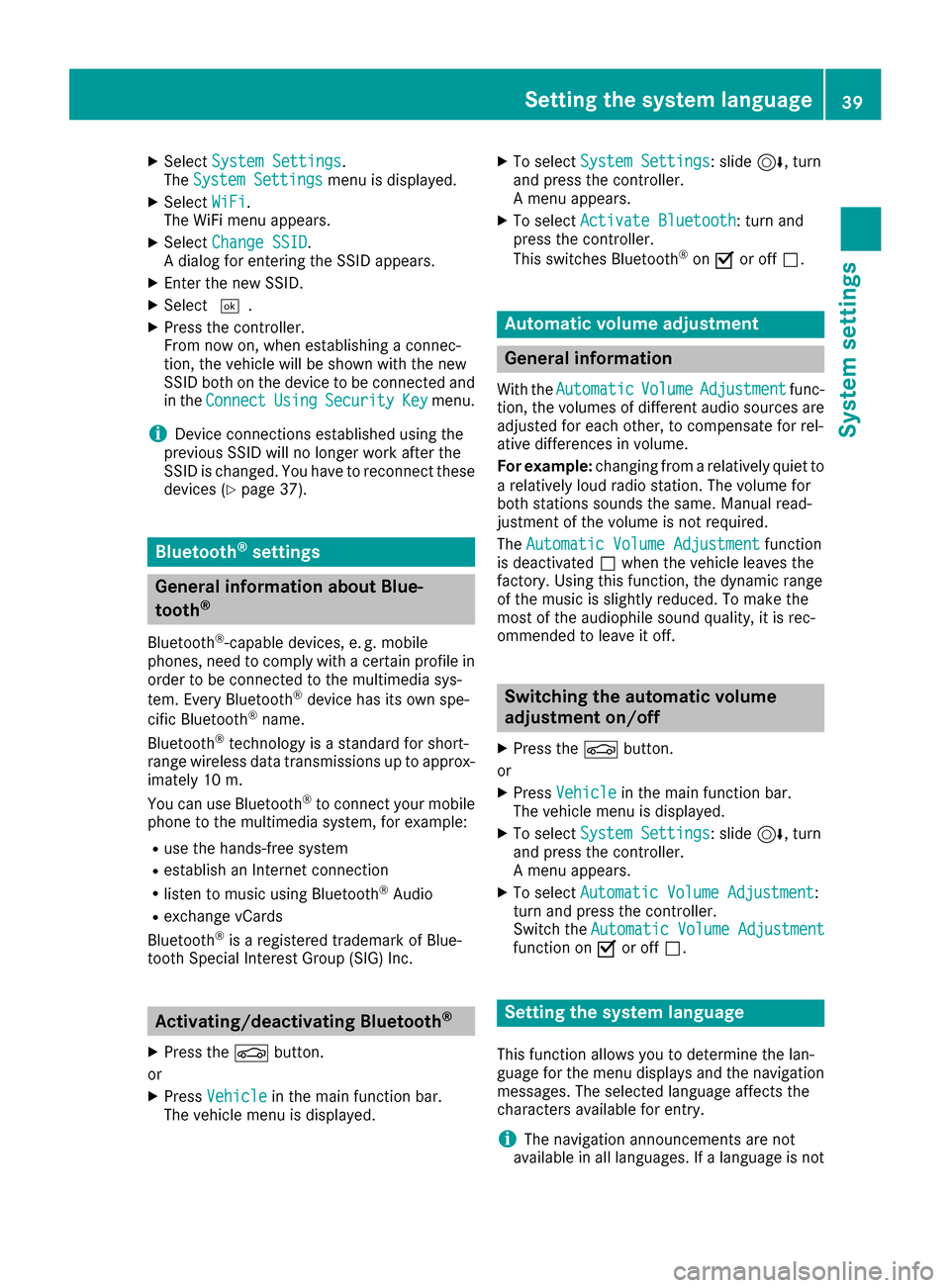
XSelect Change SSID.
A dialog for entering the SSID appears.
XEnter the new SSID.
XSelect ¬.
XPress the controller.
From now on, when establishing a connec-
tion, the vehicle will be shown with the new
SSID both on the device to be connected and
in the Connect
UsingSecurityKeymenu.
iDevice connections established using the
previous SSID will no longer work after the
SSID is changed. You have to reconnect these
devices (
Ypage 37).
Bluetooth®settings
General information about Blue-
tooth®
Bluetooth®-capable devices, e. g. mobile
phones, need to comply with a certain profile in
order to be connected to the multimedia sys-
tem. Every Bluetooth
®device has its own spe-
cific Bluetooth®name.
Bluetooth®technology is a standard for short-
range wireless data transmissions up to approx-
imately 10 m.
Yo u can use Bluetooth
®to connect your mobile
phone to the multimedia system, for example:
Ruse the hands-free system
Restablish an Internet connection
Rlisten to music using Bluetooth®Audio
Rexchange vCards
Bluetooth®is a registered trademark of Blue-
tooth Special Interest Group (SIG) Inc.
Activating/deactivating Bluetooth®
X
Press the Øbutton.
or
XPress Vehiclein the main function bar.
The vehicle menu is displayed.
XTo select System Settings: slide6, turn
and press the controller.
A menu appears.
XTo select Activate Bluetooth: turn and
press the controller.
This switches Bluetooth
®on O or off ª.
Automatic volume adjustment
General information
With the AutomaticVolumeAdjustmentfunc-
tion, the volumes of different audio sources are
adjusted for each other, to compensate for rel-
ative differences in volume.
For example: changing from a relatively quiet to
a relatively loud radio station. The volume for
both stations sounds the same. Manual read-
justment of the volume is not required.
The Automatic Volume Adjustment
function
is deactivated ªwhen the vehicle leaves the
factory. Using this function, the dynamic range
of the music is slightly reduced. To make the
most of the audiophile sound quality, it is rec-
ommended to leave it off.
Switching the automatic volume
adjustment on/off
XPress the Øbutton.
or
XPress Vehiclein the main function bar.
The vehicle menu is displayed.
XTo select System Settings: slide6, turn
and press the controller.
A menu appears.
XTo select Automatic Volume Adjustment:
turn and press the controller.
Switch the Automatic Volume Adjustment
function on Oor off ª.
Setting the system language
This function allows you to determine the lan-
guage for the menu displays and the navigation
messages. The selected language affects the
characters available for entry.
iThe navigation announcements are not
available in all languages. If a language is not
Setting the system language39
System settings
Z
Page 42 of 178
available, the navigation announcements will
be in English.
iWhen you set the system language, the lan-
guage of the Voice Control System will
change accordingly. If it is not supported by
the Voice Control System, English will be
selected.
XPress the Øbutton.
or
XPress Vehiclein the main function bar.
The vehicle menu is displayed.
XTo select System Settings: slide6, turn
and press the controller.
A menu appears.
XTo select Language: turn and press the con-
troller.
The list of languages appears. The #dot indi-
cates the current setting.
XSelect the desired language.
The multimedia system loads the selected
language and sets it.
Calling up and editing the Favorites
function
The Favorites function can, depending on the
vehicle equipment, be called up as follows:
Rvia the System Settingsmenu
Rvia the Favorites button on the controller
(Ypage 22)
Rvia the Favorites button on the touchpad
(Ypage 22)
Calling up the Favorites function via the sys-
tem menu
XPress the Øbutton.
or
XPress Vehiclein the main function bar.
The vehicle menu is displayed.
XTo select System Settings: slide6and
press the controller.
A menu appears.
XTo select Favorite Functions: press the
controller.
The favorites are displayed.
XTo select the desired function, e.g. Phone‐book: turn and press the controller. Calling up the Favorites function via the
controller or touchpad
XPress the Favorites button on the controller or
touchpad.
The favorites are displayed.
XTo select the desired function, e.g. Phone‐book: turn and press the controller.
Exiting the Favorites function
XPress the Favorites button again.
or
XPress the %button.
Further information on favorites (
Ypage 32).
Importing/exporting data
General notes
!
Never remove the stick or card when writing
data to the USB stick or the memory card. You
may otherwise lose data.
Using this function you can do the following with
your personal data:
Rtransfer your data from one multimedia sys-
tem to another multimedia system
The transfer may be limited or not possible,
depending on the vehicle's equipment.
Rmake a backup copy of your personal data
(export data) and load it again (import data)
Rprotect your data from unwanted export by
activating a PIN prompt (presetting: deacti-
vated ª)
You can either use an SD card or a USB storage
device (e.g. a USB stick) as temporary storage.
You can obtain further information on data
import and export from an authorized
Mercedes-Benz Center.
40Importing/exporting data
System settings
Page 43 of 178
Activating/deactivating PIN protec-
tion
XPress th eØ button.
or
XPress Vehicl ein themain function bar.
The vehicl emen uis displayed.
XTo select System Settings:slid e6, turn
and press th econtroller .
A men uappears.
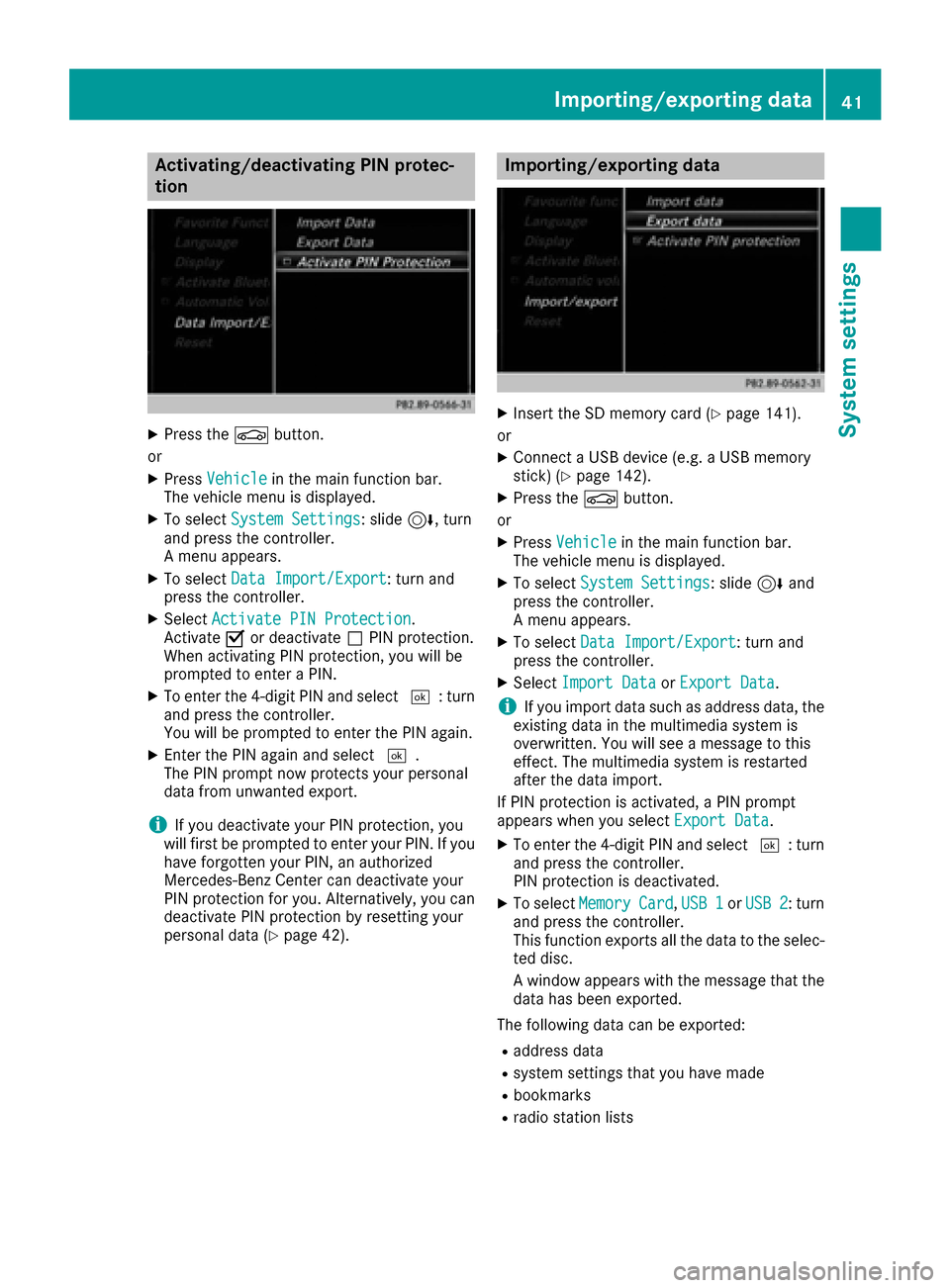
XTo select DataImport/Expor t:tur nand
press th econtroller .
XSelectActivate PIN Protectio n.
Activat eO or deactivat eª PIN protection .
When activating PIN protection ,you will be
prompted to ente r aPIN .
XTo ente rth e4-digit PIN and select ¬:turn
and press th econtroller .
You will be prompted to ente rth ePIN again .
XEnterth ePIN again and select ¬.
The PIN prompt no wprotect syour personal
dat afrom unwanted export.
iIf you deactivat eyour PIN protection ,you
will first be prompted to ente ryour PIN .If you
hav eforgotte nyour PIN ,an authorize d
Mercedes-Benz Cente rcan deactivat eyour
PIN protection for you. Alternatively, you can
deactivat ePIN protection by resetting your
personal dat a (
Ypage 42).
Importing/exporting data
XInsertth eSD memory car d (Ypage 141).
or
XConnect aUS Bdevice (e.g. aUS Bmemory
stick ) (Ypage 142).
XPress th eØ button.
or
XPress Vehicl ein themain function bar.
The vehicl emen uis displayed.
XTo select System Settings:slid e6 and
press th econtroller .
A men uappears.
XTo select DataImport/Expor t:tur nand
press th econtroller .
XSelectImport Dat aorExport Dat a.
iIf you import dat asuc has address data, th e
existing dat ain th emultimedia system is
overwritten. You will see amessage to this
effect. The multimedia system is restarte d
after th edat aimport .
If PIN protection is activated, aPIN prompt
appear swhen you select Export Data
.
XTo enterth e4-digit PIN and select ¬:turn
and press th econtroller .
PIN protection is deactivated.
XTo select MemoryCard,USB 1orUSB 2:tur n
and press th econtroller .
This function exports all th edat ato th eselec-
te ddisc .
A window appear swit hth emessage that th e
dat ahas been exported.
The followin gdat acan be exported:
Raddress dat a
Rsystem setting sthat you hav emade
Rbookmarks
Rradi ostation list s
Importing/exporting data41
System settings
Z
Page 45 of 178
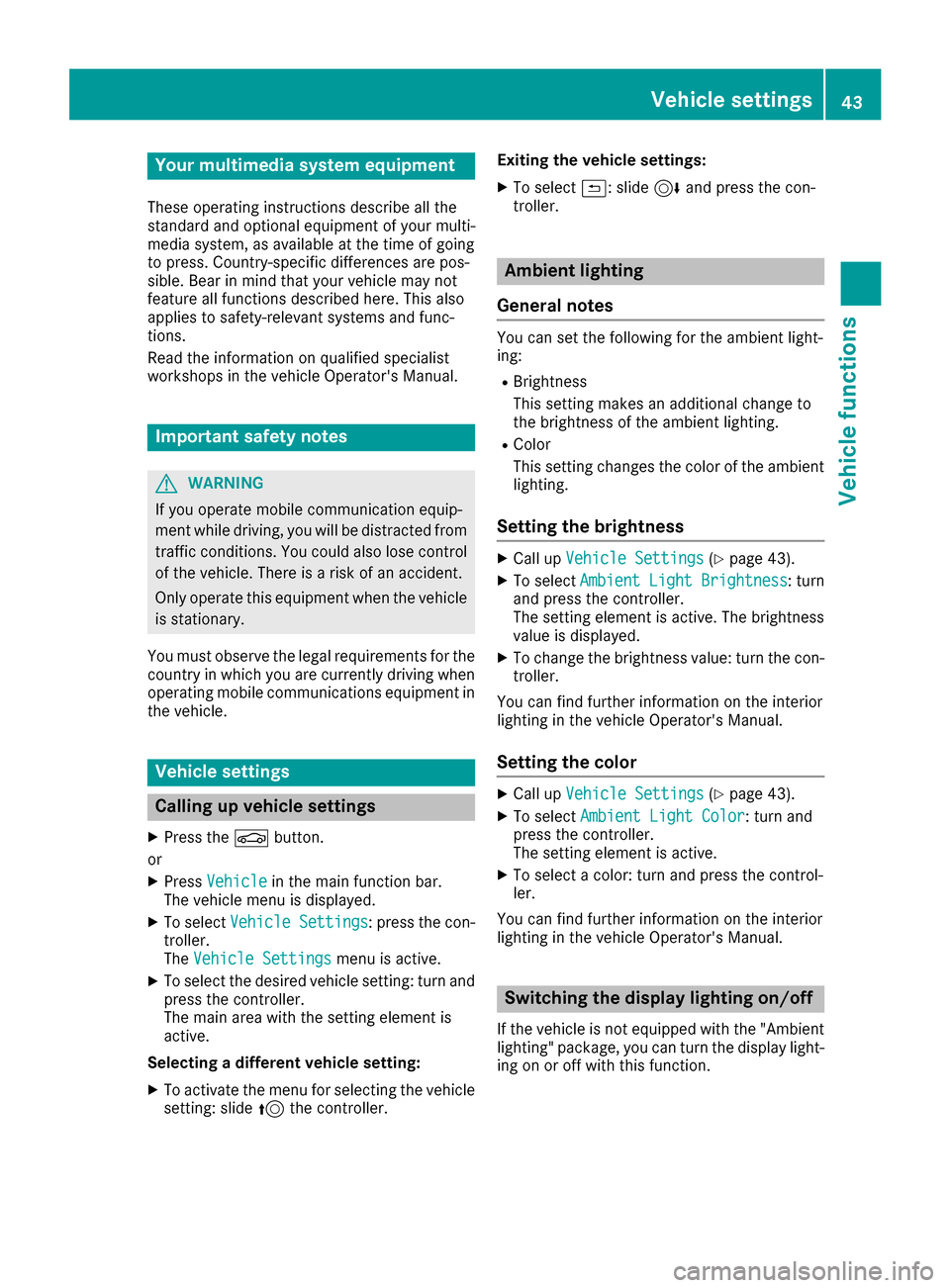
Your multimediasyste mequipment
These operatin ginstruction sdescribe all th e
standar dan doptional equipment of your multi-
media system, as available at th etime of going
to press. Country-specifi cdifference sare pos -
sible. Bear in min dthat your vehicle may no t
feature all function sdescribed here. Thi salso
applies to safety-relevan tsystems an dfunc-
tions.
Read th einformation on qualifie dspecialis t
workshop sin th evehicle Operator's Manual.
Important safet ynotes
GWARNING
If you operat emobile communication equip-
men twhil edriving, you will be distracted from
traffic conditions. You could also los econtro l
of th evehicle. There is aris kof an accident.
Only operat ethis equipment when th evehicle
is stationary.
You mus tobserv eth elegal requirements fo rth e
country in whic hyou are currentl ydrivin gwhen
operatin gmobile communication sequipment in
th evehicle.
Vehicl esettings
Calling up vehicle settings
XPress th eØ button.
or
XPress Vehicl ein themain function bar .
The vehicle men uis displayed.
XTo selec tVehicle Settings:press th econ-
troller.
The Vehicl eSettings
men uis active .
XTo selectth edesire dvehicle setting :turn an d
press th econtroller .
The main are awit hth esetting elemen tis
active .
Selecting adifferent vehicle setting:
XTo activat eth emen ufo rselecting th evehicle
setting :slid e5 thecontroller . Exiting th
evehicle settings :
XTo select& :slid e6 andpress th econ-
troller.
Ambien tlighting
General notes
You can set th efollowin gfo rth eambien tlight-
ing:
RBrightness
Thi ssetting makes an additional change to
th ebrightness of th eambien tlighting .
RColor
Thi ssetting changes th ecolor of th eambien t
lighting .
Setting th ebrightness
XCall up VehicleSettings(Ypage 43).
XTo selec tAmbien tLigh tBrightness:turn
an dpress th econtroller .
The setting elemen tis active .The brightness
valu eis displayed.
XTo change th ebrightness value: turn th econ-
troller.
You can fin dfurther information on th einterio r
lighting in th evehicle Operator's Manual.
Setting th ecolor
XCall up VehicleSettings(Ypage 43).
XTo selec tAmbien tLigh tColo r:turn an d
press th econtroller .
The setting elemen tis active .
XTo selec t acolor :turn an dpress th econtrol-
ler .
You can fin dfurther information on th einterio r
lighting in th evehicle Operator's Manual.
Switching th edisplay lighting on/of f
If thevehicle is no tequippe dwit hth e"Ambien t
lighting "package, you can turn th edisplay light-
in g on or of fwit hthis function .
Vehicle settings43
Vehicle functions
Z
Page 46 of 178
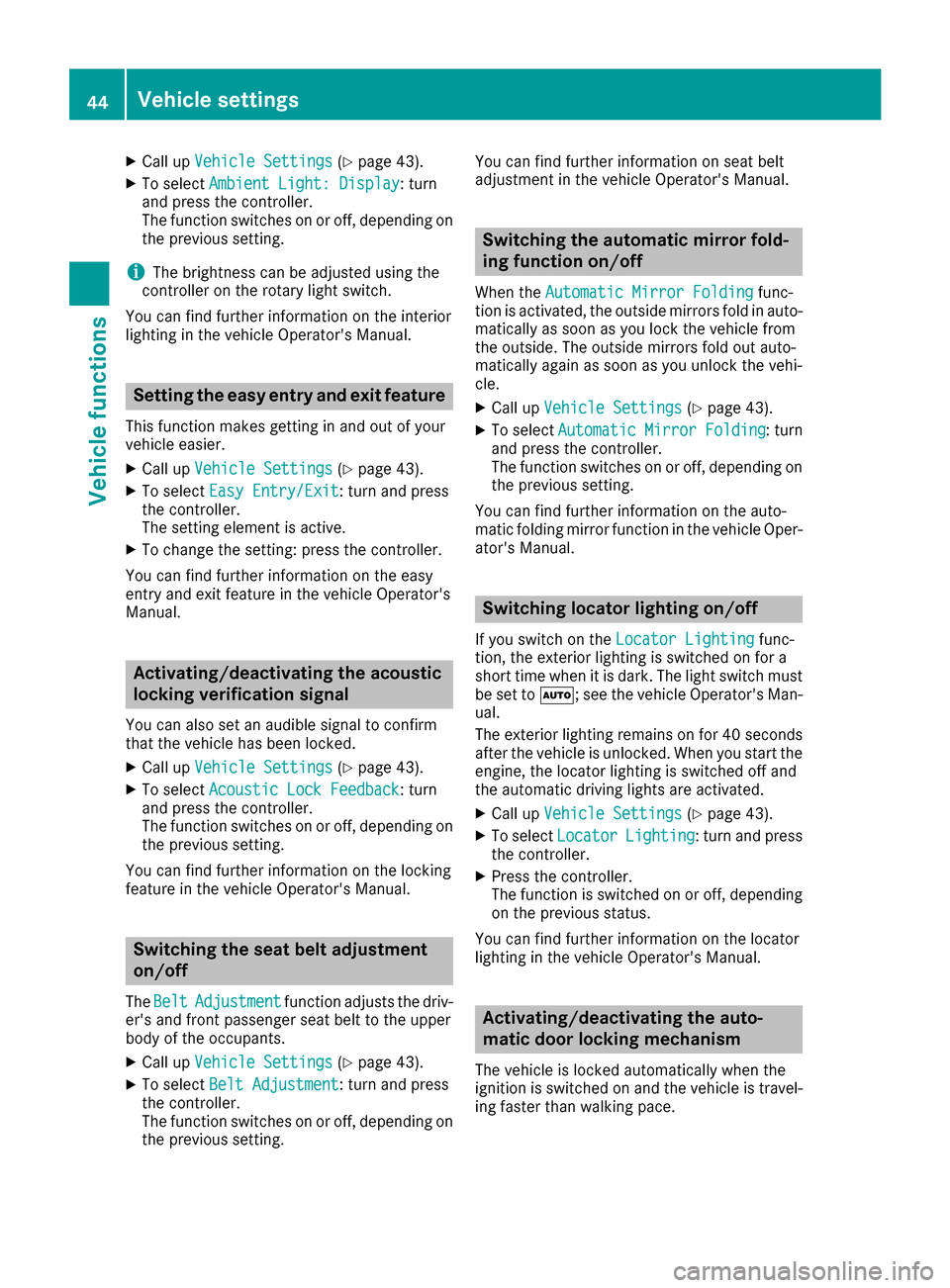
XCallupVehicle Settings(Ypage 43).
XTo select Ambient Light: Display: turn
and press the controller.
The function switches on or off, dependin g on
the previous setting.
iThe brightness can beadjusted using the
controller on the rotary light switch.
You can find further information on the interior
lighting inthe veh icleOperator's Manual.
Setting the easy entry and exit feature
This function makes getting inand out of your
veh icle easier.
XCall upVehicle Settings(Ypage 43).
XTo select Easy Entry/Exit: turn and press
the controller.
The setting element isactive.
XTo change the setting: press the controller.
You can find further information on the easy
entry and exit featureinthe veh icleOperator's
Manual.
Activating/deactivating the acoustic
locking verification signal
You can also set an audiblesignal to confirm
that the veh iclehas been locke d.
XCallupVehicle Settings(Ypage 43).
XTo select Acoustic Lock Feedback: turn
and press the controller.
The function switches on or off, dependin g on
the previous setting.
You can find further information on the locking
feature inthe veh icleOperator's Manual.
Switching the seat belt adjustment
on/off
TheBeltAdjustmentfunction adjusts the driv-
er's and front passenger seat beltto the upper
body of the occupants.
XCallupVehicle Settings(Ypage 43).
XTo select Belt Adjustment: turn and press
the controller.
The function switches on or off, dependin g on
the previous setting. You can find further information on seat belt
adjustment in the vehicle Operator's Manual.
Switching the automatic mirror fold-
ing function on/off
When the
Automatic Mirror Foldingfunc-
tion isactivated, the outside mirrors fold in auto-
matically as soon as you lock the vehicle from
the outside. The outside mirrors fold out auto-
matically again as soon as you unlock the veh i-
cle.
XCall up Vehicle Settings(Ypage 43).
XTo select Automatic Mirror Folding: turn
and press the controller.
The function switches on or off, depending on
the previous setting.
You can find further information on the auto-
mat icfolding mirror function inthe vehicle Oper-
ator's Manual.
Switching locator lighting on/off
If you switch on the Locator Lightingfunc-
tion, the exterior lighting is switched on for a
short time when it is dark. The light switch must
be set to Ã; see the vehicle Operator's Man-
ual.
The exterior lighting remains on for 40 seconds
after the vehicle is unlocked. When you start the
engine, the locator lighting is switched off and
the automatic driving lights are activated.
XCall up Vehicle Settings(Ypage 43).
XTo select LocatorLighting: turn and press
the controller.
XPress the controller.
The function isswitched on or off, depending
on the previous status.
You can find further information on the locator
lighting in the vehicle Operator's Manual.
Activating/deactivating the auto-
matic door locking mechanism
The vehicle islocked automatically when the
ignition is switched on and the vehicle istravel-
ing faster than walking pace.
44Vehicle settings
Vehicle functions