web MERCEDES-BENZ C-Class 2017 W205 Comand Manual
[x] Cancel search | Manufacturer: MERCEDES-BENZ, Model Year: 2017, Model line: C-Class, Model: MERCEDES-BENZ C-Class 2017 W205Pages: 178, PDF Size: 5.62 MB
Page 126 of 178
Connection status
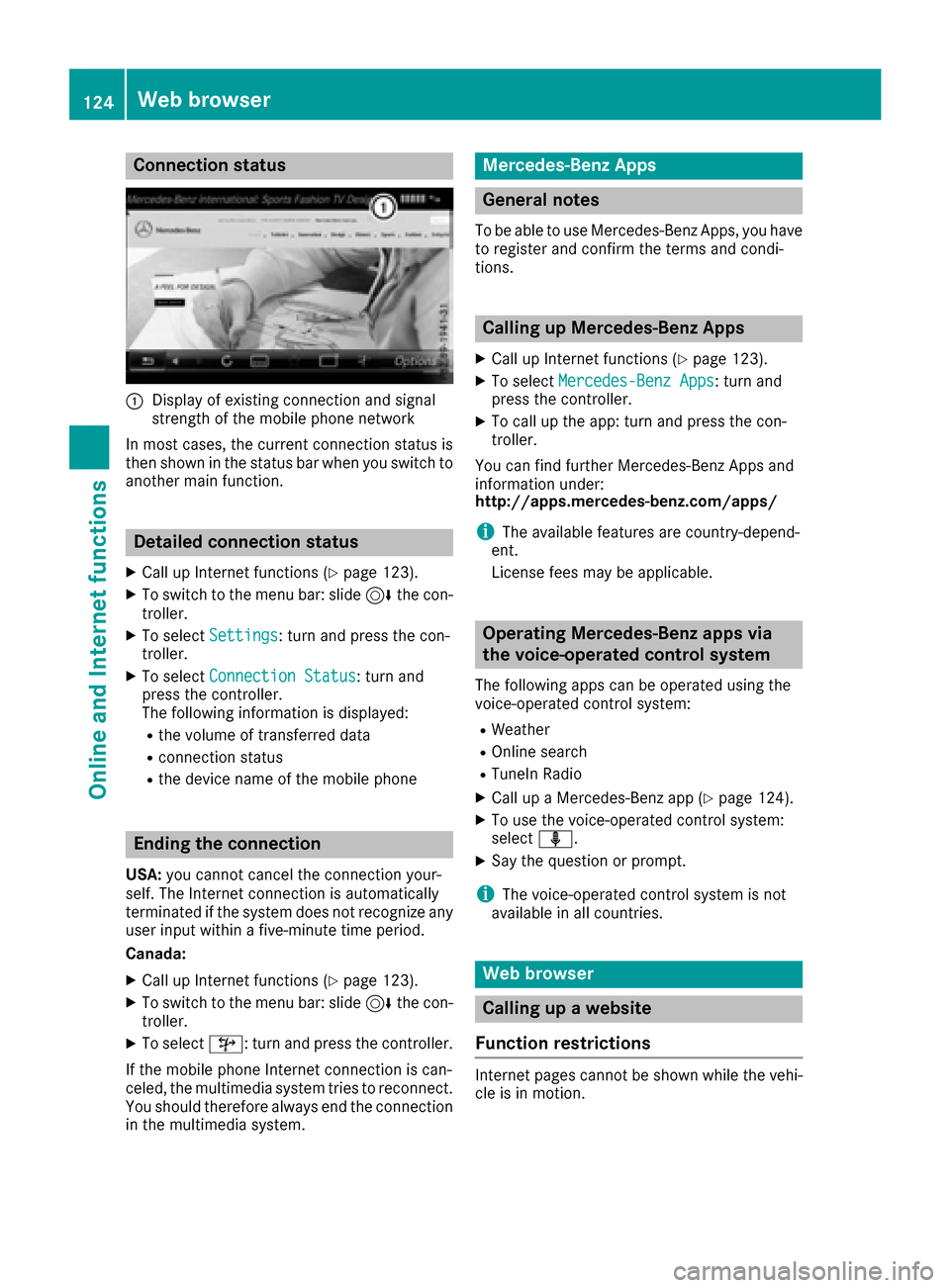
:Display of existing connection and signal
strength of the mobile phone network
In most cases, the current connection status is
then shown in the status bar when you switch to
another main function.
Detailed connection status
XCall up Internet functions (Ypage 123).
XTo switch to the menu bar: slide 6the con-
troller.
XTo select Settings: turn and press the con-
troller.
XTo select Connection Status: turn and
press the controller.
The following information is displayed:
Rthe volume of transferred data
Rconnection status
Rthe device name of the mobile phone
Ending the connection
USA: you cannot cancel the connection your-
self. The Internet connection is automatically
terminated if the system does not recognize any
user input within a five-minute time period.
Canada:
XCall up Internet functions (Ypage 123).
XTo switch to the menu bar: slide 6the con-
troller.
XTo select ©: turn and press the controller.
If the mobile phone Internet connection is can-
celed, the multimedia system tries to reconnect.
You should therefore always end the connection
in the multimedia system.
Mercedes-Benz Apps
General notes
To be able to use Mercedes-Benz Apps, you have
to register and confirm the terms and condi-
tions.
Calling up Mercedes-Benz Apps
XCall up Internet functions (Ypage 123).
XTo select Mercedes-Benz Apps: turn and
press the controller.
XTo call up the app: turn and press the con-
troller.
You can find further Mercedes-Benz Apps and
information under:
http://apps.mercedes-benz.com/apps/
iThe available features are country-depend-
ent.
License fees may be applicable.
Operating Mercedes-Benz apps via
the voice-operated control system
The following apps can be operated using the
voice-operated control system:
RWeather
ROnline search
RTuneIn Radio
XCall up a Mercedes-Benz app (Ypage 124).
XTo use the voice-operated control system:
select o.
XSay the question or prompt.
iThe voice-operated control system is not
available in all countries.
Web browser
Calling up a website
Function restrictions
Internet pages cannot be shown while the vehi-
cle is in motion.
124Web browser
Online and Internet functions
Page 127 of 178
Entering a web address
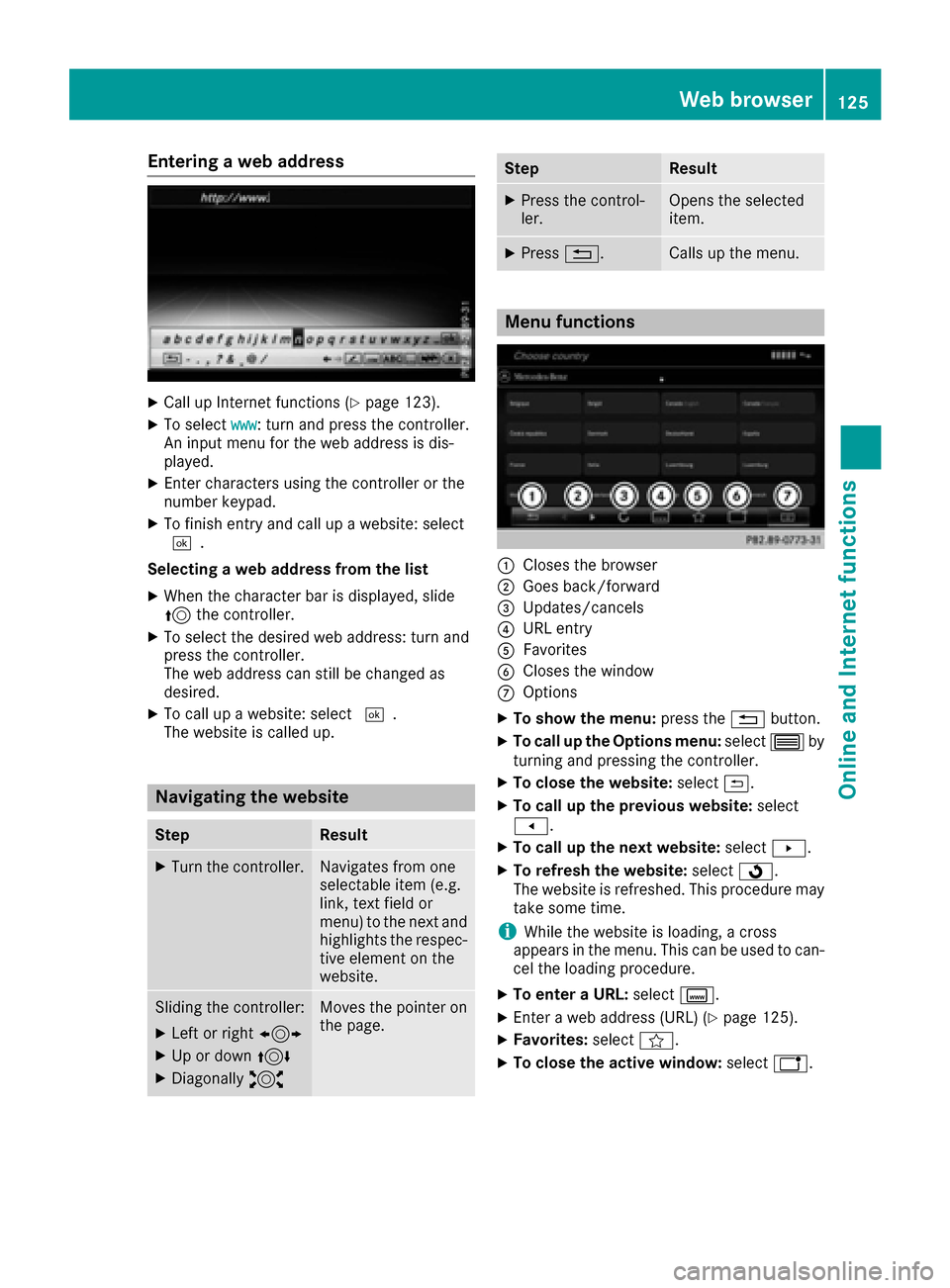
XCall up Internet functions (Ypage 123).
XTo selectwww: turn and press the controller.
An input menu for the web address is dis-
played.
XEnter characters using the controller or the
number keypad.
XTo finish entry and call up a website: select
¬.
Selecting a web address from the list
XWhen the character bar is displayed, slide
5 the controller.
XTo select the desired web address: turn and
press the controller.
The web address can still be changed as
desired.
XTo call up a website: select ¬.
The website is called up.
Navigating the website
StepResult
XTurn the controller.Navigates from one
selectable item (e.g.
link, text field or
menu) to the next and
highlights the respec-
tive element on the
website.
Sliding the controller:
XLeft or right 1
XUp or down4
XDiagonally2
Moves the pointer on
the page.
StepResult
XPress the control-
ler.Opens the selected
item.
XPress%.Calls up the menu.
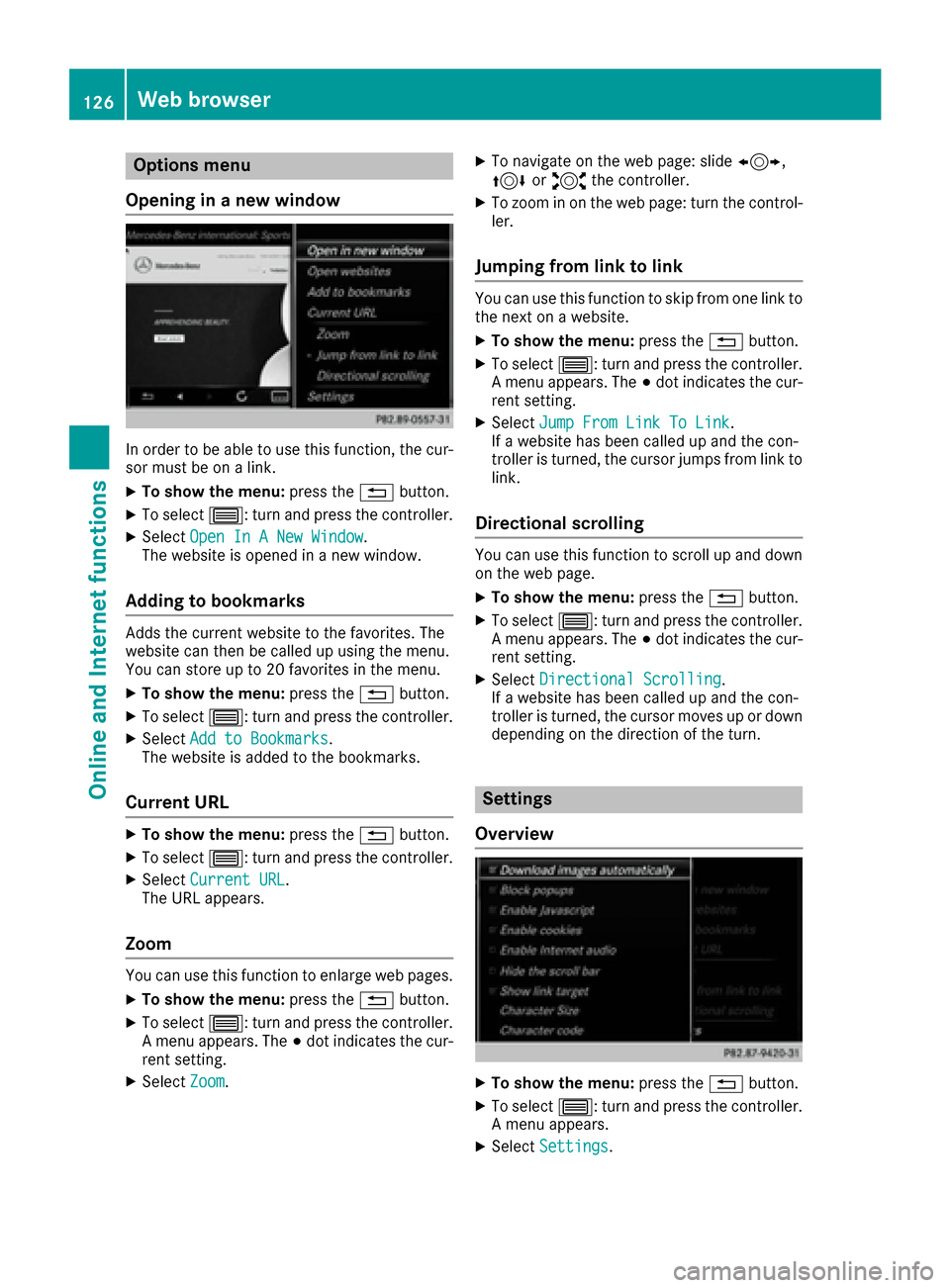
Menu functions
:Closes the browser
;Goes back/forward
=Updates/cancels
?URL entry
AFavorites
BCloses the window
COptions
XTo show the menu: press the%button.
XTo call up the Options menu: select3by
turning and pressing the controller.
XTo close the website: select&.
XTo call up the previous website: select
t.
XTo call up the next website: selectu.
XTo refresh the website: selectÎ.
The website is refreshed. This procedure may
take some time.
iWhile the website is loading, a cross
appears in the menu. This can be used to can-
cel the loading procedure.
XTo enter a URL: selectg.
XEnter a web address (URL) (Ypage 125).
XFavorites: selectf.
XTo close the active window: selecth.
Web browser125
Online and Internet functions
Z
Page 128 of 178
Options menu
Opening in a new window
In order to be able to use this function, the cur-
sor must be on a link.
XTo show the menu: press the%button.
XTo select 3: turn and press the controller.
XSelectOpen In A New Window.
The website is opened in a new window.
Adding to bookmarks
Adds the current website to the favorites. The
website can then be called up using the menu.
You can store up to 20 favorites in the menu.
XTo show the menu: press the%button.
XTo select 3: turn and press the controller.
XSelectAdd to Bookmarks.
The website is added to the bookmarks.
Current URL
XTo show the menu: press the%button.
XTo select 3: turn and press the controller.
XSelectCurrent URL.
The URL appears.
Zoom
You can use this function to enlarge web pages.
XTo show the menu: press the%button.
XTo select 3: turn and press the controller.
A menu appears. The #dot indicates the cur-
rent setting.
XSelect Zoom.
XTo navigate on the web page: slide 1,
4 or2 the controller.
XTo zoom in on the web page: turn the control-
ler.
Jumping from link to link
You can use this function to skip from one link to
the next on a website.
XTo show the menu: press the%button.
XTo select 3: turn and press the controller.
A menu appears. The #dot indicates the cur-
rent setting.
XSelect Jump From Link To Link.
If a website has been called up and the con-
troller is turned, the cursor jumps from link to
link.
Directional scrolling
You can use this function to scroll up and down
on the web page.
XTo show the menu: press the%button.
XTo select 3: turn and press the controller.
A menu appears. The #dot indicates the cur-
rent setting.
XSelect Directional Scrolling.
If a website has been called up and the con-
troller is turned, the cursor moves up or down
depending on the direction of the turn.
Settings
Overview
XTo show the menu: press the%button.
XTo select 3: turn and press the controller.
A menu appears.
XSelect Settings.
126Web browser
Online and Internet functions
Page 129 of 178
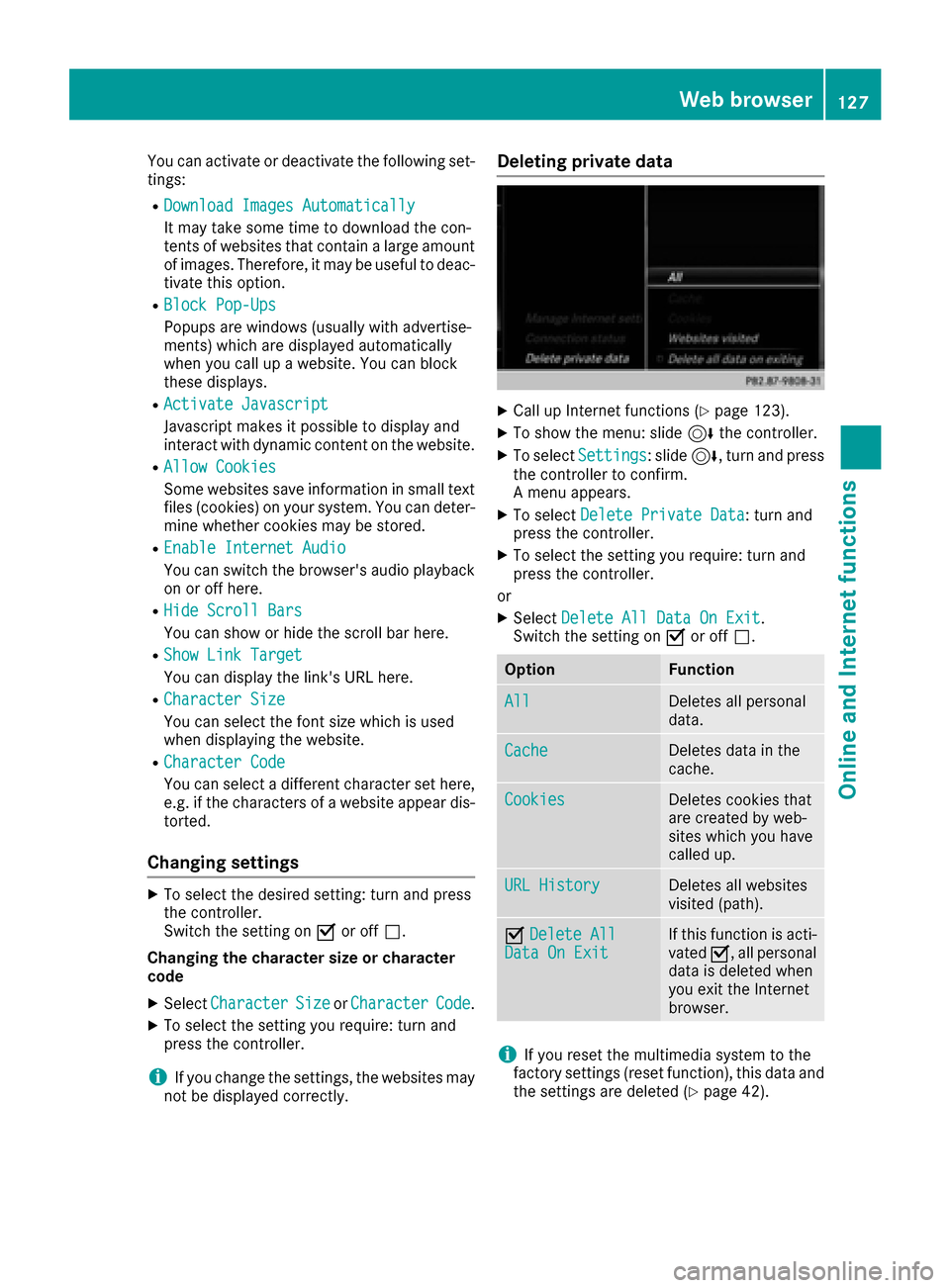
You can activate or deactivate the following set-
tings:
RDownload Images Automatically
It may take some time to download the con-
tents of websites that contain a large amount
of images. Therefore, it may be useful to deac-
tivate this option.
RBlock Pop-Ups
Popups are windows (usually with advertise-
ments) which are displayed automatically
when you call up a website. You can block
these displays.
RActivate Javascript
Javascript makes it possible to display and
interact with dynamic content on the website.
RAllow Cookies
Some websites save information in small text
files (cookies) on your system. You can deter-
mine whether cookies may be stored.
REnable Internet Audio
You can switch the browser's audio playback
on or off here.
RHide Scroll Bars
You can show or hide the scroll bar here.
RShow Link Target
You can display the link's URL here.
RCharacter Size
You can select the font size which is used
when displaying the website.
RCharacter Code
You can select a different character set here,
e.g. if the characters of a website appear dis-
torted.
Changing settings
XTo select the desired setting: turn and press
the controller.
Switch the setting onOor off ª.
Changing the character size or character
code
XSelect CharacterSizeorCharacterCode.
XTo select the setting you require: turn and
press the controller.
iIf you change the settings, the websites may
not be displayed correctly.
Deleting private data
XCall up Internet functions (Ypage 123).
XTo show the menu: slide 6the controller.
XTo select Settings: slide6, turn and press
the controller to confirm.
A menu appears.
XTo select Delete Private Data: turn and
press the controller.
XTo select the setting you require: turn and
press the controller.
or
XSelect Delete All Data On Exit.
Switch the setting on Oor off ª.
OptionFunction
AllDeletes all personal
data.
CacheDeletes data in the
cache.
CookiesDeletes cookies that
are created by web-
sites which you have
called up.
URL HistoryDeletes all websites
visited (path).
ODelete AllData On ExitIf this function is acti-
vated O, all personal
data is deleted when
you exit the Internet
browser.
iIf you reset the multimedia system to the
factory settings (reset function), this data and
the settings are deleted (
Ypage 42).
Web browser127
Online and Internet functions
Z
Page 130 of 178
Favorites
Introduction
Favorite sare frequentl yvisited websites.
Creating favorites
Addin g afavorite in th emen u
XCall up Internet function s (Ypage 123).
XSelectwww.
XEnte rth eweb address (URL )and nam eusin g
th echaracte rbar and press ¬.
Addin gto favorite s
XTo call up th emenu: press th e% button.
XTo select 3:turnand press th econtroller.
XSelec tAdd to Bookmarks(Ypage 126).
Selecting favorites
XCall up Internet function s (Ypage 123).
XTo select theInternet Favoritesmenu:
tur nand press th econtroller.
The Favorite smen uappears.
XSelec tth edesired bookmark.
The favorite is opened in ane wwindow.
Editing favorites
XCall up Internet function s (Ypage 123).
XTo select theInternet Favoritesmenu:
tur nand press th econtroller.
The Favorite smen uappears.
XTo brin gth edesired favorite sto th efront.
XTo select Edit:slide 6and press th econ-
troller .
An input men uappears.
XEnte r aweb address (URL).
XPress th etouchpad or controller.
XSelec tp.
XPress th etouchpad or controller.
XSlide 6thecontroller.
XEnte r aname.
Deleting favorites
XCall up Internet function s (Ypage 123).
XTo select theInternet Favoritesmenu:
tur nand press th econtroller.
The Favorite smen uappears.
XSelec tth edesired favorites.
XSelec tDelete.
A prompt appears.
XSelec tYes.
The favorite is deleted.
Closing the browser
XSelec t% in thebrowser men u
(Ypage 125)
or
XPress th e% buttonfor longer than two
seconds.
A prompt appears, asking whether you want
to close th eInternet browser .
XSelectYes.
The application is closed.
128Web browser
Online and Internet functions