web MERCEDES-BENZ C-Class 2017 W205 Comand Manual
[x] Cancel search | Manufacturer: MERCEDES-BENZ, Model Year: 2017, Model line: C-Class, Model: MERCEDES-BENZ C-Class 2017 W205Pages: 178, PDF Size: 5.62 MB
Page 2 of 178
Publication details
Internet
Further information about Mercedes-Benz vehi-
cles and about Daimler AG can be found on the
following websites:
http://www.mbusa.com (USA only)
http://www.mercedes-benz.ca (Canada only)
Editorial office
You are welcome to forward any queries or sug-
gestions you may have regarding this Operator's
Manual to the technical documentation team at
the following address:
Daimler AG, HPC: CAC, Customer Service,
70546 Stuttgart, Germany
©Daimler AG: Not to be reprinted, translated or
otherwise reproduced, in whole or in part, with-
out written permission from Daimler AG.
Vehicle manufacturer
Daimler AG
Mercedesstraße 137
70327 Stuttgart
Germany
Symbols
In this Operator's Manual you will find the fol-
lowing symbols:
GWARNING
Warning notes make you aware of dangers
which could pose a threat to your health or
life, or to the health and life of others.
HEnvironmental note
Environmental notes provide you with infor-
mation on environmentally aware actions or
disposal.
!Notes on material damage alert you to dan-
gers that could lead to damage to your vehi-
cle.
iPractical tips or further information that
could be helpful to you.
X This symbol indicates an instruction
that must be followed.
X Several of these symbols in succession
indicate an instruction with several
steps.
(Y
page) This symbol tells you where you can find
more information about a topic.
Dis‐
playThis text indicates a message in the
multimedia display.
Parts of the software in the vehicle are protected
by copyright
©2005 The FreeType Project
http://www.freetype.org. All rights reserved.
As at 28.09.2015
Page 4 of 178
Index....................................................... 4
Introduction......................................... 14
Operating safety .................................... 14
Data stored in the vehicle ...................... 15
Information on copyright ...................... .17
Your multimedia system equipment ...... 17
Overview and operation .....................18
Overview ................................................ 18
Touchpad .............................................. .22
Basic functions ...................................... 27
Character entry (telephony) ................... 29
Character entry (navigation) .................. 30
Favorites ................................................ 32
System settings .................................. 34
Your multimedia system equipment ...... 34
Important safety notes .......................... 34
Display settings ..................................... 34
Time settings .........................................3 5
Text reader settings ...............................3 7
Voice Control System settings ............... 37
WiFi ....................................................... 37
Bluetooth
®settings ............................... 39
Automatic volume adjustment ............... 39
Setting the system language .................3 9
Callin g up and editing the Favorites
function ................................................ .40
Importing/exporting data ...................... 40
Reset function ....................................... 42
Vehicle functions ................................ 43
Your multimedia system equipment ...... 43
Important safety notes .......................... 43
Vehicle settings .....................................4 3
360° camera ......................................... 45
Rear view camera .................................. 46
Climate control settings ........................ 47
DYNAMIC SELECT .................................. 49
Navigation ........................................... 52
Your multimedia system equipment ...... 52
Introduction ...........................................5 2Basic settings ........................................ 53
Destination entry ................................... 56
Personal POIs and routes ...................... 67
Route guidance ...................................... 70
Real-time traffic reports ......................... 76
Storing destinations ............................... 79
Map functions ........................................ 81
Navigation functions .............................. 87
Problems with the navigation system .... 88
Telephone
............................................ 90
Your multimedia system equipment ...... 90
Important safety notes .......................... 90
General notes ........................................ 90
Telephone menu .................................... 91
Connecting/disconnecting a mobile
phone .................................................... 91
Reception and transmission volume ...... 95
Using the telephone .............................. 96
Mobile phone voice recognition ............. 99
Phone book ......................................... 100
Address book ...................................... 103
Call lists ............................................... 109
Speed dial lists .................................... 111
Messages (text messages and e-
mails) ................................................... 112
Online and Internet functions ..........119
Your multimedia system equipment .... 119
Important safety notes ........................ 119
General notes ...................................... 119
Conditions for access .......................... 119
Setting up an Internet connection
(Canada) .............................................. 120
Establishing/ending the connection .... 123
Mercedes-Benz Apps ........................... 124
Web browser .......................................1 24
Radio.................................................. 129
Your multimedia system equipment .... 129
Switching on the radio ......................... 129
Overview .............................................. 129
Setting the waveband .......................... 130
Station ................................................. 130
Tagging music tracks ........................... 132
Displaying station information ............. 132
2Contents
Page 11 of 178
Drive Information ............................. 87
Entering a destination ...................... 56
Entering a destination using geo-
coordinates ...................................... 66
Entering a destination using
Mercedes-Benz Apps ....................... 66
Entering a destination using the
map ................................................. 63
Entering a point of interest .............. 61
Entering characters (character
bar) .................................................. 30
Entering intermediate destina-
tions ................................................. 64
Entry restriction ............................... 52
First use ........................................... 52
General notes .................................. 52
GPS reception .................................. 52
Important safety notes .................... 52
Info on navigation ............................ 88
Lane recommendation ..................... 72
Map functions .................................. 81
Moving the map ............................... 53
Off-road/Off-map (off-road desti-
nation) ............................................. 76
Online map display .......................... 87
Personal POIs and routes ................. 67
Problems ......................................... 88
Reading out traffic reports ............... 79
Repeating announcements .............. 73
Route flight ...................................... 88
Route information ............................ 74
Saving destinations .......................... 79
Saving home address ....................... 57
Selecting a destination from the
list of last destinations ..................... 60
Setting route options (avoiding:
highways, toll roads, tunnels, fer-
ries) ................................................. 54
Setting the announcements vol-
ume ................................................. 73
Setting the route type (short
route, fast route, dynamic route or
economic route) ............................... 53
Showing/hiding the menu ............... 53
Starting route calculation ................ 58
Switching announcements
on/off .............................................. 74
Switching to ..................................... 53Traffic jam function .......................... 75
Updating the digital map .................. 86
Navigation announcements
Switching off .................................... 28
North orientation (navigation) ........... 82
O
Off-road
................................................ 76
Online and Internet functions
Calling up ....................................... 123
Calling up the device list ................ 122
Enabling a mobile phone for Inter-
net access ..................................... 120
Ending the connection ................... 124
Establishing a connection .............. 123
Managing all Internet devices ........ 123
Manually setting the access data
of the mobile phone network pro-
vider .............................................. 121
Mercedes-Benz Apps ..................... 124
Selecting the access data of the
mobile phone network provider ..... 121
Setting automatic disconnection
of the Internet connection ............. 123
Setting up an Internet connection .. 120
Web browser .................................. 124
Own address (navigation)
see Home address
P
Pause functionVideo DVD ..................................... 160
Perfume atomizer
Setting the perfume intensity
(COMAND) ....................................... 48
Personal POIs and routes
Alert when approaching (personal
POI) .................................................. 67
General notes .................................. 67
Importing via Mercedes-Benz
Apps ................................................ 68
Recording the route ......................... 70
Saving .............................................. 68
Selecting and editing ....................... 69
Settings for personal POIs ............... 67
Phone book
Adding a new contact .................... 101
Index9
Page 15 of 178
Gesture control ................................ 23
Handwriting recognition ...................25
Operating the touchpad ...................2 3
Overview .......................................... 22
Quick access for Audio .................... 27
Quick access for telephone .............2 7
Switching ......................................... 23
Switching input line ......................... 26
Track
Selecting (CD, DVD, MP3) .............. 143
Traffic reports
Calling up a list ................................ 77
Real-time traffic report .................... 78
Trunk lid opening height restric-
tion
Activating/deactivating
(COMAND) ....................................... 45
U
Updating the digital map .................... 86
USB audio mode
Selecting a track ............................ 143
USB devices
Connecting to the Media Inter-
face ............................................... 142
see Audio CD/DVD and MP3 mode
V
Vehicle Data acquisition ............................... 15
Vehicle settings
Calling up ......................................... 43
Video
see Video DVD
Video DVD
Control option ................................ 157
DVD menu ..................................... 160
DVD's control menu ...................... 159
Full-screen mode ........................... 158
Function restrictions ...................... 157
Menu options ................................. 158
Notes on discs ............................... 157
Overview ........................................ 158
Overview of DVD functions ............ 159
Pause function ............................... 160
Picture settings .............................. 158
Playing conditions .......................... 157 Safety notes .................................. 156
Selecting a scene/chapter ............ 160
Stop function ................................. 160
Switching to ................................... 157
Video menu ................................... 159
Voice Control System
Settings ........................................... 37
see Voice Control System
Volume, adjusting
Navigation messages ....................... 27
W
Weather map (SIRIUS)Activating/deactivating display
levels ............................................. 170
Calling up ....................................... 169
Legend ........................................... 172
Moving ........................................... 169
Showing/hiding the menu ............. 169
Storm overview .............................. 173
Storm watch areas ......................... 172
Time stamp .................................... 172
Weather memory (SIRIUS)
Selecting an area ........................... 169
Storing an area .............................. 169
Web browser
Entering a web address ................. 125
WiFi
Activating ......................................... 37
Connecting the device ..................... 37
Index13
Page 19 of 178
Information on copyright
Information on licenses for free and Open
Sourcesoftware used in your vehicl eand in th e
electronic component scan be foun don this
website: http://www.mercedes-benz.com /
opensource .
Your multimedia system equipment
Theseoperating instruction sdescribe all th e
standard and optional equipmen tof your multi-
media system, as available at th etime of goin g
to press. Country-specific difference sare pos -
sible .Bea rin min dthat your vehicl emay no t
feature all function sdescribe dhere. This also
applie sto safety-relevant systems and func-
tions.
Read th einformation on qualified specialist
workshops in th evehicl eOperator's Manual.
Introduction17
Z
Page 21 of 178
RNavigation system
-Navigation via the hard drive
-Entering destinations via free destination
search
-Realistic 3D map with textured city models
-Personal POIs and routes using SD memory
card
-Navigation functions, e.g. Drive Informa-
tion
-Dynamic route guidance with traffic reports
via SIRIUS satellite radio
RCommunication
-Messaging functions (text messages,
email)
-Address book
-Internet browser
-Mercedes-Benz Apps with online search,
Facebook, stock prices, news and much
more
-Mercedes-Benz Mobile Website
-WiFi interface for the connection of a
smartphone to the multimedia system
RSIRIUS Weather
-Weather data as an information chart (cur-
rent forecast, 5-day preview, detailed infor-
mation)
-Weather data on the weather map, e.g. rain
radar data, storm characteristics and the
track of tropical cyclones (hurricanes,
typhoons)
RVehicle functions
-Vehicle settings, such as ambient lighting,
belt adjustment and tow-away alarm
-360° camera
-Rear view camera
-Climate control functions, such as climate
mode, perfume atomizer and auxiliary heat-
ing
-DYNAMIC SELECT (individual drive pro-
gram)
RFavorites button
Fast access to favorites fu
nctions using the
favorites button on the controller or on the
touchpad
Display
General notes
!Avoid any direct contact with the display
surface. Pressure on the display surface may
result in impairments to the display, which
could be irreversible.
Wearing polarized sunglasses may impair your
ability to read the display.
The display has an automatic temperature-con-
trolled switch-off feature. The brightness is
automatically reduced if the temperature is too
high. The display may then temporarily switch
off completely.
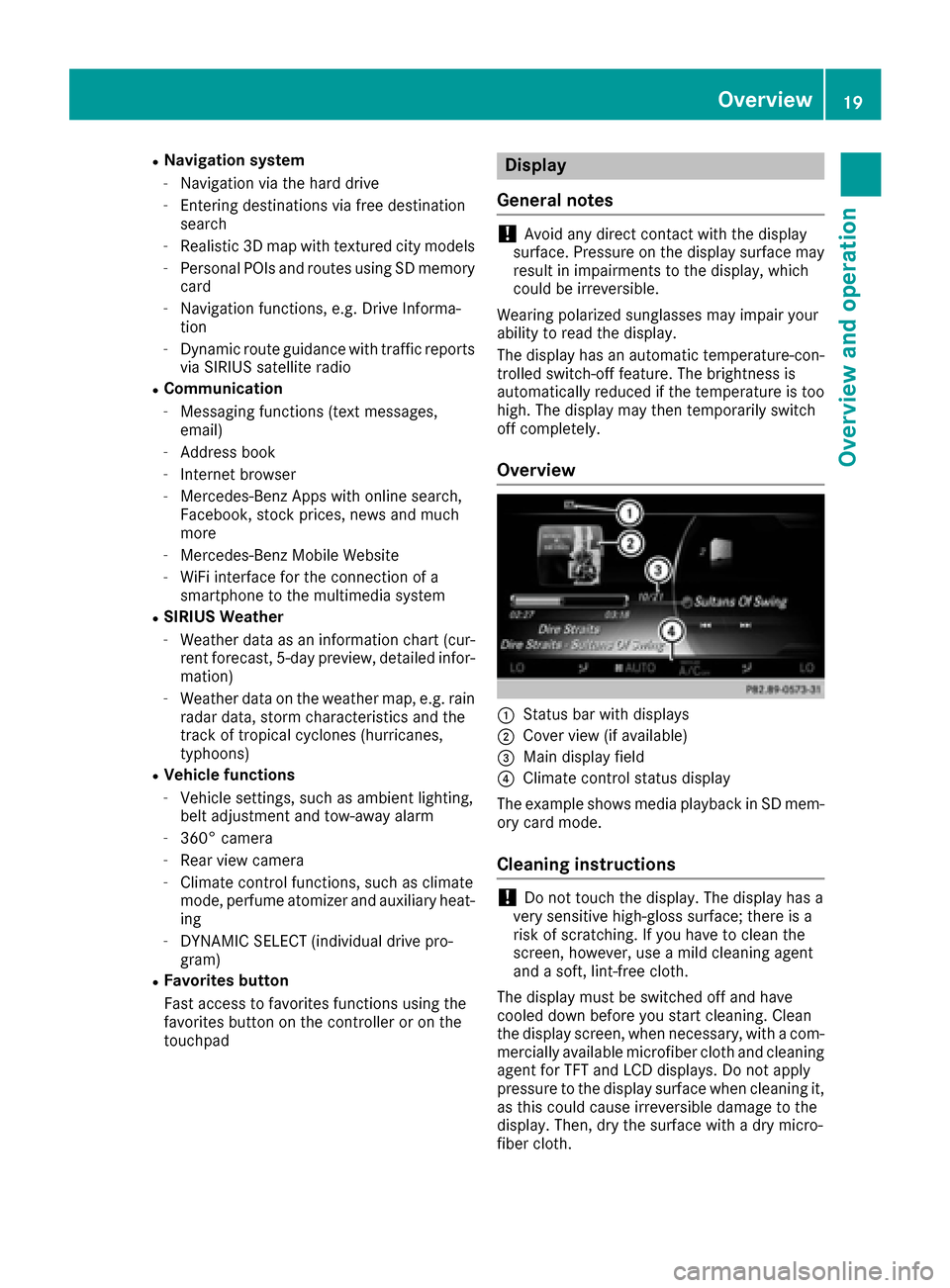
Overview
:Status bar with displays
;Cover view (if available)
=Main display field
?Climate control status display
The example shows media playback in SD mem-
ory card mode.
Cleaning instructions
!Do not touch the display. The display has a
very sensitive high-gloss surface; there is a
risk of scratching. If you have to clean the
screen, however, use a mild cleaning agent
and a soft, lint-free cloth.
The display must be switched off and have
cooled down before you start cleaning. Clean
the display screen, when necessary, with a com- mercially available microfiber cloth and cleaning
agent for TFT and LCD displays. Do not apply
pressure to the display surface when cleaning it,
as this could cause irreversible damage to the
display. Then, dry the surface with a dry micro-
fiber cloth.
Overview19
Overview and operation
Page 88 of 178
XSelectDelete All.
A prompt appears asking whether you wish to
delete all areas.
XSelect YesorNo.
After selecting Yes, all areas are deleted.
SIRIUS XM service
Displaying SIRIUS XM service informa-
tion
You can display the SIRIUS XM service informa-
tion.
XTo switch to navigation mode: press the
Ø button.
XTo show the menu: slide6the controller.
XTo select Traffic: turn and press the con-
troller.
XSelect SIRIUS Service.
The provider's phone number (SIRIUS XM)
and the serial number of your service module
are displayed.
iAlternatively you can call up this function
using the touchpad (Ypage 23).
Registering for the SIRIUS XM traffic
report service
XCall the provider telephone number shown on
the multimedia system display.
iYou can also have the satellite service acti-
vated online. To do so, visit the SIRIUS XM
Radio website at http://www.sirius.com
(USA).
XThe connection is established: follow the
service employee's instructions.
The activation process may take up to ten
minutes.
iIf registration is not included when purchas-
ing the system, your credit card details will be
required to activate your account.
Updating the digital map
Introduction
The digital maps generated by the map software
become outdated in the same way as conven-
tional road maps. Optimal route guidance can
only be provided by the navigation system in conjunction with the most up-to-date map soft-
ware.
Information about new versions of the digital
map can be obtained from an authorized
Mercedes-Benz Center. You can have the digital
map updated there using a data medium, or you
can update it yourself.
For North American countries, it is possible to
update the map data for the multimedia system
free of charge for a period of three years. Infor-
mation on the availability of this service for your
vehicle can be obtained from your Mercedes-
Benz Service Center.
Entitlement to the free update
For the first three years after your vehicle is reg-
istered, you are entitled to all available updates
to the map software for the multimedia system.
They are usually installed during a regular vehi-
cle service. After this period, you can purchase
further updates from your Mercedes-Benz Ser-
vice Center.
The free updates relate to the vehicle and not to
an individual. If there is a change of ownership
within the three years after first registration, the
new owner is entitled to the map software
updates.
Updating at an authorized Mercedes-
Benz Center
If an update for your map software is available,
you will receive it free of charge at your
Mercedes-Benz Service Center during your vehi-
cle's annual service. You can arrange a separate
appointment for this at your Mercedes-Benz
Service Center on request.
The update can only be performed:
Rat an authorized Mercedes-Benz Center
Rfor map data for North America
The map software is not provided on DVD.
Carrying out a manual update
After the free update of the map data has
expired or when buying map data, you can
update the data yourself.
The update process may take some time (up to
45 minutes), depending on the size of the digital
map. The update will be completed more quickly
if the vehicle is stationary. If you begin the
update while the vehicle is stationary and the
86Map functions
Navigation
Page 121 of 178
Your multimediasyste mequipment
These operatin ginstruction sdescribe all th e
standar dan doptional equipment of your multi-
media system, as available at th etime of going
to press. Country-specifi cdifference sare pos -
sible. Bear in min dthat your vehicle may no t
feature all function sdescribed here. Thi salso
applies to safety-relevan tsystems an dfunc-
tions.
Read th einformation on qualifie dspecialis t
workshop sin th evehicle Operator's Manual.
Important safet ynotes
GWARNING
If you operat einformation systems an dcom-
munication equipment integrated in th evehi-
cl e whil edriving, you will be distracted from
traffic conditions. You could also los econtro l
of th evehicle. There is aris kof an accident.
Only operat eth eequipment when th etraffic
situation permits. If you are no tsur ethat this
is possible, par kth evehicle payin gattention
to traffic condition san doperat eth eequip-
men twhen th evehicle is stationary.
You mus tobserv eth elegal requirements fo rth e
country in whic hyou are drivin gwhen operatin g
th esystem.
General notes
Connection difficulties whil eth evehi-
cle is in motion
The connection may be los tif:
Rth emobile phone networ kcoverage is insuf -
ficien t
Rthevehicle has moved into amobile phone
cell wit hno free channels
Rth eSI M car dused is no tcompatible wit hth e
networ kavailable
Function restrictions (Canada)
You will no tbe able to use th eMercedes-Ben z
Apps an dInternet connection ,or will no longer
be able to use them, or may hav eto wait befor e
usin gthem, in th efollowin gsituations:
Rwhen th emobile phone is switched of f
Rif your mobile phone has notbee nenable dfo r
Internet access
Rif th eBluetoot h®function is switched of fon
th emultimedia syste man dth edesire dphone
is suppose dto be connecte dvia Bluetoot h
®
Rif theBluetoot h®function is switched of fon
th emobile phone an dth ephone is suppose d
to be connecte dvia Bluetoot h
®
Rif themobile phone is no tconnecte dvia US B
an dth ephone is suppose dto be connecte d
via US B
Rif neither th emobile phone networ kno rth e
mobile phone allo wsimultaneous use of a
phone an dan Internet connection
Rif th emobile phone has no tbee nenable dfo r
Internet access via Bluetoot h®and/or USB
The driver is no tpermitte dto cal lup websites
whil edrivin gan duse of th eMercedes-Ben z
Apps is restricted.
iIt is possible that you may no tbe able to
receiv ecalls when an Inte rnet connection is
active .Thi sdepends on th emobile phone an d
th emobile phone networ kused .
Conditions for access
USA: to use Mercedes-Ben zApps an dInternet
access ,mbrace mus tbe activated an dopera-
tional. Furthermore, mbrace mus tbe activated
fo rMercedes-Ben zApps an dInternet access .
Tak enote of th econnection priorities .An emer-
gency cal lhas th ehighes tpriority. Whe n aser-
vic ecall, e.g. abreakdown servic ecal lor th eMB
Info Call, is active ,an emergency cal lcan still be
initiated. Aservic ecall, on th eother hand, has
priorit yover acurren tInternet connection .
Therefore, you canno testablis han Internet con-
nection durin g aservic ecall.
Canada: amobile phone mus tbe connecte dvia
Bluetoot h
®(Ypage 91) or US B (Ypage 155)
wit hth emultimedia system. Furthermore, you
need avali dmobile servic econtrac twit h a data
Conditions for access119
Online and Internet functions
Z
Page 122 of 178
option, which is used to calculate the associated
connection costs.
Conditions for a Bluetooth
®connection
RThe mobile phone supports at least one of the
Bluetooth®profiles DUN (Dial-UpNetwork-
ing) or PAN (Personal AreaNetwork).
The Bluetooth
®profiles DUN and PAN enable
the Internet connection of the mobile phone
to be made available to the system.
Conditions for a USB connection
RThe mobile phone supports at least one of the
USB classes:
-RNDIS ( Remote Network DriverInterface
Specification)
-CDC/NCM (Network ControlModel)
-CDC/ECM (Ethernet ControlModel)
-CDC/ACM (Access ControlModel)
The USB classes enable the mobile phone
Internet connection to be made available to
the system.
The terms of use are shown when the system is
used for the first time and then once a year
thereafter. Only read and accept the terms of
use when the vehicle is stationary.
The driver is not permitted to call up websites
while driving and use of the Mercedes-Benz
Apps is restricted.
iThe availability of individual Mercedes-Benz
Apps may vary depending on the country.
Setting up an Internet connection
(Canada)
Procedure and general information
In order to set up a mobile phone for Internet
access, your mobile phone must be connected
to the multimedia system via Bluetooth
®
(Ypage 91) or USB (Ypage 142).
If you are using Internet access for the first time,
you must enable the connected mobile phone
for Internet access (
Ypage 120). If the con-
nected mobile phone supports the Bluetooth®
PAN profile or the USB classes RNDIS,
CDC/NCM or CDC/ECM, you do not need to
make additional settings. The Internet connec-
tion is established. If the connected mobile
phone does not support the named Bluetooth
®
profile or the named USB classes, predefined (
Ypage 121) or manual access data
(Ypage 121) must be set.
While initializing the mobile phone for the Inter-
net connection, access data which is already on
the mobile phone may be overwritten. You
should therefore check the settings on the
mobile phone (see the manufacturer's operating
instructions).
Enabling the mobile phone for Inter-
net access
XCall up Internet functions (Ypage 123).
XTo switch to the menu bar: slide 6the con-
troller.
XTo select Settings: turn and press the con-
troller.
XTo select Configure Internet Settings:
turn and press the controller.
A message is displayed telling you that the
settings for the Internet functions depend on
your mobile phone network provider and your
mobile phone.
If a mobile phone has already been enabled,
the device list is displayed.
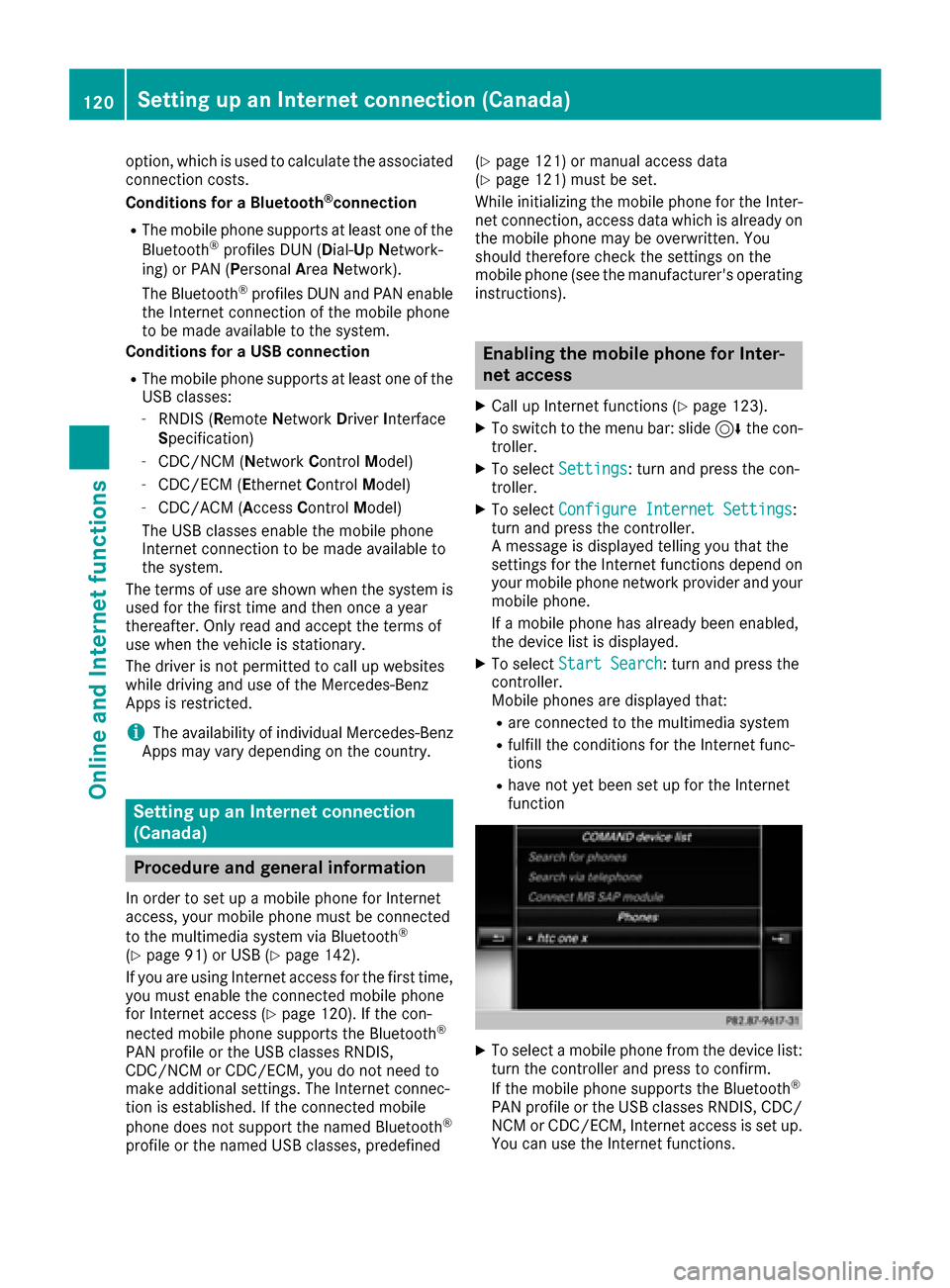
XTo select Start Search: turn and press the
controller.
Mobile phones are displayed that:
Rare connected to the multimedia system
Rfulfill the conditions for the Internet func-
tions
Rhave not yet been set up for the Internet
function
XTo select a mobile phone from the device list: turn the controller and press to confirm.
If the mobile phone supports the Bluetooth
®
PAN profile or the USB classes RNDIS, CDC/
NCM or CDC/ECM, Internet access is set up.
You can use the Internet functions.
120Setting up an Internet connection (Canada)
Online and Internet functions
Page 125 of 178
Canceling Internet access permissions
for a mobile phone
XCall up the device list (Ypage 122).
XTo highlight the desired mobile phone in the
device list: turn the controller.
XTo selectG: slide 9the controller.
XTo select Delete Configuration: turn and
press the controller.
A prompt appears asking whether you wish to
delete the Internet configuration.
XTo select Yes: turn and press the controller.
The Internet access permission for the mobile
phone is now canceled. The mobile phone can
now no longer be used by the system for
Internet functions.
Setting automatic disconnection of
the Internet connection
If a preset time has elapsed during which the
Internet functions have not been used, the Inter-
net automatically disconnects.
XCall up the device list (Ypage 122).
XTo highlight the desired mobile phone in the
device list: turn the controller.
XTo select G: slide 9the controller.
XTo select Disconnect AutomaticallyWhen Inactive: turn and press the control-
ler.
XTo select 5 Minutes,10 Minutesor 20Minutes: turn and press the controller.
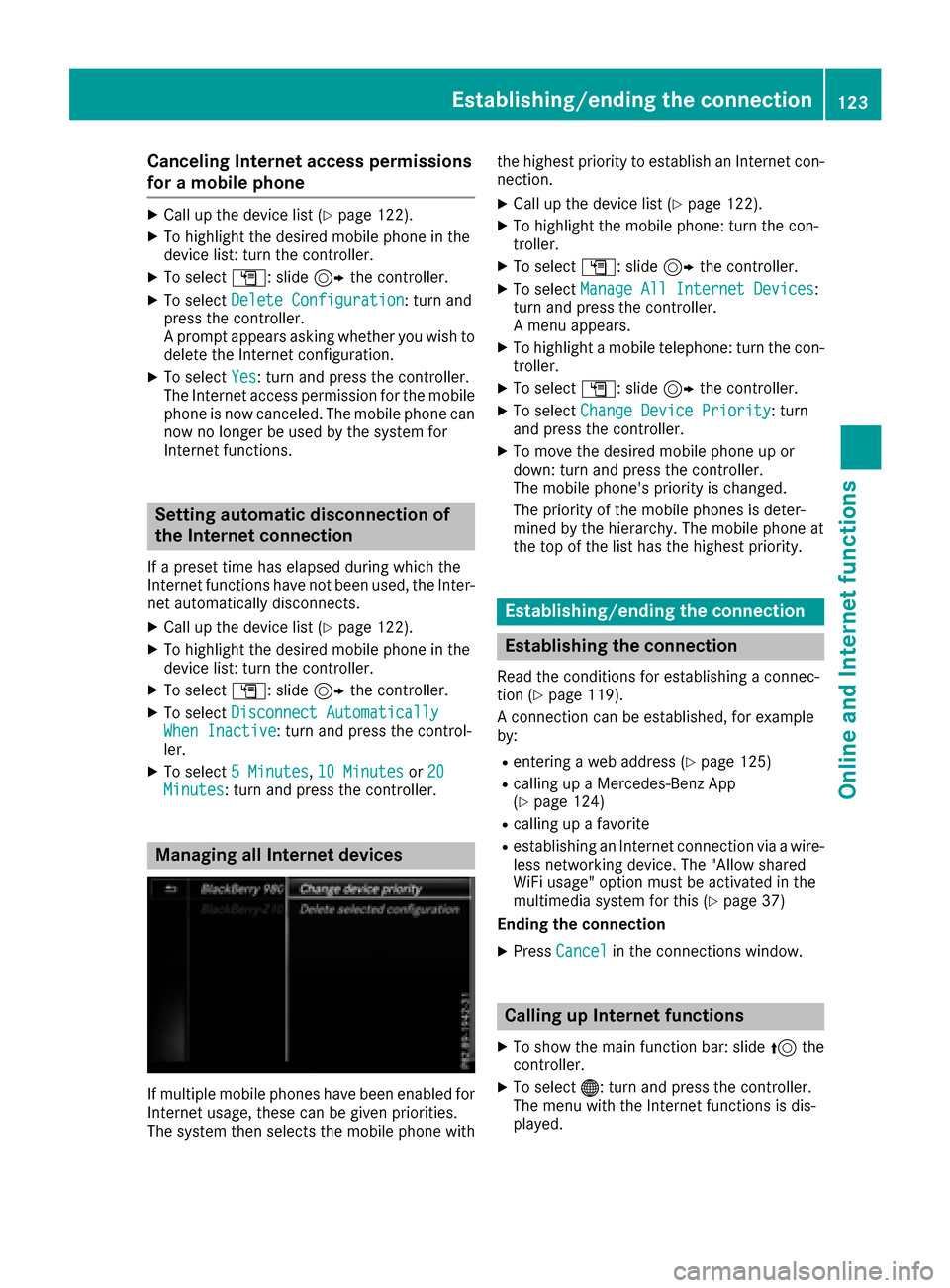
Managing all Internet devices
If multiple mobile phones have been enabled for
Internet usage, these can be given priorities.
The system then selects the mobile phone with the highest priority to establish an Internet con-
nection.
XCall up the device list (Ypage 122).
XTo highlight the mobile phone: turn the con-
troller.
XTo select
G: slide 9the controller.
XTo select Manage All Internet Devices:
turn and press the controller.
A menu appears.
XTo highlight a mobile telephone: turn the con-
troller.
XTo select G: slide 9the controller.
XTo select Change Device Priority: turn
and press the controller.
XTo move the desired mobile phone up or
down: turn and press the controller.
The mobile phone's priority is changed.
The priority of the mobile phones is deter-
mined by the hierarchy. The mobile phone at
the top of the list has the highest priority.
Establishing/ending the connection
Establishing the connection
Read the conditions for establishing a connec-
tion (Ypage 119).
A connection can be established, for example
by:
Rentering a web address (Ypage 125)
Rcalling up a Mercedes-Benz App
(Ypage 124)
Rcalling up a favorite
Restablishing an Internet connection via a wire-
less networking device. The "Allow shared
WiFi usage" option must be activated in the
multimedia system for this (
Ypage 37)
Ending the connection
XPress Cancelin the connections window.
Calling up Internet functions
XTo show the main function bar: slide 5the
controller.
XTo select ®: turn and press the controller.
The menu with the Internet functions is dis-
played.
Establishing/ending the connection123
Online and Internet functions
Z