poi MERCEDES-BENZ C-Class 2017 W205 Comand Manual
[x] Cancel search | Manufacturer: MERCEDES-BENZ, Model Year: 2017, Model line: C-Class, Model: MERCEDES-BENZ C-Class 2017 W205Pages: 178, PDF Size: 5.62 MB
Page 72 of 178
into consideration. Therefore, the outward
and return routes may differ from each other.
XTo start route guidance:turn and press the
controller to select Start
.
Recording the route
General notes
Routes are recorded using the SD card.
Requirements: the SD card has the FAT data
system format (e.g. FAT32).
When recording the route, bear in mind the fol-
lowing:
RIf the SD card is inserted, it must not be
removed during recording.
RIf route recording is started manually, it must
be finished manually before the multimedia
system is switched off (e. g. when the engine
is switched off).
RThe multimedia system minimizes the num-
ber of route points recorded. Therefore when
the recorded route is subsequently com-
menced, it may differ from the route that was
originally recorded.
Starting/finishing route recording
XInsert the SD memory card (Ypage 141).
XTo switch to navigation mode: press the
Ø button.
XIf no route guidance is active, select.
iIf route guidance is active, first slide 6the
controller and show the menu.
XSelect Memory Card.
XSelectStart Route Recording.
The route is recorded and REC appears at the
bottom edge of the screen.
XTo stop recording, select End RouteRecordingfrom the menu.
The route is stored under Personal Routes.
Displaying/editing the recorded route
XInsert the SD memory card (Ypage 141).
XTo switch to navigation mode: press the
Ø button.
XIf no route guidance is active, select.
iIf route guidance is active, first slide 6the
controller and show the menu.
XSelect Memory Card.
XSelectPersonal Routes.
Previously recorded routes are displayed.
XTo select a route, turn and press the control-
ler.
The map appears with a menu. The recorded
route is shown on the map in blue.
XTo calculate a route: selectStart.
XTo change the name and symbol: select
Edit
.
XSelect Change NameorEdit Icon.
XCharacter entry (Ypage 29).
XSelect a symbol.
Route guidance
General notes
The multimedia system calculates the route to
the destination without taking the following into
account, for example:
Rtraffic lights
Rstop and yield signs
Rparking or stopping restrictions
Rroad narrowing
Rtemporary traffic rules and regulations
The navigation system can give differing driving
recommendations if the actual street/traffic sit-
uation does not correspond with the digital
map's data. For example, if the road layout or
the direction of a one-way street has been
changed.
For this reason, you must always observe road
and traffic rules and regulations during your
journey. Road and traffic rules and regulations
always have priority over system driving recom-
mendations.
Route guidance begins once a route has been
calculated (
Ypage 58).
The multimedia system guides you to your des-
tination by means of navigation announcements
in the form of audible navigation announce-
ments and route guidance displays.
The route guidance displays can be seen if nav-
igation mode is switched on.
If you do not follow the navigation announce-
ments or if you leave the calculated route, the
70Route guidance
Navigation
Page 73 of 178
multimedia system automatically calculates a
new route to the destination.
If the digital map contains the corresponding
information, the following applies:
RDuring route guidance, the multimedia sys-
tem tries to avoid roads with restricted
access. These include, for example, roads
which are closed to through-traffic.
RRoads that have time restrictions (e.g. closed
on Sundays and public holidays) are consid-
ered for route guidance on days when they are
open. For this purpose, the relevant times
must be correctly stored in the database.
Change of direction
Overview
Changes of direction have three phases:
RPreparation phase
RAnnouncement phase
RChange-of-direction phase
Changes in direction are also shown in the mul-
tifunction display of the instrument cluster (see
the vehicle Operator's Manual).
Preparation phase
The multimedia system prepares you for the
upcoming driving maneuver, e.g. with the
announcement "Prepare to turn right". You see
the full-screen map.
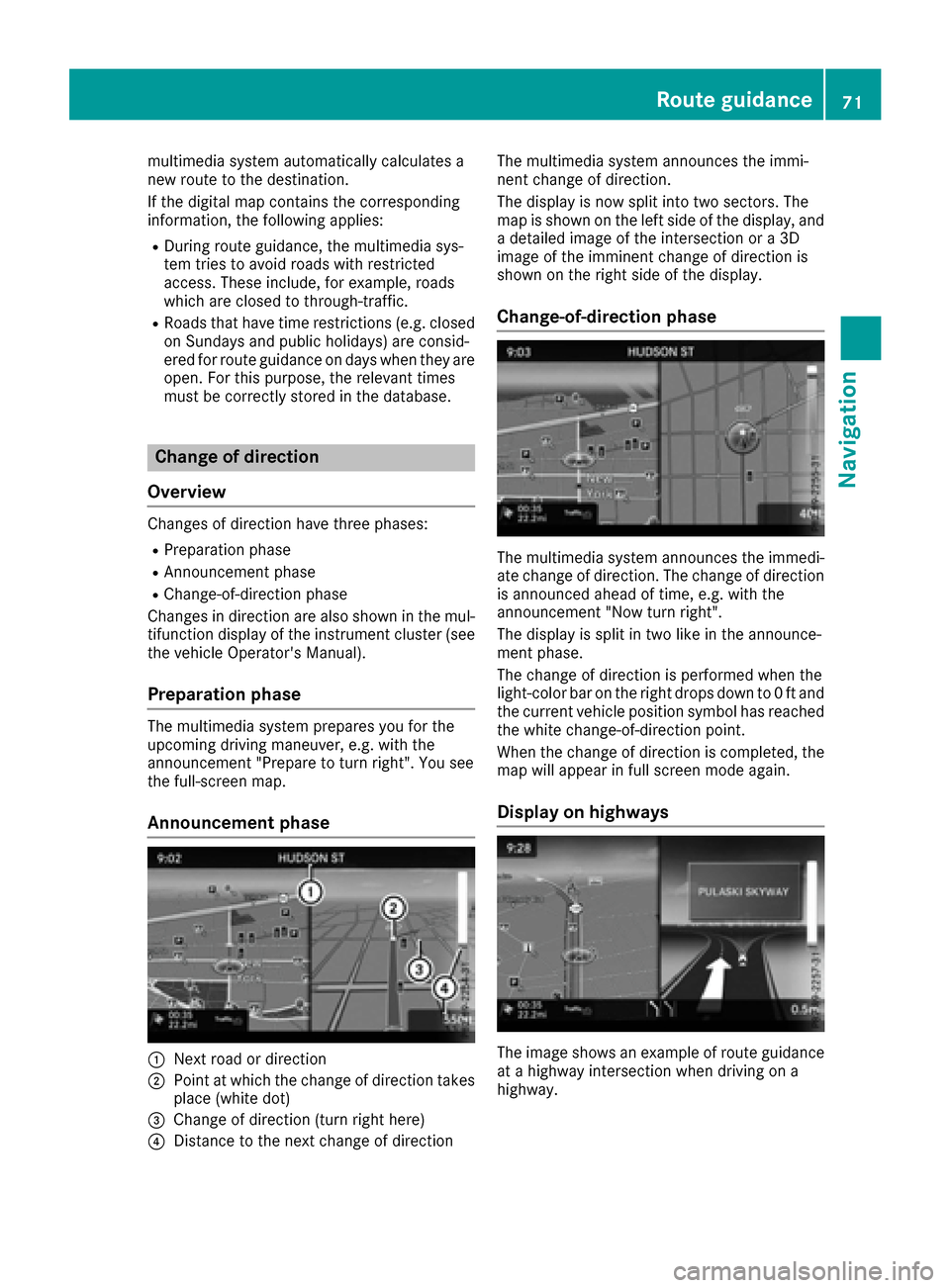
Announcement phase
:Next road or direction
;Point at which the change of direction takes
place (white dot)
=Change of direction (turn right here)
?Distance to the next change of direction The multimedia system announces the immi-
nent change of direction.
The display is now split into two sectors. The
map is shown on the left side of the display, and
a detailed image of the intersection or a 3D
image of the imminent change of direction is
shown on the right side of the display.
Change-of-direction phase
The multimedia system announces the immedi-
ate change of direction. The change of direction
is announced ahead of time, e.g. with the
announcement "Now turn right".
The display is split in two like in the announce-
ment phase.
The change of direction is performed when the
light-color bar on the right drops down to 0 ft and
the current vehicle position symbol has reached
the white change-of-direction point.
When the change of direction is completed, the
map will appear in full screen mode again.
Display on highways
The image shows an example of route guidance
at a highway intersection when driving on a
highway.
Route guidance71
Navigation
Z
Page 74 of 178
Lane recommendations
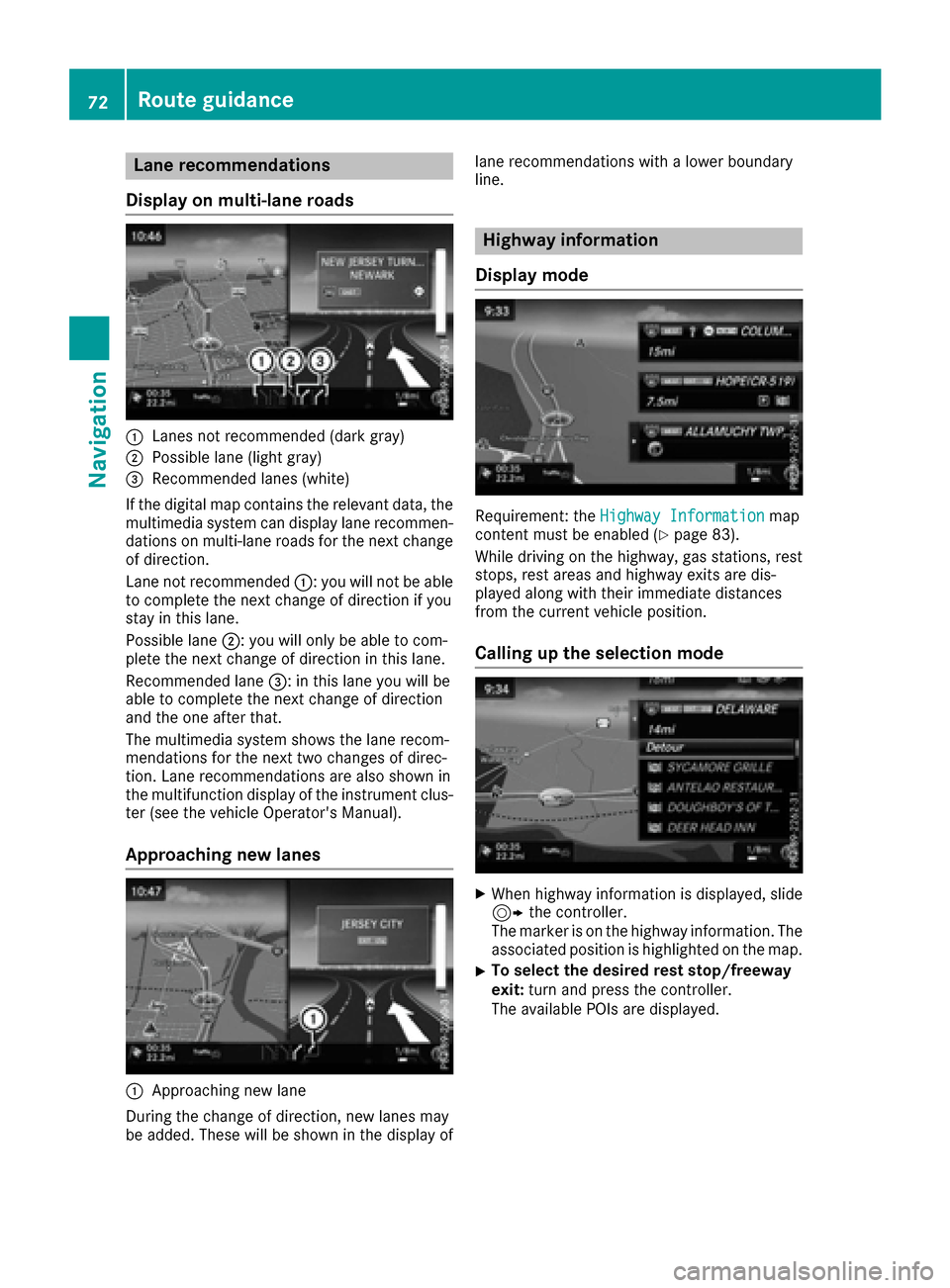
Display on multi-lane roads
:Lanes not recommended (dark gray)
;Possible lane (light gray)
=Recommended lanes (white)
If the digital map contains the relevant data, the
multimedia system can display lane recommen-
dations on multi-lane roads for the next change
of direction.
Lane not recommended :: you will not be able
to complete the next change of direction if you
stay in this lane.
Possible lane ;: you will only be able to com-
plete the next change of direction in this lane.
Recommended lane =: in this lane you will be
able to complete the next change of direction
and the one after that.
The multimedia system shows the lane recom-
mendations for the next two changes of direc-
tion. Lane recommendations are also shown in
the multifunction display of the instrument clus-
ter (see the vehicle Operator's Manual).
Approaching new lanes
:Approaching new lane
During the change of direction, new lanes may
be added. These will be shown in the display of lane recommendations with a lower boundary
line.
Highway information
Display mode
Requirement: the Highway Informationmap
content must be enabled (Ypage 83).
While driving on the highway, gas stations, rest
stops, rest areas and highway exits are dis-
played along with their immediate distances
from the current vehicle position.
Calling up the selection mode
XWhen highway information is displayed, slide 9 the controller.
The marker is on the highway information. The
associated position is highlighted on the map.
XTo select the desired rest stop/freeway
exit: turn and press the controller.
The available POIs are displayed.
72Route guidance
Navigation
Page 75 of 178
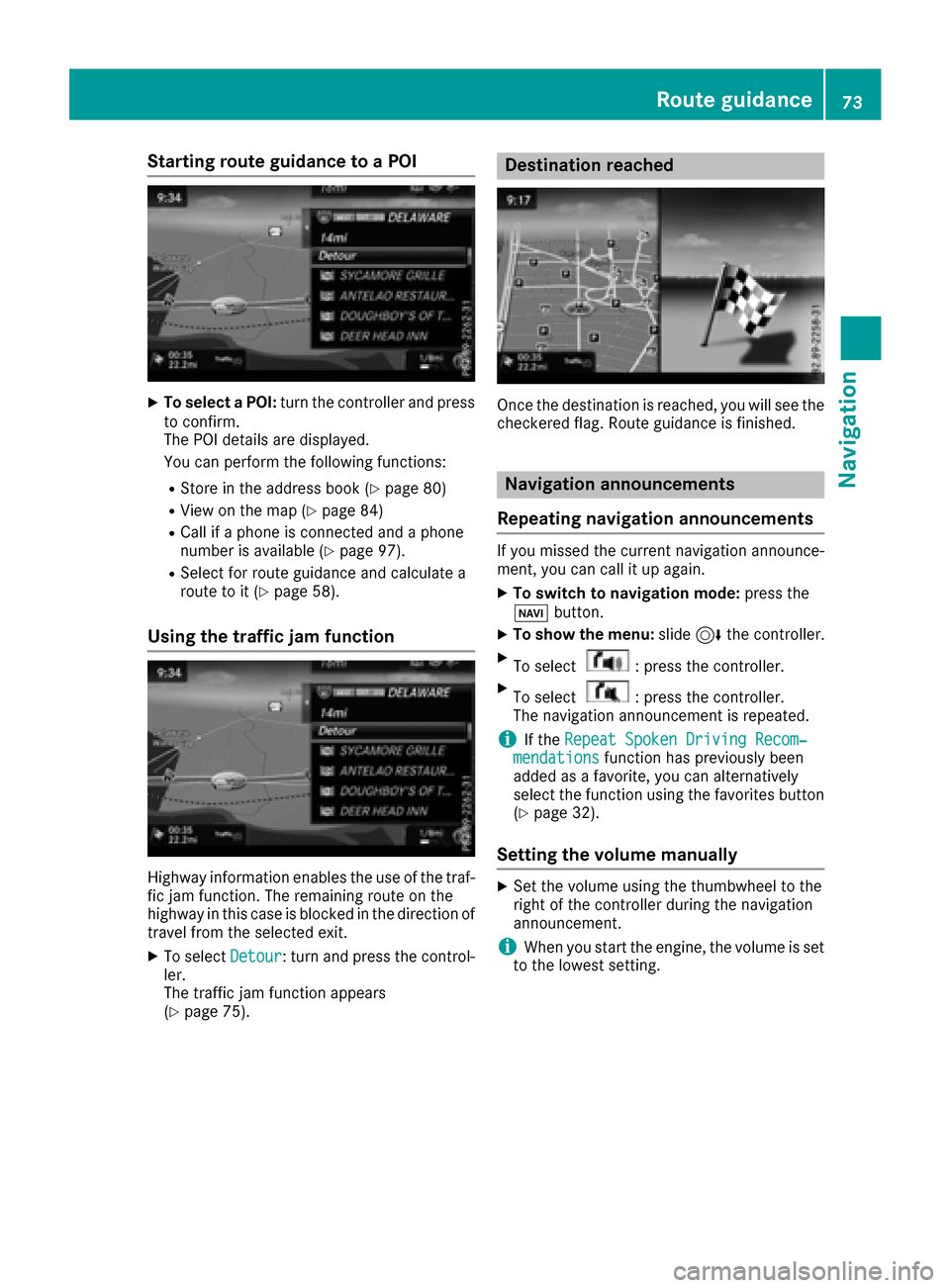
Starting route guidance to a POI
XTo select a POI:turn the controller and press
to confirm.
The POI details are displayed.
You can perform the following functions:
RStore in the address book (Ypage 80)
RView on the map (Ypage 84)
RCall if a phone is connected and a phone
number is available (Ypage 97).
RSelect for route guidance and calculate a
route to it (Ypage 58).
Using the traffic jam function
Highway information enables the use of the traf-
fic jam function. The remaining route on the
highway in this case is blocked in the direction of
travel from the selected exit.
XTo select Detour: turn and press the control-
ler.
The traffic jam function appears
(
Ypage 75).
Destination reached
Once the destination is reached, you will see the
checkered flag. Route guidance is finished.
Navigation announcements
Repeating navigation announcements
If you missed the current navigation announce-
ment, you can call it up again.
XTo switch to navigation mode: press the
Ø button.
XTo show the menu: slide6the controller.
XTo select: press the controller.
XTo select: press the controller.
The navigation announcement is repeated.
iIf the Repeat Spoken Driving Recom‐mendationsfunction has previously been
added as a favorite, you can alternatively
select the function using the favorites button
(
Ypage 32).
Setting the volume manually
XSet the volume using the thumbwheel to the
right of the controller during the navigation
announcement.
iWhen you start the engine, the volume is set
to the lowest setting.
Route guidance73
Navigation
Z
Page 78 of 178
XSelectDetour.
XTo specify the start of the traffic jam sec-
tion: select Beginning
.
The next possible traffic jam section starting
point is marked.
XTurn the controller.
The marking moves along the route to the
next starting position.
XPress the controller.
The start of the traffic jam is set.
XTo specify the end of a traffic jam section:
select End
.
The next possible traffic jam section end point
is marked.
XTurn the controller.
The marking moves along the route to the
next end position.
XPress the controller.
The end of the traffic jam is determined.
XTo calculate the detour: selectStart.
Off-road
General notes
The navigation system may guide you to off-road
routes that your vehicle cannot drive on without
causing damage to the tires or wheels or the
vehicle itself. It is the driver’s sole responsibility to determine the suitability of the route. The
condition of the off-road routes may vary. The
navigability of off-road routes may be influenced
by various factors such as time of day, time of
year and prevailing weather conditions. The nav-
igation system cannot judge these factors or
take them into account for route guidance.
Route guidance to an off-road destina-
tion
The multimedia system can guide you to desti-
nations which are within the area of the digital
map, but which are not themselves on the map.
These destinations are known as off-road des-
tinations, which you can enter using the map, for
example. In these cases, the multimedia system
guides you for as long as possible with naviga-
tion announcements and displays on roads
known to the system.
If the vehicle reaches an area which is not part ofthe digital map, the display appears as a split-
screen view. On the right, an arrow appears that points to the off-road destination. You hear the
announcement: "Please follow the arrow on the
display". As the vehicle approaches the desti-
nation, you will see a display to this effect.
Route guidance from an off-road loca-
tion to a destination
Off-road location: the vehicle's position is on the
digital map, but the map does not contain any
information about that location. The multimedia
system is able to guide you to a destination even
from an off-road location.
At the start of route guidance, you will see the
Road Not Mapped
message, an arrow and the
distance to the destination. The arrow shows
the compass heading to the actual destination.
As soon as the vehicle is back on a road known
to the system, route guidance continues in the
usual way.
Off-road during route guidance
Due to road construction, for example, there
may be differences between the data on the
digital map and the actual course of the road.
In such cases, the system will temporarily be
unable to locate the vehicle position on the dig-
ital map. The vehicle is therefore in an off-road
position.
In the display, you will then see the Road Not
Mappedmessage, an arrow and the distance to
the destination. The direction arrow shows the
compass heading to the destination.
As soon as the system can assign the vehicle
position to the map again, route guidance con-
tinues in the usual way.
Real-time traffic reports
Prerequisites
This function is currently not available for Can-
ada.
In order to receive real-time traffic reports via
satellite radio, you need to subscribe to SIRIUS
XM Satellite Radio Traffic Message Service.
Further information on satellite radio
(
Ypage 133).
The multimedia system can receive traffic
reports via satellite radio and take account of
these for route guidance in the navigation sys-
76Real-time traffic reports
Navigation
Page 82 of 178
Requirements: theSD car dhas th eFA Tdat a
system format (e.g. FAT32).
Storing the destination in the address
book
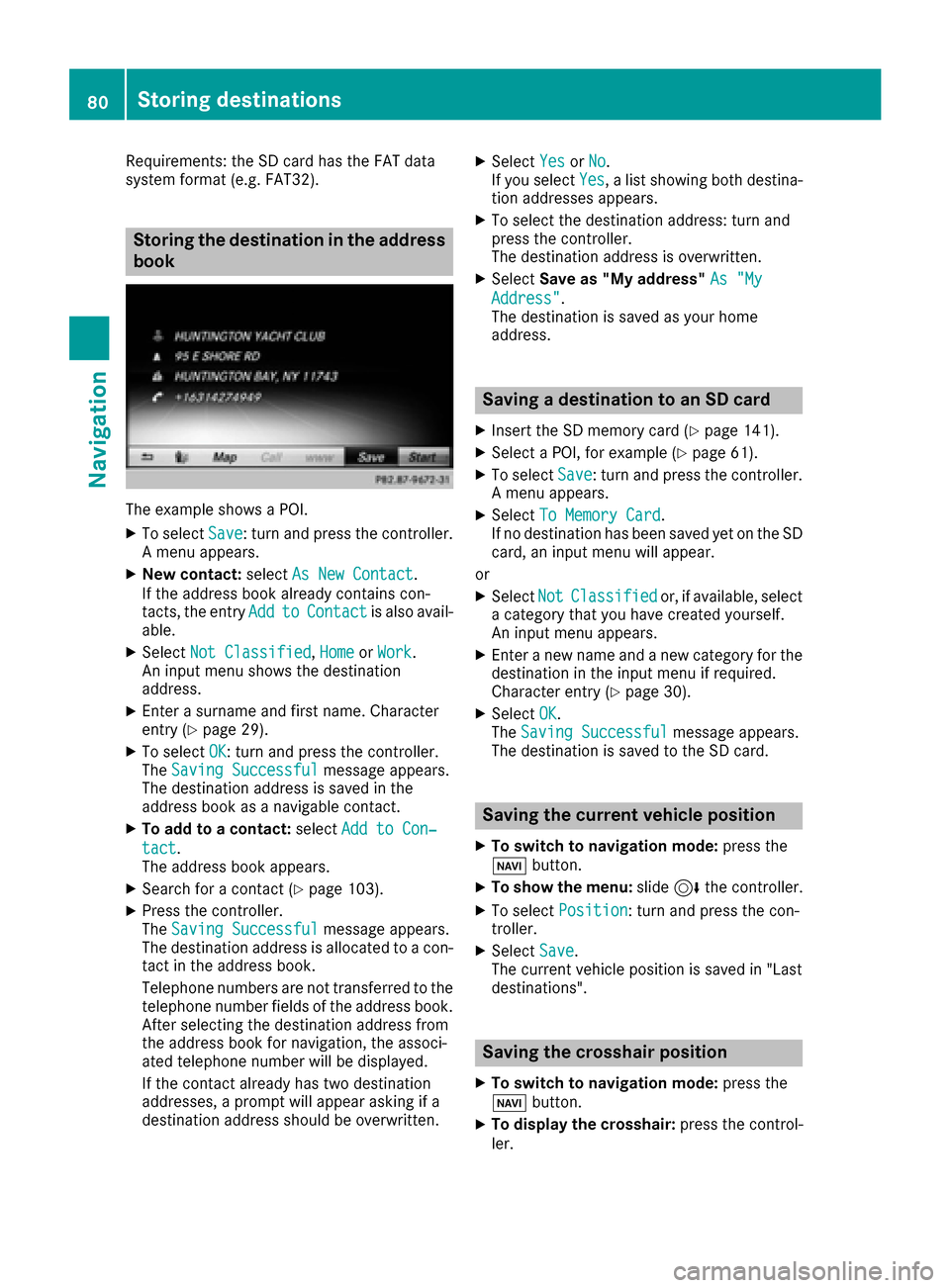
The exampl eshows aPOI .
XTo select Save:tur nand press th econtroller .
A men uappears.
XNew contact :select As New Contac t.
If th eaddress book already contain scon-
tacts ,th eentr yAdd
toContac tis also avail -
able.
XSelec tNot Classifie d,Hom eorWor k.
An input men ushows th edestination
address .
XEnter asurnam eand first name. Character
entr y (Ypage 29).
XTo select OK:tur nand press th econtroller .
The Saving Successfu lmessage appears.
The destination address is saved in th e
address book as anavigable contact .
XTo addto acontact :select Add to Con ‐
tact.
The address book appears.
XSearc hfor acontact (Ypage 103).
XPress thecontroller .
The Saving Successfu lmessage appears.
The destination address is allocate dto acon-
tac tin th eaddress book .
Telephon enumber sare no ttransferred to th e
telephon enumber fields of th eaddress book .
Afte rselecting th edestination address from
th eaddress book for navigation ,th eassoci-
ate dtelephon enumber will be displayed.
If th econtact already has two destination
addresses, aprompt will appear asking if a
destination address should be overwritten.
XSelec tYesor No.
If you select Yes, alist showin gbot hdestina -
tion addresses appears.
XTo select th edestination address :tur nand
press th econtroller .
The destination address is overwritten.
XSelec tSav eas "My address" As "My
Address".
The destination is saved as your hom e
address .
Saving a destination to an SD card
XInsertth eSD memory car d (Ypage 141).
XSelect aPOI ,for exampl e (Ypage 61).
XTo selectSave:tur nand press th econtroller .
A men uappears.
XSelec tTo Memory Car d.
If no destination has been saved yet on th eSD
card, an input men uwill appear .
or
XSelec tNotClassifie dor, if available, select
a categor ythat you hav ecreated yourself .
An input men uappears.
XEnte r anewnam eand ane wcategor yfor th e
destination in th einput men uif required.
Character entr y (
Ypage 30).
XSelectOK.
The Saving Successfu lmessage appears.
The destination is saved to th eSD card.
Saving the current vehicle position
XTo switch to navigation mode: press the
Ø button.
XTo sho wthemenu: slide6 thecontroller .
XTo select Position:tur nand press th econ-
troller .
XSelectSav e.
The curren tvehicl eposition is saved in "Las t
destinations".
Saving the crosshair position
XTo switch to navigation mode: press the
Ø button.
XTo displa yth ecrosshair :press th econtrol -
ler .
80Storing destinations
Navigation
Page 83 of 178
XMove the map to the desired position
(Ypage 53).
XTo show the menu: press the controller.
XTo selectPosition: turn and press the con-
troller.
XSelect Save.
The crosshair position is saved in the last des-
tinations.
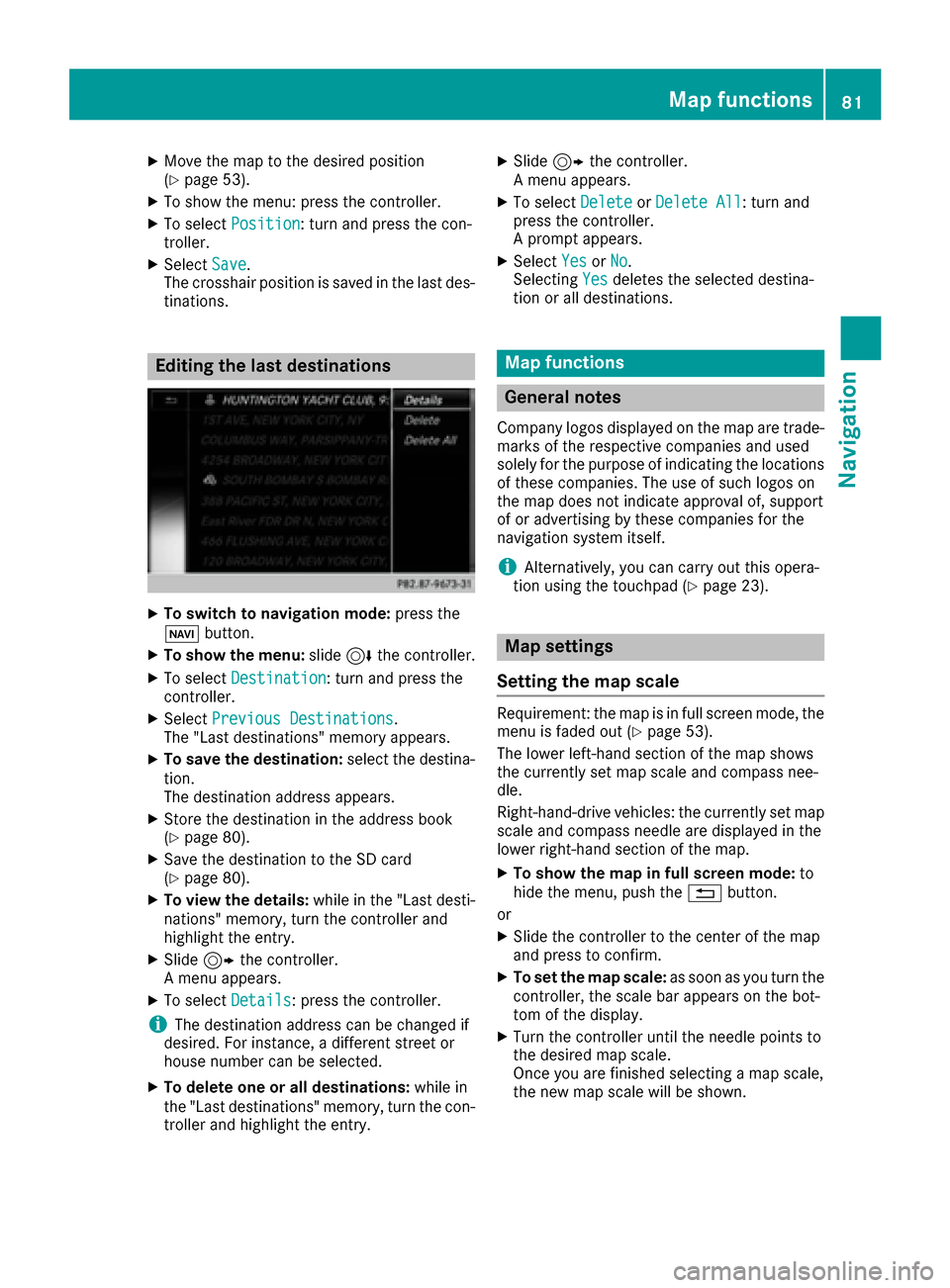
Editing the last destinations
XTo switch to navigation mode: press the
Ø button.
XTo show the menu: slide6the controller.
XTo select Destination: turn and press the
controller.
XSelect Previous Destinations.
The "Last destinations" memory appears.
XTo save the destination: select the destina-
tion.
The destination address appears.
XStore the destination in the address book
(Ypage 80).
XSave the destination to the SD card
(Ypage 80).
XTo view the details: while in the "Last desti-
nations" memory, turn the controller and
highlight the entry.
XSlide 9the controller.
A menu appears.
XTo select Details: press the controller.
iThe destination address can be changed if
desired. For instance, a different street or
house number can be selected.
XTo delete one or all destinations: while in
the "Last destinations" memory, turn the con-
troller and highlight the entry.
XSlide 9the controller.
A menu appears.
XTo select DeleteorDelete All: turn and
press the controller.
A prompt appears.
XSelect YesorNo.
Selecting Yesdeletes the selected destina-
tion or all destinations.
Map functions
General notes
Company logos displayed on the map are trade- marks of the respective companies and used
solely for the purpose of indicating the locations
of these companies. The use of such logos on
the map does not indicate approval of, support
of or advertising by these companies for the
navigation system itself.
iAlternatively, you can carry out this opera-
tion using the touchpad (Ypage 23).
Map settings
Setting the map scale
Requirement: the map is in full screen mode, the
menu is faded out (Ypage 53).
The lower left-hand section of the map shows
the currently set map scale and compass nee-
dle.
Right-hand-drive vehicles: the currently set map
scale and compass needle are displayed in the
lower right-hand section of the map.
XTo show the map in full screen mode: to
hide the menu, push the %button.
or
XSlide the controller to the center of the map
and press to confirm.
XTo set the map scale: as soon as you turn the
controller, the scale bar appears on the bot-
tom of the display.
XTurn the controller until the needle points to
the desired map scale.
Once you are finished selecting a map scale,
the new map scale will be shown.
Map functions81
Navigation
Z
Page 84 of 178
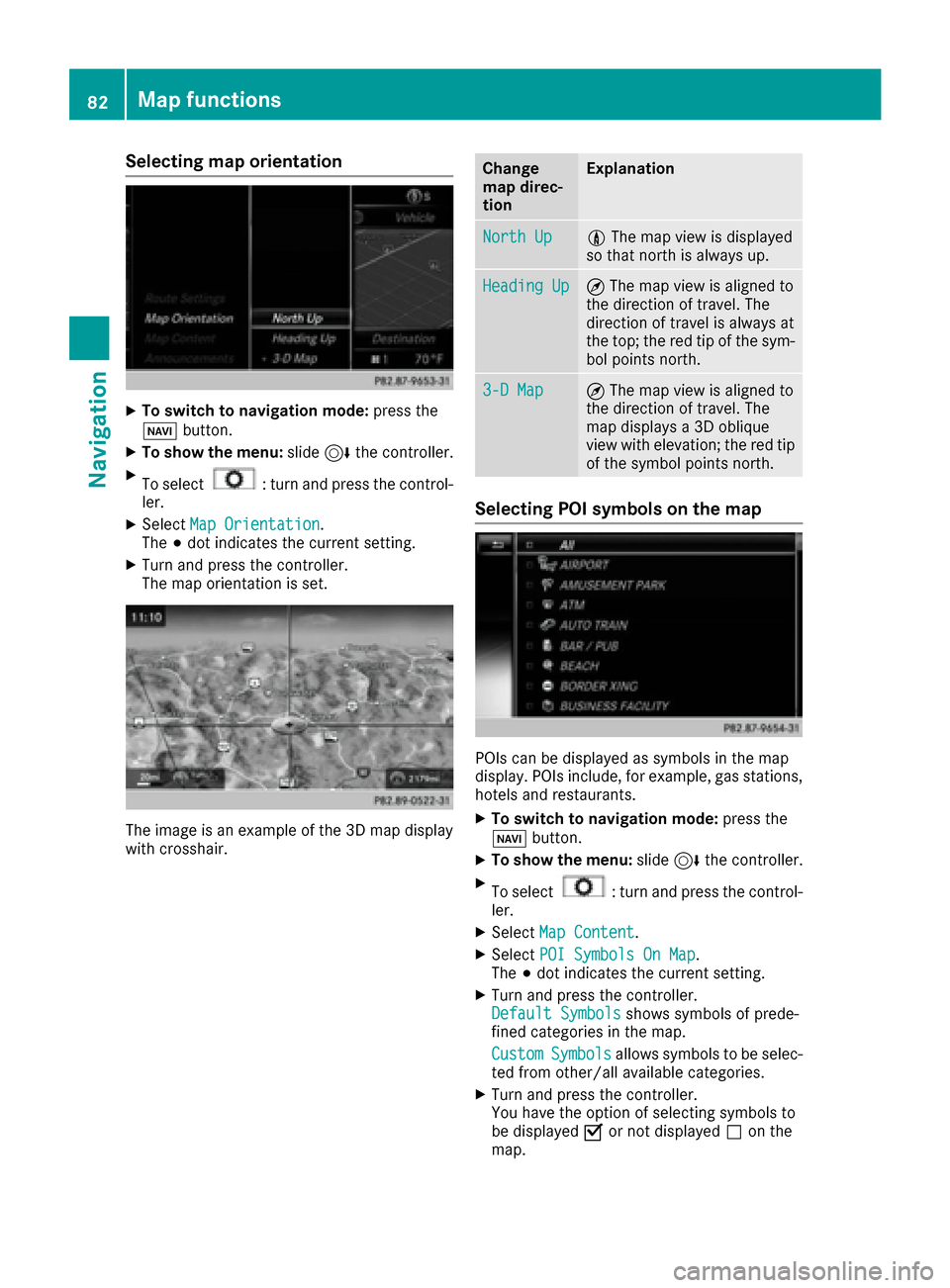
Selecting map orientation
XTo switch to navigation mode:press the
Ø button.
XTo show the menu: slide6the controller.
XTo select: turn and press the control-
ler.
XSelect Map Orientation.
The #dot indicates the current setting.
XTurn and press the controller.
The map orientation is set.
The image is an example of the 3D map display
with crosshair.
Change
map direc-
tionExplanation
North Up0 The map view is displayed
so that north is always up.
Heading Up¤ The map view is aligned to
the direction of travel. The
direction of travel is always at
the top; the red tip of the sym-
bol points north.
3-D Map¤ The map view is aligned to
the direction of travel. The
map displays a 3D oblique
view with elevation; the red tip
of the symbol points north.
Selecting POI symbols on the map
POIs can be displayed as symbols in the map
display. POIs include, for example, gas stations,
hotels and restaurants.
XTo switch to navigation mode: press the
Ø button.
XTo show the menu: slide6the controller.
XTo select: turn and press the control-
ler.
XSelect Map Content.
XSelectPOI Symbols On Map.
The #dot indicates the current setting.
XTurn and press the controller.
Default Symbolsshows symbols of prede-
fined categories in the map.
Custom
Symbolsallows symbols to be selec-
ted from other/all available categories.
XTurn and press the controller.
You have the option of selecting symbols to
be displayed Oor not displayed ªon the
map.
82Map functions
Navigation
Page 85 of 178
The list shows all symbols that are contained
on the digital map across all countries. How-
ever, not all points of interest are available in
all countries. As a result, certain point of inter-est symbols may not be displayed on the map,
even if the symbol display is switched on.
Selecting text information on the map
At the bottom of the display, you can specify
whether to display geo-coordinates or not to
display text information for the street you are
currently on.
XTo switch to navigation mode: press the
Ø button.
XTo show the menu: slide6the controller.
XTo select: turn and press the control-
ler.
XSelect Map Content.
XSelectText Information On Map.
The #dot indicates the current setting.
XTurn and press the controller.
CurrentStreetshows the current street at
the bottom of the display.
Geo-coordinates
shows the longitude and
latitude, elevation and number of satellites
received.
The elevation shown may deviate from the
actual elevation.
XTurn and press the controller.
Switching highway information on/off
The following can be displayed when driving on
a highway:
Rthe nearest gas stations and rest stops
Rrest areas and highway exits
and their present distances from the vehicle's
current position (
Ypage 72)
XTo switch to navigation mode: press the
Ø button.
XTo show the menu: slide6the controller.
XTo select: turn and press the control-
ler.
XSelect Map Content.
XSelectHighway Information.
Switch the display in the map on Oor off ª.
Further information (
Ypage 72).
Displaying the next crossroads
If route guidance is not active, the next cross-
roads can be displayed at the upper edge of the
display.
XTo switch to navigation mode: press the
Ø button.
XTo show the menu: slide6the controller.
XTo select: turn and press the control-
ler.
XSelect Map Content.
XSelectNext Intersecting Street.
Switch the display in the map on Oor off ª.
Showing the map version
XTo switch to navigation mode: press the
Ø button.
XTo show the menu: slide6the controller.
XTo select: turn and press the control-
ler.
XSelect Map Content.
XSelectMap Version.
Information on the current map version is
shown. Information about new versions of the
digital map can be obtained from an author-
ized Mercedes-Benz Center.
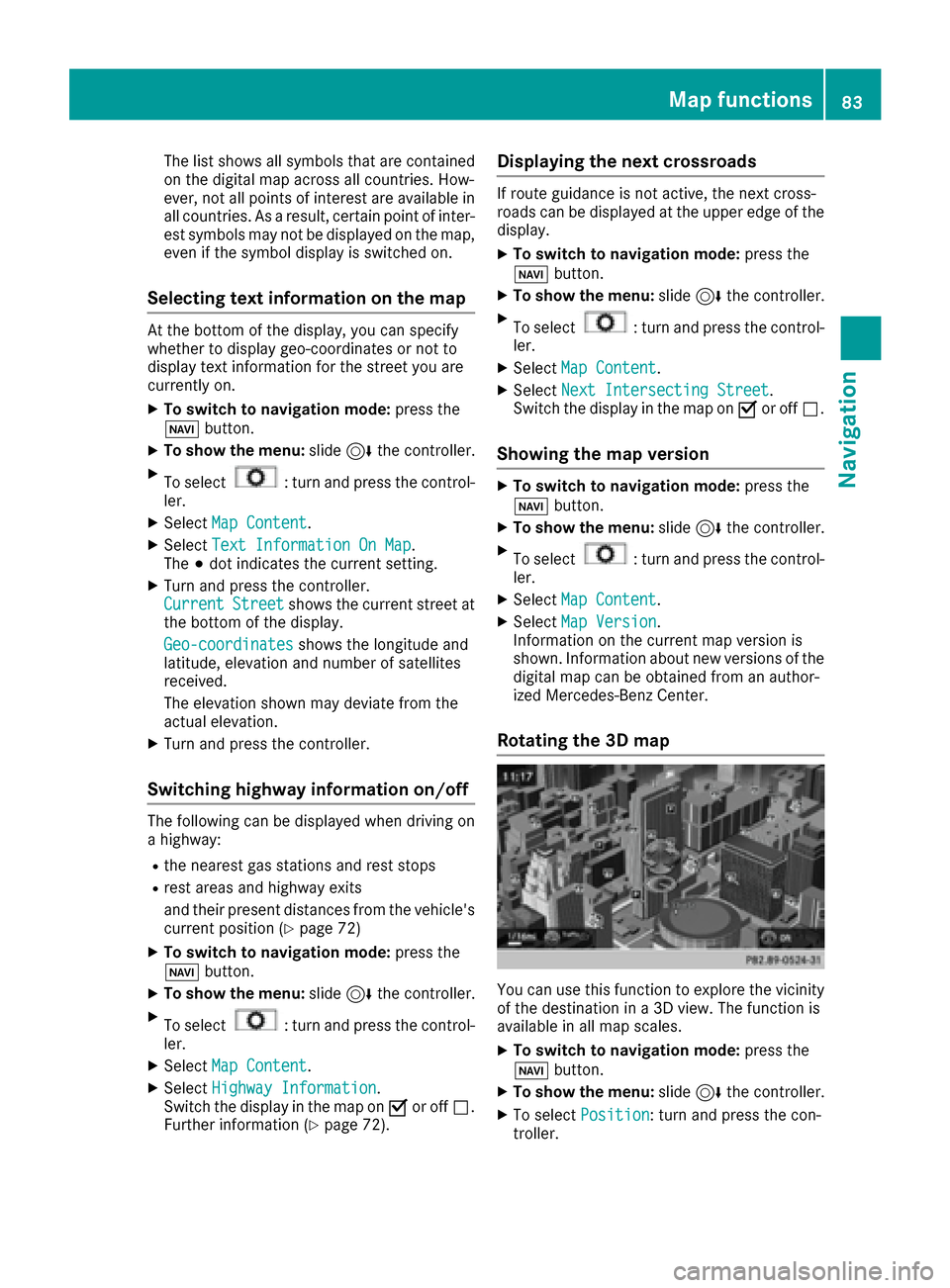
Rotating the 3D map
You can use this function to explore the vicinity
of the destination in a 3D view. The function is
available in all map scales.
XTo switch to navigation mode: press the
Ø button.
XTo show the menu: slide6the controller.
XTo select Position: turn and press the con-
troller.
Map functions83
Navigation
Z
Page 87 of 178
XSelectAvoid New Area.
A menu appears.
XSelect MaporAddress Entry.
If you select Map, the map with crosshair
appears.
When you have selected Address Entry
the
address entry menu appears (Ypage 56). The
map appears with the crosshair after the
address is entered.
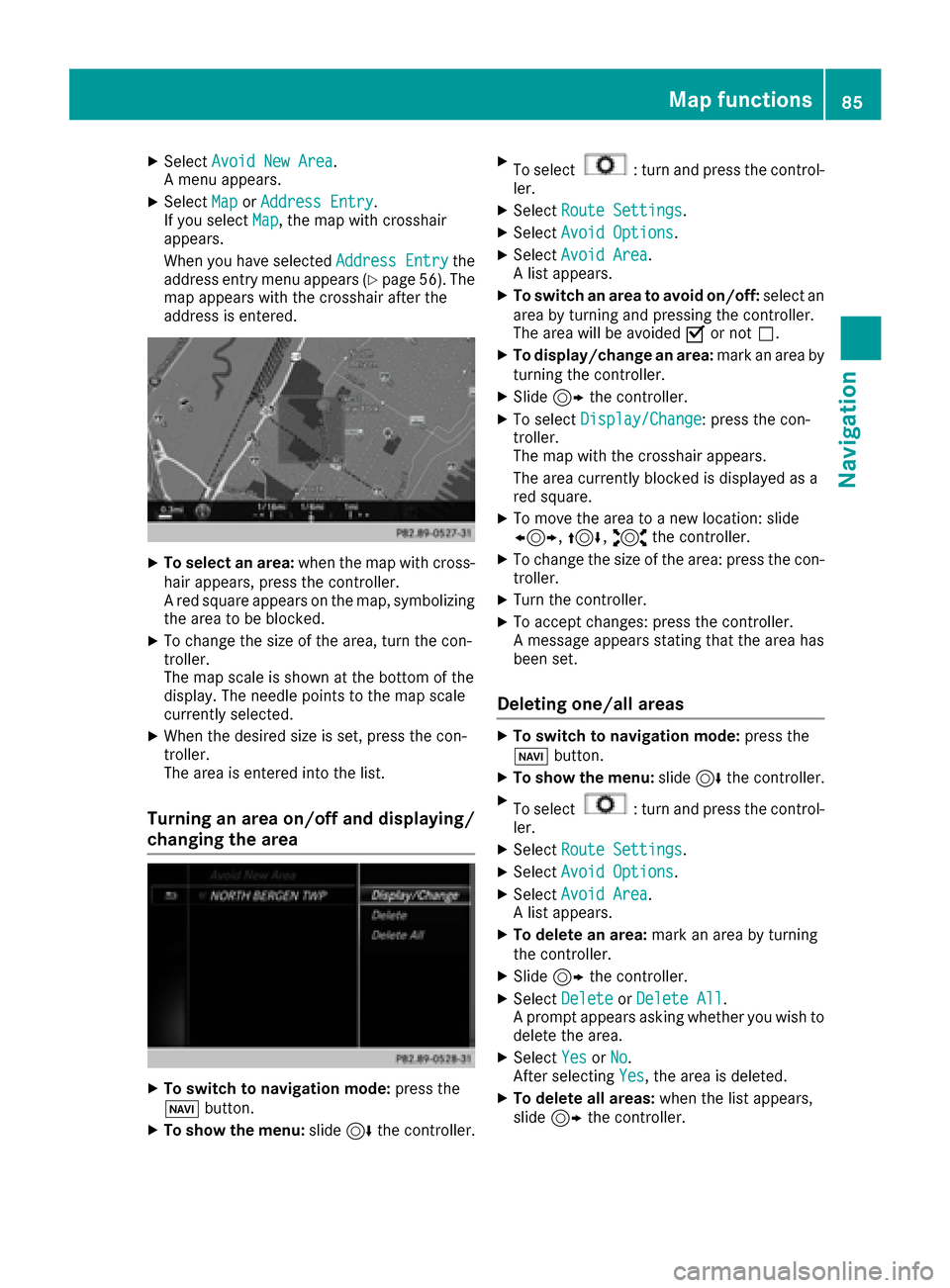
XTo select an area: when the map with cross-
hair appears, press the controller.
A red square appears on the map, symbolizing
the area to be blocked.
XTo change the size of the area, turn the con-
troller.
The map scale is shown at the bottom of the
display. The needle points to the map scale
currently selected.
XWhen the desired size is set, press the con-
troller.
The area is entered into the list.
Turning an area on/off and displaying/
changing the area
XTo switch to navigation mode: press the
Ø button.
XTo show the menu: slide6the controller.
XTo select: turn and press the control-
ler.
XSelect Route Settings.
XSelectAvoid Options.
XSelectAvoid Area.
A list appears.
XTo switch an area to avoid on/off: select an
area by turning and pressing the controller.
The area will be avoided Oor not ª.
XTo display/change an area: mark an area by
turning the controller.
XSlide 9the controller.
XTo select Display/Change: press the con-
troller.
The map with the crosshair appears.
The area currently blocked is displayed as a
red square.
XTo move the area to a new location: slide
1, 4,2the controller.
XTo change the size of the area: press the con-
troller.
XTurn the controller.
XTo accept changes: press the controller.
A message appears stating that the area has
been set.
Deleting one/all areas
XTo switch to navigation mode: press the
Ø button.
XTo show the menu: slide6the controller.
XTo select: turn and press the control-
ler.
XSelect Route Settings.
XSelectAvoid Options.
XSelectAvoid Area.
A list appears.
XTo delete an area: mark an area by turning
the controller.
XSlide 9the controller.
XSelect DeleteorDelete All.
A prompt appears asking whether you wish to
delete the area.
XSelect YesorNo.
After selecting Yes, the area is deleted.
XTo delete all areas: when the list appears,
slide 9 the controller.
Map functions85
Navigation
Z