4 matic MERCEDES-BENZ C-Class 2017 W205 Comand Manual
[x] Cancel search | Manufacturer: MERCEDES-BENZ, Model Year: 2017, Model line: C-Class, Model: MERCEDES-BENZ C-Class 2017 W205Pages: 178, PDF Size: 5.62 MB
Page 116 of 178
This function is not supported by all mobile
phones.
Reading messages
In the message menu
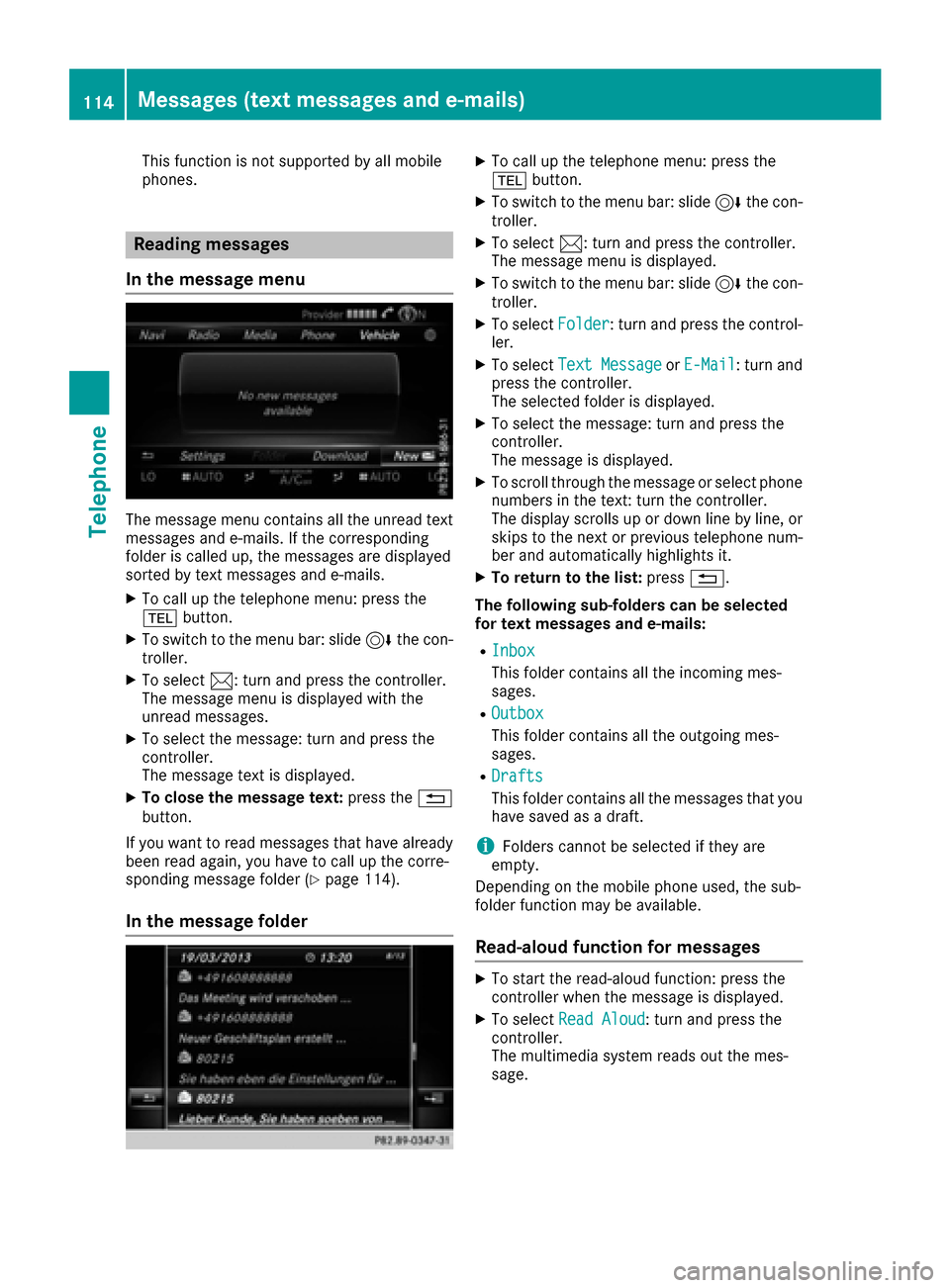
The message menu contains all the unread text
messages and e-mails. If the corresponding
folder is called up, the messages are displayed
sorted by text messages and e-mails.
XTo call up the telephone menu: press the
% button.
XTo switch to the menu bar: slide 6the con-
troller.
XTo select 1: turn and press the controller.
The message menu is displayed with the
unread messages.
XTo select the message: turn and press the
controller.
The message text is displayed.
XTo close the message text: press the%
button.
If you want to read messages that have already
been read again, you have to call up the corre-
sponding message folder (
Ypage 114).
In the message folder
XTo call up the telephone menu: press the
% button.
XTo switch to the menu bar: slide 6the con-
troller.
XTo select 1: turn and press the controller.
The message menu is displayed.
XTo switch to the menu bar: slide 6the con-
troller.
XTo select Folder: turn and press the control-
ler.
XTo select Text MessageorE-Mail: turn and
press the controller.
The selected folder is displayed.
XTo select the message: turn and press the
controller.
The message is displayed.
XTo scroll through the message or select phone numbers in the text: turn the controller.
The display scrolls up or down line by line, or
skips to the next or previous telephone num-ber and automatically highlights it.
XTo return to the list: press%.
The following sub-folders can be selected
for text messages and e-mails:
RInbox
This folder contains all the incoming mes-
sages.
ROutbox
This folder contains all the outgoing mes-
sages.
RDrafts
This folder contains all the messages that you
have saved as a draft.
iFolders cannot be selected if they are
empty.
Depending on the mobile phone used, the sub-
folder function may be available.
Read-aloud function for messages
XTo start the read-aloud function: press the
controller when the message is displayed.
XTo select Read Aloud: turn and press the
controller.
The multimedia system reads out the mes-
sage.
114Messages (text messages and e-mails)
Telephone
Page 118 of 178
Answering a text message
Observeth erequirements for th emessage func-
tion (Ypage 112).
XDisplay th emessage (Ypage 114).
XPress thecontroller .
XTo selectReply:tur nand press th econtroller .
The text message input men uis displayed.
The addressee' sdetails are automatically fil-
led in usin gth edetails in th eoriginal mes -
sage .
Writing e-mails
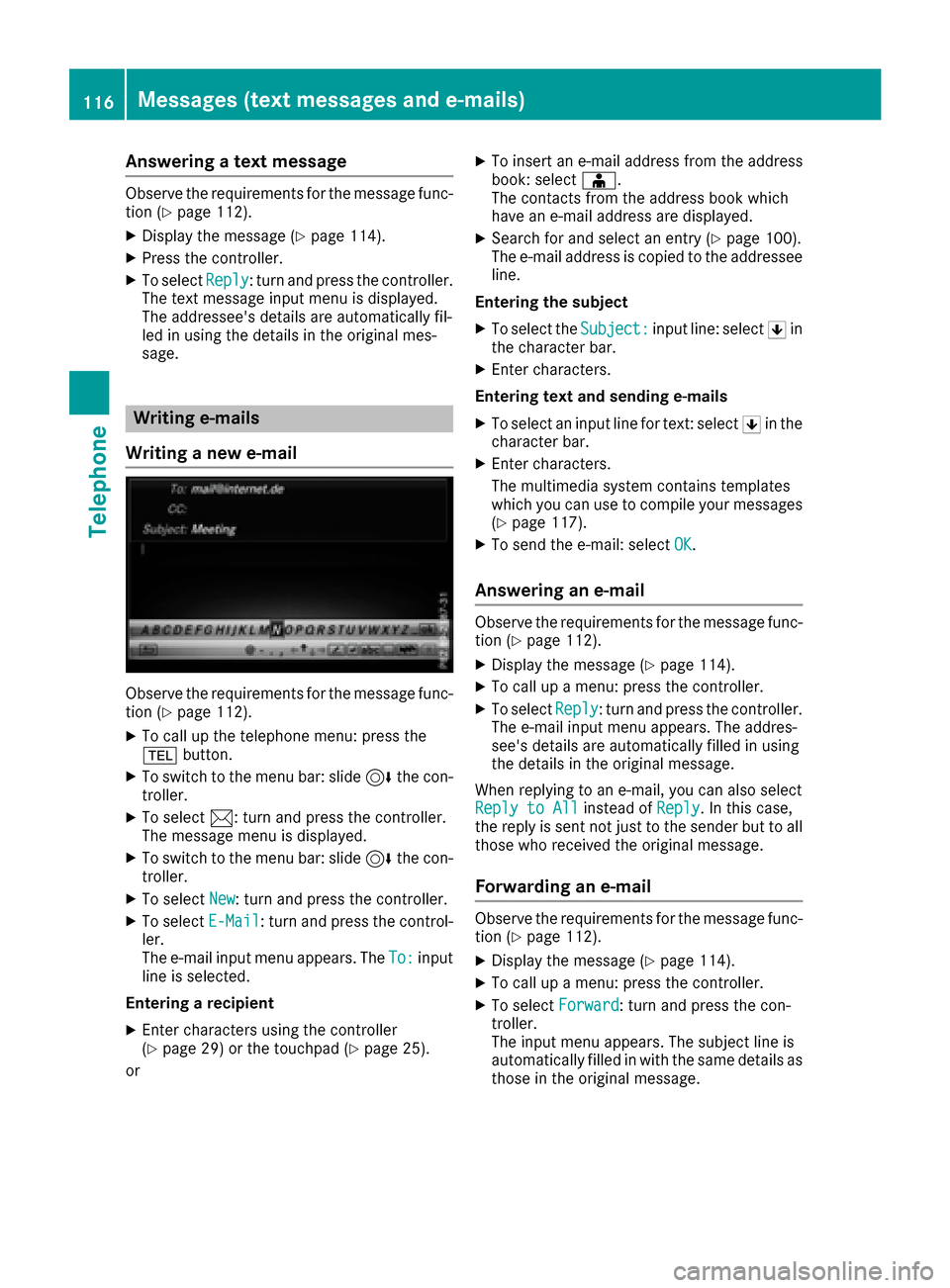
Wr iting a new e-mail
Observ eth erequirements for th emessage func-
tion (Ypage 112).
XTo call up th etelephon emenu: press th e
% button.
XTo switch to th emen ubar: slid e6 thecon-
troller .
XTo select 1:turnand press th econtroller .
The message men uis displayed.
XTo switch to th emen ubar: slid e6 thecon-
troller .
XTo select New:tur nand press th econtroller .
XTo selectE-Mail:tur nand press th econtrol -
ler .
The e-mail input men uappears. The To:
input
lin eis selected.
Entering arecipient
XEnte rcharacters usin gth econtroller
(Ypage 29) or th etouchpad (Ypage 25).
or
XTo insert an e-mail address from th eaddress
book :select Æ.
The contact sfrom th eaddress book whic h
hav ean e-mail address are displayed.
XSearc hfor and select an entr y (Ypage 100).
The e-mail address is copied to th eaddressee
line.
Entering th esubjec t
XTo select th eSubject:input line: select 5in
th echaracte rbar.
XEnte rcharacters.
Entering tex tand sending e-mail s
XTo select an input linefor text :select 5in th e
characte rbar.
XEnte rcharacters.
The multimedia system contain stemplate s
whic hyou can use to compil eyour message s
(
Ypage 117).
XTo sen dth ee-mail: select OK.
Answering an e-mail
Observeth erequirements for th emessage func-
tion (Ypage 112).
XDisplay th emessage (Ypage 114).
XTo call up amenu: press th econtroller .
XTo selectReply:tur nand press th econtroller .
The e-mail input men uappears. The addres-
see's details are automatically filled in usin g
th edetails in th eoriginal message .
When replyin gto an e-mail, you can also select
Reply to All
instead of Reply.In this case,
th ereply is sen tno tjus tto th esender but to all
those who received th eoriginal message .
Forwarding an e-mail
Observ eth erequirements for th emessage func-
tion (Ypage 112).
XDisplay th emessage (Ypage 114).
XTo call up amenu: press th econtroller .
XTo select Forward:tur nand press th econ-
troller .
The input men uappears. The subjec tlin eis
automatically filled in wit hth esam edetails as
those in th eoriginal message .
116Messages (text messages and e-mails)
Telephone
Page 119 of 178
Text templates
Using text templates
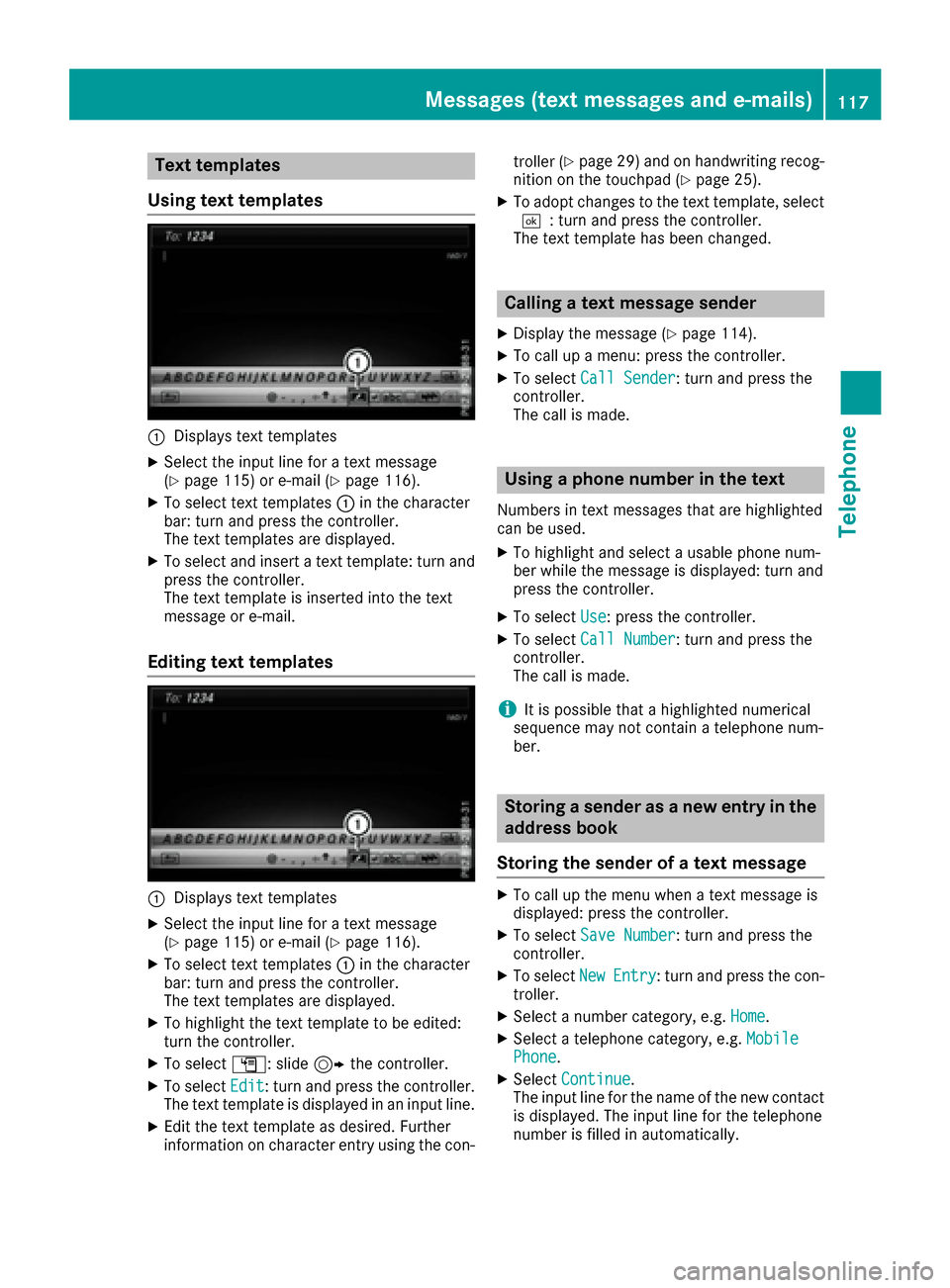
:Displays text templates
XSelect the input line for a text message
(Ypage 115) or e-mail (Ypage 116).
XTo select text templates :in the character
bar: turn and press the controller.
The text templates are displayed.
XTo select and insert a text template: turn and
press the controller.
The text template is inserted into the text
message or e-mail.
Editing text templates
:Displays text templates
XSelect the input line for a text message
(Ypage 115) or e-mail (Ypage 116).
XTo select text templates :in the character
bar: turn and press the controller.
The text templates are displayed.
XTo highlight the text template to be edited:
turn the controller.
XTo select G: slide 9the controller.
XTo select Edit: turn and press the controller.
The text template is displayed in an input line.
XEdit the text template as desired. Further
information on character entry using the con- troller (
Ypage 29) and on handwriting recog-
nition on the touchpad (Ypage 25).
XTo adopt changes to the text template, select
¬: turn and press the controller.
The text template has been changed.
Calling a text message sender
XDisplay the message (Ypage 114).
XTo call up a menu: press the controller.
XTo select Call Sender: turn and press the
controller.
The call is made.
Using a phone number in the text
Numbers in text messages that are highlighted
can be used.
XTo highlight and select a usable phone num-
ber while the message is displayed: turn and
press the controller.
XTo select Use: press the controller.
XTo selectCall Number: turn and press the
controller.
The call is made.
iIt is possible that a highlighted numerical
sequence may not contain a telephone num-
ber.
Storing a sender as a new entry in the
address book
Storing the sender of a text message
XTo call up the menu when a text message is
displayed: press the controller.
XTo select Save Number: turn and press the
controller.
XTo select NewEntry: turn and press the con-
troller.
XSelect a number category, e.g. Home.
XSelect a telephone category, e.g. MobilePhone.
XSelectContinue.
The input line for the name of the new contact
is displayed. The input line for the telephone
number is filled in automatically.
Messages (text messages and e-mails)117
Telephone
Z
Page 120 of 178
XEnter characters using the controller
(Ypage 29) or the touchpad (Ypage 25).
XTo finish the entry: selectOK.
The new contact has been created.
Saving the sender of an e-mail
XTo call up the menu when an e-mail is dis-
played: press the controller.
XTo select SaveSender'sE-MailAddress:
turn and press the controller.
XTo select NewEntry: turn and press the con-
troller.
The input line for the name of the new contact
is displayed. The input line for the e-mail
address is filled in automatically.
XEnter characters using the controller
(Ypage 29) or the touchpad (Ypage 25).
XTo finish the entry: select OK.
The new contact has been created.
Adding the sender to an address book
entry
Storing the sender of a text message
XTo call up the menu when a text message is
displayed: press the controller.
XTo select Save Number: turn and press the
controller.
XTo select AddPhoneNumber: turn and press
the controller.
XTo select a category for the number, e.g.
Home: turn the controller and press to confirm.
XTo select a telephone category, e.g. MobilePhone: turn the controller and press to con-
firm.
XTo select Continue: turn and press the con-
troller.
The address book is displayed.
XSearch for the desired entry (Ypage 103).
XPress the controller when you have finished
searching.
The telephone number has been added.
A maximum of five entries can be saved for
one category.
Saving the sender of an e-mail
XTo call up the menu when an e-mail is dis-
played: press the controller.
XTo select SaveSender'sE-MailAddress:
turn and press the controller.
XTo select Add: turn and press the controller.
The address book is displayed.
XSearch for the desired entry (Ypage 103).
XPress the controller when you have finished
searching.
The e-mail address has been added.
Deleting messages
XCall up the message folder (Ypage 114).
XTo select the message: turn and press the
controller.
XTo select G: slide 9the controller.
XTo select Delete: turn and press the control-
ler.
XTo select Yes: turn and press the controller.
The message is deleted.
iThis delete function is not supported by all
mobile phones. The Delete failed.mes-
sage then appears.
118Messages (text messages and e-mails)
Telephone
Page 124 of 178
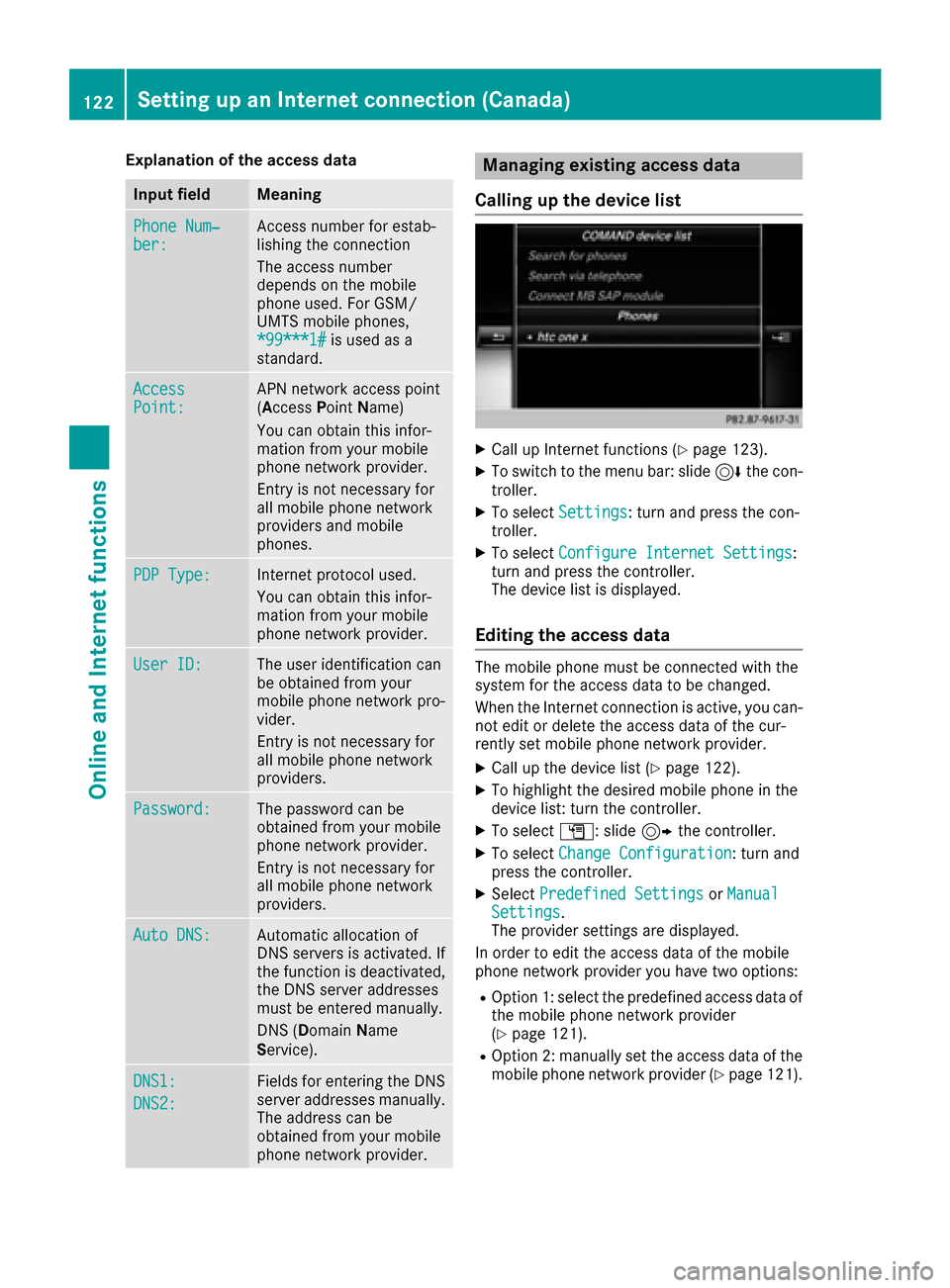
Explanation of the access data
Input fieldMeaning
Phone Num‐ber:Access number for estab-
lishing the connection
The access number
depends on the mobile
phone used. For GSM/
UMTS mobile phones,
*99***1#
is used as a
standard.
AccessPoint:APN network access point
(Access PointName)
You can obtain this infor-
mation from your mobile
phone network provider.
Entry is not necessary for
all mobile phone network
providers and mobile
phones.
PDP Type:Internet protocol used.
You can obtain this infor-
mation from your mobile
phone network provider.
User ID:The user identification can
be obtained from your
mobile phone network pro-
vider.
Entry is not necessary for
all mobile phone network
providers.
Password:The password can be
obtained from your mobile
phone network provider.
Entry is not necessary for
all mobile phone network
providers.
Auto DNS:Automatic allocation of
DNS servers is activated. If
the function is deactivated,
the DNS server addresses
must be entered manually.
DNS (Domain Name
Service).
DNS1:
DNS2:
Fields for entering the DNS
server addresses manually.
The address can be
obtained from your mobile
phone network provider.
Managing existing access data
Calling up the device list
XCall up Internet functions (Ypage 123).
XTo switch to the menu bar: slide 6the con-
troller.
XTo select Settings: turn and press the con-
troller.
XTo select Configure Internet Settings:
turn and press the controller.
The device list is displayed.
Editing the access data
The mobile phone must be connected with the
system for the access data to be changed.
When the Internet connection is active, you can-
not edit or delete the access data of the cur-
rently set mobile phone network provider.
XCall up the device list (Ypage 122).
XTo highlight the desired mobile phone in the
device list: turn the controller.
XTo select G: slide 9the controller.
XTo select Change Configuration: turn and
press the controller.
XSelect Predefined SettingsorManualSettings.
The provider settings are displayed.
In order to edit the access data of the mobile
phone network provider you have two options:
ROption 1: select the predefined access data of
the mobile phone network provider
(
Ypage 121).
ROption 2: manually set the access data of the
mobile phone network provider (Ypage 121).
122Setting up an Internet connection (Canada)
Online and Internet functions
Page 125 of 178
Canceling Internet access permissions
for a mobile phone
XCall up the device list (Ypage 122).
XTo highlight the desired mobile phone in the
device list: turn the controller.
XTo selectG: slide 9the controller.
XTo select Delete Configuration: turn and
press the controller.
A prompt appears asking whether you wish to
delete the Internet configuration.
XTo select Yes: turn and press the controller.
The Internet access permission for the mobile
phone is now canceled. The mobile phone can
now no longer be used by the system for
Internet functions.
Setting automatic disconnection of
the Internet connection
If a preset time has elapsed during which the
Internet functions have not been used, the Inter-
net automatically disconnects.
XCall up the device list (Ypage 122).
XTo highlight the desired mobile phone in the
device list: turn the controller.
XTo select G: slide 9the controller.
XTo select Disconnect AutomaticallyWhen Inactive: turn and press the control-
ler.
XTo select 5 Minutes,10 Minutesor 20Minutes: turn and press the controller.
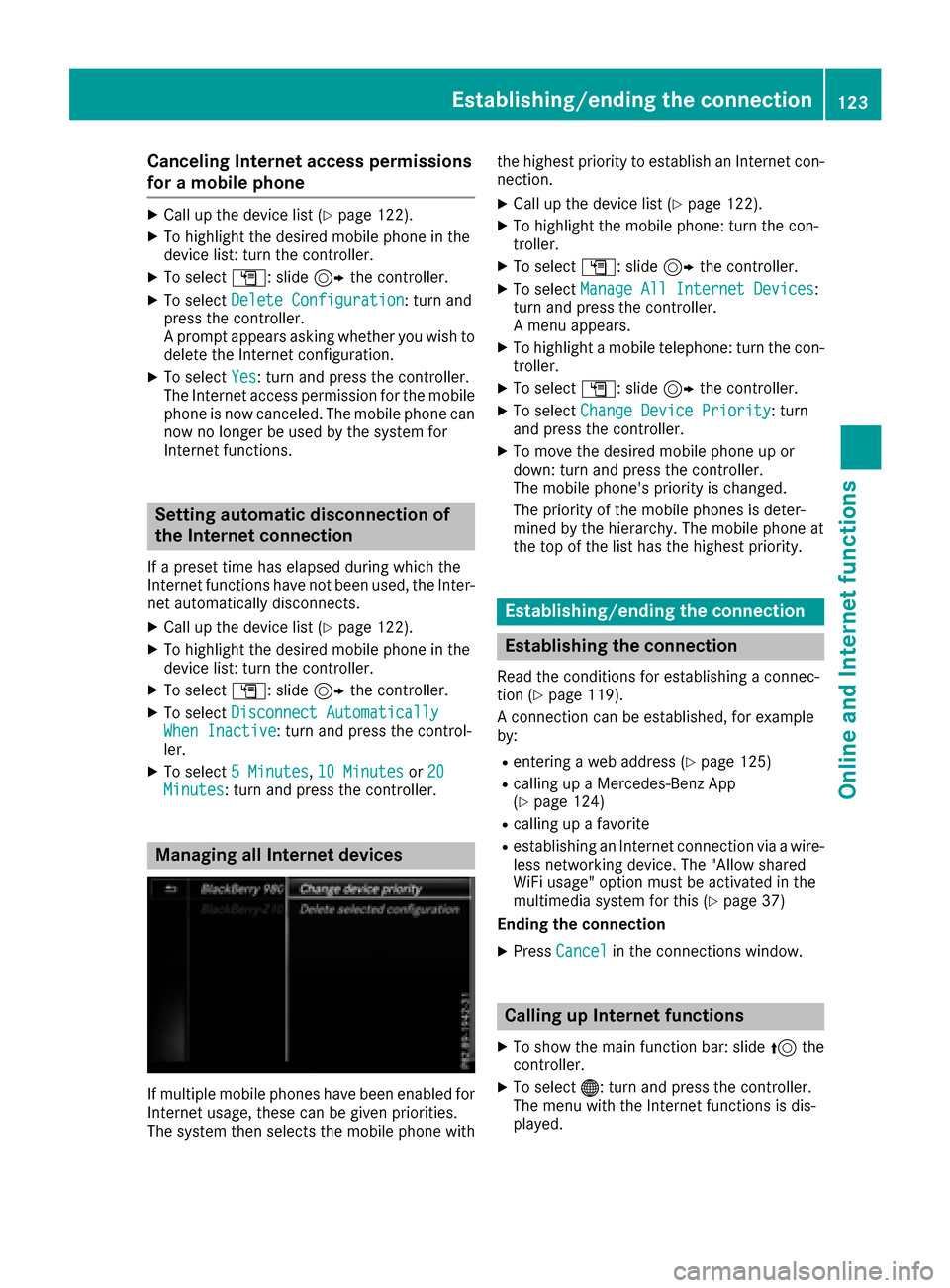
Managing all Internet devices
If multiple mobile phones have been enabled for
Internet usage, these can be given priorities.
The system then selects the mobile phone with the highest priority to establish an Internet con-
nection.
XCall up the device list (Ypage 122).
XTo highlight the mobile phone: turn the con-
troller.
XTo select
G: slide 9the controller.
XTo select Manage All Internet Devices:
turn and press the controller.
A menu appears.
XTo highlight a mobile telephone: turn the con-
troller.
XTo select G: slide 9the controller.
XTo select Change Device Priority: turn
and press the controller.
XTo move the desired mobile phone up or
down: turn and press the controller.
The mobile phone's priority is changed.
The priority of the mobile phones is deter-
mined by the hierarchy. The mobile phone at
the top of the list has the highest priority.
Establishing/ending the connection
Establishing the connection
Read the conditions for establishing a connec-
tion (Ypage 119).
A connection can be established, for example
by:
Rentering a web address (Ypage 125)
Rcalling up a Mercedes-Benz App
(Ypage 124)
Rcalling up a favorite
Restablishing an Internet connection via a wire-
less networking device. The "Allow shared
WiFi usage" option must be activated in the
multimedia system for this (
Ypage 37)
Ending the connection
XPress Cancelin the connections window.
Calling up Internet functions
XTo show the main function bar: slide 5the
controller.
XTo select ®: turn and press the controller.
The menu with the Internet functions is dis-
played.
Establishing/ending the connection123
Online and Internet functions
Z
Page 126 of 178
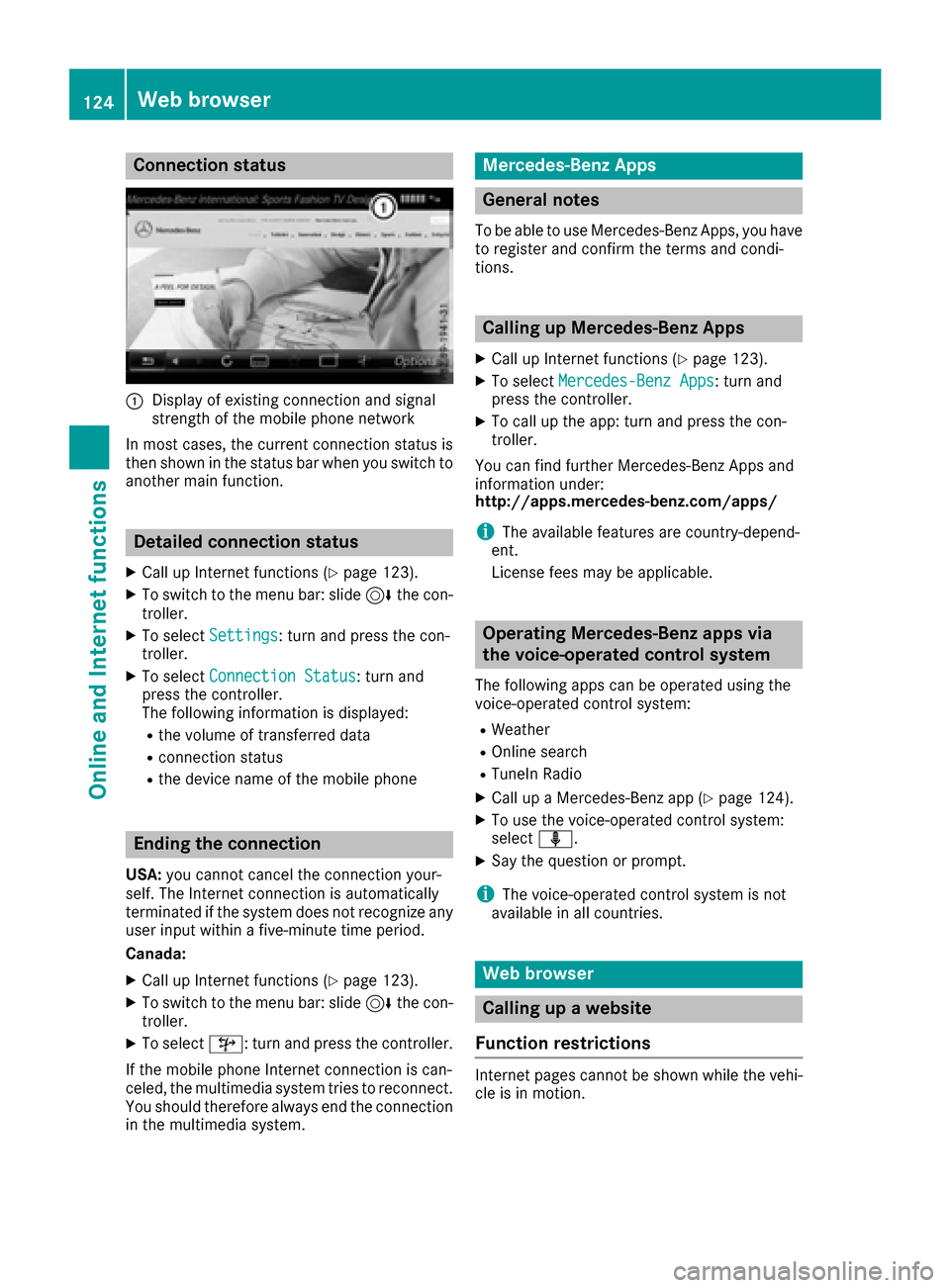
Connection status
:Display of existing connection and signal
strength of the mobile phone network
In most cases, the current connection status is
then shown in the status bar when you switch to
another main function.
Detailed connection status
XCall up Internet functions (Ypage 123).
XTo switch to the menu bar: slide 6the con-
troller.
XTo select Settings: turn and press the con-
troller.
XTo select Connection Status: turn and
press the controller.
The following information is displayed:
Rthe volume of transferred data
Rconnection status
Rthe device name of the mobile phone
Ending the connection
USA: you cannot cancel the connection your-
self. The Internet connection is automatically
terminated if the system does not recognize any
user input within a five-minute time period.
Canada:
XCall up Internet functions (Ypage 123).
XTo switch to the menu bar: slide 6the con-
troller.
XTo select ©: turn and press the controller.
If the mobile phone Internet connection is can-
celed, the multimedia system tries to reconnect.
You should therefore always end the connection
in the multimedia system.
Mercedes-Benz Apps
General notes
To be able to use Mercedes-Benz Apps, you have
to register and confirm the terms and condi-
tions.
Calling up Mercedes-Benz Apps
XCall up Internet functions (Ypage 123).
XTo select Mercedes-Benz Apps: turn and
press the controller.
XTo call up the app: turn and press the con-
troller.
You can find further Mercedes-Benz Apps and
information under:
http://apps.mercedes-benz.com/apps/
iThe available features are country-depend-
ent.
License fees may be applicable.
Operating Mercedes-Benz apps via
the voice-operated control system
The following apps can be operated using the
voice-operated control system:
RWeather
ROnline search
RTuneIn Radio
XCall up a Mercedes-Benz app (Ypage 124).
XTo use the voice-operated control system:
select o.
XSay the question or prompt.
iThe voice-operated control system is not
available in all countries.
Web browser
Calling up a website
Function restrictions
Internet pages cannot be shown while the vehi-
cle is in motion.
124Web browser
Online and Internet functions
Page 129 of 178
You can activate or deactivate the following set-
tings:
RDownload Images Automatically
It may take some time to download the con-
tents of websites that contain a large amount
of images. Therefore, it may be useful to deac-
tivate this option.
RBlock Pop-Ups
Popups are windows (usually with advertise-
ments) which are displayed automatically
when you call up a website. You can block
these displays.
RActivate Javascript
Javascript makes it possible to display and
interact with dynamic content on the website.
RAllow Cookies
Some websites save information in small text
files (cookies) on your system. You can deter-
mine whether cookies may be stored.
REnable Internet Audio
You can switch the browser's audio playback
on or off here.
RHide Scroll Bars
You can show or hide the scroll bar here.
RShow Link Target
You can display the link's URL here.
RCharacter Size
You can select the font size which is used
when displaying the website.
RCharacter Code
You can select a different character set here,
e.g. if the characters of a website appear dis-
torted.
Changing settings
XTo select the desired setting: turn and press
the controller.
Switch the setting onOor off ª.
Changing the character size or character
code
XSelect CharacterSizeorCharacterCode.
XTo select the setting you require: turn and
press the controller.
iIf you change the settings, the websites may
not be displayed correctly.
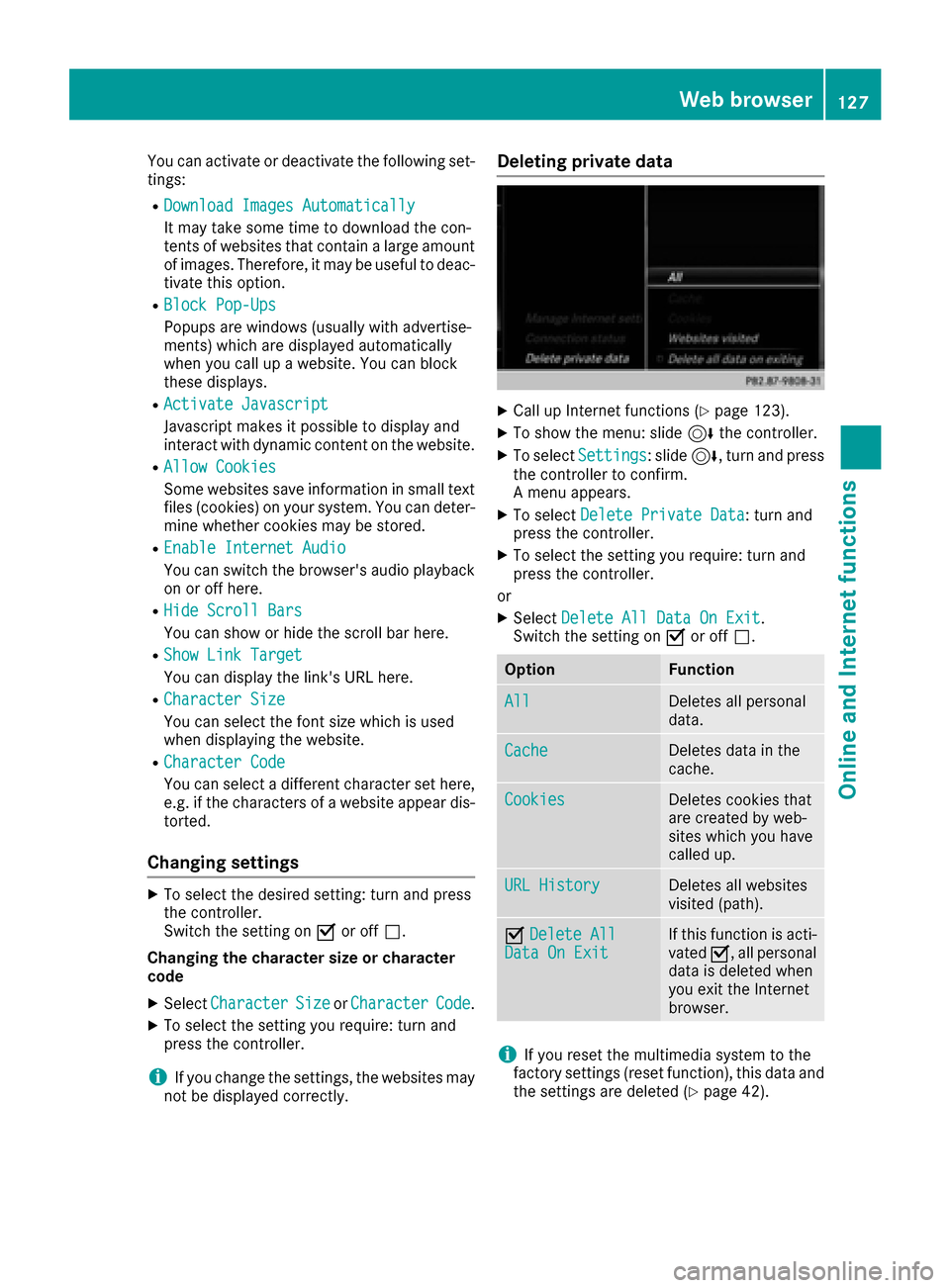
Deleting private data
XCall up Internet functions (Ypage 123).
XTo show the menu: slide 6the controller.
XTo select Settings: slide6, turn and press
the controller to confirm.
A menu appears.
XTo select Delete Private Data: turn and
press the controller.
XTo select the setting you require: turn and
press the controller.
or
XSelect Delete All Data On Exit.
Switch the setting on Oor off ª.
OptionFunction
AllDeletes all personal
data.
CacheDeletes data in the
cache.
CookiesDeletes cookies that
are created by web-
sites which you have
called up.
URL HistoryDeletes all websites
visited (path).
ODelete AllData On ExitIf this function is acti-
vated O, all personal
data is deleted when
you exit the Internet
browser.
iIf you reset the multimedia system to the
factory settings (reset function), this data and
the settings are deleted (
Ypage 42).
Web browser127
Online and Internet functions
Z
Page 141 of 178
Using the device list
XIn media mode, slide6the controller.
The media menu bar is shown.
XTo select Devices: turn and press the con-
troller.
The available media sources will be shown.
The #dot indicates the current setting.
XSelect the media source.
If the media source contains music or video
files, these will be played. The corresponding
basic menu will be shown.
Switching on automatically
After inserting a CD/DVD, this media mode is
automatically switched on by the multimedia
system.
If playable music files are found, they will be
played by the multimedia system.
If a media function is already switched on in the
multimedia system, this will be interrupted and
the basic display of the CD/DVD mode will
appear. If another function, such as navigation,
is being operated, the basic display will not
change. Only the music from the last inserted
CD/DVD will be played.
Audio/video mode
Important safety notes
GWARNING
The CD/DVD drive is a class 1 laser product.
If you open the housing of the CD/DVD drive,
there is a risk of exposure to invisible laser
radiation. This laser radiation could damage
your retina. There is a risk of injury.
Never open the housing. Always have main-
tenance and repair work carried out at a quali- fied specialist workshop.
GWARNING
Handling discs while driving may distract you from traffic conditions. You could also lose
control of the vehicle. There is a risk of an
accident.
Handle discs only when the vehicle is station-
ary.
Bear in mind that at a speed of only 30 mph
(approximately 50 km/h) your vehicle covers a
distance of 44 feet (approximately 14 m) every
second.
Notes on audio/video mode
Permissible data carriers
RCD-R, CD-A and CD-RW
RDVD-R, DVD-V and DVD-RW
RSD card
RUSB storage device
Permissible file systems
RISO 9660/Joliet standard for CDs
RUDF for video DVDs
RFAT16, FAT32, exFAT and NTFS for SD card
and USB storage media
Multisession CDs
For multisession CDs, the content of the first
session determines how the multimedia system
processes the CD. The multimedia system plays
only one session and gives priority to the audio
CD session.
File structure of a data carrier
When you create a disc with compressed music
files, the tracks can be organized in folders. A
folder may also contain subfolders. The disc
may contain no more than eight directory levels.
Files beyond the eighth level will not be recog-
nized by the system.
iThe multimedia system supports up to
50,000 files from one data medium.
If more than 64 GB of the memory of a data
medium is full, only files in folders with the
following names are supported: Music, Pic-
tures, Video.
Track and file names
When you create a disc with compressed music
files, you can assign names to the tracks and
folders.
Audio/video mode139
Media
Z
Page 143 of 178
Discs with copy protection are not compatible
with the audio CD standard and therefore may
not be able to be played.
Playback problems may occur when playing
copied discs.
There may be playback problems if you play CDs
that you have copied yourself with a storage
capacity of more than 700 MB.
iThe multimedia system is able to play back
audio CDs in multichannel audio format.
Inserting and removing a disc from
the single CD/DVD drive
Before inserting or removing a CD/DVD, ensure
that the cup holder is empty.
XTo insert:press the þbutton on the single
drive.
If there is a disc already inserted, it will be
ejected.
XInsert a disc into the disc slot with the printed
side facing upwards.
The drive closes and the disc is played.
If the CD/DVD is operated in Media mode, the
corresponding basic menu will be shown. If
the CD/DVD is started using another appli-
cation (e.g. navigation), the display will not
change.
iThe drive may not be able to play discs with
copy protection.
XTo remove: press theþbutton.
The drive ejects the disc.
XRemove the ejected disc from the slot.
If you do not take the disc out of the slot, it is drawn in again automatically after a short
while.
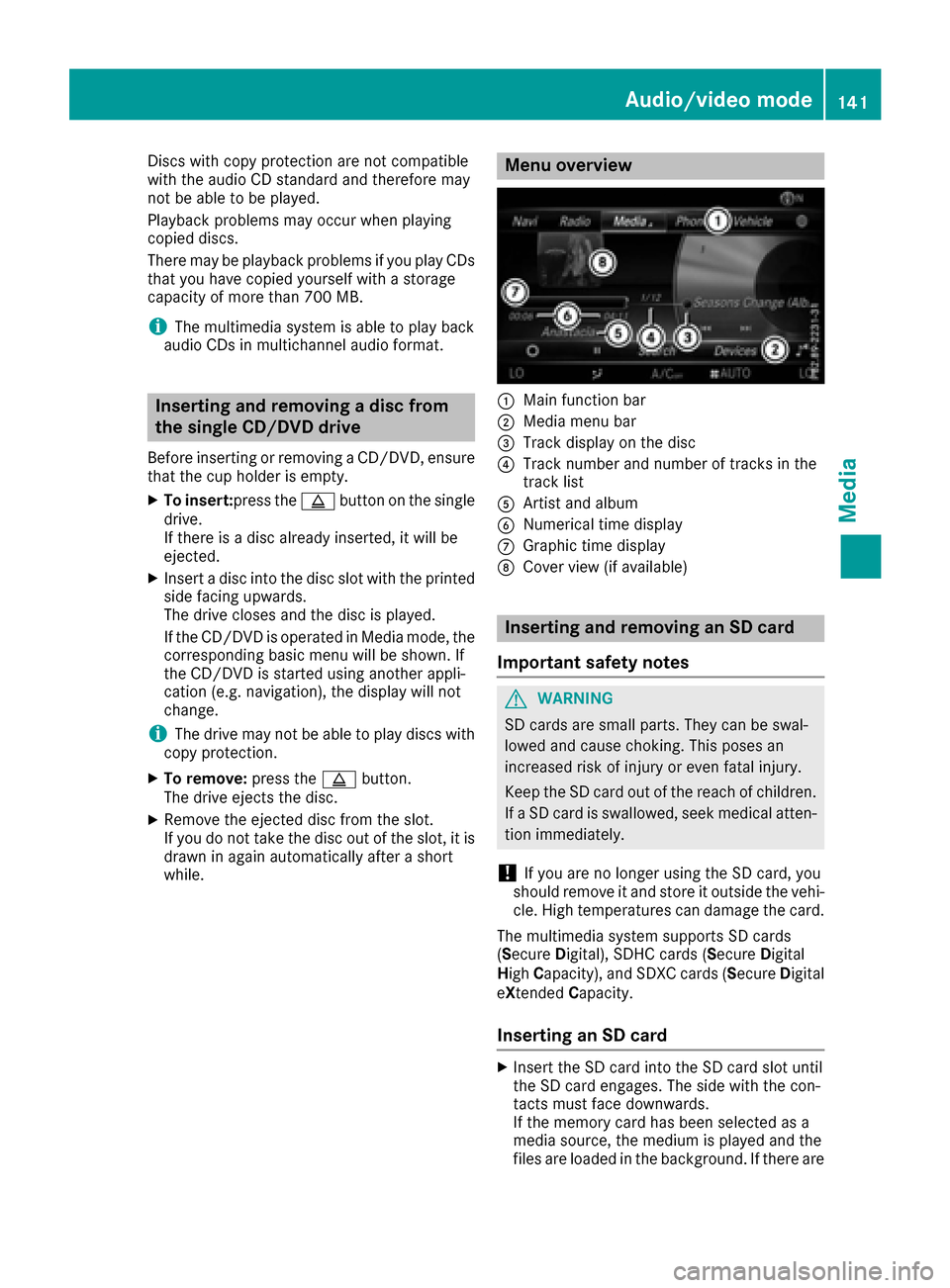
Menu overview
:Main function bar
;Media menu bar
=Track display on the disc
?Track number and number of tracks in the
track list
AArtist and album
BNumerical time display
CGraphic time display
DCover view (if available)
Inserting and removing an SD card
Important safety notes
GWARNING
SD cards are small parts. They can be swal-
lowed and cause choking. This poses an
increased risk of injury or even fatal injury.
Keep the SD card out of the reach of children. If a SD card is swallowed, seek medical atten-
tion immediately.
!If you are no longer using the SD card, you
should remove it and store it outside the vehi-
cle. High temperatures can damage the card.
The multimedia system supports SD cards
( S ecure Digital), SDHC cards ( Secure Digital
High Capacity), and SDXC cards ( Secure Digital
e Xtended Capacity.
Inserting an SD card
XInsert the SD card into the SD card slot until
the SD card engages. The side with the con-
tacts must face downwards.
If the memory card has been selected as a
media source, the medium is played and the
files are loaded in the background. If there are
Audio/video mode141
Media
Z