BUS MERCEDES-BENZ C-Class 2017 W205 Comand Manual
[x] Cancel search | Manufacturer: MERCEDES-BENZ, Model Year: 2017, Model line: C-Class, Model: MERCEDES-BENZ C-Class 2017 W205Pages: 178, PDF Size: 5.62 MB
Page 2 of 178
Publication details
Internet
Further information about Mercedes-Benz vehi-
cles and about Daimler AG can be found on the
following websites:
http://www.mbusa.com (USA only)
http://www.mercedes-benz.ca (Canada only)
Editorial office
You are welcome to forward any queries or sug-
gestions you may have regarding this Operator's
Manual to the technical documentation team at
the following address:
Daimler AG, HPC: CAC, Customer Service,
70546 Stuttgart, Germany
©Daimler AG: Not to be reprinted, translated or
otherwise reproduced, in whole or in part, with-
out written permission from Daimler AG.
Vehicle manufacturer
Daimler AG
Mercedesstraße 137
70327 Stuttgart
Germany
Symbols
In this Operator's Manual you will find the fol-
lowing symbols:
GWARNING
Warning notes make you aware of dangers
which could pose a threat to your health or
life, or to the health and life of others.
HEnvironmental note
Environmental notes provide you with infor-
mation on environmentally aware actions or
disposal.
!Notes on material damage alert you to dan-
gers that could lead to damage to your vehi-
cle.
iPractical tips or further information that
could be helpful to you.
X This symbol indicates an instruction
that must be followed.
X Several of these symbols in succession
indicate an instruction with several
steps.
(Y
page) This symbol tells you where you can find
more information about a topic.
Dis‐
playThis text indicates a message in the
multimedia display.
Parts of the software in the vehicle are protected
by copyright
©2005 The FreeType Project
http://www.freetype.org. All rights reserved.
As at 28.09.2015
Page 18 of 178
After a malfunction has been rectified, the infor-
mation is deleted from the malfunction memory
or is continually overwritten.
When operating the vehicle, situations are con-
ceivable in which this technical data, in connec-
tion with other information (if necessary, after
consultation with an authorized expert), could
be traced to a person.
Examples include:
Raccident reports
Rdamage to the vehicle
Rwitness statements
Further additional functions that have been con- tractually agreed upon with the customer allow
certain vehicle data to be conveyed by the vehi-
cle as well. The additional functions include, for
example, vehicle location in case of an emer-
gency.
COMAND/mbrace
If the vehicle is equipped with COMAND or
mbrace, additional data about the vehicle’s
operation, the use of the vehicle in certain sit-
uations, and the location of the vehicle may be
compiled through COMAND or the mbrace sys-
tem.
For additional information please refer to the
COMAND User Manual and/or the mbrace
Terms and Conditions.
Event data recorders
This vehicle is equipped with an event data
recorder (EDR). The main purpose of an EDR is
to record data that will assist in understanding
how a vehicle’s systems performed in certain
crash or near crash-like situations, such as dur-
ing air bag deployment or when hitting a road
obstacle. The EDR is designed to record data
related to vehicle dynamics and safety systemsfor a short period of time, typically 30 seconds
or less.
The EDR in this vehicle is designed to record
such data as:
Rhow various systems in your vehicle are oper-
ating
Rwhether or not the driver and passenger seat
belts are fastened
Rhow far (if at all) the driver is depressing the
accelerator and/or brake pedal and
Rhow fast the vehicle is traveling
This data can help provide a better understand-
ing of the circumstances in which crashes and
injuries occur. NOTE: EDR data is recorded by
your vehicle only if a non-trivial crash situation
occurs; no data is recorded by the EDR under
normal driving conditions and no personal data
(e.g., name, gender, age, and crash location) are recorded. However, other parties, such as law
enforcement, can combine the EDR data wi th
the ty
pe of personal identification data routinely
acquired during a crash investigation.
To read data recorded by an EDR, special equip- ment is required, and access to the vehicle or
the EDR is needed. In addition to the vehicle
manufacturer, other parties that have the spe-
cial equipment, such as law enforcement, can
read the information by accessing the vehicle or
the EDR.
EDR data may be used in civil and criminal mat-
ters as a tool in accident reconstruction, acci-
dent claims, and vehicle safety. Since the Crash
Data Retrieval CDR tool that is used to extract
data from the EDR is commercially available,
Mercedes-Benz USA, LLC ("MBUSA") expressly
disclaims any and all liability arising from the
extraction of this information by unauthorized
Mercedes-Benz personnel.
MBUSA will not share EDR data with others
without the consent of the vehicle owners or, if
the vehicle is leased, without the consent of the lessee. Exceptions to this representation
include responses to subpoenas by law enforce-
ment; by federal, state or local government; in
connection with or arising out of litigation involv-
ing MBUSA or its subsidiaries and affiliates; or,
as required by law.
Warning: The EDR is a component of the Su
p-
plemental Restraint System ("SRS") Module.
Tampering with, altering, modifying or removing the EDR component may result in a malfunction
of the SRS Module and other systems.
State laws or regulations regarding EDRs that
conflict with federal regulation are pre-empted.
This means that in the event of such conflict, the
federal regulation governs. As of February 2013,13 states have enacted laws relating to EDRs.
16Introduction
Page 106 of 178
XSelect the characters of the contact you are
searching for one by one, pressing and con-
firming with the controller each time.
XTo complete the search: slide5the con-
troller repeatedly until the character bar dis-
appears.
or
XTo select ¬: turn and press the controller.
The contacts in the address book are dis-
played.
XTo select a contact: turn and press the con-
troller.
Back to the character bar
XPress the %button repeatedly until the
character bar is displayed.
Information about character entry (
Ypage 29).
Using the touchpad
XCall up the address book (Ypage 103).
XTo switch to the menu bar: glide down.
XSelect Search.
XDraw the letter on the touchpad surface.
The first contact with the selected first char-
acter is highlighted in the address book.
Further information on handwriting recogni-
tion on the touchpad (
Ypage 25).
XDraw additional letters on the touchpad sur-
face one after another.
XTo complete the search and return to the
phone book: press the touchpad.
XTo select and call the contact: glide up or
down and press.
Adding a new contact
You can enter address data directly into the
address book. If you store telephone numbers in
the phone book of the multimedia system, these
are also saved in the address book. If you store
a navigation destination, the multimedia system
creates an address book entry that includes the
complete navigable address data.
XCall up the address book (Ypage 103).
XTo switch to the menu bar: slide 6the con-
troller.
XTo select New: turn and press the controller.
The surname and first name input lines are
displayed.
XEnter characters using the controller
(Ypage 29) or the touchpad (Ypage 25).
XTo save the surname and first name: select
¬.
The details for the contact are displayed.
XTo add a desired entry (e.g. Add E-MailAddress): turn and press the controller.
Depending on the type of entry, the corre-
sponding input menu appears.
XEnter characters using the controller
(Ypage 29) or the touchpad (Ypage 25).
XTo finish and save an entry: select ¬.
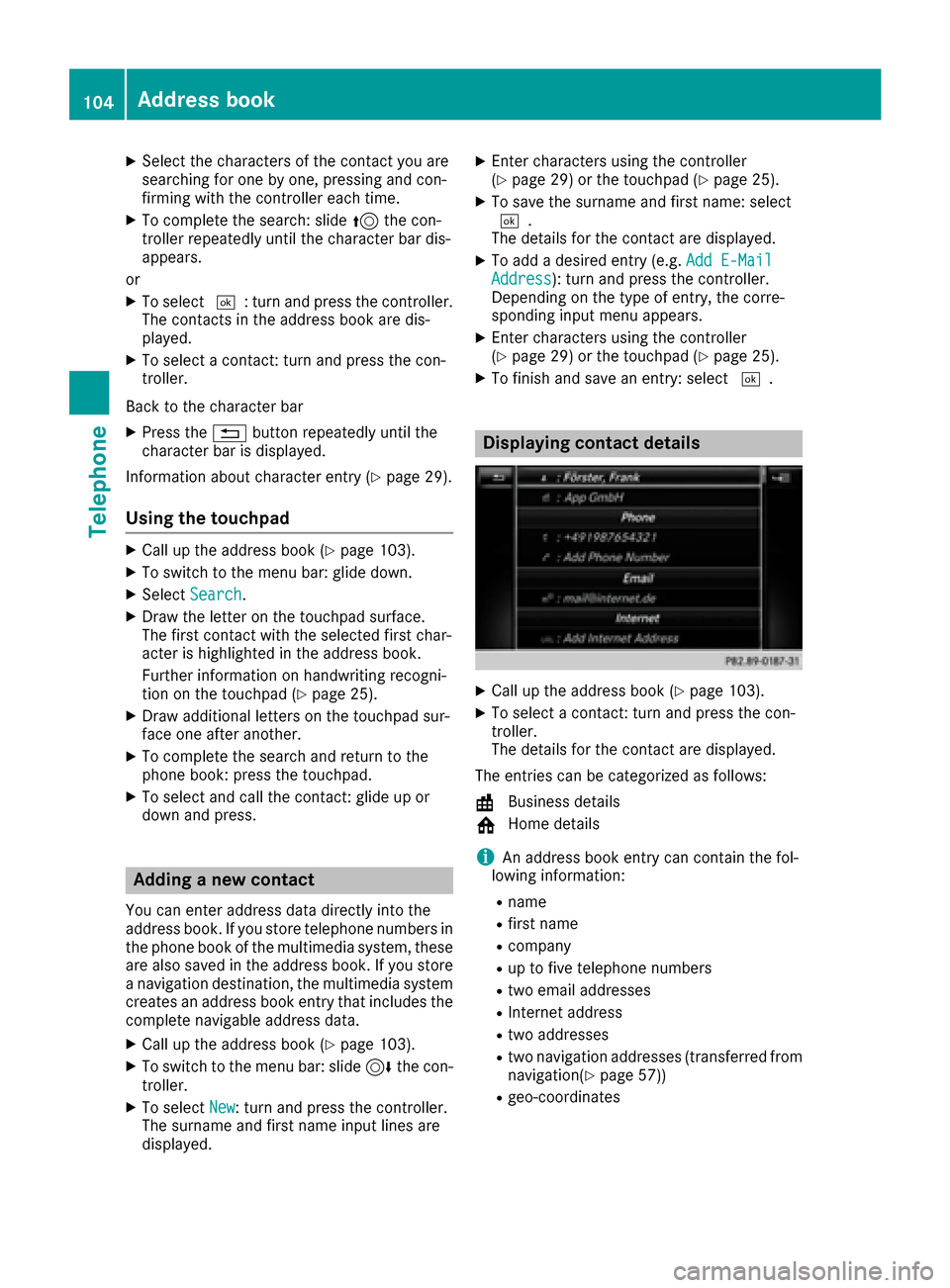
Displaying contact details
XCall up the address book (Ypage 103).
XTo select a contact: turn and press the con-
troller.
The details for the contact are displayed.
The entries can be categorized as follows:
\ Business details
6 Home details
iAn address book entry can contain the fol-
lowing information:
Rname
Rfirst name
Rcompany
Rup to five telephone numbers
Rtwo email addresses
RInternet address
Rtwo addresses
Rtwo navigation addresses (transferred from
navigation(Ypage 57))
Rgeo-coordinates
104Address book
Telephone
Page 110 of 178
Importing contacts
Information and requirements
Contacts can be imported as vCards (vc ffiles). A
vCar dis an electronic business card. Amemory
card, US Bdevice or aBluetoot h
®connection
can be used for importing .
iUp to 2000 entries can be imported int oth e
address book . Amessage notifie syou when
th emaximum number is reached. In order to
be able to then import ne wcontacts, you have
to delet eexisting contact s (
Ypage 107).
SourceRequirements
Memory cardThe SD cardis inserted. It
contain simportable contact
details.
US BdeviceThe US Bdevice is inserted
int oth eUS Bport. It contain s
importable contact details.
Bluetoot h®
connection
If thesendin gof vCards is
supported via Bluetoot h®,
vCards can be received on
mobile phones or netbooks,
for example.
Bluetoot h
®must be activa-
te din th emultimedia system
and on th erespective device ;
see th emanufacturer' soper -
ating instructions.
iIf automatic calling up of th econtact sis
deactivated (Ypage 107), th eImportfro mPhoneoption is available.
Importing from the memory card or USB
device
Contacts imported from th ememory car dor
from aUS Bdevice are identifie dby th e¯
symbol.
The followin gcondition smust be fulfilled in
order to import vCards:
RvCards (vc ffiles) may be locate din th emain
directory or in folders. The multimedia system
allows for atargeted selection of th ecorre-
sponding directories.
RvCards must have th efile extension "vcf".
iThe multimedia system support svCards in
version s2. 1and 3.0.
XTo switch to th emen ubar in th etelephon e
men uor th eaddress book :slide 6thecon-
troller .
XTo select:tur nand press th econtrol -
ler .
XTo select Download Contacts:tur nand
press th econtroller .
XTo select FromMemory Car dorFro mUSBdevice:tur nand press th econtroller .
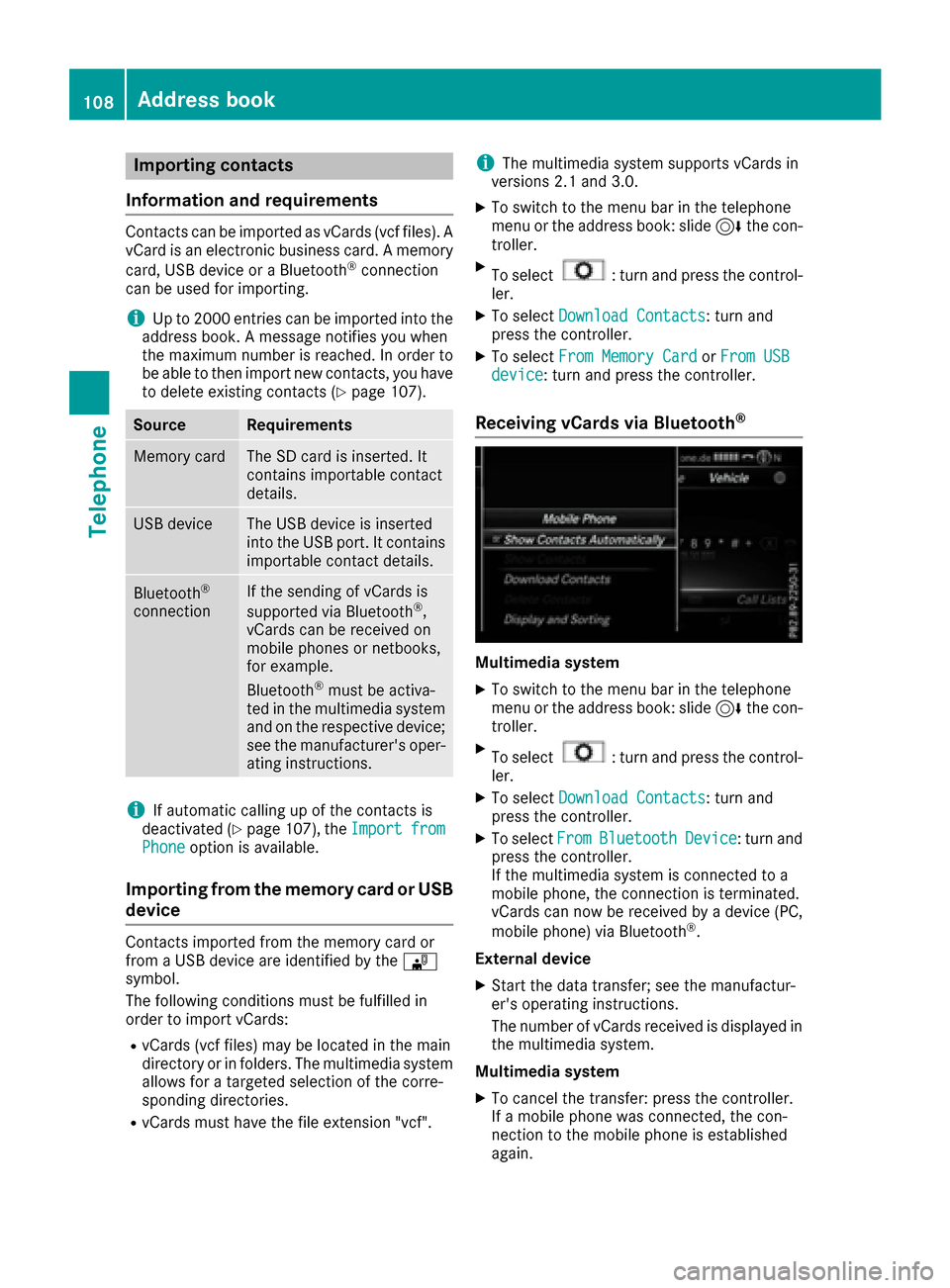
Receiving vCards via Bluetooth®
Multimedi asystem
XTo switch to th emen ubar in th etelephon e
men uor th eaddress book :slide 6thecon-
troller .
XTo select:tur nand press th econtrol -
ler .
XTo select Download Contacts:tur nand
press th econtroller .
XTo selectFromBluetoothDevice:tur nand
press th econtroller .
If th emultimedia system is connecte dto a
mobile phone, th econnection is terminated.
vCards can no wbe received by adevice (PC,
mobile phone) via Bluetoot h
®.
External device
XStart th edat atransfer ;see th emanufactur -
er' soperating instructions.
The number of vCards received is displayed in th emultimedia system.
Multimedi asystem
XTo cance lth etransfer :press th econtroller .
If amobile phon ewas connected, th econ-
nection to th emobile phon eis established
again .
108Address book
Telephone