change wheel MERCEDES-BENZ C-CLASS CABRIOLET 2016 Owner's Manual
[x] Cancel search | Manufacturer: MERCEDES-BENZ, Model Year: 2016, Model line: C-CLASS CABRIOLET, Model: MERCEDES-BENZ C-CLASS CABRIOLET 2016Pages: 377, PDF Size: 6.9 MB
Page 214 of 377
In such cases, Active Lane Keeping Assist
can:
R give an unnecessary warning and then
make a course-correcting brake application
to the vehicle
R neither give a warning nor intervene
There is a risk of an accident.
Always pay particular attention to the traffic
situation and keep within the lane, especially
if Active Lane Keeping Assist alerts you. Ter-
minate the intervention in a non-critical driv-
ing situation.
The system may be impaired or may not function in the following situations:
R poor visibility, e.g. due to insufficient illumi-
nation of the road, or due to snow, rain, fog or
spray
R glare, e.g. from oncoming traffic, the sun or
reflection from other vehicles (e.g. if the road
surface is wet)
R the windscreen is dirty, misted up, damaged
or covered, for instance by a sticker, in the
vicinity of the camera
R the radar sensors in the front or rear bumpers
or the radiator trim are dirty, e.g. obscured by
snow
R no or several, unclear lane markings are pres-
ent for one lane, e.g. in a construction area
R the lane markings are worn away, dark or cov-
ered up, e.g. by dirt or snow
R the distance to the vehicle in front is so small
that the lane markings cannot be detected
R the lane markings change quickly, e.g. lanes
branch off, cross one another or merge
R the road is very narrow and winding
R there are highly variable shade conditions on
the roadway
If no vehicle is detected in the adjacent lane and broken lane markings are detected, no lane-cor-
recting brake application is made.
Warning vibration through the steering
wheel A warning may be given if a front wheel passes
over a lane marking. It will warn you by means of intermittent vibration in the steering wheel for
up to 1.5 seconds. Lane-correcting brake application
If you leave your lane, under certain circumstan-
ces, the vehicle will brake briefly on one side.
This is intended to help you return the vehicle to the original lane. G
WARNING
A lane-correcting brake application cannot
always bring the vehicle back into the original lane. There is a risk of an accident.
Always steer, brake or accelerate yourself,
especially if Active Lane Keeping Assist warns
you or makes a lane-correcting brake appli-
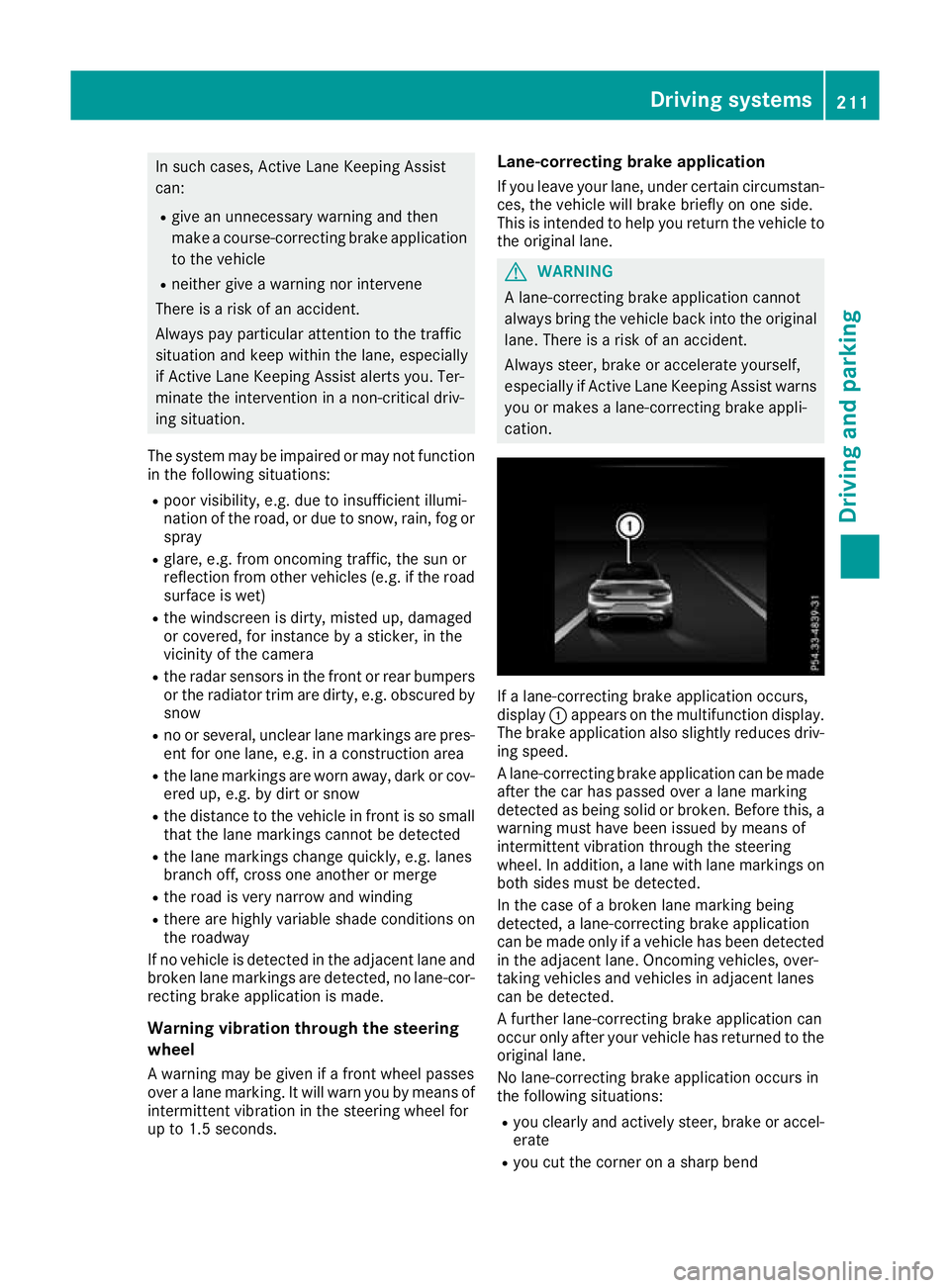
cation. If a lane-correcting brake application occurs,
display :appears on the multifunction display.
The brake application also slightly reduces driv- ing speed.
A lane-correcting brake application can be made
after the car has passed over a lane marking
detected as being solid or broken. Before this, a warning must have been issued by means of
intermittent vibration through the steering
wheel. In addition, a lane with lane markings on
both sides must be detected.
In the case of a broken lane marking being
detected, a lane-correcting brake application
can be made only if a vehicle has been detected
in the adjacent lane. Oncoming vehicles, over-
taking vehicles and vehicles in adjacent lanes
can be detected.
A further lane-correcting brake application can
occur only after your vehicle has returned to the original lane.
No lane-correcting brake application occurs in
the following situations:
R you clearly and actively steer, brake or accel-
erate
R you cut the corner on a sharp bend Driving systems
211Driving and parking Z
Page 224 of 377
The segments between the speed of the vehi-
cle in front and the stored speed light up. Rev counter
! Do not drive in the overrevving range. Doing
so will damage the engine.
The red band in the rev counter indicates the
engine's overrevving range.
The fuel supply is interrupted to protect the
engine when the red band is reached. Outside temperature display
You should pay special attention to road condi-
tions when temperatures are around freezing
point.
Bear in mind that the outside temperature dis-
play indicates the measured air temperature
and not the road surface temperature.
The outside temperature display is in the multi-
function display (Y page 222).
Changes in the outside temperature are dis-
played after a short delay. Coolant temperature gauge
G
WARNING
If you open the bonnet while the engine is
overheating or while there is a fire in the
engine compartment, you could come into
contact with hot gases or other leaking ser-
vice products. There is a danger of injury.
Allow an overheating engine to cool down
before opening the bonnet. If there is a fire in the engine compartment, leave the bonnet
closed and notify the fire brigade.
The coolant temperature display is shown in the lower section of the rev counter (Y page 35).
At high outside temperatures and when driving
in mountainous terrain, the coolant temperature
may rise to the end of the scale.
Under normal operating conditions and with the specified coolant level, the display may rise to
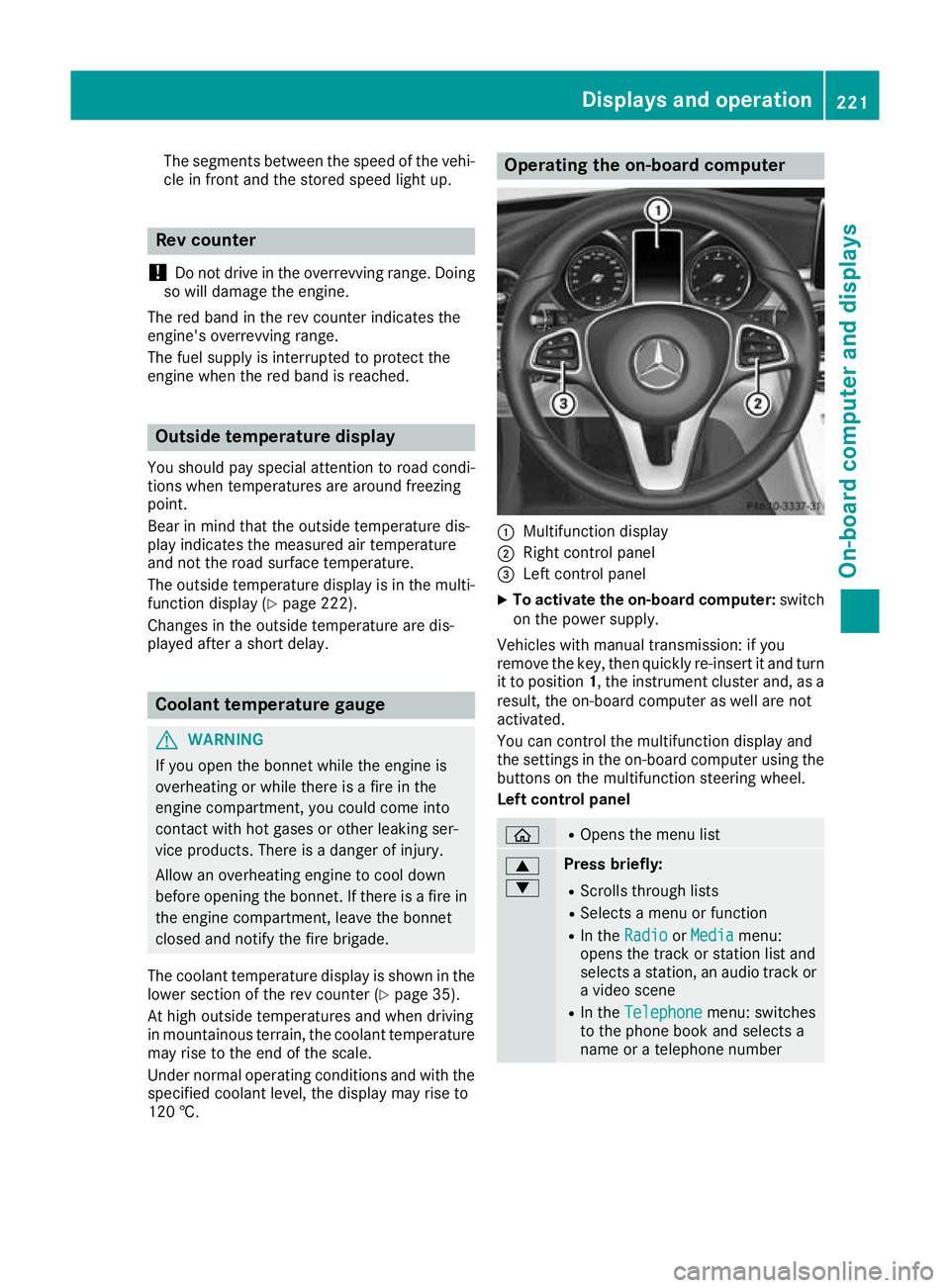
120 †. Operating the on-board computer
:
Multifunction display
; Right control panel
= Left control panel
X To activate the on-board computer: switch
on the power supply.
Vehicles with manual transmission: if you
remove the key, then quickly re-insert it and turn
it to position 1, the instrument cluster and, as a
result, the on-board computer as well are not
activated.
You can control the multifunction display and
the settings in the on-board computer using the buttons on the multifunction steering wheel.
Left control panel ò R
Opens the menu list 9
: Press briefly:
R Scrolls through lists
R Selects a menu or function
R In the Radio Radio orMedia
Media menu:
opens the track or station list and
selects a station, an audio track or a video scene
R In the Telephone Telephone menu: switches
to the phone book and selects a
name or a telephone number Displays and operation
221On-board computer and displays Z
Page 229 of 377
X
Confirm by pressing aon the steering
wheel.
X Press :or9 to select the digital
speedometer.
Resetting values X
Press òon the steering wheel to open the
menu list.
X Press :or9 on the steering wheel to
select the Trip
Trip menu.
X Confirm by pressing aon the steering
wheel.
X Press :or9 to select the function that
you wish to reset.
X Press abriefly.
X Press :to select Yes Yesand press ato
confirm.
You can reset the values of the following func- tions:
R Trip meter
R "From start" trip computer
R "From reset" trip computer
R ECO display
If you reset the values in the "ECO display",
the values in the "From start" trip computer
are also reset. If you reset the values in the
"From start" trip computer, the values in the
"ECO display" are also reset. Navigation menu
Displaying navigation instructions On the
Navi Navimenu, the multifunction display
shows navigation instructions. You can find fur-
ther information on navigation instructions in
the Digital Owner's Manual in the multimedia
system.
X Switch on the multimedia system.
X Press òon the steering wheel to open the
menu list.
X Press :or9 on the steering wheel to
select the Navi
Navi menu.
X Confirm by pressing aon the steering
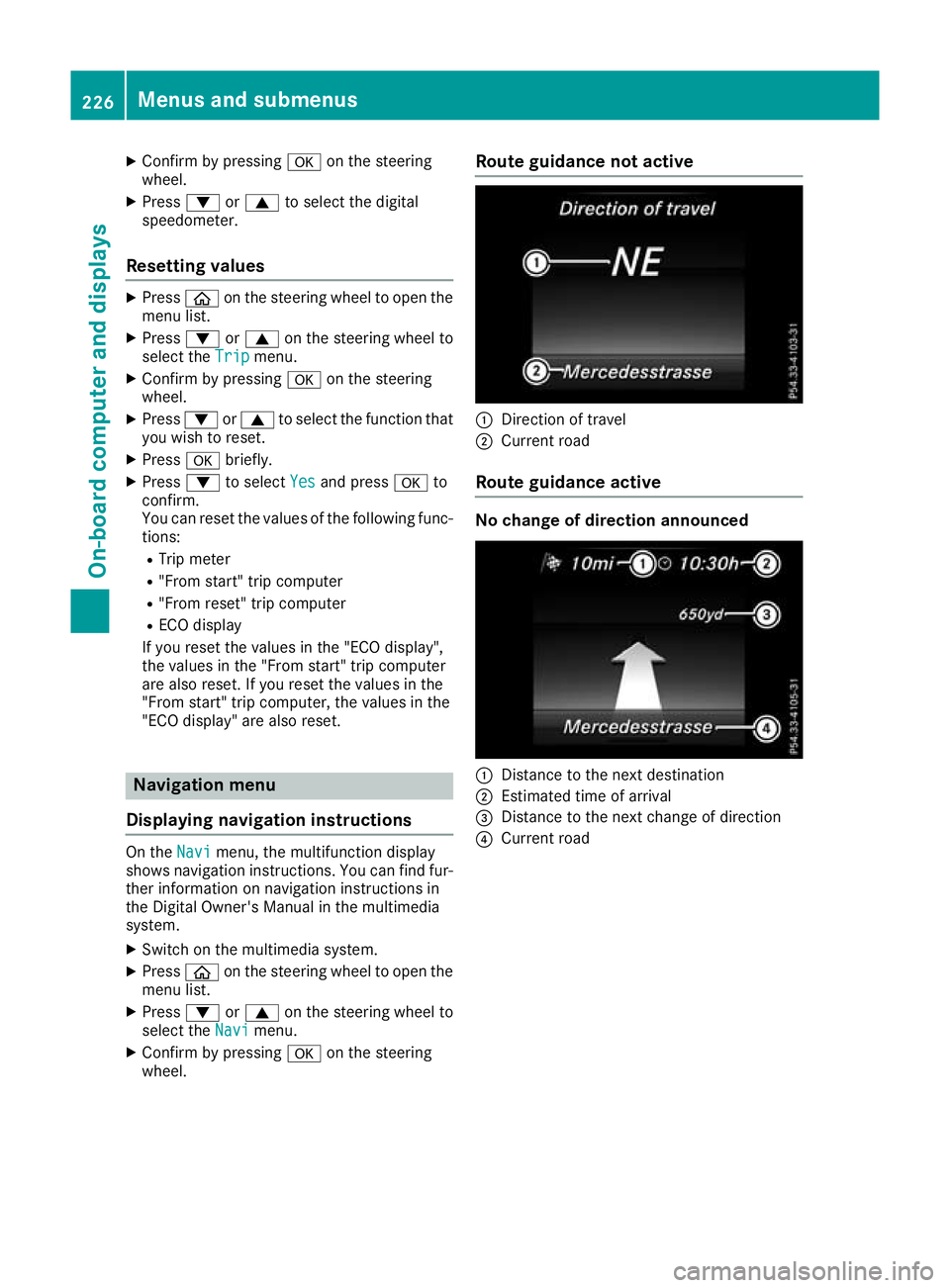
wheel. Route guidance not active
:
Direction of travel
; Current road
Route guidance active No change of direction announced
:
Distance to the next destination
; Estimated time of arrival
= Distance to the next change of direction
? Current road 226
Menus and submenusOn-board computer and displays
Page 231 of 377
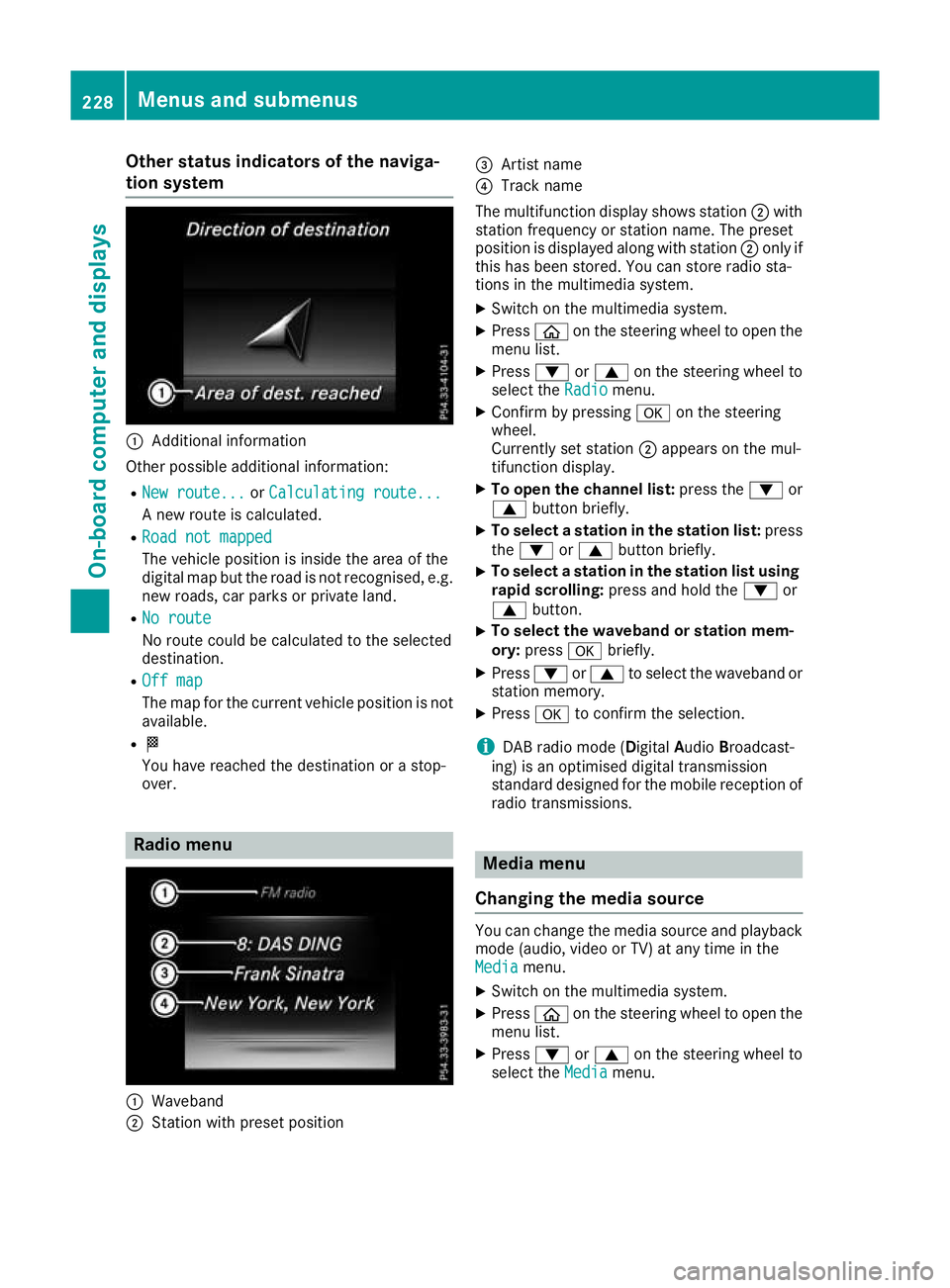
Other status indicators of the naviga-
tion system :
Additional information
Other possible additional information: R New route...
New route... orCalculating route...
Calculating route...
A new route is calculated.
R Road not mapped
Road not mapped
The vehicle position is inside the area of the
digital map but the road is not recognised, e.g. new roads, car parks or private land.
R No route
No route
No route could be calculated to the selected
destination.
R Off map Off map
The map for the current vehicle position is not
available.
R O
You have reached the destination or a stop-
over. Radio menu
:
Waveband
; Station with preset position =
Artist name
? Track name
The multifunction display shows station ;with
station frequency or station name. The preset
position is displayed along with station ;only if
this has been stored. You can store radio sta-
tions in the multimedia system.
X Switch on the multimedia system.
X Press òon the steering wheel to open the
menu list.
X Press :or9 on the steering wheel to
select the Radio Radiomenu.
X Confirm by pressing aon the steering
wheel.
Currently set station ;appears on the mul-
tifunction display.
X To open the channel list: press the:or
9 button briefly.
X To select a station in the station list: press
the : or9 button briefly.
X To select a station in the station list using
rapid scrolling: press and hold the :or
9 button.
X To select the waveband or station mem-
ory:
press abriefly.
X Press :or9 to select the waveband or
station memory.
X Press ato confirm the selection.
i DAB radio mode (Digital
AudioBroadcast-
ing) is an optimised digital transmission
standard designed for the mobile reception of
radio transmissions. Media menu
Changing the media source You can change the media source and playback
mode (audio, video or TV) at any time in the
Media Media menu.
X Switch on the multimedia system.
X Press òon the steering wheel to open the
menu list.
X Press :or9 on the steering wheel to
select the Media
Mediamenu. 228
Menus and submenusOn-board computer and displays
Page 237 of 377
X
Press ato confirm.
X Use the :or9 button to select Blind
Blind
Spot Assist
Spot Assist.
X Press ato confirm.
The current selection appears.
X To activate/deactivate: press theabut-
ton again.
Further information about Blind Spot Assist
(Y page 204).
Further information about Active Blind Spot
Assist (Y page 207).
Setting ATTENTION ASSIST
X Press òon the steering wheel to open the
menu list.
X Press :or9 on the steering wheel to
select the Settings
Settings menu.
X Confirm by pressing aon the steering
wheel.
X Press :or9 to select the Assistance Assistance
submenu.
X Press ato confirm.
X Select ATTENTION ASSIST
ATTENTION ASSIST with: or
9.
X Press ato confirm.
X Press :or9 to select Deactivated
Deactivated,
Standard
Standard orSensitive
Sensitive.
X Press the abutton to confirm the selec-
tion.
When ATTENTION ASSIST is deactivated, the
é symbol appears in the Assistance
Assistance
graphic graphic menu in the multifunction display.
Further information about ATTENTION ASSIST
(Y page 201).
Setting Lane Keeping Assist
X Press òon the steering wheel to open the
menu list.
X Press :or9 on the steering wheel to
select the Settings
Settings menu.
X Confirm by pressing aon the steering
wheel.
X Press :or9 to select the Assistance
Assistance
submenu.
X Press ato confirm.
X Use the :or9 button to select Lane
Lane
Keeping Assist
Keeping Assist. X
Press ato confirm.
The current selection Standard StandardorAdaptive Adaptive
appears.
X To change the setting: pressaagain.
Further information about Lane Keeping Assist
(Y page 206).
Further information about Active Lane Keeping
Assist (Y page 210).
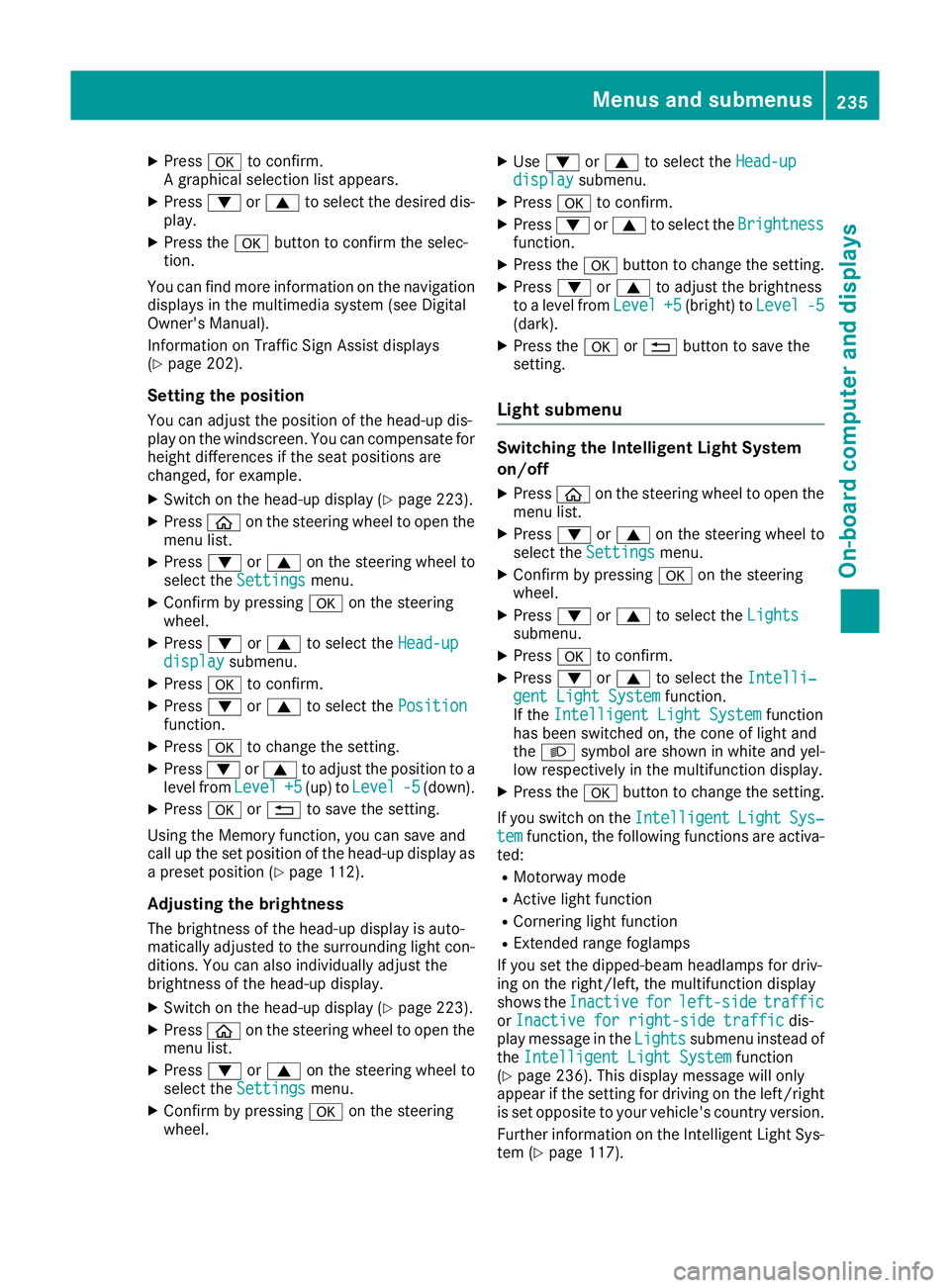
Head-up display submenu Selecting other displays
:
Vehicle speed display
; Vehicle speed and navigation instruction
display
= Vehicle speed display and Traffic Sign Assist
You have up to four different display options
with the Display Display content
contentfunction, depending
on the vehicle's equipment. The selected con-
tent appears in the Head-up Display.
In Mercedes-AMG vehicles, you can also choose
between two AMG displays. If you select an
AMG display, the head-up display shows AMG-
specific content.
If you select a display with traffic signs, traffic
signs detected by Traffic Sign Assist appear on
the head-up display.
X Press òon the steering wheel to open the
menu list.
X Press :or9 on the steering wheel to
select the Settings Settings menu.
X Confirm by pressing aon the steering
wheel.
X Press :or9 to select the Head-up Head-up
display display submenu.
X Press ato confirm.
X Select Display
Display content
contentwith: or9. 234
Menus and submenusOn-board computer and displays
Page 238 of 377
X
Press ato confirm.
A graphical selection list appears.
X Press :or9 to select the desired dis-
play.
X Press the abutton to confirm the selec-
tion.
You can find more information on the navigation
displays in the multimedia system (see Digital
Owner's Manual).
Information on Traffic Sign Assist displays
(Y page 202).
Setting the position You can adjust the position of the head-up dis-
play on the windscreen. You can compensate for
height differences if the seat positions are
changed, for example.
X Switch on the head-up display (Y page 223).
X Press òon the steering wheel to open the
menu list.
X Press :or9 on the steering wheel to
select the Settings
Settings menu.
X Confirm by pressing aon the steering
wheel.
X Press :or9 to select the Head-up Head-up
display
display submenu.
X Press ato confirm.
X Press :or9 to select the Position
Position
function.
X Press ato change the setting.
X Press :or9 to adjust the position to a
level from Level
Level +5
+5(up) to Level
Level -5
-5(down).
X Press aor% to save the setting.
Using the Memory function, you can save and
call up the set position of the head-up display as
a preset position (Y page 112).
Adjusting the brightness
The brightness of the head-up display is auto-
matically adjusted to the surrounding light con- ditions. You can also individually adjust the
brightness of the head-up display.
X Switch on the head-up display (Y page 223).
X Press òon the steering wheel to open the
menu list.
X Press :or9 on the steering wheel to
select the Settings
Settings menu.
X Confirm by pressing aon the steering
wheel. X
Use : or9 to select the Head-up Head-up
display display submenu.
X Press ato confirm.
X Press :or9 to select the Brightness
Brightness
function.
X Press the abutton to change the setting.
X Press :or9 to adjust the brightness
to a level from Level
Level+5
+5(bright) to Level
Level-5
-5
(dark).
X Press the aor% button to save the
setting.
Light submenu Switching the Intelligent Light System
on/off
X Press òon the steering wheel to open the
menu list.
X Press :or9 on the steering wheel to
select the Settings
Settings menu.
X Confirm by pressing aon the steering
wheel.
X Press :or9 to select the Lights
Lights
submenu.
X Press ato confirm.
X Press :or9 to select the Intelli‐ Intelli‐
gent Light System
gent Light System function.
If the Intelligent Light System
Intelligent Light System function
has been switched on, the cone of light and
the L symbol are shown in white and yel-
low respectively in the multifunction display.
X Press the abutton to change the setting.
If you switch on the Intelligent
IntelligentLight
LightSys‐
Sys‐
tem
tem function, the following functions are activa-
ted:
R Motorway mode
R Active light function
R Cornering light function
R Extended range foglamps
If you set the dipped-beam headlamps for driv-
ing on the right/left, the multifunction display
shows the Inactive Inactive for
forleft-side
left-side traffic
traffic
or Inactive for right-side traffic
Inactive for right-side traffic dis-
play message in the Lights
Lightssubmenu instead of
the Intelligent Light System
Intelligent Light System function
(Y page 236). This display message will only
appear if the setting for driving on the left/right is set opposite to your vehicle's country version.
Further information on the Intelligent Light Sys-
tem (Y page 117). Menus and submenus
235On-board computer and displays Z
Page 239 of 377
Setting the dipped-beam headlamps for
driving on the left/right
This function is only available in vehicles with
the Intelligent Light System.
You can use this function to switch between
symmetrical and asymmetrical dipped beam
(Y page 114).
X Press òon the steering wheel to open the
menu list.
X Press :or9 on the steering wheel to
select the Settings
Settings menu.
X Confirm by pressing aon the steering
wheel.
X Press :or9 to select the Lights Lights
submenu.
X Press ato confirm.
X Press :or9 to select the Dipped
Dipped
beams Setting for
beams Setting for function.
You will see the selected setting, right-
right-
side traffic
side traffic orleft-side traffic
left-side traffic.
X Press the abutton to save the setting.
If you change the setting, conversion does not
take place until the next time the vehicle is
stationary.
If you set the dipped-beam headlamps for driv-
ing on the right/left, then motorway mode and
the extended range foglamps are unavailable.
These are only deactivated if the setting for driv-
ing on the left/right is set opposite to your vehi- cle's country version.
A qualified specialist workshop can set the
dipped-beam headlamps for driving on the left/
right.
Instrument cluster submenu Selecting the unit of measurement for dis-
tance
The Display
Display unit unitSpeed-/odometer
Speed-/odometer function
allows you to choose whether certain displays
appear in kilometres or miles in the multifunc-
tion display.
X Press òon the steering wheel to open the
menu list.
X Press the :or9 button on the steering
wheel to select the Settings Settingsmenu.
X Confirm by pressing aon the steering
wheel.
X Use : or9 to select the Instrument
Instrument
cluster
cluster submenu. X
Press ato confirm.
X Press :or9 to select the Display Display
unit Speed-/odometer unit Speed-/odometer function.
The current setting km
kmorMiles
Miles appears.
X Press the abutton to change the setting.
The selected unit of measurement for distance
applies to the:
R digital speedometer in the Trip Tripmenu
R total distance recorder and the trip meter
R trip computer
R current consumption and the range
R range
R navigation instructions in the Navi
Navimenu
R cruise control
R SPEEDTRONIC
R DISTRONIC PLUS with Steering Assist and
Stop&Go Pilot
R ASSYST PLUS service interval display
Switching the additional speedometer
on/off
United Kingdom: this function is unavailable.
The additional speedometer is always switched
on.
If the additional speedometer is switched on,
the speed is shown in the status bar of the mul- tifunction display instead of the outside tem-
perature.
The speed display is inverse to your speedome-
ter.
X Press òon the steering wheel to open the
menu list.
X Press :or9 on the steering wheel to
select the Settings Settings menu.
X Confirm by pressing aon the steering
wheel.
X Press :or9 to select the Instru‐
Instru‐
ment cluster
ment cluster submenu.
X Press ato confirm.
X Using :or9, select the Digital
Digital
speedo [km/h]
speedo [km/h] function.
The current selection appears.
X To activate/deactivate: pressaagain. 236
Menus and submenusOn-board computer and displays
Page 268 of 377
Tyres
Display messages
Possible causes/consequences and
M
MSolutions Tyre
Tyre
pressure
pressure Check
Check
tyres
tyres The tyre pressure loss warning system has detected a significant loss
in pressure.
A warning tone also sounds.
Possible causes:
R you have changed the positions of the wheels and tyres or fitted new
wheels and tyres
R the tyre pressure in one or more tyres has dropped
G WARNING
Underinflated tyres pose the following risks:
R the tyres may burst, especially as the load and vehicle speed
increase
R the tyres may wear excessively and/or unevenly, which may greatly
impair tyre traction
R the driving characteristics, as well as steering and braking, may be
greatly impaired
There is a risk of an accident.
X Stop the vehicle without making any sudden steering or braking
manoeuvres. Pay attention to the traffic conditions as you do so.
X Secure the vehicle against rolling away (Y page 159).
X Check the tyres and, if necessary, follow the instructions for a flat
tyre (Y page 326).
X Check the tyre pressures and, if necessary, correct the tyre pres-
sure.
X Restart the tyre pressure loss warning system when the tyre pres-
sure is correct (Y page 347). Check tyre pres‐ Check tyre pres‐
sures then restart sures then restart
Run Flat Indicator Run Flat Indicator The tyre pressure loss warning system generated a display message
and has not been restarted since.
X Set the correct tyre pressure in all four tyres.
X Restart the tyre pressure loss warning system (Y page 347).Run Flat Indicator Run Flat Indicator
inoperative inoperative The tyre pressure loss warning system is faulty.
X Consult a qualified specialist workshop. Rectify tyre pres‐
Rectify tyre pres‐
sure sure The tyre pressure is too low in at least one of the tyres, or the tyre
pressure difference between the wheels is too great.
X Check the tyre pressures at the next opportunity (Y page 348).
X If necessary, correct the tyre pressure.
X Restart the tyre pressure monitor (Y page 349). Display
messages
265On-board computer and displays Z
Page 275 of 377
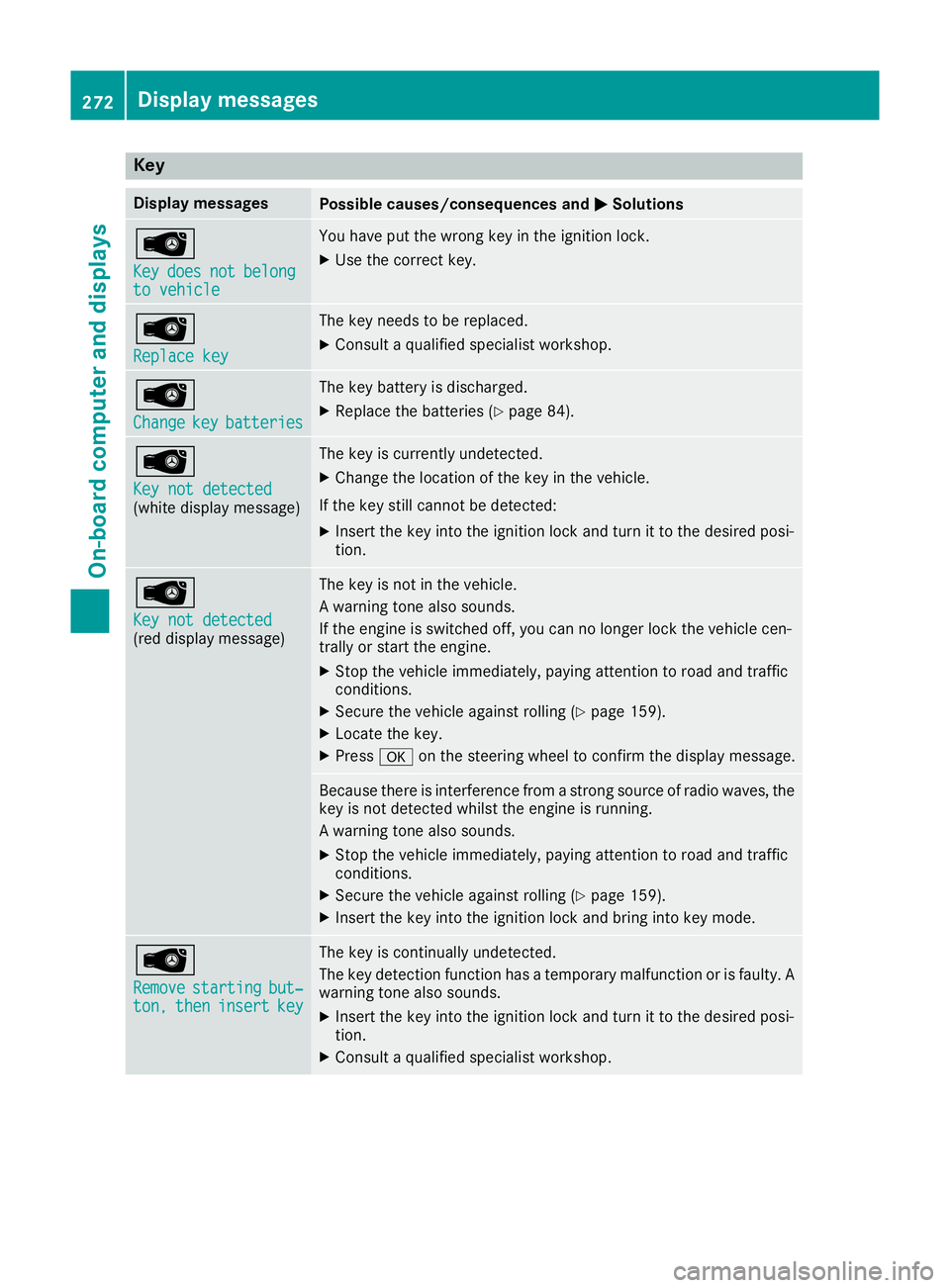
Key
Display messages
Possible causes/consequences and
M
MSolutions Â
Key Key
does
does not
notbelong
belong
to vehicle
to vehicle You have put the wrong key in the ignition lock.
X Use the correct key. Â
Replace key Replace key The key needs to be replaced.
X Consult a qualified specialist workshop. Â
Change Change
key
keybatteries
batteries The key battery is discharged.
X Replace the batteries (Y page 84).Â
Key not detected Key not detected
(white display message) The key is currently undetected.
X Change the location of the key in the vehicle.
If the key still cannot be detected:
X Insert the key into the ignition lock and turn it to the desired posi-
tion. Â
Key not detected Key not detected
(red display message) The key is not in the vehicle.
A warning tone also sounds.
If the engine is switched off, you can no longer lock the vehicle cen-
trally or start the engine.
X Stop the vehicle immediately, paying attention to road and traffic
conditions.
X Secure the vehicle against rolling (Y page 159).
X Locate the key.
X Press aon the steering wheel to confirm the display message. Because there is interference from a strong source of radio waves, the
key is not detected whilst the engine is running.
A warning tone also sounds.
X Stop the vehicle immediately, paying attention to road and traffic
conditions.
X Secure the vehicle against rolling (Y page 159).
X Insert the key into the ignition lock and bring into key mode. Â
Remove Remove
starting
starting but‐
but‐
ton,
ton, then
theninsert
insert key
key The key is continually undetected.
The key detection function has a temporary malfunction or is faulty. A
warning tone also sounds.
X Insert the key into the ignition lock and turn it to the desired posi-
tion.
X Consult a qualified specialist workshop. 272
Display
messagesOn-board computer and displays
Page 288 of 377
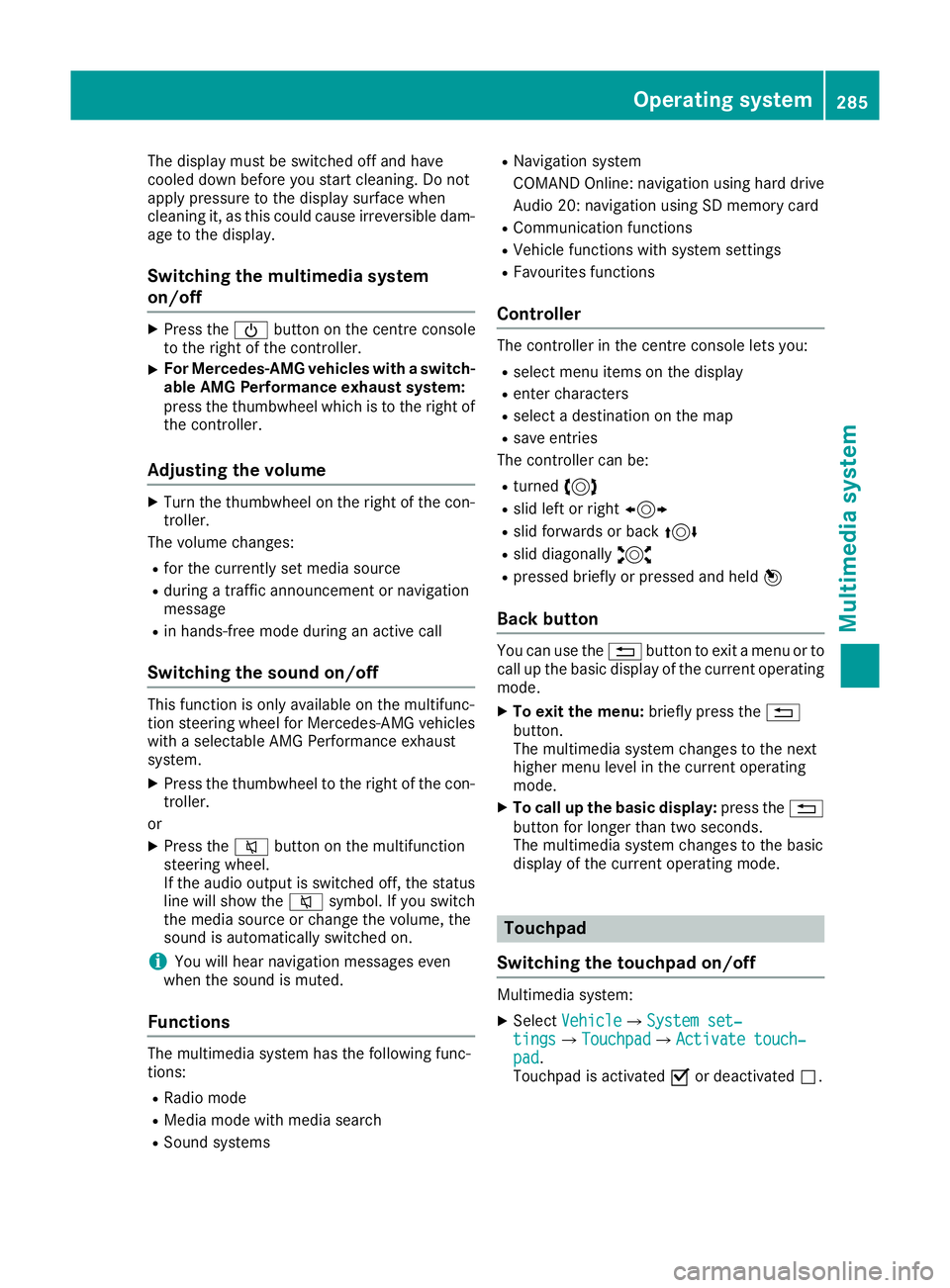
The display must be switched off and have
cooled down before you start cleaning. Do not
apply pressure to the display surface when
cleaning it, as this could cause irreversible dam- age to the display.
Switching the multimedia system
on/off X
Press the Übutton on the centre console
to the right of the controller.
X For Mercedes-AMG vehicles with a switch-
able AMG Performance exhaust system:
press the thumbwheel which is to the right of
the controller.
Adjusting the volume X
Turn the thumbwheel on the right of the con-
troller.
The volume changes:
R for the currently set media source
R during a traffic announcement or navigation
message
R in hands-free mode during an active call
Switching the sound on/off This function is only available on the multifunc-
tion steering wheel for Mercedes-AMG vehicles
with a selectable AMG Performance exhaust
system.
X Press the thumbwheel to the right of the con-
troller.
or X Press the 8button on the multifunction
steering wheel.
If the audio output is switched off, the status
line will show the 8symbol. If you switch
the media source or change the volume, the
sound is automatically switched on.
i You will hear navigation messages even
when the sound is muted.
Functions The multimedia system has the following func-
tions:
R Radio mode
R Media mode with media search
R Sound systems R
Navigation system
COMAND Online: navigation using hard drive
Audio 20: navigation using SD memory card
R Communication functions
R Vehicle functions with system settings
R Favourites functions
Controller The controller in the centre console lets you:
R select menu items on the display
R enter characters
R select a destination on the map
R save entries
The controller can be:
R turned 3
R slid left or right 1
R slid forwards or back 4
R slid diagonally 2
R pressed briefly or pressed and held 7
Back button You can use the
%button to exit a menu or to
call up the basic display of the current operating mode.
X To exit the menu: briefly press the%
button.
The multimedia system changes to the next
higher menu level in the current operating
mode.
X To call up the basic display: press the%
button for longer than two seconds.
The multimedia system changes to the basic
display of the current operating mode. Touchpad
Switching the touchpad on/off Multimedia system:
X Select Vehicle VehicleQSystem set‐ System set‐
tings tingsQTouchpad TouchpadQActivate touch‐ Activate touch‐
pad pad.
Touchpad is activated Oor deactivated ª. Operating system
285Multimedia system Z