change time MERCEDES-BENZ C-CLASS CABRIOLET 2016 Owner's Guide
[x] Cancel search | Manufacturer: MERCEDES-BENZ, Model Year: 2016, Model line: C-CLASS CABRIOLET, Model: MERCEDES-BENZ C-CLASS CABRIOLET 2016Pages: 377, PDF Size: 6.9 MB
Page 209 of 377

Display in the Assist image
When Blind Spot Assist is activated, grey radar
waves propagating backwards appear next to
the vehicle in the Assist image on the multifunc-
tion display (Y page 231). Above a speed of
30 km/h, the colour of the radar waves in the
Assist image changes to green :. Blind Spot
Assist is then ready for use.
Towing a trailer
If you couple up a trailer, make sure that you
have correctly established the electrical con-
nection. This can be accomplished by checking
the trailer lighting. Blind Spot Assist is then
deactivated. The Blind Spot Assist not Blind Spot Assist not
available when towing a trailer See
available when towing a trailer See
Owner's Manual
Owner's Manual message appears in the mul-
tifunction display.
Lane Keeping Assist General notes
Lane Keeping Assist monitors the area in front of
your vehicle by means of multifunction cam-
era :attached at the top of the windscreen.
Lane Keeping Assist detects lane markings on
the road and can warn you before you leave your lane unintentionally. This function is available in a speed range
between 60 km/h and 200 km/h.
A warning may be given if a front wheel passes
over a lane marking. It will warn you by means of intermittent vibration through the steering
wheel for up to 1.5 seconds.
Important safety notes G
WARNING
Lane Keeping Assist cannot always clearly
identify lane markings.
In these cases, Lane Keeping Assist may:
R give an unnecessary warning
R not give a warning
There is a risk of an accident.
Always pay particular attention to the traffic
situation and keep in lane, especially if Lane
Keeping Assist alerts you. G
WARNING
The Lane Keeping Assist warning does not
return the vehicle to the original lane. There is a risk of an accident.
Always steer, apply the brakes or accelerate
the vehicle yourself, especially if Lane Keep-
ing Assist alerts you.
Lane Keeping Assist can neither reduce the risk
of an accident if you fail to adapt your driving
style nor override the laws of physics. Lane
Keeping Assist cannot take into account road,
weather or traffic conditions. Lane Keeping
Assist is only an aid. You are responsible for the
distance to the vehicle in front, for vehicle
speed, for braking in good time and for staying in
lane.
Lane Keeping Assist does not keep your vehicle in its lane.
The system may be impaired or may not function
in the following situations:
R poor visibility, e.g. due to insufficient illumi-
nation of the road, or due to snow, rain, fog or spray
R glare, e.g. from oncoming traffic, the sun or
reflection from other vehicles (e.g. if the road
surface is wet)
R the windscreen is dirty, misted up, damaged
or covered, for instance by a sticker, in the
vicinity of the camera 206
Driving syste
msDriving and parking
Page 210 of 377

R
no or several, unclear lane markings are pres-
ent for one lane, e.g. in a construction area
R the lane markings are worn away, dark or cov-
ered up, e.g. by dirt or snow
R the distance to the vehicle in front is so small
that the lane markings cannot be detected
R the lane markings change quickly, e.g. lanes
branch off, cross one another or merge
R the road is very narrow and winding
R there are highly variable shade conditions on
the road surface
Activating/deactivating Lane Keeping
Assist X
To activate: press button ;.
Indicator lamp :lights up. The Lane Keep‐ Lane Keep‐
ing Assist on
ing Assist on message appears on the
multifunction display. If all conditions have
been satisfied, there may be a warning.
If you drive at speeds above 60 km/h and lane markings are detected, the lines are shown ingreen in the assistance graphic (Y page 231).
Lane Keeping Assist is ready for use.
X To deactivate: press button;.
Indicator lamp :goes out. Lane Keeping
Assist is deactivated. The Lane Keeping
Lane Keeping
Assist off
Assist off message appears on the multi-
function display.
Selecting Standard or Adaptive setting X In the Assistance
Assistance menu on the on-board
computer, select the Lane
Lane Keeping Keeping Assist
Assist
function (Y page 234).
X Select setting Standard
Standard orAdaptive
Adaptive.
Standard
When Standard Standard is selected, no warning vibra-
tion occurs if: R
you have switched on the turn signal. In this
case, the warnings are suppressed for a cer-
tain period of time.
R a driving safety system such as ABS, BAS or
ESP ®
engages
Adaptive
When Adaptive
Adaptive is selected, no warning vibra-
tion occurs if:
R you have switched on the turn signal. In this
case, the warnings are suppressed for a cer-
tain period of time.
R a driving safety system such as ABS, BAS or
ESP ®
engages
R you accelerate hard, e.g. kickdown
R you brake hard
R you steer actively, e.g. swerve to avoid an
obstacle or change lane quickly
R you cut the corner on a sharp bend
To ensure that you are warned only when nec-
essary and in good time if you cross the lane
marking, the system detects certain conditions
and warns you accordingly.
The warning vibration occurs earlier in the fol-
lowing situations:
R you approach the outer lane marking on a
bend
R the road has very wide lanes, e.g. a motorway
R the system detects solid lane markings
The warning vibration occurs later in the follow- ing situations:
R the road has narrow lanes
R you cut the corner on a bend Driving Assistance Plus package
General notes The Driving Assistance PLUS package consists
of DISTRONIC PLUS (Y page 171), Active Blind
Spot Assist (Y page 207)and Active Lane Keep-
ing Assist (Y page 210).
Active Blind Spot Assist General notes
Using two lateral, rear-facing radar sensors,
Active Blind Spot Assist monitors the areas on
either side of the vehicle that are not visible to
the driver. A warning lamp lights up on the exte- Driving systems
207Driving and parking Z
Page 212 of 377
Due to the nature of the system:
R warnings may be issued in error when driving
close to crash barriers or similar solid boun-
daries
R warnings may be interrupted when you are
driving alongside particularly long vehicles,
such as lorries, for a prolonged time
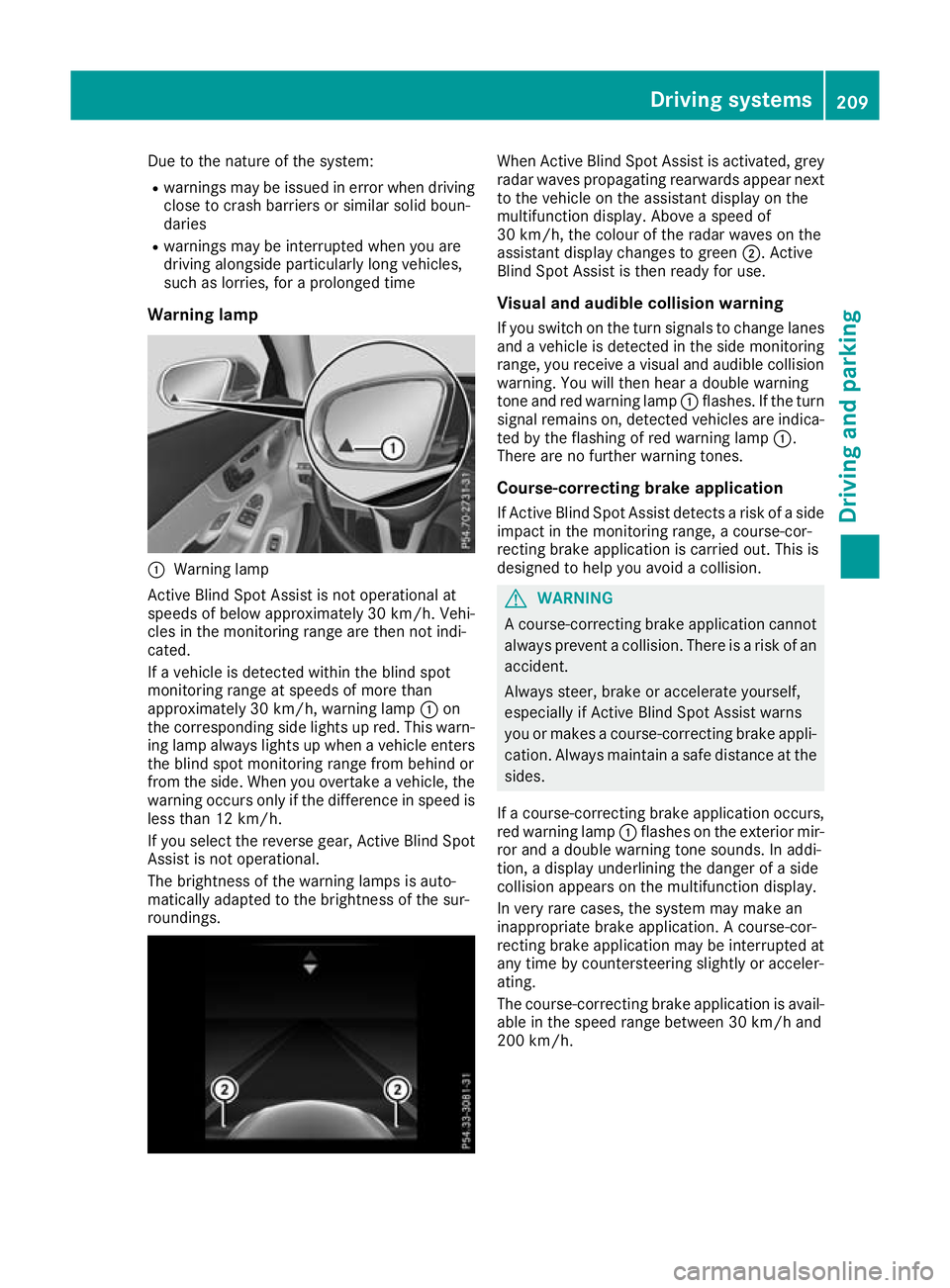
Warning lamp :
Warning lamp
Active Blind Spot Assist is not operational at
speeds of below approximately 30 km/h. Vehi-
cles in the monitoring range are then not indi-
cated.
If a vehicle is detected within the blind spot
monitoring range at speeds of more than
approximately 30 km/h, warning lamp :on
the corresponding side lights up red. This warn-
ing lamp always lights up when a vehicle enters the blind spot monitoring range from behind or
from the side. When you overtake a vehicle, the
warning occurs only if the difference in speed is less than 12 km/h.
If you select the reverse gear, Active Blind Spot
Assist is not operational.
The brightness of the warning lamps is auto-
matically adapted to the brightness of the sur-
roundings. When Active Blind Spot Assist is activated, grey
radar waves propagating rearwards appear next
to the vehicle on the assistant display on the
multifunction display. Above a speed of
30 km/h, the colour of the radar waves on the
assistant display changes to green ;. Active
Blind Spot Assist is then ready for use.
Visual and audible collision warning If you switch on the turn signals to change lanes
and a vehicle is detected in the side monitoring range, you receive a visual and audible collision warning. You will then hear a double warning
tone and red warning lamp :flashes. If the turn
signal remains on, detected vehicles are indica-
ted by the flashing of red warning lamp :.
There are no further warning tones.
Course-correcting brake application
If Active Blind Spot Assist detects a risk of a side
impact in the monitoring range, a course-cor-
recting brake application is carried out. This is
designed to help you avoid a collision. G
WARNING
A course-correcting brake application cannot always prevent a collision. There is a risk of an
accident.
Always steer, brake or accelerate yourself,
especially if Active Blind Spot Assist warns
you or makes a course-correcting brake appli-
cation. Always maintain a safe distance at the sides.
If a course-correcting brake application occurs, red warning lamp :flashes on the exterior mir-
ror and a double warning tone sounds. In addi-
tion, a display underlining the danger of a side
collision appears on the multifunction display.
In very rare cases, the system may make an
inappropriate brake application. A course-cor-
recting brake application may be interrupted at
any time by countersteering slightly or acceler-
ating.
The course-correcting brake application is avail-
able in the speed range between 30 km/h and
200 km/h. Driving systems
209Driving and parking Z
Page 213 of 377
Either a course-correcting brake application
appropriate to the driving situation, or none at
all, may occur in the following situations:
R vehicles or obstacles, e.g. crash barriers, are
located on both sides of your vehicle
R a vehicle approaches too closely on the side
R you have adopted a sporty driving style with
high cornering speeds
R you brake or accelerate significantly
R a driving safety system engages, such as
ESP ®
or PRE-SAFE ®
Brake
R ESP ®
is deactivated
R a loss of tyre pressure or a defective tyre is
detected
Activating Active Blind Spot Assist X Make sure that Active Blind Spot Assist is
activated on the on-board computer
(Y page 233).
X Switch on the ignition.
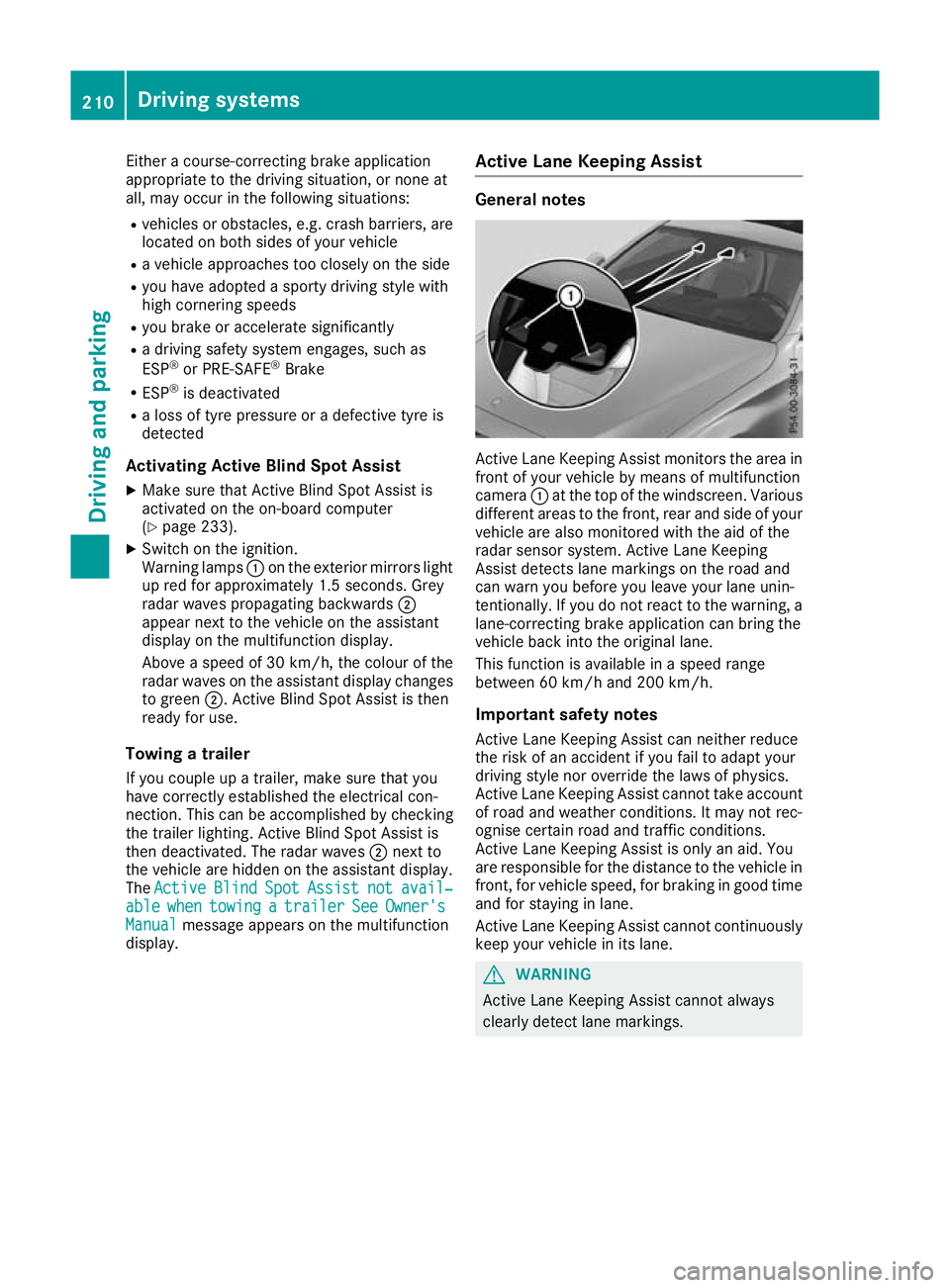
Warning lamps :on the exterior mirrors light
up red for approximately 1.5 second s. Grey
radar waves propagating backwards ;
appear next to the vehicle on the assistant
display on the multifunction display.
Above a speed of 30 km/h, the colour of the
radar waves on the assistant display changes to green ;. Active Blind Spot Assist is then
ready for use.
Towing a trailer
If you couple up a trailer, make sure that you
have correctly established the electrical con-
nection. This can be accomplished by checking
the trailer lighting. Active Blind Spot Assist is
then deactivated. The radar waves ;next to
the vehicle are hidden on the assistant display.
The Active
Active Blind BlindSpot
SpotAssist
Assist not
notavail‐
avail‐
able
able when
whentowing
towing a
atrailer
trailer See
SeeOwner's
Owner's
Manual
Manual message appears on the multifunction
display. Active Lane Keeping Assist General notes
Active Lane Keeping Assist monitors the area in
front of your vehicle by means of multifunction
camera :at the top of the windscreen. Various
different areas to the front, rear and side of your vehicle are also monitored with the aid of the
radar sensor system. Active Lane Keeping
Assist detects lane markings on the road and
can warn you before you leave your lane unin-
tentionally. If you do not react to the warning, a
lane-correcting brake application can bring the
vehicle back into the original lane.
This function is available in a speed range
between 60 km/h and 200 km/h.
Important safety notes Active Lane Keeping Assist can neither reduce
the risk of an accident if you fail to adapt your
driving style nor override the laws of physics.
Active Lane Keeping Assist cannot take account of road and weather conditions. It may not rec-
ognise certain road and traffic conditions.
Active Lane Keeping Assist is only an aid. You
are responsible for the distance to the vehicle in
front, for vehicle speed, for braking in good time
and for staying in lane.
Active Lane Keeping Assist cannot continuously
keep your vehicle in its lane. G
WARNING
Active Lane Keeping Assist cannot always
clearly detect lane markings. 210
Driving systemsDriving and parking
Page 215 of 377
R
you have switched on the turn signal
R a driving safety system engages, such as
ESP ®
, PRE-SAFE ®
Brake or Active Blind Spot
Assist
R you have adopted a sporty driving style with
high cornering speeds or high rates of accel-
eration
R ESP ®
is deactivated
R the transmission is not in position D
R on vehicles with a trailer tow hitch, the elec-
trical connection to the trailer has been cor-
rectly established
R a loss of tyre pressure or a defective tyre has
been detected and displayed
R an obstacle has been detected in the lane in
which you are driving
Active Lane Keeping Assist may not detect other road users or traffic situations. An inappropriate
brake application may be interrupted at any time
in the following situations:
R you steer slightly in the opposite direction
R you switch on the turn signal
R you brake or accelerate significantly
A lane-correcting brake application is interrup-
ted automatically in the following situations:
R a driving safety system engages, such as
ESP ®
, PRE-SAFE ®
Brake or Active Blind Spot
Assist
R lane markings are no longer detected
Activating/deactivating Active Lane
Keeping Assist X
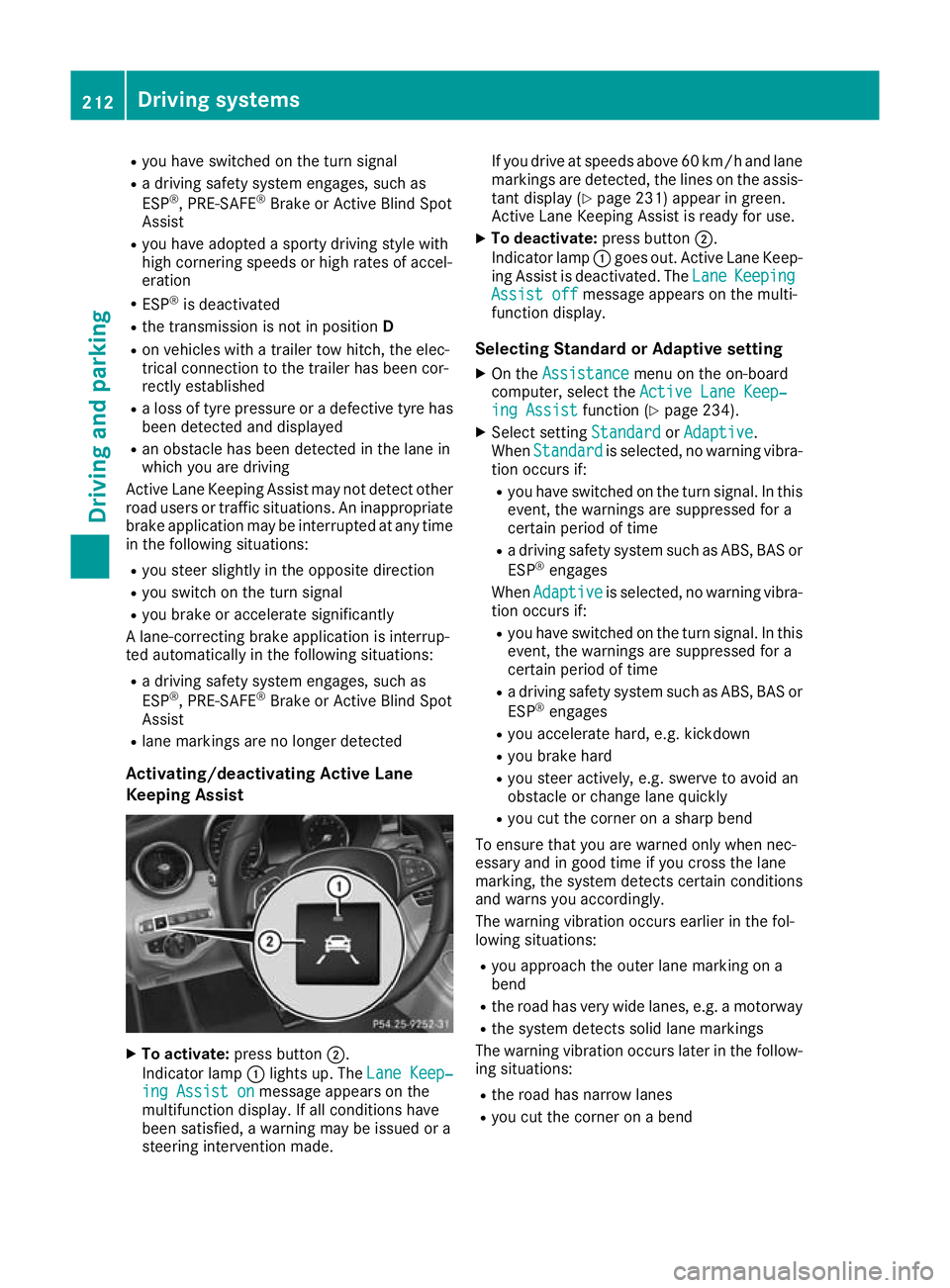
To activate: press button ;.
Indicator lamp :lights up. The Lane Keep‐ Lane Keep‐
ing Assist on
ing Assist on message appears on the
multifunction display. If all conditions have
been satisfied, a warning may be issued or a
steering intervention made. If you drive at speeds above 60 km/h and lane
markings are detected, the lines on the assis-
tant display (Y page 231) appear in green.
Active Lane Keeping Assist is ready for use.
X To deactivate: press button;.
Indicator lamp :goes out. Active Lane Keep-
ing Assist is deactivated. The Lane LaneKeeping Keeping
Assist off
Assist off message appears on the multi-
function display.
Selecting Standard or Adaptive setting X On the Assistance
Assistance menu on the on-board
computer, select the Active Lane Keep‐
Active Lane Keep‐
ing Assist
ing Assist function (Ypage 234).
X Select setting Standard
StandardorAdaptive
Adaptive.
When Standard
Standard is selected, no warning vibra-
tion occurs if:
R you have switched on the turn signal. In this
event, the warnings are suppressed for a
certain period of time
R a driving safety system such as ABS, BAS or
ESP ®
engages
When Adaptive Adaptive is selected, no warning vibra-
tion occurs if:
R you have switched on the turn signal. In this
event, the warnings are suppressed for a
certain period of time
R a driving safety system such as ABS, BAS or
ESP ®
engages
R you accelerate hard, e.g. kickdown
R you brake hard
R you steer actively, e.g. swerve to avoid an
obstacle or change lane quickly
R you cut the corner on a sharp bend
To ensure that you are warned only when nec-
essary and in good time if you cross the lane
marking, the system detects certain conditions
and warns you accordingly.
The warning vibration occurs earlier in the fol-
lowing situations:
R you approach the outer lane marking on a
bend
R the road has very wide lanes, e.g. a motorway
R the system detects solid lane markings
The warning vibration occurs later in the follow- ing situations:
R the road has narrow lanes
R you cut the corner on a bend 212
Driving systemsDriving and pa
rking
Page 229 of 377
X
Confirm by pressing aon the steering
wheel.
X Press :or9 to select the digital
speedometer.
Resetting values X
Press òon the steering wheel to open the
menu list.
X Press :or9 on the steering wheel to
select the Trip
Trip menu.
X Confirm by pressing aon the steering
wheel.
X Press :or9 to select the function that
you wish to reset.
X Press abriefly.
X Press :to select Yes Yesand press ato
confirm.
You can reset the values of the following func- tions:
R Trip meter
R "From start" trip computer
R "From reset" trip computer
R ECO display
If you reset the values in the "ECO display",
the values in the "From start" trip computer
are also reset. If you reset the values in the
"From start" trip computer, the values in the
"ECO display" are also reset. Navigation menu
Displaying navigation instructions On the
Navi Navimenu, the multifunction display
shows navigation instructions. You can find fur-
ther information on navigation instructions in
the Digital Owner's Manual in the multimedia
system.
X Switch on the multimedia system.
X Press òon the steering wheel to open the
menu list.
X Press :or9 on the steering wheel to
select the Navi
Navi menu.
X Confirm by pressing aon the steering
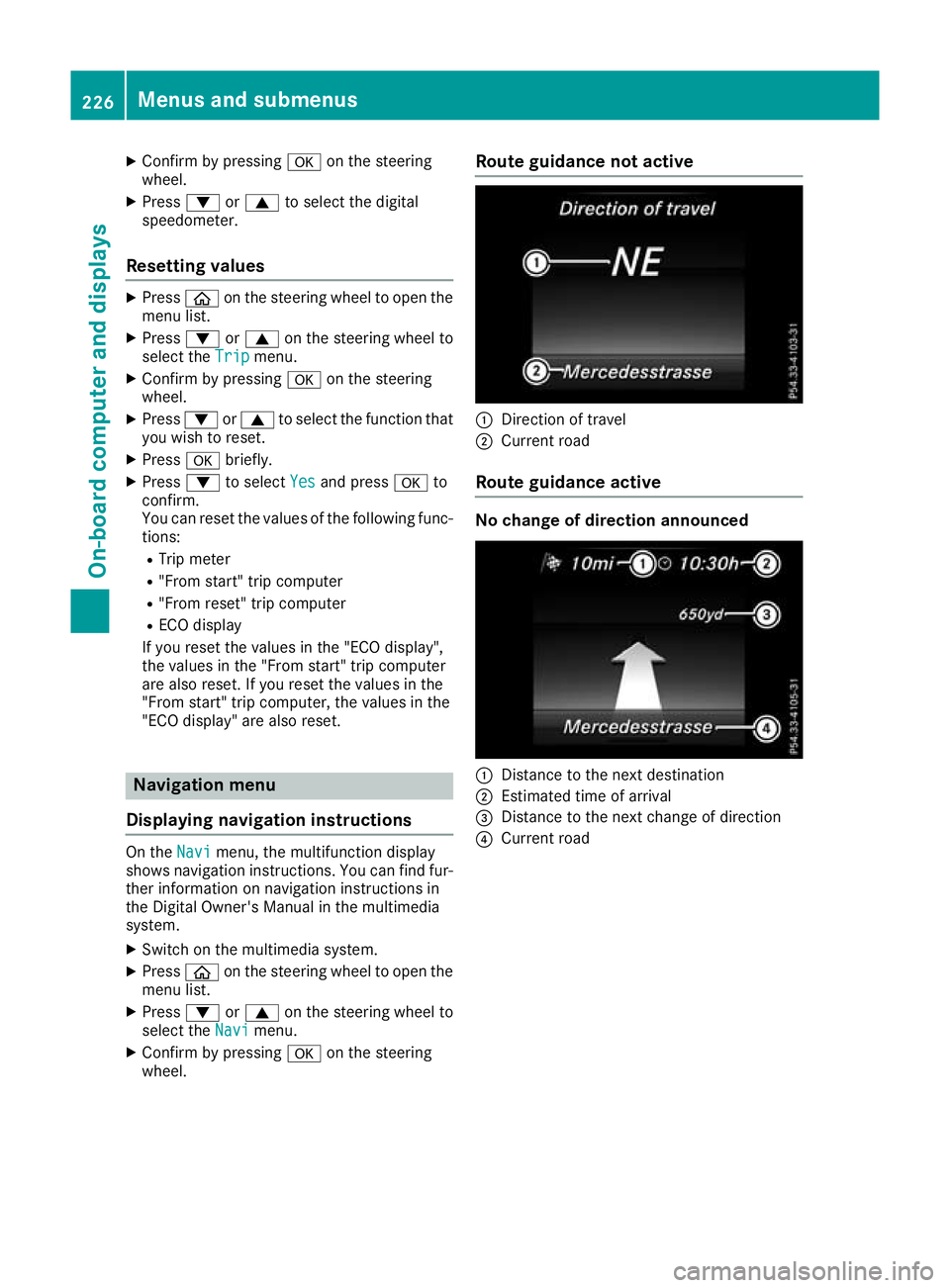
wheel. Route guidance not active
:
Direction of travel
; Current road
Route guidance active No change of direction announced
:
Distance to the next destination
; Estimated time of arrival
= Distance to the next change of direction
? Current road 226
Menus and submenusOn-board computer and displays
Page 231 of 377
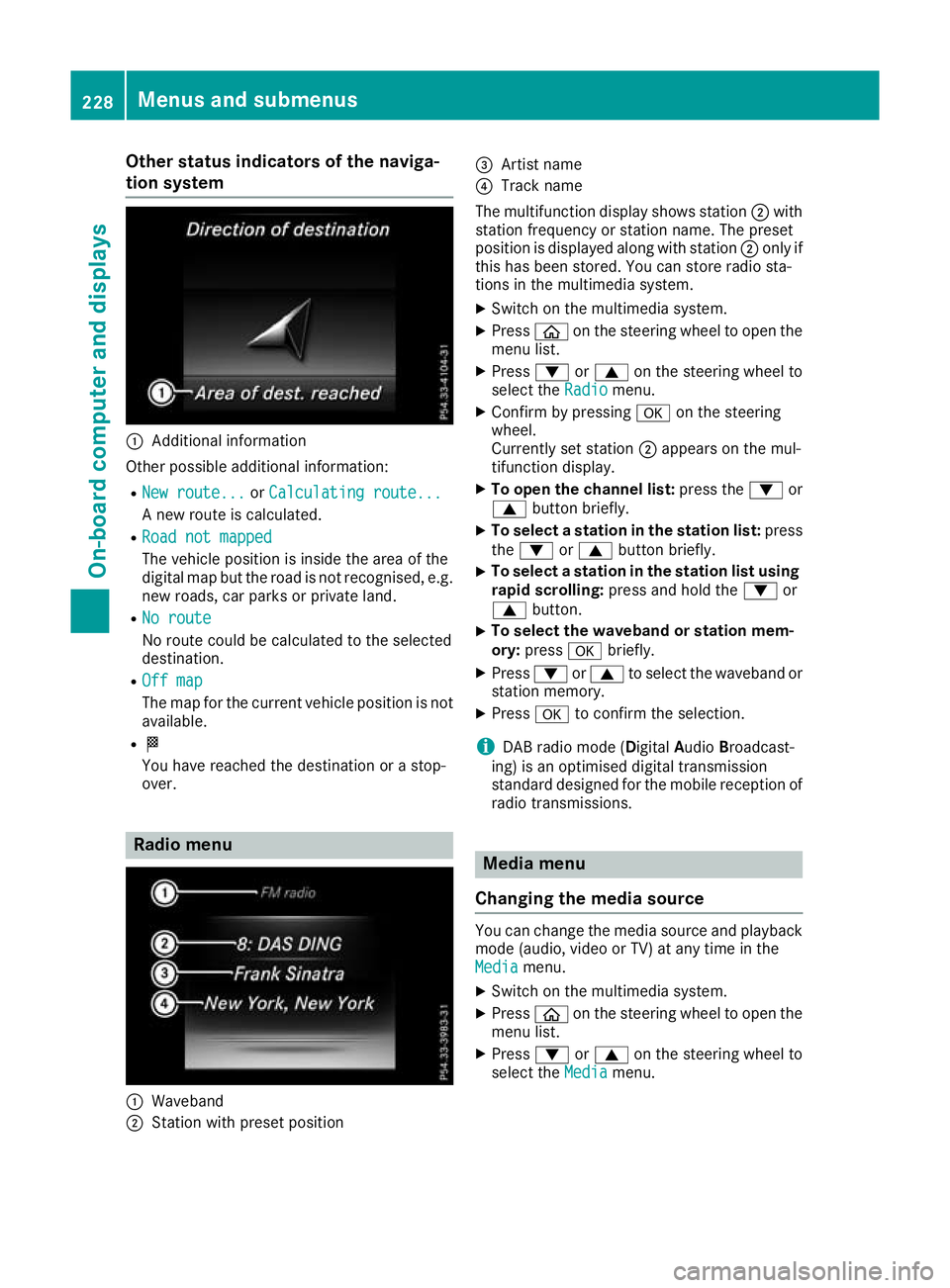
Other status indicators of the naviga-
tion system :
Additional information
Other possible additional information: R New route...
New route... orCalculating route...
Calculating route...
A new route is calculated.
R Road not mapped
Road not mapped
The vehicle position is inside the area of the
digital map but the road is not recognised, e.g. new roads, car parks or private land.
R No route
No route
No route could be calculated to the selected
destination.
R Off map Off map
The map for the current vehicle position is not
available.
R O
You have reached the destination or a stop-
over. Radio menu
:
Waveband
; Station with preset position =
Artist name
? Track name
The multifunction display shows station ;with
station frequency or station name. The preset
position is displayed along with station ;only if
this has been stored. You can store radio sta-
tions in the multimedia system.
X Switch on the multimedia system.
X Press òon the steering wheel to open the
menu list.
X Press :or9 on the steering wheel to
select the Radio Radiomenu.
X Confirm by pressing aon the steering
wheel.
Currently set station ;appears on the mul-
tifunction display.
X To open the channel list: press the:or
9 button briefly.
X To select a station in the station list: press
the : or9 button briefly.
X To select a station in the station list using
rapid scrolling: press and hold the :or
9 button.
X To select the waveband or station mem-
ory:
press abriefly.
X Press :or9 to select the waveband or
station memory.
X Press ato confirm the selection.
i DAB radio mode (Digital
AudioBroadcast-
ing) is an optimised digital transmission
standard designed for the mobile reception of
radio transmissions. Media menu
Changing the media source You can change the media source and playback
mode (audio, video or TV) at any time in the
Media Media menu.
X Switch on the multimedia system.
X Press òon the steering wheel to open the
menu list.
X Press :or9 on the steering wheel to
select the Media
Mediamenu. 228
Menus and submenusOn-board computer and displays
Page 238 of 377
X
Press ato confirm.
A graphical selection list appears.
X Press :or9 to select the desired dis-
play.
X Press the abutton to confirm the selec-
tion.
You can find more information on the navigation
displays in the multimedia system (see Digital
Owner's Manual).
Information on Traffic Sign Assist displays
(Y page 202).
Setting the position You can adjust the position of the head-up dis-
play on the windscreen. You can compensate for
height differences if the seat positions are
changed, for example.
X Switch on the head-up display (Y page 223).
X Press òon the steering wheel to open the
menu list.
X Press :or9 on the steering wheel to
select the Settings
Settings menu.
X Confirm by pressing aon the steering
wheel.
X Press :or9 to select the Head-up Head-up
display
display submenu.
X Press ato confirm.
X Press :or9 to select the Position
Position
function.
X Press ato change the setting.
X Press :or9 to adjust the position to a
level from Level
Level +5
+5(up) to Level
Level -5
-5(down).
X Press aor% to save the setting.
Using the Memory function, you can save and
call up the set position of the head-up display as
a preset position (Y page 112).
Adjusting the brightness
The brightness of the head-up display is auto-
matically adjusted to the surrounding light con- ditions. You can also individually adjust the
brightness of the head-up display.
X Switch on the head-up display (Y page 223).
X Press òon the steering wheel to open the
menu list.
X Press :or9 on the steering wheel to
select the Settings
Settings menu.
X Confirm by pressing aon the steering
wheel. X
Use : or9 to select the Head-up Head-up
display display submenu.
X Press ato confirm.
X Press :or9 to select the Brightness
Brightness
function.
X Press the abutton to change the setting.
X Press :or9 to adjust the brightness
to a level from Level
Level+5
+5(bright) to Level
Level-5
-5
(dark).
X Press the aor% button to save the
setting.
Light submenu Switching the Intelligent Light System
on/off
X Press òon the steering wheel to open the
menu list.
X Press :or9 on the steering wheel to
select the Settings
Settings menu.
X Confirm by pressing aon the steering
wheel.
X Press :or9 to select the Lights
Lights
submenu.
X Press ato confirm.
X Press :or9 to select the Intelli‐ Intelli‐
gent Light System
gent Light System function.
If the Intelligent Light System
Intelligent Light System function
has been switched on, the cone of light and
the L symbol are shown in white and yel-
low respectively in the multifunction display.
X Press the abutton to change the setting.
If you switch on the Intelligent
IntelligentLight
LightSys‐
Sys‐
tem
tem function, the following functions are activa-
ted:
R Motorway mode
R Active light function
R Cornering light function
R Extended range foglamps
If you set the dipped-beam headlamps for driv-
ing on the right/left, the multifunction display
shows the Inactive Inactive for
forleft-side
left-side traffic
traffic
or Inactive for right-side traffic
Inactive for right-side traffic dis-
play message in the Lights
Lightssubmenu instead of
the Intelligent Light System
Intelligent Light System function
(Y page 236). This display message will only
appear if the setting for driving on the left/right is set opposite to your vehicle's country version.
Further information on the Intelligent Light Sys-
tem (Y page 117). Menus and submenus
235On-board computer and displays Z
Page 239 of 377
Setting the dipped-beam headlamps for
driving on the left/right
This function is only available in vehicles with
the Intelligent Light System.
You can use this function to switch between
symmetrical and asymmetrical dipped beam
(Y page 114).
X Press òon the steering wheel to open the
menu list.
X Press :or9 on the steering wheel to
select the Settings
Settings menu.
X Confirm by pressing aon the steering
wheel.
X Press :or9 to select the Lights Lights
submenu.
X Press ato confirm.
X Press :or9 to select the Dipped
Dipped
beams Setting for
beams Setting for function.
You will see the selected setting, right-
right-
side traffic
side traffic orleft-side traffic
left-side traffic.
X Press the abutton to save the setting.
If you change the setting, conversion does not
take place until the next time the vehicle is
stationary.
If you set the dipped-beam headlamps for driv-
ing on the right/left, then motorway mode and
the extended range foglamps are unavailable.
These are only deactivated if the setting for driv-
ing on the left/right is set opposite to your vehi- cle's country version.
A qualified specialist workshop can set the
dipped-beam headlamps for driving on the left/
right.
Instrument cluster submenu Selecting the unit of measurement for dis-
tance
The Display
Display unit unitSpeed-/odometer
Speed-/odometer function
allows you to choose whether certain displays
appear in kilometres or miles in the multifunc-
tion display.
X Press òon the steering wheel to open the
menu list.
X Press the :or9 button on the steering
wheel to select the Settings Settingsmenu.
X Confirm by pressing aon the steering
wheel.
X Use : or9 to select the Instrument
Instrument
cluster
cluster submenu. X
Press ato confirm.
X Press :or9 to select the Display Display
unit Speed-/odometer unit Speed-/odometer function.
The current setting km
kmorMiles
Miles appears.
X Press the abutton to change the setting.
The selected unit of measurement for distance
applies to the:
R digital speedometer in the Trip Tripmenu
R total distance recorder and the trip meter
R trip computer
R current consumption and the range
R range
R navigation instructions in the Navi
Navimenu
R cruise control
R SPEEDTRONIC
R DISTRONIC PLUS with Steering Assist and
Stop&Go Pilot
R ASSYST PLUS service interval display
Switching the additional speedometer
on/off
United Kingdom: this function is unavailable.
The additional speedometer is always switched
on.
If the additional speedometer is switched on,
the speed is shown in the status bar of the mul- tifunction display instead of the outside tem-
perature.
The speed display is inverse to your speedome-
ter.
X Press òon the steering wheel to open the
menu list.
X Press :or9 on the steering wheel to
select the Settings Settings menu.
X Confirm by pressing aon the steering
wheel.
X Press :or9 to select the Instru‐
Instru‐
ment cluster
ment cluster submenu.
X Press ato confirm.
X Using :or9, select the Digital
Digital
speedo [km/h]
speedo [km/h] function.
The current selection appears.
X To activate/deactivate: pressaagain. 236
Menus and submenusOn-board computer and displays
Page 261 of 377
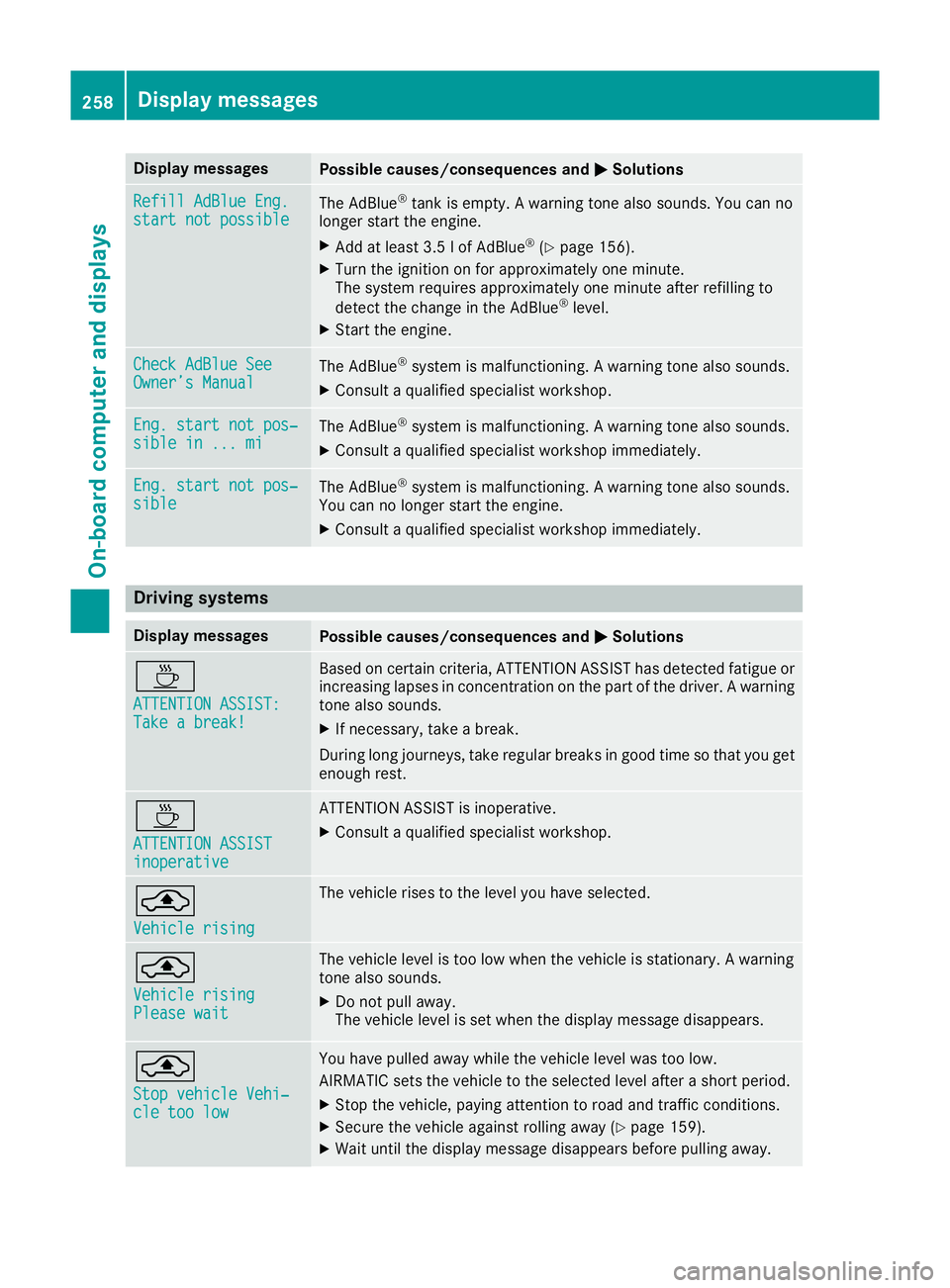
Display messages
Possible causes/consequences and
M
MSolutions Refill AdBlue Eng.
Refill AdBlue Eng.
start not possible start not possible
The AdBlue
®
tank is empty. A warning tone also sounds. You can no
longer start the engine.
X Add at least 3.5 l of AdBlue ®
(Y page 156).
X Turn the ignition on for approximately one minute.
The system requires approximately one minute after refilling to
detect the change in the AdBlue ®
level.
X Start the engine. Check AdBlue See Check AdBlue See
Owner’s Manual Owner’s Manual
The AdBlue
®
system is malfunctioning. A warning tone also sounds.
X Consult a qualified specialist workshop. Eng. start not pos‐
Eng. start not pos‐
sible in ... mi sible in ... mi
The AdBlue
®
system is malfunctioning. A warning tone also sounds.
X Consult a qualified specialist workshop immediately. Eng. start not pos‐
Eng. start not pos‐
sible sible
The AdBlue
®
system is malfunctioning. A warning tone also sounds.
You can no longer start the engine.
X Consult a qualified specialist workshop immediately. Driving systems
Display messages
Possible causes/consequences and
M
MSolutions À
ATTENTION ASSIST: ATTENTION ASSIST:
Take a break! Take a break! Based on certain criteria, ATTENTION ASSIST has detected fatigue or
increasing lapses in concentration on the part of the driver. A warning tone also sounds.
X If necessary, take a break.
During long journeys, take regular breaks in good time so that you get enough rest. À
ATTENTION ASSIST ATTENTION ASSIST
inoperative inoperative ATTENTION ASSIST is inoperative.
X Consult a qualified specialist workshop. ¨
Vehicle rising Vehicle rising The vehicle rises to the level you have selected.
¨
Vehicle rising Vehicle rising
Please wait Please wait The vehicle level is too low when the vehicle is stationary. A warning
tone also sounds.
X Do not pull away.
The vehicle level is set when the display message disappears. ¨
Stop vehicle Vehi‐ Stop vehicle Vehi‐
cle too low cle too low You have pulled away while the vehicle level was too low.
AIRMATIC sets the vehicle to the selected level after a short period.
X
Stop the vehicle, paying attention to road and traffic conditions.
X Secure the vehicle against rolling away (Y page 159).
X Wait until the display message disappears before pulling away. 258
Display
messagesOn-board computer and displays