bluetooth MERCEDES-BENZ C-CLASS CABRIOLET 2016 Owners Manual
[x] Cancel search | Manufacturer: MERCEDES-BENZ, Model Year: 2016, Model line: C-CLASS CABRIOLET, Model: MERCEDES-BENZ C-CLASS CABRIOLET 2016Pages: 377, PDF Size: 6.9 MB
Page 9 of 377
Driving tips .................................... 147
DYNAMIC SELECT switch .............. 141
Emergency running mod
e.............. 153
Engaging drive position .................. 146
Engaging neutral ............................ 145
Engaging park position automati-
cally ............................................... 145
Engaging reverse gear ................... 145
Engaging the park position ............ 145
Gearshift recommendation ............ 152
Gliding mod e................................. 148
Kickdown ....................................... 148
Manual shifting .............................. 150
Oil temperature (on-board com-
puter, Mercedes-AMG vehicles) ..... 237
oil temperature (on-board com-
puter, Mercedes-Benz C 450 AMG 4MATIC) ......................................... 237
Overview ........................................ 144
Problem (fault) ............................... 153
Pulling away ................................... 135
Starting the engine ........................ 135
Steering wheel gearshift paddle s... 150
Trailer towing ................................. 148
Transmission position display
(DIRECT SELECT lever) ................... 146
Transmission positions .................. 147
Automatic transmission emer-
gency running mode ......................... 153
Axle load, permissible (trailer tow-
ing) ...................................................... 369 B
Back button ....................................... 285
Ball coupling
Folding in ....................................... 215
Folding in/out ................................ 214
Folding ou t..................................... 214
BAS (Brake Assist System) ................. 67
BAS PLUS with Cross-Traffic Assist
(Brake Assist PLUS with Cross-
Traffic Assist)
Function/note s................................ 68
Important safety notes .................... 68
Battery (key)
Checking .......................................... 84
Important safety notes .................... 84 Replacing ......................................... 84
Battery (vehicle)
Charging ........................................ 332
Display message ............................ 255
Important safety notes .................. 330
Jump starting ................................. 333
Belt
see Seat belts
Belt tensioner
Activation ......................................... 56
Blind Spot Assist
Activating/deactivating (on-
board computer) ............................ 233
Display message ............................ 260
Notes/function .............................. 204
see Active Blind Spot Assist
BlueTEC
see AdBlue ®
Bluetooth ®
Connecting a different mobile
phone ............................................ 292
Searching for a mobile phone ........ 291
See also Digital Owner's Manua l... 284
Telephony ...................................... 290
Bonnet
Active bonnet (pedestrian protec-tion) ............................................... 308
Closing ........................................... 309
Display message ............................ 269
Important safety notes .................. 308
Opening ......................................... 309
Boot
Important safety notes .................... 89
Locking separately ........................... 91
Opening (automatically from
inside) .............................................. 90
Opening (automatically from out-
side) ................................................. 90
Opening/closing (manually from
outside) ............................................ 90
Boot lid
Display message ............................ 269
Opening dimensions ...................... 367
Opening/closing .............................. 89
Boot load (maximum) ........................ 367
Boot separator
Display message ............................ 271 6
Index
Page 12 of 377
Deactivating ................................... 169
Display message ............................ 263
Driving system ............................... 167
General notes ................................ 167
Important safety note
s.................. 167
LIM indicator lamp ......................... 168
Selecting ........................................ 168
Setting a speed .............................. 169
Storing and maintaining current
speed ............................................. 168
Storing the current speed or call-
ing up the last stored speed .......... 168
Cup holder
Centre console .............................. 301
Important safety notes .................. 301
Cycle rack .......................................... 217 D
Data see Technical data
Data carrier
Selecting ........................................ 229
Data modem mode
Telephone with Bluetooth ®
(SAP
profile) ........................................... 294
Daytime driving lights
Display message ............................ 253
Function/note s............................. 114
Dealership
see Qualified specialist workshop
Declarations of conformity ................. 29
Diagnostics connection ...................... 30
Diesel .................................................. 363
Digital Owner's Manual
Help ................................................. 26
Introduction ..................................... 26
Digital speedometer ......................... 225
Dipped-beam headlamps
Display message ............................ 253
Replacing bulb s............................. 120
Setting for driving abroad (sym-
metrical) ........................................ 114
Setting for driving on the right/
left ................................................. 236
Switching on/of f........................... 115
DIRECT SELECT lever
Automatic transmission ................. 145 Display
see Display message
see Warning and indicator lamps
Display message
Driving systems ............................. 258
Display messages
ASSYST PLUS ................................ 313
Calling up (on-board computer) ..... 241
Engine ............................................ 254
General information ....................... 240
Hiding (on-board computer) ........... 241
Introduction ................................... 240
Key ................................................ 272
Lights ............................................. 253
Safety systems .............................. 242
Tyres .............................................. 265
Vehicle ........................................... 267
Distance warning function
Function/note s................................ 70
Distance warning signal (warning
lamp) .................................................. 281
Distance warning system
see COLLISION PREVENTION
ASSIST PLUS
DISTRONIC PLUS
Activating ....................................... 173
Activation conditions ..................... 173
Cruise control lever ....................... 172
Deactivating ................................... 177
Display message ............................ 261
Displays in the instrument cluster .. 176
Driving tip s.................................... 177
Driving with DISTRONIC PLUS ....... 174
Function/note s............................. 171
Important safety notes .................. 171
Selecting ........................................ 173
Setting the specified minimum
distance ......................................... 175
Setting the speed .......................... 175
Stopping ........................................ 175
with Steering Assist and Stop&Go Pilot ............................................... 178
Door
Automatic locking (switch) ............... 88
Central locking/unlocking (key) ...... 82
Control panel ................................... 41
Display message ............................ 269
Emergency locking ........................... 89 Index
9
Page 19 of 377
Mercedes-Benz emergency call
system
Switch in the overhead control
panel ............................................. .304
Mercedes-Benz Intelligent Drive
360°camera .................................. 197
Active Blind Spot Assist ................. 207
Active Lane Keeping Assist ............ 210
Active Parking Assist ..................... 188
ATTENTION ASSIST ........................ 201
Blind Spot Assist ............................ 204
DISTRONIC PLUS ........................... 171
DISTRONIC PLUS with Steering
Assist and Stop&Go Pilot .............. .178
General notes ................................ 167
Lane Keeping Assist ..................... .206
PARKTRONIC ................................. 185
PRE-SAFE ®
(anticipatory occu-
pant protection) ............................... 57
PRE-SAFE ®
PLUS (anticipatory
occupant protection PLUS) .............. 58
Reversing camera .......................... 193
Traffic Sign Assist .......................... 202
Mercedes-Benz Service Centre
see Qualified specialist workshop
Message memory (on-board com-
puter) ................................................. .241
Messages
see Display messages
see Warning and indicator lamps
Mirror turn signal
Cleaning ......................................... 319
Mirrors
see Exterior mirrors
see Rear-view mirror
see Vanity mirror (in sun visor)
Mobile phone
Connecting (Bluetooth ®
inter-
face) .............................................. 290
Connecting another mobile
phone ............................................ 292
Connecting the telephone module
with Bluetooth ®
(SAP profile) ......... 293
Frequencies ................................... 358
Installation ..................................... 358
Menu (on-board computer) ............ 230
Notes/placing in the bracket ......... 305 Transmission output (maximum) .... 358
Modifying the programming (key) ..... 83
MOExtended tyres .............................326
Motorway mode ................................ 117
MP3
Operating ....................................... 229
See also Digital Owner's Manual ... 284
Multifunction display
Function/notes ............................ .222
Multifunction steering wheel
Operating the on-board computer .. 221
Overview .......................................... 36
Multimedia system
Switching on and off ..................... .285
Music files
See also Digital Owner's Manual ... 284 N
Navigation Menu (on-board computer) ............ 226
See also Digital Owner's Manual ... 284
Notes on running in a new vehicle .. 132 O
Occupant safety Airbags ............................................ 47
Automatic front-passenger front
airbag deactivatio n.......................... 50
Automatic measures after an acci-
dent ................................................. 59
Children in the vehicle ..................... 59
Important safety notes .................... 42
PASSENGER AIRBAG indicator
lamp ................................................. 43
Pets in the vehicle ........................... 66
PRE-SAFE ®
(anticipatory occu-
pant protection) ............................... 57
PRE-SAFE ®
PLUS (anticipatory
occupant protection PLUS) .............. 58
Restraint system introduction .......... 42
Restraint system warning lamp ........ 43
Seat belts ........................................ 44
Odometer ........................................... 224
Oil
see Engine oil 16
Index
Page 24 of 377
Warning lamp ................................. 277
Start/Stop button
Key position s ................................ .133
Starting the engine ........................ 135
Start/stop function
see ECO start/stop function
Starting (engine) ................................ 134
STEER CONTROL .................................. 78
Steering
Display message ............................ 270
Warning lamps ............................... 283
Steering Assist and Stop&Go Pilot
(DISTRONIC PLUS)
Display message ............................ 263
Steering assistant STEER CON-
TROL
see STEER CONTROL
Steering wheel
Adjusting (electrically) ................... 108
Adjusting (manually) ...................... 107
Button overview ............................... 36
Buttons (on-board computer) ......... 221
Cleaning ......................................... 321
EASY ENTRY/EXIT feature ............. 108
Important safety notes .................. 107
Storing settings (memory func-
tion) ............................................... 112
Steering wheel gearshift paddles .... 150
Stopwatch (RACETIMER) ................... 239
Stowage areas ................................... 296
Stowage compartment
Map pockets .................................. 298
Stowage compartments
Armrest (under) ............................. 298
Centre console .............................. 297
Cup holde r..................................... 301
Door ............................................... 298
Glove compartment ....................... 297
Important safety information ......... 296
Spectacles compartment ............... 297
see Stowage areas
Stowage net ....................................... 298
Stowage space
Stowage net ................................... 298
Stowage well beneath the boot
floor .................................................... 300 Summer tyres
In winter ........................................ 344
Sun visor ............................................ 302
Suspension setting
AIRMATIC ...................................... 183
Suspension settings
AMG RIDE CONTROL sports sus-
pension .......................................... 183
SETUP (on-board computer) .......... 238
Switching
the interior motion sensor on/of f.... 79
Switching on media mode
Via the device list .......................... 295 T
Tail lamps Display message ............................ 253
Technical data
Capacities ...................................... 360
Drawbar load (maximum) ............... 369
Information .................................... 358
Trailer load s................................... 369
Vehicle data ................................... 367
Telephone
Accepting a call (multifunction
steering wheel) .............................. 231
Authorising a mobile phone (con-
necting) ......................................... 291
Connecting a Mobile phone (gen-
eral information) ............................ 290
Display message ............................ 271
Introduction ................................... 230
Menu (on-board computer) ............ 230
Number from the phone book ........ 231
Redialling ....................................... 231
Rejecting/ending a call ................. 231
See also Digital Owner's Manua l... 284
Switching between mobile
phones ........................................... 292
Telephone compartment ................ 298
see Mobile phone
Telephone module with Bluetooth ®
(SAP profile) Activating and connecting the
module ........................................... 293
Charging a mobile phone ............... 294
Connecting the mobile phone ........ 293 Index
21
Page 232 of 377
X
Confirm by pressing aon the steering
wheel.
X To open the media sources list: pressa
briefly.
The list shows the following media sources,
for example:
R CD or DVD (DVD only in the COMAND
Online multimedia system)
R SD card
R Media Register (only in the COMAND
Online multimedia system)
R USB storage device
R Bluetooth ®
-capable audio device
Please observe further information on media
support and media operation in the multimedia
system (see Digital Owner's Manual).
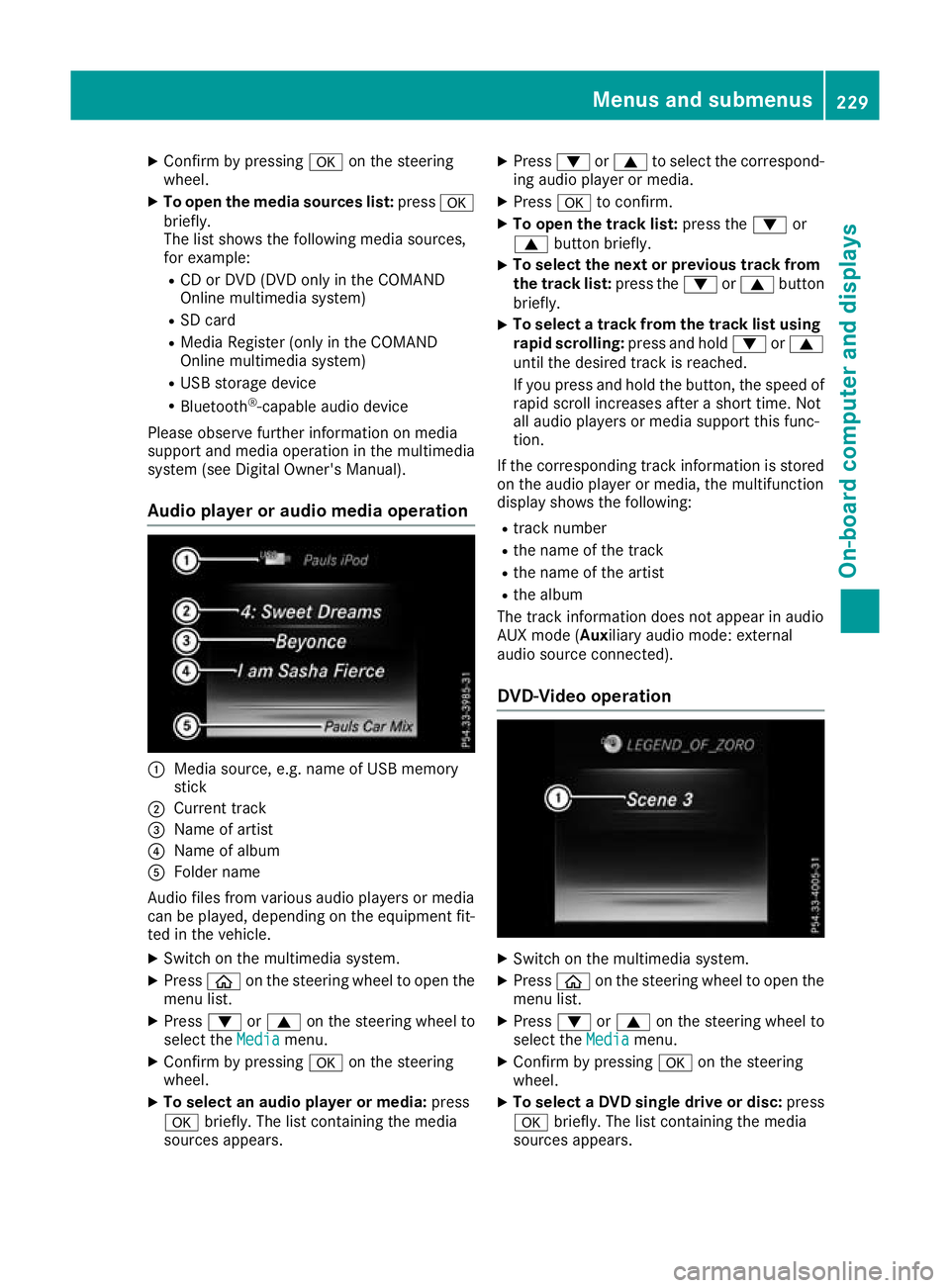
Audio player or audio media operation :
Media source, e.g. name of USB memory
stick
; Current track
= Name of artist
? Name of album
A Folder name
Audio files from various audio players or media
can be played, depending on the equipment fit- ted in the vehicle.
X Switch on the multimedia system.
X Press òon the steering wheel to open the
menu list.
X Press :or9 on the steering wheel to
select the Media
Media menu.
X Confirm by pressing aon the steering
wheel.
X To select an audio player or media: press
a briefly. The list containing the media
sources appears. X
Press :or9 to select the correspond-
ing audio player or media.
X Press ato confirm.
X To open the track list: press the:or
9 button briefly.
X To select the next or previous track from
the track list: press the:or9 button
briefly.
X To select a track from the track list using
rapid scrolling: press and hold:or9
until the desired track is reached.
If you press and hold the button, the speed of rapid scroll increases after a short time. Not
all audio players or media support this func-
tion.
If the corresponding track information is stored on the audio player or media, the multifunction
display shows the following:
R track number
R the name of the track
R the name of the artist
R the album
The track information does not appear in audio
AUX mode (Aux iliary audio mode: external
audio source connected).
DVD-Video operation X
Switch on the multimedia system.
X Press òon the steering wheel to open the
menu list.
X Press :or9 on the steering wheel to
select the Media Mediamenu.
X Confirm by pressing aon the steering
wheel.
X To select a DVD single drive or disc: press
a briefly. The list containing the media
sources appears. Menus and submenus
229On-board computer and displays Z
Page 233 of 377
X
Press :or9 to select the correspond-
ing DVD single drive or disc.
X Press ato confirm.
X To open the scene list: press the:or
9 button briefly.
X To select the next or previous scene in the
scene list: press the:or9 button
briefly.
X To select a scene from the scene list using
rapid scrolling: press and hold:or9
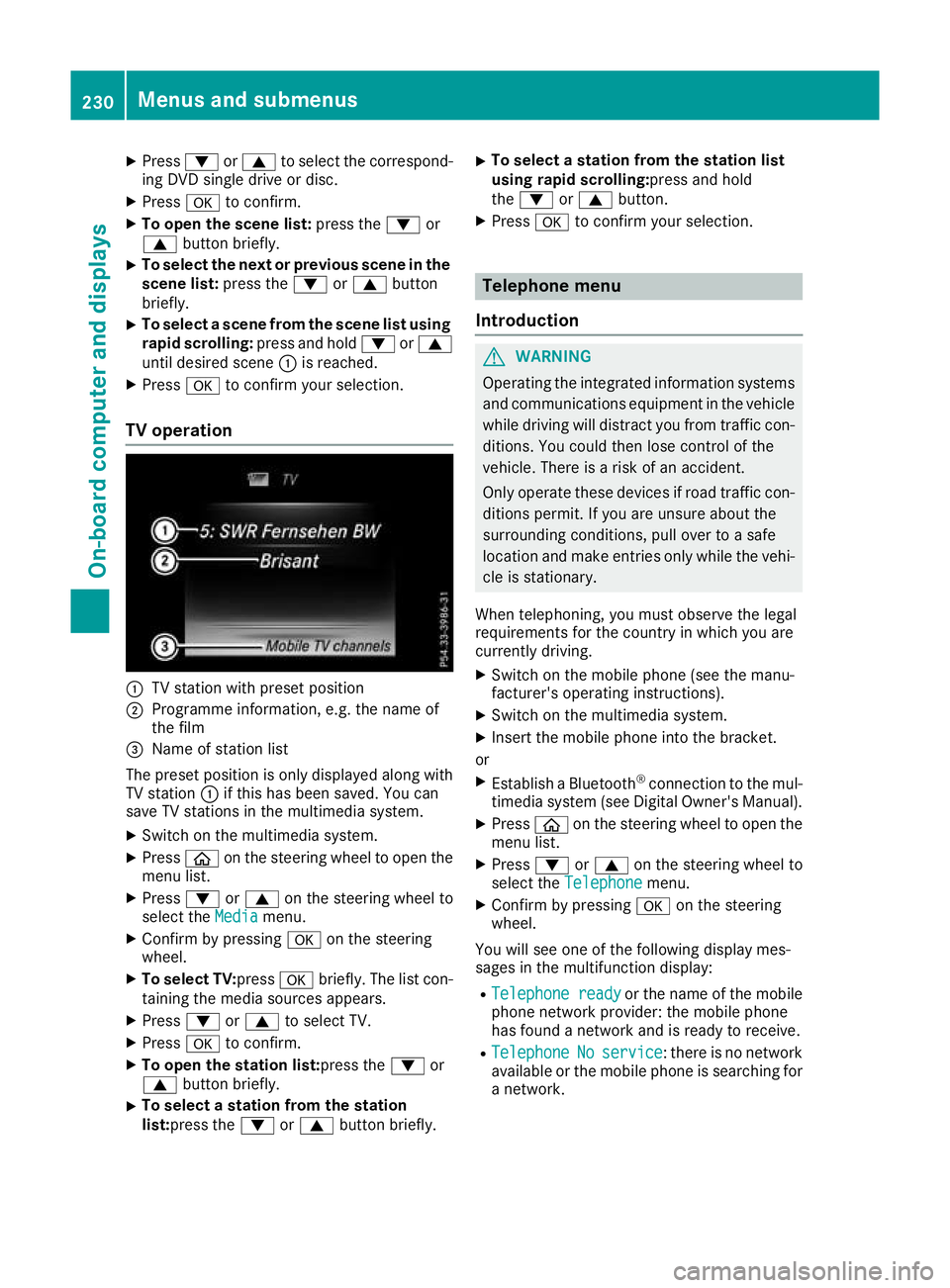
until desired scene :is reached.
X Press ato confirm your selection.
TV operation :
TV station with preset position
; Programme information, e.g. the name of
the film
= Name of station list
The preset position is only displayed along with TV station :if this has been saved. You can
save TV stations in the multimedia system.
X Switch on the multimedia system.
X Press òon the steering wheel to open the
menu list.
X Press :or9 on the steering wheel to
select the Media
Mediamenu.
X Confirm by pressing aon the steering
wheel.
X To select TV: pressabriefly. The list con-
taining the media sources appears.
X Press :or9 to select TV.
X Press ato confirm.
X To open the station list:press the :or
9 button briefly.
X To select a station from the station
list:press the
:or9 button briefly. X
To select a station from the station list
using rapid scrolling:press and hold
the
: or9 button.
X Press ato confirm your selection. Telephone menu
Introduction G
WARNING
Operating the integrated information systems and communications equipment in the vehicle
while driving will distract you from traffic con-
ditions. You could then lose control of the
vehicle. There is a risk of an accident.
Only operate these devices if road traffic con-
ditions permit. If you are unsure about the
surrounding conditions, pull over to a safe
location and make entries only while the vehi-
cle is stationary.
When telephoning, you must observe the legal
requirements for the country in which you are
currently driving. X Switch on the mobile phone (see the manu-
facturer's operating instructions).
X Switch on the multimedia system.
X Insert the mobile phone into the bracket.
or X Establish a Bluetooth ®
connection to the mul-
timedia system (see Digital Owner's Manual).
X Press òon the steering wheel to open the
menu list.
X Press :or9 on the steering wheel to
select the Telephone Telephone menu.
X Confirm by pressing aon the steering
wheel.
You will see one of the following display mes-
sages in the multifunction display:
R Telephone ready Telephone ready or the name of the mobile
phone network provider: the mobile phone
has found a network and is ready to receive.
R Telephone
Telephone No
Noservice
service: there is no network
available or the mobile phone is searching for
a network. 230
Menus and submenusOn-board computer and displays
Page 234 of 377
i
You can obtain further information about
suitable mobile phones and connecting
mobile phones via Bluetooth ®
:
R on the Internet at http://www.mercedes-
benz.com/connect
R at any Mercedes-Benz Service Centre
Accepting a call If someone calls you when you are in the
Tele‐ Tele‐
phone
phone menu, a display message appears in the
multifunction display.
You can accept a call at any time irrespective of
the selected menu.
X Press the 6button on the steering wheel
to accept the call.
Rejects or ends a call X
Press the ~button on the steering wheel
to reject or end the call.
Selecting an entry in the phone book X
Press òon the steering wheel to open the
menu list.
X Press :or9 on the steering wheel to
select the Telephone
Telephone menu.
X Confirm by pressing aon the steering
wheel.
X Press :, 9ora to switch to the
phone book.
X Press :or9 to select the names one
after the other.
or X To start rapid scrolling: press and hold:
or 9 for longer than one second.
The names are displayed quickly one after the
other in the phone book.
If you press and hold the :or9 button
for longer than five seconds, the name with
the next or previous initial letter in the alpha-
bet appears.
Rapid scrolling stops when you release the
button or reach the end of the list.
X If only one telephone number is stored for
a name: press the 6ora button to
start dialling.
or X
If there is more than one number for a
name: press the 6ora button to dis-
play the numbers.
X Press :or9 to select the number you
want to dial.
X Press the 6ora button to start dial-
ling.
or
X To exit the telephone book: press the~
or % button briefly.
Redialling The on-board computer saves the last names or
numbers dialled in the redial memory.
X Press òon the steering wheel to open the
menu list.
X Press :or9 on the steering wheel to
select the Telephone Telephone menu.
X Confirm by pressing aon the steering
wheel.
X Press the 6button to switch to the redial
memory.
X Press :or9 to select the desired
name or number.
X Press the 6ora button to start dial-
ling.
or X To exit the redial memory: press the~
or % button briefly. Assistance graphic menu
X
Press òon the steering wheel to open the
menu list.
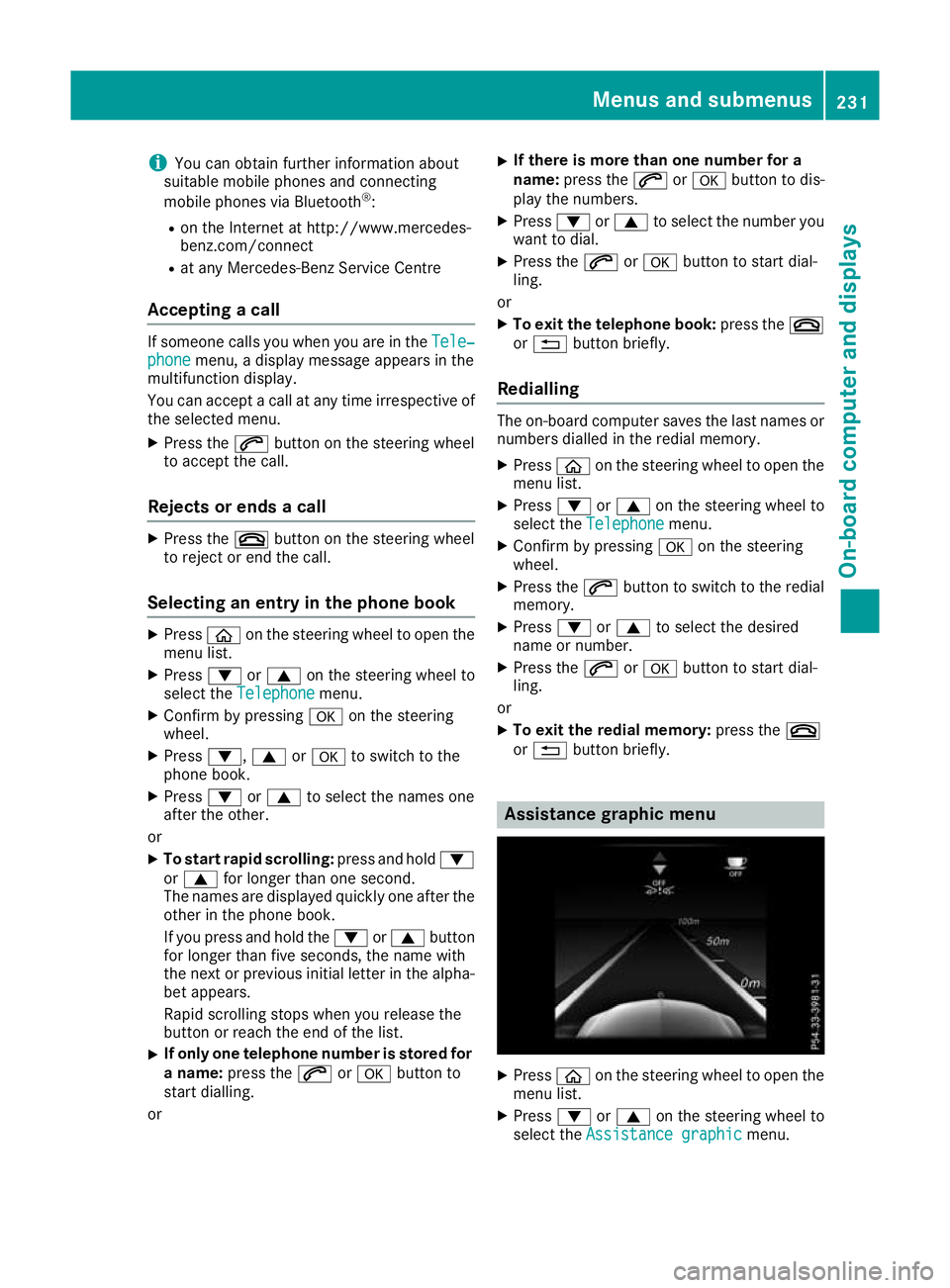
X Press :or9 on the steering wheel to
select the Assistance graphic Assistance graphic menu. Menus and submenus
231On-board computer and displays Z
Page 293 of 377
The route calculation includes roads which
require you to pay a usage fee (toll).
R Use vignette roads Use vignette roads (not available in all
countries)
The route calculation includes roads which
require you to pay a time-based fee (vignette).
A vignette allows temporary use of the route
network, e. g. 10 days or 1 year.
Entering an address Multimedia system:
X Select Navi
NaviQNavigation Navigation.
X Select Destination
Destination QAddress entryAddress entry.
i If route guidance is active, first slide
6the
controller and show the menu.
Enter an address, e.g. as follows:
R town or postcode, street, house number
R country, town or postcode
R town or postcode, centre
R street, town or postcode, junction
X Select Town
Town.
The town in which the vehicle is currently
located (current vehicle position) is at the top.
Below this, you will see locations for which
route guidance has already been carried out.
X Enter the town.
The Gsymbol: the location is contained on
the digital map multiple times.
X To switch to the list: slide5the control-
ler.
X Select the location.
If available, the postcode is shown. If there
are different postcodes available for the loca-
tion, the corresponding digits are displayed
with an X
X.
X Enter the street and house number.
The address is in the menu.
Further options for destination entry:
R Keyword search
The keyword search finds destinations using
fragments of words.
R select the last destination
R select a contact
R select a POI
You can search for a POI by location, name or
telephone number.
R select destination on the map
R enter intermediate destination You can map the route to the destination
yourself with up to four intermediate destina-
tions.
R select travel guide destination (only available
for selected European countries)
R select destinations from Mercedes-Benz
Apps
R select geo-coordinates
Calculating the route Prerequisite: the address has been entered and
is in the menu.
X Select Start StartorContinue
Continue.
The route is calculated with the selected route
type and the selected route options.
If route guidance has already been activated,
a prompt will appear asking whether you wish to end the current route guidance.
X Select Yes
YesorSet as intermediate des‐
Set as intermediate des‐
tination
tination.
Yes Yes cancels the current route guidance and
starts route calculation to the new destina-
tion.
Set as intermediate destination Set as intermediate destination adds
the new destination in addition to the existing
destination and opens the intermediate des-
tinations list. Connecting the mobile phone
Requirements For telephony via the Bluetooth
®
interface, you
require a Bluetooth ®
-capable mobile phone. The
mobile phone must support Hands-Free Profile
1.0 or above.
Multimedia system:
X Select Vehicle VehicleQSystem set‐ System set‐
tings
tingsQActivate Bluetooth Activate Bluetooth.
X Activate Bluetooth ®
O.
Mobile phone:
X Activate Bluetooth ®
and, if necessary, Blue-
tooth ®
visibility for other devices (see the
manufacturer's operating instructions).
The Bluetooth ®
device names for all of one man-
ufacturer's products might be identical. To
make it possible to clearly identify your mobile
phone, change the device name (see the man-
ufacturer's operating instructions). 290
Operating systemMultimedia system
Page 294 of 377
If the mobile phone supports the PBAP (Phone
Book Access Profile) and MAP (Message
Access Profile) Bluetooth ®
profiles, the follow-
ing information will be transmitted after you
connect:
R Phone book
R Call lists
R Messages
i Further information on suitable mobile
phones can be obtained on the Internet at:
http://www.mercedes-benz.com/
connect
Searching for and authorising a mobile
phone Before using your mobile phone with the multi-
media system for the first time, you will need to
search for the phone and then authorise (con-
nect) it. Depending on the mobile phone, author-
isation takes place by means of Secure Simple
Pairing or by entering a passkey. The multimedia
system automatically makes the procedure that is relevant for your mobile phone available. The
mobile phone is always connected automati-
cally after authorisation. Further information on using a mobile phone with the multimedia sys-
tem (see the Digital Owner's Manual).
If the multimedia system does not detect your
mobile phone, this may be due to particular
security settings on your mobile phone (see the manufacturer's operating instructions).
Only one mobile phone can be connected to the
multimedia system at any one time.
Searching for a mobile phone
Audio 20:
X Select Tel/
Tel/®QConnect Connect
device deviceQSearch for phones Search for phonesQStart Start
search
search .
The available mobile phones are displayed.
COMAND Online:
X Select Telephone
TelephoneQConnect Connect
device
deviceQSearch for phones Search for phonesQStart Start
search
search .
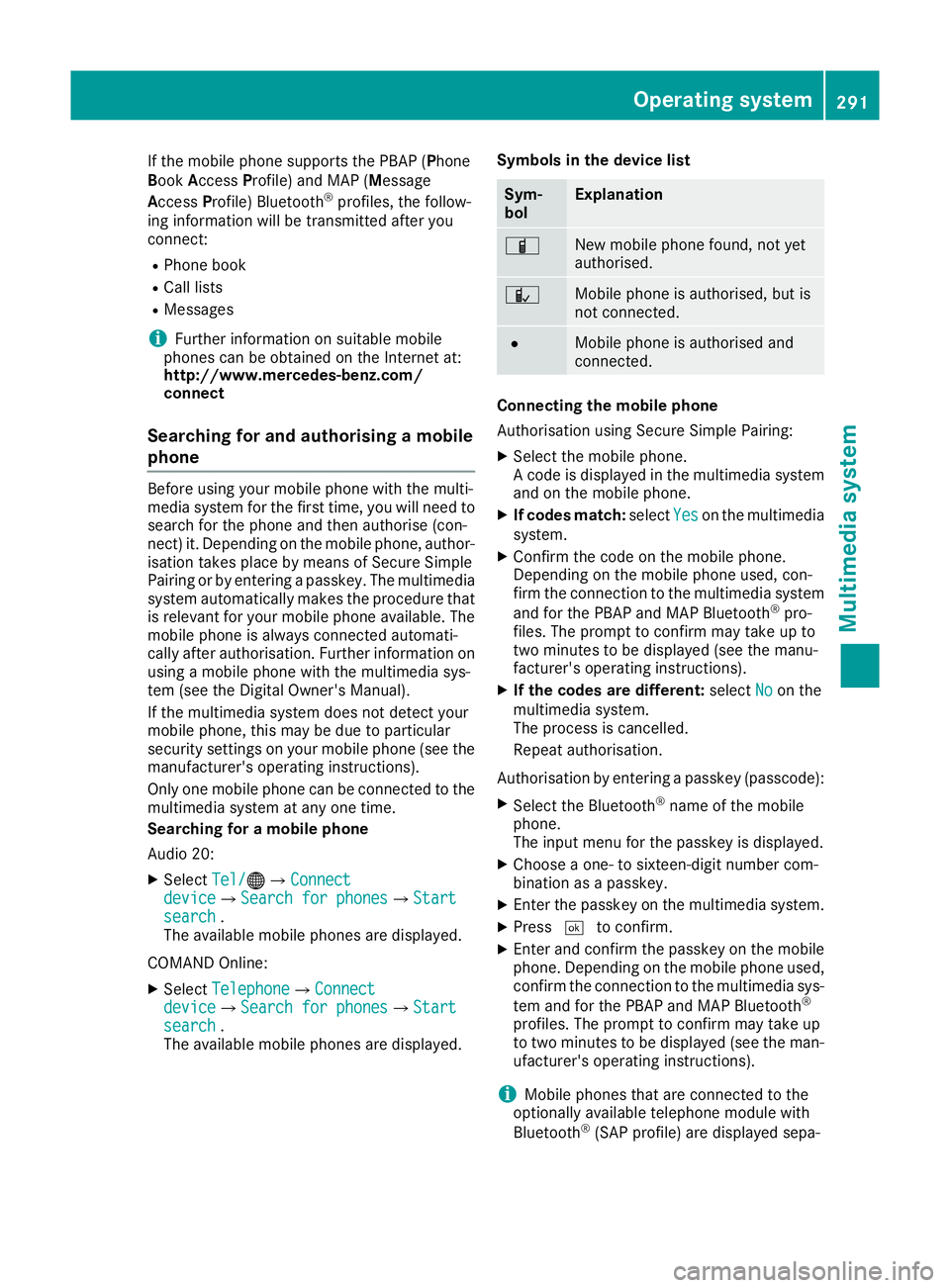
The available mobile phones are displayed. Symbols in the device list Sym-
bol Explanation
Ï
New mobile phone found, not yet
authorised.
Ñ
Mobile phone is authorised, but is
not connected.
#
Mobile phone is authorised and
connected.
Connecting the mobile phone
Authorisation using Secure Simple Pairing:
X Select the mobile phone.
A code is displayed in the multimedia system
and on the mobile phone.
X If codes match: selectYes Yeson the multimedia
system.
X Confirm the code on the mobile phone.
Depending on the mobile phone used, con-
firm the connection to the multimedia system
and for the PBAP and MAP Bluetooth ®
pro-
files. The prompt to confirm may take up to
two minutes to be displayed (see the manu-
facturer's operating instructions).
X If the codes are different: selectNo Noon the
multimedia system.
The process is cancelled.
Repeat authorisation.
Authorisation by entering a passkey (passcode): X Select the Bluetooth ®
name of the mobile
phone.
The input menu for the passkey is displayed.
X Choose a one- to sixteen-digit number com-
bination as a passkey.
X Enter the passkey on the multimedia system.
X Press ¬to confirm.
X Enter and confirm the passkey on the mobile
phone. Depending on the mobile phone used,
confirm the connection to the multimedia sys-
tem and for the PBAP and MAP Bluetooth ®
profiles. The prompt to confirm may take up
to two minutes to be displayed (see the man- ufacturer's operating instructions).
i Mobile phones that are connected to the
optionally available telephone module with
Bluetooth ®
(SAP profile) are displayed sepa- Operating system
291Multimedia system Z
Page 295 of 377
rately in the device list. These are found below
the entry MB SAP module phones
MB SAP module phones.
Switching between mobile phones If you have authorised more than one mobile
phone, you can switch between the individual
phones.
Multimedia system:
X Select Connect device
Connect device.
X Select a mobile phone from the device list. Telephone module with Bluetooth
®
(SAP profile)
Introduction The module can be used as a permanently instal-
led telephone with its own SIM card
(Y page 293) or in conjunction with a mobile
phone (Y page 293).
If you wish to use the module in conjunction with
your mobile telephone, the mobile phone must
support the Bluetooth ®
SAP profile (SIM Access
Profile).
The following functions are available using the
module:
R data modem mode (Y page 294)
R sending and receiving text messages
(Y page 294)
R accessing the phone book of the mobile
phone (Y page 294)
R charging a mobile phone via the USB connec-
tion (Y page 294)
A list of compatible mobile phones can be found at:
http://www.mercedes-benz.com/connect
i The module is not available in all vehicles,
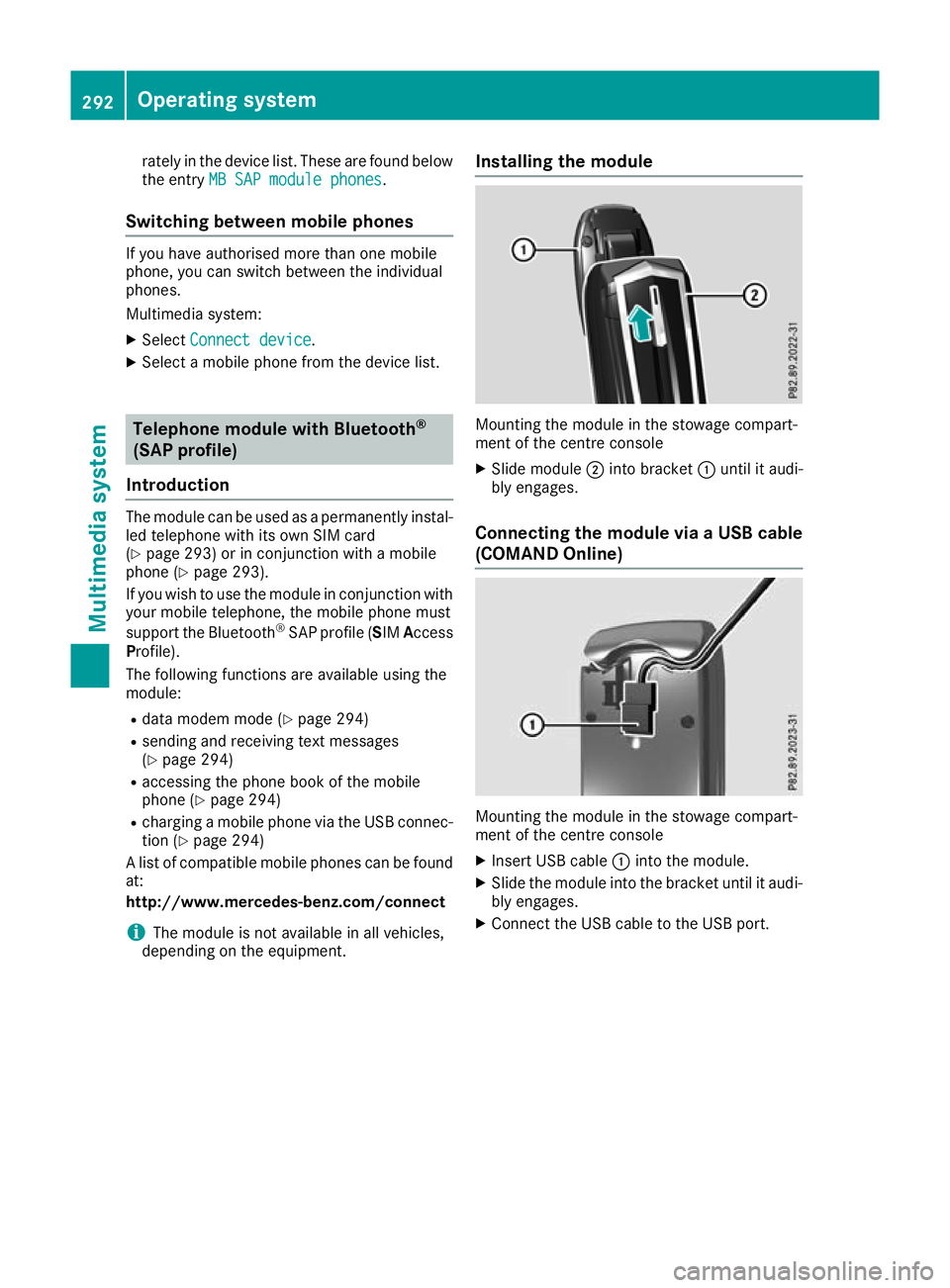
depending on the equipment. Installing the module Mounting the module in the stowage compart-
ment of the centre console
X Slide module ;into bracket :until it audi-
bly engages.
Connecting the module via a USB cable (COMAND Online) Mounting the module in the stowage compart-
ment of the centre console
X Insert USB cable :into the module.
X Slide the module into the bracket until it audi-
bly engages.
X Connect the USB cable to the USB port. 292
Operating systemMultimedia system