light MERCEDES-BENZ C-CLASS CABRIOLET 2021 Owners Manual
[x] Cancel search | Manufacturer: MERCEDES-BENZ, Model Year: 2021, Model line: C-CLASS CABRIOLET, Model: MERCEDES-BENZ C-CLASS CABRIOLET 2021Pages: 545, PDF Size: 9.48 MB
Page 280 of 545

Showing traf
fic messages in the vicinity of
th e map #
Select Traffic messages for the vicinity.
The map appears. #
Swipe left or right on theto uchpad.
or #
Slide the controller tothe left or right.
The pr evious or next traf fic incident is high‐
lighted on the map. Information on the tra ffic
incident is displa yed.
% Traf fic re ports are not available in all coun‐
tries.
Showing POIs in the vicinity of the map #
Select Surrounding POIs . #
Swipe left or right on theto uchpad.
or #
Slide the controller tothe left or right.
The pr evious or next POI is highligh ted on the
map. The name or the address is shown. #
Tofilter the display byPOI categor y:
swipe down on theTo uch Control or the
to uchpad. or #
Slide the controller down. #
Select the POI categor y.
% User defined allowspersonal POI symbols to
be selected (/ page 291). Ro
ute Calculating a
route
Re quirements:
R The destination has been entered.
R The destination address is shown. #
Ifro ute guidance is not active, select Start
route guidance .
The route tothe destination is calculated.
The map sho ws thero ute. Route guidance
th en begins.
or #
Ifro ute guidance is active, select Start new
route guidance orSet as next intermediate
destination .
Start new route guidance: the selected desti‐
nation address is set as a new destination. The pr
evious destinations and intermediate
destinations are dele ted. Ro ute guidance to
th e new destination begins.
Set as next intermediate destination: the
selected destination address is set as the
next intermedia tedestination. Route guid‐
ance begins.
Ta king alternative routes into conside ration #
Select an al tern ative route (/ page279).
Other menu functions #
Tosave the destination: select¥Store
in "Previous destinations". #
Todispl ayon the map: select¥Map. #
Tocall a telephone number: select
¥ Call(ifavailable). #
Tocall up an Internet address: select
¥ www(ifavailable).
Selecting a route type
Multimedia sy stem:
4 Navigation 5
À Route and position #
Select Route settings. Multimedia sy
stem 277
Page 284 of 545
The
road and traf fic ru les and regulations alw ays
ha ve priority over multimedia sy stem driving
instructions.
The following driving instructions can be used:
R Navigation announcements
R Route guidance displ ays
R Lane recommendations
If yo u do not follow the driving instructions or if
yo u lea vethe calculated route, a new route is
calculated automaticall y.
Driving instructions may di ffer from the actual
ro ad and traf fic conditions if:
R The route is diver ted
R The direction of a one-w aystre et has been
ch anged
Fo rth is reason, you must alw ays obser veroad
and traf fic ru les and regulations during your
journey as well as the pr evailing traf fic condi‐
tions.
The route may dif fer from the ideal route due to
th efo llowing:
R Roadwor ks R
Incomple tedigital map data
Note s on GPS reception
The cor rect function of the navigation sy stem
depends amongst other things on GPS recep‐
tion. In cer tain situations GPS reception can be
impaired, defective or even not possible, e.g. in
tunnels or in multi-s torey car par ks.
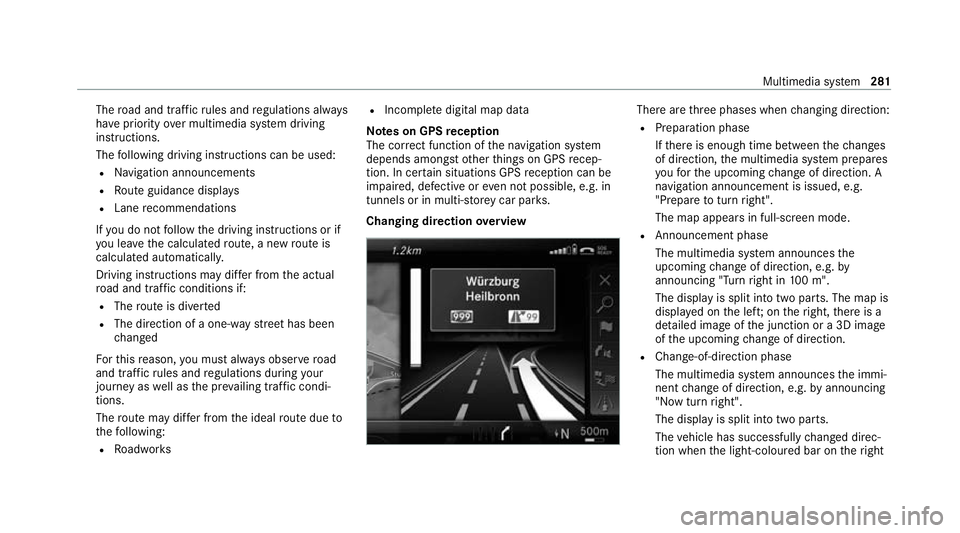
Changing direction overview There are
thre e phases when changing direction:
R Preparation phase
Ifth ere is enough time between thech anges
of direction, the multimedia sy stem prepares
yo ufo rth e upcoming change of direction. A
navigation announcement is issued, e.g.
"Prepare toturn right".
The map appears in full-screen mode.
R Announcement phase
The multimedia sy stem announces the
upcoming change of direction, e.g. by
announcing "Turn right in 100 m".
The display is split into two parts. The map is
displa yed on the lef t;on theright, there is a
de tailed image of the junction or a 3D image
of the upcoming change of direction.
R Chan ge-of-direction phase
The multimedia sy stem announces the immi‐
nent change of direction, e.g. byannouncing
"N ow turn right".
The display is split into two parts.
The vehicle has successfully changed direc‐
tion when the light-coloured bar on theright Multimedia sy
stem 281
Page 285 of 545
drops down
to0 m and the cur rent vehicle
position symbol has reached the highlighted
ch ange-of-direction point.
When thech ange of direction is comple te,
th e map appears in full-screen mode.
% Changes of direction are also shown in the
Instrument Displa y.
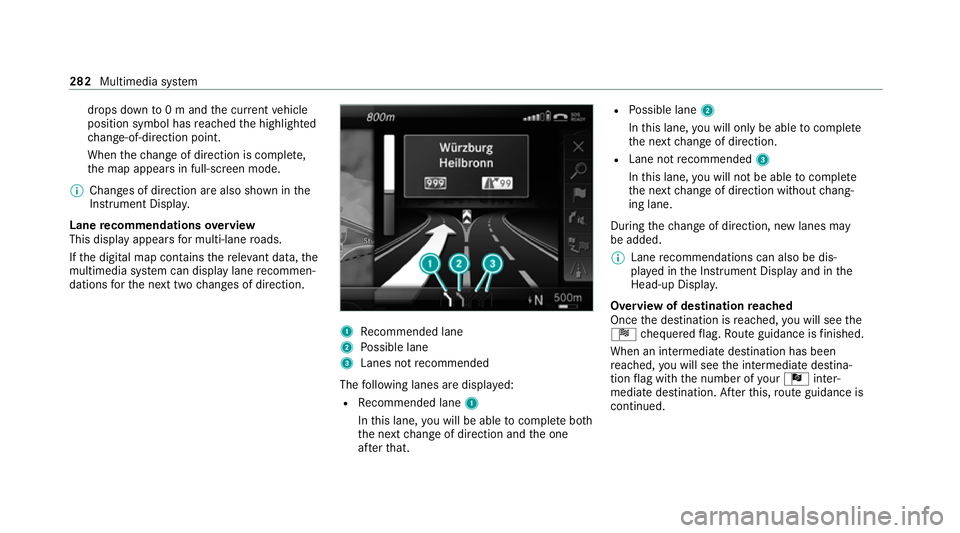
Lane recommendations overview
This display appears for multi-lane roads.
If th e digital map conta insthere leva nt da ta,the
multimedia sy stem can display lane recommen‐
dations forth e next two changes of direction. 1
Recommended lane
2 Possible lane
3 Lanes not recommended
The following lanes are displa yed:
R Recommended lane 1
In this lane, you will be able tocompl ete bo th
th e next change of direction and the one
af te rth at. R
Possible lane 2
In this lane, you will on lybe able tocompl ete
th e next change of direction.
R Lane not recommended 3
In this lane, you will not be able tocompl ete
th e next change of direction without chang‐
ing lane.
During thech ange of direction, new lanes may
be added.
% Lane recommendations can also be dis‐
pl ay ed in the Instrument Display and in the
Head-up Displa y.
Overview of destination reached
Once the destination is reached, you will see the
Í chequered flag. Route guidance is finished.
When an intermedia tedestination has been
re ached, you will see the intermediate destina‐
tion flag with the number of your Î inter‐
mediate destination. Af terth is, route guidance is
continued. 282
Multimedia sy stem
Page 288 of 545
If
th eve hicle is displa yed as being offroad, the
fo llowing displa ysappear:
R The Road not mapped message
R A direction ar row showing the linear direc‐
tion tothe POI
When theve hicle is back on a road kn ownto the
multimedia sy stem, route guidance continues as
no rm al. Destination
Saving
the cur rent vehicle position
Multimedia sy stem:
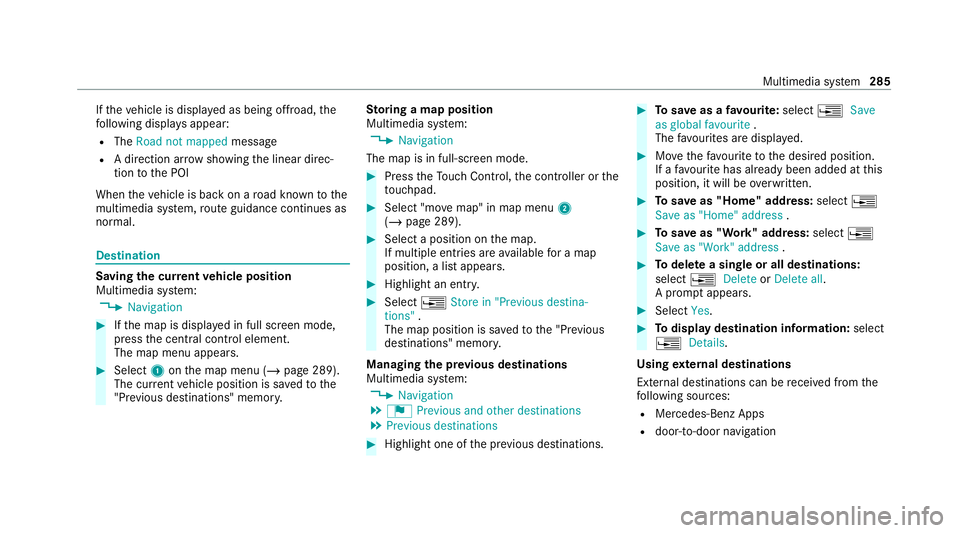
4 Navigation #
Ifth e map is displa yed in full screen mode,
press the cent ral control element.
The map menu appears. #
Select 1onthe map menu (/ page 289).
The cur rent vehicle position is sa vedto the
"Pr evious destinations" memo ry.St
oring a map position
Multimedia sy stem:
4 Navigation
The map is in full-screen mode. #
Press theTo uch Control, the controller or the
to uchpad. #
Select "mo vemap" in map menu 2
(/ page 289). #
Select a position on the map.
If multiple entri es areavailable for a map
position, a list appears. #
Highlight an entr y. #
Select ¥Store in "Previous destina-
tions" .
The map position is sa vedto the "Pr evious
destinations" memo ry.
Managing the pr evious destinations
Multimedia sy stem:
4 Navigation
5 ¬ Previous and other destinations
5 Previous destinations #
Highlight one of the pr evious destinations. #
Tosave as a favo urite: select ¥Save
as global favourite .
The favo urites are displ ayed. #
Movethefa vo urite tothe desired position.
If a favo urite has already been added at this
position, it will be overwritten. #
Tosave as "Home" address: select¥
Save as "Home" address . #
Tosave as "Work" address: select¥
Save as "Work" address . #
Todel ete a single or all destinations:
select ¥Delete orDelete all.
A prom ptappears. #
Select Yes. #
Todispl aydestination information: select
¥ Details.
Using extern al destinations
External destinations can be recei ved from the
fo llowing sources:
R Mercedes-Benz Apps
R door-to-door navigation Multimedia sy
stem 285
Page 295 of 545
Multimedia sy
stem:
4 Navigation 5
Z Options #
Activate ONext intersecting street .
The name of the next intersecting stre et will
be displa yed at the upper edge of the displa y.
Displaying the map version
Multimedia sy stem:
4 Navigation 5
Z Options #
Select Map version . #
Select Details.
% Information about new versions of the digital
map can be obtained from a Mercedes-Benz
service cent re.
Overview of avoiding an area
Yo u can define areas along a route that you
wo uld like toavoid.
The route can include an area that is tobe avoi‐
ded in thefo llowing situations:
R the destination is located in an area that is to
be avo ided
R if mo torw ays are located within the area that
is to be avoided Mo
torw ays are alw aysta ke n into account for
th ero ute.
R there is no sensible alternative route
Av oiding a new area
Multimedia sy stem:
4 Navigation 5
À Route and position
5 Avoid options 5
Areas #
Select Avoid new area. #
Tosear chfor an area via the map: select
Using map. #
Movethe map.
or #
Tosear chfor an area using an address:
select Address entry . #
Enter the address. #
Select Select destination.
The map appears. #
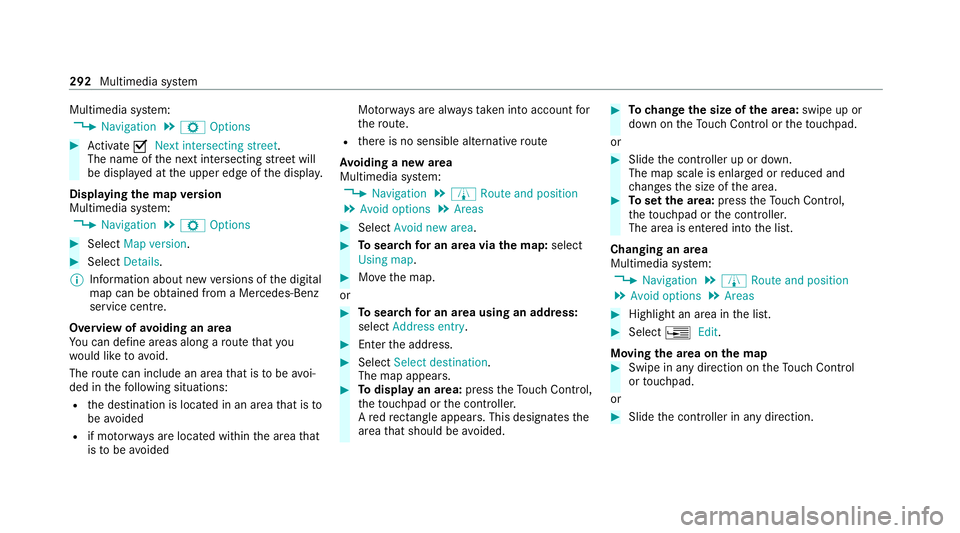
Todispl ayan area: presstheTo uch Control,
th eto uchpad or the controller.
A redre ctangle appea rs. This designates the
area that should be avoided. #
Tochange the size of the area: swipe up or
down on theTo uch Control or theto uchpad.
or #
Slide the controller up or down.
The map scale is enlar ged or reduced and
ch anges the size of the area. #
Toset the area: presstheTo uch Control,
th eto uchpad or the controller.
The area is entered into the list.
Changing an area
Multimedia sy stem:
4 Navigation 5
À Route and position
5 Avoid options 5
Areas #
Highlight an area in the list. #
Select ¥Edit.
Moving the area on the map #
Swipe in any direction on theTo uch Control
or touchpad.
or #
Slide the controller in any direction. 292
Multimedia sy stem
Page 296 of 545
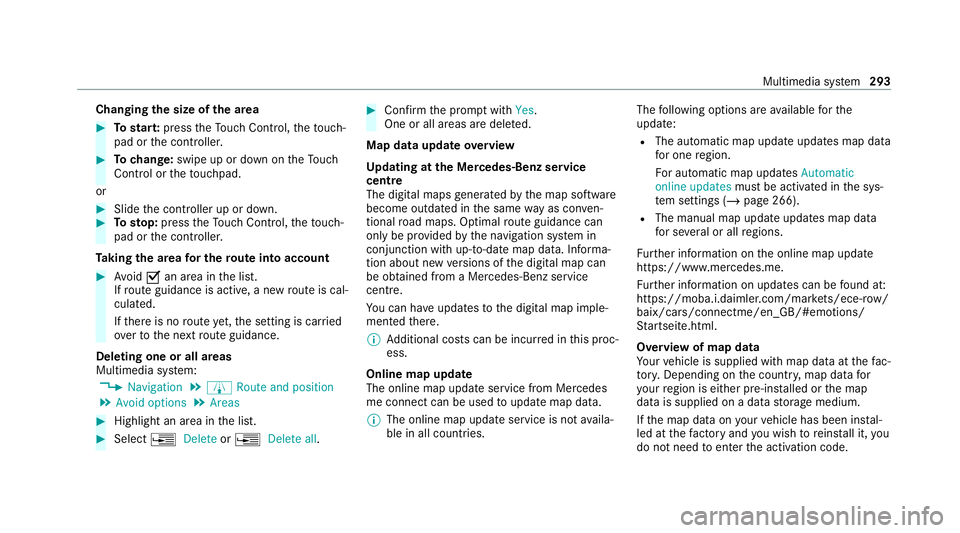
Changing
the size of the area #
Tostar t:press theTo uch Control, theto uch‐
pad or the controller. #
Tochange: swipe up or down on theTo uch
Control or theto uchpad.
or #
Slide the controller up or down. #
Tosto p:press theTo uch Control, theto uch‐
pad or the controller.
Ta king the area for the route into account #
Avoid Oan area in the list.
If ro ute guidance is active, a new route is cal‐
culated.
If th ere is no route yet,th e setting is car ried
ove rto the next route guidance.
Deleting one or all areas
Multimedia sy stem:
4 Navigation 5
À Route and position
5 Avoid options 5
Areas #
Highlight an area in the list. #
Select ¥Delete or¥ Delete all. #
Confirm the prom ptwith Yes.
One or all areas are dele ted.
Map data update overview
Up dating at the Mercedes-Benz se rvice
centre
The digital maps generated bythe map software
become outdated in the same way as co nven‐
tional road maps. Optimal route guidance can
on ly be pr ovided bythe navigation sy stem in
conjunction with up-to-date map data. Informa‐
tion about new versions of the digital map can
be obtained from a Mercedes-Benz service
cent re.
Yo u can ha veupdates tothe digital map imple‐
mented there.
% Additional costs can be incur red in this proc‐
ess.
Online map update
The online map update service from Mercedes
me connect can be used toupdate map data.
% The online map update service is not availa‐
ble in all countries. The
following options are available forthe
update:
R The automatic map update updates map data
for one region.
Fo r auto matic map updates Automatic
online updates must be activated in the sys‐
te m settings (/ page 266).
R The manual map update updates map data
fo r se veral or all regions.
Fu rther information on the online map update
https://www.mercedes.me.
Fu rther information on updates can be found at:
https://moba.i.daimler.com/mar kets/ece-r ow/
baix/cars/connectme/en_GB/#emotions/
St artseite.htm l.
Overview of map data
Yo ur vehicle is supplied with map data at thefa c‐
to ry. Depending on the count ry, map data for
yo ur region is either pre-ins talled or the map
data is supplied on a data storage medium.
If th e map data on your vehicle has been ins tal‐
led at thefa ctory and you wish toreins tall it, you
do not need toenter the activation code. Multimedia sy
stem 293
Page 318 of 545
Af
ter confirmation, the multimedia sy stem
sends there qu ired vehicle data. The data
transfer is shown in the media displa y.
Then, you can select a service and be con‐
nected toa specialist at the Mercedes-Benz
Cus tomer Centre.
Fu rther information about Mercedes me con‐
nect, the pr ovided service scope and operation:
https://moba.i.daimler.com/mar kets/ece-r ow/
baix/cars/connectme/en_GB/#emotions/
St artseite.html
Calling the Mercedes-Benz Cus tomer Centre
af te r automatic accident or breakdown
de tection
Re quirements:
R The vehicle has de tected an accident or
breakdown situation.
R The vehicle is stationar y.
R The hazard warning lights are switched on.
% This function is not available in all countries.
In limited situations theve hicle can de tect acci‐
dent or breakdown situations. In
theeve nt an accident or breakdown is de tec‐
te d, the emer gency guide sho wssafety no tes in
th e multimedia sy stem displa y.
Af terqu itting the emer gency guide displ ayon
th e multimedia sy stem, a prom ptappears asking
whe ther you wish toget support from the
Mercedes-Benz Cus tomer Centre. #
Select Call.
R Afteryo ur agreement, or if the Mercedes
me connect service "Accident and Break‐
down Management" is active, theve hicle
data is transfer red automatically
(/ page 318).
R A Mercedes-Benz Cust omer Centre
emplo yeeta ke syo ur call and or ganises
th e breakdown and accident assis tance.
Yo u may be charge dfo rth ese services.
% Depending on the se verity of the accident,
an automatic emer gency call can be initi‐
ated. This has prio rity over all other active
calls.
% In addition, if the Mercedes me connect
service "Telediagnostics" is active, a similar
prom ptcan appear af ter a delay in theeve nt of a breakdown. If
you are already in contact
with the Mercedes-Benz Cus tomer Centre or
ha ve already recei ved support, this prom pt
can be igno red or declined.
% Ifyo u ans werth e prom ptfor support from
th e Mercedes-Benz Cus tomer Centre with
Later, the message will be hidden and
appear again later.
The prom pttrig geredby the Mercedes me
connect service "Telediagnostics", can either
be confi rmed or declined. Af ter being
declined, this will not be shown again.
Ar ranging a service appointment via a
Mercedes me call
If yo u ha veactivated the maintenance manage‐
ment service, releva nt vehicle data is transfer red
automatically tothe Mercedes-Benz Cus tomer
Centre. You will then recei veindividual recom‐
mendations rega rding the maintenance of your
ve hicle.
Re gardless of whe ther you ha veconsented to
th e maintenance management service, the multi‐
media sy stem reminds you af ter a cer tain
amount of time that a service is due. A prom pt Multimedia sy
stem 315
Page 327 of 545
R
The Blue tooth®
function is switched off on
th e mobile phone and the mobile phone is to
be connec ted via Blue tooth®
R Neither the mobile phone network nor the
mobile phone allow simultaneous use of a
te lephone and an Internet connection
R The mobile phone has not been enabled for
Internet access via Blue tooth®
If a mobile phone is connected tothe multimedia
sy stem forth efirs t time via Blu etoo th®
,yo u will
be assis tedth ro ugh the process of setting up an
Internet connection.
The Internet connection can also be confi gured
manually.
Fu rther information can be obtained at https://
www.mercedes-benz-mobile.com/ or at a
Mercedes-Benz service centre. Multimedia sy
stem:
4 System 5
ö Connectivity
5 Internet settings
Blue tooth ®
connection via PAN #
Select the mobile phone.
The Internet connection is es tablished.
Switching the Blu etoo th®
pr ofile
Re quirements:
R The mobile phone supports the DUN and
PA N Blue tooth®
profiles.
Multimedia sy stem:
4 System 5
ö Connectivity
5 Internet settings #
Toswitch from DUN toPAN: select the
mobile phone. #
Select ¥. #
Select Change configuration. #
Activate OAutomatic configuration.
The Internet connection is au tomatical lycon‐
fi gured using thePA N Blue tooth®
profile. #
Toswitch from PANto DUN: select the
mobile phone. #
Select ¥. #
Select Change configuration. #
Deactivate ªAutomatic configuration. #
Select Configure settings using COMAND . #
Configuri ngthe Internet connection using
preset or manual access data (/ page 323).
Editing Internet access data
Re quirements:
R The mobile phone supports the Blue tooth®
DUN profile.
Multimedia sy stem:
4 System 5
ö Connectivity
5 Internet settings #
Highlight the mobile phone. #
Select ¥. #
Select Change configuration . #
For mobile phones with PAN and DUN:
select Configure settings using COMAND. 324
Multimedia sy stem
Page 328 of 545
#
Con figure the Internet connection using pre‐
set or manual access data (/ page 323).
Cancelling Internet access permission for a
mobile phone
Multimedia sy stem:
4 System 5
ö Connectivity
5 Internet settings #
Highlight the mobile phone. #
Select ¥. #
Select Delete configuration. #
Select Yes.
Displaying mobile phone details
Multimedia sy stem:
4 System 5
ö Connectivity
5 Internet settings #
Highlight the mobile phone. #
Select ¥. #
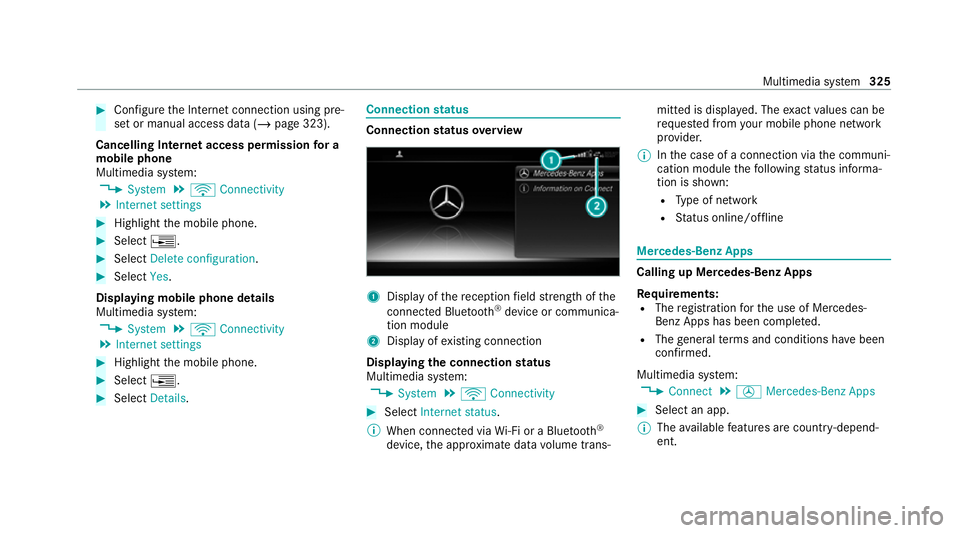
Select Details. Connection
status Connection
status overview 1
Display of there ception field stre ngth of the
connected Blu etoo th®
device or communica‐
tion module
2 Display of existing connection
Displaying the connection status
Multimedia sy stem:
4 System 5
ö Connectivity #
Select Internet status .
% When connected via Wi-Fi or a Blu etoo th®
device, the appr oximate data volume trans‐ mit
ted is displa yed. The exact values can be
re qu ested from your mobile phone network
pr ov ider.
% Inthe case of a connection via the communi‐
cation module thefo llowing status informa‐
tion is shown:
R Type of network
R Status online/of fline Mercedes-Benz Apps
Calling up Mercedes-Benz Apps
Re
quirements:
R The registration forth e use of Mercedes-
Benz Apps has been comple ted.
R The general term s and conditions ha vebeen
con firm ed.
Multimedia sy stem:
4 Connect 5
Ú Mercedes-Benz Apps #
Select an app.
% The available features are countr y-depend‐
ent. Multimedia sy
stem 325
Page 332 of 545
Gracen
ote, the Graceno telogo and logotype,
"P ow ered byGracen ote", MusicID and Pla ylist
Plus are either regis tere d trademar ksor trade‐
mar ksof Graceno te, Inc. in theUn ited States
and/or other countries. "Made
for iPod", and "Made for iPhone," mean
th at an electronic accesso ryhas been designed
to connect specifically toiPod ®
, or iPhone ®
,
re spectivel y,and has been certified bythe de vel‐
oper tomeet Apple per form ance standards.
Apple ®
is not responsible forth e operation of
th is device or its compliance with saf ety and reg‐
ulatory standards. Please no tethat the use of
th is accessory with iPod, or iPhone may af fect
wi reless per form ance.
iPhone ®
, iPod ®
, iPod classic ®
, iPod nano ®
, and
iPod touch ®
are trademar ksof Apple Inc., regis‐
te re d in theU. S. and other countries. Lightning ®
is a trademark of Apple Inc.
Note s on copyright
Au dio files that you create or reproduce yourself
fo r playback aregeneral lysubject tocopyright
pr otection. In many count ries, reproductions,
eve nfo r private use, are not permitted without
th e prior consent of the copyright holder. Make
sure that you kn owabout the applicable copy‐
ri ght regulations and that you co mply withthese. Switching on media mode
Multimedia sy
stem:
4 Media 5
à Media sources #
Select a media source.
Playable music files are pla yed bac k.
Inserting/removing an SD card &
DANG ER Risk of fata l injury from swal‐
lowing SD cards
SD cards are small parts.
They could be swallo wed and lead tochok‐
ing. #
Keep SD cards out of there ach of chil‐
dren. #
Seek medical attention immediately if
an SD card has been swallo wed. *
NO
TEDama gedue tohigh temp eratures High
temp eratures may damage the SD card. #
Remo vethe SD card af ter use and take
it out of theve hicle. Multimedia sy
stem 329