phone MERCEDES-BENZ C-CLASS CABRIOLET 2021 Owner's Manual
[x] Cancel search | Manufacturer: MERCEDES-BENZ, Model Year: 2021, Model line: C-CLASS CABRIOLET, Model: MERCEDES-BENZ C-CLASS CABRIOLET 2021Pages: 545, PDF Size: 9.48 MB
Page 237 of 545
R
Application-specific voice commands are
only available forth e active application.
Once Linguatronic is star ted an autocue is
shown. Apart from theav ailable voice com‐
mands forth e application cur rently acti ve,th is
also cites example voice commands forot her
applications which are not active. In this wa y,
yo u will be familiar more quickly with theav aila‐
ble voice commands. The list can be scrolled or
it can be operated byspeech or the controller/
to uchpad. Information on
the language setting Yo
u can change the language of LINGU ATRO NIC
via the sy stem language settings. If the set sys‐
te m language is not suppor tedby LINGUA‐
TRONIC, English will be selected.
LINGU ATRO NIC is available foryo u in thefo llow‐
ing languages:
R German
R English
R French R
Italian
R Dutch
R Polish
R Portuguese
R Russian
R Swedish
R Spanish
R Czech
R Turkish Using LINGU
ATRO NIC ef fectively Fe
atures of audible help functions Yo
ure cei veinformation and help forth efo llow‐
ing topics:
R Optimum operation: saythebrief instruc-
tion voice command.
R Cur rent application: onthe multifunction
st eering wheel, press the£ rocker switch
up and say theHelp voice command.
R Continued dialogue: saytheHelp voice
command during a voice dialogue. R
Specific function: sayvoice commands for
th e desired function, e.g. Help telephone. Note
s on how toimpr ovespeech quality If LINGU
ATRO NIC does not under stand you:
R onlyoperate LINGU ATRO NIC from the driv‐
er's seat.
R say thevo ice commands cohe rently and
clearly, but do not exaggerate thewo rds.
R avoid loud noises that cause inter fere nce
while making a voice command ent ry, e.g.
th e blo wer.
A vo ice tag in the address book is not recog‐
nised:
R only crea tesensible address book entries in
th e sy stem/mobile phone, e.g. enter sur‐
name and firs t name in the cor rect field.
R do not use any abbr eviations, unnecessary
spaces or special characters.
If a station list ent ryis not recognised:
R say theRead out station list voice command. 234
LINGU ATRO NIC
Page 238 of 545
Essential
voice commands Overview of switch
voice commands Swit
chvoice commands can be used toopen
cer tain applications. The voice command selec‐ tion can be used
rega rdless of the application
th at is cur rently acti ve.
Switch voice commands Vo
ice command Function
Navigation To
switch tonavigation mode
Map To
switch tomap display
Address book To
switch toaddress book
Telephone To
switch totelephone mode
Text message To
switch totext messa ges
Radio To
switch toradio mode
TV To
switch toTV mode
Media To
switch tomedia mode
USB To
switch toUSB LINGU
ATRO NIC 235
Page 243 of 545

Overview of
telephone voice commands Yo
u can use thete lephone voice commands to
make phone calls or sear chthro ugh the address
book.
Te lephone voice commands Vo
ice command Function
Call
available.
Search for contact
ches for and displa ysa con tact. All address book names are available.
Outgoing calls Displa
ys the last call
Redial Selects
the last phone number dialled Overview of
radio and TVvoice commands Ra
dio and TVvoice commands can also be used
when thera dio or TVapplication runs in the
bac kground. 240
LINGU ATRO NIC
Page 254 of 545
Ac
tivating/deactivating haptic ope rating
fe edba ckon theto uchpad
Multimedia sy stem:
4 System 5
w Input
The function supports you when making entries
on theto uchpad and when selecting menus. #
Swit chHaptic operating feedback onO or
off ª.
When the function is activated, a tactile feed‐
back in thefo rm of a vibration is ef fected
when theto uchpad is operated.
Selecting a station and track using the
to uchpad #
Press theD button on theto uchpad.
or #
Swipe up with two fingers. The swipe mu st
st art in the lo wer area of theto uchpad.
The cont rol menu appears forth e audio
source that wa s last selected. #
Use one finger toswipe up or down.
Ra dio: the pr evious or the next station is set.
Media source: the pr evious or the next music
tra ck is selec ted. #
Tohide the control menu: swipe down with
two fingers. The swipe mu st start in the
upper area of theto uchpad. Main functions
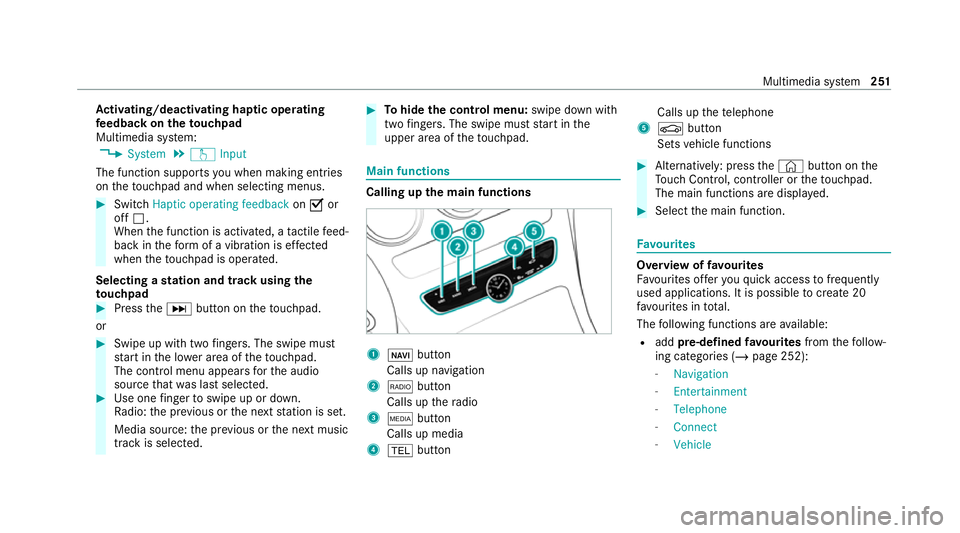
Calling up
the main functions 1
ß button
Calls up navigation
2 $ button
Calls up thera dio
3 Õ button
Calls up media
4 % button Calls up
thete lephone
5 Ø button
Sets vehicle functions #
Alternatively: press the© button on the
To uch Control, cont roller or theto uchpad.
The main functions are displ ayed. #
Select the main function. Favo
urites Overview of
favo urites
Fa vourites of feryo uqu ick access tofrequently
used applications. It is possible tocrea te20
fa vo urites in tota l.
The following functions are available:
R add pre-defined favo urites fromthefo llow‐
ing categories (/ page 252):
- Navigation
- Entertainment
- Telephone
- Connect
- Vehicle Multimedia sy
stem 251
Page 257 of 545
#
Toswitch on: change the media source or
turn volume control 1. Ad
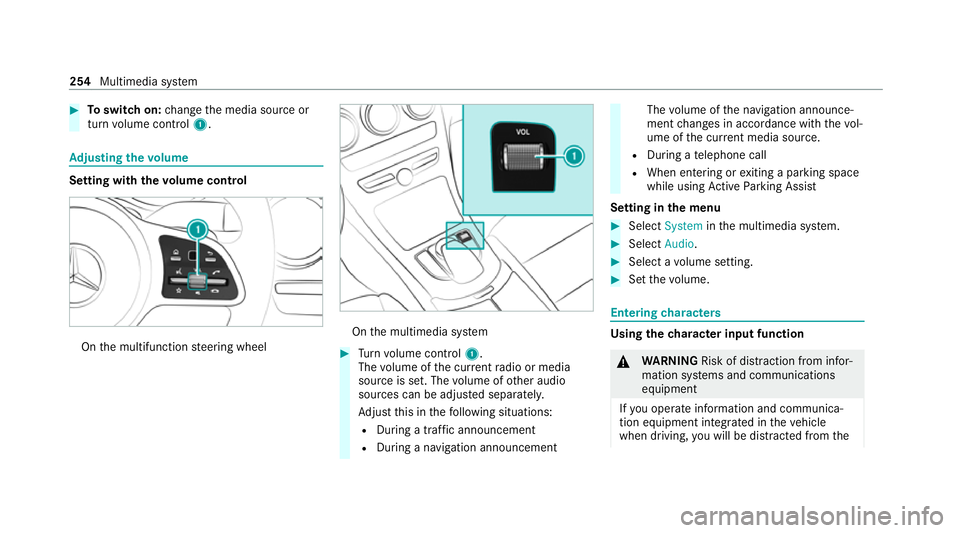
justing the volume Setting with
thevo lume control On
the multifunction steering wheel On
the multimedia sy stem #
Turn volume control 1.
The volume of the cur rent radio or media
source is set. The volume of other audio
sources can be adjus ted separatel y.
Ad just this in thefo llowing situations:
R During a traf fic announcement
R During a navigation announcement The
volume of the navigation announce‐
ment changes in accordance with thevo l‐
ume of the cur rent media sou rce.
R During a telephone call
R When entering or exiting a parking space
while using Active Parking Assist
Setting in the menu #
Select System inthe multimedia sy stem. #
Select Audio. #
Select a volume setting. #
Set thevo lume. Entering
characters Using
thech aracter input function &
WARNING Risk of di stra ction from infor‐
mation sy stems and communications
equipment
If yo u operate information and communica‐
tion equipment integ rated in theve hicle
when driving, you will be distracted from the254
Multimedia sy stem
Page 258 of 545
traf
fic situation. This could also cause youto
lose control of theve hicle. #
Only operate this equipment when the
traf fic situation permits. #
Ifyo u cannot be sure of this, stop the
ve hicle whilst paying attention toroad
and traf fic conditions and ope rate the
equipment with theve hicle stationar y. Yo
u must obse rveth e legal requirements forthe
country in whi chyou are cur rently driving when
operating the multimedia sy stem.
Use thech aracter input function in thefo llowing
situations, forex ample:
R Renaming a favo urite
R Entering a POI or address
R Making a phone call
The following functions are available:
R Selecting a character in thech aracter bar
R Writing a character on theto uchpad
Character input can be star ted with a control
element and resumed with ano ther. #
On theTo uch Control and controller:
select thech aracters in thech aracter bar.
Depending on theta rget entry ,th efo llowing
ch aracters are available:
R The full set of characters is shown
R Onlythose characters which are useful
fo rth e cur rent input string are shown
Other characters are gr eyed out. #
On theto uchpad: selectthech aracters in
th ech aracter bar.
or #
Write thech aracters on theto uch-sensitive
sur face of theto uchpad.
Handwriting recognition suppo rts yo uby
means of character suggestions and a read-
aloud function.
Examples of character ent ry:
R Renaming a favo urite
R Entering a POI or an address using free or
st ep-b y-step sear ch
R Entering a web address Entering
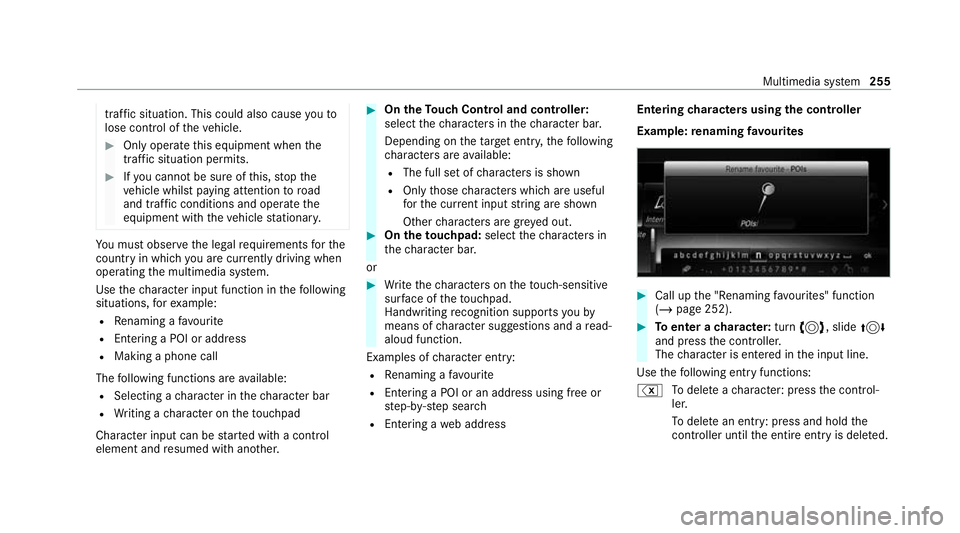
characters using the controller
Example: renaming favo urites #
Call up the "Renaming favo urites" function
(/ page 252). #
Toenter a character: turn3, slide 4
and press the controller.
The character is entered in the input line.
Use thefo llowing ent ryfunctions:
% Todele teach aracter: press the control‐
ler.
To dele tean ent ry: press and hold the
controller until the entire entry is deleted. Multimedia sy
stem 255
Page 261 of 545
#
Select Summer Time. #
Select OnorOff.
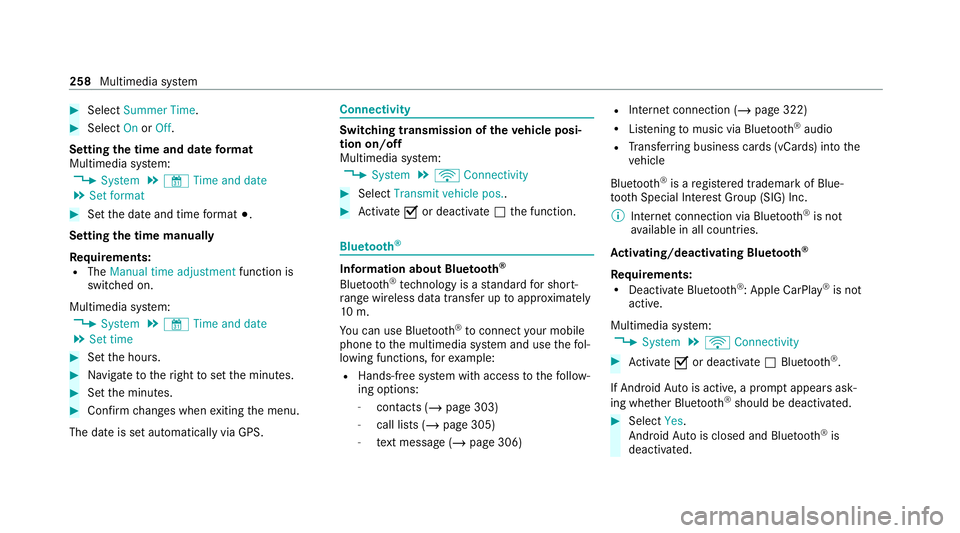
Setting the time and date form at
Multimedia sy stem:
4 System 5
& Time and date
5 Set format #
Set the date and time form at#.
Setting the time manually
Re quirements:
R The Manual time adjustment function is
switched on.
Multimedia sy stem:
4 System 5
& Time and date
5 Set time #
Set the hours. #
Navigate totheright toset the minutes. #
Set the minutes. #
Confirm changes when exiting the menu.
The date is set automatically via GPS. Connectivity
Switching transmission of
theve hicle posi‐
tion on/off
Multimedia sy stem:
4 System 5
ö Connectivity #
Select Transmit vehicle pos.. #
Activate Oor deacti vate ª the function. Blue
tooth ® Information about Blu
etoo th®
Bl ue tooth ®
tech nology is a standard for short-
ra nge wi reless data transfer up toappr oximately
10 m.
Yo u can use Blue tooth®
to connect your mobile
phone tothe multimedia sy stem and use thefo l‐
lowing functions, forex ample:
R Hands-free sy stem with access tothefo llow‐
ing options:
- con tacts (/ page 303)
- call lists (/ page 305)
- text messa ge (/page 306) R
Internet connection (/ page 322)
R Listening tomusic via Blue tooth®
audio
R Trans ferring business cards (vCards) into the
ve hicle
Blue tooth ®
is a regis tere d trademark of Blue‐
toot h Special Interest Group (SIG) Inc.
% Internet connection via Blue tooth®
is not
av ailable in all countries.
Ac tivating/deactivating Blue tooth ®
Re quirements:
R Deactivate Blue tooth®
: Apple CarPl ay®
is not
active.
Multimedia sy stem:
4 System 5
ö Connectivity #
Activate Oor deacti vate ª Bluetoo th®
.
If Android Autois active, a prom ptappears ask‐
ing whe ther Blue tooth®
should be deactivated. #
Select Yes.
Android Autois closed and Blue tooth®
is
deactivated. 258
Multimedia sy stem
Page 262 of 545
Wi
-Fi Wi
-Fi connection overview
Yo u can use Wi-Fi toestablish a connection with
a Wi -Fi network and toaccess the Internet or
ot her network devices.
The following connection options are available:
R Wi-Fi connection
The Wi-Fi connection toaWi -Fi-capable
device, e.g. the cus tomer's mobile phone or
a ta blet PC is es tablished.
R Multimedia sy stem as a Wi-Fi hotspot
Using this function, a tablet PC or no tebook
can be connec ted, forex ample.
To establish a connection, you can use thefo l‐
lowing me thods:
R WPS PIN
The connection toa secure Wi-Fi network is
made via a PIN.
R WPS PBC
The connection toa secure Wi-Fi network is
made bypressing a button (push button).
R Security key The connection
toa secure Wi-Fi network is
made via a secu rity key.
Setting up Wi-Fi
Requ irements:
R The device tobe connec ted supports one of
th eth re e means of connection described
(/ page 259).
Multimedia sy stem:
4 System 5
ö Connectivity
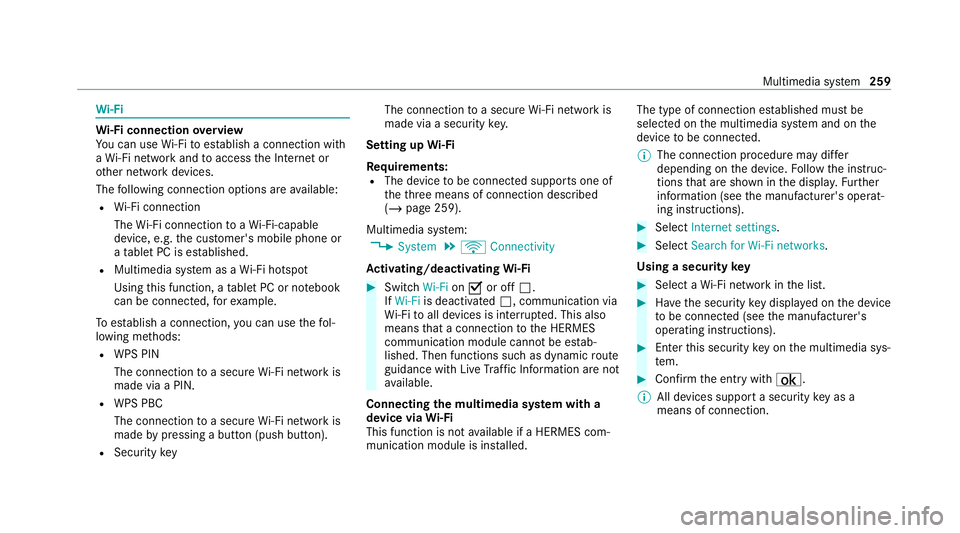
Ac tivating/deactivating Wi-Fi #
Switch Wi-FionO or off ª.
If Wi-Fi is deactivated ª, communication via
Wi -Fi toall devices is inter rupte d. This also
means that a connection tothe HERMES
communication module cann otbe es tab‐
lished. Then functions such as dynamic route
guidance with Live Traf fic Information are not
av ailable.
Connecting the multimedia sy stem with a
device via Wi-Fi
This function is not available if a HERMES com‐
munication module is ins talled. The type of connection es
tablished must be
selected on the multimedia sy stem and on the
device tobe connec ted.
% The connection procedure may dif fer
depending on the device. Follow the instruc‐
tions that are shown in the displa y.Fu rther
information (see the manufacturer's operat‐
ing instructions). #
Select Internet settings . #
Select Search for Wi-Fi networks.
Using a security key #
Select a Wi-Fi network in the list. #
Have the security key displa yed on the device
to be connec ted (see the manufacturer's
operating instructions). #
Ente rth is security key on the multimedia sys‐
te m. #
Confirm the entry with¡.
% All devices support a security key as a
means of connection. Multimedia sy
stem 259
Page 264 of 545
#
Select Continue inthe multimedia sy stem.
Connecting using a security key#
Select Connect device to vehicle hotspot .
A secu rity key is displa yed. #
Select theve hicle from the device tobe con‐
nec ted. The vehicle is displa yed with the
SSID MB Hotspot XXXXX .#
Enter the security key which is shown in the
media display on the device tobe connec ted. #
Confirm the entry.
Connecting using NFC #
Select Establish a connection via NFC. #
Activate NFC on the mobile device (see the
manufacturer's operating instructions). #
Bring the mobile device into the NFC area of
th eve hicle (/ page 301). #
Select Done.
The mobile device is now connected tothe
multimedia sy stem hotspot via NFC.
Generating a new security key: #
Select Set up hotspot . #
Select Generate security key .
A connection will be es tablished with the
newly crea ted security key. #
Tosave a security key:select Save.
When a new security key is sa ved, all existing
Wi -Fi connections are then disconnected. If
th eWi -Fi connections are being re-es tab‐
lished, the new security key must be en tere d. Managing COMAND
Touch devices Re
quirements:
R The COMAND Touch app is ins talled on the
ex tern al device (e.g. tablet or smartphone).
R Wi-Fi is acti vated (/ page 259) and the mul‐
timedia sy stem is confi gured as a Wi-Fi hot‐
spot (/ page 260).
Multimedia sy stem:
4 System 5
COMAND Touch
Connecting and authorising a new device #
Select Authorise a new device. #
Select Connect new device. #
Ente rth e security key in theex tern al device.
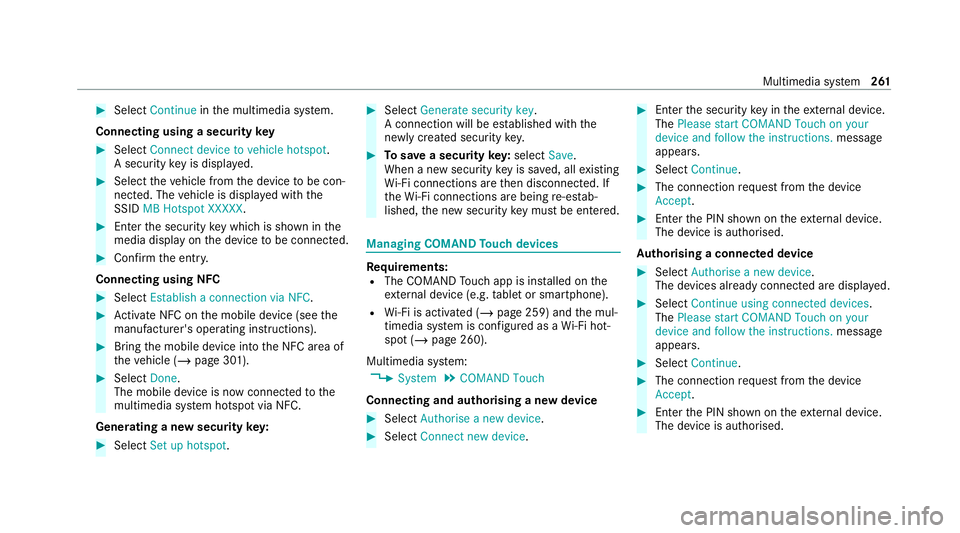
The Please start COMAND Touch on your
device and follow the instructions. message
appears. #
Select Continue. #
The connection requ est from the device
Accept. #
Ente rth e PIN shown on theex tern al device.
The device is authorised.
Au thorising a connected device #
Select Authorise a new device.
The devices already connec ted are displa yed. #
Select Continue using connected devices.
The Please start COMAND Touch on your
device and follow the instructions. message
appears. #
Select Continue. #
The connection requ est from the device
Accept. #
Ente rth e PIN shown on theex tern al device.
The device is authorised. Multimedia sy
stem 261
Page 268 of 545
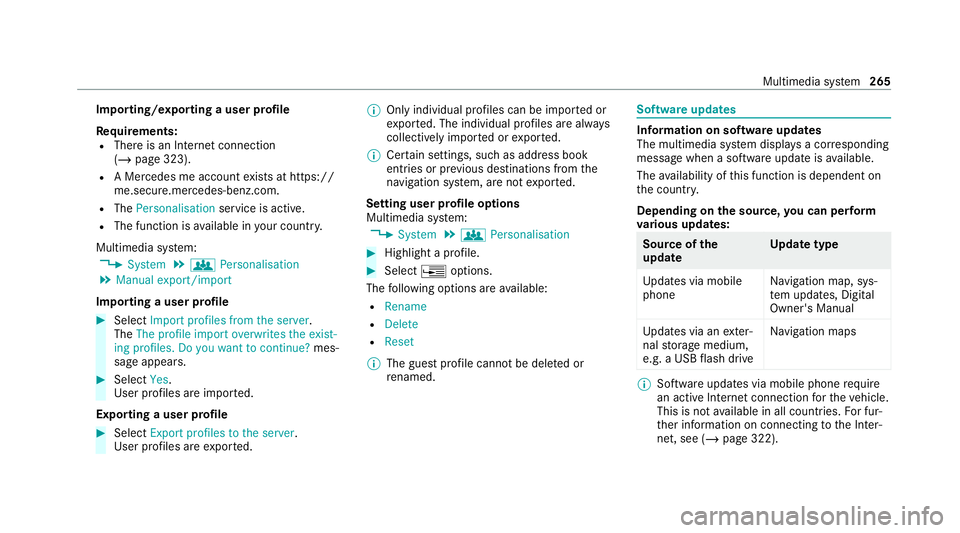
Importing/exporting a user profile
Re
quirements:
R There is an Internet connection
(/ page 323).
R A Mercedes me account exists at https://
me.secure.mercedes-benz.com.
R The Personalisation service is active.
R The function is available in your count ry.
Multimedia sy stem:
4 System 5
g Personalisation
5 Manual export/import
Importing a user profile #
Select Import profiles from the server.
The The profile import overwrites the exist-
ing profiles. Do you want to continue? mes‐
sage appears. #
Select Yes.
User profiles are impor ted.
Exporting a user profile #
Select Export profiles to the server.
User profiles are expor ted. %
Only individual profiles can be impor ted or
ex por ted. The individual profiles are alw ays
collectively impor ted or expor ted.
% Certain settings, such as address book
ent ries or pr evious destinations from the
navigation sy stem, are not expor ted.
Setting user profile options
Multimedia sy stem:
4 System 5
g Personalisation #
Highlight a profile. #
Select ¥options.
The following options are available:
R Rename
R Delete
R Reset
% The guest profile cannot be dele ted or
re named. So
ftwa reupdates Information on software updates
The multimedia sy
stem displa ysa cor responding
message when a software update isavailable.
The availability of this function is dependent on
th e count ry.
Depending on the source, you can per form
va rious upda tes: Source of
the
update Up
date type
Up dates via mobile
phone Na
vigation map, sys‐
te m updates, Digital
Owner's Manual
Up dates via an exter‐
nal storage medium,
e.g. a USB flash drive Na
vigation maps %
Software updates via mobile phone requ ire
an active Internet connection forth eve hicle.
This is not available in all countries. For fur‐
th er information on connecting tothe Inter‐
net, see (/ page 322). Multimedia sy
stem 265