change time MERCEDES-BENZ C-CLASS COUPE 2011 Owner's Manual
[x] Cancel search | Manufacturer: MERCEDES-BENZ, Model Year: 2011, Model line: C-CLASS COUPE, Model: MERCEDES-BENZ C-CLASS COUPE 2011Pages: 373, PDF Size: 8.17 MB
Page 177 of 373
G
WARNING
Do not change downf or additional engine
braking on a slippery road surface. This could
cause the drive wheels to lose their grip and
the vehicle could skid.
You can set a variable or permanent limit
speed:
R variable for speed limits, e.g. in built-up
areas
R permanent for long-term speed restric-
tions, e.g. when driving with winter tyres
fitted (Y page 176) G
WARNING
Speedtronic is only an aid designed to assist
driving. You are responsible for the vehicle's
speed and for braking in good time.
i The speed indicated in the speedometer
may differ slightly from the limit speed
stored.
Variable SPEEDTRONIC General notes
With the cruise control lever, you can operate
cruise control or DISTRONIC PLUS and vari-
able SPEEDTRONIC.
The LIM indicator lamp on the cruise control
lever indicates which system you have selec-
ted:
R LIM indicator lamp off: cruise control or
DISTRONIC PLUS is selected.
R LIM indicator lamp on: variable SPEED-
TRONIC is selected.
You can use the cruise control lever to limit
the speed to any speed above 30 km/hw hile
the engine is running. :
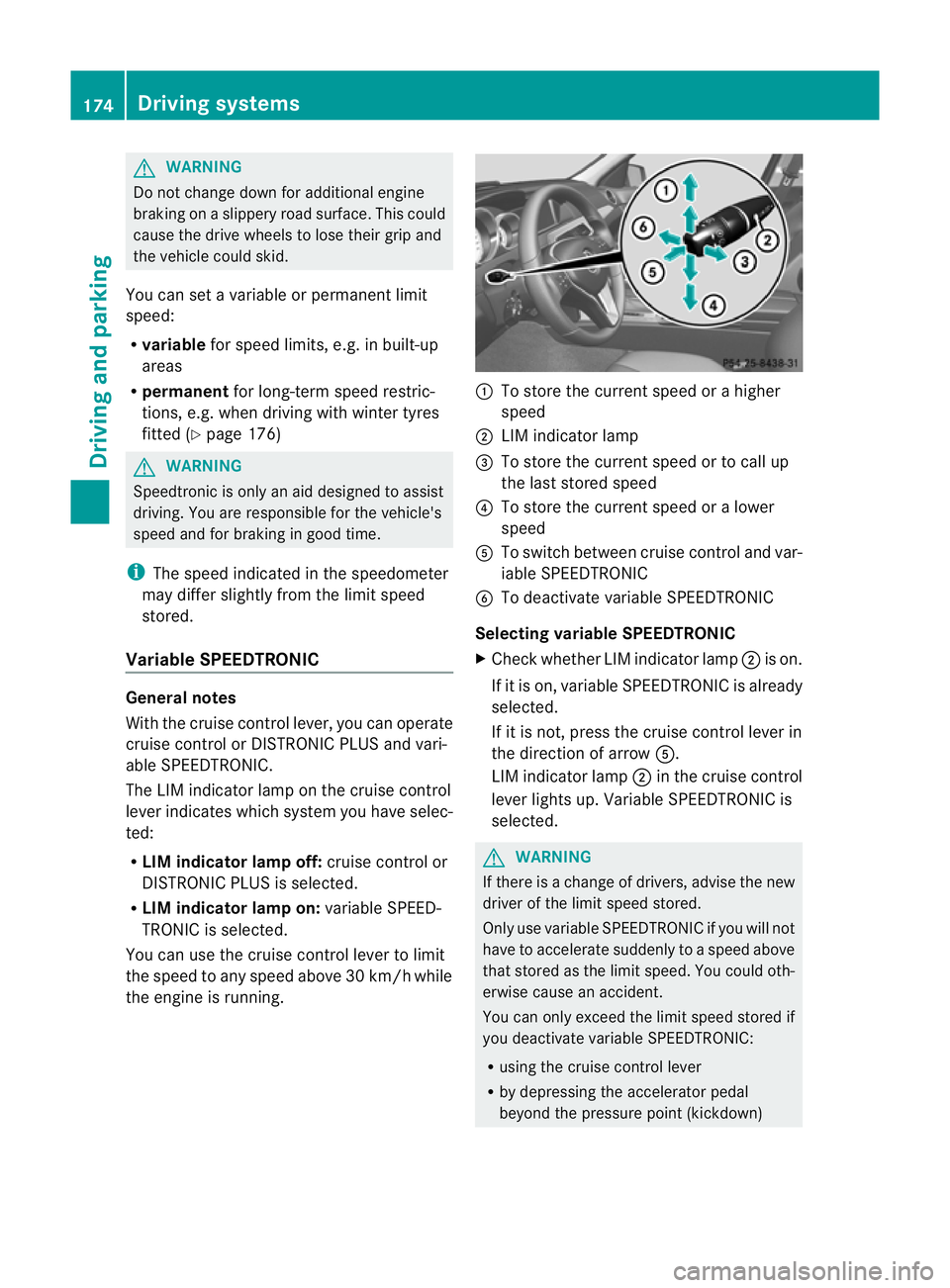
To store the current speed or a higher
speed
; LIM indicator lamp
= To store the current speed or to call up
the last stored speed
? To store the current speed or a lower
speed
A To switch between cruise control and var-
iable SPEEDTRONIC
B To deactivate variable SPEEDTRONIC
Selecting variable SPEEDTRONIC
X Check whether LIM indicator lamp ;is on.
If it is on, variable SPEEDTRONIC is already
selected.
If it is not, press the cruise control lever in
the direction of arrow A.
LIM indicator lamp ;in the cruise control
lever lights up. Variable SPEEDTRONIC is
selected. G
WARNING
If there is a change of drivers, advise the new
driver of the limit speed stored.
Only use variable SPEEDTRONIC if you will not
have to accelerate suddenly to a speed above
that stored as the limit speed. You could oth-
erwise cause an accident.
You can only exceed the limit speed stored if
you deactivate variable SPEEDTRONIC:
R using the cruise control lever
R by depressing the accelerator pedal
beyond the pressure point (kickdown) 174
Driving systemsDriving and parking
Page 191 of 373
Guide lines
;and =show the approximate
distance to the rear area. Yellow guide
line ;indicates a distance of approximately
1. 0ma nd red guide line =indicates a dis-
tance of approximately 0.25 m. The distances
only apply to objects tha tare at ground level.
Blue guide lines :depict the width required
for the vehicle. They are used to align the
vehicle with the edge of the carriageway, e.g.
the kerb. ATTENTION ASSIST
Important safety notes ATTENTION ASSIST helps you during long,
monotonous journeys such as on motorways
and trunk roads. It is active in the 80 km/h
to 180 km/h range.
If ATTENTION ASSIST detects typical indica-
tors of fatigue or increasing lapses in con-
centration on the part of the driver, it sug-
gests taking a break. G
WARNING
ATTENTION ASSIST is only an aid and may
detect yourt iredness or lapses in concentra-
tion too late or not at all. It is not asubstitute
for a well rested and attentive driver.
Fatigue may cause you to recognise hazard-
ous situations too late, misjudge a situation
or react slower. For this reason, make sure
you feel rested before you begin driving and
during your journey. Always take breaks in
good time and regularly, especially during
long journeys. Otherwise, you may fail to rec-
ognise dangers in time, cause an acciden tand
injure yoursel fand others.
ATTENTIO NASSIST assesses your level of
fatigue or lapses in concentration by taking
the following criteria into account:
R your personal driving style, e.g. steering
characteristics
R driving conditions, e.g. time, driving time The functionality of ATTENTION ASSIST is
restricted and warnings may be delayed or
not occur at all:
R
if the road condition is poor, e.g. if the sur-
face is uneven or if there are potholes
R if there is a strong sid ewind
R if you have adopted a sporty driving style
with high cornering speeds or high rates of
acceleration
R if you are predominantly driving slower
than 80 km/h or faster than 180 km/h
R if you are currently using COMAND Online
or making a telephone call with it
R if the time has been set incorrectly
R in active driving situations, such as when
you change lanes or change your speed
Warning and display messages in the
multifunction display Example: vehicles with automatic transmission
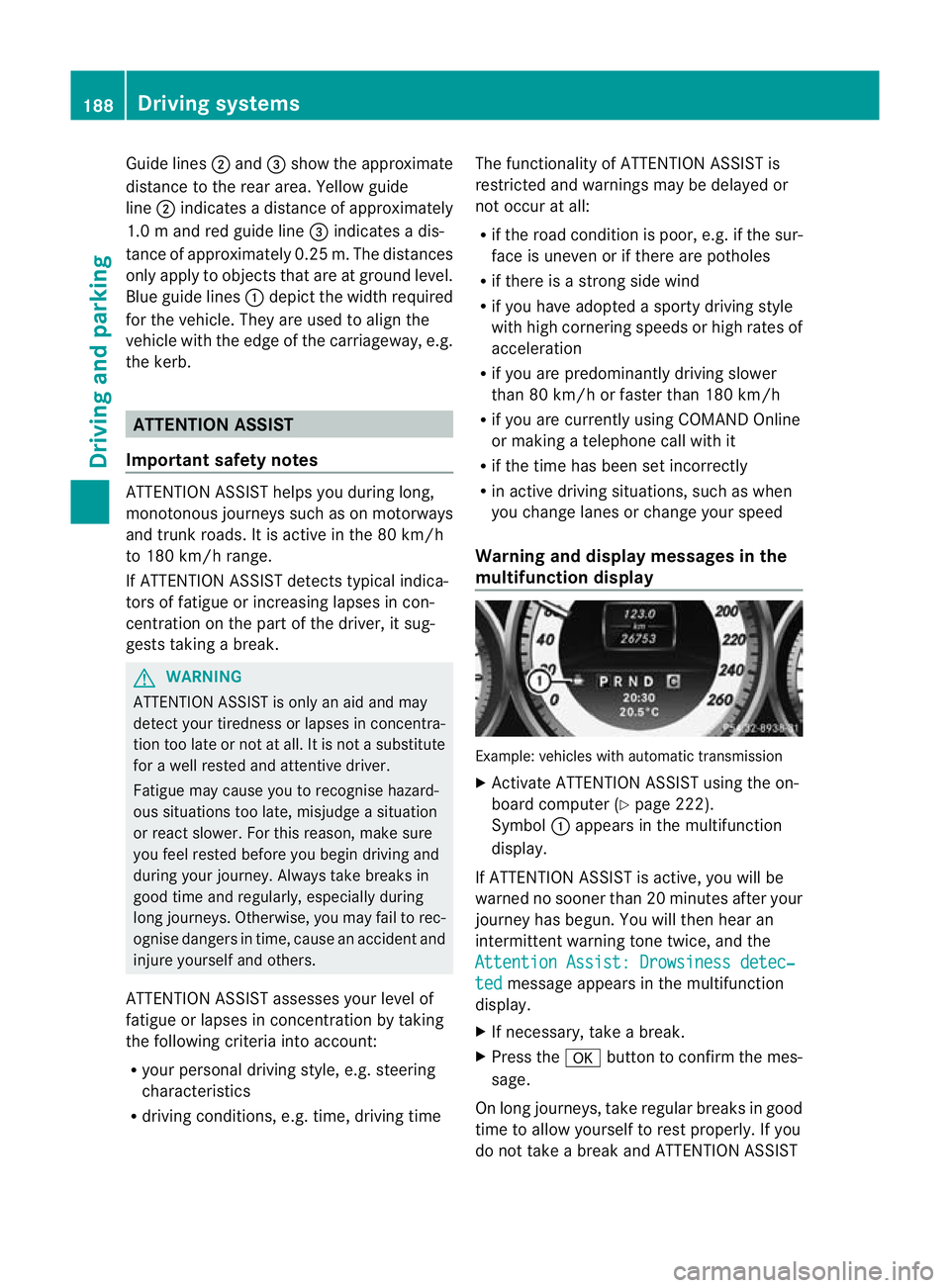
X
Activate ATTENTION ASSIST using the on-
board computer (Y page 222).
Symbol :appears in the multifunction
display.
If ATTENTION ASSIST is active, you will be
warned no sooner than 20 minutes after your
journey has begun. You will the nhear an
intermittent warning tonet wice, and the
Attention Assist: Drowsiness detec‐ ted message appears in the multifunction
display.
X If necessary, take a break.
X Press the abutton to confirm th emes-
sage.
On long journeys, take regular breaks in good
time to allow yourself to rest properly. If you
do not take a break and ATTENTION ASSIST 188
Driving systemsDriving and parking
Page 192 of 373
still detects typical indicators of fatigue or
increasing lapses in concentration, you will be
warned againa fter 15 minutes at the earliest.
ATTENTION ASSIST is reset when you con-
tinue you rjourney and it starts assessing your
tiredness again if:
R you switch off the engine.
R you take off your seat belt and open the
driver's door, e.g. for a change of drivers or
to take a break. Speed Limit Assist
Important safety notes i
Speed Limit Assist is not operational in all
countries.
Speed Limit Assist shows you detected speed
limits in the multifunction display .Data from
the navigation system is also used for this
purpose. The display appears if a traffic sign
indicating a speed limit or the end of a speed
limit is detected. If Speed Limit Assist does
no td etec tany traffic signs, the speed limit
from the digital road ma pis taken and shown
in the display.
Speed Limit Assist detects the traffic signs
with a camera at the top of the windscreen. :
Speed Limit Assist camera G
WARNING
Speed Limit Assist is only an aid and may
detect speed limit signs incorrectly or not at
all. The system may be impaired or may not func-
tion if:
R
there is poor visibility, e.g. due to snow,
rain, fog or spray.
R there is glare, e.g. from the sun or from
oncoming traffic.
R the windscreen is dirty, misted up or cov-
ered, for instance by a sticker, in the vicinity
of the camera.
R the traffic signs are covered, for instance
by dirt, snow or trees.
R the traffic signs are poorly illuminated.
R there are ambiguous traffic signs, for
instance near roadworks or on multi-lane
roads.
Traffic signs always have priority over the
Speed Limit Assist display. Speed Limit Assist
cannot detect road and traffic conditions. It is
not a substitute for attentive driving.
Always pay attention to traffic conditions and
your surroundings. Otherwise, you may fail to
recognise dangers in time, cause an accident
and injure yourselfa nd others.
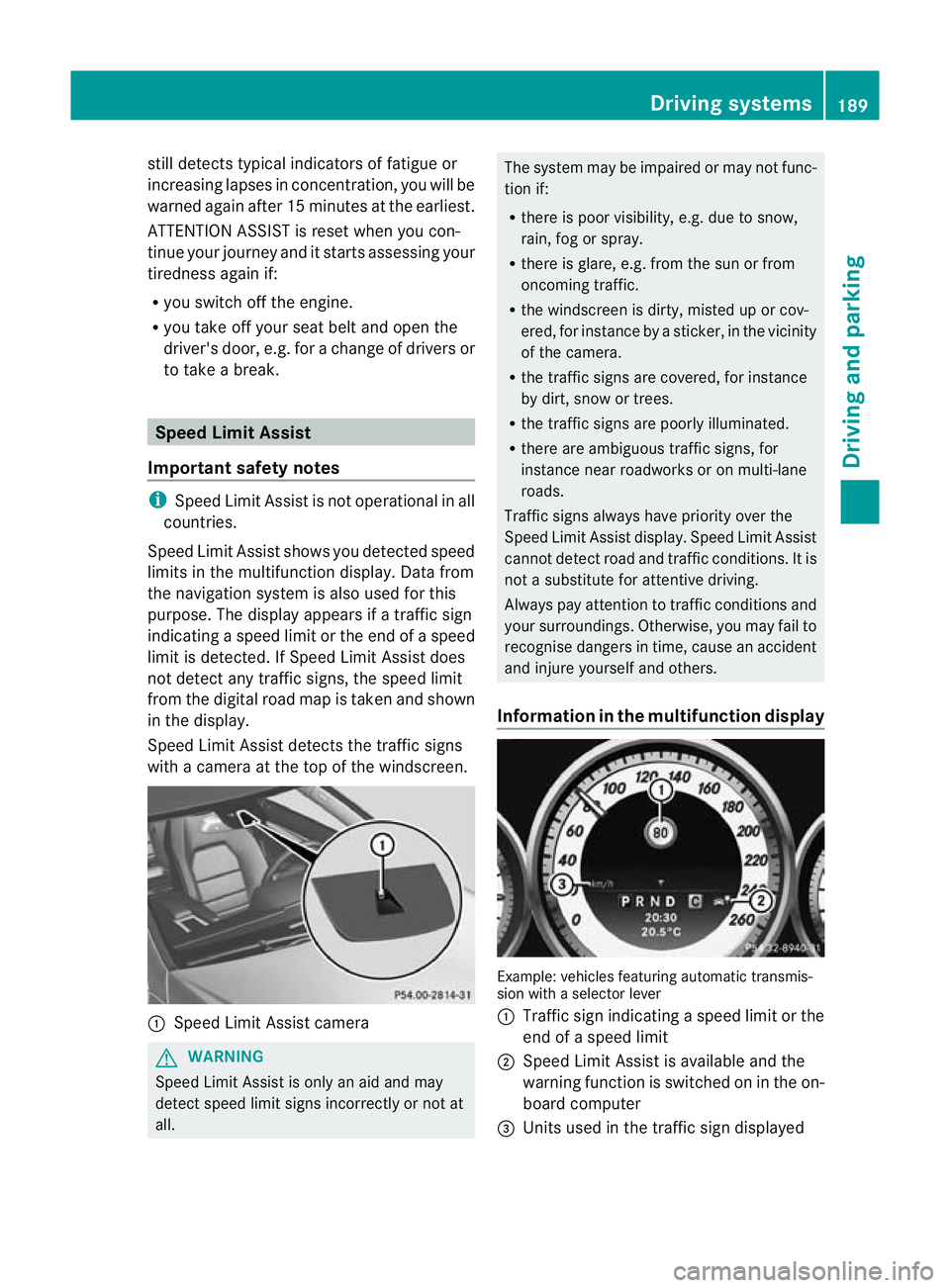
Information in the multifunction display Example
:vehicles featurin gautomatic transmis-
sion with a selecto rlever
: Traffic sign indicating aspeed limit or the
end of a speed limit
; Speed Limit Assist is available and the
warning function is switched on in the on-
board computer
= Units used in the traffic sign displayed Driving systems
189Driving and parking Z
Page 193 of 373
Briefly showing detecte
dtraffic signs in
the multifunction display
When you activate the Speed Limi tAssist
warning function, a traffic sign indicating the
speed limit or end of speed limit zone :may
appearint he multifunction display. The traffic
sign appears for approximately five seconds
as soon as it is detected. Any other informa-
tion in the multifunction display is hidden for
this period.
X Activate the Speed Limit Assist warning
function using the on-board computer
(Y page 220).
Symbol ;appears.
Permanently showing detected traffic
signs in the multifunction display
If Speed Limit Assist is selected in the on-
board computer, a traffic sign indicating the
speed limit or end of a speed limit zone :
appears in the multifunction display as soon
as it is detected.
Traffic sign indicating aspeed limit :is gen-
erally displayed until:
R a traffic sign indicating the end of the speed
limit is detected.
R you make a turn.
R you leave or enter a city or town.
R the road type changes (e.g. motorway,
country road).
R you have travelled a certain minimum dis-
tance without the traffic sign being repea-
ted or detected again.
X Display Speed Limit Assist using the on-
board computer (Y page 220).
i You can also activate Speed Limit Assist
on COMAND Online. The maximum permis-
sible speed is then displayed in the
COMAND Online display; see the COMAND
Online operating instructions. Lane Tracking package
General notes The Lane Tracking package consists of Blind
Spot Assist (Y
page 190) and Lane Keeping
Assist (Y page 192).
Blind Spot Assist Important safety notes
Blind Spot Assist uses a radar senso rsystem
to monitor the areas on both sides of your
vehicle. Blind Spot Assis tprovides assistance
at speeds higher than 30 km/h. A warning
display in the exterior mirrors draws your
attention to detected vehicles in the moni-
tored area. If you then switch on the corre-
sponding turn signal to change lane, you will
also receive a visual and acoustic collision
warning. The Blind Spot Assist monitoring
system uses sensors in the rear bumper. G
WARNING
Blind Spot Assist is only an aid designed to
assist driving. It may fail to detect some vehi-
cles and is no substitute for attentive driving.
Blind Spot Assist cannot detect road and traf-
fic conditions. It may fail to detect narrow
vehicles, such as motorcycles or bicycles, or
only detect them too late.
Monitoring may be affected by dirty sensors,
strong spray or poor visibility caused by snow,
rain or mist, for example. In this case, vehicles
are detected late or not at all.
Always pay attention to traffic conditions and
yours urroundings. Otherwise, you may fail to
recognise dangers in time, cause an accident
and injure yourself and others.
The radar sensor system is automatically
deactivated near radio telescope facilities
(Y page 363).
For Blind Spo tAssist to assist you when driv-
ing, the radar sensor system must be activa-
ted (Y page 226) and operational. 190
Driving systemsDriving and parking
Page 196 of 373
If the
miles display unit is selected, the assis-
tance range begins at 40 mph. G
WARNING
Lane Keeping Assist does not keep yourv ehi-
cle in its lane. It is only an aid and may detect
the lane markings on the road incorrectly or
not at all.
The system may be impaired or may not func-
tion if:
R there is poor visibility, e.g. due to insuffi-
cient illumination of the road, or due to
snow, rain, fog or spray.
R there is glare, e.g. from oncoming traffic,
the sun, or reflection from other vehicles.
R the windscreen is dirty, misted up or cov-
ered, for instance by a sticker, in the vicinity
of the camera
R several or no lane markings for a single lane
are present.
R the lane markings are worn away, dark or
covered up, e.g. by dirt or snow.
R the distance to the vehicle in front is too
small and the lane markings thus cannot be
detected.
R the lane markings on the road are unclear,
e.g. near roadworks.
R the lane markings change quickly, e.g.
lanes branch off, cross one another or
merge.
R the road is narrow and winding.
Lane Keeping Assist cannot detect road and
traffic conditions. It is not a substitute for
attentive driving. You are responsible for the
vehicle's speed, braking in good time, and
steering correctly. Always adapt your driving
style to suit the prevailing road and weather
conditions. Always pay attention to traffic
conditions and your surroundings. Otherwise,
you may fail to recognise dangers in time,
cause an acciden tand injure yoursel fand oth-
ers.
A warning may be given if a front wheel
passes ove ralane marking. It will warn you by means of intermittent vibration in the
steering wheel for up to 1.
5seconds.
In order that you are warned only when nec-
essary and in good time if you cross the lane
marking, the system recognises certain con-
ditions and warns you accordingly.
The warning vibration occurs earlier if:
R you approach the outer lane marking on a
bend.
R the road has very wide lanes, e.g. a motor-
way.
R the system recognises solid lane markings.
The warning vibration occurs later if:
R the road has narrow lanes.
R you cut the corner on a bend.
No warning vibration occurs if:
R you clearly and actively steer, brake, or
accelerate.
R you cut the corner on a sharp bend.
R a driving safety system intervenes, such as
ABS, BAS or ESP ®
.
R you have switched on the turn signals. In
this event, the warnings are suppressed for
a certain period of time.
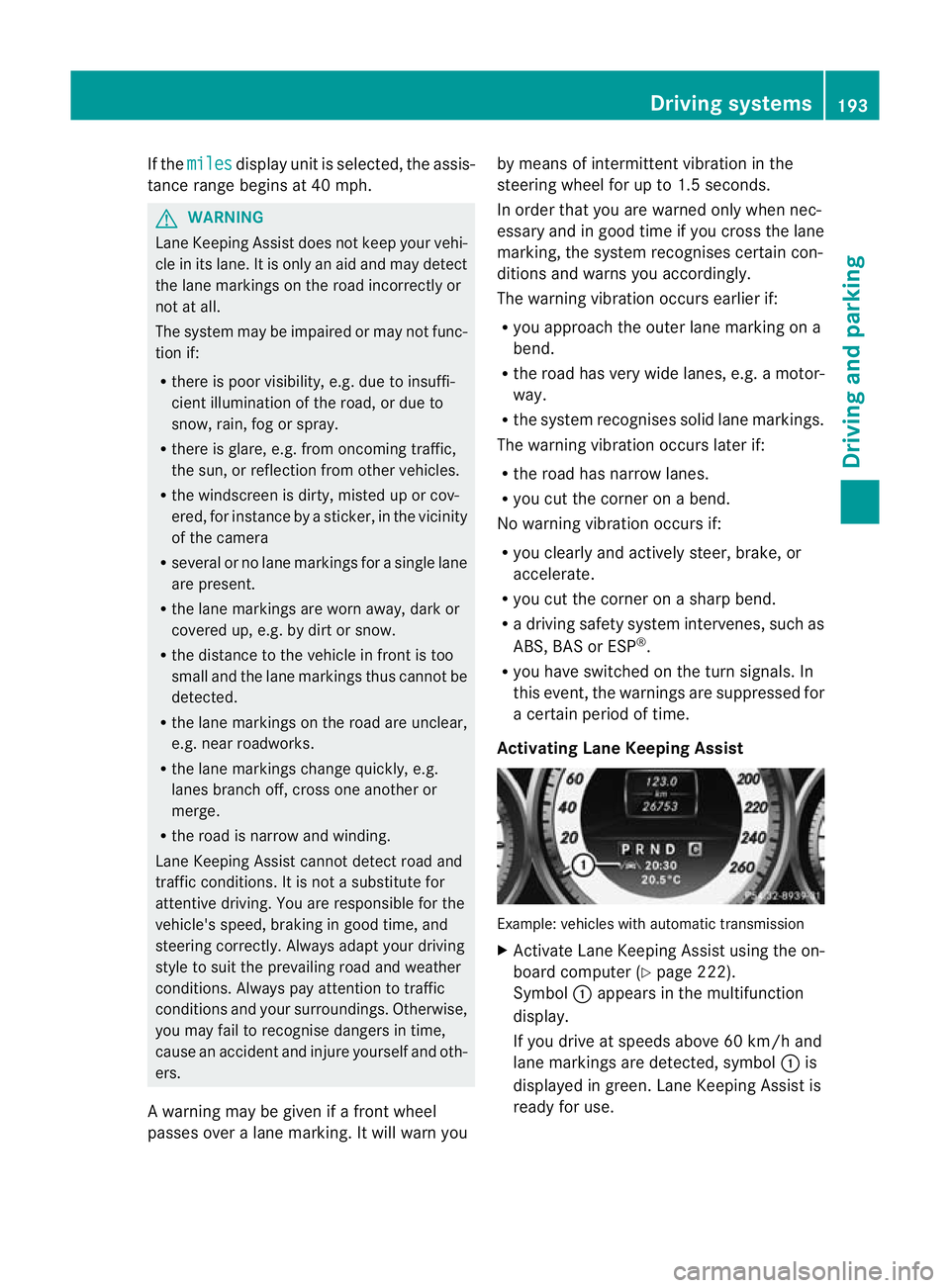
Activating Lane Keeping Assist Example: vehicles with automatic transmission
X
Activate Lane Keeping Assist using the on-
board computer (Y page 222).
Symbol :appears in the multifunction
display.
If you drive at speeds above 60 km/h and
lane markings are detected, symbol :is
displayed in green. Lane Keeping Assist is
ready for use. Driving systems
193Driving and parking Z
Page 197 of 373
Active Driving Assistance package
General notes The Active Driving Assistance package con-
sists of DISTRONIC PLU
S(Ypage 164), Active
Blind Spot Assist (Y page 194) and Active
Lane Keeping Assist (Y page 197).
Active Blind Spot Assist Important safety notes
Active Blind Spot Assist uses a radar sensor
system to monitor the side areas of your vehi-
cle that are behind the driver. Awarning dis-
play in the exterior mirrors draws your atten-
tio nt o detected vehicles in the monitored
area. If you then switch on the corresponding
turn signal to change lane, you will also
receive a visual and acoustic collision warn-
ing. If a risk of lateral collision is detected,
corrective braking may help you avoid a col-
lision. To support the course-correcting brake
application, Active Blind Spot Assist also uses
the forward-facing radar sensor system.
Active Blind Spot Assist provides assistance
at speeds higher than about 30 km/h. G
WARNING
Active Blind Spot Assist is only an aid and may
detect vehicles/obstacles incorrectly or not
at all.
The system may be impaired or may not func-
tion if:
R there is poor visibility, e.g. due to snow,
rain, fog or spray.
R the rear and/or front sensors are dirty.
Active Blind Spot Assist may not detect nar-
row vehicles, such as motorcycles or bicycles,
or only detect them too late. It cannot detect
vehicles which are overtaken at a small dis-
tance and then enter the blind spot area.
Active Blind Spot Assist cannot detect road
and traffic conditions. It is not a substitute for
attentive driving. You are responsible for the
vehicle's speed, braking in good time, and
steering correctly. Always adapt your driving style to suit the prevailing road and weather
conditions. Always pay attention to traffic
conditions and your surroundings. Otherwise,
you may fail to recognise dangers in time,
cause an accident and injure yourself and oth-
ers.
The radar sensor system is automatically
deactivated near radio telescope facilities
(Y page 363).
For Active Blind Spot Assist to assist you
when driving, the radar sensor system must
be activated (Y page 226) and operational.
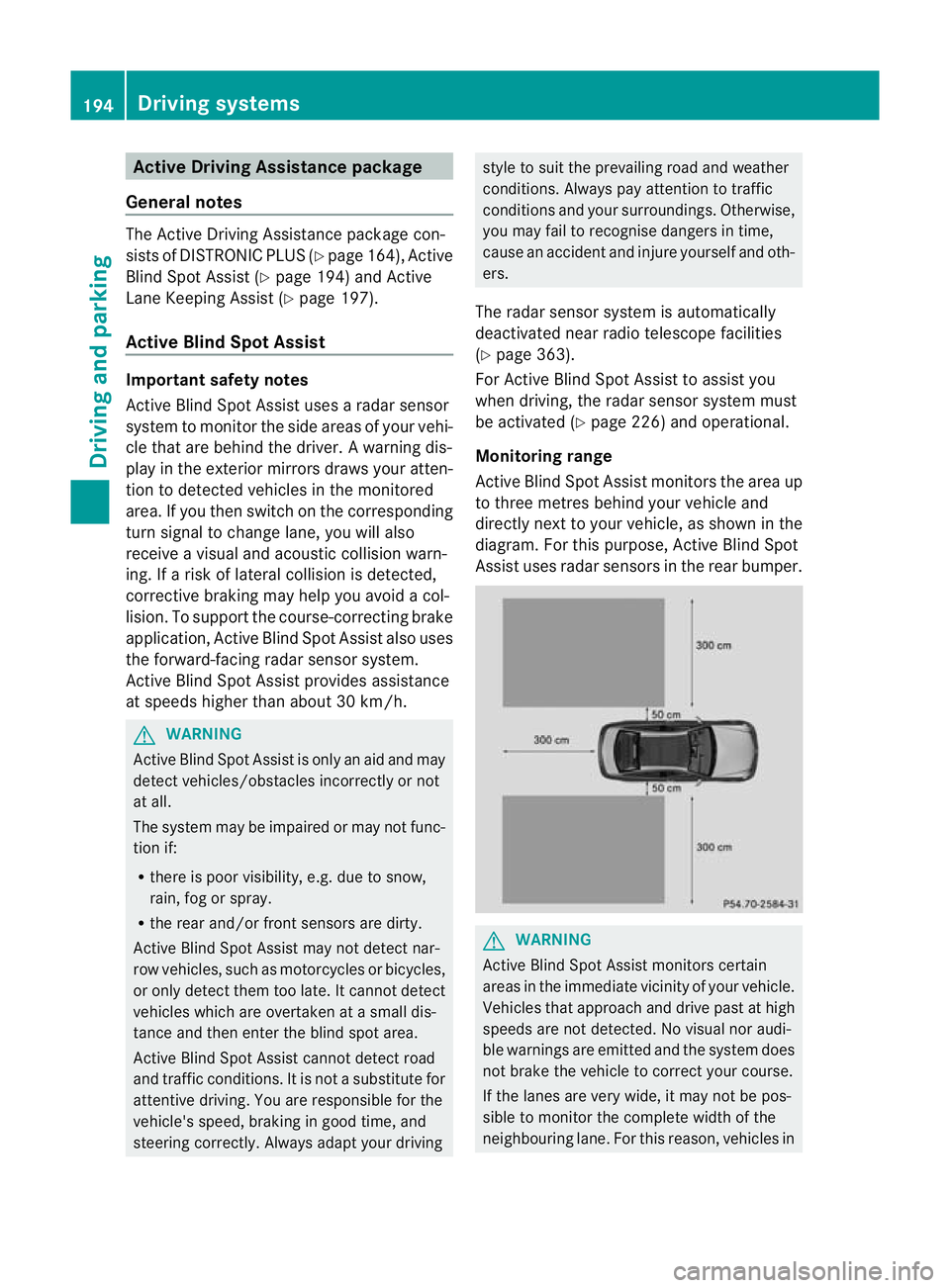
Monitoring range
Active Blind Spot Assist monitors the area up
to three metres behind your vehicle and
directly next to your vehicle, as shown in the
diagram. For this purpose, Active Blind Spot
Assist uses radar sensors in the rear bumper. G
WARNING
Active Blind Spot Assist monitors certain
areas in the immediate vicinity of your vehicle.
Vehicles that approach and drive past at high
speeds are not detected. No visual nor audi-
ble warnings are emitted and the system does
not brake the vehicle to correct your course.
If the lanes are very wide, it may not be pos-
sible to monitor the complete width of the
neighbouring lane. For this reason, vehicles in 194
Driving systemsDriving and parking
Page 199 of 373
Visual and acoustic collision warning
If you switch on the appropriate turn signals
to change lanes, and a vehicle is detected in
the side monitoring range of Active Blind Spot
Assist, you will receive a visual and acoustic
collision warning .You will then hear a double
warning tone, and red warning lamp :
flashes. If the turn signal remains on, detec-
ted vehicles are indicated by the flashing of
red warning lamp :. There are no further
warning tones.
Course-correcting brake application
If Active Blind Spot Assist detects a risk of a
lateral collision in the monitoring range, a
course-correcting brake application is carried
out. This is designed to help you avoid a col-
lision.
The course-correcting brake application is
available in the range between 30 km/ha nd
200 km/h.
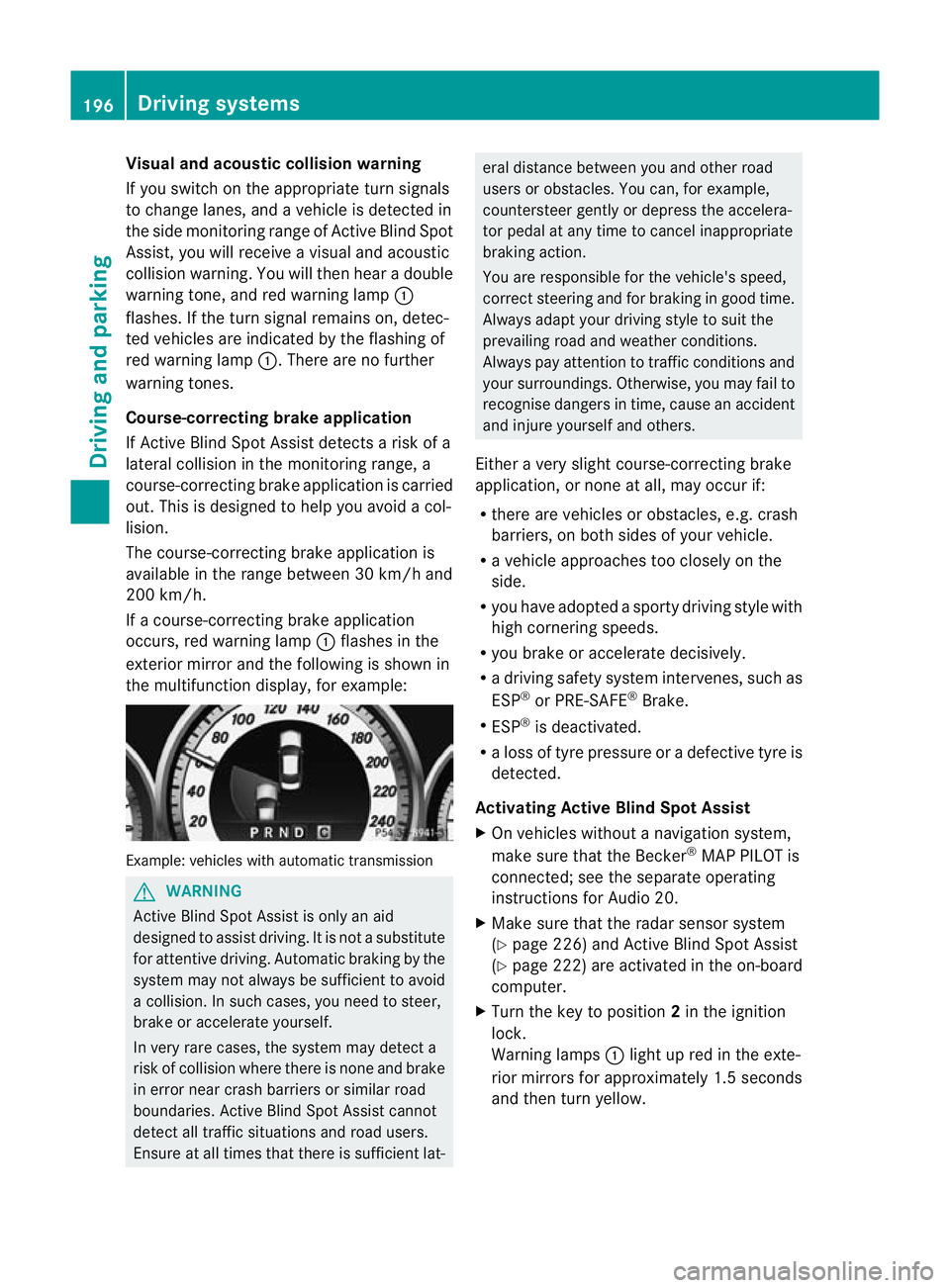
If a course-correcting brake application
occurs, red warning lamp :flashes in the
exterio rmirro rand the following is shown in
the multifunctio ndisplay, for example: Example: vehicles with automatic transmission
G
WARNING
Active Blind Spot Assist is only an aid
designed to assist driving. It is not a substitute
for attentive driving. Automatic braking by the
system may not always be sufficien tto avoid
a collision. In such cases, you need to steer,
brake or accelerate yourself.
In very rare cases, the system may detect a
risk of collision where there is none and brake
in error near crash barriers or similar road
boundaries. Active Blind Spot Assist cannot
detect all traffic situations and road users.
Ensure at all times that there is sufficient lat- eral distance between you and other road
users or obstacles. You can, for example,
countersteer gently or depress the accelera-
tor pedal at any time to cancel inappropriate
braking action.
You are responsible for the vehicle's speed,
correc
tsteering and for braking in good time.
Always adap tyour driving style to suit the
prevailing road and weather conditions.
Always pay attention to traffic conditions and
your surroundings. Otherwise, you may fail to
recognise dangers in time, cause an accident
and injure yourself and others.
Either a very slight course-correcting brake
application, or none at all, may occur if:
R there are vehicles or obstacles, e.g. crash
barriers, on both sides of your vehicle.
R a vehicle approaches too closely on the
side.
R you have adopted a sporty driving style with
high cornering speeds.
R you brake or accelerate decisively.
R a driving safety system intervenes, such as
ESP ®
or PRE-SAFE ®
Brake.
R ESP ®
is deactivated.
R a loss of tyre pressure or a defective tyre is
detected.
Activating Active Blind Spot Assist
X On vehicles without a navigation system,
make sure that the Becker ®
MAP PILOT is
connected; see the separate operating
instructions for Audio 20.
X Make sure that the radar sensor system
(Y page 226) and Active Blind Spot Assist
(Y page 222) are activated in the on-board
computer.
X Turn the key to position 2in the ignition
lock.
Warning lamps :light up red in the exte-
rior mirrors for approximately 1.5 seconds
and then turn yellow. 196
Driving systemsDriving and parking
Page 200 of 373
Trailer towing
If you attach a trailer, make sure you have
correctly established the electrical connec-
tion. This can be accomplished by checking
the traile rlighting. Active Blind Spot Assist is
the ndeactivated. The indicator lamp in the
exterior mirrors lights up yellow, and the
Active Blind Spot Assist currently unavailable See Owner's Manual mes-
sage appears in the multifunction display.
Active Lane Keeping Assist Important safety notes
Active Lane Keeping Assist monitors the area
in fron tofyour vehicle by means of a camera
at the top of the windscreen. Active Lane
Keeping Assist detects lane markings on the
road and warns you before you leave your
lane unintentionally. If you do not react to the
warning, a lane-correcting application of the
brakes can bring the vehicle back into the
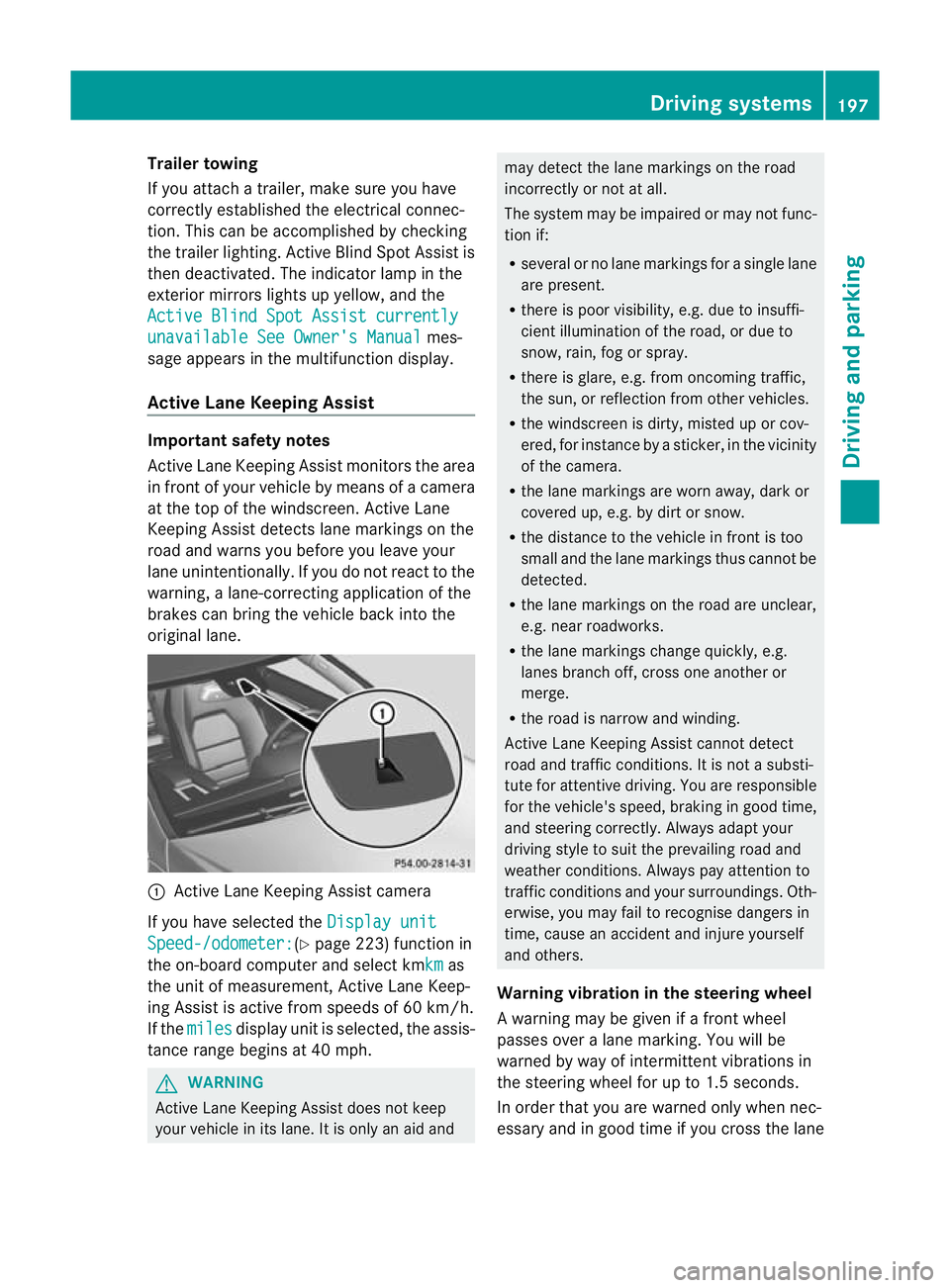
original lane. :
Active Lane Keeping Assist camera
If you have selected the Display unitSpeed-/odometer: (Y
page 223) function in
the on-board computer and select kmkm as
the unit of measurement, Active Lane Keep-
ing Assist is active from speeds of 60 km/h.
If the miles display unit is selected, the assis-
tance range begins at 40 mph. G
WARNING
Active Lane Keeping Assist does not keep
your vehicle in its lane. It is only an aid and may detect the lane markings on the road
incorrectly or not at all.
The system may be impaired or may not func-
tion if:
R
several or no lane markings for a single lane
are present.
R there is poor visibility, e.g. due to insuffi-
cient illumination of the road, or due to
snow, rain, fog or spray.
R there is glare, e.g. from oncoming traffic,
the sun, or reflection from other vehicles.
R the windscreen is dirty, misted up or cov-
ered, for instance by a sticker, in the vicinity
of the camera.
R the lane markings are worn away, dark or
covered up, e.g. by dirt or snow.
R the distance to the vehicle in front is too
small and the lane markings thus cannot be
detected.
R the lane markings on the road are unclear,
e.g. near roadworks.
R the lane markings change quickly, e.g.
lanes branch off, cross one another or
merge.
R the road is narrow and winding.
Active Lane Keeping Assist cannot detect
road and traffic conditions. It is not a substi-
tute for attentive driving. You are responsible
for the vehicle's speed, braking in good time,
and steering correctly. Always adapt your
driving style to suit the prevailing road and
weather conditions. Always pay attention to
traffic conditions and your surroundings. Oth-
erwise, you may fail to recognise dangers in
time, cause an accident and injure yourself
and others.
Warning vibration in the steering wheel
A warning may be given if a front wheel
passes over a lane marking. You will be
warned by way of intermittent vibrations in
the steering wheel for up to 1.5 seconds.
In order that you are warned only when nec-
essary and in good time if you cross the lane Driving systems
197Driving and parking Z
Page 213 of 373
X
To reset the trip meter: press and hold
the V until the standard display
appears.
X Press and hold the Cbutton until the
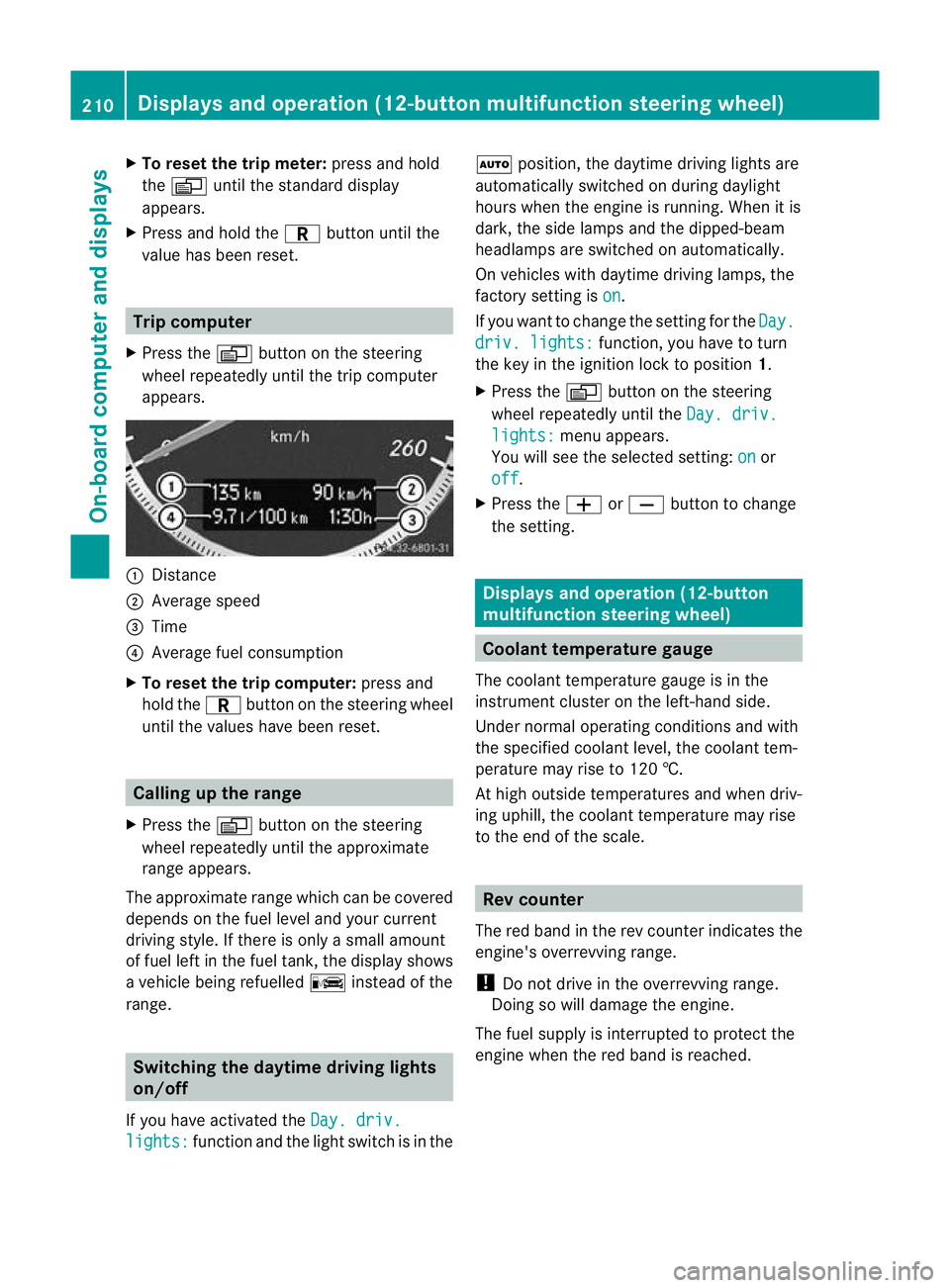
value has been reset. Trip computer
X Press the Vbutton on the steering
wheel repeatedly until the trip computer
appears. :
Distance
; Average speed
= Time
? Average fuel consumption
X To reset the trip computer: press and
hold the Cbutton on the steering wheel
until the values have been reset. Calling up the range
X Press the Vbutton on the steering
wheel repeatedly until the approximate
range appears.
The approximate range which can be covered
depends on the fuel level and your current
driving style .Ifthere is only a small amount
of fuel left in the fuel tank, the display shows
a vehicle being refuelled Cinstead of the
range. Switching the daytime driving lights
on/off
If you have activated the Day. driv.lights: function and the light switch is in the Ã
position, the daytime driving lights are
automatically switched on during daylight
hours when the engine is running. When it is
dark, the side lamps and the dipped-beam
headlamps are switched on automatically.
On vehicles with daytime driving lamps, the
factory setting is on .
If you want to change the setting for the Day. driv. lights: function, you have to turn
the key in the ignition lock to position 1.
X Press the Vbutton on the steering
wheel repeatedly until the Day. driv. lights: menu appears.
You will see the selected setting: on or
off .
X Press the WorX button to change
the setting. Displays and operation (12-button
multifunction steering wheel)
Coolant temperature gauge
The coolant temperature gauge is in the
instrumentc luster on the left-hand side.
Under normal operating conditions and with
the specified coolan tlevel, the coolant tem-
perature may rise to 120 †.
At high outside temperatures and when driv-
ing uphill, the coolant temperature may rise
to the end of the scale. Rev counter
The red band in the rev counter indicates the
engine's overrevving range.
! Do not drive in the overrevving range.
Doing so will damage the engine.
The fuel supply is interrupted to protec tthe
engine when the red band is reached. 210
Displays and operation (12-button multifunction steering wheel)On-board computer and displays
Page 227 of 373
![MERCEDES-BENZ C-CLASS COUPE 2011 Owners Manual X
Press :or9 to select the Perma‐ nent display function.
You will see the selected setting: outsidetemperature or
Dig. speedom [mph] .
X Press the abutton to save the setting.
Lights Switching the d](/img/4/55456/w960_55456-226.png "MERCEDES-BENZ C-CLASS COUPE 2011 Owners Manual X
Press :or9 to select the Perma‐ nent display function.
You will see the selected setting: outsidetemperature or
Dig. speedom [mph] .
X Press the abutton to save the setting.
Lights Switching the d")
X
Press :or9 to select the Perma‐ nent display function.
You will see the selected setting: outsidetemperature or
Dig. speedom [mph] .
X Press the abutton to save the setting.
Lights Switching the daytime driving lights on/
off
If you have activated the
Day lights func-
tion and the light switch is set to Ã, the
daytime driving lights are automatically
switched on during daylight hours when the
engine is running. When it is dark, the side
lamps and the dipped-beam headlamps are
also switched on automatically.
X Switch off the engine.
X Press the =or; button on the steer-
ing wheel to select the Settings menu.
X Press the :or9 button to select the
Light submenu.
X Press the abutton to confirm.
X Press the :or9 button to select the
Day lights function.
If the Day lights have been switched on,
the cone of light and the Wsymbol in
the multifunction display are shown in red.
X Press the abutton to save the setting.
Activating/deactivating the Intelligent
Light System
If you activate the Intell. Light Sys.function, you activate the following functions:
R
motorway mode
R active light function
R cornering light function
R extended range foglamps
X Press the =or; button on the steer-
ing wheel to select the Settings menu.
X Press the :or9 button to select the
Light submenu.
X Press the abutton to confirm. X
Press :or9 to select the Intell. Light Sys. function.
If the Intell. Light Sys. function has
been switched on, the cone of light and the
L symbol in the multifunction display
are shown in red.
X Press the abutton to save the setting.
If you set the dipped-beam headlamps for
driving on the right/left (Y page 224), the
multifunction display shows the System inoperative display message under the
image of the vehicle for the Intell. Light
Sys. function in the
Light submenu.
Setting the dipped-beam headlamps for
driving on the right/left
This function is only available on vehicles with
the Intelligent Light System.
You can use this function to switch between
symmetrical beam and asymmetrical dipped
beam (Y page 108).
If you set the dipped-beam headlamps for
driving on the right/left, then motorway
mode and the extended range foglamps are
not available.
X Press the =or; button on the steer-
ing wheel to select the Settings menu.
X Press the :or9 button to select the
Light submenu.
X Press the abutton to confirm.
X Press :or9 to select the Dipped beams Setting for: function.
You will see the selected setting: Right- side traffic or
Left-side traffic .
X Press the abutton to save the setting.
When you change the setting, conversion
does not take place until the next time the
vehicle is stationary.
You can also have the dipped-beam head-
lamps set for driving on the right/left at a
qualified specialist workshop, e.g. a
Mercedes-Benz Service Centre. 224
Displays and operation (12-button multifunction steering wheel)On-board computer and displays