display MERCEDES-BENZ C-CLASS COUPE 2018 Owners Manual
[x] Cancel search | Manufacturer: MERCEDES-BENZ, Model Year: 2018, Model line: C-CLASS COUPE, Model: MERCEDES-BENZ C-CLASS COUPE 2018Pages: 593, PDF Size: 10.86 MB
Page 332 of 593
Multimedia sy
stem:
0018 Navigation 0019
Z Options 0007
Activate 0073Next intersecting street .
The name of the next intersecting stre et will
be displa yed at the upper edge of the displa y.
Displaying the map version
Multimedia sy stem:
0018 Navigation 0019
Z Options 0007
Select Map version . 0007
Select Details.
0009 Information about new versions of the digital
map can be obtained from a Mercedes-Benz
service cent re.
Overview of avoiding an area
Yo u can define areas along a route that you
wo uld like toavoid.
The route can include an area that is tobe avoi‐
ded in thefo llowing situations:
R the destination is located in an area that is to
be avo ided
R if mo torw ays are located within the area that
is to be avoided Mo
torw ays are alw aysta ke n into account for
th ero ute.
R there is no sensible alternative route
Av oiding a new area
Multimedia sy stem:
0018 Navigation 0019
À Route and position
0019 Avoid options 0019
Areas 0007
Select Avoid new area. 0007
Tosear chfor an area via the map: select
Using map. 0007
Movethe map
or 0007
Tosear chfor an area using an address:
select Address entry . 0007
Enter the address. 0007
Select Select destination.
The map appears. 0007
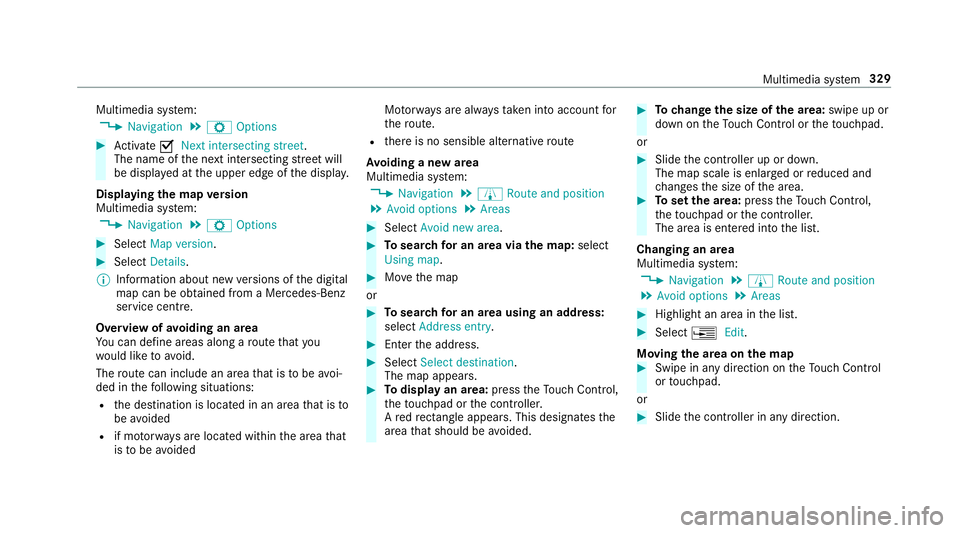
Todispl ayan area: presstheTo uch Control,
th eto uchpad or the controller.
A redre ctangle appea rs. This designates the
area that should be avoided. 0007
Tochange the size of the area: swipe up or
down on theTo uch Control or theto uchpad.
or 0007
Slide the controller up or down.
The map scale is enlar ged or reduced and
ch anges the size of the area. 0007
Toset the area: presstheTo uch Control,
th eto uchpad or the controller.
The area is entered into the list.
Changing an area
Multimedia sy stem:
0018 Navigation 0019
À Route and position
0019 Avoid options 0019
Areas 0007
Highlight an area in the list. 0007
Select 0080Edit.
Moving the area on the map 0007
Swipe in any direction on theTo uch Control
or touchpad.
or 0007
Slide the controller in any direction. Multimedia sy
stem 329
Page 334 of 593
0009
Ifyo u sa vethe map data on a data storage
medium with the online map update service,
no entry isrequ ired. The activation code is
st ored on the data storage medium during
th e downloading process.
The online map update service is not availa‐
ble in all countries.
Obse rveth efo llowing when entering the activa‐
tion code:
R The activation code can be used for one vehi‐
cle
R The activation code is not transferable
R The activation code has six digits
In theeve nt of thefo llowing problems, please
con tact a Mercedes-Benz service centre:
R The multimedia sy stem does not accept the
activation code
R You ha velost the activation code Displaying
the compass
Multimedia sy stem:
0018 Navigation 0019
À Route and position 0007
Select Compass.
The compass display sho wsthefo llowing
information:
R the cur rent di rection of tr avel with bear‐
ing (360° form at) and compass direction
R longitude and latitude coo rdinates in
degrees, minutes and seconds
R height (rounded)
R number of GPS satellites from which a
signal can be recei ved
Displaying Qibla
Requ irements:
R The Qibla display is available in your count ry.Multimedia sy
stem:
0018 Navigation 0019
À Route and position 0007
Select Qibla.
The ar rowonthe compass sho wsthe direc‐
tion of pr ayer toMecca in relation tothe cur‐
re nt di rection of tr avel.
The number of satellites recei ved is shown.
Setting the map scale automatically
Multimedia sy stem:
0018 Navigation 0019
Z Options
The map scale is set automatically depending on
yo ur driving speed.
Fo r journe ysin cities with de tailed city models, a
map view from the driver's perspective is used. 0007
Switch Auto zoom on0073 or off 0053.
0009 The automatically selected map scale can be
changed manually for a short time. The set‐
ting is reset automatically af ter a few sec‐
onds. Multimedia sy
stem 331
Page 335 of 593
Displaying
the satellite map
Multimedia sy stem:
0018 Navigation 0019
Z Options
0019 Map content 0007
Switch Satellite map on0073 or off 0053.
or 0007
If satellite map display 6isavailable in the
map menu, switch it on 0073or off 0053
(0013 page 326).
Switched on 0073: satellite maps are displa yed
in map scales of 2 km or less.
Swit ched off 0053: satellite maps are not dis‐
pla yed in map scales from 2 km to10 km.
0009 Satelli temaps forth ese map scales are not
av ailable in all countries.
Displ aying weather information
Re quirements:
R Mercedes me connect is available.
R You ha vea user account forth e Mercedes
me por tal.
R The service is available. R
The service has been activated at a
Mercedes-Benz service centre.
Fu rther information can be found at: http://
www.mercedes.me
Multimedia sy stem:
0018 Navigation 0019
Z Options
0019 Map content 0007
Activate Weather information 0073.
or 0007
Ifwe ather information display 6isavailable
in the map menu, activate
0073(0013 page 326) it.
Cur rent we ather information is displa yed on
th e navigation map, e.g. temp erature or
cloud co ver.
0009 Weather information is not available in all
countries. Te
lephone Te
lephony Note
s ontelephony 000A
WARNING Risk of di stra ction from oper‐
ating integrated communication equip‐
ment while theve hicle is in motion
If yo u operate communication equipment
integrated in theve hicle when driving, you
will be distracted from the tra ffic situation.
This could also cause youto lose control of
th eve hicle. 0007
Only operate this equipment when the
traf fic situation permits. 0007
Ifyo u cannot be sure of this, stop the
ve hicle whilst paying attention toroad
and traf fic conditions and ope rate the
equipment with theve hicle stationar y. 332
Multimedia sy stem
Page 343 of 593
Switching between calls
0007
Select call 003B.
The selected call is active. The other call is
on hold.
Ac tivating or ending a call on hold 0007
Select Continue call orEnd call.
Conducting a conference call 0007
Select Create conference call inthete le‐
phone menu.
The new participant is included in the confe r‐
ence call.
Ending an active call 0007
Select 005A.
0009 On some mobile phones, the call on hold is
activated as soon as the active call is ended.
Ac cepting/rejecting a waiting call
Re quirements:
R There is an active call (0013 page 339).If
yo ure cei vea call while already in a call, a
message is displa yed. An acoustic signal also
sounds. 0007
Select Accept.
The incoming call is active.
If only one mobile phone is connec ted with
th e multimedia sy stem, the pr evious call will
be put on hold.
If during a call you accept a call with the
ot her mobile phone when in two phone mode
th en theex isting call is ended. 0007
Select Reject.
0009 This function and behaviour depends on your
mobile phone network pr ovider and the
mobile phone (see the manufacturer's oper‐
ating instructions). Contacts
Information about
the contacts menu
The con tacts menu contains all contacts from
ex isting data sources, e.g. mobile phone or
memo rycard. You can store up to6,000 con‐
ta cts. Depending on
the data source, you ha vethefo l‐
lowing number of con tacts:
R Perm anently sa ved con tacts: 3,000 entries
R Contacts loaded from the mobile phone:
3,000 entri es
Fr om the conta cts menu, you can per form the
fo llowing actions:
R Telephone operation:
- Calling a con tact (0013 page 342)
- Calling a new number (0013 page 339)
R Navigation (0013 page311)
R Compose messa ges (0013 page 344)
If a mobile phone is connected tothe multimedia
sy stem (0013 page 335) and automatic calling
up (0013 page 341) is activated, the mobile
phone's conta cts are displayed in the address
book. 340
Multimedia sy stem
Page 346 of 593
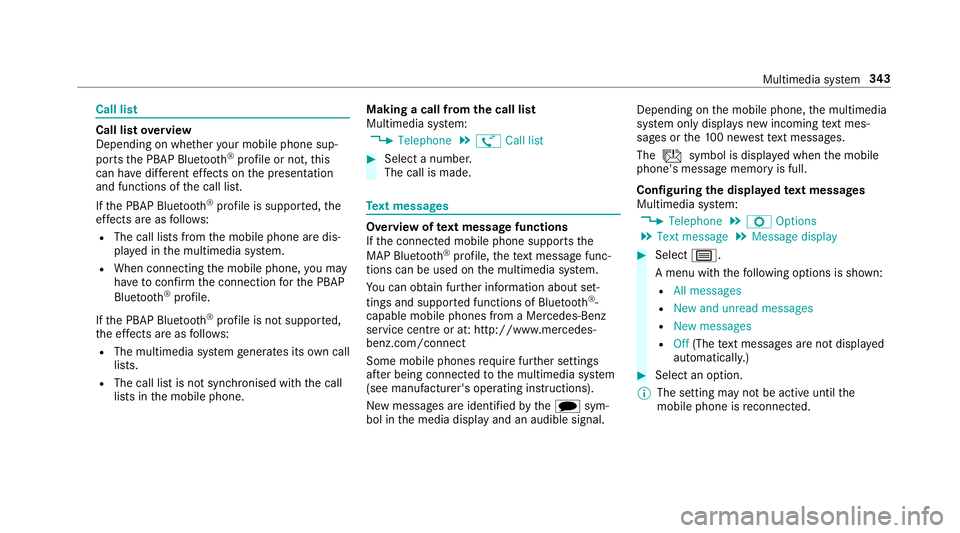
Call list
Call list
overview
Depending on whe ther your mobile phone sup‐
ports the PBAP Blue tooth®
profile or not, this
can ha vediffere nt ef fects on the presentation
and functions of the call list.
If th e PBAP Blue tooth ®
profile is suppor ted, the
ef fects are as follo ws:
R The call lists from the mobile phone are dis‐
pla yed in the multimedia sy stem.
R When connecting the mobile phone, you may
ha ve toconfirm the connection forth e PBAP
Blue tooth ®
profile.
If th e PBAP Blue tooth ®
profile is not suppor ted,
th e ef fects are as follo ws:
R The multimedia sy stem generates its own call
li st s.
R The call list is not synchronised with the call
lists in the mobile phone. Making a call from
the call list
Multimedia sy stem:
0018 Telephone 0019
ø Call list 0007
Select a number.
The call is made. Te
xt messages Overview of
text message functions
If th e connected mobile phone supports the
MAP Blue tooth®
profile, thete xt messa gefunc‐
tions can be used on the multimedia sy stem.
Yo u can obtain fur ther information about set‐
tings and suppor ted functions of Blue tooth ®
-
capable mobile phones from a Mercedes-Benz
service centre or at: http://www.mercedes-
benz.com/connect
Some mobile phones require fur ther settings
af te r being connected tothe multimedia sy stem
(see manufacturer's operating instructions).
New messages are identified bythei sym‐
bol in the media display and an audible signal. Depending on
the mobile phone, the multimedia
sy stem only displa ysnew incoming text mes‐
sa ge s or the10 0 ne westtext messa ges.
The ú symbol is displa yed when the mobile
phone's message memory is full.
Configuring the displa yedte xt messages
Multimedia sy stem:
0018 Telephone 0019
Z Options
0019 Text message 0019
Message display 0007
Select p.
A menu with thefo llowing options is shown:
R All messages
R New and unread messages
R New messages
R Off (The text messa ges are not displa yed
automaticall y.) 0007
Select an option.
0009 The setting may not be acti veuntil the
mobile phone is reconnected. Multimedia sy
stem 343
Page 347 of 593
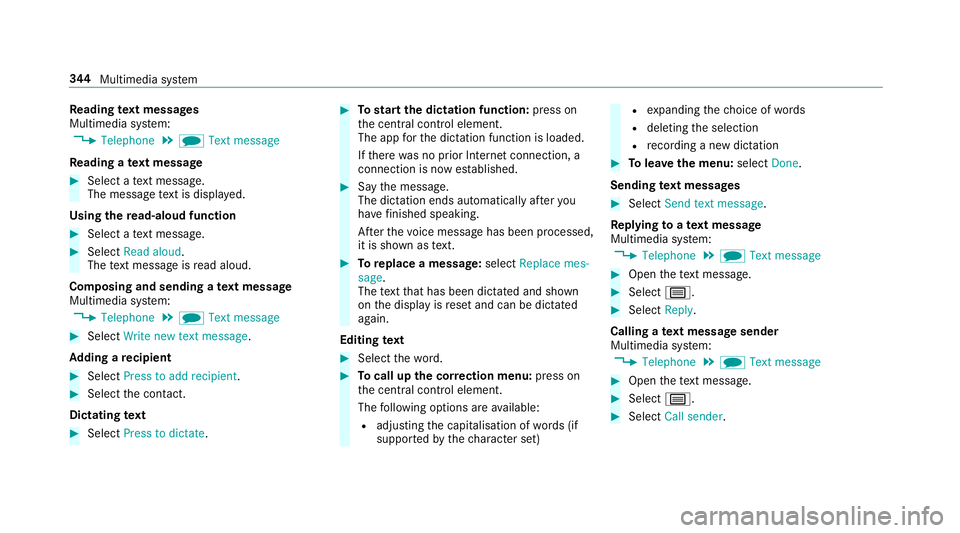
Re
ading text messages
Multimedia sy stem:
0018 Telephone 0019
i Text message
Re ading a text message 0007
Select a text messa ge.
The message text is displ ayed.
Using there ad-aloud function 0007
Select a text messa ge. 0007
Select Read aloud .
The text messa geisread aloud.
Composing and sending a text message
Multimedia sy stem:
0018 Telephone 0019
i Text message 0007
Select Write new text message.
Ad ding a recipient 0007
Select Press to add recipient. 0007
Select the conta ct.
Dictating text 0007
Select Press to dictate. 0007
Tostart the dictation function: press on
th e cent ral control element.
The app forth e dictation function is loaded.
If th ere was no prior Internet connection, a
connection is now es tablished. 0007
Say the message.
The dictation ends automatically af teryou
ha ve finished speaking.
Af terth evo ice message has been processed,
it is shown as text. 0007
Toreplace a message: selectReplace mes-
sage.
The text that has been dictated and shown
on the display is reset and can be dictated
again.
Editing text 0007
Select thewo rd. 0007
Tocall up the cor rection menu: press on
th e cent ral control element.
The following options are available:
R adjusting the capitalisation of words (if
suppor tedby thech aracter set) R
expanding thech oice of words
R deleting the selection
R recording a new dictation 0007
Tolea vethe menu: selectDone.
Sending text messages 0007
Select Send text message .
Re plying toate xt message
Multimedia sy stem:
0018 Telephone 0019
i Text message 0007
Open thete xt messa ge. 0007
Select p. 0007
Select Reply.
Calling a text message sender
Multimedia sy stem:
0018 Telephone 0019
i Text message 0007
Open thete xt messa ge. 0007
Select p. 0007
Select Call sender. 344
Multimedia sy stem
Page 348 of 593
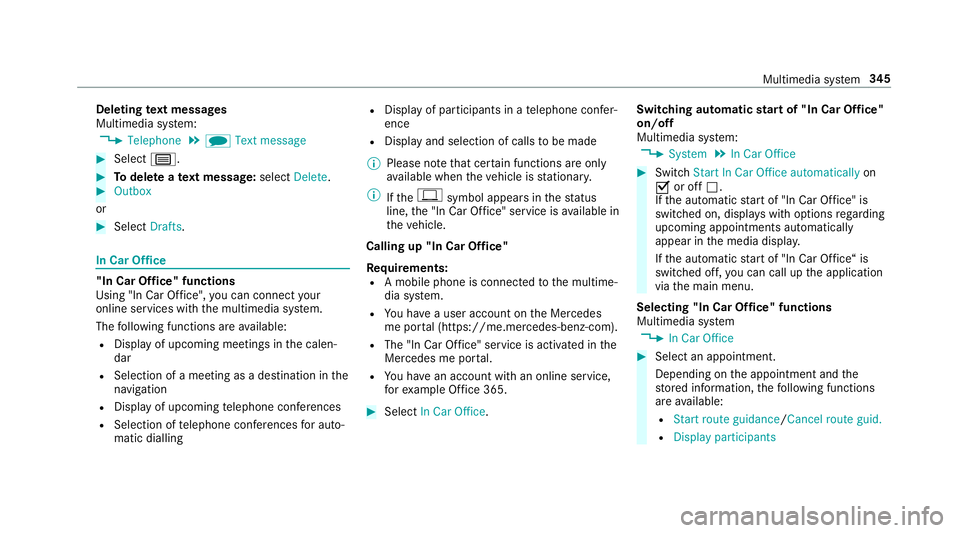
Deleting
text messages
Multimedia sy stem:
0018 Telephone 0019
i Text message 0007
Select p. 0007
Todel ete a text message: selectDelete. 0007
Outbox
or 0007
Select Drafts. In Car Of
fice "In Car Of
fice" functions
Using "In Car Of fice", you can connect your
online services with the multimedia sy stem.
The following functions are available:
R Display of upcoming meetings in the calen‐
dar
R Selection of a meeting as a destination in the
navigation
R Display of upcoming telephone con fere nces
R Selection of telephone con fere nces for auto‐
matic dialling R
Display of participants in a telephone con fer‐
ence
R Display and selection of calls tobe made
0009 Please no tethat cer tain functions are only
av ailable when theve hicle is stationar y.
0009 Ifth e! symbol appears in thest atus
line, the "In Car Of fice" service is available in
th eve hicle.
Calling up "In Car Of fice"
Re quirements:
R A mobile phone is connec tedto the multime‐
dia sy stem.
R You ha vea user account on the Mercedes
me por tal (https://me.me rcedes-benz-com).
R The "In Car Of fice" service is acti vated in the
Mercedes me por tal.
R You ha vean account with an online service,
fo rex ample Of fice 365. 0007
Select In Car Office . Switching automatic
start of "In Car Of fice"
on/off
Multimedia sy stem:
0018 System 0019
In Car Office 0007
Switch Start In Car Office automatically on
0073 or off 0053.
If th e automatic start of "In Car Of fice" is
switched on, displ ays with options rega rding
upcoming appointments automatically
appear in the media displa y.
If th e automatic start of "In Car Of fice“ is
switched off, you can call up the application
via the main menu.
Selecting "In Car Of fice" functions
Multimedia sy stem
0018 In Car Office 0007
Select an appointment.
Depending on the appointment and the
st ored information, thefo llowing functions
are available:
R Start route guidance/ Cancel route guid.
R Display participants Multimedia sy
stem 345
Page 357 of 593
R
Con firm ation of the data pr otection prom pt
R Cur rent vehicle location
R Mileage and maintenance data
R Selected data about thest atus of theve hicle
The following data is transmitted if no service is
activated and the data pr otection prom pthas
been confirmed:
R Vehicle identification number
R Mercedes me cus tomer identification num‐
ber
R Reason forth e initiation of the call
R Language set in the multimedia sy stem
R Confirmation of the data pr otection prom pt
The following data is transmitted if the data pro‐
te ction prom pthas been rejected:
R Reason for initiating the call
R Rejection of the data pr otection prom pt Mercedes-Benz emer
gency call sy stem Information on
the Mercedes-Benz emer‐
ge ncy call sy stem
The Mercedes-Benz emer gency call sy stem only
functions in areas where mobile phone co verage
is available from the wireless service pr oviders.
Insuf ficient network co verage from the wireless
service pr oviders may result in an emer gency
call not being transmitted.
The Mercedes-Benz eme rgency call sy stem is
av ailable for at least tenye ars starting from the
manufacturing date.
The ignition must be switched on before an auto‐
matic emergency call can be made.
0009 The Mercedes-Benz emer gency call sy stem
is activated at thefa ctor y.
Overview of the Mercedes-Benz emer gency
call sy stem
The Mercedes-Benz emer gency call sy stem can
help todecisively reduce the time between an
accident and the ar riva l of emer gency services
at the site of the accident. It helps locate an
accident site in places that are dif ficult to
access. The emer
gency call can be made au tomatical ly
( 0013 page 355) or manually (0013 page 355).
Only make emer gency calls if you or others are
in need of rescue. Do not make an emer gency
call in theeve nt of a breakdown or a similar sit‐
uation.
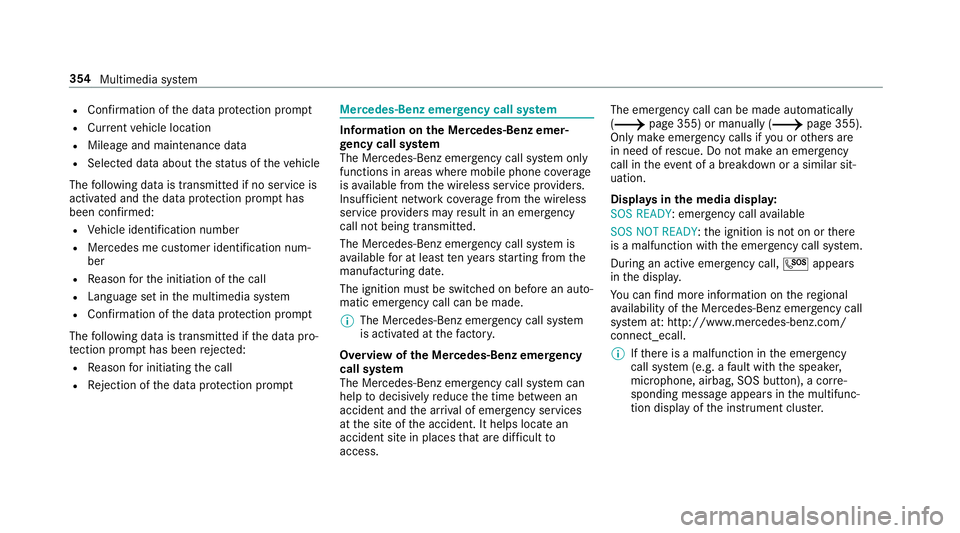
Displ ays in the media displa y:
SOS READY : emergency call available
SOS NOT READY: the ignition is not on or there
is a malfunction with the emer gency call sy stem.
During an active emer gency call, 0053appears
in the displa y.
Yo u can find more information on there gional
av ailability of the Mercedes-Benz emer gency call
sy stem at: http://www.mercedes-benz.com/
connect_ecall.
0009 Ifth ere is a malfunction in the emer gency
call sy stem (e.g. a fault with the speaker,
microphone, airbag, SOS button), a cor re‐
sponding message appears inthe multifunc‐
tion display of the instrument clus ter. 354
Multimedia sy stem
Page 359 of 593
cue
teams and/or the police tothe accident
site.
R In cer tain situations data is also transmitted
in thevo ice channel tothe Mercedes-Benz
emer gency call centre.
This allo wsmeasu resfo rre scue, reco very or
to wing toa Mercedes-Benz Service Cent reto
be initiated quickl y.
If th e Mercedes-Benz emer gency call sy stem
cann otconnect tothe Mercedes-Benz emer‐
ge ncy call centre, the emer gency call is au tomat‐
ically sent tothe public emer gency services call
centre.
If no connection can be made tothe public
emer gency services, a cor responding message
appears inthe media displa y.0007
Dial the emer gency call number 11 2onyour
mobile phone.
Ending an unin tentional emer gency call 0007
Select 0076onthe multifunction steering
wheel. Data transfer of
the Mercedes-Benz emer‐
ge ncy call sy stem
In theeve nt of an au tomatic or manual emer‐
ge ncy call thefo llowing data is transmitte d,for
ex ample:
R Vehicle's GPS position data
R GPS position data on thero ute (a few
hundred metres before the incident)
R Direction of tra vel
R Vehicle identification number
R Vehicle drive type
R Number of people de term ined tobe in the
ve hicle
R Whe ther Mercedes me connect is available
or not
R Whe ther the emer gency call was initiated
manually or automatically
R Time of the accident
R Language setting on the multimedia sy stem Fo
r accident clarification purposes, thefo llowing
measures can be take n up toan hour af terthe
emer gency call has been initia ted:
R The cur rent vehicle position can be called up
R Avo ice connection totheve hicle occupants
can be es tablished
0009 ForRu ssia: various functions, e.g. receiving
traf fic information, cannot be used for up to
two hou rsafte r sending an emergency call.
Fu nction of the emer gency call sy stem self-
diagnosis (Russia)
Yo ur car verifies the operability of the emer‐
ge ncy call sy stem each time the ignition is ON.
In case of sy stem failure, you will be informed
with text messa geon the instrument clus ter and
with red indicator SOS NOT READY onthe media
displa y.
Please, make sure, that during 30 seconds af ter
switching ignition ON there d indicator SOS
NOT READY inthe upper right corner of the
media display is switched OFF, this means the
emer gency call sy stem passed diagnostics suc‐ 356
Multimedia sy stem
Page 363 of 593
Multimedia sy
stem:
0018 System 0019
ö Connectivity
0019 Internet settings 0007
Highlight the mobile phone. 0007
Select 0080. 0007
Select Change configuration .0007
For mobile phones with PAN and DUN:
select Configure settings using COMAND. 0007
Configure the Internet connection using pre‐
set or manual access data (0013 page 358).
Cancelling Internet access permission for a
mobile phone
Multimedia sy stem:
0018 System 0019
ö Connectivity
0019 Internet settings 0007
Highlight the mobile phone. 0007
Select 0080. 0007
Select Delete configuration. 0007
Select Yes. Displaying mobile phone details
Multimedia sy
stem:
0018 System 0019
ö Connectivity
0019 Internet settings 0007
Highlight the mobile phone. 0007
Select 0080. 0007
Select Details.
Establishing an Internet connection
Multimedia sy stem:
0018 Connect 0007
Forex ample, select zBrowser .
0009 The multimedia sy stem usually es tablishes
th e Internet connection automaticall y.Ifthe
multimedia sy stem is not connected tothe
Internet, the Internet connection is es tab‐
lished when an Internet application is used.
0009 The availability of web br ows ers is count ry-
dependent. Connection
status Connection
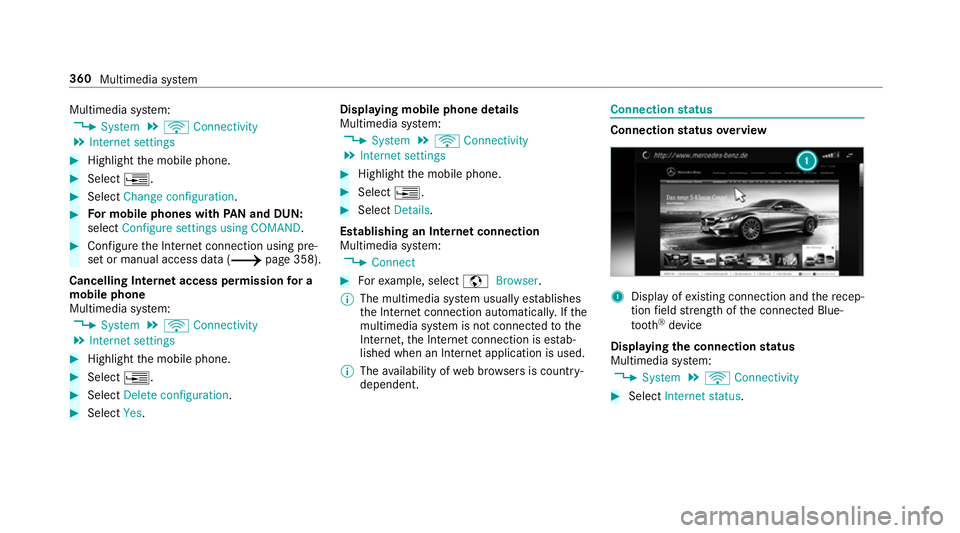
status overview 1
Display of existing connection and there cep‐
tion field stre ngth of the connected Blue‐
tooth ®
device
Displaying the connection status
Multimedia sy stem:
0018 System 0019
ö Connectivity 0007
Select Internet status .360
Multimedia sy stem