display MERCEDES-BENZ C-CLASS COUPE 2018 Manual Online
[x] Cancel search | Manufacturer: MERCEDES-BENZ, Model Year: 2018, Model line: C-CLASS COUPE, Model: MERCEDES-BENZ C-CLASS COUPE 2018Pages: 593, PDF Size: 10.86 MB
Page 280 of 593
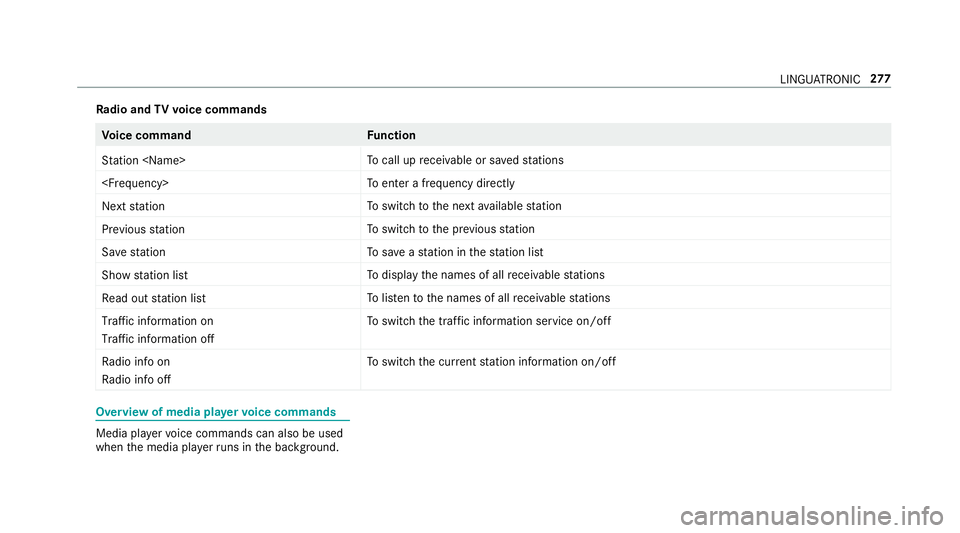
Ra
dio and TVvoice commands Vo
ice command Function
Station
call up recei vable or sa vedstations
enter a frequency directly
Next station To
switch tothe next available station
Previous station To
switch tothe pr evious station
Save station To
save ast ation in thest ation list
Show station list To
display the names of all recei vable stations
Read out station list To
listento the names of all recei vable stations
Traffic information on
Traffic information off To
switch the traf fic information service on/off
Radio info on
Radio info off To
switch the cur rent station information on/off Overview of media pla
yervo ice commands Media pla
yervo ice commands can also be used
when the media pla yerru ns in the bac kground. LINGU
ATRO NIC 277
Page 283 of 593
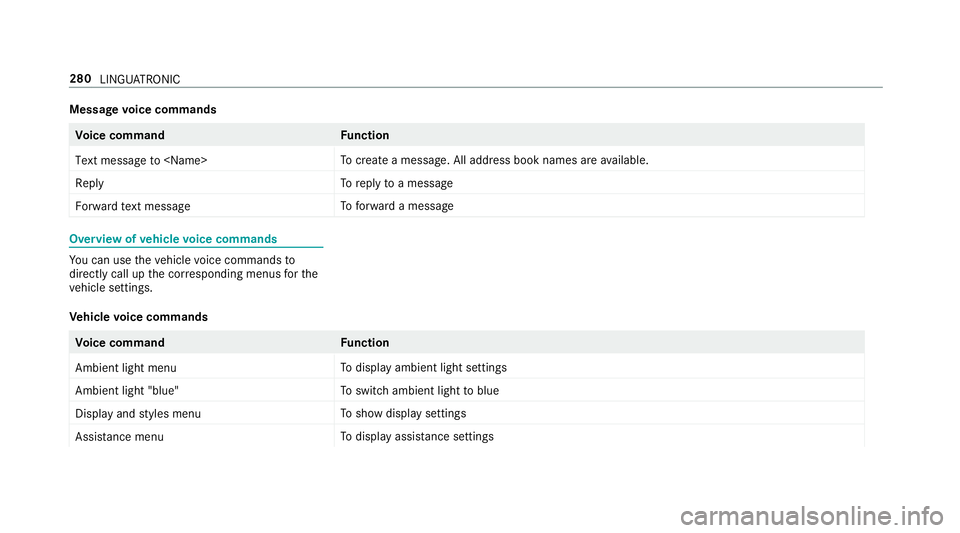
Message
voice commands Vo
ice command Function
Text message to
crea tea message. All address book names are available.
Reply To
reply toa message
Forward text message To
forw ard a message Overview of
vehicle voice commands Yo
u can use theve hicle voice commands to
directly call up the cor responding menus forthe
ve hicle settings.
Ve hicle voice commands Vo
ice command Function
Ambient light menu To
display ambient light settings
Ambient light "blue" To
switch ambient light toblue
Display and styles menu To
show display settings
Assistance menu To
display assis tance settings 280
LINGUATRONIC
Page 284 of 593
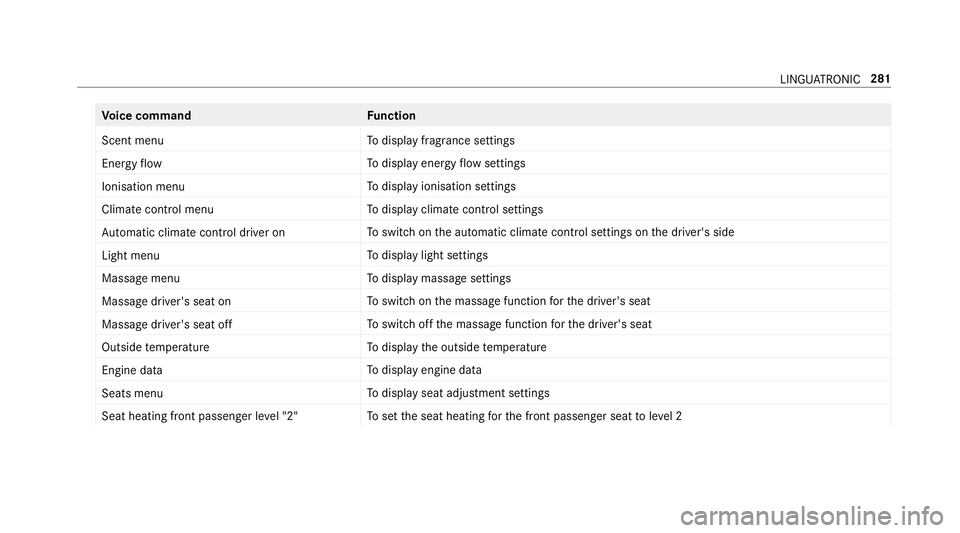
Vo
ice command Function
Scent menu To
display fragrance settings
Energy flow To
display energy flow settings
Ionisation menu To
display ionisation settings
Climate control menu To
display climate control settings
Automatic climate control driver on To
switch on the automatic climate control settings on the driver's side
Light menu To
display light settings
Massage menu To
display massage settings
Massage driver's seat on To
switch on the massage function forth e driver's seat
Massage driver's seat off To
switch off the massage function forth e driver's seat
Outside temperature To
display the outside temp erature
Engine data To
display engine data
Seats menu To
display seat adjustment settings
Seat heating front passenger level "2" To
set the seat heating forth e front passenger seat toleve l 2 LINGU
ATRO NIC 281
Page 285 of 593
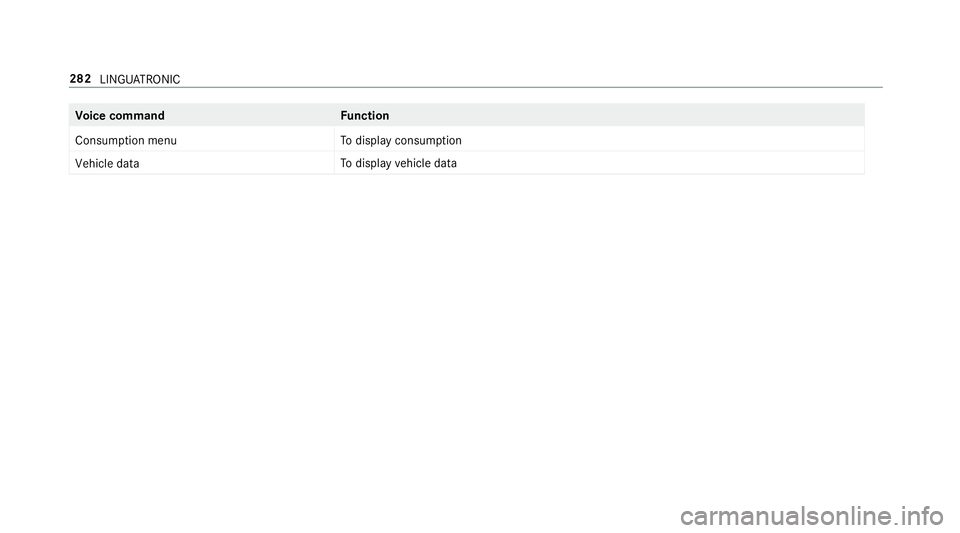
Vo
ice command Function
Consumption menu To
display consum ption
Vehicle data To
display vehicle data 282
LINGU ATRO NIC
Page 286 of 593
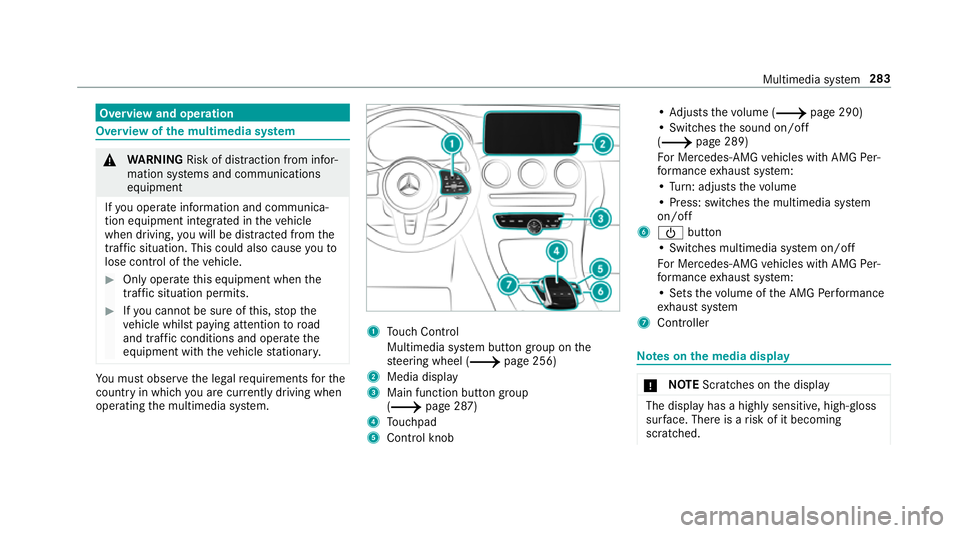
Overview and operation
Overview of
the multimedia sy stem 000A
WARNING Risk of di stra ction from infor‐
mation sy stems and communications
equipment
If yo u operate information and communica‐
tion equipment integ rated in theve hicle
when driving, you will be distracted from the
traf fic situation. This could also cause youto
lose control of theve hicle. 0007
Only operate this equipment when the
traf fic situation permits. 0007
Ifyo u cannot be sure of this, stop the
ve hicle whilst paying attention toroad
and traf fic conditions and ope rate the
equipment with theve hicle stationar y. Yo
u must obse rveth e legal requirements forthe
country in whi chyou are cur rently driving when
operating the multimedia sy stem. 1
Touch Control
Multimedia sy stem button group on the
st eering wheel (0013 page 256)
2 Media display
3 Main function button group
(0013 page 287)
4 Touchpad
5 Control knob •
Ad justs thevo lume (0013 page 290)
• Swit ches the sound on/off
(0013 page 289)
Fo r Mercedes-AMG vehicles with AMG Per‐
fo rm ance exhaust sy stem:
• Turn: adjusts thevo lume
• Press: switches the multimedia sy stem
on/off
6 00D0 button
• Switches multimedia sy stem on/off
Fo r Mercedes-AMG vehicles with AMG Per‐
fo rm ance exhaust sy stem:
• Sets thevo lume of the AMG Performance
ex haust sy stem
7 Controller Note
s onthe media display 000E
NO
TEScratches on the display The display has a highly sensitive, high-gloss
sur
face. The reis a risk of it becoming
scratched. Multimedia sy
stem 283
Page 287 of 593
0007
Avoid touching the displa y. 0007
Obser vethe no tes on cleaning. Obser
vethe no tes on caring forth e interior
(0013 page 408).
Au tomatic temperature-cont rolled switch-
off feature: ifth ete mp erature is too high, the
brightness is initially reduced automaticall y.The
display may then switch off comple tely for a
while.
0009 Ifyo u are wearing polarised sun glasses, it
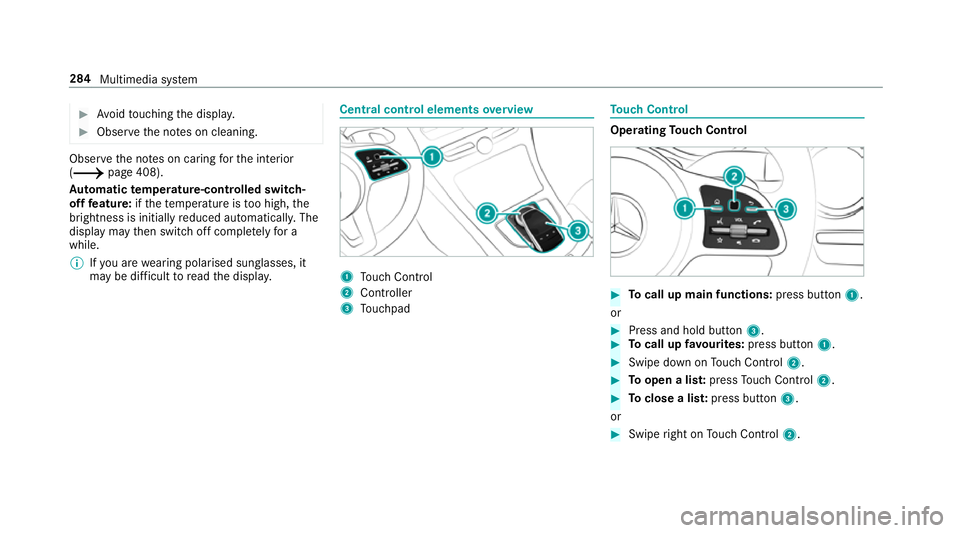
may be dif ficult toread the displa y. Central control elements
overview 1
Touch Control
2 Controller
3 Touchpad To
uch Control Operating
Touch Control 0007
Tocall up main functions: press button1.
or 0007
Press and hold button 3. 0007
Tocall up favo urites: press button 1. 0007
Swipe down on Touch Control 2. 0007
Toopen a lis t:press Touch Control 2. 0007
Toclose a lis t:press button 3.
or 0007
Swipe right on Touch Control 2. 284
Multimedia sy stem
Page 288 of 593
0007
Toselect a menu item: swipe up, down, left
or right on Touch Control 2. 0007
Press Touch Control 2. 0007
Tomo vethe digital map: swipe in any
direction.
Setting the sensitivity for the Touch Control
Multimedia sy stem:
0018 System 0019
w Input
0019 Touch Control sensitivity 0007
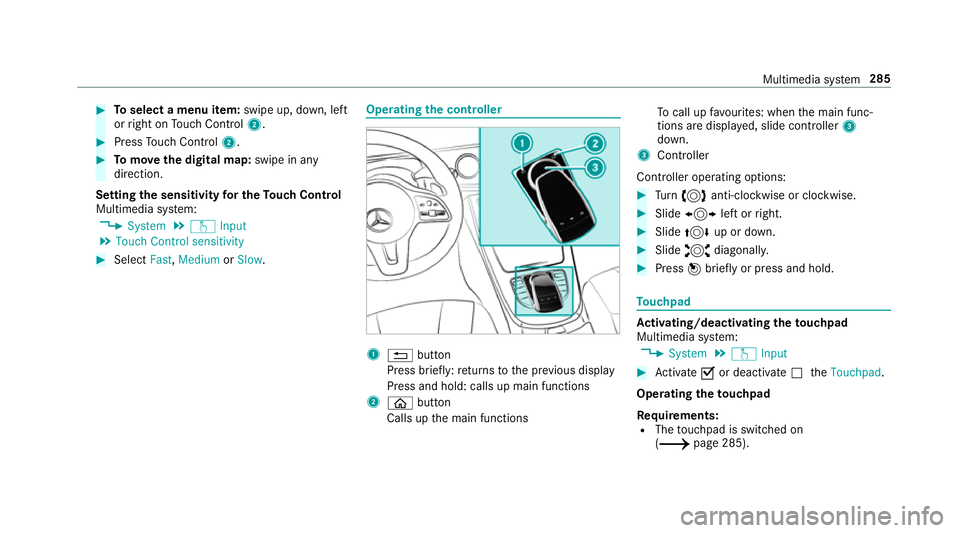
Select Fast,Medium orSlow . Operating
the controller 1
0038 button
Press brief ly:re turns tothe pr evious display
Press and hold: calls up main functions
2 00E2 button
Calls up the main functions To
call up favo urites: when the main func‐
tions are displa yed, slide controller 3
down.
3 Controller
Controller operating options: 0007
Turn 0018 anti-clockwise or clo ckwise. 0007
Slide 0016 left orright. 0007
Slide 0019 up or down. 0007
Slide 0017 diagonally. 0007
Press 001Cbrief lyor press and hold. To
uchpad Ac
tivating/deactivating the touchpad
Multimedia sy stem:
0018 System 0019
w Input 0007
Activate 0073or deacti vate 0053 theTouchpad .
Operating theto uchpad
Re quirements:
R The touchpad is swit ched on
(0013 page 285). Multimedia sy
stem 285
Page 289 of 593
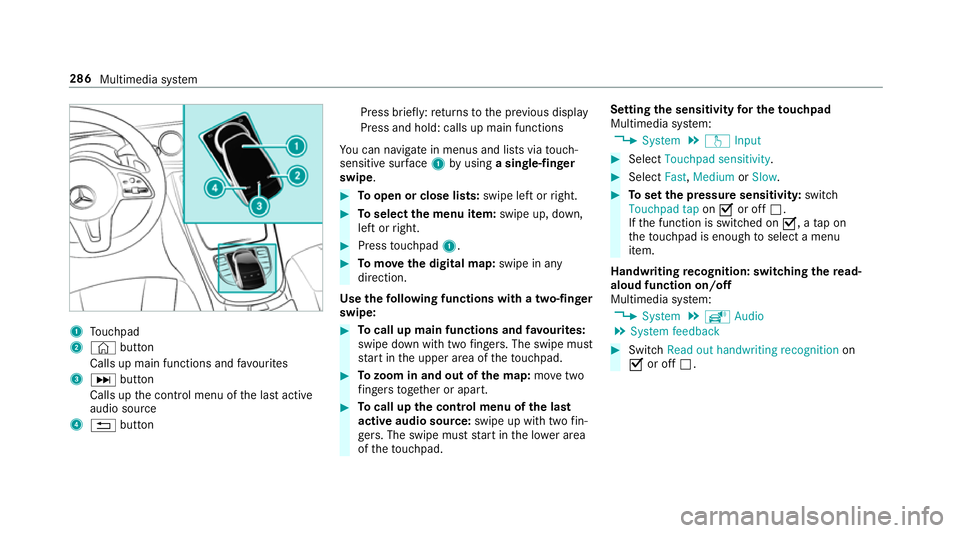
1
Touchpad
2 © button
Calls up main functions and favo urites
3 0055 button
Calls up the control menu of the last active
audio source
4 0038 button Press brief
ly:re turns tothe pr evious display
Press and hold: calls up main functions
Yo u can navigate in menus and lists via touch-
sensitive sur face 1 byusing a single-finger
swipe. 0007
Toopen or close lists: swipe left orright. 0007
Toselect the menu item: swipe up, down,
left or right. 0007
Press touchpad 1. 0007
Tomo vethe digital map: swipe in any
direction.
Use thefo llowing functions with a two-finger
swipe: 0007
Tocall up main functions and favo urites:
swipe down with two fingers. The swipe mu st
st art in the upper area of theto uchpad. 0007
Tozoom in and out of the map: movetwo
fi ngers toget her or apart. 0007
Tocall up the control menu of the last
active audio source: swipe up with twofin‐
ge rs. The swipe must start in the lo wer area
of theto uchpad. Setting
the sensitivity for the touchpad
Multimedia sy stem:
0018 System 0019
w Input 0007
Select Touchpad sensitivity . 0007
Select Fast,Medium orSlow . 0007
Toset the pressure sensitivit y:switch
Touchpad tap on0073 or off 0053.
If th e function is switched on 0073, atap on
th eto uchpad is enough toselect a menu
item.
Handwriting recognition: swit ching there ad-
aloud function on/off
Multimedia sy stem:
0018 System 0019
õ Audio
0019 System feedback 0007
Switch Read out handwriting recognition on
0073 or off 0053. 286
Multimedia sy stem
Page 295 of 593
0062
To
switch tospecial characters and sym‐
bols.
006A To
switch toupper-case or lo wer-case let‐
te rs.
0054 To
switch the language.
v Toswitch tocharacter ent ryon theto uch‐
pad.
0009 The available editing functions depend on
th e editing task, the language set and the
ch aracter le vel. 0007
Toconfirm the entr y:select ¡.
Example: entering a destination (navigation) 0007
Enter the POI or address (0013 page 306).
Entering characters on theto uchpad
Requ irements:
R The touchpad is swit ched on
(0013 page 285).
R The entered or selected character should be
re ad out: the handwriting recognition read-
aloud function is swit ched on
(0013 page 286). Example:
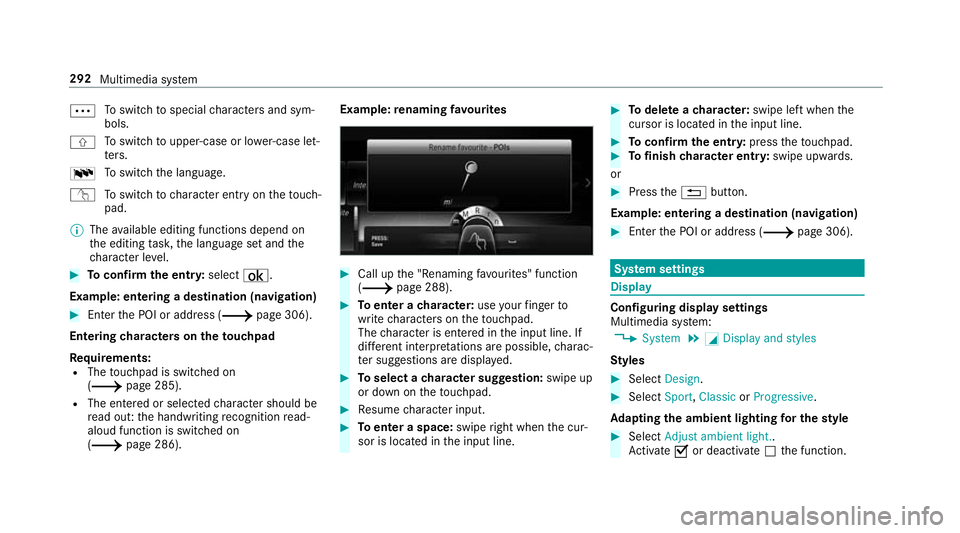
renaming favo urites 0007
Call up the "Renaming favo urites" function
(0013 page 288). 0007
Toenter a character: useyour finger to
write characters on theto uchpad.
The character is entered in the input line. If
dif fere nt interpr etations are possible, charac‐
te r suggestions are displa yed. 0007
Toselect a character suggestion: swipe up
or down on theto uchpad. 0007
Resume character input. 0007
Toenter a space: swiperight when the cur‐
sor is located in the input line. 0007
Todel ete a character: swipe left when the
cursor is loca ted in the input line. 0007
Toconfirm the entr y:press theto uchpad. 0007
Tofinish character entr y:swipe upwards.
or 0007
Press the0038 button.
Example: entering a destination (navigation) 0007
Ente rth e POI or address (0013 page 306). Sy
stem settings Display
Configuring display settings
Multimedia sy
stem:
0018 System 0019
0043 Display and styles
Styl es 0007
Select Design. 0007
Select Sport,Classic orProgressive .
Ad apting the ambient lighting for the style 0007
Select Adjust ambient light. .
Ac tivate 0073or deacti vate 0053 the function. 292
Multimedia sy stem
Page 296 of 593
This function adjusts
the ambient lighting for
th e selected display style.
Setting the display brightness 0007
Select Display brightness . 0007
Select a brightness value.
Switching the display off/on 0007
Off: select Display off . 0007
On: press a button, 002B,forex ample.
Displ aydesign 0007
Select Day/night design. 0007
Select Automatic, Day design orNight
design.
Ad ditional displ ayarea
Depending on theve hicle, various items of addi‐
tional information can be shown. The additional
display area comprises the left-hand or right-
hand third of the displa y. 0007
Select Additional display area .
The following display con tent can be selected:
R Dynamic R
Navigation map
R Consumption
R Time and date Ti
me and date Setting the time and date automatically
Multimedia sy
stem:
0018 System 0019
& Time and date 0007
Deactivate 0053Manual time adjustment.
The time and date are set automatically for
th e selected time zone and summer time
option.
0009 The cor rect time is requ ired forth efo llowing
functions:
R Route guidance with time-dependent
traf fic guidance.
R Calculation of expected time of ar riva l. Setting
the time zone
Multimedia sy stem:
0018 System 0019
& Time and date
0019 Time zone:
The list of count ries is displa yed. 0007
Select a count ry003B.
Depending on the count ry, time zones are
displa yed. 0007
Select a time zone.
The time zone set is displa yed af terTime
zone:.
Setting summer time
The Automatic Summer Time andSummer Time
options cannot be selected in all countries.
Multimedia sy stem:
0018 System 0019
& Time and date
Au tomatically 0007
Switch Automatic Summer Time on0073 or off
0053.
Manual ly 0007
Switch Automatic Summer Time off0053. Multimedia sy
stem 293