reset MERCEDES-BENZ C-CLASS COUPE 2021 Owner's Manual
[x] Cancel search | Manufacturer: MERCEDES-BENZ, Model Year: 2021, Model line: C-CLASS COUPE, Model: MERCEDES-BENZ C-CLASS COUPE 2021Pages: 549, PDF Size: 9.74 MB
Page 334 of 549
R
The Blue tooth®
function is switched off on
th e mobile phone and the mobile phone is to
be connec ted via Blue tooth®
R Neither the mobile phone network nor the
mobile phone allow simultaneous use of a
te lephone and an Internet connection
R The mobile phone has not been enabled for
Internet access via Blue tooth®
If a mobile phone is connected tothe multimedia
sy stem forth efirs t time via Blu etoo th®
,yo u will
be assis tedth ro ugh the process of setting up an
Internet connection.
The Internet connection can also be confi gured
manually.
Fu rther information can be obtained at https://
www.mercedes-benz-mobile.com/ or at a
Mercedes-Benz service centre. Multimedia sy
stem:
4 System 5
ö Connectivity
5 Internet settings
Blue tooth ®
connection via PAN #
Select the mobile phone.
The Internet connection is es tablished.
Switching the Blu etoo th®
pr ofile
Re quirements:
R The mobile phone supports the DUN and
PA N Blue tooth®
profiles.
Multimedia sy stem:
4 System 5
ö Connectivity
5 Internet settings #
Toswitch from DUN toPAN: select the
mobile phone. #
Select ¥. #
Select Change configuration. #
Activate OAutomatic configuration.
The Internet connection is au tomatical lycon‐
fi gured using thePA N Blue tooth®
profile. #
Toswitch from PANto DUN: select the
mobile phone. #
Select ¥. #
Select Change configuration. #
Deactivate ªAutomatic configuration. #
Select Configure settings using COMAND . #
Configuri ngthe Internet connection using
preset or manual access data (/ page 330).
Editing Internet access data
Re quirements:
R The mobile phone supports the Blue tooth®
DUN profile.
Multimedia sy stem:
4 System 5
ö Connectivity
5 Internet settings #
Highlight the mobile phone. #
Select ¥. #
Select Change configuration . #
For mobile phones with PAN and DUN:
select Configure settings using COMAND. Multimedia sy
stem 331
Page 351 of 549
Ra
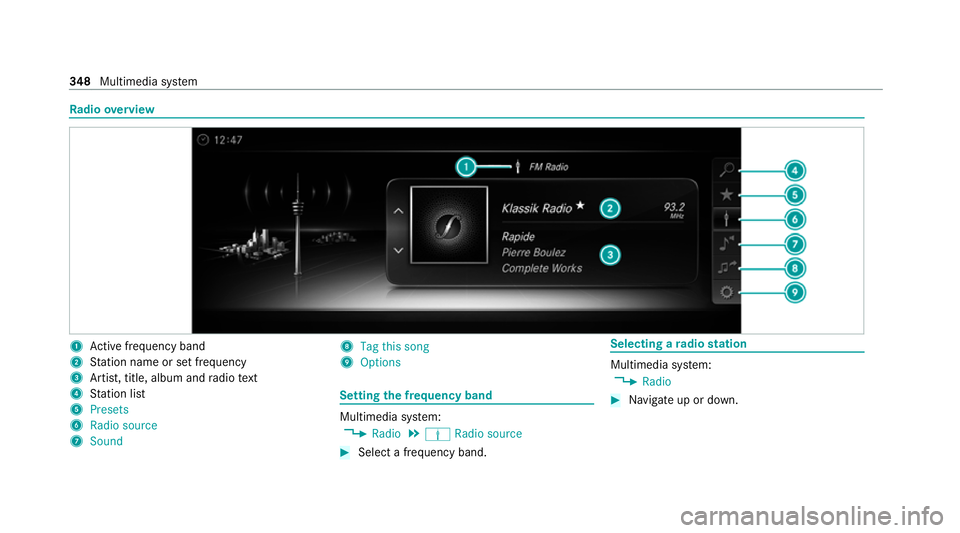
dio overview 1
Active frequency band
2 Station name or set frequency
3 Artist, title, album and radio text
4 Station list
5 Presets
6 Radio source
7 Sound 8
Tag this song
9 Options Setting
the frequency band Multimedia sy
stem:
4 Radio 5
Þ Radio source #
Select a frequency band. Selecting a
radio station Multimedia sy
stem:
4 Radio #
Navigate up or down. 348
Multimedia sy stem
Page 352 of 549
Calling up
thera dio station list Multimedia sy
stem:
4 Radio 5
è #
Select a station. Sear
ching forra dio stations using station
names or direct frequency entry Multimedia sy
stem:
4 Radio 5
è #
Ente r astation name or frequenc y.#
Select a.
The sea rchre sults are displa yed. #
Select a station. St
oring radio stations Multimedia sy
stem:
4 Radio 5
ß Presets #
Select Store current station in the presets . Managing
radio station presets Multimedia sy
stem:
4 Radio 5
ß Presets
Moving stations: #
Highlight a preset entry and navigate tothe
left. #
Select Move highlighted station. #
Select a memo rypreset.
Deleting stations: #
Highlight a preset entry and navigate tothe
left. #
Select Delete highlighted station. #
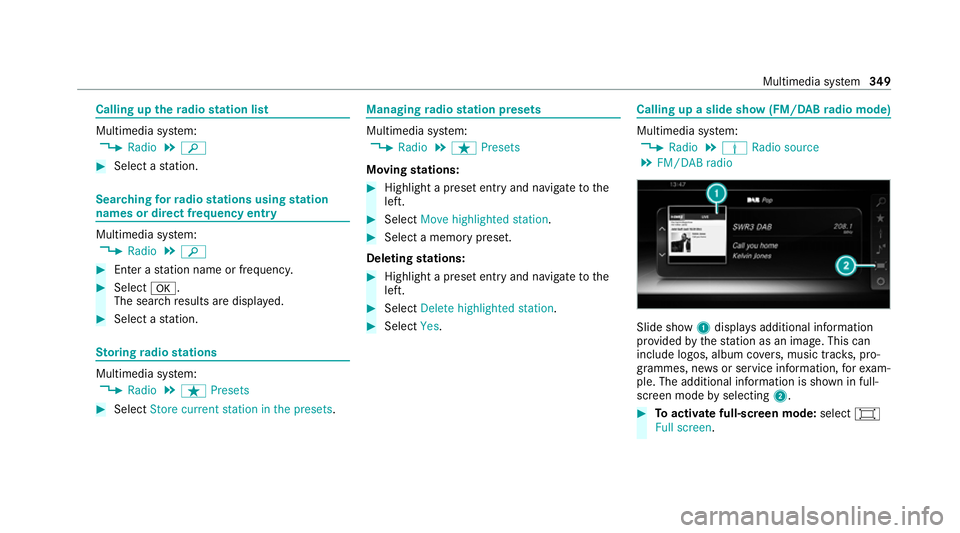
Select Yes. Calling up a slide show (FM/DAB
radio mode) Multimedia sy
stem:
4 Radio 5
Þ Radio source
5 FM/DAB radio Slide show
1displa ysadditional information
pr ov ided bythest ation as an image. This can
include logos, album co vers, music trac ks, pro‐
grammes, ne wsor service information, forex am‐
ple. The additional information is shown in full-
sc reen mode byselecting 2. #
Toactivate full-screen mode: select#
Full screen. Multimedia sy
stem 349
Page 355 of 549
If
th eve hicle is tr avelling faster than 5 km/h
th ete levision picture is hidden from the
driver. If available, thech annel and pro‐
gr amme information is continuously dis‐
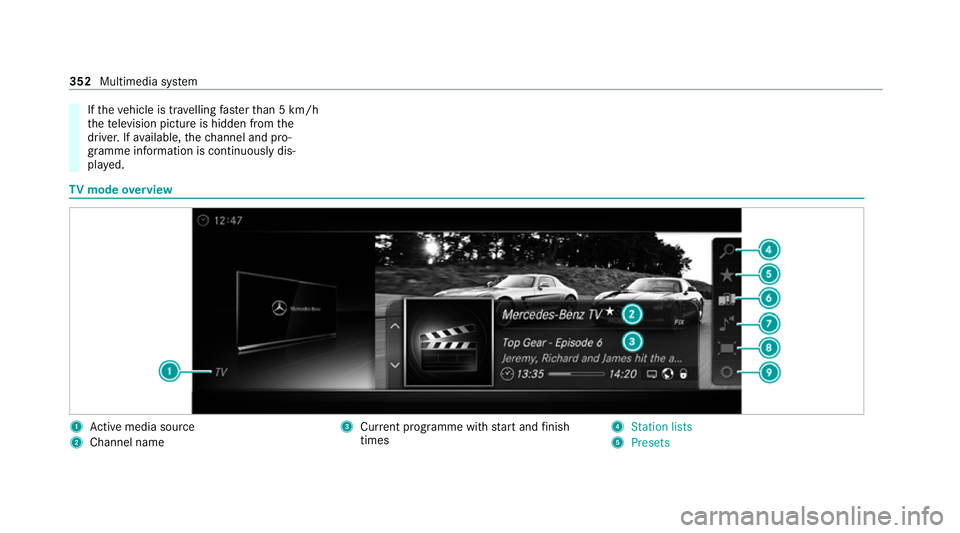
pla yed. TV
mode overview 1
Active media sou rce
2 Channel name 3
Current programme wi thstart and finish
times 4
Station lists
5 Presets 352
Multimedia sy stem
Page 357 of 549
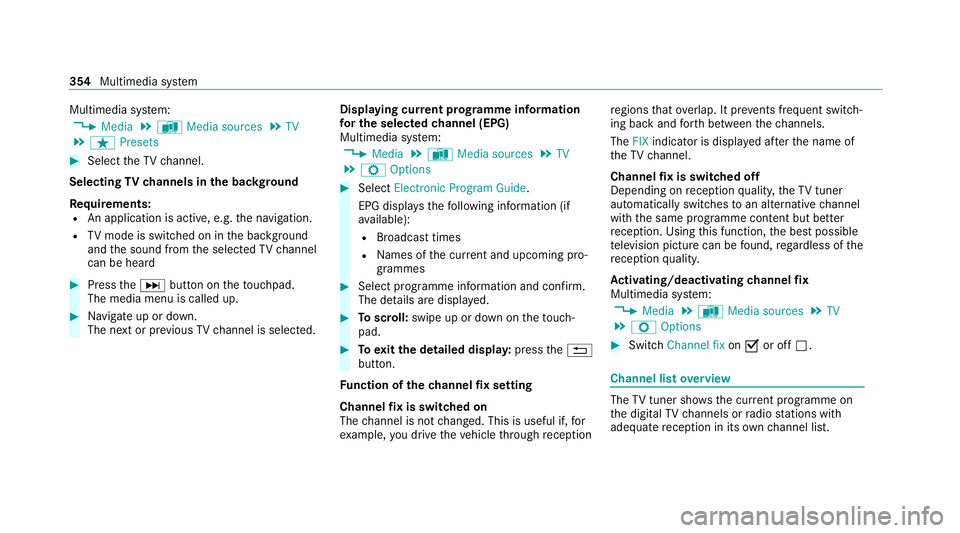
Multimedia sy
stem:
4 Media 5
à Media sources 5
TV
5 ß Presets #
Select theTV channel.
Selecting TVchannels in the bac kground
Re quirements:
R An application is active, e.g. the navigation.
R TVmode is switched on in the bac kground
and the sound from the selected TVchannel
can be heard #
Press theD button on theto uchpad.
The media menu is called up. #
Navigate up or down.
The next or pr evious TVchannel is selec ted. Displaying cur
rent prog ramme in form ation
fo r the selected channel (EPG)
Multimedia sy stem:
4 Media 5
à Media sources 5
TV
5 Z Options #
Select Electronic Program Guide.
EPG displa ys thefo llowing information (if
av ailable):
R Broadcast times
R Names of the cur rent and upcoming pro‐
grammes #
Select programme information and confirm.
The de tails are displa yed. #
Toscroll: swipe up or down on theto uch‐
pad. #
Toexitth e detailed displa y:press the%
button.
Fu nction of thech annel fix setting
Channel fix is switched on
The channel is not changed. This is useful if, for
ex ample, you drive theve hicle thro ugh reception re
gions that ove rlap. It pr events frequent switch‐
ing ba ckand forth between thech annels.
The FIXindicator is displa yed af terth e name of
th eTV channel.
Channel fix is switched off
Depending on reception qualit y,theTV tuner
au tomatical lyswitches toan alternative channel
with the same programme conte nt but better
re ception. Using this function, the best possible
te levision picture can be found, rega rdless of the
re ception qualit y.
Ac tivating/deactivating channel fix
Multimedia sy stem:
4 Media 5
à Media sources 5
TV
5 Z Options #
Switch Channel fix onO or off ª. Channel list
overview The
TVtuner sho wsthe cur rent programme on
th e digital TVchannels or radio stations with
adequate reception in its ownch annel list. 354
Multimedia sy stem
Page 358 of 549
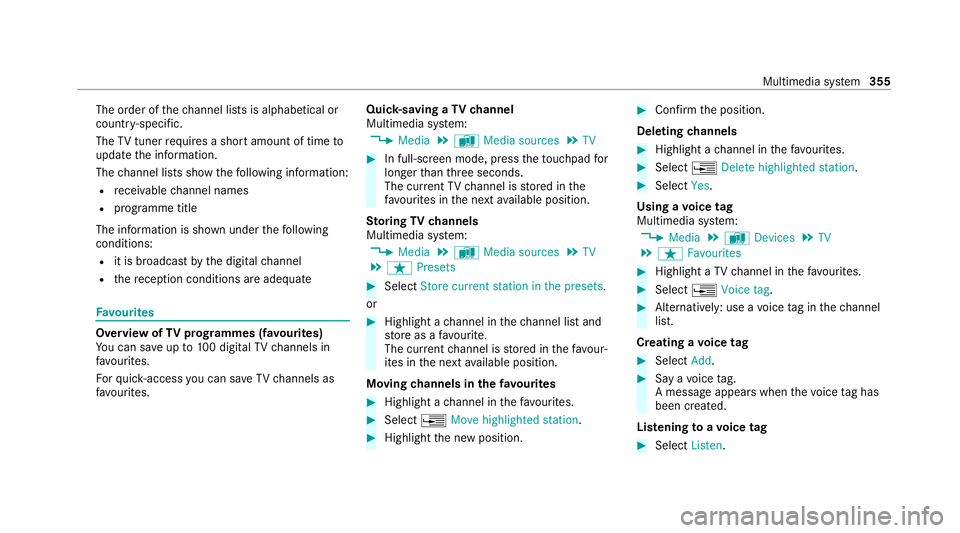
The order of
thech annel lists is alphabetical or
countr y-specific.
The TVtuner requ ires a short amount of time to
update the information.
The channel lists show thefo llowing information:
R recei vable channel names
R programme title
The information is shown under thefo llowing
conditions:
R it is broadcast bythe digital channel
R there ception conditions are adequate Favo
urites Overview of
TVprog rammes (f avourites)
Yo u can sa veup to100 digital TVchannels in
fa vo urites.
Fo rqu ick- access you can sa veTV channels as
fa vo urites. Qui
ck-saving a TVchannel
Multimedia sy stem:
4 Media 5
à Media sources 5
TV #
In full-screen mode, press theto uchpad for
longer than thre e seconds.
The cur rent TV channel is stored in the
fa vo urites in the next available position.
St oring TVchannels
Multimedia sy stem:
4 Media 5
à Media sources 5
TV
5 ß Presets #
Select Store current station in the presets .
or #
Highlight a channel in thech annel list and
st ore as a favo urite.
The cur rent channel is stored in thefa vo ur‐
ites in the next available position.
Moving channels in thefa vo urites #
Highlight a channel in thefa vo urites. #
Select ¥Move highlighted station. #
Highlight the new position. #
Confirm the position.
Deleting channels #
Highlight a channel in thefa vo urites. #
Select ¥Delete highlighted station. #
Select Yes.
Using a voice tag
Multimedia sy stem:
4 Media 5
à Devices 5
TV
5 ß Favourites #
Highlight a TVchannel in thefa vo urites. #
Select ¥Voice tag . #
Alternatively: use a voice tag inthech annel
list.
Creating a voice tag #
Select Add. #
Say a voice tag.
A messa geappears when thevo ice tag has
been created.
Lis tening toavo ice tag #
Select Listen. Multimedia sy
stem 355
Page 360 of 549
R
It may take some time before all the pages
load
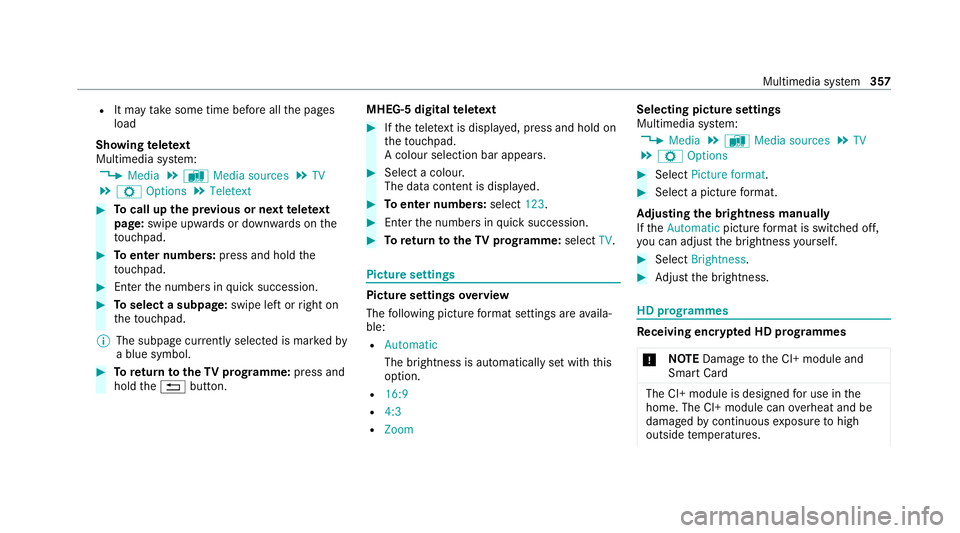
Showing telete xt
Multimedia sy stem:
4 Media 5
à Media sources 5
TV
5 Z Options 5
Teletext #
Tocall up the pr evious or next telete xt
page: swipe upwards or down wards on the
to uchpad. #
Toenter numbers: press and holdthe
to uchpad. #
Enterth e numbers in quick succession. #
Toselect a subpage: swipe left orright on
th eto uchpad.
% The subpage cur rently selected is ma rked by
a blue symbol. #
Toreturn totheTV prog ramme: press and
hold the% button. MHEG-5 digital
telete xt #
Ifth ete lete xt is displ ayed, press and hold on
th eto uchpad.
A colour selection bar appears. #
Select a colour.
The data content is displ ayed. #
Toenter numbers: select123. #
Enterth e numbers in quick succession. #
Toreturn totheTV prog ramme: selectTV. Pictu
resettings Picture settings
overview
The following picture form at settings are availa‐
ble:
R Automatic
The brightness is automatically set with this
option.
R 16:9
R 4:3
R Zoom Selecting picture settings
Multimedia sy
stem:
4 Media 5
à Media sources 5
TV
5 Z Options #
Select Picture format. #
Select a picture form at.
Ad justing the brightness manually
If th eAutomatic pictureform at is swit ched off,
yo u can adjust the brightness yourself. #
Select Brightness. #
Adjust the brightness. HD prog
rammes Re
ceiving encryp ted HD prog rammes
* NO
TEDama getothe CI+ module and
Smart Card The CI+ module is designed
for use in the
home. The CI+ module can overheat and be
damaged bycontinuous exposure tohigh
outside temp eratures. Multimedia sy
stem 357
Page 365 of 549
fi
ed based on the actual operating conditions
and/or loads.
Examples of arduous operating conditions:
R regular city driving with frequent intermedi‐
ate stops
R mainly short-dis tance driving
R frequent operation in mountainous terrain or
on poor road sur faces
R when the engine is of ten le ftidling for long
periods
R operation in particula rly dusty conditions
and/or if air-recirculation mode is frequently
used
In these or similar operating conditions, ha vethe
interior air filter, engine air cleaner, engine oil
and oil filter etc. changed more frequent ly. The
ty re s must be checked more frequently if the
ve hicle is operated under increased loads. Fur‐
th er information can be obtained at a qualified
specialist workshop. Battery disconnection periods
The ASS
YST PLUS service inter val display can
calculate the service due date only when the
battery is connec ted. #
Notedown the service due date displa yed on
th e instrument display before disconnecting
th e battery (/ page 361). Engine compartment
Ac
tive bonn et(pedestrian pr otection) Operation of
the active bonnet (pedestrian
pr otection)
In cer tain accident situations, the actuation of
th e active bonn etreduces therisk of injury to
pedestrians. The rear area of the bonn etis
ra ised byappr oximately 85 mm.
Fo rth e drive tothewo rkshop, reset the actuated
active bonn etyourself (/ page 362).
Af terth e active bonn ethas been actuated,
pedestrian pr otection may be limited.
Ha ve the full functionality of the active bonn et
re stored in a qualified specialist workshop. Re
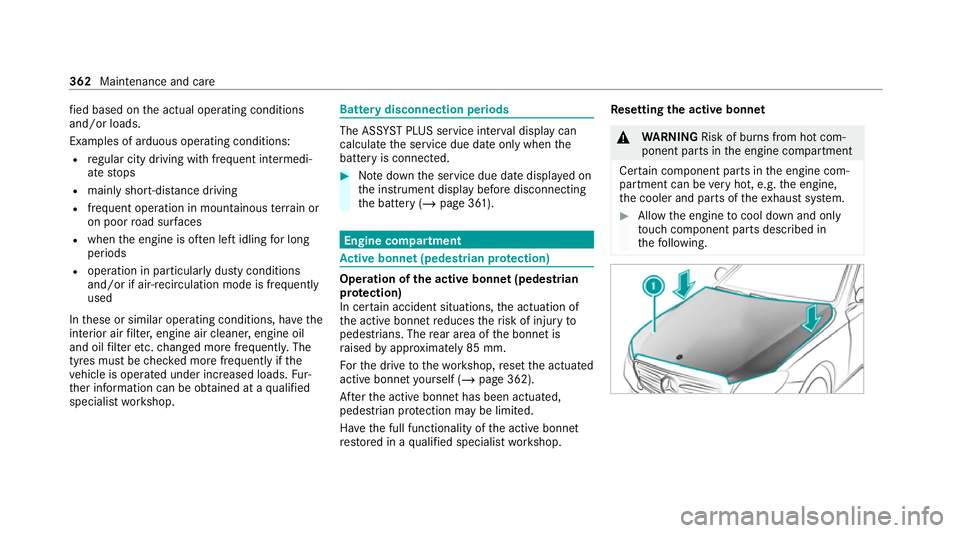
setting the active bonnet &
WARNING Risk of bu rns from hot com‐
ponent parts in the engine compartment
Cer tain component parts in the engine com‐
partment can be very hot, e.g. the engine,
th e cooler and parts of theex haust sy stem. #
Allow the engine tocool down and only
to uch co mponent parts described in
th efo llowing. 362
Maintenance and care
Page 509 of 549
Drive program display............................
15 6
Drive programs...................................... 15 5
DY NA MIC SELECT switch...................... 15 5
Engaging drive position........................ .159
Engaging neutral................................... .158
Engaging park position.......................... 15 9
Engaging reve rsege ar........................... 15 8
Kickdown............................................... 161
Manual gear changing.......................... .160
St eering wheel gearshift paddles.......... 16 0
Tr ansmission position displa y................ 157
Tr ansmission position s..........................157
Au tomatic transmission (problem)
see Transmission (problem)
Axle load Perm issible............................................ 41 8
Tr ailer operation.................................... 432 B
Bad weather light...................................... 12 6
Bag hook..................................................... 11 4
Ball ne ck
Fo lding out/in....................................... 227
BA S (Brake Assist Sy stem)....................... 17 7Battery
Remo tecontrol (s tationary heater)........ 141
Battery see Battery (vehicle)
Battery (k ey)
Re placing.................................................73
Battery (vehicle) Charging................................................ 388
Charging (Remo teOnline)...................... 14 6
No tes....................................................3 85
No tes (s tarting assis tance and
ch arging)............................................... 386
Re placing.............................................. 390
St arting assis tance................................ 388
Belt see Seat belt
Bic ycle rack
Load capacity........................................ 431
Tr ailer operation.................................... 231
Blind Spot Assist Activating/deactivating......................... 205
Fu nction................................................ 202
Sy stem limitations................................. 202 Blo
wer
see Climate control
BlueTEC see AdBlue ®
Blue tooth ®
Information............................................ 265
Setting up an Internet connection.........3 30
Switching on/off.................................. .265
Switching profile (DUN/PAN)................ 331
Blue tooth ®
audio
Ac tivating.............................................. 346
De-authorising (de-regis tering) the
device.................................................... 347
Information...........................................3 44
Overview............................................... 345
Sear ching for a track............................. 347
Sear ching for and auth orisingthe
device.................................................... 345
Selecting a media pla yer....................... 346
Switching device via NFC...................... 347
Bonnet Resetting (active bonnet)...................... 362 506
Index
Page 531 of 549
Pr
otection of the environment
No tes.......................................................21
Ta ke -ba ckof end-of-life vehicles..............21 Q
Qibla...........................................................3 01
QR code Rescue card............................................33
Qualified specialist workshop .................... 31R
Ra dar and ultrasonic senso rs
Damage................................................. 175
Ra dio
Ac tivating.............................................. 347
Ac tivating/deactivating radio text......... 350
Ac tivating/deactivating traf fic
announcements................................... .350
Calling up a slide sho w.......................... 349
Calling up thest ation lis t...................... .349
Deleting stations.................................. .349
Direct frequency entr y.......................... 349
Displaying information........................... 350
Displaying radio text.............................. 350 Fr
equency fix......................................... 350
Managing favo urites.............................. 349
Managing station presets...................... 349
Moving stations.................................... .349
Overview.............................................. .348
Sear ching forst ations.......................... .349
Setting a channel................................. .348
Setting station trackin g......................... 350
Setting the frequency band................... 348
Setting the traf fic information
service volume inc rease........................ 350
St oring radio stations............................ 349
Ta gging music trac ks............................. 350
Vo ice commands (LINGU ATRO NIC)........2 47
Ra in-closing feature
Side wind ows.......................................... 85
Sl iding sunroof....................................... .90
REA CHregulation........................................31
Re ading lamp
see Interior lighting
Re ar fog light
Switching on/of f................................... 12 2
Re ar seat
see Seat Re
ar seat belt
St atus display......................................... .43
Re ar seat belt status display ..................... 43
Re ar window heater.................................. 13 5
Re ar-view mir ror
Anti-dazzle mode (automatic)................ 13 3
Re ar-view mir ror
see Outside mir rors
Re cycling
see Take -ba ckof end-of-life vehicles
Re ducing agent
see AdBlue ®
Re fuelling
Re fuelling theve hicle............................1 62
Re gistration
Ve hicle.....................................................31
Re gulatory radio identification................. 41 8
Re mo tecont rol (stationa ryheater/
ve ntilation)
Displa ys................................................. 141
Problems............................................... 14 2
Re placing the battery.............................1 41528
Index