ECU MERCEDES-BENZ C-CLASS COUPE 2021 Workshop Manual
[x] Cancel search | Manufacturer: MERCEDES-BENZ, Model Year: 2021, Model line: C-CLASS COUPE, Model: MERCEDES-BENZ C-CLASS COUPE 2021Pages: 549, PDF Size: 9.74 MB
Page 234 of 549
#
Disconnect the electrical connection
between theve hicle and the trailer. #
Uncouple the trailer. #
Place the co ver cap on the ball head. Bicycle
rackfunction &
WARNING Risk of an accident when
using the bicycle rack incor rectly
The bicycle rack may become de tach ed from
th eve hicle in thefo llowing cases:
R the permissible load capacity of the
trailer hitch is exceeded.
R the bicycle rack is used incor rectl y.
R the bicycle rack is secured tothe ball
neck beneath the ball head.
Obser vethefo llowing foryo ur ow n sa fety
and that of other road users: #
always adhere tothe permissible load
capacity of the trailer hitch. #
only use the bicycle rack totranspo rt
bicycles. #
always proper lysecure the bicycle rack
by attaching it tothe ball head. #
only use bicycle rack s appr ovedby
Mercedes-Benz. #
always obser vethe bicycle rack operat‐
ing instructions. *
NO
TEDama geto, or cra cks on, the
trailer hitch due tounsuitable bic ycle
ra ck s or bicycle rack s being used incor‐
re ctly #
use only bicycle rack s appr ovedby
Mercedes-Benz. *
NO
TEIncreased risk of damage toprop‐
erty due tofolded-out ball neck #
When the trailer is not coupled or the
bicycle rack is attached, fold in the ball
neck or, in the case of a fully electric
trailer hitch, retract the ball nec k. Depending on
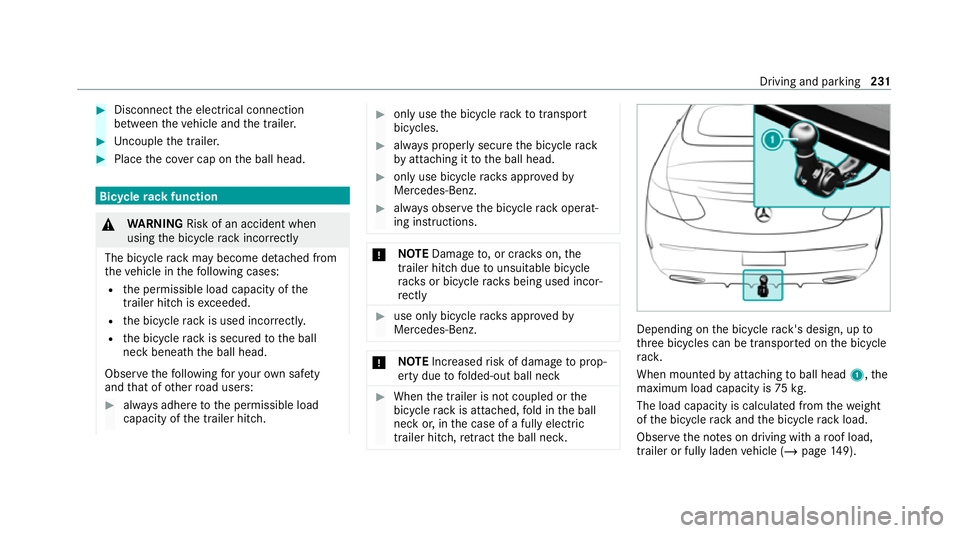
the bicycle rack 's design, up to
th re e bicycles can be transpor ted on the bicycle
ra ck.
When mounted byattaching toball head 1,the
maximum load capacity is 75kg.
The load capacity is calculated from thewe ight
of the bicycle rack and the bicycle rack load.
Obser vethe no tes on driving with a roof load,
trailer or fully laden vehicle (/ page149). Driving and parking
231
Page 235 of 549
When using a bicycle
rack , set the tyre pressure
fo r increased load on there ar axle of theve hicle.
Fu rther information on the tyre pressure can be
fo und in the tyre pressure table (/ page 401).
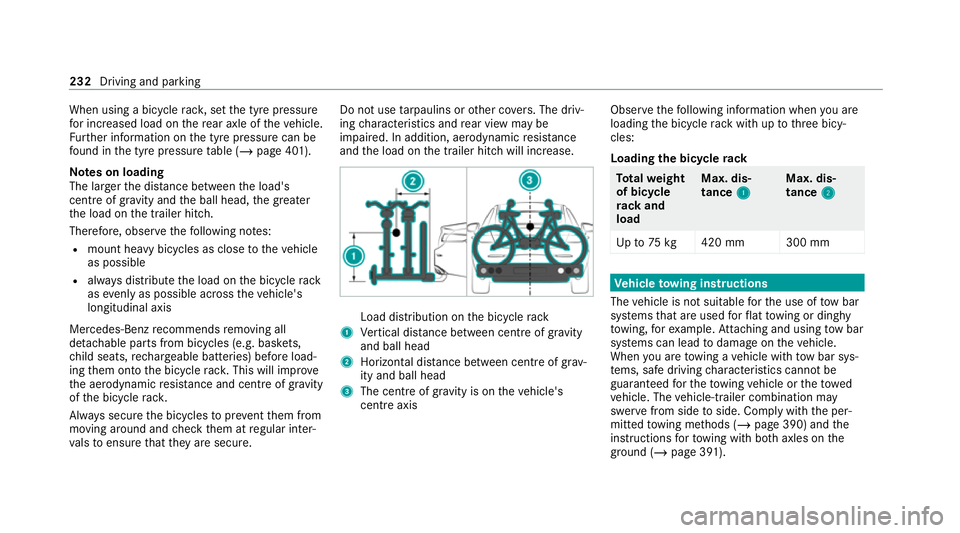
Note s on loading
The lar gerth e dis tance between the load's
cent reof gr avity and the ball head, the greater
th e load on the trailer hitch.
Therefore, obser vethefo llowing no tes:
R mount heavy bicycles as close totheve hicle
as possible
R always distribute the load on the bicycle rack
as eve nly as possible across theve hicle's
longitudinal axis
Mercedes-Benz recommends removing all
de tach able parts from bicycles (e.g. bask ets,
ch ild seats, rech arge able bat teries) before load‐
ing them onto the bicycle rack . This will impr ove
th e aerodynamic resis tance and centre of gr avity
of the bicycle rack.
Alw ays secure the bicycles topreve ntthem from
moving around and check them at regular inter‐
va ls to ensure that they are secure. Do not use
tarp aulins or other co vers. The driv‐
ing characteristics and rear view may be
impaired. In addition, aerodynamic resis tance
and the load on the trailer hitch will increase. Load distribution on
the bicycle rack
1 Vertical dis tance between centre of gr avity
and ball head
2 Horizon tal dis tance between centre of gr av‐
ity and ball head
3 The centre of gr avity is on theve hicle's
centre axis Obse
rveth efo llowing information when you are
loading the bicycle rack with up tothre e bicy‐
cles:
Loading the bicycle rack To
tal weight
of bicycle
rack and
load Max. dis‐
tance
1 1 Max. dis‐
tance
2 2
Up to75 kg 420 mm 300 mm Ve
hicle towing instructions
The vehicle is not suitable forth e use of tow bar
sy stems that are used forflat towing or ding hy
to wing, forex ample. Attach ing and using tow bar
sy stems can lead todamage on theve hicle.
When you are towing a vehicle with tow bar sys‐
te ms, safe driving characteristics cannot be
guaranteed forth eto wing vehicle or theto wed
ve hicle. The vehicle-trailer combination may
swer vefrom side toside. Comply with the per‐
mitted towing me thods (/ page 390) and the
instructions forto wing with bo thaxles on the
ground ( /page 391). 232
Driving and parking
Page 237 of 549
Instrument display
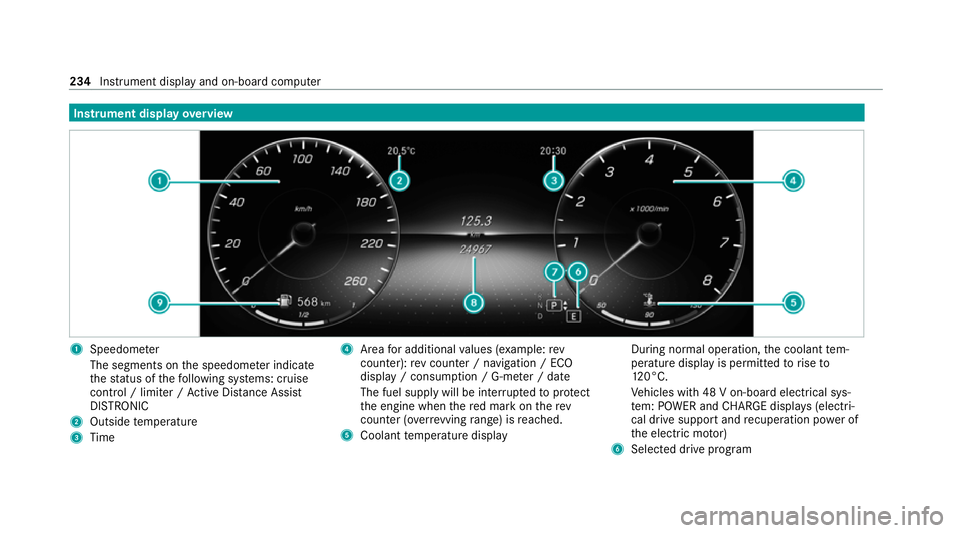
overview 1
Speedome ter
The segments on the speedome ter indica te
th est atus of thefo llowing sy stems: cruise
control / limiter / Active Dis tance Assi st
DISTRONIC
2 Outside temp erature
3 Time 4
Area for additional values (e xamp le:rev
counter): rev counter / navigation / ECO
display / consum ption / G-me ter / date
The fuel supply will be inter rupted toprotect
th e engine when there d mark on therev
counter (o verrev ving range) is reached.
5 Coolant temp erature display During normal operation,
the coolant tem‐
perature display is permitted torise to
12 0°C.
Ve hicles with 48 V on-board electrical sys‐
te m: POWER and CHARGE displ ays (electri‐
cal drive support and recuperation po wer of
th e electric mo tor)
6 Selected drive program 234
Instrument display and on-board computer
Page 269 of 549
Wi
-Fi Wi
-Fi connection overview
Yo u can use Wi-Fi toestablish a connection with
a Wi -Fi network and toaccess the Internet or
ot her network devices.
The following connection options are available:
R Wi-Fi connection
The Wi-Fi connection toaWi -Fi-capable
device, e.g. the cus tomer's mobile phone or
a ta blet PC is es tablished.
R Multimedia sy stem as a Wi-Fi hotspot
Using this function, a tablet PC or no tebook
can be connec ted, forex ample.
To establish a connection, you can use thefo l‐
lowing me thods:
R WPS PIN
The connection toa secure Wi-Fi network is
made via a PIN.
R WPS PBC
The connection toa secure Wi-Fi network is
made bypressing a button (push button).
R Security key The connection
toa secure Wi-Fi network is
made via a secu rity key.
Setting up Wi-Fi
Requ irements:
R The device tobe connec ted supports one of
th eth re e means of connection described
(/ page 266).
Multimedia sy stem:
4 System 5
ö Connectivity
Ac tivating/deactivating Wi-Fi #
Switch Wi-FionO or off ª.
If Wi-Fi is deactivated ª, communication via
Wi -Fi toall devices is inter rupte d. This also
means that a connection tothe HERMES
communication module cann otbe es tab‐
lished. Then functions such as dynamic route
guidance with Live Traf fic Information are not
av ailable.
Connecting the multimedia sy stem with a
device via Wi-Fi
This function is not available if a HERMES com‐
munication module is ins talled. The type of connection es
tablished must be
selected on the multimedia sy stem and on the
device tobe connec ted.
% The connection procedure may dif fer
depending on the device. Follow the instruc‐
tions that are shown in the displa y.Fu rther
information (see the manufacturer's operat‐
ing instructions). #
Select Internet settings . #
Select Search for Wi-Fi networks.
Using a security key #
Select a Wi-Fi network in the list. #
Have the security key displa yed on the device
to be connec ted (see the manufacturer's
operating instructions). #
Ente rth is security key on the multimedia sys‐
te m. #
Confirm the entry with¡.
% All devices support a security key as a
means of connection. 266
Multimedia sy stem
Page 271 of 549
#
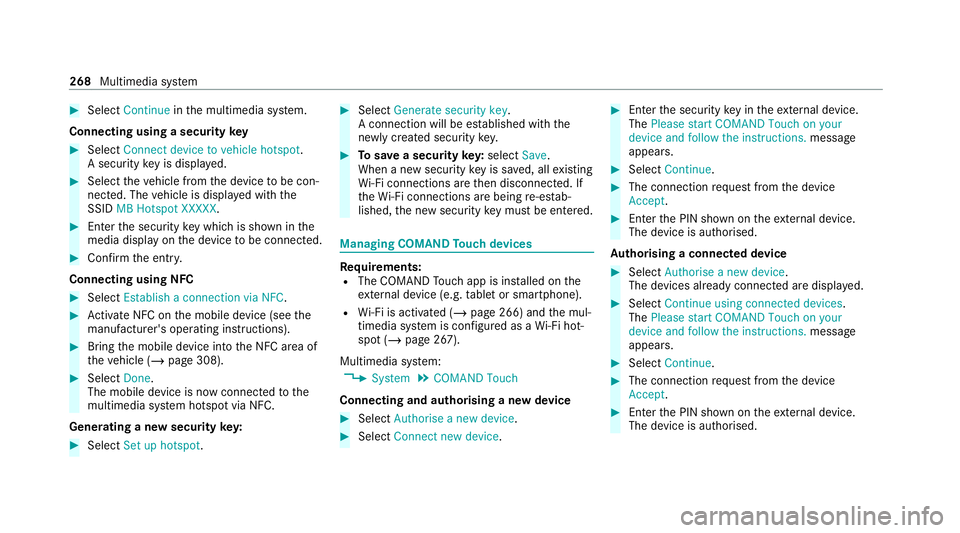
Select Continue inthe multimedia sy stem.
Connecting using a security key#
Select Connect device to vehicle hotspot .
A secu rity key is displa yed. #
Select theve hicle from the device tobe con‐
nec ted. The vehicle is displa yed with the
SSID MB Hotspot XXXXX .#
Enter the security key which is shown in the
media display on the device tobe connec ted. #
Confirm the entry.
Connecting using NFC #
Select Establish a connection via NFC. #
Activate NFC on the mobile device (see the
manufacturer's operating instructions). #
Bring the mobile device into the NFC area of
th eve hicle (/ page 308). #
Select Done.
The mobile device is now connected tothe
multimedia sy stem hotspot via NFC.
Generating a new security key: #
Select Set up hotspot . #
Select Generate security key .
A connection will be es tablished with the
newly crea ted security key. #
Tosave a security key:select Save.
When a new security key is sa ved, all existing
Wi -Fi connections are then disconnected. If
th eWi -Fi connections are being re-es tab‐
lished, the new security key must be en tere d. Managing COMAND
Touch devices Re
quirements:
R The COMAND Touch app is ins talled on the
ex tern al device (e.g. tablet or smartphone).
R Wi-Fi is acti vated (/ page 266) and the mul‐
timedia sy stem is confi gured as a Wi-Fi hot‐
spot (/ page 267).
Multimedia sy stem:
4 System 5
COMAND Touch
Connecting and authorising a new device #
Select Authorise a new device. #
Select Connect new device. #
Ente rth e security key in theex tern al device.
The Please start COMAND Touch on your
device and follow the instructions. message
appears. #
Select Continue. #
The connection requ est from the device
Accept. #
Ente rth e PIN shown on theex tern al device.
The device is authorised.
Au thorising a connected device #
Select Authorise a new device.
The devices already connec ted are displa yed. #
Select Continue using connected devices.
The Please start COMAND Touch on your
device and follow the instructions. message
appears. #
Select Continue. #
The connection requ est from the device
Accept. #
Ente rth e PIN shown on theex tern al device.
The device is authorised. 268
Multimedia sy stem
Page 273 of 549
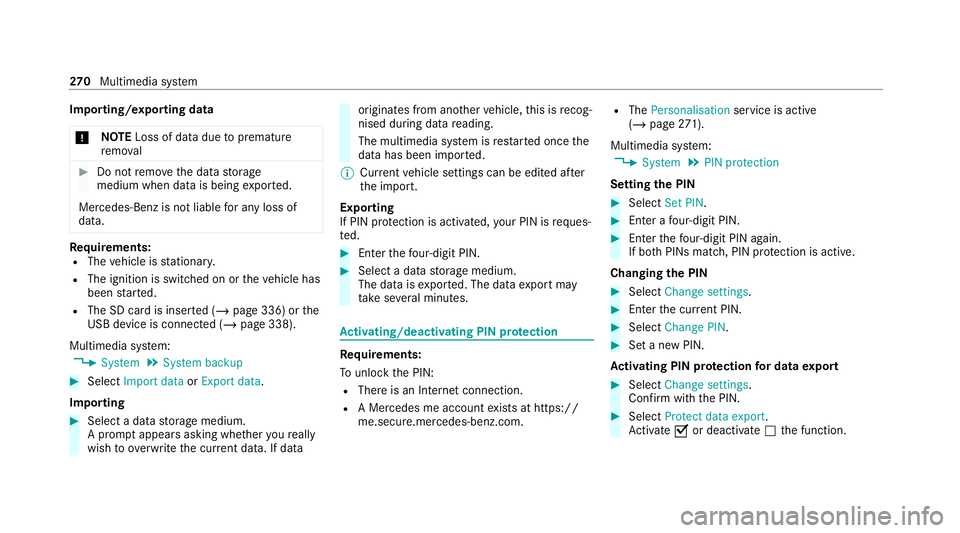
Importing/exporting data
* NO
TELoss of da tadue topremature
re mo val #
Do not remo vethe data storage
medium when data is being expor ted.
Mercedes-Benz is not liable for any loss of
data. Re
quirements:
R The vehicle is stationar y.
R The ignition is switched on or theve hicle has
been star ted.
R The SD card is inser ted (/ page 336) or the
USB device is connecte d (/page 338).
Multimedia sy stem:
4 System 5
System backup #
Select Import data orExport data.
Importing #
Select a data storage medium.
A prom ptappears asking whe ther youre ally
wish to overwrite the cur rent da ta. If da ta originates from ano
ther vehicle, this is recog‐
nised du ring da tareading.
The multimedia sy stem is restar ted once the
data has been impor ted.
% Current vehicle settings can be edited af ter
th e import.
Exporting
If PIN pr otection is activated, your PIN is reques‐
te d. #
Ente rth efo ur-digit PIN. #
Select a data storage medium.
The data is expor ted. The data export may
ta ke several minutes. Ac
tivating/deactivating PIN pr otection Re
quirements:
To unlo ckthe PIN:
R There is an Internet connection.
R A Mercedes me account exists at https://
me.secure.mercedes-benz.com. R
The Personalisation service is active
(/ page 271).
Multimedia sy stem:
4 System 5
PIN protection
Setting the PIN #
Select Set PIN. #
Enter a four-digit PIN. #
Enterth efo ur-digit PIN again.
If bo thPINs match, PIN pr otection is active.
Changing the PIN #
Select Change settings. #
Enterth e cur rent PIN. #
Select Change PIN . #
Set a new PIN.
Ac tivating PIN pr otection for data export #
Select Change settings .
Confirm wi th the PIN. #
Select Protect data export.
Ac tivate Oor deacti vate ª the function. 270
Multimedia sy stem
Page 275 of 549
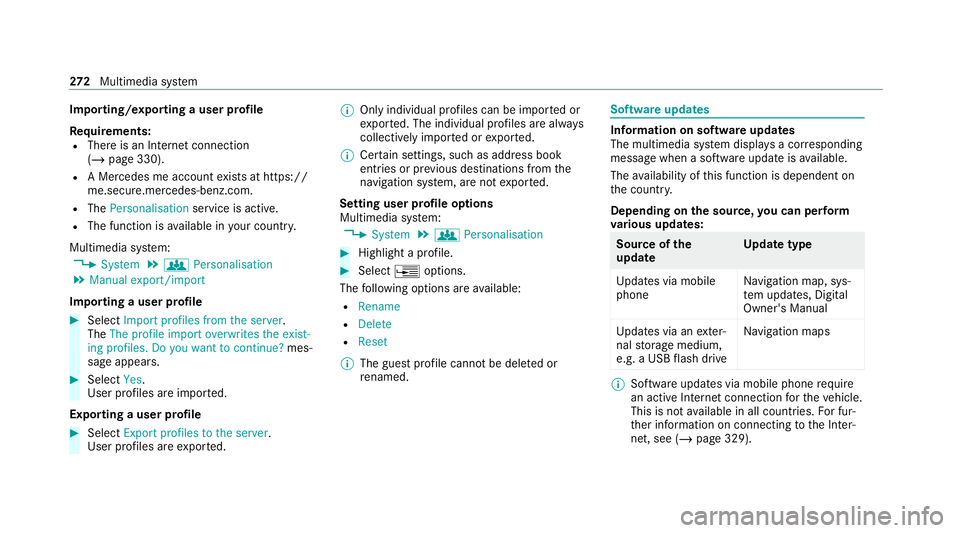
Importing/exporting a user profile
Re
quirements:
R There is an Internet connection
(/ page 330).
R A Mercedes me account exists at https://
me.secure.mercedes-benz.com.
R The Personalisation service is active.
R The function is available in your count ry.
Multimedia sy stem:
4 System 5
g Personalisation
5 Manual export/import
Importing a user profile #
Select Import profiles from the server.
The The profile import overwrites the exist-
ing profiles. Do you want to continue? mes‐
sage appears. #
Select Yes.
User profiles are impor ted.
Exporting a user profile #
Select Export profiles to the server.
User profiles are expor ted. %
Only individual profiles can be impor ted or
ex por ted. The individual profiles are alw ays
collectively impor ted or expor ted.
% Certain settings, such as address book
ent ries or pr evious destinations from the
navigation sy stem, are not expor ted.
Setting user profile options
Multimedia sy stem:
4 System 5
g Personalisation #
Highlight a profile. #
Select ¥options.
The following options are available:
R Rename
R Delete
R Reset
% The guest profile cannot be dele ted or
re named. So
ftwa reupdates Information on software updates
The multimedia sy
stem displa ysa cor responding
message when a software update isavailable.
The availability of this function is dependent on
th e count ry.
Depending on the source, you can per form
va rious upda tes: Source of
the
update Up
date type
Up dates via mobile
phone Na
vigation map, sys‐
te m updates, Digital
Owner's Manual
Up dates via an exter‐
nal storage medium,
e.g. a USB flash drive Na
vigation maps %
Software updates via mobile phone requ ire
an active Internet connection forth eve hicle.
This is not available in all countries. For fur‐
th er information on connecting tothe Inter‐
net, see (/ page 329). 272
Multimedia sy stem
Page 276 of 549
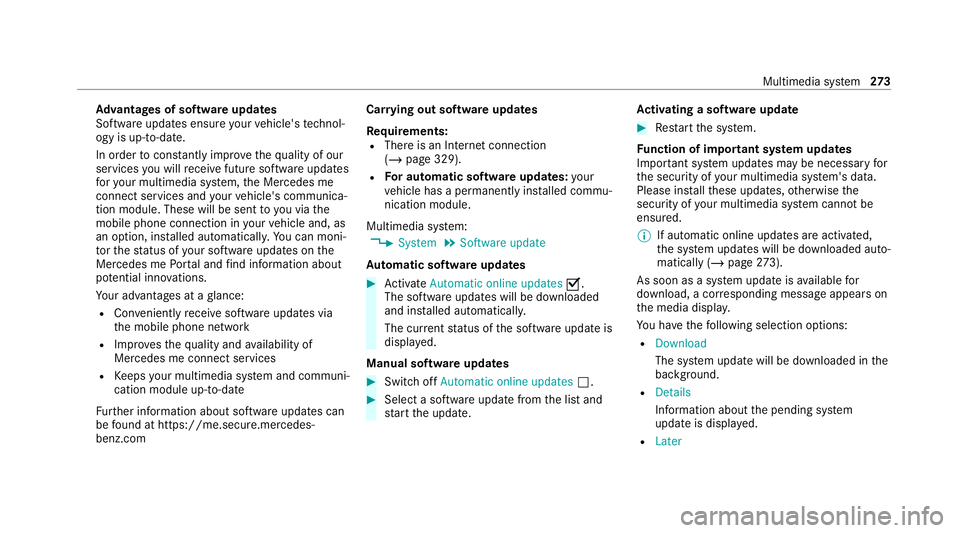
Ad
vantages of software updates
Software updates ensure your vehicle's tech nol‐
ogy is up-to-date.
In order tocons tantly impr ovethequ ality of our
services you will recei vefuture software updates
fo ryo ur multimedia sy stem, the Mercedes me
connect services and your vehicle's communica‐
tion module. These will be sent to you via the
mobile phone connection in your vehicle and, as
an option, ins talled automaticall y.Yo u can moni‐
to rth est atus of your software updates on the
Mercedes me Portal and find information about
po tential inno vations.
Yo ur advantages at a glance:
R Con veniently recei vesoftware update s via
th e mobile phone network
R Impr ovesth equ ality and availability of
Mercedes me connect services
R Keeps your multimedia sy stem and communi‐
cation module up-to-date
Fu rther information about software updates can
be found at https://me.secure.mercedes-
benz.com Car
rying out software updates
Requ irements:
R There is an Internet connection
(/ page 329).
R For automatic so ftwa reupdates: your
ve hicle has a permanently ins talled commu‐
nication module.
Multimedia sy stem:
4 System 5
Software update
Au tomatic so ftwa reupdates #
Activate Automatic online updates O.
The software upda tes will be downloaded
and ins talled automaticall y.
The cur rent status of the software update is
displa yed.
Manual software updates #
Switch off Automatic online updates ª. #
Select a software update from the list and
st art the update. Ac
tivating a so ftwa reupdate #
Restart the sy stem.
Fu nction of important sy stem upda tes
Impor tant sy stem updates may be necessary for
th e security of your multimedia sy stem's data.
Please ins tallth ese updates, otherwise the
security of your multimedia sy stem cann otbe
ensured.
% If automatic online updates are activated,
th e sy stem updates will be downloaded auto‐
matically (/ page273).
As soon as a sy stem update is available for
download, a cor responding message appears on
th e media displa y.
Yo u ha vethefo llowing selection options:
R Download
The sy stem update will be downloaded in the
bac kground.
R Details
Info rm ation about the pending sy stem
update is displa yed.
R Later Multimedia sy
stem 273
Page 308 of 549
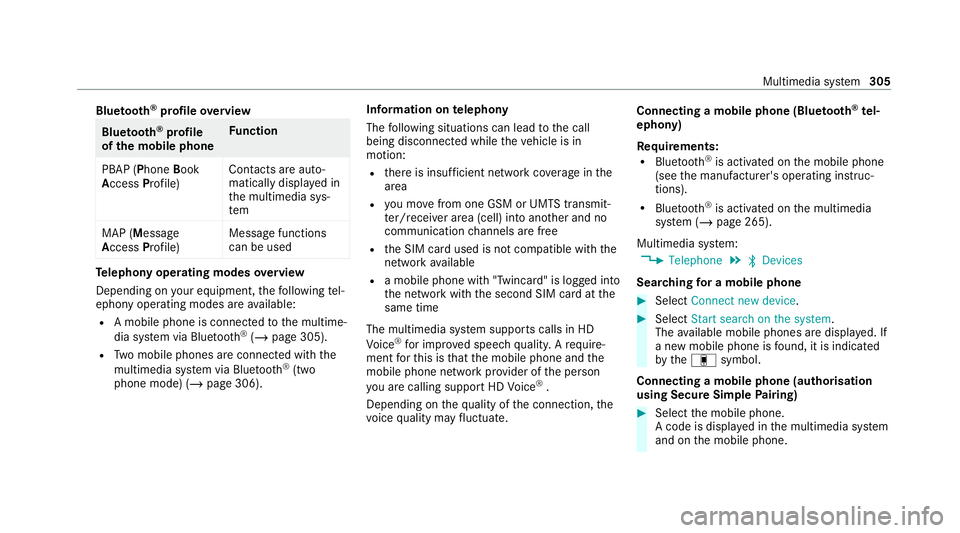
Blue
tooth ®
profile overview Blue
tooth ®
profile
of the mobile phone Fu
nction
PBAP (Phone Book
Access Profile) Contacts are auto‐
matically displa
yed in
th e multimedia sys‐
tem
MAP (Message
Access Profile) Message functions
can be used Te
lephony operating modes overview
Depending on your equipment, thefo llowing tel‐
ephony operating modes are available:
R A mobile phone is connec tedto the multime‐
dia sy stem via Blue tooth®
(/ page 305).
R Two mobile phones are connected with the
multimedia sy stem via Blue tooth®
(two
phone mode) (/ page 306). Information on
telephony
The following situations can lead tothe call
being disconnected while theve hicle is in
motion:
R there is insuf ficient network co verage inthe
area
R you mo vefrom one GSM or UMTS transmit‐
te r/receiver area (cell) into ano ther and no
communication channels are free
R the SIM card used is not compatible with the
network available
R a mobile phone with "Twincard" is logged into
th e network with the second SIM card at the
same time
The multimedia sy stem supports calls in HD
Vo ice ®
for impr oved speech qualit y.Arequ ire‐
ment forth is is that the mobile phone and the
mobile phone network pr ovider of the person
yo u are calling suppo rtHD Voice ®
.
Depending on thequ ality of the connection, the
vo ice quality may fluctuate. Connecting a mobile phone (Blu
etoo th®
te l‐
ephony)
Re quirements:
R Blue tooth ®
is activated on the mobile phone
(see the manufacturer's operating instruc‐
tions).
R Blue tooth ®
is activated on the multimedia
sy stem (/ page 265).
Multimedia sy stem:
4 Telephone 5
ª Devices
Sear ching for a mobile phone #
Select Connect new device . #
Select Start search on the system .
The available mobile phones are displa yed. If
a new mobile phone is found, it is indicated
by the# symbol.
Connecting a mobile phone (authorisation
using Secure Simple Pairing) #
Select the mobile phone.
A code is displa yed in the multimedia sy stem
and on the mobile phone. Multimedia sy
stem 305
Page 327 of 549
R
Country indicator of theve hicle
R Set language forth e multimedia sy stem
R Telephone number of the communication
platform ins talled in theve hicle
If a call is made for a service appointment via
th e service reminder, thefo llowing data is also
transmitte d:
R Cur rent milea geand main tenance da ta
If a call is made af ter auto matic accident or
breakdown de tection using the multimedia sys‐
te m, thefo llowing data is also transmitted:
R Cur rent milea geand main tenance da ta
R Cur rent vehicle location
If Ac cident and Breakdown Management is
called via thevo ice control sy stem and no
service has been activated, but the data pr otec‐
tion query has been confi rmed, thefo llowing
data can also be called up from theve hicle by
th e Mercedes-Benz Cus tomer Centre:
R Curr entvehicle location If
th e data pr otection prom pthas been rejected,
th efo llowing data is transmitte dto enable targe‐
te d advice and an ef ficient service:
R Reason forth e initiation of the call
R Rejection of the data pr otection prom pt
R Country indicator of theve hicle
R Set language forth e multimedia sy stem
R Telephone number of the communication
platform ins talled in theve hicle
Data transfer if Mercedes me connect serv‐
ices are activated
Only if there spective service is activated will
additional incident-specific data be transmitted
in the second stage toenable an optimal
service.
An ove rview of the data transmit ted can be
fo und in there spective term s of use for
Mercedes me connect services. These can be
obtained in the Mercedes me Portal: https://
me.secure.mercedes-benz.com
Data processing
The data transmitted within the scope of the call
is dele ted from the processing sy stem af terthe call is
finished, in so far as this data is not being
used forot her activated Mercedes me connect
services.
The incident-specific data is processed and
st ored in the Mercedes-Benz Cus tomer Centre
and, if requiredtoprocess the incident, forw ar‐
ded tothe service partner authorised bythe
Mercedes-Benz Cus tomer Centre. Please take
no te ofthe data pr otection information on the
Mercedes me Internet page https://
www.mercedes.me or in there corded message
immediately af ter calling the Mercedes-Benz
Cus tomer Centre.
% The recorded message is not available in
eve rycountr y. Mercedes me connect
Information on Mercedes me connect
Mercedes me connect pr
ovides thefo llowing
services:
R Accident and breakdown mana gement (me
button) 324
Multimedia sy stem