display MERCEDES-BENZ C-CLASS COUPE 2021 Manual Online
[x] Cancel search | Manufacturer: MERCEDES-BENZ, Model Year: 2021, Model line: C-CLASS COUPE, Model: MERCEDES-BENZ C-CLASS COUPE 2021Pages: 549, PDF Size: 9.74 MB
Page 260 of 549
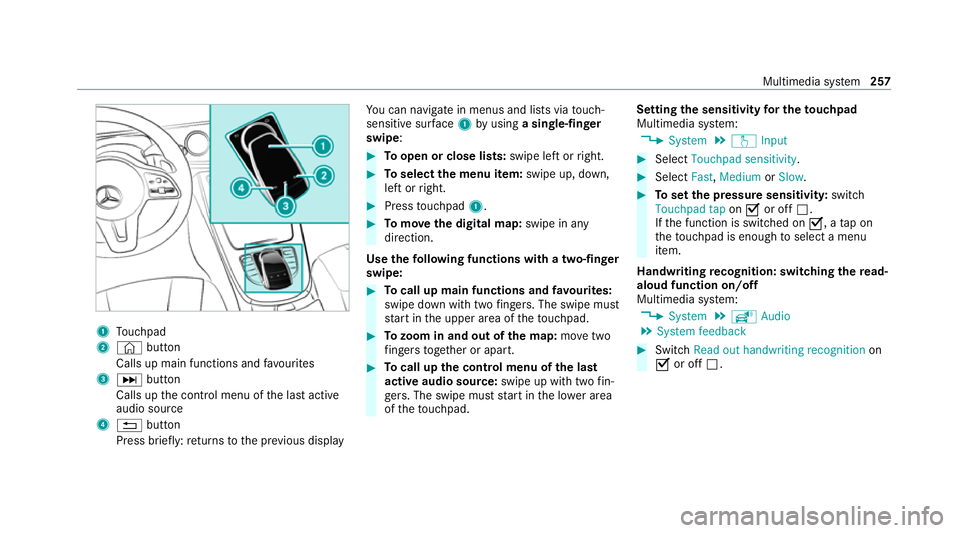
1
Touchpad
2 © button
Calls up main functions and favo urites
3 D button
Calls up the control menu of the last active
audio source
4 % button
Press brief ly:re turns tothe pr evious display Yo
u can navigate in menus and lists via touch-
sensitive sur face 1 byusing a single-finger
swipe: #
Toopen or close lists: swipe left orright. #
Toselect the menu item: swipe up, down,
left or right. #
Press touchpad 1. #
Tomo vethe digital map: swipe in any
direction.
Use thefo llowing functions with a two-finger
swipe: #
Tocall up main functions and favo urites:
swipe down with two fingers. The swipe mu st
st art in the upper area of theto uchpad. #
Tozoom in and out of the map: movetwo
fi ngers toget her or apart. #
Tocall up the control menu of the last
active audio source: swipe up with twofin‐
ge rs. The swipe must start in the lo wer area
of theto uchpad. Setting
the sensitivity for the touchpad
Multimedia sy stem:
4 System 5
w Input #
Select Touchpad sensitivity . #
Select Fast,Medium orSlow . #
Toset the pressure sensitivit y:switch
Touchpad tap onO or off ª.
If th e function is switched on O, atap on
th eto uchpad is enough toselect a menu
item.
Handwriting recognition: swit ching there ad-
aloud function on/off
Multimedia sy stem:
4 System 5
õ Audio
5 System feedback #
Switch Read out handwriting recognition on
O or off ª. Multimedia sy
stem 257
Page 266 of 549
Ä
To
switch tospecial characters and sym‐
bols.
X To
switch toupper-case or lo wer-case let‐
te rs.
B To
switch the language.
v Toswitch tocharacter ent ryon theto uch‐
pad.
% The available editing functions depend on
th e editing task, the language set and the
ch aracter le vel. #
Toconfirm the entr y:select ¡.
Example: entering a destination (navigation) #
Enter the POI or address (/ page277).
Entering characters on theto uchpad
Requ irements:
R The touchpad is swit ched on (/ page 256).
R The entered or selected character should be
re ad out: the handwriting recognition read-
aloud function is swit ched on (/ page 257). Example:
renaming favo urites #
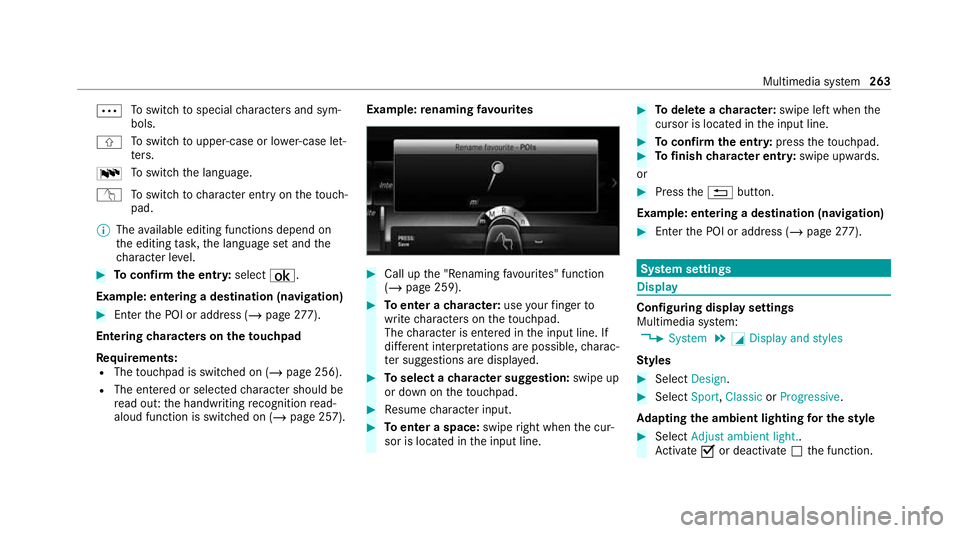
Call up the "Renaming favo urites" function
(/ page 259). #
Toenter a character: useyour finger to
write characters on theto uchpad.
The character is entered in the input line. If
dif fere nt interpr etations are possible, charac‐
te r suggestions are displa yed. #
Toselect a character suggestion: swipe up
or down on theto uchpad. #
Resume character input. #
Toenter a space: swiperight when the cur‐
sor is located in the input line. #
Todel ete a character: swipe left when the
cursor is loca ted in the input line. #
Toconfirm the entr y:press theto uchpad. #
Tofinish character entr y:swipe upwards.
or #
Press the% button.
Example: entering a destination (navigation) #
Ente rth e POI or address (/ page277). Sy
stem settings Display
Configuring display settings
Multimedia sy
stem:
4 System 5
G Display and styles
Styl es #
Select Design. #
Select Sport,Classic orProgressive .
Ad apting the ambient lighting for the style #
Select Adjust ambient light. .
Ac tivate Oor deacti vate ª the function. Multimedia sy
stem 263
Page 267 of 549
This function adjusts
the ambient lighting for
th e selected display style.
Setting the display brightness #
Select Display brightness .#
Select a brightness value.
Switching the display off/on #
Toswitch off: selectDisplay off . #
Toswitch on: press a button, %,for
ex ample.
Displ aydesign #
Select Day/night design. #
Select Automatic, Day design orNight
design.
Ad ditional displ ayarea
Depending on theve hicle, various items of addi‐
tional information can be shown. The additional
display area comprises the left-hand or right-
hand third of the displa y. #
Select Additional display area .The
following display con tent can be selected:
R Dynamic
R Navigation map
R Consumption
R Time and date Ti
me and date Setting the time and date automatically
Multimedia sy
stem:
4 System 5
& Time and date #
Deactivate ªManual time adjustment.
The time and date are set automatically for
th e selected time zone and summer time
option.
% The cor rect time is requ ired forth efo llowing
functions:
R Route guidance with time-dependent
traf fic guidance.
R Calculation of expected time of ar riva l. Setting
the time zone
Multimedia sy stem:
4 System 5
& Time and date
5 Time zone:
The list of count ries is displa yed. #
Select a count ry#.
Depending on the count ry, time zones are
displa yed. #
Select a time zone.
The time zone set is displa yed af terTime
zone:.
Setting summer time
The Automatic Summer Time andSummer Time
options cannot be selected in all countries.
Multimedia sy stem:
4 System 5
& Time and date
Au tomatically #
Switch Automatic Summer Time onO or off
ª.
Manual ly #
Switch Automatic Summer Time offª. 264
Multimedia sy stem
Page 270 of 549
Using a WPS PIN
#
Highlight a Wi-Fi network in the list. #
Select ¥Connect using WPS PIN input.
The multimedia sy stem generates an eight-
digit PIN. #
Enter this PIN on the device tobe connec ted. #
Confirm the entry.
Using a button
% This function is only available in a Wi-Fi fre‐
qu ency of 2.4 GHz. #
Highlight a Wi-Fi network in the list. #
Select ¥Connect via WPS PBC. #
Select "Connect via WPS PBC" in the options
on the device tobe connec ted. #
Press the WPS button on the device tobe
connec ted. #
Select Continue inthe multimedia sy stem.
Device has already been connected: #
Toautomatically connect: highlight aWi-Fi
network in the list. #
Activate ¥ Connect automaticallyO. #
Toconnect: highlight a Wi-Fi network in the
list. #
Select ¥Connect.
The connection is es tablished again. These
functions are possible when the device has
already been connected totheWi -Fi networ k.
Setting up a Wi-Fi hotspot
Re quirements:
R For connection bypressing a button: this
function is only available in a Wi-Fi frequency
of 2.4 GHz.
Multimedia sy stem:
4 System 5
ö Connectivity
Configuring the multimedia sy stem as a Wi-
Fi hotspot
% The availability of this function is dependent
on the count ry.
The type of connection es tablished depends on
th e device tobe connec ted. The function must
be suppor tedby the multimedia sy stem and by
th e device tobe connec ted. The type of connec‐ tion es
tablished must be selected on the multi‐
media sy stem and on the device tobe connec‐
te d. #
Select Set up hotspot. #
Highlight Connect device to vehicle hotspot.
Generating a WPS PIN #
Select ¥Connect using WPS PIN genera-
tion . #
Ente rth e PIN shown in the media display on
th e device tobe connec ted and con firm.
Connecting using a WPS PIN #
Select ¥Connect using WPS PIN input. #
Select Enter WPS PIN. #
Enterth e PIN that is shown on theex tern al
device's display on the multimedia sy stem. #
Select Continue.
Connecting using a button #
Select ¥Connect via WPS PBC. #
Press the WPS button on the device tobe
connec ted or select Connect. Multimedia sy
stem 267
Page 271 of 549
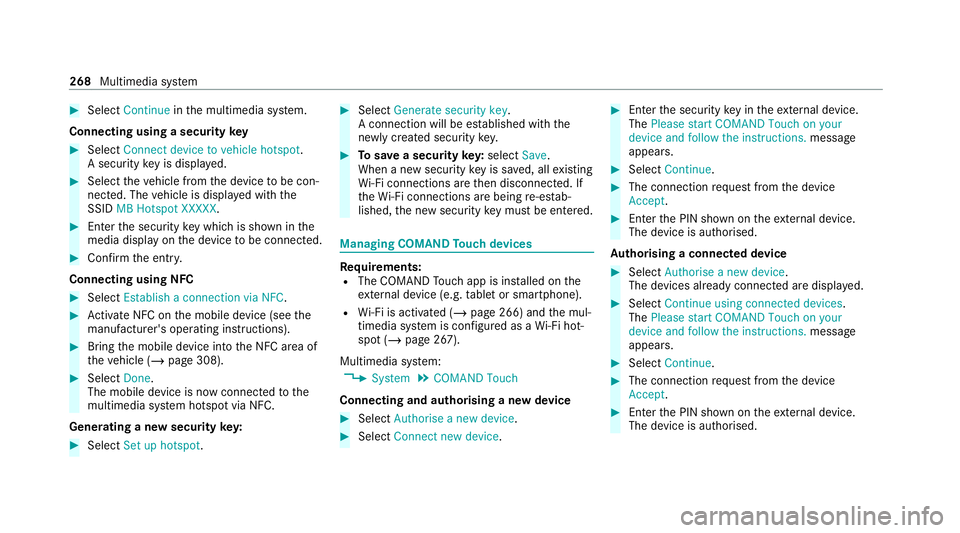
#
Select Continue inthe multimedia sy stem.
Connecting using a security key#
Select Connect device to vehicle hotspot .
A secu rity key is displa yed. #
Select theve hicle from the device tobe con‐
nec ted. The vehicle is displa yed with the
SSID MB Hotspot XXXXX .#
Enter the security key which is shown in the
media display on the device tobe connec ted. #
Confirm the entry.
Connecting using NFC #
Select Establish a connection via NFC. #
Activate NFC on the mobile device (see the
manufacturer's operating instructions). #
Bring the mobile device into the NFC area of
th eve hicle (/ page 308). #
Select Done.
The mobile device is now connected tothe
multimedia sy stem hotspot via NFC.
Generating a new security key: #
Select Set up hotspot . #
Select Generate security key .
A connection will be es tablished with the
newly crea ted security key. #
Tosave a security key:select Save.
When a new security key is sa ved, all existing
Wi -Fi connections are then disconnected. If
th eWi -Fi connections are being re-es tab‐
lished, the new security key must be en tere d. Managing COMAND
Touch devices Re
quirements:
R The COMAND Touch app is ins talled on the
ex tern al device (e.g. tablet or smartphone).
R Wi-Fi is acti vated (/ page 266) and the mul‐
timedia sy stem is confi gured as a Wi-Fi hot‐
spot (/ page 267).
Multimedia sy stem:
4 System 5
COMAND Touch
Connecting and authorising a new device #
Select Authorise a new device. #
Select Connect new device. #
Ente rth e security key in theex tern al device.
The Please start COMAND Touch on your
device and follow the instructions. message
appears. #
Select Continue. #
The connection requ est from the device
Accept. #
Ente rth e PIN shown on theex tern al device.
The device is authorised.
Au thorising a connected device #
Select Authorise a new device.
The devices already connec ted are displa yed. #
Select Continue using connected devices.
The Please start COMAND Touch on your
device and follow the instructions. message
appears. #
Select Continue. #
The connection requ est from the device
Accept. #
Ente rth e PIN shown on theex tern al device.
The device is authorised. 268
Multimedia sy stem
Page 274 of 549
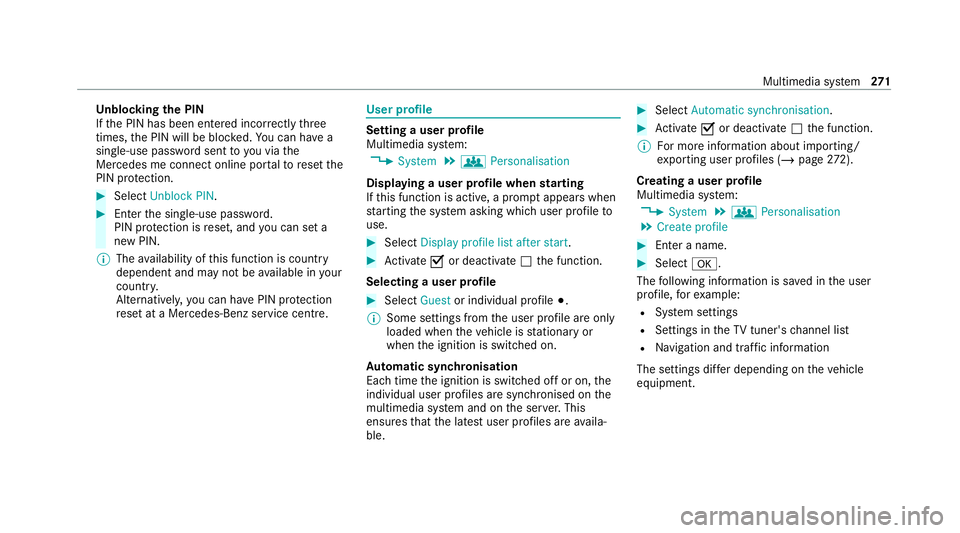
Un
blocking the PIN
If th e PIN has been entered incor rectly three
times, the PIN will be bloc ked. You can ha ve a
single-use password sent to you via the
Mercedes me connect online por talto reset the
PIN pr otection. #
Select Unblock PIN. #
Ente rth e single-use password.
PIN pr otection is reset, and you can set a
new PIN.
% The availability of this function is country
dependent and may not be available in your
count ry.
Alternati vely, you can ha vePIN pr otection
re set at a Mercedes-Benz service centre. User profile
Setting a user profile
Multimedia sy
stem:
4 System 5
g Personalisation
Displaying a user profile when starting
If th is function is active, a prom ptappears when
st arting the sy stem asking which user profile to
use. #
Select Display profile list after start . #
Activate Oor deacti vate ª the function.
Selecting a user profile #
Select Guestor individual profile #.
% Some settings from the user profile are only
loaded when theve hicle is stationary or
when the ignition is switched on.
Au tomatic syn chronisation
Each time the ignition is switched off or on, the
individual user profiles are synchronised on the
multimedia sy stem and on the ser ver.This
ensures that the latest user profiles are availa‐
ble. #
Select Automatic synchronisation. #
Activate Oor deacti vate ª the function.
% For more information about importing/
ex porting user profiles (/ page272).
Crea ting a user profile
Multimedia sy stem:
4 System 5
g Personalisation
5 Create profile #
Ente r a name. #
Select a.
The following information is sa ved in the user
profile, forex ample:
R System settings
R Settings in theTV tuner's channel list
R Navigation and traf fic information
The settings di ffer depending on theve hicle
equipment. Multimedia sy
stem 271
Page 277 of 549
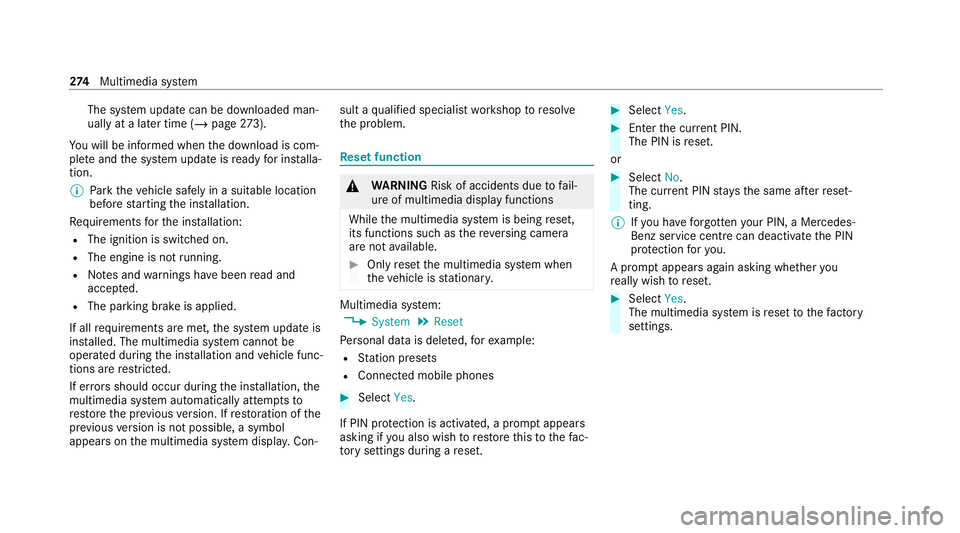
The sy
stem update can be downloaded man‐
ually at a later time (/ page273).
Yo u will be informed when the download is com‐
ple teand the sy stem update is ready for ins talla‐
tion.
% Park theve hicle safely in a suitable location
before starting the ins tallation.
Re quirements forth e ins tallation:
R The ignition is switched on.
R The engine is not running.
R Notes and warnings ha vebeen read and
accep ted.
R The parking brake is applied.
If all requirements are met, the sy stem update is
ins talled. The multimedia sy stem cann otbe
operated during the ins tallation and vehicle func‐
tions are restricted.
If er rors should occur during the ins tallation, the
multimedia sy stem automatically attem ptsto
re store the pr evious version. If restoration of the
pr ev ious version is not possible, a symbol
appears on the multimedia sy stem displa y.Con‐ sult a
qualified specialist workshop toresol ve
th e problem. Re
set function &
WARNING Risk of accidents due tofail‐
ure of multimedia display functions
While the multimedia sy stem is being reset,
its functions such as there ve rsing camera
are not available. #
Only re setthe multimedia sy stem when
th eve hicle is stationar y. Multimedia sy
stem:
4 System 5
Reset
Pe rsonal data is dele ted, forex ample:
R Station presets
R Connec ted mobile phones #
Select Yes.
If PIN pr otection is activated, a prom ptappears
asking if you also wish torestore this to thefa c‐
to ry settings during a reset. #
Select Yes. #
Enter the cur rent PIN.
The PIN is reset.
or #
Select No.
The cur rent PIN stay sth e same af terre set‐
ting.
% Ifyo u ha veforg ottenyo ur PIN, a Mercedes-
Benz service centre can deactivate the PIN
pr otection foryo u.
A prom ptappears again asking whe ther you
re ally wish toreset. #
Select Yes.
The multimedia sy stem is reset tothefa ctory
settings. 274
Multimedia sy stem
Page 287 of 549
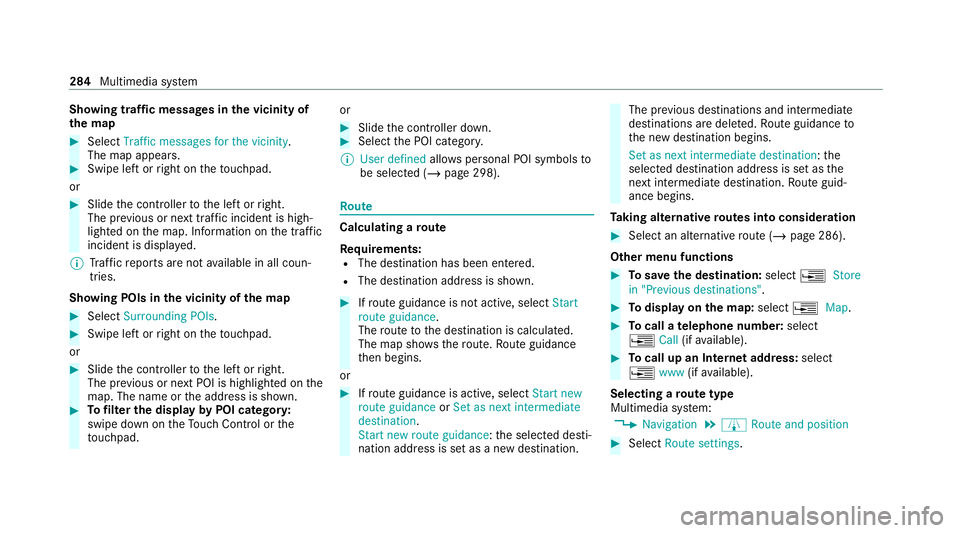
Showing traf
fic messages in the vicinity of
th e map #
Select Traffic messages for the vicinity.
The map appears. #
Swipe left or right on theto uchpad.
or #
Slide the controller tothe left or right.
The pr evious or next traf fic incident is high‐
lighted on the map. Information on the tra ffic
incident is displa yed.
% Traf fic re ports are not available in all coun‐
tries.
Showing POIs in the vicinity of the map #
Select Surrounding POIs .#
Swipe left or right on theto uchpad.
or #
Slide the controller tothe left or right.
The pr evious or next POI is highligh ted on the
map. The name or the address is shown. #
Tofilter the display byPOI categor y:
swipe down on theTo uch Control or the
to uchpad. or #
Slide the controller down. #
Select the POI categor y.
% User defined allowspersonal POI symbols to
be selected (/ page 298). Ro
ute Calculating a
route
Re quirements:
R The destination has been entered.
R The destination address is shown. #
Ifro ute guidance is not active, select Start
route guidance .
The route tothe destination is calculated.
The map sho ws thero ute. Route guidance
th en begins.
or #
Ifro ute guidance is active, select Start new
route guidance orSet as next intermediate
destination .
Start new route guidance: the selected desti‐
nation address is set as a new destination. The pr
evious destinations and intermediate
destinations are dele ted. Ro ute guidance to
th e new destination begins.
Set as next intermediate destination: the
selected destination address is set as the
next intermedia tedestination. Route guid‐
ance begins.
Ta king alternative routes into conside ration #
Select an al tern ative route (/ page 286).
Other menu functions #
Tosave the destination: select¥Store
in "Previous destinations". #
Todispl ayon the map: select¥Map. #
Tocall a telephone number: select
¥ Call(ifavailable). #
Tocall up an Internet address: select
¥ www(ifavailable).
Selecting a route type
Multimedia sy stem:
4 Navigation 5
À Route and position #
Select Route settings. 284
Multimedia sy stem
Page 291 of 549
The
road and traf fic ru les and regulations alw ays
ha ve priority over multimedia sy stem driving
instructions.
The following driving instructions can be used:
R Navigation announcements
R Route guidance displ ays
R Lane recommendations
If yo u do not follow the driving instructions or if
yo u lea vethe calculated route, a new route is
calculated automaticall y.
Driving instructions may di ffer from the actual
ro ad and traf fic conditions if:
R The route is diver ted
R The direction of a one-w aystre et has been
ch anged
Fo rth is reason, you must alw ays obser veroad
and traf fic ru les and regulations during your
journey as well as the pr evailing traf fic condi‐
tions.
The route may dif fer from the ideal route due to
th efo llowing:
R Roadwor ks R
Incomple tedigital map data
Note s on GPS reception
The cor rect function of the navigation sy stem
depends amongst other things on GPS recep‐
tion. In cer tain situations GPS reception can be
impaired, defective or even not possible, e.g. in
tunnels or in multi-s torey car par ks.
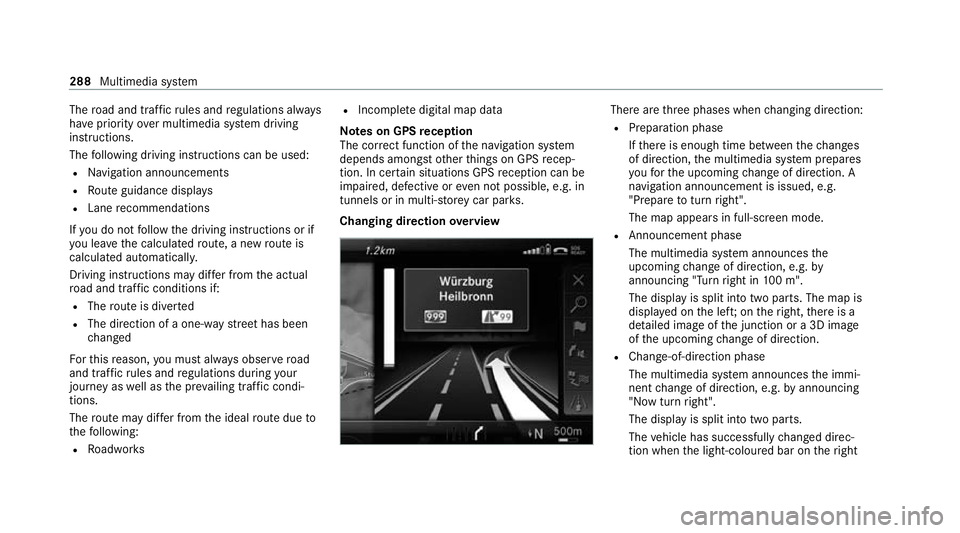
Changing direction overview There are
thre e phases when changing direction:
R Preparation phase
Ifth ere is enough time between thech anges
of direction, the multimedia sy stem prepares
yo ufo rth e upcoming change of direction. A
navigation announcement is issued, e.g.
"Prepare toturn right".
The map appears in full-screen mode.
R Announcement phase
The multimedia sy stem announces the
upcoming change of direction, e.g. by
announcing "Turn right in 100 m".
The display is split into two parts. The map is
displa yed on the lef t;on theright, there is a
de tailed image of the junction or a 3D image
of the upcoming change of direction.
R Chan ge-of-direction phase
The multimedia sy stem announces the immi‐
nent change of direction, e.g. byannouncing
"N ow turn right".
The display is split into two parts.
The vehicle has successfully changed direc‐
tion when the light-coloured bar on theright 288
Multimedia sy stem
Page 292 of 549
drops down
to0 m and the cur rent vehicle
position symbol has reached the highlighted
ch ange-of-direction point.
When thech ange of direction is comple te,
th e map appears in full-screen mode.
% Changes of direction are also shown in the
Instrument Displa y.
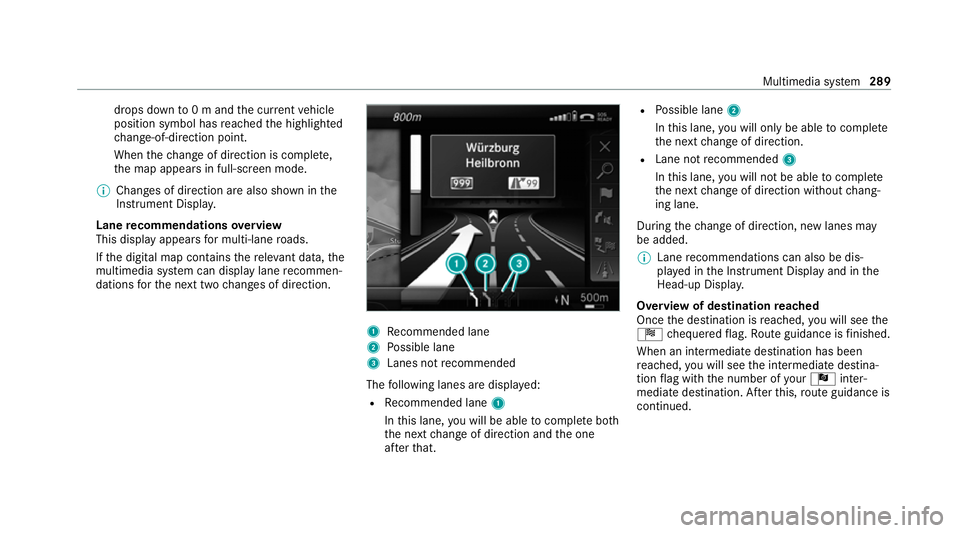
Lane recommendations overview
This display appears for multi-lane roads.
If th e digital map conta insthere leva nt da ta,the
multimedia sy stem can display lane recommen‐
dations forth e next two changes of direction. 1
Recommended lane
2 Possible lane
3 Lanes not recommended
The following lanes are displa yed:
R Recommended lane 1
In this lane, you will be able tocompl ete bo th
th e next change of direction and the one
af te rth at. R
Possible lane 2
In this lane, you will on lybe able tocompl ete
th e next change of direction.
R Lane not recommended 3
In this lane, you will not be able tocompl ete
th e next change of direction without chang‐
ing lane.
During thech ange of direction, new lanes may
be added.
% Lane recommendations can also be dis‐
pl ay ed in the Instrument Display and in the
Head-up Displa y.
Overview of destination reached
Once the destination is reached, you will see the
Í chequered flag. Route guidance is finished.
When an intermedia tedestination has been
re ached, you will see the intermediate destina‐
tion flag with the number of your Î inter‐
mediate destination. Af terth is, route guidance is
continued. Multimedia sy
stem 289