steering wheel MERCEDES-BENZ C-CLASS ESTATE 2020 Owner's Guide
[x] Cancel search | Manufacturer: MERCEDES-BENZ, Model Year: 2020, Model line: C-CLASS ESTATE, Model: MERCEDES-BENZ C-CLASS ESTATE 2020Pages: 565, PDF Size: 10.27 MB
Page 259 of 565
Note
s on operating saf ety&
WARNING Risk of dist raction from infor‐
mation sy stems and communications
equipment
If yo u operate information and communica‐
tion equipment integ rated in theve hicle
when driving, you will be distracted from the
traf fic situation. This could also cause youto
lose control of theve hicle. #
Only operate this equipment when the
traf fic situation permits. #
Ifyo u cannot be sure of this, stop the
ve hicle whilst paying attention toroad
and traf fic conditions and ope rate the
equipment with theve hicle stationar y. Fo
ryo ur ow n sa fety, al ways obser vethefo llow‐
ing points when operating mobile communica‐
tions equipment and especially your voice con‐
trol sy stem:
R Obser vethe legal requ irements forth e coun‐
try in which you are driving. R
Ifyo u use thevo ice control sy stem in an
emer gency your voice can change and your
te lephone call, e.g. an emer gency call, can
th ereby be unnecessarily dela yed.
R Familiarise yourself with thevo ice control
sy stem functions before starting the journe y. Operation
Overview of operation of LINGU
ATRO NIC on
the multifunction steering wheel LINGU
ATRO NIC is operational appr oximately
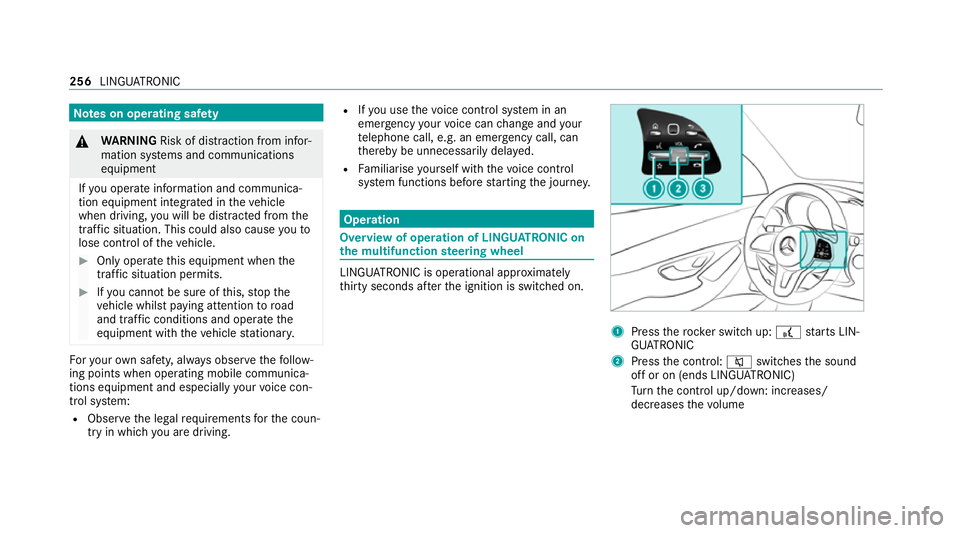
th irty seconds af terth e ignition is switched on. 1
Press therock er switch up: £starts LIN‐
GU ATRO NIC
2 Press the control: 8switches the sound
off or on (ends LINGU ATRO NIC)
Tu rn the control up/down: increases/
decreases thevo lume 256
LINGU ATRO NIC
Page 260 of 565
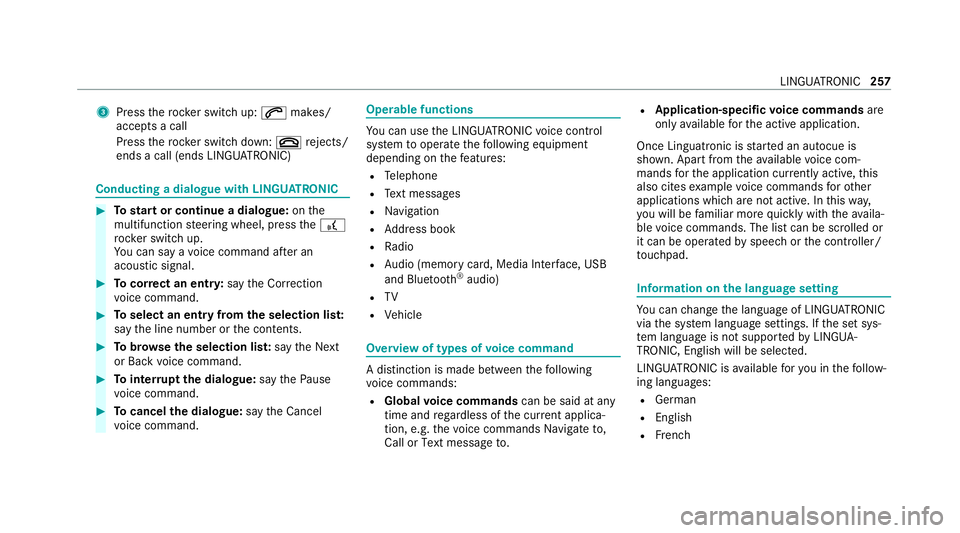
3
Press therock er switch up: 6makes/
accepts a call
Press therock er switch down: ~rejects/
ends a call (ends LINGU ATRO NIC) Conducting a dialogue with LINGU
ATRO NIC #
Tostart or continue a dialogue: onthe
multifunction steering wheel, press the£
rock er switch up.
Yo u can say a voice command af ter an
acou stic signal. #
Tocor rect an ent ry:say theCorrection
vo ice command. #
Toselect an entry from the selection lis t:
say the line number or the conte nts. #
Tobrows eth e selection lis t:say theNext
or Back voice command. #
Tointer rupt the dialogue: saythePause
vo ice command. #
Tocancel the dialogue: saytheCancel
vo ice command. Operable functions
Yo
u can use the LINGU ATRO NIC voice control
sy stem tooperate thefo llowing equipment
depending on thefe atures:
R Telephone
R Text messa ges
R Navigation
R Address book
R Radio
R Audio (memory card, Media Inter face, USB
and Blu etoo th®
audio)
R TV
R Vehicle Overview of types of
voice command A distinction is made between
thefo llowing
vo ice commands:
R Global voice commands can be said at any
time and rega rdless of the cur rent applica‐
tion, e.g. thevo ice commands Navigate to,
Call orText message to. R
Application-specific voice commands are
only available forth e active application.
Once Linguatronic is star ted an autocue is
shown. Apart from theav ailable voice com‐
mands forth e application cur rently acti ve,th is
also cites example voice commands forot her
applications which are not active. In this wa y,
yo u will be familiar more quickly with theav aila‐
ble voice commands. The list can be scrolled or
it can be operated byspeech or the controller/
to uchpad. Information on
the language setting Yo
u can change the language of LINGU ATRO NIC
via the sy stem language settings. If the set sys‐
te m language is not suppor tedby LINGUA‐
TRONIC, English will be selected.
LINGU ATRO NIC is available foryo u in thefo llow‐
ing languages:
R German
R English
R French LINGU
ATRO NIC 257
Page 280 of 565
#
Navigate down wards once. #
Select a favo urite. #
Navigate down wards once.
The Favourites menu appears. #
Todel ete: select Delete. #
Select Yes. #
Toresto reall favo urites: selectReset all.
A prom ptappears. #
Select Yes.
The favo urites are reset tothefa ctory set‐
tings. Switching the sound on/off
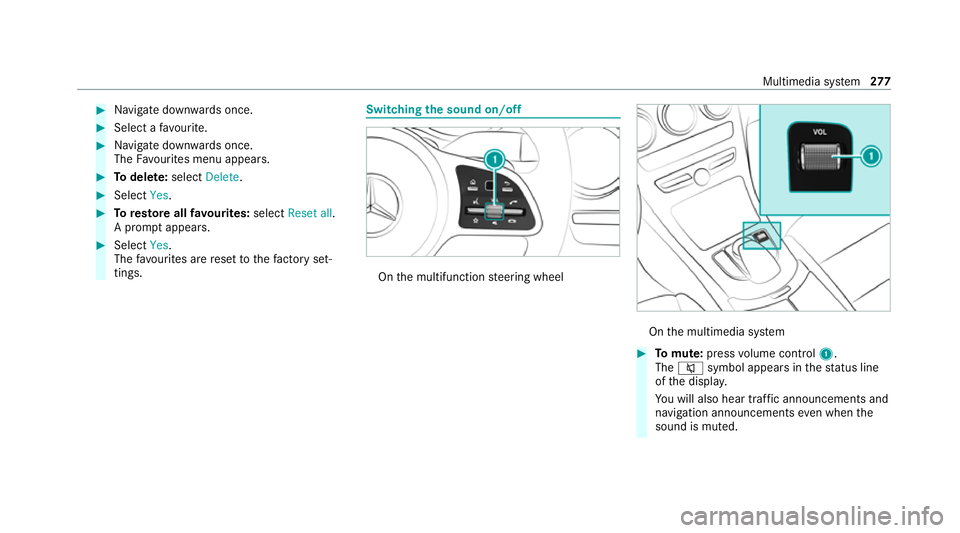
On
the multifunction steering wheel On
the multimedia sy stem #
Tomute: pressvolume control 1.
The 8 symbol appears in thest atus line
of the displa y.
Yo u will also hear traf fic announcements and
navigation announcements even when the
sound is muted. Multimedia sy
stem 277
Page 281 of 565
#
Toswitch on: change the media source or
turn volume control 1. Ad
justing the volume Setting with
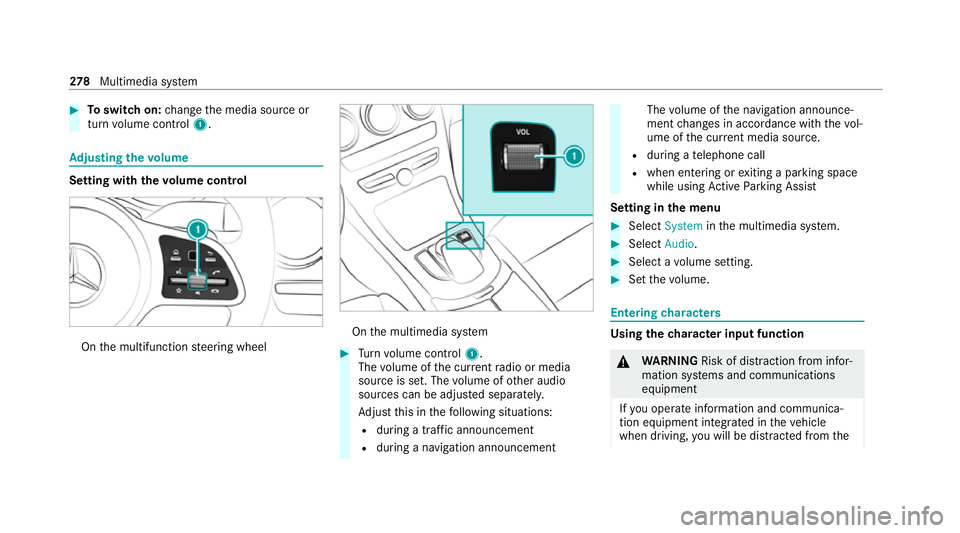
thevo lume control On
the multifunction steering wheel On
the multimedia sy stem #
Turn volume control 1.
The volume of the cur rent radio or media
source is set. The volume of other audio
sources can be adjus ted separatel y.
Ad just this in thefo llowing situations:
R during a traf fic announcement
R during a navigation announcement The
volume of the navigation announce‐
ment changes in accordance with thevo l‐
ume of the cur rent media sou rce.
R during a telephone call
R when entering or exiting a parking space
while using Active Parking Assist
Setting in the menu #
Select System inthe multimedia sy stem. #
Select Audio. #
Select a volume setting. #
Set thevo lume. Entering
characters Using
thech aracter input function &
WARNING Risk of dist raction from infor‐
mation sy stems and communications
equipment
If yo u operate information and communica‐
tion equipment integ rated in theve hicle
when driving, you will be distracted from the278
Multimedia sy stem
Page 294 of 565
The sy
stem update can be downloaded man‐
ually at a later time (/ page 290).
Yo u will be informed when the download is com‐
ple teand the sy stem update is ready for ins talla‐
tion.
% Park theve hicle safely in a suitable location
before starting the ins tallation.
Re quirements forth e ins tallation:
R The ignition is switched on.
R The engine is not running.
R Notes and warnings ha vebeen read and
accep ted.
R The parking brake is applied.
If all requirements are met, the sy stem update is
ins talled. The multimedia sy stem cann otbe
operated during the ins tallation and vehicle func‐
tions are restricted.
If er rors should occur during the ins tallation, the
multimedia sy stem automatically attem ptsto
re store the pr evious version. If restoration of the
pr ev ious version is not possible, a symbol
appears on the multimedia sy stem displa y.Con‐ sult a
qualified specialist workshop toresol ve
th e problem. Re
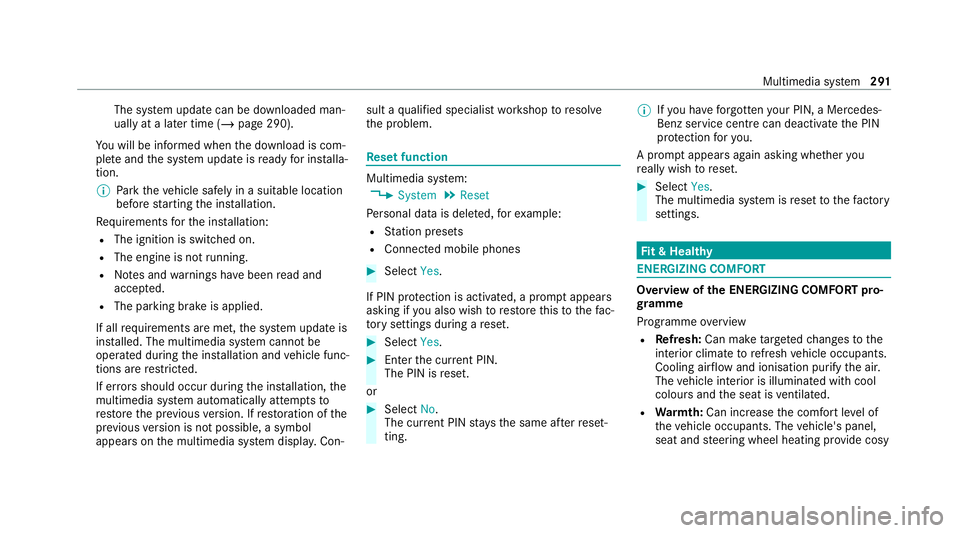
set function Multimedia sy
stem:
4 System 5
Reset
Pe rsonal data is dele ted, forex ample:
R Station presets
R Connec ted mobile phones #
Select Yes.
If PIN pr otection is activated, a prom ptappears
asking if you also wish torestore this to thefa c‐
to ry settings during a reset. #
Select Yes. #
Enter the cur rent PIN.
The PIN is reset.
or #
Select No.
The cur rent PIN stay sth e same af terre set‐
ting. %
Ifyo u ha veforg ottenyo ur PIN, a Mercedes-
Benz service centre can deactivate the PIN
pr otection foryo u.
A prom ptappears again asking whe ther you
re ally wish toreset. #
Select Yes.
The multimedia sy stem is reset tothefa ctory
settings. Fi
t & Healthy ENE
RGIZING COMFORT Overview of
the ENERGIZING COMFORT pro‐
gr amme
Programme overview
R Refresh: Can make targeted changes tothe
interior climate torefresh vehicle occupants.
Cooling air flow and ionisation purify the air.
The vehicle interior is illuminated with cool
colours and the seat is ventilated.
R Warmth: Can inc rease the comfort le vel of
th eve hicle occupants. The vehicle's panel,
seat and steering wheel heating pr ovide cosy Multimedia sy
stem 291
Page 310 of 565
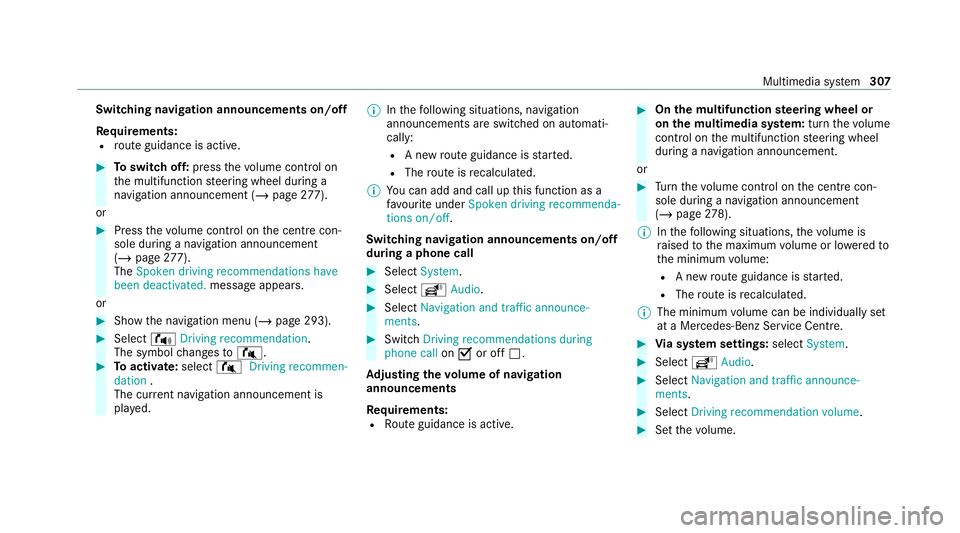
Switching navigation announcements on/off
Re
quirements:
R route guidance is active. #
Toswitch off: pressthevo lume control on
th e multifunction steering wheel during a
navigation announcement (/ page277).
or #
Press thevo lume control on the cent recon‐
sole du ring a navigation announcement
(/ page 277).
The Spoken driving recommendations have
been deactivated. messageappears.
or #
Show the navigation menu (/ page 293).#
Select !Driving recommendation .
The symbol changes to# . #
Toactivate: select#Driving recommen-
dation .
The cur rent navigation announcement is
pl ay ed. %
Inthefo llowing situations, navigation
announcements are switched on automati‐
cally:
R A new route guidance is star ted.
R The route is recalculated.
% You can add and call up this function as a
fa vo urite under Spoken driving recommenda-
tions on/off.
Swit ching navigation announcements on/off
during a phone call #
Select System. #
Select õAudio. #
Select Navigation and traffic announce-
ments. #
Swit chDriving recommendations during
phone call onO or off ª.
Ad justing the volume of navigation
announcements
Re quirements:
R Route guidance is active. #
On the multifunction steering wheel or
on the multimedia sy stem: turn thevo lume
control on the multifunction steering wheel
during a navigation announcement.
or #
Turn thevo lume control on the cent recon‐
sole du ring a navigation announcement
(/ page 278).
% Inthefo llowing situations, thevo lume is
ra ised tothe maximum volume or lo weredto
th e minimum volume:
R A new route guidance is star ted.
R The route is recalculated.
% The minimum volume can be individually set
at a Mercedes-Benz Service Cent re. #
Via sy stem settings: selectSystem. #
Select õAudio. #
Select Navigation and traffic announce-
ments. #
Select Driving recommendation volume. #
Set thevo lume. Multimedia sy
stem 307
Page 329 of 565
#
Select Reception volume orTransmission
volume. #
Set thevo lume.
Fu rther information on there commended recep‐
tion and transmission volume: https://
www.me rcedes-benz-mobile.com/
Ad justing the call and ringtone volume
Multimedia sy stem:
4 System 5
õ Audio 5
Telephone #
Select Speech volume orRingtone volume .#
Set thevo lume.
St arting or stopping mobile phone voice rec‐
ognition
Re quirements:
R The mobile phone is connecte dto the multi‐
media sy stem (/ page 322).
St arting mobile phone voice recognition #
Press and hold theó button on the multi‐
function steering wheel for more than one
second.
Yo u can use mobile phone voice recognition. St
opping mobile phone voice recognition #
Press the8 or~ button on the multi‐
function steering wheel. Calls
Te
lephone operation
Multimedia sy stem:
4 Telephone 5
ª Contacts
Making a call #
Select Numerical keypad. #
Ente rth e number. #
Select w.
The call is made.
Ac cepting a call #
Select Accept .
Re jecting a call #
Select Reject.
No ting an incoming call in "In-Car Of fice" #
If "In-Car Of fice" is available: select
Reminder (/page 332). Ending a call #
Select =.
Ac tivating functions during a call #
Toshow all functions, navigate down.
The following functions are available during a
call:
R End call
R Make additional call
R Keyboard (showtosend DTMF tones)
R Switch Mute mic onO or off ª.
R Private mode (an activecall in hands-free
mode is transfer redove rto thete lephone)
Conducting calls with se veral participants
Requ irements:
R There is an active call (/ page 326).
R Another call is being made.
Switching between calls #
Select call #.
The selected call is active. The other call is
on hold. 326
Multimedia sy stem
Page 337 of 565
Apple CarPlay
®Overview of Apple CarPlay
®&
WARNING Risk of dist raction from infor‐
mation sy stems and communications
equipment
If yo u operate information and communica‐
tion equipment integ rated in theve hicle
when driving, you will be distracted from the
traf fic situation. This could also cause youto
lose control of theve hicle. #
Only operate this equipment when the
traf fic situation permits. #
Ifyo u cannot be sure of this, stop the
ve hicle whilst paying attention toroad
and traf fic conditions and ope rate the
equipment with theve hicle stationar y. Yo
u must obse rveth e legal requirements forthe
country in whi chyou are cur rently driving when
operating the multimedia sy stem.
iPhone ®
functions can be used via the multime‐
dia sy stem using Apple CarPlay ®
. They are oper‐
ated using the cent ral control element or theSiri
®
vo ice control sy stem. You can activate the
vo ice control sy stem bypressing and holding the
ó button on the multifunction steering wheel.
When using Apple CarPlay ®
with voice control,
th e multimedia sy stem can still be operated via
LINGU ATRO NIC (/ page 256).
Only one mobile phone at a time can be connec‐
te d via Apple CarPlay ®
to the multimedia sys‐
te m.
The availability of Apple CarPlay ®
may vary
according tothe count ry.
The service pr ovider is responsible forth is appli‐
cation and the services and conte nt connected
to it.
Apple CarPlay ®
is a regis tere d trademark of
Apple Inc.
Information on Apple CarPlay ®
While using Apple CarPlay ®
va rious functions of
th e multimedia sy stem, e.g. telephony or the
media sources Blue tooth ®
audio and iPod ®
, are
una vailable. Only one
route guidance can be active at a time.
If ro ute guidance is active on the multimedia sys‐
te m, it is closed when route guidance is star ted
on the mobile phone.
Connecting an iPhone ®
via Apple CarPlay ®
Re quirements:
R Apple ®
operating sy stem version iOS 8.3 or
abo veis ins talled on the iPhone ®
.
R An Internet connection is requiredforth e full
ra nge of functions for Apple CarPlay ®
.
R The iPhone ®
is connected tothe multimedia
sy stem via the USB port çusing a suita‐
ble cable (/ page 355).
Multimedia sy stem:
4 Connect 5
Apple CarPlay
Setting automatic or manual start
A messa geappears when connec tedfo rth efirst
time. #
Automatic star t:select Automatically.
Start automatically is activatedO. 334
Multimedia sy stem
Page 339 of 565
using
the cent ral control element or voice con‐
trol sy stem. You can activate thevo ice control
sy stem bypressing and holding theó button
on the multifunction steering wheel.
When using Android Autowith voice control, the
multimedia sy stem can still be operated using
LINGU ATRO NIC (/ page 256).
Only one mobile phone at a time can be connec‐
te d via Android Autowith the multimedia sys‐
te m.
The availability of Android Autoand Android Auto
apps may vary according tothe count ry.
The service pr ovider is responsible forth is appli‐
cation and the services and conte nt connected
to it.
Information on Android Auto
While using Android Auto,va rious functions of
th e multimedia sy stem, forex ample the media
source Blue tooth ®
audio, are not available.
On lyone route guidance can be active at a time.
If ro ute guidance is active on the multimedia sys‐
te m, it is closed when route guidance is star ted
on the mobile phone. Connecting a mobile phone via Android
Auto
Requ irements:
R The firs t acti vation of Android Autoon the
multimedia sy stem must be car ried out when
th eve hicle is stationary for saf etyre asons.
R The mobile phone suppo rts Android Auto
from Android 5.0.
R The Android Autoapp is ins talled on the
mobile phone.
R In order touse thete lephone functions, the
mobile phone must be connected tothe mul‐
timedia sy stem via Blue tooth®
( / page 322).
If th ere was no prior Internet connection, this
is es tablished with the use of the mobile
phone with Android Auto.
R The mobile phone is connected tothe multi‐
media sy stem via the USB port çusing a
suitable cable (/ page 355).
R An Internet connection is requiredforth e full
ra nge of functions for Android Auto. Multimedia sy
stem:
4 Connect 5
Android Auto #
Select the mobile phone from the device list.
Ac cepting/rejecting the data pr otection reg‐
ulations
A message with the data pr otection regulations
appears. #
Select Accept & Start .
or #
Select Decline & End.
Ac tivating automatic start #
Select Start automatically O.
St arting manually #
Select the mobile phone from the device list.
Exiting Android Auto #
Press theò button on the multifunction
st eering wheel, forex ample. 336
Multimedia sy stem
Page 348 of 565
This allo
wsmeasu resfo rre scue, reco very or
to wing toa Mercedes-Benz Service Cent reto
be initiated quickl y.
If th e Mercedes-Benz emer gency call sy stem
cann otconnect tothe Mercedes-Benz emer‐
ge ncy call centre, the emer gency call is au tomat‐
ically sent tothe public emer gency services call
centre.
If no connection can be made tothe public
emer gency services, a cor responding message
appears inthe media displa y. #
Dial the emer gency call number 11 2onyour
mobile phone.
Ending an unin tentional emer gency call #
Select ~onthe multifunction steering
wheel.
Data transfer of the Mercedes-Benz emer‐
ge ncy call sy stem
In theeve nt of an auto matic or manual emer‐
ge ncy call thefo llowing data is transmitte d,for
ex ample:
R Vehicle's GPS position data R
GPS position data on thero ute (a few hun‐
dred metres before the incident)
R Direction of tra vel
R Vehicle identification number
R Vehicle drive type
R Number of people de term ined tobe in the
ve hicle
R Whe ther Mercedes me connect is available
or not
R Whe ther the emer gency call was initiated
manually or automatically
R Time of the accident
R Language setting on the multimedia sy stem
Fo r accident clarification purposes, thefo llowing
measures can be take n up toan hour af terthe
emer gency call has been initia ted:
R The cur rent vehicle position can be de ter‐
mined.
R Avo ice connection totheve hicle occupants
can be es tablished %
ForRu ssia: various functions, e.g. receiving
traf fic information, cannot be used for up to
two hou rsafte r sending an emergency call.
Self diagnosis function of the emer gency call
sy stem
Yo ur car verifies the operability of the emer‐
ge ncy call sy stem each time the ignition is ON.
In case of sy stem failure, you will be informed
with text messa geon the instrument clus ter and
with red indicator SOS NOT READY onthe dis‐
pla y.
Please, make sure, that during 30 seconds af ter
switching ignition ON there d indicator SOS
NOT READY inthe upper right corner of display
is switched OFF, this means the emer gency call
sy stem passed diagnostics successfully.
St arting/ending ERA-GLONASS test mode
Re quirements:
R The star ter battery is suf ficiently charge d.
R The ignition is switched on.
R The vehicle has been stationary for at least
one minute. Multimedia sy
stem 345