phone MERCEDES-BENZ C-CLASS SALOON 2012 Repair Manual
[x] Cancel search | Manufacturer: MERCEDES-BENZ, Model Year: 2012, Model line: C-CLASS SALOON, Model: MERCEDES-BENZ C-CLASS SALOON 2012Pages: 557, PDF Size: 10.15 MB
Page 344 of 557
Depending on
theve hicle's equipment, you can
es tablish an Internet connection in thefo llowing
wa ys:
R Vehicles with a communication module:
Internet use including Mercedes me connect
services and data roaming (/ page 341).
R Vehicles without a communication mod‐
ule:
- viaWi-Fi wi tha data-enabled mobile
phone (/ page 341)
- via Blue tooth®
with a data-enabled
mobile phone (/ page 342)
The In tern et functions can only be used toa limi‐
te d degree whilst driving.
Fu nction of the communication module
On vehicles with a built-in communication mod‐
ule, the Internet connection is es tablished via an
integrated SIM card.
To use In tern et access via the communication
module thefo llowing conditions must be me t:
R The vehicle is equipped with a permanently
ins talled communication module. R
Mercedes me connect is active and ready for
operation.
R Mercedes me connect is activated for Inter‐
net access.
Fo r most Mercedes me connect services, data
vo lume is available when pur chasing the serv‐
ices.
Ad ditional data volume is requ ired touse some
functions, e.g. In tern et radio or Wi-Fi hotspot.
If th e data volume limit is reached, theav ailabil‐
ity of Mercedes me connect services is limited.
The data volume can be pur chased directly
from a mobile phone network pr ovider viathe
Mercedes me Portal.
% Visit a Mercedes-Benz service centre tofind
out wh ether it is possible topur chase data
vo lume in your count rydirectly from a
mobile phone network pr ovider .
Setting up an Internet connection via Wi-Fi
Re quirements:
R theWi -Fi function is acti vated on the multi‐
media sy stem (/ page277). R
theWi -Fi function is acti vated on theex tern al
device (see the manufacturer's operating
instructions).
R Internet access via Wi-Fi is acti vated (see the
manufacturer's operating instructions).
The Internet connection via Wi-Fi is restricted or
does not function if:
R the mobile phone is switched off
R mobile data use is deactivated on the mobile
phone
R theWi -Fi function is deacti vated on the multi‐
media sy stem
R theWi -Fi function is deacti vated on theex ter‐
nal device
R Internet access via Wi-Fi is deacti vated on
th eex tern al device
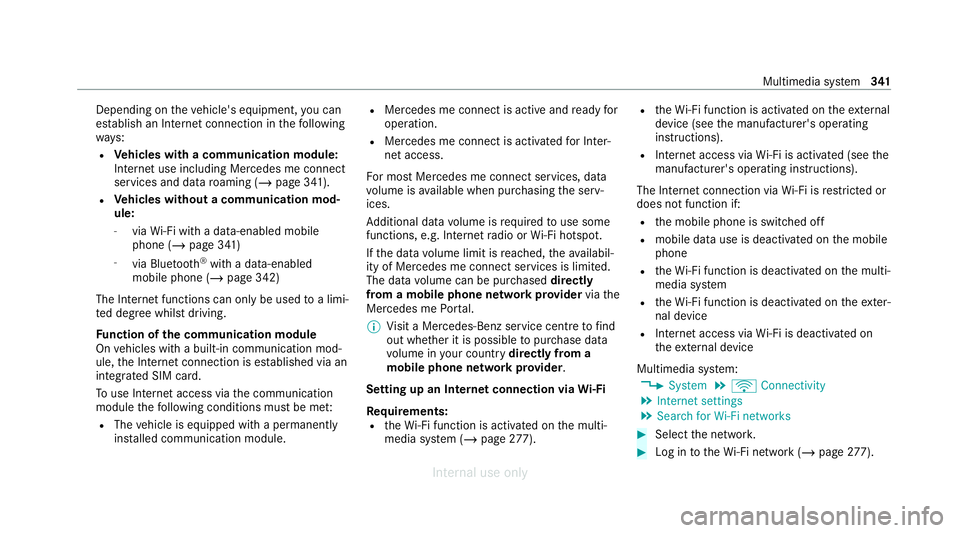
Multimedia sy stem:
4 System 5
ö Connectivity
5 Internet settings
5 Search for Wi-Fi networks #
Select the networ k. #
Log in totheWi -Fi network (/ page 277). Mul
timedia sy stem 341
Internal use only
Page 345 of 557
Setting up an Internet connection via Blue‐
to
oth ®
Re quirements:
R A mobile phone is connecte dto the multime‐
dia sy stem via Blue tooth®
(/ page 316).
To connect via Blu etoo th®
,th e mobile phone
supports one of thefo llowing Blue tooth®
pro‐
fi les:
R DUN (Dial- UpNet working)
R PAN (Personal AreaNet work)
The Internet connection via Blue tooth®
is restric‐
te d or does not function if:
R The mobile phone is switched off
R The mobile phone network co verage is insuf‐
fi cient
R Mobile da tause is deactivated on the mobile
phone
R The Blue tooth®
function on the multimedia
sy stem is switched off and the mobile phone
is to be connec ted via Blue tooth ® R
The Blue tooth®
function is switched off on
th e mobile phone and the mobile phone is to
be connec ted via Blue tooth®
R Neither the mobile phone network nor the
mobile phone allow simultaneous use of a
te lephone and an Internet connection
R The mobile phone has not been enabled for
Internet access via Blue tooth ®
If a mobile phone is connected tothe multimedia
sy stem forth efirs t time via Blu etoo th®
,yo u will
be assis tedth ro ugh the process of setting up an
Internet connection.
The Internet connection can also be confi gured
manuall y.
Fu rther information can be obtained at https://
www.mercedes-benz-mobile.com/ or at a
Mercedes-Benz service centre. Multimedia sy
stem:
4 System 5
ö Connectivity
5 Internet settings
Blue tooth ®
connection via PAN #
Select the mobile phone.
The Internet connection is es tablished.
Switching the Blu etoo th®
pr ofile
Re quirements:
R The mobile phone supports the DUN and
PA N Blue tooth®
profiles.
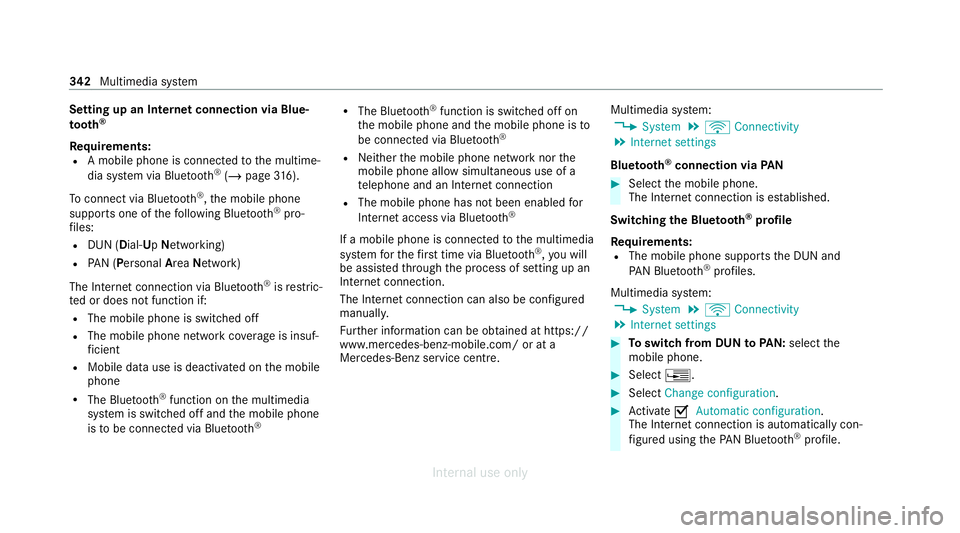
Multimedia sy stem:
4 System 5
ö Connectivity
5 Internet settings #
Toswitch from DUN toPAN: select the
mobile phone. #
Select ¥. #
Select Change configuration. #
Activate OAutomatic configuration.
The Internet connection is au tomatical lycon‐
fi gured using thePA N Blue tooth®
profile. 342
Multimedia sy stem
Internal use only
Page 346 of 557
#
Toswitch from PANto DUN: select the
mobile phone. #
Select ¥. #
Select Change configuration. #
Deactivate ªAutomatic configuration. #
Select Configure settings using COMAND .#
Configuri ngthe Internet connection using
preset or manual access data (/ page 342).
Editing Internet access data
Re quirements:
R The mobile phone supports the Blue tooth®
DUN profile.
Multimedia sy stem:
4 System 5
ö Connectivity
5 Internet settings #
Highlight the mobile phone. #
Select ¥. #
Select Change configuration .#
For mobile phones with PAN and DUN:
select Configure settings using COMAND. #
Configure the Internet connection using pre‐
set or manual access data (/ page 342).
Cancelling Internet access permission for a
mobile phone
Multimedia sy stem:
4 System 5
ö Connectivity
5 Internet settings #
Highlight the mobile phone. #
Select ¥. #
Select Delete configuration. #
Select Yes.
Displaying mobile phone details
Multimedia sy stem:
4 System 5
ö Connectivity
5 Internet settings #
Highlight the mobile phone. #
Select ¥. #
Select Details. Connection
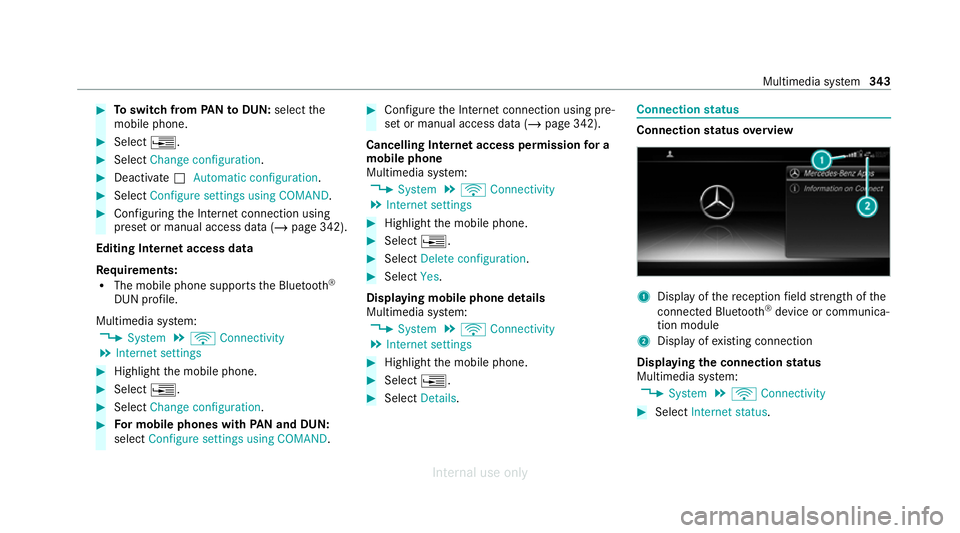
status Connection
status overview 1
Display of there ception field stre ngth of the
connected Blu etoo th®
device or communica‐
tion module
2 Display of existing connection
Displaying the connection status
Multimedia sy stem:
4 System 5
ö Connectivity #
Select Internet status . Multimedia sy
stem 343
Internal use only
Page 347 of 557
%
When connected via Wi-Fi or a Blu etoo th®
device, the appr oximate data volume trans‐
mit ted is displa yed. The exact values can be
re qu ested from your mobile phone network
pr ov ider.
% Inthe case of a connection via the communi‐
cation module thefo llowing status informa‐
tion is shown:
R Type of network
R Status online/of fline Mercedes-Benz Apps
Calling up Mercedes-Benz Apps
Re
quirements:
R The registration forth e use of Mercedes-
Benz Apps has been comple ted.
R The general term s and conditions ha vebeen
con firm ed.
Multimedia sy stem:
4 Connect 5
Ú Mercedes-Benz Apps #
Select an app. %
The available features are countr y-depend‐
ent.
Licence fees may be applicable.
Using Mercedes-Benz Apps with voice con‐
trol
Re quirements:
R The registration forth e use of Mercedes-
Benz Apps has been comple ted.
R The general term s and conditions ha vebeen
con firm ed.
The o symbol indicates that a Mercedes-
Benz app can be used via voice control. #
Select a Mercedes-Benz app.
The app menu is displa yed. #
Touse voice control: selectoLan-
guage. #
Say thequ estion or command.
% Voice control is not available in all countries
and languages. Tu
neIn Radio Calling up
TuneIn Radio
Re quirements:
R There is an account on https://
www.me rcedes.me.
R The Internet Radio service is activated.
R The data volume is available.
Depending on the count ry, data volume may
need tobe pur chased.
R Afast Internet connection for data transmis‐
sion free of inter fere nce.
The services are countr y-dependent.
Fo r more information, consult a Mercedes-
Benz service centre.
Multimedia sy stem:
4 Radio 5
Þ Radio source #
Select TuneIn Radio.
The TuneIn Radio display appears. The last
st ation set starts playing.
% The connection quality depends on the local
mobile phone reception. 344
Multimedia sy stem
Internal use only
Page 349 of 557
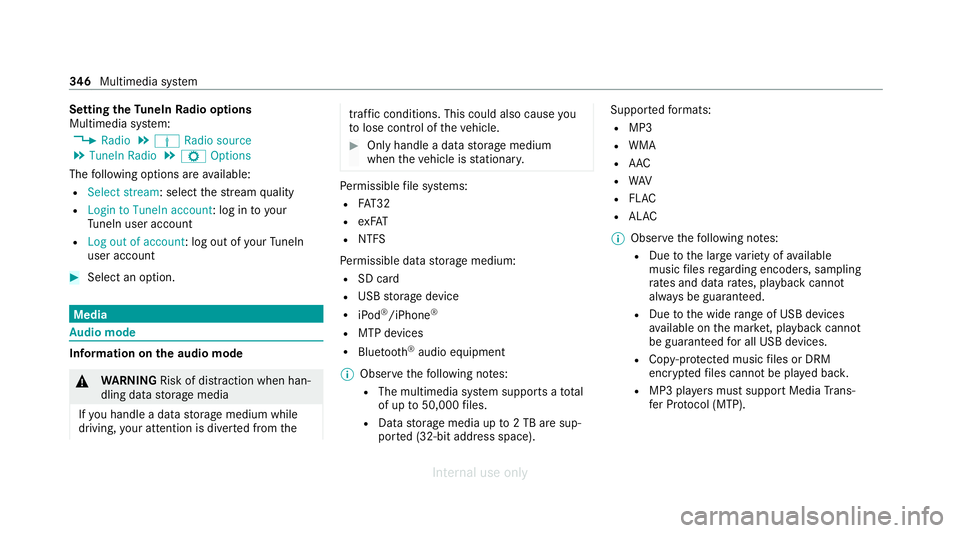
Setting
theTu neIn Radio options
Multimedia sy stem:
4 Radio 5
Þ Radio source
5 TuneIn Radio 5
Z Options
The following options are available:
R Select stream: select thest re am quality
R Login to TuneIn account: log in to your
Tu neIn user account
R Log out of account: log out of your TuneIn
user account #
Select an option. Media
Au
dio mode In
fo rm ation on the audio mode &
WARNING Risk of dist raction when han‐
dling data storage media
If yo u handle a data storage medium while
driving, your attention is diver ted from the traf
fic conditions. This could also cause you
to lose control of theve hicle. #
Only handle a data storage medium
when theve hicle is stationar y. Pe
rm issible file sy stems:
R FAT32
R exFAT
R NTFS
Pe rm issible data storage medium:
R SD card
R USB storage device
R iPod ®
/iPhone ®
R MTP devices
R Blue tooth ®
audio equipment
% Obse rveth efo llowing no tes:
R The multimedia sy stem supports a total
of up to50,000 files.
R Data storage media up to2 TB are sup‐
por ted (32‑bit address space). Suppor
tedfo rm ats:
R MP3
R WMA
R AAC
R WAV
R FLAC
R ALAC
% Obser vethefo llowing no tes:
R Due tothe lar gevariet y of available
music files rega rding encoders, sampling
ra tes and data rates, playback cannot
alw ays be guaranteed.
R Due tothe wide range of USB devices
av ailable on the mar ket, pl ayback cann ot
be guaranteed for all USB devices.
R Cop y-pr otected music files or DRM
enc rypte dfiles cannot be pla yed bac k.
R MP3 pla yers must support Media Trans‐
fe r Pr otocol (MTP). 346
Multimedia sy stem
Internal use only
Page 350 of 557
Manufactured under licence from Dolby Labora‐
to
ries. Dolb y,Dol byAudio and the double-D sym‐
bol are trademar ksof Dolby Laboratories. Graceno
te,th e Graceno telogo and logotype,
"P ow ered byGracen ote", MusicID and Pla ylist
Plus are either regis tere d trademar ksor trade‐
mar ksof Graceno te, Inc. in theUn ited States
and/or other countries. "Made
for iPod", and "Made for iPhone," mean
th at an electronic accesso ryhas been designed
to connect specifically toiPod ®
, or iPhone ®
,
re spectivel y,and has been certified bythe de vel‐
oper tomeet Apple per form ance standards.
Apple ®
is not responsible forth e operation of
th is device or its compliance with saf ety and reg‐
ulatory standards. Please no tethat the use of
th is accessory with iPod, or iPhone may af fect
wi reless per form ance.
iPhone ®
, iPod ®
, iPod classic ®
, iPod nano ®
, and
iPod touch ®
are trademar ksof Apple Inc., regis‐
te re d in theU. S. and other countries. Lightning ®
is a trademark of Apple Inc.
Note s on copyright
Au dio files that you create or reproduce yourself
fo r playback aregeneral lysubject tocopyright
pr otection. In many count ries, reproductions,
eve nfo r private use, are not permitted without
th e prior consent of the copyright holder. Make
sure that you kn owabout the applicable copy‐
ri ght regulations and that you co mply withthese. Multimedia sy
stem 347
Internal use only
Page 356 of 557
#
Todeactivate full-sc reen mode: pressthe
to uchpad.
Changing video settings
Multimedia sy stem:
4 Media 5
Z Options
5 Picture format
The following picture form ats are available:
R Automatic
R 16:9
R 4:3
R Zoom #
Select a picture form at.
Ad justing the brightness manually
If th eAutomatic pictureform at is swit ched off,
yo u can adjust the brightness yourself. #
Select Brightness. #
Adjust the brightness. Media sear
ch St
arting the media sear ch
Multimedia sy stem:
4 Media 5
ª Search
Depending on the connected media sources and
fi les, thefo llowing categories are lis ted:
R Current track list
R Keyword search
R Playlists
R Artists
R Albums
R Tracks
R Folders
R Music genres
R Year
R Composers
R Videos
R Podcasts (Apple®
devices)
R Audiobooks (Apple®
devices) #
Select a categor y. %
The categories are available as soon as the
entire media conte nt has beenread in and
anal ysed. Media Inter
face Information about
the Media Inter face
Media In terface is a universal inter face forthe
connection of mobile audio equipment. The mul‐
timedia sy stem has two USB ports. The USB
ports are located in thestow age compartment
under the armrest.
Suppor ted devices
The Media Inter face allo wsyouto connect the
fo llowing data storage media:
R iPod ®
R iPhone ®
R MP3 pla yer
R USB devices
Fo r de tails and a list of suppor ted devices, visit
our website at https://www.mercedes-
benz.com/connect. Follow the instructions in
th e "Media Inter face" section. Multimedia sy
stem 353
Internal use only
Page 360 of 557
R
The audio equipment is "visible" forot her
devices.
Multimedia sy stem:
4 Media 5
à Media sources
5 á Bluetooth audio
Au thorising a new Blu etoo th®
audio device #
Select ¥. #
Select Add new Bluetooth audio device. #
Select Start search on the system .
De tected audio equipment is displ ayed in the
device list. #
Select a Blue tooth®
audio device.
Auth orisation starts. A code is displa yed on
th e multimedia sy stem and on the mobile
phone. #
Ifth e codes are identical, confi rmonthe
audio equipment.
The audio equipment is connec ted and play‐
back starts. Selecting pr
eviously authorised Blue tooth ®
audio equipment #
Select ¥. #
Select a Blue tooth®
audio device.
Establishing a connection from the Blue‐
to oth ®
audio equipment
The Blue tooth®
device name of the multimedia
sy stem is MB BLUETOOTH XXXXX. #
Select Search from device. #
Start the authorisation on the audio equip‐
ment (see manufacturer's operating instruc‐
tions).
A code is displa yed on the multimedia sys‐
te m and on the audio device. #
Confirm on bo thdevices if the codes are
identical.
The audio equipment is connected and play‐
back starts.
Wi th some audio equipment, playback must be
initially star ted on the device itself so that the
multimedia sy stem can play the audio files. %
Device-specific information on authorising
and connecting Blue tooth®
-capable mobile
phones can be ob tained at https://
www.me rcedes-benz-mobile.com/ or at a
Mercedes-Benz service cent re.
Ac tivating Blue tooth ®
audio
Multimedia sy stem:
4 Media 5
à Media sources #
Select áBluetooth audio.
The multimedia sy stem activates the connec‐
te d Blue tooth®
audio equipment.
Selecting the media pla yer on the Blue tooth ®
audio device
Multimedia sy stem:
4 Media 5
ª #
Select theBluetooth audio players category.
If multiple media pla yers are present on the
Blu etoo th®
audio equipment a list appears. #
Select a media pla yer.
Playback starts.
% The function is not suppo rted byeve ry
mobile phone. Multimedia sy
stem 357
Internal use only
Page 361 of 557
Sear
ching for a music track on the Blue‐
to oth ®
audio device
Multimedia sy stem:
4 Media 5
à Media sources
5 á Bluetooth audio #
Select ª. #
Select a categor y.
A track li stappears. #
Select a trac k.
% The function is only available when the
mobile phone and the media pla yer selected
on the mobile phone support this function.
Switching Blu etoo th®
audio equipment via
NFC
Requ irements:
R Obser vethe no tes on using NFC
(/ page 319).
R The Blue tooth®
audio overview is displa yed
( / page 356). #
Lightly press the NFC area on the mobile
phone (see the manufacturer's operating
instructions).
If th e mobile phone has already been author‐
ised on the multimedia sy stem as Blue tooth®
audio equipment, it is now connec ted.
If th e mobile phone is authorised on the mul‐
timedia sy stem as Blue tooth ®
audio equip‐
ment forth efirs t time, it is connected af ter
confirming the instructions on the mobile
phone (see the manufacturer's operating
instructions).
Disconnecting Blue tooth ®
audio equipment
Multimedia sy stem:
4 Telephone 5
á Media sources #
Select thei symbol in the line of the
mobile phone.
The disconnection of the mobile phone takes
place without a confi rmation prom pt. The
mobile phone remains auth orised inthe sys‐
te m. Ra
dio Switching on the
radio Multimedia sy
stem:
4 Radio #
Alternatively: press the$ button.
The radio display appears. You will hear the
last station pla yed on the last frequency
band selected. 358
Multimedia sy stem
Internal use only
Page 398 of 557
If, af
terte n minutes, a tyre pressure of
200 kPa (2.0 bar/29 psi) has been attained: &
WARNING Risk of accident from driving
wi th sealed tyres
A tyre temp orarily sealed with tyre sealant
impairs the handling characteristics and is
not suitable for higher speeds. #
Adapt your driving style according lyand
drive carefull y. #
Do not exceed the maximum speed
limit with a tyre that has been repaired
using tyre sealant. #
Obser vethe maximum permissible speed for
a tyre sealed with tyre sealant 80 km/h. #
Affix th e upper section of the TIREFIT sticker
to the instrument clus ter in a location where
it will be easi lyseen bythe driver.
* NO
TEStaining from leaking tyre sealant Af
ter use, excess tyre sealant may leak out
from thefilling hose. #
Therefore, place thefilling hose in the
plastic bag that con tained the TIREFIT
kit. +
ENVIRONMEN
TALNO TEEnvironmental
pollution caused byenvironmen tally ir re‐
sponsible disposal Ty
re sealant contains polluta nts. #
Have the tyre sealant bottle disposed of
professionall y,e.g. at a Mercedes-Benz
Service Centre. #
Switch off the tyre inflation compressor. #
Unscr ew thefilling hose from theva lve of the
defective tyre. #
Stow th e tyre sealant bottle and the tyre
inflation compressor. #
Pull away immediatel y. #
Stop driving af ter appro ximately ten minu tes
and check the tyre pressure using the tyre
inflation compressor.
The tyre pressure must now be at least
13 0 kPa (1.3 bar/19 psi). &
WARNING Risk of accident due tothe
specified tyre pressure not being
attained
If th e specified tyre pressure is not reached,
th e tyre is too badly damaged. The tyre seal‐
ant cannot repair the tyre in this ins tance.
The braking and driving characteristics may
be great lyimpaired. #
Do not continue driving. #
Consult a qualified specialist workshop. Countries
that ha veMercedes-Benz
Service24h: you will find a sticke r with thete le‐
phone number, e.g. on the B‑pillar on the driver's
side. #
Cor rect the tyre pressure if it is still at least
13 0 kPa (1.3 bar/19 psi). See the tyre pres‐
sure table on the fuel filler flap forva lues. #
Toincrease the ty repressure: switch on
th e tyre inflation compressor. Breakdown assis
tance 395
Internal use only