phone MERCEDES-BENZ C-CLASS SALOON 2012 Owner's Guide
[x] Cancel search | Manufacturer: MERCEDES-BENZ, Model Year: 2012, Model line: C-CLASS SALOON, Model: MERCEDES-BENZ C-CLASS SALOON 2012Pages: 557, PDF Size: 10.15 MB
Page 286 of 557
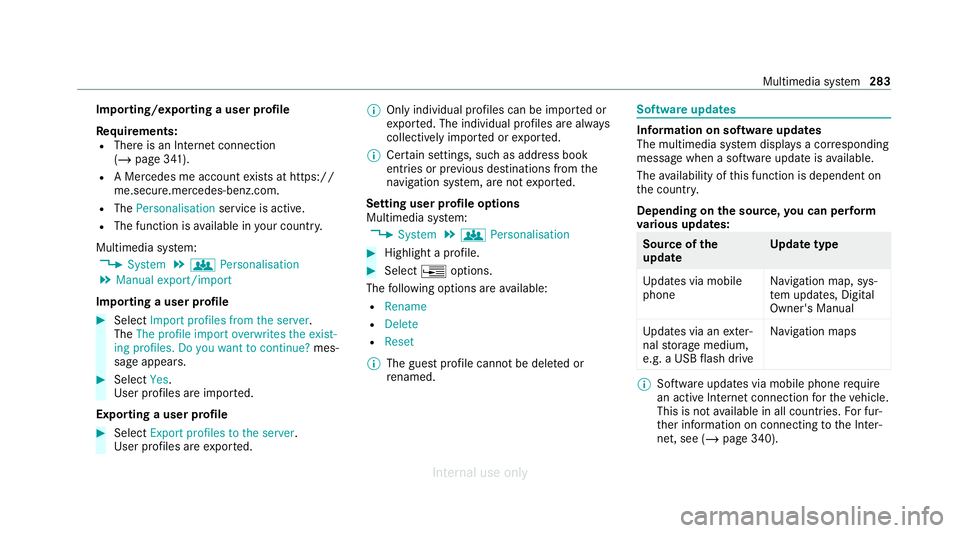
Importing/exporting a user profile
Re
quirements:
R There is an Internet connection
(/ page 341).
R A Mercedes me account exists at https://
me.secure.mercedes-benz.com.
R The Personalisation service is active.
R The function is available in your count ry.
Multimedia sy stem:
4 System 5
g Personalisation
5 Manual export/import
Importing a user profile #
Select Import profiles from the server.
The The profile import overwrites the exist-
ing profiles. Do you want to continue? mes‐
sage appears. #
Select Yes.
User profiles are impor ted.
Exporting a user profile #
Select Export profiles to the server.
User profiles are expor ted. %
Only individual profiles can be impor ted or
ex por ted. The individual profiles are alw ays
collectively impor ted or expor ted.
% Certain settings, such as address book
ent ries or pr evious destinations from the
navigation sy stem, are not expor ted.
Setting user profile options
Multimedia sy stem:
4 System 5
g Personalisation #
Highlight a profile. #
Select ¥options.
The following options are available:
R Rename
R Delete
R Reset
% The guest profile cannot be dele ted or
re named. So
ftwa reupdates Information on software updates
The multimedia sy
stem displa ysa cor responding
message when a software update isavailable.
The availability of this function is dependent on
th e count ry.
Depending on the source, you can per form
va rious update s: Source of
the
update Up
date type
Up dates via mobile
phone Na
vigation map, sys‐
te m updates, Digital
Owner's Manual
Up dates via an exter‐
nal storage medium,
e.g. a USB flash drive Na
vigation maps %
Software updates via mobile phone requ ire
an active Internet connection forth eve hicle.
This is not available in all countries. For fur‐
th er information on connecting tothe Inter‐
net, see (/ page 340). Multimedia sy
stem 283
Internal use only
Page 287 of 557
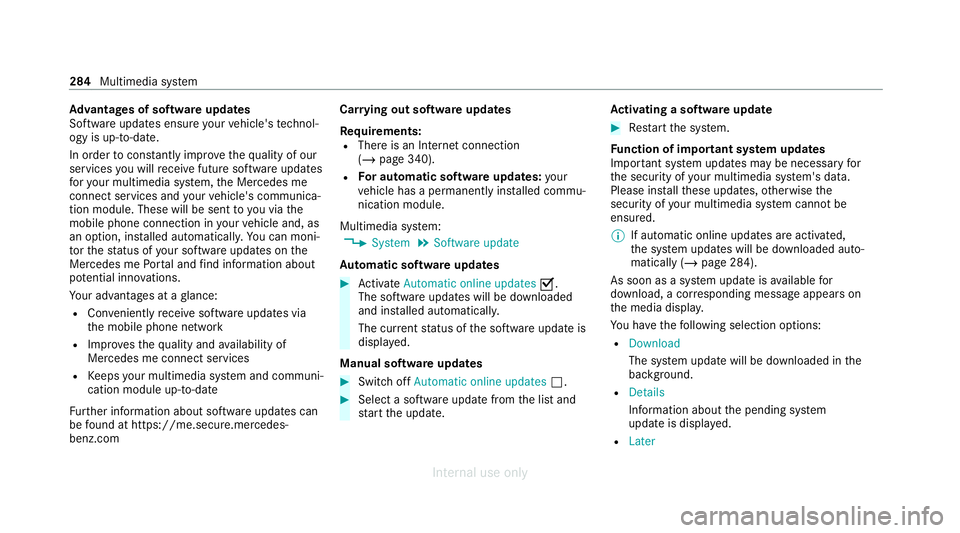
Ad
vantages of software updates
Software updates ensure your vehicle's tech nol‐
ogy is up-to-date.
In order tocons tantly impr ovethequ ality of our
services you will recei vefuture software updates
fo ryo ur multimedia sy stem, the Mercedes me
connect services and your vehicle's communica‐
tion module. These will be sent to you via the
mobile phone connection in your vehicle and, as
an option, ins talled automaticall y.Yo u can moni‐
to rth est atus of your software updates on the
Mercedes me Portal and find information about
po tential inno vations.
Yo ur advantages at a glance:
R Con veniently recei vesoftware update s via
th e mobile phone network
R Impr ovesth equ ality and availability of
Mercedes me connect services
R Keeps your multimedia sy stem and communi‐
cation module up-to-date
Fu rther information about software updates can
be found at https://me.secure.mercedes-
benz.com Car
rying out software updates
Requ irements:
R There is an Internet connection
(/ page 340).
R For automatic so ftwa reupdates: your
ve hicle has a permanently ins talled commu‐
nication module.
Multimedia sy stem:
4 System 5
Software update
Au tomatic so ftwa reupdates #
Activate Automatic online updates O.
The software upda tes will be downloaded
and ins talled automaticall y.
The cur rent status of the software update is
displa yed.
Manual software updates #
Switch off Automatic online updates ª. #
Select a software update from the list and
st art the update. Ac
tivating a so ftwa reupdate #
Restart the sy stem.
Fu nction of important sy stem updates
Impor tant sy stem updates may be necessary for
th e security of your multimedia sy stem's data.
Please ins tallth ese updates, otherwise the
security of your multimedia sy stem cann otbe
ensured.
% If automatic online updates are activated,
the sy stem updates will be downloaded auto‐
matically (/ page 284).
As soon as a sy stem update is available for
download, a cor responding message appears on
th e media displa y.
Yo u ha vethefo llowing selection options:
R Download
The sy stem update will be downloaded in the
bac kground.
R Details
Info rm ation about the pending sy stem
update is displa yed.
R Later 284
Multimedia sy stem
Internal use only
Page 288 of 557
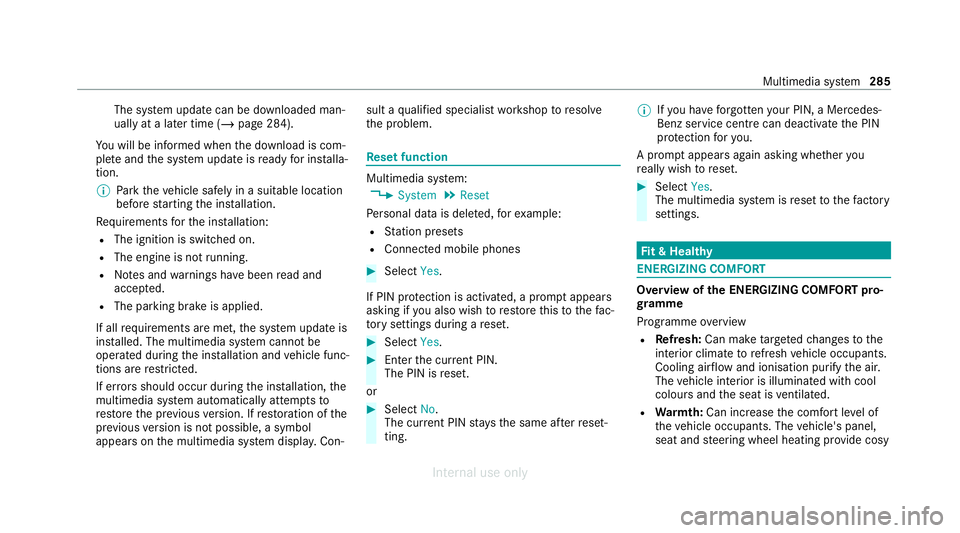
The sy
stem update can be downloaded man‐
ually at a later time (/ page 284).
Yo u will be informed when the download is com‐
ple teand the sy stem update is ready for ins talla‐
tion.
% Park theve hicle safely in a suitable location
before starting the ins tallation.
Re quirements forth e ins tallation:
R The ignition is switched on.
R The engine is not running.
R Notes and warnings ha vebeen read and
accep ted.
R The parking brake is applied.
If all requirements are met, the sy stem update is
ins talled. The multimedia sy stem cann otbe
operated during the ins tallation and vehicle func‐
tions are restricted.
If er rors should occur during the ins tallation, the
multimedia sy stem automatically attem ptsto
re store the pr evious version. If restoration of the
pr ev ious version is not possible, a symbol
appears on the multimedia sy stem displa y.Con‐ sult a
qualified specialist workshop toresol ve
th e problem. Re
set function Multimedia sy
stem:
4 System 5
Reset
Pe rsonal data is dele ted, forex ample:
R Station presets
R Connec ted mobile phones #
Select Yes.
If PIN pr otection is activated, a prom ptappears
asking if you also wish torestore this to thefa c‐
to ry settings during a reset. #
Select Yes. #
Enter the cur rent PIN.
The PIN is reset.
or #
Select No.
The cur rent PIN stay sth e same af terre set‐
ting. %
Ifyo u ha veforg ottenyo ur PIN, a Mercedes-
Benz service centre can deactivate the PIN
pr otection foryo u.
A prom ptappears again asking whe ther you
re ally wish toreset. #
Select Yes.
The multimedia sy stem is reset tothefa ctory
settings. Fi
t & Healthy ENE
RGIZING COMFORT Overview of
the ENERGIZING COMFORT pro‐
gr amme
Programme overview
R Refresh: Can make targeted changes tothe
interior climate torefresh vehicle occupants.
Cooling air flow and ionisation purify the air.
The vehicle interior is illuminated with cool
colours and the seat is ventilated.
R Warmth: Can inc rease the comfort le vel of
th eve hicle occupants. The vehicle's panel,
seat and steering wheel heating pr ovide cosy Multimedia sy
stem 285
Internal use only
Page 296 of 557
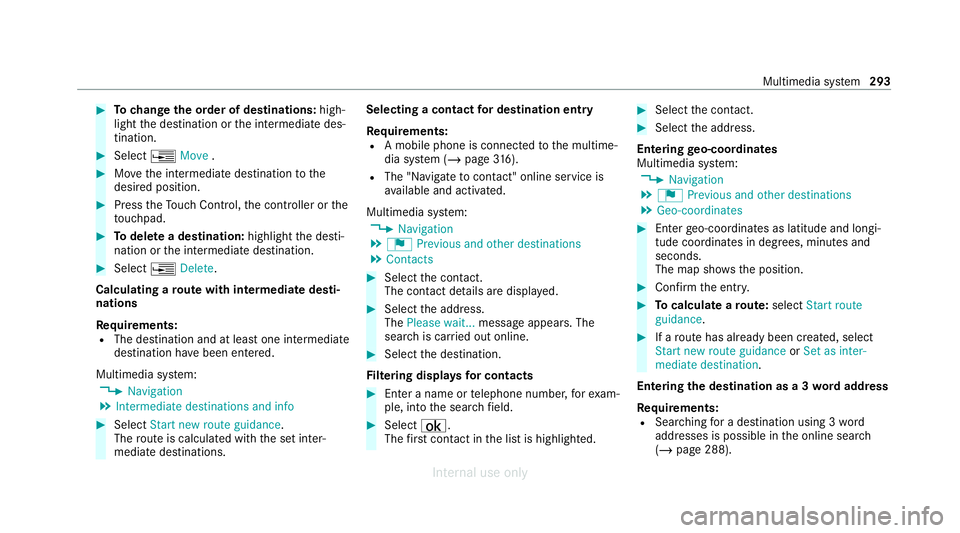
#
Tochange the order of destinations: high‐
light the destination or the intermediate des‐
tination. #
Select ¥Move . #
Movethe intermediate destination tothe
desired position. #
Press theTo uch Control, the controller or the
to uchpad. #
Todel ete a destination: highlightthe desti‐
nation or the intermediate destination. #
Select ¥Delete.
Calculating a route with intermediate desti‐
nations
Re quirements:
R The destination and at least one intermediate
destination ha vebeen entered.
Multimedia sy stem:
4 Navigation
5 Intermediate destinations and info #
Select Start new route guidance.
The route is calculated with the set inter‐
mediate destinations. Selecting a contact
for destination entry
Re quirements:
R A mobile phone is connecte dto the multime‐
dia sy stem (/ page316).
R The "N avigate tocontact" online service is
av ailable and activated.
Multimedia sy stem:
4 Navigation
5 ¬ Previous and other destinations
5 Contacts #
Select the conta ct.
The contact de tails are displa yed. #
Select the address.
The Please wait... message appears. The
sear chis car ried out online. #
Select the destination.
Fi ltering displa ysfor contacts #
Enter a name or telephone number, forex am‐
ple, into the sear chfield. #
Select ¡.
The firs t contact in the list is highlighted. #
Select the conta ct. #
Select the address.
Entering geo-coordina tes
Multimedia sy stem:
4 Navigation
5 ¬ Previous and other destinations
5 Geo-coordinates #
Ente rge o-coordinates as latitude and longi‐
tude coordinates in degrees, minutes and
seconds.
The map sho ws the position. #
Confirm the entry. #
Tocalculate a route: select Start route
guidance. #
If a route has already been created, select
Start new route guidance orSet as inter-
mediate destination .
Entering the destination as a 3 wordaddress
Re quirements:
R Sear ching for a destination using 3 word
addresses is possible in the online sear ch
( / page 288). Multimedia sy
stem 293
Internal use only
Page 298 of 557
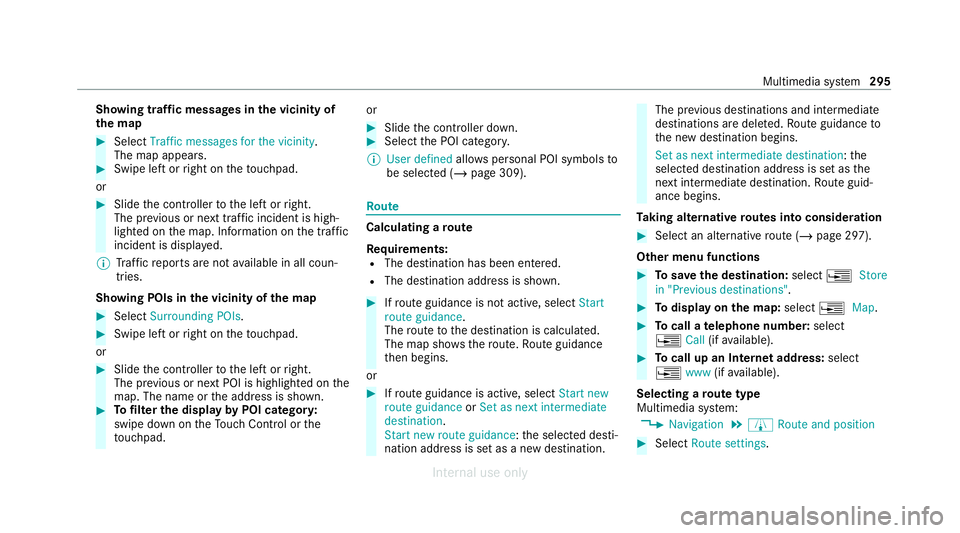
Showing traf
fic messages in the vicinity of
th e map #
Select Traffic messages for the vicinity.
The map appears. #
Swipe left or right on theto uchpad.
or #
Slide the controller tothe left or right.
The pr evious or next traf fic incident is high‐
lighted on the map. Information on the tra ffic
incident is displa yed.
% Traf fic re ports are not available in all coun‐
tries.
Showing POIs in the vicinity of the map #
Select Surrounding POIs . #
Swipe left or right on theto uchpad.
or #
Slide the controller tothe left or right.
The pr evious or next POI is highligh ted on the
map. The name or the address is shown. #
Tofilter the display byPOI categor y:
swipe down on theTo uch Control or the
to uchpad. or #
Slide the controller down. #
Select the POI categor y.
% User defined allowspersonal POI symbols to
be selected (/ page 309). Ro
ute Calculating a
route
Re quirements:
R The destination has been entered.
R The destination address is shown. #
Ifro ute guidance is not active, select Start
route guidance .
The route tothe destination is calculated.
The map sho ws thero ute. Route guidance
th en begins.
or #
Ifro ute guidance is active, select Start new
route guidance orSet as next intermediate
destination .
Start new route guidance: the selected desti‐
nation address is set as a new destination. The pr
evious destinations and intermediate
destinations are dele ted. Ro ute guidance to
th e new destination begins.
Set as next intermediate destination: the
selected destination address is set as the
next intermedia tedestination. Route guid‐
ance begins.
Ta king alternative routes into conside ration #
Select an al tern ative route (/ page 297).
Other menu functions #
Tosave the destination: select¥Store
in "Previous destinations". #
Todispl ayon the map: select¥Map. #
Tocall a telephone number: select
¥ Call(ifavailable). #
Tocall up an Internet address: select
¥ www(ifavailable).
Selecting a route type
Multimedia sy stem:
4 Navigation 5
À Route and position #
Select Route settings. Multimedia sy
stem 295
Internal use only
Page 304 of 557
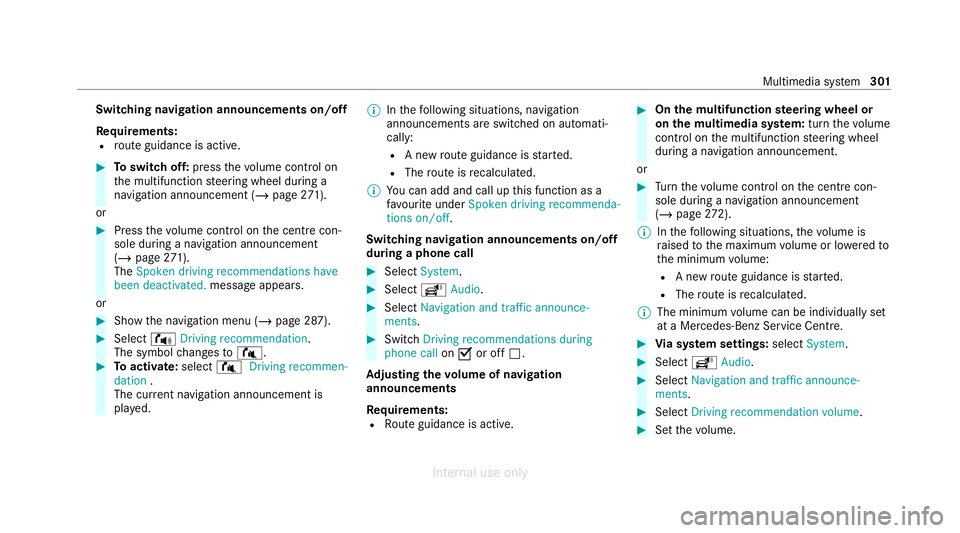
Switching navigation announcements on/off
Re
quirements:
R route guidance is active. #
Toswitch off: pressthevo lume control on
th e multifunction steering wheel during a
navigation announcement (/ page271).
or #
Press thevo lume control on the cent recon‐
sole du ring a navigation announcement
(/ page 271).
The Spoken driving recommendations have
been deactivated. messageappears.
or #
Show the navigation menu (/ page 287).#
Select !Driving recommendation .
The symbol changes to# . #
Toactivate: select#Driving recommen-
dation .
The cur rent navigation announcement is
pl ay ed. %
Inthefo llowing situations, navigation
announcements are switched on automati‐
cally:
R A new route guidance is star ted.
R The route is recalculated.
% You can add and call up this function as a
fa vo urite under Spoken driving recommenda-
tions on/off.
Swit ching navigation announcements on/off
during a phone call #
Select System. #
Select õAudio. #
Select Navigation and traffic announce-
ments. #
Swit chDriving recommendations during
phone call onO or off ª.
Ad justing the volume of navigation
announcements
Re quirements:
R Route guidance is active. #
On the multifunction steering wheel or
on the multimedia sy stem: turn thevo lume
control on the multifunction steering wheel
during a navigation announcement.
or #
Turn thevo lume control on the cent recon‐
sole du ring a navigation announcement
(/ page 272).
% Inthefo llowing situations, thevo lume is
ra ised tothe maximum volume or lo weredto
th e minimum volume:
R A new route guidance is star ted.
R The route is recalculated.
% The minimum volume can be individually set
at a Mercedes-Benz Service Cent re. #
Via sy stem settings: selectSystem. #
Select õAudio. #
Select Navigation and traffic announce-
ments. #
Select Driving recommendation volume. #
Set thevo lume. Multimedia sy
stem 301
Internal use only
Page 316 of 557
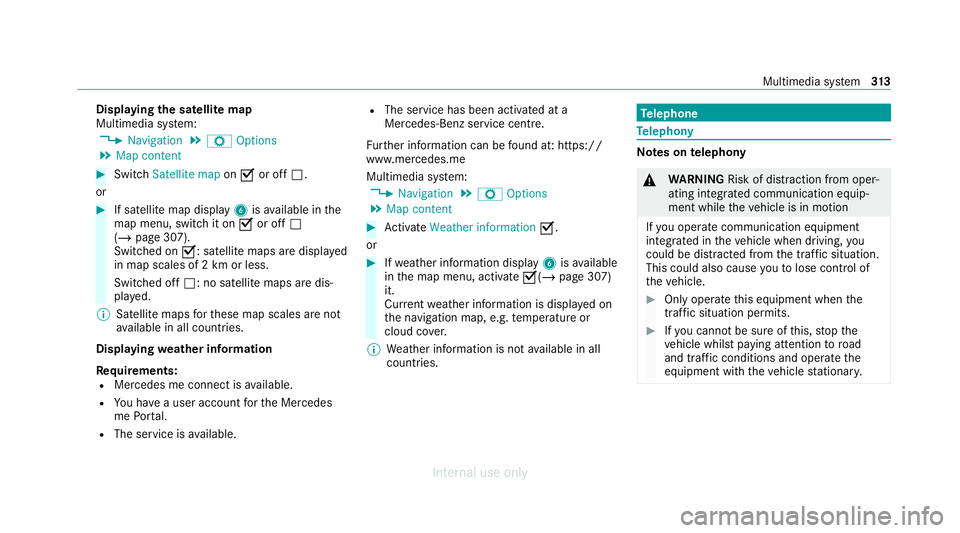
Displaying
the satellite map
Multimedia sy stem:
4 Navigation 5
Z Options
5 Map content #
Switch Satellite map onO or off ª.
or #
If satellite map display 6isavailable in the
map menu, switch it on Oor off ª
(/ page 307).
Switched on O: satellite maps are displa yed
in map scales of 2 km or less.
Swit ched off ª: no satellite maps are dis‐
pla yed.
% Satellite maps forth ese map scales are not
av ailable in all countries.
Displ aying weather information
Re quirements:
R Mercedes me connect is available.
R You ha vea user account forth e Mercedes
me Portal.
R The service is available. R
The service has been activated at a
Mercedes-Benz service centre.
Fu rther information can be found at: https://
www.mercedes.me
Multimedia sy stem:
4 Navigation 5
Z Options
5 Map content #
Activate Weather information O.
or #
Ifwe ather information display 6isavailable
in the map menu, activate O(/page 307)
it.
Cur rent we ather information is displa yed on
th e navigation map, e.g. temp erature or
cloud co ver.
% Weather information is not available in all
countries. Te
lephone Te
lephony Note
s ontelephony &
WARNING Risk of dist raction from oper‐
ating integrated communication equip‐
ment while theve hicle is in motion
If yo u operate communication equipment
integrated in theve hicle when driving, you
could be dist racted from the tra ffic situation.
This could also cause youto lose control of
th eve hicle. #
Only operate this equipment when the
traf fic situation permits. #
Ifyo u cannot be sure of this, stop the
ve hicle whilst paying attention toroad
and traf fic conditions and ope rate the
equipment with theve hicle stationar y. Multimedia sy
stem 313
Internal use only
Page 318 of 557
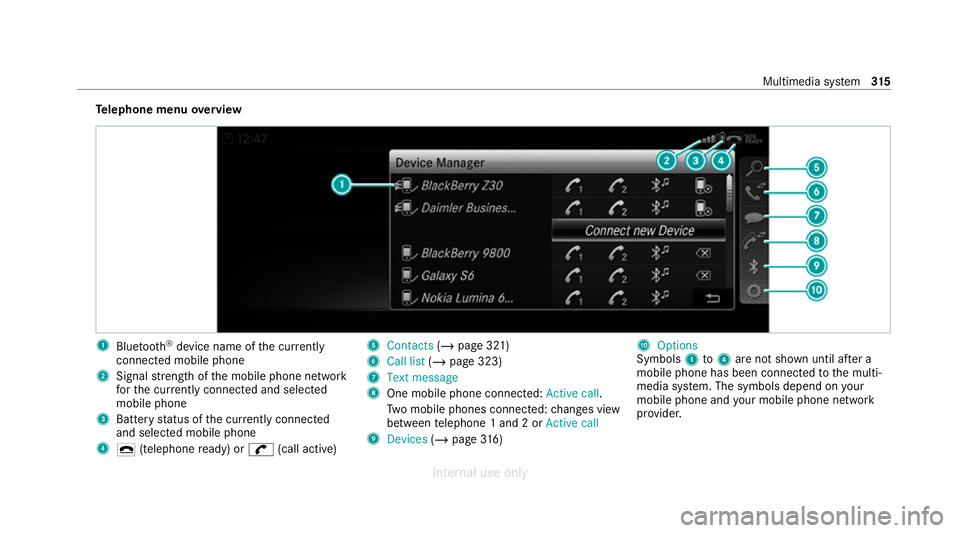
Te
lephone menu overview 1
Blue tooth ®
device name of the cur rently
connected mobile phone
2 Signal stre ngth of the mobile phone network
fo rth e cur rently connected and selected
mobile phone
3 Battery status of the cur rently connected
and selected mobile phone
4 ¢ (telephone ready) or w(call active) 5
Contacts (/page 321)
6 Call list (/page 323)
7 Text message
8 One mobile phone connec ted: Active call.
Tw o mobile phones connected: changes view
between telephone 1 and 2 or Active call
9 Devices (/page 316) A
Options
Symbols 1to4 are not shown until af ter a
mobile phone has been connected tothe multi‐
media sy stem. The symbols depend on your
mobile phone and your mobile phone network
pr ov ider. Multimedia sy
stem 315
Internal use only
Page 319 of 557
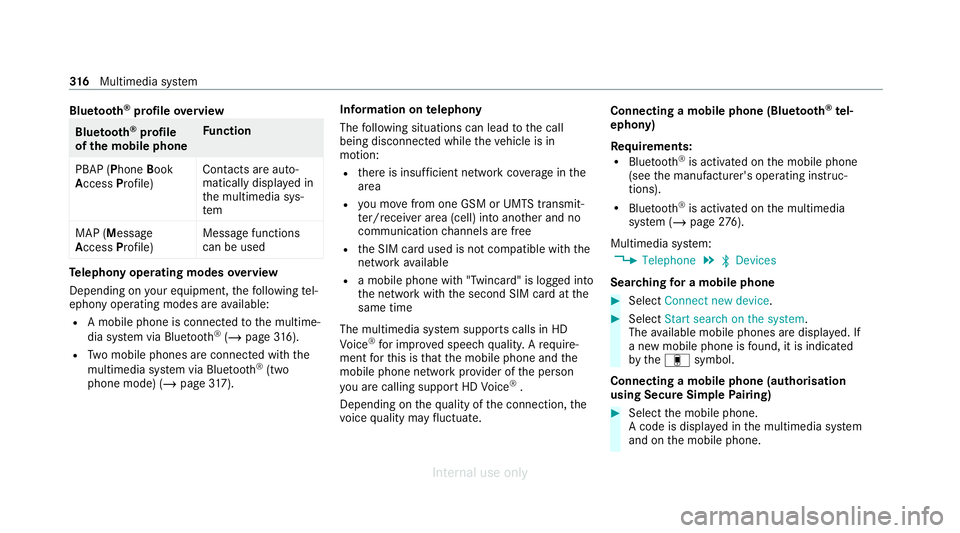
Blue
tooth ®
profile overview Blue
tooth ®
profile
of the mobile phone Fu
nction
PBAP (Phone Book
Access Profile) Contacts are auto‐
matically displa
yed in
th e multimedia sys‐
tem
MAP (Message
Access Profile) Message functions
can be used Te
lephony operating modes overview
Depending on your equipment, thefo llowing tel‐
ephony operating modes are available:
R A mobile phone is connec tedto the multime‐
dia sy stem via Blue tooth®
(/ page 316).
R Two mobile phones are connected with the
multimedia sy stem via Blue tooth®
(two
phone mode) (/ page317). Infor
mation on telephony
The following situations can lead tothe call
being disconnected while theve hicle is in
motion:
R there is insuf ficient network co verage inthe
area
R you mo vefrom one GSM or UMTS transmit‐
te r/receiver area (cell) into ano ther and no
communication channels are free
R the SIM card used is not compatible with the
network available
R a mobile phone with "Twincard" is logged into
the network with the second SIM card at the
same time
The multimedia sy stem supports calls in HD
Vo ice ®
for impr oved speech qualit y.Arequ ire‐
ment forth is is that the mobile phone and the
mobile phone network pr ovider of the person
yo u are calling suppo rtHD Voice ®
.
Depending on thequ ality of the connection, the
vo ice quality may fluctuate. Connecting a mobile phone (Blu
etoo th®
te l‐
ephony)
Re quirements:
R Blue tooth ®
is activated on the mobile phone
(see the manufacturer's operating instruc‐
tions).
R Blue tooth ®
is activated on the multimedia
sy stem (/ page276).
Mul timedia sy stem:
4 Telephone 5
ª Devices
Sear ching for a mobile phone #
Select Connect new device . #
Select Start search on the system .
The available mobile phones are displa yed. If
a new mobile phone is found, it is indicated
by the# symbol.
Connecting a mobile phone (authorisation
using Secure Simple Pairing) #
Select the mobile phone.
A code is displa yed in the multimedia sy stem
and on the mobile phone. 316
Multimedia sy stem
Internal use only
Page 320 of 557
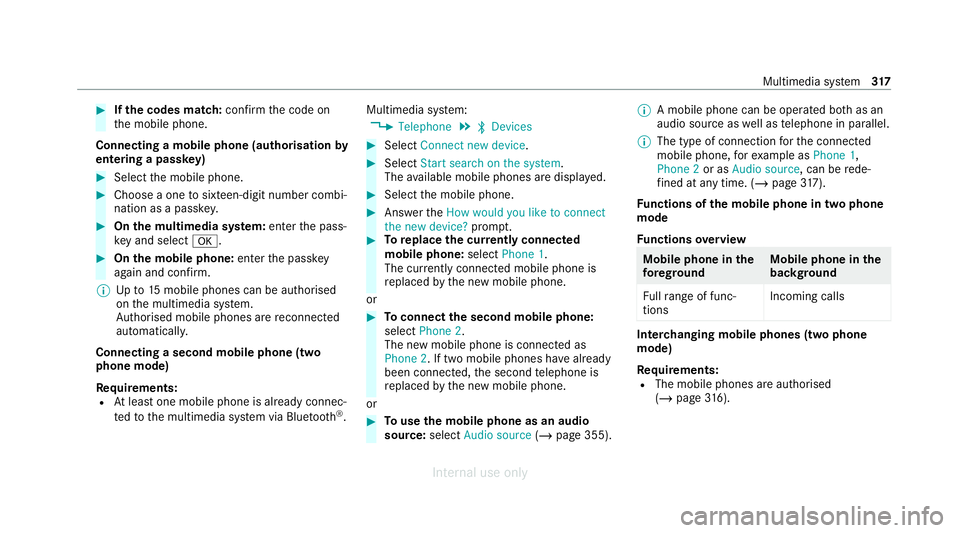
#
Ifth e codes match: confirm the code on
th e mobile phone.
Connecting a mobile phone (authorisation by
entering a passk ey) #
Select the mobile phone. #
Choose a one tosixteen-digit number combi‐
nation as a passk ey. #
On the multimedia sy stem: enter the pass‐
ke y and select a. #
On the mobile phone: enterthe passk ey
again and con firm.
% Upto15 mobile phones can be auth orised
on the multimedia sy stem.
Auth orised mobile phones are reconnected
au tomatical ly.
Connecting a second mobile phone (two
phone mode)
Re quirements:
R Atleast one mobile phone is already connec‐
te dto the multimedia sy stem via Blue tooth ®
. Multimedia sy
stem:
4 Telephone 5
ª Devices #
Select Connect new device. #
Select Start search on the system.
The available mobile phones are displa yed. #
Select the mobile phone. #
Answer theHow would you like to connect
the new device? prompt. #
Toreplace the cur rently connected
mobile phone: selectPhone 1.
The cur rently connected mobile phone is
re placed bythe new mobile phone.
or #
Toconnect the second mobile phone:
select Phone 2.
The new mobile phone is connec ted as
Phone 2. If two mobile phones ha vealready
been connec ted, the second telephone is
re placed bythe new mobile phone.
or #
Touse the mobile phone as an audio
source: selectAudio source (/page 355). %
A mobile phone can be operated bo thas an
audio source as well as telephone in parallel.
% The type of connection forth e connected
mobile phone, forex ample as Phone 1,
Phone 2 or asAudio source , can berede‐
fi ned at any time. (/ page 317).
Fu nctions of the mobile phone in two phone
mode
Fu nctions overview Mobile phone in
the
fo re gr ound Mobile phone in
the
bac kground
Fu llra nge of func‐
tions Incoming calls In
terc hanging mobile phones (two phone
mode)
Re quirements:
R The mobile phones are authorised
(/ page 316). Multimedia sy
stem 317
Internal use only