phone MERCEDES-BENZ C-CLASS SALOON 2014 User Guide
[x] Cancel search | Manufacturer: MERCEDES-BENZ, Model Year: 2014, Model line: C-CLASS SALOON, Model: MERCEDES-BENZ C-CLASS SALOON 2014Pages: 489, PDF Size: 14.88 MB
Page 297 of 489
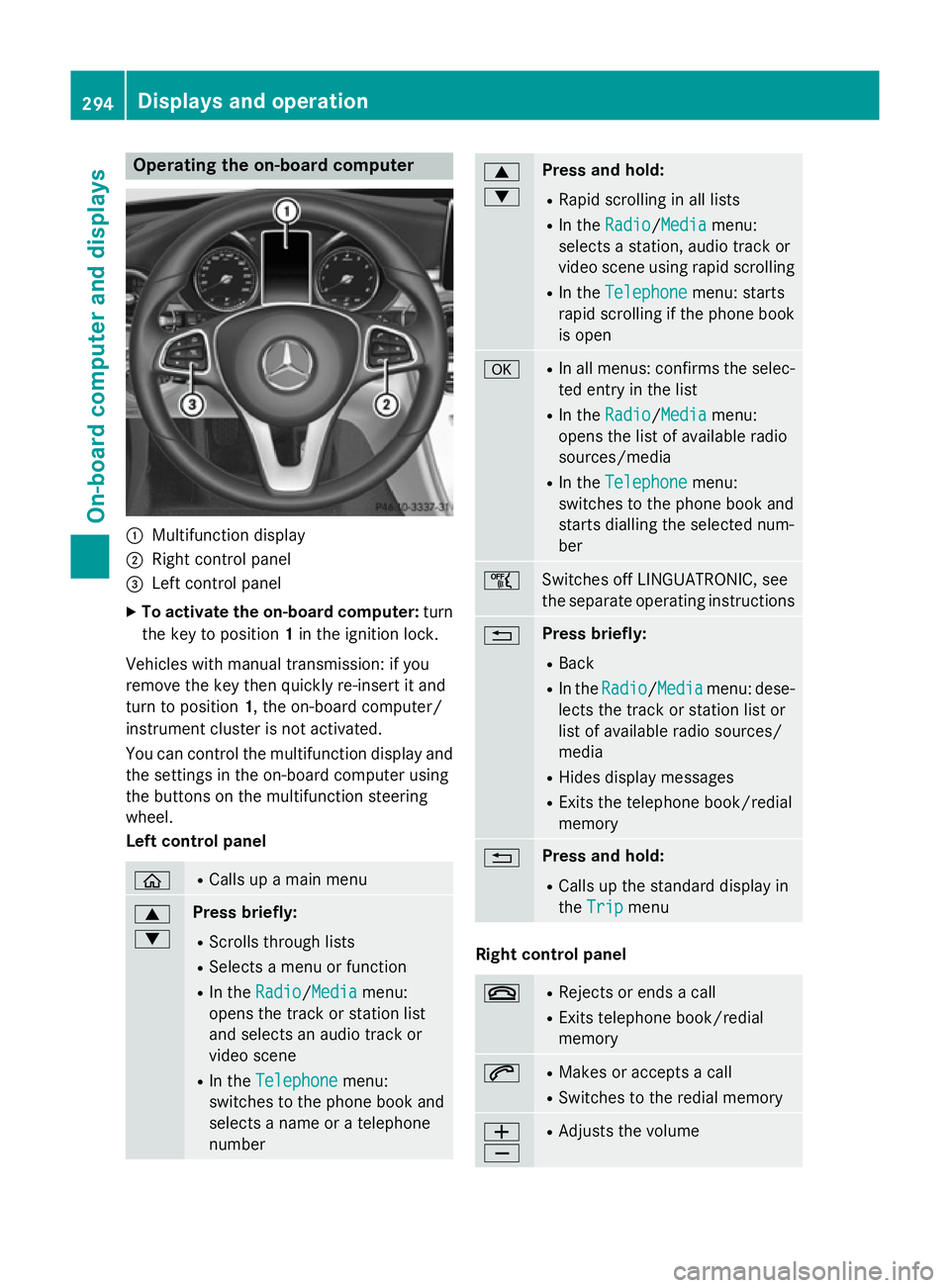
Operating the on-board computer
:
Multifunction display
; Right control panel
= Left control panel
X To activate the on-board computer: turn
the key to position 1in the ignition lock.
Vehicles with manual transmission: if you
remove the key then quickly re-insert it and
turn to position 1, the on-board computer/
instrument cluster is not activated.
You can control the multifunction display and
the settings in the on-board computer using
the buttons on the multifunction steering
wheel.
Left control panel ò R
Calls up a main menu 9
: Press briefly:
R Scrolls through lists
R Selects a menu or function
R In the Radio Radio/Media Mediamenu:
opens the track or station list
and selects an audio track or
video scene
R In the Telephone Telephone menu:
switches to the phone book and
selects a name or a telephone
number 9
: Press and hold:
R Rapid scrolling in all lists
R In the Radio Radio/ Media
Media menu:
selects a station, audio track or
video scene using rapid scrolling
R In the Telephone Telephone menu: starts
rapid scrolling if the phone book is open a R
In all menus: confirms the selec-
ted entry in the list
R In the Radio
Radio/Media Mediamenu:
opens the list of available radio
sources/media
R In the Telephone Telephone menu:
switches to the phone book and
starts dialling the selected num-
ber ñ
Switches off LINGUATRONIC, see
the separate operating instructions
% Press briefly:
R Back
R In the Radio Radio/Media Mediamenu: dese-
lects the track or station list or
list of available radio sources/
media
R Hides display messages
R Exits the telephone book/redial
memory % Press and hold:
R Calls up the standard display in
the Trip Trip menu Right control panel
~ R
Rejects or ends a call
R Exits telephone book/redial
memory 6 R
Makes or accepts a call
R Switches to the redial memory W
X R
Adjusts the volume 294
Displays and operationOn-board computer and displays
Page 300 of 489
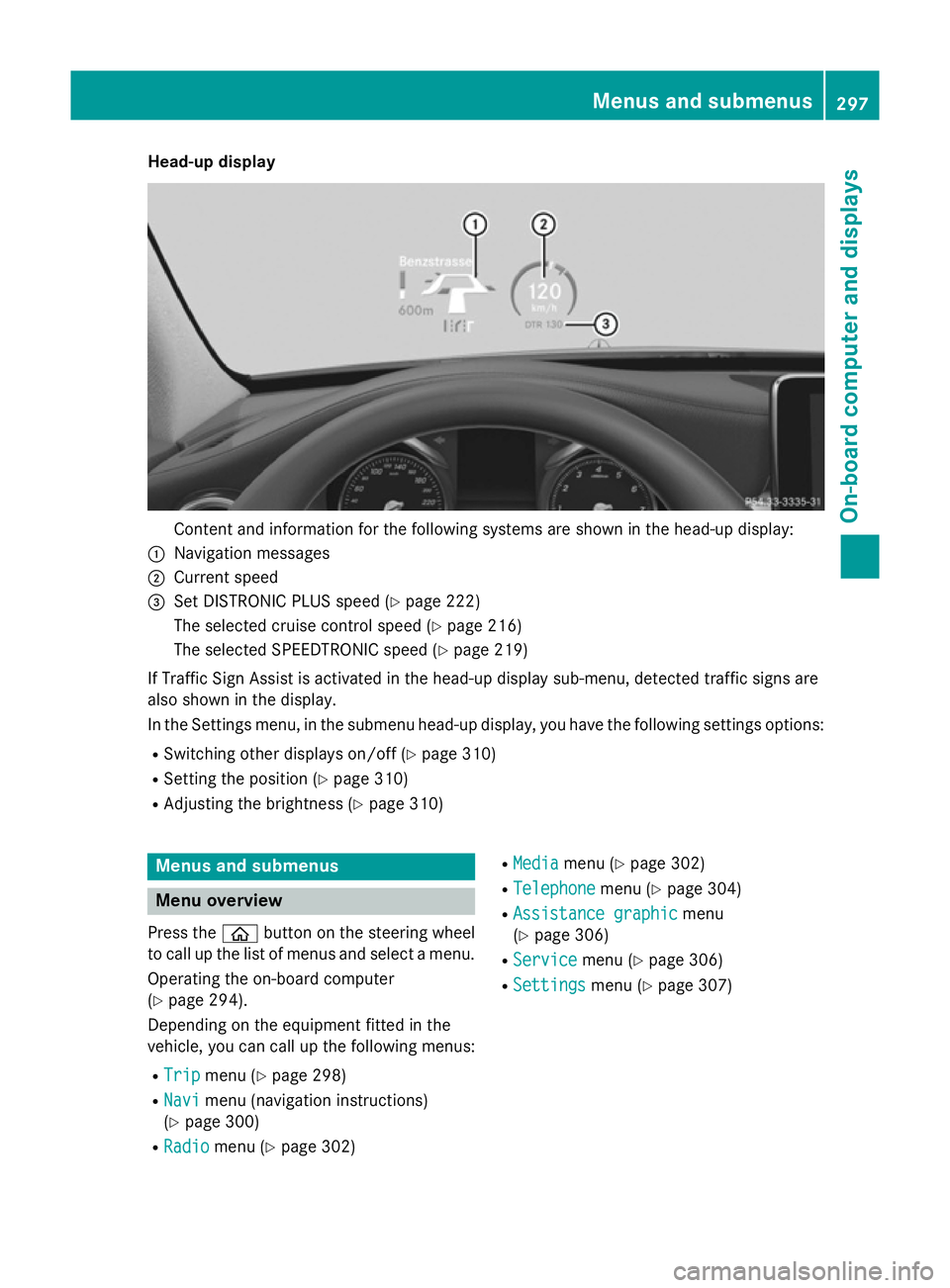
Head-up display
Content and information for the following systems are shown in the head-up display:
: Navigation messages
; Current speed
= Set DISTRONIC PLUS speed (Y page 222)
The selected cruise control speed (Y page 216)
The selected SPEEDTRONIC speed (Y page 219)
If Traffic Sign Assist is activated in the head-up display sub-menu, detected traffic signs are
also shown in the display.
In the Settings menu, in the submenu head-up display, you have the following settings options:
R Switching other displays on/off (Y page 310)
R Setting the position (Y page 310)
R Adjusting the brightness (Y page 310)Menus and submenus
Menu overview
Press the òbutton on the steering wheel
to call up the list of menus and select a menu.
Operating the on-board computer
(Y page 294).
Depending on the equipment fitted in the
vehicle, you can call up the following menus:
R Trip Trip menu (Y page 298)
R Navi
Navi menu (navigation instructions)
(Y page 300)
R Radio Radio menu (Y page 302) R
Media Media menu (Y page 302)
R Telephone
Telephone menu (Ypage 304)
R Assistance graphic
Assistance graphic menu
(Y page 306)
R Service
Service menu (Ypage 306)
R Settings
Settings menu (Ypage 307) Menus and submenus
297On-board computer and displays Z
Page 307 of 489
X
Confirm by pressing aon the steering
wheel.
X To select DVD single drive or data car-
rier: press abriefly, to open the list of
media sources.
X Use : or9 to select the correspond-
ing DVD player or DVD media.
X Press ato confirm.
X To open the scene list: press:or
9 briefly.
X To select the next or previous scene
from the scene list: briefly press:or
9.
X To select a scene from the scene list
using rapid scrolling: press and
hold : or9 until desired scene :is
reached.
X Press ato confirm your selection.
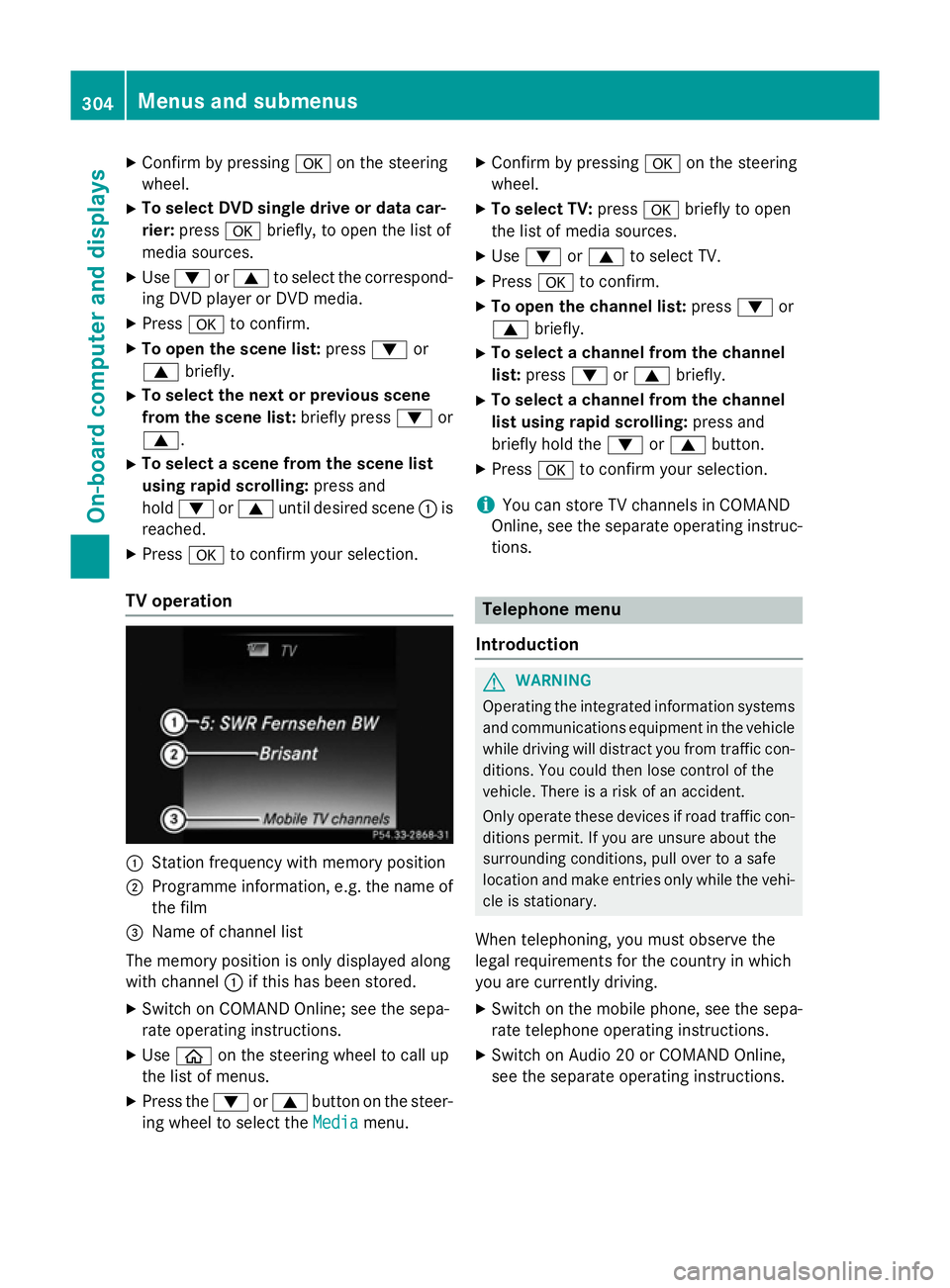
TV operation :
Station frequency with memory position
; Programme information, e.g. the name of
the film
= Name of channel list
The memory position is only displayed along
with channel :if this has been stored.
X Switch on COMAND Online; see the sepa-
rate operating instructions.
X Use ò on the steering wheel to call up
the list of menus.
X Press the :or9 button on the steer-
ing wheel to select the Media
Media menu. X
Confirm by pressing aon the steering
wheel.
X To select TV: pressabriefly to open
the list of media sources.
X Use : or9 to select TV.
X Press ato confirm.
X To open the channel list: press:or
9 briefly.
X To select a channel from the channel
list: press :or9 briefly.
X To select a channel from the channel
list using rapid scrolling: press and
briefly hold the :or9 button.
X Press ato confirm your selection.
i You can store TV channels in COMAND
Online, see the separate operating instruc-
tions. Telephone menu
Introduction G
WARNING
Operating the integrated information systems and communications equipment in the vehicle
while driving will distract you from traffic con-
ditions. You could then lose control of the
vehicle. There is a risk of an accident.
Only operate these devices if road traffic con-
ditions permit. If you are unsure about the
surrounding conditions, pull over to a safe
location and make entries only while the vehi-
cle is stationary.
When telephoning, you must observe the
legal requirements for the country in which
you are currently driving. X Switch on the mobile phone, see the sepa-
rate telephone operating instructions.
X Switch on Audio 20 or COMAND Online,
see the separate operating instructions. 304
Menus and submenusOn-board computer and displays
Page 308 of 489
X
Insert the mobile phone into the bracket
(Y page 386).
or
X Establish a Bluetooth ®
connection to Audio
20 or COMAND Online, see the separate
operating instructions.
X Use ò on the steering wheel to call up
the list of menus.
X Press :or9 on the steering wheel
to select the Telephone
Telephone menu.
X Confirm by pressing aon the steering
wheel.
You will see one of the following display mes-
sages in the multifunction display:
R Telephone ready
Telephone ready or the name of the net-
work provider: the mobile phone has found a network and is ready to receive.
R Telephone No service
Telephone No service: there is no net-
work available or the mobile phone is
searching for a network.
i You can obtain further information about
suitable mobile phones and connecting
mobile phones via Bluetooth ®
:
R from any Mercedes-Benz Service Centre
R on the Internet at http://
www.mercedes-benz.com/connect
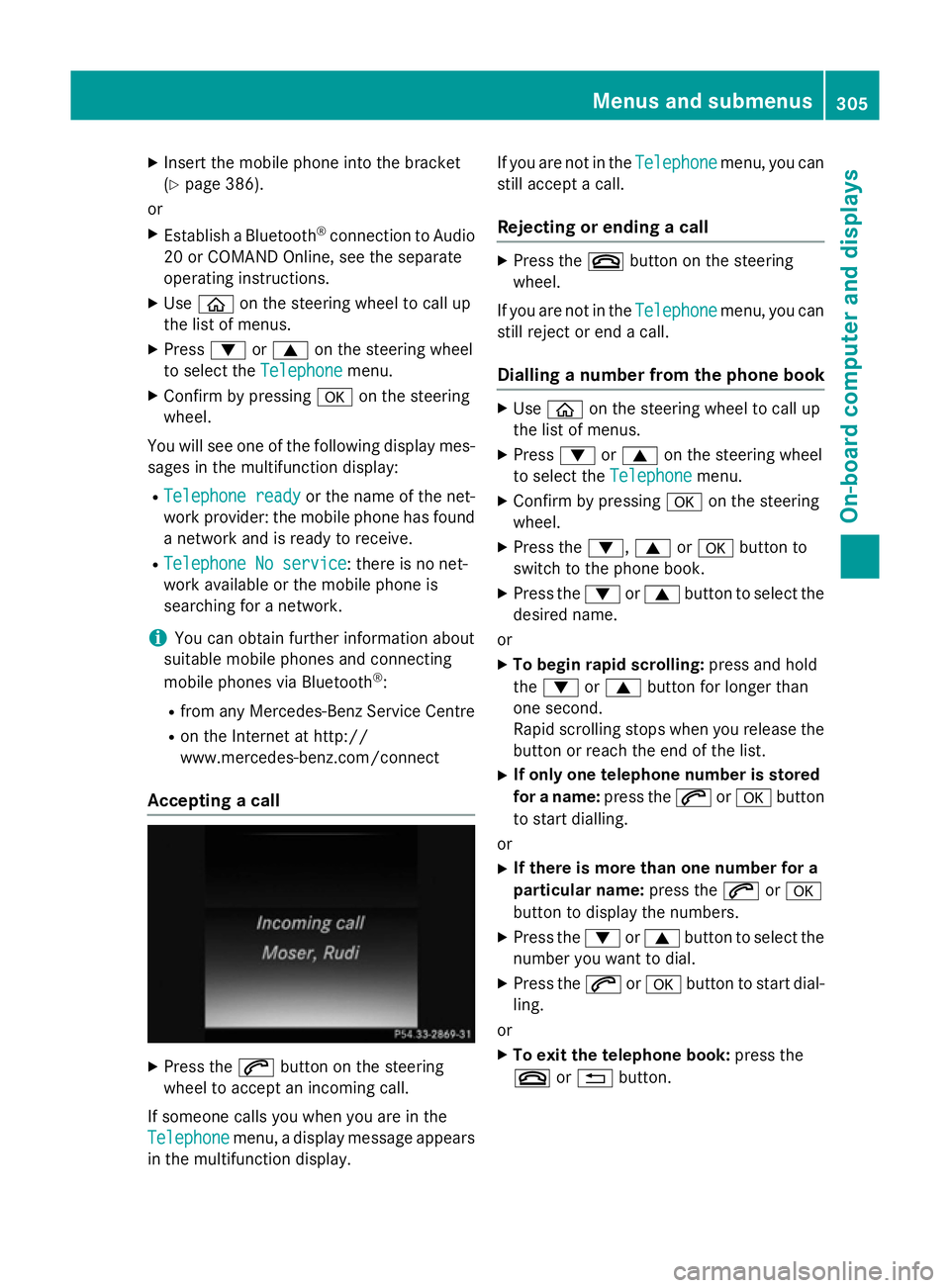
Accepting a call X
Press the 6button on the steering
wheel to accept an incoming call.
If someone calls you when you are in the
Telephone
Telephone menu, a display message appears
in the multifunction display. If you are not in the
Telephone
Telephone menu, you can
still accept a call.
Rejecting or ending a call X
Press the ~button on the steering
wheel.
If you are not in the Telephone Telephonemenu, you can
still reject or end a call.
Dialling a number from the phone book X
Use ò on the steering wheel to call up
the list of menus.
X Press :or9 on the steering wheel
to select the Telephone
Telephonemenu.
X Confirm by pressing aon the steering
wheel.
X Press the :,9ora button to
switch to the phone book.
X Press the :or9 button to select the
desired name.
or X To begin rapid scrolling: press and hold
the : or9 button for longer than
one second.
Rapid scrolling stops when you release the button or reach the end of the list.
X If only one telephone number is stored
for a name: press the6ora button
to start dialling.
or X If there is more than one number for a
particular name: press the6ora
button to display the numbers.
X Press the :or9 button to select the
number you want to dial.
X Press the 6ora button to start dial-
ling.
or X To exit the telephone book: press the
~ or% button. Menus and submenus
305On-board computer and displays Z
Page 309 of 489
Redialling
The on-board computer saves the last names
or numbers dialled in the redial memory.
X Use ò on the steering wheel to call up
the list of menus.
X Press :or9 on the steering wheel
to select the Telephone
Telephone menu.
X Confirm by pressing aon the steering
wheel.
X Press the 6button to switch to the
redial memory.
X Press the :or9 button to select the
desired name or number.
X Press the 6ora button to start dial-
ling.
or
X To exit the redial memory: press the
~ or% button. Assistance graphic menu
X
Use ò on the steering wheel to call up
the list of menus.
X Press the :or9 button on the steer-
ing wheel to select the Assistance
Assistance
graphic
graphic menu.
X Confirm by pressing aon the steering
wheel.
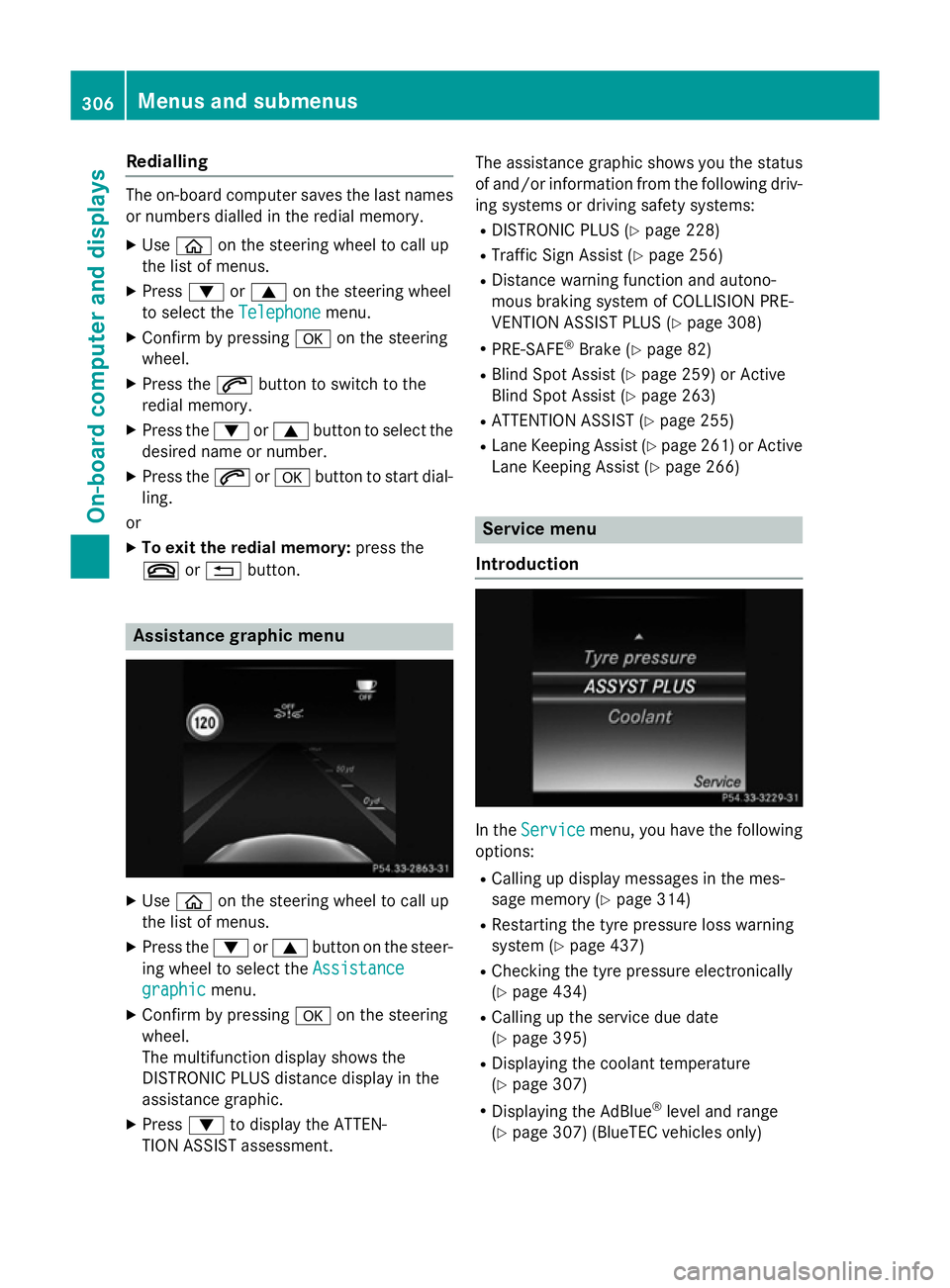
The multifunction display shows the
DISTRONIC PLUS distance display in the
assistance graphic.
X Press :to display the ATTEN-
TION ASSIST assessment. The assistance graphic shows you the status
of and/or information from the following driv-ing systems or driving safety systems:
R DISTRONIC PLUS (Y page 228)
R Traffic Sign Assist (Y page 256)
R Distance warning function and autono-
mous braking system of COLLISION PRE-
VENTION ASSIST PLUS (Y page 308)
R PRE-SAFE ®
Brake (Y page 82)
R Blind Spot Assist (Y page 259) or Active
Blind Spot Assist (Y page 263)
R ATTENTION ASSIST (Y page 255)
R Lane Keeping Assist (Y page 261)or Active
Lane Keeping Assist (Y page 266) Service menu
Introduction In the
Service Service menu, you have the following
options:
R Calling up display messages in the mes-
sage memory (Y page 314)
R Restarting the tyre pressure loss warning
system (Y page 437)
R Checking the tyre pressure electronically
(Y page 434)
R Calling up the service due date
(Y page 395)
R Displaying the coolant temperature
(Y page 307)
R Displaying the AdBlue ®
level and range
(Y page 307) (BlueTEC vehicles only) 306
Menus and submenusOn-board computer and displays
Page 352 of 489
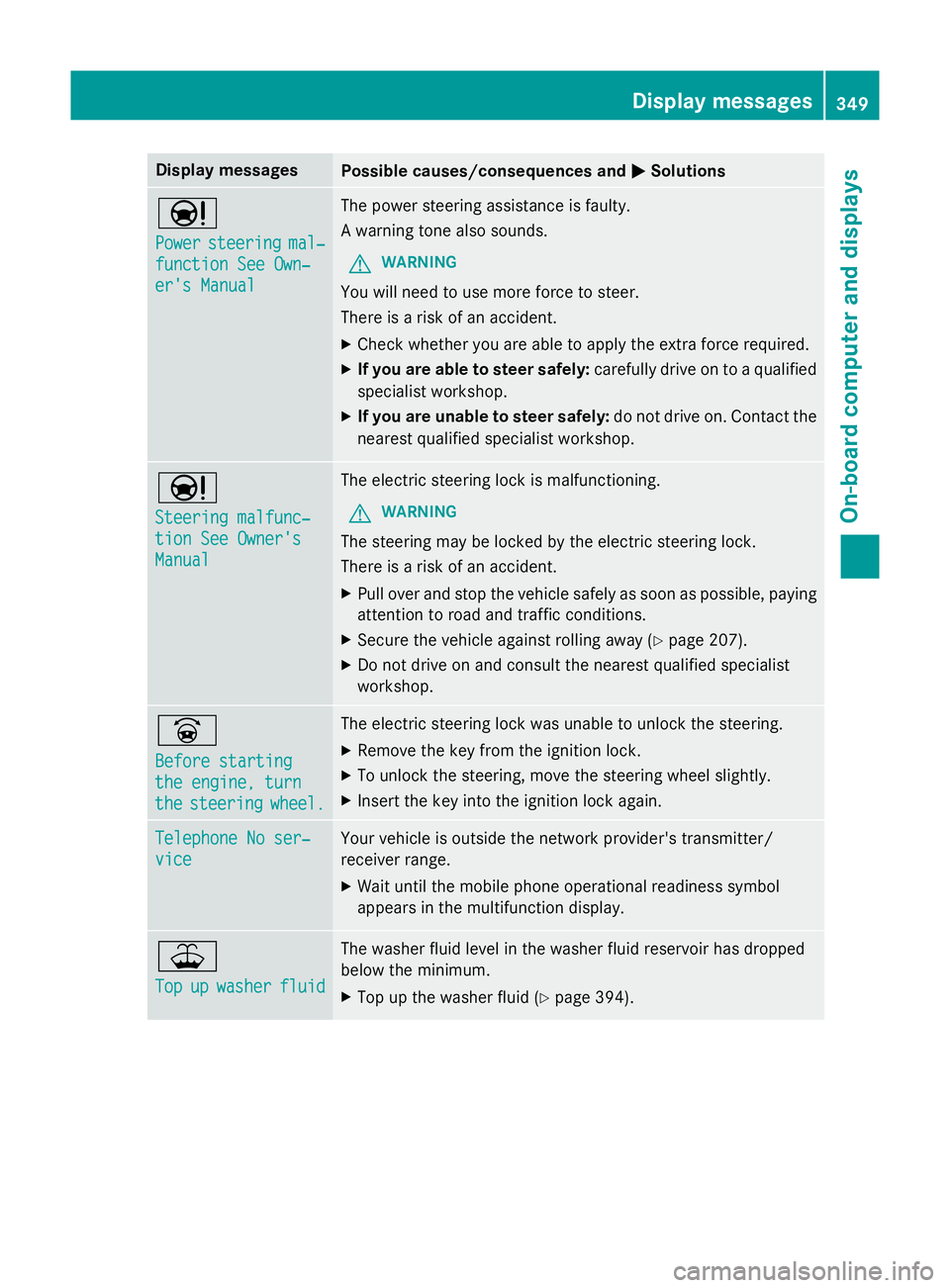
Display messages
Possible causes/consequences and
M
MSolutions Ð
Power Power
steering
steering mal‐
mal‐
function See Own‐
function See Own‐
er's Manual er's Manual The power steering assistance is faulty.
A warning tone also sounds.
G WARNING
You will need to use more force to steer.
There is a risk of an accident. X Check whether you are able to apply the extra force required.
X If you are able to steer safely: carefully drive on to a qualified
specialist workshop.
X If you are unable to steer safely: do not drive on. Contact the
nearest qualified specialist workshop. Ð
Steering malfunc‐ Steering malfunc‐
tion See Owner's tion See Owner's
Manual Manual The electric steering lock is malfunctioning.
G WARNING
The steering may be locked by the electric steering lock.
There is a risk of an accident. X Pull over and stop the vehicle safely as soon as possible, paying
attention to road and traffic conditions.
X Secure the vehicle against rolling away (Y page 207).
X Do not drive on and consult the nearest qualified specialist
workshop. _
Before starting Before starting
the engine, turn the engine, turn
the the
steering
steering wheel.
wheel. The electric steering lock was unable to unlock the steering.
X Remove the key from the ignition lock.
X To unlock the steering, move the steering wheel slightly.
X Insert the key into the ignition lock again. Telephone No ser‐
Telephone No ser‐
vice vice Your vehicle is outside the network provider's transmitter/
receiver range.
X Wait until the mobile phone operational readiness symbol
appears in the multifunction display. ¥
Top Top
up
upwasher
washer fluid
fluid The washer fluid level in the washer fluid reservoir has dropped
below the minimum.
X Top up the washer fluid (Y page 394). Display
messages
349On-board computer and displays Z
Page 373 of 489
Stowage compartment in the doors
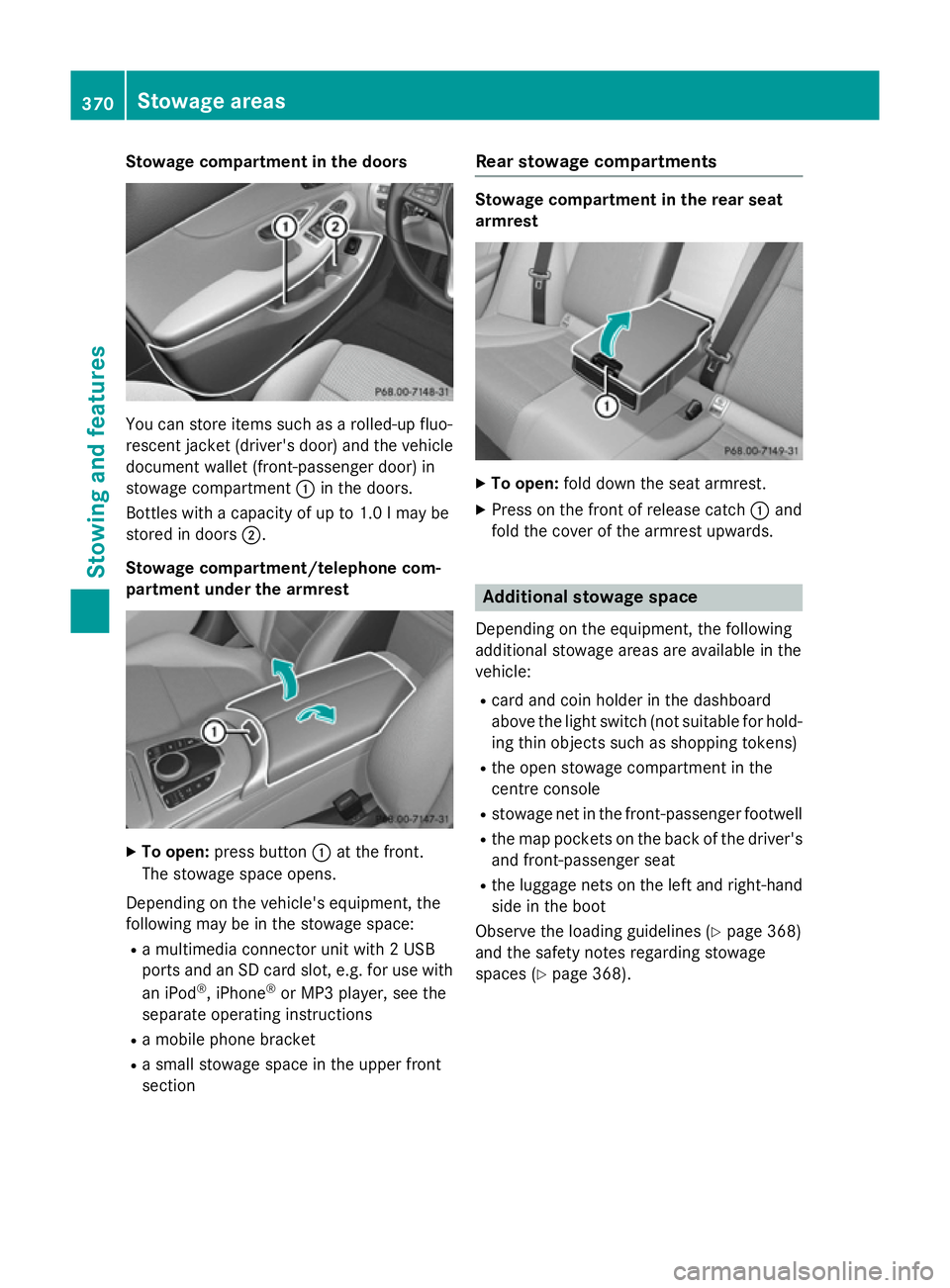
You can store items such as a rolled-up fluo-
rescent jacket (driver's door) and the vehicle document wallet (front-passenger door) in
stowage compartment :in the doors.
Bottles with a capacity of up to 1.0 lmay be
stored in doors ;.
Stowage compartment/telephone com-
partment under the armrest X
To open: press button :at the front.
The stowage space opens.
Depending on the vehicle's equipment, the
following may be in the stowage space: R a multimedia connector unit with 2 USB
ports and an SD card slot, e.g. for use with
an iPod ®
, iPhone ®
or MP3 player, see the
separate operating instructions
R a mobile phone bracket
R a small stowage space in the upper front
section Rear stowage compartments Stowage compartment in the rear seat
armrest
X
To open: fold down the seat armrest.
X Press on the front of release catch :and
fold the cover of the armrest upwards. Additional stowage space
Depending on the equipment, the following
additional stowage areas are available in the
vehicle:
R card and coin holder in the dashboard
above the light switch (not suitable for hold-
ing thin objects such as shopping tokens)
R the open stowage compartment in the
centre console
R stowage net in the front-passenger footwell
R the map pockets on the back of the driver's
and front-passenger seat
R the luggage nets on the left and right-hand
side in the boot
Observe the loading guidelines (Y page 368)
and the safety notes regarding stowage
spaces (Y page 368). 370
Stowage areasStowing and features
Page 384 of 489
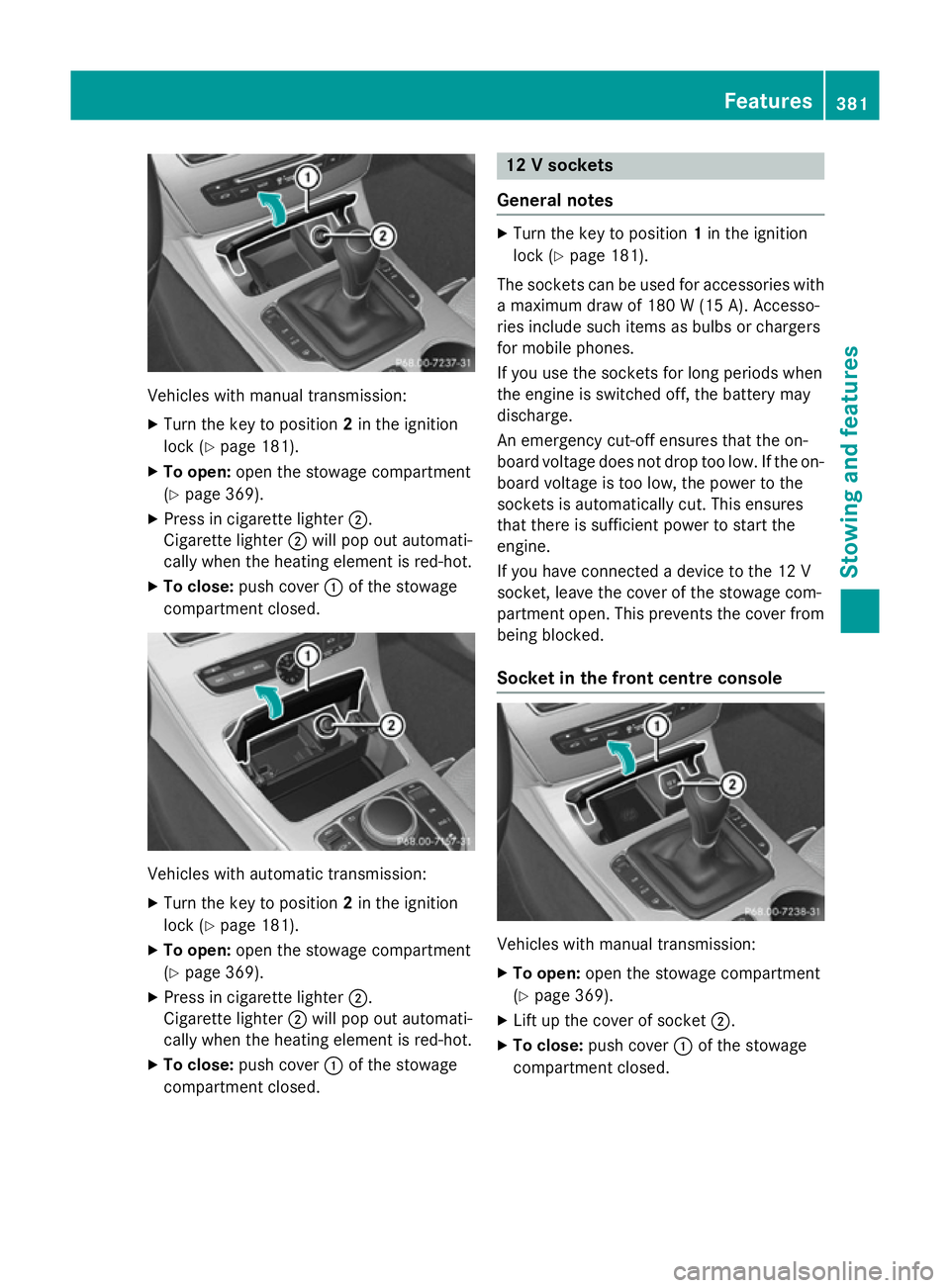
Vehicles with manual transmission:
X
Turn the key to position 2in the ignition
lock (Y page 181).
X To open: open the stowage compartment
(Y page 369).
X Press in cigarette lighter ;.
Cigarette lighter ;will pop out automati-
cally when the heating element is red-hot.
X To close: push cover :of the stowage
compartment closed. Vehicles with automatic transmission:
X
Turn the key to position 2in the ignition
lock (Y page 181).
X To open: open the stowage compartment
(Y page 369).
X Press in cigarette lighter ;.
Cigarette lighter ;will pop out automati-
cally when the heating element is red-hot.
X To close: push cover :of the stowage
compartment closed. 12 V sockets
General notes X
Turn the key to position 1in the ignition
lock (Y page 181).
The sockets can be used for accessories with a maximum draw of 180 W(15 A). Accesso-
ries include such items as bulbs or chargers
for mobile phones.
If you use the sockets for long periods when
the engine is switched off, the battery may
discharge.
An emergency cut-off ensures that the on-
board voltage does not drop too low. If the on-
board voltage is too low, the power to the
sockets is automatically cut. This ensures
that there is sufficient power to start the
engine.
If you have connected a device to the 12 V
socket, leave the cover of the stowage com-
partment open. This prevents the cover from
being blocked.
Socket in the front cent re console Vehicles with manual transmission:
X To open: open the stowage compartment
(Y page 369).
X Lift up the cover of socket ;.
X To close: push cover :of the stowage
compartment closed. Features
381Stowing an d features Z
Page 387 of 489
Problems with the 230 V power socket
Problem
Possible causes/consequences and
M
MSolutions The warning lamp on
the 230 V power socket
is not lit. The on-board voltage is too low because the battery is too weak.
X Start the engine.
or
X Charge the battery (Y page 416).
If the indicator lamp still does not light up:
X Visit a qualified specialist workshop. The temperature of the DC/AC converter is temporarily too high.
X Remove the electronic device connector from the 230 V socket.
X Let the DC/AC converter cool down.
If the indicator lamp still does not light up after the converter cools
down:
X Visit a qualified specialist workshop. You have connected an electronic device that has a constant
nominal power of less than 150 watts, but has a very high switch-
on current. This device will not work. If you connect such a device, the 230 V power socket will not supply it with power.
X Connect a suitable electronic device. Mercedes-Benz emergency call sys-
tem
Information on these requirements can be
found in the separate COMAND Online oper-
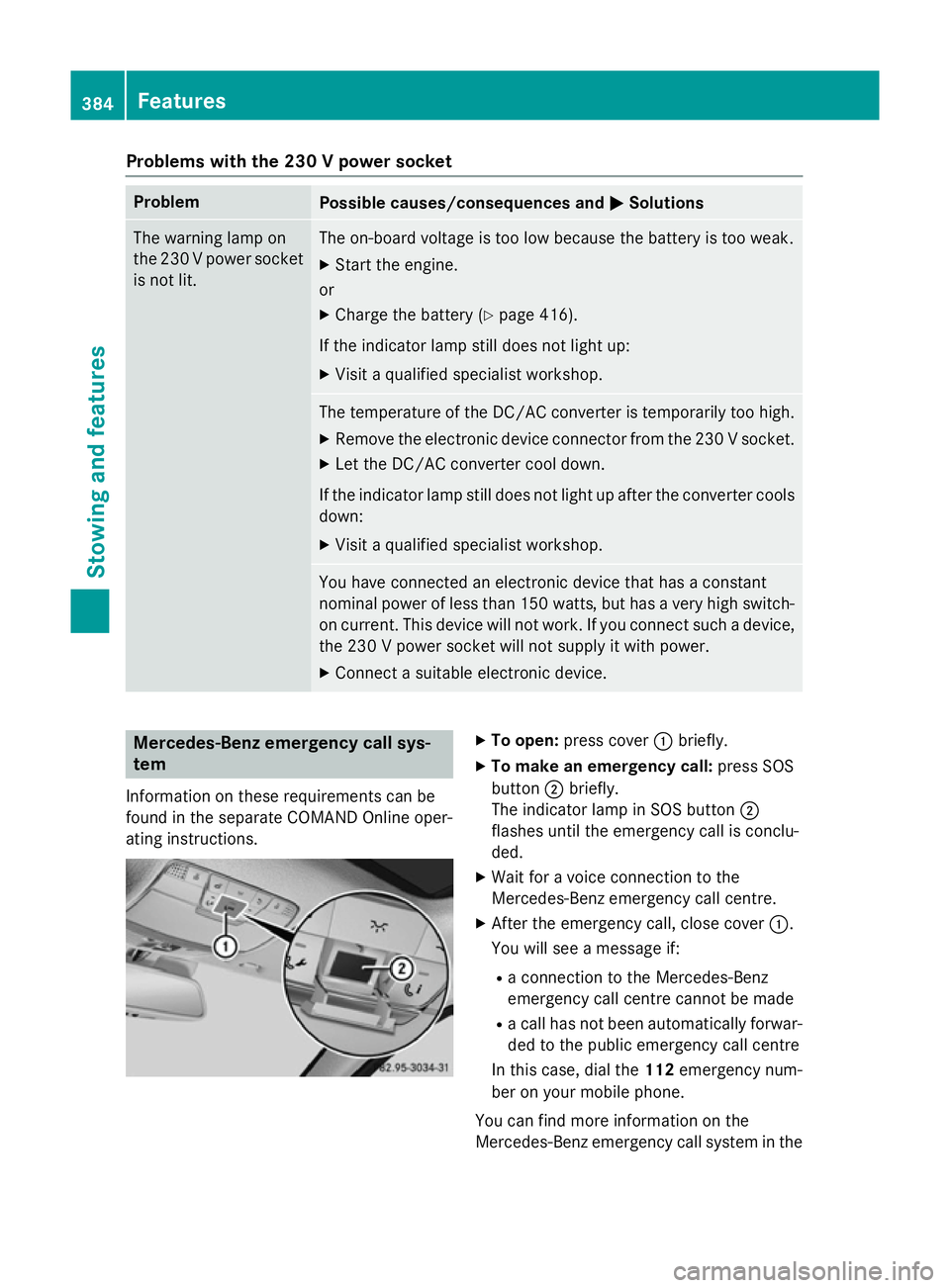
ating instructions. X
To open: press cover :briefly.
X To make an emergency call: press SOS
button ;briefly.
The indicator lamp in SOS button ;
flashes until the emergency call is conclu-
ded.
X Wait for a voice connection to the
Mercedes-Benz emergency call centre.
X After the emergency call, close cover :.
You will see a message if:
R a connection to the Mercedes-Benz
emergency call centre cannot be made
R a call has not been automatically forwar-
ded to the public emergency call centre
In this case, dial the 112emergency num-
ber on your mobile phone.
You can find more information on the
Mercedes-Benz emergency call system in the 384
FeaturesStowing and features
Page 389 of 489
Mobile phone
Important safety notes G
WARNING
Operating mobile communications equip-
ment while driving distracts you from paying
attention to traffic conditions. This could also cause you to lose control of the vehicle. There
is a risk of an accident.
Use this device only when the vehicle is sta-
tionary.
You must observe the legal requirements for
the country in which you are currently driving when operating mobile communications
equipment in the vehicle.
If it is permitted by law to operate communi-
cations equipment while the vehicle is in
motion, you may only do so if the traffic sit-
uation permits. You may otherwise be dis-
tracted from the traffic conditions, cause an
accident and injure yourself and others.
Excessive levels of electromagnetic radiation
may cause damage to your health and to the
health of others. The use of an exterior aerial
takes into consideration the scientific discus- sion surrounding the possible health risk
posed by electromagnetic fields.
Mercedes-Benz recommends the use of an
approved exterior aerial. This ensures:
R optimal mobile phone reception quality in
the vehicle
R that mutual interference between the vehi-
cle electronics and mobile phones is mini-
mised
An exterior aerial has the following advan-
tages:
R it conducts the electromagnetic fields gen-
erated by a wireless device to the exterior
R the field strength in the vehicle interior is
lower than in a vehicle that does not have
an exterior aerial
Information on retrofitting two-way radios
and mobile phones (RF transmitters)
(Y page 466). General notes Depending on the vehicle equipment, there
are various mobile phone brackets that may
be fitted in your vehicle; in some cases, these
are country-specific.
More information on suitable mobile phones,
mobile phone brackets and on connecting
Bluetooth ®
-capable mobile phones to
COMAND Online/Audio 20 can be obtained:
R at your Mercedes-Benz Service Centre
R on the Internet at http://www.mercedes-
benz.com/connect
The functions and services available when
you use the phone depend on your mobile
phone model and service provider.
Using a mobile phone To connect a mobile phone to the exterior
aerial and charge it, insert it into the mobile
phone bracket.
X Open the telephone compartment
(Y page 370).
X Place the mobile phone bracket into the
pre-installed fitting; see the separate instal- lation instructions for the mobile phone fit-
ting.
X Insert the mobile phone into the mobile
phone bracket; see the separate installa-
tion instructions for the mobile phone fit-
ting.
i The mobile phone can also be operated
without being in the bracket. However, the charging function and aerial function are
not available.
In order to use Bluetooth ®
(SAP profile) on
your telephone module, you must first insert
the telephone module into the pre-installed
fitting. This connects it to the exterior aerial.
If you wish to charge the mobile phone, then
you must connect it to a USB port.
Further information on the telephone module
with Bluetooth ®
(SAP profile) can be found in
the Digital Owner's Manual. 386
FeaturesStowing and features