ad blue MERCEDES-BENZ C-CLASS SALOON 2018 User Guide
[x] Cancel search | Manufacturer: MERCEDES-BENZ, Model Year: 2018, Model line: C-CLASS SALOON, Model: MERCEDES-BENZ C-CLASS SALOON 2018Pages: 609, PDF Size: 11.19 MB
Page 352 of 609
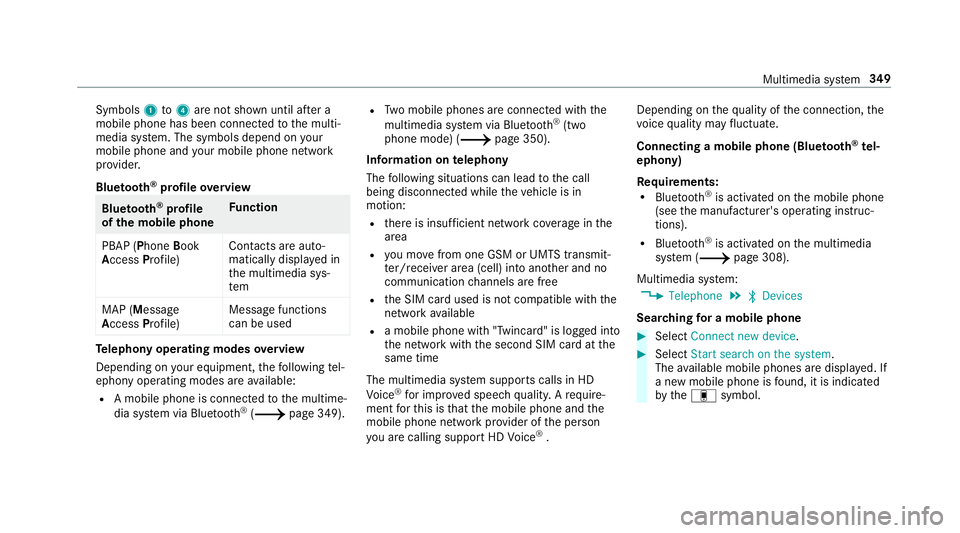
Symbols
1to4 are not shown until af ter a
mobile phone has been connected tothe multi‐
media sy stem. The symbols depend on your
mobile phone and your mobile phone network
pr ov ider.
Blu etoo th®
pr ofile overview Blue
tooth ®
profile
of the mobile phone Fu
nction
PBAP (Phone Book
Access Profile) Contacts are auto‐
matically displa
yed in
th e multimedia sys‐
tem
MAP (Message
Access Profile) Message functions
can be used Te
lephony operating modes overview
Depending on your equipment, thefo llowing tel‐
ephony operating modes are available:
R A mobile phone is connec tedto the multime‐
dia sy stem via Blue tooth®
(0013 page 349). R
Two mobile phones are connected with the
multimedia sy stem via Blue tooth®
(two
phone mode) (0013 page 350).
Information on telephony
The following situations can lead tothe call
being disconnected while theve hicle is in
motion:
R there is insuf ficient network co verage inthe
area
R you mo vefrom one GSM or UMTS transmit‐
te r/receiver area (cell) into ano ther and no
communication channels are free
R the SIM card used is not compatible with the
network available
R a mobile phone with "Twincard" is logged into
the network with the second SIM card at the
same time
The multimedia sy stem supports calls in HD
Vo ice ®
for impr oved speech qualit y.Arequ ire‐
ment forth is is that the mobile phone and the
mobile phone network pr ovider of the person
yo u are calling suppo rtHD Voice ®
. Depending on
thequ ality of the connection, the
vo ice quality may fluctuate.
Connecting a mobile phone (Blu etoo th®
te l‐
ephony)
Re quirements:
R Blue tooth ®
is activated on the mobile phone
(see the manufacturer's operating instruc‐
tions).
R Blue tooth ®
is activated on the multimedia
sy stem (0013 page 308).
Multimedia sy stem:
0018 Telephone 0019
00A5 Devices
Sear ching for a mobile phone 0007
Select Connect new device . 0007
Select Start search on the system .
The available mobile phones are displa yed. If
a new mobile phone is found, it is indicated
by the# symbol. Multimedia sy
stem 349
Page 353 of 609
Connecting a mobile phone (au
thorisation
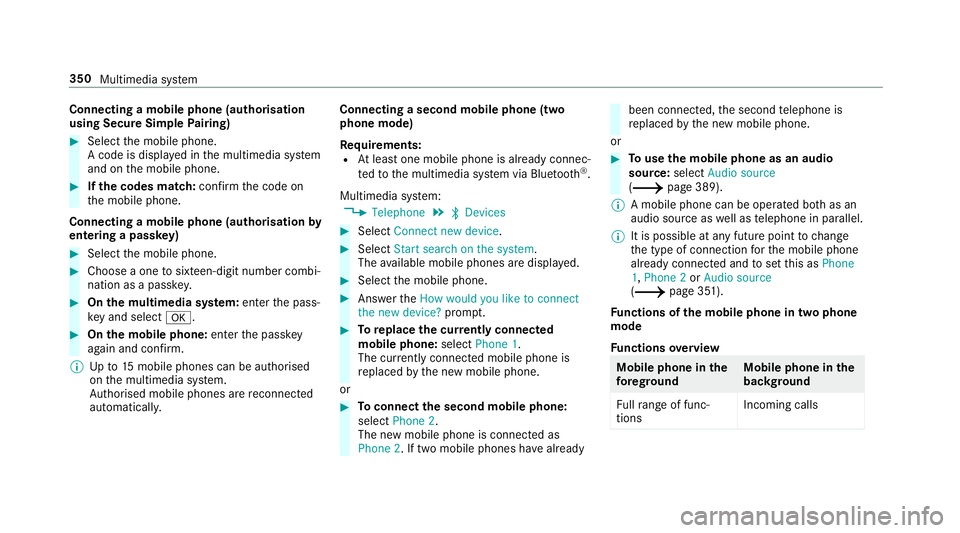
using Secure Simple Pairing) 0007
Select the mobile phone.
A code is displa yed in the multimedia sy stem
and on the mobile phone. 0007
Ifth e codes match: confirm the code on
th e mobile phone.
Connecting a mobile phone (authorisation by
entering a passk ey)0007
Select the mobile phone. 0007
Choose a one tosixteen-digit number combi‐
nation as a passk ey.0007
On the multimedia sy stem: enter the pass‐
ke y and select 0076. 0007
On the mobile phone: enterthe passk ey
again and con firm.
0009 Upto15 mobile phones can be auth orised
on the multimedia sy stem.
Auth orised mobile phones are reconnected
au tomatical ly. Connecting a second mobile phone (two
phone mode)
Re
quirements:
R Atleast one mobile phone is already connec‐
te dto the multimedia sy stem via Blue tooth ®
.
Multimedia sy stem:
0018 Telephone 0019
00A5 Devices 0007
Select Connect new device. 0007
Select Start search on the system .
The available mobile phones are displa yed. 0007
Select the mobile phone. 0007
Answer theHow would you like to connect
the new device? prompt. 0007
Toreplace the cur rently connected
mobile phone: selectPhone 1.
The cur rently connected mobile phone is
re placed bythe new mobile phone.
or 0007
Toconnect the second mobile phone:
select Phone 2.
The new mobile phone is connec ted as
Phone 2. If two mobile phones ha vealready been connec
ted, the second telephone is
re placed bythe new mobile phone.
or 0007
Touse the mobile phone as an audio
source: selectAudio source
(0013 page 389).
0009 A mobile phone can be operated bo thas an
audio source as well as telephone in parallel.
0009 It is possible at any future point tochange
th e type of connection forth e mobile phone
already connected and toset this as Phone
1, Phone 2 orAudio source
(0013 page 351).
Fu nctions of the mobile phone in two phone
mode
Fu nctions overview Mobile phone in
the
fo re gr ound Mobile phone in
the
bac kground
Fu llra nge of func‐
tions Incoming calls350
Multimedia sy stem
Page 354 of 609
Inter
changing mobile phones (two phone
mode)
Re quirements:
R The mobile phones are authorised
(0013 page 349).
Multimedia sy stem:
0018 Telephone 0019
00A5 Devices 0007
Inthe device overview, select a mobile phone
which has already been authorised and set
as Phone 1 orPhone 2.
Af ter inter changing the mobile phones, the
mobile phone in thefo re ground isreplaced by
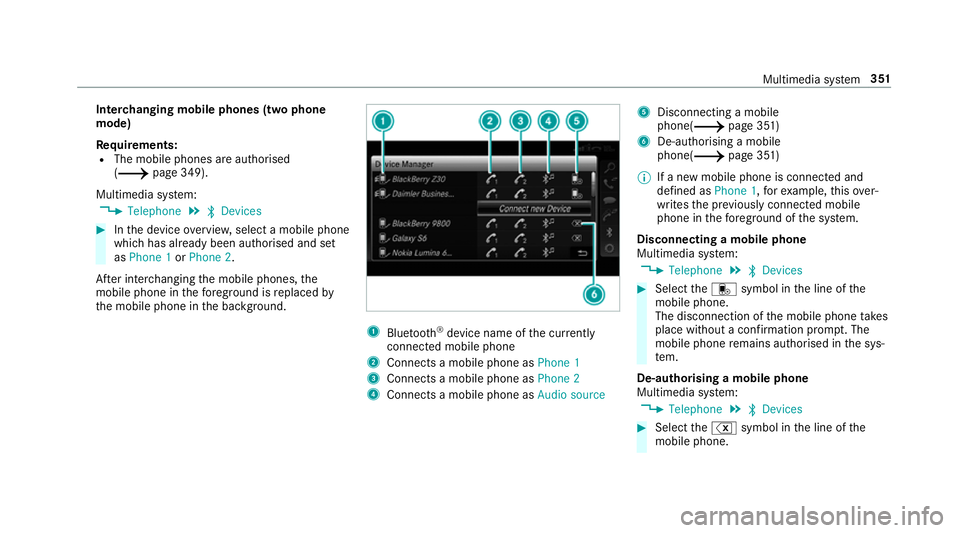
th e mobile phone in the bac kground. 1
Blue tooth ®
device name of the cur rently
connected mobile phone
2 Connects a mobile phone as Phone 1
3 Connects a mobile phone as Phone 2
4 Connects a mobile phone as Audio source5
Disconnecting a mobile
phone( 0013page 351)
6 De-au thorising a mobile
phone(0013 page 351)
0009 If a new mobile phone is connected and
defined as Phone 1,forex ample, this ov er‐
writes the pr eviously connec ted mobile
phone in thefo re ground of the sy stem.
Disconnecting a mobile phone
Multimedia sy stem:
0018 Telephone 0019
00A5 Devices 0007
Select thei symbol in the line of the
mobile phone.
The disconnection of the mobile phone takes
place without a con firm ation prom pt. The
mobile phone remains auth orised inthe sys‐
te m.
De-authorising a mobile phone
Multimedia sy stem:
0018 Telephone 0019
00A5 Devices 0007
Select the% symbol in the line of the
mobile phone. Multimedia sy
stem 351
Page 359 of 609
Source
Requirements:
ñ Bluetooth ®
con‐
nection If
th e sending of
vCards via Blue tooth®
is suppor ted, vCards
can be recei ved on
mobile phones or net‐
books, forex ample.
Blue tooth ®
is activa‐
te d in the multimedia
sy stem and on the
re spective device
(see the manufactur‐
er's operating instruc‐
tions).
ó Mobile phone The mobile phone is
connectedtothe mul‐
timedia sy stem. Importing contacts into
the contacts menu
Multimedia sy stem:
0018 Telephone 0019
Z Options 0019
Contacts 0007
Select Import. 0007
Select an option. Saving a mobile phone contact
Multimedia sy
stem:
0018 Telephone 0019
ª Contacts 0007
Select the mobile phone conta ctó. 0007
Select p. 0007
Select Save in vehicle .
The contact sa ved in the multimedia sy stem
is identified bythef symbol.
Calling a contact
Multimedia sy stem:
0018 Telephone 0019
ª Contacts 0007
Ente rch aracters into the sear chfield. 0007
Select the conta ct. 0007
Select thete lephone number.
The number is dialled.
Selecting fur ther options in the contacts
menu
Multimedia sy stem:
0018 Telephone 0019
ª Contacts 0007
Select a conta ct. 0007
Select p. Depending on
thestored data, thefo llowing
options are available:
R Call
R Send text message
R Show website (if an Intern et address has
been stored)
R Navigate (if an address has been stored)
R Save as global favourite
R Send DTMF tones (for a number with DTMF
to nes) 0007
Select an option.
Deleting a contact
Multimedia sy stem:
0018 Telephone 0019
ª Contacts
Yo u can dele tecontacts stored in theve hicle. 0007
Sear chforth e conta ct. 0007
Select the conta ct. 0007
Select p. 0007
Select Delete contact . 0007
Select Yes. 356
Multimedia sy stem
Page 360 of 609
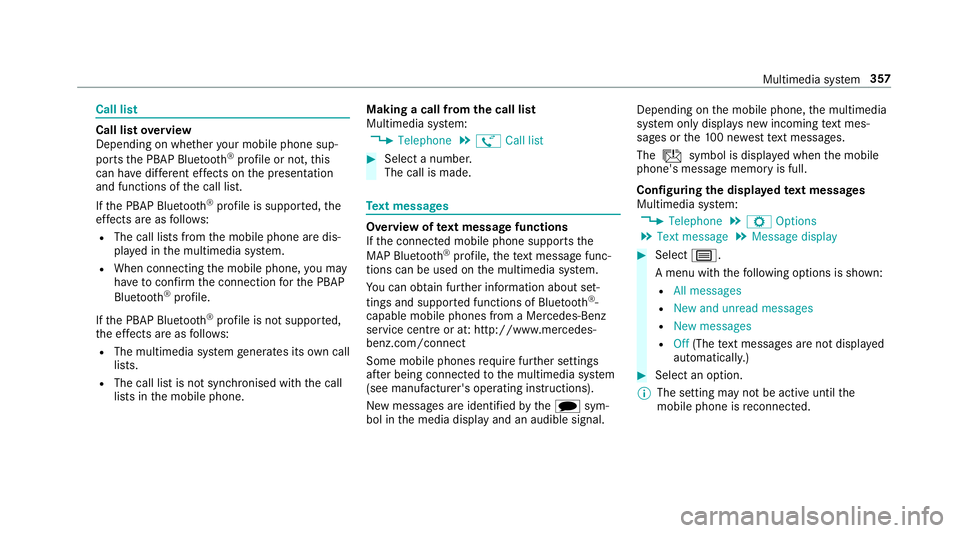
Call list
Call list
overview
Depending on whe ther your mobile phone sup‐
ports the PBAP Blue tooth®
profile or not, this
can ha vediffere nt ef fects on the presentation
and functions of the call list.
If th e PBAP Blue tooth ®
profile is suppor ted, the
ef fects are as follo ws:
R The call lists from the mobile phone are dis‐
pla yed in the multimedia sy stem.
R When connecting the mobile phone, you may
ha ve toconfirm the connection forth e PBAP
Blue tooth ®
profile.
If th e PBAP Blue tooth ®
profile is not suppor ted,
th e ef fects are as follo ws:
R The multimedia sy stem generates its own call
li st s.
R The call list is not synchronised with the call
lists in the mobile phone. Making a call from
the call list
Multimedia sy stem:
0018 Telephone 0019
ø Call list 0007
Select a number.
The call is made. Te
xt messages Overview of
text message functions
If th e connected mobile phone supports the
MAP Blue tooth®
profile, thete xt messa gefunc‐
tions can be used on the multimedia sy stem.
Yo u can obtain fur ther information about set‐
tings and suppor ted functions of Blue tooth ®
-
capable mobile phones from a Mercedes-Benz
service centre or at: http://www.mercedes-
benz.com/connect
Some mobile phones require fur ther settings
af te r being connected tothe multimedia sy stem
(see manufacturer's operating instructions).
New messages are identified bythei sym‐
bol in the media display and an audible signal. Depending on
the mobile phone, the multimedia
sy stem only displa ysnew incoming text mes‐
sa ge s or the10 0 ne westtext messa ges.
The ú symbol is displa yed when the mobile
phone's message memory is full.
Configuring the displa yedte xt messages
Multimedia sy stem:
0018 Telephone 0019
Z Options
0019 Text message 0019
Message display 0007
Select p.
A menu with thefo llowing options is shown:
R All messages
R New and unread messages
R New messages
R Off (The text messa ges are not displa yed
automaticall y.) 0007
Select an option.
0009 The setting may not be acti veuntil the
mobile phone is reconnected. Multimedia sy
stem 357
Page 364 of 609
0007
Disconnect the connecting cable between
th e Mercedes-Benz Link control box and the
multimedia sy stem.
0009 Mercedes-Benz recommends disconnecting
th e connecting cable only when theve hicle
is stationar y. Apple CarPlay™
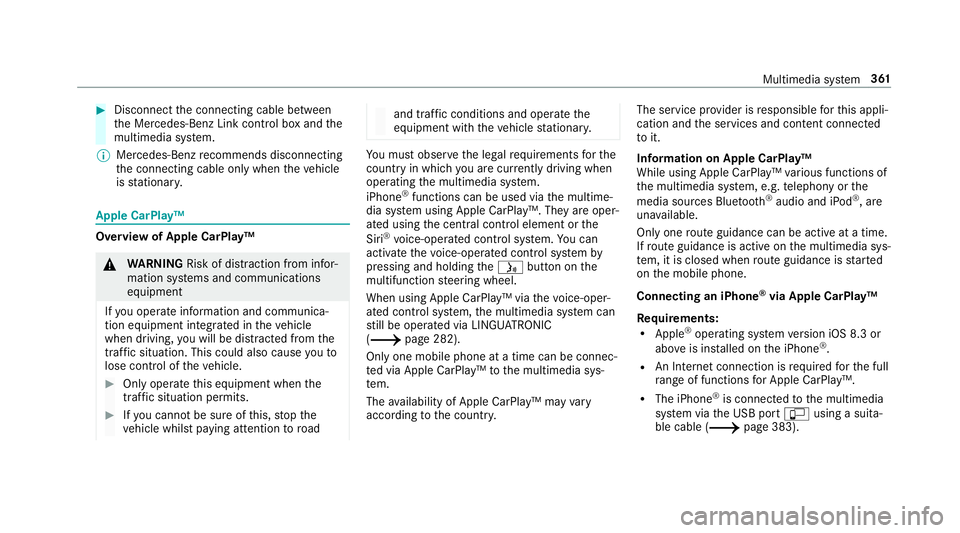
Overview of Apple CarPlay™
000A
WARNING Risk of di stra ction from infor‐
mation sy stems and communications
equipment
If yo u operate information and communica‐
tion equipment integ rated in theve hicle
when driving, you will be distracted from the
traf fic situation. This could also cause youto
lose control of theve hicle. 0007
Only operate this equipment when the
traf fic situation permits. 0007
Ifyo u cannot be sure of this, stop the
ve hicle whilst paying attention toroad and traf
fic conditions and ope rate the
equipment with theve hicle stationar y. Yo
u must obse rveth e legal requirements forthe
country in whi chyou are cur rently driving when
operating the multimedia sy stem.
iPhone ®
functions can be used via the multime‐
dia sy stem using Apple CarPlay™. They are oper‐
ated using the cent ral control element or the
Siri ®
vo ice-operated control sy stem. You can
activate thevo ice-opera ted control sy stem by
pressing and holding the00E3 button on the
multifunction steering wheel.
When using Apple CarPlay™ via thevo ice-oper‐
ated control sy stem, the multimedia sy stem can
st ill be operated via LINGU ATRO NIC
(0013 page 282).
Only one mobile phone at a time can be connec‐
te d via Apple CarPlay™ tothe multimedia sys‐
te m.
The availability of Apple CarPlay™ may vary
according tothe count ry. The service pr
ovider is responsible forth is appli‐
cation and the services and conte nt connected
to it.
Information on Apple CarPlay™
While using Apple CarPlay™ various functions of
th e multimedia sy stem, e.g. telephony or the
media sources Blue tooth®
audio and iPod ®
, are
una vailable.
Only one route guidance can be active at a time.
If ro ute guidance is active on the multimedia sys‐
te m, it is closed when route guidance is star ted
on the mobile phone.
Connecting an iPhone ®
via Apple CarPlay™
Re quirements:
R Apple ®
operating sy stem version iOS 8.3 or
abo veis ins talled on the iPhone ®
.
R An Internet connection is requiredforth e full
ra nge of functions for Apple CarPlay™.
R The iPhone ®
is connected tothe multimedia
sy stem via the USB port 00C2using a suita‐
ble cable (0013 page 383). Multimedia sy
stem 361
Page 366 of 609
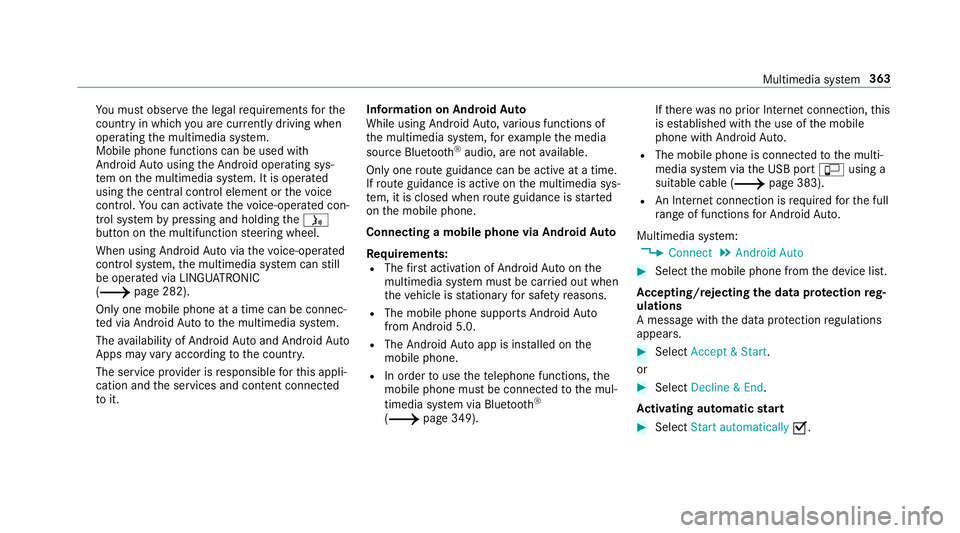
Yo
u must obse rveth e legal requirements forthe
country in whi chyou are cur rently driving when
operating the multimedia sy stem.
Mobile phone functions can be used with
Android Autousing the Android operating sys‐
te m on the multimedia sy stem. It is operated
using the cent ral control element or thevo ice
control. You can activate thevo ice-opera ted con‐
trol sy stem bypressing and holding the00E3
button on the multifunction steering wheel.
When using Android Autovia thevo ice-opera ted
control sy stem, the multimedia sy stem can still
be opera ted via LINGU ATRO NIC
(0013 page 282).
Only one mobile phone at a time can be connec‐
te d via Android Auto to the multimedia sy stem.
The availability of Android Autoand Android Auto
Apps may vary according tothe count ry.
The service pr ovider is responsible forth is appli‐
cation and the services and conte nt connected
to it. Information on Android
Auto
While using Android Auto,va rious functions of
th e multimedia sy stem, forex ample the media
source Blue tooth®
audio, are not available.
On ly one route guidance can be active at a time.
If ro ute guidance is active on the multimedia sys‐
te m, it is closed when route guidance is star ted
on the mobile phone.
Connecting a mobile phone via Android Auto
Requ irements:
R The firs t acti vation of Android Autoon the
multimedia sy stem must be car ried out when
th eve hicle is stationary for saf etyre asons.
R The mobile phone suppo rts Android Auto
from Android 5.0.
R The Android Autoapp is ins talled on the
mobile phone.
R In order touse thete lephone functions, the
mobile phone must be connected tothe mul‐
timedia sy stem via Blue tooth®
( 0013 page 349). If
th ere was no prior Internet connection, this
is es tablished with the use of the mobile
phone with Android Auto.
R The mobile phone is connected tothe multi‐
media sy stem via the USB port 00C2using a
suitable cable (0013 page 383).
R An Internet connection is requ ired forth e full
ra nge of functions for Android Auto.
Multimedia sy stem:
0018 Connect 0019
Android Auto 0007
Select the mobile phone from the device list.
Ac cepting/rejecting the data pr otection reg‐
ulations
A message with the data pr otection regulations
appears. 0007
Select Accept & Start .
or 0007
Select Decline & End.
Ac tivating automatic start 0007
Select Start automatically 0073. Multimedia sy
stem 363
Page 375 of 609
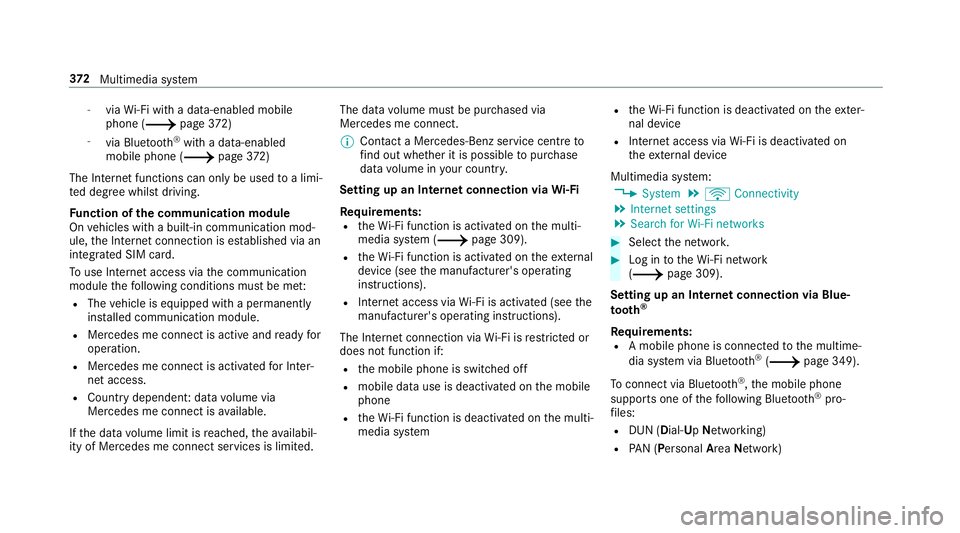
-
viaWi-Fi wi tha data-enabled mobile
phone (0013 page372)
- viaBluetoo th®
with a data-enabled
mobile phone (0013 page372)
The In tern et functions can only be used toa limi‐
te d deg ree whilst driving.
Fu nction of the communication module
On vehicles with a built-in communication mod‐
ule, the Internet connection is es tablished via an
integ rated SIM card.
To use In tern et access via the communication
module thefo llowing conditions must be me t:
R The vehicle is equipped with a permanently
ins talled communication module.
R Mercedes me connect is active and ready for
operation.
R Mercedes me connect is activated for Inter‐
net access.
R Country dependent: data volume via
Mercedes me connect is available.
If th e data volume limit is reached, theav ailabil‐
ity of Mercedes me connect services is limited. The data
volume must be pur chased via
Mercedes me connect.
0009 Con tact a Mercedes-Benz service centre to
fi nd out wh ether it is possible topur chase
data volume in your count ry.
Setting up an Internet connection via Wi-Fi
Re quirements:
R theWi -Fi function is acti vated on the multi‐
media sy stem (0013 page 309).
R theWi -Fi function is acti vated on theex tern al
device (see the manufacturer's operating
instructions).
R Internet access via Wi-Fi is acti vated (see the
manufacturer's operating instructions).
The Internet connection via Wi-Fi is restricted or
does not function if:
R the mobile phone is switched off
R mobile data use is deactivated on the mobile
phone
R theWi -Fi function is deacti vated on the multi‐
media sy stem R
theWi -Fi function is deacti vated on theex ter‐
nal device
R Internet access via Wi-Fi is deacti vated on
th eex tern al device
Multimedia sy stem:
0018 System 0019
ö Connectivity
0019 Internet settings
0019 Search for Wi-Fi networks 0007
Select the networ k. 0007
Log in totheWi -Fi network
(0013 page 309).
Setting up an Internet connection via Blue‐
to oth ®
Requ irements:
R A mobile phone is connec tedto the multime‐
dia sy stem via Blue tooth ®
(0013 page 349).
To connect via Blu etoo th®
,th e mobile phone
supports one of thefo llowing Blue tooth®
pro‐
fi les:
R DUN (Dial- UpNet working)
R PAN (Personal AreaNet work) 372
Multimedia sy stem
Page 376 of 609
The Internet connection via Blue
tooth®
is restric‐
te d or does not function if:
R the mobile phone is switched off
R the mobile phone network co verage is insuf‐
fi cient
R mobile da tause is deactivated on the mobile
phone
R the Blue tooth®
function on the multimedia
sy stem is switched off and the mobile phone
is to be connec ted via Blue tooth®
R the Blue tooth®
function is switched off on
th e mobile phone and the mobile phone is to
be connec ted via Blue tooth®
R neither the mobile phone network nor the
mobile phone allow simultaneous use of a
te lephone and an Internet connection
R the mobile phone has not been enabled for
Internet access via Blue tooth®
If a mobile phone is connected tothe multimedia
sy stem forth efirs t time via Blu etoo th®
,yo u will
be assis tedth ro ugh the process of setting up an
Internet connection. The Internet connection can also be confi
gured
manually.
Fu rther information can be obtained at http://
www.mercedes-benz.com/connect or from a
Mercedes-Benz service centre.
Multimedia sy stem:
0018 System 0019
ö Connectivity
0019 Internet settings
Blue tooth ®
connection via PAN 0007
Select the mobile phone.
The Internet connection is es tablished.
Switching the Blu etoo th®
pr ofile
Re quirements:
R The mobile phone supports the DUN and
PA N Blue tooth®
profiles.
Multimedia sy stem:
0018 System 0019
ö Connectivity
0019 Internet settings 0007
Toswitch from DUN toPAN: select the
mobile phone. 0007
Select 0080. 0007
Select Change configuration. 0007
Activate 0073Automatic configuration.
The Internet connection is au tomatical lycon‐
fi gured using thePA N Blue tooth®
profile. 0007
Toswitch from PANto DUN: select the
mobile phone. 0007
Select 0080. 0007
Select Change configuration. 0007
Deactivate 0053Automatic configuration. 0007
Select Configure settings using COMAND . 0007
Configuri ngthe Internet connection using
preset or manual access data
(0013 page372).
Editing access data
Requ irements:
R The mobile phone supports the Blue tooth®
DUN profile. Multimedia sy
stem 373
Page 377 of 609
Multimedia sy
stem:
0018 System 0019
ö Connectivity
0019 Internet settings 0007
Highlight the mobile phone. 0007
Select 0080. 0007
Select Change configuration .0007
For mobile phones with PAN and DUN:
select Configure settings using COMAND. 0007
Configure the Internet connection using pre‐
set or manual access data (0013 page372).
Cancelling Interne t access permission for a
mobile phone
Multimedia sy stem:
0018 System 0019
ö Connectivity
0019 Internet settings 0007
Highlight the mobile phone. 0007
Select 0080. 0007
Select Delete configuration. 0007
Select Yes. Displaying mobile phone details
Multimedia sy
stem:
0018 System 0019
ö Connectivity
0019 Internet settings 0007
Highlight the mobile phone. 0007
Select 0080. 0007
Select Details.
Establishing an Internet connection
Multimedia sy stem:
0018 Connect 0007
Forex ample, select zBrowser .
0009 The multimedia sy stem usually es tablishes
th e Internet connection automaticall y.Ifthe
multimedia sy stem is not connected tothe
Internet, the Internet connection is es tab‐
lished when an Internet application is used.
0009 The availability of web br ows ers is count ry-
dependent. Connection
status Connection
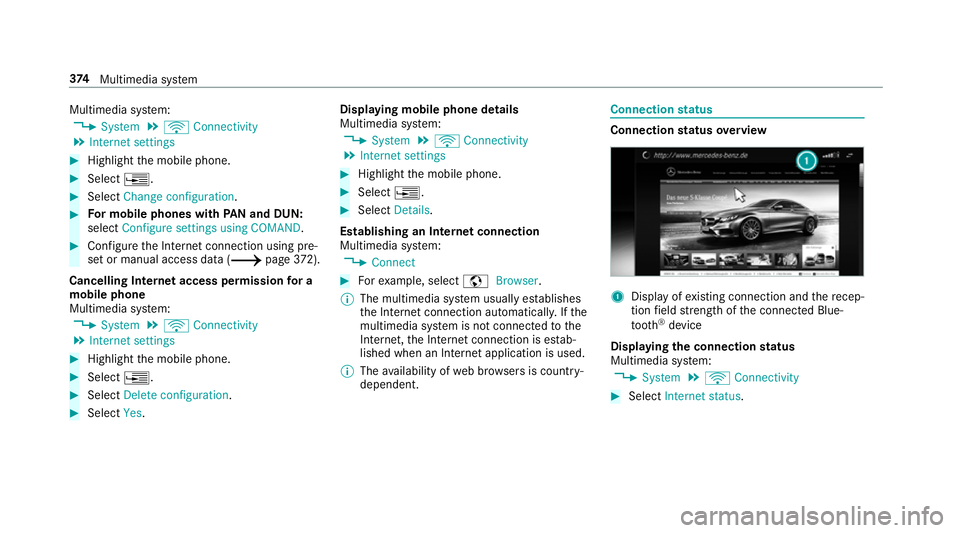
status overview 1
Display of existing connection and there cep‐
tion field stre ngth of the connected Blue‐
tooth ®
device
Displaying the connection status
Multimedia sy stem:
0018 System 0019
ö Connectivity 0007
Select Internet status .374
Multimedia sy stem