phone MERCEDES-BENZ C-Class SEDAN 2016 W205 Owner's Guide
[x] Cancel search | Manufacturer: MERCEDES-BENZ, Model Year: 2016, Model line: C-Class SEDAN, Model: MERCEDES-BENZ C-Class SEDAN 2016 W205Pages: 398, PDF Size: 9.57 MB
Page 238 of 398
The segments between the speed of the vehi-
cle in front and the stored speed light up.
Tachometer
!
Do not drive in the overrevving range, as this
could damage the engine.
The red band in the tachometer indicates the
engine's overrevving range.
The fuel supply is interrupted to protect the
engine when the red band is reached.
Outside temperature display
You should pay special attention to road condi-
tions when temperatures are around freezing
point.
Bear in mind that the outside temperature dis-
play indicates the temperature measured and
does not record the road temperature.
The outside temperature display is in the multi- function display (
Ypage 237).
Changes in the outside temperature are dis-
played after a short delay.
Coolant temperature display
GWARNING
Opening the hood when the engine is over-
heated or when there is a fire in the engine
compartment could expose you to hot gases
or other service products. There is a risk of
injury.
Let an overheated engine cool down before
opening the hood. If there is a fire in the
engine compartment, keep the hood closed
and contact the fire department.
!A display message is shown if the coolant
temperature is too high.
If the coolant temperature is over 248 ‡
(120 †), do not continue driving. The engine
will otherwise be damaged.
All vehicles except PLUG-IN HYBRID vehicles:
the coolant temperature display is in the lower
section of the tachometer (
Ypage 36). PLUG-IN HYBRID vehicles: the multifunction dis-
play shows the coolant temperature in the
Coolant
submenu (Ypage 246).
Under normal operating conditions and with the
specified coolant level, the coolant temperature may rise to 248 ‡ (120 †).
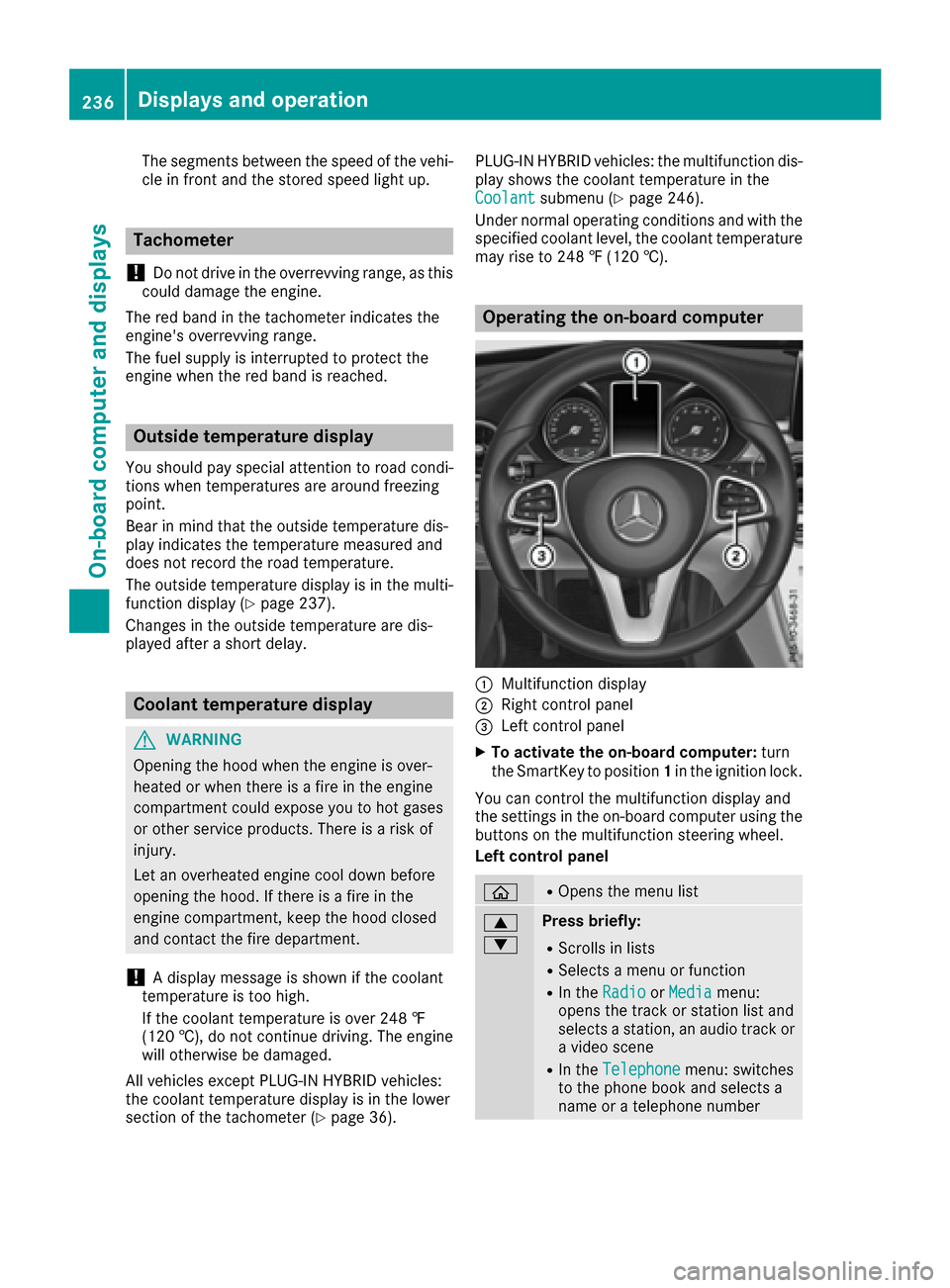
Operating the on-board computer
:Multifunction display
;Right control panel
=Left control panel
XTo activate the on-board computer: turn
the SmartKey to position 1in the ignition lock.
You can control the multifunction display and
the settings in the on-board computer using the
buttons on the multifunction steering wheel.
Left control panel
òROpens the menu list
9
:Press briefly:
RScrolls in lists
RSelects a menu or function
RIn the RadioorMediamenu:
opens the track or station list and
selects a station, an audio track or
a video scene
RIn the Telephonemenu: switches
to the phone book and selects a
name or a telephone number
236Displays and operation
On-board computer and displays
Page 239 of 398
9
:Press and hold:
RScrolls quickly through all lists
RIn theRadioorMediamenu:
selects a station, audio track or
video scene using rapid scrolling
RIn the Telephonemenu: starts
rapid scrolling if the phone book is
open
aRIn all menus: confirms the selected
entry in the list
RIn the RadioorMediamenu:
opens the list of available radio
sources or media
RIn the Telephonemenu: switches
to the phone book and starts dial-
ing the selected number
ñRVehicles with Audio 20:
Switches off voice-operated con-
trol for navigation (see manufac-
turer's operating instructions)
RVehicles with COMAND:
Switches off the Voice Control
System (see the separate operat-
ing instructions)
%Press briefly:
RBack
RIn the RadioorMediamenu: dese-
lects the track or station list or list
of available radio sources or media
RHides display messages
RExits the telephone book/redial
memory
%Press and hold:
RCalls up the standard display in the
Tripmenu
Right control panel
~RRejects or ends a call
RExits the telephone book/redial
memory
6RMakes or accepts a call
RSwitches to the redial memory
W
XRAdjusts the volume
8RMute
óRVehicles with Audio 20:
Switches on voice-operated con-
trol for navigation (see manufac-
turer's operating instructions)
RVehicles with COMAND:
Switches on the Voice Control Sys-
tem (see the separate operating
instructions)
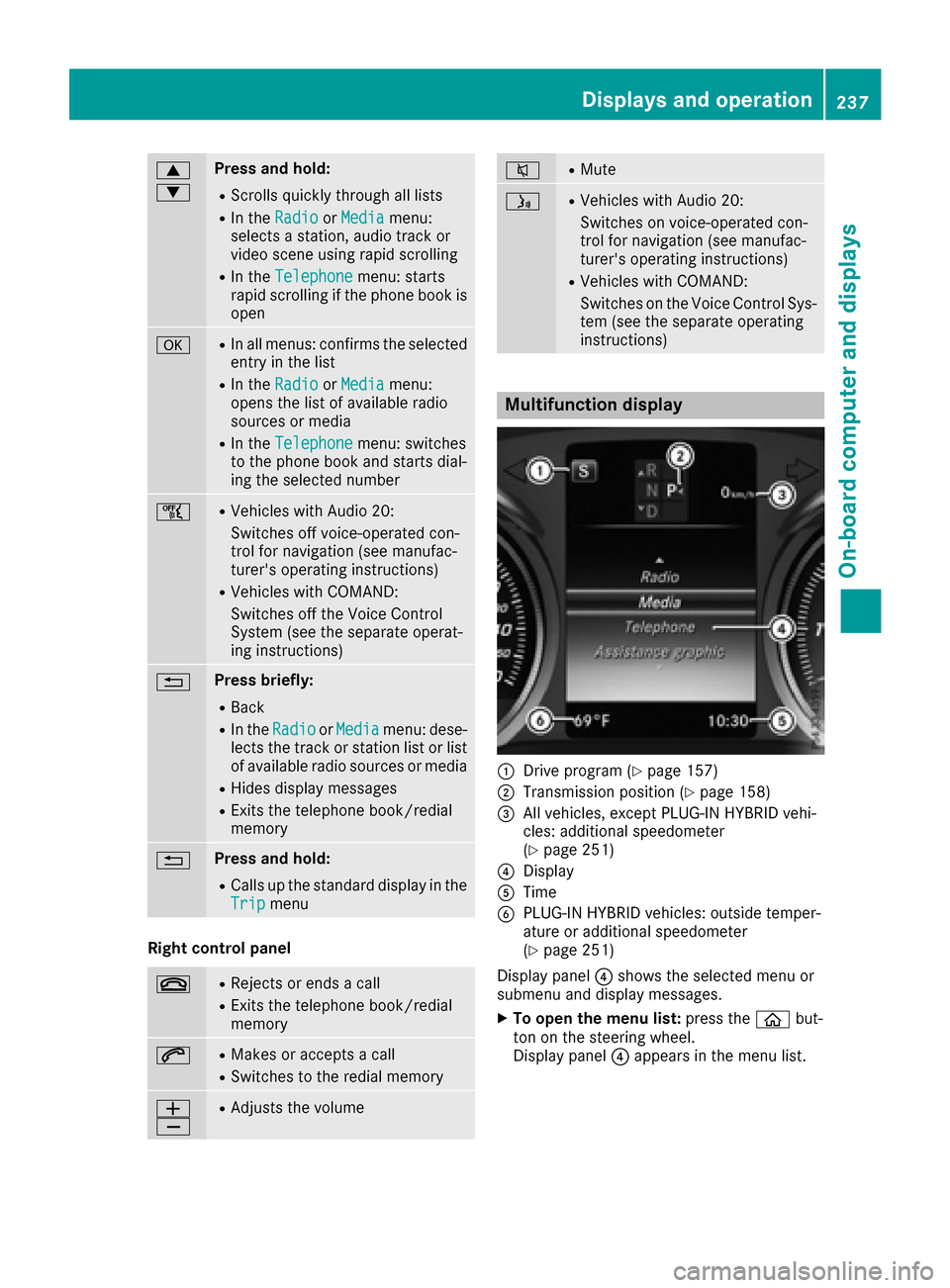
Multifunction display
:Drive program (Ypage 157)
;Transmission position (Ypage 158)
=All vehicles, except PLUG-IN HYBRID vehi-
cles: additional speedometer
(
Ypage 251)
?Display
ATime
BPLUG-IN HYBRID vehicles: outside temper-
ature or additional speedometer
(
Ypage 251)
Display panel ?shows the selected menu or
submenu and display messages.
XTo open the menu list: press theòbut-
ton on the steering wheel.
Display panel ?appears in the menu list.
Displays and operation237
On-board computer and displays
Z
Page 241 of 398
AMG displays inthe head-up display
AM Gdisplays are available in Mercedes-AM G
vehicles.
The head-up display shows th efollowin g
contents and information :
:Currentengin espee d
;Curren tspee d
=Upshif tindicator
?Currently selected gear ,gearshif toption s
when shiftin gmanually
ARACETIMER
BLap
Setting options
You can adjust th efollowin gsettings in th e
head-up display submenu:
Radjust th epositio nof th ehead-up display on
th ewindshield (Ypage 250)
Radjust thebrightness of th edisplays in th e
head-up display (Ypage 250)
Rselect desired displays in th ehead-up display
(Ypage 249)
Usin gth eDispla yConten t
function ,you
can ,depending on your vehicle's equipment,
choos ebetween four standard displays. The
selected contents then appear in th ehead-up
display.
In Mercedes-AM Gvehicles, you can also
choos ebetween two AM Gdisplays. If you
select an AM Gdisplay, th ehead-up display
shows AMG-specific contents .
If you select adisplay wit htraffic signs, detec-
te dtraffic sign sfrom Traffic Sig nAssist
appear in th ehead-up display.
Menus and submenus
Menu overview
Press th eò buttonon th esteering whee lto
open th emen ulist .
Operating th eon-board computer (
Ypage 236).
Dependin gon th evehicl eequipment, you can
select th efollowin gmenu:
RTri pmen u (Ypage 239)
RNavimen u(navigation instructions)
(Ypage 241)
RRadiomen u (Ypage 243)
RMediamenu (Ypage 243)
RTelephonemenu (Ypage 245)
RAssistanc eGraphi cmenu (Ypage 246)
RServic emenu (Ypage 246)
RSettingsmenu (Ypage 247)
RAMGmenuin Mercedes-AM Gvehicles
(Ypage 252)
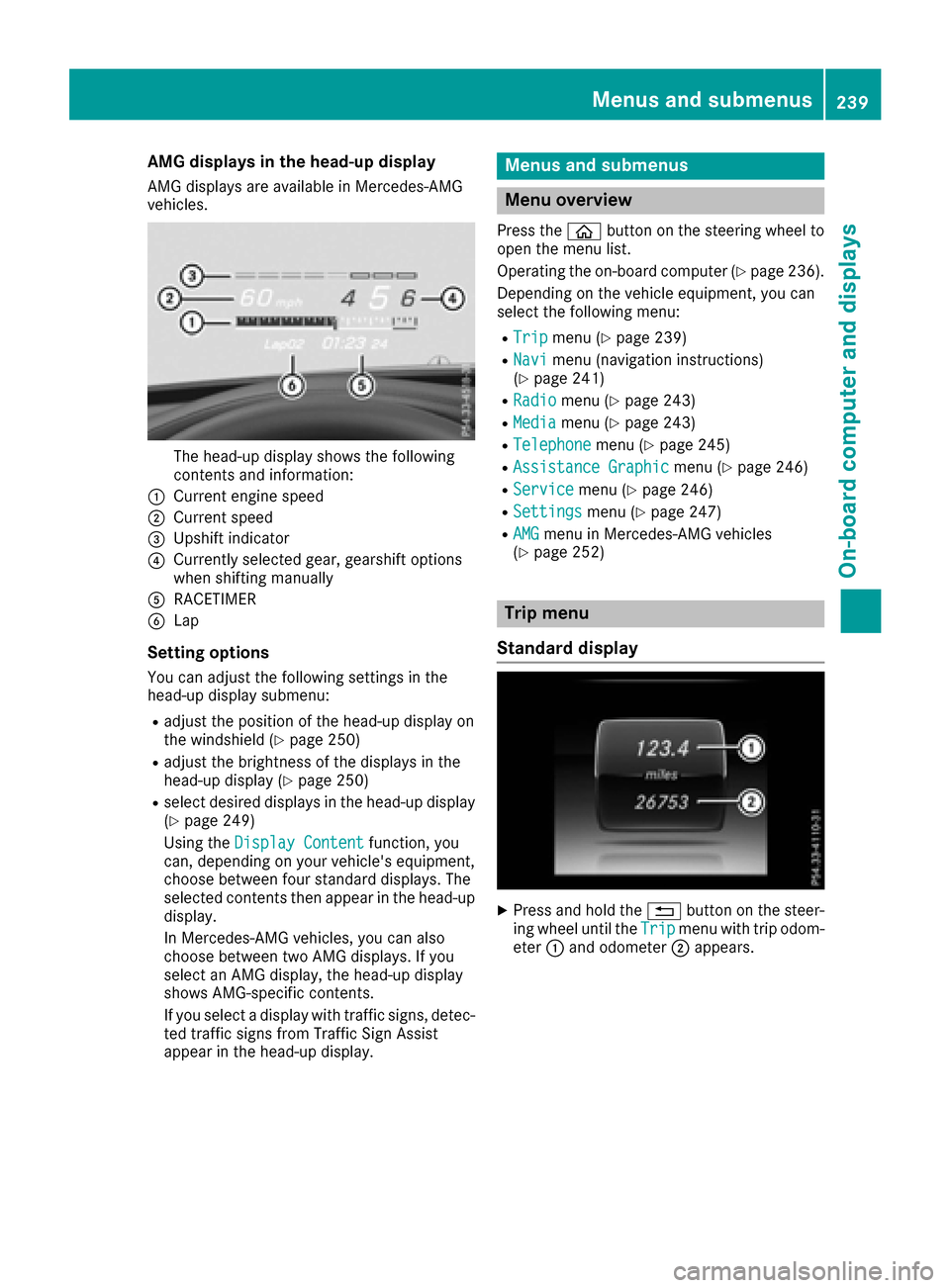
Trip menu
Standard display
XPress and hold th e% buttonon th esteer -
ing whee luntil th eTri pmen uwit htrip odom -
eter :and odometer ;appears.
Menus and submenus239
On-board computer and displays
Z
Page 247 of 398
XTo select the next or previous scene in the
scene list:press:or9 briefly.
XTo select a scene in the scene list using
rapid scroll: press and hold :or9
until desired scene :has been reached.
XPress ato confirm your selection.
Telephone menu
Introduction
GWARNING
If you operate information systems and com-
munication equipment integrated in the vehi-
cle while driving, you will be distracted from
traffic conditions. You could also lose control
of the vehicle. There is a risk of an accident.
Only operate the equipment when the traffic
situation permits. If you are not sure that this
is possible, park the vehicle paying attention
to traffic conditions and operate the equip-
ment when the vehicle is stationary.
When telephoning, you must observe the legal
requirements for the country in which you are
currently driving.
XSwitch on the mobile phone (see the manu-
facturer’s operating instructions).
XSwitch on the multimedia system (see sepa-
rate operating instructions).
XEstablish a Bluetooth®connection to Audio
20 or COMAND, see the separate operating
instructions.
XPress the òbutton on the steering wheel
to open the menu list.
XPress :or9 on the steering wheel to
select the Telephonemenu.
XConfirm by pressing aon the steering
wheel.
You will see one of the following display mes-
sages in the multifunction display:
RPhone READYor the name of the network
provider: the mobile phone has found a net-
work and is ready to receive.
RPhone No Service: there is no network
available or the mobile phone is searching for
a network.
Accepting a call
If someone calls you when you are in the Tele‐phonemenu, a display message appears in the
multifunction display.
You can accept a call at any time, even if you are
not in the Telephone
menu.
XPress the6button on the steering wheel
to accept an incoming call.
Rejecting or ending a call
You can end or reject a call at any time even if
you are not in the Telephonemenu.
XPress the~button on the steering wheel
to reject or end a call.
Selecting an entry in the phone book
XPress the òbutton on the steering wheel
to open the menu list.
XPress the :or9 button on the steering
wheel to select the Telephonemenu.
XConfirm by pressing aon the steering
wheel.
XPress the :,9ora button to
switch to the phone book.
XUsing :or9, select the names one
after the other.
or
XTo start rapid scrolling: press and hold:
or 9 for longer than one second.
The names in the phone book are displayed
quickly one after the other.
If you press and hold the :or9 button
for longer than five seconds, the name
appears with the next or previous letter initial
letter in the alphabet.
Rapid scrolling stops when you release the
button or reach the end of the list.
XIf only one telephone number is stored for
a name: press the 6ora button to
start dialing.
or
XIf there is more than one number for a
particular name: press the6ora
button to display the numbers.
XPress the :or9 button to select the
number you want to dial.
XPress the 6ora button to start dialing.
Menus and submenus245
On-board computer and displays
Z
Page 248 of 398
or
XTo exit the phone book:press the~or
% button.
Redialing
The on-board computer saves the last names or
numbers dialed in the redial memory.
XPress the òbutton on the steering wheel
to open the menu list.
XPress the :or9 button on the steering
wheel to select the Telephonemenu.
XConfirm by pressing aon the steering
wheel.
XPress the 6button to switch to the redial
memory.
XPress the :or9 button to select the
desired name or number.
XPress the 6ora button to start dialing.
or
XTo exit the redial memory: press the~
or % button.
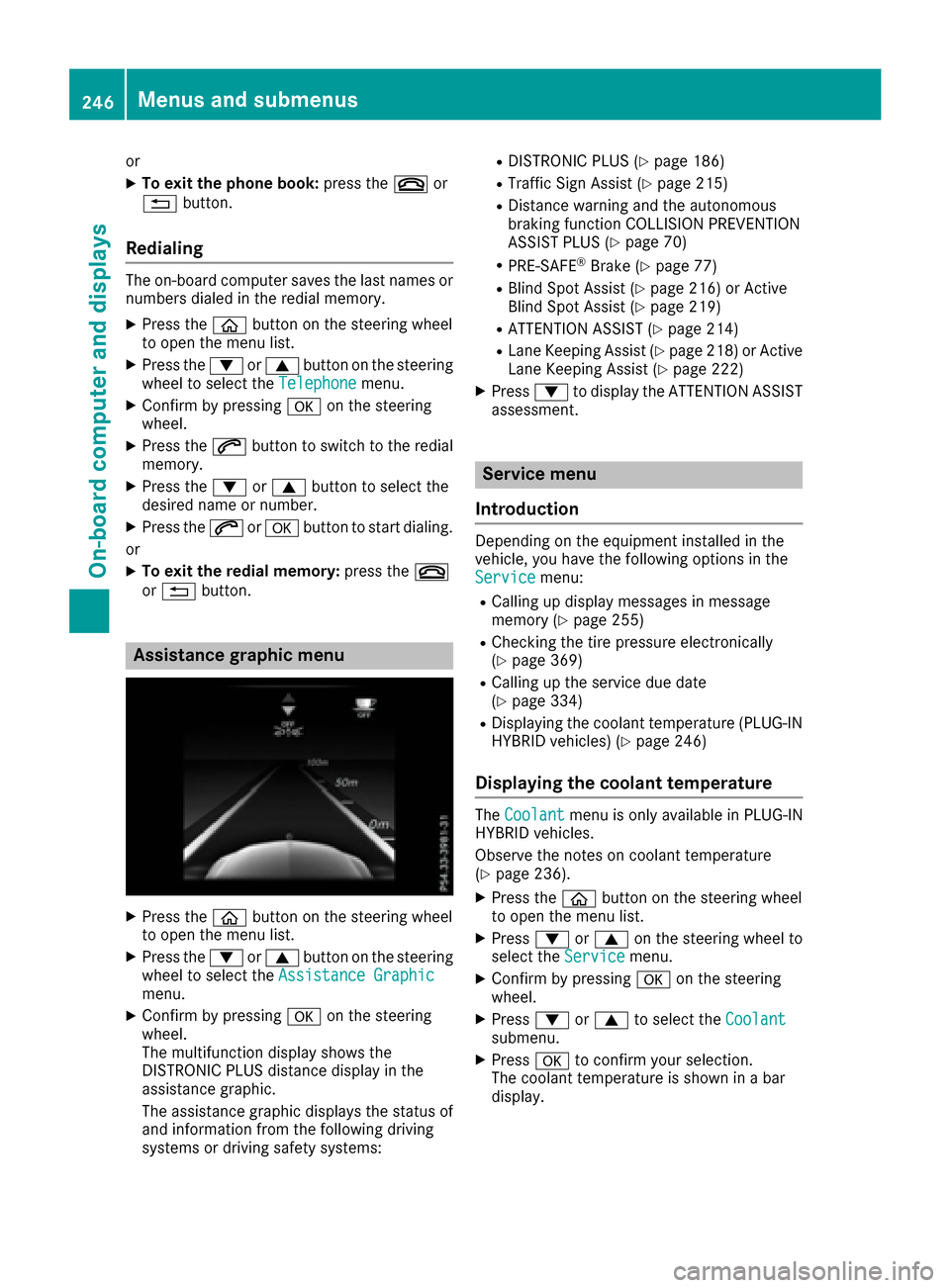
Assistance graphic menu
XPress the òbutton on the steering wheel
to open the menu list.
XPress the :or9 button on the steering
wheel to select the Assistance Graphic
menu.
XConfirm by pressing aon the steering
wheel.
The multifunction display shows the
DISTRONIC PLUS distance display in the
assistance graphic.
The assistance graphic displays the status of
and information from the following driving
systems or driving safety systems:
RDISTRONIC PLUS (Ypage 186)
RTraffic Sign Assist (Ypage 215)
RDistance warning and the autonomous
braking function COLLISION PREVENTION
ASSIST PLUS (
Ypage 70)
RPRE-SAFE®Brake (Ypage 77)
RBlind Spot Assist (Ypage 216) or Active
Blind Spot Assist (Ypage 219)
RATTENTION ASSIST (Ypage 214)
RLane Keeping Assist (Ypage 218) or Active
Lane Keeping Assist (Ypage 222)
XPress :to display the ATTENTION ASSIST
assessment.
Service menu
Introduction
Depending on the equipment installed in the
vehicle, you have the following options in the
Service
menu:
RCalling up display messages in message
memory (Ypage 255)
RChecking the tire pressure electronically
(Ypage 369)
RCalling up the service due date
(Ypage 334)
RDisplaying the coolant temperature (PLUG-IN
HYBRID vehicles) (Ypage 246)
Displaying the coolant temperature
The Coolantmenu is only available in PLUG-IN
HYBRID vehicles.
Observe the notes on coolant temperature
(
Ypage 236).
XPress the òbutton on the steering wheel
to open the menu list.
XPress :or9 on the steering wheel to
select the Servicemenu.
XConfirm by pressing aon the steering
wheel.
XPress :or9 to select the Coolantsubmenu.
XPressato confirm your selection.
The coolant temperature is shown in a bar
display.
246Menus and submenus
On-board computer and displays
Page 287 of 398
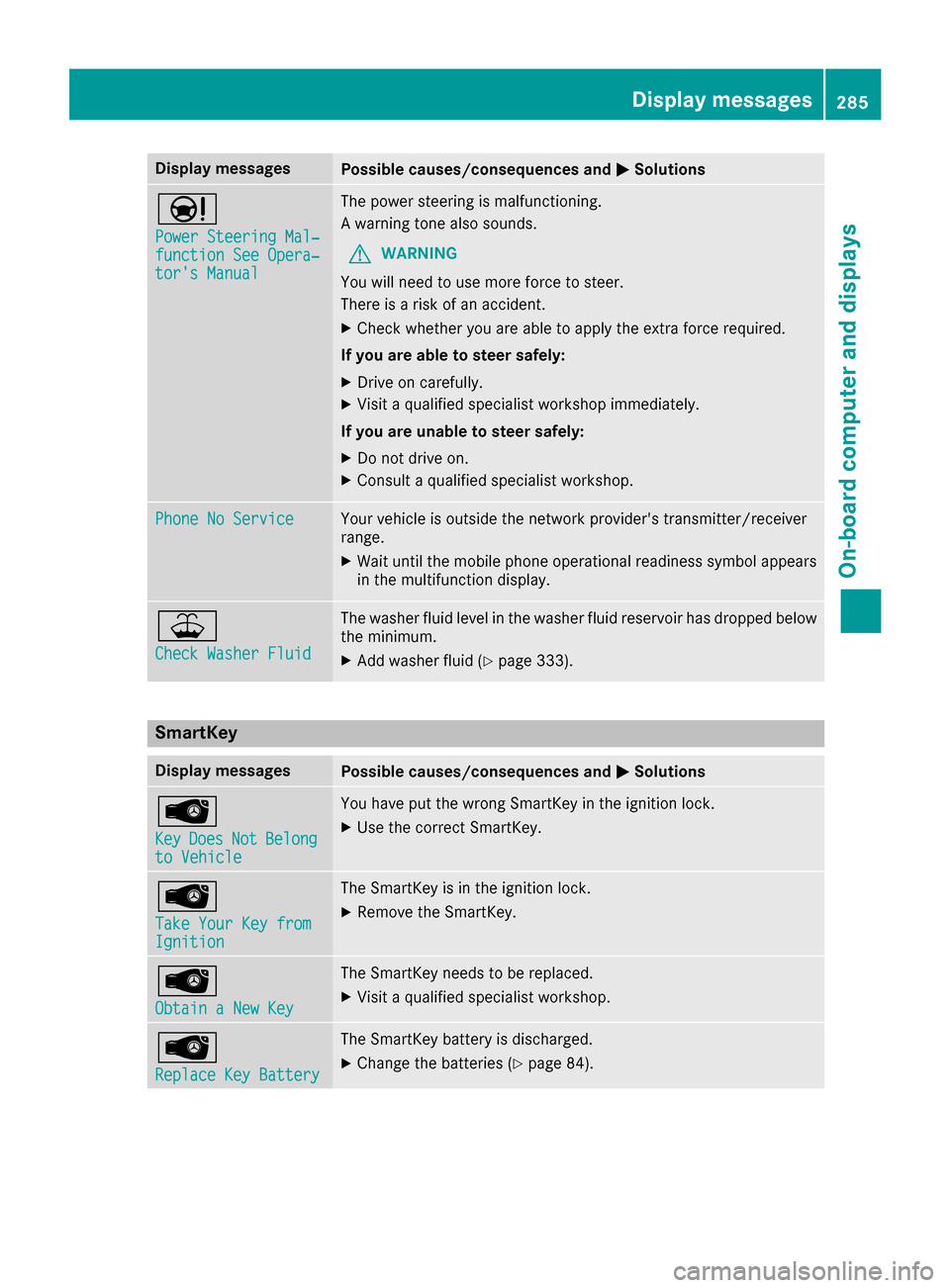
Display messagesPossible causes/consequences andMSolutions
Ð
Power Steering Mal‐function See Opera‐tor's Manual
The powersteering is malfunctioning .
A warning tone also sounds.
GWARNIN G
You will need to use mor eforce to steer .
There is aris kof an accident.
XChec kwhether you are able to apply th eextr aforce required.
If you ar eabl eto steer safely:
XDrive on carefully.
XVisit aqualified specialist workshop immediately.
If you ar eunable to steer safely:
XDo no tdrive on .
XConsult aqualified specialist workshop .
Phone No ServiceYour vehicleis outside th enetwork provider' stransmitter/receiver
range.
XWait until th emobile phone operational readiness symbol appear s
in th emultifunction display.
¥
Check Washer Fluid
The washer flui dlevel in th ewasher flui dreservoir has dropped belo w
th eminimum .
XAddwasher flui d (Ypage 333).
SmartKey
Display messagesPossible causes/consequences and MSolutions
Â
KeyDoesNotBelongto Vehicl e
You haveput th ewrong SmartKey in th eignition lock.
XUse th ecorrec tSmartKey.
Â
Tak eYou rKey fro mIgnition
The SmartKey is in th eignition lock.
XRemove th eSmartKey.
Â
Obtain aNew Key
The SmartKey needs to be replaced.
XVisit aqualified specialist workshop .
Â
ReplaceKey Batter y
The SmartKey battery is discharged.
XChange thebatterie s (Ypage 84) .
Display messages285
On-board computer and displays
Z
Page 301 of 398
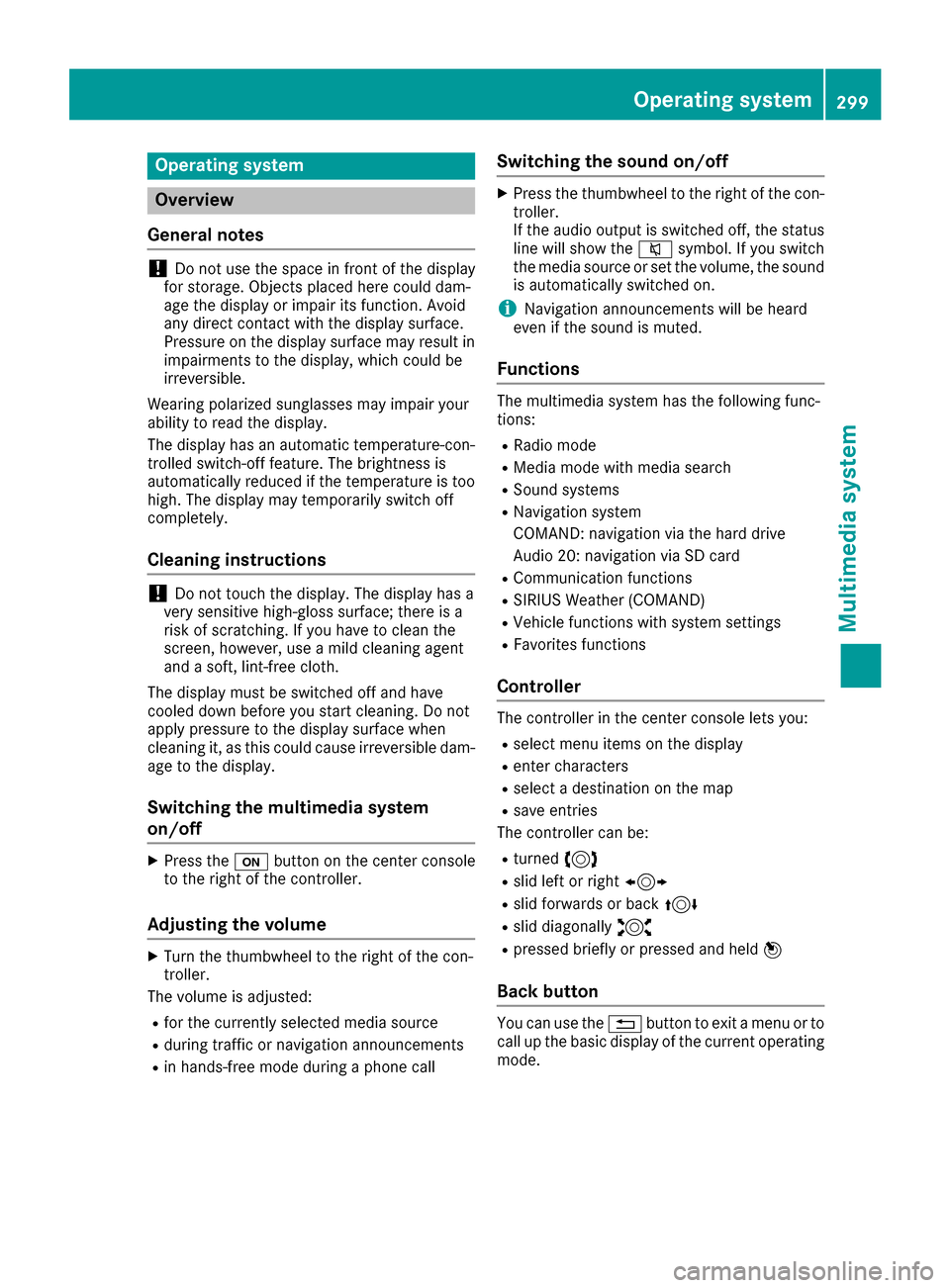
Operating system
Overview
General notes
!Do not use the space in front of the display
for storage. Objects placed here could dam-
age the display or impair its function. Avoid
any direct contact with the display surface.
Pressure on the display surface may result in
impairments to the display, which could be
irreversible.
Wearing polarized sunglasses may impair your
ability to read the display.
The display has an automatic temperature-con-
trolled switch-off feature. The brightness is
automatically reduced if the temperature is too
high. The display may temporarily switch off
completely.
Cleaning instructions
!Do not touch the display. The display has a
very sensitive high-gloss surface; there is a
risk of scratching. If you have to clean the
screen, however, use a mild cleaning agent
and a soft, lint-free cloth.
The display must be switched off and have
cooled down before you start cleaning. Do not
apply pressure to the display surface when
cleaning it, as this could cause irreversible dam-
age to the display.
Switching the multimedia system
on/off
XPress the ubutton on the center console
to the right of the controller.
Adjusting the volume
XTurn the thumbwheel to the right of the con-
troller.
The volume is adjusted:
Rfor the currently selected media source
Rduring traffic or navigation announcements
Rin hands-free mode during a phone call
Switching the sound on/off
XPress the thumbwheel to the right of the con-
troller.
If the audio output is switched off, the status
line will show the 8symbol. If you switch
the media source or set the volume, the sound
is automatically switched on.
iNavigation announcements will be heard
even if the sound is muted.
Functions
The multimedia system has the following func-
tions:
RRadio mode
RMedia mode with media search
RSound systems
RNavigation system
COMAND: navigation via the hard drive
Audio 20: navigation via SD card
RCommunication functions
RSIRIUS Weather (COMAND)
RVehicle functions with system settings
RFavorites functions
Controller
The controller in the center console lets you:
Rselect menu items on the display
Renter characters
Rselect a destination on the map
Rsave entries
The controller can be:
Rturned 3
Rslid left or right 1
Rslid forwards or back 4
Rslid diagonally2
Rpressed briefly or pressed and held 7
Back button
You can use the%button to exit a menu or to
call up the basic display of the current operating
mode.
Operating system299
Multimedia system
Z
Page 302 of 398
XTo exit the menu:briefly press the%
button.
The multimedia system changes to the next
higher menu level in the current operating
mode.
XTo call up the basic display: press the%
button for longer than two seconds.
The multimedia system changes to the basic
display of the current operating mode.
Touchpad
Switching the touchpad on/off
Multimedia system:
XSelect VehicleQSystem Set‐tingsQActivate Touchpad.
The touchpad is switched on Oor off ª.
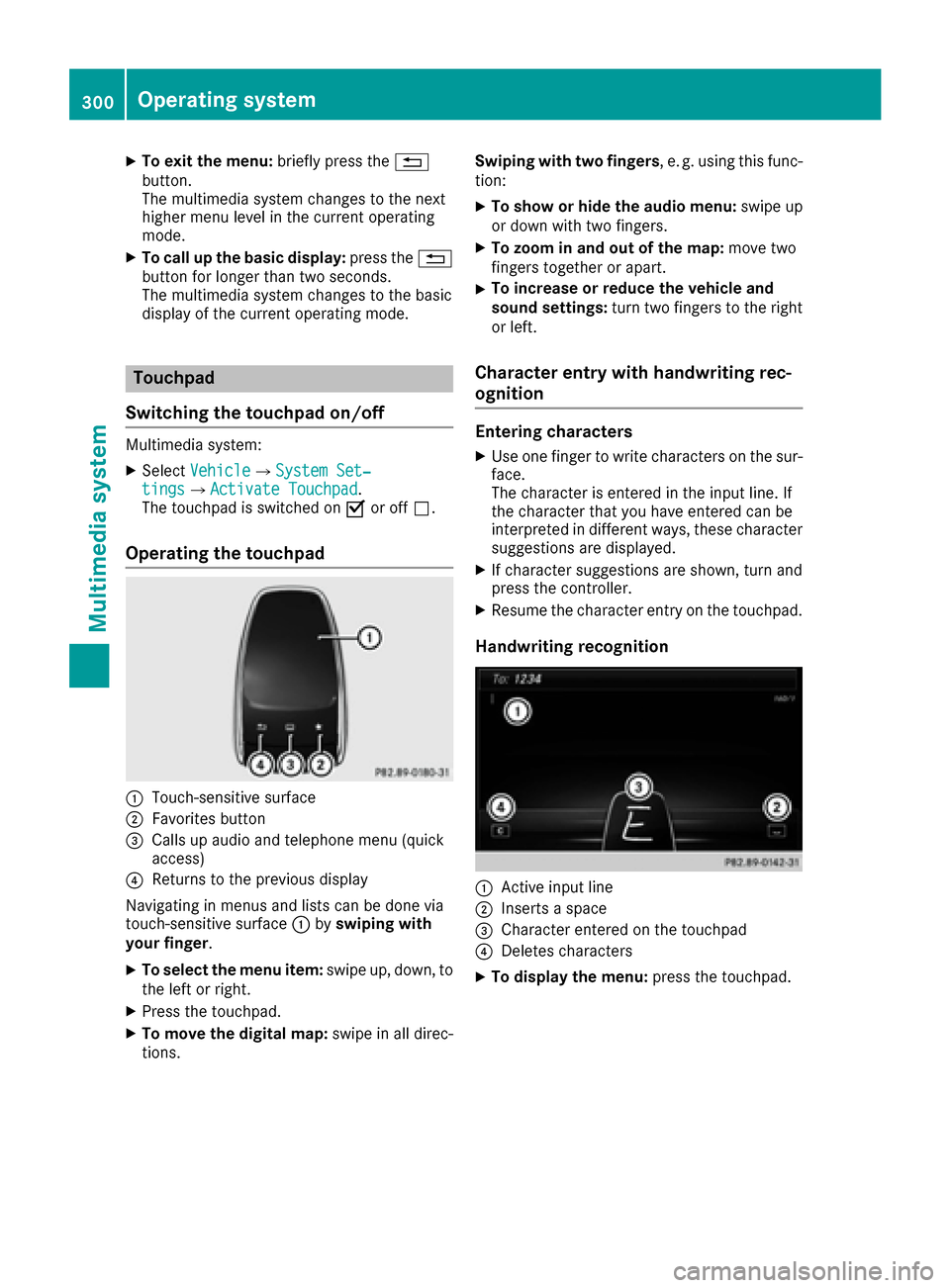
Operating the touchpad
:Touch-sensitive surface
;Favorites button
=Calls up audio and telephone menu (quick
access)
?Returns to the previous display
Navigating in menus and lists can be done via
touch-sensitive surface :byswiping with
your finger.
XTo select the menu item: swipe up, down, to
the left or right.
XPress the touchpad.
XTo move the digital map: swipe in all direc-
tions. Swiping with two fingers
, e. g. using this func-
tion:
XTo show or hide the audio menu: swipe up
or down with two fingers.
XTo zoom in and out of the map: move two
fingers together or apart.
XTo increase or reduce the vehicle and
sound settings: turn two fingers to the right
or left.
Character entry with handwriting rec-
ognition
Entering characters
XUse one finger to write characters on the sur-
face.
The character is entered in the input line. If
the character that you have entered can be
interpreted in different ways, these character
suggestions are displayed.
XIf character suggestions are shown, turn and
press the controller.
XResume the character entry on the touchpad.
Handwriting recognition
:Active input line
;Inserts a space
=Character entered on the touchpad
?Deletes characters
XTo display the menu: press the touchpad.
300Operating system
Multimedia system
Page 303 of 398
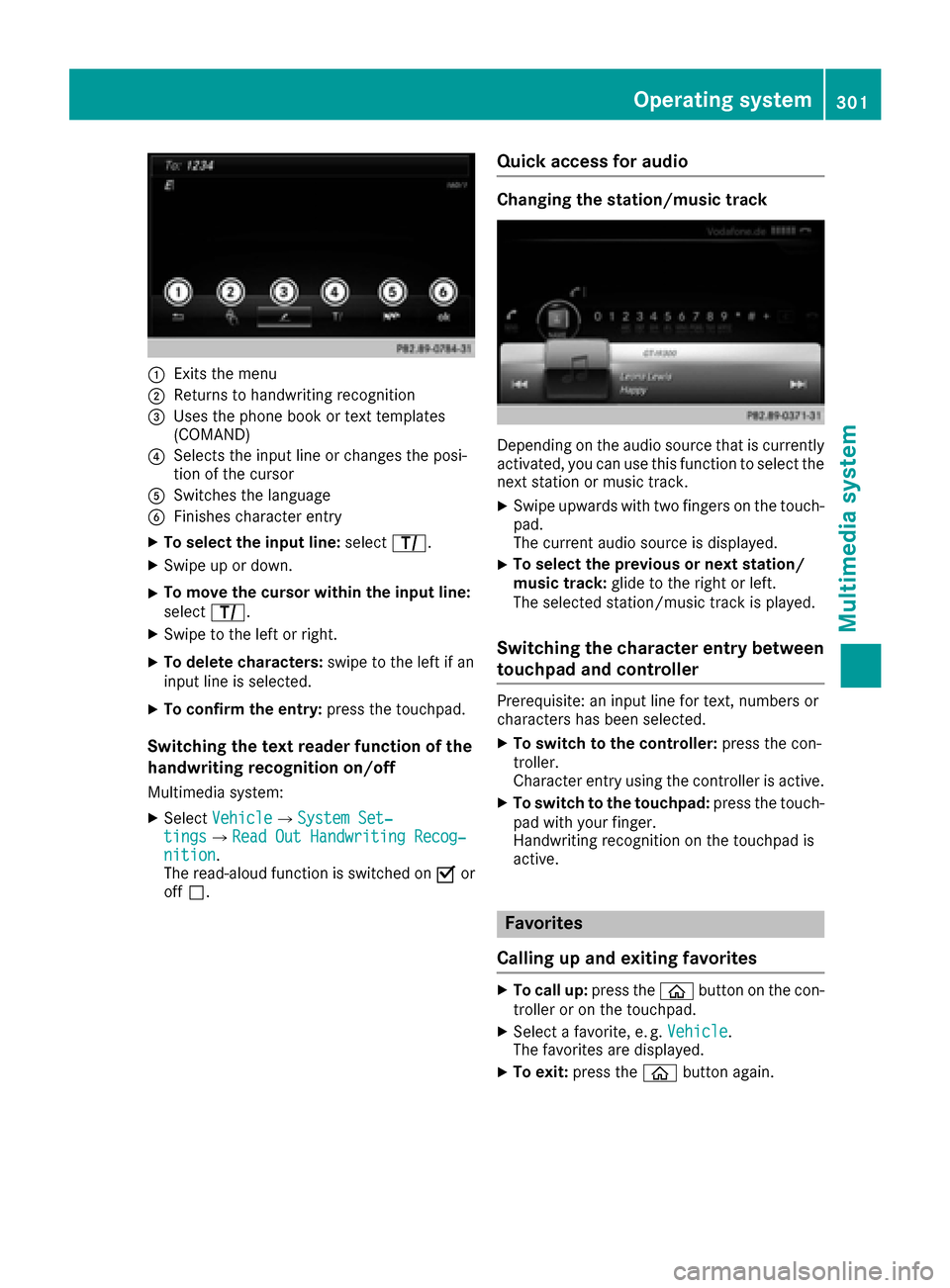
:Exits the menu
;Returns to handwriting recognition
=Uses the phone book or text templates
(COMAND)
?Selects the input line or changes the posi-
tion of the cursor
ASwitches the language
BFinishes character entry
XTo select the input line:selectp.
XSwipe up or down.
XTo move the cursor within the input line:
selectp.
XSwipe to the left or right.
XTo delete characters: swipe to the left if an
input line is selected.
XTo confirm the entry: press the touchpad.
Switching the text reader function of the
handwriting recognition on/off
Multimedia system:
XSelectVehicleQSystem Set‐tingsQRead Out Handwriting Recog‐nition.
The read-aloud function is switched on Oor
off ª.
Quick access for audio
Changing the station/music track
Depending on the audio source that is currently
activated, you can use this function to select the
next station or music track.
XSwipe upwards with two fingers on the touch-
pad.
The current audio source is displayed.
XTo select the previous or next station/
music track: glide to the right or left.
The selected station/music track is played.
Switching the character entry between
touchpad and controller
Prerequisite: an input line for text, numbers or
characters has been selected.
XTo switch to the controller: press the con-
troller.
Character entry using the controller is active.
XTo switch to the touchpad: press the touch-
pad with your finger.
Handwriting recognition on the touchpad is
active.
Favorites
Calling up and exiting favorites
XTo call up: press theòbutton on the con-
troller or on the touchpad.
XSelect a favorite, e. g. Vehicle.
The favorites are displayed.
XTo exit: press the òbutton again.
Operating system301
Multimedia system
Z
Page 307 of 398
Enter an address, e.g. as follows:
Rtown or zip code, street, house number
Rcountry, town or zip code
Rcity or zip code, center
Rstreet, city or zip code, intersection
XSelectCity.
The city in which the vehicle is currently loca-
ted (current vehicle position) is at the top.
Below this, you will see locations for which
route guidance has already been carried out.
XEnter the city.
The Gsymbol: the location is contained on
the digital map multiple times.
XTo switch to the list: slide the5control-
ler.
XSelect the location.
If available, the zip code is shown. If there are
different zip codes available for the location,
the corresponding digits are displayed with an
X
.
XEnter the street and house number.
The address is in the menu.
Further options for destination entry:
Rsearch for a keyword
The keyword search finds destinations using
fragments of words.
Rselect the last destination
Rselect a contact
Rselect a POI
You can search for a POI by location, name or
telephone number.
Rselect destination on the map
Renter intermediate destination
You can map the route to the destination
yourself with up to four intermediate destina-
tions.
Rselect destinations from Mercedes-Benz
Apps
Rselect geo-coordinates
Calculating the route
Prerequisite: the address has been entered and
is in the menu.
XSelect StartorContinue.
The route is calculated with the selected route
type and the selected route options. If route guidance has already been activated,
a prompt will appear asking whether you wish
to end the current route guidance.
XSelect
YesorSet as Intermediate Des‐tination.
Yescancels the current route guidance and
starts route calculation to the new destina-
tion.
Set as Intermediate Destination
adds
the new destination in addition to the existing
destination and opens the intermediate des-
tinations list.
Connecting a mobile phone
Prerequisites
For telephony via the Bluetooth®interface, you
require a Bluetooth®-capable mobile phone. The
mobile phone must support Hands-Free Profile
1.0 or above.
Multimedia system:
XSelect VehicleQSystem Set‐tingsQActivate Bluetooth.
XActivate Bluetooth®O.
Mobile phone:
XActivate Bluetooth®and, if necessary, Blue-
tooth®visibility for other devices (see the
manufacturer's operating instructions).
The Bluetooth
®device names for all of one man-
ufacturer's products might be identical. To
make it possible to clearly identify your mobile
phone, change the device name (see the man-
ufacturer's operating instructions).
If the mobile phone supports the PBAP ( Phone
Book Access Profile) and MAP ( Message
A ccess Profile) Bluetooth
®profiles, the follow-
ing information will be transmitted after you
connect:
Rphone book
Rcall lists
Rmessages
iFurther information on suitable mobile
phones can be obtained on the Internet at
http://www.mercedes-benz.com/
connect.
Operating system305
Multimedia system
Z