navigation MERCEDES-BENZ C-Class SEDAN 2017 W205 Comand Manual
[x] Cancel search | Manufacturer: MERCEDES-BENZ, Model Year: 2017, Model line: C-Class SEDAN, Model: MERCEDES-BENZ C-Class SEDAN 2017 W205Pages: 178, PDF Size: 9.47 MB
Page 106 of 178
Closing the phone book
X To select 0039from the character bar: turn the
controller and press to confirm.
or X Press the 0038button. Address book
Introduction
Always pay attention to traffic conditions.
Familiarize yourself with the address book func-
tions before beginning your journey.
You can use the multimedia system when the
road and traffic conditions permit. You could
otherwise become involved in an accident in
which you or others could be injured.
The address book displays all the contacts from
the various sources (mobile phone, memory
card, USB device, the phone book of the multi-
media system, navigation).
You can use the contacts to make telephone
calls, navigate and to write messages.
If a mobile phone is connected to the multimedia system and automatic calling up is activated
(Y page 108), the mobile phone's contacts are
displayed in the address book. If you disconnect the mobile phone from the multimedia system,
these contacts are no longer displayed in the
address book.
When you import, save, edit or add contacts,
they will be saved in the multimedia system.
These contacts will remain available even when you connect the multimedia system to a differ-
ent mobile phone. You can view these contacts
even without a mobile phone.
i The address book can store a total of 5,000
contacts:
R 2000 entries are reserved for permanently
saved contacts.
R 3000 entries are reserved for contacts that
you can load from the mobile phone.
i Before selling your vehicle, delete the con-
tacts saved in the multimedia system using
the reset function (Y page 43). Calling up the address book
X
To call up the telephone menu: press the
002B button.
X To display the main function bar: slide 5the
controller.
X To select Phone Phone: turn and press the controller.
X To select Address Book
Address Book: turn and press the
controller.
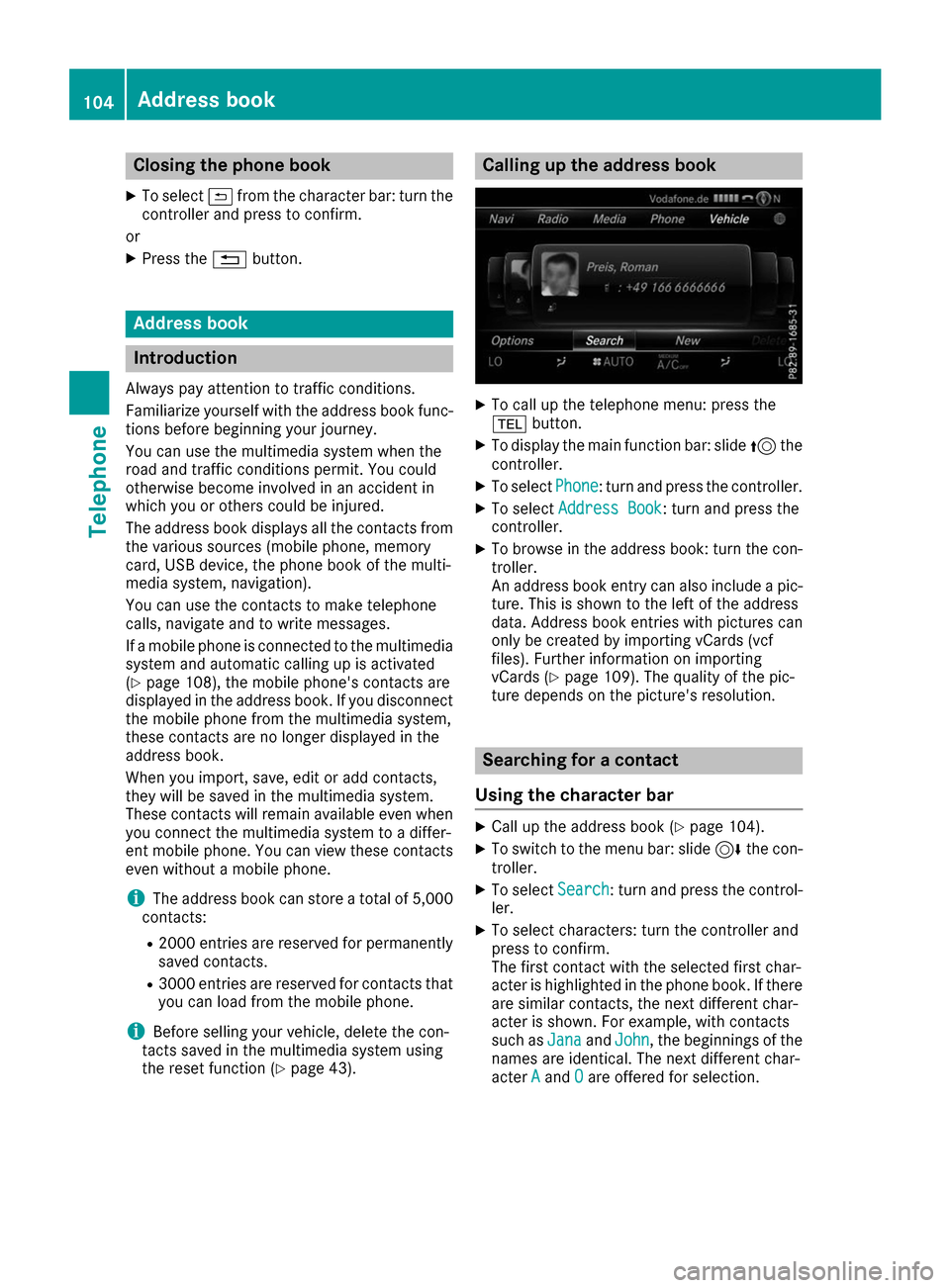
X To browse in the address book: turn the con-
troller.
An address book entry can also include a pic-
ture. This is shown to the left of the address
data. Address book entries with pictures can
only be created by importing vCards (vcf
files). Further information on importing
vCards (Y page 109). The quality of the pic-
ture depends on the picture's resolution. Searching for a contact
Using the character bar X
Call up the address book (Y page 104).
X To switch to the menu bar: slide 6the con-
troller.
X To select Search Search: turn and press the control-
ler.
X To select characters: turn the controller and
press to confirm.
The first contact with the selected first char-
acter is highlighted in the phone book. If there are similar contacts, the next different char-
acter is shown. For example, with contacts
such as Jana JanaandJohn
John, the beginnings of the
names are identical. The next different char-
acter A
Aand O
Oare offered for selection. 104
Address bookTelephone
Page 107 of 178
X
Select the characters of the contact you are
searching for one by one, pressing and con-
firming with the controller each time.
X To complete the search: slide 5the con-
troller repeatedly until the character bar dis-
appears.
or X To select 0054: turn and press the controller.
The contacts in the address book are dis-
played.
X To select a contact: turn and press the con-
troller.
Information about character entry (Y page 30).
Using the touchpad X
Call up the address book (Y page 104).
X To switch to the menu bar: glide down.
X Select Search Search.
X Draw the letter on the touchpad surface.
The first contact with the selected first char-
acter is highlighted in the address book.
Further information on handwriting recogni-
tion on the touchpad (Y page 26).
X Draw additional letters on the touchpad sur-
face one after another.
X To complete the search and return to the
phone book: press the touchpad.
X To select and call the contact: glide up or
down and press. Adding a new contact
You can enter address data directly into the
address book. If you store telephone numbers in the phone book of the multimedia system, these
are also saved in the address book. If you store
a navigation destination, the multimedia system creates an address book entry that includes the
complete navigable address data.
X Call up the address book (Y page 104).
X To switch to the menu bar: slide 6the con-
troller.
X To select New
New: turn and press the controller.
The surname and first name input lines are
displayed.
X Enter characters using the controller
(Y page 30) or the touchpad (Y page 26).X
To save the surname and first name: select
0054.
The details for the contact are displayed.
X To add a desired entry (e.g. Add E-Mail
Add E-Mail
Address Address): turn and press the controller.
Depending on the type of entry, the corre-
sponding input menu appears.
X Enter characters using the controller
(Y page 30) or the touchpad (Y page 26).
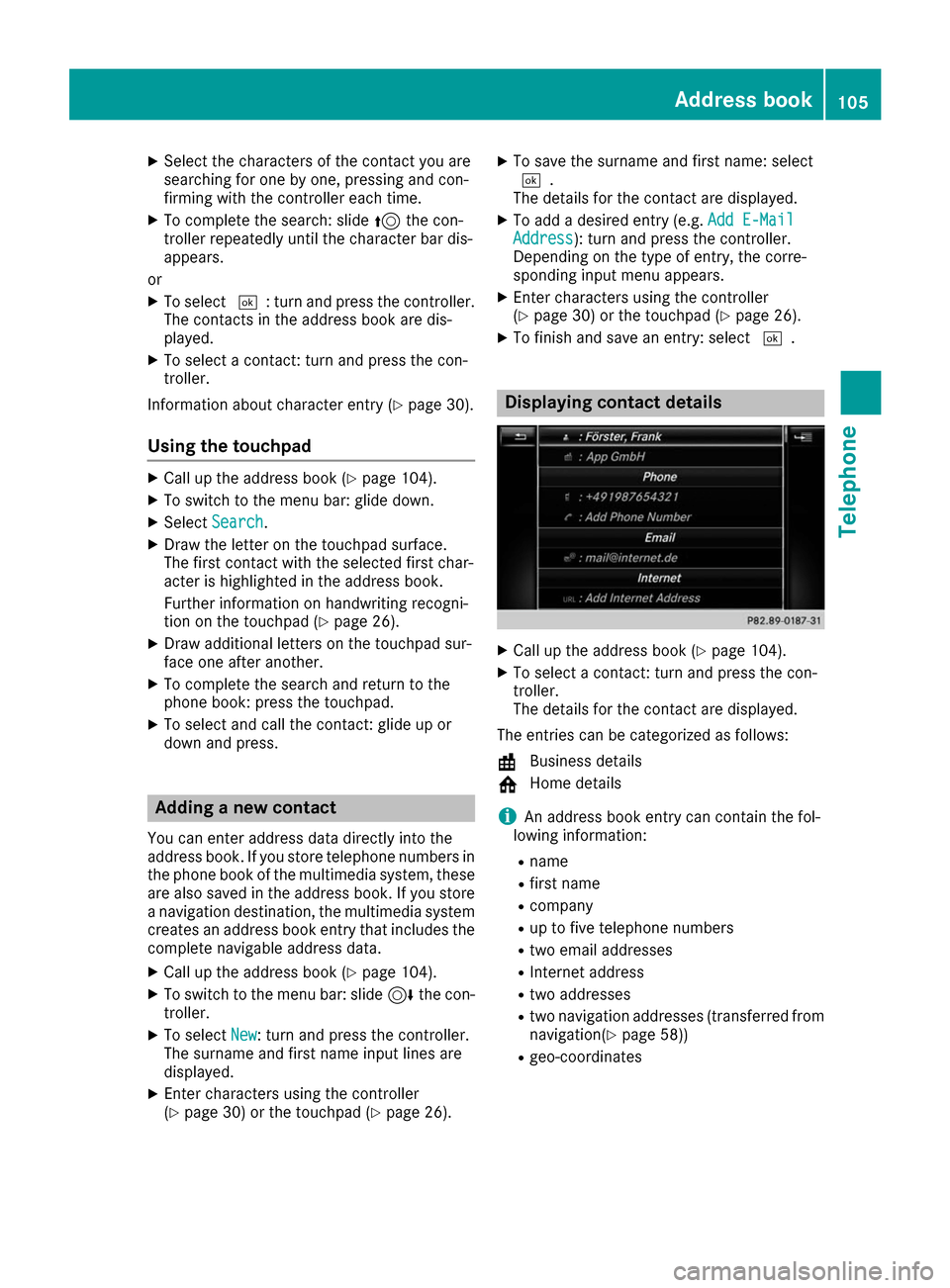
X To finish and save an entry: select 0054. Displaying contact details
X
Call up the address book (Y page 104).
X To select a contact: turn and press the con-
troller.
The details for the contact are displayed.
The entries can be categorized as follows:
\ Business details
0088 Home details
i An address book entry can contain the fol-
lowing information:
R name
R first name
R company
R up to five telephone numbers
R two email addresses
R Internet address
R two addresses
R two navigation addresses (transferred from
navigation( Ypage 58))
R geo-coordinates Address book
105Telephone Z
Page 108 of 178
Adding information to a contact
X Call up the address book (Y page 104).
X To select a contact: turn and press the con-
troller.
The details for the contact are displayed.
X To add a desired entry (e.g. Add E-Mail
Add E-Mail
Address
Address): turn and press the controller.
Depending on the type of entry, the corre-
sponding input menu appears.
X Enter characters using the controller
(Y page 30) or the touchpad (Y page 26).
X To finish and save an entry: select 0054.
A maximum of five telephone numbers can be
saved for one contact. Starting route guidance to an address
or geo-coordinates
If an address with a ZIP code is saved, the
address can be used for route guidance. If the
ZIP code cannot be assigned to an exact
address, you can adjust the destination subse-
quently using the controller.
X Call up the address book (Y page 104).
X To select a contact: turn and press the con-
troller.
The details for the contact are displayed.
X To select an address: turn and press the con-
troller.
or
X To select an entry with geo-coordinates: turn
and press the controller.
The navigation menu is displayed.
X To select Start
Start Route RouteGuidance
Guidance: slide 6
and press the controller.
The route to the destination address is calcu- lated and route guidance starts. Making a call
X Call up the address book (Y page 104).
X To select a contact: turn and press the con-
troller.
The details for the contact are displayed.
X To select a telephone number: turn and press
the controller.
The number is dialed. Further information
about the functions during a call (Y page 98). Sending text messages
X Call up the address book (Y page 104).
X To select a contact: turn and press the con-
troller.
The details for the contact are displayed.
X To highlight the telephone number: turn the
controller.
X To select G: slide 9the controller.
X To select Send Text Message
Send Text Message: turn and
press the controller.
The entry fields for a text message are dis-
played (Y page 116).
Observe the requirements for the message func-
tion (Y page 113). Sending an e-mail
X Call up the address book (Y page 104).
X Select an entry: turn and press the controller.
The details for the contact are displayed.
X To select an e-mail address: turn and press
the controller.
The entry fields for an e-mail are displayed
(Y page 117).
Observe the requirements for the message func-
tion (Y page 113). Displaying sub-entry information
X Call up the address book (Y page 104).
X Select an entry: turn and press the controller.
The details for the contact are displayed.
X To highlight the desired entry: turn the con-
troller.
X To select G: slide 9the controller.
X To select Details
Details: turn and press the con-
troller.
The display is shown in full. 106
Address bookTelephone
Page 112 of 178
Received vCards are identified by the
00BA
symbol in the address book.
i If you switch to another main function, e.g.
navigation, while receiving vCards, the recep-
tion of vCards will be terminated. Deleting imported contacts
X To change to the menu bar when in the
address book or the telephone menu: slide
6 the controller.
X To select Options Options: turn and press the con-
troller.
X To select Delete Contacts
Delete Contacts: turn and press
the controller.
X Select one of the following options:
R Internal Contacts
Internal Contacts
R Imported from Storage Device
Imported from Storage Device
R Imported from Bluetooth Devices
Imported from Bluetooth Devices
R Downloaded from Phone
Downloaded from Phone
Turn and press the controller.
X To select Yes
Yes: turn and press the controller.
The contacts are deleted. Closing the address book
X Press the 002Bbutton one or more times. Call lists
Introduction
If your mobile phone supports the PBAP Blue-
tooth ®
profile, the call lists from the mobile
phone are displayed in the multimedia system.
When connecting the mobile phone, you may
have to confirm the connection for the PBAP
Bluetooth ®
profile.
If your mobile phone does not support the PBAP Bluetooth ®
profile, the multimedia system gen-
erates its own call lists. These are not the same
as the call lists in your mobile phone.
The call lists option is not available unless a
mobile phone is connected to the multimedia
system.
If the contact for an incoming call is not saved in the address book, you can use the call list to
save the telephone number. You can save this telephone number as a new contact in the
address book or add it to an existing contact
(Y
page 111).
i If you connect a different mobile phone to
the multimedia system, the call lists from the
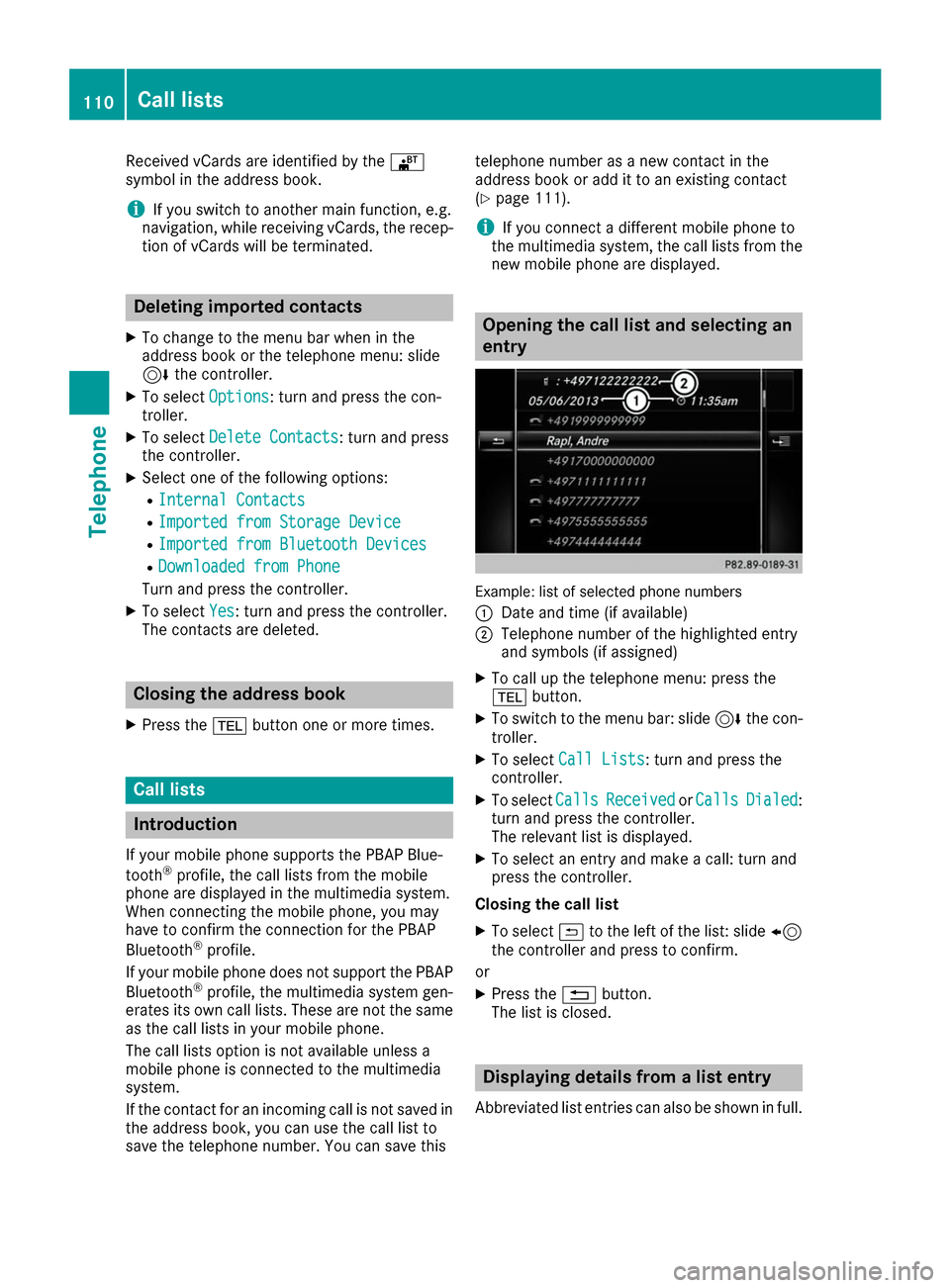
new mobile phone are displayed. Opening the call list and selecting an
entry
Example: list of selected phone numbers
0043
Date and time (if available)
0044 Telephone number of the highlighted entry
and symbols (if assigned)
X To call up the telephone menu: press the
002B button.
X To switch to the menu bar: slide 6the con-
troller.
X To select Call Lists Call Lists: turn and press the
controller.
X To select Calls
CallsReceived
Received orCalls
Calls Dialed
Dialed :
turn and press the controller.
The relevant list is displayed.
X To select an entry and make a call: turn and
press the controller.
Closing the call list X To select 0039to the left of the list: slide 8
the controller and press to confirm.
or
X Press the 0038button.
The list is closed. Displaying details from a list entry
Abbreviated list entries can also be shown in full. 110
Call listsTelephone
Page 127 of 178
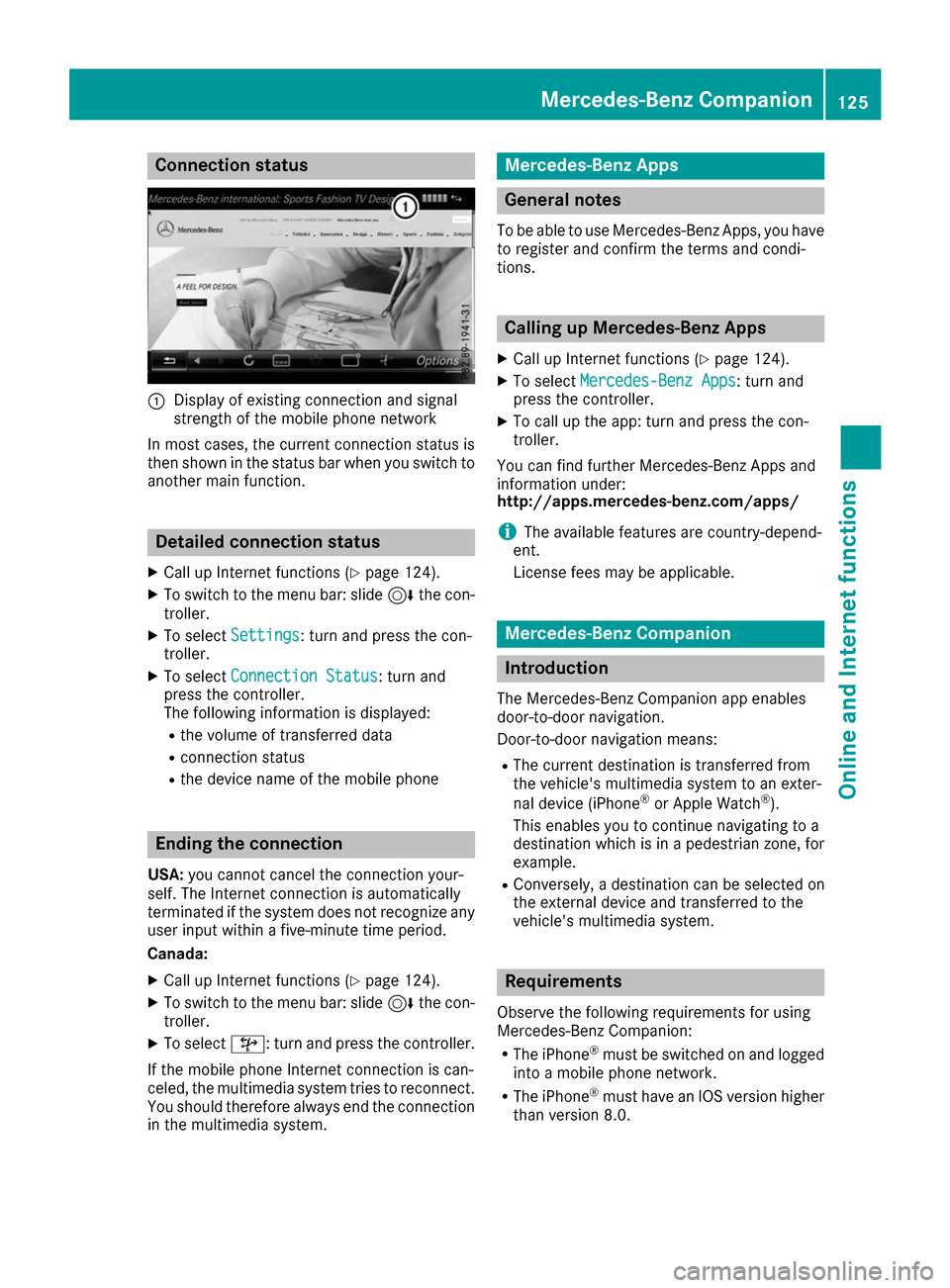
Connection status
0043
Display of existing connection and signal
strength of the mobile phone network
In most cases, the current connection status is
then shown in the status bar when you switch to
another main function. Detailed connection status
X Call up Internet functions (Y page 124).
X To switch to the menu bar: slide 6the con-
troller.
X To select Settings Settings: turn and press the con-
troller.
X To select Connection Status
Connection Status : turn and
press the controller.
The following information is displayed:
R the volume of transferred data
R connection status
R the device name of the mobile phone Ending the connection
USA: you cannot cancel the connection your-
self. The Internet connection is automatically
terminated if the system does not recognize any
user input within a five-minute time period.
Canada:
X Call up Internet functions (Y page 124).
X To switch to the menu bar: slide 6the con-
troller.
X To select ©: turn and press the controller.
If the mobile phone Internet connection is can-
celed, the multimedia system tries to reconnect.
You should therefore always end the connection in the multimedia system. Mercedes-Benz Apps
General notes
To be able to use Mercedes-Benz Apps, you have
to register and confirm the terms and condi-
tions. Calling up Mercedes-Benz Apps
X Call up Internet functions (Y page 124).
X To select Mercedes-Benz Apps Mercedes-Benz Apps: turn and
press the controller.
X To call up the app: turn and press the con-
troller.
You can find further Mercedes-Benz Apps and
information under:
http://apps.mercedes-benz.com/apps/
i The available features are country-depend-
ent.
License fees may be applicable. Mercedes-Benz Companion
Introduction
The Mercedes-Benz Companion app enables
door-to-door navigation.
Door-to-door navigation means: R The current destination is transferred from
the vehicle's multimedia system to an exter-
nal device (iPhone ®
or Apple Watch ®
).
This enables you to continue navigating to a
destination which is in a pedestrian zone, for
example.
R Conversely, a destination can be selected on
the external device and transferred to the
vehicle's multimedia system. Requirements
Observe the following requirements for using
Mercedes-Benz Companion: R The iPhone ®
must be switched on and logged
into a mobile phone network.
R The iPhone ®
must have an IOS version higher
than version 8.0. Mercedes-Benz Companion
125Online and Internet functions Z
Page 128 of 178
R
Mercedes-Benz Companion must be installed
on the iPhone ®
and activated (see the manu-
facturer's operating instructions).
R The iPhone ®
must be connected to the mul-
timedia system (Y page 92).
R Mercedes-Benz Companion must be author-
ized on the multimedia system.
R To use door-to-door navigation, location
access must be enabled on the iPhone ®
.
R The Apple Watch ®
must be connected to the
iPhone ®
(see the manufacturer's operating
instructions). Authorizing Mercedes-Benz Compan-
ion
If you wish to use Mercedes-Benz Companion
with the multimedia system, you must first
authorize it.
If you wish to use door-to-door navigation, you
must first enable location finding on your
iPhone ®
.
On the multimedia system
X Switch on the multimedia system.
A prompt appears asking for permission for
Mercedes-Benz Companion to connect with
the vehicle.
X Give authorization.
On the iPhone ®
X Call up Mercedes-Benz Companion
A prompt appears asking permission for
Mercedes-Benz Companion to access loca-
tion details.
X Allow access.
Door-to-door navigation using Mercedes-
Benz Companion can now be used. Door-to-door navigation (transferring
a destination from the vehicle to an
external device)
You can transfer the destination from the vehi-
cle to an iPhone ®
or Apple Watch ®
.
This way, you can navigate on foot to a destina- tion that cannot be reached by vehicle. In the vehicle
X Switch off the engine and remove the Smart-
Key.
The current destination and the vehicle's
location are transferred from the multimedia
system to the iPhone ®
or Apple Watch ®
.
On the iPhone ®
X Select the destination and select the pedes-
trian symbol.
X Start navigation.
If using the iPhone ®
to navigate, you will be
guided to your destination via navigation dis-
plays and spoken instructions.
If you use an Apple Watch ®
, navigation is
done via the watch.
The Apple Watch ®
assists you with route guid-
ance by vibrating, emitting acoustic signals
and giving spoken commands. Door-to-door navigation (transferring
a destination from an external device
to the vehicle)
You can transfer the destination from an exter-
nal device to the vehicle's multimedia system:
R via the Apple Watch ®
R via the iPhone ®
On the iPhone ®
X Select Mercedes-Benz Companion.
X Select Send a Destination Send a Destination.
X Enter the destination.
A list of possible destinations is displayed.
X Select the destination.
X Transfer the destination to the vehicle.
On the Apple Watch ®
X Select Mercedes-Benz Companion.
X Select Send to Car Send to Car.
X Select Find destinations
Find destinations.
X Say the destination.
X Confirm the entered text with Done
Done.
A list of possible destinations is displayed.
X Select the destination.
X Transfer the destination to the vehicle. 126
Mercedes-Benz CompanionOnline and Internet functions
Page 129 of 178
In the vehicle and on the multimedia system
X Switch on the multimedia system.
The destination in the Apple Watch ®
or
iPhone ®
is transferred to the multimedia sys-
tem.
X Accept the displayed destination.
Route guidance starts.
i You also have the option of transferring des-
tinations or coordinates from other applica-
tions to Mercedes-Benz Companion. Navigating to the vehicle
You can be guided to the vehicle's location:
R via the Apple Watch ®
R via the iPhone ®
On the iPhone ®
X Select Send a Destination
Send a Destination.
X Select the vehicle location and the pedestrian
symbol.
X Start navigation.
On the Apple Watch ®
X Select Locate Car
Locate Car .
X Select the car symbol.
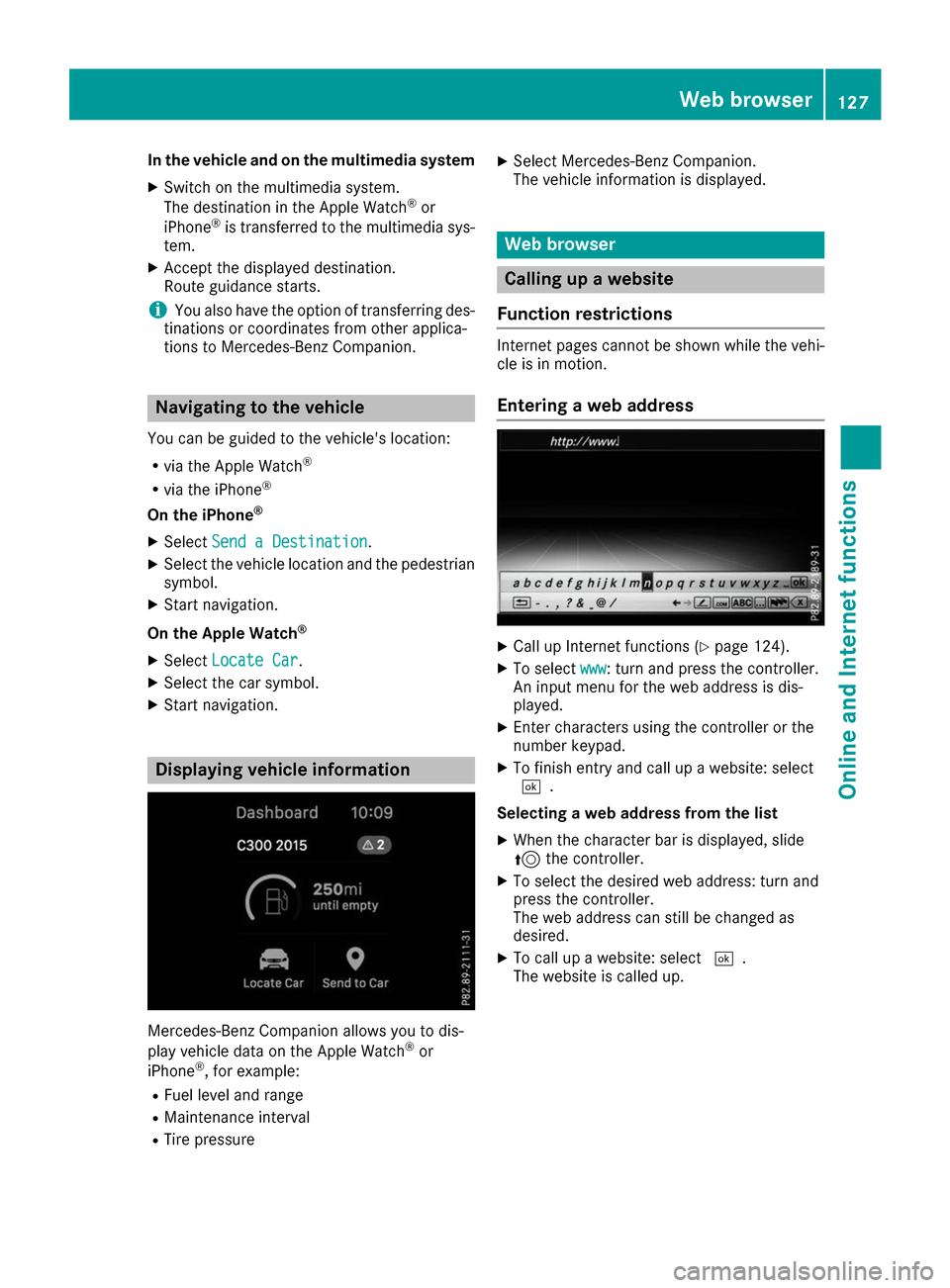
X Start navigation. Displaying vehicle information
Mercedes-Benz Companion allows you to dis-
play vehicle data on the Apple Watch ®
or
iPhone ®
, for example:
R Fuel level and range
R Maintenance interval
R Tire pressure X
Select Mercedes-Benz Companion.
The vehicle information is displayed. Web browser
Calling up a website
Function restrictions Internet pages cannot be shown while the vehi-
cle is in motion.
Entering a web address X
Call up Internet functions (Y page 124).
X To select www www: turn and press the controller.
An input menu for the web address is dis-
played.
X Enter characters using the controller or the
number keypad.
X To finish entry and call up a website: select
0054.
Selecting a web address from the list X When the character bar is displayed, slide
5 the controller.
X To select the desired web address: turn and
press the controller.
The web address can still be changed as
desired.
X To call up a website: select 0054.
The website is called up. Web browser
127Online and Internet functions Z
Page 144 of 178
Activating media using the device list
X In media mode, slide 6the controller.
The media menu bar is shown.
X To select Devices
Devices: turn and press the con-
troller.
The available media sources will be shown.
The 003Bdot indicates the current setting.
X Select the media source.
If the media source contains music or video
files, these will be played. The corresponding
basic menu will be shown. Switching on automatically
After inserting a CD/DVD, the respective media
mode is automatically switched on by the mul-
timedia system.
If playable music files are found, they will be
played by the multimedia system.
If a media function is already switched on in the
multimedia system, this will be interrupted and
the basic display of the CD/DVD mode will
appear. If another function, such as navigation,
is being operated, the basic display will not
change. Only the music from the last inserted
CD/DVD will be played. Audio/video mode
Important safety notes
G
WARNING
The CD/DVD drive is a class 1 laser product. If you open the housing of the CD/DVD drive,
there is a risk of exposure to invisible laser
radiation. This laser radiation could damage
your retina. There is a risk of injury.
Never open the housing. Always have main-
tenance and repair work carried out at a quali- fied specialist workshop. G
WARNING
Handling discs while driving may distract you from traffic conditions. You could also lose
control of the vehicle. There is a risk of an
accident. Handle discs only when the vehicle is station-
ary.
Bear in mind that at a speed of only 30 mph
(approximately 50 km/h), the vehicle covers a
distance of 44 ft (approximately 14 m)per sec-
ond. Notes on audio/video mode
Permissible data carriers R
CD audio, CD-R and CD-RW
R DVD-R, DVD-V and DVD-RW
R SD card
R USB storage device
Permissible file systems R
ISO 9660/Joliet standard for CDs
R UDF for video DVDs
R FAT16, FAT32, exFAT and NTFS for SD card
and USB storage media
Multisession CDs For multisession CDs, the content of the first
session determines how the multimedia system
processes the CD. The multimedia system plays only one session and gives priority to the audio
CD session.
File structure of a data carrier When you create a disc with compressed music
files, the tracks can be organized in folders. A
folder may also contain subfolders. The disc
may contain no more than eight directory levels. Files beyond the eighth level will not be recog-
nized by the system.
i The multimedia system supports data carri-
ers with up to 50,000 files.
In the case of a data carrier with more than
64 GB of stored data, only files in folders with the following names are supported: Music,
Pictures, Video.
Track and file names When you create a disc with compressed music
files, you can assign names to the tracks and
folders. 142
Audio/video modeMedia
Page 146 of 178
Playback problems may occur when playing
copied discs.
There may be playback problems if you play CDs
that you have copied yourself with a storage
capacity of more than 700 MB.
i The multimedia system is able to play back
audio CDs in multichannel audio format. Inserting and removing a disc from
the single CD/DVD drive
Before inserting or removing a CD or DVD,
ensure that the cup holder is empty.
Inserting
X Press the 00F8button on the single drive.
If there is a disc already inserted, it will be
ejected.
X Insert a disc into the disc slot with the printed
side facing upwards.
The drive closes and the disc is played.
If the CD or DVD is started in Media mode, the
corresponding basic menu will be shown. If
the CD or DVD is started from another appli-
cation (e.g. navigation), the display will not
change.
i The drive may not be able to play discs with
copy protection.
Removing
X Press the 00F8button.
The drive ejects the disc.
X Remove the ejected disc from the slot.
If you do not take the disc out of the slot, it is
drawn in again automatically after a short
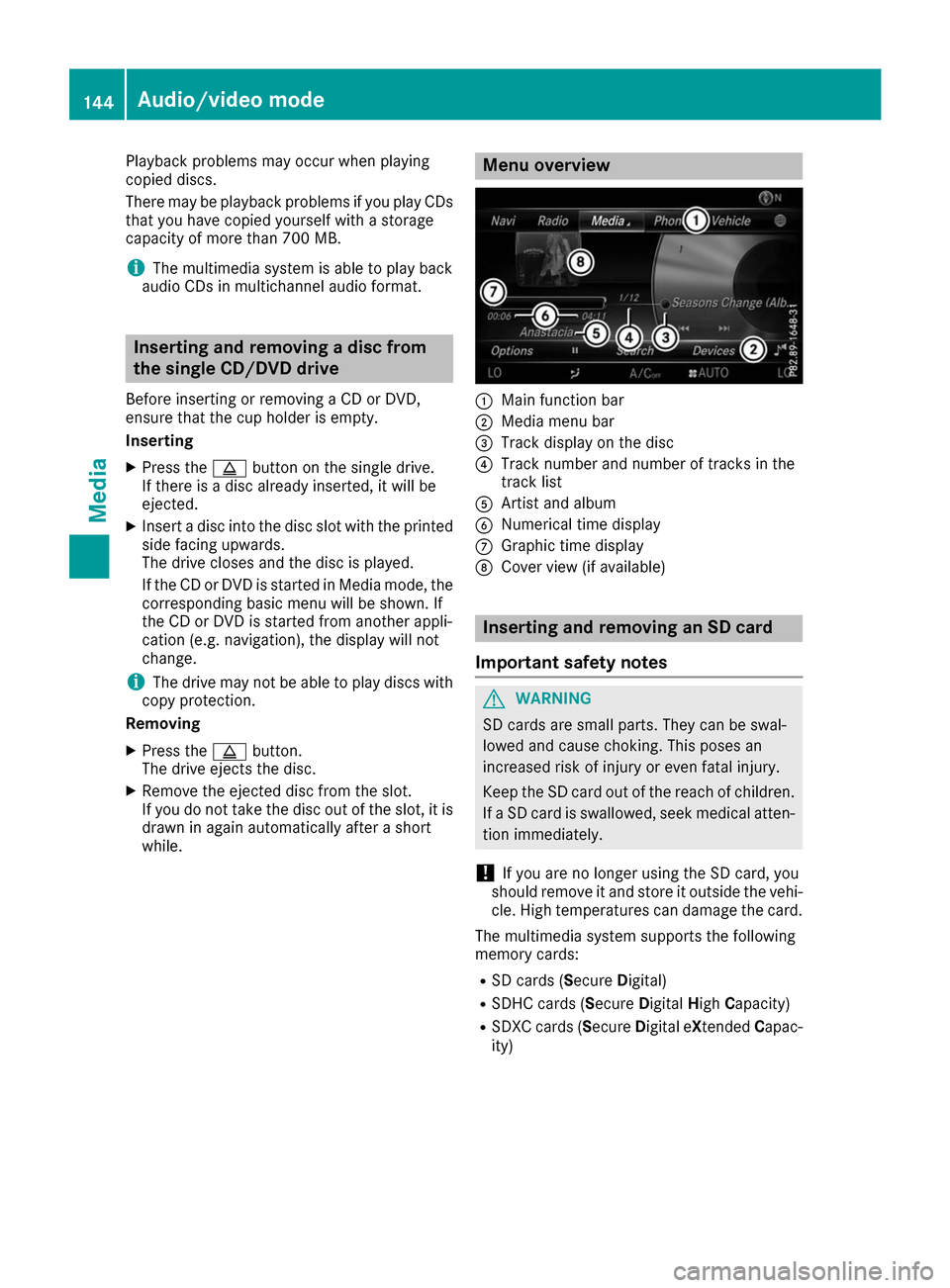
while. Menu overview
0043
Main function bar
0044 Media menu bar
0087 Track display on the disc
0085 Track number and number of tracks in the
track list
0083 Artist and album
0084 Numerical time display
006B Graphic time display
006C Cover view (if available) Inserting and removing an SD card
Important safety notes G
WARNING
SD cards are small parts. They can be swal-
lowed and cause choking. This poses an
increased risk of injury or even fatal injury.
Keep the SD card out of the reach of children. If a SD card is swallowed, seek medical atten-
tion immediately.
! If you are no longer using the SD card, you
should remove it and store it outside the vehi-
cle. High temperatures can damage the card.
The multimedia system supports the following
memory cards: R SD cards ( SecureDigital)
R SDHC cards (Secure DigitalHighCapacity)
R SDXC cards (Secure Digital eXtendedCapac-
ity) 144
Audio/video modeMedia
Page 147 of 178
Inserting an SD card
X
Insert the SD card into the SD card slot until
the SD card engages. The side with the con-
tacts must face down.
IfMemory Memory Card
Cardhas been selected as a media
source, the medium is played and the files are
loaded in the background. If there are no sup- ported audio or video files, you will see a mes-sage to this effect.
X Select the media source (Y page 141).
Removing an SD card X
Press the SD card.
The SD card is ejected.
X Remove the SD card. Connecting USB devices
There are two USB ports in the stowage space
under the armrest (Y page 141).
X Connect the USB device to the USB port.
If the corresponding media display is visible,
the medium is played and the files are loaded
in the background. If there are no supported
audio or video files, you will see a message to
this effect.
i MP3 players must support Media Transfer
Protocol (MTP). Activating media mode
After inserting a CD or DVD, the media mode is
automatically switched on by the multimedia
system.
If playable music files are found, they will be
played by the multimedia system.
If a media function is already switched on in the multimedia system, this will be interrupted and
the basic display of the CD or DVD mode will
appear. If another function, such as navigation,
is being operated, the basic display will not
change. Only the music from the last inserted
CD or DVD will be played.
Depending on the vehicle equipment, the basic
display must already be turned on when using
with USB devices or SD cards.
X Insert the CDs/DVDs (Y page 144)
or X
Insert an SD card: (Y page 145)
or X Connect a USB device: (Y page 145)
The multimedia system loads the medium
inserted and playback starts automatically.
Further options for switching on:
R Using the main function bar (Y page 141)
R Using the device list (Y page 142)
R Using the 00FDbutton (Y page 141) Selecting the playback option
Playing similar tracks X
In media mode, slide 6the controller.
X To select Options Options: turn and press the con-
troller.
X To select Play More Like This
Play More Like This: turn and
press the controller.
The multimedia system automatically creates
and plays a track list with similar tracks. If
there are no comparable tracks on the data
carrier, you will see a message to this effect.
X Select the required track.
Selecting Play mode X
In media mode, slide 6the controller.
X To select Options Options: turn and press the con-
troller.
X To select Playback
Playback Mode
Mode: turn and press the
controller.
X Select Normal Track Sequence
Normal Track Sequence.
The current track list is played in the order it is stored on the data medium.
X Select Random Track List
Random Track List.
The current track list is played in random
order.
X Select Random Medium Random Medium .
All tracks on the data medium are played in
random order.
Entering a track number directly X
In media mode, slide 6the controller.
X To select Options Options: turn and press the con-
troller. Audio/video mode
145Media Z