ad blue MERCEDES-BENZ CL CLASS 2010 Owner's Manual
[x] Cancel search | Manufacturer: MERCEDES-BENZ, Model Year: 2010, Model line: CL CLASS, Model: MERCEDES-BENZ CL CLASS 2010Pages: 500, PDF Size: 9.32 MB
Page 194 of 500
Delayed Shut-off: Slide XVY or rotate
cVd and press W.
A menu appears.
The dot
# indicates the currently selected
setting.
X Selecting setting: Slide ZVÆ or rotate
cVd and press W.
The dot # indicates the currently selected
setting.
i The exterior lamp switch must be in
position c (Y page 275) before turning
off the engine. Otherwise the exterior
lighting will not come on when leaving the
vehicle. Setting interior ambient lighting
i The components and operating principles
of COMAND can be found on ( Y page 68).
You can select the following settings:
R SOLAR (amber interior lighting)
R NEUTRAL (white interior lighting)
R POLAR (blue interior lighting)
R Brightness of the interior lighting ranging
from 0 (off) to 5 (bright) X
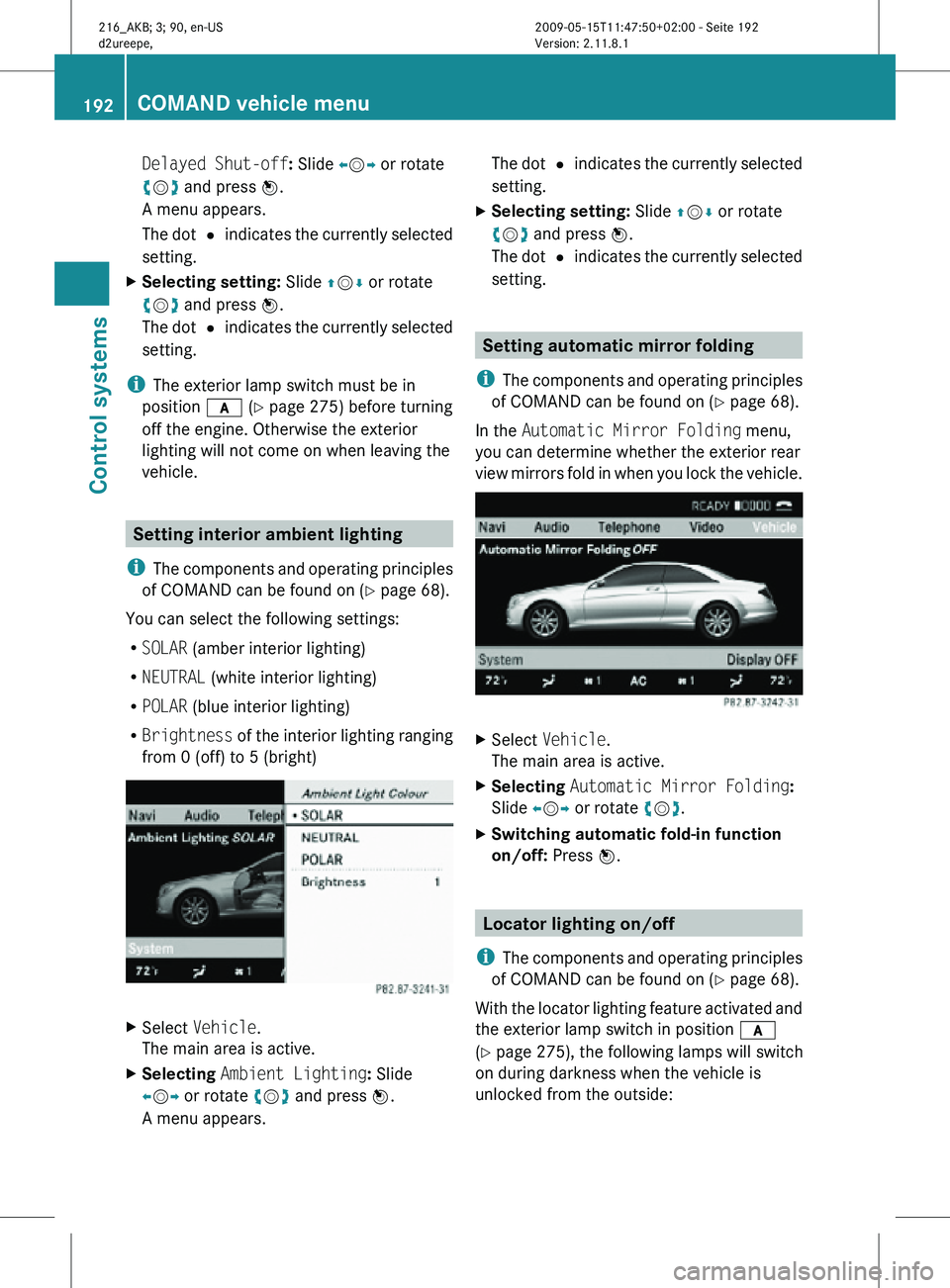
Select Vehicle.
The main area is active.
X Selecting Ambient Lighting: Slide
XVY or rotate cVd and press W.
A menu appears. The dot
# indicates the currently selected
setting.
X Selecting setting: Slide ZVÆ or rotate
cVd and press W.
The dot # indicates the currently selected
setting. Setting automatic mirror folding
i The components and operating principles
of COMAND can be found on ( Y page 68).
In the Automatic Mirror Folding menu,
you can determine whether the exterior rear
view mirrors fold in when you lock the vehicle. X
Select Vehicle.
The main area is active.
X Selecting Automatic Mirror Folding:
Slide XVY or rotate cVd.
X Switching automatic fold-in function
on/off: Press W. Locator lighting on/off
i The components and operating principles
of COMAND can be found on ( Y page 68).
With the locator lighting feature activated and
the exterior lamp switch in position c
(Y page 275), the following lamps will switch
on during darkness when the vehicle is
unlocked from the outside: 192
COMAND vehicle menuControl systems
216_AKB; 3; 90, en-US
d2ureepe,
Version: 2.11.8.1 2009-05-15T11:47:50+02:00 - Seite 192
Page 211 of 500
The engine oil temperature will be shown in
blue if the engine oil temperature has not yet
reached 176‡ (80†). During this time, avoid
driving at full engine speed.
If the engine reaches the overspeed range in
the manual shift program, you will see
up next
to gear indicator : as a reminder to upshift.
Use buttons : or 9 to select the
following functions in the AMG menu:
R RACETIMER (Y page 209)
R Overall analysis ( Y page 210)
R Lap analysis (Y page 210)
RACETIMER G
Warning!
The RACETIMER feature is only for use on
roads and in conditions where high speed
driving is permitted. Racing on public roads is
prohibited under all circumstances. The driver
is and must always remain responsible for
following posted speed limits.
The RACETIMER allows you to time and save
driving stretches.
X Press button = or ; to select the
AMG menu.
X Press button 9 to select the
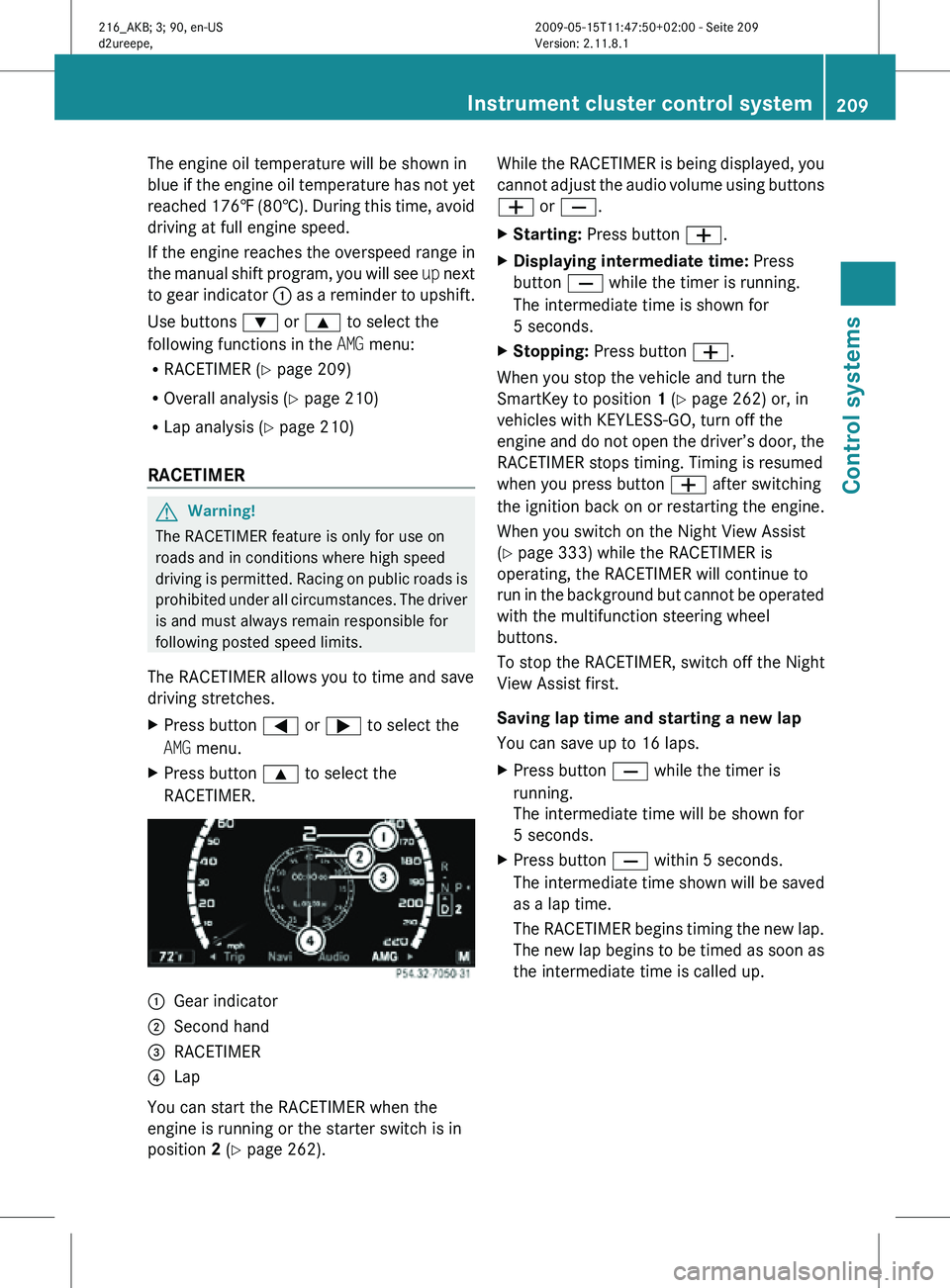
RACETIMER. :
Gear indicator
; Second hand
= RACETIMER
? Lap
You can start the RACETIMER when the
engine is running or the starter switch is in
position 2 (Y page 262). While the RACETIMER is being displayed, you
cannot adjust the audio volume using buttons
W or X.
X
Starting: Press button W.
X Displaying intermediate time: Press
button X while the timer is running.
The intermediate time is shown for
5 seconds.
X Stopping: Press button W.
When you stop the vehicle and turn the
SmartKey to position 1 (Y page 262) or, in
vehicles with KEYLESS-GO, turn off the
engine and do not open the driver’s door, the
RACETIMER stops timing. Timing is resumed
when you press button W after switching
the ignition back on or restarting the engine.
When you switch on the Night View Assist
(Y page 333) while the RACETIMER is
operating, the RACETIMER will continue to
run in the background but cannot be operated
with the multifunction steering wheel
buttons.
To stop the RACETIMER, switch off the Night
View Assist first.
Saving lap time and starting a new lap
You can save up to 16 laps.
X Press button X while the timer is
running.
The intermediate time will be shown for
5 seconds.
X Press button X within 5 seconds.
The intermediate time shown will be saved
as a lap time.
The RACETIMER begins timing the new lap.
The new lap begins to be timed as soon as
the intermediate time is called up. Instrument cluster control system
209Control systems
216_AKB; 3; 90, en-US
d2ureepe, Version: 2.11.8.1 2009-05-15T11:47:50+02:00 - Seite 209 Z
Page 213 of 500
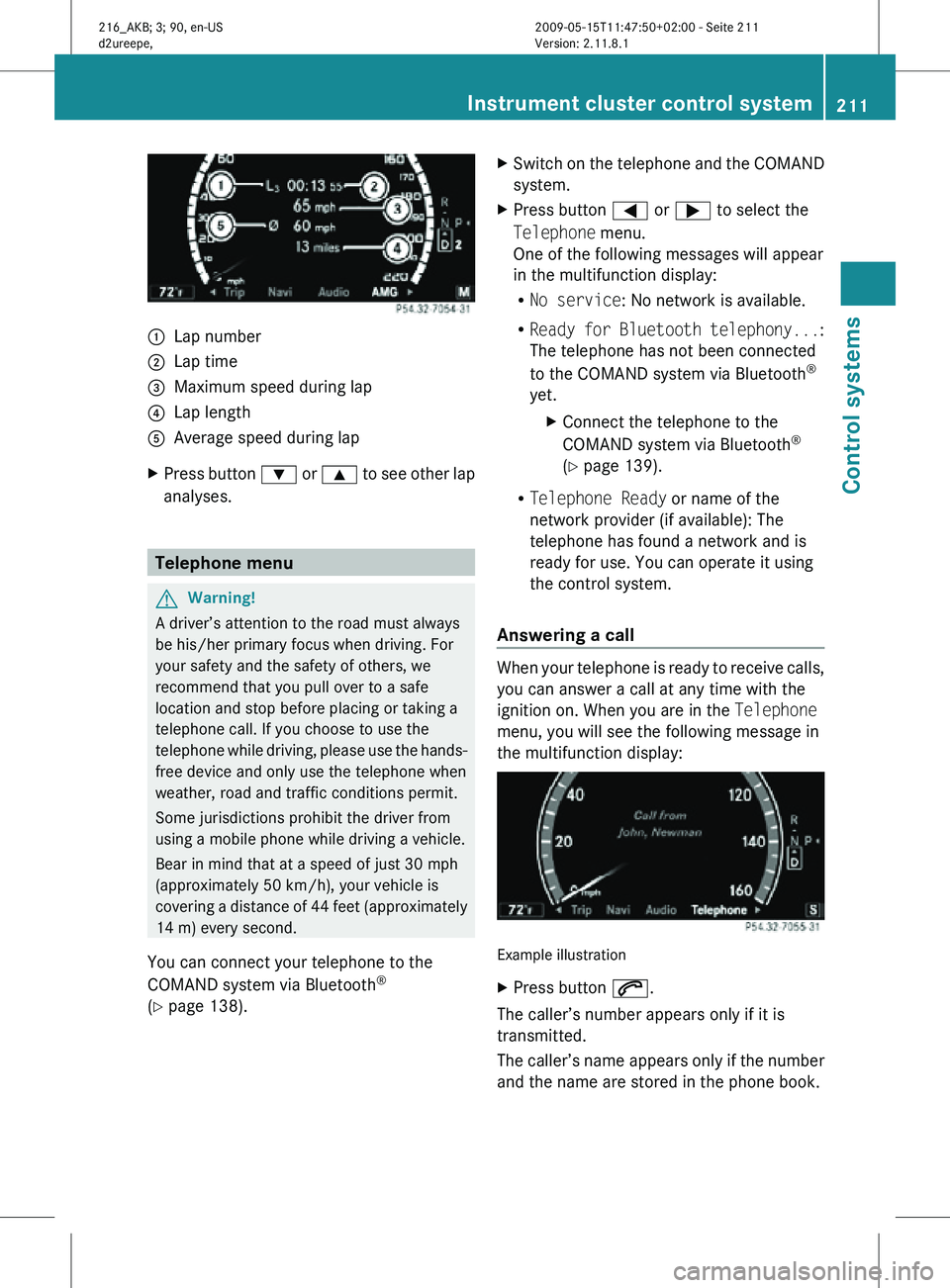
:
Lap number
; Lap time
= Maximum speed during lap
? Lap length
A Average speed during lap
X Press button : or 9 to see other lap
analyses. Telephone menu
G
Warning!
A driver’s attention to the road must always
be his/her primary focus when driving. For
your safety and the safety of others, we
recommend that you pull over to a safe
location and stop before placing or taking a
telephone call. If you choose to use the
telephone while driving, please use the hands-
free device and only use the telephone when
weather, road and traffic conditions permit.
Some jurisdictions prohibit the driver from
using a mobile phone while driving a vehicle.
Bear in mind that at a speed of just 30 mph
(approximately 50 km/h), your vehicle is
covering a distance of 44 feet (approximately
14 m) every second.
You can connect your telephone to the
COMAND system via Bluetooth ®
(Y page 138). X
Switch on the telephone and the COMAND
system.
X Press button = or ; to select the
Telephone menu.
One of the following messages will appear
in the multifunction display:
R
No service: No network is available.
R Ready for Bluetooth telephony... :
The telephone has not been connected
to the COMAND system via Bluetooth ®
yet. XConnect the telephone to the
COMAND system via Bluetooth ®
(Y page 139).
R Telephone Ready or name of the
network provider (if available): The
telephone has found a network and is
ready for use. You can operate it using
the control system.
Answering a call When your telephone is ready to receive calls,
you can answer a call at any time with the
ignition on. When you are in the Telephone
menu, you will see the following message in
the multifunction display:
Example illustration
X
Press button 6.
The caller’s number appears only if it is
transmitted.
The caller’s name appears only if the number
and the name are stored in the phone book. Instrument cluster control system
211Control systems
216_AKB; 3; 90, en-US
d2ureepe, Version: 2.11.8.1 2009-05-15T11:47:50+02:00 - Seite 211 Z
Page 227 of 500

“Enter intersection”, “Enter crossing”
Use the command “Enter intersection” or
“Enter crossing” to enter an intersection.
Sample dialog:
\
Enter intersection.
^ Please say the name of the first street.
\ Forest Drive.
^ Forest Drive accepted.
^ Please say the name of the
intersecting street.
\ Dudley Street.
^ Dudley Street accepted.
The intersection is adopted for route
guidance.
“Enter house number” Use the command “Enter house number” to
enter a house number for the street
previously selected.
Sample dialog:
\
Enter house number.
^ Please say the house number.
\ Thirty-two.
^ House number accepted.
The house number is adopted for route
guidance.
“Correction” If you have entered a city or street, you can
use the “Correction” command to enter the
city or street again.
Voice Control System telephone
Safety notes
i For more information on telephone, see
(Y page 135). Safety notes for using the Voice Control
System G
Observe Safety notes, see page 217.
Safety notes for using the telephone G
Observe Safety notes, see page 135. Telephone operation
You can use the Voice Control System to
R dial phone number
R store names
and numbers in the COMAND
address book
R dial a phone number directly from the
COMAND address book
R delete the voice name of an address book
entry
R have the system read out the phone book
of the address book entry by entry
R manage and access an automated
answering system/voice mail box 29
R redial
The Voice Control System detects whether
R your telephone is switched on
R your telephone is connected via Bluetooth ®
R the corresponding mobile network is
logged in
R it is possible to dial
If dialing is not possible, the Voice Control
System will advise you accordingly.
i You can continue operating your mobile
phone using the telephone keypad or the
keypad on your phone. Telephone commands
For a list of commands, see ( Y page 237).
29 Only when supported by the mobile phone. Voice Control System telephone
225
Control systems
216_AKB; 3; 90, en-US
d2ureepe, Version: 2.11.8.1 2009-05-15T11:47:50+02:00 - Seite 225 Z
Page 271 of 500
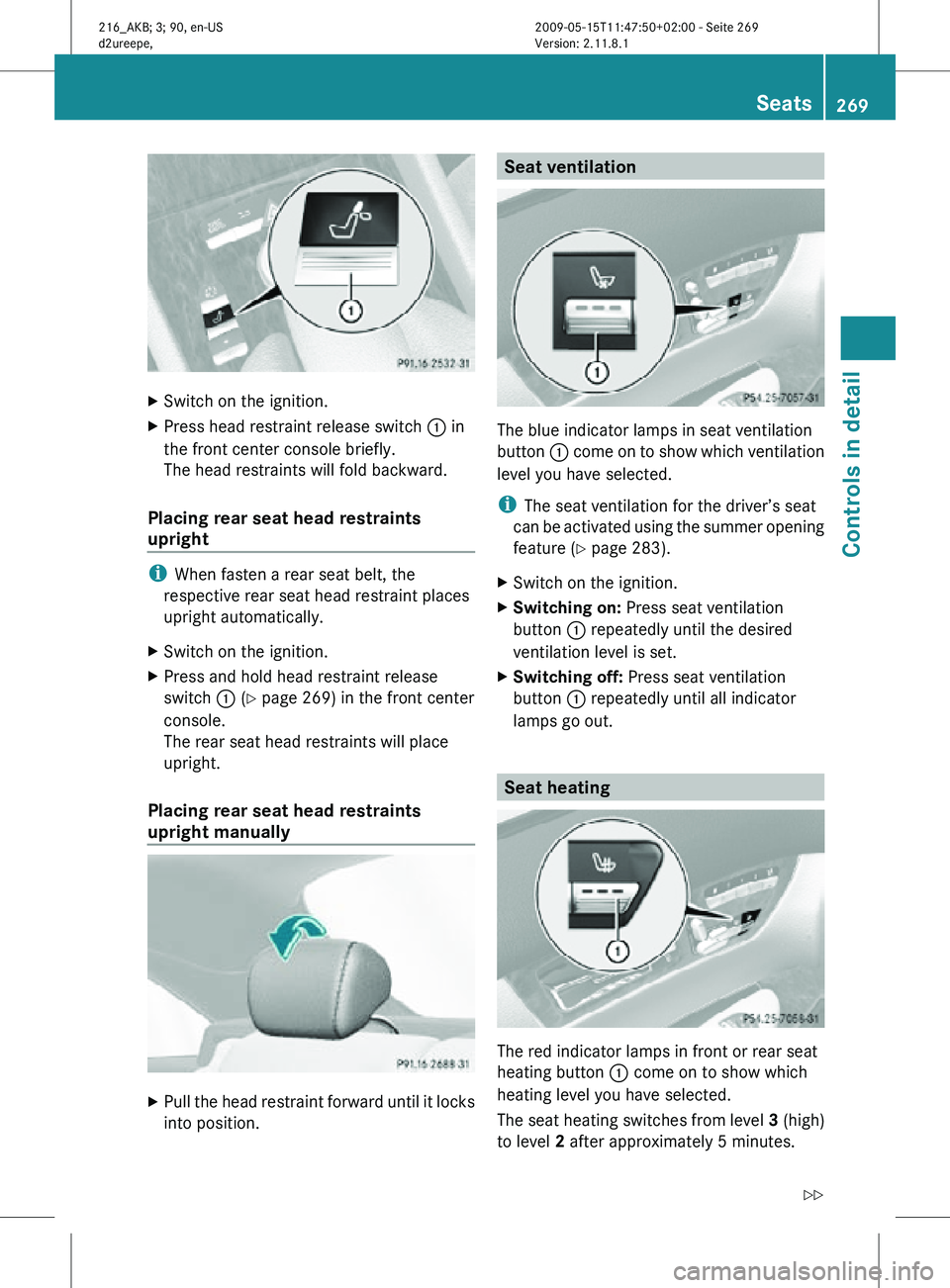
X
Switch on the ignition.
X Press head restraint release switch : in
the front center console briefly.
The head restraints will fold backward.
Placing rear seat head restraints
upright i
When fasten a rear seat belt, the
respective rear seat head restraint places
upright automatically.
X Switch on the ignition.
X Press and hold head restraint release
switch : (Y page 269) in the front center
console.
The rear seat head restraints will place
upright.
Placing rear seat head restraints
upright manually X
Pull the head restraint forward until it locks
into position. Seat ventilation
The blue indicator lamps in seat ventilation
button
: come on to show which ventilation
level you have selected.
i The seat ventilation for the driver’s seat
can be activated using the summer opening
feature ( Y page 283).
X Switch on the ignition.
X Switching on: Press seat ventilation
button : repeatedly until the desired
ventilation level is set.
X Switching off: Press seat ventilation
button : repeatedly until all indicator
lamps go out. Seat heating
The red indicator lamps in front or rear seat
heating button
: come on to show which
heating level you have selected.
The seat heating switches from level 3 (high)
to level 2 after approximately 5 minutes. Seats
269Controls in detail
216_AKB; 3; 90, en-US
d2ureepe, Version: 2.11.8.1 2009-05-15T11:47:50+02:00 - Seite 269 Z
Page 331 of 500
Parking instructions:
R
On narrow streets, drive by the parking
space as close as possible.
R Parking spaces that are dirty, overgrown or
located in front of trailers may not be
detected correctly.
R Snowfall or heavy rain may cause imprecise
measurement of the parking space.
R Also observe the Park Assist warning
indicator ( Y page 326) while the Advanced
Parking Guidance is active.
R How well your vehicle will be parked after
completion of the Advanced Parking
Guidance depends on the position and
shape of the vehicles parked in front of and
behind the parking space as well as the
conditions of the immediate surroundings.
In certain cases, the Advanced Parking
Guidance may guide you too far into the
parking space or not far enough. If this is
the case, cancel the parking procedure
with the Advanced Parking Guidance and
correct the vehicle position yourself.
Detecting a parking space The Advanced Parking Guidance is active
when driving forward. The system operates at
a vehicle speed of up to 25 mph (40 km/h).
It scans automatically for and measures
potential parking spaces on both sides of the
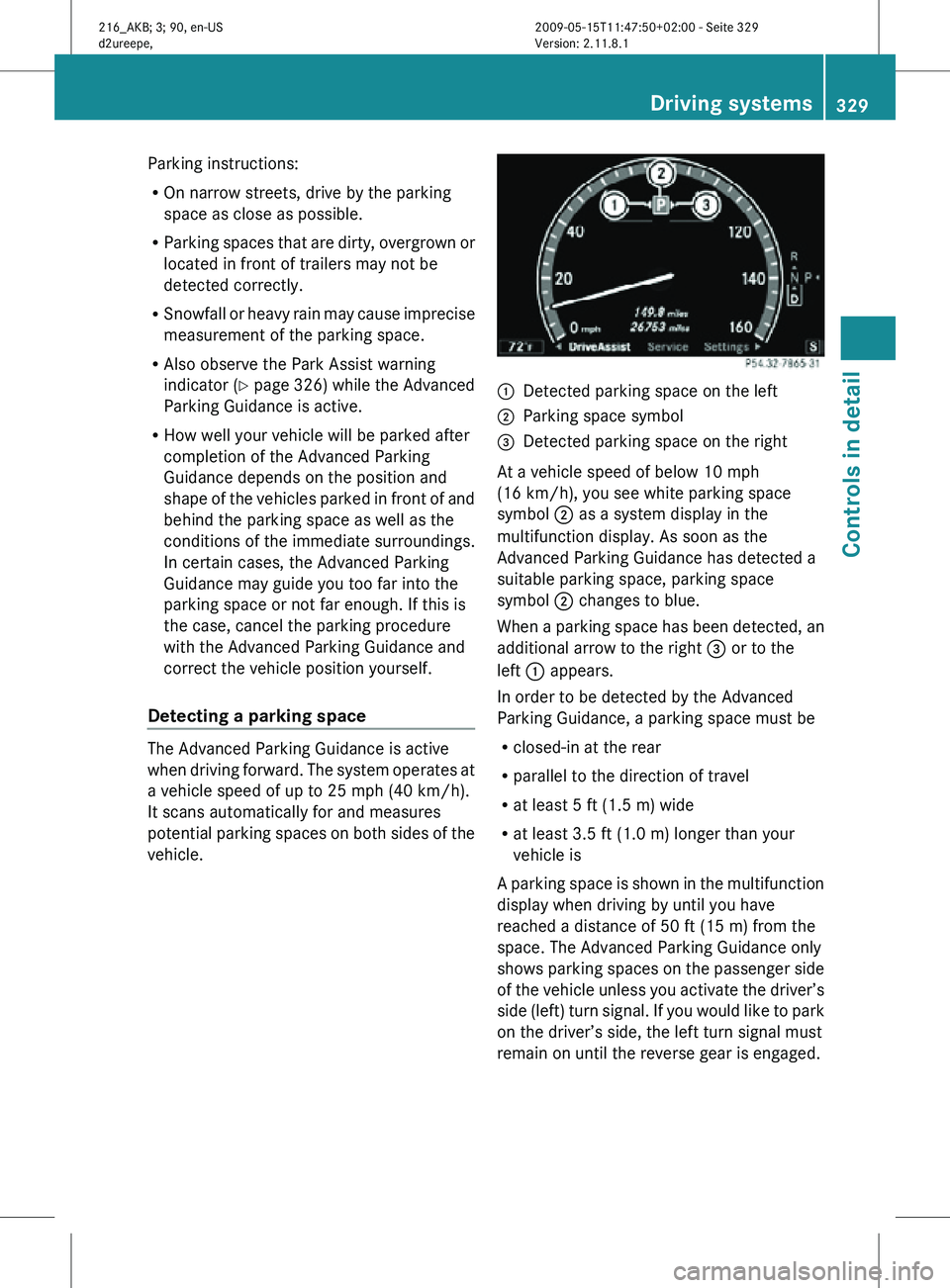
vehicle. :
Detected parking space on the left
; Parking space symbol
= Detected parking space on the right
At a vehicle speed of below 10 mph
(16 km/h), you see white parking space
symbol ; as a system display in the
multifunction display. As soon as the
Advanced Parking Guidance has detected a
suitable parking space, parking space
symbol ; changes to blue.
When a parking space has been detected, an
additional arrow to the right = or to the
left : appears.
In order to be detected by the Advanced
Parking Guidance, a parking space must be
R closed-in at the rear
R parallel to the direction of travel
R at least 5 ft (1.5 m) wide
R at least 3.5 ft (1.0 m) longer than your
vehicle is
A parking space is shown in the multifunction
display when driving by until you have
reached a distance of 50 ft (15 m) from the
space. The Advanced Parking Guidance only
shows parking spaces on the passenger side
of the vehicle unless you activate the driver’s
side (left) turn signal. If you would like to park
on the driver’s side, the left turn signal must
remain on until the reverse gear is engaged. Driving systems
329Controls in detail
216_AKB; 3; 90, en-US
d2ureepe, Version: 2.11.8.1 2009-05-15T11:47:50+02:00 - Seite 329 Z
Page 332 of 500
Parking
The following describes the parallel parking
process on the passenger side. Parallel
parking on the driver’s side is performed
reversed left to right.
If the Advanced Parking Guidance detects an
obstacle behind the vehicle during the
parking procedure, you will hear an audible
warning. Stop the vehicle immediately. The
parking space and the lane flash in the
multifunction display. Only continue driving/
parking after you have made sure that this is
possible to do in a safe manner. If the
Advanced Parking Guidance no longer
detects any obstacles, the display in the
multifunction display stops blinking. You may
continue the parking procedure.
G
Warning!
The Advanced Parking Guidance is only an aid
and may not detect all obstacles. At corners
or near smooth surfaces, the Advanced
Parking Guidance may not detect an object
correctly. The Advanced Parking Guidance
does not relieve you of the responsibility to
pay attention. You are always responsible for
safety and must continue to pay attention to
your immediate surroundings when parking
and maneuvering. Otherwise, you could
endanger yourself and others.
X Bring the vehicle to a standstill as long as
the desired parking space is displayed by
the blue parking space symbol in the
multifunction display.
X Shift the automatic transmission into
reverse gear R.
The message Check Surroundings
Press ’OK’ to Confirm appears in the
multifunction display.
X Press a on the multifunction steering
wheel to confirm.
The display in the multifunction display
changes to the Advanced Parking
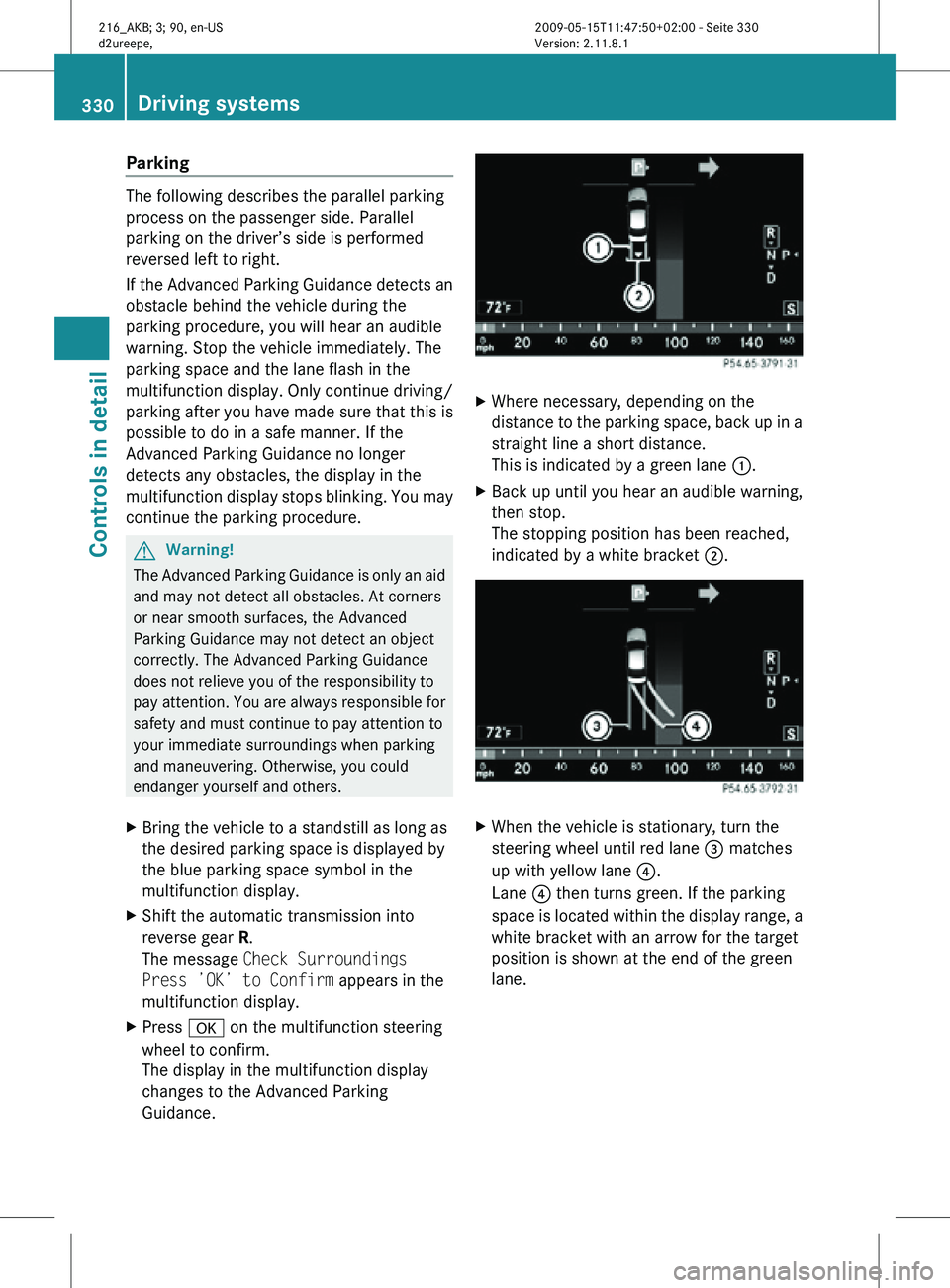
Guidance. X
Where necessary, depending on the
distance to the parking space, back up in a
straight line a short distance.
This is indicated by a green lane :.
X Back up until you hear an audible warning,
then stop.
The stopping position has been reached,
indicated by a white bracket ;. X
When the vehicle is stationary, turn the
steering wheel until red lane = matches
up with yellow lane ?.
Lane ? then turns green. If the parking
space is located within the display range, a
white bracket with an arrow for the target
position is shown at the end of the green
lane. 330
Driving systemsControls in detail
216_AKB; 3; 90, en-US
d2ureepe,
Version: 2.11.8.1 2009-05-15T11:47:50+02:00 - Seite 330
Page 335 of 500
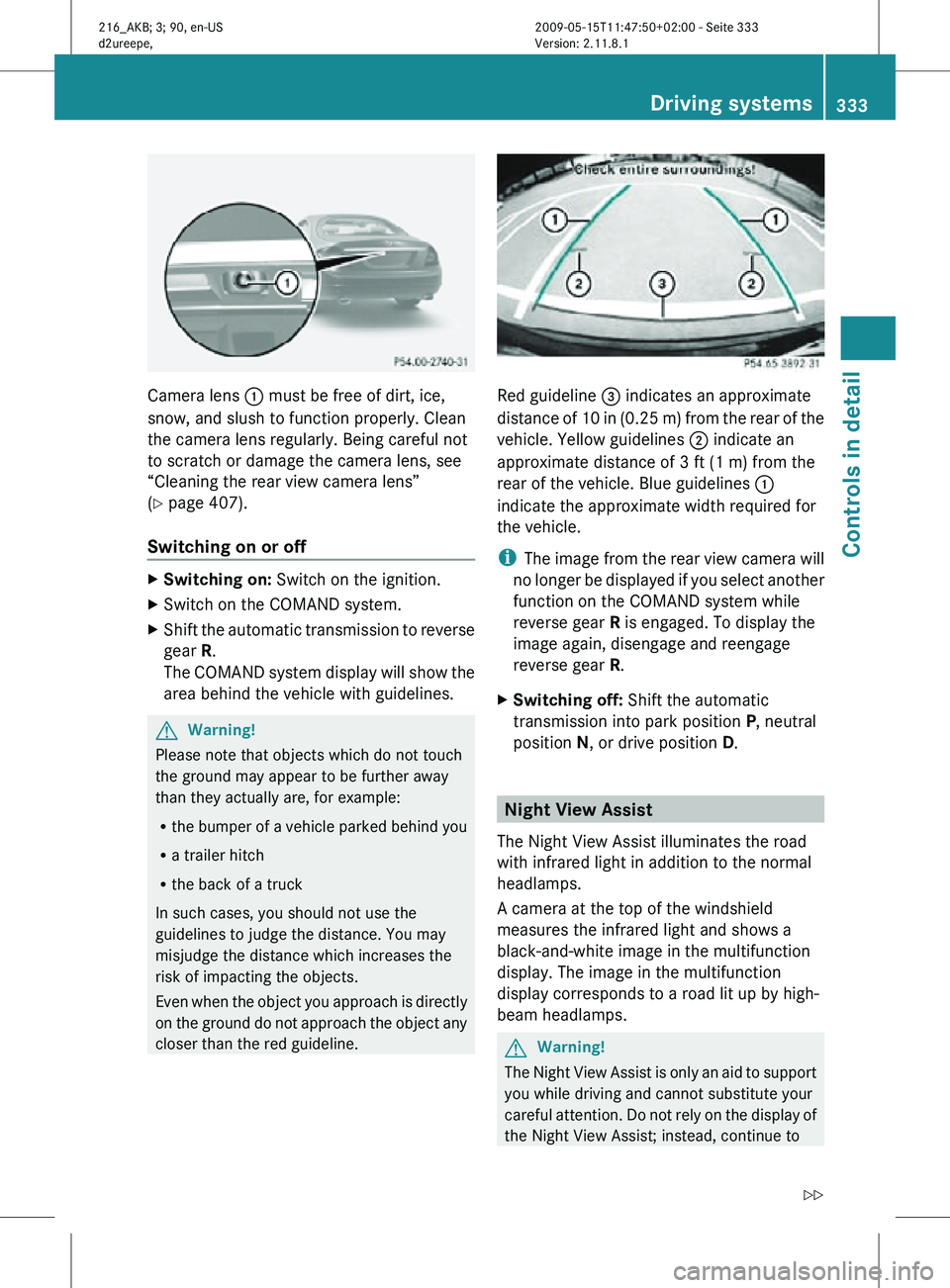
Camera lens
: must be free of dirt, ice,
snow, and slush to function properly. Clean
the camera lens regularly. Being careful not
to scratch or damage the camera lens, see
“Cleaning the rear view camera lens”
(Y page 407).
Switching on or off X
Switching on: Switch on the ignition.
X Switch on the COMAND system.
X Shift the automatic transmission to reverse
gear R.
The COMAND system display will show the
area behind the vehicle with guidelines. G
Warning!
Please note that objects which do not touch
the ground may appear to be further away
than they actually are, for example:
R the bumper of a vehicle parked behind you
R a trailer hitch
R the back of a truck
In such cases, you should not use the
guidelines to judge the distance. You may
misjudge the distance which increases the
risk of impacting the objects.
Even when the object you approach is directly
on the ground do not approach the object any
closer than the red guideline. Red guideline
= indicates an approximate
distance of 10 in (0.25 m) from the rear of the
vehicle. Yellow guidelines ; indicate an
approximate distance of 3 ft (1 m) from the
rear of the vehicle. Blue guidelines :
indicate the approximate width required for
the vehicle.
i The image from the rear view camera will
no longer be displayed if you select another
function on the COMAND system while
reverse gear R is engaged. To display the
image again, disengage and reengage
reverse gear R.
X Switching off: Shift the automatic
transmission into park position P, neutral
position N, or drive position D. Night View Assist
The Night View Assist illuminates the road
with infrared light in addition to the normal
headlamps.
A camera at the top of the windshield
measures the infrared light and shows a
black-and-white image in the multifunction
display. The image in the multifunction
display corresponds to a road lit up by high-
beam headlamps. G
Warning!
The Night View Assist is only an aid to support
you while driving and cannot substitute your
careful attention. Do not rely on the display of
the Night View Assist; instead, continue to Driving systems
333Controls in detail
216_AKB; 3; 90, en-US
d2ureepe, Version: 2.11.8.1 2009-05-15T11:47:50+02:00 - Seite 333 Z