light MERCEDES-BENZ CL CLASS 2010 Owner's Manual
[x] Cancel search | Manufacturer: MERCEDES-BENZ, Model Year: 2010, Model line: CL CLASS, Model: MERCEDES-BENZ CL CLASS 2010Pages: 500, PDF Size: 9.32 MB
Page 61 of 500

BAS PLUS uses radar signals that are not
reflected well by narrow objects and
absorptive materials. For this reason BAS
PLUS will not react to persons, animals, and
approaching traffic or cross-traffic.
BAS PLUS may not detect narrow vehicles
driving in front of you, such as motorcycles
and vehicles driving offset from your vehicle
center.
After a hard collision or damage to the front
of the vehicle from an accident, have the
adjustment and operation of the radar
sensors checked
by an authorized Mercedes-
Benz Center.
If BAS PLUS is not available due to a radar
sensor malfunction, the braking system will
continue to function normally with full brake
boost and full standard BAS function. Adaptive Brake
Adaptive Brake provides a high level of
braking safety as well as increased braking
comfort. Adaptive Brake takes driver and
vehicle characteristics into consideration,
thus achieving an optimal braking effect.
In addiditon, Adaptive Brake provides the
HOLD function
(Y page 316) and the hill-start
assist system ( Y page 315).
For more information on the brake system,
see ( Y page 398). Adaptive Brake Lights
i This function is only available for the
CL 600 (USA only).
The brake lamps flash in quick intervals
R while you are braking hard at a speed of
more than 30 mph (50 km/h)
R when you are braking with the aid of BAS
R when you are braking with the aid of BAS
PLUS.
This helps to alert drivers behind you. If you bring the car to a complete stop by hard
braking at a speed of more than 40 mph
(70
km/h),
the hazard warning flasher comes
on automatically as soon as the vehicle is at
a standstill. While the vehicle is stationary,
the brake lamps are continuously lit up. Once
you drive faster than 6 mph (10 km/h)
afterward, the hazard warning flasher goes
out. EBP
G
Observe Safety notes, see page 56.
The Electronic Brake Proportioning (EBP)
enhances braking effectiveness by allowing
the rear
brakes to supply a greater proportion
of the braking effort in straight-line braking
without a loss of vehicle stability. G
Warning!
If the EBP malfunctions, the brake system will
still function with full brake boost. However,
the rear wheels could lock up during
emergency braking situations, for example.
You could lose control of the vehicle and
cause an accident.
Adapt your driving style to the changed
driving characteristics. ESC
G
Observe Safety notes, see page 56.
The Electronic Stability Control (ESC) is
operational as
soon as the engine is running.
It monitors the vehicle’s traction (force of
adhesive friction between the tires and the
road surface) and handling.
The ESC recognizes that the vehicle deviates
from the direction of travel as intended by the
driver. By applying brakes to individual
wheels and by limiting the engine output, the
ESC works to stabilize the vehicle. The ESC is
especially useful while driving off and on wet
or slippery road surfaces. The ESC also
stabilizes the vehicle during braking and
steering maneuvers. Driving safety systems
59
Safety and security
216_AKB; 3; 90, en-US
d2ureepe, Version: 2.11.8.1 2009-05-15T11:47:50+02:00 - Seite 59 Z
Page 65 of 500

Always pay attention to traffic conditions
even while the PRE-SAFE
®
Brake is switched
on. Otherwise, you may not be able to
recognize dangerous situations until it is too
late and could cause an accident resulting in
personal or fatal injury to you or others.
i USA only:
This device
has been approved by the FCC
as a “Vehicular Radar System”. The radar
sensor is intended for use in an automotive
radar system only. Removal, tampering, or
altering of the device will void any
warranties, and is not permitted by the
FCC. Do not tamper with, alter, or use in
any non-approved way.
Any unauthorized modification to this
device could void the user’s authority to
operate the equipment.
i Canada only:
This device complies with RSS-210 of
Industry Canada. Operation is subject to
the following two conditions:
1. This device may not cause interference, and
2. this device must accept any interference received, including
interference that may cause undesired
operation of the device.
Removal, tampering, or altering of the
device will void any warranties, and is not
permitted. Do not tamper with, alter, or use
in any non-approved way.
Any unauthorized modification to this
device could void the user’s authority to
operate the equipment.
Using the radar sensors, the PRE-SAFE ®
Brake detects obstacles that are in your
driving path for a sufficient period of time for
the system to recognize it. If you approach a
vehicle and the PRE-SAFE ®
Brake has
established that the distance to the vehicle
ahead at your current speed is so close that
the PRE-SAFE ®
Brake will not be capable of slowing the vehicle sufficiently, the system
will
initially
warn you visually and acoustically.
If you do not apply the brakes yourself or
maneuver around a sensed obstacle, the
vehicle will brake lightly automatically. The
PRE-SAFE ®
system (Y page 49) is activated
when the distance to the vehicle ahead at
your current speed is so close that the PRE-
SAFE ®
Brake will not be capable of slowing
the vehicle sufficiently. G
Warning!
The PRE-SAFE ®
Brake will only respond with
brake assistance if it has clearly detected an
object. Detection can be impeded by
R dirty or covered sensors
R snowfall or heavy rain
R disturbance from other radar sources
R strong radar reflection such as in parking
garages
The PRE-SAFE ®
Brake
uses radar signals that
are not reflected well by narrow objects and
absorptive materials. For this reason the PRE-
SAFE ®
Brake will not react to persons,
animals, and approaching traffic or cross-
traffic.
The PRE-SAFE ®
Brake may not detect narrow
vehicles driving in front of you, such as
motorcycles and vehicles driving offset from
your vehicle center. G
Warning!
The PRE-SAFE ®
Brake brakes your vehicle
with a maximum of 13 ft/s 2
(4 m/s 2
). This
corresponds to about 40% of the maximum
deceleration ability of your vehicle. This
automatic braking is intended only to initiate
the braking
if the driver has not already done
so. The driver must apply the brakes in order
to prevent a collision.
The PRE-SAFE ®
Brake applies the brake pedal
automatically which results in the brake pedal
moving. Therefore keep driver’s foot area
clear at all times, including the area under the Driving safety systems
63
Safety and security
216_AKB; 3; 90, en-US
d2ureepe, Version: 2.11.8.1 2009-05-15T11:47:50+02:00 - Seite 63 Z
Page 66 of 500

brake pedal. Objects stored in this area may
impair
pedal
movement which could interfere
with the braking ability of the PRE-SAFE ®
Brake.
Do not place your foot under the brake pedal
– your foot could become caught.
To maintain the proper distance to the vehicle
in front of you and thus prevent a rear-end
collision, you must apply the brakes yourself.
X Brake the vehicle immediately to avoid a
collision.
Under no circumstances should the driver
await the intermittent warning sound
before braking. Observe the following
warning note.
The intermittent
warning sound ceases and
the distance warning lamp · goes out
when the necessary distance to the vehicle
ahead is again established.
The PRE-SAFE ®
Brake
can react to stationary
obstacles such as standing or parked vehicles
at road speeds of up to approximately 40 mph
(70 km/h). G
Warning!
If you do not receive visual or acoustic
warning signals, the PRE-SAFE ®
Brake may
R not have recognized the collision risk
R have been deactivated
R be malfunctioning
Apply the
brakes yourself to avoid a collision.
The PRE-SAFE ®
Brake does not always clearly
interpret complex traffic situations. If a visual
and/or acoustic warning is issued in an
uncritical driving situation, or if the vehicle
brakes lightly, you can interrupt the PRE-
SAFE ®
Brake maneuver by pressing down all
the way on the accelerator pedal, using
kickdown, or releasing the brake pedal. The PRE-SAFE
®
Brake maneuver is
terminated immediately when
R you avoid the obstacle by evasive steering
R you drive less than 9 mph (15 km/h
)
R an obstacle can no longer be identified
ahead of you
R the system no longer senses the risk of a
collision
i The PRE-SAFE ®
Brake will remain passive
while DISTRONIC PLUS is switched on
(Y page 304).
After a hard collision or damage to the front
of the vehicle from an accident, have the
settings and operation of the radar sensors
checked by an authorized Mercedes-Benz
Center.
When traveling in Canada in a vehicle not
registered in Canada, you must switch off the
radar sensor system ( Y page 216). Canadian
law does not permit the use of the radar
sensor system for vehicles from outside of
Canada.
When you switch off the radar system, the
following functions are deactivated:
R PRE-SAFE ®
Brake
R BAS PLUS (Y page 57)
R DISTRONIC PLUS (Y page 304)
R Park Assist ( Y page 324)
R Blind Spot Assist (Y page 335)
R Advanced Parking Guidance ( Y page 327)
X Activating and deactivating: Activate or
deactivate the PRE-SAFE ®
Brake using the
instrument cluster control system
(Y page 213).
After the function has been activated, the
PRE-SAFE ®
Brake indicator Ä appears
in the instrument cluster. When the HOLD
function is switched on, the PRE-SAFE ®
Brake indicator Ä will not appear. 64
Driving safety systems
Safety and security
216_AKB; 3; 90, en-US
d2ureepe,
Version: 2.11.8.1 2009-05-15T11:47:50+02:00 - Seite 64
Page 72 of 500

The currently selected main function is
highlighted.
Once you have selected a main function, main
area
= is active.
i The layout of the menus may vary
depending on your vehicle’s equipment.
This manual shows the menus for a fully
equipped vehicle.
Adjusting COMAND display illumination X
Increasing the illumination: Turn
knob : clockwise.
X Dimming the illumination: Turn knob :
counterclockwise.
Swiveling COMAND display With button
: or ; you can swivel the
COMAND display to the left or right. Instrument cluster multifunction
display This section describes features and controls
via the COMAND controller, display and
shortcut buttons only.
Related COMAND features are described in
the “Instrument cluster control system”
section (
Y page 201). It contains function
descriptions and operation of the instrument
cluster multifunction display and the
multifunction steering wheel buttons.
Telephone keypad X
Flip up cover ;.
With telephone keypad : you can
R enter and clear numbers and special
characters
R reject, answer, connect and end calls
(Y page 135)
R select preset radio stations and enter the
frequency manually ( Y page 155)
R select preset satellite radio stations and
enter the channel number (Y page 161)
R select a storage medium from the DVD
changer (Y page 170)
R select a track directly in CD mode, DVD
audio mode or MP3 mode (Y page 170), or
from a device connected to the media
interface (Y page 187) 70
COMAND introductionControl systems
216_AKB; 3; 90, en-US
d2ureepe,
Version: 2.11.8.1 2009-05-15T11:47:50+02:00 - Seite 70
Page 75 of 500
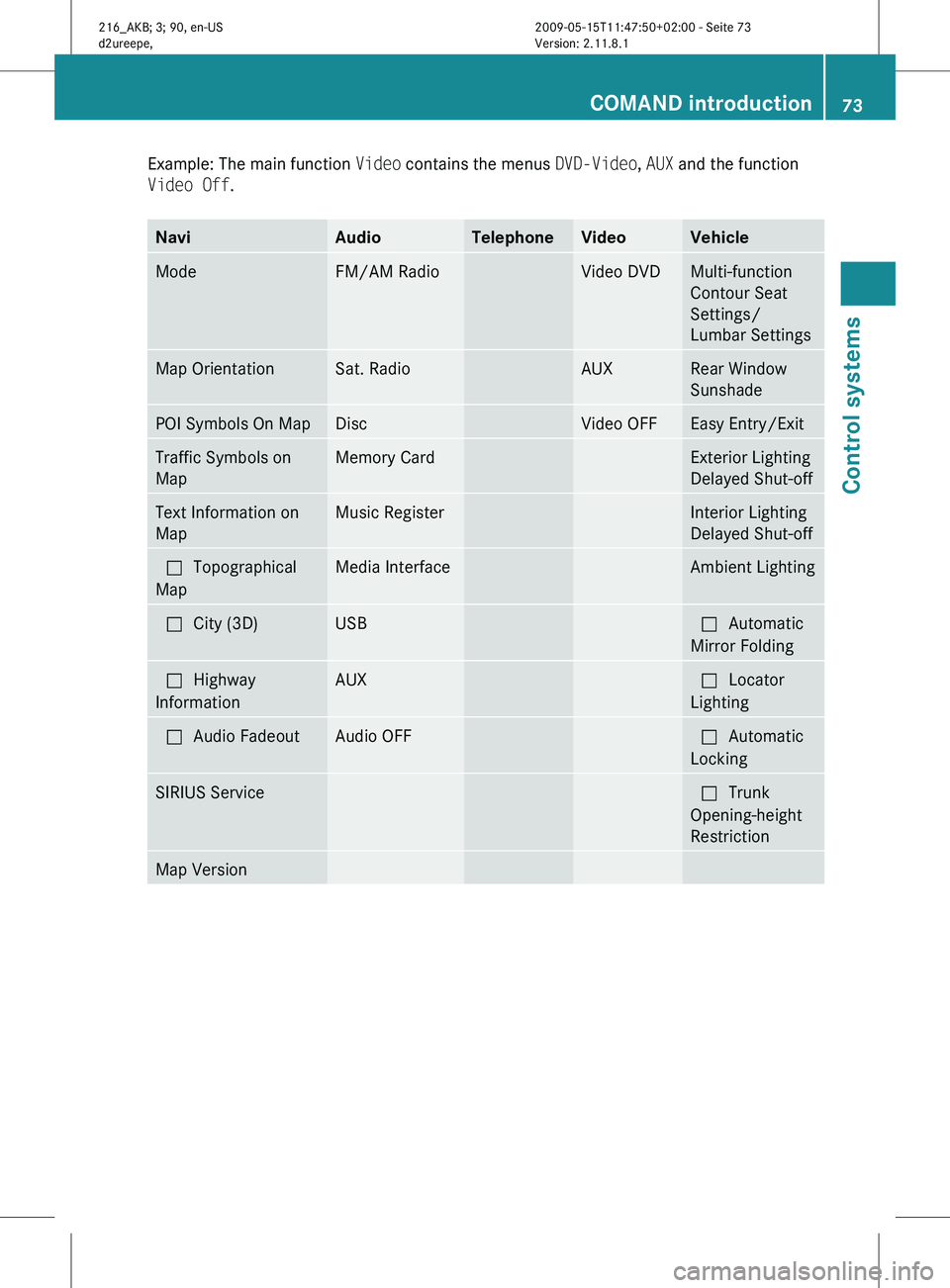
Example: The main function
Video contains the menus DVD-Video, AUX and the function
Video Off. Navi Audio Telephone Video Vehicle
Mode FM/AM Radio Video DVD Multi-function
Contour Seat
Settings/
Lumbar Settings
Map Orientation Sat. Radio AUX Rear Window
Sunshade
POI Symbols On Map Disc Video OFF Easy Entry/Exit
Traffic Symbols on
Map Memory Card Exterior Lighting
Delayed Shut-off
Text Information on
Map Music Register Interior Lighting
Delayed Shut-off
ªTopographical
Map Media Interface Ambient Lighting
ªCity (3D) USB ªAutomatic
Mirror Folding
ªHighway
Information AUX ªLocator
Lighting
ªAudio Fadeout Audio OFF ªAutomatic
Locking
SIRIUS Service ªTrunk
Opening-height
Restriction
Map Version COMAND introduction
73Control systems
216_AKB; 3; 90, en-US
d2ureepe, Version: 2.11.8.1 2009-05-15T11:47:50+02:00 - Seite 73 Z
Page 81 of 500

COMAND system settings
System settings submenu overview
i The components and operating principles
of COMAND can be found on ( Y page 68).
System settings can be made in the following
submenus:
R Display Q Day Mode, Night Mode,
Automatic
R Time Q Time, Date, Format, Time Zone
R Text Reader Q Speed Q Fast,
Medium or Slow:
Adjusts the reading speed of the Voice
Control System.
R Voice Control Q Help Window , Start
New Individualization, Delete
Individualization
R Language: Selecting system language
R Favorites Button *: Assigning the
favorite button
R Bluetooth Q Search for Bluetooth
Devices, Bluetooth activated. For
information on the Bluetooth ®
interface
see ( Y page 138).
R Upload/Download Data Q Copy Data
to Storage Medium, Import Data from
Storage Medium (Y page 82)
R Reset: Resetting the COMAND system to
factory settings Display settings
Switching the display on or off X
Switching off: Select Vehicle Q
Display OFF.
X Switching back on: Rotate cVd or slide
ZVÆ, XVY or press W.
or
X Press button u. Setting the display design X
Select Vehicle Q System Q Display. X
Select Day Mode, Night Mode or
Automatic.
i In the Automatic setting, COMAND sets
the display design automatically. The
setting depends on the information
retrieved from the vehicle's light sensor. Time settings
The time of day is set automatically according
to the GPS signal and the selected time zone.
All time information always applies to the
local time at the current vehicle position.
Time information changes when entering a
different time zone.
i The correct time zone, daylight savings
time/standard time and the time itself
must be set for the following navigation
system functions to operate correctly:
R Route guidance on routes with time-
dependent traffic guidance
R Calculation of estimated arrival time
The settings are adopted for the analog
clock in the dashboard. COMAND system settings
79Control systems
216_AKB; 3; 90, en-US
d2ureepe, Version: 2.11.8.1 2009-05-15T11:47:50+02:00 - Seite 79 Z
Page 82 of 500

Change the settings in the following order:
1.
Time zone
2.
Daylight savings time/standard time
3. Time lag (only necessary in exceptional cases)
Setting the time zone and switching
between daylight savings time and
standard time X
Setting time zone: Select Vehicle Q
System Q Time Q Time Zone.
The country
list appears. The dot # in front
of a list entry indicates the current setting.
X Select the country in which you are.
A time zone list may also be displayed,
depending on the selected country.
X Select the desired time zone.
Subsequent operation depends on
R whether your navigation system has GPS
reception
R which country you have set previously
You may either switch between Daylight
Savings Time (Summer) and Standard
Time.
X Select Daylight Savings Time
(Summer) or Standard Time.
The dot # in front of a list entry indicates
the current setting.
X Saving setting and exit the menu: Slide
XVY.
Adjusting time lags i
In some exceptional cases, e.g. where
time zones border, the displayed time and
the local time may show a time lag.
This time
lag can be adjusted in steps of 30
minutes.
X Select Vehicle Q System Q Time Q
Time.
X Selecting hour or minutes: Slide XVY.X
Setting value: Rotate cVd or slide ZVÆ.
X Saving setting: Press W.
Setting the date X
Select Vehicle Q System Q Time Q
Date.
X Selecting month, day, or year: Slide
XVY.
X Setting value: Rotate cVd or slide ZVÆ.
X Saving setting: Press W.
i Setting the
date is only necessary or even
possible if the COMAND system does not
receive a GPS signal.
Setting the time/date format X
Select Vehicle Q System Q Time Q
Format.
The format list appears. The dots # in
front of
the list entries indicate the current
setting.
X Changing format setting: Select desired
format.
X Saving setting and exit the menu: Slide
XVY. Voice Control System settings
Switching help window on or off X
Select Vehicle Q System Q Voice
Control.
X Select Help Window.
A checkmark appears when the help
window is switched on.
Individualization Using individualization, you can fine-tune the
Voice Control System to your own voice and
thus
improve
voice recognition. The ability of
the system to recognize the commands of
other users does not deteriorate as a result. 80
COMAND system settings
Control systems
216_AKB; 3; 90, en-US
d2ureepe,
Version: 2.11.8.1 2009-05-15T11:47:50+02:00 - Seite 80
Page 85 of 500
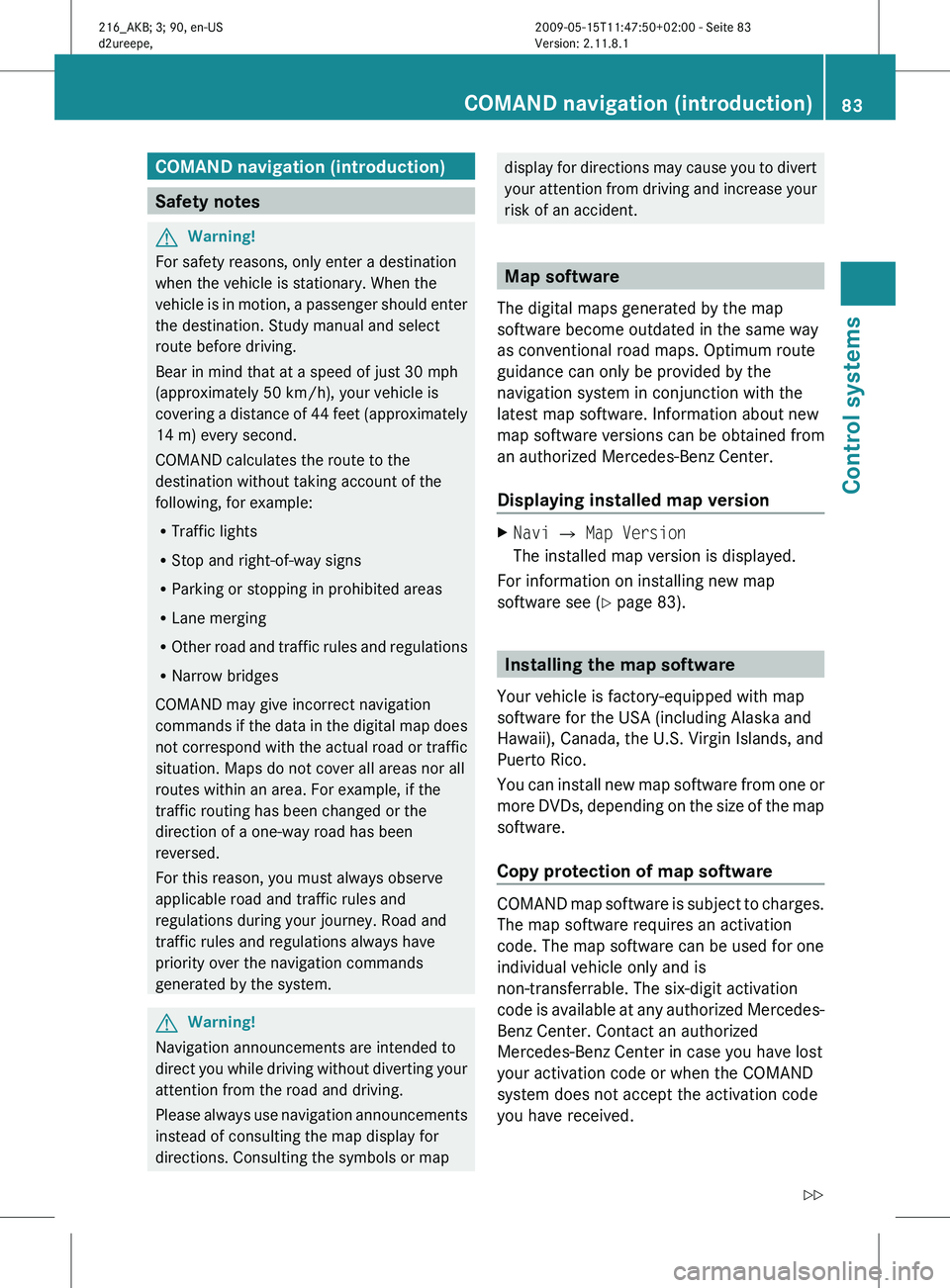
COMAND navigation (introduction)
Safety notes
G
Warning!
For safety reasons, only enter a destination
when the vehicle is stationary. When the
vehicle is
in motion, a passenger should enter
the destination. Study manual and select
route before driving.
Bear in mind that at a speed of just 30 mph
(approximately 50 km/h), your vehicle is
covering a distance of 44 feet (approximately
14 m) every second.
COMAND calculates the route to the
destination without taking account of the
following, for example:
R Traffic lights
R Stop and right-of-way signs
R Parking or stopping in prohibited areas
R Lane merging
R Other road and traffic rules and regulations
R Narrow bridges
COMAND may give incorrect navigation
commands if the data in the digital map does
not correspond with the actual road or traffic
situation. Maps do not cover all areas nor all
routes within an area. For example, if the
traffic routing has been changed or the
direction of a one-way road has been
reversed.
For this reason, you must always observe
applicable road and traffic rules and
regulations during your journey. Road and
traffic rules and regulations always have
priority over the navigation commands
generated by the system. G
Warning!
Navigation announcements are intended to
direct you
while driving without diverting your
attention from the road and driving.
Please always use navigation announcements
instead of consulting the map display for
directions. Consulting the symbols or map display for directions may cause you to divert
your
attention
from driving and increase your
risk of an accident. Map software
The digital maps generated by the map
software become outdated in the same way
as conventional road maps. Optimum route
guidance can only be provided by the
navigation system in conjunction with the
latest map software. Information about new
map software versions can be obtained from
an authorized Mercedes-Benz Center.
Displaying installed map version X
Navi Q Map Version
The installed map version is displayed.
For information on installing new map
software see ( Y page 83). Installing the map software
Your vehicle is factory-equipped with map
software for the USA (including Alaska and
Hawaii), Canada, the U.S. Virgin Islands, and
Puerto Rico.
You can
install new map software from one or
more DVDs, depending on the size of the map
software.
Copy protection of map software COMAND map software is subject to charges.
The map software requires an activation
code. The map software can be used for one
individual vehicle only and is
non-transferrable. The six-digit activation
code
is
available at any authorized Mercedes-
Benz Center. Contact an authorized
Mercedes-Benz Center in case you have lost
your activation code or when the COMAND
system does not accept the activation code
you have received. COMAND navigation (introduction)
83
Control systems
216_AKB; 3; 90, en-US
d2ureepe, Version: 2.11.8.1 2009-05-15T11:47:50+02:00 - Seite 83 Z
Page 112 of 500
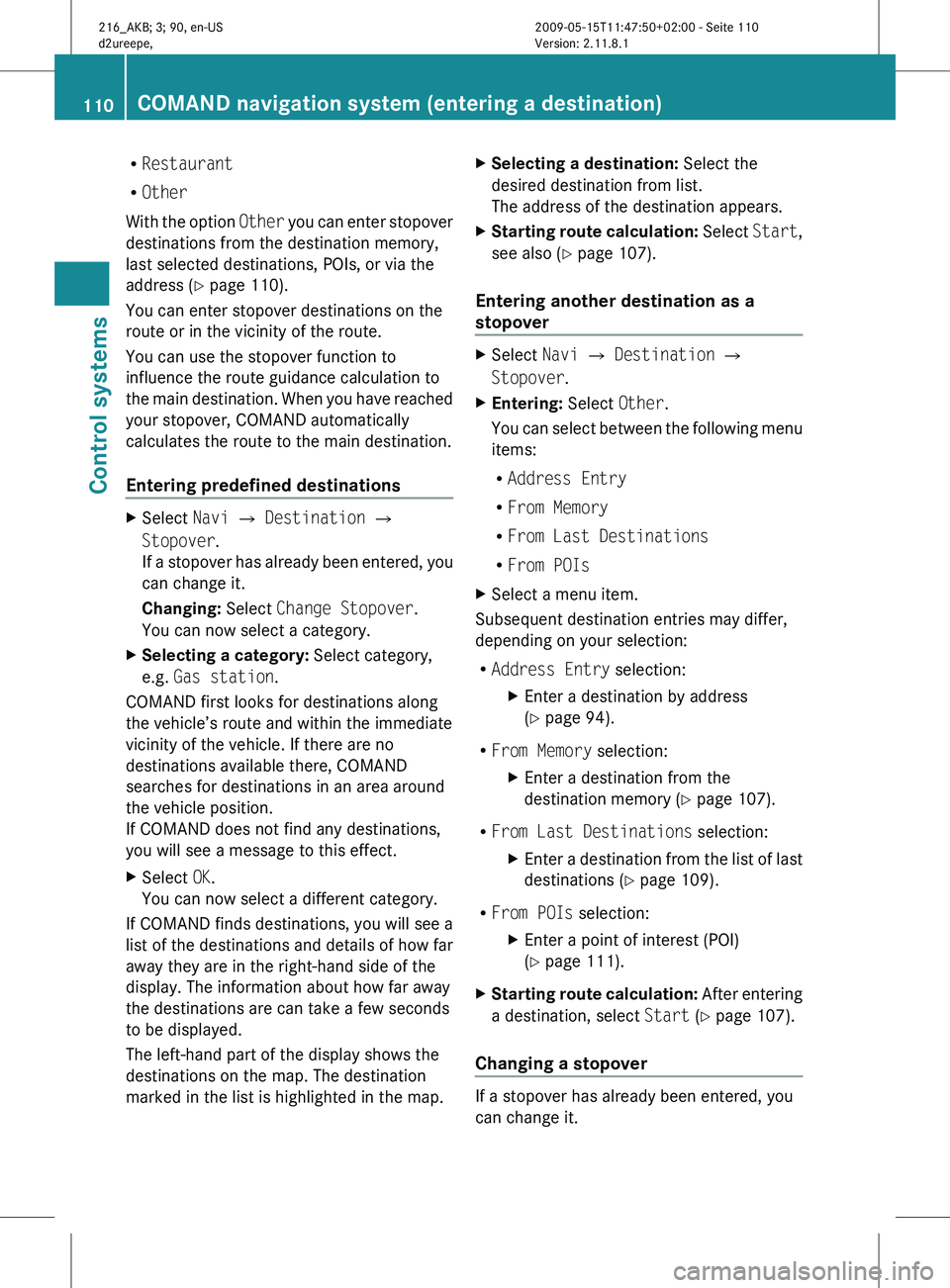
R
Restaurant
R Other
With the
option Other you can enter stopover
destinations from the destination memory,
last selected destinations, POIs, or via the
address ( Y page 110).
You can enter stopover destinations on the
route or in the vicinity of the route.
You can use the stopover function to
influence the route guidance calculation to
the main destination. When you have reached
your stopover, COMAND automatically
calculates the route to the main destination.
Entering predefined destinations X
Select Navi Q Destination Q
Stopover.
If a
stopover has already been entered, you
can change it.
Changing: Select Change Stopover.
You can now select a category.
X Selecting a category: Select category,
e.g. Gas station.
COMAND first looks for destinations along
the vehicle’s route and within the immediate
vicinity of the vehicle. If there are no
destinations available there, COMAND
searches for destinations in an area around
the vehicle position.
If COMAND does not find any destinations,
you will see a message to this effect.
X Select OK.
You can now select a different category.
If COMAND finds destinations, you will see a
list of the destinations and details of how far
away they are in the right-hand side of the
display. The information about how far away
the destinations are can take a few seconds
to be displayed.
The left-hand part of the display shows the
destinations on the map. The destination
marked in the list is highlighted in the map. X
Selecting a destination: Select the
desired destination from list.
The address of the destination appears.
X Starting route calculation: Select
Start
,
see also ( Y page 107).
Entering another destination as a
stopover X
Select Navi Q Destination Q
Stopover.
X Entering: Select Other.
You can
select between the following menu
items:
R Address Entry
R From Memory
R From Last Destinations
R From POIs
X Select a menu item.
Subsequent destination entries may differ,
depending on your selection:
R Address Entry selection:
XEnter a destination by address
(Y page 94).
R From Memory selection:
XEnter a destination from the
destination memory (Y page 107).
R From Last Destinations selection:
XEnter a destination from the list of last
destinations (Y page 109).
R From POIs selection:
XEnter a point of interest (POI)
(Y page 111).
X Starting route calculation: After
entering
a destination, select Start (Y page 107).
Changing a stopover If a stopover has already been entered, you
can change it.110
COMAND navigation system (entering a destination)
Control systems
216_AKB; 3; 90, en-US
d2ureepe,
Version: 2.11.8.1 2009-05-15T11:47:50+02:00 - Seite 110
Page 117 of 500
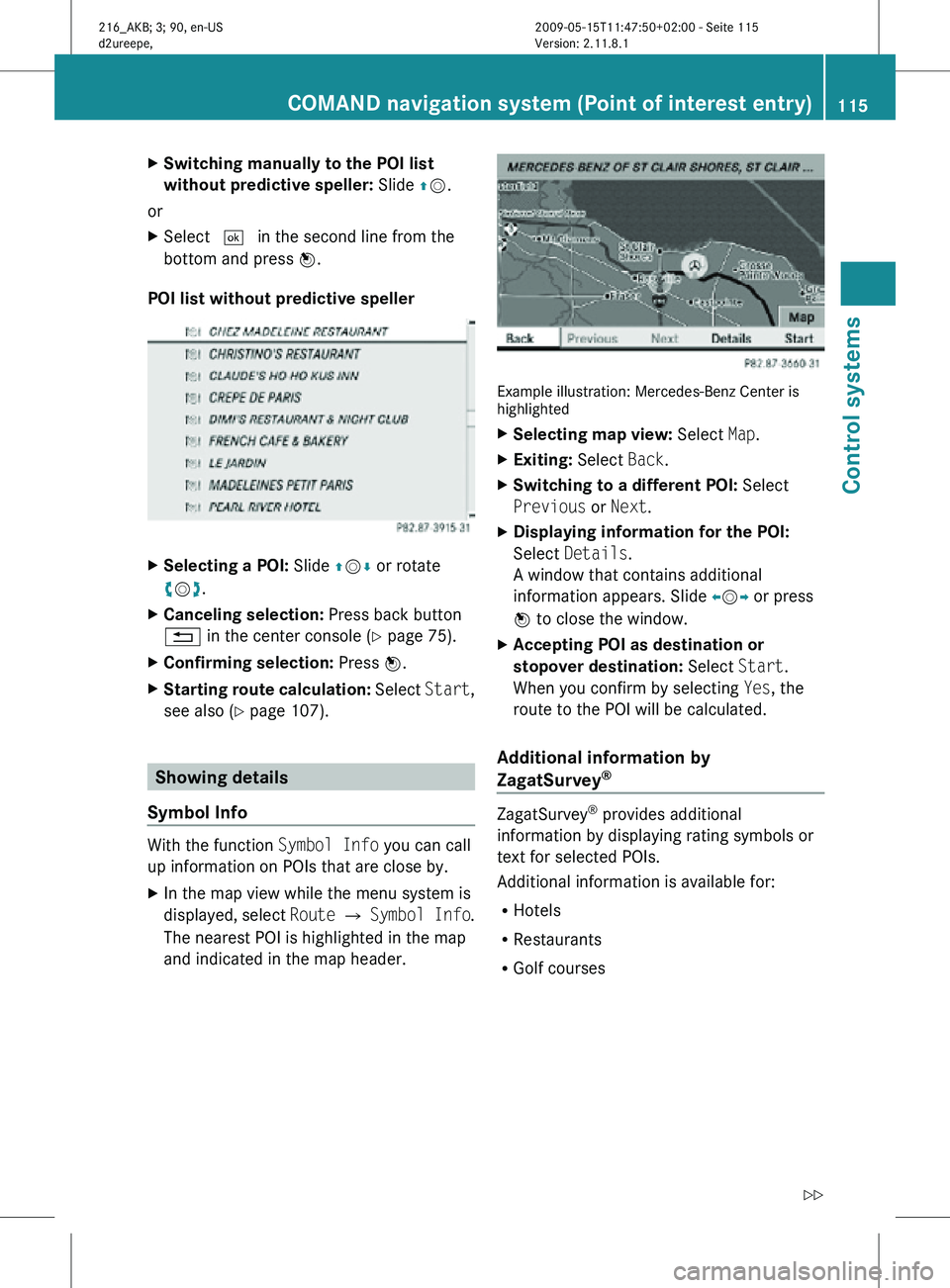
X
Switching manually to the POI list
without predictive speller: Slide ZV.
or
X Select ¬ in the second line from the
bottom and press W.
POI list without predictive speller X
Selecting a POI: Slide ZVÆ or rotate
cVd.
X Canceling selection: Press back button
% in the center console (Y page 75).
X Confirming selection: Press W.
X Starting route calculation: Select Start,
see also ( Y page 107). Showing details
Symbol Info With the function
Symbol Info you can call
up information on POIs that are close by.
X In the map view while the menu system is
displayed, select Route Q Symbol Info .
The nearest POI is highlighted in the map
and indicated in the map header. Example illustration: Mercedes-Benz Center is
highlighted
X
Selecting map view: Select Map.
X Exiting: Select Back.
X Switching to a different POI: Select
Previous or Next.
X Displaying information for the POI:
Select Details.
A window that contains additional
information appears. Slide omp or press
n to close the window.
X Accepting POI as destination or
stopover destination: Select Start.
When you confirm by selecting Yes, the
route to the POI will be calculated.
Additional information by
ZagatSurvey ®
ZagatSurvey
®
provides additional
information by displaying rating symbols or
text for selected POIs.
Additional information is available for:
R Hotels
R Restaurants
R Golf courses COMAND navigation system (Point of interest entry)
115Control systems
216_AKB; 3; 90, en-US
d2ureepe,Version: 2.11.8.1 2009-05-15T11:47:50+02:00 - Seite 115 Z