steering MERCEDES-BENZ CL CLASS 2010 Service Manual
[x] Cancel search | Manufacturer: MERCEDES-BENZ, Model Year: 2010, Model line: CL CLASS, Model: MERCEDES-BENZ CL CLASS 2010Pages: 500, PDF Size: 9.32 MB
Page 234 of 500
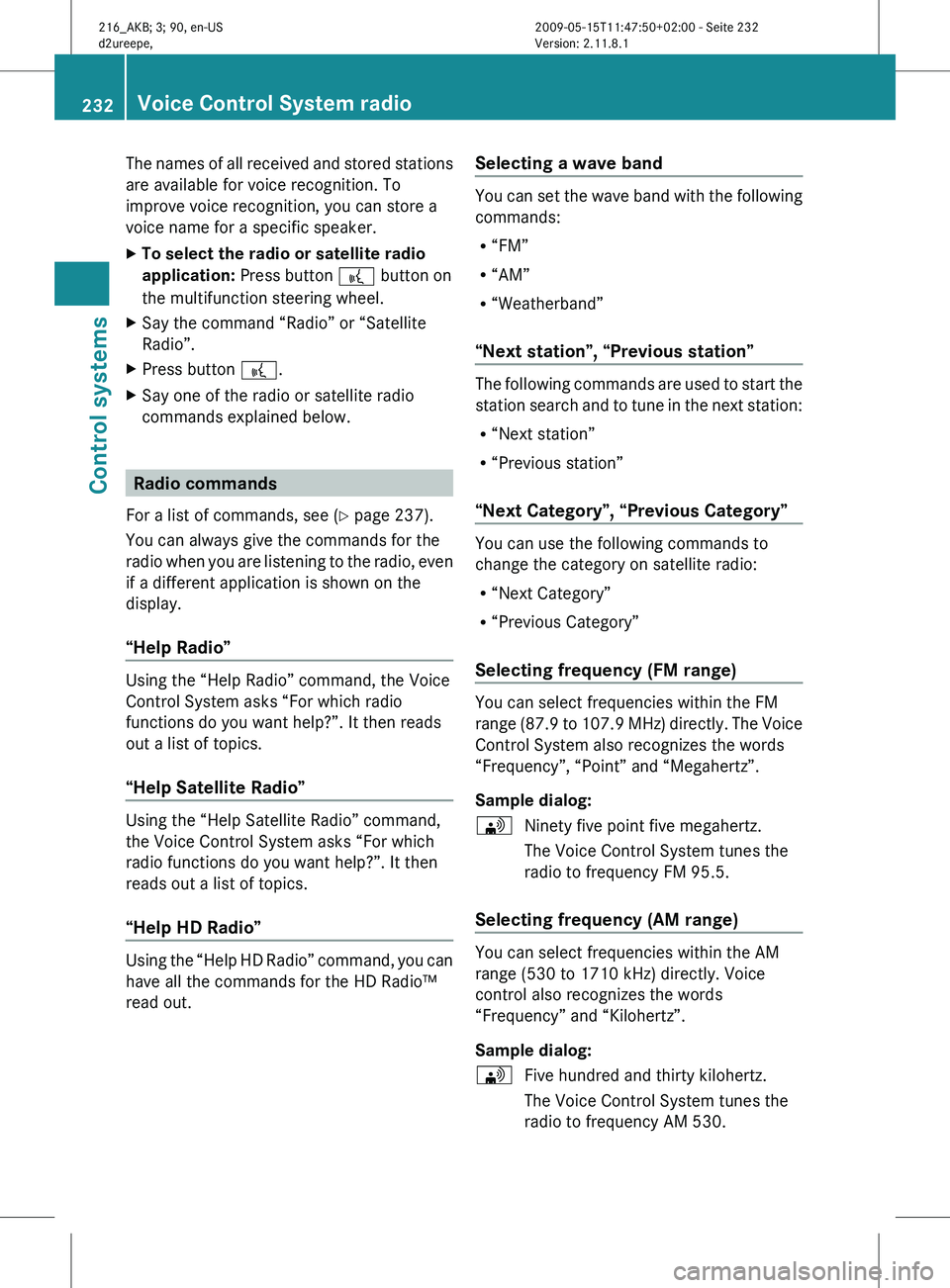
The names of all received and stored stations
are available for voice recognition. To
improve voice recognition, you can store a
voice name for a specific speaker.
X
To select the radio or satellite radio
application: Press button ? button on
the multifunction steering wheel.
X Say the command “Radio” or “Satellite
Radio”.
X Press button ?.
X Say one of the radio or satellite radio
commands explained below. Radio commands
For a list of commands, see ( Y page 237).
You can always give the commands for the
radio when
you are listening to the radio, even
if a different application is shown on the
display.
“Help Radio” Using the “Help Radio” command, the Voice
Control System asks “For which radio
functions do you want help?”. It then reads
out a list of topics.
“Help Satellite Radio”
Using the “Help Satellite Radio” command,
the Voice Control System asks “For which
radio functions do you want help?”. It then
reads out a list of topics.
“Help HD Radio”
Using the “Help HD Radio” command, you can
have all the commands for the HD Radio™
read out. Selecting a wave band You can set the wave band with the following
commands:
R
“FM”
R “AM”
R “Weatherband”
“Next station”, “Previous station” The following commands are used to start the
station
search
and to tune in the next station:
R “Next station”
R “Previous station”
“Next Category”, “Previous Category” You can use the following commands to
change the category on satellite radio:
R
“Next Category”
R “Previous Category”
Selecting frequency (FM range) You can select frequencies within the FM
range
(87.9
to 107.9 MHz) directly. The Voice
Control System also recognizes the words
“Frequency”, “Point” and “Megahertz”.
Sample dialog:
\ Ninety five point five megahertz.
The Voice Control System tunes the
radio to frequency FM 95.5.
Selecting frequency (AM range) You can select frequencies within the AM
range (530 to 1710 kHz) directly. Voice
control also recognizes the words
“Frequency” and “Kilohertz”.
Sample dialog:
\
Five hundred and thirty kilohertz.
The Voice Control System tunes the
radio to frequency AM 530. 232
Voice Control System radio
Control systems
216_AKB; 3; 90, en-US
d2ureepe,
Version: 2.11.8.1 2009-05-15T11:47:50+02:00 - Seite 232
Page 237 of 500
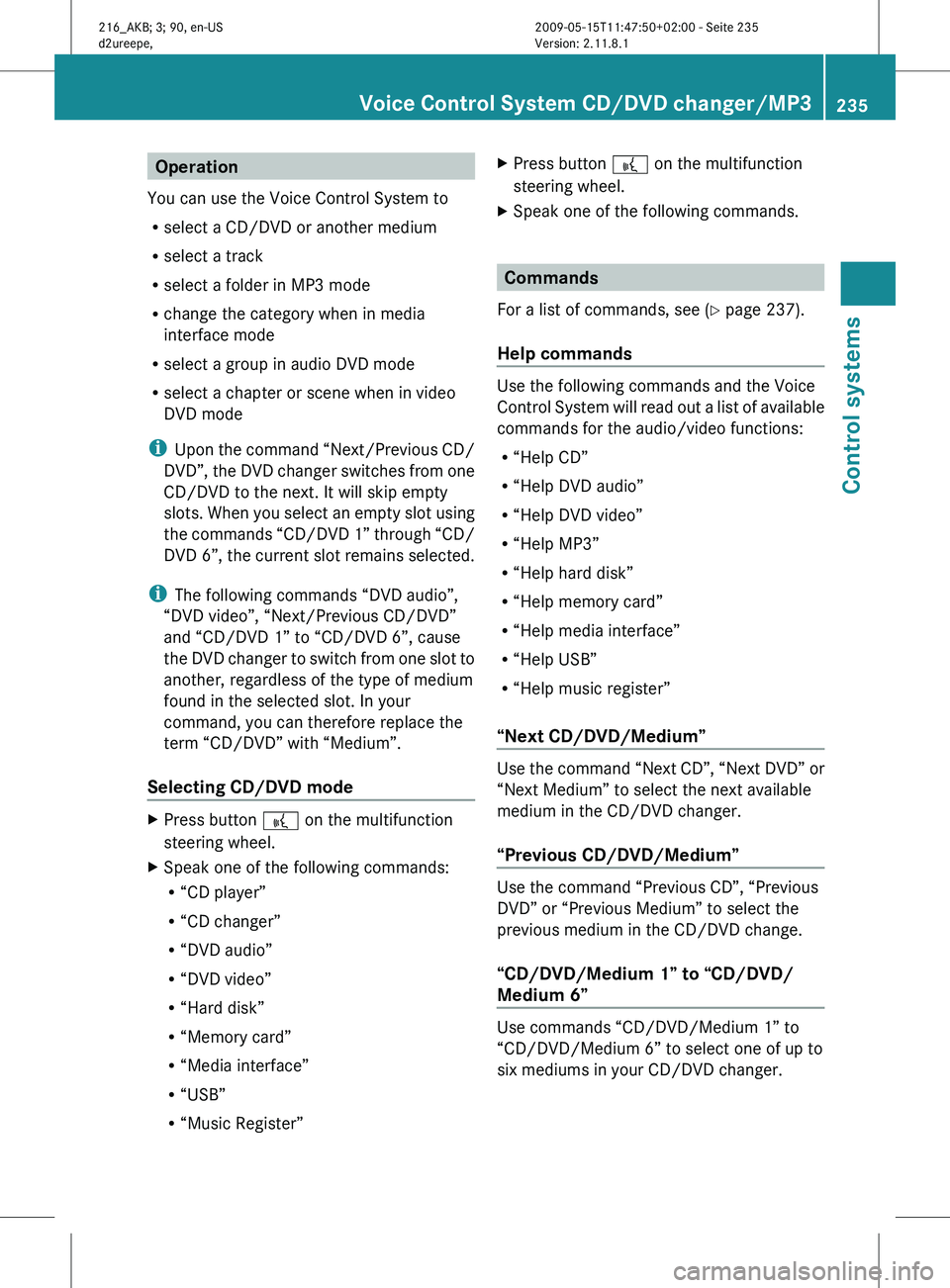
Operation
You can use the Voice Control System to
R select a CD/DVD or another medium
R select a track
R select a folder in MP3 mode
R change the category when in media
interface mode
R select a group in audio DVD mode
R select a chapter or scene when in video
DVD mode
i Upon the
command “Next/Previous CD/
DVD”, the DVD changer switches from one
CD/DVD to the next. It will skip empty
slots. When you select an empty slot using
the commands “CD/DVD 1” through “CD/
DVD 6”, the current slot remains selected.
i The following commands “DVD audio”,
“DVD video”, “Next/Previous CD/DVD”
and “CD/DVD 1” to “CD/DVD 6”, cause
the DVD changer to switch from one slot to
another, regardless of the type of medium
found in the selected slot. In your
command, you can therefore replace the
term “CD/DVD” with “Medium”.
Selecting CD/DVD mode X
Press button ? on the multifunction
steering wheel.
X Speak one of the following commands:
R
“CD player”
R “CD changer”
R “DVD audio”
R “DVD video”
R “Hard disk”
R “Memory card”
R “Media interface”
R “USB”
R “Music Register” X
Press button ? on the multifunction
steering wheel.
X Speak one of the following commands. Commands
For a list of commands, see ( Y page 237).
Help commands Use the following commands and the Voice
Control
System
will read out a list of available
commands for the audio/video functions:
R “Help CD”
R “Help DVD audio”
R “Help DVD video”
R “Help MP3”
R “Help hard disk”
R “Help memory card”
R “Help media interface”
R “Help USB”
R “Help music register”
“Next CD/DVD/Medium” Use the command “Next CD”, “Next DVD” or
“Next Medium” to select the next available
medium in the CD/DVD changer.
“Previous CD/DVD/Medium”
Use the command “Previous CD”, “Previous
DVD” or “Previous Medium” to select the
previous medium in the CD/DVD change.
“CD/DVD/Medium 1” to “CD/DVD/
Medium 6”
Use commands “CD/DVD/Medium 1” to
“CD/DVD/Medium 6” to select one of up to
six mediums in your CD/DVD changer.Voice Control System CD/DVD changer/MP3
235
Control systems
216_AKB; 3; 90, en-US
d2ureepe,Version: 2.11.8.1 2009-05-15T11:47:50+02:00 - Seite 235 Z
Page 238 of 500
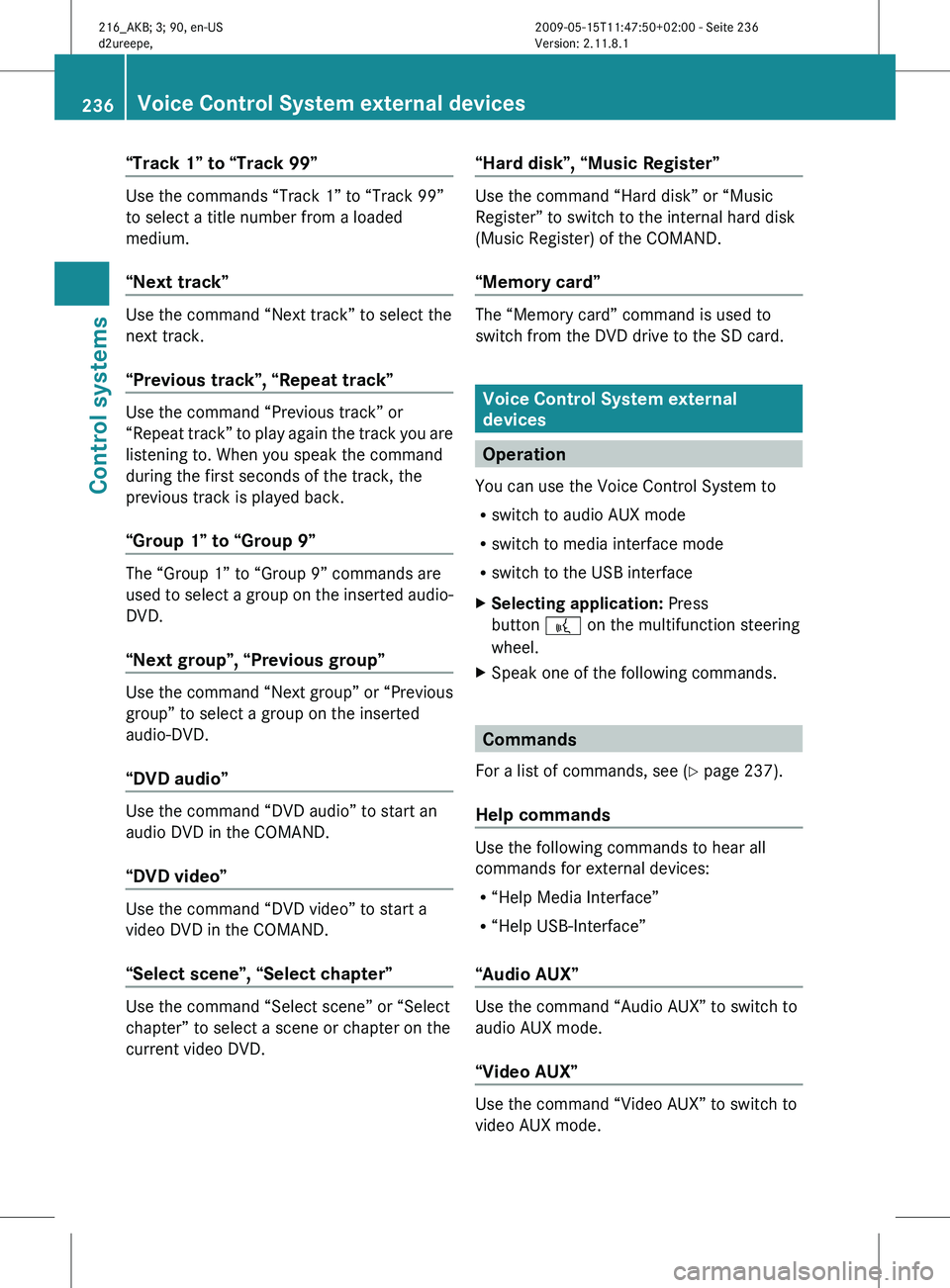
“Track 1” to “Track 99”
Use the commands “Track 1” to “Track 99”
to select a title number from a loaded
medium.
“Next track”
Use the command “Next track” to select the
next track.
“Previous track”, “Repeat track”
Use the command “Previous track” or
“Repeat
track”
to play again the track you are
listening to. When you speak the command
during the first seconds of the track, the
previous track is played back.
“Group 1” to “Group 9” The “Group 1” to “Group 9” commands are
used
to
select a group on the inserted audio-
DVD.
“Next group”, “Previous group” Use the command “Next group” or “Previous
group” to select a group on the inserted
audio-DVD.
“DVD audio”
Use the command “DVD audio” to start an
audio DVD in the COMAND.
“DVD video”
Use the command “DVD video” to start a
video DVD in the COMAND.
“Select scene”, “Select chapter”
Use the command “Select scene” or “Select
chapter” to select a scene or chapter on the
current video DVD. “Hard disk”, “Music Register” Use the command “Hard disk” or “Music
Register” to switch to the internal hard disk
(Music Register) of the COMAND.
“Memory card”
The “Memory card” command is used to
switch from the DVD drive to the SD card.
Voice Control System external
devices
Operation
You can use the Voice Control System to
R switch to audio AUX mode
R switch to media interface mode
R switch to the USB interface
X Selecting application: Press
button ? on the multifunction steering
wheel.
X Speak one of the following commands. Commands
For a list of commands, see ( Y page 237).
Help commands Use the following commands to hear all
commands for external devices:
R
“Help Media Interface”
R “Help USB-Interface”
“Audio AUX” Use the command “Audio AUX” to switch to
audio AUX mode.
“Video AUX”
Use the command “Video AUX” to switch to
video AUX mode.236
Voice Control System external devices
Control systems
216_AKB; 3; 90, en-US
d2ureepe,
Version: 2.11.8.1 2009-05-15T11:47:50+02:00 - Seite 236
Page 249 of 500
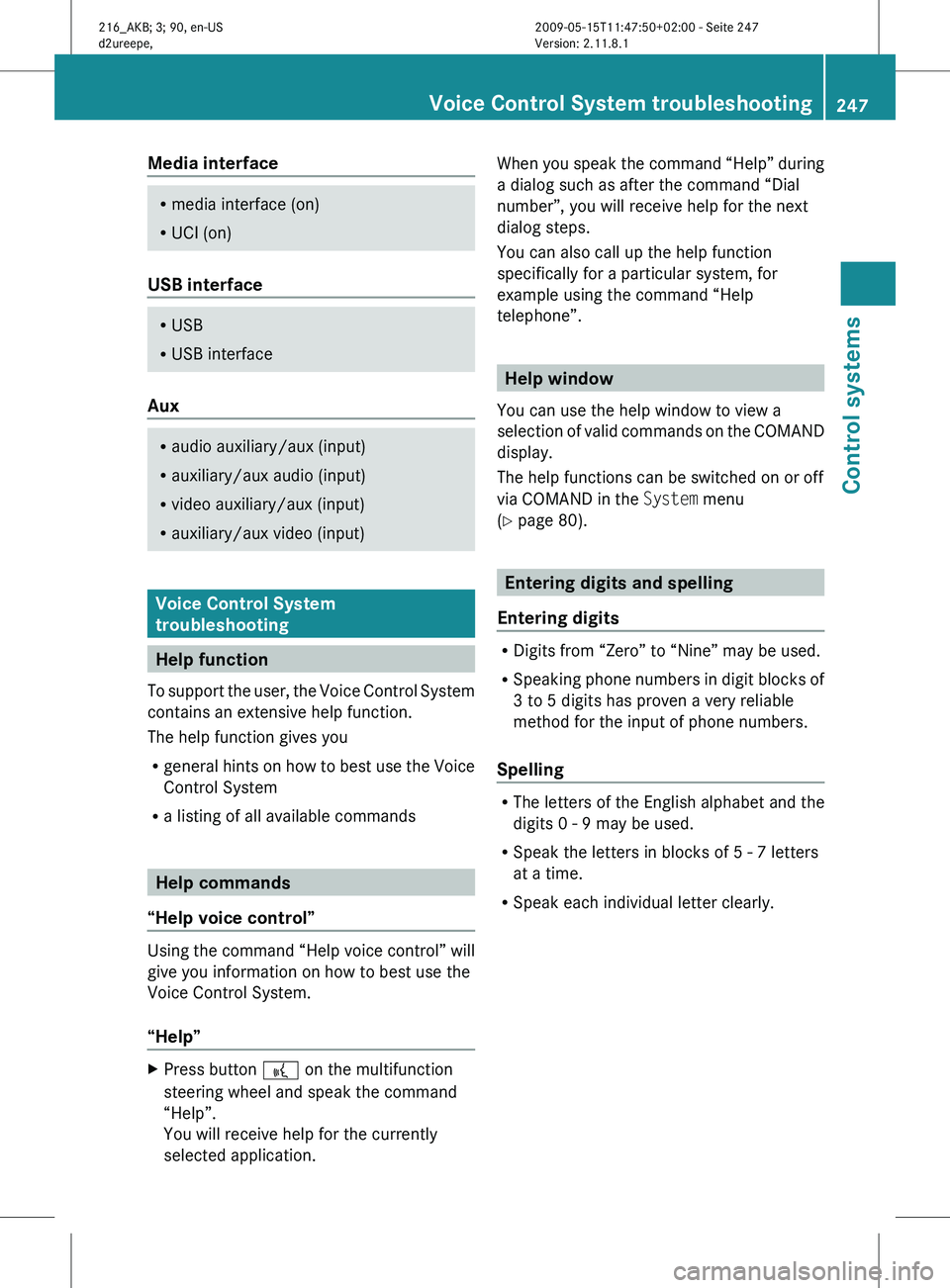
Media interface
R
media interface (on)
R UCI (on) USB interface
R
USB
R USB interface Aux
R
audio auxiliary/aux (input)
R auxiliary/aux audio (input)
R video auxiliary/aux (input)
R auxiliary/aux video (input) Voice Control System
troubleshooting
Help function
To support
the user, the Voice Control System
contains an extensive help function.
The help function gives you
R general hints on how to best use the Voice
Control System
R a listing of all available commands Help commands
“Help voice control” Using the command “Help voice control” will
give you information on how to best use the
Voice Control System.
“Help”
X
Press button ? on the multifunction
steering wheel and speak the command
“Help”.
You will receive help for the currently
selected application. When you speak the command “Help” during
a dialog such as after the command “Dial
number”, you will receive help for the next
dialog steps.
You can also call up the help function
specifically for a particular system, for
example using the command “Help
telephone”.
Help window
You can use the help window to view a
selection of
valid commands on the COMAND
display.
The help functions can be switched on or off
via COMAND in the System menu
(Y page 80). Entering digits and spelling
Entering digits R
Digits from “Zero” to “Nine” may be used.
R Speaking phone
numbers in digit blocks of
3 to 5 digits has proven a very reliable
method for the input of phone numbers.
Spelling R
The letters of the English alphabet and the
digits 0 - 9 may be used.
R Speak the letters in blocks of 5 - 7 letters
at a time.
R Speak each individual letter clearly. Voice Control System troubleshooting
247
Control systems
216_AKB; 3; 90, en-US
d2ureepe, Version: 2.11.8.1 2009-05-15T11:47:50+02:00 - Seite 247 Z
Page 250 of 500
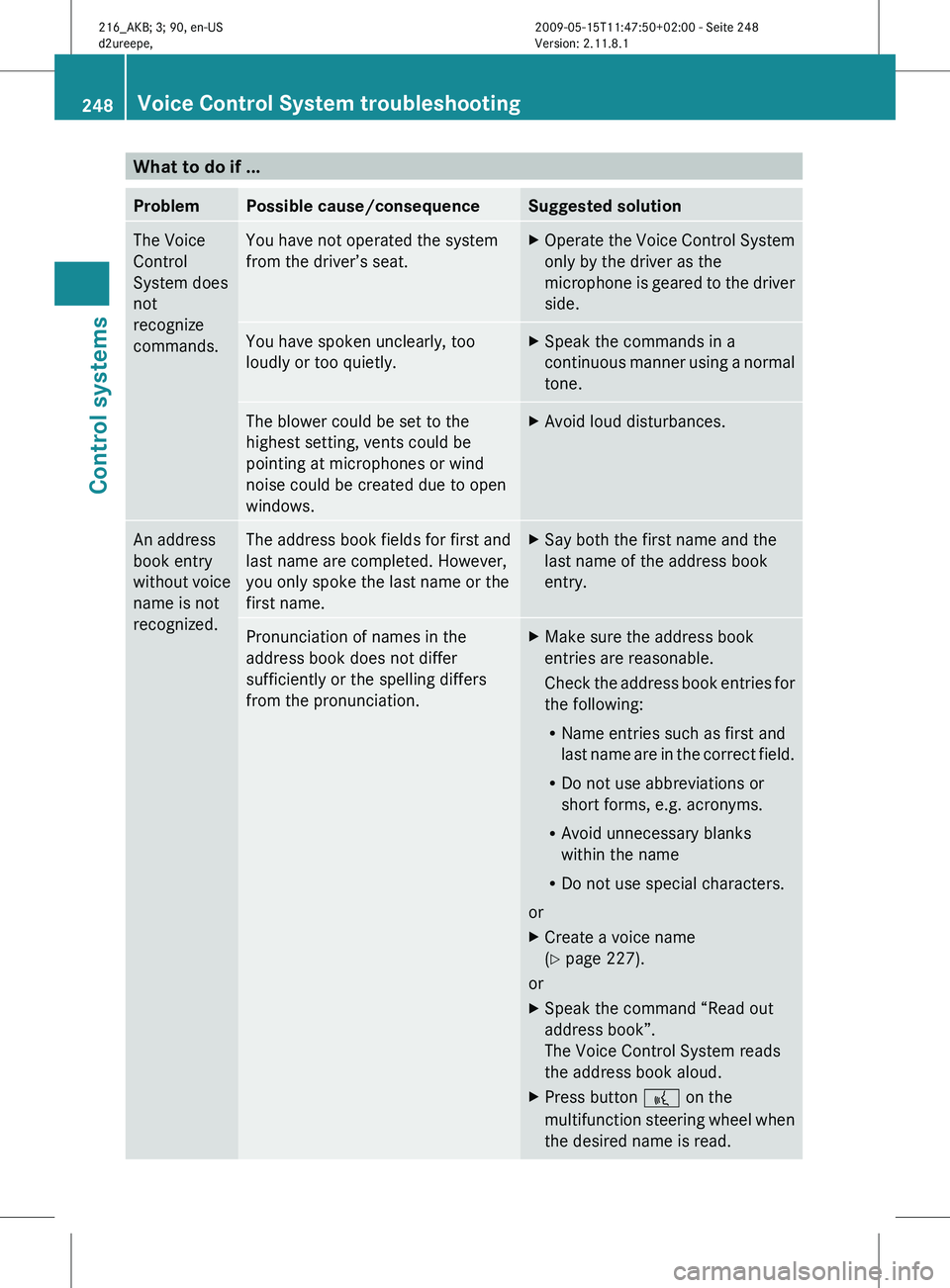
What to do if ...
Problem Possible cause/consequence Suggested solution
The Voice
Control
System does
not
recognize
commands. You have not operated the system
from the driver’s seat. X
Operate the Voice Control System
only by the driver as the
microphone is
geared to the driver
side. You have spoken unclearly, too
loudly or too quietly. X
Speak the commands in a
continuous manner
using a normal
tone. The blower could be set to the
highest setting, vents could be
pointing at microphones or wind
noise could be created due to open
windows. X
Avoid loud disturbances. An address
book entry
without
voice
name is not
recognized. The address book fields for first and
last name are completed. However,
you only spoke the last name or the
first name. X
Say both the first name and the
last name of the address book
entry. Pronunciation of names in the
address book does not differ
sufficiently or the spelling differs
from the pronunciation. X
Make sure the address book
entries are reasonable.
Check the
address book entries for
the following:
R Name entries such as first and
last name are in the correct field.
R Do not use abbreviations or
short forms, e.g. acronyms.
R Avoid unnecessary blanks
within the name
R Do not use special characters.
or
X Create a voice name
(Y page 227).
or
X Speak the command “Read out
address book”.
The Voice Control System reads
the address book aloud.
X Press button ? on the
multifunction steering
wheel when
the desired name is read. 248
Voice Control System troubleshooting
Control systems
216_AKB; 3; 90, en-US
d2ureepe,
Version: 2.11.8.1 2009-05-15T11:47:50+02:00 - Seite 248
Page 251 of 500
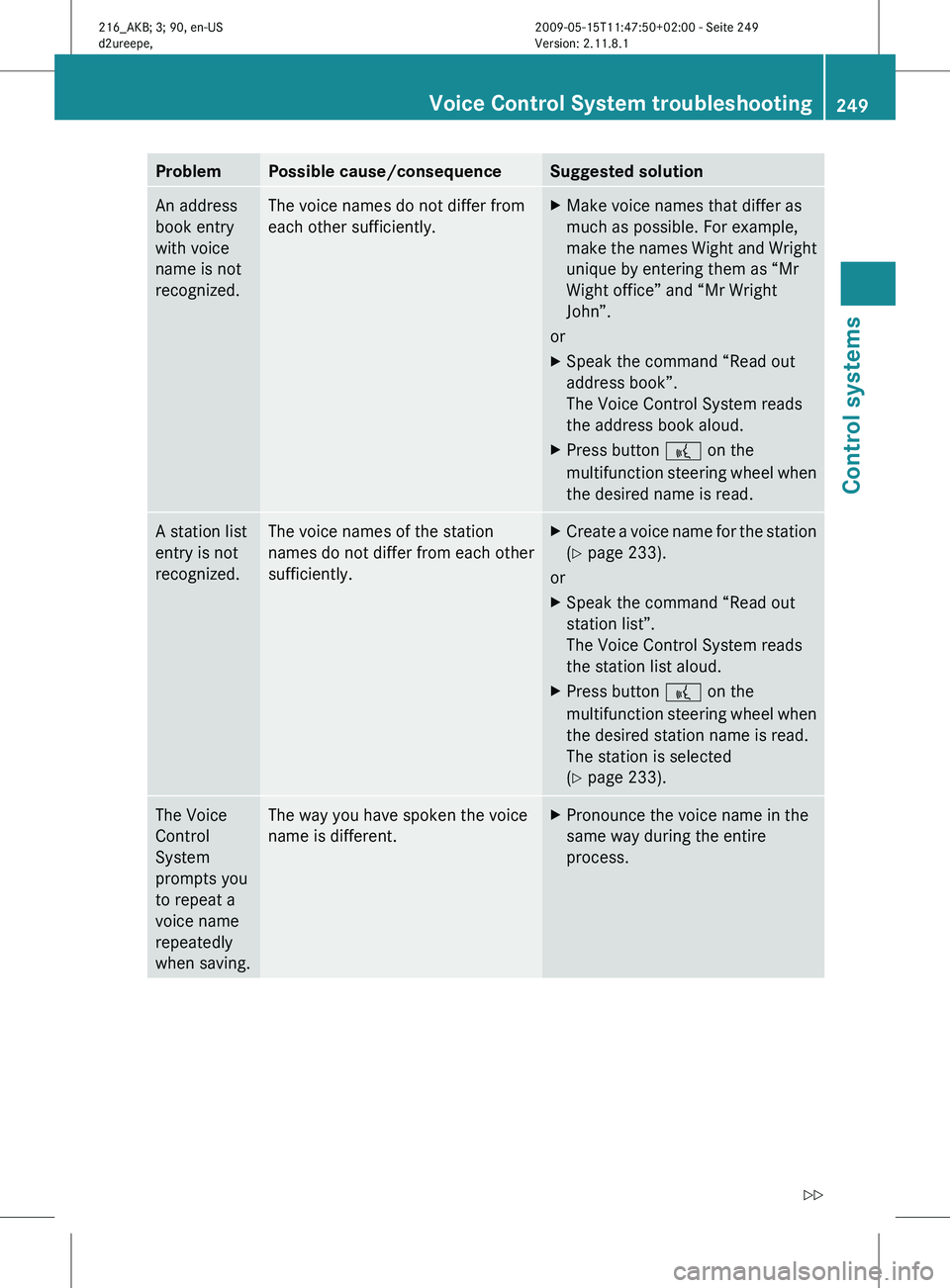
Problem Possible cause/consequence Suggested solution
An address
book entry
with voice
name is not
recognized. The voice names do not differ from
each other sufficiently. X
Make voice names that differ as
much as possible. For example,
make the
names Wight and Wright
unique by entering them as “Mr
Wight office” and “Mr Wright
John”.
or
X Speak the command “Read out
address book”.
The Voice Control System reads
the address book aloud.
X Press button ? on the
multifunction steering
wheel when
the desired name is read. A station list
entry is not
recognized. The voice names of the station
names do not differ from each other
sufficiently. X
Create a voice name for the station
(Y page 233).
or
X Speak the command “Read out
station list”.
The Voice Control System reads
the station list aloud.
X Press button ? on the
multifunction steering
wheel when
the desired station name is read.
The station is selected
(Y page 233). The Voice
Control
System
prompts you
to repeat a
voice name
repeatedly
when saving. The way you have spoken the voice
name is different. X
Pronounce the voice name in the
same way during the entire
process. Voice Control System troubleshooting
249
Control systems
216_AKB; 3; 90, en-US
d2ureepe, Version: 2.11.8.1 2009-05-15T11:47:50+02:00 - Seite 249 Z
Page 253 of 500
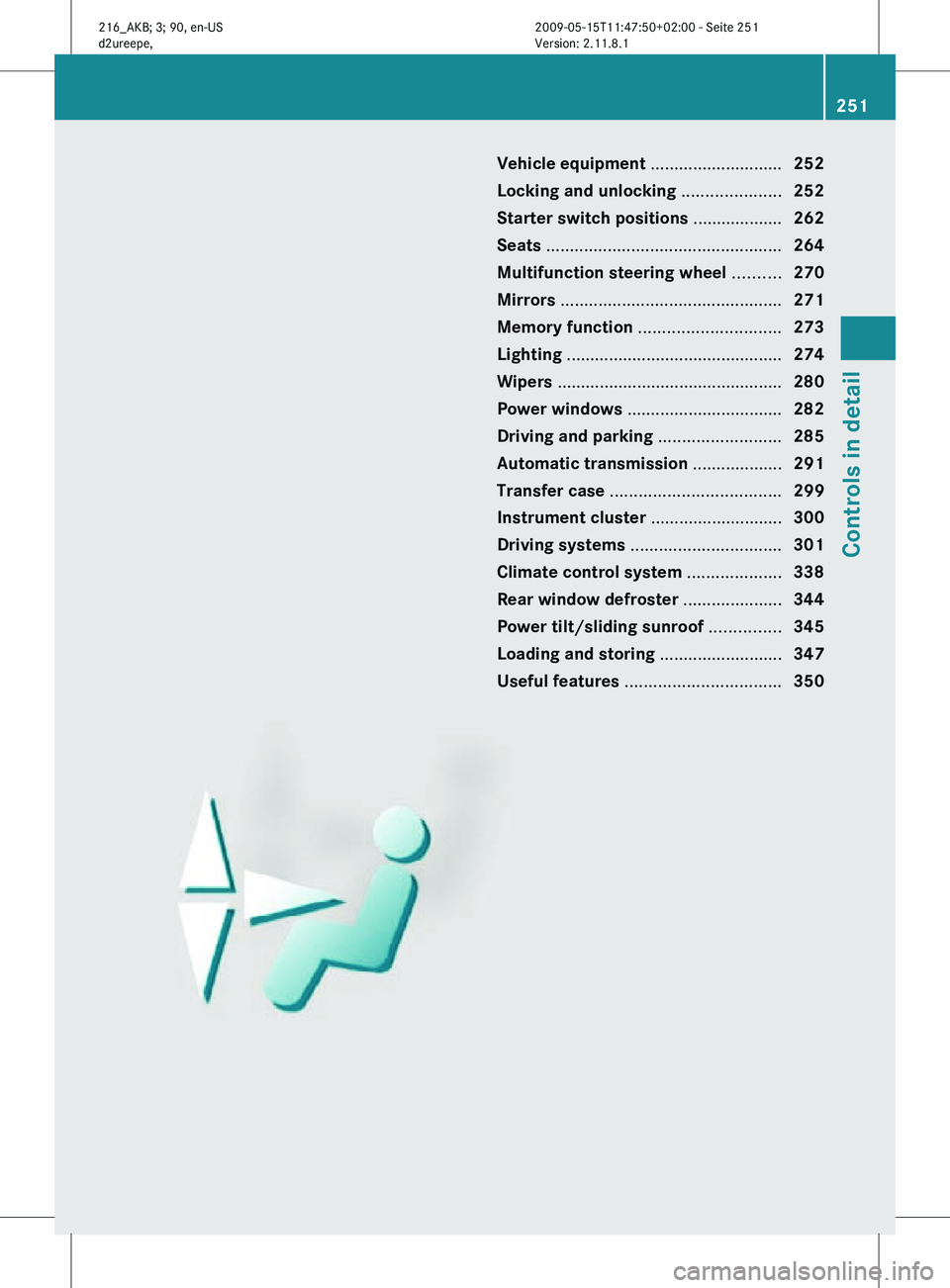
Vehicle equipment ............................
252
Locking and unlocking .....................252
Starter switch positions ................... 262
Seats .................................................. 264
Multifunction steering wheel ..........270
Mirrors ............................................... 271
Memory function .............................. 273
Lighting .............................................. 274
Wipers ................................................ 280
Power windows ................................. 282
Driving and parking .......................... 285
Automatic transmission ................... 291
Transfer case .................................... 299
Instrument cluster ............................300
Driving systems ................................ 301
Climate control system ....................338
Rear window defroster ..................... 344
Power tilt/sliding sunroof ...............345
Loading and storing ..........................347
Useful features ................................. 350 251Controls in detail
216_AKB; 3; 90, en-US
d2ureepe,
Version: 2.11.8.1 2009-05-15T11:47:50+02:00 - Seite 251
Page 266 of 500
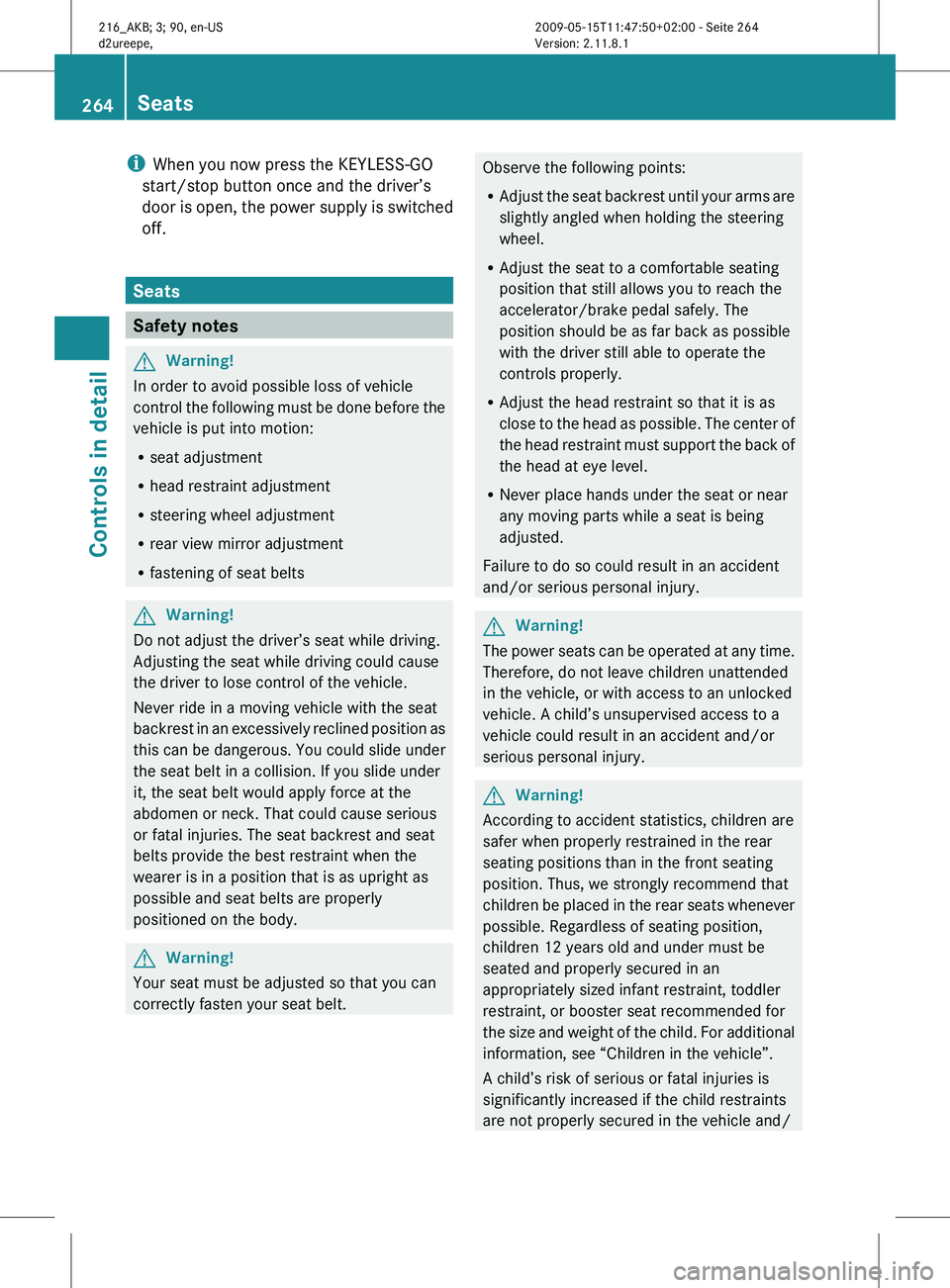
i
When you now press the KEYLESS-GO
start/stop button once and the driver’s
door is
open, the power supply is switched
off. Seats
Safety notes
G
Warning!
In order to avoid possible loss of vehicle
control the
following must be done before the
vehicle is put into motion:
R seat adjustment
R head restraint adjustment
R steering wheel adjustment
R rear view mirror adjustment
R fastening of seat belts G
Warning!
Do not adjust the driver’s seat while driving.
Adjusting the seat while driving could cause
the driver to lose control of the vehicle.
Never ride in a moving vehicle with the seat
backrest in
an excessively reclined position as
this can be dangerous. You could slide under
the seat belt in a collision. If you slide under
it, the seat belt would apply force at the
abdomen or neck. That could cause serious
or fatal injuries. The seat backrest and seat
belts provide the best restraint when the
wearer is in a position that is as upright as
possible and seat belts are properly
positioned on the body. G
Warning!
Your seat must be adjusted so that you can
correctly fasten your seat belt. Observe the following points:
R
Adjust the
seat backrest until your arms are
slightly angled when holding the steering
wheel.
R Adjust the seat to a comfortable seating
position that still allows you to reach the
accelerator/brake pedal safely. The
position should be as far back as possible
with the driver still able to operate the
controls properly.
R Adjust the head restraint so that it is as
close to the head as possible. The center of
the head restraint must support the back of
the head at eye level.
R Never place hands under the seat or near
any moving parts while a seat is being
adjusted.
Failure to do so could result in an accident
and/or serious personal injury. G
Warning!
The power seats can be operated at any time.
Therefore, do not leave children unattended
in the vehicle, or with access to an unlocked
vehicle. A child’s unsupervised access to a
vehicle could result in an accident and/or
serious personal injury. G
Warning!
According to accident statistics, children are
safer when properly restrained in the rear
seating positions than in the front seating
position. Thus, we strongly recommend that
children be
placed in the rear seats whenever
possible. Regardless of seating position,
children 12 years old and under must be
seated and properly secured in an
appropriately sized infant restraint, toddler
restraint, or booster seat recommended for
the size and weight of the child. For additional
information, see “Children in the vehicle”.
A child’s risk of serious or fatal injuries is
significantly increased if the child restraints
are not properly secured in the vehicle and/ 264
Seats
Controls in detail
216_AKB; 3; 90, en-US
d2ureepe,
Version: 2.11.8.1 2009-05-15T11:47:50+02:00 - Seite 264
Page 269 of 500
against an occupant or object. The seat will
slide forward and stop.
Investigate and correct the cause of
interruption.
Now use memory button or seat
adjustment switch to bring the seat into the
desired position.
When folding the seat backrest forward
from a reclined position, and then folding it
back, the seat backrest stops in a more
upright position for the safety of any rear-
seat passenger. Adjust the seat backrest
until your arms are slightly angled when
holding the steering wheel.
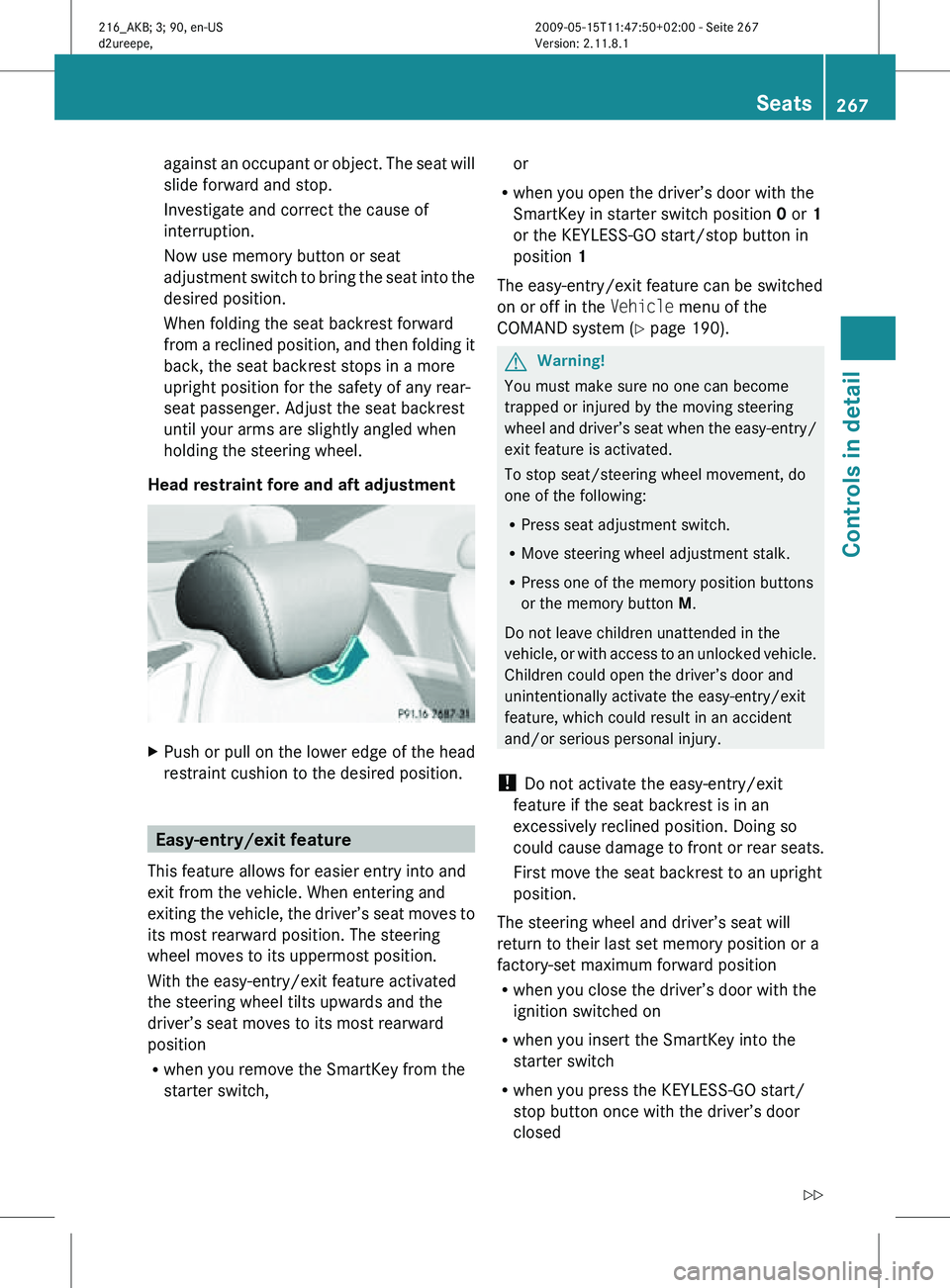
Head restraint fore and aft adjustment X
Push or pull on the lower edge of the head
restraint cushion to the desired position. Easy-entry/exit feature
This feature allows for easier entry into and
exit from the vehicle. When entering and
exiting the vehicle, the driver’s seat moves to
its most rearward position. The steering
wheel moves to its uppermost position.
With the easy-entry/exit feature activated
the steering wheel tilts upwards and the
driver’s seat moves to its most rearward
position
R when you remove the SmartKey from the
starter switch, or
R when you open the driver’s door with the
SmartKey in starter switch position 0 or 1
or the KEYLESS-GO start/stop button in
position 1
The easy-entry/exit feature can be switched
on or off in the Vehicle menu of the
COMAND system (Y page 190). G
Warning!
You must make sure no one can become
trapped or injured by the moving steering
wheel and driver’s seat when the easy-entry/
exit feature is activated.
To stop seat/steering wheel movement, do
one of the following:
R Press seat adjustment switch.
R Move steering wheel adjustment stalk.
R Press one of the memory position buttons
or the memory button M.
Do not leave children unattended in the
vehicle, or with access to an unlocked vehicle.
Children could open the driver’s door and
unintentionally activate the easy-entry/exit
feature, which could result in an accident
and/or serious personal injury.
! Do not activate the easy-entry/exit
feature if the seat backrest is in an
excessively reclined position. Doing so
could cause damage to front or rear seats.
First move the seat backrest to an upright
position.
The steering wheel and driver’s seat will
return to their last set memory position or a
factory-set maximum forward position
R when you close the driver’s door with the
ignition switched on
R when you insert the SmartKey into the
starter switch
R when you press the KEYLESS-GO start/
stop button once with the driver’s door
closed Seats
267Controls in detail
216_AKB; 3; 90, en-US
d2ureepe, Version: 2.11.8.1 2009-05-15T11:47:50+02:00 - Seite 267 Z
Page 270 of 500
i
For safety reasons, the driver’s seat will
not return to its last set position if the
system recognizes the last set position as
an extreme forward position. Instead, the
driver’s seat will remain at or move to a
factory-set maximum forward position. To
again fully return the driver’s seat to your
last set position or to memory position,
adjust the seat to the desired position or
press and hold the respective memory
position button (Y page 274).
i The last set driver’s seat and steering
wheel positions are stored when the
ignition is switched off and the position is
stored in memory.
i If the current position for the steering
wheel is in the uppermost tilt position, the
steering wheel will not move.
If the current seat position is within a
factory-set position range and the system
recognizes the current seat position to be
rearward enough for easy entry and exit,
the driver’s seat will not move to the rear.
The adjustment procedure is interrupted
briefly when the engine is started. G
Warning!
Let the system complete the adjustment
procedure before setting the vehicle in
motion. All driver’s seat and steering wheel
adjustments must be completed before
setting the vehicle in motion. Driving off with
the driver’s seat/steering wheel still
adjusting could cause the driver to lose
control of the vehicle.
Crash-responsive exit aid When you open the driver’s door after an
accident has occurred, the steering column
moves
up.
The position of the SmartKey in the
starter switch is insignificant. This function
facilitates exiting as well as rescue of vehicle
occupants. The crash-responsive exit aid can only be
triggered
when
the easy-entry/exit feature is
activated via the control system. Rear seat head restraints
G
Warning!
For safety reasons, always drive with the rear
head restraints in the upright position when
the rear seats are occupied.
Keep the
area around head restraints clear of
articles (e.g. clothing) to not obstruct the
folding operation of the head restraints. G
Warning!
For your protection, drive only with properly
positioned head restraints.
Adjust the
head restraint in such a way that it
is as close to the head as possible and the
center of the head restraint supports the back
of the head at eye level. This will reduce the
potential for injury to the head and neck in the
event of an accident or similar situation.
With a rear seat occupied, make sure to move
the respective head restraint up from the
lowest non-use position and have the
occupant adjust the head restraint properly.
Do not drive the vehicle without the seat head
restraints installed when the rear seats are
occupied. Head restraints are intended to
help reduce injuries during an accident. G
Warning!
Make sure the rear seat head restraints
engage when placing them upright manually.
Otherwise their
protective function cannot be
ensured.
The back of the head will not be supported in
the event of a collision. That could cause
serious or even fatal injuries. Rear seat
occupants can be seriously injured or killed.
Folding rear seat head restraints back The rear seat head restraints can be folded
backward for increased visibility.268
Seats
Controls in detail
216_AKB; 3; 90, en-US
d2ureepe,
Version: 2.11.8.1 2009-05-15T11:47:50+02:00 - Seite 268