bluetooth MERCEDES-BENZ CL-Class 2011 C216 User Guide
[x] Cancel search | Manufacturer: MERCEDES-BENZ, Model Year: 2011, Model line: CL-Class, Model: MERCEDES-BENZ CL-Class 2011 C216Pages: 480, PDF Size: 19.76 MB
Page 181 of 480
automatically attempts to log into a
network. If no network is available, you will
not be able to make a " 911" emergency
call. If you attempt to make an outgoing
call, the No Service message will appear
for a short while.
911 emergency callGWarning
The 911 emergency call system is a public
service. Using it without due cause is a
criminal offense.
The following conditions must be fulfilled in
order to make a 911 emergency call:
R the mobile phone must be switched on.
R a network must be available.
R a valid and operational SIM card must be
inserted in the mobile phone.
R the mobile phone must be connected to
COMAND via the Bluetooth ®
interface
If you cannot make an emergency call, you
must arrange rescue measures yourself.
XEnter the number using COMAND.XPress the 6 button.
The telephone makes the connection.XWait until the emergency call center
answers and describe the emergency
situation.
Telephony via the Bluetooth ®
interface
Conditions
On the mobile phone
For telephony via COMAND's Bluetooth ®
interface, a Bluetooth ®
-capable mobile
phone is required.
i Not all mobile phones available on the
market are equally suitable. For more
information on suitable mobile phones and
on connecting Bluetooth ®
-capable mobile
phones to COMAND, visit
http://www.mbusa-mobile.com or call
the Mercedes-Benz Customer Assistance
Center at 1-800-FOR-MERCedes
(1-800-367-6372) (US) or Customer
Relations at 1-800-387-0100 (Canada).
The battery of the mobile phone should
always be kept sufficiently charged in order
to prevent malfunctions.
In preparation for telephoning via the
Bluetooth ®
interface, you should check the
following items on your mobile phone (see the
mobile phone operating instructions):XHands-free profile
The mobile phone must support Hands-free
Profile 1.0 or above.
i Some displays (e.g. the signal strength)
depend on the supported version of the
Hands-free Profile.
XBluetooth ®
visibility
On certain mobile phones, the device itself
must be made "visible" for other devices,
as well as activating the Bluetooth ®
function (see the mobile phone operating
instructions).XBluetooth ®
device name
Every Bluetooth ®
device has its own
Bluetooth ®
device name. This name can be
freely chosen, but the default name may be
identical for all devices from a given
manufacturer. It is therefore
recommended that you change this name
so that you can easily recognize your
mobile phone (see the mobile phone
operating instructions).XSwitch on the mobile phone and enter the
PIN when prompted to do so (see the
mobile phone operating instructions).XActivate Bluetooth ®
functions and, where
necessary, Bluetooth ®
visibility on the
mobile phone (see the mobile phone
operating instructions).Telephone179COMANDZ
Page 182 of 480
On COMANDXActivate the Bluetooth® function in
COMAND (Y page 133).
Connecting a mobile phone
General information
Before using your mobile phone with
COMAND for the first time, you will need to
connect it.
When you authorize a new mobile phone, it is
connected automatically.
Connecting is comprised of:
Rsearching for a Bluetooth®-capable mobile
phone
Rsubsequently authorizing it
You can connect up to ten mobile phones.
Searching for a mobile phone
XTo call up the telephone menu: press the
S function button once or twice.
XSelect Data/connections in the
telephone basic menu by sliding VÆ and
turning cVd the COMAND controller and
press W to confirm.
XSelect Bluetooth telephones and press
W to confirm.
XSelect Update and press W to confirm.
COMAND searches for Bluetooth®
telephones within range and adds them to
the Bluetooth® telephone list.
The duration of the search depends on the
number of Bluetooth® telephones within
range and their characteristics.
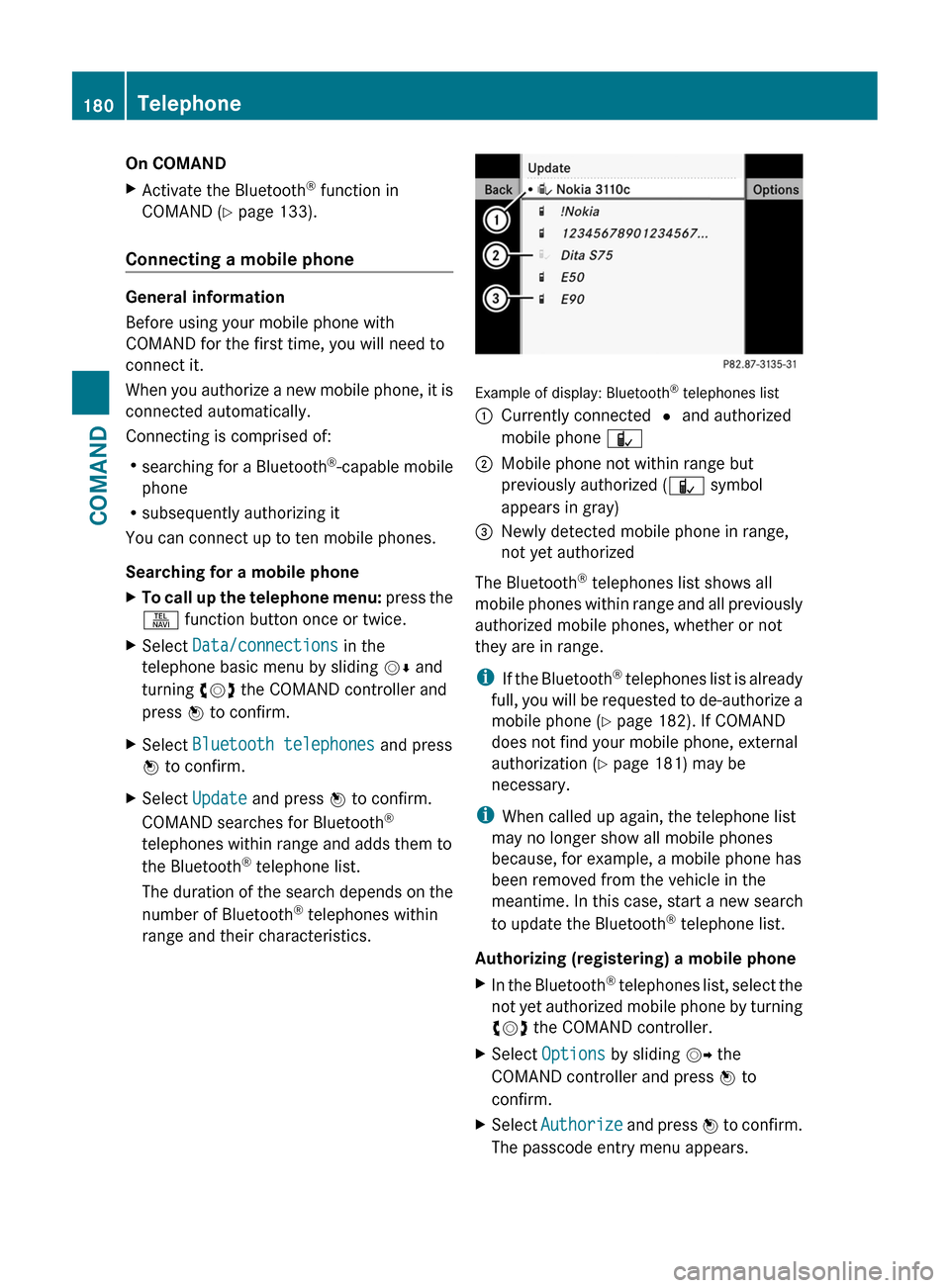
Example of display: Bluetooth® telephones list
:Currently connected # and authorized
mobile phone Ñ
;Mobile phone not within range but
previously authorized (Ñ symbol
appears in gray)
=Newly detected mobile phone in range,
not yet authorized
The Bluetooth® telephones list shows all
mobile phones within range and all previously
authorized mobile phones, whether or not
they are in range.
iIf the Bluetooth® telephones list is already
full, you will be requested to de-authorize a
mobile phone (Y page 182). If COMAND
does not find your mobile phone, external
authorization (Y page 181) may be
necessary.
iWhen called up again, the telephone list
may no longer show all mobile phones
because, for example, a mobile phone has
been removed from the vehicle in the
meantime. In this case, start a new search
to update the Bluetooth® telephone list.
Authorizing (registering) a mobile phone
XIn the Bluetooth® telephones list, select the
not yet authorized mobile phone by turning
cVd the COMAND controller.
XSelect Options by sliding VY the
COMAND controller and press W to
confirm.
XSelect Authorize and press W to confirm.
The passcode entry menu appears.
180TelephoneCOMAND
Page 183 of 480
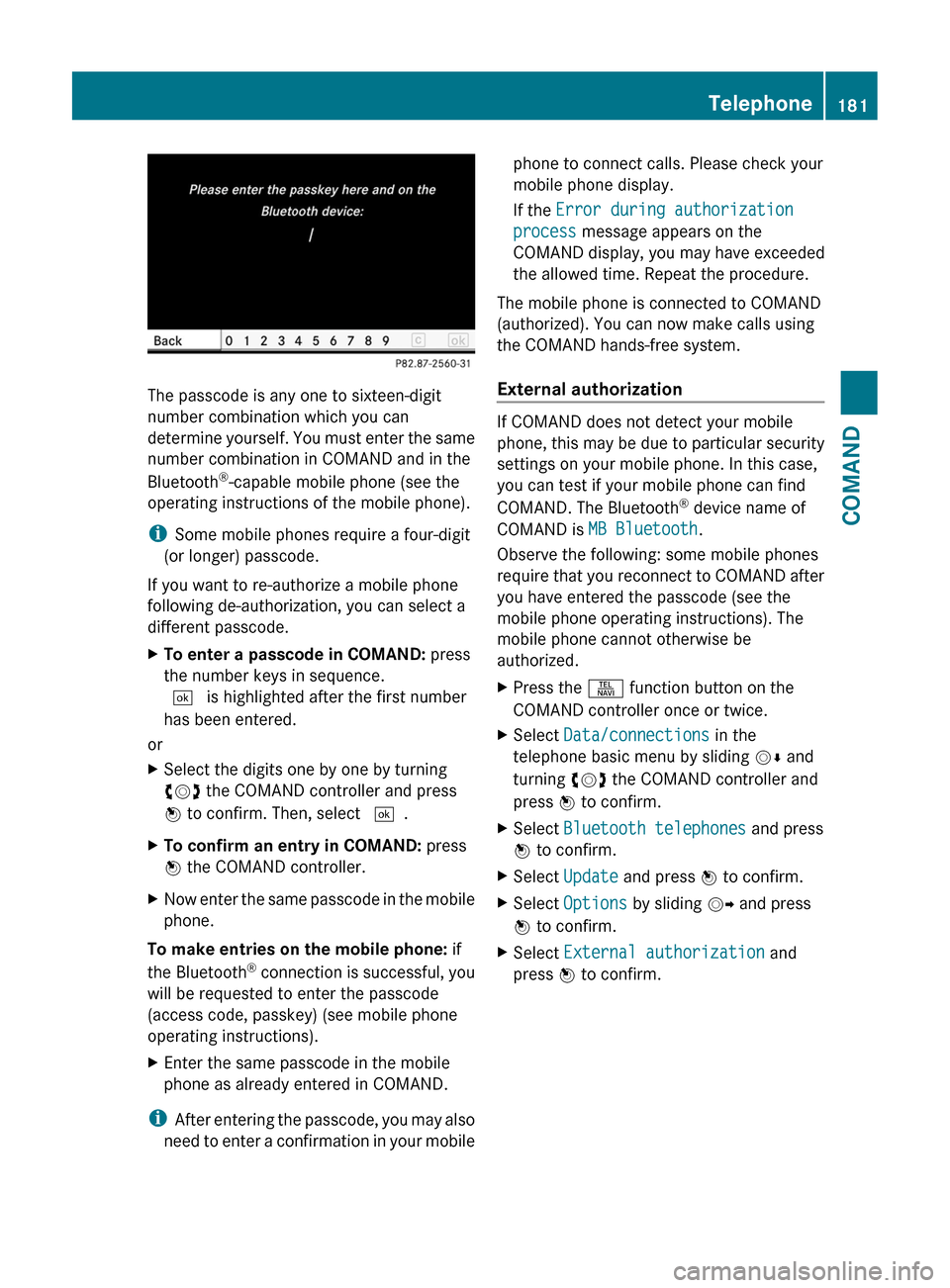
The passcode is any one to sixteen-digit
number combination which you can
determine yourself. You must enter the same
number combination in COMAND and in the
Bluetooth®-capable mobile phone (see the
operating instructions of the mobile phone).
iSome mobile phones require a four-digit
(or longer) passcode.
If you want to re-authorize a mobile phone
following de-authorization, you can select a
different passcode.
XTo enter a passcode in COMAND: press
the number keys in sequence.
¬ is highlighted after the first number
has been entered.
or
XSelect the digits one by one by turning
cVd the COMAND controller and press
W to confirm. Then, select ¬.
XTo confirm an entry in COMAND: press
W the COMAND controller.
XNow enter the same passcode in the mobile
phone.
To make entries on the mobile phone: if
the Bluetooth® connection is successful, you
will be requested to enter the passcode
(access code, passkey) (see mobile phone
operating instructions).
XEnter the same passcode in the mobile
phone as already entered in COMAND.
iAfter entering the passcode, you may also
need to enter a confirmation in your mobile
phone to connect calls. Please check your
mobile phone display.
If the Error during authorization
process message appears on the
COMAND display, you may have exceeded
the allowed time. Repeat the procedure.
The mobile phone is connected to COMAND
(authorized). You can now make calls using
the COMAND hands-free system.
External authorization
If COMAND does not detect your mobile
phone, this may be due to particular security
settings on your mobile phone. In this case,
you can test if your mobile phone can find
COMAND. The Bluetooth® device name of
COMAND is MB Bluetooth.
Observe the following: some mobile phones
require that you reconnect to COMAND after
you have entered the passcode (see the
mobile phone operating instructions). The
mobile phone cannot otherwise be
authorized.
XPress the S function button on the
COMAND controller once or twice.
XSelect Data/connections in the
telephone basic menu by sliding VÆ and
turning cVd the COMAND controller and
press W to confirm.
XSelect Bluetooth telephones and press
W to confirm.
XSelect Update and press W to confirm.XSelect Options by sliding VY and press
W to confirm.
XSelect External authorization and
press W to confirm.
Telephone181COMANDZ
Page 184 of 480
XStart the Bluetooth®
search on the mobile
phone (see the mobile phone operating
instructions).XSelect COMAND ( MB Bluetooth) on the
mobile phone.XEnter the passkey on the mobile phone
when requested to and then enter it in
COMAND.
Connecting another mobile phone
If you have authorized more than one mobile
phone, you can switch between the individual
phones.
i You can only switch to another authorized
mobile phone if no phone call is active.
XSelect the mobile phone in the Bluetooth ®
telephones list by turning cVd the
COMAND controller and press W to
confirm.
The selected mobile phone is searched for
and connected if it is within Bluetooth ®
range and if Bluetooth ®
is activated.
Only one mobile phone can be connected
at any one time. The currently connected
mobile phone is indicated by the # dot in
the Bluetooth ®
telephones list
( Y page 180).
Displaying details
XSelect Data/connections in the
telephone basic menu by sliding VÆ and
turning cVd the COMAND controller and
press W to confirm.XSelect Bluetooth telephones and press
W to confirm.XSelect the desired mobile phone in the
Bluetooth ®
telephones list.XSelect Options by sliding VY and press
W to confirm.XSelect Details and press W to confirm.
The following information concerning the
selected mobile phone is shown:R Bluetooth ®
name
R Bluetooth ®
address
R availability
R authorization statusXTo close the detailed view: turn cVd or
slide XVY the COMAND controller.
De-registering (de-authorizing) a mobile
phone
Mercedes-Benz USA, LLC recommends de-
authorization in COMAND and on the mobile
phone. Subsequent authorization may
otherwise fail.
XTo call up the telephone menu: press the
S function button once or twice.XSelect Data/connections in the
telephone basic menu by sliding VÆ and
turning cVd the COMAND controller and
press W to confirm.XSelect Bluetooth telephones and press
W to confirm.XSelect the desired mobile phone in the
Bluetooth ®
telephones list.XSelect Options by sliding VY and press
W to confirm.XSelect De-authorize and press W to
confirm.
A prompt appears asking whether you
really wish to revoke authorization for this
device.XSelect Yes or No.
If you select Yes, the device will be deleted
from the Bluetooth ®
telephones list.
If you select No, the process will be aborted.
i
Before re-authorizing the mobile phone,
you should also delete the device name MB
Bluetooth from your mobile phone's
Bluetooth ®
list.
182TelephoneCOMAND
Page 185 of 480
Telephone basic menu (Bluetooth®
interface)
XTo call up the telephone menu: press the
S function button once or twice.
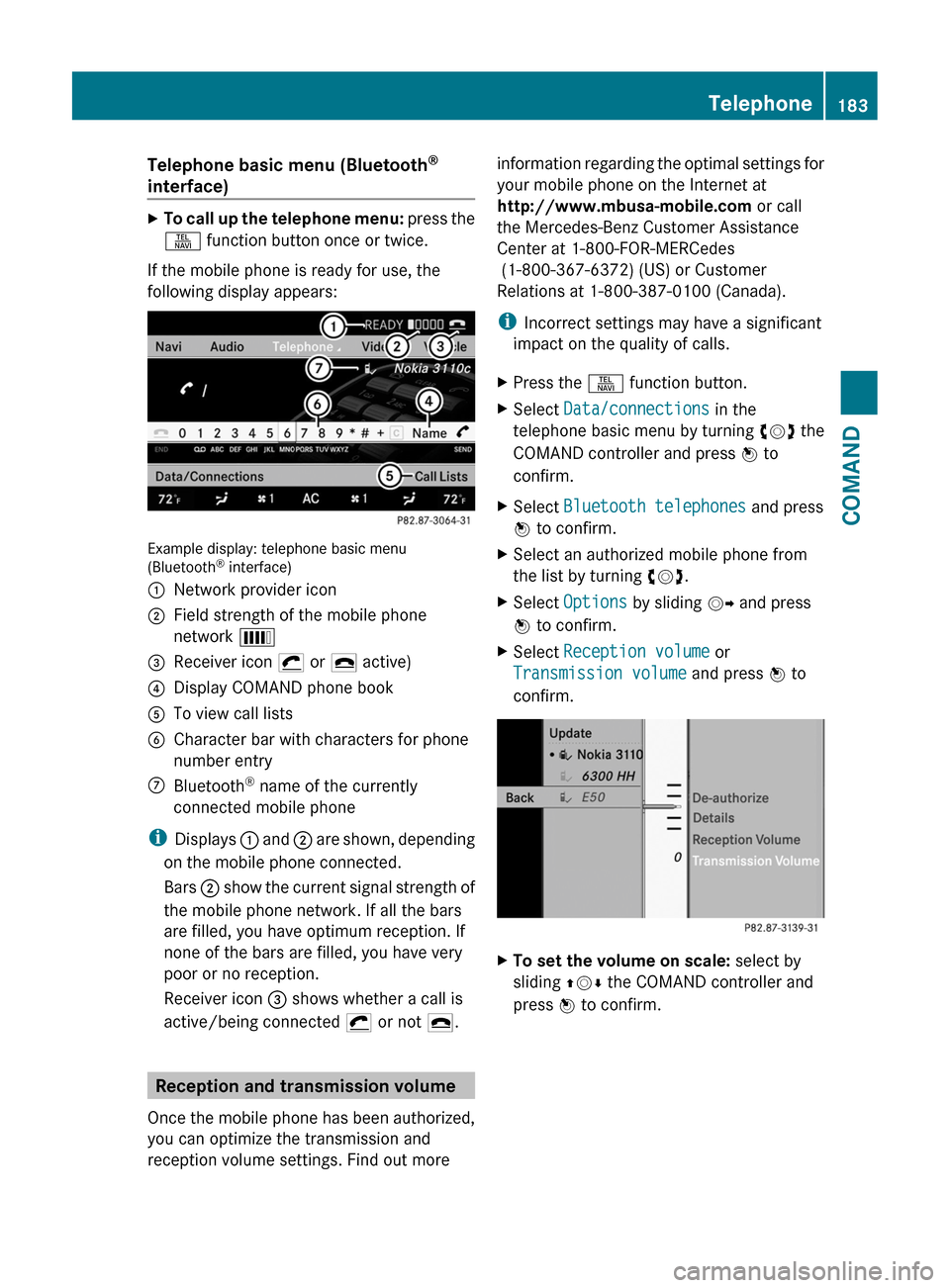
If the mobile phone is ready for use, the
following display appears:
Example display: telephone basic menu(Bluetooth® interface)
:Network provider icon;Field strength of the mobile phone
network È
=Receiver icon ¡ or ¢ active)?Display COMAND phone bookATo view call listsBCharacter bar with characters for phone
number entry
CBluetooth® name of the currently
connected mobile phone
iDisplays : and ; are shown, depending
on the mobile phone connected.
Bars ; show the current signal strength of
the mobile phone network. If all the bars
are filled, you have optimum reception. If
none of the bars are filled, you have very
poor or no reception.
Receiver icon = shows whether a call is
active/being connected ¡ or not ¢.
Reception and transmission volume
Once the mobile phone has been authorized,
you can optimize the transmission and
reception volume settings. Find out more
information regarding the optimal settings for
your mobile phone on the Internet at
http://www.mbusa-mobile.com or call
the Mercedes-Benz Customer Assistance
Center at 1-800-FOR-MERCedes
(1-800-367-6372) (US) or Customer
Relations at 1-800-387-0100 (Canada).
iIncorrect settings may have a significant
impact on the quality of calls.
XPress the S function button.XSelect Data/connections in the
telephone basic menu by turning cVd the
COMAND controller and press W to
confirm.
XSelect Bluetooth telephones and press
W to confirm.
XSelect an authorized mobile phone from
the list by turning cVd.
XSelect Options by sliding VY and press
W to confirm.
XSelect Reception volume or
Transmission volume and press W to
confirm.
XTo set the volume on scale: select by
sliding ZVÆ the COMAND controller and
press W to confirm.
Telephone183COMANDZ
Page 189 of 480
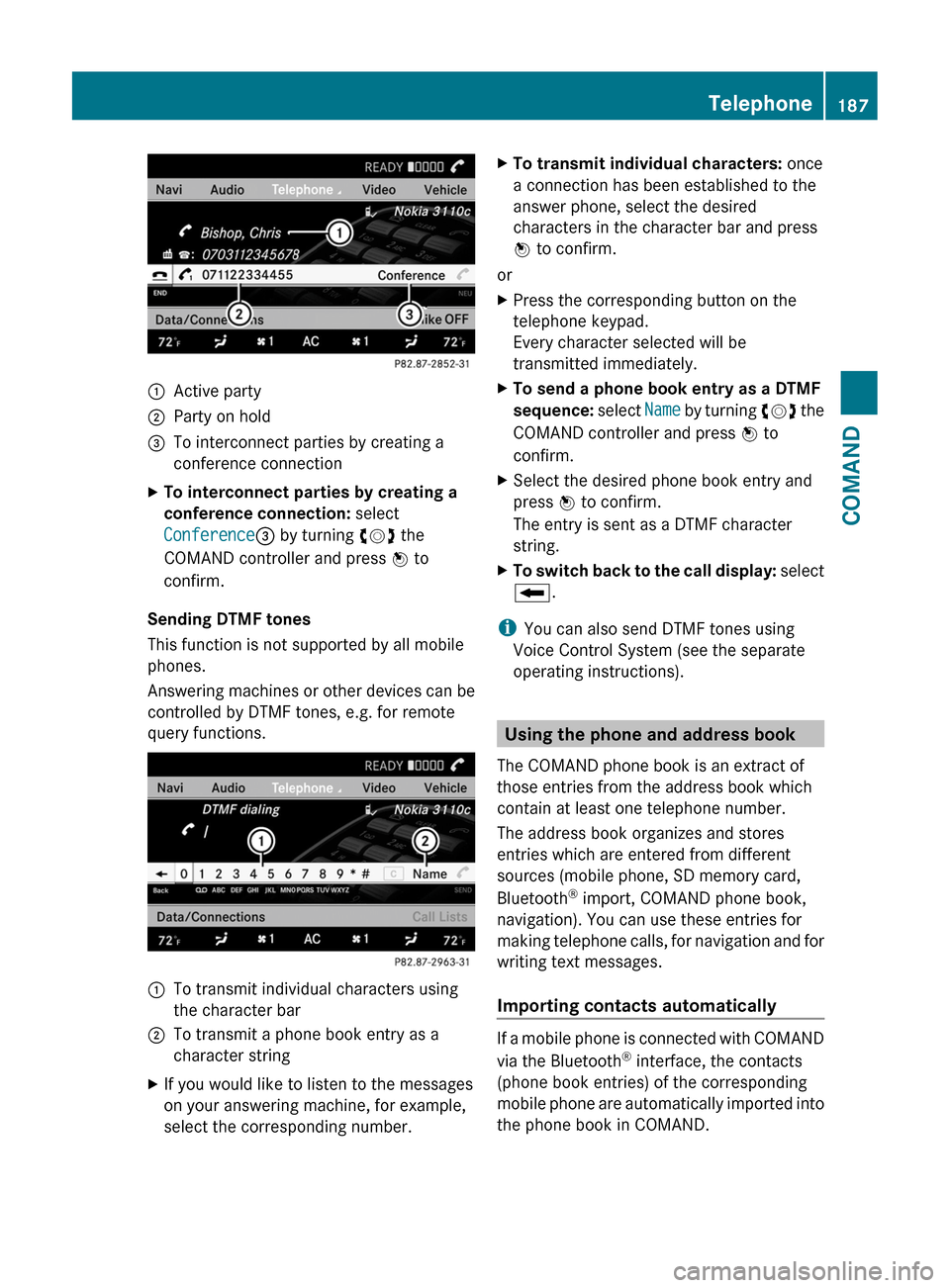
:Active party;Party on hold=To interconnect parties by creating a
conference connection
XTo interconnect parties by creating a
conference connection: select
Conference= by turning cVd the
COMAND controller and press W to
confirm.
Sending DTMF tones
This function is not supported by all mobile
phones.
Answering machines or other devices can be
controlled by DTMF tones, e.g. for remote
query functions.
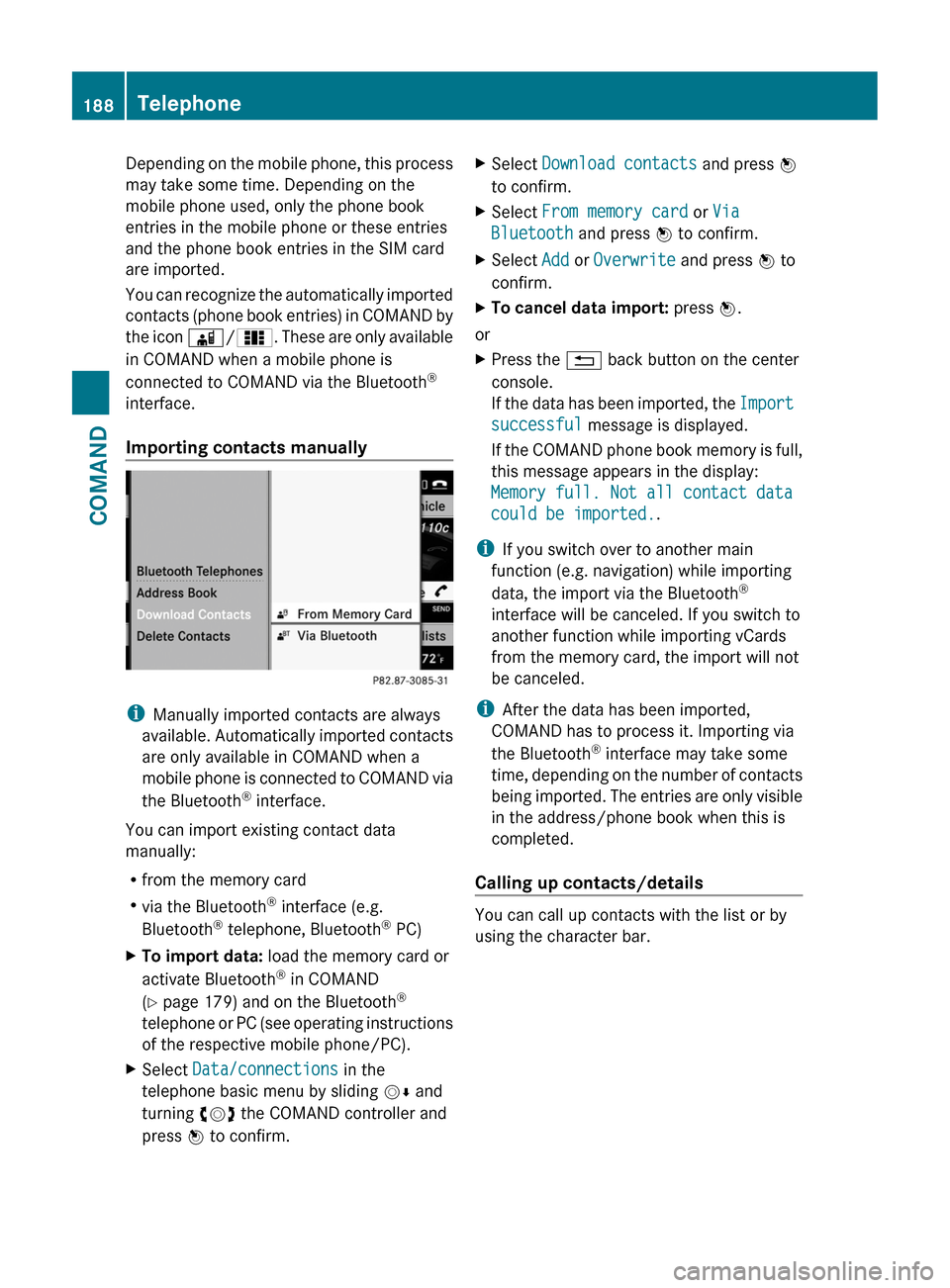
:To transmit individual characters using
the character bar
;To transmit a phone book entry as a
character string
XIf you would like to listen to the messages
on your answering machine, for example,
select the corresponding number.
XTo transmit individual characters: once
a connection has been established to the
answer phone, select the desired
characters in the character bar and press
W to confirm.
or
XPress the corresponding button on the
telephone keypad.
Every character selected will be
transmitted immediately.
XTo send a phone book entry as a DTMF
sequence: select Name by turning cVd the
COMAND controller and press W to
confirm.
XSelect the desired phone book entry and
press W to confirm.
The entry is sent as a DTMF character
string.
XTo switch back to the call display: select
B.
iYou can also send DTMF tones using
Voice Control System (see the separate
operating instructions).
Using the phone and address book
The COMAND phone book is an extract of
those entries from the address book which
contain at least one telephone number.
The address book organizes and stores
entries which are entered from different
sources (mobile phone, SD memory card,
Bluetooth® import, COMAND phone book,
navigation). You can use these entries for
making telephone calls, for navigation and for
writing text messages.
Importing contacts automatically
If a mobile phone is connected with COMAND
via the Bluetooth® interface, the contacts
(phone book entries) of the corresponding
mobile phone are automatically imported into
the phone book in COMAND.
Telephone187COMANDZ
Page 190 of 480
Depending on the mobile phone, this process
may take some time. Depending on the
mobile phone used, only the phone book
entries in the mobile phone or these entries
and the phone book entries in the SIM card
are imported.
You can recognize the automatically imported
contacts (phone book entries) in COMAND by
the icon Ã/0. These are only available
in COMAND when a mobile phone is
connected to COMAND via the Bluetooth®
interface.
Importing contacts manually
iManually imported contacts are always
available. Automatically imported contacts
are only available in COMAND when a
mobile phone is connected to COMAND via
the Bluetooth® interface.
You can import existing contact data
manually:
Rfrom the memory card
Rvia the Bluetooth® interface (e.g.
Bluetooth® telephone, Bluetooth® PC)
XTo import data: load the memory card or
activate Bluetooth® in COMAND
(Y page 179) and on the Bluetooth®
telephone or PC (see operating instructions
of the respective mobile phone/PC).
XSelect Data/connections in the
telephone basic menu by sliding VÆ and
turning cVd the COMAND controller and
press W to confirm.
XSelect Download contacts and press W
to confirm.
XSelect From memory card or Via
Bluetooth and press W to confirm.
XSelect Add or Overwrite and press W to
confirm.
XTo cancel data import: press W.
or
XPress the % back button on the center
console.
If the data has been imported, the Import
successful message is displayed.
If the COMAND phone book memory is full,
this message appears in the display:
Memory full. Not all contact data
could be imported..
iIf you switch over to another main
function (e.g. navigation) while importing
data, the import via the Bluetooth®
interface will be canceled. If you switch to
another function while importing vCards
from the memory card, the import will not
be canceled.
iAfter the data has been imported,
COMAND has to process it. Importing via
the Bluetooth® interface may take some
time, depending on the number of contacts
being imported. The entries are only visible
in the address/phone book when this is
completed.
Calling up contacts/details
You can call up contacts with the list or by
using the character bar.
188TelephoneCOMAND
Page 191 of 480
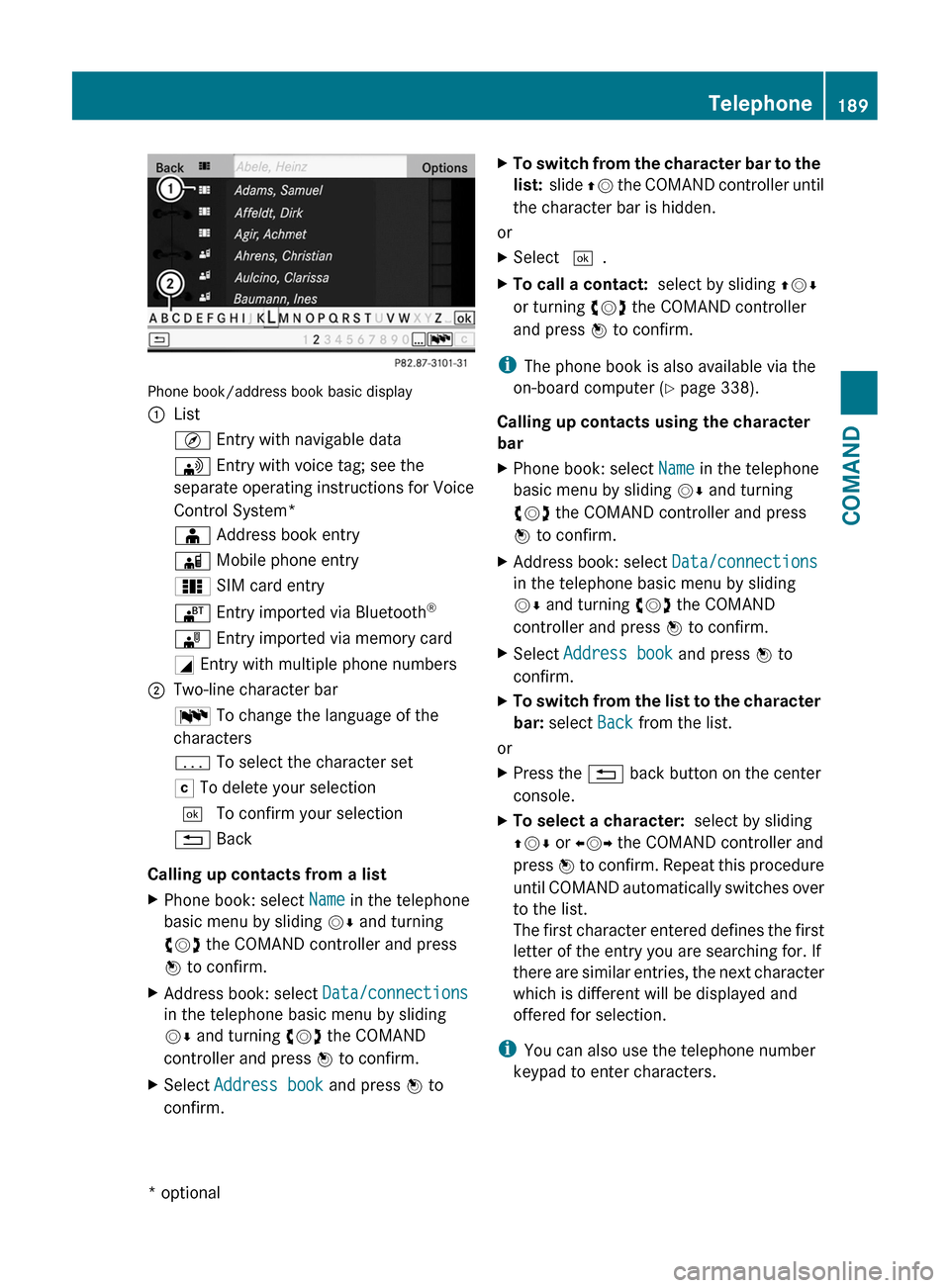
Phone book/address book basic display
:ListÇ Entry with navigable data\ Entry with voice tag; see the
separate operating instructions for Voice
Control System*
Æ Address book entryà Mobile phone entry0 SIM card entry® Entry imported via Bluetooth®¯ Entry imported via memory cardG Entry with multiple phone numbers;Two-line character barB To change the language of the
characters
p To select the character setF To delete your selection¬ To confirm your selection% Back
Calling up contacts from a list
XPhone book: select Name in the telephone
basic menu by sliding VÆ and turning
cVd the COMAND controller and press
W to confirm.
XAddress book: select Data/connections
in the telephone basic menu by sliding
VÆ and turning cVd the COMAND
controller and press W to confirm.
XSelect Address book and press W to
confirm.
XTo switch from the character bar to the
list: slide ZV the COMAND controller until
the character bar is hidden.
or
XSelect ¬.XTo call a contact: select by sliding ZVÆ
or turning cVd the COMAND controller
and press W to confirm.
iThe phone book is also available via the
on-board computer (Y page 338).
Calling up contacts using the character
bar
XPhone book: select Name in the telephone
basic menu by sliding VÆ and turning
cVd the COMAND controller and press
W to confirm.
XAddress book: select Data/connections
in the telephone basic menu by sliding
VÆ and turning cVd the COMAND
controller and press W to confirm.
XSelect Address book and press W to
confirm.
XTo switch from the list to the character
bar: select Back from the list.
or
XPress the % back button on the center
console.
XTo select a character: select by sliding
ZVÆ or XVY the COMAND controller and
press W to confirm. Repeat this procedure
until COMAND automatically switches over
to the list.
The first character entered defines the first
letter of the entry you are searching for. If
there are similar entries, the next character
which is different will be displayed and
offered for selection.
iYou can also use the telephone number
keypad to enter characters.
Telephone189COMAND* optionalZ
Page 193 of 480
XSlide ZVÆ the COMAND controller and
press W to confirm.
or
XPress Æ in the character bar.XTo cancel data entry: select the %
symbol in the character bar and press W
to confirm.
If one of the data fields contains data, a
prompt will appear asking whether you
wish to store the entry.
XTo save data entry: select the ¬
symbol in the character bar and press W
to confirm.
The entry is created in the phone book and
in the address book.
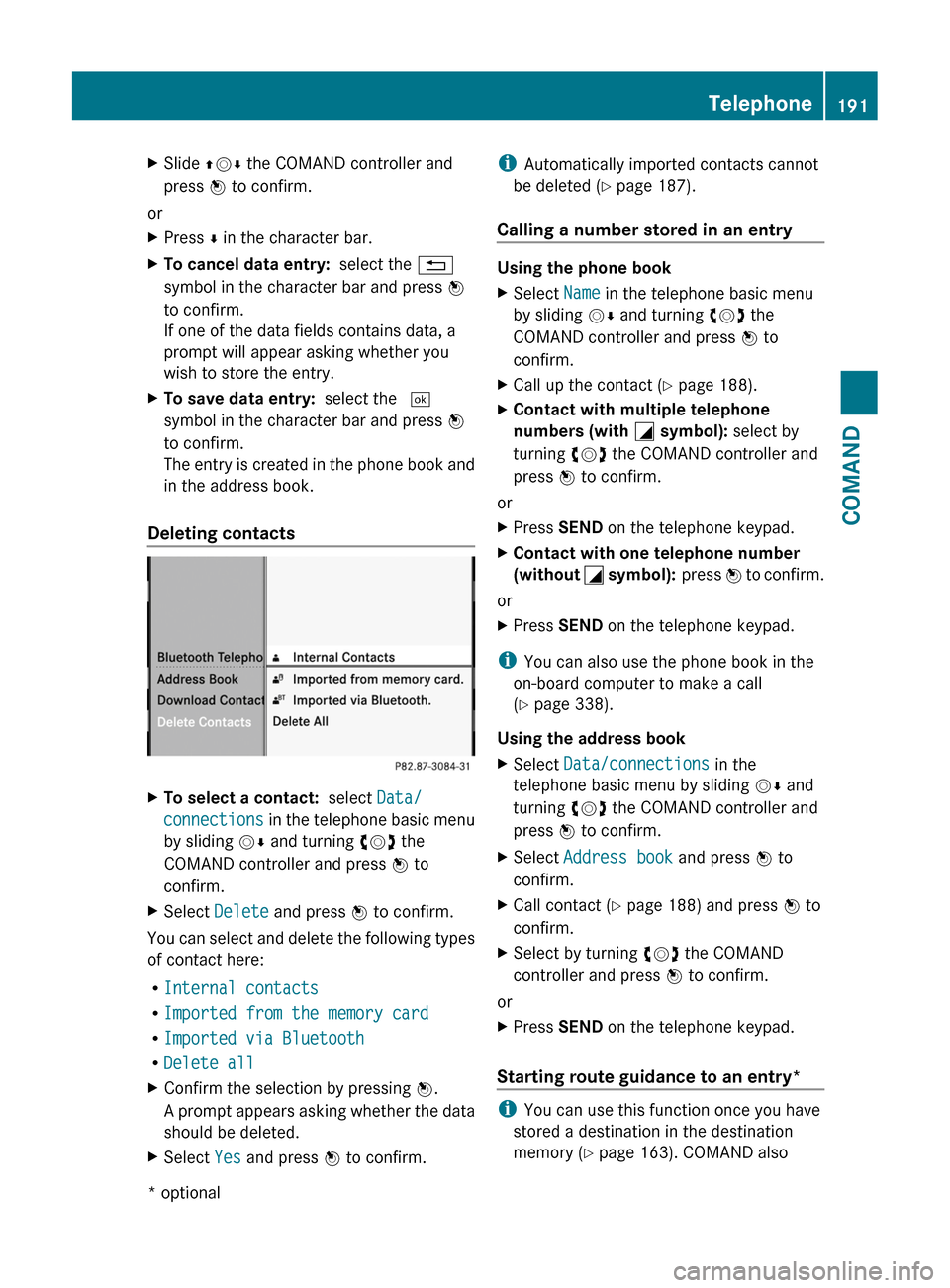
Deleting contacts
XTo select a contact: select Data/
connections in the telephone basic menu
by sliding VÆ and turning cVd the
COMAND controller and press W to
confirm.
XSelect Delete and press W to confirm.
You can select and delete the following types
of contact here:
RInternal contacts
RImported from the memory card
RImported via Bluetooth
RDelete all
XConfirm the selection by pressing W.
A prompt appears asking whether the data
should be deleted.
XSelect Yes and press W to confirm.iAutomatically imported contacts cannot
be deleted (Y page 187).
Calling a number stored in an entry
Using the phone book
XSelect Name in the telephone basic menu
by sliding VÆ and turning cVd the
COMAND controller and press W to
confirm.
XCall up the contact (Y page 188).XContact with multiple telephone
numbers (with G symbol): select by
turning cVd the COMAND controller and
press W to confirm.
or
XPress SEND on the telephone keypad.XContact with one telephone number
(without G symbol): press W to confirm.
or
XPress SEND on the telephone keypad.
iYou can also use the phone book in the
on-board computer to make a call
(Y page 338).
Using the address book
XSelect Data/connections in the
telephone basic menu by sliding VÆ and
turning cVd the COMAND controller and
press W to confirm.
XSelect Address book and press W to
confirm.
XCall contact (Y page 188) and press W to
confirm.
XSelect by turning cVd the COMAND
controller and press W to confirm.
or
XPress SEND on the telephone keypad.
Starting route guidance to an entry*
iYou can use this function once you have
stored a destination in the destination
memory (Y page 163). COMAND also
Telephone191COMAND* optionalZ
Page 219 of 480
Mercedes-Benz USA, LLC does not take
responsibility for any damage to external
devices.
Never connect more than one device at a
time. You will otherwise not be able to play
back from the external device.
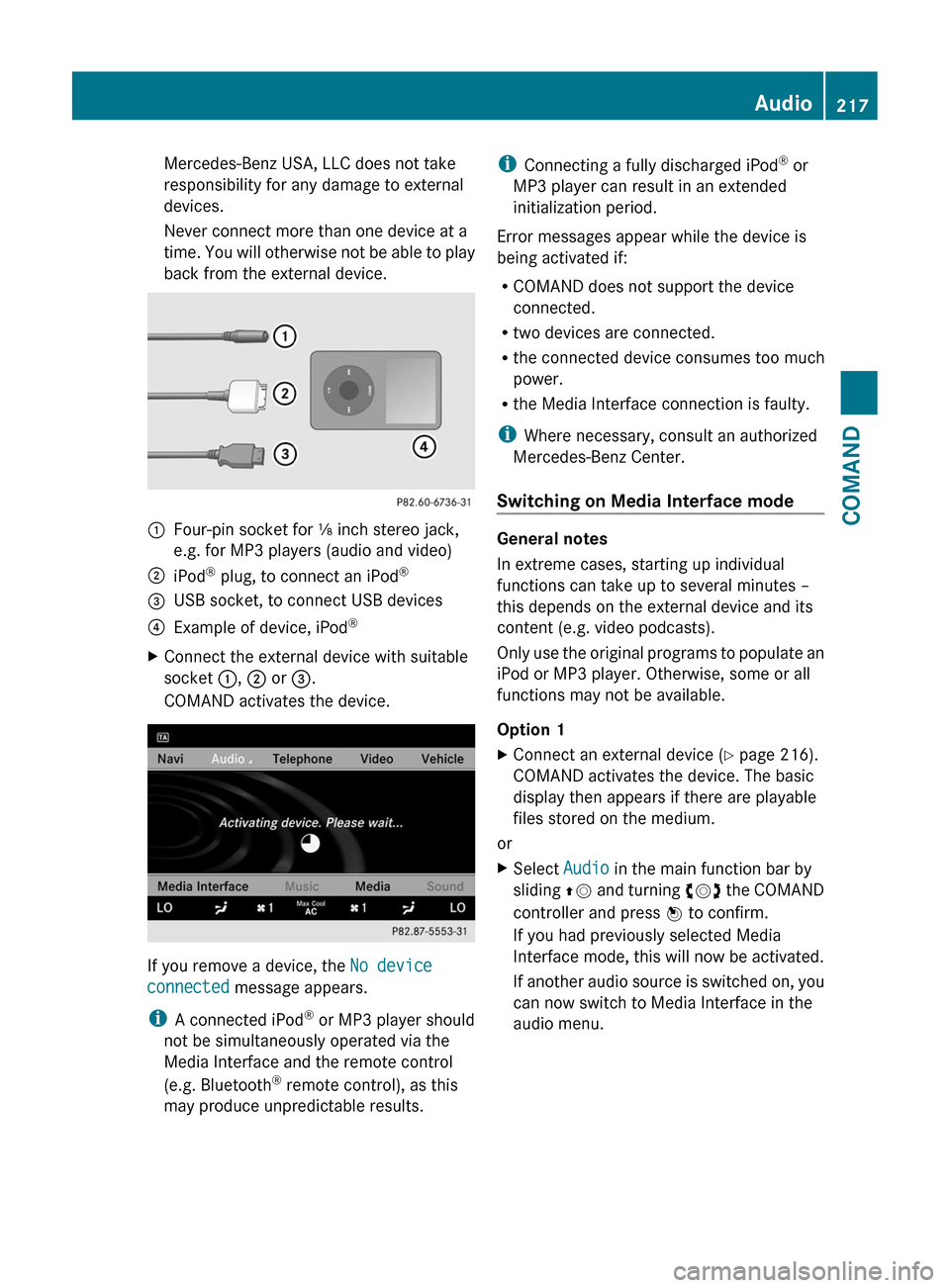
:Four-pin socket for ⅛ inch stereo jack,
e.g. for MP3 players (audio and video)
;iPod® plug, to connect an iPod®=USB socket, to connect USB devices?Example of device, iPod®XConnect the external device with suitable
socket :, ; or =.
COMAND activates the device.
If you remove a device, the No device
connected message appears.
iA connected iPod® or MP3 player should
not be simultaneously operated via the
Media Interface and the remote control
(e.g. Bluetooth® remote control), as this
may produce unpredictable results.
iConnecting a fully discharged iPod® or
MP3 player can result in an extended
initialization period.
Error messages appear while the device is
being activated if:
RCOMAND does not support the device
connected.
Rtwo devices are connected.
Rthe connected device consumes too much
power.
Rthe Media Interface connection is faulty.
iWhere necessary, consult an authorized
Mercedes-Benz Center.
Switching on Media Interface mode
General notes
In extreme cases, starting up individual
functions can take up to several minutes –
this depends on the external device and its
content (e.g. video podcasts).
Only use the original programs to populate an
iPod or MP3 player. Otherwise, some or all
functions may not be available.
Option 1
XConnect an external device (Y page 216).
COMAND activates the device. The basic
display then appears if there are playable
files stored on the medium.
or
XSelect Audio in the main function bar by
sliding ZV and turning cVd the COMAND
controller and press W to confirm.
If you had previously selected Media
Interface mode, this will now be activated.
If another audio source is switched on, you
can now switch to Media Interface in the
audio menu.
Audio217COMANDZ