Window MERCEDES-BENZ CL-Class 2011 C216 Owner's Guide
[x] Cancel search | Manufacturer: MERCEDES-BENZ, Model Year: 2011, Model line: CL-Class, Model: MERCEDES-BENZ CL-Class 2011 C216Pages: 480, PDF Size: 19.76 MB
Page 117 of 480
Avoid using alcoholic thinners, gasoline or
abrasive cleaning agents. These products can
damage the display surface. Do not apply
pressure to the display surface when cleaning
it as this could cause irreversible damage.
Remote control
Overview
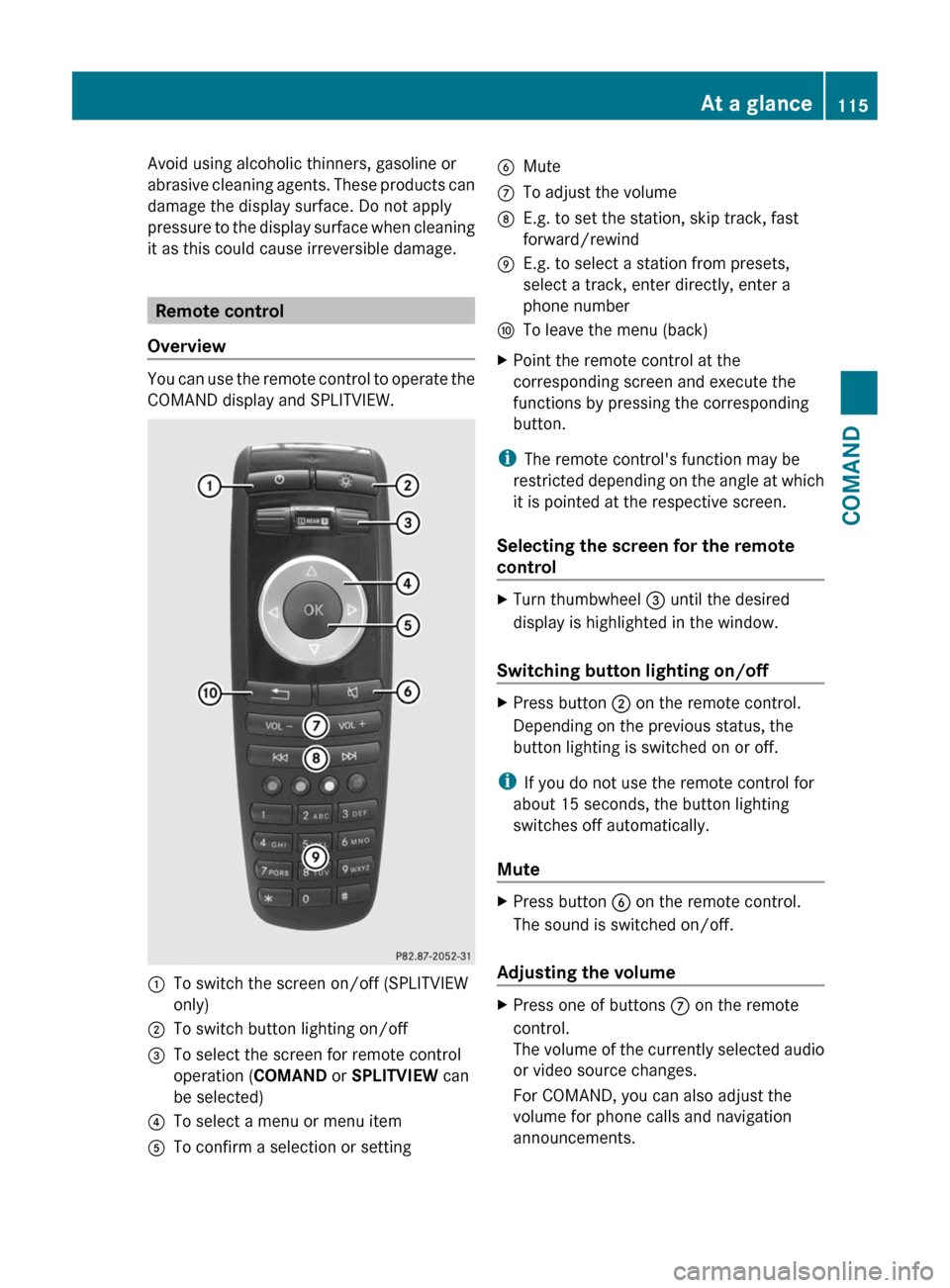
You can use the remote control to operate the
COMAND display and SPLITVIEW.
:To switch the screen on/off (SPLITVIEW
only)
;To switch button lighting on/off=To select the screen for remote control
operation (COMAND or SPLITVIEW can
be selected)
?To select a menu or menu itemATo confirm a selection or settingBMuteCTo adjust the volumeDE.g. to set the station, skip track, fast
forward/rewind
EE.g. to select a station from presets,
select a track, enter directly, enter a
phone number
FTo leave the menu (back)XPoint the remote control at the
corresponding screen and execute the
functions by pressing the corresponding
button.
iThe remote control's function may be
restricted depending on the angle at which
it is pointed at the respective screen.
Selecting the screen for the remote
control
XTurn thumbwheel = until the desired
display is highlighted in the window.
Switching button lighting on/off
XPress button ; on the remote control.
Depending on the previous status, the
button lighting is switched on or off.
iIf you do not use the remote control for
about 15 seconds, the button lighting
switches off automatically.
Mute
XPress button B on the remote control.
The sound is switched on/off.
Adjusting the volume
XPress one of buttons C on the remote
control.
The volume of the currently selected audio
or video source changes.
For COMAND, you can also adjust the
volume for phone calls and navigation
announcements.
At a glance115COMANDZ
Page 119 of 480
Functions of the E and F button
You can use the remote control to execute the same functions as the COMAND control panel.
ModeFunctionAudio modeSelecting a station using the station search function (Y page 196)Selecting a track by skipping to a track (Y page 208)Fast forward/rewind (Y page 209)Video modeSelecting a scene or chapter (video DVD mode) (Y page 226)Fast forward/rewind (video DVD mode) (Y page 225)
Functions of the number pad
You can use the remote control to execute the same functions as the COMAND control panel.
ModeFunctionAudio modeSelecting channels via the channel presets (Y page 196)Setting stations by entering the frequency manually (Y page 196)Storing channels manually (Y page 197)Selecting a track (Y page 208)Selecting a data medium via the media list (Y page 208)Telephone modeTelephone number entry (Y page 184)Character entryEntering characters (direct entry) (Y page 120)Operating COMAND
Selecting a main function
Initial situation
You want to change from the telephone menu
to the vehicle settings, for example.
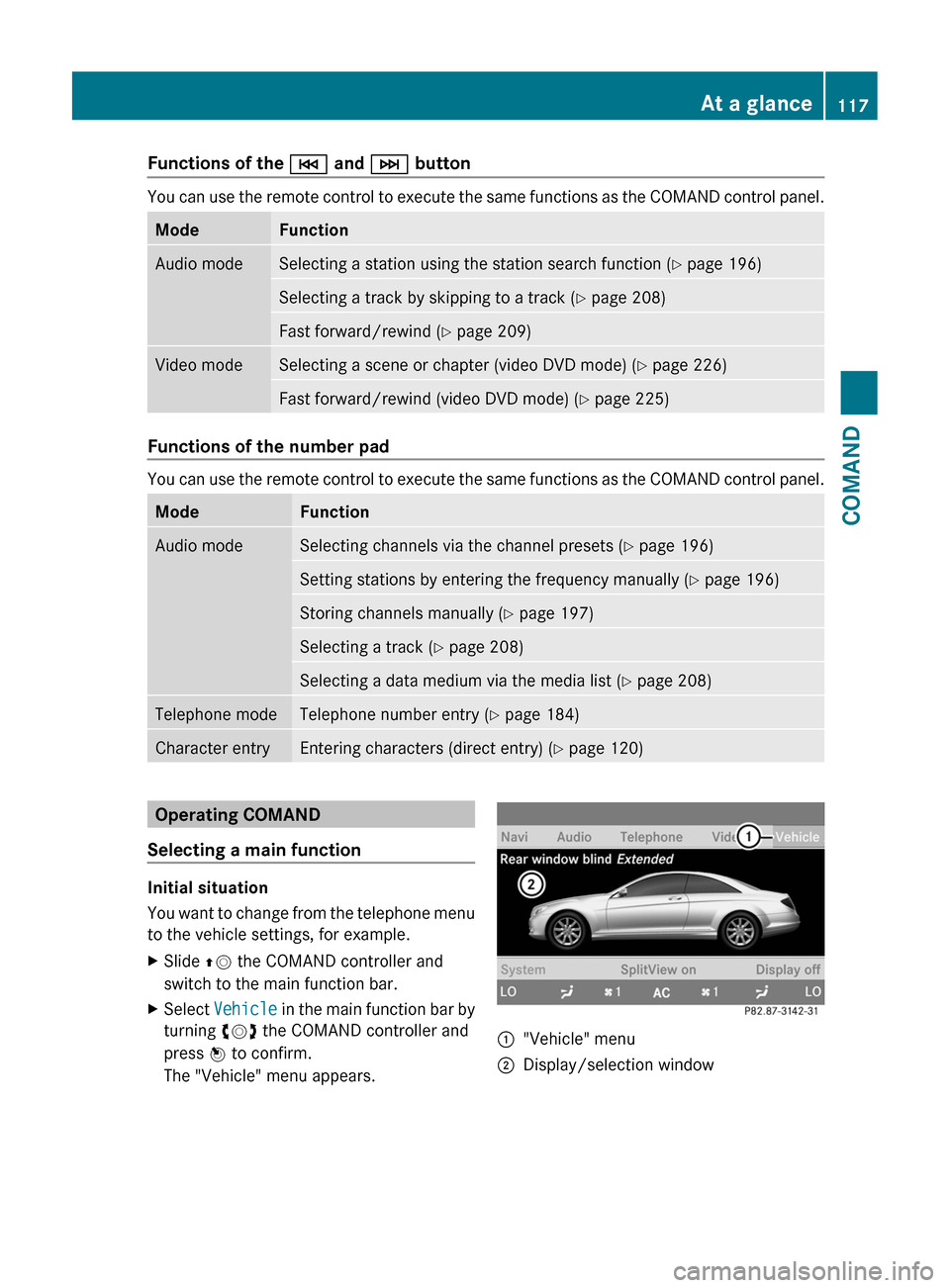
XSlide ZV the COMAND controller and
switch to the main function bar.
XSelect Vehicle in the main function bar by
turning cVd the COMAND controller and
press W to confirm.
The "Vehicle" menu appears.
:"Vehicle" menu;Display/selection windowAt a glance117COMANDZ
Page 121 of 480
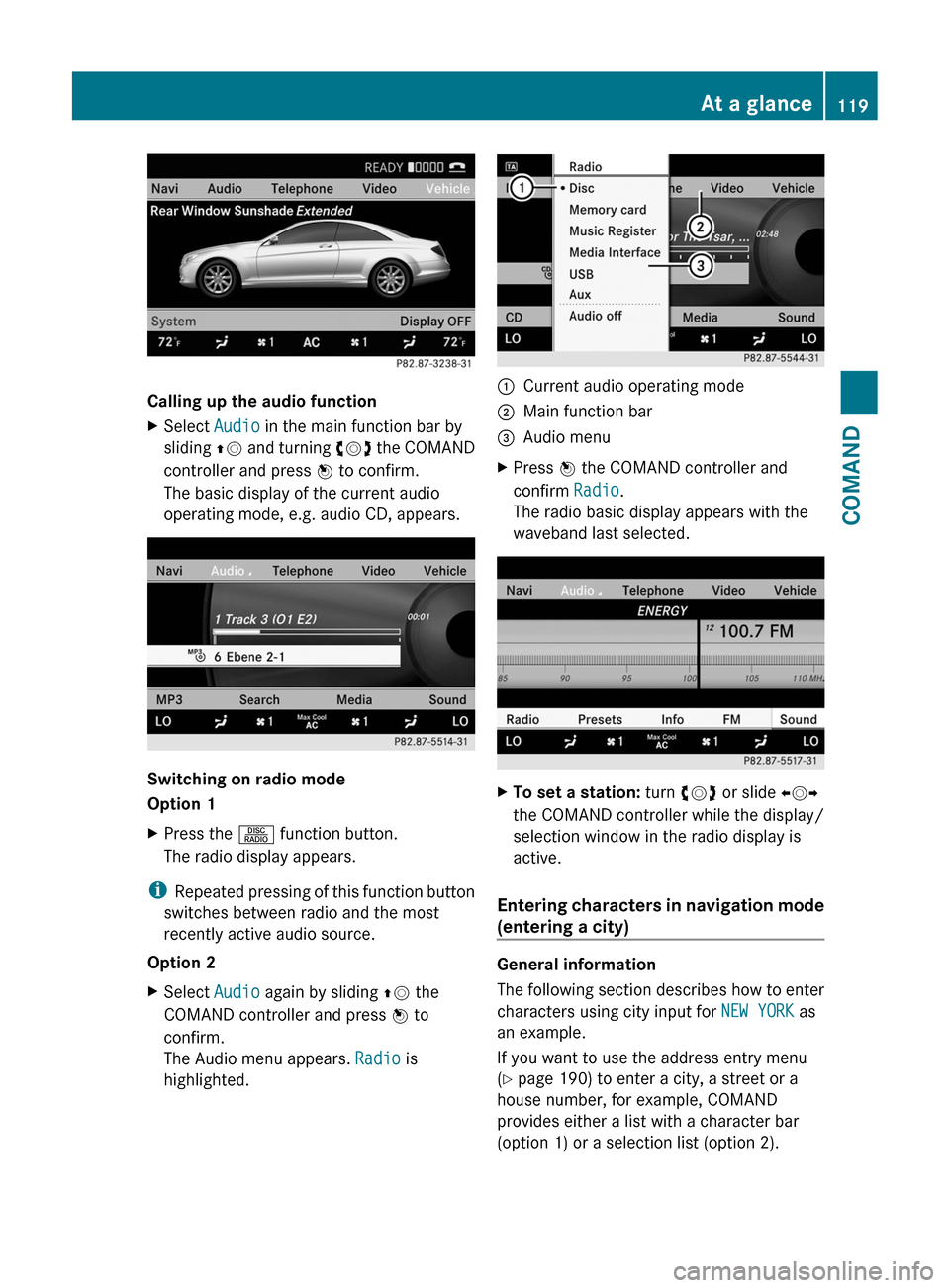
Calling up the audio function
XSelect Audio in the main function bar by
sliding ZV and turning cVd the COMAND
controller and press W to confirm.
The basic display of the current audio
operating mode, e.g. audio CD, appears.
Switching on radio mode
Option 1
XPress the R function button.
The radio display appears.
iRepeated pressing of this function button
switches between radio and the most
recently active audio source.
Option 2
XSelect Audio again by sliding ZV the
COMAND controller and press W to
confirm.
The Audio menu appears. Radio is
highlighted.
:Current audio operating mode;Main function bar=Audio menuXPress W the COMAND controller and
confirm Radio.
The radio basic display appears with the
waveband last selected.
XTo set a station: turn cVd or slide XVY
the COMAND controller while the display/
selection window in the radio display is
active.
Entering characters in navigation mode
(entering a city)
General information
The following section describes how to enter
characters using city input for NEW YORK as
an example.
If you want to use the address entry menu
(Y page 190) to enter a city, a street or a
house number, for example, COMAND
provides either a list with a character bar
(option 1) or a selection list (option 2).
At a glance119COMANDZ
Page 132 of 480
Setting the time/date formatXSelect Vehicle in the main function bar by
turning cVd the COMAND controller and
press W to confirm.XSelect System by turning cVd the
COMAND controller and press W to
confirm.XSelect Time by turning cVd the COMAND
controller and press W to confirm.XSelect Format and press W to confirm.
The # symbols show the current settings.AbbreviationMeaningDD/MM /YYYYDay/Month/Year
(date format)HH /MMHours/Minutes
(time format)You can set the 24-hour or the AM/PM
format.XSet the format by turning cVd the
COMAND controller and press W to
confirm.
Setting the time zone and switching
between summer and standard time
XSelect Vehicle in the main function bar by
turning cVd the COMAND controller and
press W to confirm.XSelect System by turning cVd the
COMAND controller and press W to
confirm.XSelect Time by turning cVd the COMAND
controller and press W to confirm.XSelect Time zone and press W to confirm.
A list of time zones appears. The # dot
indicates the current setting.XSelect the time zone and press W to
confirm.XTo switch automatic changeover on/
off: select Automatic summer/winter
time changeover or Automatic summer/
winter time changeover by turning
cVd the COMAND controller and press
W to confirm.
The # dot indicates the current setting.
Read-aloud settings
Setting the text reader speed
XSelect Vehicle by turning cVd the
COMAND controller and press W to
confirm.XSelect System and press W to confirm.XSelect Text reader and press W to
confirm.XSelect Set text reader speed and press
W to confirm.
A list appears. The # dot indicates the
current setting.XSelect a setting by turning cVd the
COMAND controller and press W to
confirm.
Voice Control System settings
Opening/closing the help window
The help window shows you additional
information during individualization and voice
control operation.
XSelect Vehicle in the main function bar by
turning cVd the COMAND controller and
press W to confirm.XSelect System by turning cVd the
COMAND controller and press W to
confirm.130System settingsCOMAND
Page 133 of 480
XSelect Voice Control by turning cVd the
COMAND controller and press W to
confirm.
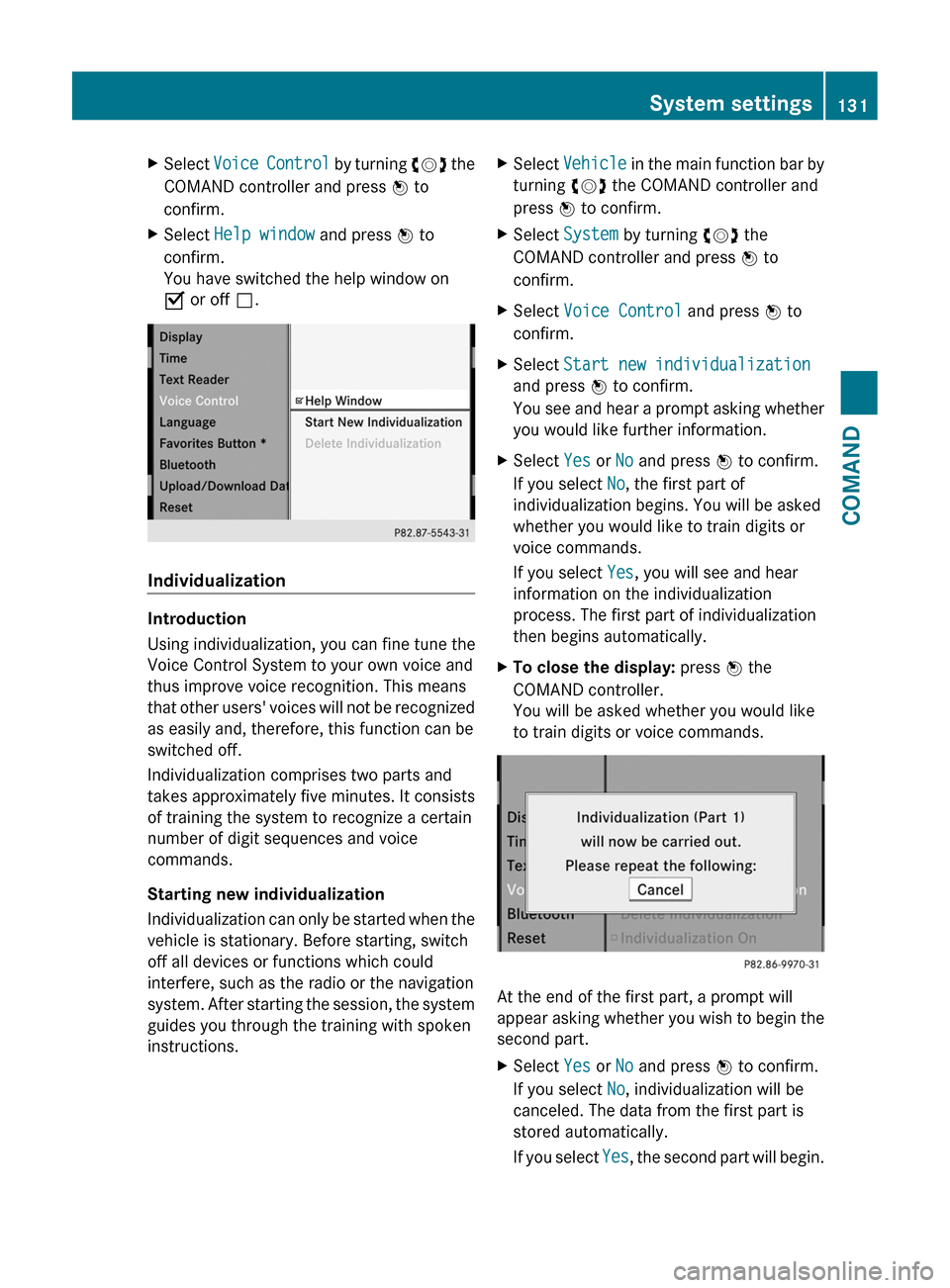
XSelect Help window and press W to
confirm.
You have switched the help window on
O or off ª.
Individualization
Introduction
Using individualization, you can fine tune the
Voice Control System to your own voice and
thus improve voice recognition. This means
that other users' voices will not be recognized
as easily and, therefore, this function can be
switched off.
Individualization comprises two parts and
takes approximately five minutes. It consists
of training the system to recognize a certain
number of digit sequences and voice
commands.
Starting new individualization
Individualization can only be started when the
vehicle is stationary. Before starting, switch
off all devices or functions which could
interfere, such as the radio or the navigation
system. After starting the session, the system
guides you through the training with spoken
instructions.
XSelect Vehicle in the main function bar by
turning cVd the COMAND controller and
press W to confirm.
XSelect System by turning cVd the
COMAND controller and press W to
confirm.
XSelect Voice Control and press W to
confirm.
XSelect Start new individualization
and press W to confirm.
You see and hear a prompt asking whether
you would like further information.
XSelect Yes or No and press W to confirm.
If you select No, the first part of
individualization begins. You will be asked
whether you would like to train digits or
voice commands.
If you select Yes, you will see and hear
information on the individualization
process. The first part of individualization
then begins automatically.
XTo close the display: press W the
COMAND controller.
You will be asked whether you would like
to train digits or voice commands.
At the end of the first part, a prompt will
appear asking whether you wish to begin the
second part.
XSelect Yes or No and press W to confirm.
If you select No, individualization will be
canceled. The data from the first part is
stored automatically.
If you select Yes, the second part will begin.
System settings131COMANDZ
Page 163 of 480
Displaying real-time traffic reportsXIf necessary, switch to navigation mode
and show the menu (Y page 137).
XSelect Traffic in the navigation system
menu bar by turning cVd the COMAND
controller and press W to confirm.
If you see the No traffic messages.
message:
This means that:
Rno traffic reports have been received yet.
Rno traffic reports are available.
XTo cancel the search: select Cancel.XTo close the message window: select
OK.
If there are any traffic reports, a list is shown.
The content of the list varies depending on
whether route guidance is active or not.
List of traffic reports
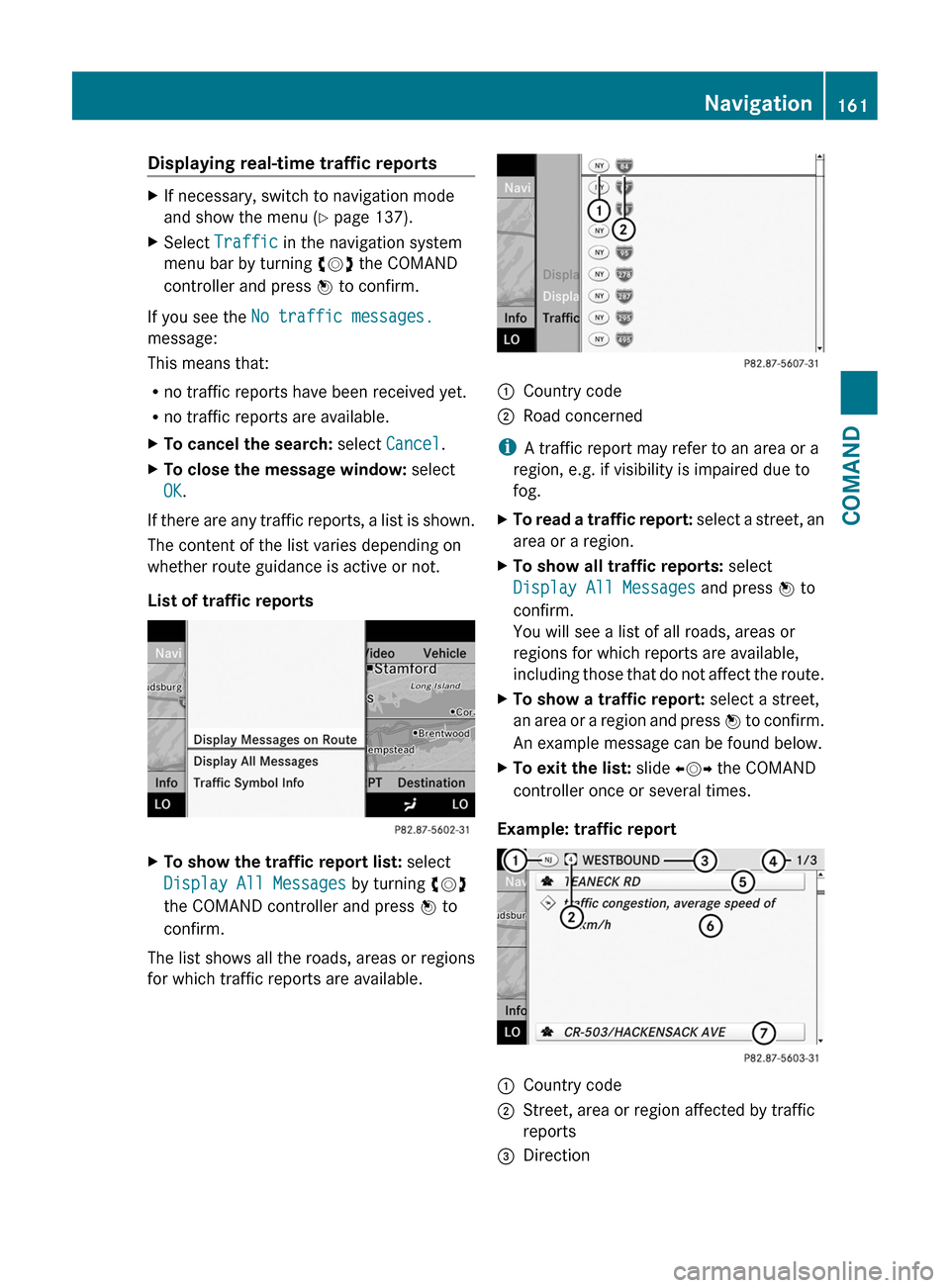
XTo show the traffic report list: select
Display All Messages by turning cVd
the COMAND controller and press W to
confirm.
The list shows all the roads, areas or regions
for which traffic reports are available.
1Country code2Road concerned
iA traffic report may refer to an area or a
region, e.g. if visibility is impaired due to
fog.
XTo read a traffic report: select a street, an
area or a region.
XTo show all traffic reports: select
Display All Messages and press W to
confirm.
You will see a list of all roads, areas or
regions for which reports are available,
including those that do not affect the route.
XTo show a traffic report: select a street,
an area or a region and press W to confirm.
An example message can be found below.
XTo exit the list: slide XVY the COMAND
controller once or several times.
Example: traffic report
1Country code2Street, area or region affected by traffic
reports
3DirectionNavigation161COMANDZ
Page 186 of 480
Using the telephone
Incoming call
Rejecting or accepting a call
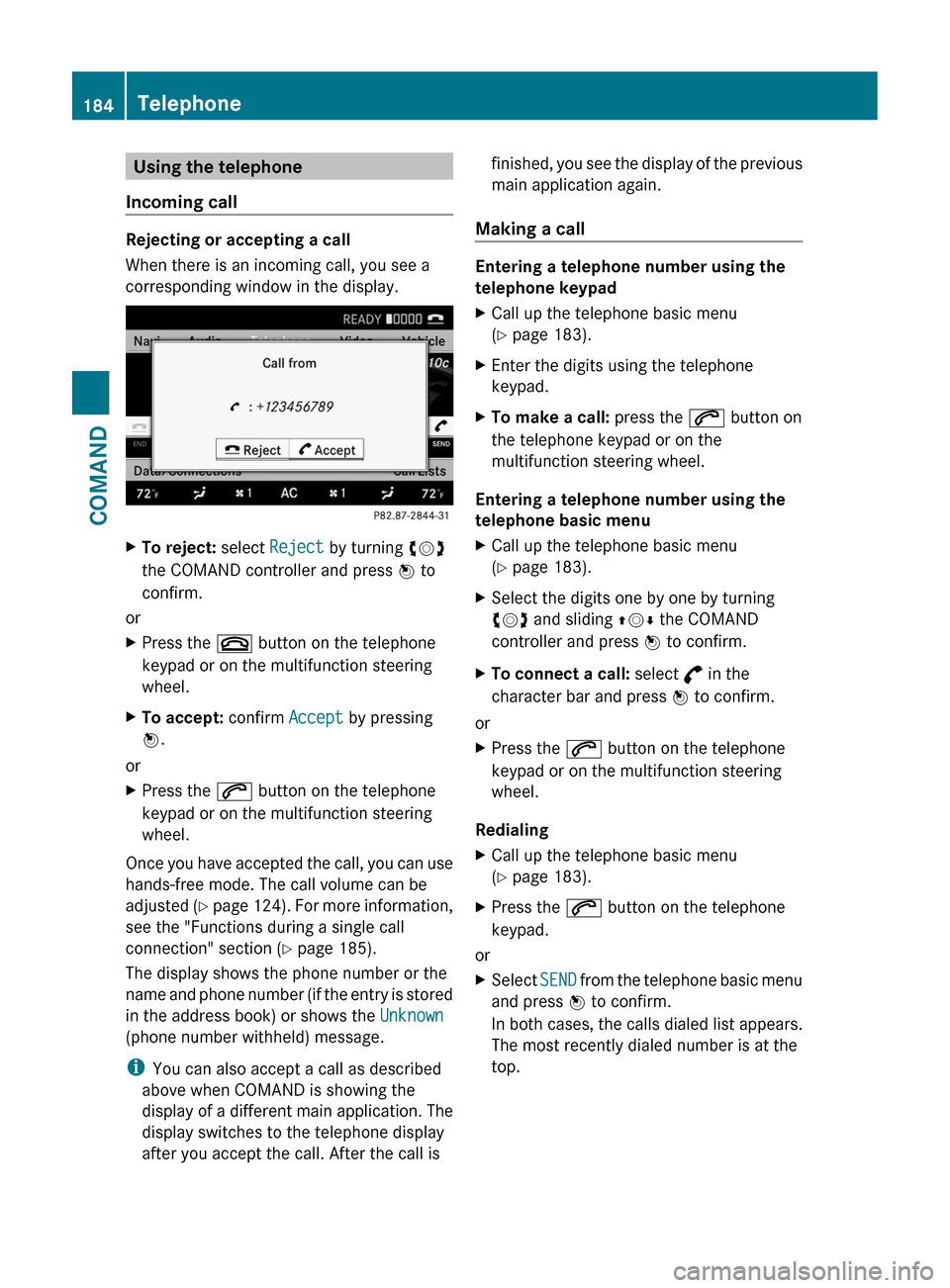
When there is an incoming call, you see a
corresponding window in the display.
XTo reject: select Reject by turning cVd
the COMAND controller and press W to
confirm.
or
XPress the ~ button on the telephone
keypad or on the multifunction steering
wheel.
XTo accept: confirm Accept by pressing
W.
or
XPress the 6 button on the telephone
keypad or on the multifunction steering
wheel.
Once you have accepted the call, you can use
hands-free mode. The call volume can be
adjusted (Y page 124). For more information,
see the "Functions during a single call
connection" section (Y page 185).
The display shows the phone number or the
name and phone number (if the entry is stored
in the address book) or shows the Unknown
(phone number withheld) message.
iYou can also accept a call as described
above when COMAND is showing the
display of a different main application. The
display switches to the telephone display
after you accept the call. After the call is
finished, you see the display of the previous
main application again.
Making a call
Entering a telephone number using the
telephone keypad
XCall up the telephone basic menu
(Y page 183).
XEnter the digits using the telephone
keypad.
XTo make a call: press the 6 button on
the telephone keypad or on the
multifunction steering wheel.
Entering a telephone number using the
telephone basic menu
XCall up the telephone basic menu
(Y page 183).
XSelect the digits one by one by turning
cVd and sliding ZVÆ the COMAND
controller and press W to confirm.
XTo connect a call: select ° in the
character bar and press W to confirm.
or
XPress the 6 button on the telephone
keypad or on the multifunction steering
wheel.
Redialing
XCall up the telephone basic menu
(Y page 183).
XPress the 6 button on the telephone
keypad.
or
XSelect SEND from the telephone basic menu
and press W to confirm.
In both cases, the calls dialed list appears.
The most recently dialed number is at the
top.
184TelephoneCOMAND
Page 197 of 480
Audio
Vehicle equipment
iThis manual describes all the standard
and optional equipment of your vehicle
which was available at the time of
purchase. Country-specific differences are
possible. Bear in mind that your vehicle
may not feature all functions described
here. This also refers to safety-related
systems and functions.
Radio mode
General information
iPortable electronic devices in the vehicle
may seriously impair radio reception.
Switching to radio mode
Option 1
XPress the R function button.
The radio display appears. You will hear the
last station selected on the last waveband
set.
Option 2
XSelect Audio in the main function bar by
sliding ZV and turning cVd the COMAND
controller and press W to confirm.
If radio mode was the last mode selected,
it will now be active.
If another audio mode is switched on, you
can now switch to radio mode in the audio
menu.
XSelect Audio by sliding ZV the COMAND
controller and press W to confirm.
The audio menu appears.
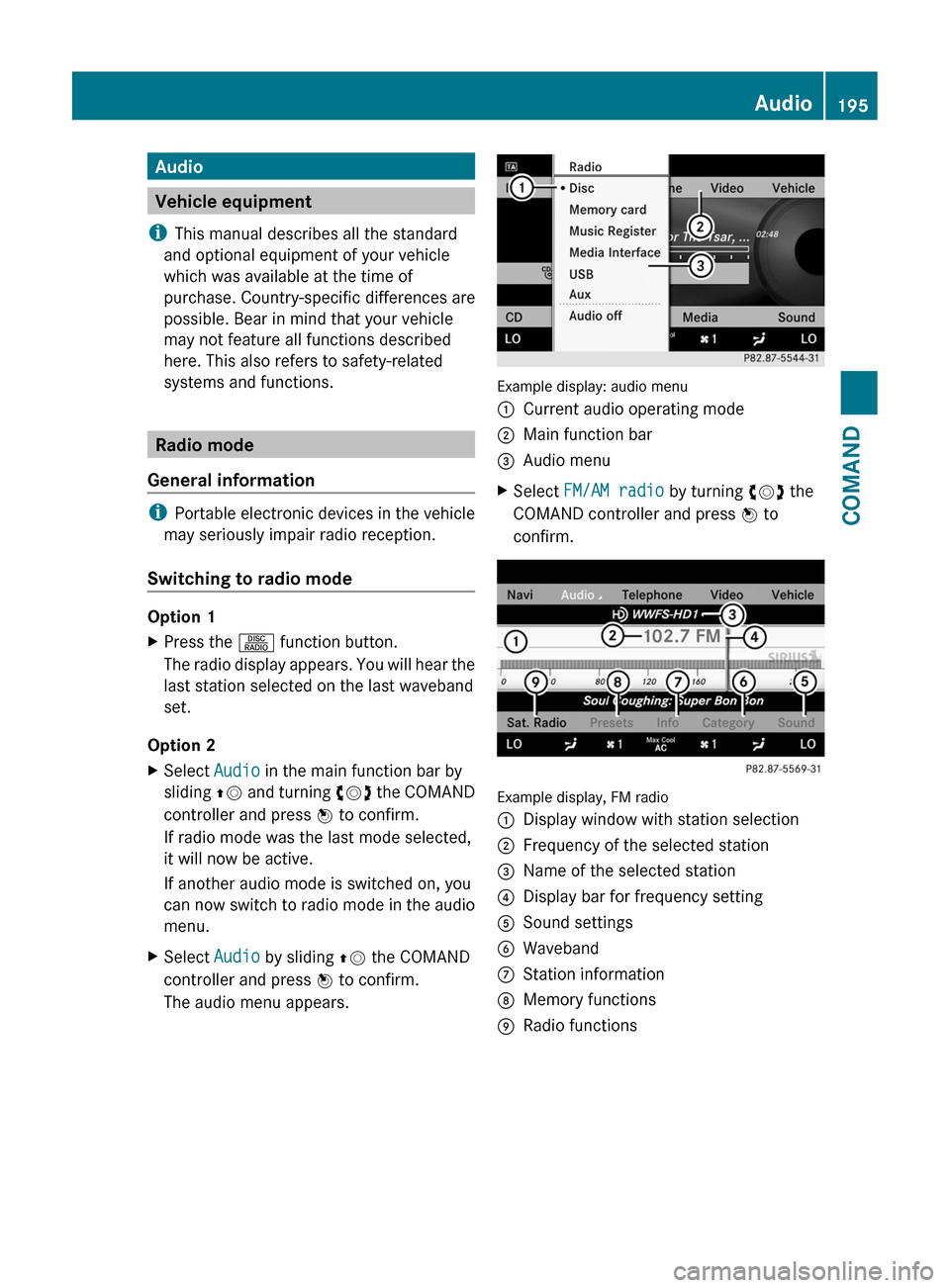
Example display: audio menu
:Current audio operating mode;Main function bar=Audio menuXSelect FM/AM radio by turning cVd the
COMAND controller and press W to
confirm.
Example display, FM radio
:Display window with station selection;Frequency of the selected station=Name of the selected station?Display bar for frequency settingASound settingsBWavebandCStation informationDMemory functionsERadio functionsAudio195COMANDZ
Page 198 of 480
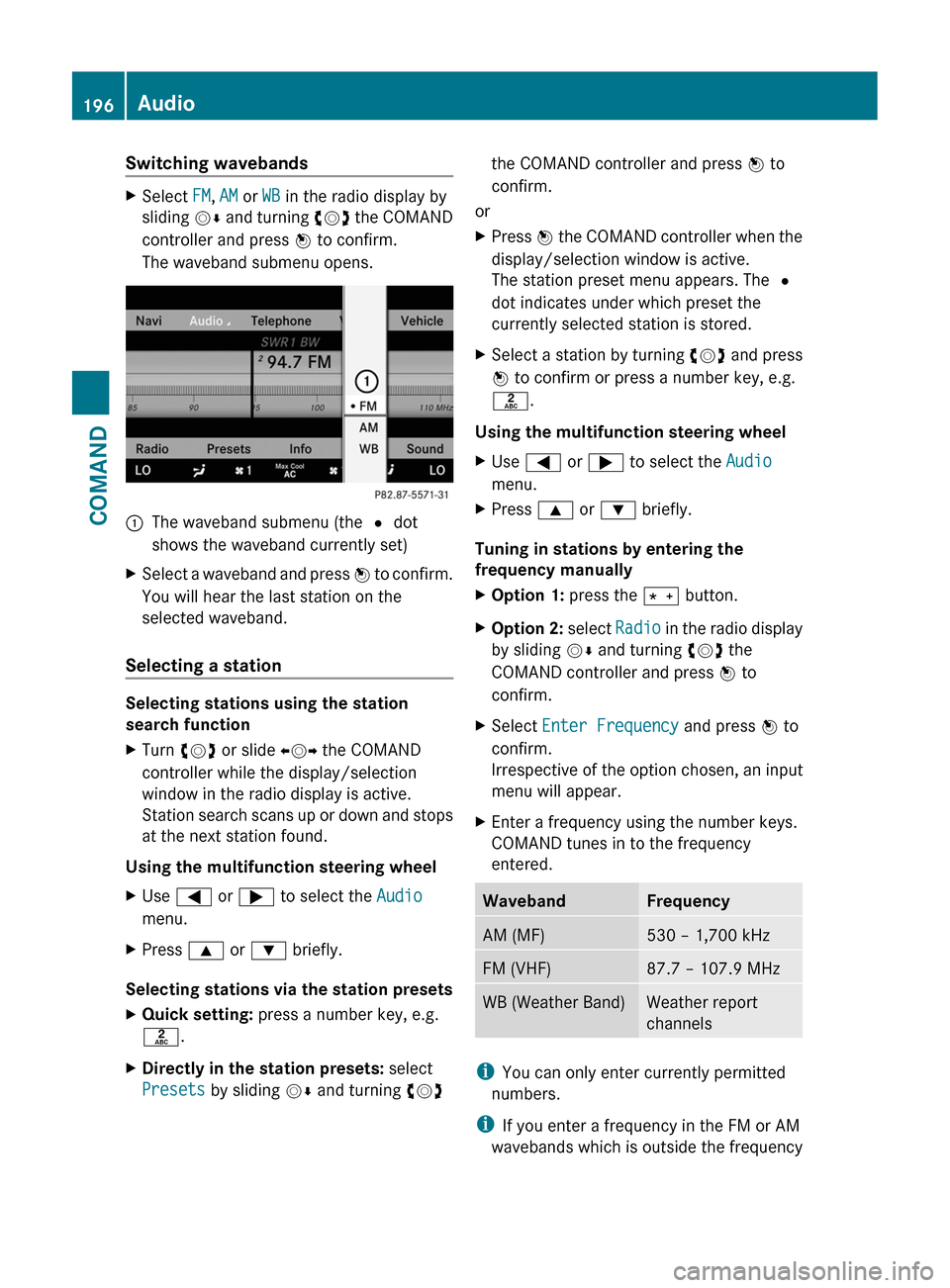
Switching wavebandsXSelect FM, AM or WB in the radio display by
sliding VÆ and turning cVd the COMAND
controller and press W to confirm.
The waveband submenu opens.
1The waveband submenu (the # dot
shows the waveband currently set)
XSelect a waveband and press W to confirm.
You will hear the last station on the
selected waveband.
Selecting a station
Selecting stations using the station
search function
XTurn cVd or slide XVY the COMAND
controller while the display/selection
window in the radio display is active.
Station search scans up or down and stops
at the next station found.
Using the multifunction steering wheel
XUse = or ; to select the Audio
menu.
XPress 9 or : briefly.
Selecting stations via the station presets
XQuick setting: press a number key, e.g.
l.
XDirectly in the station presets: select
Presets by sliding VÆ and turning cVd
the COMAND controller and press W to
confirm.
or
XPress W the COMAND controller when the
display/selection window is active.
The station preset menu appears. The #
dot indicates under which preset the
currently selected station is stored.
XSelect a station by turning cVd and press
W to confirm or press a number key, e.g.
l.
Using the multifunction steering wheel
XUse = or ; to select the Audio
menu.
XPress 9 or : briefly.
Tuning in stations by entering the
frequency manually
XOption 1: press the Ä button.XOption 2: select Radio in the radio display
by sliding VÆ and turning cVd the
COMAND controller and press W to
confirm.
XSelect Enter Frequency and press W to
confirm.
Irrespective of the option chosen, an input
menu will appear.
XEnter a frequency using the number keys.
COMAND tunes in to the frequency
entered.
WavebandFrequencyAM (MF)530 – 1,700 kHzFM (VHF)87.7 – 107.9 MHzWB (Weather Band)Weather report
channels
iYou can only enter currently permitted
numbers.
iIf you enter a frequency in the FM or AM
wavebands which is outside the frequency
196AudioCOMAND
Page 199 of 480
range, COMAND tunes in to the next lower
frequency.
Storing stations
Storing stations manually
There are twenty presets available for the FM
and AM wavebands.
XQuick save: press and hold a number key,
e.g. l, until you hear a tone.
The station is stored.
XDirectly in the station presets: press W
the COMAND controller when the display/
selection window is active in the radio
display.
or
XSelect Presets by sliding VÆ and turning
cVd the COMAND controller and press
W to confirm.
In both cases, the station presets appear.
The # dot indicates under which preset
the currently selected station is stored.
Example display: station presets
XSelect a preset by turning cVd the
COMAND controller and press and hold
W until you hear a tone.
The station is stored under the preset.
Storing stations automatically
This function automatically stores stations
with adequate reception. The search starts at
the lowest frequency. If stations are found,
COMAND stores them starting at memory
slot 1. Storing is complete when the highest
frequency has been reached or when 10
stations have been found. Stations stored
manually in the preset memory will be lost. It
is possible that COMAND does not fill all
memory slots when storing.
XOption 1: press W the COMAND controller
when the display/selection window is
active.
The station preset menu appears.
XOption 2: select Presets by sliding VÆ
and turning cVd the COMAND controller
and press W to confirm.
The station preset menu appears.
XIrrespective of the option chosen, select
Autostore and press W to confirm.
In both cases, COMAND searches for
stations that can be received. You will see
a message to this effect. The available
stations are automatically stored in the
preset positions.
XTo cancel storing: select Cancel and
press W to confirm.
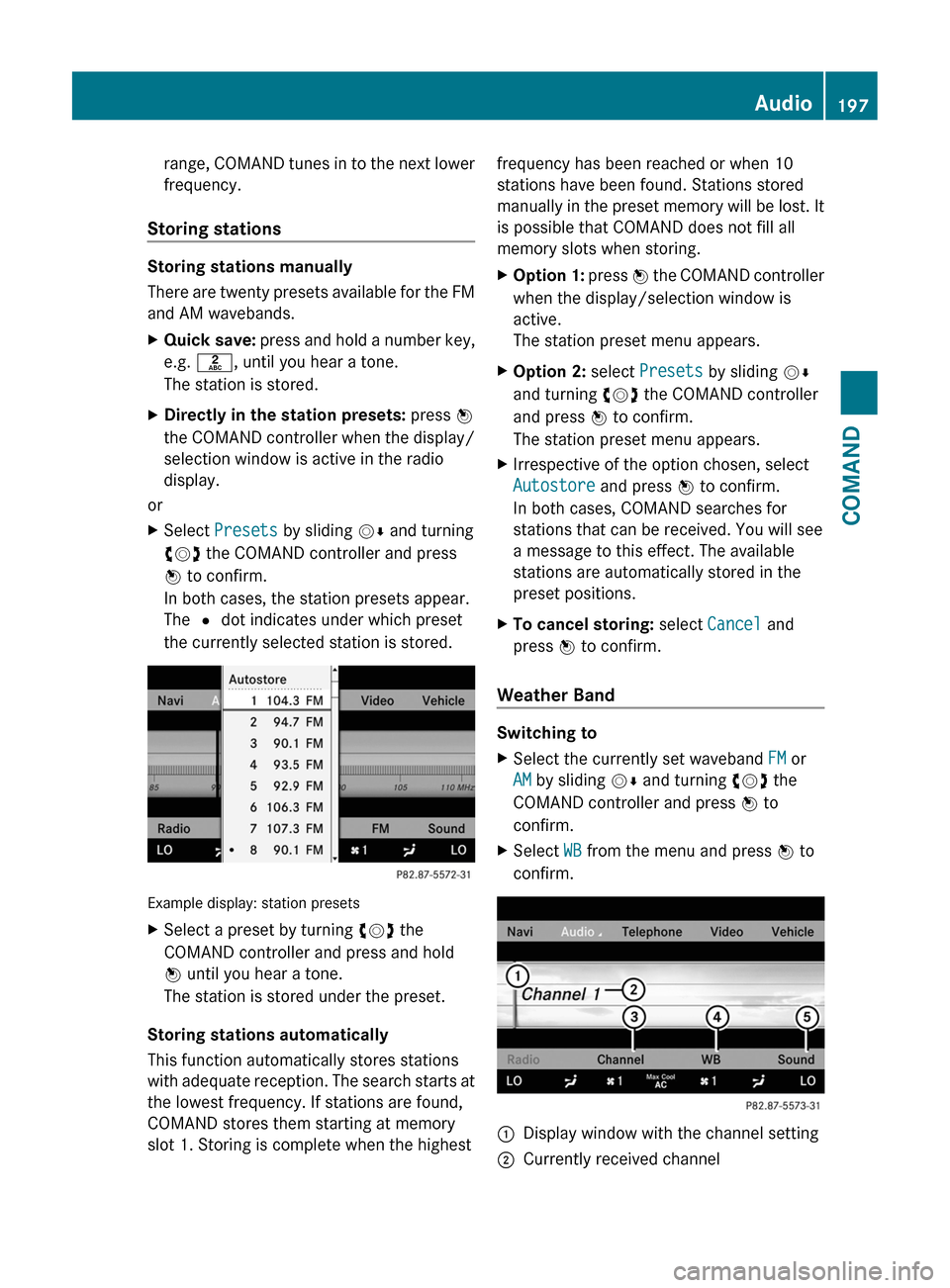
Weather Band
Switching to
XSelect the currently set waveband FM or
AM by sliding VÆ and turning cVd the
COMAND controller and press W to
confirm.
XSelect WB from the menu and press W to
confirm.
:Display window with the channel setting;Currently received channelAudio197COMANDZ